

Das Erstellen einer WordPress-Website ist der Prozess des Einrichtens von Hosting, der Installation von WordPress, der Auswahl eines Designs und der Veröffentlichung Ihrer ersten Seiten, damit Ihre Website im Internet erreichbar ist.
Wenn Sie zum ersten Mal eine Website erstellen, kann es sich anfühlen, als gäbe es zu viele bewegliche Teile. Die gute Nachricht ist, dass Sie keine technischen Fähigkeiten oder Programmierkenntnisse benötigen, um loszulegen.
In dieser Schritt-für-Schritt-Anleitung zeige ich Ihnen genau, was zu tun ist, worauf zu klicken ist und was wirklich wichtig ist, damit Sie keine Zeit mit Dingen verschwenden, die Sie nicht brauchen.
Am Ende werden Sie eine voll funktionsfähige WordPress-Website haben, die Sie selbst erstellt haben und deren Verwaltung Sie sich zutrauen.
- So erstellen Sie Schritt für Schritt eine WordPress-Website für Anfänger
- Schritt 1. Planen Sie Ihre Website wie ein Profi
- Schritt 2. Richten Sie Ihren Domainnamen und Ihr Hosting ein
- Schritt 3. WordPress installieren
- Schritt 4. Wählen Sie ein WordPress-Theme
- Schritt 5. Inhalte zu Ihrer Website hinzufügen
- Schritt 6. Passen Sie die Einstellungen Ihrer Website an
- Schritt 7. Wichtige WordPress-Plugins installieren
- Schritt 8. Starten Sie Ihre Website auf WordPress
- Schritt 9. Bringen Sie Ihre Website weiter voran
Was ist WordPress?
WordPress ist ein Open-Source-Content-Management-System (CMS) zum Erstellen von Websites und Blogs. Es ist weit verbreitet, da es einfach einzurichten ist, viele Themes und Plugins zur Anpassung bietet und sowohl für Anfänger als auch für fortgeschrittene Benutzer geeignet ist.
WordPress.com vs. WordPress.org: Was ist der Unterschied?
Wenn Sie sich zum ersten Mal mit WordPress beschäftigen, stoßen Sie möglicherweise auf zwei verschiedene Websites: WordPress.com und WordPress.org.
Der Hauptunterschied zwischen WordPress.com und WordPress.org liegt in der Kontrolle und dem Hosting:
- WordPress.com ist eine gehostete Plattform, die sich um das Hosting und die Wartung Ihrer Website kümmert. Es ist einfacher einzurichten und beinhaltet automatische Updates, schränkt jedoch die Anpassung, Themes und Plugins ein, es sei denn, Sie upgraden auf einen kostenpflichtigen Plan.
- WordPress.org ist selbst gehostet, d. h. Sie laden die Software herunter und hosten sie auf Ihrem eigenen Server. Diese Option gibt Ihnen die volle Kontrolle, unbegrenzte Theme- und Plugin-Auswahl und die Möglichkeit, Geld zu verdienen. Sie müssen jedoch Ihr eigenes Hosting und Ihre Updates verwalten.
In dieser Anleitung konzentriere ich mich auf die Verwendung von WordPress.org, da es mehr Flexibilität und Kontrolle bei der Erstellung Ihrer Website bietet. Wenn Sie in diesem Artikel „WordPress“ lesen, beziehe ich mich auf WordPress.org.
Was Sie brauchen, um eine WordPress-Website zu erstellen
Bevor wir mit der vollständigen Anleitung beginnen, stellen wir sicher, dass Sie verstehen, was Sie für die Erstellung einer WordPress-Website benötigen und warum diese Elemente unerlässlich sind.
Um eine WordPress-Website zu erstellen, benötigen Sie:
- Domainname – Die Adresse Ihrer Website (z. B. www.beispiel.com).
- Webhosting – Ein Dienst, der Ihre Website-Dateien speichert und sie online zugänglich macht. Viele Anbieter bieten WordPress-spezifisches Hosting an.
- WordPress-Installation – Installieren Sie WordPress auf Ihrem Hosting-Server; die meisten Hoster bieten Ein-Klick-Installationen an.
- Theme und Plugins – Wählen Sie ein Theme, um das Erscheinungsbild Ihrer Website zu steuern, und Plugins, um Funktionen wie Kontaktformulare, SEO-Tools und mehr hinzuzufügen.
- Inhalt – Bereiten Sie Texte, Bilder und andere Medien vor, um Ihre Seiten zu bestücken.
Wenn Sie sich nicht sicher sind, wie Sie dies tun können, machen Sie sich keine Sorgen. Ich werde Sie im Folgenden durch jeden Teil des Prozesses führen.
So erstellen Sie Schritt für Schritt eine WordPress-Website für Anfänger
Jetzt ist es an der Zeit, Ihre WordPress-Website Schritt für Schritt aufzubauen.
Ich führe Sie durch jede Phase in der genauen Reihenfolge, der Anfänger folgen sollten, damit Sie nichts Wichtiges verpassen.
Wenn Sie mitmachen und jeden Schritt abschließen, haben Sie am Ende eine Live-Website.
Schritt 1. Planen Sie Ihre Website wie ein Profi
Bevor Sie Designs auswählen oder Plugins installieren, nehmen Sie sich ein paar Minuten Zeit, um Ihre Website zu planen. Ein einfacher Plan hilft Ihnen, spätere Umbauten zu vermeiden.
Hier ist Ihr Plan in Kürze:
- Website-Ziel: Was soll Ihre Website tun? (Sachen verkaufen? Wissen teilen? Eine Community aufbauen?)
- Ihre Zielgruppe: Wen möchten Sie mit Ihrer Website erreichen? (Denken Sie über Alter, Interessen und das nach, was sie online mögen.)
- Schwerpunkt wählen: Gibt es ein bestimmtes Thema, für das Ihre Website bekannt sein soll? Das hilft Ihnen, sich abzuheben und die richtigen Leute anzuziehen.
- Inhaltsplan: Was werden Sie auf Ihrer Website teilen? (Beiträge, Videos, Bilder?) Verwenden Sie Wörter, die Ihre Zielgruppe versteht.
- Wettbewerb prüfen: Schauen Sie sich ähnliche Websites an. Was machen sie gut? Was könnten sie besser machen? Fragen Sie Ihre Zielgruppe, was sie sehen möchte.
Schritt 2. Richten Sie Ihren Domainnamen und Ihr Hosting ein
Um eine Website zu erstellen, müssen Sie zuerst einen Domainnamen registrieren. Eine gut gewählte Domain kann es den Leuten erleichtern, sich Ihre Website zu merken und sie zu finden.
Hier sind einige Tipps, die Ihnen helfen, den perfekten Domainnamen zu wählen:
- Halten Sie ihn kurz und bündig – leichter zu merken.
- Verwenden Sie Schlüsselwörter, die sich auf Ihr Unternehmen oder Ihre Nische beziehen.
- Vermeiden Sie Zahlen und Bindestriche – sie können verwirrend sein.
- Berücksichtigen Sie verschiedene Erweiterungen (.com, .org, .net) – wählen Sie, was am besten zu Ihrer Marke passt.
Nun sprechen wir über Hosting. Hier werden die Dateien Ihrer Website gespeichert, und es gibt verschiedene Arten von Webhosting zur Auswahl:
| Hosting-Typ | Am besten für | Preis |
|---|---|---|
| Shared Hosting | Kleine Websites, Anfänger | Am günstigsten |
| VPS Hosting | Wachsende Websites, mehr Kontrolle benötigt | Mittlerer Preis |
| Cloud Hosting | Websites mit wechselndem Traffic, hohe Verfügbarkeitsanforderungen | Kann teuer sein |
| Dedizierter Hosting | Sehr große Websites, ultimative Kontrolle | Am teuersten |
| Verwaltetes WordPress | Einfaches WordPress-Hosting, gute Leistung | Etwas teurer als einfaches Shared Hosting |
Es gibt viele Hosting-Anbieter da draußen, aber für WordPress empfehle ich diese Top-Auswahl:
- Bluehost: Offizielle Empfehlung von WordPress.org. Sie bieten großartigen Support und schenken Ihnen im ersten Jahr eine kostenlose Domain.
- SiteGround: Bekannt für exzellenten Kundenservice und Zuverlässigkeit.
- WP Engine: Etwas teurer, bietet aber erstklassige Leistung und Sicherheit.
Meine Top-Wahl: Bluehost
Ich bin ein großer Fan von Bluehost für WordPress-Hosting. Hier erfahren Sie, wie Sie damit beginnen:
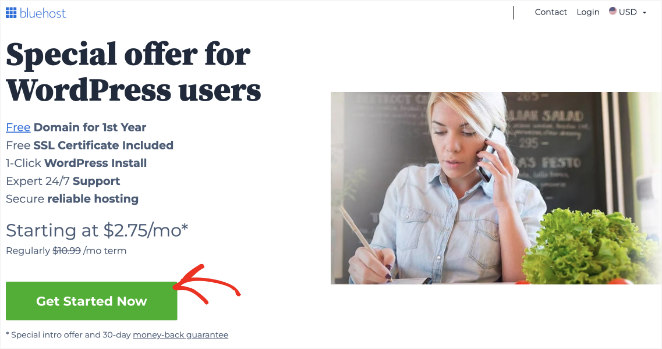
Gehen Sie zuerst auf die Bluehost-Website und klicken Sie auf „Jetzt starten“
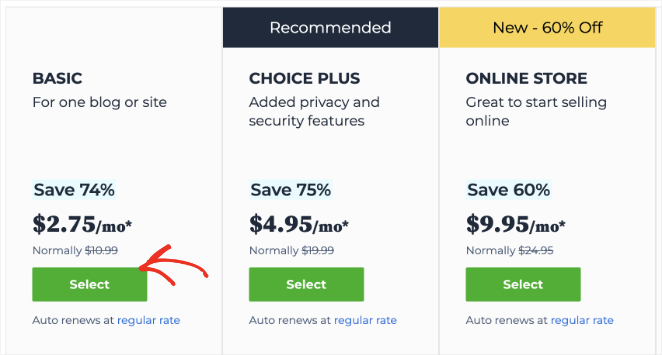
Wählen Sie dort einen Plan, der Ihren Bedürfnissen am besten entspricht, und klicken Sie auf die Schaltfläche Auswählen, um ihn zu wählen.
Auf dem nächsten Bildschirm können Sie einen neuen benutzerdefinierten Domainnamen für Ihre Website auswählen.
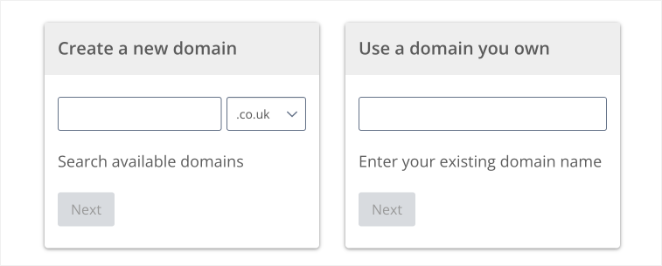
Nachdem Sie eine Domain ausgewählt haben, geben Sie weitere Kontodetails ein, wie Ihren Namen, Ihre Adresse und Ihre E-Mail-Adresse. Sie können Ihrem Plan optionale Extras hinzufügen, aber wir empfehlen, diese deaktiviert zu lassen, um Verwirrung zu vermeiden.
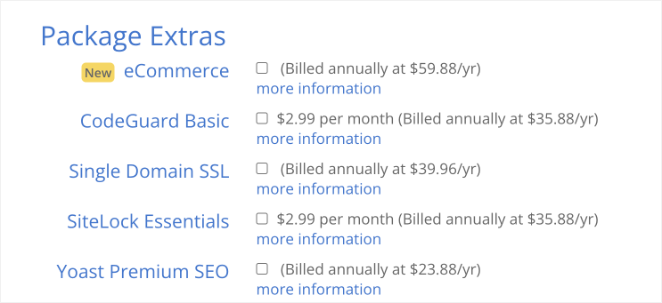
Wenn Sie bereit sind, geben Sie Ihre Zahlungsdaten ein und schließen Sie Ihren Kauf ab.
Das war's. Sie haben Ihren Domainnamen und Ihr Hosting eingerichtet. Sie sind einen Schritt näher an Ihrer eigenen WordPress-Website.
Schritt 3. WordPress installieren
Nachdem Sie nun Ihre Domain und Ihr Hosting eingerichtet haben, ist es an der Zeit, WordPress zu installieren. Bluehost erledigt oft die meiste Arbeit für Sie. In vielen Fällen ist WordPress vorinstalliert, wenn Sie Ihr Hosting-Konto einrichten.
Wenn WordPress nicht vorinstalliert ist, können Sie es mit wenigen Klicks installieren:
- Melden Sie sich bei Ihrem Bluehost-Konto an: Greifen Sie auf Ihr Bluehost-Dashboard zu, indem Sie Ihre Anmeldedaten eingeben.
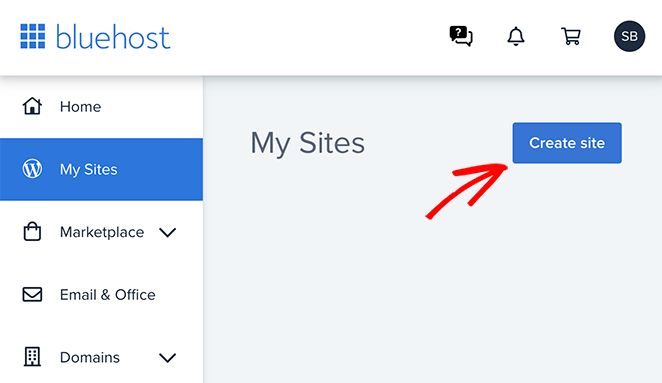
- Navigieren Sie zum Website-Bereich: Gehen Sie nach der Anmeldung zum Bereich Meine Websites und klicken Sie auf die Schaltfläche Website erstellen.
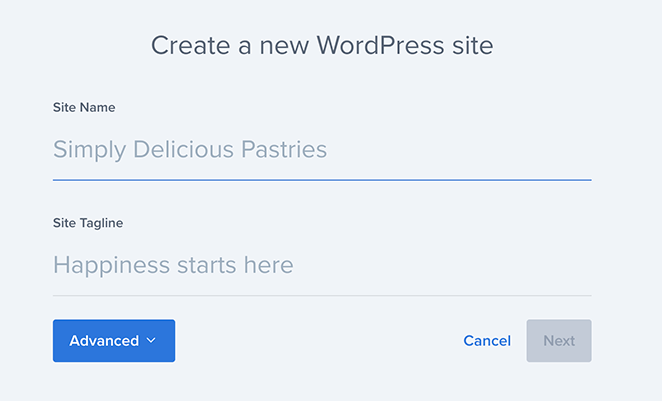
- Website-Details eingeben: Sie werden aufgefordert, den Titel Ihrer Website und einen Slogan einzugeben. Füllen Sie diese aus und klicken Sie auf Weiter.
- Domain auswählen: Wählen Sie den Domainnamen, den Sie registriert haben, aus der Dropdown-Liste aus.
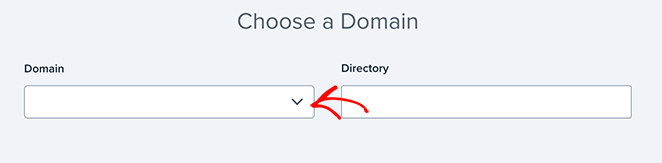
- Installieren: Klicken Sie schließlich auf die Schaltfläche „Installieren“. Bluehost kümmert sich um den Rest und installiert WordPress für Sie.
Und so einfach haben Sie WordPress erfolgreich auf Bluehost installiert. Nach Abschluss Ihrer WordPress-Installation erhalten Sie Anmeldedaten.
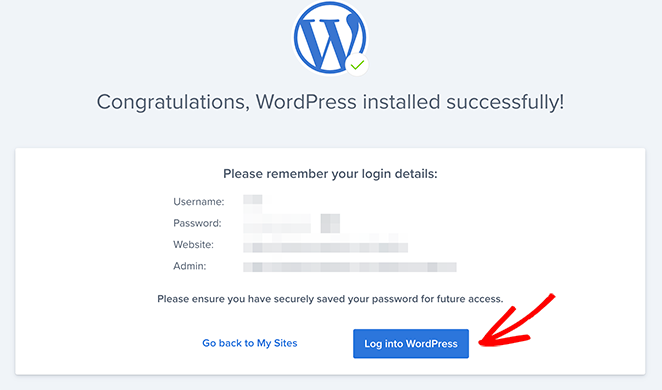
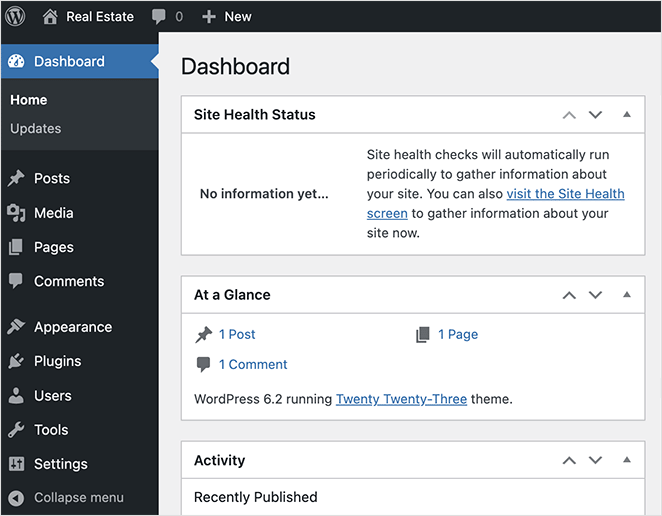
Wenn Sie sich zum ersten Mal anmelden, sehen Sie etwas, das als WordPress-Dashboard bezeichnet wird. Das WordPress-Dashboard ist Ihr Kontrollzentrum.
Von hier aus verwalten Sie Inhalte, Design, Plugins und Einstellungen.
Machen Sie sich keine Sorgen, wenn alles im Moment etwas fremd aussieht. Wir werden das Dashboard im weiteren Verlauf genauer untersuchen. Wichtig ist, dass Sie jetzt WordPress installiert haben und es einsatzbereit ist.
Schritt 4. Wählen Sie ein WordPress-Theme
Nach der Installation von WordPress besteht der nächste Schritt darin, ein Theme auszuwählen. Ein Theme ist wie die Kleidung Ihrer Website: Es bestimmt, wie Ihre Website aussieht und sich anfühlt.
So wie Sie Kleidung wählen, um Ihren Stil auszudrücken, wählen Sie ein Theme, um die Persönlichkeit Ihrer Marke zu zeigen.
Wenn Sie WordPress zum ersten Mal installieren, wird es mit einem Basis-Theme geliefert. Es ist wie ein einfaches T-Shirt: Es erfüllt seinen Zweck, aber es ist vielleicht nicht genau das, wonach Sie suchen.
Möchten Sie etwas Ausgefalleneres? Sie können wählen aus:
- Kostenlose Themes: WordPress bietet viele kostenlose Themes, die sich hervorragend für den Einstieg eignen.
- Premium-Themes: Diese kosten etwas, bieten aber oft mehr Funktionen und Support.
- Website- & Seitenersteller: Ein Drag-and-Drop-Website-Builder wie SeedProd oder ein Seitenersteller wie Elementor ermöglicht es Ihnen, Ihr Design noch weiter anzupassen.
So wählen Sie das richtige WordPress-Theme aus
Wählen Sie nicht einfach ein Theme, nur weil es hübsch aussieht. Denken Sie über diese Faktoren nach:
- Ihre Nische/Branche: Passt der Stil des Themes zum Zweck Ihrer Website (z. B. Blog, Portfolio, Online-Shop)?
- Design und Layout: Gefällt Ihnen die Gesamtästhetik? Bietet es Layout-Optionen, die zu Ihren Inhalten passen?
- Funktionen: Enthält das Theme die Funktionen, die Sie benötigen (z. B. Kontaktformulare, Bildergalerien, E-Commerce-Integration)?
- Responsivität: Ihre Seite MUSS auf allen Geräten (Handys, Tablets, Desktops) gut aussehen. Testen Sie die Responsivität des Themes.
- Anpassbarkeit: Wie einfach lassen sich Änderungen vornehmen (Farben, Schriftarten, Layout)? Benötigen Sie dafür einen Page Builder?
- Bewertungen und Support: Lesen Sie Bewertungen von anderen Benutzern. Bietet der Theme-Entwickler eine gute Dokumentation und Unterstützung?
Hilfe finden Sie in unserer Liste der besten und beliebtesten WordPress-Themes.
Eine super einfache Option: SeedProd
Wenn Sie eine wirklich einzigartige Website ohne jegliche Programmierung erstellen möchten, schauen Sie sich SeedProd an. Es ist einer der besten Drag-and-Drop-Website-Builder für WordPress und treibt über 1 Million Websites an.
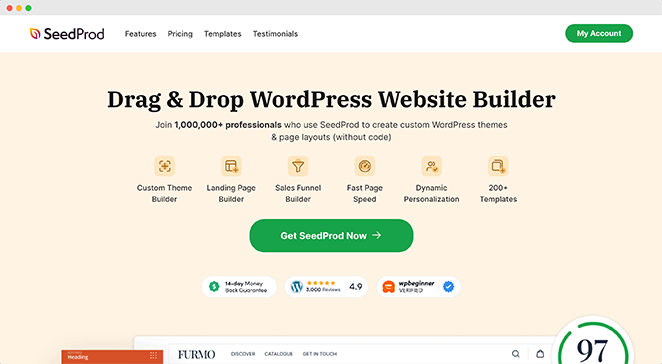
Mit SeedProd können Sie:
- Erstellen Sie Ihre Website per Drag-and-Drop (keine Programmierung erforderlich)
- Passen Sie jeden Teil Ihrer Website an
- Erstellen Sie eine Website, die perfekt zu Ihrer Marke passt
Machen Sie sich keine Sorgen, wenn Sie kein Technikexperte sind. SeedProd macht es jedem leicht, eine beeindruckende Website zu erstellen.
💡 Schneller Tipp
Starten Sie in Sekundenschnelle eine benutzerdefinierte Website mit dem KI-Website-Builder von SeedProd. Geben Sie einfach eine kurze Beschreibung Ihrer Website an, und er generiert ein vollständig benutzerdefiniertes Theme, das Ihnen hilft, Zeit zu sparen und schneller online zu gehen.
Nach der Installation des SeedProd-Plugins finden Sie in Ihrem WordPress-Dashboard unter dem Menüpunkt SeedProd die Option „Theme Builder“.
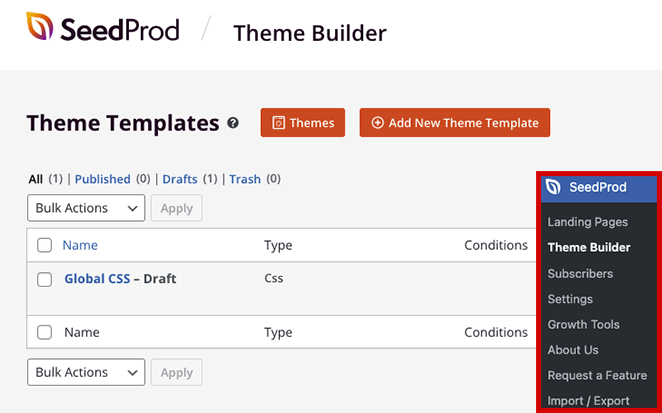
Auf dieser Seite können Sie aus vorgefertigten Vorlagen wählen oder von Grund auf neu beginnen.
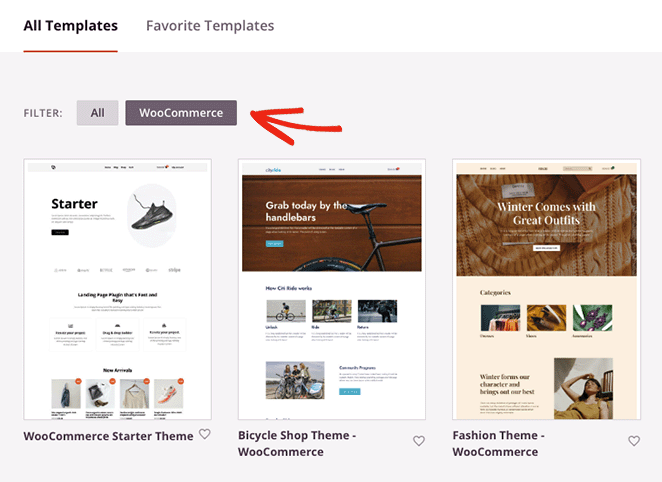
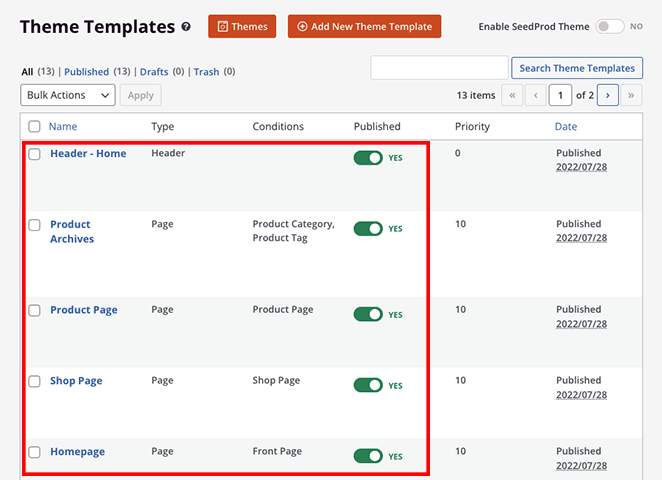
Sobald Sie ein Website-Theme ausgewählt haben, zeigt SeedProd jeden Teil des Themes in einer Liste an. Diese Vorlagen bilden ein vollständiges Theme; Sie können sie visuell mit dem Drag-and-Drop-Page-Builder bearbeiten.
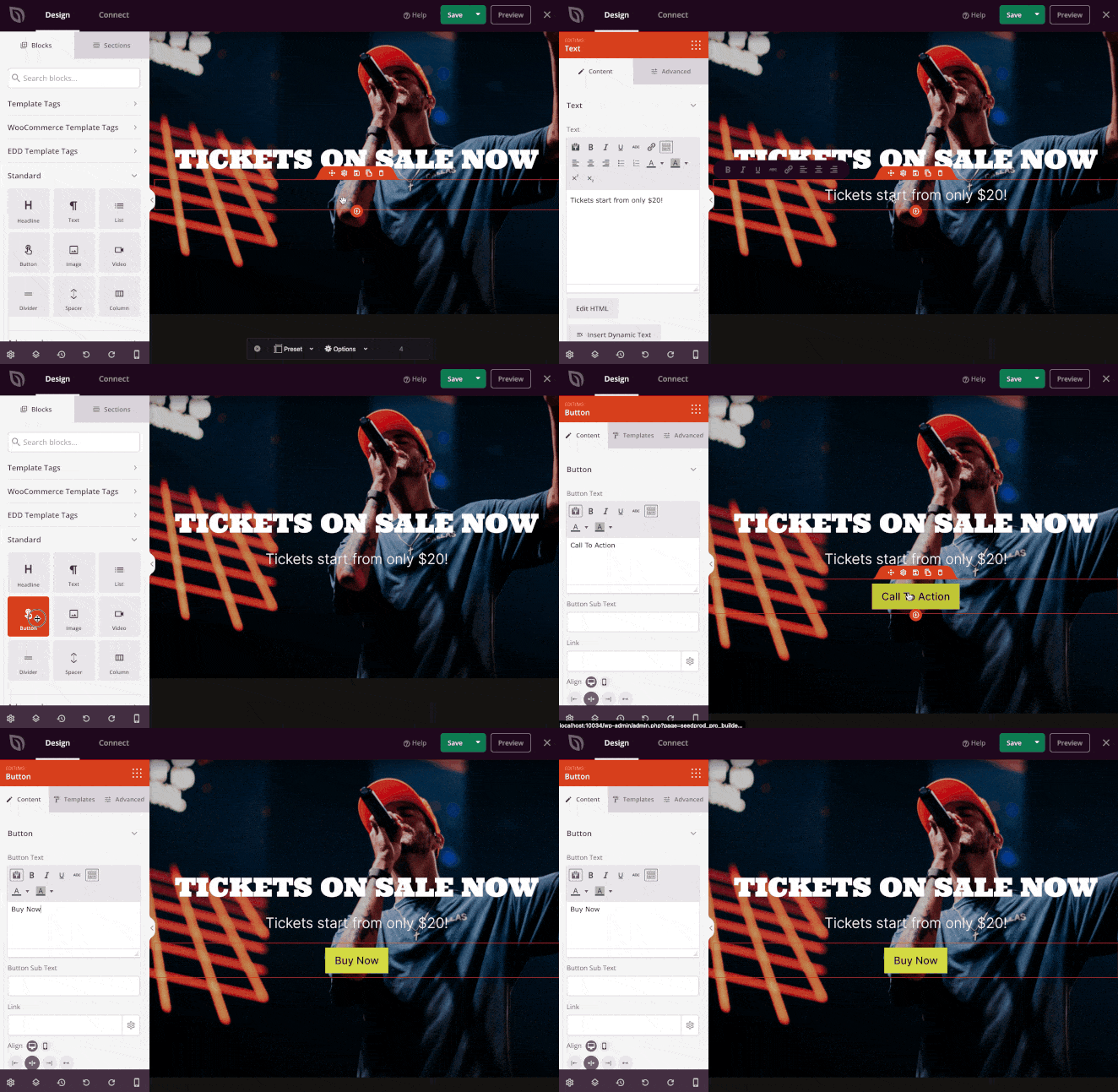
Der Builder von SeedProd ist unglaublich benutzerfreundlich. Er ermöglicht es Ihnen, einfach Elemente wie Text, Bilder und Schaltflächen zu jeder Webseite hinzuzufügen.
Sie können zum Beispiel eine benutzerdefinierte Homepage einrichten und Widgets hinzufügen, wie eine Liste der neuesten Beiträge, Social-Media-Buttons oder eine Suchleiste.
Diese Anleitung zeigt Ihnen, wie Sie ein benutzerdefiniertes WordPress-Theme erstellen mit SeedProd. Sie behandelt alles, von der Einrichtung einer benutzerdefinierten Kopf- und Fußzeile bis hin zum Erstellen von Seitenleisten, Blog-Seiten, Archiven und anderen wichtigen statischen Seiten.
Schritt 5. Inhalte zu Ihrer Website hinzufügen
Jetzt, wo Ihre Website großartig aussieht, ist es an der Zeit, Inhalte hinzuzufügen, die Besucher immer wieder zurückkommen lassen. Erstellen wir Seiten und Beiträge.
Seiten in WordPress erstellen
Seiten sind das Fundament Ihrer Website. Sie sind für Inhalte gedacht, die sich nicht oft ändern, wie Ihre „Über uns“- oder „Kontakt“-Seiten.
Um eine neue Seite zu erstellen, gehen Sie zu Ihrem WordPress-Dashboard, navigieren Sie im linken Menü zu Seiten und klicken Sie auf Erstellen.
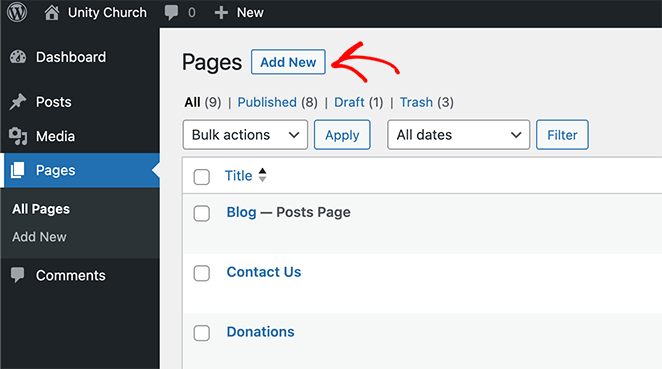
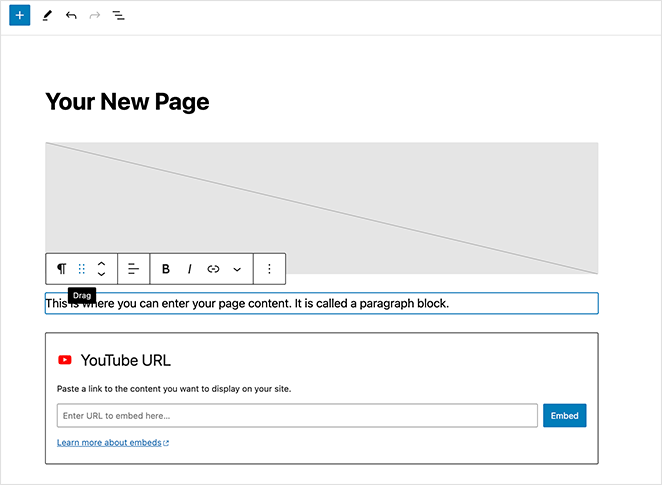
Sie sehen den WordPress Block-Editor, wo Sie neue Inhalte hinzufügen können.
Der Block-Editor, auch Gutenberg genannt, ermöglicht es Ihnen, verschiedene Arten von Inhalten (Text, Bilder, Videos) als „Blöcke“ hinzuzufügen. Es ist super einfach, diese zu verschieben und ein Layout zu erstellen, das Ihnen gefällt.
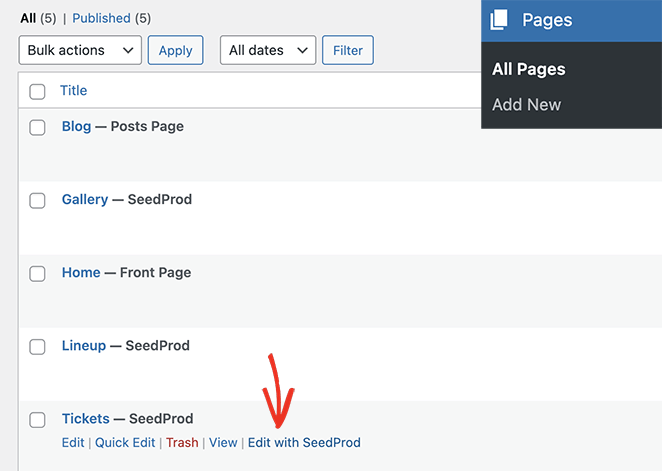
Sie können SeedProd auch verwenden, um diese Seiten anzupassen. Wenn Sie eine neue Seite erstellen, klicken Sie auf die Schaltfläche Mit SeedProd bearbeiten.
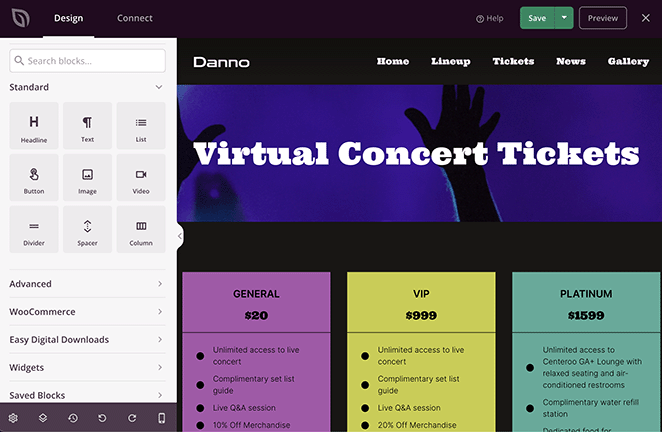
Sie sehen denselben Drag-and-Drop-Seitenersteller, den Sie zum Erstellen Ihres Themes verwendet haben.
Abhängig von Ihrer Website-Nische können Sie die folgenden wichtigen Seiten erstellen:
- Über uns Seite
- Kontaktseite
- Leistungsseite
- Teammitglieder-Seite
- Testimonials-Seite
- Autorenseite
- Anmeldeseite
Sobald Sie mit den Inhalten jeder Seite zufrieden sind, klicken Sie auf die Schaltfläche Veröffentlichen, um sie live zu schalten.
WordPress-Blogbeiträge erstellen
Wenn Sie planen zu bloggen, bietet WordPress alles, was Sie zum Schreiben, Bearbeiten und Veröffentlichen Ihrer Beiträge benötigen. Beiträge sind für Inhalte, die Sie regelmäßig aktualisieren werden.
So erstellen Sie einen Blogbeitrag in WordPress:
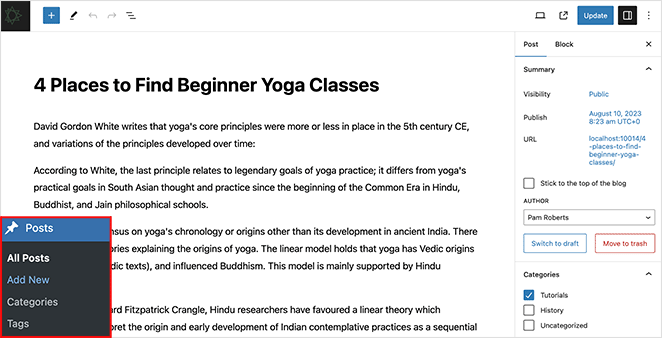
- Klicken Sie in Ihrem WordPress-Dashboard auf Beiträge und dann auf Erstellen.
- Verwenden Sie den Block-Editor, um Ihren Beitrag zu gestalten.
- Klicken Sie auf „Veröffentlichen“, wenn Sie bereit sind, Ihre Gedanken mit der Welt zu teilen.
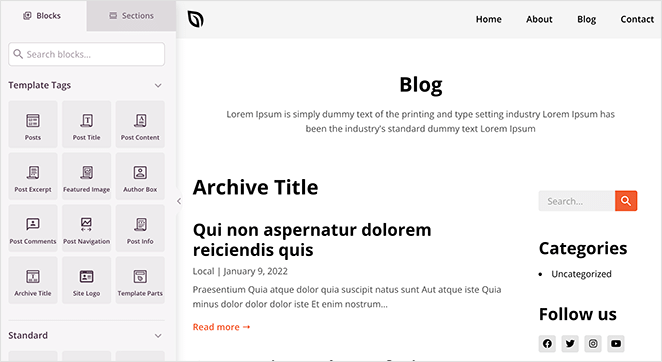
Wenn Sie SeedProd verwenden, können Sie das Aussehen Ihrer Blog-Seite und einzelner Beiträge ändern. Klicken Sie auf den Link „Design bearbeiten“ auf Ihrer Blog-Seiten- oder Einzelbeitrags-Vorlage und passen Sie das Design mit dem Drag-and-Drop-Seitenersteller an.
Schritt 6. Passen Sie die Einstellungen Ihrer Website an
Nachdem Sie nun einige Inhalte auf Ihrer Website haben, stellen wir sicher, dass alles genau richtig für Ihre Besucher eingerichtet ist. Wir behandeln drei Schlüsselbereiche: Einrichten Ihrer Homepage, Anpassen Ihres Sitetitels und Verwalten von Kommentaren.
Erstellen Sie eine einladende Homepage
Einige Themes zeigen standardmäßig Beiträge auf Ihrer Homepage an. Das ist großartig, wenn Sie Blogger sind, aber wenn Sie ein traditionelleres Website-Layout erstellen, möchten Sie eine statische Homepage mit Informationen über Ihr Unternehmen, Ihre Dienstleistungen und mehr.
Um eine statische Homepage einzurichten, gehen Sie in Ihrem WordPress-Dashboard zur Seite Einstellungen » Lesen. Wählen Sie unter der Option „Ihre Homepage zeigt an“ die Option „Eine statische Seite“ und wählen Sie die Seiten aus, die Sie beim Erstellen Ihres Themes zuvor für Ihre Home- und Blog-Seiten erstellt haben.
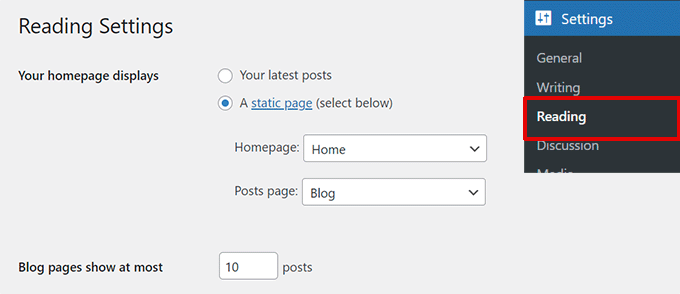
Denken Sie daran, Ihre Änderungen zu speichern.
Nun wird Ihre Website Ihre „Home“-Seite als Startseite und Ihre „Blog“-Seite zur Anzeige Ihrer Beiträge verwenden.
Perfektionieren Sie Ihren Website-Titel und Slogan
Als Sie Ihre Website zum ersten Mal eingerichtet haben, haben Sie einen Website-Titel gewählt. Sie können auch einen kurzen Slogan hinzufügen, um zu erklären, worum es auf Ihrer Website geht.
Um dies einzurichten, gehen Sie in Ihrem WordPress-Dashboard zu Einstellungen » Allgemein.
Hier können Sie Ihren Website-Titel bearbeiten und einen kurzen Slogan hinzufügen, der Ihre Website zusammenfasst.
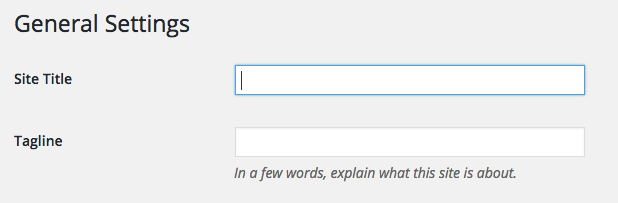
Wenn Sie mit beidem zufrieden sind, vergessen Sie nicht, auf Änderungen speichern zu klicken.
Verwalten Sie Ihren Kommentarbereich
Kommentare können eine großartige Möglichkeit sein, mit Ihrem Publikum in Kontakt zu treten, aber sie können auch unerwünschten Spam anziehen. Um Ordnung zu halten, richten wir die Kommentarmoderation ein.
Navigieren Sie in Ihrem Dashboard zu Einstellungen » Diskussion. Scrollen Sie nach unten, bis Sie „Bevor ein Kommentar angezeigt wird“ sehen. Aktivieren Sie hier das Kontrollkästchen neben „Kommentar muss manuell genehmigt werden“.
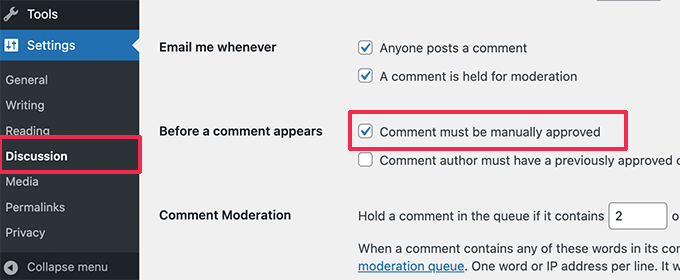
Vergessen Sie nicht, Ihre Änderungen zu speichern.
Mit dieser Einstellung können Sie Kommentare überprüfen, bevor sie auf Ihrer Website erscheinen. Dies gibt Ihnen die Kontrolle über die Konversation und hilft, Spam in Schach zu halten.
Legen Sie Ihre Permalink-Struktur fest
Bevor Sie weitere Inhalte veröffentlichen, legen Sie Ihre Permalink-Struktur fest. Dies bestimmt, wie die URLs Ihrer Website aussehen.
Gehen Sie zu Einstellungen » Permalinks und wählen Sie Beitragsname, dann klicken Sie auf Änderungen speichern.
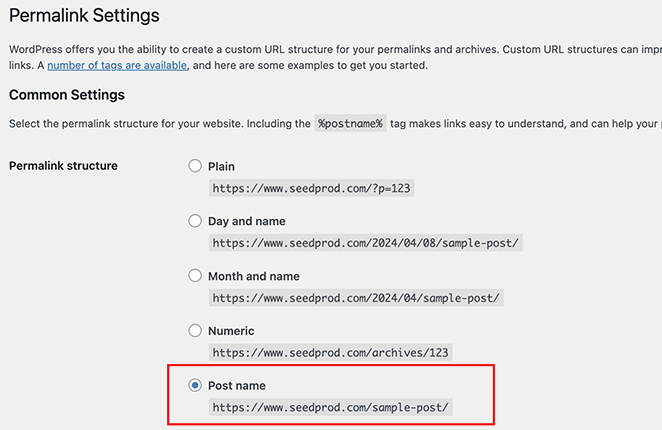
Dies hält Ihre URLs von Anfang an sauber und SEO-freundlich.
Erstellen Sie Ihr Hauptnavigationsmenü
Ein klares Navigationsmenü hilft Besuchern, schnell zu finden, was sie brauchen.
Gehen Sie zu Design » Menüs, erstellen Sie ein neues Menü, fügen Sie Ihre Hauptseiten hinzu und weisen Sie es dem Primären Menüstandort zu.
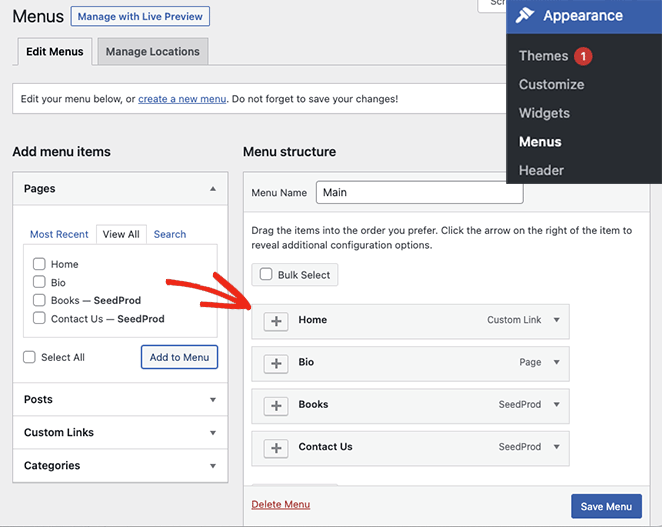
Fangen Sie einfach an. Home, Über uns, Blog und Kontakt reichen für die meisten Anfänger aus.
Erlauben Sie Suchmaschinen, Ihre Website zu indizieren
Stellen Sie sicher, dass Suchmaschinen Ihre Website sehen können, bevor Sie sie veröffentlichen.
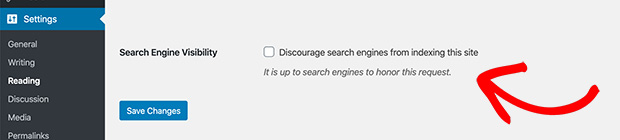
Gehen Sie zu Einstellungen » Lesen und stellen Sie sicher, dass das Kontrollkästchen „Suchmaschinen davon abhalten, diese Website zu indizieren“ nicht aktiviert ist.
Schritt 7. Wichtige WordPress-Plugins installieren
Nachdem Ihre Website gut aussieht, geben wir ihr einige Superkräfte. Hier sind Plugins nützlich.
WordPress-Plugins sind wie Smartphone-Apps, aber für Ihre WordPress-Website. Sie können neue Funktionen hinzufügen oder bestehende verbessern, wodurch Ihre Website leistungsfähiger und benutzerfreundlicher wird.
Es gibt Tausende von Plugins, aber hier sind einige der besten WordPress-Plugins für Anfänger:
- SeedProd: Verstecken Sie Ihre Website hinter einer „Coming Soon“-Seite, während Sie daran arbeiten.
- All-in-One SEO: Helfen Sie Suchmaschinen, Ihre Website zu finden.
- WPForms: Fügen Sie einfach Kontaktformulare hinzu.
- MonsterInsights: Sehen Sie, wie viele Leute Ihre Website besuchen.
- OptinMonster: Erstellen Sie auffällige Anmeldeformulare.
- Duplicator: Halten Sie Ihre Website gesichert.
- Sucuri: Schützen Sie Ihre Website vor Hackern.
- WooCommerce: Verwandeln Sie Ihre Website in einen Online-Shop.
Befolgen Sie diese Schritte, um Plugins zu installieren:
- Gehen Sie zu Ihrem WordPress-Dashboard: Melden Sie sich in Ihrem WordPress-Adminbereich an.
- Navigieren Sie zu Plugins: Klicken Sie im linken Menü auf Plugins und dann auf Installieren.
- Plugins suchen: Verwenden Sie die Suchleiste, um das gewünschte Plugin zu finden.
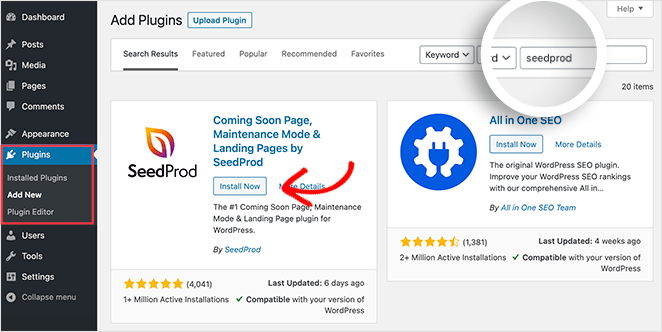
- Installieren: Klicken Sie auf die Schaltfläche Jetzt installieren neben dem gewünschten Plugin.
- Oder ein Plugin hochladen: Klicken Sie auf Installieren, um eine .zip-Datei eines Plugins von Ihrem Computer hochzuladen.
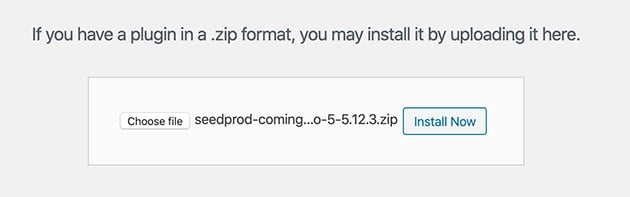
- Aktivieren: Klicken Sie nach Abschluss der Installation auf Aktivieren.
Profi-Tipp: Sie können auch Plugins hochladen, die Sie von anderen Quellen heruntergeladen haben. Klicken Sie einfach auf „Plugin hochladen“ und folgen Sie den Anweisungen.
Schritt 8. Starten Sie Ihre Website auf WordPress
Herzlichen Glückwunsch! Sie sind auf Ihrem Weg weit gekommen. Sie haben Ihre Website erstellt, angepasst und optimiert; jetzt ist es Zeit für die große Enthüllung.
Doch bevor Sie auf den Veröffentlichen-Button klicken, lassen Sie uns eine Checkliste vor dem Start durchgehen und besprechen, wie Sie Ihre Website online stellen.
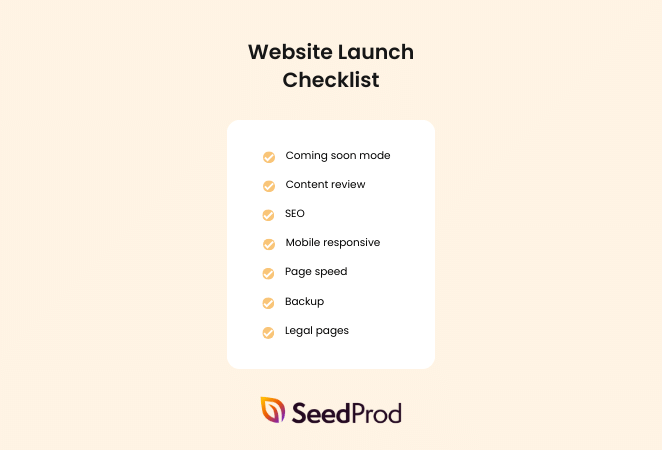
Stellen Sie vor dem Start sicher, dass Sie diese Punkte abgehakt haben:
- Wartungsmodus aktivieren: Verstecken Sie Ihre Website vorübergehend hinter einer „Demnächst verfügbar“-Seite, bevor Sie live gehen, damit Sie neue Funktionen testen können, bevor sie online gehen.
- Inhaltsprüfung: Überprüfen Sie alle Ihre Seiten und Beiträge auf Fehler, defekte Links und unvollständige Abschnitte.
- SEO: Stellen Sie sicher, dass alle Meta-Beschreibungen ausgefüllt sind und Ihr Inhalt für relevante Schlüsselwörter optimiert ist.
- Mobile Responsiveness: Testen Sie Ihre Website auf verschiedenen Geräten, um sicherzustellen, dass sie vollständig responsiv ist.
- Seitengeschwindigkeit: Führen Sie Geschwindigkeitstests durch, um sicherzustellen, dass Ihre Website schnell geladen wird, und optimieren Sie alle Elemente, die sie verlangsamen.
- Backup: Erstellen Sie ein vollständiges Backup Ihrer Website.
- Rechtliche Seiten: Stellen Sie sicher, dass Ihre Website über wichtige rechtliche Seiten wie eine Datenschutzerklärung und Nutzungsbedingungen verfügt.
Eine detailliertere Liste finden Sie in unserer 24-Punkte-Checkliste für einen erfolgreichen Website-Launch.
Ihre Website online zu stellen ist oft so einfach wie das Klicken auf Speichern und Veröffentlichen. Wenn Sie eine „Demnächst verfügbar“-Seite aktiv haben, müssen Sie diese zuerst deaktivieren.
Klicken Sie in SeedProd auf den Schalter unter Wartungsmodus, bis er inaktiv ist.
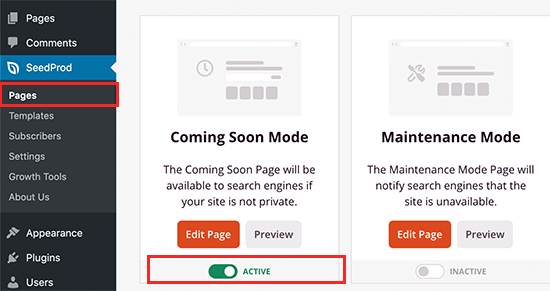
Zusätzlich müssen Sie sicherstellen, dass er aktiv ist, wenn Sie den Theme Builder von SeedProd zum Gestalten Ihrer Website verwenden. Sie können dies tun, indem Sie zu SeedProd und Theme Builder navigieren und den Schalter mit der Bezeichnung „SeedProd Theme aktivieren“ auf die aktive Position stellen.
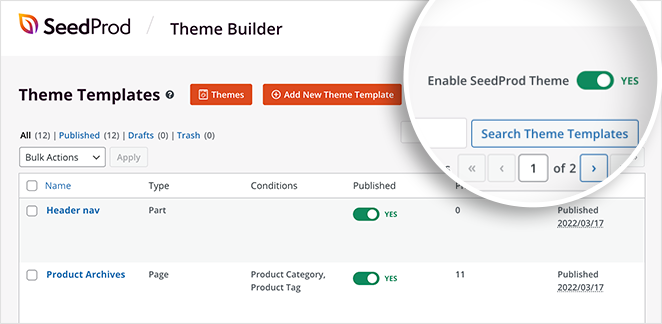
Wenn Sie Ihre Website auf einer temporären Domain oder Subdomain erstellt haben, müssen Sie Ihre primäre Domain auf Ihre neue Website verweisen. Die genauen Schritte können je nach Hosting-Anbieter variieren, aber die meisten bieten detaillierte Anleitungen, die Ihnen bei diesem Prozess helfen.
Schritt 9. Bringen Sie Ihre Website weiter voran
In diesem Leitfaden habe ich Ihnen gezeigt, wie Sie eine Website erstellen, ein Theme auswählen, Ihre Seiten aufbauen, unverzichtbare Plugins installieren und Ihre Website erfolgreich starten. Aber mit WordPress können Sie eine Nischen-Website erstellen, die so viel mehr kann, wie zum Beispiel:
- Erstellen Sie eine Website für Personal Trainer
- Starten Sie einen Mama-Blog
- Erstellen Sie eine Hochzeitswebsite
- Starten Sie einen Modeblog
- Erstellen Sie eine Autorenwebsite
- Erstellen Sie eine Website für eine Kirchengemeinde
- Erstellen Sie eine Website für Immobilien
- Gestalten Sie eine Restaurant-Website
- Richten Sie einen Online-Shop ein
- Erstellen Sie eine Website für Fotografie
- Erstellen Sie eine Startup-Website
Sehen Sie sich unseren Leitfaden für eine Liste aller Arten von Websites an, die Sie in WordPress erstellen können.
Häufig gestellte Fragen
Wie erstelle ich eine Website in WordPress kostenlos?
Es ist möglich, eine Website kostenlos mit WordPress.com zu erstellen, das einen einfachen, kostenlosen Plan anbietet. Einschränkungen sind jedoch eine Subdomain (z. B. yoursite.wordpress.com) und begrenzte Anpassungsoptionen.
Kostenlose Hosting-Dienste sind ebenfalls verfügbar, aber sie haben oft Einschränkungen und können Anzeigen auf Ihrer Website schalten. Wenn Sie es ernst meinen mit dem Aufbau einer Website, empfehlen wir, in einen Domainnamen und hochwertiges Hosting zu investieren.
Was sind WordPress-Website-Vorlagen?
Website-Vorlagen, oft auch Themes genannt, sind vordefinierte Layouts, die Sie auf Ihre Website anwenden können. Diese Vorlagen kommen mit voreingestellten Stilen und Funktionalitäten, was den Website-Aufbau erleichtert, ohne bei Null anfangen zu müssen.
Viele WordPress-Seitenersteller bezeichnen ihre vorgefertigten Designs ebenfalls als Vorlagen. SeedProd bietet zum Beispiel viele Website-Vorlagen-Kits, die als Ausgangspunkt für ein benutzerdefiniertes WordPress-Theme dienen.
Wie installiere ich ein WordPress-Theme?
Um ein WordPress-Theme zu installieren, gehen Sie in Ihrem Dashboard zu Darstellung » Themes und klicken Sie auf Neues Theme hinzufügen.
Wenn Sie ein Theme als ZIP-Datei heruntergeladen haben, klicken Sie auf Theme hochladen, wählen Sie die Datei von Ihrem Computer aus und klicken Sie dann auf Jetzt installieren. Klicken Sie nach der Installation auf Aktivieren.
Eine Website mit einem WordPress-Tutorial erstellen vs. einen Entwickler beauftragen?
Eine Website selbst mit einem Tutorial zu erstellen, ist eine kostengünstige Möglichkeit, Ihre Website online zu bringen. Es ist ideal für Anfänger oder für diejenigen mit einfachen Website-Anforderungen.
Wenn Sie andererseits spezielle, komplexe Anforderungen haben, die mit vorhandenen Themes oder Plugins nicht erfüllt werden können, ist die Beauftragung eines Webentwicklers eine gute Option.
Entdecken Sie als Nächstes weitere WordPress-Anleitungen
Und da haben Sie es! Sie haben den Prozess der Erstellung einer WordPress-Website von Grund auf in 9 klaren Schritten erfolgreich durchlaufen. Das ist ein großer Meilenstein, und Ihre Website ist jetzt bereit für echte Besucher.
Wenn Sie Bedenken wegen der Lernkurve von WordPress haben, können Tools wie SeedProd den Design- und Anpassungsprozess wesentlich reibungsloser und intuitiver gestalten.
Wenn Sie weitere Hilfe benötigen, lesen Sie unsere anderen ultimativen Anleitungen für WordPress:
- So ranken Sie eine neue Website (16+ bewährte Tipps)
- So erstellen Sie eine Landingpage in WordPress (Schritt-für-Schritt-Anleitung)
- Die 15 häufigsten WordPress-Probleme (und wie man sie löst)
- So erstellen Sie einen Click-to-Call-Link in WordPress
- So richten Sie die Link-Verfolgung in WordPress ein (der einfache Weg)
Danke fürs Lesen! Wir würden uns freuen, Ihre Gedanken zu hören. Treten Sie also gerne der Unterhaltung auf YouTube, X und Facebook bei, um weitere hilfreiche Ratschläge und Inhalte für das Wachstum Ihres Unternehmens zu erhalten.



