

TL;DR: Divi Review 2026
Divi is a WordPress theme and visual builder by Elegant Themes. It’s one of the most feature-rich builders available, but the learning curve is real.
- Divi 5 launched February 2026 – a full rebuild with flexbox controls, loop builder, and custom breakpoints
- Pricing starts at $89/year – or $249 as a one-time lifetime payment for unlimited sites
- 370+ layout packs – with over 2,695 premade templates for almost any site type
- Best for agencies and developers – the feature depth rewards power users, not first-time site owners
- Learning curve is real – the settings panel can overwhelm beginners before they publish a single page
- SeedProd is faster to launch – if you want pages live without the setup overhead, it’s the simpler alternative
Divi promises total design freedom. After years of building client sites with it, I can say the promise is real. What they don’t show you upfront is the settings panel that greets you on day one.
In this Divi review, I’ve tested Divi 5 to give you an honest look at the builder, pricing, speed, and whether it’s the right fit for your site in 2026.
Is Divi a Theme or a Plugin?

First, some people ask if Divi is a WordPress theme or a WordPress plugin. The answer is, Divi is both!
You can use Divi as a regular WordPress theme and use its customization options to change its looks. Or, you can use Divi’s built-in drag-and-drop page builder and theme builder to design your entire website.
Simply put, Divi is both a theme AND plugin with tons of customization options to create almost any kind of website.
What’s New in Divi 5?
Divi 5 launched in February 2026 as a full rewrite of the builder. Elegant Themes rebuilt the core from the ground up to address speed and flexibility complaints that had been building for years.
I’ve been working with Divi since before the Divi 5 rebuild, and the difference in how the editor handles layout is noticeable immediately.
Here are the headline additions in Divi 5:
- Flexbox controls – full control over alignment and layout direction without fighting Divi’s defaults
- Custom breakpoints – responsive control beyond the standard mobile/tablet/desktop breakpoints
- Design presets – save and reapply styles globally across your site
- CSS variables – site-wide style tokens you can update in one place
- Nested rows – complex grid layouts without the workarounds Divi 4 required
- Loop builder – pull and display dynamic post data in any custom layout
If you’re on Divi 4, the upgrade is worth it for the performance improvements alone. Elegant Themes has been rolling out Divi 5 gradually, so check your account dashboard to see if your version qualifies before rebuilding a production site.
Divi Review: Best Divi Theme Features
Since Divi has so many powerful features, I’ll look at the best it has to offer WordPress users for this Divi theme review.
- Drag and Drop Divi Builder
- Visual Divi Theme Builder
- Professional Divi Templates Library
- Divi vs. Elementor: Which Should You Choose?
- Divi Theme Customizer Settings
- Divi Theme Settings
- Does Divi Come with Support?
- Divi Review FAQ
- A Faster and Cheaper Alternative to Divi: SeedProd
- SeedProd vs Divi Comparison Chart
- Is Divi the Best Page Builder?
Drag and Drop Divi Builder
Divi comes with its very own drag-and-drop builder built right into the theme. Similar to other WordPress page builders, like Beaver Builder and Elementor, you can build pages visually.
The only real difference with Divi is that the visual builder is built into the theme. That said, you can also get the Divi builder as a standalone WordPress plugin if you wish.
If you’re not familiar with page builders, they allow you to create customized WordPress pages without needing to code or hire a developer. This means you can customize everything in the visual interface.
Here’s an example of how this looks in Divi:
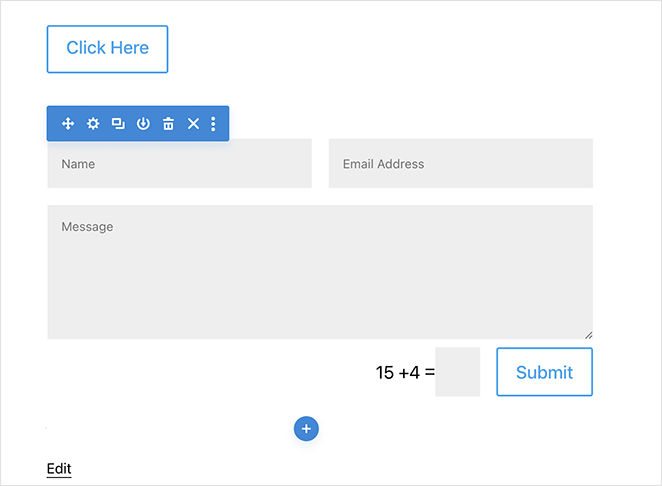
With the drag-and-drop editor, you can control your page’s layout with rows, columns, spacing, and more. You can also add new content by adding different modules to your page.
For instance, Divi includes modules for buttons, images, contact forms, pricing tables, and more.
Every module, row, and column has dedicated settings to control its content, design, and style. For example, editing the contact form module allows you to control the form fields, notifications, labels, etc.
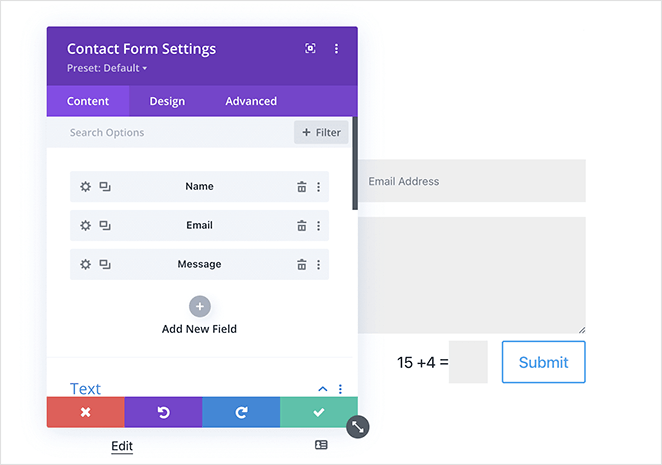
That said, Divi has a way of making its builder over-reliant on modules. While that is a great option for agencies, it’s not so great for small business owners because the customization options make it difficult to use.
Visual Divi Theme Builder
Divi’s theme builder works in the same way as the drag-and-drop builder. Where it differs is it allows you to use the Divi builder with your existing WordPress theme templates.
You can use it to completely redesign your theme’s header or footer. Or you can use the theme builder to create a new template for your blog posts page.
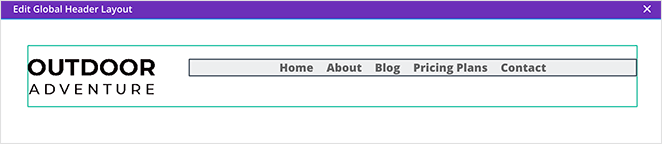
It doesn’t stop there. You can create individual templates for virtually any page and content type right down to your eCommerce product pages.
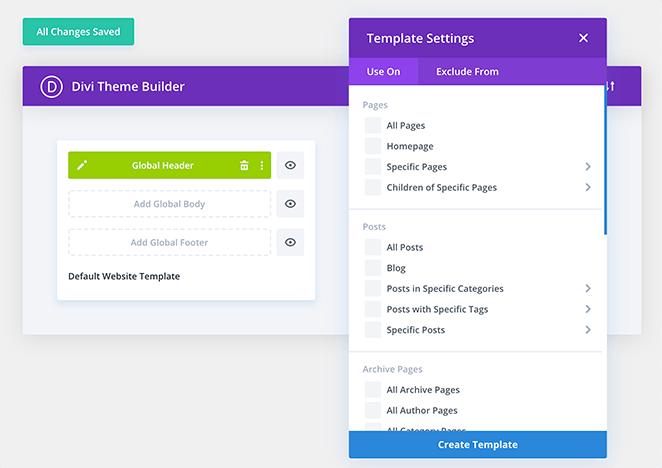
The great thing about this is you have control over 100% of your website’s design, regardless of which theme you use. This makes Divi an excellent choice for anyone wanting to overhaul their website’s design code-free.
However, if you don’t plan to customize your theme and only want to make simple landing pages, you may not even use this feature.
Professional Divi Templates Library
While the theme and Divi builder allows you to create custom designs from scratch, you’re not limited to starting with a blank page. That’s because Divi has a massive library of professionally designed templates that you can import and customize.
Divi now includes over 2,695 premade layouts across 370+ layout packs. Layout Packs are collections of templates you can use to create entire websites with a consistent look.
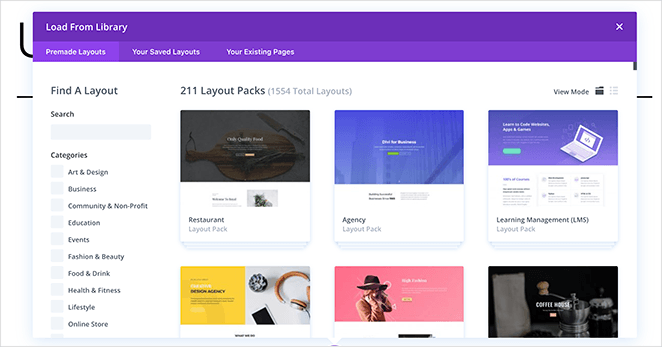
For example, the Coffee Shop layout pack has 8 templates that help you create a coffee shop website.
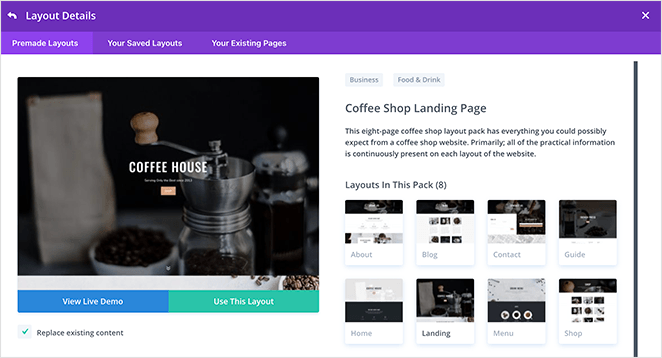
Beyond that, you can save your designs as templates or individual modules to use again later. This saves you time, avoiding the need to re-create the same design more than once.
Divi vs. Elementor: Which Should You Choose?
The key difference: Divi is both a theme and a page builder, while Elementor is a builder only that works alongside your existing theme. If you want full site control from a single product, Divi has the edge.
Elementor doesn’t offer a lifetime plan. Divi’s $249 one-time option makes it cheaper in the long run for anyone managing multiple client sites.
With Divi 5, the performance gap between the two has narrowed significantly. That said, Elementor’s free tier is more capable than Divi’s, so if you’re testing on a zero budget, Elementor gives you more to work with upfront.
Divi Theme Customizer Settings
When customizing the Divi theme, it uses the built-in WordPress Customizer. Just like any other WordPress theme, you can change a setting or style and see the changes in real time on the right-hand side of your screen.
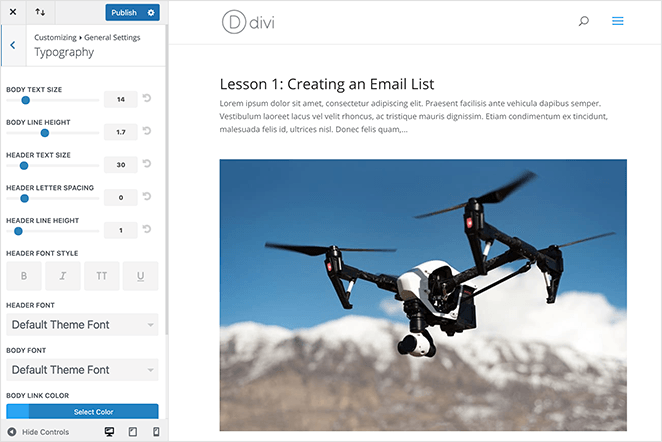
For example, if you want to customize your font settings, click the Typography heading and select your changes.
This is great if you only want to use the Divi theme. If you plan on using the builder, you can control all of these settings in the theme page builder, so you may never need to access this panel.
Divi Theme Settings
Lastly, Divi has a theme options area that you can access from the backend of your website. You can control your integration settings, SEO settings, advertising options, and more on this page.
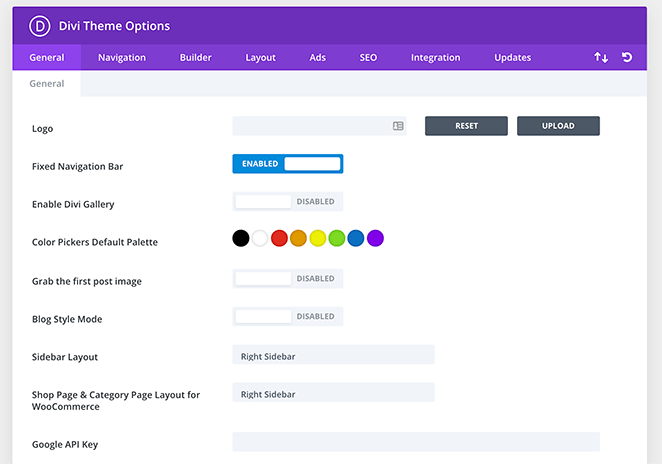
For example, you can use this area to add code snippets to your theme, like your Google Analytics tracking code.
Does Divi Come with Support?
Elegant Themes includes 24/7 live chat support with both the annual and lifetime plans. They also maintain an extensive documentation library covering most configuration questions.
This is a meaningful differentiator from many free page builder plugins that rely on community forums. For agency work especially, having a live chat option available is worth factoring into your decision.
Divi Review FAQ
Now that we’ve gone over the main Divi features, let’s look at some common questions many WordPress users ask about Divi.
Is Divi 5 worth upgrading to from Divi 4?
Divi 5 is worth upgrading to for most users. The performance improvements and new flexbox controls make the rebuild worthwhile for any site built with Divi. Elegant Themes is rolling it out gradually, so check your account dashboard first. If your site relies heavily on third-party Divi extensions, test the upgrade on a staging site before going live.
Is Divi good for beginners in 2026?
Divi has a steeper learning curve than most WordPress builders. The sheer number of settings can overwhelm first-time users, and Divi 5 introduces concepts like flexbox and CSS variables that assume some design familiarity. If you’re starting from scratch and want pages live quickly, SeedProd is easier to get going with. Divi rewards users who are willing to invest time learning it.
Does Divi slow down your website?
Divi can add page weight compared to lighter builders. In my testing, a basic page built with Divi had a 2.10s load time and 606 KB page size, compared to 1.18s and 185 KB with SeedProd. Divi 5 improves on Divi 4’s performance, but results depend on your server setup, caching, and how many modules you’re using. Following standard WordPress performance best practices reduces most of the impact.
What is the difference between Divi and SeedProd?
Divi is a full website builder and theme with deep design controls aimed at agencies and developers building complex, multi-page sites. SeedProd is a drag-and-drop WordPress website builder focused on landing pages, coming soon pages, and custom themes for beginners and small businesses. Divi offers more customization depth. SeedProd is faster to set up and easier to use without a learning curve.
How much does Divi cost in 2026?
Divi costs $89 per year as part of the Elegant Themes membership, which includes the Divi theme and builder, the Extra theme, Bloom email plugin, and Monarch social plugin for unlimited websites. A lifetime option is available for $249 as a one-time payment. Divi does not have a free version.
After reading my Divi review above, you may have decided to give Divi a try or would like to explore some alternatives. Keep reading to learn about an excellent Divi alternative for creating easy custom WordPress pages.
A Faster and Cheaper Alternative to Divi: SeedProd
As I hinted at above, SeedProd is a great Divi alternative. It’s a powerful drag-and-drop WordPress website builder with a focus on keeping things easy for beginners. It also includes a powerful WordPress theme builder, allowing you to create custom WordPress themes without writing code.

Instead of offering tons of complicated features, SeedProd specializes in making it easy to create landing pages that convert. This means you can spend less time worrying about your WordPress page design and more time generating leads for your business.
Here’s how SeedProd compares to Divi.
Truly Visual Drag-and-Drop Builder
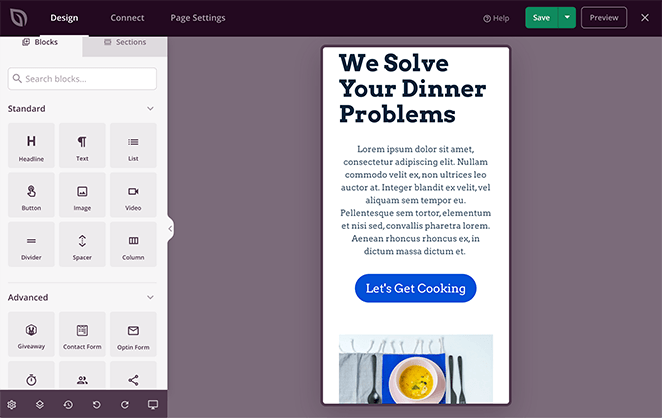
Unlike the Divi builder interface, which has a single column with different windows to control your settings, SeedProd has a simple 2 column layout.
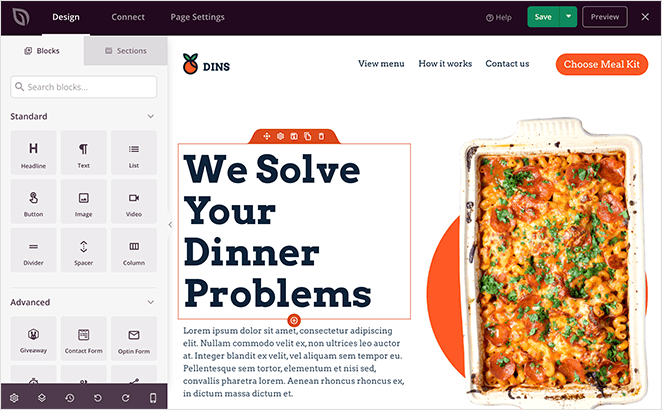
On the left are the different types of blocks and sections you can add to your page, while on the right, you can see a live preview. This layout makes it easier to make changes in real-time without windows covering parts of your design.
Adding content to your page is as simple as dragging a block from left to right and seeing the changes instantly.
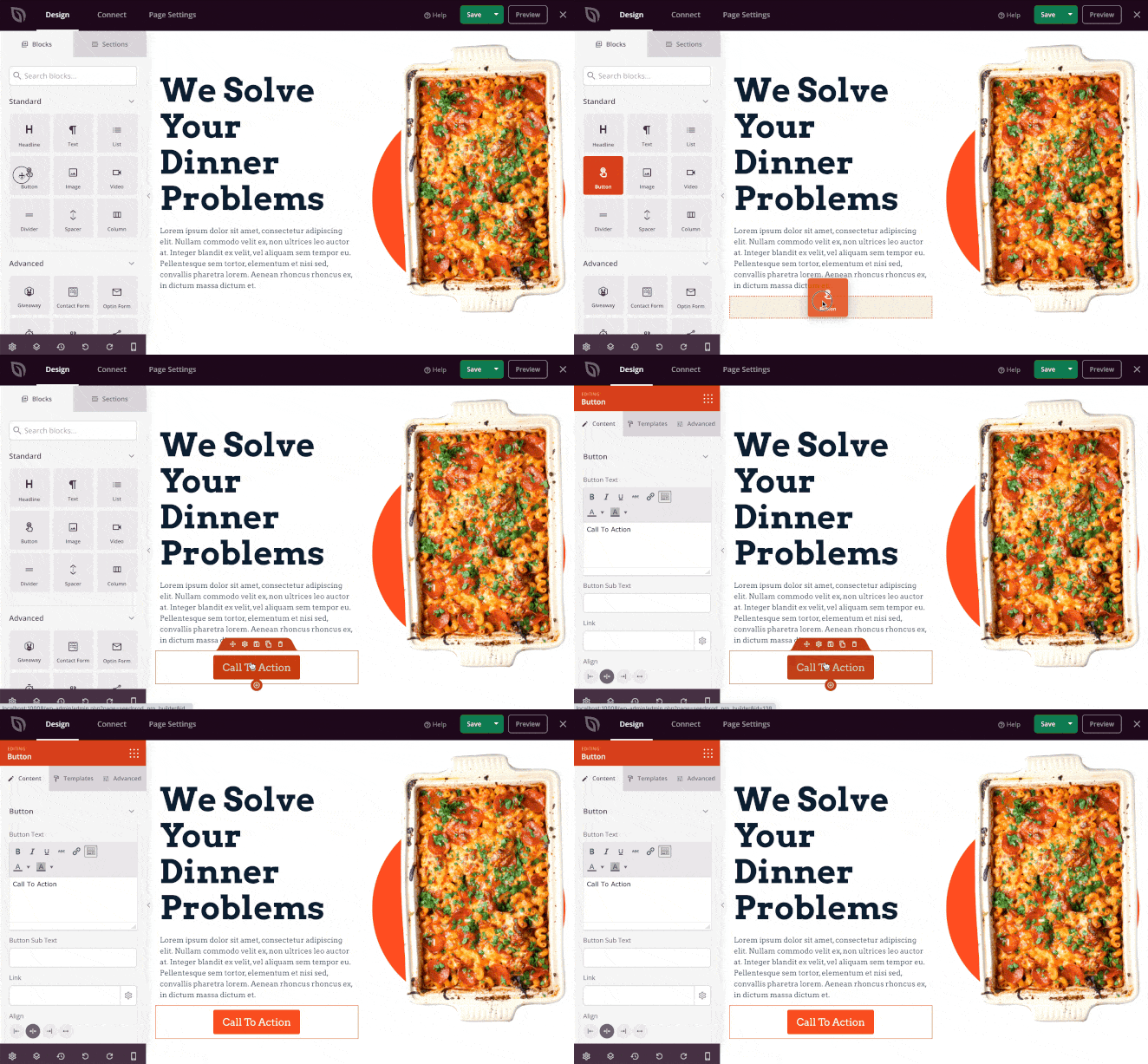
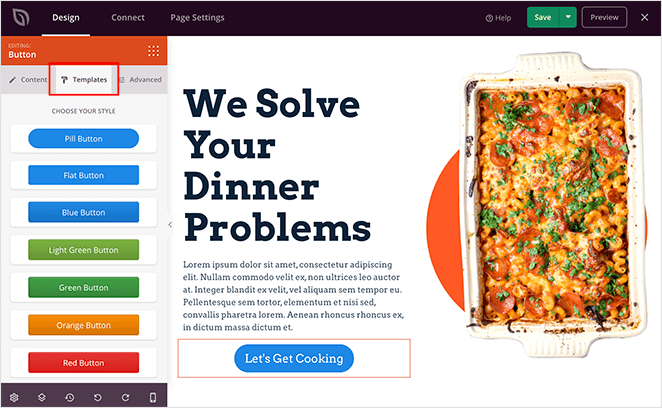
Clicking any block opens its settings on the left (instead of an overlay in Divi). From there, you can change the content, adjust the styles, and even choose a new template for that specific block.
This is something unique to SeedProd that saves you from tweaking each individual setting. Almost all of its landing page blocks have pre-made designs you can add with a single click.
And when it comes to blocks, every block is designed with lead generation in mind. This includes blocks for:
- Optin, contact, and login forms
- Social sharing and profiles
- Call to action buttons
- Facebook pages, embeds, and likes
- WooCommerce checkouts, carts, buttons, and products.
- Animated page headlines
- Custom pricing tables
- Dynamic Google Maps
- Countdown timers and progress bars
- And more
SeedProd also offers entire premade sections like headers, footers, FAQ, hero, and call-to-action areas. And just like Divi, you can save any block, section, or template to reuse again on your website.
Not to mention, you can preview your entire page on mobile with SeedProd’s live mobile and desktop preview option. This ensures everything looks great for all your website visitors, no matter which device they use.
Customizable Landing Page Templates
While SeedProd’s template library isn’t as extensive as Divi’s, it’s a lot more focused. Every template is created with landing page conversions in mind to get the best possible results for your business.

There are landing page templates for almost every industry and marketing goal, including:
- Coming soon pages
- Maintenance mode pages
- 404 pages
- Login pages
- Sales pages
- Squeeze pages
- Webinar pages
- Thank you pages
And every template is easy to customize in the visual page builder. Or, if you’d like to flex your creativity, you can start with a blank template and create a design from scratch.
Built-in Page Modes
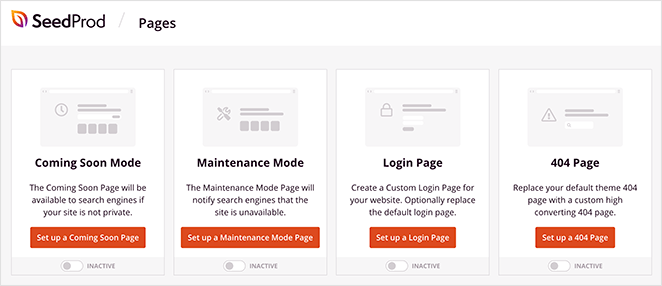
An area where SeedProd differs from Divi is with its built-in landing page modes. You can enable custom landing pages in WordPress for your:
- Coming soon page
- Maintenance page
- 404 page
- WordPress login page
Just customize any template and activate the mode with a single click from your WordPress dashboard.
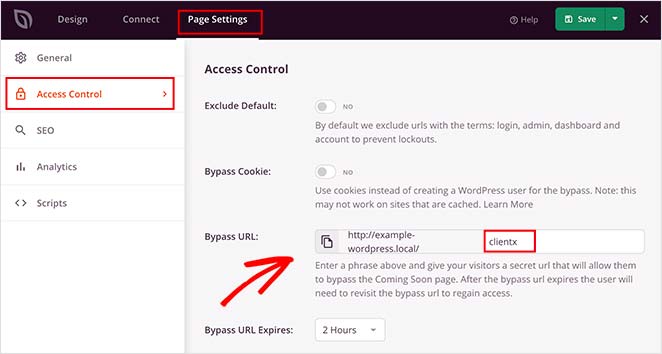
Even better, with SeedProd’s coming soon and maintenance mode, you can use powerful access controls to limit access to your website.
For example, if you’re creating a website for a client, you can hide your entire site from the public with a coming soon or maintenance page. You can then give your client a custom link to access your site and see your work, while the public only sees your coming soon page.
Does SeedProd Integrate with Email and Marketing Tools?
SeedProd connects with most major email marketing tools out of the box. It has dedicated integrations for Mailchimp, ConvertKit, AWeber, and other popular platforms, each taking just a few clicks to connect.
In Divi, you can integrate your email list inside the optin form module like this:
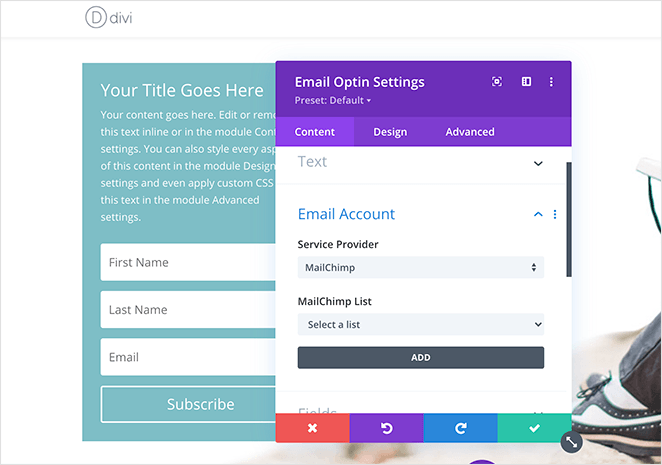
Yet with SeedProd, your integrations have a dedicated screen where you can clearly see the available options and connect to a service with a few simple clicks.
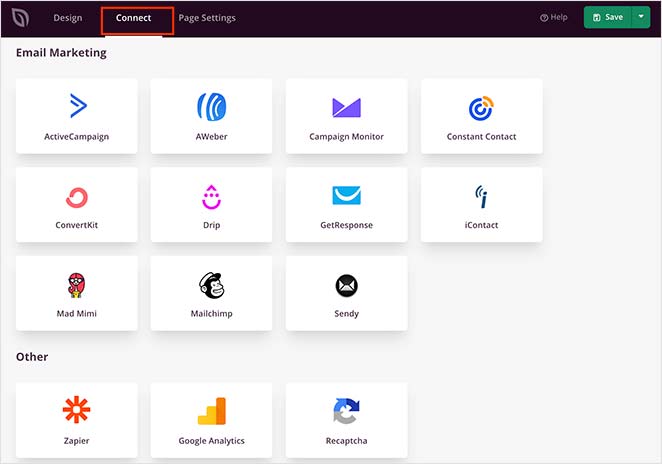
As well as email marketing, you can connect your Google Analytics account, set up Recaptcha spam protection, and connect with thousands of other marketing services with Zapier.
Plus, SeedProd works seamlessly with other WordPress plugins and themes for an optimized experience. For instance, you can use:
- WPForms with the contact form block
- RafflePress with the giveaway block
- WooCommerce with the cart, checkout, and product blocks
- MonsterInsights with the Google Analytics integration
- All in One SEO for your landing page SEO
Is SeedProd Faster Than Divi?
I couldn’t leave this Divi review without talking about page speeds. As mentioned earlier, Divi has a reputation for adding bloat that slows down your site.
In comparison, SeedProd was built to be as lightweight and fast as possible. I was curious how both compared on speed, so I ran a quick test using the same basic page layout with each builder.
I built a page with each builder using the following elements:
- Heading
- Image
- Button
And the results were:
SeedProd
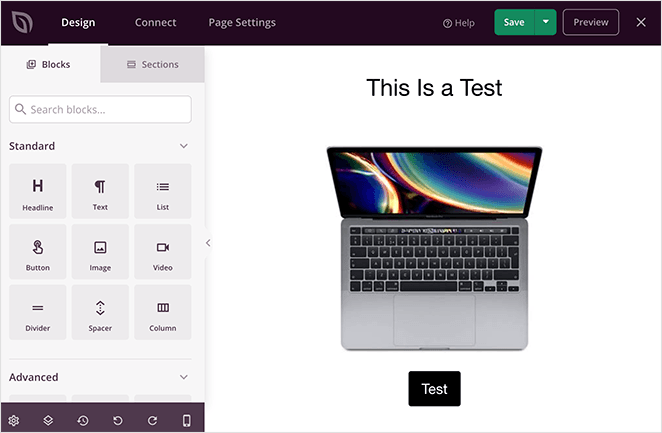
- Page Size: 185.3 KB
- Load Time: 1.18s
- Requests: 12
Divi
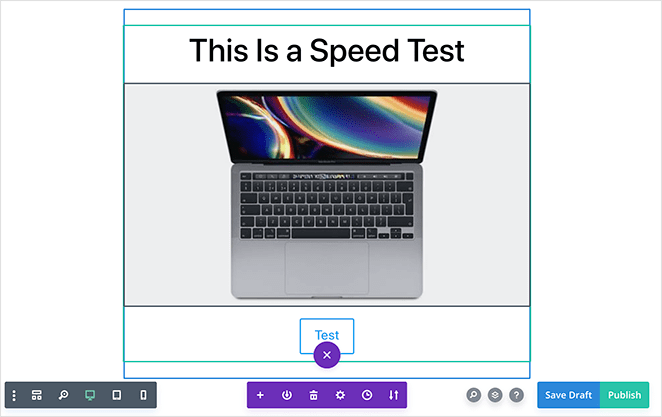
- Page Size: 606.4 KB
- Load Time: 2.10s
- Requests: 17
SeedProd is the clear winner when it comes to page size, load time, and number of requests. Your results may differ depending on your hosting and caching setup, but these numbers reflect a default configuration.
How Much Does SeedProd Cost?
SeedProd’s pricing offers more flexibility than Divi.
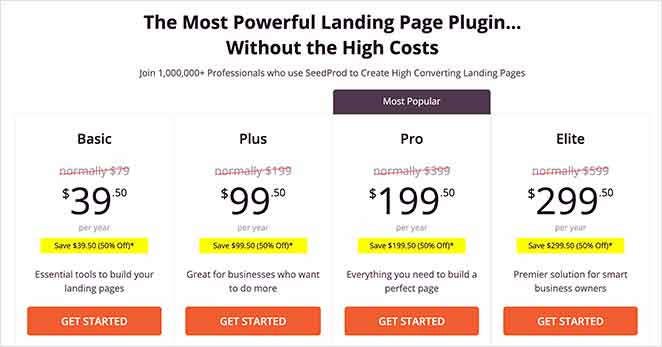
The Basic plan starts at $79 per year. That covers all the essential features you need to create landing pages without writing code.
If you’d like access to all of SeedProd’s features on unlimited websites, the Elite plan starts at $299.50 per year and includes RafflePress’s Pro plan ($199 value) as part of the bundle.
For users on a budget, SeedProd also offers a free version that you can use to create simple landing pages without spending a dime. This gives it an advantage over Divi, which doesn’t offer a free version at all.
Plus, SeedProd offers regular discounts throughout the year, allowing you to save on every plan.
SeedProd vs Divi Comparison Chart
Here’s a quick overview of the important features in both of these website builders.
| Features | SeedProd | Divi |
|---|---|---|
| Free Version | ✔️ | ✖ |
| Template Library | ✔️ | ✔️ |
| Visual Builder | ✔️ | ✔️ |
| Smart Landing Page Sections | ✔️ | ✖ |
| Responsive Editing | ✔️ | ✔️ |
| Animated Headline Block | ✔️ | ✖ |
| Giveaway Block | ✔️ | ✖ |
| Dedicated Facebook Blocks | ✔️ | ✖ |
| Checkout Block | ✔️ | ✖ |
| Coming Soon & Maintenance Mode | ✔️ | Only with an extra plugin |
| 404 & Login Page Mode | ✔️ | Only with an extra plugin |
| Domain Mapping | ✔️ | ✖ |
| Subscriber Management | ✔️ | ✖ |
| WooCommerce Integration | ✔️ | ✔️ |
Is Divi the Best Page Builder?
After writing this Divi review, looking at its best features, and comparing them to one of the top alternatives, is Divi the best page builder?
In my opinion, SeedProd is the best drag-and-drop WordPress website builder.
SeedProd is the best solution for non-techy WordPress users who want to create top-performing landing pages easily without hiring a developer and writing tons of code.
Are you one of those people?
If you’re still looking for an alternative page builder, you may find the following reviews helpful:
We hope you found this Divi review useful. If you did, do follow us on Twitter and Facebook for more reviews, tutorials, and helpful WordPress tips.



