
TL;DR: How to Build a WordPress Website for a Client
Here’s the full process from discovery call to handover:
- Pre-build checklist – Sort hosting, contracts, and content assets before you touch the site.
- Scope it in writing – Define deliverables, revision rounds, and change order triggers before you build.
- Set up your environment – Clone a base WordPress install pre-loaded with your plugin stack for every new project.
- Build without starting from scratch – Use SeedProd’s AI builder to generate a complete first draft in 45 seconds.
- Run structured review rounds – Define what each round covers in the contract to prevent scope creep.
- Professional handover – Transfer to client hosting, create an Editor account, and record a short walkthrough video.
When I built my first WordPress website for a client, I spent three hours on things that had nothing to do with design. Installing plugins, configuring settings, and hunting for a theme that wouldn’t embarrass either of us.
Most guides on building client WordPress sites walk through the steps from scope to launch. They skip the blank-canvas problem and what a professional handover actually looks like.
In this guide, I’ll cover the process from discovery call to handover, tools that eliminate blank-canvas time, and what to give your client at the end.
- What to Have Ready Before You Start
- Step 1: Define the Scope of Your Client's Website
- Step 2: Set Up Your Environment and Choose Your Tools
- Step 3: Build Your Client's Site (Without Starting from Scratch)
- Step 4: Structure Your Client Review Rounds
- Step 5: Test Your Site Before Handing It Over
- Step 6: Deliver the Site to Your Client
- Add Care Plans to Your Client Workflow
- FAQs About Building WordPress Websites for Clients
What to Have Ready Before You Start
The fastest way to waste time on a client project is to start building before you’ve solved the setup. Before you start, make sure you have these essentials in place:
- A base WordPress install (staging environment pre-loaded with your full plugin stack) cloned for every new project
- A signed contract with change order language before a single pixel is touched
- Client content in hand, including copy, logos, and images ready before the build starts. Waiting for assets after the site is built adds weeks.
- A staging environment: Local by Flywheel for example, lets you spin up a new WordPress install in under a minute
This setup is something you put in place once and reuse on every project, whether you build alone or with a small team. Once it’s in place, you can start on your project with confidence.
Step 1: Define the Scope of Your Client’s Website
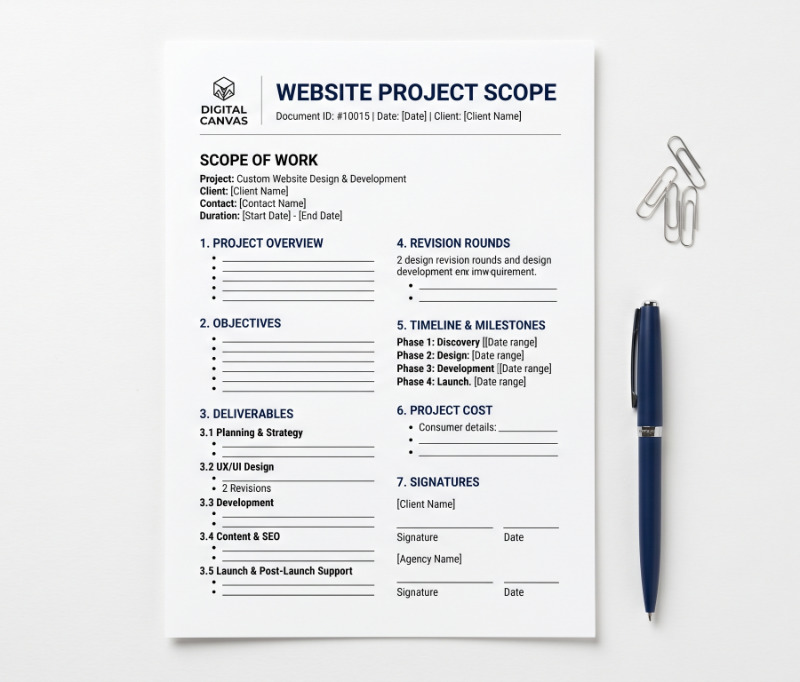
A scope document saves you from building a 10-page site when the client imagined a 30-page one. In my own experience, the biggest delays in a project were assumptions about what “the website” included.
In your discovery call, make sure you cover these things:
- Pages needed and their goals
- Existing content and what still needs to be created
- Must-have functionality (forms, booking, payments, eCommerce)
- Timeline and budget
Your scope document must also include:
- A full list of deliverables
- What is NOT included (spell this out explicitly)
- How many revision rounds and what each one covers
- What triggers a change order
The “while you’re at it” request is another source of scope creep. Name these as change orders before they happen, not after.
That conversation is much easier when the client agrees upfront that anything outside scope gets one.
Finally, set a content delivery deadline and a feedback turnaround window before the build starts. Without these, the project has no natural end point.
Step 2: Set Up Your Environment and Choose Your Tools
Your environment setup is where you recover time on every future project, so it makes sense to solve it once.
I use Local by Flywheel for local development. It’s free and spins up a full WordPress install in under a minute.
Keep a saved base install pre-loaded with your WordPress stack and clone it for every new client project.
Is a Visual Builder or a Custom Theme Faster for Client Work?
For most client projects, a visual drag-and-drop website builder is the faster path to a full website. Custom theme development adds significant time and should be reserved for projects that genuinely need it.
I’ve tested some of the top website builders in GTmetrix to see which were the most efficient for the job.
| Builder | Load Time | HTTP Requests | Server Gen Time | Memory | DB Queries |
|---|---|---|---|---|---|
| SeedProd | 556ms | 16 | 0.0457s | 4.3 MB | 34 |
| Elementor | 1,882ms | 32 | — | — | — |
| Divi | — | — | 0.0916s | 13 MB | 86 |
Beaver Builder has an agency mode worth knowing about, but it starts from a blank canvas. With SeedProd, on the other hand, you can start with AI, which means your first draft is ready before you’ve opened a layout panel.
Now, full disclosure SeedProd is our product, but I’d still choose it over anything else for my client work.

The performance numbers are the best of any builder I’ve tested, and that gap shows up directly in client PageSpeed scores. Its theme builder also covers headers, footers, archives, and WooCommerce templates, so you don’t need a blank theme to build a complete custom site.
If you manage multiple client sites, ManageWP or MainWP let you update plugins, run security scans, and monitor uptime from one dashboard.
Which Plugins Should You Use for Client Websites?
Most client websites need the same core plugin stack: SEO, forms, performance, security, backups, and email deliverability.
These are the WordPress plugins I install on every project.
| Category | Plugin | Why It’s the Pick |
|---|---|---|
| SEO | AIOSEO | Schema, sitemaps, and on-page optimization in one place |
| Forms | WPForms | Drag-and-drop forms your clients can update without calling you |
| Performance | WP Rocket | Page caching and asset optimization with a simple setup |
| Security | Sucuri | Firewall and malware scanning with real-time threat intelligence |
| Backups | Duplicator | Full site backups and easy migration to client hosting |
| Email Deliverability | WP Mail SMTP | Routes contact form emails through a proper sending service |
Step 3: Build Your Client’s Site (Without Starting from Scratch)
The blank canvas is the biggest time sink in most client builds. SeedProd is the visual website builder I use to eliminate it.
SeedProd lets you generate a complete site with AI or browse a template library of 300+ designs organized by industry.
How to Generate a First Draft in 45 Seconds with SeedProd AI
To start, go to ai.seedprod.com and enter your email address. You’ll receive a confirmation link, then click it to activate your account.

Back on the site, click ‘+Create New Website.’ Enter your business name and tell the AI what your business does.
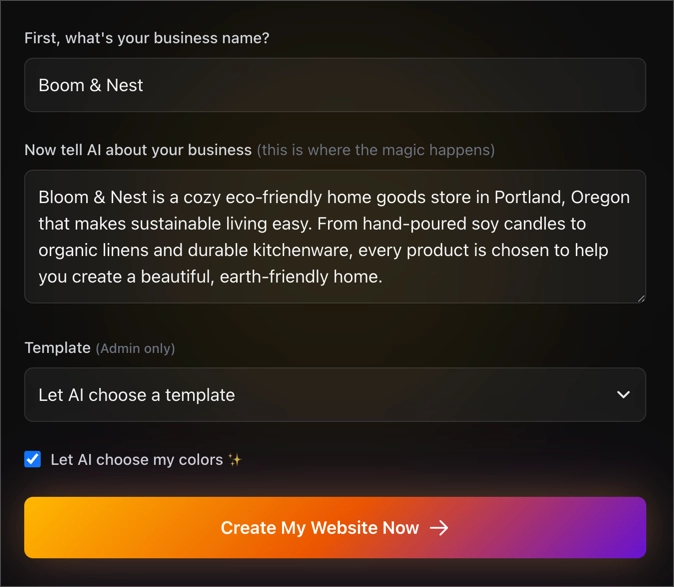
In about 45 seconds, you have a site with real page structure instead of an empty install.
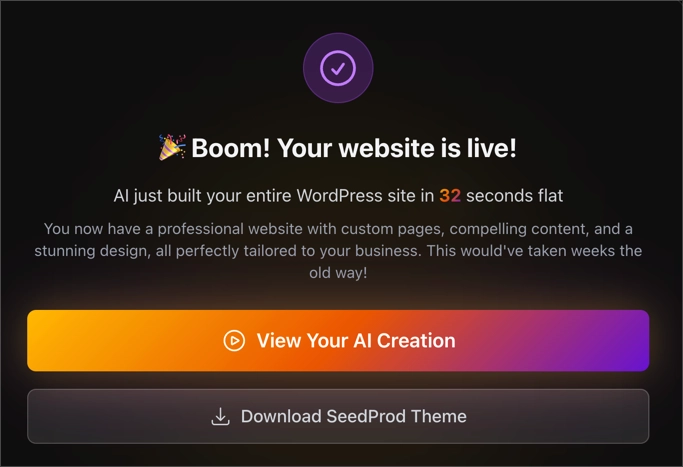
When I generate a site with SeedProd AI, I get a homepage, inner pages, navigation, a matching color scheme, and fonts.
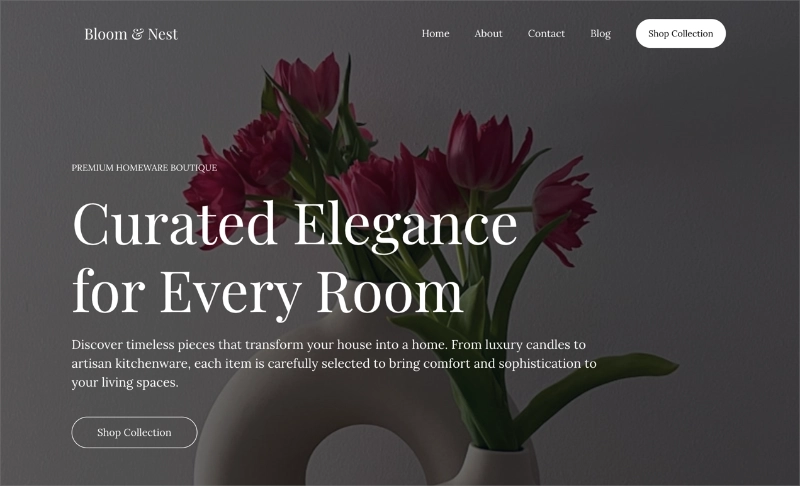
What it doesn’t give you is the client’s actual content, brand-specific decisions, or finished layouts. That’s still your job, but you’re starting from something shaped, not a blank page.
I use the AI draft as a discovery tool. I share it early and let the client react before I’ve invested hours in manual design. The feedback is faster and more specific when there’s something real to look at.
You can try the SeedProd AI builder for free on your next project.
If you’d rather not use the AI builder, SeedProd has 300+ templates, including website theme kits organized by industry and use case. For client work, I pick three that match the client’s industry and share them before the build starts.
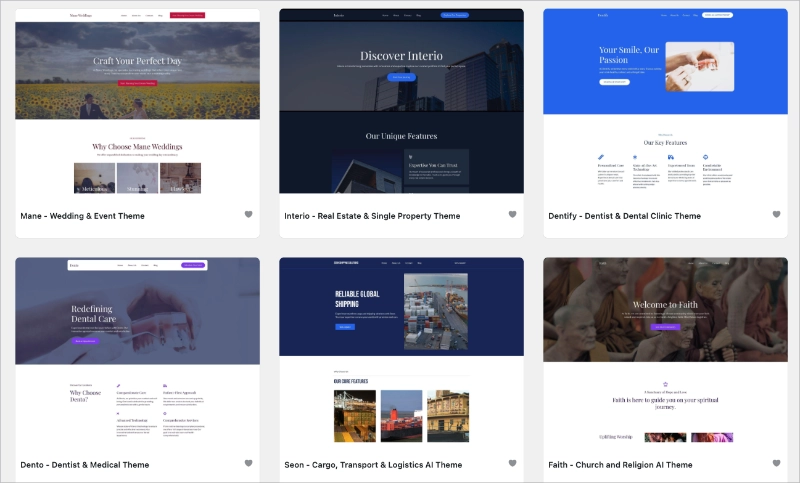
Letting the client choose a visual direction early reduces revision rounds. They feel invested in the design because they made a real decision upfront.
Step 4: Structure Your Client Review Rounds
Client feedback rounds are the most common reason builds run over time. This isn’t because clients are difficult, but because the process has no defined structure.
Here are five things I’ve learned that actually prevent review from looping:
- Share the staging link 24 hours before the review call, not during it. When the client has already looked, the call becomes decisions, not discovery. This single change cut the most time from my client review cycles.
- Define what each review round covers in the contract. Round 1 covers layout and structure only. Round 2 covers copy and images. Round 3 is final polish.
- Anything outside those rounds is a change order. Name this before work starts, not after a new request comes in.
- Give clients one feedback channel, a shared Google Doc or a tool like MarkUp.io, rather than email threads where requests get buried.
- Set a response deadline. Feedback is due within 5 business days or the project timeline shifts.
This is also how you handle scope creep before it starts. Defining what each round covers and labeling anything outside it as a change order makes the conversation process-based, not personal.
Step 5: Test Your Site Before Handing It Over
A bug found after launch isn’t a technical problem but a client trust issue. I run through the same checklist on every build.
It takes about 45 minutes and consistently catches something I’d have missed. Work through this list before you migrate to production:
- Cross-browser testing: Chrome, Safari, Firefox, Edge (~15 min)
- Mobile responsiveness on a real device, not just browser DevTools (~10 min)
- Form submissions: test every form and confirm emails arrive (~10 min)
- Page speed: run Google PageSpeed Insights and flag anything under 70 (~5 min)
- SEO basics: meta titles and descriptions set, XML sitemap submitted to Search Console (~10 min)
- Broken links scan (~5 min)
Move to Production and Share a Preview Link
Once everything on the checklist passes, migrate from staging to the client’s hosting using Duplicator. It packages the full site as a zip and handles the database migration.
Before you go live, activate SeedProd’s Coming Soon mode on the production site. This keeps the public from landing on the site while you finish the final details with your client.

Share the Bypass URL with your client so they can preview the live site before launch.
In SeedProd, go to Page Settings » Access Controls while editing the Coming Soon page, enter a secret phrase, and share the generated link.
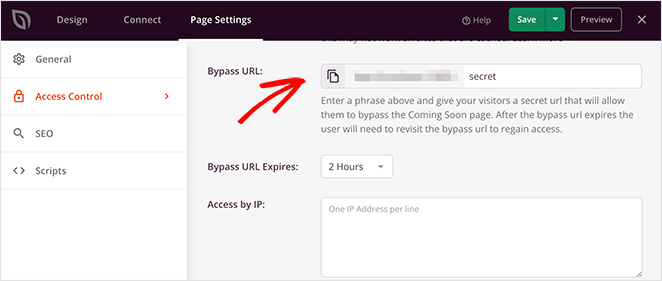
Your client sees the real site, while everyone else sees the coming soon page.
Step 6: Deliver the Site to Your Client
Most freelancers hand over a login and call it done. In my experience, a professional handover is what separates the one-time project client from the long-term care plan client.
Create a WordPress Editor user role for the client, not an Administrator account. That way they can update content without accessing settings that could break things.
What Should You Include in a Client Website Handover?
A complete handover covers credentials, a walkthrough recording, maintenance setup, care plan options, and a clear scope summary. Here’s what each of those looks like in practice:
- Login credentials (WordPress admin, hosting, domain registrar) in a secure document. Use a password manager’s share feature, not a plain-text email.
- A 5 to 10 minute screen recording walking through the editor: how to update text, swap images, and publish a page. SeedProd’s visual editor is simple enough that most clients can handle basic updates after watching once.
- Maintenance mode and coming soon are both built into SeedProd. Show the client how to turn on maintenance mode and they won’t need a separate plugin for downtime.
- A care plan overview if you’re offering one. Frame it as “I handle the technical side so you don’t have to think about it” and include the monthly fee.
- A written summary of what’s not included going forward: updates, new pages, redesigns. Clear scope prevents the “can you just quickly…” requests.
Add Care Plans to Your Client Workflow
The build workflow in this guide does more than save time. When you cut a 20-hour project down to 10, you can either take on more projects or redirect those hours into something more valuable, like care plans.
I’ve seen freelancers change the shape of their business entirely once they add a care plan. Not because of the hourly rate, but because of the predictability. You know what you’re earning next month.
A basic care plan covers plugin updates, security scans, backups, and uptime monitoring. Add small content edits and you’re looking at $50 to $300 per month per client. Ten clients at $150 is $1,500 on top of project fees, every month.
SeedProd makes the care plan side easier to run. Clients can handle basic content updates themselves, which means fewer “how do I change this?” emails eating into your monthly time.
Get SeedProd Pro and start handing off sites clients can actually maintain.
FAQs About Building WordPress Websites for Clients
How do you create a WordPress website for a client?
Start with a signed scope document and a staging environment pre-loaded with your plugin stack. Use SeedProd’s AI or template library to generate the first draft, run structured review rounds, and test before launch. Then hand off with login credentials and a short editor walkthrough.
How do you deliver a WordPress website to a client?
Move the site to the client’s own hosting, create an Editor-level WordPress account for them, and hand over login credentials in a secure document. Record a short editor walkthrough and outline maintenance options going forward.
What plugins do professional WordPress developers use for client sites?
A reliable plugin stack includes AIOSEO for SEO, WPForms for forms, WP Rocket for performance, and Sucuri for security. Add Duplicator for backups and WP Mail SMTP for email deliverability. Install all of these in a base environment and clone it for each new project.
How do I prevent scope creep when building websites for clients?
Define revision rounds in the contract before work starts: Round 1 for layout, Round 2 for copy and images, Round 3 for final polish. Document anything outside those rounds as a change order and give clients one feedback channel with a response deadline.
Start Building Your First Client Website Today
The workflow in this guide isn’t complicated, but consistent.
The hardest part of building client websites is the time you lose to problems that could have been solved before the project started. Run this once and most of those problems disappear.
SeedProd AI is free to try and takes about two minutes to set up. To build and customize your full client site, you’ll need SeedProd Pro.
You may also find the following guides helpful:
- How to Create a New Website Launch Marketing Plan
- How to Create a Client Login Page in WordPress
- Best WordPress Maintenance Mode Plugins
Thanks for reading! We’d love to hear your thoughts, so please feel free to join the conversation on YouTube, X and Facebook for more helpful advice and content to grow your business.