

TL;DR: Connect Claude to WordPress in about 5 minutes using WPVibe. Here’s how the process works:
- Get Claude Code: Go to claude.ai/code to use the web version — no install needed. Or download the desktop app for Mac or Windows. A paid Claude plan is required.
- Install Vibe AI on WordPress: Search “Vibe AI” in your WordPress Plugins » Add New and install the free plugin by SeedProd.
- Open Vibe AI in your WordPress admin: Click the Connect button to get your WPVibe server URL and setup instructions.
- Add WPVibe to Claude Code: Paste the MCP server URL into Claude Code’s settings, or run the one-line command in your terminal.
- Authorize and test: Approve the connection from your WordPress admin, then ask Claude to list your five most recent posts to confirm it’s working.
If you’ve tried to connect Claude to your WordPress site, you’ve probably hit the same wall as me. Every guide assumes you’re comfortable editing JSON config files in a terminal.
Now, I connect Claude to the SeedProd blog through WPVibe, a free WordPress plugin that handles the whole connection without config files or terminal commands.
In this guide, I’ll walk you through the full setup, from installing Claude Code to testing your first live command. Other methods exist for developers who prefer them but this one only takes about 5 minutes.
What Is MCP and Why Does It Matter for WordPress?
Before I knew what MCP was called, I noticed teammates asking Claude to make changes on their WordPress sites and it just did it. I had no idea what was making that possible. That’s MCP at work.
MCP (Model Context Protocol) is the technology that lets Claude take actions on your WordPress site rather than just answer questions about it. It acts as a bridge between Claude and your site’s content, settings, and plugins.
Without MCP, Claude can give advice about WordPress. With MCP, it can create posts, manage plugins, update pages, and check your site health directly.
Think of the difference as asking someone for directions versus having a co-pilot who handles the wheel. This became practical for WordPress site owners in 2026, as WordPress expanded its REST API support to allow external tools to take actions, rather than just read data.
What You Need Before You Start
I use Claude Code every day for content work on the SeedProd blog, so I’ve been through this setup more than once. Before you start, it’s worth knowing what’s actually required.
- The Vibe AI plugin: This is the free WordPress plugin that powers the WPVibe connection. You install it from your WordPress admin the same way you’d install any other plugin. No other tools are required.
- A self-hosted WordPress site (WordPress.org, not WordPress.com): WPVibe works with self-hosted sites running WordPress 6.0 or higher. WordPress.com runs on managed infrastructure that blocks this type of external server connection.
- Claude Code or Claude Desktop with a paid plan: A paid Claude plan is required for MCP server connections. WPVibe itself is completely free, no credit card needed.
Is It Safe to Connect Claude to Your WordPress Site?
Yes, and WPVibe is designed so your WordPress login password is never shared. I connect Claude to the SeedProd blog this way, and the authentication model is solid.
WPVibe uses WordPress Application Passwords, a feature built into WordPress since version 5.6. Your main login password is never involved, and your connection credentials are encrypted and stored securely on WPVibe’s servers.
Claude requires admin-level access to your site, so test on a staging or preview site first if you’d rather be cautious before going live on production.
New posts Claude creates always default to draft status. Deleted content moves to trash instead of being permanently removed, so nothing happens you can’t review.
How to Connect Claude to WordPress Using WPVibe
The setup has two parts: installing Vibe AI on your WordPress site, then connecting it to Claude. The whole process only takes about 5 minutes.
Step 1: Get Claude Code
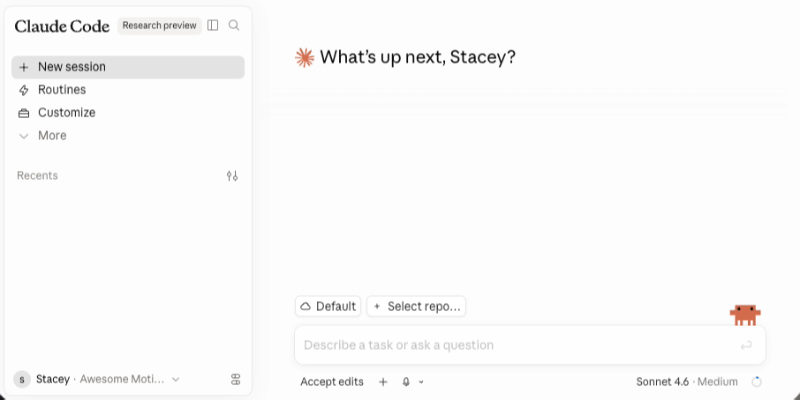
Claude Code is the interface that lets Claude connect to external tools via MCP. If you’re not comfortable working in the terminal, the web version is the quickest and easiest option.
Go to claude.ai/code and sign in with your paid Claude account. If you’d prefer a desktop app, you can download it for Mac or Windows from the same page.
Once you’re in, Claude Code looks exactly like the standard Claude chat interface. The MCP connections happen in the background.
Step 2: Add WPVibe to Claude Code
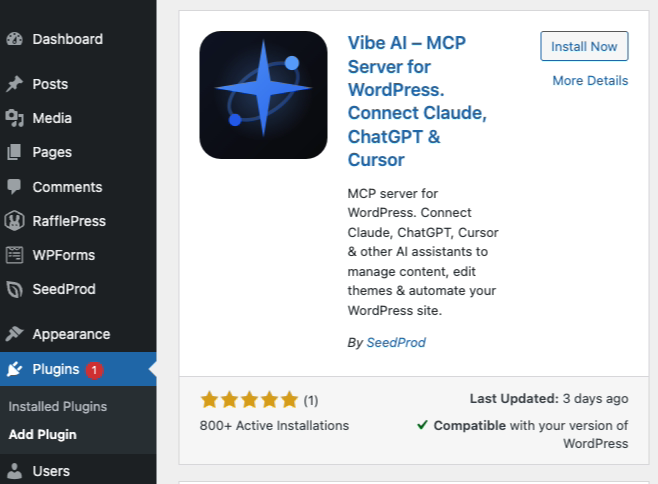
First, install the Vibe AI plugin on your WordPress site. In your WordPress admin, go to Plugins » Add New, search “Vibe AI”, and install the plugin by SeedProd. Activate it.
Open the Vibe AI menu item in your WordPress admin sidebar. Click the Connect to WPVibe button.
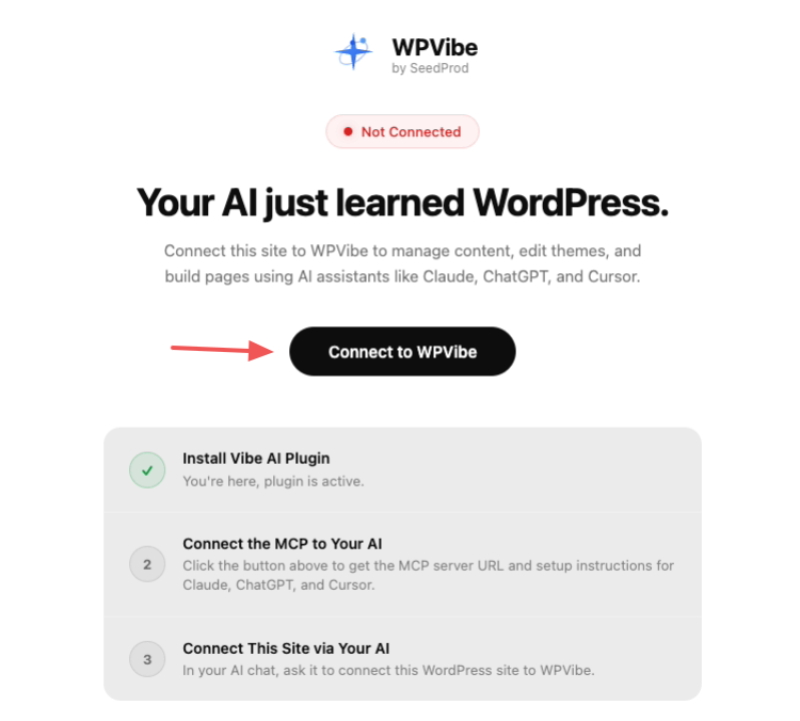
The next screen shows setup instructions for Claude Code, Claude Desktop, and other AI clients, along with the MCP server URL.
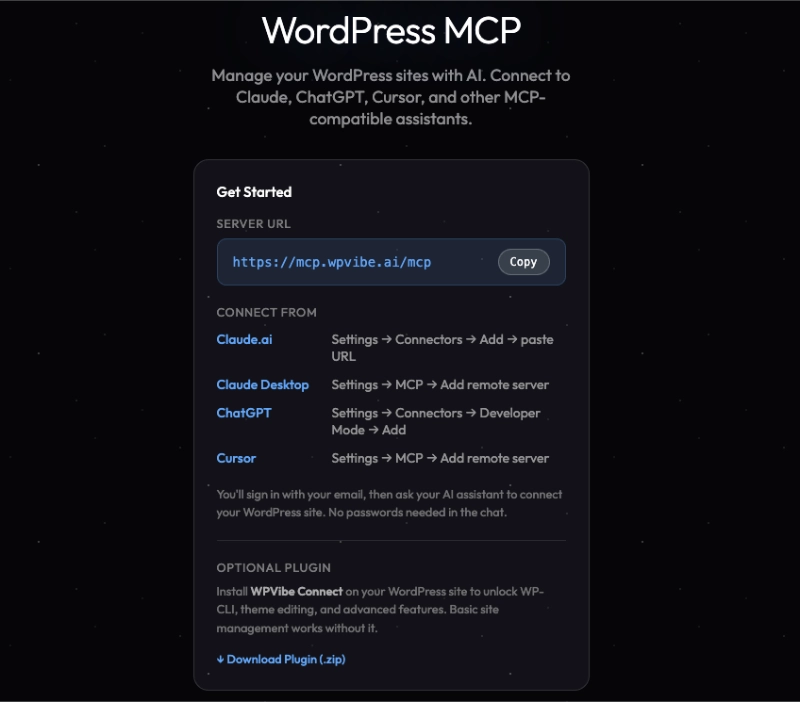
For Claude Code (desktop or web), copy the server URL the plugin shows you. For Claude Code in the terminal, the command is:
claude mcp add --transport http wpvibe https://mcp.wpvibe.ai/mcpSince we’re using the web version of Claude code in this example, go to Customize, and select the Connectors option. From there, click the plus icon, choose Add custom Connector, and paste the WPVibe server URL.
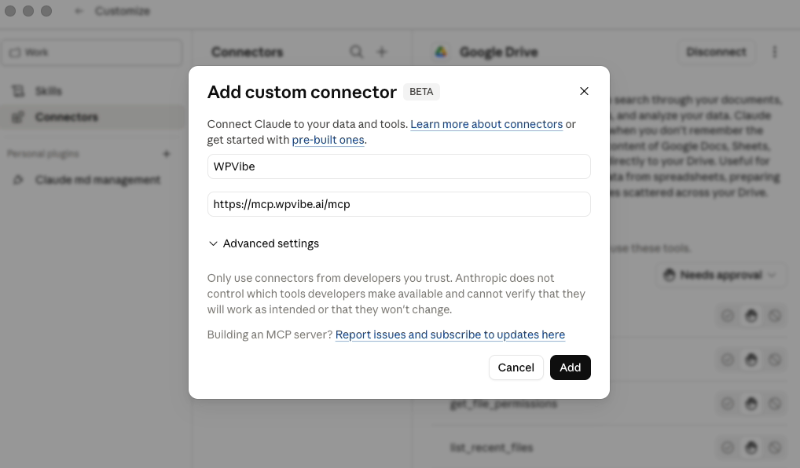
Step 3: Connect Your WordPress Site
With WPVibe added to Claude, start a new Claude session. Ask Claude to connect your WordPress site and give it your site’s URL.
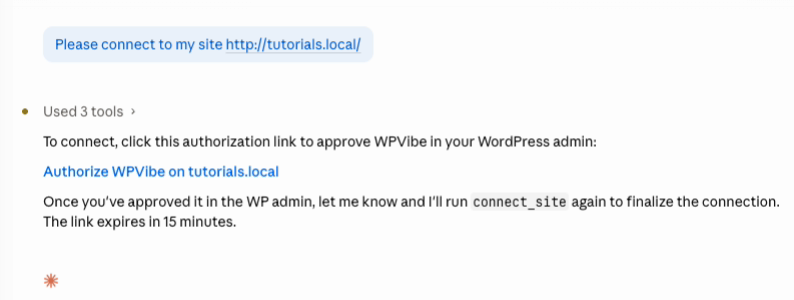
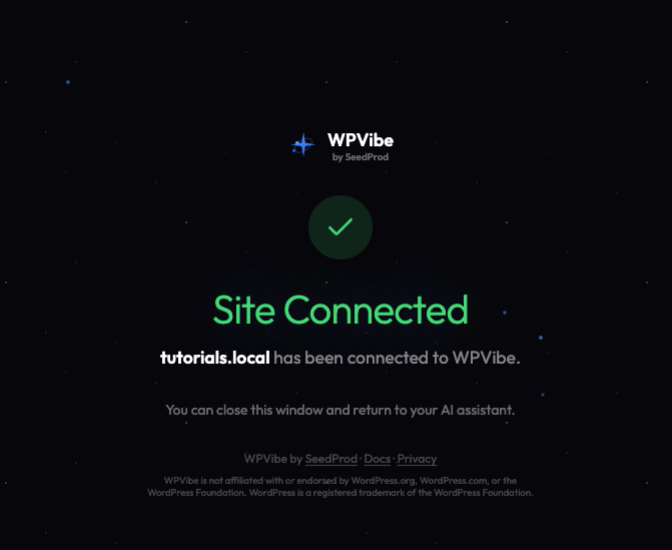
WPVibe generates a one-click authorization link. Click it to open the authorization screen in your WordPress admin, then click Approve.
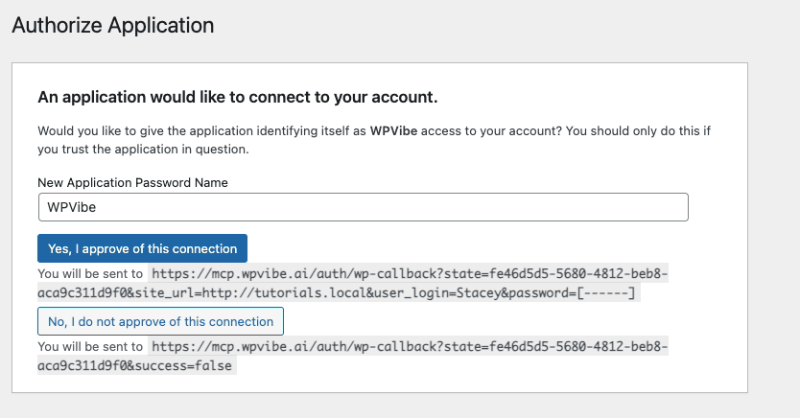
That’s it, your site is now connected.
Step 4: Test the Connection
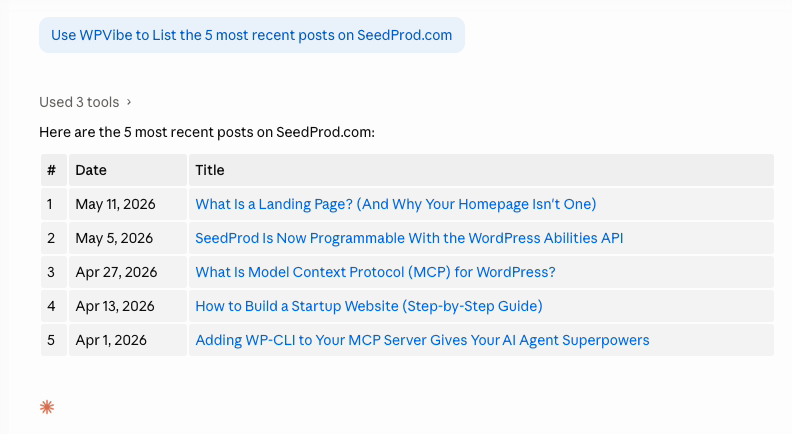
Try a simple first command. Type: “List the 5 most recent posts on my WordPress site.”
If the connection is working, Claude returns your post titles, publish dates, and statuses directly in the chat. That’s your confirmation.
If Claude can’t reach the site, go back to the Vibe AI plugin in your WordPress admin and check the connection status. The plugin shows whether your site is currently connected.
What Claude Can Do on Your WordPress Site
The real value of connecting Claude to WordPress isn’t any single task. It’s the backlog of WordPress admin work you’ve been pushing back because navigating the dashboard takes too long.
In one recent conversation, I drafted two post outlines, updated meta descriptions on three published articles, and checked which plugins needed updating. In the dashboard, that would have taken close to an hour.
Here’s a breakdown of what Claude can handle through WPVibe:
| Task | What to ask Claude | Time saved vs. dashboard |
|---|---|---|
| Draft a blog post | “Write a 1,000-word draft on [topic] and save as a draft post” | 20-40 min |
| Update meta descriptions | “Update the meta description on [post title] to [new text]” | 5 min per post |
| Check plugin versions | “List my installed plugins and flag any that need updating” | 10 min |
| Manage categories | “Move all posts tagged ‘announcement’ into the News category” | 15-30 min |
| Coming soon mode | “Turn on coming soon mode while I update the homepage” | 2 min |
| Site health check | “Check my site health report and tell me what needs attention” | 10 min |
On WordPress 6.9 or higher, Claude can also discover what your specific plugins are capable of through the WordPress Abilities API.
How to Manage Your SeedProd Pages with Claude
If you’re running SeedProd, there’s a good chance you’re making routine updates through the visual editor when Claude could handle them in seconds.
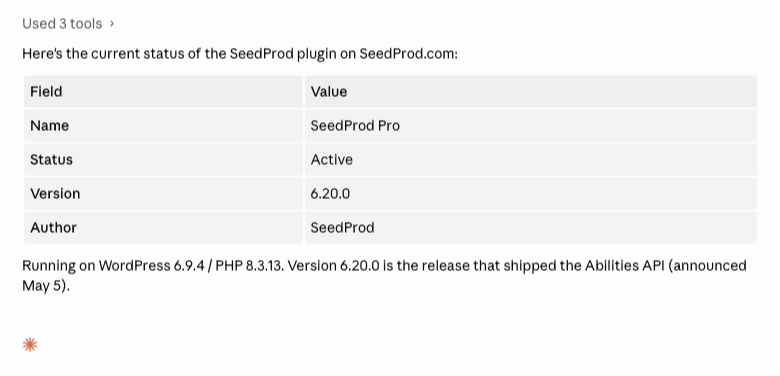
SeedProd 6.20.0 and higher supports the WordPress Abilities API, which means Claude can discover and run SeedProd-specific actions on WordPress 6.9+ sites. When Claude connects through WPVibe, it automatically detects what SeedProd can do and makes those actions available through chat.
Here are examples of what you can ask:
- “Turn on coming soon mode while I work on the redesign”
- “Show me all my SeedProd pages”
- “Update the headline on my landing page to “
- “Toggle off maintenance mode, the site is ready”
- “Check SeedProd’s current status”
I manage the SeedProd blog with Claude every week. Having coming soon mode, page status checks, and content updates handled through a chat instead of the dashboard cuts out most of the low-level admin work.
There’s a full walkthrough of each of those in my guide to editing and managing SeedProd pages with AI.
Now, I should mention that WPVibe is actually a SeedProd product. We built both, which is why the integration works as well as it does.
Over 1 million WordPress sites use SeedProd to build and manage their pages. Get started with SeedProd today, and once WPVibe is connected, you can manage your pages through Claude from day one.
FAQs About Connecting Claude to WordPress
Does WPVibe work with Claude Desktop or only Claude Code?
WPVibe works with Claude Desktop, Claude on the web, and Claude Code. For Claude Desktop, go to Settings, open the MCP section, and add the WPVibe server URL as a remote server. For Claude Code in the terminal, use the claude mcp add command with the provided URL. All three connect through the same WPVibe MCP server.
What can I ask Claude to do on my WordPress site?
Claude can create and edit posts and pages, manage media, update categories and tags, check plugin versions, and review site health. On WordPress 6.9+ sites, it can also manage SeedProd pages and any other plugin that exposes the Abilities API. New posts always default to draft status, and deletions move to trash rather than being permanently removed.
Do I need a paid Claude plan to connect Claude to WordPress?
A paid Claude plan is required for MCP server connections in Claude Code and Claude Desktop. WPVibe itself is completely free with no credit card required. Check the Claude pricing page for current plan options and MCP availability details.
Does connecting Claude to WordPress give it access to my password or login credentials?
No. WPVibe uses WordPress Application Passwords, a built-in WordPress authentication method. Your main WordPress login password is never shared with Claude or stored by WPVibe. The connection credentials are encrypted with AES-256-GCM on WPVibe’s Cloudflare-hosted servers.
Does WPVibe work with WooCommerce or other plugins?
WPVibe can manage any content accessible via the WordPress REST API, which covers standard tasks across most plugins. On WordPress 6.9+ sites, it also supports the Abilities API. This lets Claude discover and run actions for any plugin that supports the standard, including SeedProd and WPForms.
Start Managing Your WordPress Site with Claude Today
You’ve connected Claude to WordPress without touching a single config file. That was the whole point.
If you’re not on SeedProd yet, it’s the easiest way to build and manage your WordPress pages. Now that WPVibe is connected, you can handle updates and changes through Claude instead of the dashboard.
Thanks for reading! We’d love to hear your thoughts, so please feel free to join the conversation on YouTube, X and Facebook for more helpful advice and content to grow your business.



