

Als ich WPBakery zum ersten Mal ausprobierte, war es einer der wenigen verfügbaren WordPress-Seitenersteller. Aber seitdem hat sich viel geändert, und in diesem aktualisierten WPBakery-Testbericht zeige ich Ihnen genau, wie es im Jahr 2026 abschneidet.
Ich habe es auf einer Testseite installiert, Seiten von Grund auf und aus Vorlagen erstellt und es mit Alternativen getestet, die ich täglich verwende. Hier ist, was ich herausgefunden habe.
- Was ist der WPBakery Page Builder?
- WPBakery-Funktionen und -Bedienung
- Übersicht: WPBakery in Aktion
- Sollten Sie WPBakery im Jahr 2026 noch verwenden?
- Preise: WPBakery Testbericht
- Was sagen Kunden über WPBakery?
- WPBakery Review: Wie es im Vergleich zu anderen Seitenerstellern abschneidet
- WPBakery Testbericht: Endgültiges Urteil
- Häufig gestellte Fragen (FAQs) zu WPBakery
Kurze Zusammenfassung: WPBakery ist ein funktionaler, aber veralteter Seitenersteller, der 2015 Sinn ergab und immer noch zur Wartung von Websites dient, auf denen er bereits installiert ist. Wenn Sie neu anfangen oder Wert auf Seitengeschwindigkeit und Flexibilität legen, sind moderne Alternativen wie SeedProd oder Elementor einfacher zu bedienen, schneller und sperren Sie nicht in Shortcodes ein, die Sie später bereinigen müssen.
Gesamtbewertung: 4/5 | Basierend auf praktischen Tests
Was ist der WPBakery Page Builder?
WPBakery, früher Visual Composer, ist ein Drag-and-Drop-Seitenersteller-Plugin für WordPress-Websites. Es ermöglicht Ihnen, benutzerdefinierte Seitenlayouts, Inhaltselemente und mehr zu erstellen, ohne Programmierkenntnisse zu benötigen.
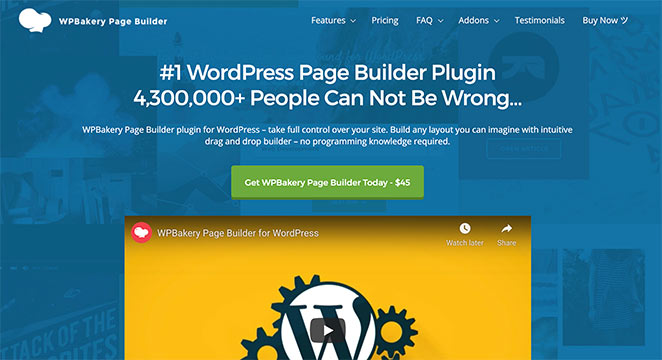
Dieser beliebte Seitenersteller wurde 2017 in WPBakery umbenannt, während Visual Composer jetzt ein separates Webdesign-Projekt namens Visual Composer Website Builder ist. Im Wesentlichen ist WPBakery jetzt ein Seitenersteller und Visual Composer ein Website-Builder.
Es ist ein weit verbreitetes Plugin und wird mit vielen Themeforest- und Code Canyon-Themes gebündelt, um deren Anpassung zu erleichtern.
Nach der Aktivierung auf Ihrer Website verwandelt WPBakery den WordPress-Seiten-Editor in ein visuelles Design-Tool. Sie können verschiedene Elemente auf Ihrer Seite per Drag-and-Drop hinzufügen, bearbeiten und anordnen, um alles ohne Code anzupassen.
Wie ich WPBakery für diesen Testbericht getestet habe
Um Ihnen einen fairen und ehrlichen WPBakery-Testbericht zu geben, habe ich das Plugin auf meiner eigenen Testseite installiert. Ich wollte sehen, wie es sich in realen Situationen verhält, so wie Sie es vielleicht verwenden würden.
Hier ist, was ich getan habe, um WPBakery gründlich zu testen:
- Einrichtung: Ich habe es auf einer neuen WordPress-Testseite installiert, um zu sehen, wie einfach der Einstieg ist.
- Benutzerfreundlichkeit: Ich habe sowohl den Backend- als auch den Frontend-Editor ausprobiert, um zu sehen, wie benutzerfreundlich sie sind.
- Seiten erstellen: Ich habe Seiten von Grund auf mit Drag-and-Drop und vorgefertigten Vorlagen erstellt und geprüft, wie sie auf verschiedenen Geräten aussehen.
- Elemente: Ich habe mit verschiedenen Seitenelementen experimentiert, um zu sehen, was möglich ist.
- Online-Shops: Ich habe Produktseiten erstellt, um zu testen, wie gut es mit WooCommerce funktioniert.
- Geschwindigkeit: Ich habe darauf geachtet, wie schnell Seiten geladen werden.
- Zusätzliche Funktionen: Ich habe einige Add-ons ausprobiert, um zu sehen, was Sie sonst noch tun können.
- Mobilfreundlich: Ich habe sichergestellt, dass Seiten auf Handys und Tablets gut aussehen.
Indem ich all diese Dinge getestet habe, bekam ich eine gute Vorstellung davon, was WPBakery gut kann und wo es seine Schwächen hat. Ich habe auch jahrelange Erfahrung damit einfließen lassen, Seiten zu bereinigen, die Kunden mit WPBakery erstellt hatten, und diese reale Erfahrung prägte, wie ich das Lock-in-Risiko bewerte.
WPBakery-Funktionen und -Bedienung
WPBakery bietet viele Funktionen, die es beliebt gemacht haben. Hier ist ein Überblick darüber, was enthalten ist und wie sich jeder Teil in meinen Tests bewährt hat.
Die Drag-and-Drop-Oberfläche
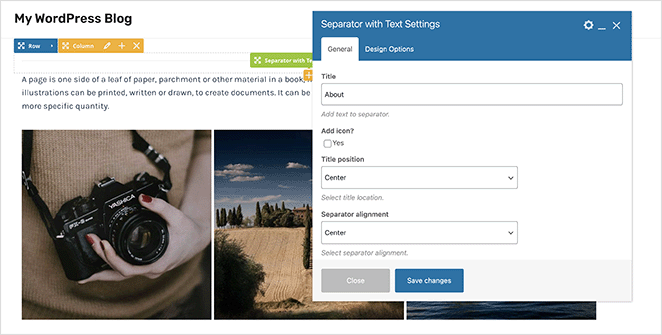
Das bemerkenswerteste Merkmal von WPBakery ist der Drag-and-Drop-Builder. Er ermöglicht es Ihnen, jedes Element auszuwählen, es an die gewünschte Stelle auf der Seite zu ziehen und dort abzulegen. Das bedeutete, dass ich eine ganze Webseite erstellen konnte, ohne eine einzige Zeile Code anfassen zu müssen.
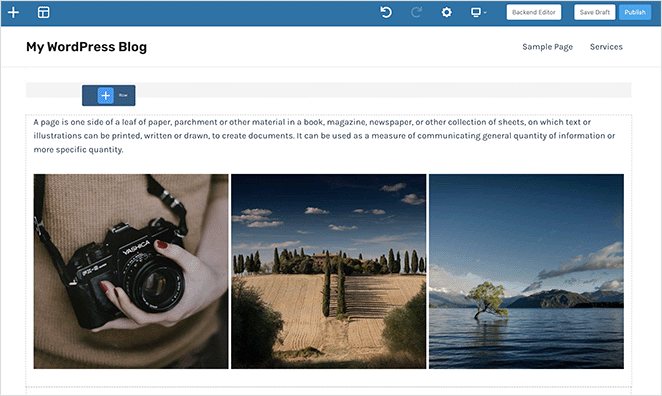
Nach dem Platzieren konnte ich Elemente mit nur wenigen Klicks in der Größe ändern, neu positionieren und anpassen.
Ich konnte eine Echtzeit-Vorschau sehen, die es mir ermöglichte, die vorgenommenen Änderungen sofort zu sehen. Allerdings fühlt sich die Oberfläche schwerfälliger an als bei modernen Buildern: mehr Klicks für einfache Dinge und weniger visuelle Klarheit darüber, wo man sich im Layout befindet.
Vorgefertigte Layouts und Elemente
Für diejenigen, die Inspiration brauchen oder es eilig haben, bietet WPBakery eine Bibliothek mit vorgefertigten Layouts und Elementen. Von Headern, Footern und Sidebars bis hin zu Sliders und Galerien konnte ich ein Design finden, das fast jedem Bedarf entspricht.
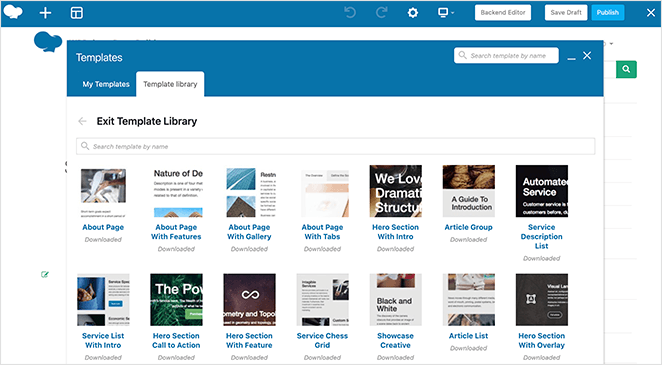
Ich fand die Vorlagenbibliothek einen idealen Ausgangspunkt für mein Seitendesign. Diese vorgefertigten Designs decken verschiedene Branchen und Zwecke ab, darunter Business, E-Commerce, Portfolio, Blog und mehr, und nutzen die neuesten Designtrends.
Jede Vorlage ist mit dem Drag-and-Drop-Builder vollständig anpassbar. Ich konnte sogar mein eigenes benutzerdefiniertes CSS für einzigartigere Styling-Optionen hinzufügen.
WPBakery Elementbibliothek
Zusätzlich zu den Vorlagen verfügt WPBakery über viele Elemente, um die Funktionalität Ihrer Webseite zu verbessern. Als ich meine Seite erstellte, konnte ich Textblöcke, Schaltflächen, Symbole, Bildergalerien, Fortschrittsbalken, Testimonials, Parallax, Zähler, Akkordeons, Widgets und mehr einfügen.
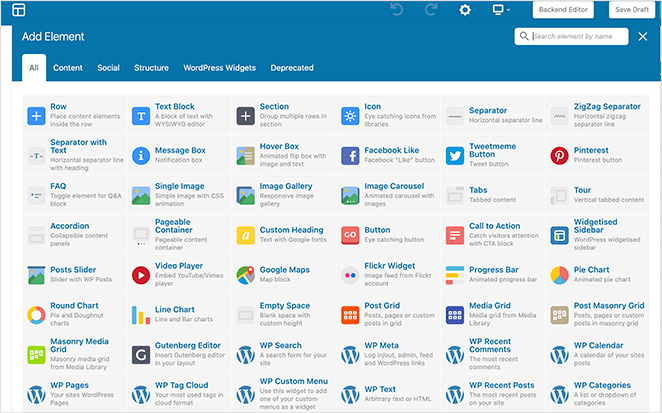
Sie können verschiedene Module und Vorlagen mischen und anpassen, Farben und Typografie anpassen und mit Kombinationen experimentieren, um ein einzigartiges und personalisiertes Design zu erstellen. Die Drag-and-Drop-Oberfläche von WPBakery lässt sich nahtlos in die Vorlagen und Elemente integrieren, sodass Sie diese einfach an Ihre Bedürfnisse anpassen können.
Erweiterte Funktionen und Add-ons
WPBakery bietet auch mehrere erweiterte Funktionen und Add-ons für mehr Funktionalität.
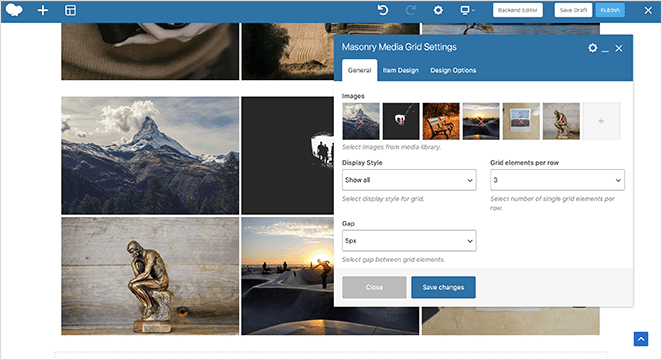
Was mir besonders gut gefiel, waren die Designoptionen für Raster. Rasterlayouts sind beliebt für die Organisation von Inhalten, insbesondere für Portfolios, Produktpräsentationen oder Blogbeiträge.
Mit Rasterlayouts konnte ich die Anzahl der Spalten anpassen, den Abstand zwischen den Elementen ändern, das Raster auf voller Breite erstellen und das Erscheinungsbild des Rasters feinabstimmen.
WPBakery bietet auch nahtlose Kompatibilität mit WooCommerce, dem führenden E-Commerce-Plugin für WordPress. Dies ermöglicht es Ihnen, Online-Shops mit seiner einfachen Drag-and-Drop-Oberfläche zu erstellen.
Ich könnte zum Beispiel Produktseiten gestalten, vorgestellte Produkte anzeigen, benutzerdefinierte Layouts für Warenkörbe und Kassenseiten erstellen und das allgemeine Erscheinungsbild meines Testshops vollständig anpassen.
Zusätzlich unterstützt WPBakery verschiedene Drittanbieter-Erweiterungen, Plugins und Add-ons.
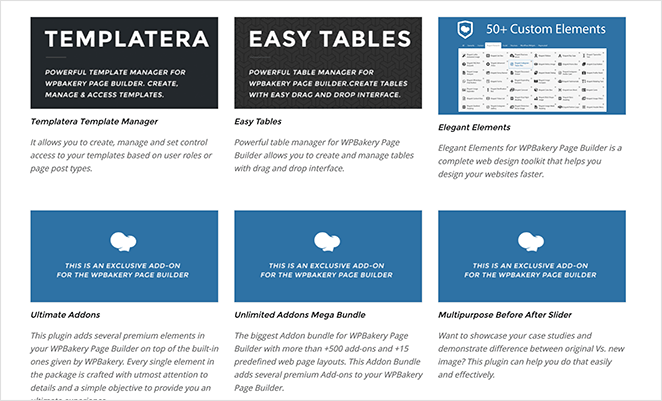
Sie bieten zusätzliche Designelemente, Integrationen mit beliebten WordPress-Plugins und erweiterte Anpassungsoptionen, darunter:
- Vorlagen-Manager
- Einfache Tabellen
- Ultimate Add-ons
- Vorher-Nachher-Schieberegler
- Social Media Teilen
- Referenzen
- Kontaktformulare
- Beitragstypen
- Animationseffekte
- Und mehr
WPBakery und Responsivität
WPBakery versteht die Bedeutung von mobiler Responsivität und bietet Funktionen, um sicherzustellen, dass Ihre Website für mobile Geräte optimiert ist.
Mit seinen responsiven Designeinstellungen war es einfach, das Erscheinungsbild meiner Website auf verschiedenen Bildschirmgrößen und Geräten zu ändern und so ein konsistentes und benutzerfreundliches Erlebnis auf Desktops, Tablets und Smartphones zu gewährleisten.
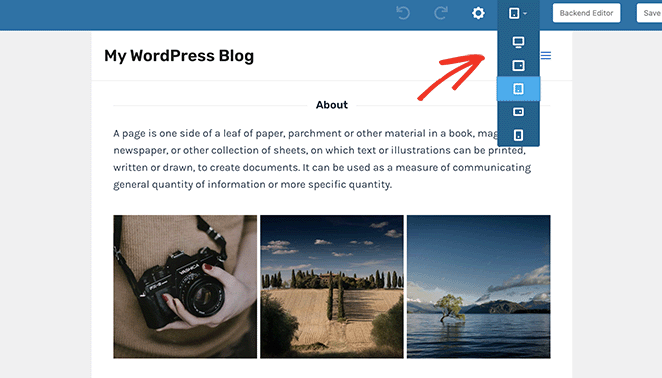
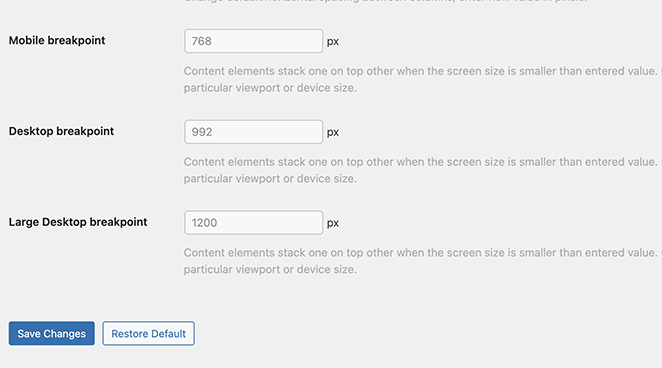
Die Designoptionen ermöglichten es mir auch, das Verhalten von Elementen auf verschiedenen Geräten zu steuern. Zum Beispiel konnte ich benutzerdefinierte Breakpoints festlegen, an denen sich das Layout oder das Erscheinungsbild von Elementen je nach Bildschirmgröße ändert.
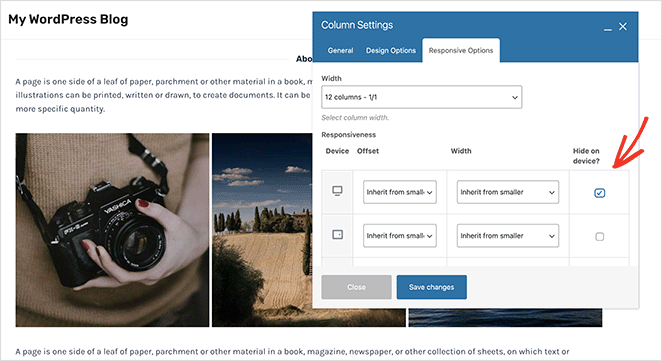
Um die mobile Responsivität weiter zu verbessern, können Sie mit WPBakery bestimmte Aspekte für bestimmte mobile Geräte ausblenden oder deren Erscheinungsbild ändern.
Mobile Responsivität ist entscheidend für die Suchmaschinenoptimierung (SEO). Mit diesen mobilen Responsivitätsfunktionen können Sie Websites erstellen, die die mobilen Optimierungsstandards erfüllen, und so Ihre Chancen auf höhere Suchrankings verbessern.
WPBakery Page Builder in Aktion
Die Einrichtung von WPBakery ist ein Kinderspiel. Nach dem Installieren und Aktivieren des Plugins konnte ich sofort mit dem Erstellen meiner Seiten beginnen. Sehen wir uns als Nächstes an, wie das geht.
Eine Seite von Grund auf neu erstellen
Um eine neue Seite mit WPBakery zu erstellen, gehen Sie in Ihrem WordPress-Admin-Dashboard zu Seiten » Neu hinzufügen und klicken Sie auf die Schaltfläche WPBakery Page Builder.
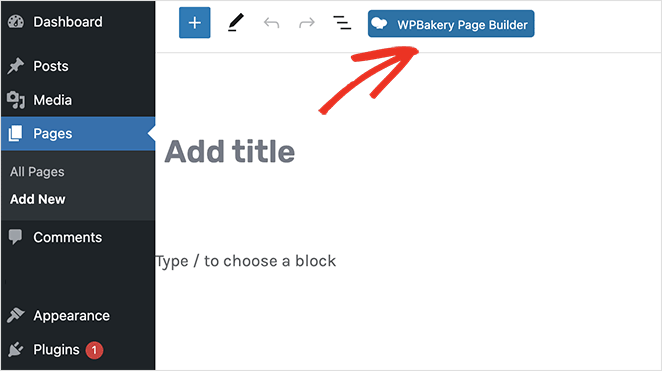
Auf dem nächsten Bildschirm sehen Sie 2 verschiedene Optionen: Backend-Editor und Frontend-Editor.
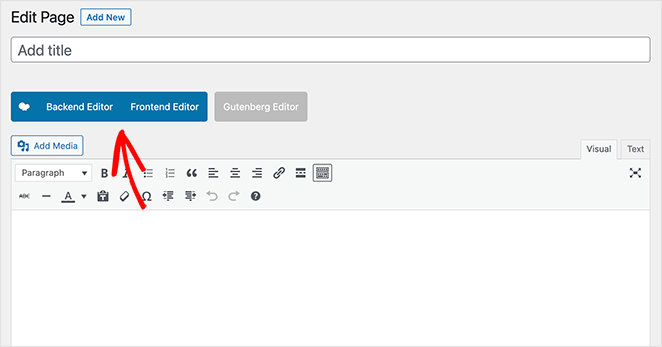
Mit dem Backend-Editor können Sie Ihrer Seite dieselben Elemente hinzufügen wie mit dem Frontend-Editor. Der einzige Unterschied besteht darin, dass Sie in Ihrem Website-Dashboard arbeiten, das keine Live-Vorschau Ihrer Änderungen anzeigt.
Sie können immer noch die Elementbibliothek öffnen, Abschnitte, Zeilen und Spalten anpassen und Elemente per Drag & Drop verschieben, um ihre Position neu anzuordnen.
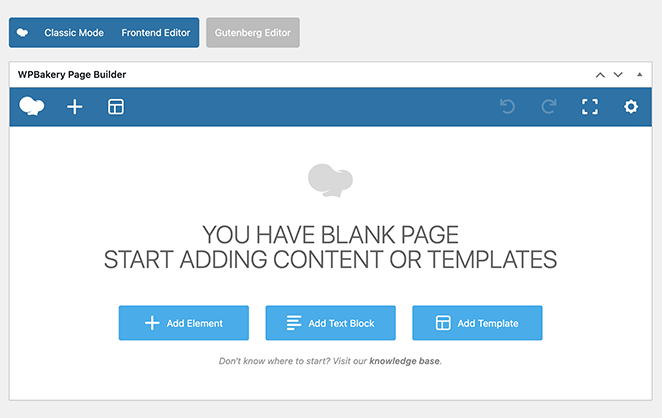
Wenn Sie jederzeit zum Frontend wechseln möchten, klicken Sie einfach auf die Schaltfläche Frontend-Editor. Von dort aus können Sie Ihre neue Seite in Echtzeit anpassen.
Vorgefertigte Vorlagen anpassen
Wenn Sie lieber mit einer vorgefertigten Vorlage beginnen möchten, können Sie dies ganz einfach tun. Erstellen Sie einfach eine neue Seite mit WPBakery, klicken Sie auf das Symbol der Vorlagenbibliothek und klicken Sie auf eine Vorlage, um sie automatisch zu Ihrem Design hinzuzufügen.
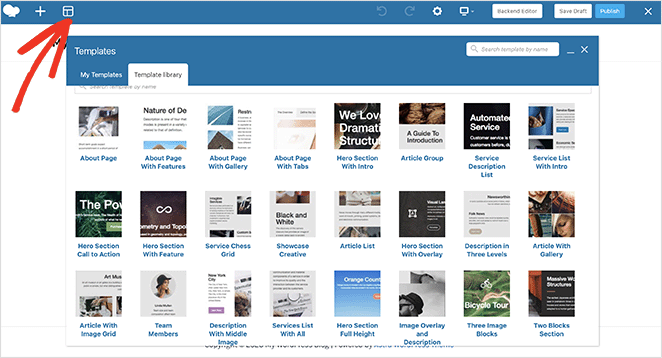
Von dort aus können Sie die Farben, Schriftarten, Bilder, Inhalte und Elemente der Vorlage bearbeiten, um das Design zu Ihrem eigenen zu machen.
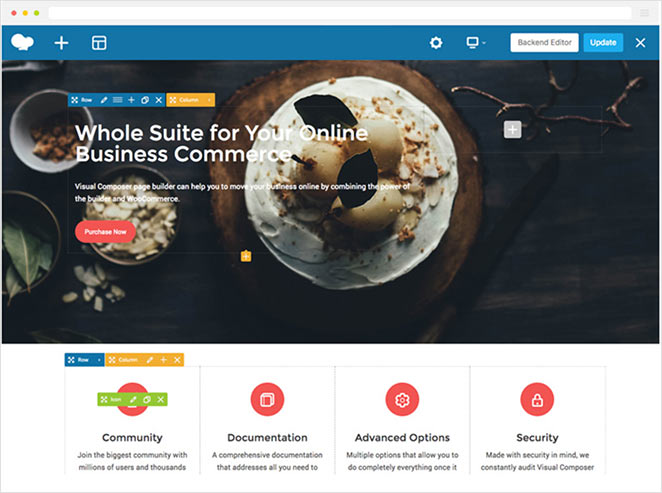
Was Sie wissen sollten, bevor Sie WPBakery wählen
Hier ist, was ich bei der Verwendung von WPBakery in verschiedenen Projekten gefunden habe und bei der Bereinigung von Problemen, die von Kunden hinterlassen wurden, die es in der Vergangenheit verwendet haben.
Einige Teile von WPBakery halten immer noch, aber andere fühlen sich wie in der Vergangenheit stecken geblieben an.
✅ Großartig für Theme-gebundene Websites: Wenn Ihr WordPress-Theme mit vorinstalliertem WPBakery geliefert wurde, funktioniert es normalerweise sofort gut. Benutzer, die es bereits verwenden und nicht wechseln möchten, haben am wenigsten zu befürchten.
❌ Nicht ideal für Anfänger: WPBakery verfügt über zwei separate Editoren (Backend und Frontend), was von Anfang an für Verwirrung sorgt. Die meisten Anfänger finden Tools wie SeedProd oder Elementor von Tag eins an einfacher zu erlernen.
❌ Nicht so gut zum Wechseln: Wenn Sie das Theme wechseln oder später einen anderen Seitenersteller ausprobieren, hinterlässt WPBakery Shortcode-Unordnung in Ihren Inhalten, die manuell bereinigt werden muss. Ich habe mehr Stunden als mir lieb ist damit verbracht, Kunden genau dabei zu helfen.
❌ Visuelles Bearbeiten fühlt sich sperrig an: Im Vergleich zu modernen Erstellern wie SeedProd oder Elementor benötigt die Benutzeroberfläche von WPBakery mehr Klicks, um einfache Dinge zu erledigen.
Eine kurze Anmerkung zu Shortcodes (und warum es wichtig ist)
Wenn Sie sich jemals entscheiden, WPBakery zu deaktivieren, verlieren Sie nicht nur Ihr Layout. Sie werden mit einer Seite voller Shortcodes wie [vc_row][vc_column] zurückgelassen, die über jeden Beitrag und jede Seite verstreut sind. Sie müssen sie manuell bereinigen oder alles in einem anderen Tool von Grund auf neu erstellen.
WPBakery vs. der WordPress Block-Editor
Eine Frage, die ich 2026 oft höre: Wenn WPBakery mit meinem Theme gebündelt war, muss ich es dann tatsächlich verwenden? Kann ich stattdessen einfach den WordPress Block-Editor (Gutenberg) verwenden?
In vielen Fällen ja. Wenn Sie einfache Inhaltsseiten, Blogbeiträge oder grundlegende Layouts erstellen, erledigt Gutenberg dies gut und es ist bereits kostenlos in WordPress integriert.
WPBakery hat immer noch einen Vorteil, wenn Sie komplexe mehrspaltige Layouts, benutzerdefinierte Zeilen-/Spaltenabstände oder spezielle Add-ons benötigen, für die Ihr Theme entwickelt wurde. Wenn das Theme mit vorab konfigurierten WPBakery-Seitenvorlagen geliefert wurde, kann der Wechsel zu Blöcken mitten im Projekt diese Layouts brechen.
Meine Faustregel: Wenn die Website bereits mit WPBakery erstellt wurde und die Layouts funktionieren, bleiben Sie dabei. Wenn Sie eine neue Website oder eine neue Seite beginnen und Ihr Theme nicht von WPBakery für sein Layout abhängig ist, verwenden Sie stattdessen den Block-Editor oder einen modernen Ersteller. Sie werden sich später bedanken, wenn es Zeit ist, Änderungen vorzunehmen.
So migrieren Sie von WPBakery weg
Wenn Sie WPBakery bereits verwenden und zu einem anderen Ersteller wechseln möchten, lautet die kurze Antwort: Es erfordert Arbeit, ist aber machbar.
Wenn Sie WPBakery deaktivieren, werden alle Seiten, die es berührt hat, rohe Shortcodes anstelle Ihres Layouts anzeigen. Nichts bricht dauerhaft, aber nichts sieht richtig aus. Hier ist, was die Bereinigung normalerweise beinhaltet:
- Überprüfen Sie Ihre Seiten: Verwenden Sie ein Plugin wie WP Migrate oder eine Seitensuche, um alle Seiten mit
[vc_row]Shortcodes zu finden. - Layouts neu erstellen: Sie müssen jede Seite in Ihrem neuen Builder neu erstellen. Es gibt keinen automatischen Konverter, der zuverlässig funktioniert.
- Übrig gebliebene Shortcodes bereinigen: Führen Sie nach der Neuerstellung eine Suche und Ersetzung durch, um verwaiste WPBakery-Shortcodes aus der Datenbank zu entfernen.
- Auf Staging testen: Tun Sie dies immer auf einer Staging-Website, bevor Sie Ihre Live-Website anfassen.
Für große Websites mit Dutzenden von benutzerdefinierten Seiten ist dies ein bedeutendes Projekt. Für kleinere Websites (unter 10 Seiten) können die meisten Leute es an einem Tag erledigen. Ich habe dies für Kunden getan, und die meiste Zeit wird immer für die Neuerstellung der Seiten benötigt, nicht für die Shortcode-Bereinigung selbst.
Sollten Sie WPBakery im Jahr 2026 noch verwenden?
WPBakery ist immer noch ein funktionierendes Werkzeug, aber es ist im Jahr 2026 nicht die richtige Wahl für jeden. Hier sind einige Überlegungen dazu:
✅ Am besten für: Benutzer, die WPBakery bereits mit ihrem WordPress-Theme gebündelt haben, Entwickler, die ältere Websites warten, und alle, die nicht vorhaben, ihre Builder in naher Zukunft zu wechseln.
❌ Nicht ideal für: Anfänger, die einen einfachen visuellen Builder suchen, Website-Besitzer, denen die Seitenladezeit wichtig ist, und Leute, die langfristige Flexibilität und sauberen Output wünschen, wenn sie schließlich wechseln.
Wenn Sie eine neue Website starten oder Ihnen schnellere Seitenladezeiten und eine einfachere Bearbeitung wichtig sind, ist WPBakery wahrscheinlich nicht mehr Ihre beste Option. Tools wie SeedProd oder Elementor bieten reibungslosere Oberflächen, integrierte Theme-Builder und KI-Tools ohne das Risiko von Shortcode-Lock-in.
Sehen Sie, wie sich WPBakery in der Vergleichstabelle unten gegen Alternativen schlägt.
WPBakery Testbericht: Preise
WPBakery bietet 3 Preispläne für unterschiedliche Budgets und Anwendungsfälle.
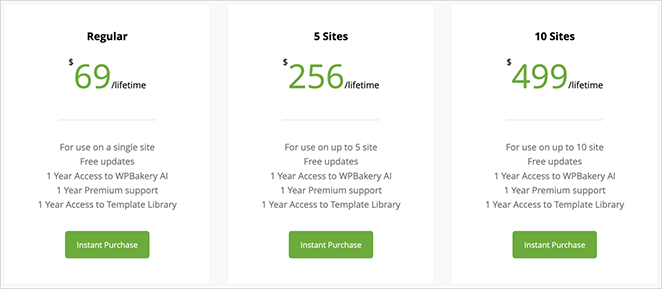
Die reguläre Lizenz ist eine einmalige Zahlung von 69 US-Dollar für eine einzelne Website mit Premium-Support und Zugriff auf die Vorlagenbibliothek. Von dort skaliert die Preisgestaltung auf 256 US-Dollar für 5 Websites und 499 US-Dollar für 10 Websites.
Es gibt keine kostenlose Version oder Testversion. Im Gegensatz zu Elementor und SeedProd, die beide kostenlose Pläne anbieten, erfordert WPBakery einen Vorauskauf.
Die Preise für WPBakery-Add-ons können variieren und sind vom Haupt-Plugin-Preis getrennt.
Was sagen Kunden über WPBakery?
Obwohl das Testen von WPBakery für mich selbst hilfreich war, wollte ich auch sehen, was andere Benutzer denken. Also habe ich Kommentare von echten Benutzern aus dem Internet durchgesehen, und ich muss sagen, die Meinungen sind ziemlich gemischt.
WPBakery gibt es schon eine Weile, und diese Geschichte kam oft zur Sprache. Wie ein Entwickler auf Reddit schrieb:
„Es war einer der ersten Page Builder für WordPress und wurde populär, weil Theme-Entwickler ihn in ihre Themes integrierten. Damals funktionierte er gut, aber heute gibt es bessere Werkzeuge.“ — Reddit, r/WordPress
Einige Benutzer arbeiten immer noch aktiv mit WPBakery und finden es handhabbar. Ein Webentwickler auf Reddit teilte seine Erfahrungen:
„Ich habe immer noch über 40 Websites, die WP Bakery verwenden. Ich benutze die Themes The7 & Bridge. Es ist relativ einfach zu verstehen. Ein bisschen sperrig und nicht besonders schnell.“
Eine dritte Perspektive bietet den nützlichsten Rahmen für jeden, der sie jetzt bewertet. Wie ein anderer erfahrener Entwickler auf Reddit in einer ausgewogenen Ansicht schrieb:
„Es variiert. Ich habe einige Websites gesehen, auf denen WPBakery schrecklich zu bedienen war, aber ich habe auch andere gesehen, bei denen es gut funktionierte, weil es richtig eingerichtet war. Es kommt wirklich darauf an, wie gut jemand es benutzt hat.“
Das letzte Zitat entspricht dem, was ich in der Praxis gesehen habe. WPBakery funktioniert am besten, wenn es so eingerichtet ist, wie es der Theme-Entwickler vorgesehen hat. Die Probleme beginnen normalerweise, wenn Leute versuchen, es auf eine Weise zu verwenden, für die es nicht konzipiert wurde, oder wenn es Zeit ist, weiterzuziehen.
WPBakery Review: Wie es im Vergleich zu anderen Seitenerstellern abschneidet
Wie schneidet WPBakery im Vergleich zu anderen Seitenerstellern wie SeedProd, Elementor Pro, Divi Builder und Beaver Builder ab? Die Wahrheit ist, es könnte besser sein.
WPBakery fehlen Funktionen, die seine Konkurrenten gut beherrschen.

Zum Beispiel hat SeedProd einen integrierten WordPress Theme Builder, mit dem Sie benutzerdefinierte WordPress Themes neben Landing Pages erstellen können. Es hat auch viele der Add-on-Funktionen von WPBakery im Kern-Plugin integriert, darunter Vorher-Nachher-Slider, Testimonials, WooCommerce-Produkte, Teammitglieder, Animationen, Preislisten und mehr.

SeedProd arbeitet unabhängig von Ihrem WordPress-Theme und stellt sicher, dass es nahtlos mit jedem Design funktioniert. Plus, wenn Sie sich entscheiden, einen anderen Seitenersteller zu verwenden, werden keine unordentlichen Shortcodes hinterlassen, die Ihre Seitenladezeit beeinträchtigen.
WPBakery-Alternativen
| Merkmal | WPBakery | SeedProd | Elementor | Divi Builder |
|---|---|---|---|---|
| Theme-Builder | ❌ Nicht enthalten | ✅ Integriert | ✅ Integriert | ✅ Integriert |
| Drag-and-Drop-Editor | ⚠️ Weniger intuitiv | ✅ Anfängerfreundlich | ✅ Beliebte Wahl | ⚠️ Kann überwältigend sein |
| Geschwindigkeit | ⚠️ Langsam bei umfangreichen Websites | ✅ Leicht & schnell | ⚠️ Mittlere Geschwindigkeit | ⚠️ Mittlere Geschwindigkeit |
| Shortcode-frei | ❌ Hinterlässt Shortcodes | ✅ Saubere Ausgabe | ✅ Saubere Ausgabe | ❌ Hinterlässt Shortcodes |
| Kostenlose Version verfügbar | ❌ Nein | ✅ Ja | ✅ Ja | ❌ Nein |
| KI-Funktionen | ❌ Keine | ✅ Integrierte KI-Text- & Bildtools | ✅ KI-Tools (nur Pro) | ❌ Keine |
| Einfacher späterer Wechsel | ❌ Hinterlässt Shortcode-Chaos | ✅ Sauberer HTML-Output | ✅ Kein Shortcode-Lock-in | ❌ Hinterlässt Shortcode-Chaos |
| Bester Anwendungsfall | Gebündelte Themes | Benutzerdefinierte Landingpages | Designflexibilität | All-in-One-Designs |
Um die Alternativen zu vergleichen, könnten die folgenden WordPress Page Builder-Bewertungen hilfreich sein:
- Elementor Testbericht
- LeadPages-Bewertung
- Instapage-Bewertung
- Beaver Builder Testbericht
- Divi Testbericht
WPBakery Testbericht: Endgültiges Urteil
Nachdem ich ihn für diese WPBakery-Bewertung ausgiebig getestet habe, kann ich sagen, dass der Builder immer noch funktioniert, aber sein Alter zeigt. Die Drag-and-Drop-Oberfläche fühlt sich im Vergleich zu modernen Buildern klobig an, und der Shortcode-Lock-in ist ein echtes Manko, wenn Sie jemals die Tools wechseln möchten.
Wenn Sie eine Website pflegen, die bereits WPBakery verwendet, oder Ihr Theme es mitgeliefert hat, ist es vielleicht in Ordnung, vorerst dabei zu bleiben. Aber wenn Sie etwas Neues aufbauen, empfehle ich dringend, einen schnelleren, flexibleren Page Builder zu wählen, der Sie nicht ausbremst oder später einschränkt.
Kurz gesagt: WPBakery ist nicht die schlechteste Option, aber im Jahr 2026 ist es nicht mehr die beste.
Häufig gestellte Fragen (FAQs) zu WPBakery
Da haben Sie es!
Ich hoffe, diese ausführliche WPBakery-Bewertung war hilfreich für Sie.
Sie könnten auch unseren Vergleich von Leadpages vs Instapage vs SeedProd mögen oder sehen, wie Elementor vs WPBakery vs SeedProd im direkten Vergleich abschneiden.
Wenn Sie die besten modernen Builder abwägen, behandelt unser Vergleich Beaver Builder vs Elementor vs SeedProd alle drei.
Sie könnten auch unseren Leitfaden zum Thema Auswahl des besten WordPress-Hostings hilfreich finden.
Danke fürs Lesen! Wir würden uns freuen, Ihre Gedanken zu hören. Treten Sie also gerne der Unterhaltung auf YouTube, X und Facebook bei, um weitere hilfreiche Ratschläge und Inhalte für das Wachstum Ihres Unternehmens zu erhalten.



