


TL;DR : Comment créer une page de destination pour ebook sur WordPress
SeedProd facilite la création d'une page de destination pour ebook à forte conversion sans code. Voici la version courte :
- Installer SeedProd – Obtenez le plugin, entrez votre clé de licence et activez-le.
- Choisir un modèle – Choisissez parmi les modèles d'ebooks ou de capture de prospects de SeedProd.
- Ajouter votre contenu – Insérez votre titre, la couverture de votre ebook, votre appel à l'action et la preuve sociale.
- Connecter votre service d'email – Liez Mailchimp, ConvertKit ou un autre fournisseur.
- Configurer la livraison – Téléchargez votre PDF, ajoutez un lien de téléchargement à votre e-mail de bienvenue et définissez une page de remerciement.
- Publier et tester – Mettez en ligne, testez le flux d'inscription complet et commencez à générer du trafic.
Vous avez écrit l'ebook. Le placer sur une page WordPress ordinaire le rend invisible, et les visiteurs partent sans s'inscrire car trop de choses détournent leur attention.
Une page WordPress ordinaire offre trop d'options aux visiteurs. Une page de destination dédiée supprime votre menu de navigation et vos barres latérales afin que les visiteurs ne puissent faire qu'une seule chose : s'inscrire.
Dans ce guide, je vais vous montrer comment créer une page de destination pour ebook sur WordPress en utilisant le constructeur glisser-déposer de SeedProd.
Avec SeedProd, l'ensemble du processus prend environ 30 minutes. Aucun codage requis, et cela fonctionne avec n'importe quel site WordPress.
Commencez à partir d'un modèle d'ebook pré-construit, ajoutez votre contenu et la couverture de votre ebook, connectez votre service d'email et publiez. Les étapes ci-dessous vous guident à travers chacune d'elles.
- Qu'est-ce qu'une page de destination pour ebook ?
- Qu'est-ce qui rend une page de destination pour ebook performante ?
- Comment créer une page de destination pour e-book dans WordPress
- Étape 1. Installer le plugin SeedProd
- Étape 2. Créez votre première page et choisissez un modèle de page de destination pour livre
- Étape 3. Concevez et ajoutez du contenu à votre page de destination pour livre
- Étape 4. Personnalisez le style de votre page de destination pour livre
- Étape 5. Intégrer votre service de marketing par e-mail
- Étape 6. Modifiez les paramètres de votre page de destination pour livre
- Étape 7. Publiez votre page de destination pour livre
- Que faire après la publication de votre page de destination d’ebook
- FAQ sur les pages de destination pour ebook
Qu'est-ce qu'une page de destination pour ebook ?
Une page de destination pour ebook est une page web autonome conçue spécifiquement pour promouvoir et distribuer votre ebook. Contrairement à une page de site web ordinaire, elle se concentre sur un seul objectif : inciter les visiteurs à télécharger votre ebook, à s'inscrire à votre liste d'emails ou à acheter votre livre.
Ces pages suppriment les distractions telles que les menus de navigation et les liens multiples afin que les visiteurs puissent se concentrer sur une action claire.
Types de pages de destination pour ebook
Vous pouvez utiliser les pages de destination pour ebook de différentes manières en fonction de votre objectif. Voici les principaux types :
Pages de Lead Magnet (Ebook gratuit contre email)
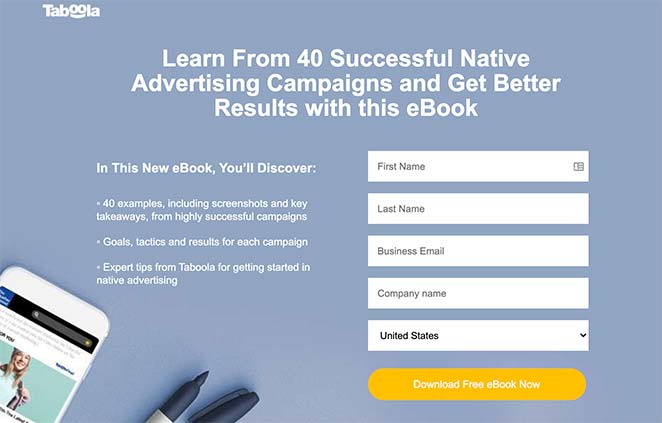
Une page de lead magnet propose un ebook gratuit en échange d'une adresse email. Elle montre la valeur de votre ebook et permet aux visiteurs de s'inscrire facilement.
Avec une page bien conçue et une offre attrayante, vous pouvez obtenir des taux d'inscription de 20 % à 40 % ou plus.
Pages de vente directe

Une page de vente vend directement votre e-book. Elle inclut les prix, les témoignages de lecteurs et un bouton d'achat clair.
En supprimant les distractions et en se concentrant sur une seule action, les pages de vente peuvent atteindre des taux de conversion de 2,8 % à 5,3 % ou plus.
Pages de promotion de livre

Une page de promotion fonctionne pour les livres disponibles sur plusieurs plateformes. Elle met en avant le contenu de votre livre, ses avantages et le parcours de l'auteur, puis renvoie vers des détaillants comme Amazon ou inclut des options d'achat direct.
Ce type de page est idéal pour les auteurs qui développent leur marque ou lancent un nouveau livre.
Pensez à votre objectif pour choisir le bon type de page. Consultez quelques exemples de pages de destination pour e-books pour plus d'inspiration.
Qu'est-ce qui rend une page de destination pour ebook performante ?
Avant de commencer à créer votre page, vous devez comprendre ce qui rend une page de destination pour e-book performante. Voici les éléments essentiels à inclure :
- Un titre accrocheur. Votre titre est la première chose que les visiteurs voient. Concentrez-le sur la valeur que votre e-book offre. Comme le disait David Ogilvy : « En moyenne, cinq fois plus de personnes lisent le titre que le corps du texte ». Consultez notre guide sur les formules de titres pour pages de destination pour des exemples.
- Des sous-titres clairs. Les sous-titres divisent votre contenu et rendent la page plus facile à parcourir. Chacun doit guider les visiteurs vers votre appel à l'action.
- Des images et vidéos de haute qualité. Les images montrent la qualité de votre e-book plus rapidement que les mots. Utilisez des images haute résolution de la couverture de votre e-book et des graphiques pertinents. Les vidéos sont tout aussi efficaces pour démontrer la valeur.
- Un contenu axé sur les avantages. Votre contenu doit être facile à lire et aller droit au but. Mettez en avant les avantages de votre e-book et expliquez les problèmes qu'il résout. Vous pouvez même offrir aux lecteurs un aperçu d'un chapitre pertinent.
- La preuve sociale. Incluez des témoignages, des avis ou des logos d'entreprises reconnues. La preuve sociale renforce la crédibilité et la confiance. J'utilise des témoignages sur les pages de destination car ils montrent des résultats réels.
- Un appel à l'action fort. Votre bouton d'appel à l'action doit se démarquer et encourager une action immédiate. Utilisez un langage persuasif comme « Télécharger maintenant » ou « Obtenir un accès instantané ». Les pages de destination avec des appels à l'action forts peuvent convertir à des taux aussi élevés que 15 %.
Pour plus de conseils, consultez notre guide sur les bonnes pratiques pour les pages de destination.
Comment créer une page de destination pour e-book dans WordPress
La façon la plus simple de créer une page de destination pour e-book dans WordPress est d'utiliser un plugin constructeur de pages de destination. Je recommande SeedProd car il vous permet de créer des pages personnalisées sans code.

SeedProd est un constructeur de sites web WordPress par glisser-déposer, utilisé par plus d'un million de sites web. Il comprend des centaines de modèles de pages de destination pré-conçus avec aperçu en temps réel, et tous les modèles sont entièrement réactifs.
Vous pouvez également utiliser Thrive Architect comme alternative.
Voici comment créer votre page de destination pour e-book étape par étape.
Étape 1. Installer le plugin SeedProd
D'abord, cliquez ici pour commencer avec SeedProd et télécharger le plugin sur votre ordinateur. Ensuite, suivez ces instructions étape par étape pour installer un plugin WordPress.
Pour ce guide, nous utiliserons SeedProd Pro pour ses fonctionnalités avancées. Vous pouvez consulter les différents plans sur la page de tarification de SeedProd.
Après avoir installé et activé le plugin, vous verrez un écran vous demandant d'entrer votre clé de licence SeedProd. Votre clé sera envoyée à l'adresse e-mail enregistrée que vous avez utilisée lors de l'inscription au plugin.
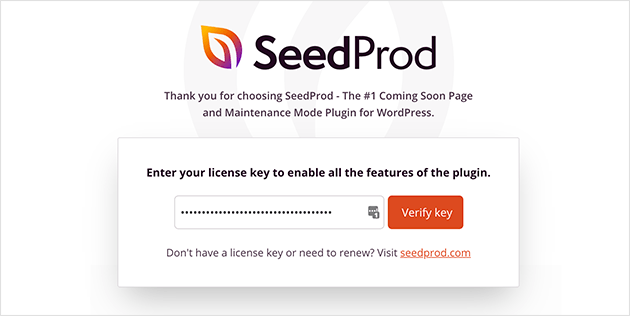
Entrez votre clé et cliquez sur le bouton Vérifier la clé.
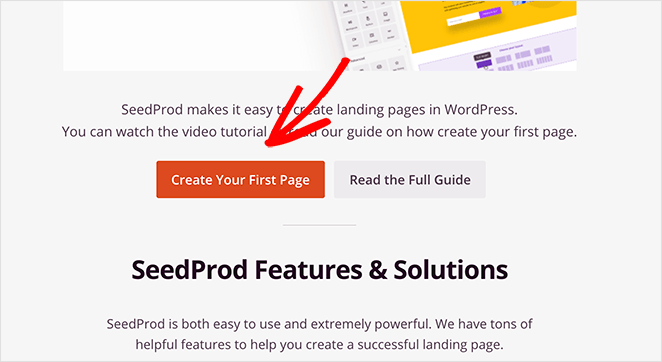
Ensuite, faites défiler la page et cliquez sur le bouton Créer votre première page pour créer une nouvelle page de destination et choisir un modèle.
Étape 2. Créez votre première page et choisissez un modèle de page de destination pour livre
Après avoir cliqué sur le bouton pour créer une nouvelle page, vous verrez le tableau de bord des pages de destination SeedProd. En haut de la page se trouvent 4 modes de page différents :
- Mode Bientôt disponible – Créez une page « Bientôt disponible » dans WordPress.
- Mode Maintenance – Mettez WordPress en mode maintenance avec une page de maintenance.
- Page de connexion – Créez une page de connexion personnalisée dans WordPress.
- Page 404 – Ajoutez une page d'erreur 404 personnalisée à votre site Web.
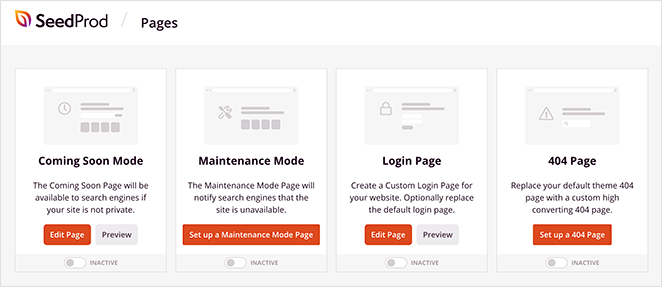
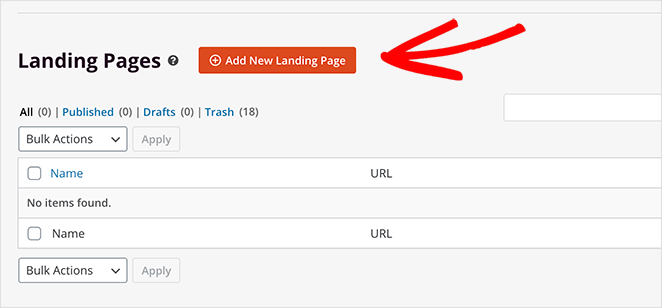
Sous cette zone se trouve une section qui répertorie les pages de destination que vous avez créées avec SeedProd.
Pour créer votre première page, cliquez sur le bouton Ajouter une nouvelle page de destination.
Sur la page suivante se trouve la bibliothèque de modèles de pages de destination réactives de SeedProd.
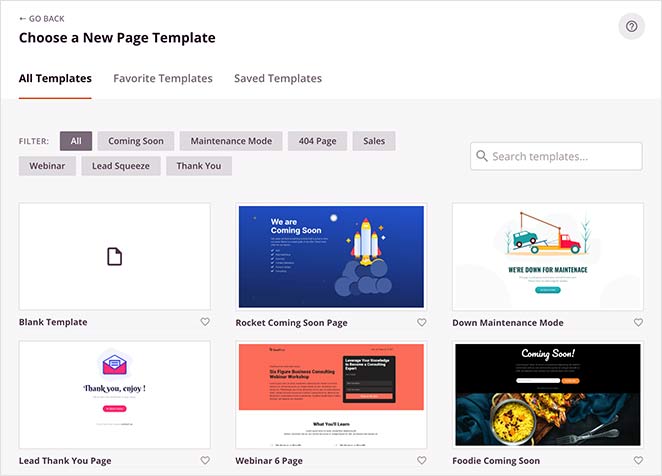
En utilisant les boutons en haut, vous pouvez filtrer les modèles en fonction du type de page.
Dans la section des ventes, vous trouverez des modèles de pages de destination d'ebooks réactives, parfaits pour vendre un livre en ligne.
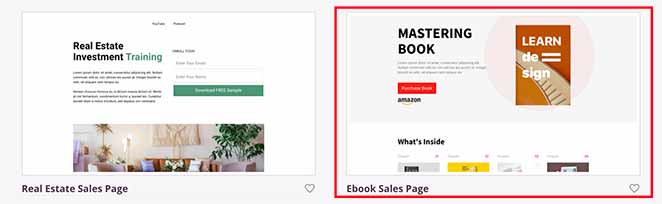
Dans la section Lead Squeeze se trouvent plusieurs modèles de livres conçus pour les aimants à prospects d'ebooks.
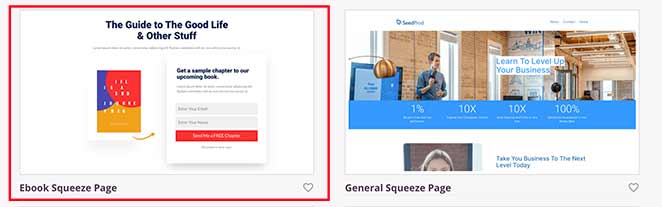
Vous pouvez également personnaliser n'importe quel modèle et le transformer en votre page de destination de livre.
Pour ce tutoriel, j'utiliserai le modèle Page de vente d'ebook. Survolez la miniature du modèle avec votre souris et cliquez sur l'icône de coche pour le lancer.
Vous verrez alors apparaître une fenêtre contextuelle vous demandant d'ajouter un nom et une URL pour la page de destination. Ne vous inquiétez pas, vous pourrez modifier ces paramètres plus tard.
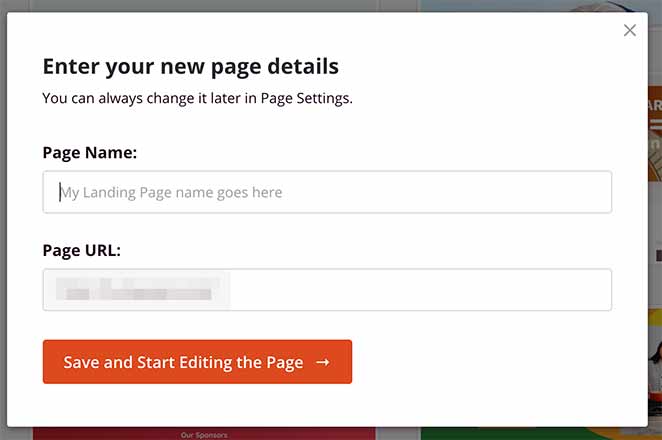
Cliquez maintenant sur Enregistrer et commencer à modifier la page pour lancer votre modèle de page de destination dans l'éditeur par glisser-déposer.
Étape 3. Concevez et ajoutez du contenu à votre page de destination pour livre
L'éditeur de page visuel de SeedProd vous permet d'ajouter du contenu à votre page de destination et de voir les modifications en temps réel. Vous pouvez le faire en faisant glisser un bloc de page de destination du panneau de gauche et en le déposant sur l'aperçu en direct à droite.
Les blocs de page de destination sont divisés en 2 sections : Standard et Avancé.
Les blocs Standard incluent des éléments de page qui contrôlent la mise en page générale de votre page. Cela comprend les images, les vidéos, les colonnes, les séparateurs, les boutons et les blocs de texte.
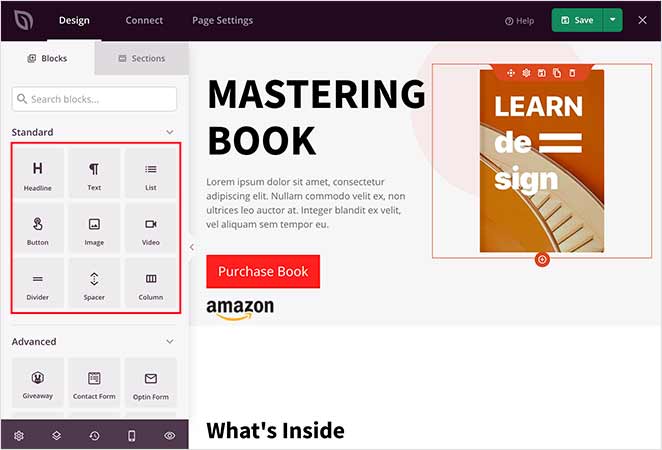
Les blocs Avancés se concentrent davantage sur la génération de prospects et incluent de puissants éléments de page pour développer votre liste d'e-mails, vos prospects et vos ventes. Par exemple, vous pouvez ajouter des formulaires d'inscription pour collecter des adresses e-mail, des cadeaux pour encourager les inscriptions, des formulaires de contact avec un minimum de champs pour recueillir des commentaires, et plus encore.
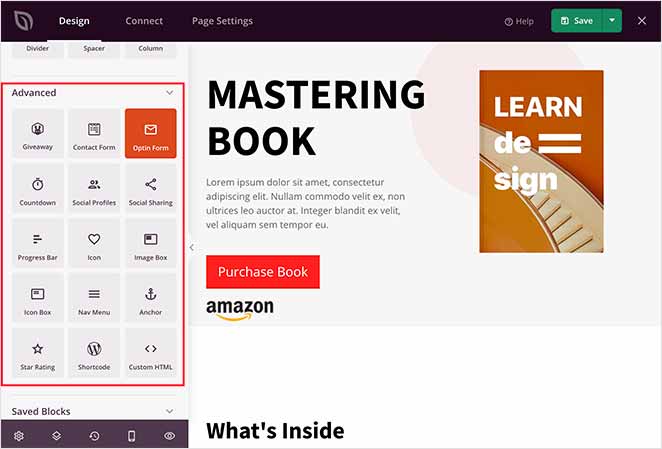
Par exemple, vous pouvez facilement ajouter des évaluations par étoiles et des témoignages à votre page de destination de livre pour montrer aux visiteurs les commentaires positifs d'autres clients, ce qui les persuadera d'acheter.
Pour ce faire, faites glisser le bloc Évaluation par étoiles ou le bloc Témoignage depuis le côté gauche de votre écran et déposez-le à l'endroit souhaité sur votre page.
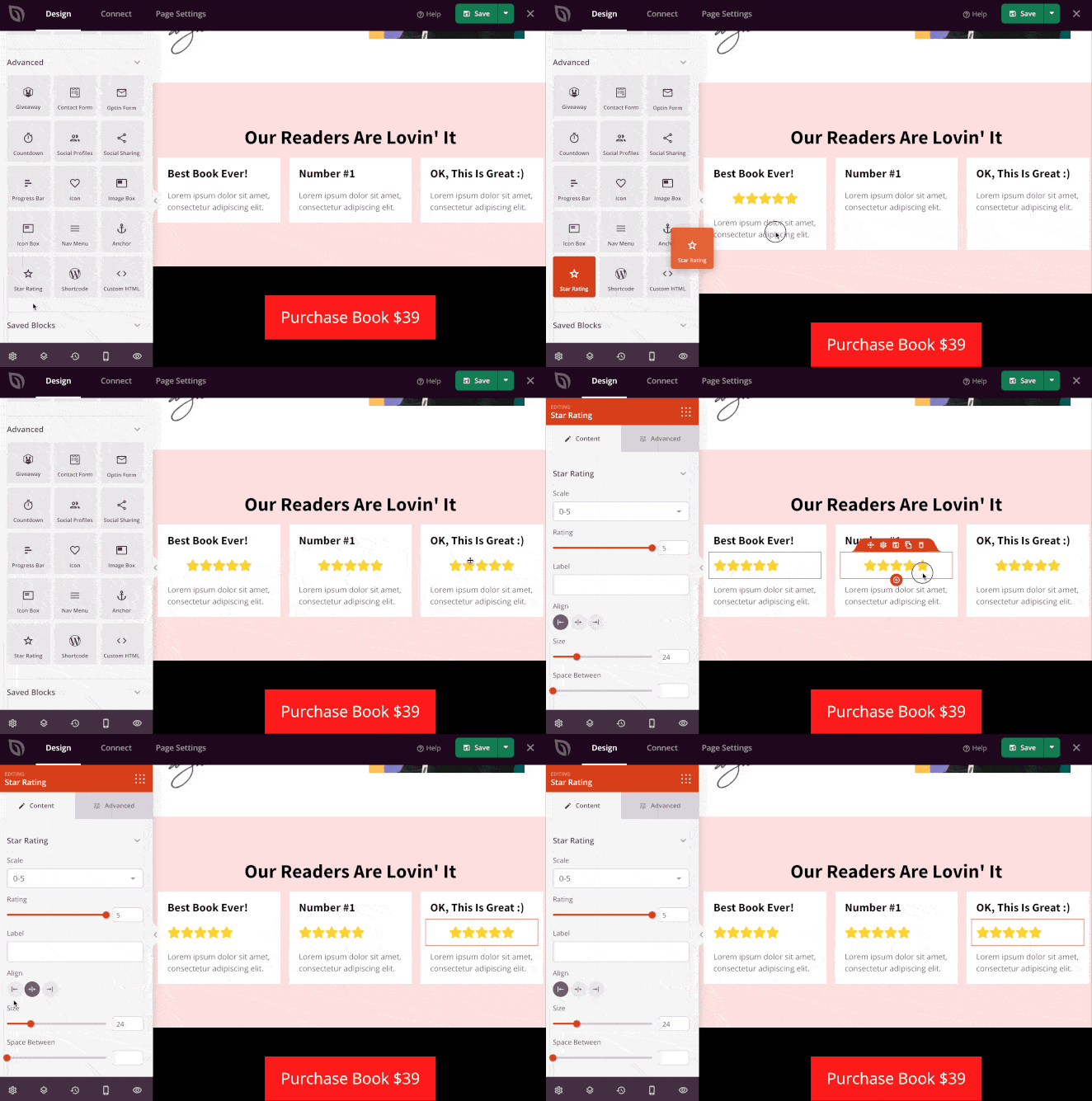
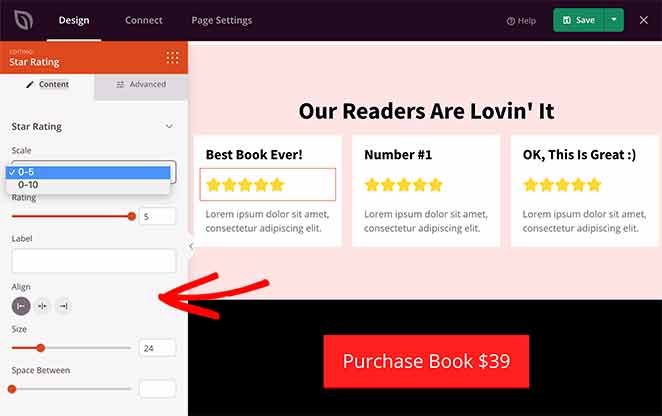
Vous pouvez ensuite cliquer sur le bloc pour ajuster l'alignement, l'échelle d'évaluation, la taille, etc.
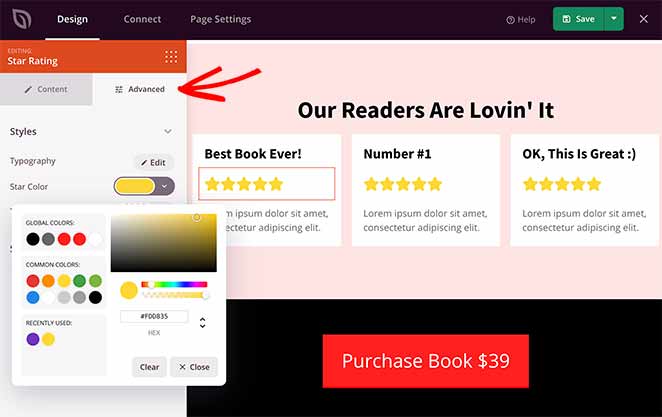
Ensuite, dans l'onglet Avancé, vous pouvez modifier les couleurs des étoiles et l'espace blanc.
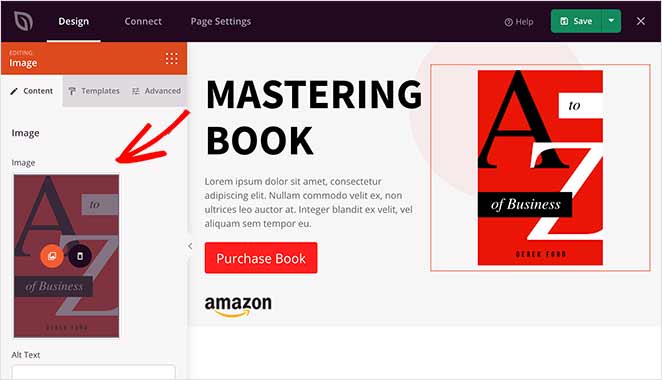
Vous pouvez également modifier le contenu de votre modèle en cliquant sur n'importe quel bloc et en le remplaçant par votre travail.
Par exemple, pour remplacer l'image de couverture de l'ebook, cliquez sur le bloc d'image, sélectionnez l'icône de la galerie dans le panneau de gauche, et téléchargez votre image depuis votre ordinateur ou votre médiathèque WordPress.
De nombreux blocs de page de destination de SeedProd sont livrés avec divers modèles de blocs préconçus. Cela signifie que vous pouvez changer le style de chaque bloc en un seul clic.
Par exemple, lorsque vous cliquez sur le bloc Bouton et sélectionnez l'onglet Modèles, vous verrez différents styles préconçus. Cliquez simplement sur un style pour l'ajouter automatiquement au bloc.
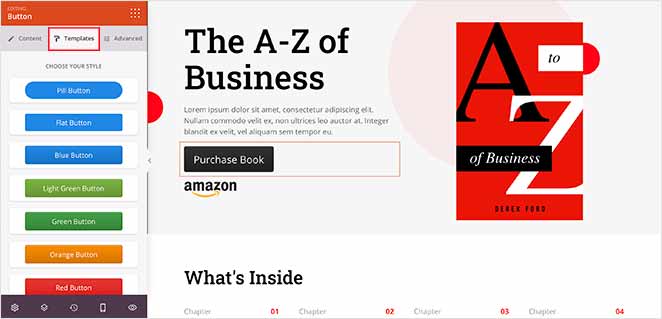
Continuez à ajouter du contenu à votre page jusqu'à ce que vous soyez satisfait, et n'oubliez pas d'inclure le nom de votre entreprise pour plus de confiance et d'authenticité. Vous pouvez enregistrer vos modifications en cliquant sur le bouton vert Enregistrer en haut à droite de votre écran.
Étape 4. Personnalisez le style de votre page de destination pour livre
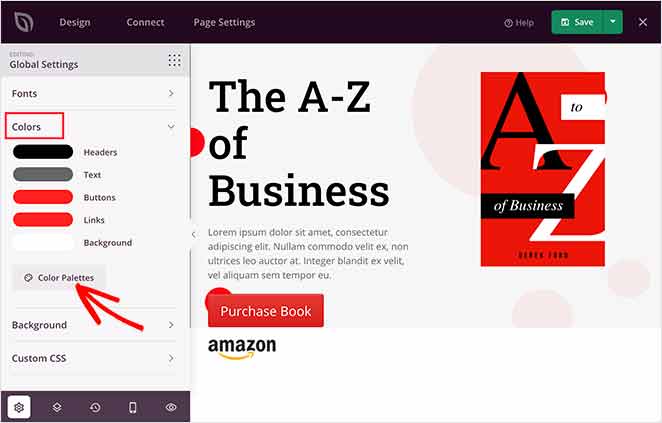
Il est tout aussi facile de personnaliser la conception et le style de votre page de destination. Cliquez sur l'icône d'engrenage dans le coin inférieur gauche de votre écran pour voir les paramètres globaux de la page.
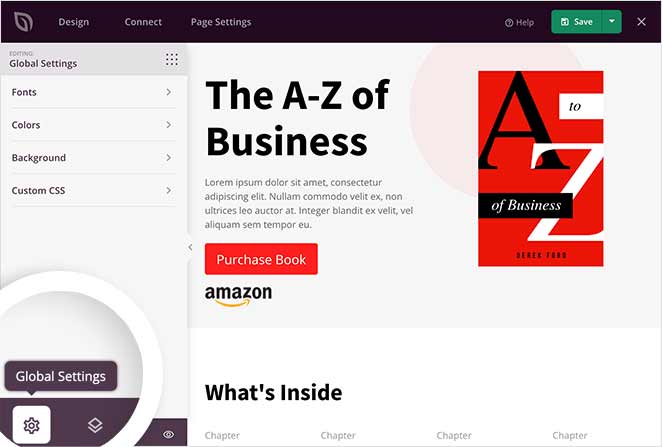
Vous pouvez personnaliser globalement les polices, les couleurs, les arrière-plans et le CSS de votre page de destination. Cela signifie que toute modification que vous apportez affectera l'ensemble de votre page.
Tout d'abord, cliquez sur l'onglet Arrière-plan pour voir les différentes options de personnalisation de l'arrière-plan de votre page. Vous pouvez changer le style de l'arrière-plan en couleur unie ou en dégradé, ou télécharger une image d'arrière-plan. Il est également possible d'utiliser des arrière-plans vidéo pleine largeur ou des diaporamas.
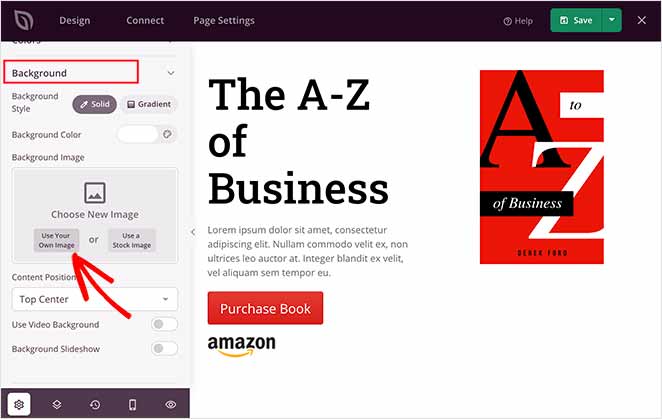
Pour télécharger une image d'arrière-plan, cliquez sur le bouton Utiliser votre propre image et sélectionnez une image depuis votre ordinateur ou votre médiathèque WordPress.
Maintenant, regardons comment changer les polices globales de votre page.
Cliquez sur l'onglet Polices pour choisir n'importe quelle police, taille de police et graisse dans les menus déroulants. Vous pouvez également cliquer sur le bouton Thèmes de polices pour voir différentes combinaisons de polices que vous pouvez ajouter à votre page de destination en un seul clic.
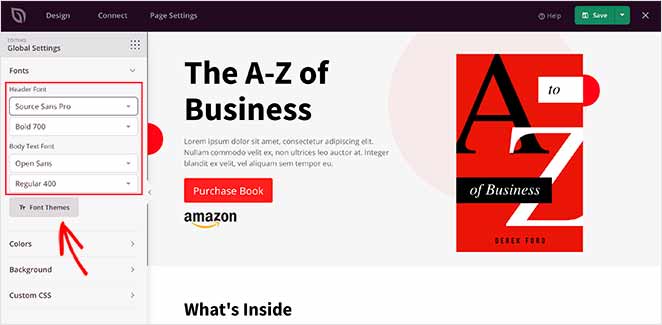
Suivez les mêmes étapes pour l'onglet Couleurs. Ici, vous pouvez changer les couleurs globales de votre page ou cliquer sur le bouton Palettes de couleurs pour choisir parmi différents schémas de couleurs préconçus pour les pages de destination.
Vous voudrez peut-être également inclure d'autres éléments de conception, tels que l'utilisation de vidéos sur votre page, des études de cas pour améliorer la confiance et des témoignages de clients précédents. Faites simplement glisser le bloc approprié et entrez votre contenu.
Lorsque votre page de destination de livre ressemble exactement à ce que vous voulez, cliquez sur Enregistrer.
Étape 5. Intégrer votre service de marketing par e-mail
Si vous souhaitez développer votre liste d'e-mails, vous devrez connecter votre page de destination à votre service de marketing par e-mail préféré. SeedProd se connecte directement à Mailchimp, ConvertKit, ActiveCampaign et plus de 30 autres services d'e-mail depuis le constructeur, sans code ni plugin tiers requis.
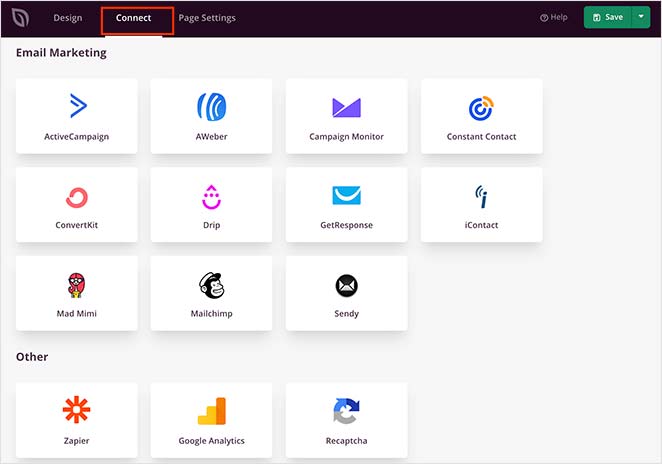
Cliquez simplement sur l'onglet Connecter en haut du constructeur. Ensuite, vous verrez une liste des meilleurs services de marketing par e-mail. Choisissez votre préféré dans la liste et cliquez sur Connecter un nouveau compte pour vérifier vos paramètres.
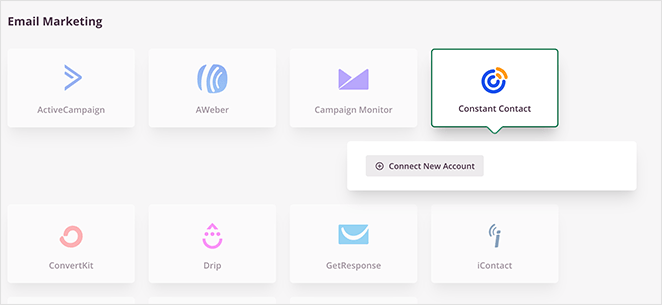
Après, toute personne qui s'inscrit sur votre page de destination sera automatiquement ajoutée à votre liste d'e-mails.
Parlons maintenant de la manière d'envoyer le livre électronique à votre nouvel abonné. Téléchargez votre PDF dans la bibliothèque de médias WordPress pour obtenir une URL de téléchargement partageable.
Ajoutez ce lien à votre e-mail de bienvenue automatisé dans votre service d'e-mail. Vous pouvez également ajouter un bouton de téléchargement direct sur votre page de remerciement en guise de sauvegarde, afin que les abonnés obtiennent le fichier immédiatement.
Étape 6. Modifiez les paramètres de votre page de destination pour livre
Cliquez sur l'onglet Paramètres de la page en haut du constructeur pour voir un aperçu des différents paramètres que vous pouvez configurer dans SeedProd.
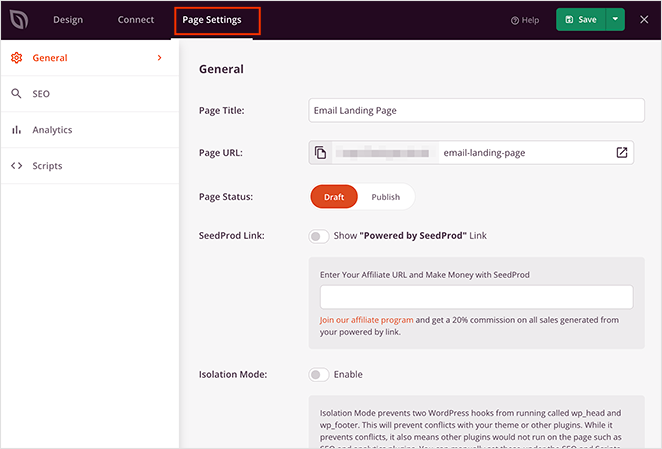
Dans la section Général, vous pouvez modifier le nom et l'URL de votre page de destination de livre.
Les pages de destination SeedProd s'affichent sans le menu de navigation et le pied de page de votre thème par défaut. Cela permet aux visiteurs de se concentrer sur votre livre électronique et supprime les liens de navigation qui détournent généralement les gens d'une page de destination.
Les paramètres SEO et Analytics vous permettent de modifier l'analyse et le référencement de votre page de destination lorsque vous utilisez des plugins comme MonsterInsights et All in One SEO sur votre site Web WordPress.
La section Scripts facilite l'ajout de scripts personnalisés à l'en-tête, au corps et au pied de page de votre page de destination. C'est un paramètre utile si vous souhaitez utiliser des pixels de suivi Facebook pour recibler les visiteurs récents de la page.
Cliquez sur Enregistrer pour stocker vos paramètres, puis passez à l'étape finale.
Étape 7. Publiez votre page de destination pour livre
Vous êtes maintenant prêt à publier votre page de destination. Excellent travail ! Mais d'abord, assurons-nous que votre page est adaptée aux mobiles. Si elle n'est pas responsive et ne s'adapte pas à différentes tailles d'écran, elle n'aura pas fière allure sur les appareils mobiles.
Pour vérifier que la conception de votre page de destination est superbe sur mobile, retournez à l'onglet Conception et cliquez sur l'icône Aperçu mobile en bas de votre écran.
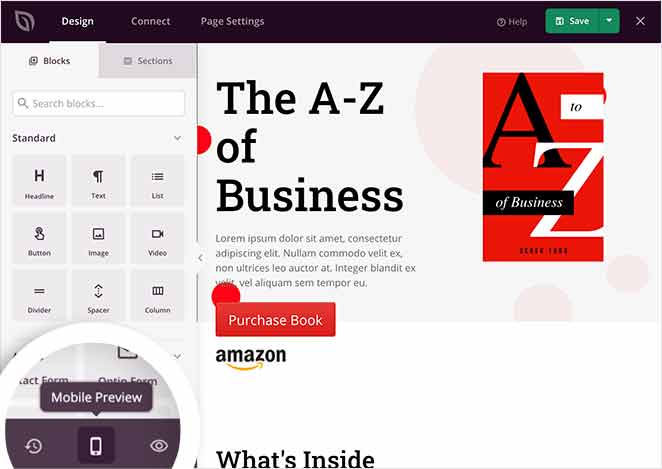
Vous verrez maintenant une version de la conception de votre page de destination de livre électronique telle qu'elle apparaîtrait sur mobile. L'optimisation mobile des pages de destination de livres électroniques est cruciale pour l'expérience utilisateur, car de nombreux utilisateurs naviguent depuis des appareils mobiles.
Donc, si quelque chose ne semble pas correct, vous pouvez modifier votre page directement dans l’aperçu mobile.
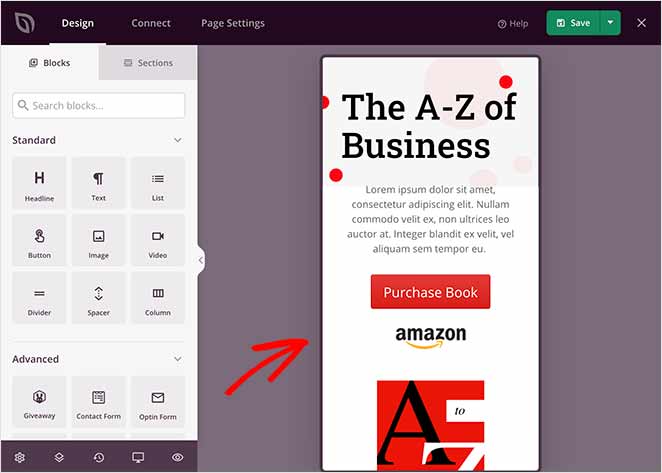
Pour revenir en arrière, cliquez sur l’icône Aperçu du bureau.
Maintenant que tout semble parfait, publions votre page de destination.
Dans le coin supérieur droit de votre écran, cliquez sur la flèche vers le bas à côté du bouton Enregistrer, puis cliquez sur Publier.
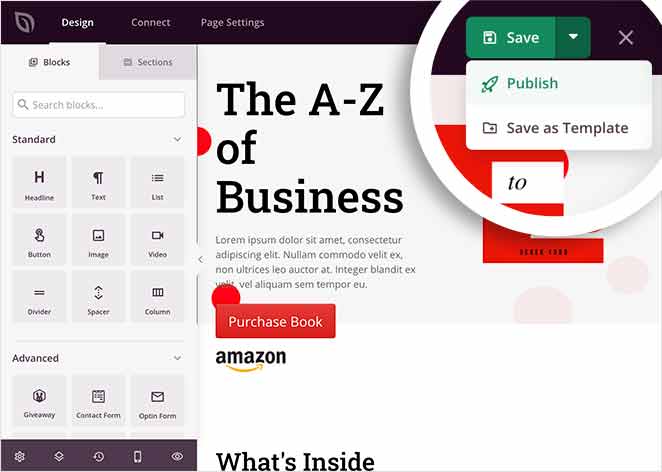
Vous verrez alors une fenêtre contextuelle vous informant que SeedProd a publié la page avec succès.
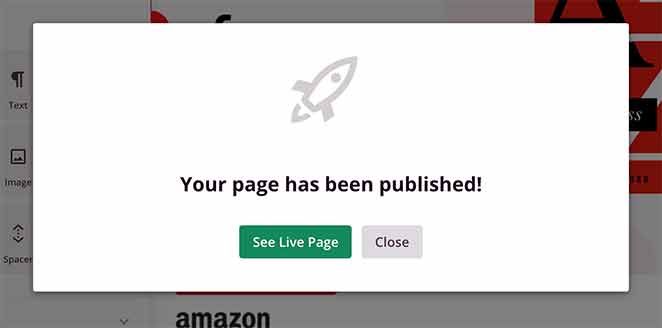
Cliquez sur le bouton Voir la page en direct pour voir à quoi ressemble votre page de destination de livre pour les visiteurs.
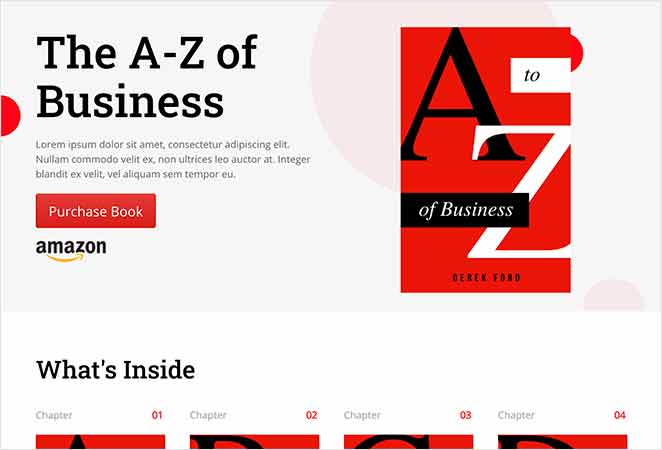
Voici un exemple que j’ai créé sur mon site de test :
Que faire après la publication de votre page de destination d’ebook
La publication de votre page de destination n’est que la première étape. Vous devez configurer le flux complet et générer du trafic pour commencer à obtenir des téléchargements.
Configurer votre page de remerciement
Créez une page de remerciement qui confirme l’abonnement et définit les attentes. Indiquez aux visiteurs de vérifier leur e-mail pour obtenir le lien de téléchargement.
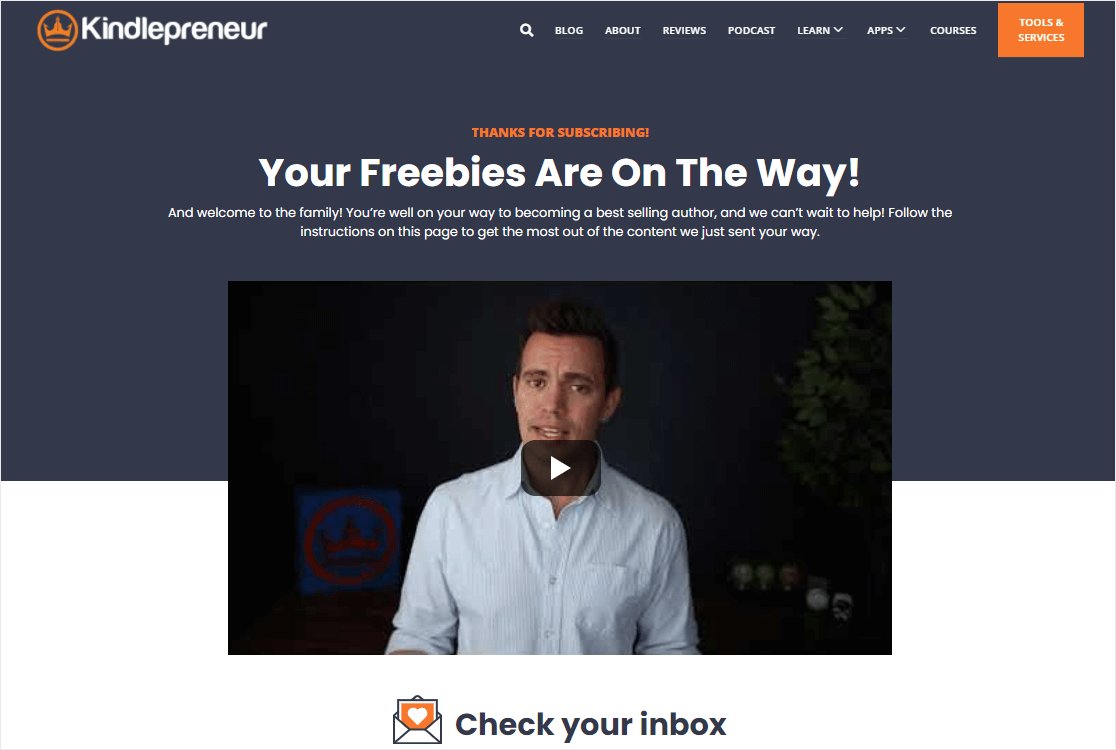
Vous pouvez également utiliser cette page pour promouvoir du contenu ou des produits connexes.
Configurer la livraison par e-mail
Configurez un e-mail automatisé qui livre l’ebook immédiatement après qu’une personne se soit abonnée. La plupart des services de marketing par e-mail comme Mailchimp, ConvertKit ou ActiveCampaign facilitent cela.
Incluez un lien ou un bouton de téléchargement clair dans l’e-mail et envisagez d’ajouter une pièce jointe PDF de secours.
Tester le flux complet
Avant de promouvoir votre page, testez vous-même l’ensemble du processus. Remplissez le formulaire, vérifiez que la page de remerciement se charge et assurez-vous que l’e-mail arrive avec un lien de téléchargement fonctionnel.
Demandez à un collègue ou à un ami de le tester également pour détecter tout problème que vous pourriez manquer.
Générer du trafic vers votre page
Maintenant, vous devez inciter les gens à visiter votre page de destination. Voici des moyens efficaces de générer du trafic :
- Envoyez un e-mail à votre liste existante. Si vous avez une liste d’e-mails, envoyez une annonce concernant votre nouvel ebook. Vos abonnés actuels sont les plus susceptibles de le télécharger.
- Partagez sur les réseaux sociaux. Publiez des informations sur votre ebook sur les plateformes où votre public passe du temps. Incluez des images attrayantes et un appel à l’action clair.
- Liez depuis les articles de blog. Ajoutez des liens vers votre page de destination à partir d’articles de blog pertinents sur votre site Web. Cela aide au référencement et capture les lecteurs qui sont déjà intéressés par le sujet.
- Exécutez des publicités payantes. Les publicités Facebook, Google Ads ou LinkedIn Ads peuvent générer du trafic ciblé rapidement. Commencez avec un petit budget et testez différentes audiences.
- Organisez un concours. Les concours génèrent du buzz et peuvent aider à faire connaître votre ebook. Voici comment créer un concours dans WordPress.
Suivez les sources de trafic qui fonctionnent le mieux afin de pouvoir concentrer vos efforts sur ce qui convertit.
FAQ sur les pages de destination pour ebook
Comment livrer l’ebook après qu’une personne se soit inscrite ?
Téléchargez votre PDF dans la médiathèque WordPress pour obtenir une URL de téléchargement direct. Ajoutez ce lien à votre e-mail de bienvenue automatisé dans votre service de messagerie, tel que Mailchimp, ConvertKit ou ActiveCampaign. Vous pouvez également inclure un bouton de téléchargement sur votre page de remerciement en guise de secours, afin que les abonnés obtiennent le fichier juste après leur inscription.
Ma page de destination d’ebook doit-elle avoir un menu de navigation ?
Non. Les pages de destination SeedProd suppriment par défaut le menu de navigation et le pied de page de votre thème, et c'est intentionnel. Les liens de navigation donnent aux visiteurs un moyen de partir avant de s'inscrire. Les supprimer maintient l'attention sur votre offre et améliore les taux d'inscription.
Ai-je besoin d'un plugin payant pour créer une page de destination pour un ebook sur WordPress ?
Vous pouvez créer des pages de destination de base avec des plugins gratuits ou des constructeurs de pages. Cependant, les plugins payants comme SeedProd offrent des modèles professionnels, des constructeurs glisser-déposer, des intégrations de marketing par e-mail et des fonctionnalités axées sur la conversion qui facilitent la création de pages à forte conversion sans codage.
Quel taux de conversion dois-je attendre pour une page de destination d'ebook ?
Un bon point de référence pour les pages de destination d'ebooks est un taux de conversion de 2 à 5 %. Les pages de lead magnet offrant des ebooks gratuits peuvent voir des taux plus élevés de 20 à 40 % avec une offre attrayante et une page bien conçue. Votre taux de conversion réel dépend de votre secteur d'activité, de votre source de trafic et de la qualité de la conception de votre page.
Comment puis-je améliorer le taux de conversion de ma page de destination d'ebook ?
Améliorez votre taux de conversion en testant A/B différents titres, images, textes et boutons d'appel à l'action. Assurez-vous que votre page se charge rapidement, fonctionne bien sur les appareils mobiles et explique clairement la valeur de votre ebook. Réduisez les champs du formulaire à ce dont vous avez besoin.
C'est tout !
Vous pourriez également trouver les conseils et tutoriels suivants utiles :
- Comment créer une page de destination rapide pour tester des idées
- Comment créer une page de destination avec une passerelle de paiement
- 7 exemples d'URL de pages de destination et meilleures pratiques
Merci de votre lecture ! Nous serions ravis d'entendre vos réflexions, alors n'hésitez pas à rejoindre la conversation sur YouTube, X et Facebook pour plus de conseils et de contenu utiles pour développer votre entreprise.



