


TL;DR: Elementor is a capable WordPress builder that works best for experienced users who want detailed design control. For beginners or speed-focused site owners, the learning curve and performance overhead aren’t worth it.
- Ease of use: More complex than most beginner guides suggest; the interface takes a few sessions to feel intuitive.
- Pricing: Free core plugin; Pro starts at around $59/yr for one site. Theme builder, popups, and form integrations require Pro.
- Speed: The heaviest builder I tested. In my GTmetrix testing, Elementor loaded in 1,882ms vs SeedProd’s 556ms on the same page.
- Best for: Experienced WordPress users building complex sites who want maximum design flexibility.
- Better alternative: If performance and simplicity matter, SeedProd loads 3.4x faster and has a shallower learning curve.
You’re building a WordPress site and everyone seems to recommend Elementor. But you’re not sure if it’s actually the right fit for you, or if the Pro plan is worth the price. I’ve used Elementor on client projects for years, and my answer isn’t a simple yes or no.
Since Elementor is one of the most popular page builders for WordPress, I’ll carefully review its features to see if it’s a good fit for your small business.
Full disclosure: Later in this article, I recommend SeedProd as an alternative. (I’d love to tell you that’s a coincidence, but you’d see right through it.) What I can say is that I ran the same load time tests on both, and the numbers aren’t something I invented. In this review, I’ll walk you through everything you need to know to make that call yourself.
What Is Elementor & What Does It Offer?

Elementor is a drag-and-drop page builder plugin for self-hosted WordPress.org websites. You can use it to customize your WordPress blog posts, pages, and overall web design without writing code.
Because Elementor has a visual drag-and-drop interface, you can see the front-end of your page in real-time while dragging and dropping content and design elements to create custom page designs.
The Elementor plugin includes a range of features for customizing your WordPress site. Here are the standouts:
- Multiple content elements: Elementor’s widgets and modules are the building blocks of your page. You can drag and drop them to build your design.
- Responsive design: Over 60% of web traffic comes from mobile devices, so your website needs to look good on any screen. Elementor is mobile responsive by default, with options to adjust your design for different screen sizes.
- Templates library: Elementor ships with hundreds of professionally designed landing page and post templates, so you’re not starting from scratch.
- Customization: This WordPress builder includes styling options without requiring custom CSS or HTML, though you can add both if needed.
- Theme Builder: Elementor Pro lets you design your entire WordPress theme.
- Popup Builder: The Pro version includes a popup designer to target campaigns to specific audiences.
- Dynamic content: With a few clicks, you can pull in dynamic content from custom fields and other WordPress plugins.
- WooCommerce Builder: If you’re building an eCommerce website, Elementor lets you design your WooCommerce store and product pages.
Elementor Pros and Cons
Here’s a quick breakdown before you read the full review:
| Pros | Cons |
|---|---|
| Large template library with hundreds of designs | Heaviest page load of the three builders I tested (1,882ms) |
| Powerful theme builder for full site design (Pro) | Theme builder locked behind Pro plan |
| Popup and form builder built in (Pro) | Steeper learning curve than simpler builders |
| Huge third-party addon ecosystem | Free version is limited to basic posts and pages |
| Active development with regular updates | Cost adds up for agencies managing multiple client sites |
What Is Elementor Good For?
Anyone can use Elementor to create custom layouts in WordPress, from beginners with zero coding know-how to advanced WordPress developers. But based on my client work, who actually gets the most from it depends on what you’re building.
If you’re building a personal blog or small business site, you can create great-looking posts, customize your home page, and build unique about and contact pages. The interface handles basic styling changes like fonts and colors without any code.
If you’re a digital marketer, Elementor gives you a lot of conversion tools in one place. You can use the form builder to collect leads and connect to your email marketing service. The popup builder lets you target campaigns to specific audiences, and the landing page templates and WooCommerce builder help you create sales and product pages.
If you build WordPress websites for clients, Elementor is a well-established solution. You can use it with many different WordPress themes to create custom sites. With the Pro Theme Builder, you can handle dynamic content and custom post types too.
Elementor Interface: How Does It Work?
Like any other WordPress plugin, you need to install and activate the Elementor plugin on your WordPress site. The first time you open it, there’s a lot in the left sidebar. It takes a couple of sessions before the layout starts to feel intuitive.
If you’re new to Elementor, leave the default settings in place and start by editing a page.
Creating a Page from Scratch
To create a new page with Elementor, go to Pages » Add New, then click the Edit with Elementor button from inside the WordPress editor.
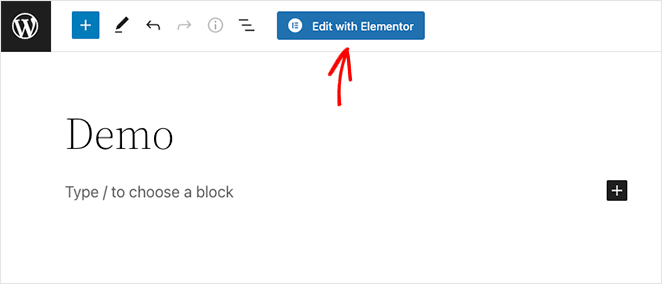
Elementor automatically pulls the styling from your current WordPress theme for a consistent look. In my case, I’m using the WordPress Twenty Twenty-Two theme.
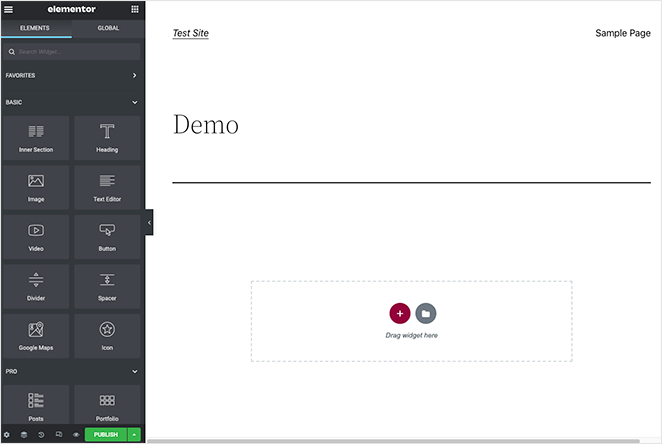
Elementor’s interface has 2 sections. On the right is a live preview of your page, and on the left are elements you can drag and drop onto your design.
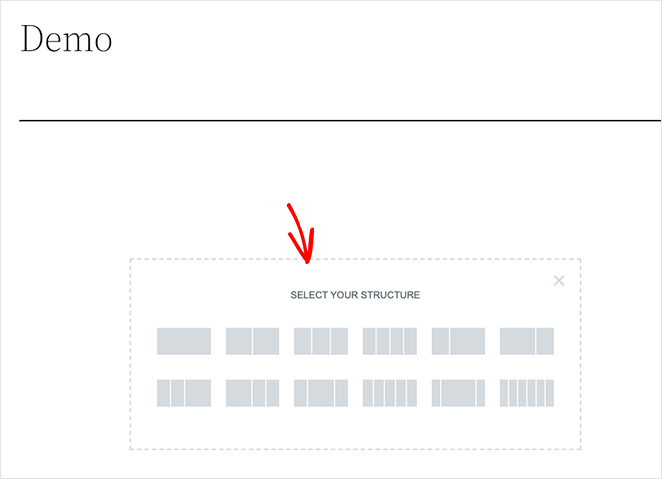
Clicking the plus (+) icon lets you choose a new section for your page structure, for instance, a single column or multiple columns.
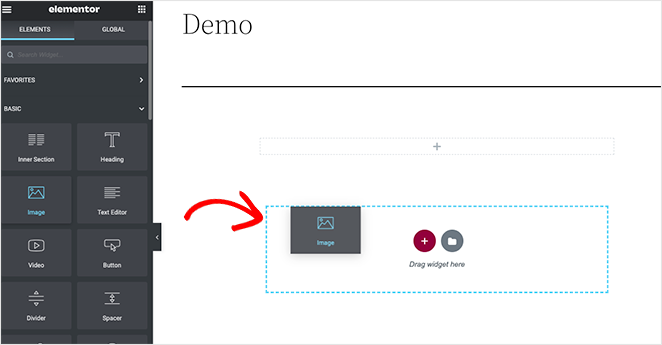
You can then drag widgets into the column to build your custom page.
In this example, I used the Heading, Text Editor, Button, and Image widgets.

When you’re happy with the content placement, you can make more adjustments in the Content, Style, and Advanced panels.
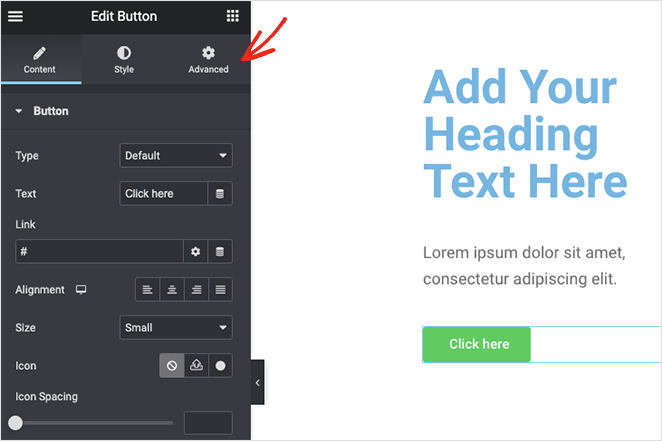
Experiment with the options to see which styles fit your website.
Using Elementor Templates
Elementor also lets you create new layouts from premade templates. You can open the template library and choose from a variety of landing page templates and website kits that cover every page of your site.
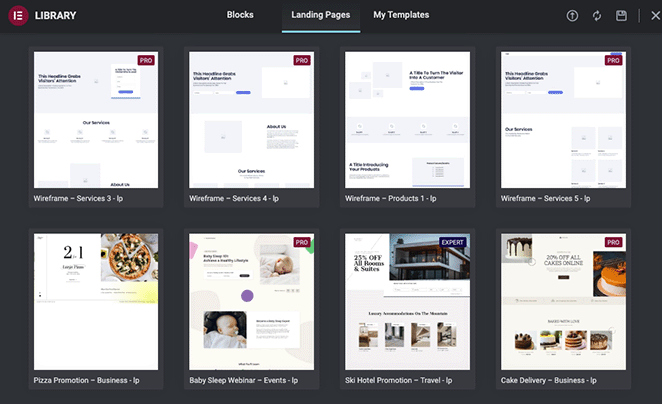
After importing a template, you can edit and customize it in the same visual editor. Click any widget to replace it with your content.

Using the Elementor Theme Builder
Elementor’s theme builder lets you build many sections of your website visually. This is where the Elementor website kits come in handy to give your site a unified look and feel.
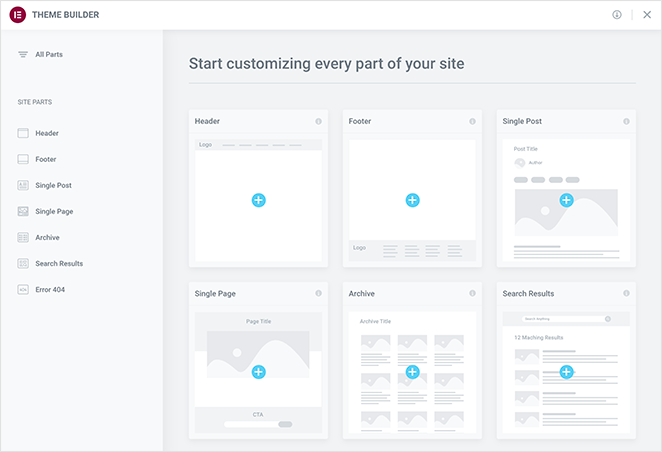
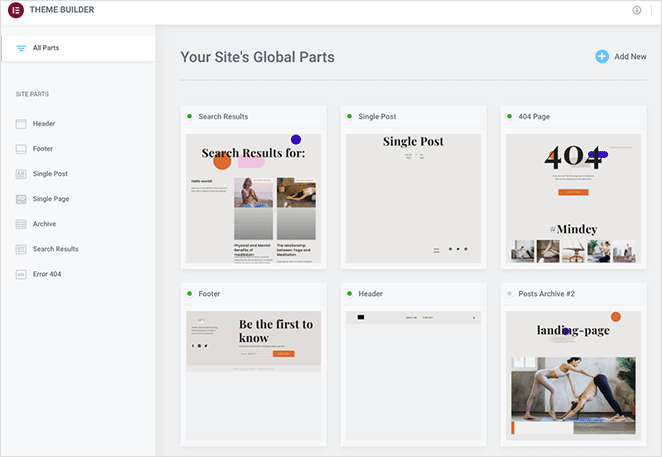
For example, I used the theme builder to create a custom header, footer, single post, archives, and search results page.
What Does Elementor AI Do?
Elementor introduced its AI features in 2023. Inside the editor, you can use AI to generate text, images, and custom CSS without leaving the builder.
The practical use cases are things like drafting copy for a section, generating a background image, or writing a CSS snippet you don’t know off the top of your head. I’d treat it as a time-saver for small tasks, not a replacement for actual copywriting or design decisions.
It’s still improving. If you’re evaluating Elementor specifically for its AI features, set your expectations accordingly.
Elementor Pricing: Is It Free?
The core version of Elementor is free. You can download the Elementor plugin from the WordPress plugin repository without paying anything.
The free version covers the basics you need to customize your site:
- Drag-and-drop editor
- 30 free widgets
- Mobile editing
- Revision history
- Basic templates library
If you want more design flexibility, the Pro version adds significantly more capability. Here’s how they compare:
| Feature | Free | Pro |
|---|---|---|
| Drag-and-drop editor | Yes | Yes |
| Number of widgets | 30 | 80+ |
| Mobile editing | Yes | Yes |
| Theme builder (header, footer, archives) | No | Yes |
| Popup builder | No | Yes |
| Form builder with email integrations | No | Yes |
| WooCommerce builder | No | Yes |
| Pro templates (300+) | No | Yes |
| Custom CSS per element | No | Yes |
| Global widgets | No | Yes |
Elementor Pro Pricing
Elementor Pro is priced per number of sites. As of 2026, the main plans are:
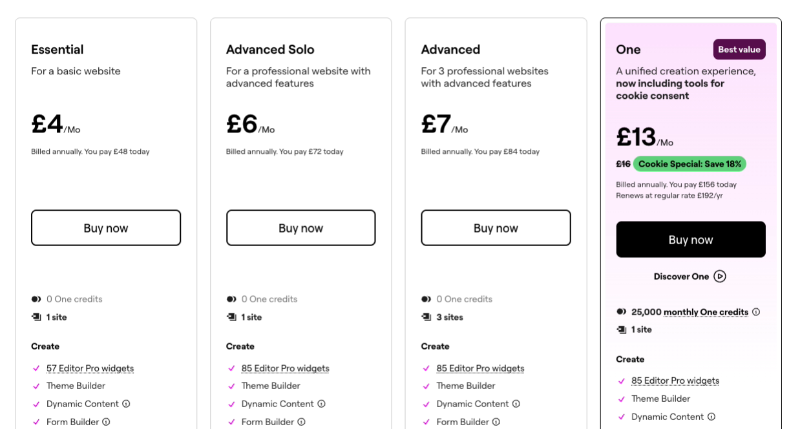
- Essential: Around $59/yr (1 site)
- Advanced: Around $99/yr (3 sites)
- Expert: Around $199/yr (25 sites)
Always verify current pricing at elementor.com/pricing before purchasing, as these figures can change.
Get Started with Elementor Pro.
Is Elementor Pro Worth the Price?
It depends on what you’re building. If you need the theme builder, popup builder, or WooCommerce customization, the Pro upgrade is worth it at $59/yr for one site. Those features represent the biggest gap between free and paid.
If you’re running a simple content blog and don’t need to customize your header, footer, or product pages, the free version handles it. The 30 free widgets cover most basic page-building needs.
What Happens If You Cancel Elementor Pro?
Your pages stay visible if you cancel, but you lose access to Pro widgets and the theme builder. If your site design relies on Pro widgets or a custom header and footer built with the theme builder, that layout can break.
This is worth thinking about before building an entire site on Pro features. The more dependent you are on Pro-only elements, the harder it is to switch builders later.
Elementor Cloud and Hosting
Elementor also offers a managed WordPress hosting option called Elementor Cloud, which bundles hosting with Elementor Pro. Entry pricing is around $99/yr.
It’s convenient if you want everything in one place. That said, it’s more expensive than buying standard hosting and Elementor Pro separately, so it only makes sense if the bundled setup saves you time on configuration.
Does Elementor Slow Down Your Website?
Elementor does add CSS and JavaScript overhead to your pages, and based on my testing it has the heaviest footprint of the page builders I’ve used. The question is how much that matters for your site.
Page Builder Speed Test Results
I built the same landing page with three different builders and tested each with a page speed tool. Here’s what I found:
| Page Builder | Page Size | Load Time | Requests |
|---|---|---|---|
| SeedProd | 124.1 KB | 1.18s | 11 |
| Beaver Builder | 142.7 KB | 1.22s | 12 |
| Elementor | 312.2 KB | 1.57s | 30 |
Elementor has the largest page size, longest load time, and the most requests. In a separate GTmetrix comparison, I measured Elementor at 1,882ms with 32 HTTP requests versus SeedProd’s 556ms with 16 requests. That’s a 3.4x speed difference on the same page.
That gap matters for Core Web Vitals scores and for users on slower connections. It doesn’t make Elementor unusable, but it does mean performance optimization is non-optional if you use it.
How to Speed Up an Elementor Site
If you’re sticking with Elementor, these four steps make the biggest difference:
- Use a caching plugin: WP Rocket or LiteSpeed Cache both work well and significantly reduce load time.
- Deactivate unused Elementor widgets: Elementor loads all widget assets by default. Turn off the ones you don’t use under Elementor » Settings » Elements.
- Optimize images before uploading: Elementor doesn’t compress images automatically. Use Smush or similar before upload.
- Use a lightweight base theme: The free Hello Elementor theme is purpose-built to minimize overhead.
What Are the Cons of Using Elementor?
Speed is one of the main trade-offs. Here’s the full picture of what to weigh before committing to Elementor.
- Performance overhead: As the speed test table above shows, Elementor loads nearly 3x more data and makes significantly more server requests than lighter alternatives.
- Vendor lock-in: If you cancel Pro, your design can break. The more your site relies on Pro widgets and the theme builder, the harder it is to move away from Elementor.
- Theme builder is Pro-only: The free version has no access to the theme builder. If you want to customize your header, footer, or archive pages, you need to upgrade.
- Cost for multi-site agencies: At $199/yr for 25 sites (Expert plan), costs add up quickly for agencies managing many client sites.
- Third-party addon compatibility: Elementor has a large ecosystem of third-party addons. Major Elementor version updates can occasionally break addons built by other developers. Keeping everything updated and compatible takes ongoing attention.
Elementor has had documented security vulnerabilities over the years, though the team patches them quickly. The key is keeping the plugin and any third-party addons updated. Outdated versions are the main risk. For most sites, a current and actively maintained install is safe to use.
Elementor vs. Gutenberg: Which Should You Use?
Gutenberg, the WordPress block editor, has improved significantly and is now a genuine option for many sites. Here’s how the two compare across the dimensions that matter most:
| Dimension | Elementor | Gutenberg |
|---|---|---|
| Design flexibility | High. Fine-grained control over spacing, typography, and layout. | Growing. Full Site Editing has closed the gap, but still less granular. |
| Learning curve | Steeper. The sidebar panel system takes time to learn. | Shallower. Most WordPress users already know it. |
| Performance | Heavier. Elementor adds more CSS and JS than the block editor. | Lighter. No additional plugin assets beyond core WordPress. |
| Best for | Complex designs, custom post types, landing pages, WooCommerce. | Content-focused sites, blogs, simple pages. |
My honest take: Gutenberg is the right choice for simple content sites and blogs. If you’re not building complex landing pages or a heavily customized WooCommerce store, there’s no reason to add Elementor’s overhead.
Elementor is worth the extra complexity when you genuinely need what it provides. If you’re not sure which category you fall into, start with Gutenberg. You can always add Elementor later.
Verdict: Is Elementor the Best WordPress Page Builder?
Elementor is a powerful WordPress builder. That said, the interface is more cluttered than I’d like, and the theme builder feels complicated if you’re new to WordPress.
If you’ve never built a site before, opening Elementor for the first time feels like sitting in a cockpit. There are controls everywhere, and it’s not obvious where to start.
For experienced WordPress users building complex sites, Elementor Pro is worth the investment. For beginners or site owners where page speed is a priority, the learning curve and performance cost aren’t justified.
In my client work, I’ve used Elementor alongside Beaver Builder and SeedProd on different projects. Elementor suited clients who wanted maximum design control and were comfortable learning the interface. For clients who just needed a site live quickly with no ongoing technical involvement, it wasn’t the right fit.
I’d recommend Elementor for users with a solid working knowledge of WordPress. If you’re just starting out, there are more straightforward page builder options for beginners that don’t come with the same performance penalty.
Best Elementor Alternative
I should be upfront: I use SeedProd on my own sites, which means I know it well but I’m not a neutral party.
If the performance penalty and learning curve I described above are dealbreakers for your site, SeedProd is what I reach for instead.

In my GTmetrix testing, SeedProd loaded in 556ms with 16 HTTP requests on the same page where Elementor took 1,882ms with 32 requests. That’s a 3.4x speed difference.
SeedProd is one of the best website builders for WordPress, and the speed comes from deliberately minimal code output.
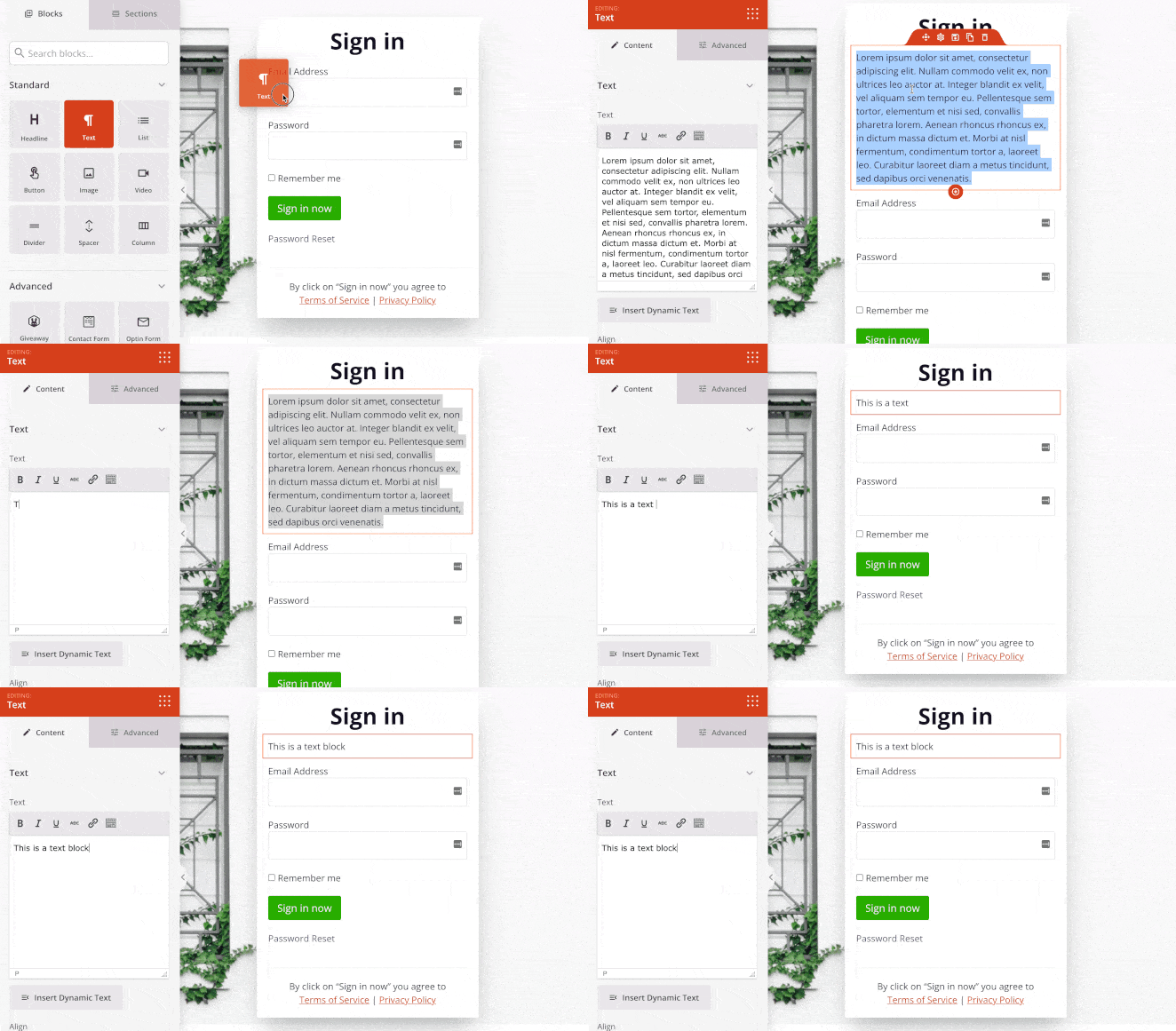
Beyond speed, SeedProd covers the gaps that Elementor users regularly run into.
- The full WordPress Theme Builder is included (header, footer, single post, archives, home page, sidebar) without requiring a separate theme.
- Native coming soon and maintenance mode pages are built in.
- The code output means you’re not fighting a performance problem from day one.
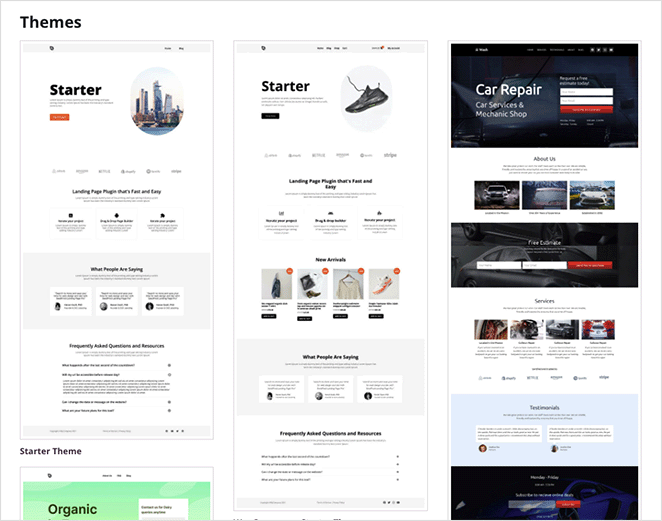
SeedProd also lets you build complete WooCommerce websites quickly, with dynamic template tags for product pages, checkouts, shopping carts, and shop pages.
One forward-looking detail: SeedProd v6.20.0 added support for WordPress’s new Abilities API (WP 6.9+), which lets AI tools and automation platforms discover and trigger SeedProd actions via standard REST endpoints.
Elementor doesn’t have an equivalent, which matters if you’re building toward AI-assisted or automation-driven site management.
This plugin also works well with the best WordPress plugins like All in One SEO, MonsterInsights, and WPForms.
Elementor Review: FAQ
If you’re still weighing up Elementor, here are answers to the most common questions:
What are the cons of using Elementor?
The main drawbacks are performance overhead (Elementor adds more CSS and JS than lighter builders), vendor lock-in when you’re on Pro (canceling can break designs that rely on Pro widgets), and the theme builder being locked behind the paid plan. The free version is also limited to basic posts and pages, which surprises users who expect a full page builder experience without upgrading.
Do professionals use Elementor?
Yes. Elementor is widely used by web designers, developers, and agencies. It’s particularly popular for client work where design control matters more than page speed, and for sites using custom post types or complex dynamic content. That said, many professionals use lighter alternatives when performance is a priority for their clients.
Is Elementor Pro worth the price?
For most users who need the theme builder, popup builder, or form integrations, yes. Those features justify the $59/yr entry cost for a single site. If you’re running a simple content blog and don’t need to customize your site’s header, footer, or product pages, the free version is enough. The tipping point is whether your site depends on Pro-only features.
Is Elementor good for SEO?
Elementor generates clean HTML, but it does add CSS and JavaScript overhead that can hurt Core Web Vitals scores if not addressed. Pairing it with a caching plugin and image optimization resolves most performance-related SEO concerns. For on-page SEO, Elementor works well with plugins like All in One SEO and Yoast. The bigger SEO variable is page speed, which is worth optimizing if you’re on Elementor.
Is Elementor better than Gutenberg?
It depends on what you’re building. Elementor offers more design flexibility and a more powerful theme builder, but adds performance overhead and a steeper learning curve. Gutenberg is built into WordPress, has no impact on page speed beyond core WordPress, and is improving rapidly with Full Site Editing. For simple content sites and blogs, Gutenberg is the better choice. For complex landing pages, WooCommerce customization, or popup campaigns, Elementor has the edge.
If you’re looking for Elementor alternatives, these reviews may help:
Elementor is a capable builder for experienced WordPress users. If the performance cost and learning curve don’t work for your situation, SeedProd is worth checking out as a faster alternative with a gentler onramp.
Thanks for reading! We’d love to hear your thoughts, so please feel free to join the conversation on YouTube, X and Facebook for more helpful advice and content to grow your business.




