
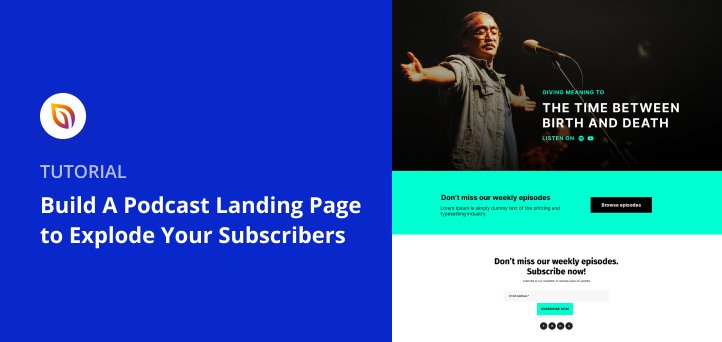

TL;DR: How to Create a Podcast Landing Page in WordPress
A podcast landing page gives your show one dedicated home where listeners can subscribe on Spotify, Apple Podcasts, or email, all in one place. Here’s how to build one with SeedProd in under an hour.
- Install SeedProd and enter your license key under SeedProd » Settings
- Add a new landing page and choose a podcast template from the library
- Customize your design with your logo, episode links, testimonials, and CTAs
- Connect your email service in the Connect tab to collect subscriber sign-ups
- Preview on mobile, then click Publish to make your page live
You drop a new episode and share it everywhere: Spotify, Instagram, Twitter. Three days later, you have no idea who listened or how to reach them again.
A podcast landing page fixes that. It gives your show one central home where listeners can subscribe, join your email list, and catch up on episodes.
I’ve built these pages with SeedProd many times, and this guide shows you how.
- What Is a Podcast Landing Page?
- Why Do I Need a Podcast Landing Page?
- Podcast Landing Page Examples
- How to Create a Podcast Landing Page in WordPress
- FAQs on Podcast Landing Pages
What Is a Podcast Landing Page?
A podcast landing page is a single web page designed to grow your subscriber list on Spotify, Apple Podcasts, and by email, all in one place.
Unlike a full podcast website, this page has one clear goal: to persuade visitors to take action. Most creators use it to grow their email list or boost subscriptions on Apple Podcasts or Spotify.
You can make the page more compelling with incentives, such as:
- A discount on branded merchandise
- Entry into an online contest
- Free guides or checklists
- A shoutout on your next show
Keep the focus on a single action per page for the best results.
Podcast Landing Page vs. Podcast Website
A lot of podcasters wonder whether they need a full website or whether a single landing page will do. Here’s a quick comparison to help you decide.
| Podcast Landing Page | Podcast Website | |
|---|---|---|
| Purpose | Single goal: grow subscribers or email list | Multiple goals: episode archive, about page, show notes |
| Best for | New shows focused on subscriber growth | Established shows with loyal audiences |
| Setup time | Under an hour with SeedProd | Several hours or days |
| When to start | From day one | Once you have consistent listeners |
For most podcasters starting out, a focused landing page will do more for your subscriber count than a full site ever will.
What to Include in Your Podcast Landing Page
A strong podcast landing page should highlight your show, build trust, and give visitors one clear way to subscribe.
The most effective pages usually include:
- Headline — Grab attention quickly and show the value of your podcast.
- Description — Share just enough details to spark interest without overwhelming visitors.
- Latest Episodes — Give people a taste of what they’ll hear if they subscribe.
- Subscribe Button — Add a clear call-to-action link to platforms like Spotify or Apple Podcasts.
- Social Proof — Use reviews, ratings, or testimonials to build credibility.
- Newsletter Form — Collect emails to keep listeners updated on new episodes and offers.
- Social Media Buttons — Encourage followers to connect with you on other platforms.
Keep these elements focused on one goal: growing your podcast audience.
Why Do I Need a Podcast Landing Page?
Most podcasters share new episodes on Spotify or Apple Podcasts and move on. The problem is you have no way to contact those listeners if the platform changes its algorithm or pulls your show from search.
A podcast subscribe page fixes that. When a listener joins your email list through your landing page, you own that relationship. When you own your email list, a platform update or algorithm change doesn’t cut you off from your audience.
You also get a single URL to share everywhere, from episode mentions to social bios, and a page on your own domain that search engines can actually index. A Spotify link can’t do any of that.
Podcast Landing Page Examples
Looking at how established shows handle their podcast website landing page is a fast way to figure out what works for your format. Here are three examples from different podcast types, so you can find the one closest to your own show.
Huberman Lab
Visit: hubermanlab.com
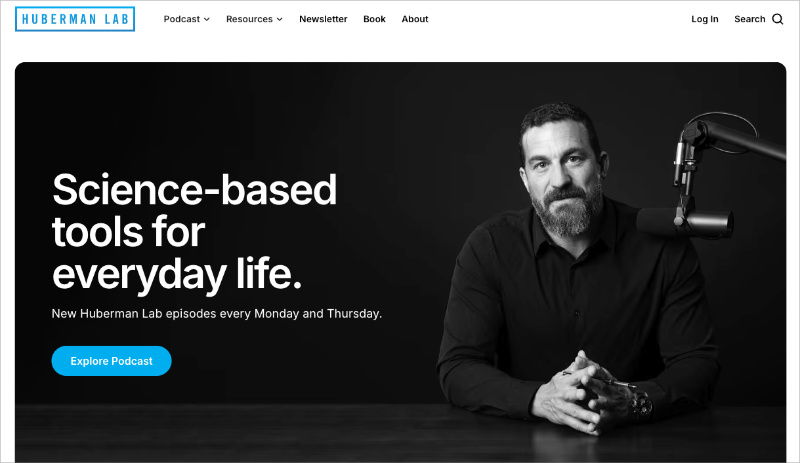
The Huberman Lab page puts the email capture front and center, with platform subscribe links directly alongside it. It’s a strong example of how a content-heavy podcast can keep the subscribe CTA central without burying it under episode content.
Darknet Diaries
Visit: darknetdiaries.com
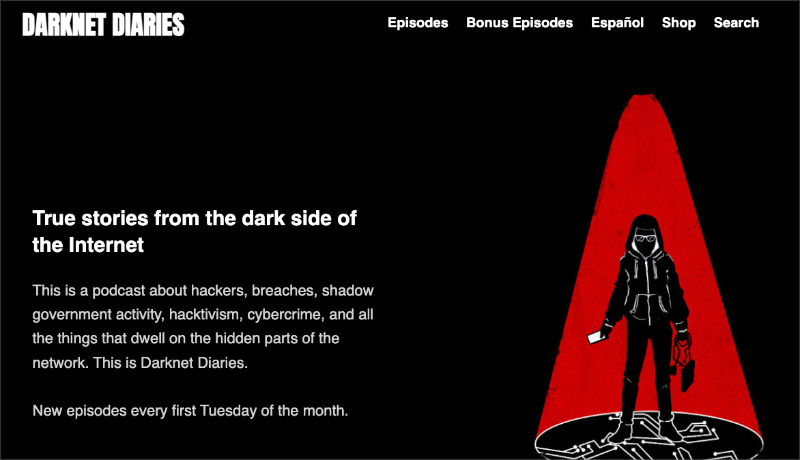
Darknet Diaries is consistently cited as one of the cleanest podcast landing pages in the industry. It leads with strong brand identity, a minimal CTA, and episode previews that let the show speak for itself rather than relying on a pushy sign-up form.
Crime Junkie
Visit: crimejunkiepodcast.com
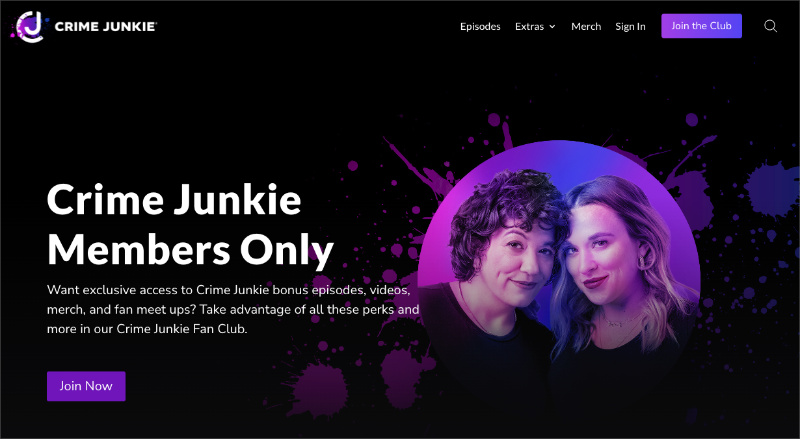
Crime Junkie keeps the page clean and focused, with clear subscribe options and no clutter. It’s a good model if you want to show visitors where to listen without overwhelming them with content.
How to Create a Podcast Landing Page in WordPress
For this step-by-step tutorial, we’ll use SeedProd to create a landing page.

SeedProd is a drag-and-drop website builder for WordPress, with everything you need to create a high-converting podcast landing page in under an hour. You can choose from hundreds of responsive templates and customize them in the visual editor, no coding required.
You can also boost your leads and conversions with targeted landing page elements, such as:
- Optin forms
- Giveaway widgets
- Contact forms
- Testimonials
- Social media embeds
- Pricing tables
You can connect your page to your email marketing service with integrations like GetResponse, Mailchimp, and Constant Contact.
SeedProd also works with any WordPress theme, so you won’t face any compatibility issues or loading speed problems.
With all that in mind, here are the steps to create your podcast landing page with SeedProd in WordPress.
1. Install and Activate SeedProd
The first step is to get SeedProd and download the plugin to your computer. Click here to get started with SeedProd.
Note: SeedProd offers a free version where you can create a free landing page. However, in this guide, we’ll use SeedProd Pro for advanced blocks and integrations.
After downloading SeedProd, install and activate it on your WordPress website. If you need help, check out this guide for installing a WordPress plugin.
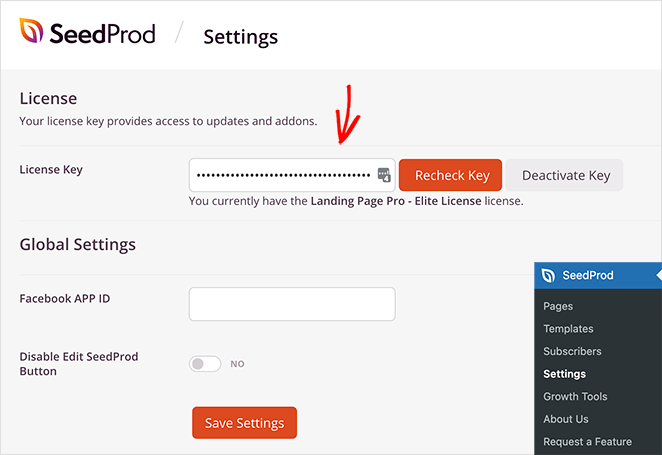
With the plugin activated, navigate to SeedProd » Settings from your WordPress dashboard and enter your SeedProd license key. You can find the license key in your account dashboard on the SeedProd website.
Next, head to SeedProd » Pages for an overview of SeedProd’s landing page dashboard.
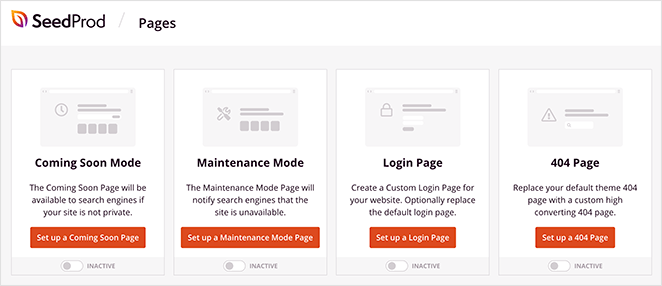
Along the top of the page are several page modes you can activate with a single click. For example, you can:
- Activate coming soon mode to show an under construction message when launching a new site.
- Enable maintenance mode when you’re making changes and performing updates on your website.
- Turn on a custom 404 page to redirect visitors after facing a broken page or link.
- Activate a custom WordPress login page to replace the default WordPress login screen.
This may seem like a lot at first, but should you ever need these features, SeedProd has them built-in. As a result, you won’t need to install any extra WordPress plugins.
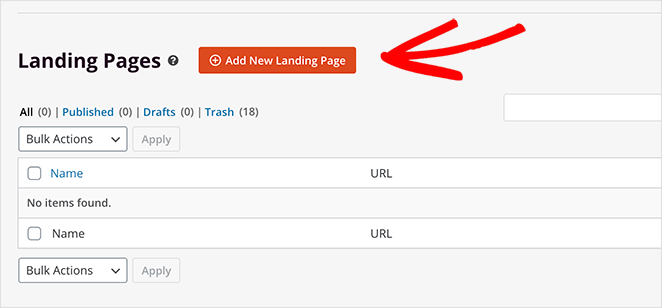
Below the page modes area is the section we need to create your podcast page. Click the Add New Landing Page button to get started.
2. Create a New Landing Page
After clicking the Add New Landing Page button, you’ll see SeedProd’s library of landing page templates. These designs are 100% mobile responsive, so they’ll adapt perfectly to any device or screen size.
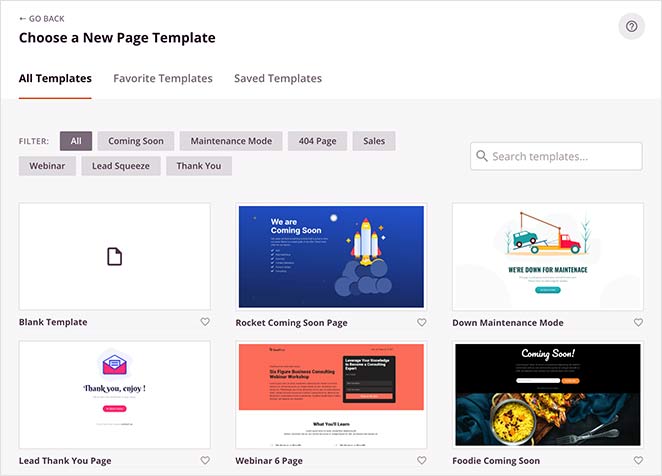
Click any of the tabs to filter the designs by goal. Or enter a word or phrase into the search box to find what you’re looking for.
Once you’ve found a design that closely resembles what you need, hover your mouse over it and click the checkmark icon to launch it.
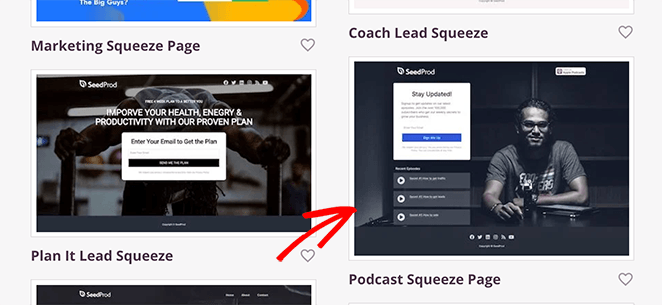
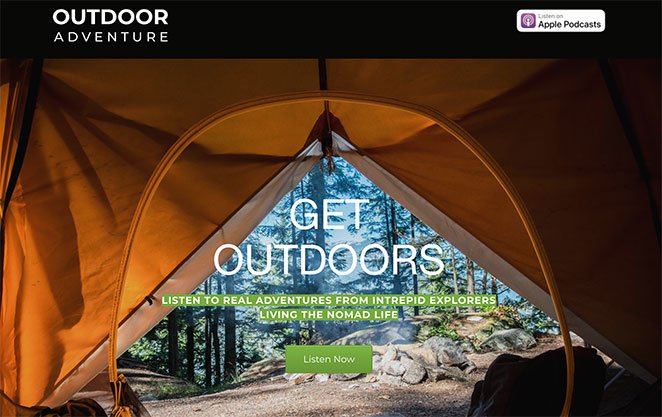
For this guide, we chose the Podcast Squeeze Page template.
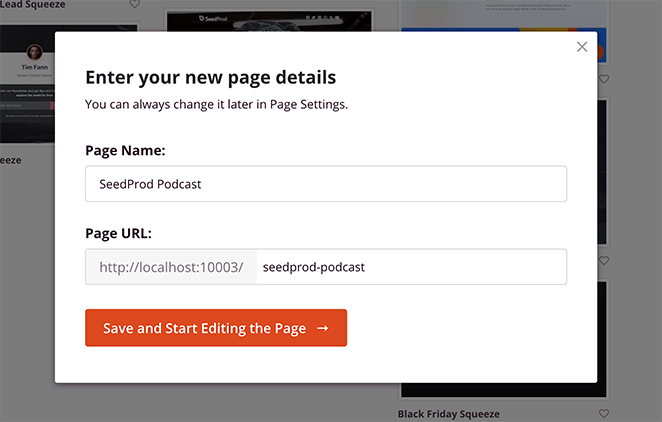
After choosing your template, a popup appears where you can enter your landing page name and URL. From there, click the Save and Start Editing the Page button to launch your design in SeedProd’s visual editor.
3. Customize Your Landing Page Design
SeedProd’s drag-and-drop editor has 2 columns, making it easy to navigate and use.
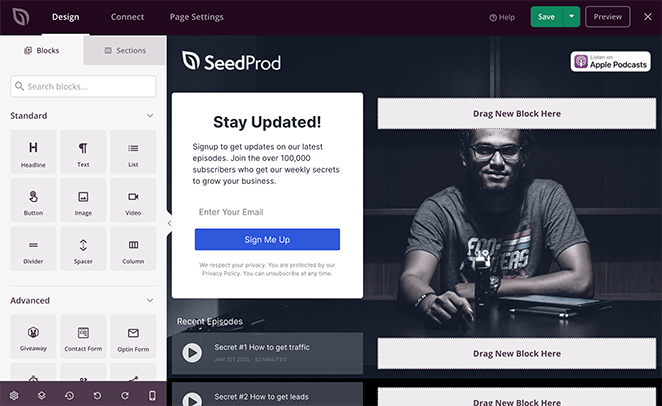
On the left-hand side are blocks and columns to create and customize the structure of your page. On the right is a live preview that shows the changes you make in real-time.
Because of this layout, you can see exactly how your page will look without switching between your WordPress dashboard and the front end of your website.
Now that you know where everything is, let’s start customizing your podcast page, starting with your header area.
How Do I Customize My Podcast Header?
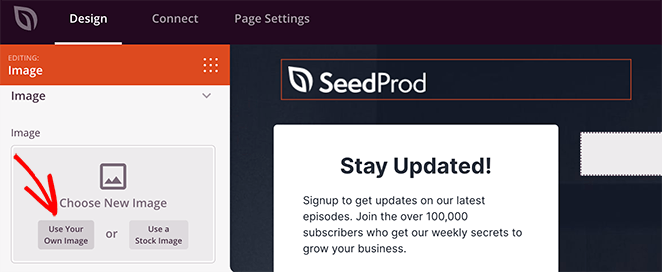
First, replace the default logo with your podcast’s custom logo. Click it on your live preview so it shows an orange border.
As soon as you click that element, the image settings panel opens on the left. Delete the existing logo by clicking the trashcan icon.
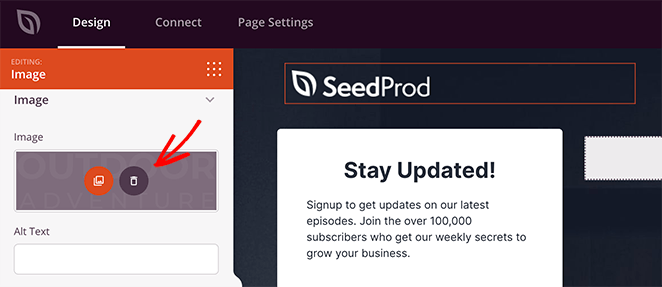
Upload a new logo by clicking the Use Your Own Image button. This lets you choose a logo from your computer or your WordPress media library.
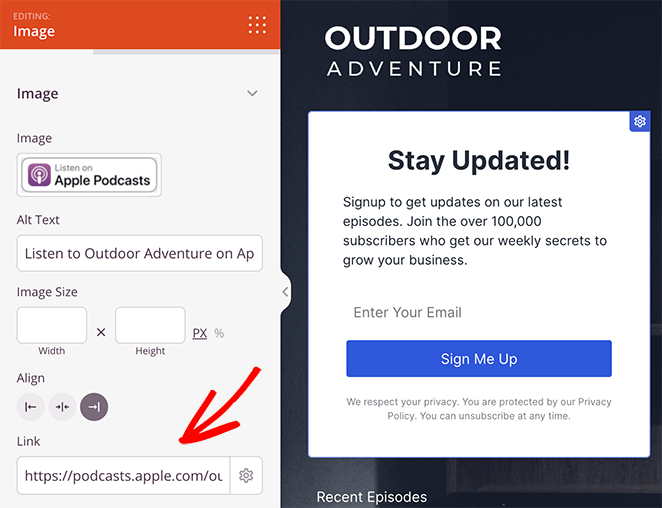
From there, you can adjust the settings by adding image alt text, changing the image size and alignment, or adding a custom image link.
For instance, you can click the Listen on Apple Podcasts image and enter your Apple Podcast URL for users to subscribe and listen to the podcast.
How Do I Add an About Section?
Now let’s tell your visitors more about your podcast. One of the easiest ways to do this is to use one of SeedProd’s ready-made landing page sections.
Sections are a collection of pre-styled blocks you can add to your page with a single click. That way, you won’t need to start from scratch to add more information to your design.
To find them, click the Sections tab in the left-hand panel.
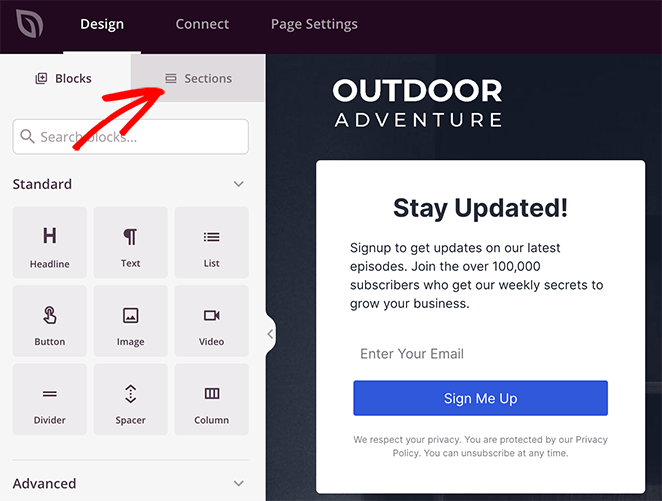
On the following screen, click the Hero heading to show a selection of pre-made Hero designs.
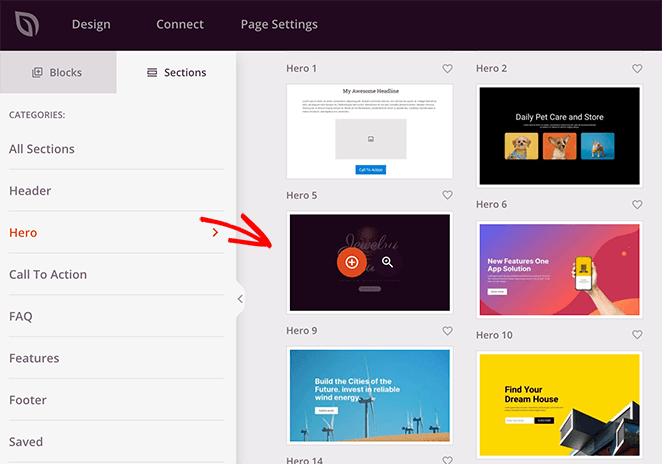
Hover your mouse over a design you like, and click the plus icon.
By default, a section is added to the end of your page. To move it quickly, click the Layout Navigation icon in the bottom toolbar.
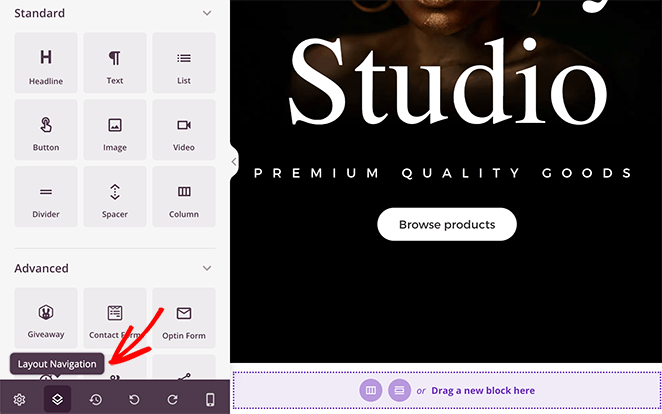
This opens a panel where you can quickly find different sections on your page and re-organize them without scrolling through your entire design.
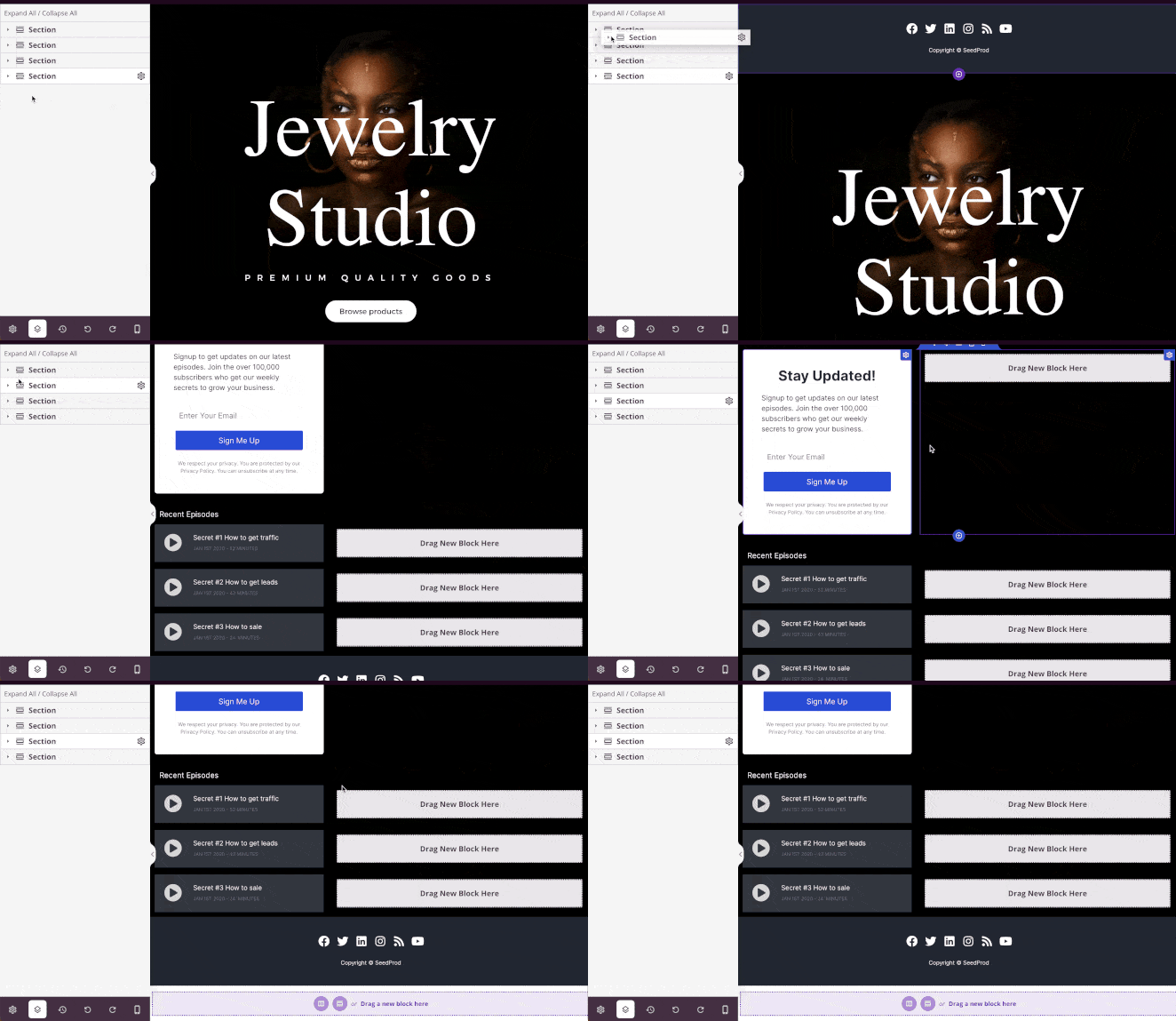
For instance, we used this option to move the Hero section beneath our landing page header.
You can customize the hero section the same way we did earlier by choosing a different image and changing the headline and description.
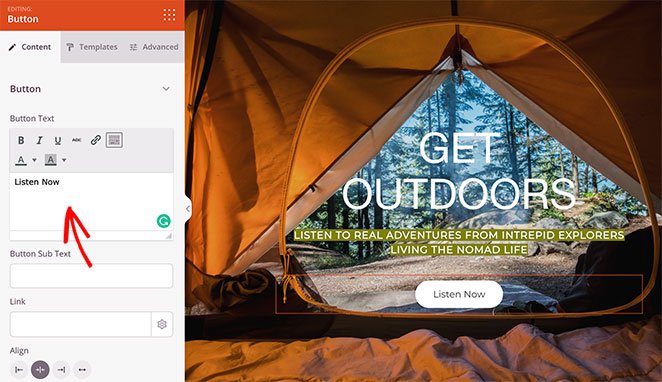
This is also an excellent place to add a call-to-action button to subscribe to your podcast. Since the section we chose has a CTA button built into the design, you can customize it with your own text and a link to your podcast hosting.
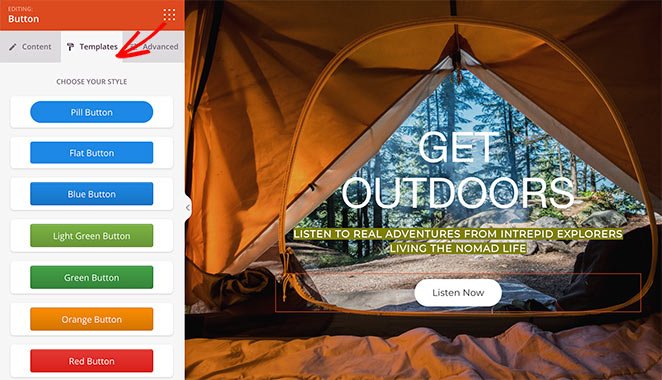
You can also change the button style by clicking the Templates tab. Here you can choose from several pre-made CTA designs, saving you the trouble of customizing them yourself.
How Do I Add My Podcast Episodes to the Page?
Now we’ll show you how to add your latest podcast episodes to your landing page. The easiest way is to use one of SeedProd’s image boxes.
This template has that block built into the design. Click the image to add your episode URL and enter a custom heading.
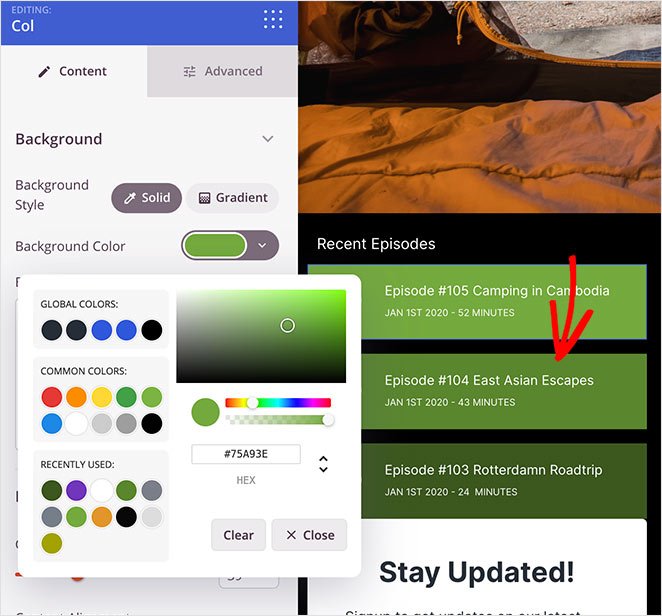
Then, in the column settings, you can customize the colors to add more interest to your page.
One thing I’ve found makes a real difference: adding an embedded audio clip. Visitors who can hear 2 to 4 minutes of your show before subscribing are much more likely to follow through.
You can embed a sample episode using Spotify’s or Apple Podcasts’ embed widget. In SeedProd, drag an HTML block onto your page and paste the embed code directly. It takes about two minutes to set up and gives new visitors a chance to sample your show before committing.
How Do I Add Social Proof to a Podcast Landing Page?
Social proof goes a long way in convincing your audience to hit that subscribe button. With SeedProd’s testimonial blocks and sections, it’s easy to include them on your podcast page.
Before we show you how to do it, let’s make some space by deleting the newsletter subscription form.
Remember: your landing page should focus on one goal, so removing the subscription form helps focus people’s attention.
To remove the newsletter section, hover your mouse over the entire column. Then click the trashcan icon to delete it from your design.
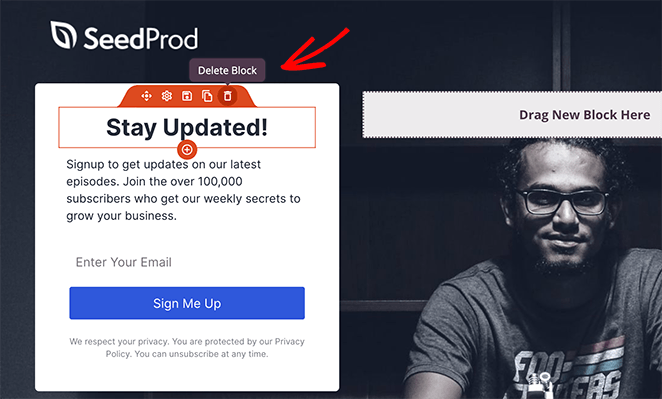
In that section’s place, choose a pre-made testimonial section from SeedProd’s section library. Click the Sections tab, select the Testimonial heading, and choose a design you like.
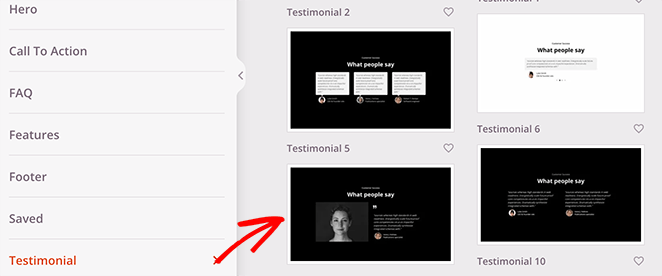
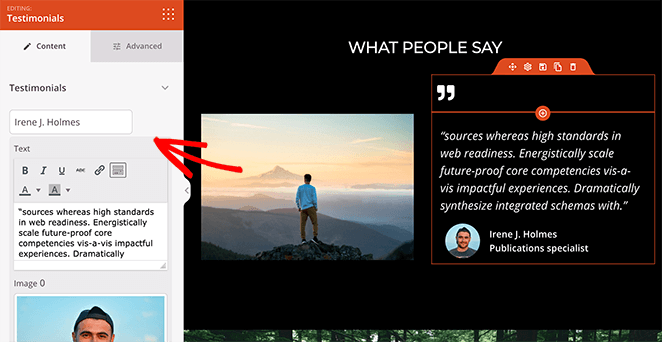
Like the Hero section, rearrange this section so it sits before your landing page footer. Then click different areas of the section to add your content.
For example, you can click the testimonial area and add multiple reviews with images. You can even turn it into a sliding testimonial carousel to fit more reviews in a small space.
Should I Add More Than One CTA?
By now, there’s a lot of content on your page, but it doesn’t hurt to remind visitors why they came in the first place. Adding more than one CTA on your landing page is a great way to persuade users to act at different points in the decision process.
We’ll use another SeedProd section to add a final CTA to our podcast landing page. This time, choose a Call To Action section and customize it to highlight different social and podcast platforms.
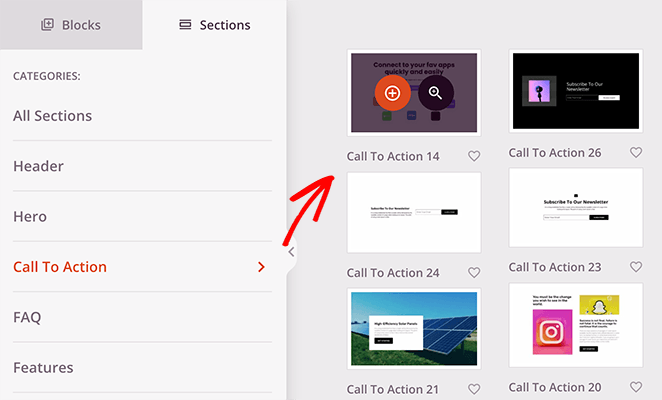
In our example, we removed the default section image and customized the button to match the other CTA button.
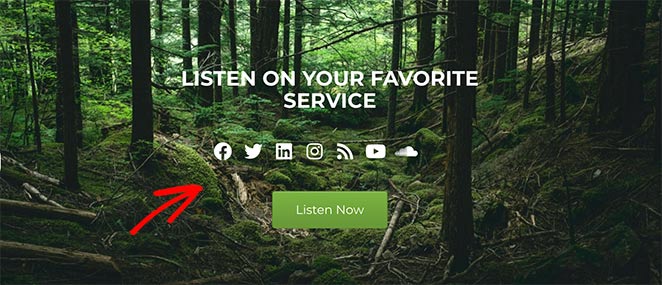
We then took the social icons block from the landing page footer and added it to the CTA area. That way, visitors can check out the different social media platforms for your podcast.
Now all that’s left is to customize your footer area so it matches the rest of your page.
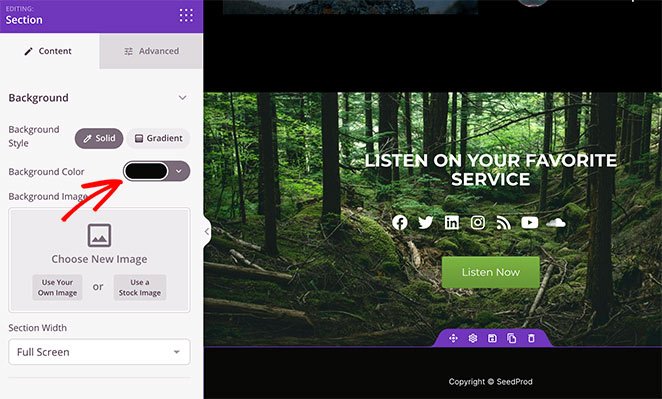
On our page, we simply changed the background color. But you can use this area to add contact details, social trust badges, or relevant news.
4. Configure Your Page Settings
After finishing the design of your podcast page, it’s time to configure a few settings. First, if your goal is to grow your email list, connect with your email provider.
Click the Connect tab at the top of your page builder, and choose from many popular email marketing services available.
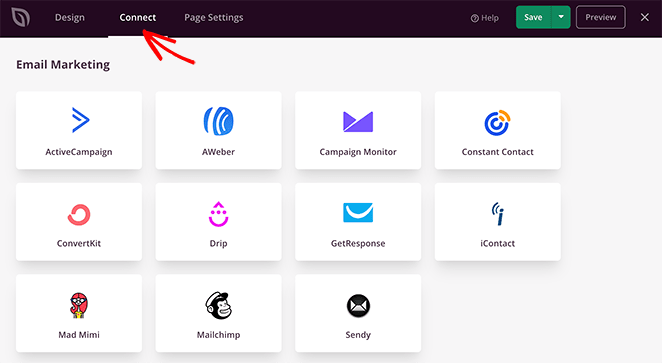
To connect your list, choose your preferred email service, click Connect, and follow the instructions. For specific instructions on integrating each email marketing service, see our email integration documentation.
After connecting your email list, click the Page Settings tab at the top of your screen.
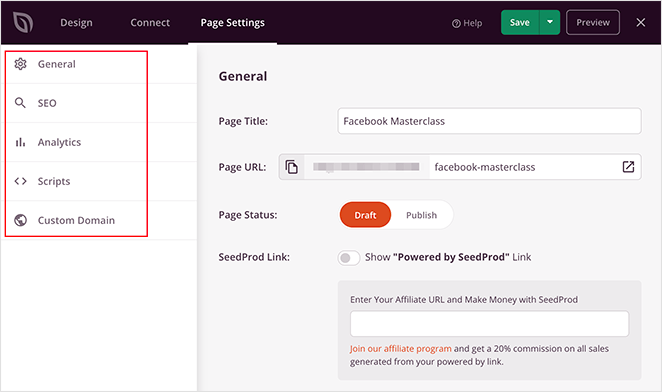
On this page, you can edit your General settings, connect an SEO and Analytics plugin, and even set up custom tracking codes.
The Custom Domain section lets you connect your podcast page to any domain name you like.
This is great if you manage multiple websites but don’t want to install WordPress on each domain. Instead, you can point your landing page to a different domain easily.
5. Publish Your Podcast Landing Page in WordPress
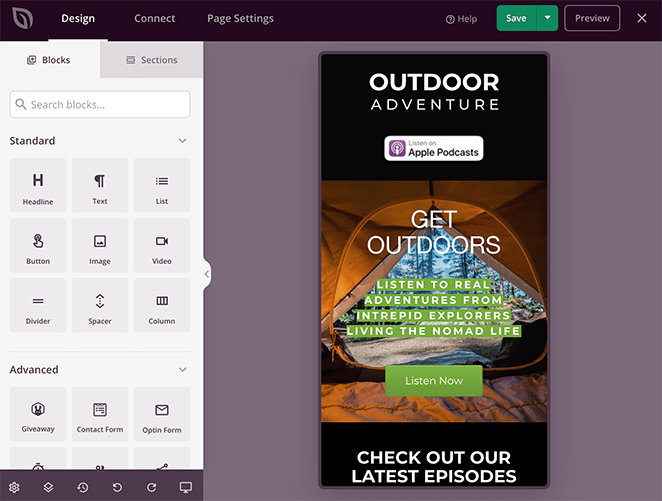
Before making your page live, test it on different screen sizes to ensure it displays properly. You can preview your site on mobile with SeedProd easily.
Click the Design tab and select the mobile icon at the bottom of your screen.
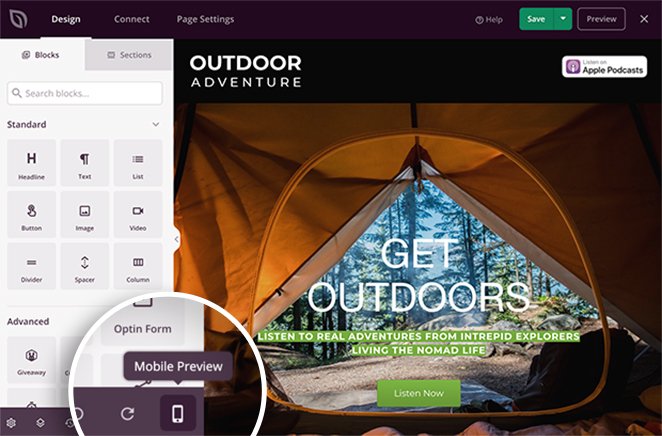
This displays a mobile preview of your page. If anything doesn’t look right, click anywhere on your preview to adjust the design.
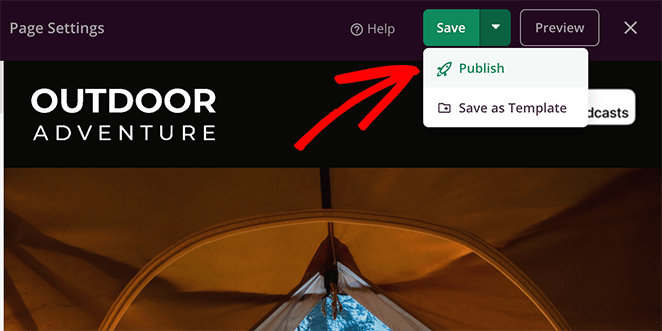
Now let’s go ahead and publish your design. Click the dropdown arrow next to the save button and click Publish.
You can then click the See Live Page button to see how it looks. Great work, you now have a custom-designed podcast landing page.
FAQs on Podcast Landing Pages
What should a podcast landing page include?
A podcast landing page works best with a strong headline, a short show description, links to Spotify and Apple Podcasts, an email opt-in form, listener testimonials or reviews, and at least one embedded sample episode. Keep everything focused on a single action, whether that’s subscribing, signing up for your email list, or both. The goal is to give visitors just enough to understand the show and take action. You can learn more about each element in the What to Include section above.
Do I need a podcast website or just a landing page?
For most podcasters, a focused podcast opt-in page will do more for subscriber growth than a full website, especially early on. A landing page has one job: convert visitors into subscribers. A full podcast website makes sense once you have a loyal audience and need an episode archive, show notes, or a blog. Start with a landing page, then expand when you’ve built a following worth serving with more content.
How do I get more subscribers from my podcast landing page?
The single biggest lever is a sample episode embedded directly on the page. Visitors who hear 2 to 4 minutes of your show before subscribing are far more likely to follow through than those who only read about it. Beyond that, keep the page focused on one call to action, use real listener testimonials for social proof, and offer an incentive like a free guide or exclusive episode for email sign-ups. For more on increasing landing page conversions, see our dedicated guide.
Does SeedProd have a podcast landing page template?
Yes. SeedProd includes a Podcast Squeeze Page template designed specifically for podcasters. It comes with pre-built sections for your logo, platform subscribe links, episode previews, a testimonial area, and a CTA. You can customize every element in the drag-and-drop editor without touching code. The entire setup typically takes under an hour. Get SeedProd to access the full template library.
You now know how to create a podcast landing page in WordPress. Give it a try with SeedProd and see how quickly your subscriber numbers start climbing.
Get SeedProd Now to start from a podcast template and publish your page in under an hour.
While you’re here, you might also like this guide on how to make a desktop website mobile-friendly.
Thanks for reading! We’d love to hear your thoughts, so please feel free to join the conversation on YouTube, X and Facebook for more helpful advice and content to grow your business.



