

If you’re trying to build a church website, it’s easy to feel stuck. Many church sites are outdated, hard to update, or missing basic information that new visitors look for first.
A clear, well-organized website helps people find service times, sermons, events, and giving options without calling or emailing the church office.
In this guide, I’ll show you how to build a church website with WordPress using SeedProd, step by step, without coding or hiring a developer.
What Do I Need to Build a Church Website?
You don’t need a large budget, technical skills, or a custom developer to build a church website. Most churches can get online with just a few essentials.
- Domain Name: This is your website address. Choose something simple that clearly matches your church name so people can remember it easily.
- Web Hosting: Hosting is where your website lives online. A good host keeps your site fast, secure, and available at all times.
- WordPress: WordPress is the platform you’ll use to manage your site. It lets you add pages, update content, and publish sermons or events without technical experience.
- A Church Website Builder: A visual builder like SeedProd lets you design pages using drag and drop instead of code, so updates stay easy for staff or volunteers.
Once these pieces are in place, you can focus on building pages and sharing information, not maintaining complicated software.
How to Build a Church Website in WordPress (Step-by-Step)
Now that you know what you need, let’s walk through how to build a church website step by step using WordPress.
These steps are written for churches with limited time and technical experience. You can follow them in order and launch a fully functional church website without writing any code.
Use the steps below to build your church website in order, or jump to the part you need.
- Step 1. Set Up a Domain Name and Hosting
- Step 2. Install WordPress on Your Website
- Step 3. Install SeedProd Page Builder Plugin
- Step 4. Choose a WordPress Theme Kit
- Step 5. Build a Church Website Homepage
- Step 6. Create Your Church Website Pages
- Step 7. Add Your Church Logo
- Step 8. Launch Your Church Website
- FAQs About Building a Church Website
Step 1. Set Up a Domain Name and Hosting
To build a church website, the first thing you need is a domain name and web hosting. This is what makes your site accessible online.
Your domain name is your website address, and your hosting provider stores your website files and keeps them available to visitors.
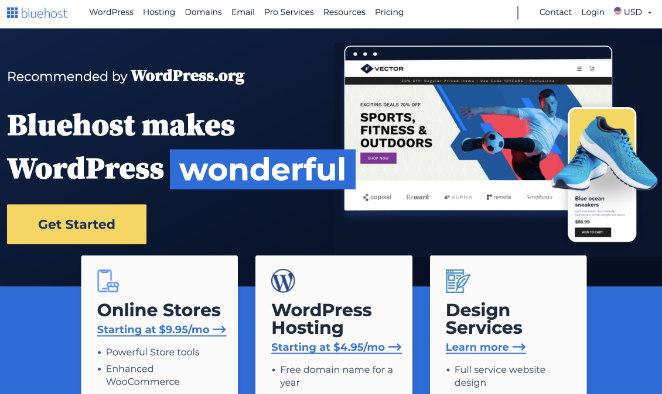
I recommend Bluehost because it’s beginner-friendly, reliable, and officially recommended by WordPress.org. It’s a practical option for churches that want something easy to manage without ongoing technical work.
- Free domain name for the first year
- Free SSL certificate to keep your site secure
- Simple WordPress setup with no manual installation
- Customer support that can help if you get stuck
To get started, visit the Bluehost website and click Get Started Now. You’ll be asked to choose a hosting plan and register your domain name.

When selecting a domain, keep it short and clear. Using your church name is best, and adding your city can help if the name is already taken.
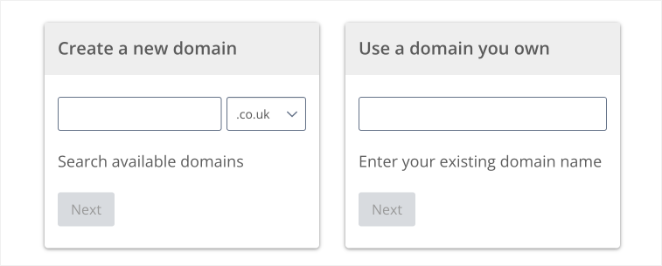
During checkout, Bluehost may offer optional extras. You can safely skip these for now and add them later if needed.
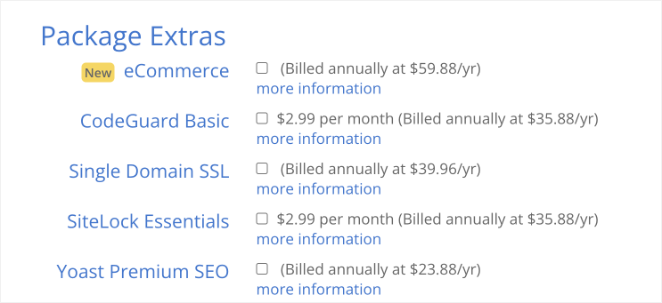
Once your purchase is complete, Bluehost will automatically set up WordPress for you so you can move on to building your church website.
Step 2. Install WordPress on Your Website
After purchasing your hosting and domain, you’ll get an email with steps on how to log in to your web hosting control panel. Bluehost automatically installs WordPress, allowing you to log in to your WordPress website from the hosting dashboard.
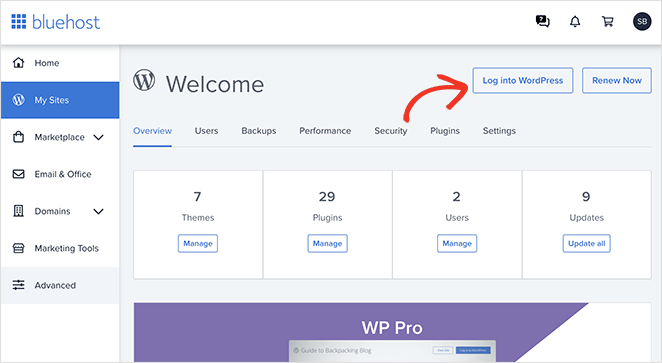
After logging in, you’ll see the WordPress admin, where you will manage your website, change settings, and add new content.
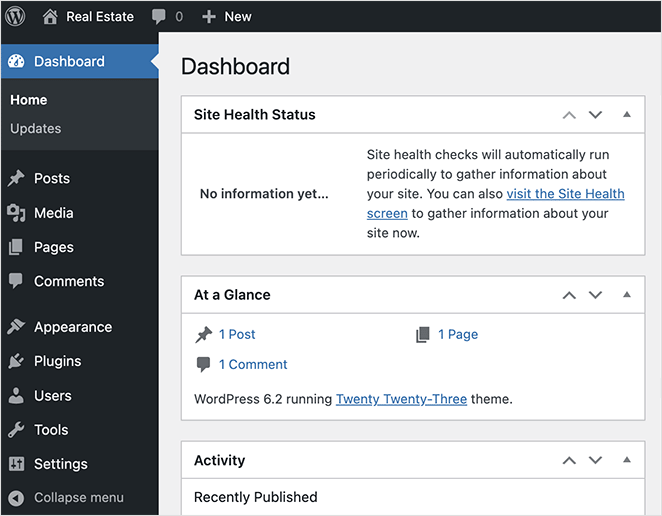
One of the first things you’ll want to do is configure your website’s basic settings. From your WordPress dashboard, navigate to Settings, then General, to enter your site’s details.
Here, you can set your church website’s title, tagline, URL, and admin email address.
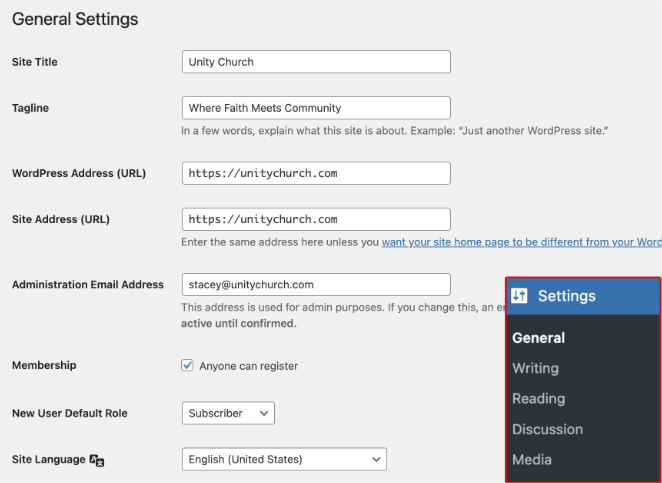
Further down the page, you can choose a relevant time zone, language, and date and time format.
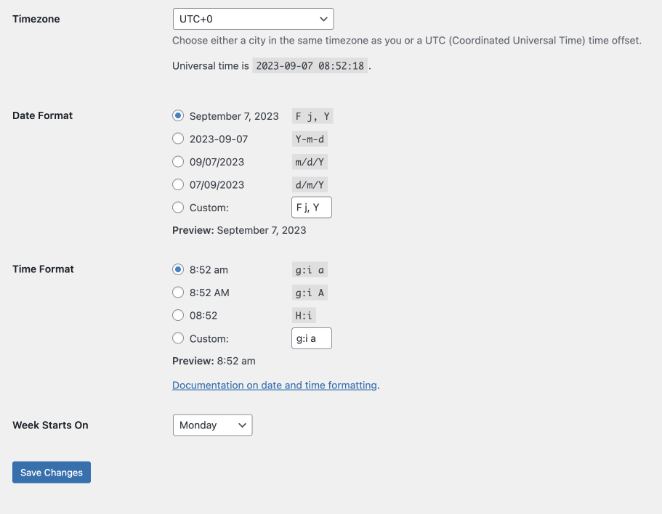
Click the Save Changes button when you’re happy with these details.
Step 3. Install SeedProd Page Builder Plugin
Next, you’ll install SeedProd, the WordPress website builder you’ll use to design and customize your church website.

Most WordPress themes are hard to change once they’re set up, especially for volunteers or staff without technical experience. SeedProd replaces that complexity with a visual, drag-and-drop builder.
This means you can update text, images, sermons, events, and layouts without touching code or worrying about breaking your site.
To access SeedProd’s Theme Builder, install and activate SeedProd Pro. This feature lets you control your entire church website design, including the header, footer, homepage, and inner pages.
After downloading the plugin, follow these steps to install and activate SeedProd Pro and enter your license key.
Step 4. Choose a WordPress Theme Kit
Now it’s time to choose a starting design for your church website.
In WordPress, a theme controls the overall layout of your site, including page structure, fonts, and colors. SeedProd makes this easier by offering complete Theme Kits that include all the pages you need.
From your WordPress dashboard, go to SeedProd » Theme Builder and click the Theme Template Kits button.
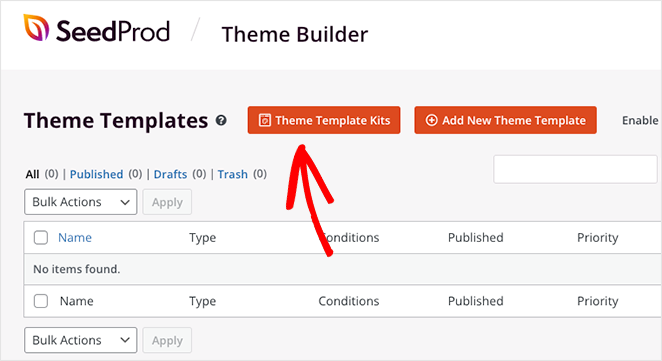
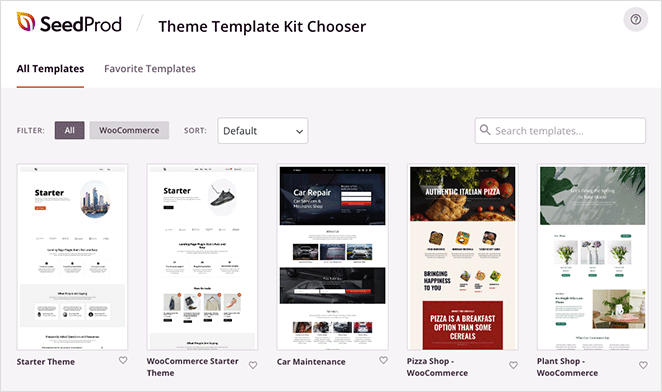
You’ll see a library of pre-made website kits. Each kit includes templates for key pages like the homepage, header, footer, About page, Contact page, and more.
Some kits are designed for specific use cases, while others are more flexible. You can customize any kit later, so focus on layout and structure rather than colors or images.
To find a church-specific design faster, use the search bar and type church.
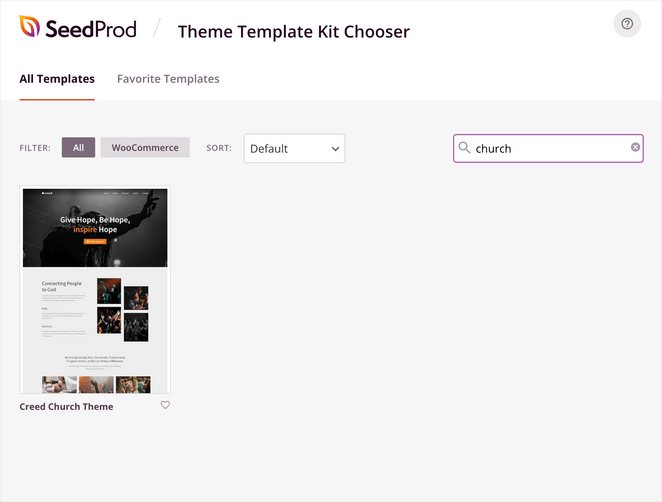
When you find a kit you like, hover over it and click the checkmark icon to import it.
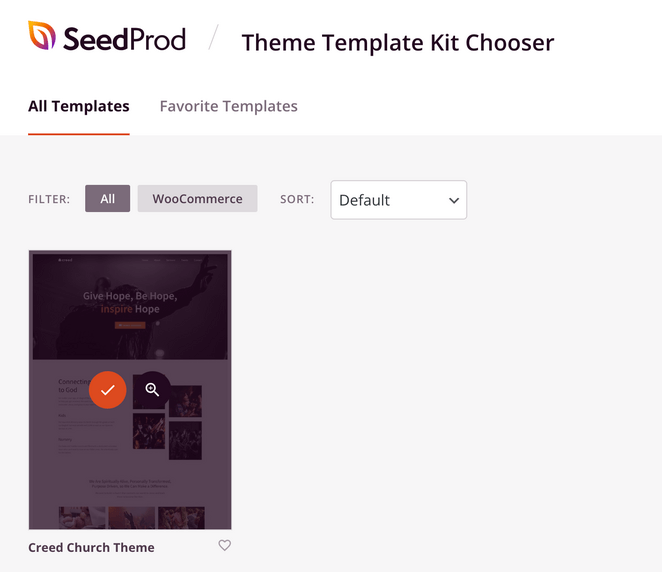
SeedProd will automatically create all the templates included in the kit. You can edit each one individually using the drag-and-drop builder.
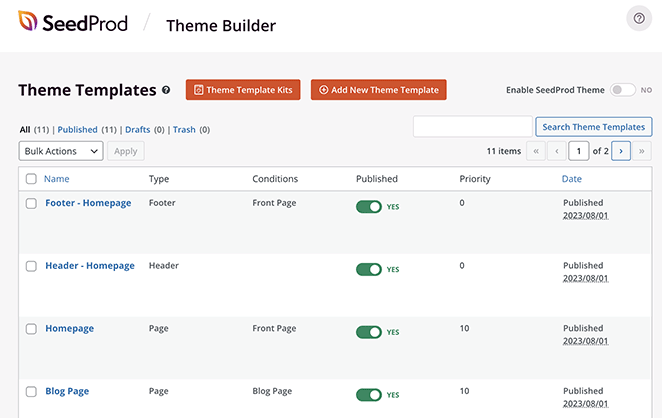
At this stage, don’t worry about getting everything perfect. The goal is to choose a solid foundation so you can start customizing your church website page by page.
Step 5. Build a Church Website Homepage
Your homepage is the most important page on your church website. It’s often the first place new visitors land, so it should clearly explain who you are and what to do next.
We’ll start by creating a custom homepage using SeedProd’s visual editor.
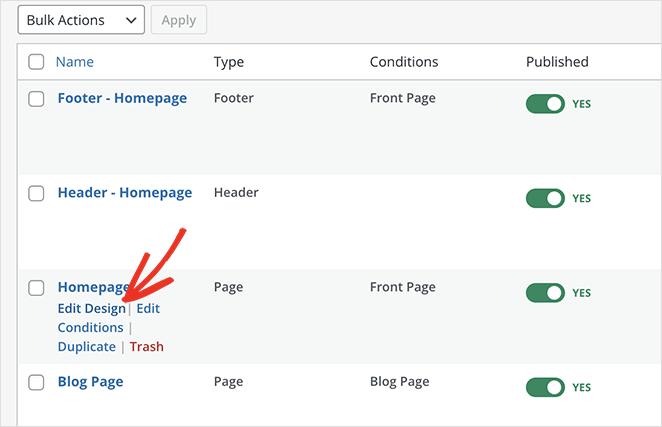
From the Theme Builder page, locate your Homepage template, hover over it, and click Edit Design.
Your homepage opens in SeedProd’s drag-and-drop editor. On the right, you’ll see a live preview of your page. On the left, you’ll find blocks and settings you can use to customize every section.
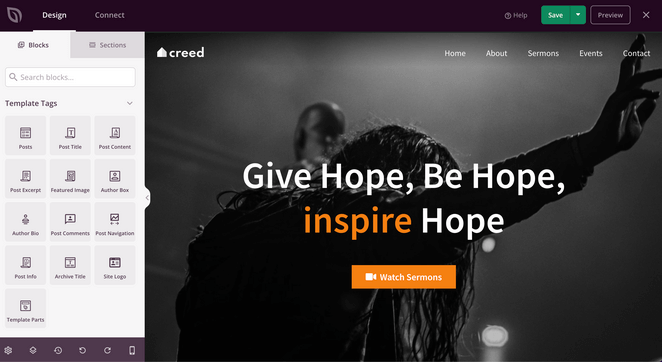
You can edit all homepage content here, including text, images, buttons, and social media icons.
Start with the main headline at the top of the page. This should clearly communicate your church’s name, mission, or welcome message.
Click the headline in the preview to open its settings panel on the left.
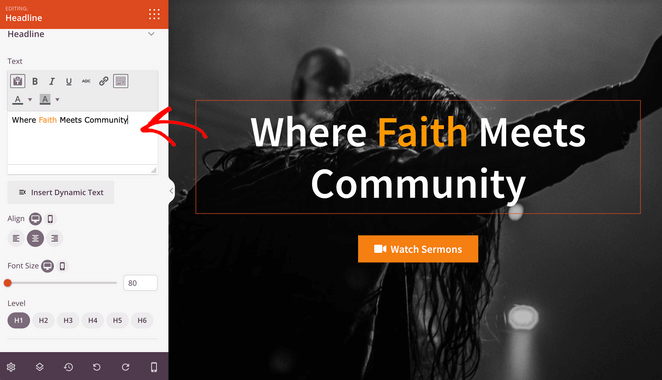
Replace the demo text with your own headline. You can adjust alignment, font size, and heading level directly in the content settings.
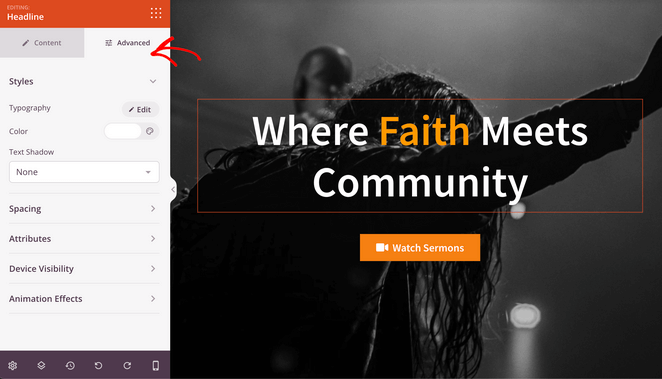
If you want more control, open the Advanced tab. Here you can adjust fonts, colors, spacing, and add optional text animations.
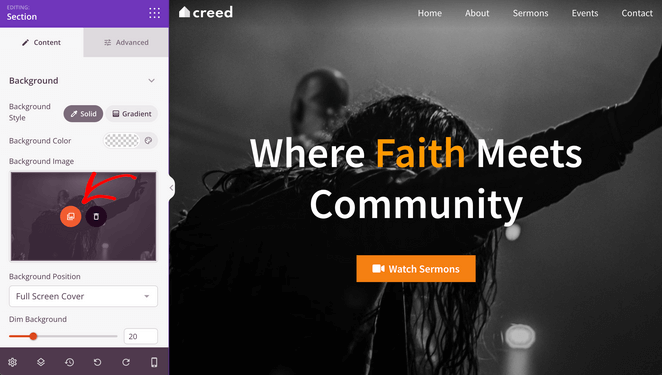
Next, update the main background image or hero image. Click the image area, then select the gallery icon to choose a new photo from your media library.
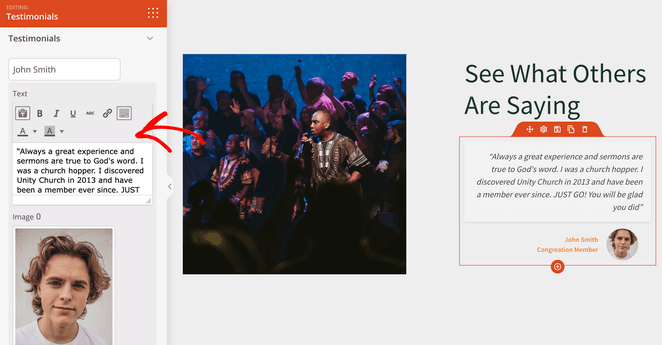
Your homepage is also a great place to build trust with visitors. Adding testimonials from church members helps people feel more comfortable before attending or getting involved.
To add testimonials, drag the Testimonials block from the left panel onto your homepage.
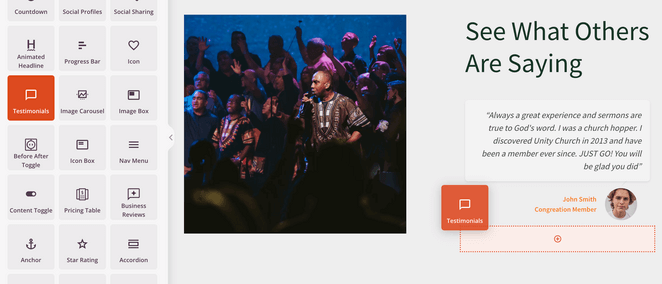
In the block settings, you can add multiple testimonials, along with a photo, name, and role for each person.
You can also enable a carousel layout to display several testimonials without taking up too much space.
Continue customizing your homepage until it clearly welcomes visitors and guides them to key pages like sermons, events, or giving.
When you’re finished, click Save in the top-right corner, then use the X icon to return to the Theme Builder dashboard.

Step 6. Create Your Church Website Pages
Once your homepage is in place, the next step is creating the core pages people expect to find on a church website.
These pages help visitors learn about your church, stay informed, and take action, whether that’s attending a service, watching a sermon, or getting in touch.
Most church websites include the following pages:
- About Us: Share your church’s background, beliefs, leadership, and mission so visitors understand who you are.
- Sermons: Give people access to past sermons in video or audio format so they can engage outside of Sunday services.
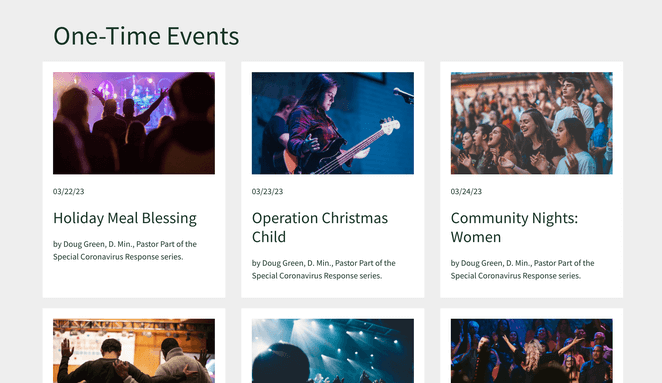
- Events: List upcoming services, Bible studies, and community events. This helps people plan and stay involved.
- Contact: Make it easy for visitors to reach your church with your address, email, phone number, and service times.
- Donations: Provide a clear and secure way for members and supporters to give online.
If you’re using a SeedProd church template kit, many of these pages are already created for you. You just need to customize the content.
To edit any page, go to Pages » All Pages in your WordPress dashboard. Hover over a page and click Edit with SeedProd to open it in the visual editor.
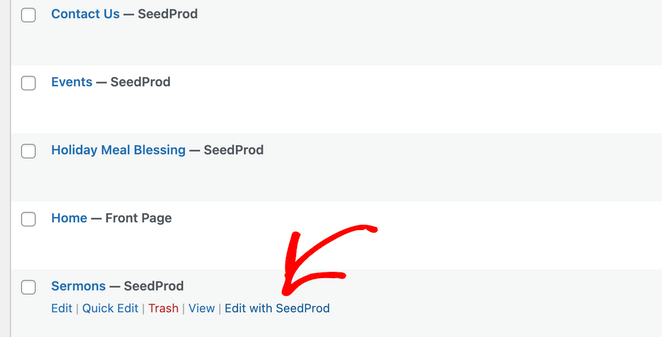
Editing these pages works the same way as your homepage. Click on any section to update text, swap images, or rearrange content.
Sermons Page
Your Sermons page is especially useful for people who missed a service or want to explore your church before visiting.
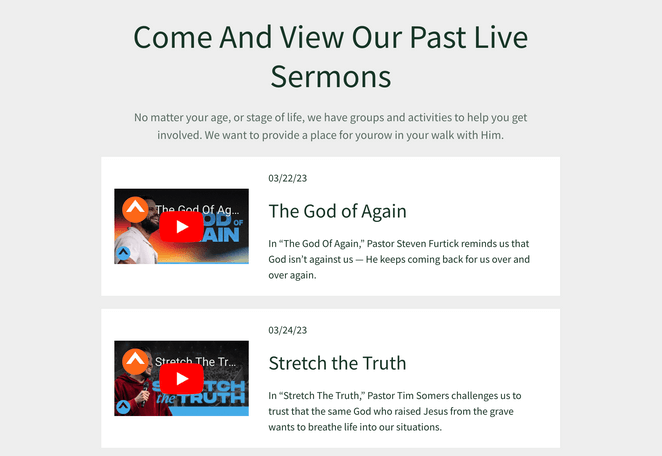
You can replace image blocks with video blocks to embed sermon recordings directly on the page.
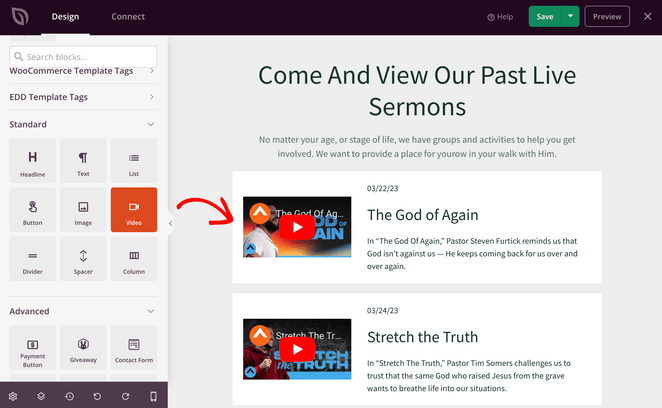
This makes it easy to add YouTube videos from past sermons so visitors can watch them anytime.
Events Page
Your Events pages help people stay informed and give them a reason to return to your site.
You can also use event pages to collect email addresses from visitors who want reminders or updates.
On each event page, include details like date, time, location, and an opt-in form so people can register their interest.
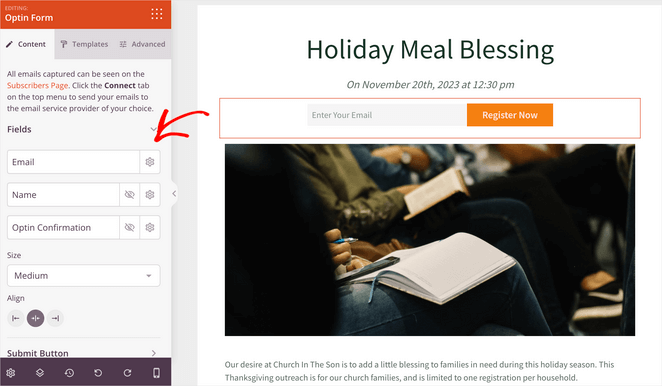
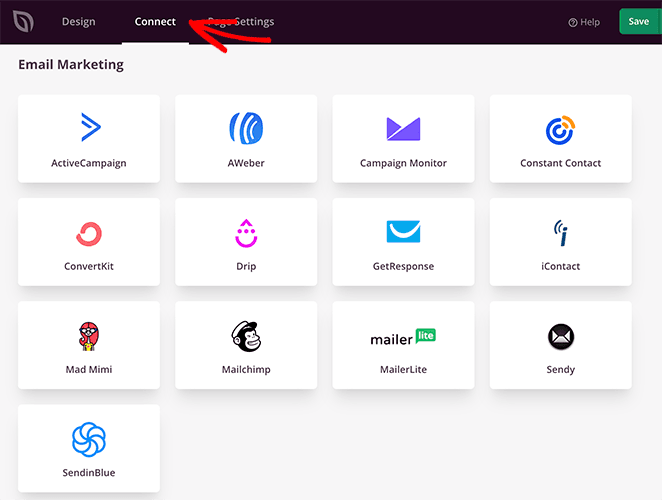
You can connect your opt-in form to your email service by using the Connect tab in SeedProd.
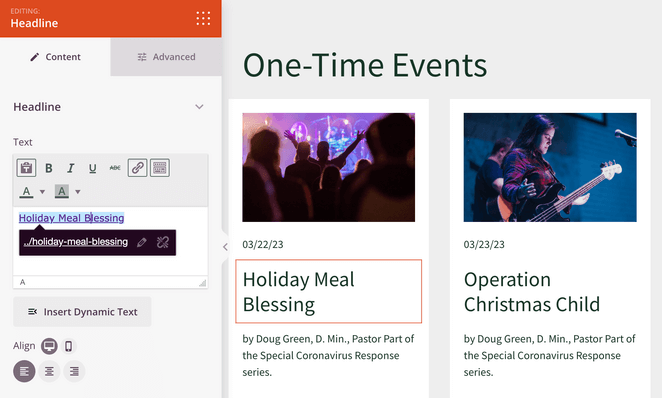
Once your event pages are ready, link to them from your main Events page so visitors can easily browse what’s coming up.
Donations Page
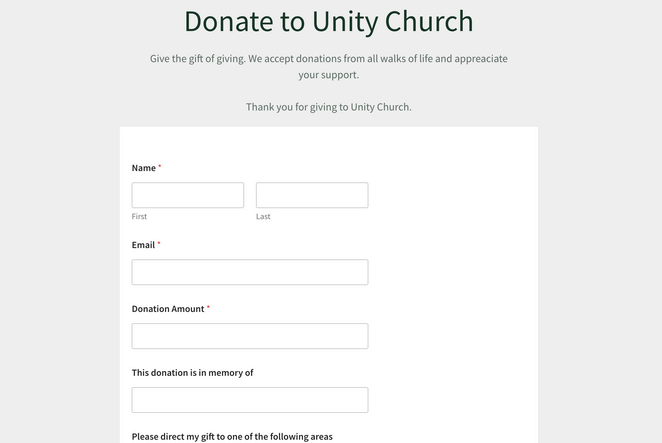
A donations page gives supporters a simple, secure way to give online without needing to attend in person.
If your church template kit doesn’t include a donations page, you can create one in just a few steps.
From your WordPress dashboard, go to Pages » Add New, name the page something clear like “Donations” or “Giving,” then click Save Draft.
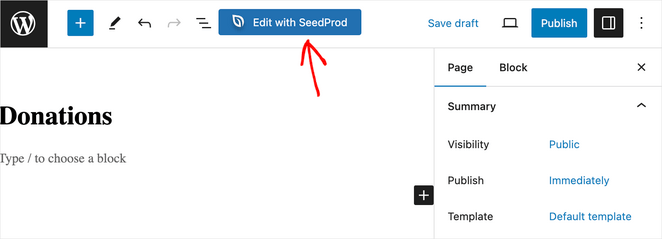
Next, click Edit with SeedProd to open the page in the visual editor.
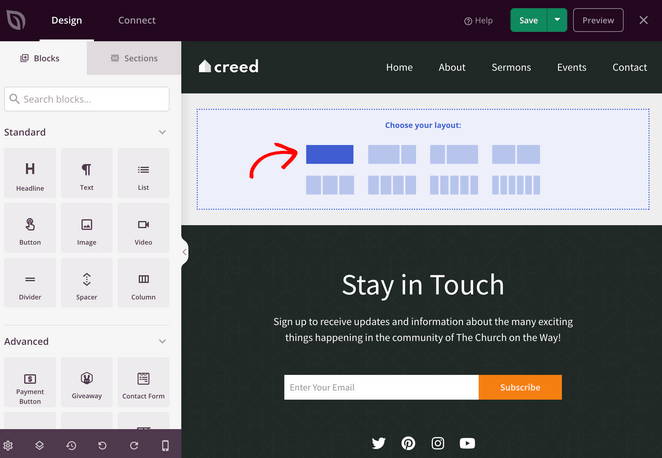
Choose a layout and start adding content using the blocks panel on the left.
Start with a short introduction that explains why online giving matters and how donations support your church’s work.
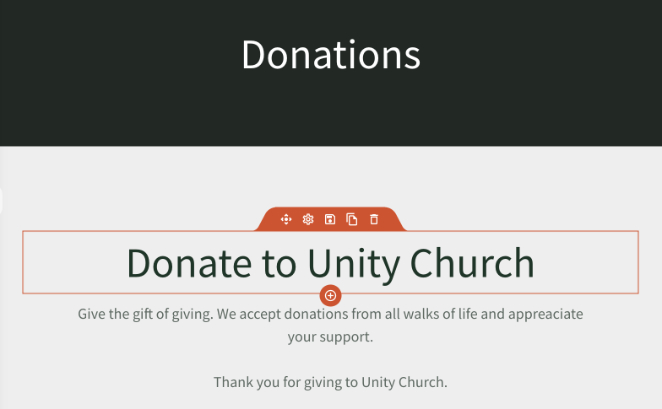
Next, add a way for visitors to give online, such as a donation form or payment button.
You can use WPForms, one of the most popular WordPress form plugins, to create a donation form that works smoothly with SeedProd.
Follow these steps to create a church donation form, then drag the Contact Form block onto your donations page.
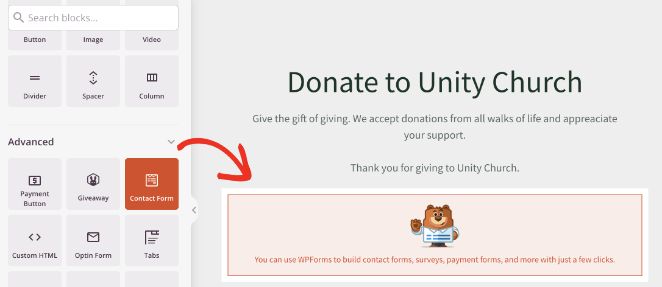
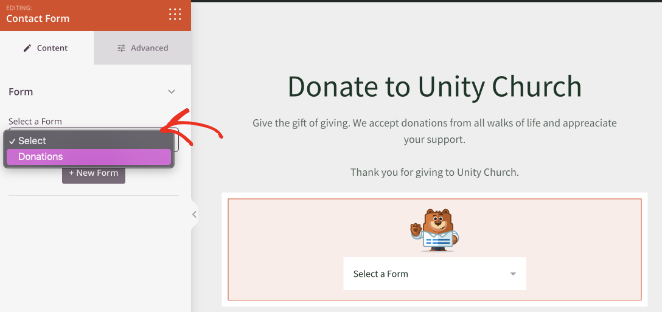
In the block settings, select your donation form from the dropdown menu.
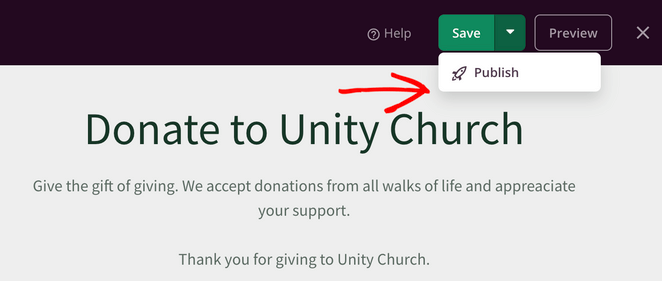
Take a moment to review the page and make sure it’s clear, welcoming, and easy to use.
When you’re ready, click Save and Publish to make your donations page live.
Step 7. Add Your Church Logo
Adding your church logo helps brand your website and makes it feel familiar and trustworthy to visitors.
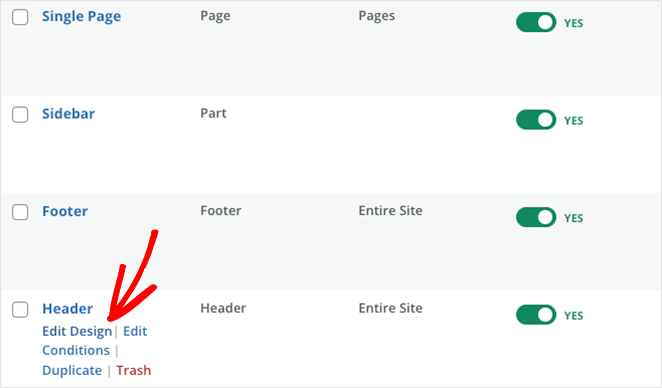
Your logo usually appears in the website header, so start by going to the Theme Builder dashboard and clicking Edit Design on the Header template.
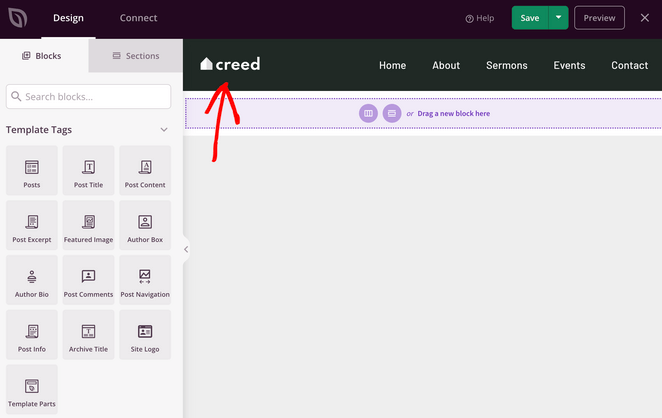
Once the header opens, click the existing logo image to open the image block settings.
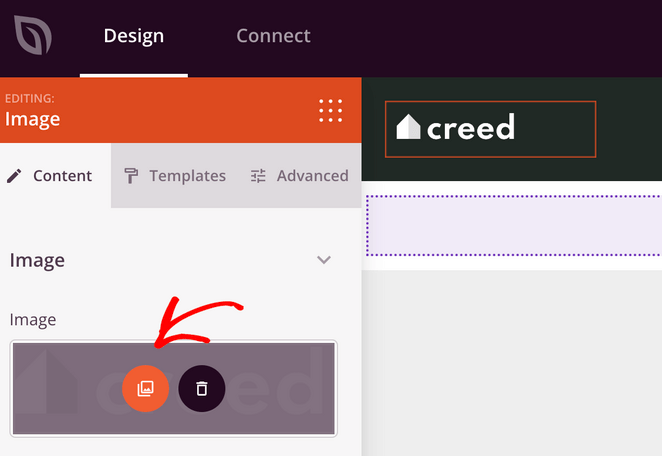
Click the gallery icon to open your WordPress Media Library, then upload or select your church logo.
After adding your logo, it’s a good idea to check your navigation menu.
If you want to add important links like your Donations page, click the Nav Menu block and select Add New Item.
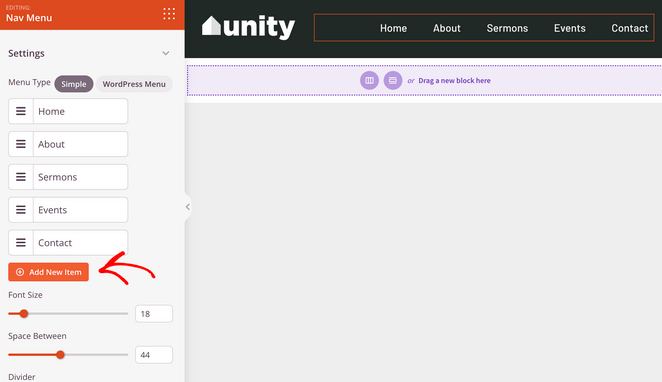
Enter the menu label and URL, then drag items to reorder them if needed.
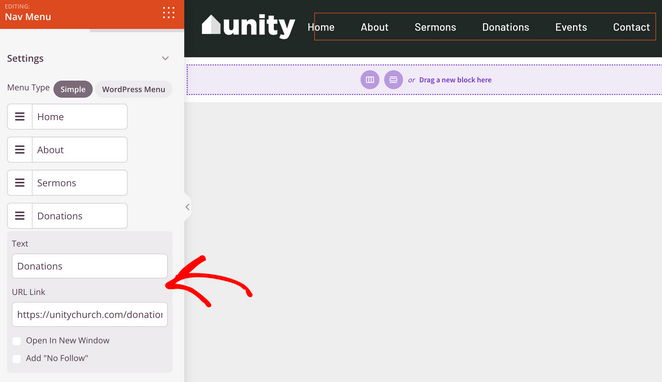
When everything looks right, click Save to store your changes and exit the editor.
Step 8. Launch Your Church Website
You’re ready to make your church website live.
If you’re still finalizing content, you can temporarily hide your site by using SeedProd to create a coming soon page.
When everything is ready, go to the Theme Builder dashboard and find the setting labeled Enable SeedProd Theme.
Toggle it to Yes to publish your site.
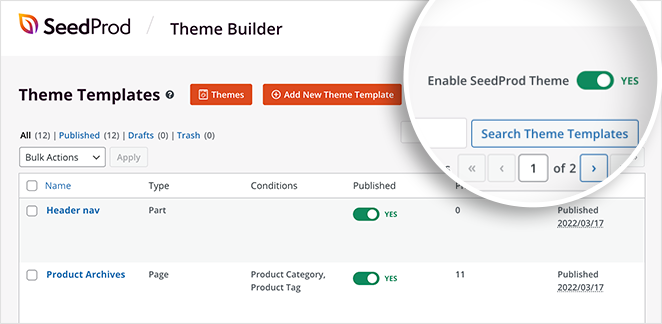
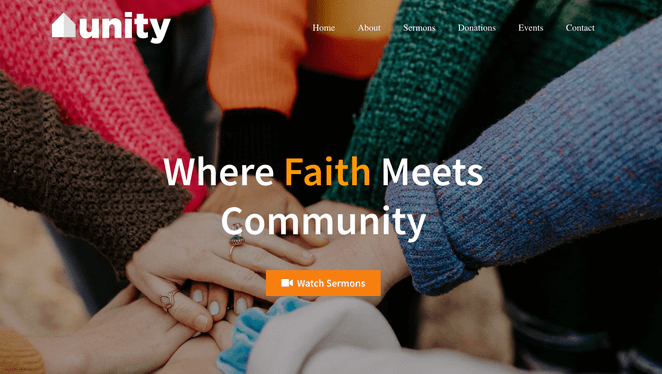
That’s it. Your church website is now live and accessible to visitors.
6 Essential Tips for Church Website Maintenance
Regular maintenance keeps your church website accurate, secure, and useful for both members and visitors.
- Keep Service Information Updated: Always check that service times, locations, and contact details are current so visitors don’t arrive at the wrong time.
- Post New Content Consistently: Upload recent sermons, announcements, or blog posts so your site stays active and relevant.
- Optimize for Search and Mobile: Use clear page titles and headings, and make sure your site works well on phones and tablets. SeedProd sites are mobile-friendly by default.
- Protect Your Website: Use strong passwords, keep WordPress and plugins updated, and back up your site regularly to prevent data loss.
- Encourage Engagement: Make it easy for visitors to reach out using contact forms, comments, or social links, and respond when they do.
- Track What Matters: Use MonsterInsights with Google Analytics to see which pages get traffic and where visitors drop off.
FAQs About Building a Church Website
How much does it cost to build a church website?
The cost to build a church website can be low. Many churches spend between $50 and $200 per year for a domain name and hosting. Using WordPress and a drag-and-drop builder keeps costs down because there’s no need to hire a developer.
What is needed on a church website?
At a minimum, a church website needs clear service times, location and directions, contact details, an About page, and upcoming events. Many churches also include sermons, online giving, and a welcome message for first-time visitors.
What domain should churches use?
Most churches use a .com domain because it’s familiar and easy to remember. If the name is unavailable, adding the city or location works well. Some churches use .org, but clarity and simplicity matter more than the extension.
Do church websites have to be ADA compliant?
Requirements depend on location and how your church operates, but accessibility is strongly recommended. Making your site easy to use for people with disabilities helps more visitors access information and reduces potential legal risk.
Next Steps: Read More Website Building Tutorials
I hope this guide has helped you learn how to build a church website in WordPress.
Website building is effortless with SeedProd. You can customize any part of your church website to meet your organization’s needs. It’s fast, easy to use, and doesn’t require help from expensive developers.
Before you leave, you might also find the following best website-building tutorials helpful:
- How to Build a Personal Trainer Website in WordPress
- How to Design a Restaurant Website Step-by-Step
- How to Create a Photography Website in WordPress
- How to Create a Real Estate Website in WordPress
- WooCommerce vs Shopify: Which eCommerce Platform Is Best?
- How to Create an Author Website in WordPress Without Coding
- How to Make a One Product Website in WooCommerce
Thanks for reading! We’d love to hear your thoughts, so please feel free to join the conversation on YouTube, X and Facebook for more helpful advice and content to grow your business.




