

TL;DR: WordPress Website Launch Checklist
Run these checks before your site goes live to catch the issues that matter most.
- Backups and security – Install a backup plugin and security tools before anything else.
- Privacy and legal – Add a privacy policy page and cookie consent banner.
- Functionality – Test forms, eCommerce, and browser compatibility.
- SEO basics – Connect analytics, set meta tags, and clean up page URLs.
- Content and design – Fix typos, check mobile responsiveness, and remove placeholder content.
- Post-launch – Submit to Google Search Console and run a speed test right after going live.
Launching a new WordPress website can feel overwhelming. I’ve launched dozens of sites myself, and I know how easy it is to miss something important when you’re juggling content, design, plugins, and SEO all at once.
That’s why I created this 24-item WordPress website launch checklist. It covers everything you need to double-check before going live, covering backups, browser testing, SEO settings, and broken links.
I’ve used SeedProd, a drag-and-drop website builder, to build several of these sites. You’ll see it referenced throughout.
A WordPress website launch checklist covers security and backups, SEO settings, working forms and ecommerce features, browser and mobile testing, and a final content review.
Quick Overview: What’s in This Website Launch Checklist
| Checklist Category | Focus Areas |
|---|---|
| Functionality | Security, backups, privacy and legal, working forms, plugin checks |
| SEO & Marketing | Analytics, meta tags, URLs, image alt text, site speed |
| Content & Design | Mobile responsiveness, typos, visual layout, broken links |
Click any section in the table of contents to jump straight to that part of the checklist.
- What Should You Test Before Your Site Goes Live?
- 1. Do You Have a WordPress Backup Plugin Installed?
- 2. Have You Set Up Your Security Plugins?
- 3. Do You Have a Privacy Policy and Cookie Consent Setup?
- 4. Do You Have a Custom 404 Page?
- 5. Is Your WordPress Admin Area Secured?
- 6. Have You Created a Coming Soon Page?
- 7. Have You Tested Your eCommerce Features?
- 8. Are Your Contact Forms Working Properly?
- 9. Have You Tested Your Site in All Browsers?
- 10. Are Your Themes and Plugins Up to Date?
- 11. Have You Checked Your Site for Accessibility Issues?
- How Can You Make Your Site Easier to Find?
- Is Your Content and Design Ready to Launch?
- What to Do After Launching Your WordPress Website
- Wrapping Up Your Website Launch Checklist
What Should You Test Before Your Site Goes Live?
Before launching your site in WordPress, you need to make sure everything functions as it should. The last thing you want is to go live with a broken site. That’s why this part of your go-live checklist is so important , it helps you catch issues before real visitors do.
Talk about a bad first impression.
Try to complete this section of your WordPress site pre-launch checklist at least 4 weeks before you launch. That way, you can iron out any issues that take more time to finish than those further down your list.
1. Do You Have a WordPress Backup Plugin Installed?
You should always have a backup solution on your website. Backups are like an insurance policy for your site. If anything goes wrong, you’ll always have a backup to restore things to the way they were.
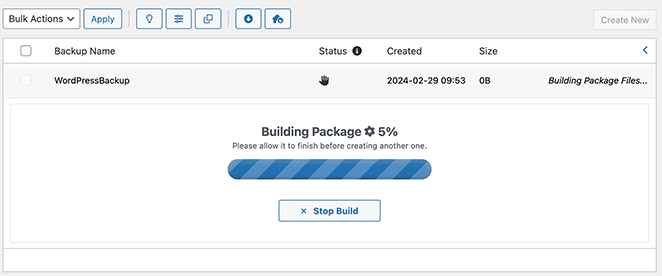
There are many good WordPress backup plugins available, both free and paid. Plus, they usually take only a few minutes to set up.
Make sure the plugin you choose automatically schedules your backups to save to the cloud. Popular cloud storage services include Google Drive, Amazon S3, and Dropbox.
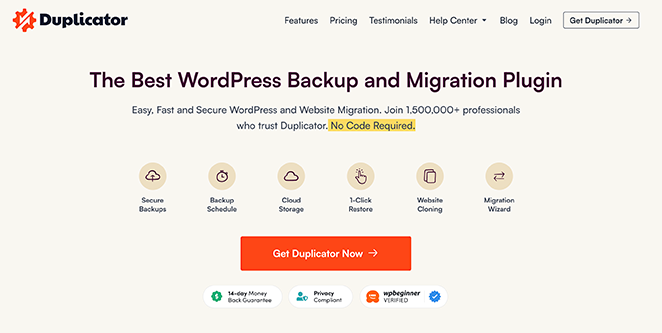
We recommend using Duplicator. It can store backups in more than one location, and it’s easy to install.
2. Have You Set Up Your Security Plugins?
With a backup solution in place, you should turn your attention to your website’s security.
Based on an analysis of 7 million websites, SiteLock reports that websites currently experience an average of 94 attacks every day, and are visited by bots approximately 2,608 times a week.

Adding robust security protocols provides even more protection against these constant threats. This ultimate WordPress security guide includes plenty of plugins that can help, along with some wise advice.
3. Do You Have a Privacy Policy and Cookie Consent Setup?
Most websites are legally required to have a privacy policy page. If you collect any data from visitors, through forms, analytics, or eCommerce, you need to be upfront about it.
GDPR (Europe) and CCPA (California) apply to a huge portion of websites worldwide. A privacy policy page explains how you collect, store, and use visitor data.
You’ll also want a cookie consent banner before launch. I use WPConsent on my own sites, and it handles consent banners, records visitor consent, and keeps you compliant without slowing things down.
4. Do You Have a Custom 404 Page?
Sometimes, a website visitor might land on a missing page or URL with a typo. In most cases, they’ll close the page and head somewhere else. This is a missed opportunity for your site, but you can solve it quickly.
Installing a 404 page before you launch your WordPress website helps you engage your visitors and direct them to other areas of the site.
SeedProd makes a 404 page plugin to make this easier. It also offers several ways to help you collect more leads.
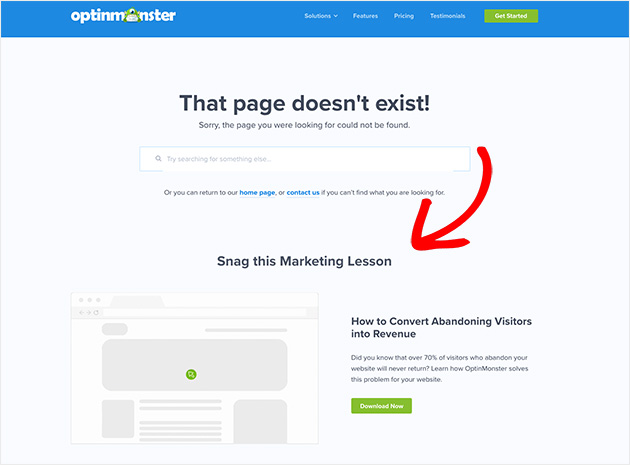
In this example, OptinMonster uses its 404 page as an opportunity to grow its email list with a lead magnet.
Follow this guide to create a 404 page in WordPress.
5. Is Your WordPress Admin Area Secured?
There’s no denying that WordPress is one of the most popular content management systems in the world. But with that popularity, it poses a big target for hackers to aim for.
Many sites run without facing this kind of threat, but it’s better to be prepared just in case.
Security plugins like Sucuri Firewall help keep your site secure and prevent attacks. It’s like having a personal security system for your home.
6. Have You Created a Coming Soon Page?
Another important task on your WordPress website pre-launch checklist is to ensure you have a coming soon page. This point is crucial if you’re still working on your design and content.
A coming soon page is like a teaser of your site. It lets people know that something is coming and allows them to stay notified.
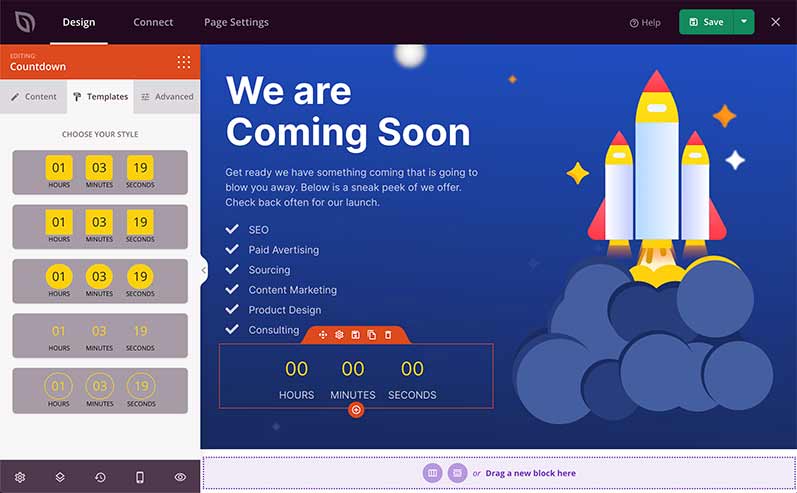
SeedProd’s drag-and-drop website builder is the best choice for your coming soon page because…
- You can launch your page in minutes while you work privately behind the scenes.
- You can add signup forms to grow your email list before you launch.
- Having an active coming soon page can give you a head-start in Google rankings.
- It includes over 500,000 free background images to make your page look stunning.
- Over 750 Google fonts help your content stand out and look sharp.
- Choose from many coming soon page templates to create a beautiful page without knowing a single line of code.
To learn more about how to create a coming soon page in WordPress, check out this handy tutorial.
Or you can jump right in and get started with SeedProd:
7. Have You Tested Your eCommerce Features?
If your website has an online store, you’ll need to ensure people can use it properly. If your store elements are broken or don’t work as they should, it could prevent people from buying your products, which in turn can lose you money.
For example, something as simple to fix as an awkward returns policy can cause 80% of people to abandon your site.
You can go through the whole process as a customer, from adding a product to the shopping cart to the checkout. You can even test a transaction to make sure it works properly.
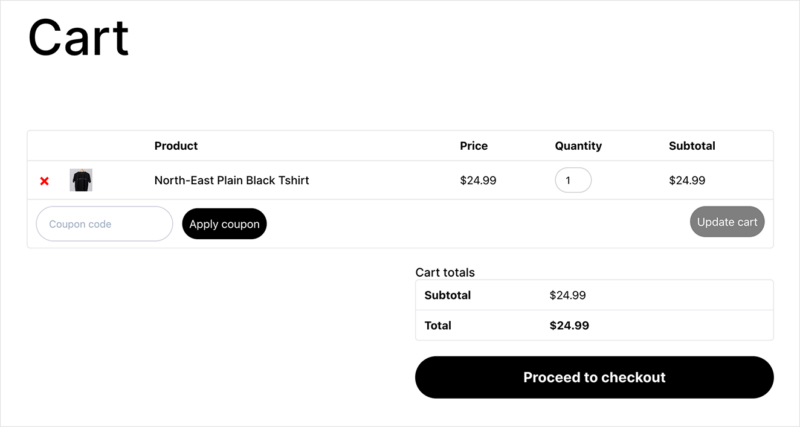
If your products are digital, make sure you send them to the customer quickly and without hitches. You should also check invoices, receipts, shipping costs, and any taxes that need to be applied.
For WooCommerce users, you can add maintenance mode on your shop pages while you test things out.
8. Are Your Contact Forms Working Properly?
Most websites these days use a contact form. You might even have forms for subscriptions or generating leads.
Before launching your website in WordPress, make sure all your forms display and function correctly. Don’t stop at perfecting the design, either. Ensure any forms that collect data are stored in the correct place.
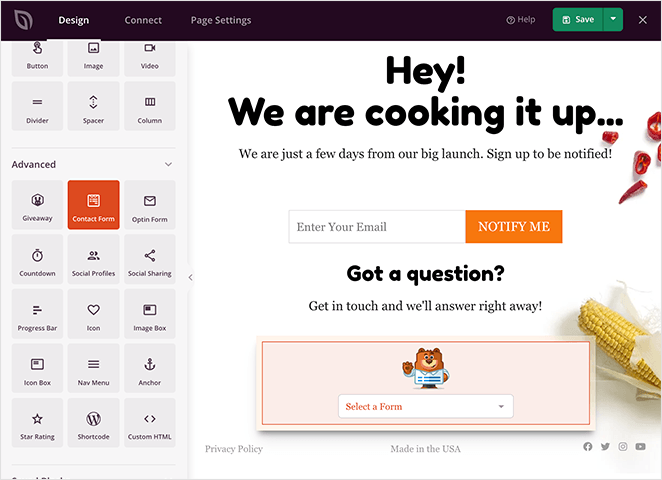
SeedProd’s built-in contact form block makes it easy to insert a contact form. That way, people can contact you before you go live. Any emails collected can be stored in WordPress or an email service of your choice by connecting to Zapier or WPForms.
Additionally, ensure your WordPress survey plugin is installed and working correctly to collect Customer Feedback.
9. Have You Tested Your Site in All Browsers?
It would be nice if your website visitors used the same browser. But the fact is, people have their own tastes when browsing the web. Many still use older versions of popular browsers.
You should check your site displays and functions across all browser types with that in mind.
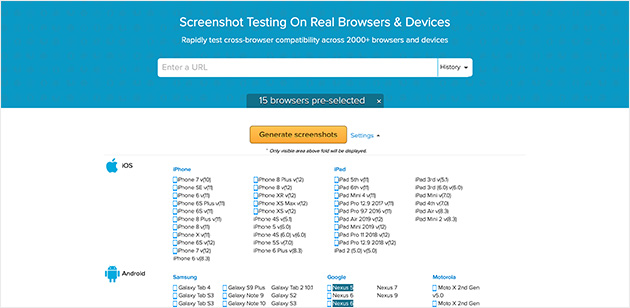
BrowserStack’s Browser Screenshots is a great free web tool with an easy-to-use interface.
It’s important to remember to check your site’s functionality on mobile, which this tool allows. More and more users are accessing the web through mobile devices, so your site must present correctly for them.
10. Are Your Themes and Plugins Up to Date?
It’s vital to keep your version of WordPress, along with your themes and plugins, up-to-date to prevent any vulnerabilities. Hackers can easily exploit weaknesses in outdated software.
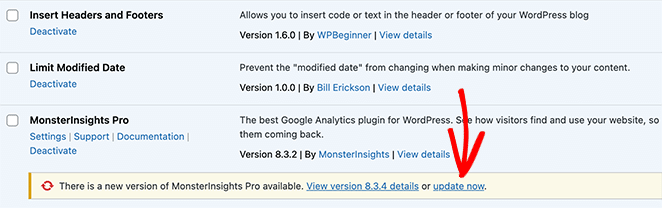
The great thing is WordPress works hard to update anything with reported vulnerabilities. So. the best thing you can do for the safety of your site is to keep everything updated.
11. Have You Checked Your Site for Accessibility Issues?
Another thing you can overlook when launching a website is how accessible it is. In a study of the home pages for the top 1,000,000 websites, over 51 million distinct accessibility errors were detected – an average of 51.4 errors per home page.
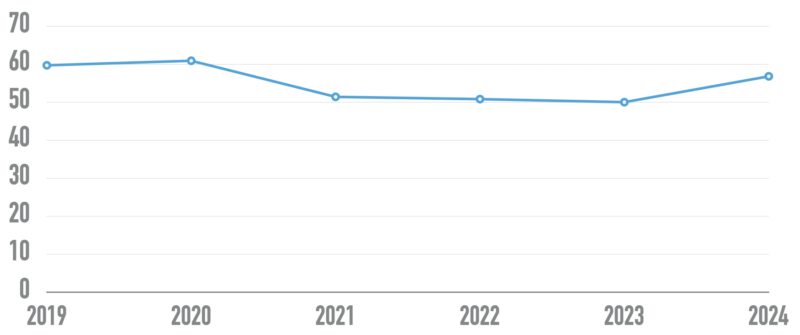
Accessibility is about ensuring that your site can be used by everyone, regardless of their ability. This includes visitors who have problems with their sight or hearing.
Think about your site’s structure.
- Can you reach all pages easily?
- Are there any obstacles?
- Is your content labeled in a way that would make sense to screen readers?
- Is the text large enough to read?
Check out this guide to learn more about improving accessibility in WordPress.
How Can You Make Your Site Easier to Find?
The next section of your WordPress website launch checklist focuses on search engine optimization (SEO) and marketing , two essentials for getting found after launch. This is how people will find your site in search engines and how you’ll reach them on other platforms like social media.
12. Is Your Site Connected to Analytics?
One key step on your launch-day SEO checklist is setting up analytics to track how your site performs after it goes live. After all the work spent on building and readying it, you want to know how many users are visiting, how they got there, and where they spend the most time.
Google Analytics is the standard choice for many websites wanting to track this data. Several great plugins will integrate Google Analytics with WordPress.
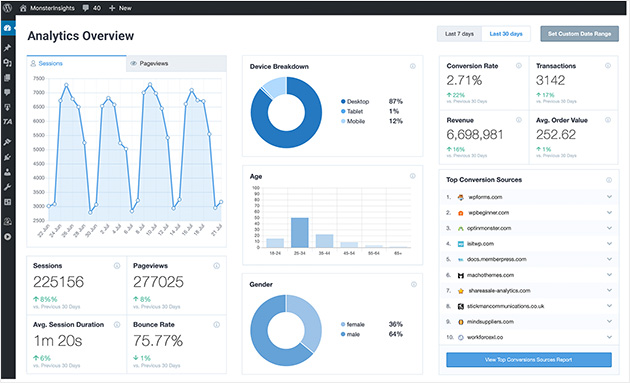
MonsterInsights makes it easy to add tracking codes to all your pages and collect data about search results and error pages.
You can view real-time stats, track affiliate links, and even review analytics reports straight from the WordPress dashboard.
Check out this MonsterInsights review for even more details.
13. Have You Set Up Your Meta Tags?
Meta tags are a way for WordPress to talk to search engines like Google about what’s on your site. They’re like a cheat sheet that search engine bots can check to learn about your site’s content, authors, images, and more.
It might sound technical, but don’t worry, you don’t have to know any code to do this. You can use a plugin like All in One SEO to add meta descriptions and more.
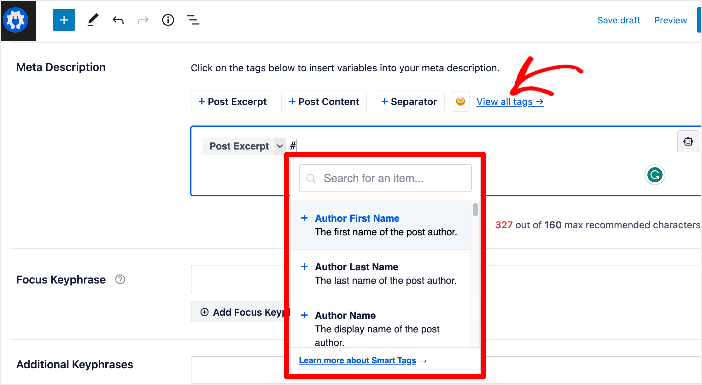
It makes sense to spend time helping search engines as they index and catalog your web pages, ultimately directing more traffic to your site.
14. Are Your Page URLs Optimized for Search?
Before you launch your site, you’ll want to make sure that your page URLs look good, are easy to read, and are search engine friendly. This gives users and search engines more information about your content.
An optimized URL would look something like this:
https://seedprod.com/how-to-grow-your-email-list
On the other hand, an unoptimized URL might look like this:
https://seedprod.com/?p=69384
This is easy to set up before launching, but it can be tricky to change afterward!
There are several options for naming your post pages under Settings » Permalinks in your WordPress admin area.
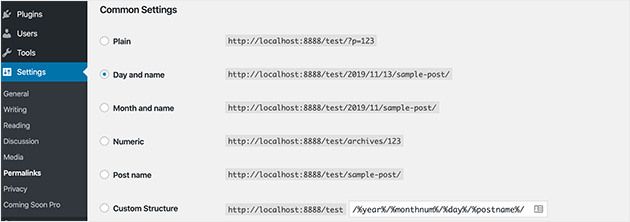
We recommend choosing the Post Name option for most sites to keep things simple and easy to read.
15. Have You Added Alt Text to Your Images?
As we mentioned earlier, accessibility is vital for your site. The alt text of your images directly links with this, as it helps support features like screen readers. That said, it’s also a critical SEO feature.
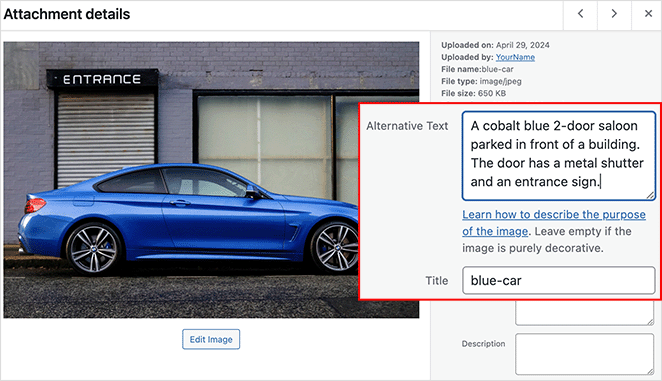
Along with the Title tag, adding alt text will help search engines decide how an image relates to the rest of the content on the page. In turn, that could help your users find relevant content on your site via search.
16. Have You Tested Your Social Integrations?
Social media plays a vital role in the launch of your website. Don’t miss out on using the power of viral marketing for yours.
Make sure people have a way to connect with your site on social media platforms like Facebook, X, and Instagram. Also, check any social plugins on your site are working correctly.
Before you launch, SeedProd can help you grow your social following by allowing visitors to share your website with their network. You can even reward them the more they share with referral tracking. This can create a viral loop!
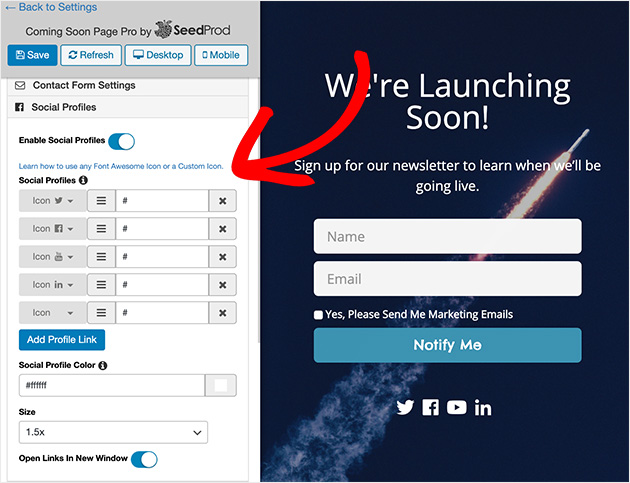
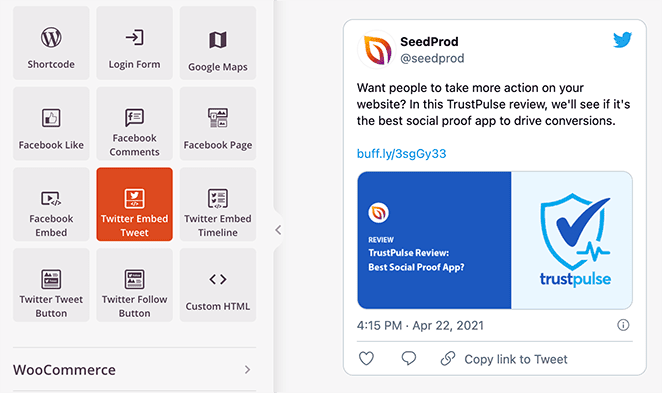
SeedProd also allows you to embed social media content directly in WordPress. For example, its X and Facebook blocks let you embed your:
- X timeline
- Facebook Feed
- X posts
- Facebook events
- Facebook media
And much more.
17. Have You Tested Your Site Speed?
A slow site loses visitors before they read a word. Most people expect a page to load in under 3 seconds, and Google factors speed into its rankings.
Run your site through GTmetrix or Google PageSpeed Insights before you launch. Both are free and give specific recommendations for what to fix.
When I tested SeedProd-built pages with GTmetrix, they loaded in 556ms with just 16 HTTP requests. That’s a strong baseline to aim for.
Is Your Content and Design Ready to Launch?
The final part of your WordPress launch prep checklist focuses on design and content , making sure your site looks polished and professional before the public sees it.
18. Is Your Site Responsive Across All Devices?
More and more people are using mobile devices to browse the internet.
With this in mind, make sure you know how your site will look and function on different devices. If you use the SeedProd for your coming soon page, you shouldn’t have any issues with this as it’s 100% mobile ready and responsive to look good on any size screen.
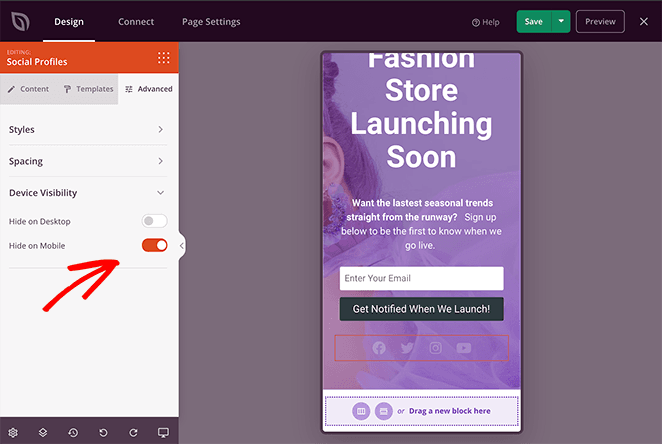
Google Chrome’s Screen Resolution Tester is a handy tool to have. This Chrome extension lets you see how your site will look on various devices through your Chrome browser.
To see how your site will look on different devices, try using a tool like Viewlike.us. This free web program gives feedback on how readable your site is and how easy it is to use on different size screens.
19. Does Your Site Have a Favicon?
Favicon is short for favorites icon, and it usually appears in the top left corner of a browser tab. However, it can also appear in many other places, like a bookmark icon on desktop or mobile.
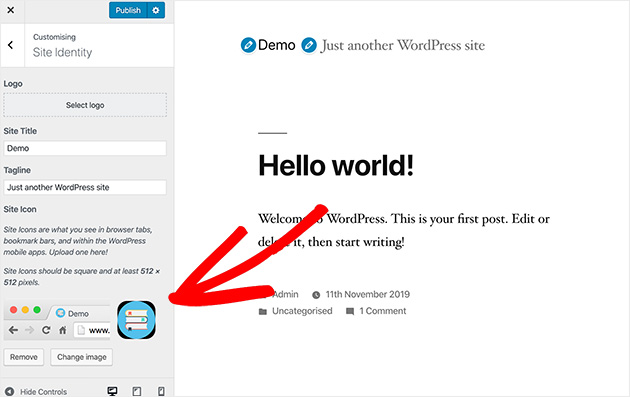
Most WordPress themes let you easily upload a favicon without any trouble.
WordPress lets you upload one via the WordPress Customizer and preview it before going live, eliminating the need to add another plugin to your site.
20. Have You Checked for Spelling and Grammar Errors?
Poor spelling and grammar can easily make or break your site. Of course, we all make mistakes. But any more than one or two minor errors on your site will lose the trust of your users and impact your business’ credibility.
There are many tools and plugins to help you fix your spelling mistakes.
We recommend using Grammarly, an AI-powered grammar-checking assistant.
Grammarly isn’t just for WordPress either. The handy Chrome extension checks your spelling and grammar live in your web browser, Google Docs, and social media.
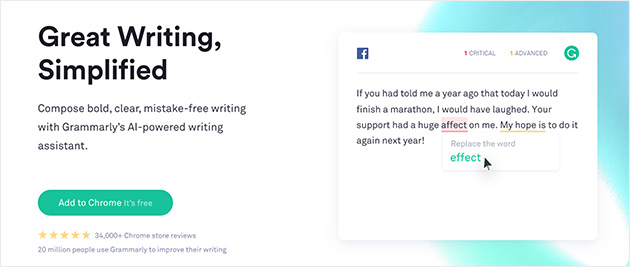
For more information on how to use Grammarly in WordPress, check out this guide.
21. Is All Your Content in Place?
As you’re building your site, you may end up using placeholder content, thinking, “I’ll fill this in later.”
Placeholder content can be helpful during the build, but your WordPress launch list should include a full check that all areas are filled with final content before going live.
Sadly, there’s no magic bullet plugin that will seek out such missing content areas.
You’ll want to keep track of pages and sections where you’ve loaded placeholder content so you can easily find it. Also, consider having other members of your team or a beta user group work through your site to look for problems.
22. Have You Fixed Any Formatting Errors?
At times it’s easy to overlook the simple things, like images being out of alignment or a heading in the wrong place. Take an objective look at your site and ask the following questions:
- Are your content and images formatted so they display correctly on the page?
- Is your use of text and image formatting styles consistent across the whole website?
If so, excellent!
If not, fix them now before your users confront the problems. If you don’t know any code, you can easily use a tool like CSS Hero to make style changes on your site.
Having a uniform look and feel across your website provides a more professional experience for your site visitors. Inconsistencies give an amateur impression and can quickly put visitors off from staying.
Again, an easy way to test this is to have a beta user group navigate through your site and report back.
23. Does Your Site Have Any Broken Links?
Broken links frustrate users and damage SEO. We recommend using Ahrefs to find broken links. You can also use it for keyword research and analyzing competitors.
Using their site explorer tool, you can generate a report of all broken links on your site. Then, you can export them in CSV file format to fix them before you launch.
Here’s a great step-by-step guide for finding and fixing broken links using Ahrefs.
24. Does Your Footer Have a Copyright Notice?
The footer is one of the last parts of your website users see, but that doesn’t mean you can neglect it.
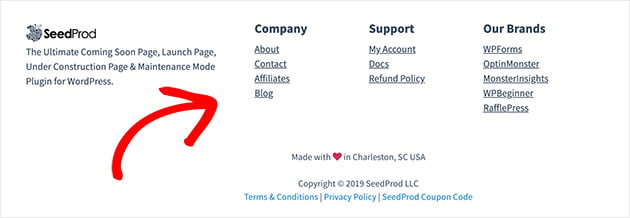
You should include your copyright notice in your footer.
It helps warn people that copyright laws protect your original work from the moment it’s created. Or (if you want to), you can list your content under a Creative Commons license to allow others to use your content.
Some sites also include essential information such as their business address or contact information. Others include a mini-site directory with links to all the crucial pages available on your site.
What to Do After Launching Your WordPress Website
Going live is a milestone, but there are a few things worth doing right after your site launches. These take less than an hour and set you up to track performance from day one.
- Submit to Google Search Console. Add your site and submit your sitemap so Google can start indexing your pages right away.
- Verify your analytics are tracking. Open Google Analytics or MonsterInsights and confirm real-time data is coming in after your first visit.
- Run a post-launch speed test. Your live site may load differently than your staging environment. GTmetrix or PageSpeed Insights will flag anything that needs attention.
- Confirm your SSL certificate is active. Check that your site loads with https:// and that there are no mixed content warnings in the browser.
- Share on social media and your email list. Your launch is news. Send an announcement to your list and post on your social profiles to drive your first visitors.
Frequently Asked Questions
How do I know my WordPress website is ready to launch?
Go through each section of your launch checklist: test your forms, check browser compatibility, review your content for typos, confirm plugins and themes are updated, and verify your analytics are connected. If everything on your list has a checkmark, you’re ready.
What should I do after launching my WordPress website?
Submit your site to Google Search Console and verify your analytics are tracking. Run a speed test with GTmetrix, confirm your SSL certificate is active, and promote the launch on social media and your email list.
Do I need to submit my WordPress site to Google before launching?
Not before, but right after. Once you go live, submit your sitemap in Google Search Console. This tells Google your site exists and helps it start crawling and indexing your pages faster.
How do I test my WordPress site before going live?
Test your forms, eCommerce features, and links manually. Use BrowserStack to check how the site looks across different browsers. Run a speed test with GTmetrix and use Google’s Mobile-Friendly Test tool to check responsiveness.
Wrapping Up Your Website Launch Checklist
You’re ready. Go through each section of this checklist before you flip the switch, and you’ll catch the issues that matter most before your visitors do.
Once you’re live, focus on converting visitors into subscribers to grow your email list. And if you’re still building, SeedProd makes it easy to launch a coming soon page while you work behind the scenes.
Thanks for reading! We’d love to hear your thoughts, so please feel free to join the conversation on YouTube, X and Facebook for more helpful advice and content to grow your business.





I am new to this and am in the process of replacing a live site (cakesavvy.ca) with a site I am building on the same server with the URL (newtest.cakesavvy.ca). My question is what plugins should only be put on after the new site replaces the old site and the URL is changed to the original one?
Hi Ed,
The answer to your question largely depends on the plugins you have installed on the original site. If your new site functions the same as the old one, it’s best to install the same plugins to avoid any issues. However, if there are plugins that you won’t use for your new site, you can skip installing them. You can also check out this post for the best WordPress plugins you can use.