

If you’ve searched for survey tutorials, most results point to SurveyMonkey or Typeform, tools that require embed codes, lose your site’s styling, and store your data on someone else’s server. You can add a survey directly to your WordPress website using WPForms in about 15 minutes, no code needed.
I’ve used surveys to test landing page ideas, ask visitors why they didn’t buy, and even choose a blog post topic. In this tutorial, I’ll show you exactly how to add a survey form to your WordPress site step by step.
TL;DR: How to Add a Survey to Your WordPress Website You can add a survey to your WordPress website in about 15 minutes using WPForms, no code needed.
- Add a survey to WordPress in ~15 minutes: Install WPForms Pro and the Surveys and Polls addon, no code needed
- Best plugin: WPForms Pro with the Surveys and Polls addon
- Fastest method: Use the Survey Form template
- Easy publishing: Embed the form without code
- View results: Turn responses into charts and graphs
- Want more tools? Compare top WordPress survey plugins
But first, why use online surveys in WordPress anyway?
Why Add a Survey to Your Website?
Surveys give you a direct line to your visitors’ actual thoughts, not your assumptions about them. Here are three specific ways to use them:
- Exit-intent surveys: Ask visitors why they didn’t take action before they leave. One common objection, once identified, can change your conversion rate.
- Post-publish polls: Ask readers which topic they want next after you publish. You’ll spend less time guessing and more time writing what people actually want.
- NPS surveys: A “How likely are you to recommend us?” question reveals churn risks before they become cancellations. It catches dissatisfied customers early.
Now that you know the importance of online surveys, let’s look at creating a survey form in WordPress.
How to Add a Survey to Your Website in WordPress (Step-by-Step)
You’re likely wondering, “how do I put a survey on my website?” The easiest way to create a survey form in WordPress is to use a form builder plugin like Gravity Forms or Formidable Forms.
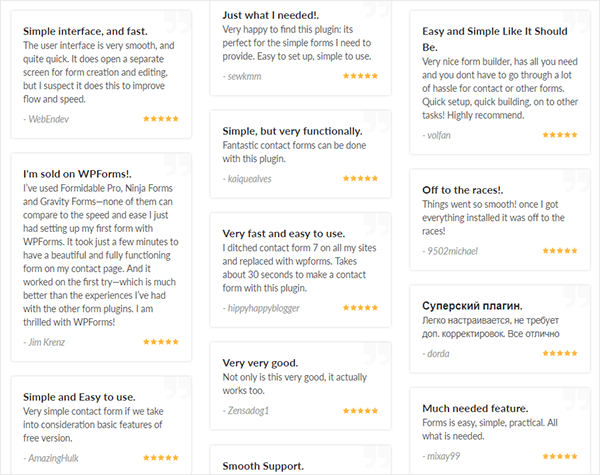
While these are great survey tools, we will be using the best WordPress plugin for building survey forms, WPForms. It’s a top-rated form plugin for WordPress with over 13,000 5-star reviews.
WPForms includes various powerful features, including conditional logic, file uploads, hundreds of templates, and many integrations with popular apps and services.
WPForms vs. Other Top Survey Plugins
| Plugin | Key Strengths | Ideal For |
|---|---|---|
| 🥇 WPForms | User-friendly, powerful features, great reporting, many integrations | All levels, especially those needing advanced analysis and integrations |
| Gravity Forms | Flexible, extensive add-ons, handles complex forms well | Advanced users and developers needing deep customization |
| Formidable Forms | Feature-rich, app builder included | Power users building complex forms and applications, less suited for basic surveys |
| Typeform | Beautiful, interactive design, conversational style | Prioritizing visual appeal and engagement over deep WordPress integration |
| SurveyMonkey | Established platform, many features, easy to use | Businesses wanting a dedicated survey platform, less emphasis on WordPress integrationpen_spark |
Why not check out this in-depth WPForms review for the full details?
Here are the steps for adding a survey to your website and creating a survey form in WordPress:
Step 1: Download the WPForms WordPress Plugin
The first thing to do is to download and install the WPForms plugin. You’ll need to get the Pro version to unlock the WPForms Surveys and Polls feature, which isn’t available in the free version.

Once you’ve completed your purchase, here’s where you can download the plugin in your WPForms account.
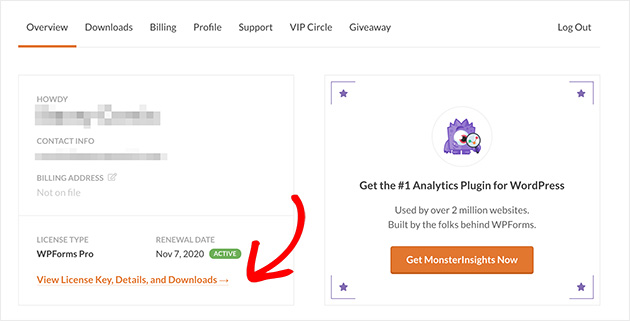
Click View License Key, Details, and Downloads to see the download area.
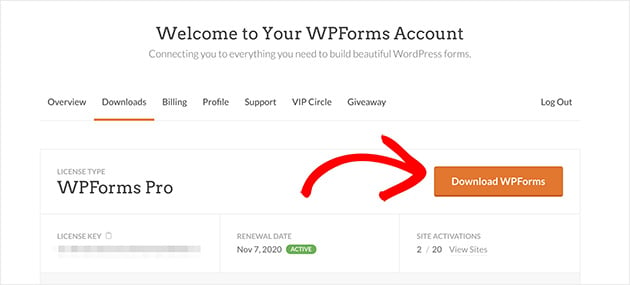
Next, you’ll need to log in to your WordPress site, go to Plugins » Add New from your WordPress admin area, and upload the WPForms plugin. If you’re not familiar with getting around WordPress, here’s a Beginners Guide to the WordPress Backend.
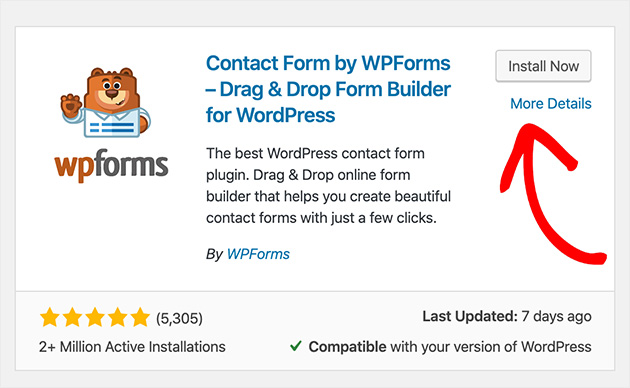
Once you’ve uploaded the plugin to WordPress, click Install Now and Activate.
Now click Addons under the WPForms admin toolbar. This shows a list of available addons for your plan. Locate the Surveys and Polls Addon.
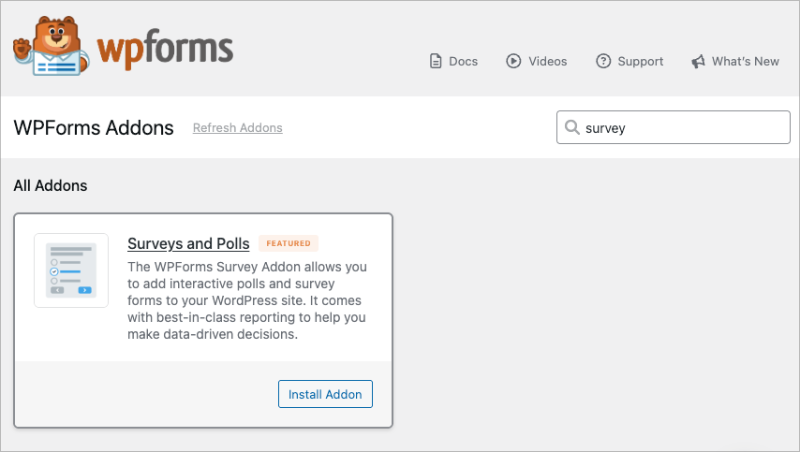
Click Install Addon, and Activate it to use this addon to create polls and surveys in WordPress.
Step 2: Create a New Form in WordPress
Key Takeaway: Use the built-in Survey Form template in WPForms to save time and get pre-made fields like rating and Likert scale.
Now you’ll need to create a survey form.
With WPForms, you can use any survey form template available and add your own survey questions.
But, to keep things simple, today, we’ll use a form explicitly made for adding a survey to your website. You can even add multiple-choice questions and net promoter score (NPS) surveys.
Go to WPForms » Add New and choose the Survey Form template.
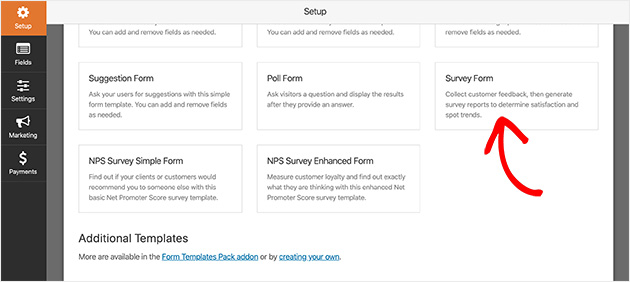
WPForms will then create a survey form for you.
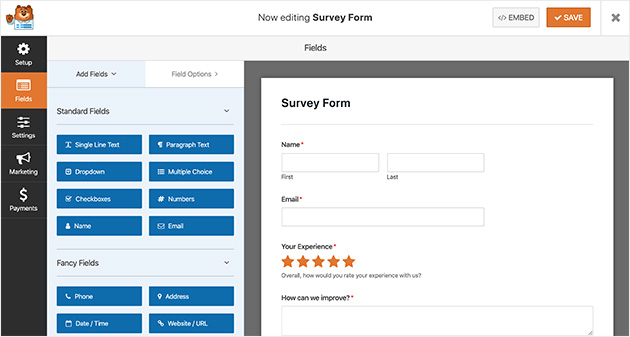
Your survey form template will automatically have the following fields:
- First and last name.
- Email.
- Rating.
- Likert scale.
- Comment box.
This is an excellent place to start with your WordPress survey. But, if you like, you can easily customize things to suit your specific questions.
Step 3: Customize the Survey Form Rating Field & Likert Scale
Adding extra survey fields to your form is easy. Drag them from the left-hand panel onto your form.
Clicking the survey form field lets you make changes. And dragging it allows you to re-order the fields in any way you’d like and see the changes in real-time.
Customizing your form’s Rating Field is pretty easy too.
To begin, click on the Rating Field. In the left-hand panel, you’ll see the information you can change, which includes:
- Changing the label.
- Adding a description.
- Choosing a satisfaction scale between 2 and 10.
- Making certain answers required.
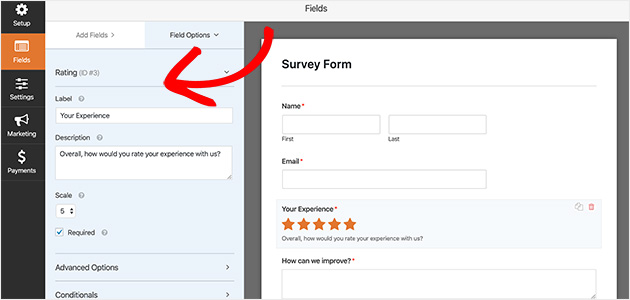
The Advanced Options let you change the icon type, size, and color. You can even add CSS classes for more customization and a better browsing experience.
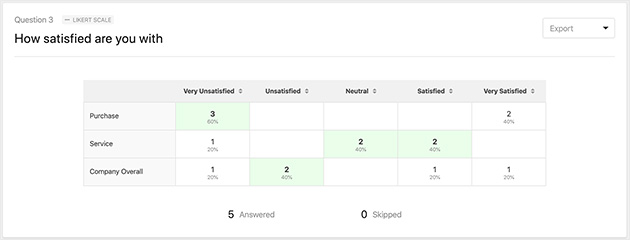
Additionally, you can customize the Likert Scale in the same way. Likert scales register how satisfied someone is with your product or service. They typically have a moderate or neutral opinion on the survey scale, which users can select by clicking the radio buttons.
By clicking on this survey field, you can:
- Change the label to better describe what you’re measuring.
- Add, remove, and edit the labels of rows on your scale.
- Change the column options, which are the responses your visitors can choose.
- Provide a description to give visitors more information.
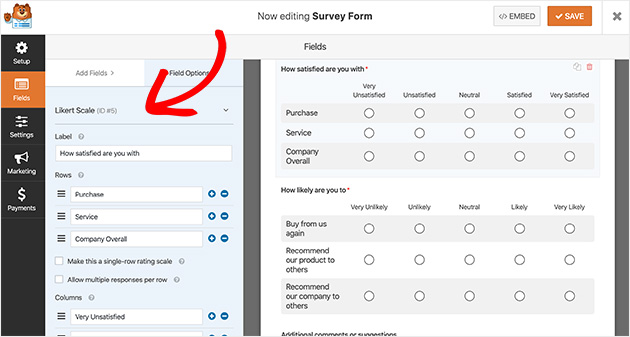
When you’re happy with your form details and settings, click Save.
Step 4: Enable Online Survey Reporting
Key Takeaway: Make sure survey reporting is enabled in your form settings so you can track responses with visual charts and graphs.
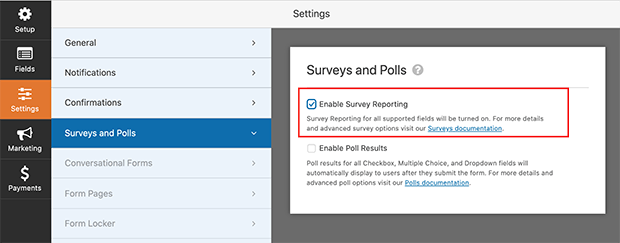
To receive and view the results from your survey, you need to enable the survey reporting option.
By default, survey reporting is enabled automatically for Survey Forms. But, if you decide to use a different form template, you’ll need to ensure you enable this option.
You can do this by clicking on Settings » Surveys and Polls. Then click the Enable Survey Reporting checkbox.
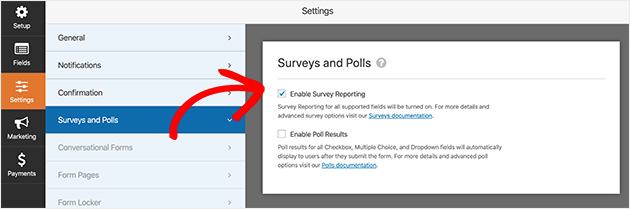
WPForms will automatically generate beautiful reports and graphs to analyze your survey data when you check this option.
What if you’re asking a simple question in a larger form? And what if you don’t need a report for everything in your survey? With WPForms, it’s easy to only enable survey reporting for specific fields instead of the whole form.
To only get reports on specific fields, uncheck the Enable Survey Reporting box in your form settings. Next, go back to your form editor, and click the form field you’d like reports for.
Under the Advanced Options, check the Enable Survey Reporting box. Only survey results for that field will be collected.
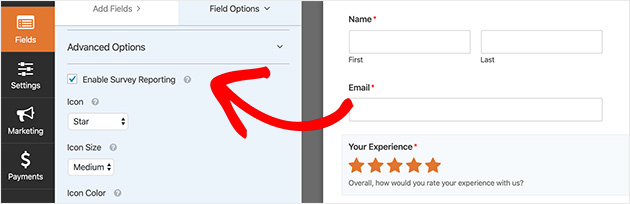
Follow the same steps for every field on your form that you’d like to enable reporting for.
Step 5: Configure Survey Form Settings
Your survey form will have the following 3 settings for you to set up:
- General. This is where you can change the form name, description, and submit button and enable anti-spam features. You can also disable storing user details in order to comply with GDPR.
- Notifications. Here you can set up email alerts whenever someone fills in a survey on your site. Simply enter your details and toggle notifications on or off.
- Confirmations. Whenever survey respondents complete a survey, you can show them a message or send them to another page on your website. Choose your confirmation type, enter the message, page, or URL you’d like to send visitors to, and click Add New Confirmation.
Once you’ve finished setting up your form, you’re ready to publish it in the next step.
Step 6: Add Your Survey Form to WordPress
Key Takeaway: You can embed your survey form anywhere on your site using the WPForms block , no code or shortcodes needed.
Now you’re ready to add your online survey form to your website.
With WPForms, you can post a survey anywhere on your WordPress site. This includes the ability to embed your survey into a post, create a dedicated form landing page, or display one in your sidebar.
Embedding a survey is one of the most common options and doesn’t require using any HTML or iFrame code.
Want to know how to put a form on your website? Follow the instructions below.
To add an embedded survey form in a WordPress post, page, or post type, you should visit the post edit screen and click the Plus (+) icon to add a new content block.
In the search box, type in WPForms to reveal the WPForms Block. Click the block to add it to your post.
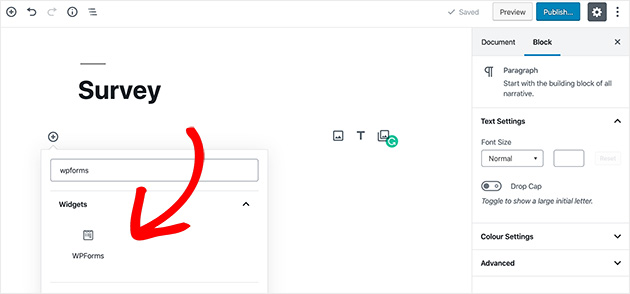
The WPForms widget will appear inside your block, letting you select your form from a dropdown list. This is much easier than having to copy and paste the embed code.
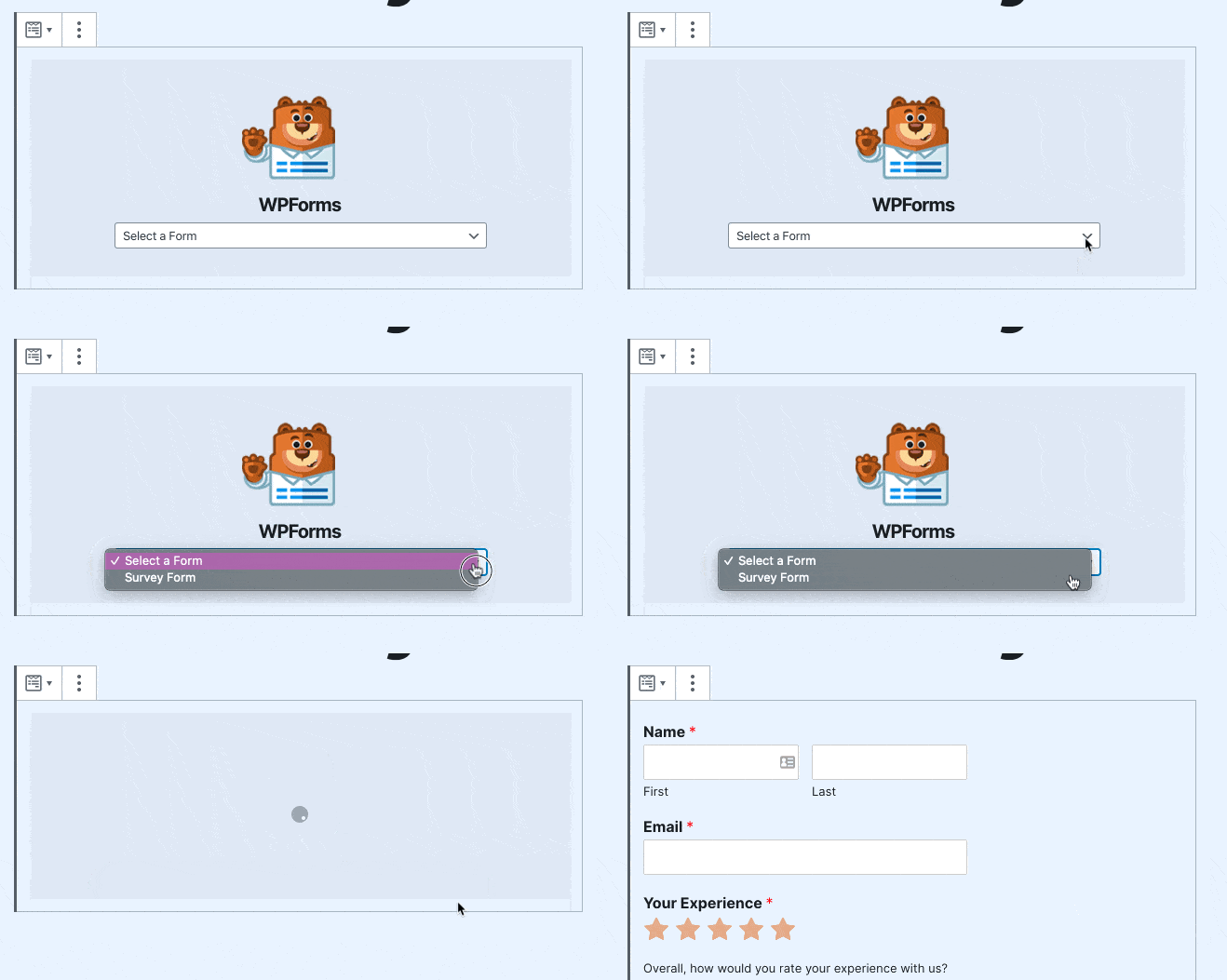
Select your survey from the dropdown list, then publish your post. Doing this allows your form to appear on your website.
Here’s the survey form example we made:
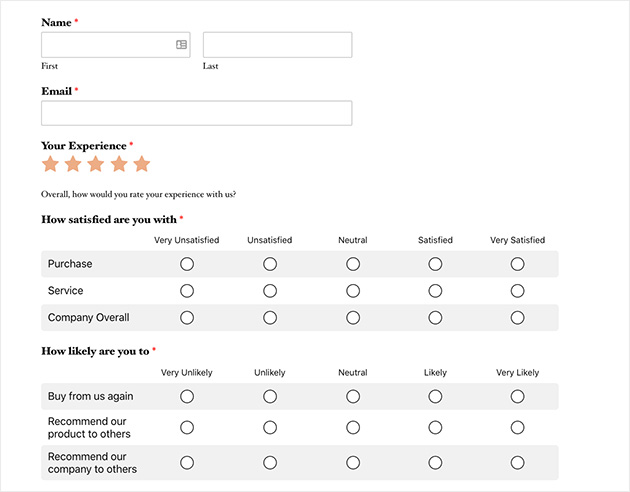
Step 7: Generate Your Survey Reports
Key Takeaway: Once responses come in, use WPForms’ built-in reporting to view results as pie charts, bar graphs, or downloadable CSVs.
One of the best features of the WPForms Surveys and Polls Addon is reporting. Once people fill out their forms, you’ll be able to see any data collected.
To create your first survey report, head to WPForms » All Forms. Then hover your cursor over the form you’d like a report for to view the options.
Now click Survey Results.
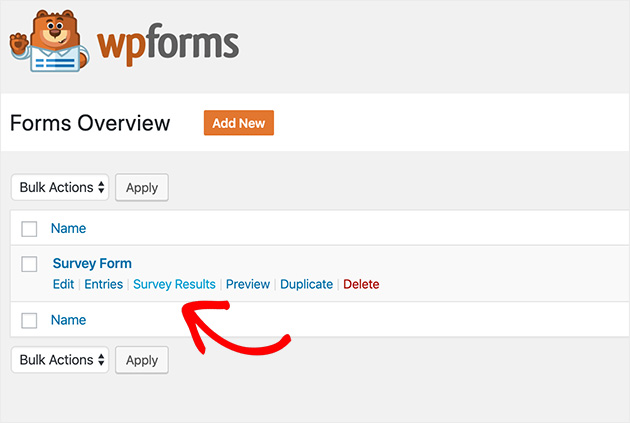
Your survey results will show data for all fields you enabled reporting for.
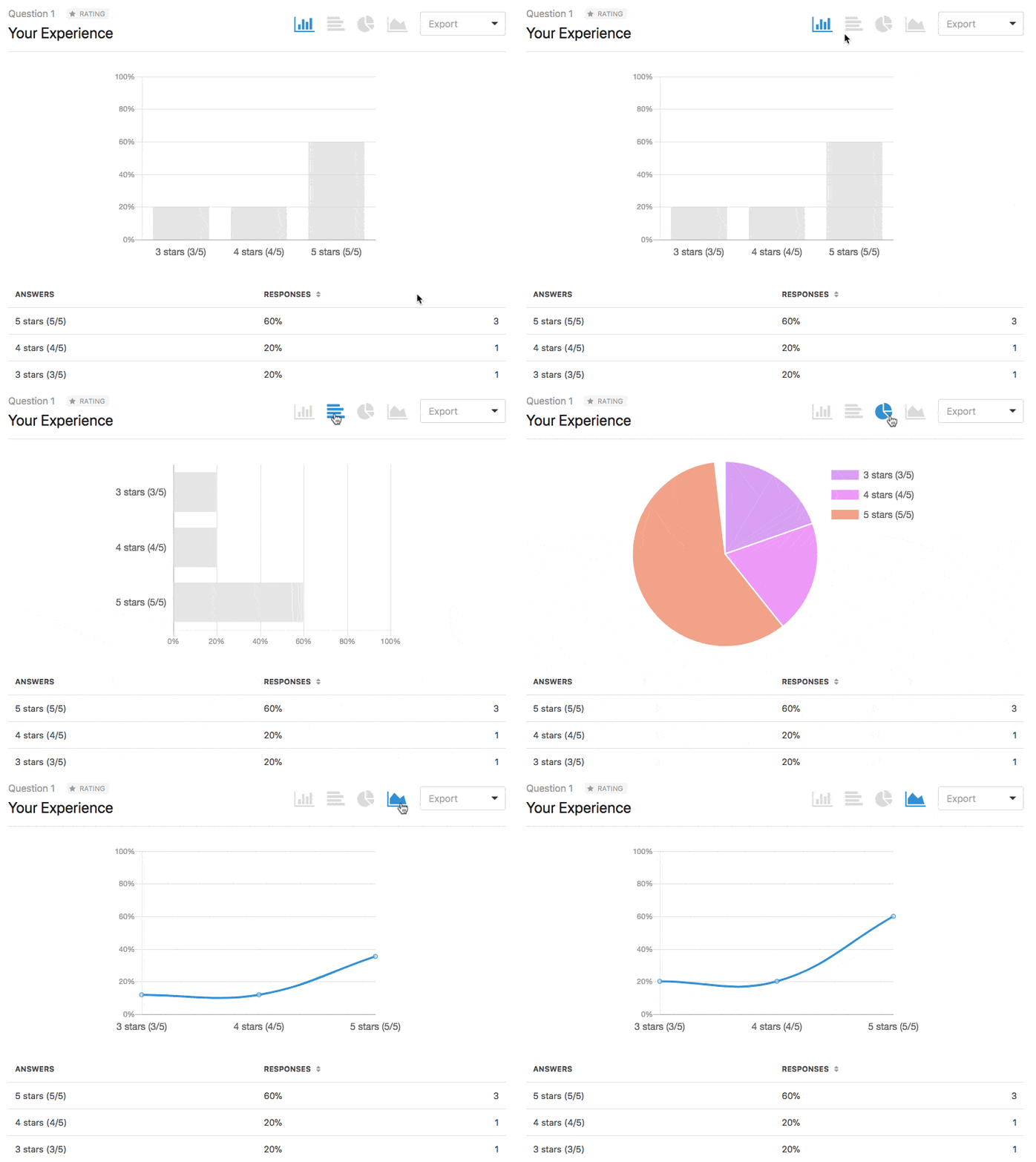
Here’s an example of how your rating results might look.
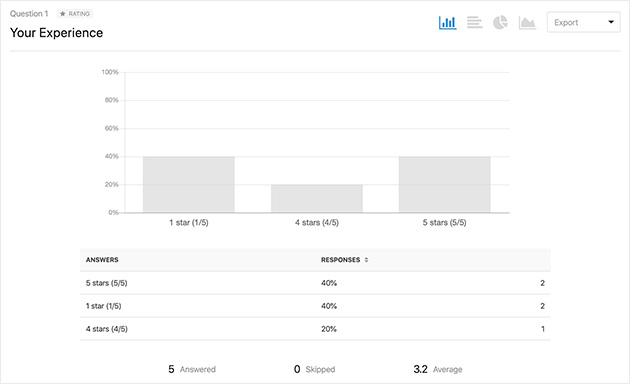
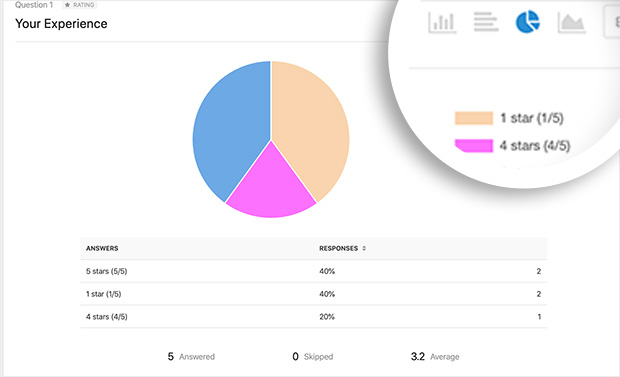
You can even change how your graphs display by selecting either a bar chart, pie chart, or line chart.
And here’s how the results from the Likert Scale would look.
You can export your survey results by clicking Download Export (CSV), generating a printable PDF, or even saving each question as an image to share on a blog post, social media, or presentation.
Convert Any Form into a Survey Form
With WPForms, you can also turn any form into an online survey and show past results as a survey. It’s also easy to choose specific form fields you want to treat as survey fields.
This can be helpful if you wish to collect data through other forms like contact forms, registration forms, and newsletter subscription forms.
To turn existing WPForms forms into surveys, edit the form using the WPForms editor and navigate to the Settings » Surveys and Polls section. Then click the checkbox next to the Enable Survey Reporting option and save your changes.
Popular Ways to Add Surveys to a Website
You don’t need to stick to one format when adding a survey to your site. The best approach depends on your goal, whether it’s collecting feedback, improving conversions, or doing customer research. Here are the most common and effective ways to display surveys on a WordPress website:
- Embed in blog posts or landing pages: Great for collecting feedback after content or testing ideas directly on marketing pages.
- Popups or slide-ins: Ask quick questions after time on page or on exit intent. Works well for user satisfaction or lead generation surveys.
- Link to external tools: Tools like Google Forms or Typeform are good for standalone surveys but have limited WordPress integration and styling control.
- Inline feedback widgets: Add simple rating buttons or micro-surveys under pricing tables, help docs, or product pages.
If you want full control over design and user experience, consider building a standalone page just for your survey. This works especially well for pre-launch research, customer feedback campaigns, or multi-step surveys.
You can follow this tutorial on how to create a survey landing page in WordPress to build one using SeedProd’s drag-and-drop builder.
5 Tips For Better Survey Results
Now that you know how to add surveys to your WordPress website, here are a few tips to boost its performance:
- Use incentives like giveaways, discounts, and coupons to encourage people to fill in your survey
- People don’t like long, complicated surveys, so keep yours short
- Avoid question types that are biased, as they can provide inaccurate results
- Use language that your target audience understands and avoid technical jargon
- Test your survey on co-workers and a few other users before sending it to iron out issues
- Use Google Analytics to measure your results and learn what works best
You can also use the powerful UserFeedback plugin from MonsterInsights. That way, you can add user-friendly popup survey forms anywhere on your site to learn what your visitors really think.
FAQs About Adding a Survey to Your Website
How do you add a survey to a WordPress website?
The easiest way is to install WPForms Pro and activate the Surveys and Polls addon. Create a survey using the built-in Survey Form template, then embed it on any post or page using the WPForms block, no code required.
Can I add a popup survey to my WordPress site?
WPForms doesn’t include native popup functionality, but you can connect it with UserFeedback or OptinMonster to trigger a survey form as a popup on a specific page or after a set delay.
Can I add a survey to WordPress for free?
Yes, WPForms has a free version called WPForms Lite. The Surveys and Polls addon requires WPForms Pro. If you need visual reporting, rating fields, and Likert scales, upgrading to Pro is the way to go.
How do I see the results of my WordPress survey?
Go to WPForms > Entries in your WordPress dashboard and click on your survey. Then click the Survey Results button to see a full visual report with bar charts, pie charts, and line graphs for each field.
Adding a survey to your WordPress website gives you a direct line to what visitors actually think. WPForms makes it easy to build, embed, and analyze your first survey without writing a line of code.
Thanks for reading! We’d love to hear your thoughts, so please feel free to join the conversation on YouTube, X and Facebook for more helpful advice and content to grow your business.



