

Wenn Sie versuchen, eine Kirchen-Website zu erstellen, kann man sich leicht festgefahren fühlen. Viele Kirchen-Websites sind veraltet, schwer zu aktualisieren oder es fehlen grundlegende Informationen, nach denen neue Besucher zuerst suchen.
Eine klare, gut organisierte Website hilft Menschen, Gottesdienstzeiten, Predigten, Veranstaltungen und Spendenmöglichkeiten zu finden, ohne das Kirchenbüro anzurufen oder eine E-Mail zu senden.
In diesem Leitfaden zeige ich Ihnen Schritt für Schritt, wie Sie mit WordPress und SeedProd eine Kirchen-Website erstellen, ohne programmieren oder einen Entwickler beauftragen zu müssen.
Was brauche ich, um eine Kirchen-Website zu erstellen?
Sie brauchen kein großes Budget, keine technischen Fähigkeiten und keinen benutzerdefinierten Entwickler, um eine Kirchen-Website zu erstellen. Die meisten Kirchen können mit nur wenigen Essentials online gehen.
- Domainname: Dies ist Ihre Website-Adresse. Wählen Sie etwas Einfaches, das Ihren Kirchennamen klar widerspiegelt, damit sich die Leute ihn leicht merken können.
- Webhosting: Hosting ist der Ort, an dem Ihre Website online lebt. Ein guter Hoster hält Ihre Website schnell, sicher und jederzeit verfügbar.
- WordPress: WordPress ist die Plattform, die Sie zur Verwaltung Ihrer Website verwenden. Sie können damit Seiten hinzufügen, Inhalte aktualisieren und Predigten oder Veranstaltungen ohne technische Erfahrung veröffentlichen.
- Ein Kirchen-Website-Builder: Ein visueller Builder wie SeedProd ermöglicht es Ihnen, Seiten per Drag & Drop zu gestalten, anstatt Code zu verwenden. So bleiben Updates für Mitarbeiter oder Freiwillige einfach.
Sobald diese Teile vorhanden sind, können Sie sich auf den Aufbau von Seiten und die Weitergabe von Informationen konzentrieren, anstatt komplizierte Software zu warten.
Wie man eine Kirchen-Website in WordPress erstellt (Schritt für Schritt)
Jetzt, da Sie wissen, was Sie brauchen, gehen wir Schritt für Schritt durch, wie Sie mit WordPress eine Kirchen-Website erstellen.
Diese Schritte sind für Kirchen mit begrenzter Zeit und technischen Kenntnissen geschrieben. Sie können sie der Reihe nach befolgen und eine voll funktionsfähige Kirchen-Website starten, ohne Code schreiben zu müssen.
Verwenden Sie die folgenden Schritte, um Ihre Kirchen-Website der Reihe nach zu erstellen, oder springen Sie zu dem Teil, den Sie benötigen.
- Schritt 1. Domainnamen und Hosting einrichten
- Schritt 2. WordPress auf Ihrer Website installieren
- Schritt 3. SeedProd Page Builder Plugin installieren
- Schritt 4. Ein WordPress-Theme-Kit auswählen
- Schritt 5. Eine Homepage für die Kirchen-Website erstellen
- Schritt 6. Erstellen Sie Ihre Kirchenwebsite-Seiten
- Schritt 7. Ihr Kirchenlogo hinzufügen
- Schritt 8. Ihre Kirchen-Website starten
- FAQs zum Erstellen einer Kirchen-Website
Schritt 1. Domainnamen und Hosting einrichten
Um eine Kirchen-Website zu erstellen, benötigen Sie als Erstes einen Domainnamen und Webhosting. Dies ist das, was Ihre Website online zugänglich macht.
Ihr Domainname ist Ihre Website-Adresse, und Ihr Hosting-Anbieter speichert Ihre Website-Dateien und hält sie für Besucher verfügbar.
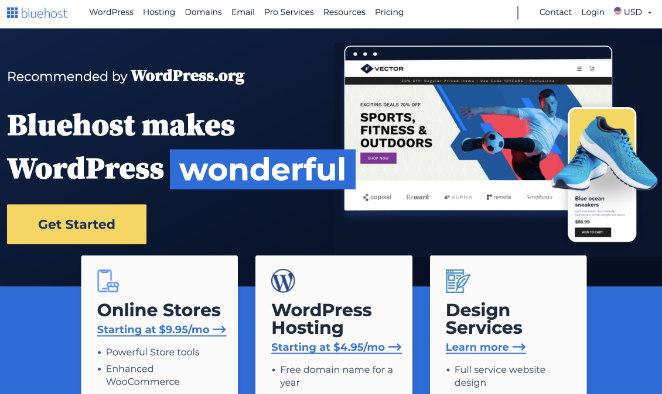
Ich empfehle Bluehost, da es anfängerfreundlich, zuverlässig und offiziell von WordPress.org empfohlen wird. Es ist eine praktische Option für Kirchen, die etwas einfach zu verwalten suchen, ohne laufende technische Arbeit.
- Kostenloser Domainname für das erste Jahr
- Kostenloses SSL-Zertifikat, um Ihre Website sicher zu halten
- Einfache WordPress-Einrichtung ohne manuelle Installation
- Kundensupport, der helfen kann, wenn Sie nicht weiterkommen
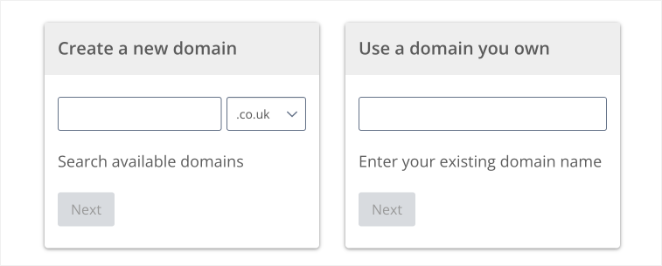
Um loszulegen, besuchen Sie die Bluehost-Website und klicken Sie auf Jetzt starten. Sie werden aufgefordert, einen Hosting-Plan auszuwählen und Ihren Domainnamen zu registrieren.
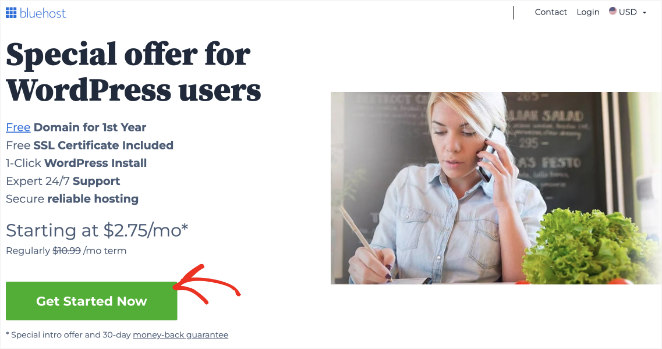
Achten Sie bei der Auswahl einer Domain darauf, dass sie kurz und prägnant ist. Die Verwendung Ihres Kirchennamens ist am besten, und die Hinzufügung Ihrer Stadt kann hilfreich sein, wenn der Name bereits vergeben ist.
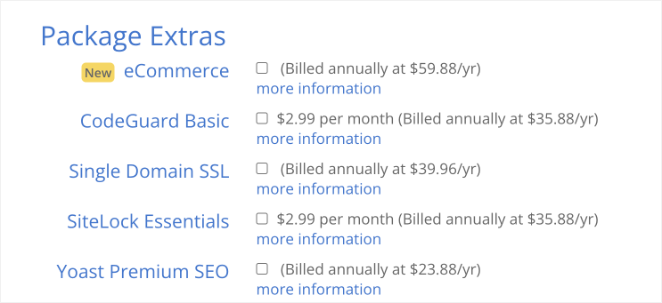
Während des Bestellvorgangs bietet Bluehost möglicherweise optionale Extras an. Sie können diese vorerst sicher überspringen und sie bei Bedarf später hinzufügen.
Sobald Ihr Kauf abgeschlossen ist, richtet Bluehost WordPress automatisch für Sie ein, damit Sie mit dem Aufbau Ihrer Kirchenwebsite fortfahren können.
Schritt 2. WordPress auf Ihrer Website installieren
Nach dem Kauf Ihres Hostings und Ihrer Domain erhalten Sie eine E-Mail mit Anweisungen, wie Sie sich in Ihr Webhosting-Kontrollfeld einloggen können. Bluehost installiert WordPress automatisch, sodass Sie sich über das Hosting-Dashboard bei Ihrer WordPress-Website anmelden können.
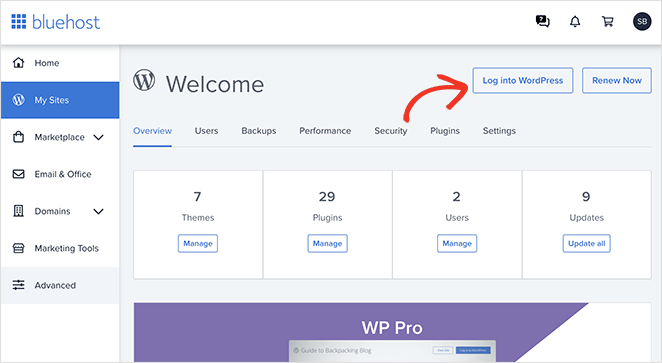
Nach der Anmeldung sehen Sie die WordPress-Administration, wo Sie Ihre Website verwalten, Einstellungen ändern und neue Inhalte hinzufügen.
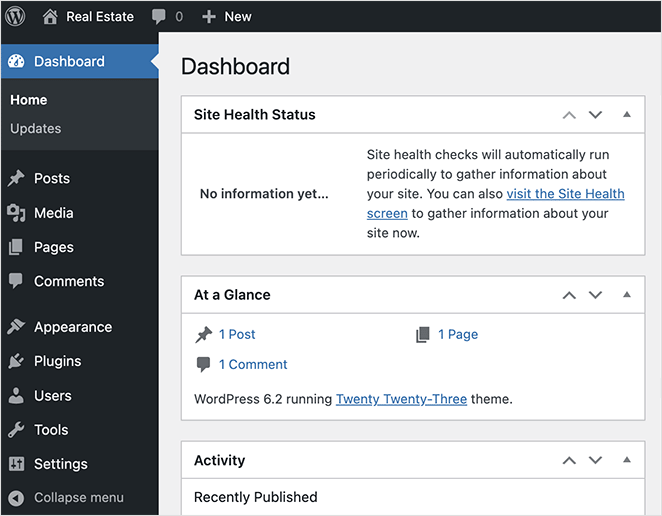
Eines der ersten Dinge, die Sie tun sollten, ist die Konfiguration der Grundeinstellungen Ihrer Website. Navigieren Sie von Ihrem WordPress-Dashboard zu Einstellungen, dann Allgemein, um die Details Ihrer Website einzugeben.
Hier können Sie den Titel, den Untertitel, die URL und die Admin-E-Mail-Adresse Ihrer Kirchenwebsite festlegen.
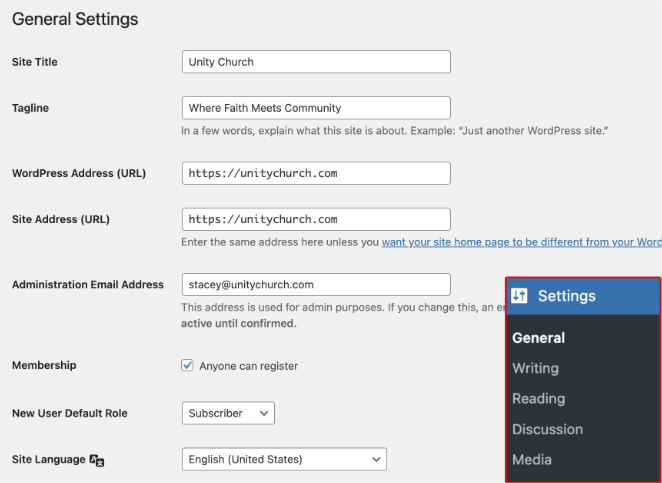
Weiter unten auf der Seite können Sie eine relevante Zeitzone, Sprache sowie Datums- und Zeitformate auswählen.
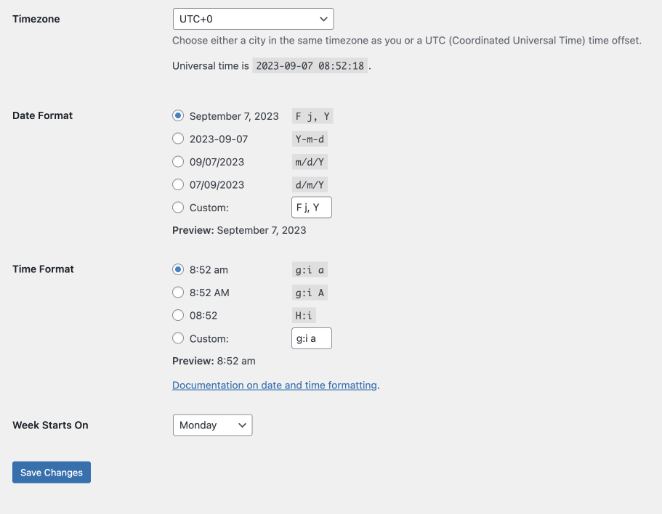
Klicken Sie auf die Schaltfläche Änderungen speichern, wenn Sie mit diesen Details zufrieden sind.
Schritt 3. SeedProd Page Builder Plugin installieren
Als Nächstes installieren Sie SeedProd, den WordPress-Website-Builder, mit dem Sie Ihre Kirchenwebsite gestalten und anpassen werden.

Die meisten WordPress-Themes sind nach der Einrichtung schwer zu ändern, insbesondere für Freiwillige oder Mitarbeiter ohne technische Erfahrung. SeedProd ersetzt diese Komplexität durch einen visuellen Drag-and-Drop-Builder.
Das bedeutet, dass Sie Texte, Bilder, Predigten, Veranstaltungen und Layouts ändern können, ohne Code anfassen oder sich Sorgen machen zu müssen, Ihre Website zu beschädigen.
Um den Theme Builder von SeedProd zu nutzen, installieren und aktivieren Sie SeedProd Pro. Diese Funktion ermöglicht es Ihnen, das Design Ihrer gesamten Kirchenwebsite zu steuern, einschließlich Header, Footer, Homepage und inneren Seiten.
Nach dem Herunterladen des Plugins folgen Sie diesen Schritten, um SeedProd Pro zu installieren und zu aktivieren und Ihren Lizenzschlüssel einzugeben.
Schritt 4. Ein WordPress-Theme-Kit auswählen
Jetzt ist es an der Zeit, ein Startdesign für Ihre Kirchenwebsite auszuwählen.
In WordPress steuert ein Theme das allgemeine Layout Ihrer Website, einschließlich Seitenstruktur, Schriftarten und Farben. SeedProd erleichtert dies, indem es komplette Theme-Kits anbietet, die alle benötigten Seiten enthalten.
Gehen Sie in WordPress zu SeedProd » Theme Builder und klicken Sie auf die Schaltfläche Theme-Vorlagen-Kits.
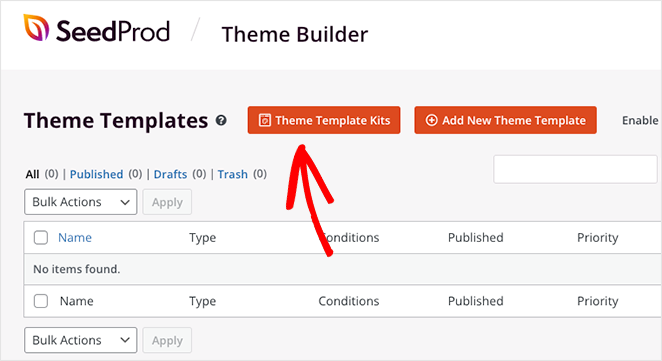
Sie sehen eine Bibliothek mit vorgefertigten Website-Kits. Jedes Kit enthält Vorlagen für wichtige Seiten wie die Homepage, den Header, den Footer, die Über-uns-Seite, die Kontaktseite und mehr.
Einige Kits sind für bestimmte Anwendungsfälle konzipiert, während andere flexibler sind. Sie können jedes Kit später anpassen. Konzentrieren Sie sich daher auf Layout und Struktur und nicht auf Farben oder Bilder.
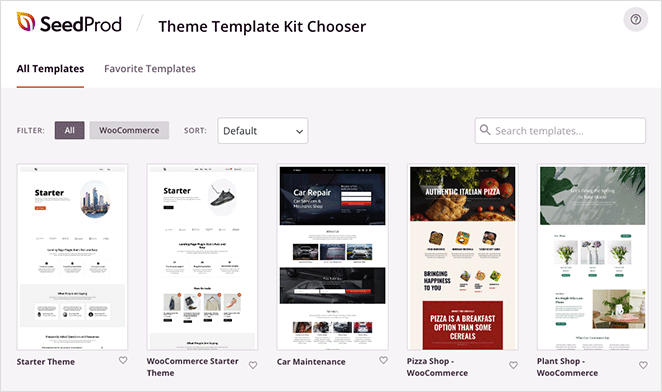
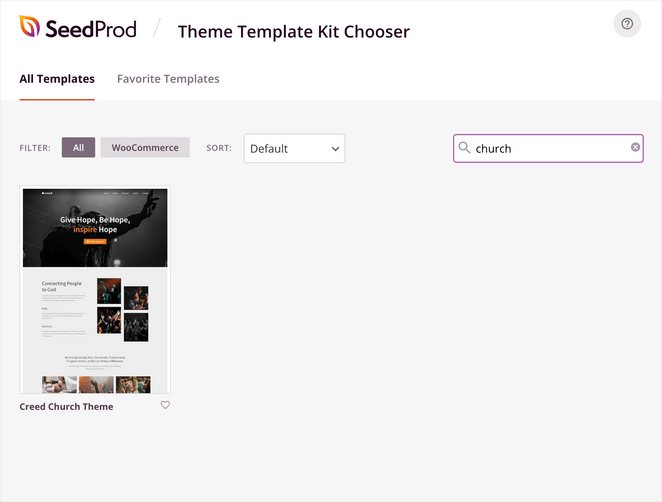
Um schneller ein kirchenspezifisches Design zu finden, verwenden Sie die Suchleiste und geben Sie church ein.
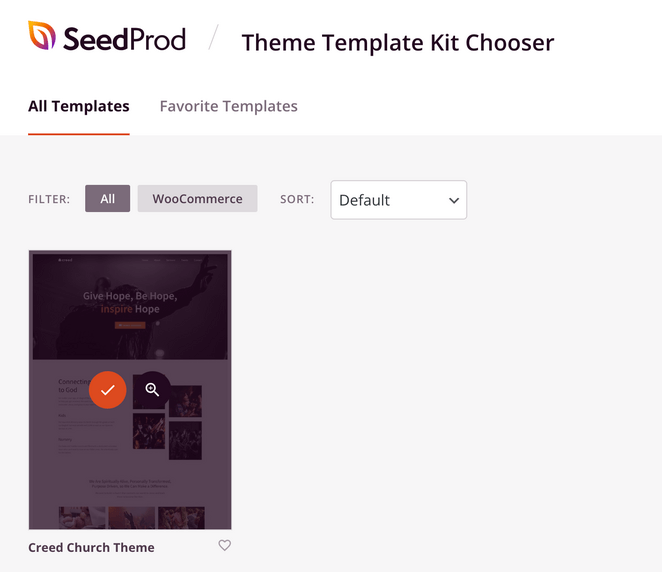
Wenn Sie ein Kit finden, das Ihnen gefällt, fahren Sie mit der Maus darüber und klicken Sie auf das Häkchen-Symbol, um es zu importieren.
SeedProd erstellt automatisch alle im Kit enthaltenen Vorlagen. Sie können jede einzelne mit dem Drag-and-Drop-Builder bearbeiten.
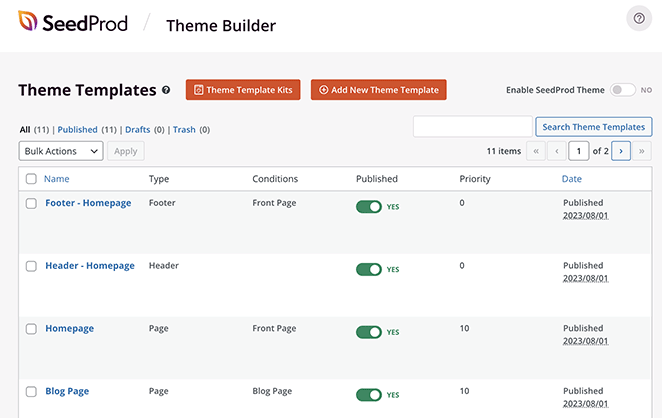
Machen Sie sich in diesem Stadium keine Sorgen, wenn nicht alles perfekt ist. Das Ziel ist es, eine solide Grundlage zu wählen, damit Sie Ihre Kirchenwebsite Seite für Seite anpassen können.
Schritt 5. Eine Homepage für die Kirchen-Website erstellen
Ihre Homepage ist die wichtigste Seite Ihrer Kirchenwebsite. Sie ist oft der erste Ort, an dem neue Besucher landen. Daher sollte sie klar erklären, wer Sie sind und was als Nächstes zu tun ist.
Wir beginnen mit der Erstellung einer benutzerdefinierten Homepage mit dem visuellen Editor von SeedProd.
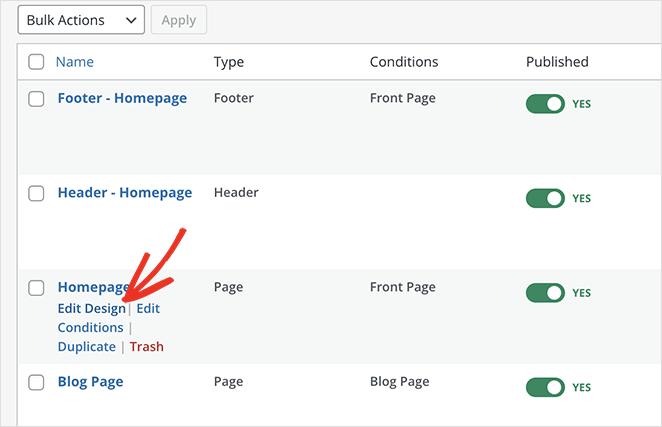
Suchen Sie auf der Seite Theme Builder Ihre Homepage-Vorlage, fahren Sie mit der Maus darüber und klicken Sie auf Design bearbeiten.
Ihre Homepage wird im Drag-and-Drop-Editor von SeedProd geöffnet. Auf der rechten Seite sehen Sie eine Live-Vorschau Ihrer Seite. Auf der linken Seite finden Sie Blöcke und Einstellungen, mit denen Sie jeden Abschnitt anpassen können.
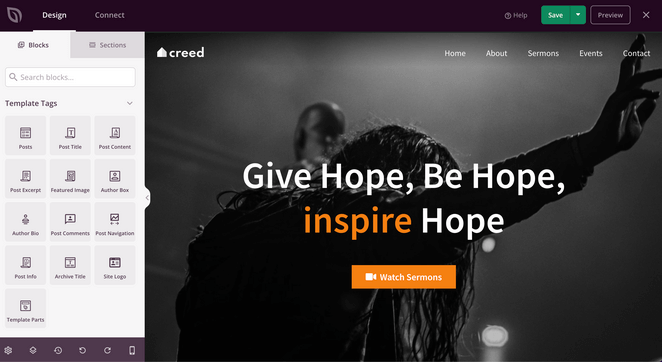
Sie können hier alle Homepage-Inhalte bearbeiten, einschließlich Text, Bilder, Schaltflächen und Social-Media-Icons.
Beginnen Sie mit der Hauptüberschrift oben auf der Seite. Diese sollte den Namen, die Mission oder die Willkommensbotschaft Ihrer Kirche klar kommunizieren.
Klicken Sie in der Vorschau auf die Überschrift, um das Einstellungsfenster auf der linken Seite zu öffnen.
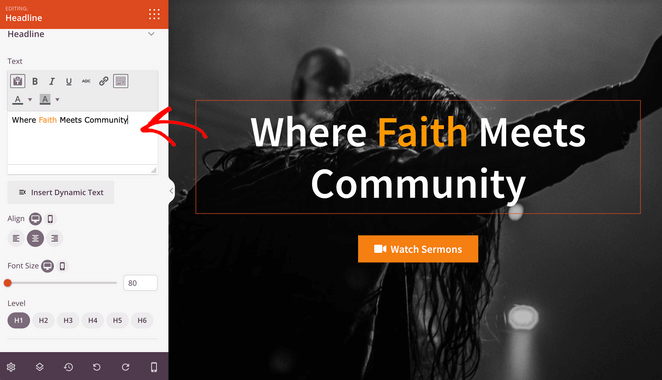
Ersetzen Sie den Demotext durch Ihre eigene Überschrift. Sie können Ausrichtung, Schriftgröße und Überschriftenebene direkt in den Inhaltseinstellungen anpassen.
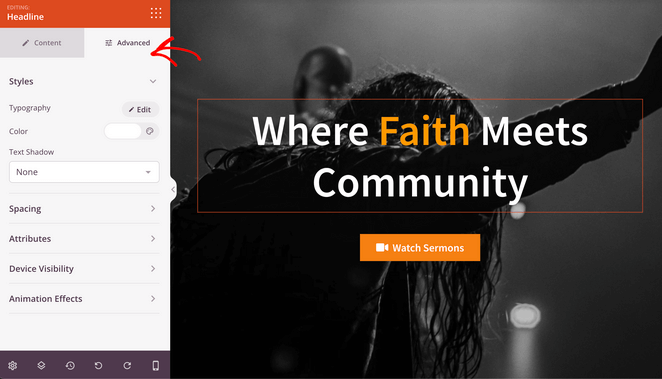
Wenn Sie mehr Kontrolle wünschen, öffnen Sie die Registerkarte Erweitert. Hier können Sie Schriftarten, Farben, Abstände anpassen und optionale Textanimationen hinzufügen.
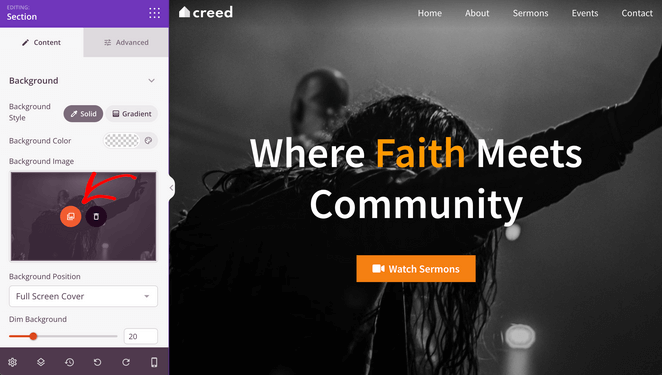
Aktualisieren Sie als Nächstes das Haupt-Hintergrundbild oder das Hero-Bild. Klicken Sie auf den Bildbereich und wählen Sie dann das Galerie-Symbol aus, um ein neues Foto aus Ihrer Mediathek auszuwählen.
Ihre Homepage ist auch ein großartiger Ort, um Vertrauen bei Besuchern aufzubauen. Das Hinzufügen von Testimonials von Gemeindemitgliedern hilft den Menschen, sich wohler zu fühlen, bevor sie teilnehmen oder sich engagieren.
Um Testimonials hinzuzufügen, ziehen Sie den Testimonials-Block aus dem linken Bereich auf Ihre Homepage.
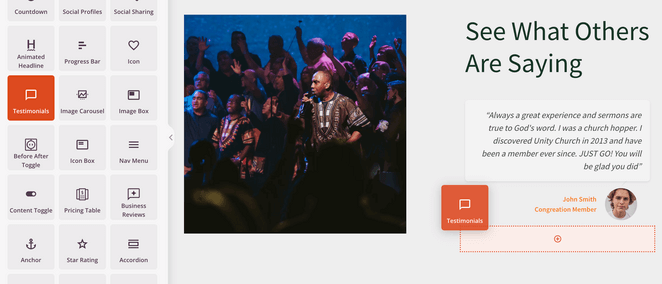
In den Blockeinstellungen können Sie mehrere Testimonials hinzufügen, zusammen mit einem Foto, Namen und Rolle für jede Person.
Sie können auch ein Karussell-Layout aktivieren, um mehrere Testimonials anzuzeigen, ohne zu viel Platz einzunehmen.
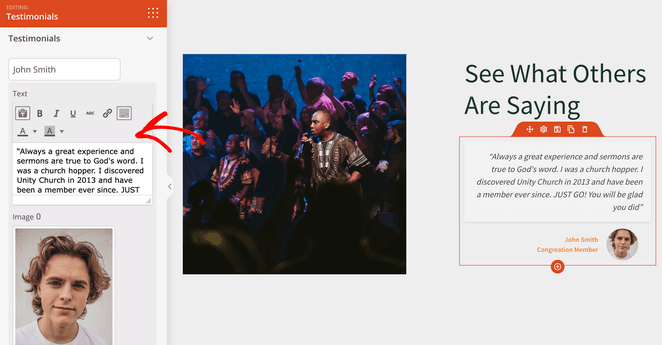
Passen Sie Ihre Homepage weiter an, bis sie Besucher klar willkommen heißt und sie zu wichtigen Seiten wie Gottesdienste, Veranstaltungen oder Spenden leitet.
Wenn Sie fertig sind, klicken Sie in der oberen rechten Ecke auf Speichern und verwenden Sie dann das X-Symbol, um zum Theme Builder Dashboard zurückzukehren.

Schritt 6. Erstellen Sie Ihre Kirchenwebsite-Seiten
Sobald Ihre Homepage eingerichtet ist, besteht der nächste Schritt darin, die Kernseiten zu erstellen, die Besucher auf einer Kirchenwebsite erwarten.
Diese Seiten helfen Besuchern, Ihre Kirche kennenzulernen, sich zu informieren und aktiv zu werden, sei es durch den Besuch eines Gottesdienstes, das Ansehen einer Predigt oder die Kontaktaufnahme.
Die meisten Kirchenwebsites enthalten die folgenden Seiten:
- Über uns: Teilen Sie den Hintergrund, die Überzeugungen, die Leitung und die Mission Ihrer Kirche, damit Besucher verstehen, wer Sie sind.
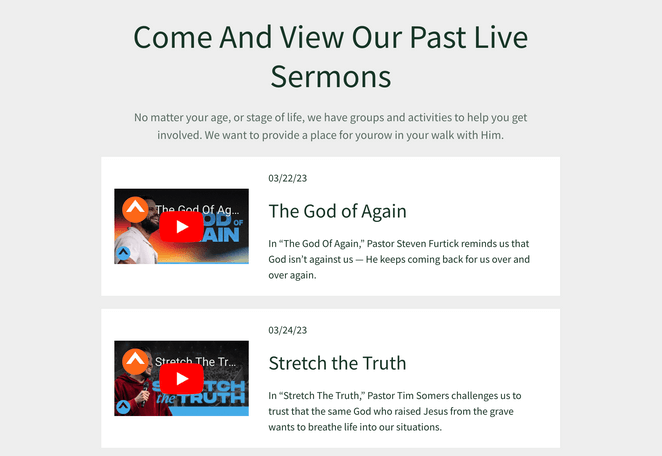
- Predigten: Bieten Sie den Menschen Zugriff auf vergangene Predigten im Video- oder Audioformat, damit sie auch außerhalb der Gottesdienste teilnehmen können.
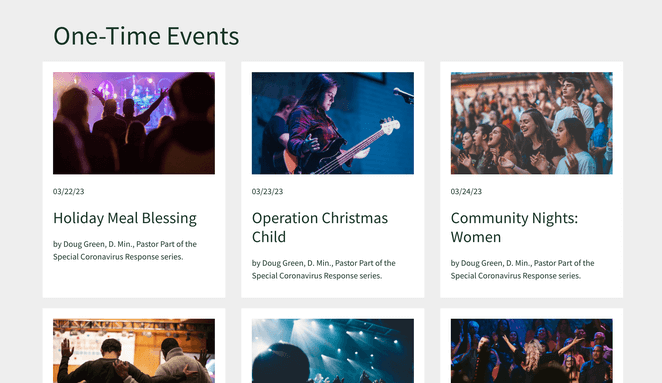
- Veranstaltungen: Listen Sie kommende Gottesdienste, Bibelstudien und Gemeindeveranstaltungen auf. Dies hilft den Menschen bei der Planung und hält sie auf dem Laufenden.
- Kontakt: Erleichtern Sie es den Besuchern, Ihre Kirche zu erreichen, indem Sie Ihre Adresse, E-Mail, Telefonnummer und Gottesdienstzeiten angeben.
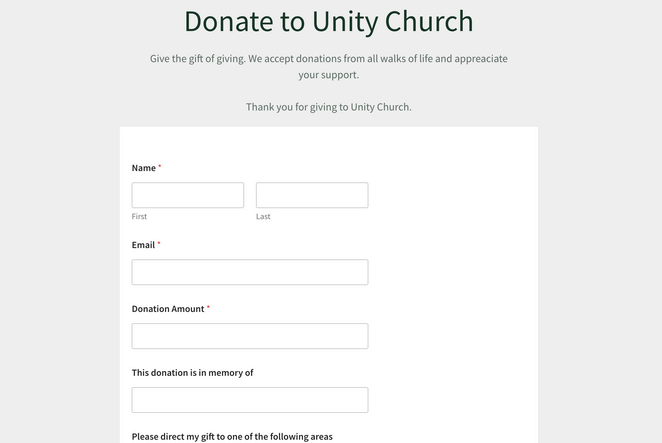
- Spenden: Bieten Sie Mitgliedern und Unterstützern eine klare und sichere Möglichkeit, online zu spenden.
Wenn Sie ein SeedProd Kirchen-Template-Kit verwenden, sind viele dieser Seiten bereits für Sie erstellt. Sie müssen nur noch den Inhalt anpassen.
Um eine Seite zu bearbeiten, gehen Sie in Ihrem WordPress-Dashboard zu Seiten » Alle Seiten. Fahren Sie mit der Maus über eine Seite und klicken Sie auf Mit SeedProd bearbeiten, um sie im visuellen Editor zu öffnen.
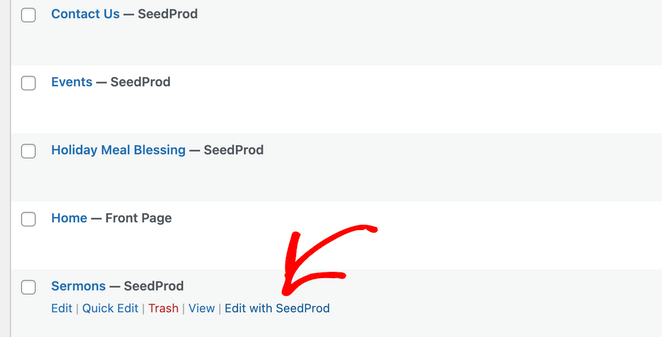
Das Bearbeiten dieser Seiten funktioniert genauso wie bei Ihrer Homepage. Klicken Sie auf einen beliebigen Abschnitt, um Text zu aktualisieren, Bilder auszutauschen oder Inhalte neu anzuordnen.
Predigtseite
Ihre Predigtseite ist besonders nützlich für Personen, die einen Gottesdienst verpasst haben oder Ihre Kirche erkunden möchten, bevor sie sie besuchen.
Sie können Bildblöcke durch Videoblöcke ersetzen, um Predigtmitschnitte direkt auf der Seite einzubetten.
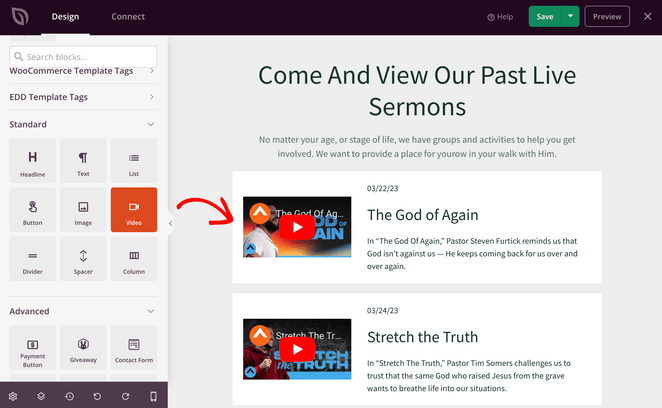
Dies erleichtert das Hinzufügen von YouTube-Videos von vergangenen Predigten, damit Besucher sie jederzeit ansehen können.
Veranstaltungsseite
Ihre Veranstaltungsseiten helfen den Menschen, auf dem Laufenden zu bleiben, und geben ihnen einen Grund, auf Ihre Website zurückzukehren.
Sie können Veranstaltungsseiten auch verwenden, um E-Mail-Adressen von Besuchern zu sammeln, die Erinnerungen oder Updates wünschen.
Fügen Sie auf jeder Veranstaltungsseite Details wie Datum, Uhrzeit, Ort und ein Anmeldeformular hinzu, damit sich die Leute für ihr Interesse registrieren können.
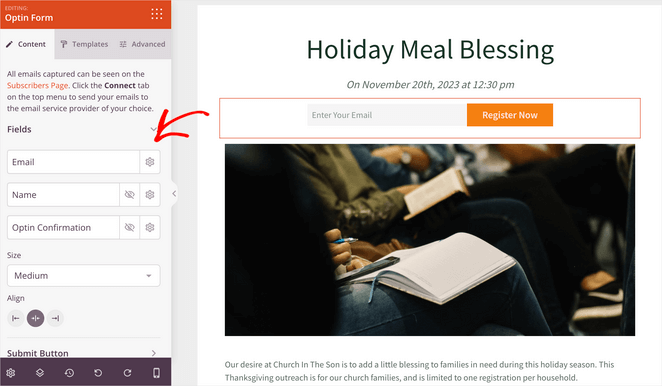
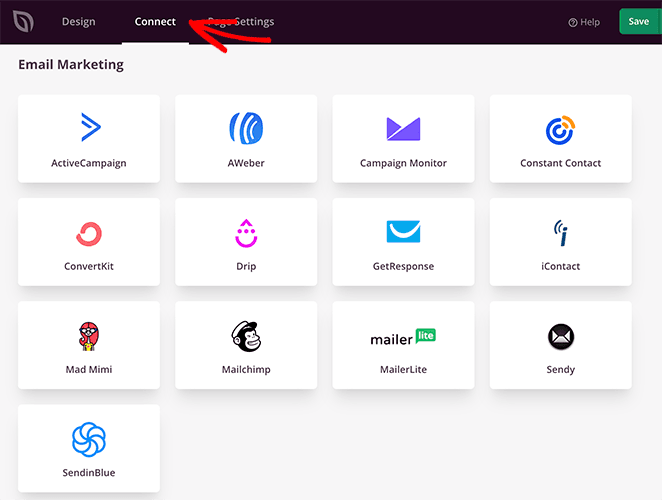
Sie können Ihr Anmeldeformular mit Ihrem E-Mail-Dienst verbinden, indem Sie die Registerkarte Verbinden in SeedProd verwenden.
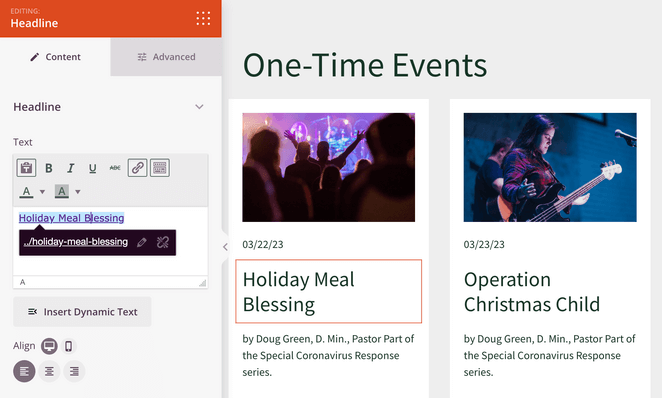
Sobald Ihre Veranstaltungsseiten fertig sind, verlinken Sie von Ihrer Hauptveranstaltungsseite darauf, damit Besucher leicht durch kommende Veranstaltungen stöbern können.
Spendenseite
Eine Spendenseite bietet Unterstützern eine einfache und sichere Möglichkeit, online zu spenden, ohne persönlich anwesend sein zu müssen.
Wenn Ihr Kirchen-Template-Kit keine Spendenseite enthält, können Sie eine in wenigen Schritten erstellen.
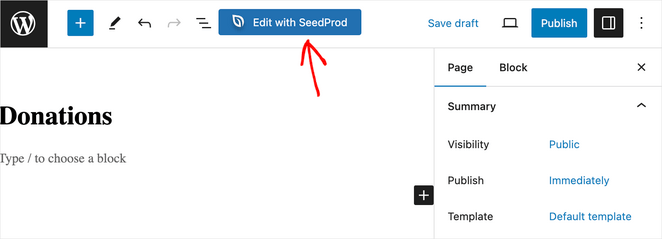
Gehen Sie in Ihrem WordPress-Dashboard zu Seiten » Neu hinzufügen, geben Sie der Seite einen klaren Namen wie „Spenden“ oder „Geben“ und klicken Sie dann auf Entwurf speichern.
Klicken Sie anschließend auf Mit SeedProd bearbeiten, um die Seite im visuellen Editor zu öffnen.
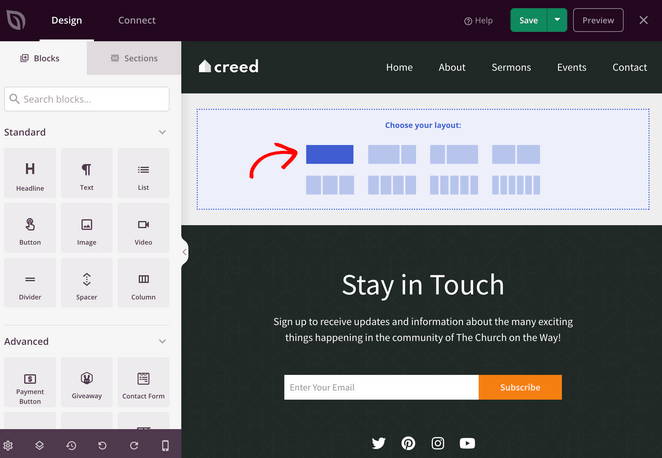
Wählen Sie ein Layout und beginnen Sie mit dem Hinzufügen von Inhalten über das Block-Panel auf der linken Seite.
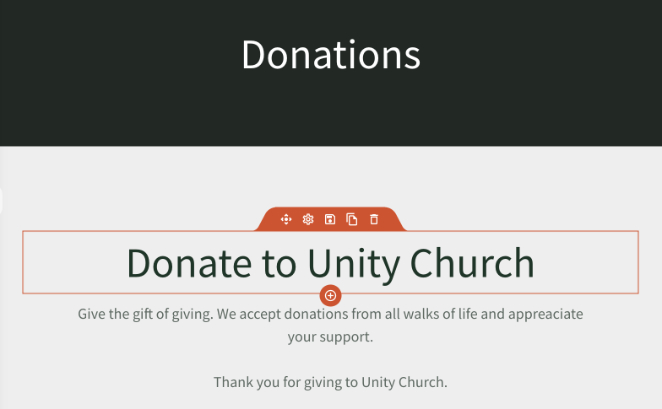
Beginnen Sie mit einer kurzen Einführung, die erklärt, warum Online-Spenden wichtig sind und wie Spenden die Arbeit Ihrer Kirche unterstützen.
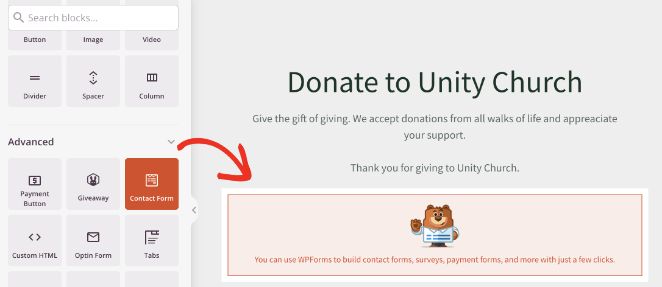
Fügen Sie als Nächstes eine Möglichkeit für Besucher hinzu, online zu spenden, z. B. ein Spendenformular oder eine Zahlungsschaltfläche.
Sie können WPForms, eines der beliebtesten WordPress-Formular-Plugins, verwenden, um ein Spendenformular zu erstellen, das reibungslos mit SeedProd funktioniert.
Befolgen Sie diese Schritte, um ein Formular für Kirchenspenden zu erstellen, und ziehen Sie dann den Block Kontaktformular auf Ihre Spendenseite.
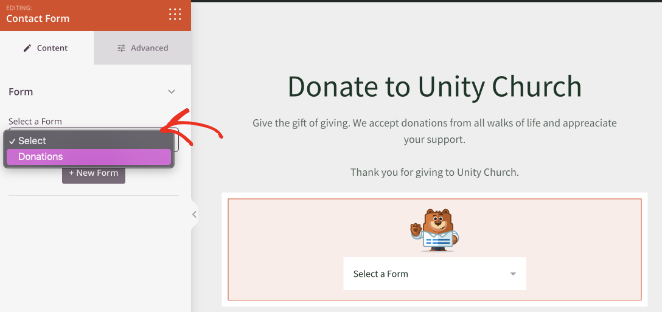
Wählen Sie im Block-Menü Ihr Spendenformular aus dem Dropdown-Menü aus.
Nehmen Sie sich einen Moment Zeit, um die Seite zu überprüfen und sicherzustellen, dass sie klar, einladend und einfach zu bedienen ist.
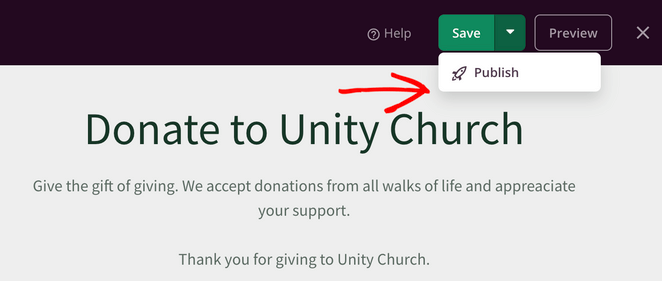
Wenn Sie bereit sind, klicken Sie auf Speichern und Veröffentlichen, um Ihre Spendenseite live zu schalten.
Schritt 7. Ihr Kirchenlogo hinzufügen
Das Hinzufügen Ihres Kirchenlogos hilft bei der Markenbildung Ihrer Website und lässt sie für Besucher vertraut und glaubwürdig erscheinen.
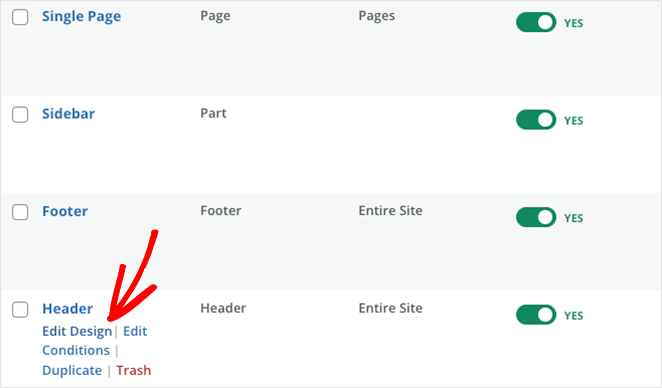
Ihr Logo erscheint normalerweise im Website-Header. Beginnen Sie daher auf dem Theme Builder-Dashboard und klicken Sie auf Design bearbeiten für die Header-Vorlage.
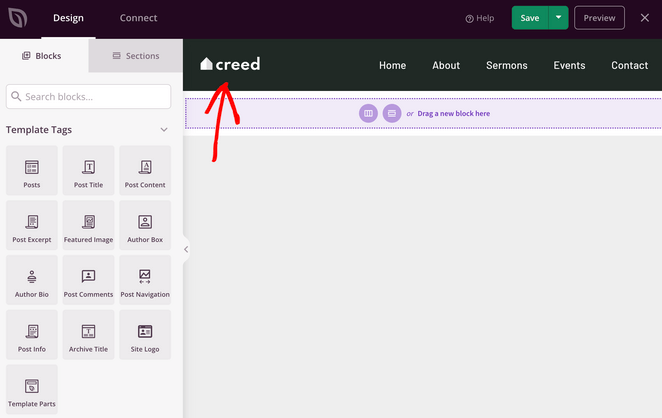
Sobald der Header geöffnet ist, klicken Sie auf das vorhandene Logo, um die Einstellungen für den Bildblock zu öffnen.
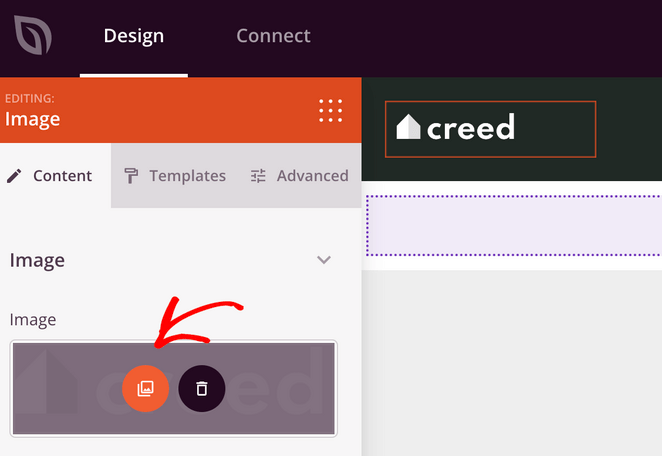
Klicken Sie auf das Galerie-Symbol, um Ihre WordPress-Mediathek zu öffnen, und laden Sie dann Ihr Kirchenlogo hoch oder wählen Sie es aus.
Nachdem Sie Ihr Logo hinzugefügt haben, ist es ratsam, Ihr Navigationsmenü zu überprüfen.
Wenn Sie wichtige Links wie Ihre Spendenseite hinzufügen möchten, klicken Sie auf den Navigationsmenü-Block und wählen Sie Neues Element hinzufügen.
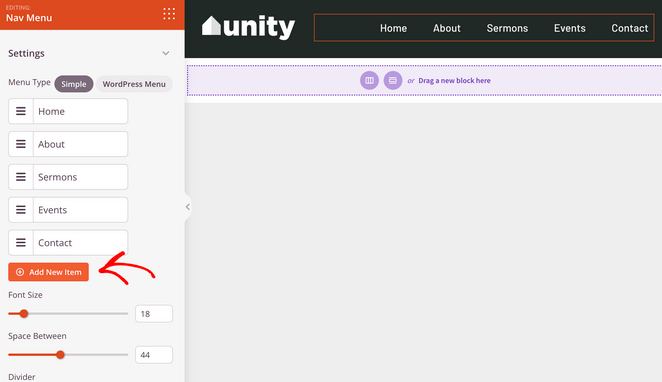
Geben Sie die Menübezeichnung und die URL ein und ziehen Sie dann die Elemente, um sie bei Bedarf neu anzuordnen.
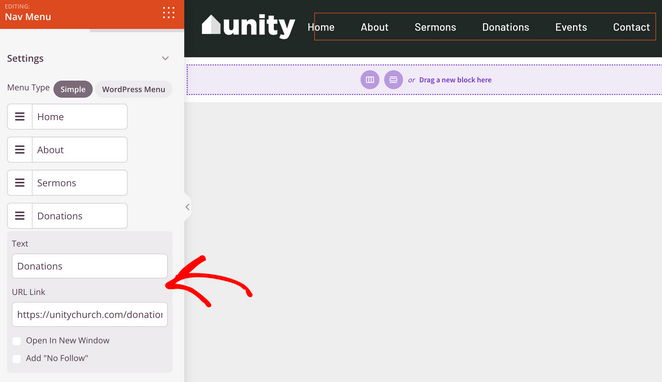
Wenn alles richtig aussieht, klicken Sie auf Speichern, um Ihre Änderungen zu speichern und den Editor zu verlassen.
Schritt 8. Ihre Kirchen-Website starten
Sie sind bereit, Ihre Kirchenwebsite live zu schalten.
Wenn Sie noch Inhalte finalisieren, können Sie Ihre Website vorübergehend ausblenden, indem Sie SeedProd verwenden, um eine „Demnächst verfügbar“-Seite zu erstellen.
Wenn alles bereit ist, gehen Sie zum Theme Builder-Dashboard und suchen Sie die Einstellung SeedProd Theme aktivieren.
Schalten Sie sie auf Ja, um Ihre Website zu veröffentlichen.
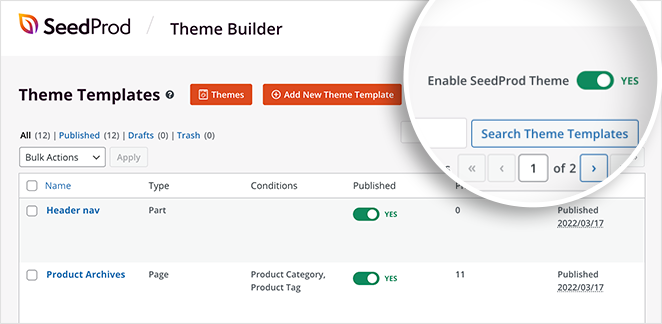
Das ist alles. Ihre Kirchenwebsite ist jetzt live und für Besucher zugänglich.
6 wesentliche Tipps für die Wartung von Kirchenwebsites
Regelmäßige Wartung hält Ihre Kirchenwebsite korrekt, sicher und nützlich für Mitglieder und Besucher.
- Aktuelle Gottesdienstinformationen halten: Überprüfen Sie immer, ob Gottesdienstzeiten, Orte und Kontaktdaten aktuell sind, damit Besucher nicht zur falschen Zeit ankommen.
- Neue Inhalte konsistent veröffentlichen: Laden Sie aktuelle Predigten, Ankündigungen oder Blogbeiträge hoch, damit Ihre Website aktiv und relevant bleibt.
- Für Suche und Mobilgeräte optimieren: Verwenden Sie klare Seitentitel und Überschriften und stellen Sie sicher, dass Ihre Website auf Mobiltelefonen und Tablets gut funktioniert. SeedProd-Websites sind standardmäßig mobilfreundlich.
- Schützen Sie Ihre Website: Verwenden Sie starke Passwörter, halten Sie WordPress und Plugins auf dem neuesten Stand und sichern Sie Ihre Website regelmäßig, um Datenverlust zu vermeiden.
- Interaktion fördern: Machen Sie es Besuchern leicht, Sie über Kontaktformulare, Kommentare oder soziale Links zu erreichen, und antworten Sie, wenn sie es tun.
- Verfolgen Sie, was wichtig ist: Verwenden Sie MonsterInsights mit Google Analytics, um zu sehen, welche Seiten Aufrufe erhalten und wo Besucher abspringen.
FAQs zum Erstellen einer Kirchen-Website
Wie viel kostet es, eine Kirchenwebsite zu erstellen?
Die Kosten für den Aufbau einer Kirchenwebsite können gering sein. Viele Kirchen geben zwischen 50 und 200 US-Dollar pro Jahr für einen Domainnamen und Hosting aus. Die Verwendung von WordPress und einem Drag-and-Drop-Builder hält die Kosten niedrig, da kein Entwickler eingestellt werden muss.
Was wird auf einer Kirchenwebsite benötigt?
Mindestens benötigt eine Kirchenwebsite klare Gottesdienstzeiten, Standort und Anfahrtsbeschreibung, Kontaktdaten, eine Über-uns-Seite und kommende Veranstaltungen. Viele Kirchen fügen auch Predigten, Online-Spenden und eine Willkommensnachricht für Erstbesucher hinzu.
Welche Domain sollten Kirchen verwenden?
Die meisten Kirchen verwenden eine .com-Domain, da sie vertraut und leicht zu merken ist. Wenn der Name nicht verfügbar ist, funktioniert die Ergänzung der Stadt oder des Ortes gut. Einige Kirchen verwenden .org, aber Klarheit und Einfachheit sind wichtiger als die Endung.
Müssen Kirchenwebsites ADA-konform sein?
Die Anforderungen hängen vom Standort und der Funktionsweise Ihrer Kirche ab, aber Barrierefreiheit wird dringend empfohlen. Wenn Ihre Website für Menschen mit Behinderungen einfach zu bedienen ist, können mehr Besucher auf Informationen zugreifen und potenzielle rechtliche Risiken werden reduziert.
Nächste Schritte: Weitere Website-Building-Tutorials lesen
Ich hoffe, dieser Leitfaden hat Ihnen geholfen zu lernen, wie Sie eine Kirchenwebsite in WordPress erstellen.
Der Website-Aufbau ist mit SeedProd mühelos. Sie können jeden Teil Ihrer Kirchenwebsite an die Bedürfnisse Ihrer Organisation anpassen. Es ist schnell, einfach zu bedienen und erfordert keine Hilfe von teuren Entwicklern.
Bevor Sie gehen, finden Sie vielleicht auch die folgenden besten Website-Building-Tutorials hilfreich:
- So bauen Sie eine Website für Personal Trainer in WordPress
- Schritt-für-Schritt-Anleitung zum Gestalten einer Restaurant-Website
- So erstellen Sie eine Fotografie-Website in WordPress
- So erstellen Sie eine Immobilien-Website in WordPress
- So erstellen Sie eine Autorenwebsite in WordPress ohne Code
- So erstellen Sie eine Ein-Produkt-Website in WooCommerce
Danke fürs Lesen! Wir würden uns freuen, Ihre Gedanken zu hören. Treten Sie also gerne der Unterhaltung auf YouTube, X und Facebook bei, um weitere hilfreiche Ratschläge und Inhalte für das Wachstum Ihres Unternehmens zu erhalten.



