

TL;DR: How to Build a Restaurant Website in WordPress
You can have a restaurant website live in an afternoon, with a menu, online ordering, and a map, without paying a developer.
- Get hosting and a domain: Sign up with Bluehost for about $2.75/month, which includes a free domain.
- Install WordPress: Bluehost sets this up for you automatically.
- Install SeedProd: Use at least the Plus plan to unlock the theme builder and site kits.
- Choose a restaurant site kit: Pick a pre-built design and install it in one click.
- Customize your pages: Edit the homepage, menu, ordering form, and contact page in the visual editor.
- Publish and get found: Switch on your theme, then set up a Google Business Profile so locals can find you.
You run a restaurant, but you either have no website or the one you have looks nothing like the food you actually serve. Customers find you on their phones, see a broken menu or no menu at all, and tap straight back to a competitor.
You don’t need to hire a developer to fix this. With WordPress and SeedProd, you can build a restaurant website in WordPress yourself, including an online menu, takeout ordering, and a map, in about an afternoon.
In this guide, I’ll walk you through the whole build, from hosting to launch, using the same drag-and-drop website builder I use on my own sites.
- What's the Cheapest Way to Set Up a Website?
- How to Create a Restaurant Website
- Step 1. Set Up Your Restaurant Website Hosting and Domain
- Step 2. Install SeedProd Website Builder
- Step 3. Choose a WordPress Theme Kit
- Step 4. Customize Your Homepage
- Step 5. Add Menu Items and Prices using the Price List Block
- Step 6. Integrate Online Ordering Forms with WPForms
- Step 7. Customize Your Contact Page
- Step 8. Publish Your Restaurant Website
- Step 9. Set Up Your Google Business Profile
- FAQs About Building a Restaurant Website in WordPress
Before getting into the steps, here’s a quick look at the features you’ll set up:
| Feature | Why It Is Essential | Recommended Tool |
|---|---|---|
| Responsive Menu | Customers view menus on mobile phones. | SeedProd Price List Block |
| Online Ordering | Takes takeout and delivery orders without high commission fees. | WPForms |
| Reservation System | Reduces phone calls and missed bookings. | WPForms / Sugar Calendar |
| Social Proof | Builds trust with new diners. | Google Reviews Block |
What’s the Cheapest Way to Set Up a Website?
The cheapest way to build a professional restaurant website is self-hosted WordPress. A self-hosted WordPress site runs about $2.75/month for hosting, while Wix or Squarespace charge roughly $16 to $50/month.
My pick is the self-hosted version of WordPress, the popular content management system (CMS). It’s free, open source, and comes with thousands of free plugins and themes that add functionality to your food website at minimal cost.
You might be weighing WordPress against a hosted builder like Wix or Squarespace, so here’s the honest trade-off. WordPress wins on cost and control, since you own everything and pay a few dollars a month, but it takes more setup up front.
Wix and Squarespace are faster to start, but they cost more every month and often take a commission on each online order. For a restaurant running takeout, that commission adds up fast.
How to Create a Restaurant Website
To create your own restaurant website, you’ll set up web hosting and a domain name, install WordPress, then customize your design. I’ll walk you through each step, so it’s manageable even if you’ve never built a site before.
Before you sign up for anything, it helps to spend a few minutes planning. The sites I’ve seen go wrong usually skipped this and picked the wrong tools for what they actually needed.
Decide on these before you start:
- Pages you need: Most restaurants need a homepage, a menu, a contact or reservations page, and an about page.
- Online ordering: Decide whether you want customers to order takeout or delivery directly on the site.
- Reservations: Decide whether you’ll take bookings through a form, or just list a phone number.
- Time and budget: Plan for about 1 to 2 hours of setup and roughly $3/month for hosting.
Here are the steps we’ll follow to create your restaurant website in WordPress:
- Step 1. Set Up Your Hosting and Domain
- Step 2. Install SeedProd Website Builder
- Step 3. Choose a WordPress Theme Kit
- Step 4. Customize Your Homepage
- Step 5. Add Menu Items and Prices
- Step 6. Integrate Online Ordering with WPForms
- Step 7. Customize Your Contact Page
- Step 8. Publish Your Restaurant Website
Let’s get started with the first step.
Step 1. Set Up Your Restaurant Website Hosting and Domain
To create a WordPress website, you’ll need web hosting and a domain name. Hosting stores your files, and the domain name is what customers type to reach you, like ubereats.com.
The core WordPress software is free, but you’ll pay for a domain and hosting. A domain runs about $14.99 per year, and hosting is around $2.75 to $7.99 per month depending on the host.
If you shop around for the best hosting providers, you’ll find deals that save you money.

For example, Bluehost, one of the most popular WordPress-recommended hosts, offers hosting, a free domain, and an SSL certificate to our readers at a 60% discount. That means everything you need for as little as $2.75 per month.
Get started with Bluehost at $2.75/month and take advantage of this offer.
Once you sign up, you’ll get an email with a link to your hosting dashboard. This is where you manage your site details and log into your WordPress admin.
Bluehost installs WordPress for you automatically, so all you do is click the Log into WordPress button.
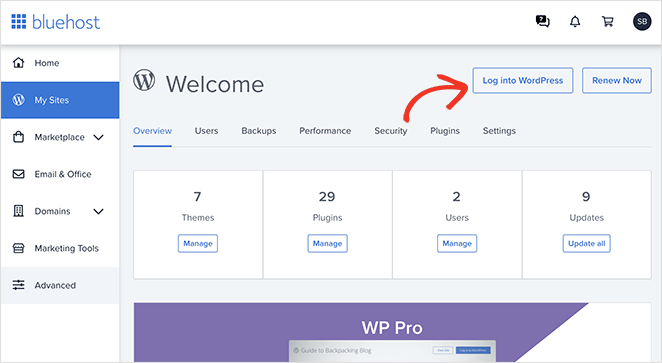
If you use a different host, your dashboard may look different. Check your web host’s documentation for instructions on installing WordPress and logging in.
After logging in, you’ll see a dashboard similar to the example below:
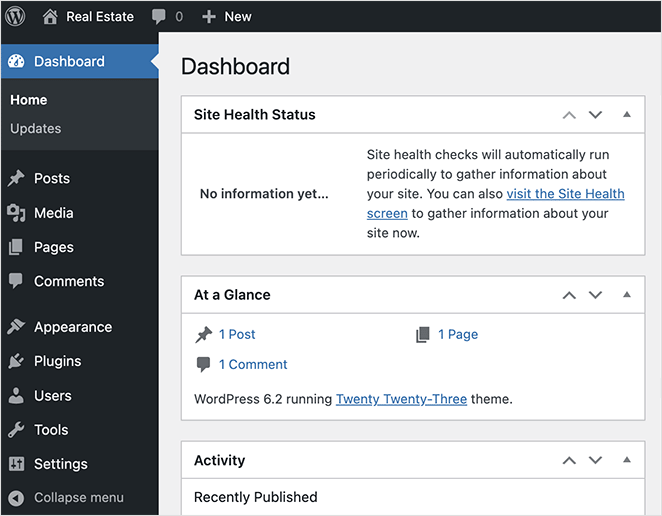
Here you manage your content, install WordPress plugins and themes, and configure settings. Bluehost installs a simple WordPress theme by default.
Normally you’d choose a WordPress theme for your food business at this point. We’ll take a different approach and build the restaurant website with SeedProd’s WordPress theme builder instead.

SeedProd is a drag-and-drop WordPress website builder that lets you create a custom WordPress theme without writing code. You pick a restaurant design from a library of pre-built site kits and customize it in a visual editor, no code, no CSS, no guessing.
It comes with 300+ pro templates and pre-built Website Kits, so you start from a finished design rather than a blank page.
The reason I reach for SeedProd on restaurant sites is speed. In my GTmetrix testing, a SeedProd-built page loaded in 556ms versus 1,882ms for Elementor, and that gap matters here, because a slow menu loses mobile diners before they ever scroll to your dishes.
If you’re not ready to launch yet, you can also set up a coming soon page with SeedProd to start promoting your restaurant before the full site goes live.
Alternatively, you can build a restaurant website in seconds with SeedProd’s AI website builder. Describe your site, and it generates a custom theme to get you online faster.
Step 2. Install SeedProd Website Builder
To build your own WordPress theme, you’ll need at least the SeedProd Plus plan, which is where the Theme Builder and Full Website Kits unlock. From there, download the plugin, then install and activate it on your WordPress website.
See our documentation on installing SeedProd if you need help with this.
Step 3. Choose a WordPress Theme Kit
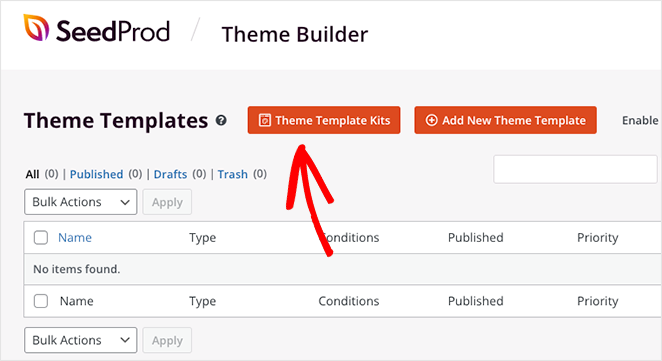
Once you’ve activated SeedProd and entered your license key, go to SeedProd » Theme Builder in your WordPress dashboard and click the Theme Template Kits button.
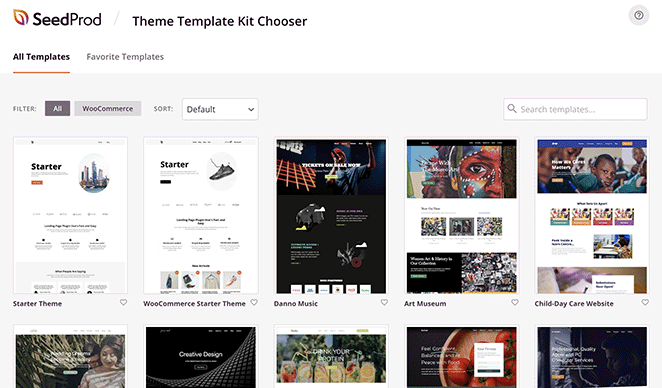
On the next page, you can browse a library of pre-made website kits with every page you need for a complete website design.
To narrow your search, type a keyword like “restaurant” into the search box. You can preview any site kit by clicking the magnifying glass on its thumbnail.
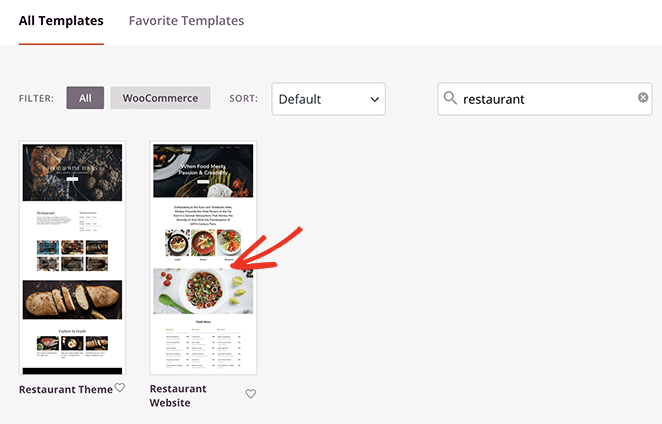
When you find a restaurant website template you like, click the checkmark icon to install it.
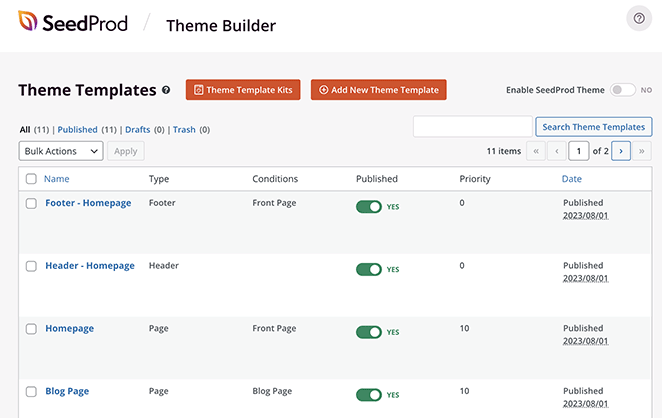
Once your site kit is installed, you’ll see a list of the templates that make up your WordPress theme. You can customize each one, including the header, footer, navigation menu, and more, in SeedProd’s drag-and-drop editor without any technical know-how.
Let’s start with your homepage, where you’ll make your first impression.
Step 4. Customize Your Homepage
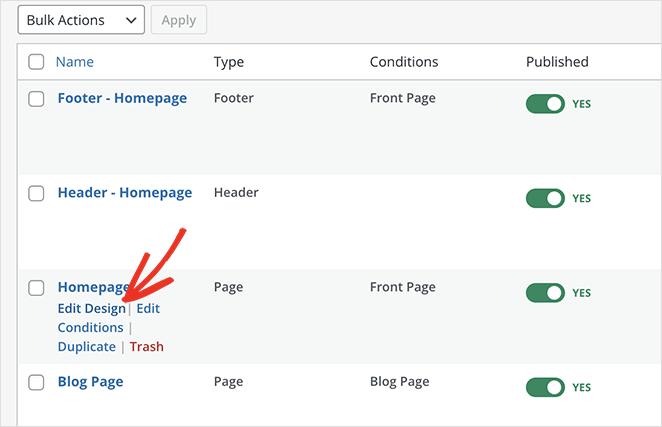
To open your homepage template, hover over it on the Theme Builder page and click the “Edit Design” link.
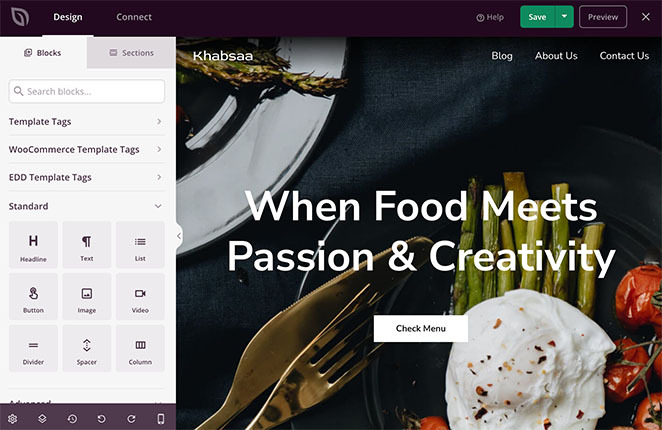
This opens SeedProd’s visual editor, where you point and click to customize your homepage. On the left are blocks and sections you can drag onto the page, and on the right is a live preview that updates in real time.
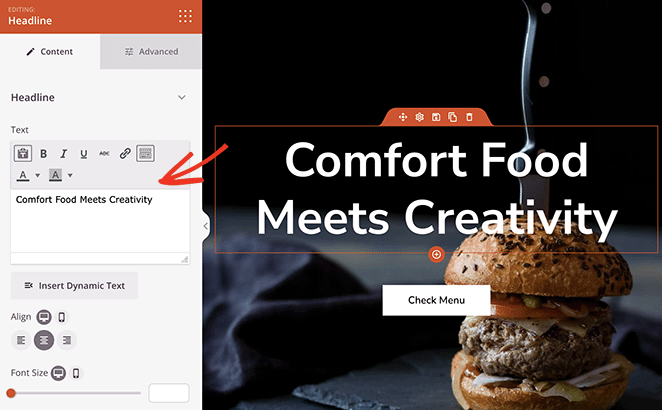
The first thing to do is replace the headings and text with your own business details. Click any text element, delete the placeholder text, and type your own.
You can edit directly in the preview with SeedProd’s inline text editing, or use the block settings in the left panel.
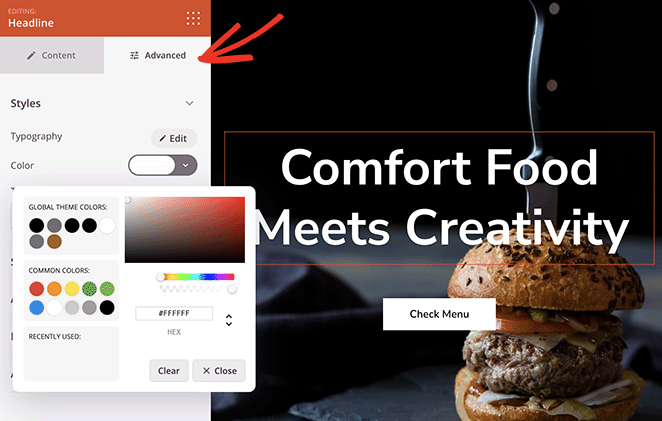
Every SeedProd block also has an Advanced tab for colors, fonts, spacing, and animation effects.
Next, swap the homepage images. Each template ships with high-quality photos, but changing them puts your own branding on the site.
Click any image to open its block settings, then select the image icon on hover to choose a new photo.
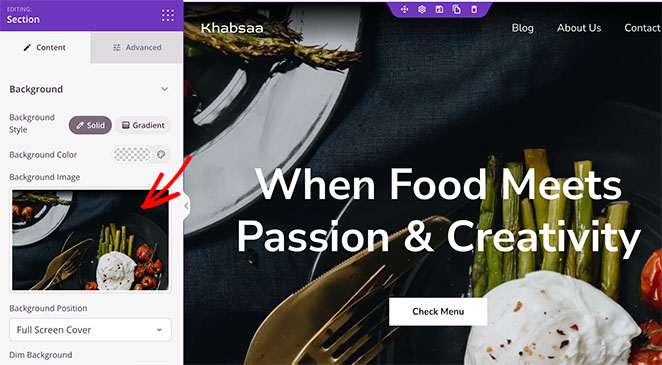
Before you move on, check how the page looks on a phone. Most restaurant traffic now comes from mobile, often from someone deciding where to eat right now, so the mobile view is the one that matters most.
SeedProd has a mobile preview mode in the editor toolbar. I use it to confirm two things: that the menu still reads cleanly on a small screen, and that the reservation or order button is large enough to tap with a thumb.
Step 5. Add Menu Items and Prices using the Price List Block
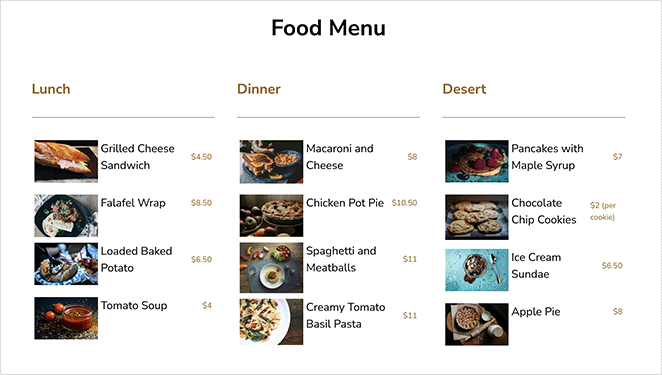
The template comes with a restaurant menu on the homepage. You’ll customize it with your own dishes and prices using the Price List block.
You might be tempted to upload your menu as a PDF instead. I’d skip it, because a PDF isn’t mobile-friendly and Google can’t index it, while the Price List block is searchable and adjusts to every screen size.
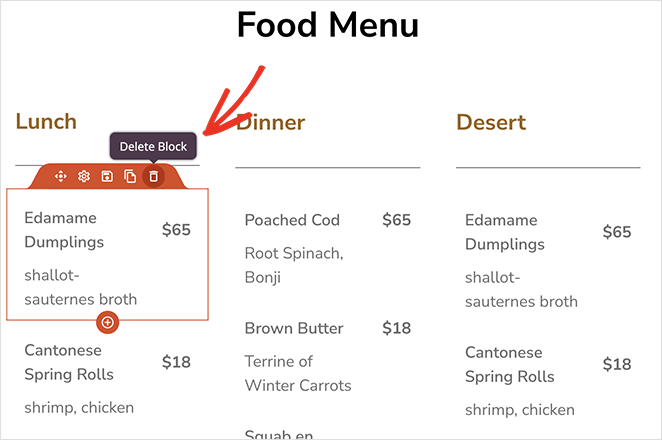
Delete existing items. First, remove the sample menu items you don’t need by clicking the trashcan icon on each block.
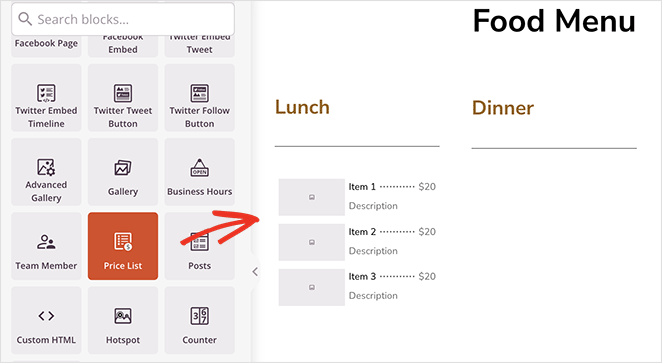
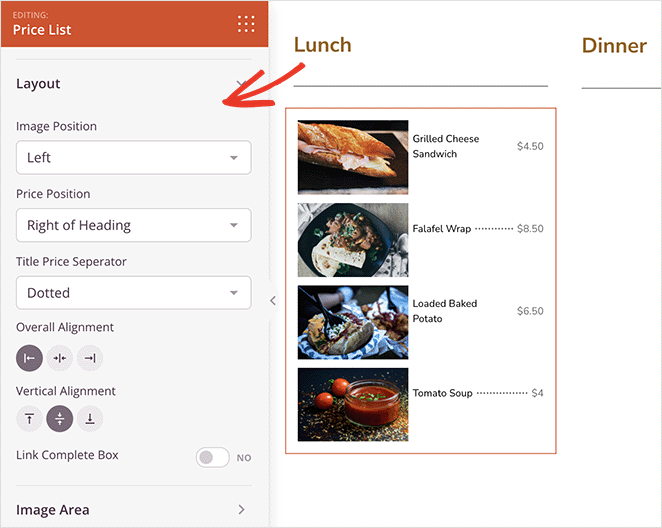
Add your menu items. SeedProd has a block that makes building a restaurant menu straightforward: the Price List. Drag this block onto your page.
In the block settings, add each menu item with a title, description, price, and photo.
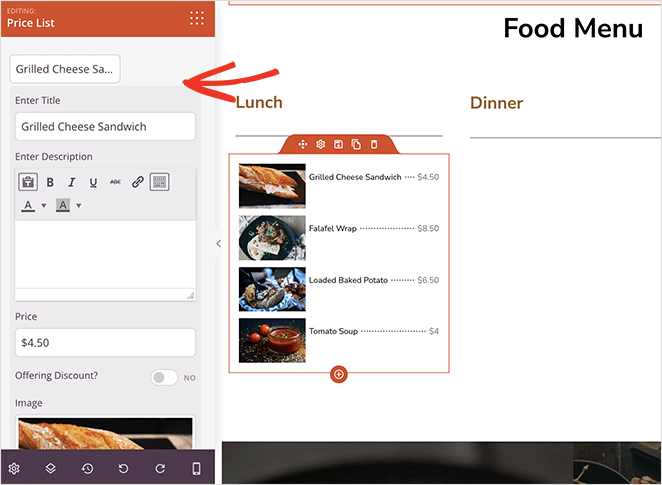
Adjust layout settings. You’ll also see options to set image and text alignment, photo width, and border radius.
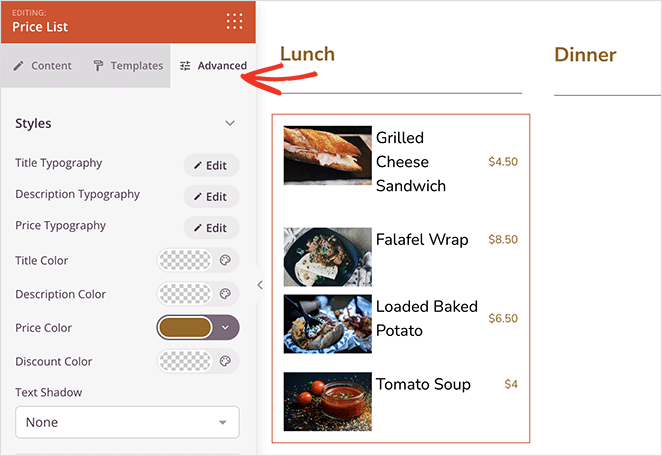
The Advanced tab adds more options for typography sizes, colors, and spacing.
You can also add call-to-action buttons, reviews, and diner testimonials. These help convince new customers you’re the right fit.
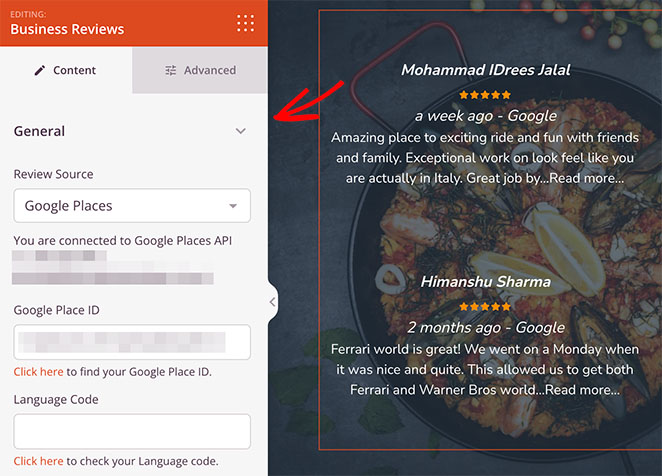
You can add customer reviews with SeedProd’s Business Reviews block. After adding your API details, it pulls reviews from Yelp and Google Places, complete with descriptions and star ratings.
Click the Save button before heading back to the Theme Builder.
Step 6. Integrate Online Ordering Forms with WPForms
Many food websites let customers pre-order meals or place delivery orders. This sounds technical, but it’s easy with the WPForms plugin.
WPForms is one of the best WordPress form builders available. It lets you create online order and booking forms for any product or service.
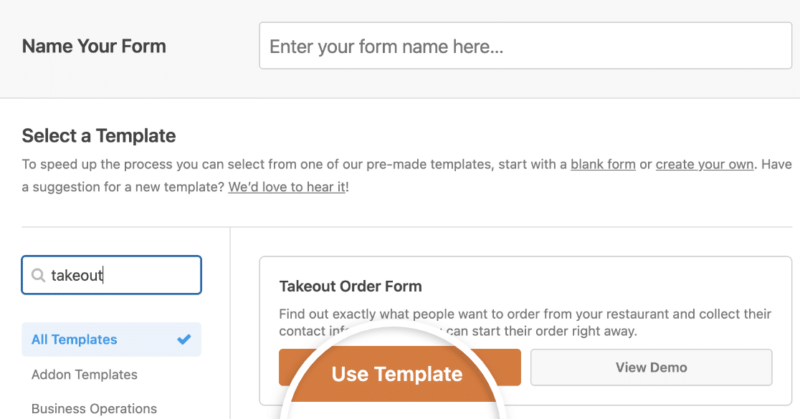
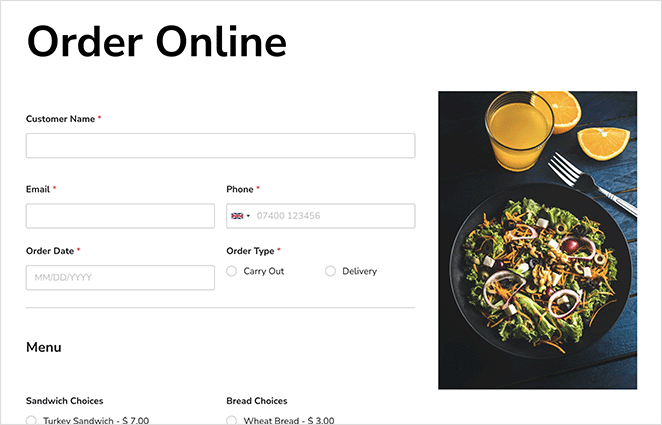
There’s even a ‘Takeout Order Form’ template you can customize. When a customer submits it, WPForms notifies you so you can start the order right away.
WPForms also supports PayPal and Stripe, so you can accept payments securely online instead of relying on cash on delivery.
Every template is mobile responsive, so it adapts to smartphones and tablets.
For step-by-step instructions, see WPForms’ guide on How to Create a Restaurant Online Order Form.
Once your form is built, add it to your site with SeedProd’s Contact Form block. Edit any page in SeedProd and drag the Contact Form block onto your design.
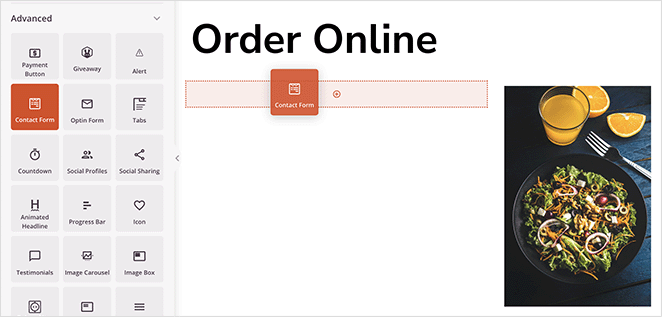
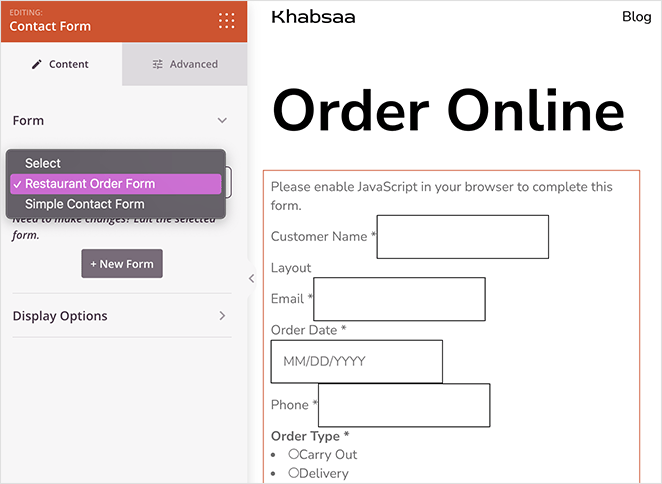
SeedProd detects that WPForms is running and shows a dropdown in the block settings. Select your order form, and SeedProd displays it on the page.
Step 7. Customize Your Contact Page
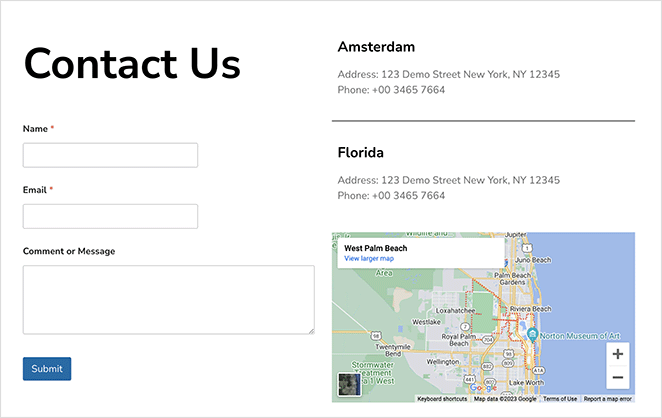
Customers often want to reach you about an order or booking. Add your phone number and address, and I’d also add a contact form.
Most contact form plugins include built-in spam protection. They also offer custom form fields that make collecting the right customer details easier.
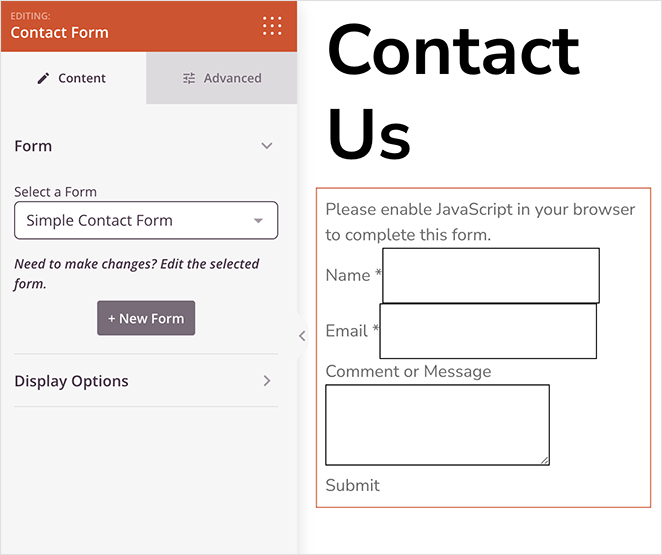
WPForms comes with a customizable contact form template. After setting one up, add it to any SeedProd page using the Contact Form block.
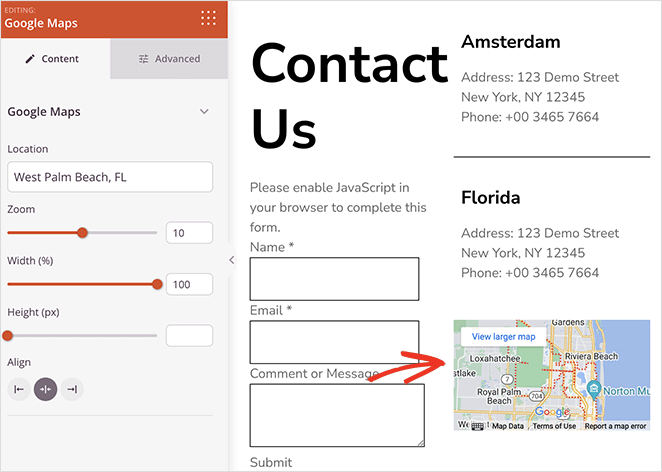
On the same page, add the Maps block so customers know exactly where to find you. Enter your address, and SeedProd shows it on your contact page using Google Maps.
Step 8. Publish Your Restaurant Website
Keep customizing until the site feels right. A couple of finishing touches worth adding:
- Add a website sidebar for hours or specials.
- Display your social media account buttons so diners can follow you.
One thing to plan for: this tutorial builds your homepage, menu, and contact page directly. Every restaurant website also needs an About page to tell your story, and you’ll customize that as a separate template in SeedProd’s Theme Builder the same way you edited the homepage.
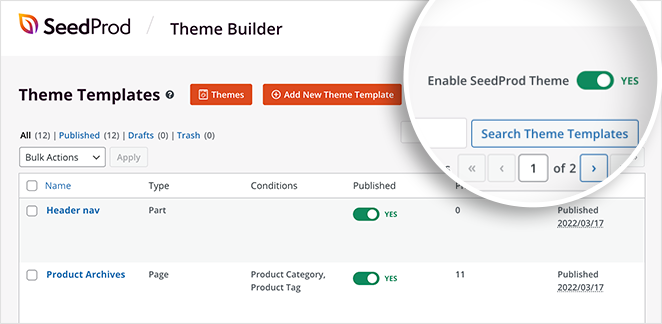
When you’re ready to go live, exit the Theme Builder. Find the Enable SeedProd Theme toggle and switch it to “Yes.”
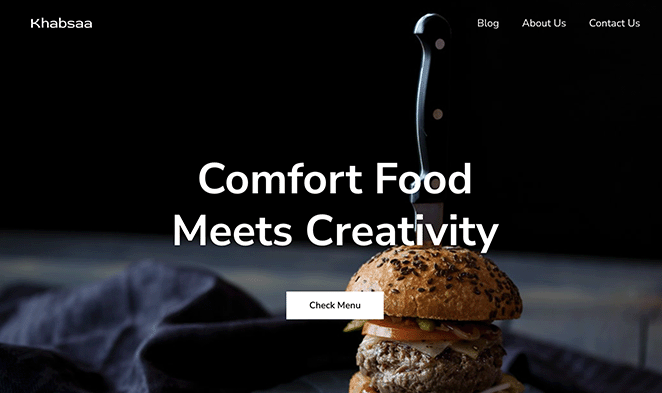
That’s it. Your restaurant website in WordPress is live, and you can start promoting it to new customers.
Step 9. Set Up Your Google Business Profile
Once your site is live, set up a Google Business Profile. This is where most local diners actually find you, through Google Maps and “restaurants near me” searches.
Claim and verify your listing at google.com/business, then fill in your address, phone number, and opening hours. Add the link to your new restaurant website so anyone who finds you on Maps can tap straight through to your menu and ordering form.
I’d treat this as part of launch, not an afterthought. A verified profile with hours and a website link is what turns a Maps search into someone walking through your door.
FAQs About Building a Restaurant Website in WordPress
How much does it cost to build a restaurant website in WordPress?
A self-hosted WordPress restaurant website is the most cost-effective option. You can start for about $2.75 per month for hosting with Bluehost, plus under $15 a year for a domain name.
That’s much cheaper than website builders like Wix or Squarespace, which can run $20 to $50 per month.
Do I need a special theme to build a restaurant website in WordPress?
No. With SeedProd’s theme builder you don’t need a separate restaurant theme at all. You install a pre-built restaurant site kit and customize it visually, and SeedProd replaces your active theme entirely.
What pages does a restaurant website need?
Every restaurant website needs four core pages: a homepage with strong food photography, an online menu with current prices, an about page to tell your story, and a contact or reservation page with a map and booking form.
Can I add online ordering without paying commission fees?
Yes. Use WPForms to add a takeout order form directly to your site, with payments through Stripe or PayPal.
Because the orders come straight to you, there’s no per-order commission like the third-party delivery apps charge.
How do I add my restaurant to Google Maps on my website?
Add SeedProd’s Maps block to your contact page and enter your restaurant address. SeedProd embeds a Google Map showing your exact location.
For the Maps listing itself, claim and verify your Google Business Profile so your restaurant appears in local search and Maps results.
I built my first restaurant layout the same afternoon I sat down to plan it, and the part that surprised me was how little of it felt like “building a website.” Your menu, ordering, and map are live, and you didn’t need a developer to get there.
With SeedProd, you can design any restaurant website yourself and keep editing it as your menu changes, without expensive WordPress developers.
You might also like these website-building guides:
- How to Build a Personal Trainer Website in WordPress
- How to Create an Author Website in WordPress Without Coding
- How to Create a Photography Website in WordPress
- How to Create a Real Estate Website in WordPress
- How to Make a One Product Website in WooCommerce
- How to Set Up an Online Store in WordPress (Ultimate Guide)
- How to Build a Church Website in WordPress Without Tech Skills
- Best One Product Store Examples
Thanks for reading! We’d love to hear your thoughts, so please feel free to join the conversation on YouTube, X and Facebook for more helpful advice and content to grow your business.