
TL;DR: How to Add Google Analytics to WordPress
There are three ways to connect Google Analytics to your WordPress site. Here’s how each method works.
- Create a GA4 property – Sign in to Google Analytics and set up a property and web data stream for your site.
- Use MonsterInsights (easiest) – Install the plugin, run the 5-step setup wizard, and connect your GA4 account in minutes.
- Use WPCode (lightweight) – Find your GA4 Measurement ID, paste the tracking code into WPCode’s header section, and activate.
- Use Google Tag Manager – Already running GTM? Add a GA4 Configuration tag with an All Pages trigger and publish your container.
- Verify tracking – Check GA4’s Realtime report right after setup to confirm your tag is firing correctly.
When I first tried to set up Google Analytics on my WordPress site, I had no idea where to start. There were code snippets, tracking IDs, confusing setup screens, and I just wanted to see who was visiting my site.
If that sounds familiar, you’re in the right place. This guide covers three methods for adding Google Analytics to WordPress: MonsterInsights for the quickest setup, Google Tag Manager for multi-tool tracking, and WPCode if you’d rather not add a full analytics plugin.
Pick the one that fits how you work.
How to Add Google Analytics to WordPress: Basics
One quick note before we dive in: this guide is for self-hosted WordPress.org sites. If you’re on WordPress.com, Google Analytics is available on paid plans and set up through your account settings, not through plugins.
Google Analytics is a powerful tool that provides insights into how visitors interact with your website. It collects and presents a wide range of demographic data, such as where your visitors come from, what devices they use, what pages they visit the most, how long they spend on your site, and much more.
This information is invaluable for improving your site’s user experience, increasing conversions, and growing your business.
To get these insights, you need to add Google Analytics to your website.
You can do this by embedding a small piece of JavaScript code provided by Google into your site with a WordPress code snippet plugin or using Google Tag Manager. Alternatively, you can manually add the code to the functions.php file of your WordPress theme or child theme files.
The easiest way to set up Google Analytics in WordPress is with MonsterInsights, a top-rated plugin that handles your GA4 WordPress tracking code for you.

This plugin simplifies Google Analytics WordPress integration and enhances your site’s functionality.
MonsterInsights also seamlessly integrates with Google Analytics 4 (GA4), which is now replacing Google’s Universal Analytics.
GA4 provides more detailed and flexible reporting with an emphasis on understanding the customer journey. It also introduces more advanced AI to help anticipate your customers’ future actions.
With MonsterInsights, you can get the best of both worlds by integrating Google Analytics 4 WordPress without the hassle of complex configurations. This allows you to keep up with the latest advances in web analytics while still enjoying the simplicity and ease of use that MonsterInsights offers.
For more information, see our MonsterInsights review.
Method 1: How to Add Google Analytics to WordPress Using MonsterInsights
If you’re looking for the fastest way to start tracking your visitors, this WordPress Google Analytics integration takes less than 10 minutes. Just follow the steps below.
I’ve had MonsterInsights running on SeedProd.com for years. It’s the setup I use on my own site, and it’s the one I recommend for most WordPress users.
Let’s walk through the step-by-step process of how to add Google Analytics to WordPress using MonsterInsights and it’s WordPress GA4 integration.
Step 1. Sign In To Google
For setting up GA4 in WordPress, you’ll first need a Google account. If you don’t already have one, you can create one for free.
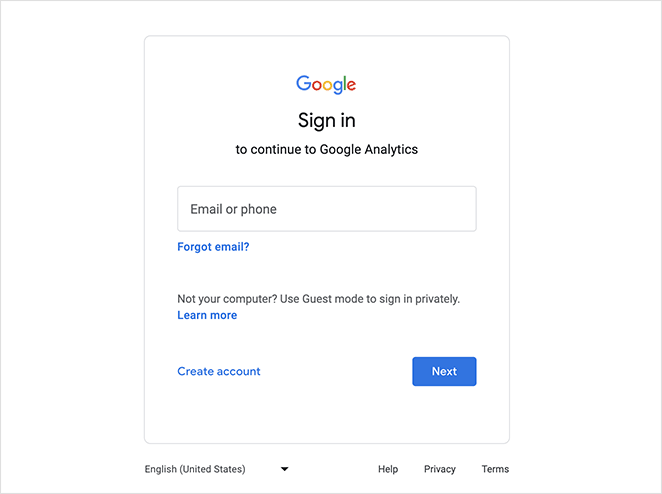
Head to the Google Analytics website and click the “Sign in to Analytics” button in the top right corner.

Now you can log into your existing Google account or sign up for a new one in the following popup.
Step 2. Create a Google Analytics Property
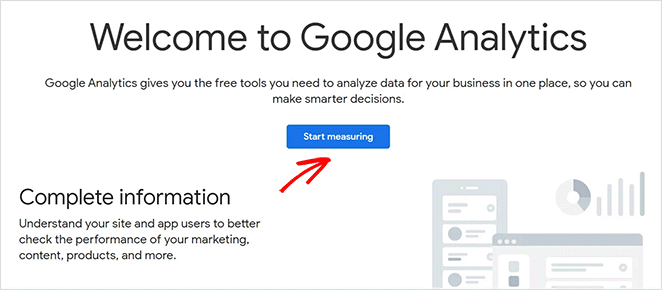
After signing in or signing up for a Google Analytics account, click the Start Measuring button.
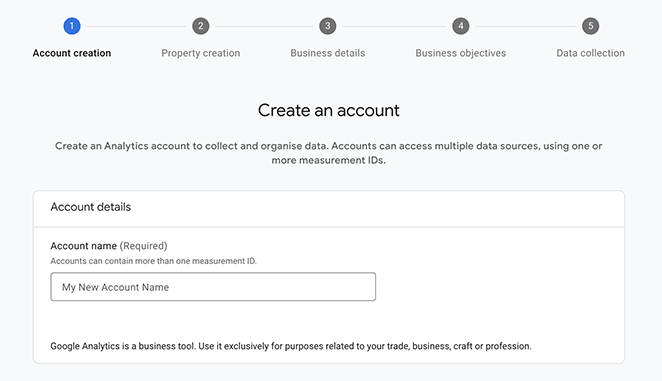
Now you can set up your account by entering an Account Name.
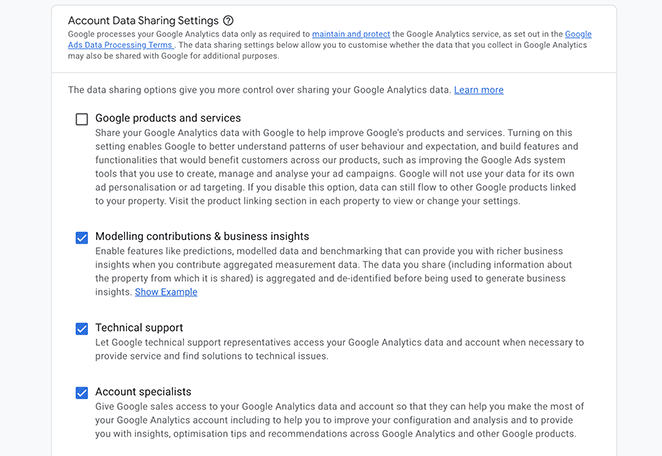
Below are data-sharing settings that you can customize by selecting each checkbox.
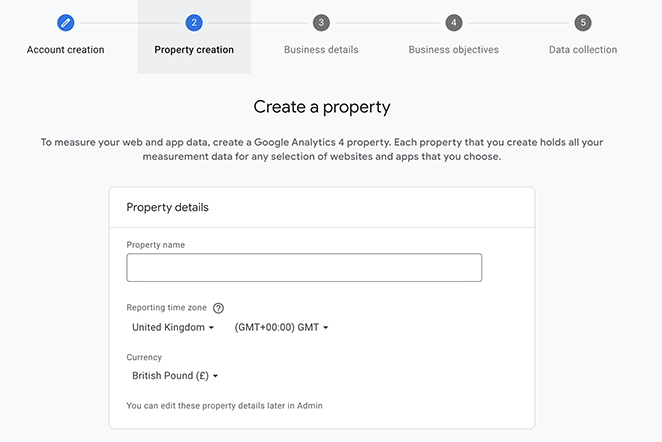
Now you’ll head to a new screen where you can create a GA4 property. Enter a property name and confirm details, such as your timezone and currency.
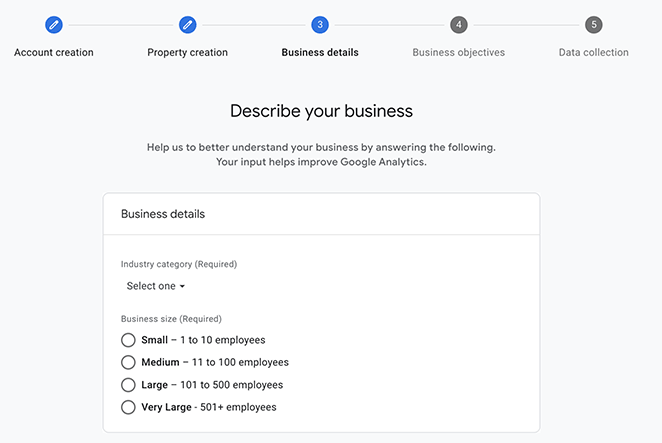
Next, fill in some details about your business. Here, you can choose a business industry category and your business size.
Now let’s choose some business objectives to help you get more personalized reports. There are several to choose from; however, we suggest the “Get Baseline Reports” option because it lets you get all the Google Analytics reports in your account.
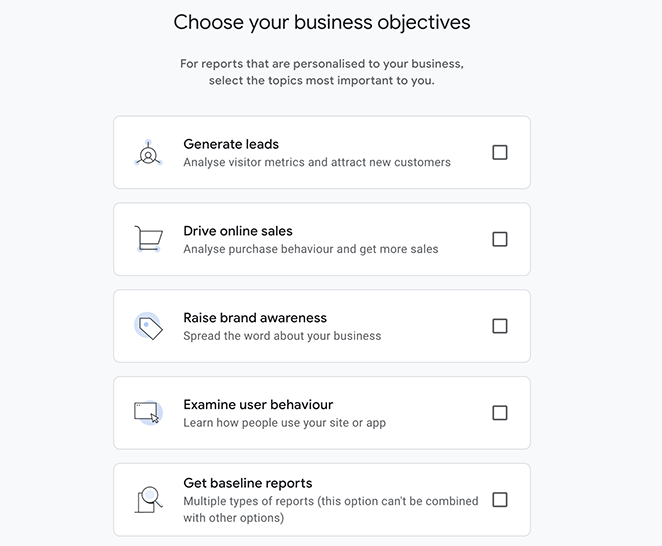
After choosing your objectives, click Continue.
Next, Google will show its terms of service agreement for your country or region. Tick the checkbox to accept the data processing terms and click I Accept.
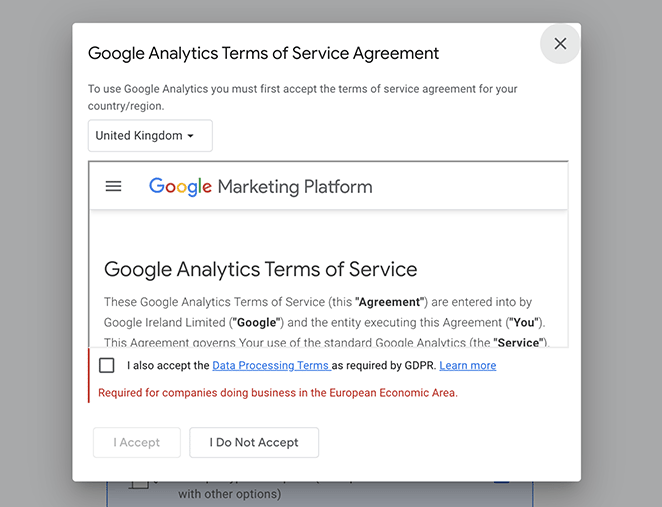
To set up Google Analytics on your website, you’ll need to choose where you’ll collect data. In your case, you’ll need to select the Web option on the following screen.
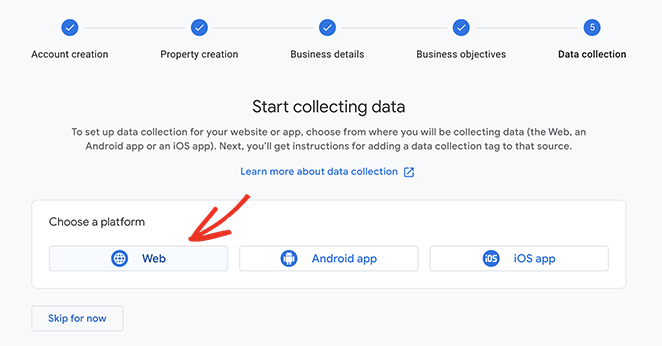
From there, you can set up your website’s data stream. To do this, enter your WordPress website’s URL and name.
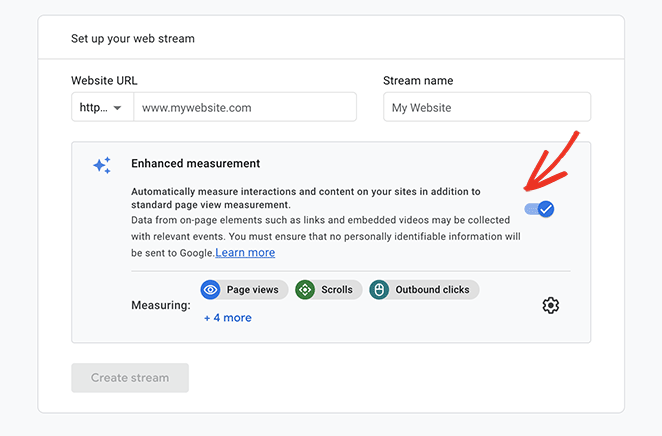
Now, click the switch to turn off Enhanced Measurement. Because we’ll be using MonsterInsights later in this guide, turning this option off avoids duplicate data streams.
Click the Create Stream button to finish setting up your Google Analytics property.
You’ll now see your property information, which includes your tracking ID, stream name, and measurement ID.
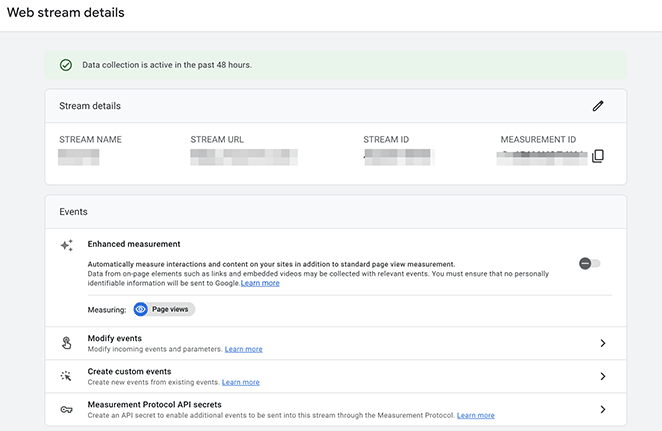
It will also show different methods for adding Google Analytics to your website, such as using Global Site Tag (gtag.js), HTML, and more. However, with MonsterInsights, the best WordPress analytics plugin, you can do this easily without touching any code.
Before you move on, change one GA4 default that catches a lot of people off guard. GA4 stores data for only 2 months by default. Go to Admin » Data Settings » Data Retention and change the retention period to 14 months. It takes 30 seconds and saves you from losing historical data later.
Step 3. Install MonsterInsights
For the next step, log into your WordPress dashboard and install and activate the MonsterInsights WordPress plugin.
To do this, navigate to Plugins » Add New, and search for ‘MonsterInsights.’
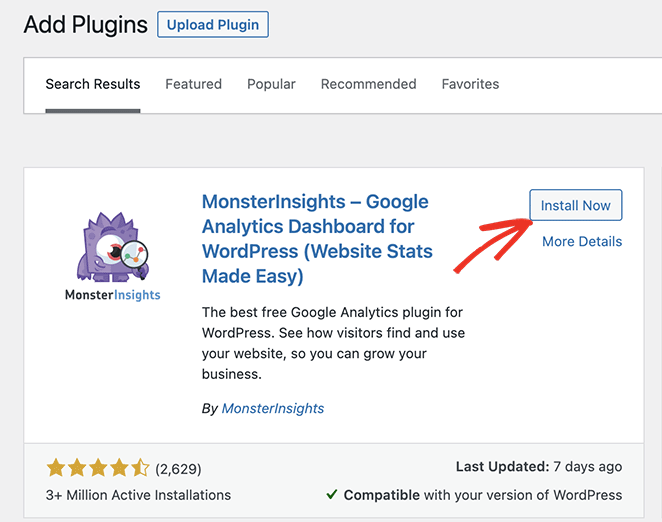
From there, click Install Now and then Activate.
MonsterInsights will automatically redirect you to a welcome screen. From there, you can use the quick WordPress Google Analytics setup wizard without code.
Step 4. Complete the MonsterInsights Setup Guide
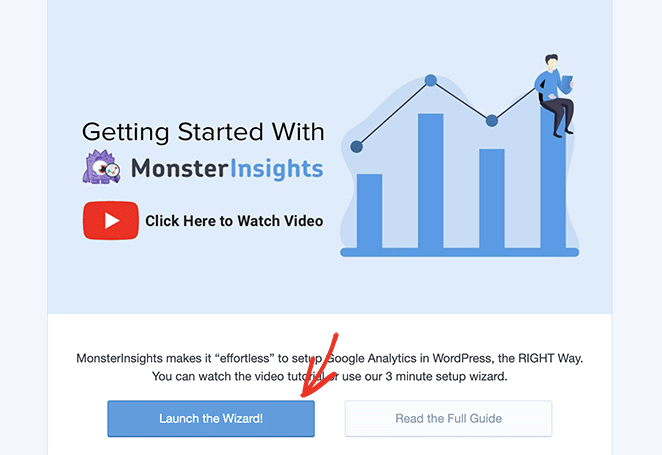
To start using MonsterInsights for WordPress, click the Launch the Wizard button.
Next, choose a category that best represents your business. You can choose between:
- Business Website
- Publisher
- eCommerce
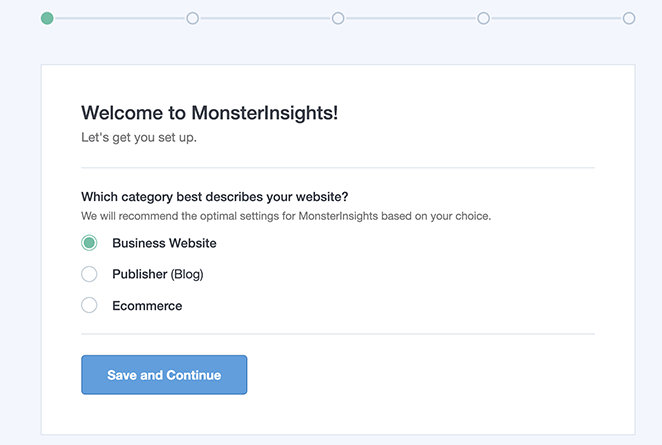
Choose a category, then click Save and Continue.
On the next screen, enter your MonsterInsights license key. You can find this information in your MonsterInsights account under the Downloads section.
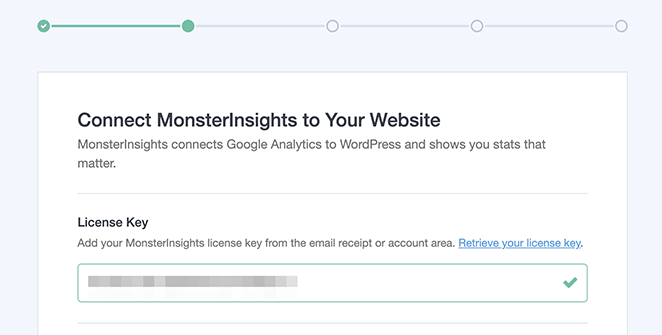
Now click the Connect MonsterInsights button, which takes you to the Google Analytics login screen to select the relevant Google account.
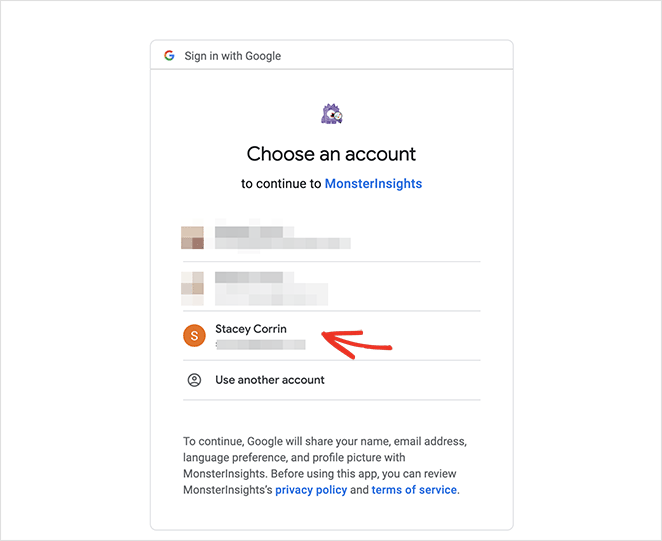
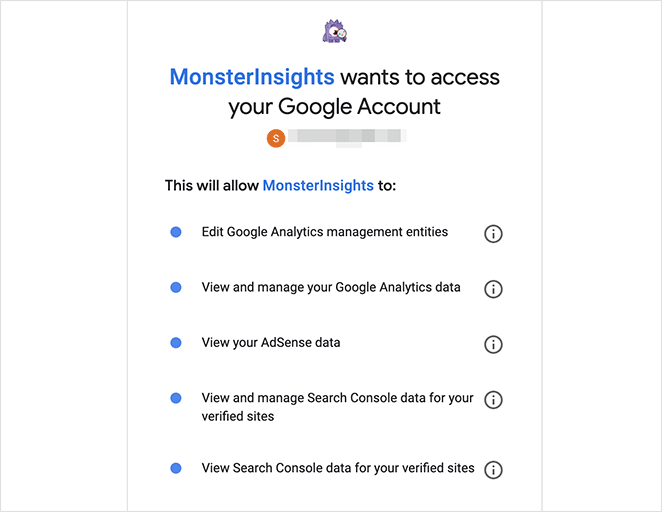
From there, click the toggles to allow MonsterInsights the correct permissions to collect your Analytics data.
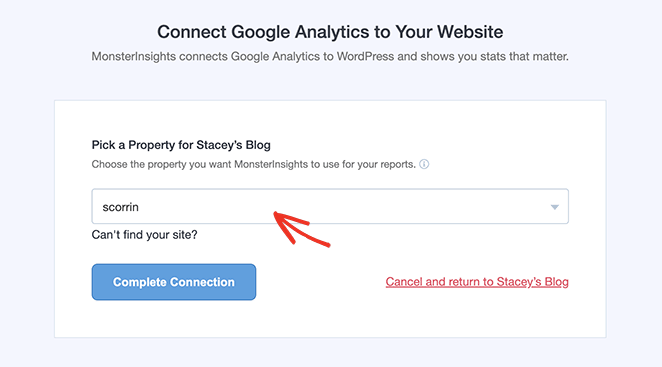
The next screen lets you connect your Google Analytics account to your WordPress website. Simply choose the property you created earlier from the dropdown menu, and click the Complete Connection button.
Now you’ll head back to the setup wizard. On this page, you can enable some recommended settings:
- Events Tracking: Enabled by default.
- Enhanced Link Attribution: Enabled by default.
- File Download Tracking: Popular file types (doc, pdf, ppt, zip, xls, docx, pptx, xlsx)
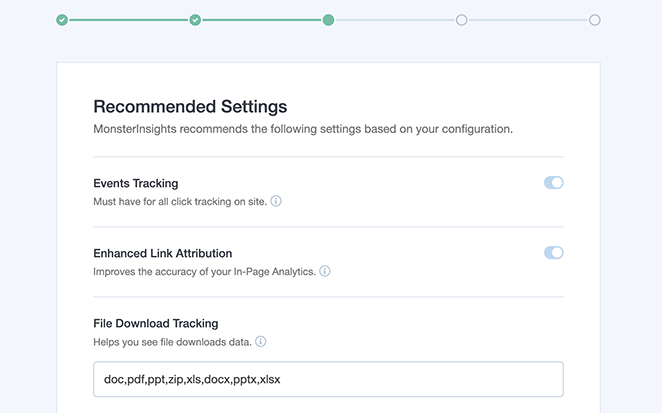
When you scroll down the page, you’ll see other settings for affiliate link tracking, user roles, and automatic updates.
After reviewing these settings, click Save and Continue.
The next screen suggests more helpful tracking options, add-ons, and powerful WordPress plugins, including:
- Advanced reports
- Privacy and Compliance addon
- Conversion tools
- All in One SEO plugin
- WPForms form builder plugin
- eCommerce tracking (Works with WooCommerce and other eCommerce platforms)
- Advanced growth tools
- And more.
Select any resources you want, and MonsterInsights will install them automatically.
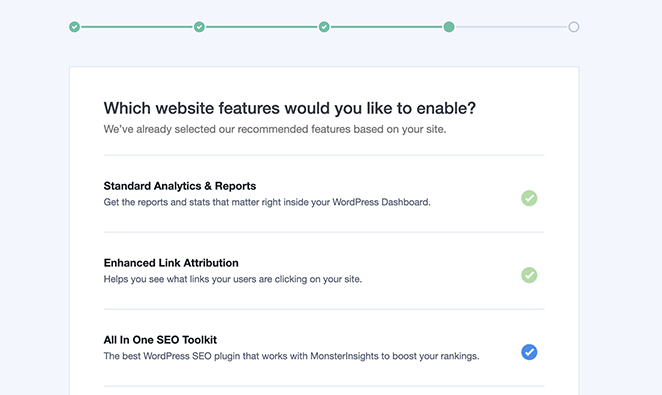
Click Save and Continue to finish the setup wizard.
You’ve now successfully installed Google Analytics in WordPress.
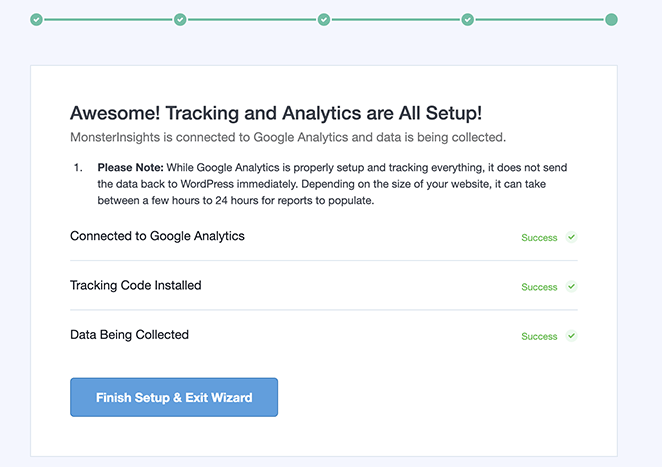
Click the Finish Setup & Exit Wizard button to return to your WordPress admin.
Step 5: View Your Google Analytics Data
After using MonsterInsights to add your Google Analytics tracking code to your website, it will take several hours to start recording data.
Once you’ve connected your GA4 property, MonsterInsights will automatically show your WordPress analytics data inside your dashboard. The reports are easy to understand and only include the data you need to make informed decisions.
A quick summary is available via the MonsterInsights dashboard widget.
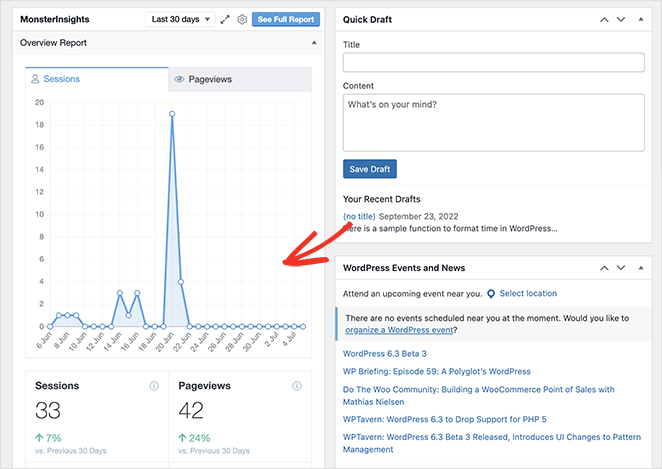
For more detailed reports, visit Insights » Reports from your admin.
The first one you’ll see is the Overview report, which has basic tracking info, such as Sessions, Page Views, Session Duration, Bounce Rate, and Total Users.
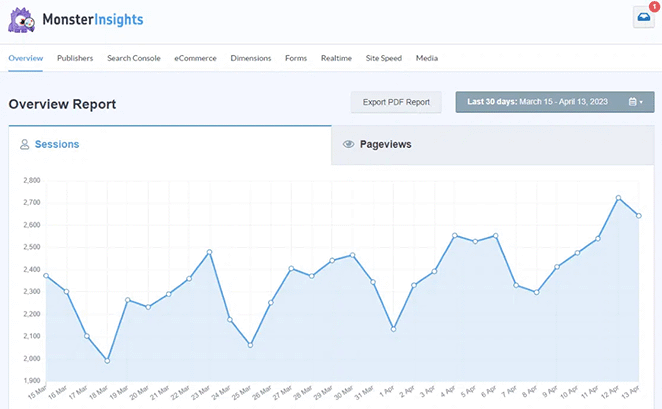
From there, you can click the tabs along the top to see more detailed reports based on the data you’re tracking. Some of the other reports available include:
- Top Landing Pages: A rundown of your WordPress site’s most popular landing pages.
- Link Tracking: The links and buttons on your site that get the most clicks.
- Search Console: The keywords visitors are using to find your website.
- eCommerce Tracking: Data on the products driving the most revenue.
- Form Tracking: Information on which forms get the most submissions and impressions.
- Media Tracking: Your most popular videos with data on how long visitors watch them.
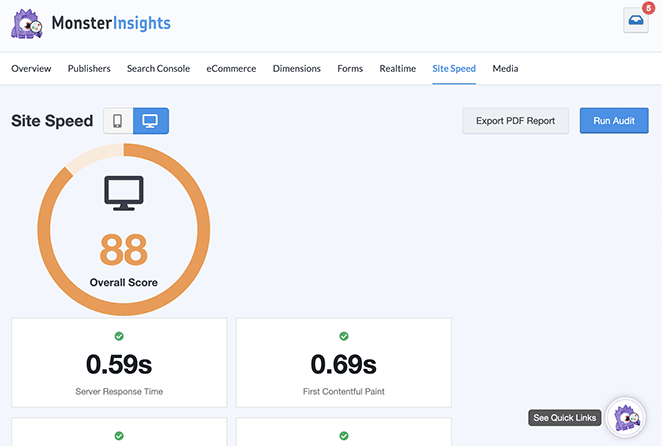
MonsterInsights also has a helpful Site Speed report, which analyzes your current setup and provides suggestions on how to optimize it for the best performance.
Don’t wait to check if it’s working. Open GA4 in a new tab and go to Reports » Realtime. Visit any page on your site. You should see yourself appear as an active user within about 30 seconds. If you do, tracking is confirmed. If not, double-check that the Measurement ID in MonsterInsights’ settings matches your GA4 property.
Once data starts flowing, I use OnePageGA for my daily analytics check-ins. It cuts through the noise in the GA4 interface and shows the metrics that actually matter on a single page.
Method 2: How to Add Google Analytics to WordPress Using WPCode
If you’d rather not add a dedicated analytics plugin, WPCode is the cleanest way to add the GA4 tracking code directly to your site’s header. It keeps the plugin footprint minimal while still giving you reliable tracking on every page.
Step 1. Find Your GA4 Measurement ID and Tracking Code
In Google Analytics, go to Admin » Data Streams and click on your web data stream. Your Measurement ID is in the top right, starting with ‘G-’.
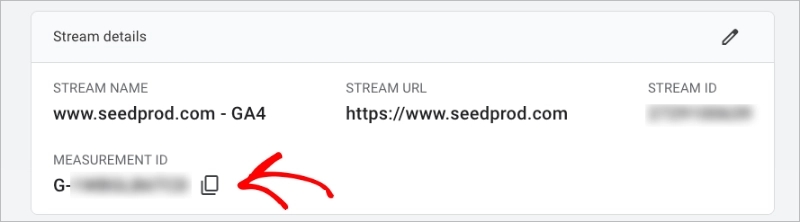
Scroll down to Google tag, expand it, and click View tag instructions, then Install manually. Copy the full tracking code snippet.
Step 2. Install WPCode
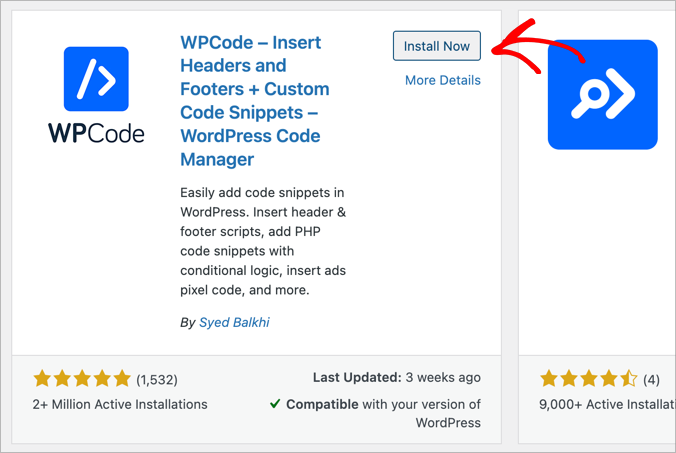
In your WordPress dashboard, go to Plugins » Add New and search for ‘WPCode.’ Install and activate the free version.
Step 3. Add the Tracking Code
Go to Code Snippets » Header & Footer. Paste your GA4 tracking code into the Header field. Save changes.
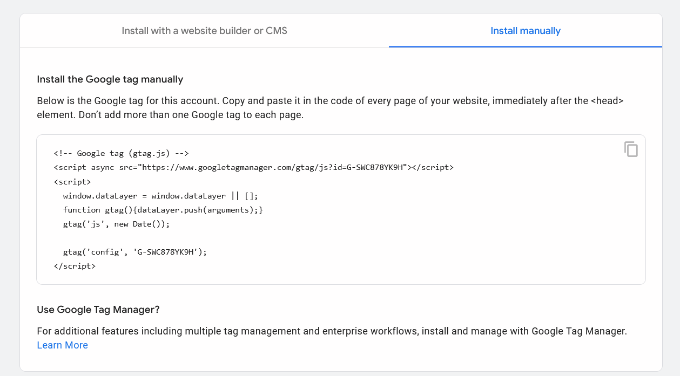
WPCode adds the snippet to every page on your site automatically. No theme file editing required.
Step 4. Verify It’s Working
Open GA4 and check the Realtime report. Visit your site in a separate tab. You should see yourself as an active user within about 30 seconds. If not, double-check that the Measurement ID inside your copied code matches your GA4 property.
Other Ways to Add Google Analytics to WordPress
Google Tag Manager
If you’re already using Google Tag Manager to manage scripts on your site, you can load GA4 through a GTM container instead of adding a plugin. Create a GA4 Configuration tag in GTM, set the trigger to All Pages, then add the GTM snippet to WordPress using WPCode.
Google’s Tag Manager setup guide walks through the full process.
How to Add Google Analytics to WordPress FAQs
How do I know if Google Analytics is tracking my WordPress site?
The fastest way to check is GA4’s Realtime report. Go to Reports » Realtime in your GA4 account, then visit any page on your site. You should see yourself appear as an active user within 30 seconds. If nothing shows up, check that your tracking code or plugin is connected to the correct Measurement ID.
Can I add Google Analytics to WordPress without a plugin?
Yes. The cleanest approach is WPCode, a free code snippet plugin. Find your GA4 Measurement ID in Analytics, copy the tracking code from your data stream settings, and paste it into WPCode’s Header & Footer section. This avoids adding a dedicated analytics plugin while still getting reliable tracking on every page.
Can I use Google Analytics on WordPress.com?
This guide is for self-hosted WordPress.org sites. On WordPress.com, Google Analytics is available on paid plans and set up through your account’s Marketing settings, not through a plugin. If you’re unsure which version of WordPress you’re using, check with your hosting provider.
Next Steps
Adding Google Analytics to WordPress doesn’t have to be complicated, especially when you’re using a plugin like MonsterInsights.
With just a few steps, you can set up GA4, start collecting real-time data, and learn exactly how people are finding and using your website.
Now that tracking is in place, want to go further? Check out this guide on how to set up link tracking in WordPress to see which buttons and CTAs get the most clicks.
You might also like the following helpful guides for your WordPress website:
- 8 Best WordPress Redirect Plugins You Need
- How to Embed Google Maps in WordPress (3 Easy Ways)
- How to Set Up WooCommerce Conversion Tracking for Your Store
Thanks for reading! We’d love to hear your thoughts, so please feel free to join the conversation on YouTube, X and Facebook for more helpful advice and content to grow your business.