

En resumen: Cómo crear una página de presentación de WordPress en 9 pasos
Una página de presentación de WordPress es una introducción a pantalla completa que aparece antes de tu página de inicio, diseñada para captar la atención y dirigir a los visitantes a una acción específica.
- Qué es — Una página de presentación (también llamada página de bienvenida o pantalla de introducción) aparece antes de tu sitio principal, no en lugar de él.
- Usos comunes — Recopilación de correos electrónicos, lanzamientos de productos, verificación de edad, selección de país/idioma y anuncios.
- Requisito clave — Incluye siempre un enlace visible para omitir/entrar para que los visitantes puedan saltarla y Google pueda rastrear tu contenido principal.
- Herramienta recomendada — SeedProd, un creador de sitios web de arrastrar y soltar para WordPress que incluye plantillas de páginas de presentación listas para usar.
- Tiempo de creación — Alrededor de 9 pasos desde la instalación hasta la publicación; no se requiere codificación.
Tienes un lanzamiento de producto en camino, pero tu página de inicio cuenta una historia diferente. Los visitantes aterrizan en ella y ven tu sitio completo, tu navegación, tu blog, tus precios, cuando lo que necesitas que vean primero es un mensaje enfocado.
Ahí es exactamente donde una página de presentación de WordPress se gana su lugar. La mayoría de las páginas de presentación fallan no porque la idea sea incorrecta, sino porque son demasiado pesadas, demasiado lentas o carecen de una opción para omitir. Esto es lo que frustra a los visitantes y puede perjudicar tu SEO antes de que alguien lea una palabra.
En esta guía, te explicaré exactamente qué es una página de presentación y te mostraré paso a paso cómo crear una usando SeedProd, un creador de sitios web de arrastrar y soltar para principiantes de WordPress.
- ¿Qué es una página de inicio en WordPress?
- ¿Cómo creo una página de presentación en WordPress?
- Paso 1. Instalar el constructor de páginas de destino de WordPress SeedProd
- Paso 2. Crear una nueva página de destino en WordPress
- Paso 3. Elegir una plantilla de página de inicio de WordPress
- Paso 4. Añadir contenido a tu página de inicio
- Paso 5. Personalizar el diseño de tu página de inicio
- Paso 6. Conectar tu proveedor de marketing por correo electrónico
- Paso 7. Configurar los ajustes de tu página
- Paso 8. Comprobar que tu página sea compatible con dispositivos móviles
- Paso 9. Publica tu página de destino de WordPress
- ¿Cómo mejoro mi página de presentación de WordPress con el tiempo?
- ¿Cómo optimizo mi página de presentación de WordPress para SEO y velocidad?
- Ejemplos de páginas de presentación de WordPress
- Preguntas frecuentes sobre páginas de destino de WordPress
¿Qué es una página de inicio en WordPress?
Una página de presentación de WordPress es una página introductoria a pantalla completa que aparece antes de tu página de inicio, diseñada para captar la atención y dirigir a los visitantes a una acción específica antes de que lleguen a tu sitio principal.
Puede incluir tu logo, un mensaje de bienvenida o detalles clave como una oferta especial. Muchos sitios utilizan pantallas de presentación para la verificación de edad, avisos de "en construcción" o la selección de idioma y ubicación.
¿Cuál es el propósito de una página de inicio en WordPress?
El propósito de una página de inicio en WordPress es captar la atención antes de que los visitantes lleguen a tu sitio principal y guiarlos al siguiente paso correcto.
- Promocionar una oferta especial o un nuevo producto
- Mostrar un descargo de responsabilidad de verificación de edad
- Destacar un próximo evento
- Recopilar datos de contacto y hacer crecer tu lista de correo electrónico
- Promociona tus perfiles de redes sociales
- Informar a los visitantes que tu nuevo sitio web estará pronto disponible
En resumen, una página de bienvenida bien diseñada crea una fuerte primera impresión y dirige a los visitantes exactamente a donde los necesitas.
Página de presentación vs. Página de destino
Una página de presentación y una página de destino son fáciles de confundir, pero sirven para propósitos completamente diferentes.
| Página de inicio | Página de destino | |
|---|---|---|
| Cuándo aparece | Antes de tu página de inicio, al entrar | Página independiente para una campaña específica |
| Propósito principal | Breve introducción, verificación o anuncio | Capturar leads o impulsar una conversión |
| Opción de omitir/salir | Requerido (enlace visible para omitir) | Ninguno por diseño (sin navegación) |
| Enfoque SEO | No es una página de conversión principal | Optimizado para una palabra clave/acción específica |
Una pantalla de presentación funciona como un punto de control por un momento. Una página de destino es el destino. Si estás ejecutando una campaña dirigida a una palabra clave específica, quieres una página de destino. Si quieres presentar o controlar el acceso a tu sitio antes de que los visitantes lleguen a él, quieres una pantalla de presentación.
Una página de "próximamente" es diferente. Es una medida temporal mientras tu sitio está en construcción. Una pantalla de presentación es permanente. Es una característica de un sitio activo, no un marcador de posición antes de su lanzamiento.
¿Qué deberías incluir en una página de inicio?
Una buena pantalla de presentación incluye solo lo esencial: lo suficiente para presentar tu sitio, compartir información clave y permitir que los visitantes avancen rápidamente.
- Logotipo o elementos de diseño: Refuerza instantáneamente tu marca.
- Mensaje corto o declaración de misión: Explica el propósito de tu sitio.
- Enlaces de navegación: Dirigen a los visitantes al área correcta de tu sitio web.
- Opción de omitir: Permite a los usuarios saltarse la página de presentación si lo prefieren.
- Indicador de carga: Muestra el progreso si tu sitio tarda un momento en cargarse.
- Selector de idioma o ubicación: Útil para audiencias globales.
El objetivo es mantenerlo simple. Haz que tu página de presentación sea clara, rápida y fácil de omitir cuando sea necesario.
¿Cómo creo una página de presentación en WordPress?
La forma más rápida de crear una pantalla de presentación para WordPress es con SeedProd. Obtienes una página profesional en minutos sin tocar código ni contratar a un desarrollador.

SeedProd viene con plantillas predefinidas, personalización de apuntar y hacer clic, y opciones integradas de próximamente y modo de mantenimiento para que puedas trabajar en privado mientras tu sitio luce profesional.
Esto es lo que hace que SeedProd destaque:
- Empieza desde una plantilla predefinida y evita el problema de la página en blanco
- Inserta formularios de captura de leads, bloques de sorteos y campos de registro sin plugins adicionales
- Conecta tu servicio de correo electrónico con un solo clic sin salir del constructor
- Ve cada cambio en vivo mientras lo haces, sin adivinar, sin actualizar
- Previsualiza y ajusta tu diseño móvil dentro del mismo editor
- Código ligero que carga en 556 ms, 3.4 veces más rápido que Elementor (1882 ms) en mis pruebas de GTmetrix
Debido a que SeedProd está optimizado para la velocidad, obtienes un mejor rendimiento desde el primer día, lo que es importante para el SEO y para la primera impresión que causa tu pantalla de presentación.
Si deseas lanzar una página de presentación de forma rápida y eficaz, aquí te explicamos cómo hacerlo paso a paso con SeedProd.
Paso 1. Instalar el constructor de páginas de destino de WordPress SeedProd
Primero, haz clic aquí para comenzar con SeedProd y descargar el plugin. Luego, instala y activa el plugin en tu sitio web de WordPress. Si necesitas ayuda con esto, consulta este tutorial para instalar un plugin de WordPress.
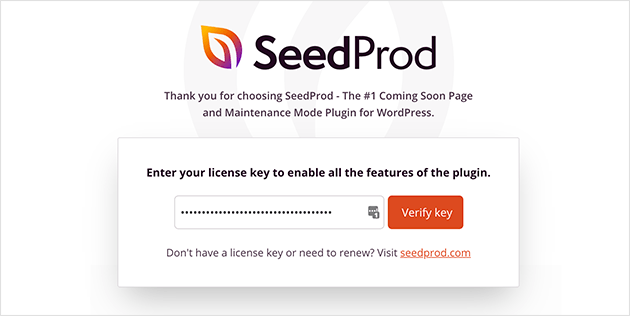
Después de activar SeedProd, verás una pantalla de bienvenida pidiéndote que introduzcas tu clave de licencia. La encontrarás en el correo electrónico que usaste para registrarte, o iniciando sesión en tu cuenta de SeedProd y revisando la sección de Descargas.
Copia tu clave de licencia, pégala en el campo proporcionado y haz clic en el botón Verificar clave.
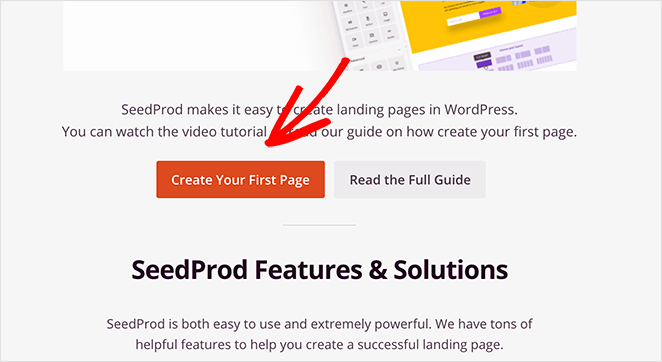
A continuación, desplázate un poco hacia abajo en la página y haz clic en el botón Crear tu primera página.
Paso 2. Crear una nueva página de destino en WordPress
En la siguiente pantalla se encuentra el panel de páginas de destino de SeedProd. Verás varios modos de página en la parte superior, incluyendo el modo Próximamente, el modo Mantenimiento y la página 404.
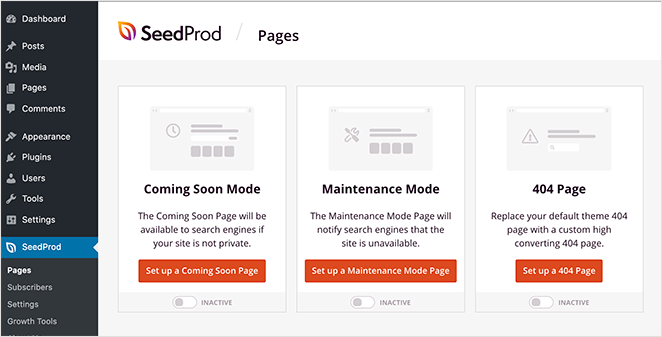
Puedes activar cada modo con un solo clic para mostrar páginas de destino personalizadas a los visitantes de tu sitio web.
Debajo de los diferentes modos de página es donde se mostrarán tus páginas de destino después de crearlas. Aún no verás nada en esta sección, pero aparecerán en una lista una vez que las hayas creado.
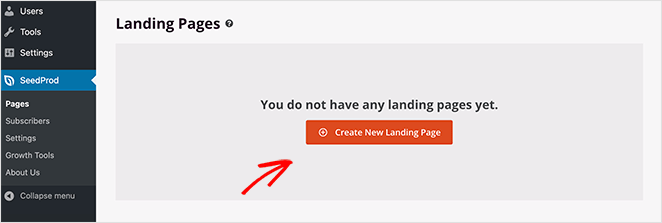
Para crear tu primera página, haz clic en el botón Crear nueva página de destino.
Paso 3. Elegir una plantilla de página de inicio de WordPress
La siguiente página muestra la biblioteca de plantillas de página de destino responsivas de SeedProd. Cada diseño es totalmente personalizable en el constructor de arrastrar y soltar.
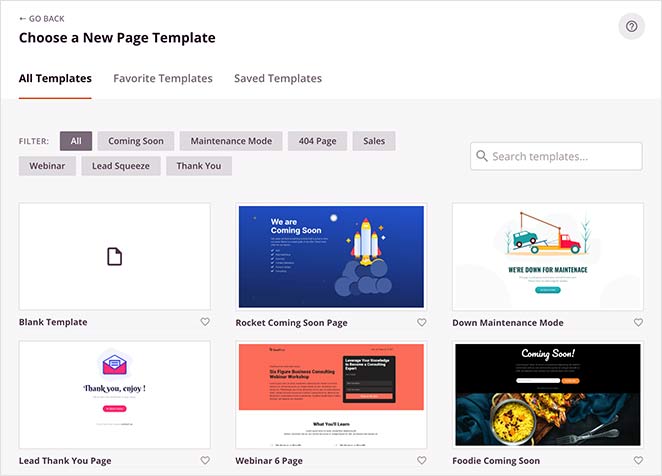
Para ayudarte a encontrar una plantilla rápidamente, puedes filtrarlas por categoría. Simplemente haz clic en cualquier etiqueta de categoría en la parte superior para ver las disponibles:
- Plantillas Próximamente
- Plantillas en Modo Mantenimiento
- Plantillas de Página 404
- Plantillas de página de ventas
- Plantillas de páginas de seminarios web
- Plantillas de página "Squeeze"
- Plantillas de página de Agradecimiento
También puedes usar el cuadro de búsqueda para refinar aún más tus resultados.
Elige una plantilla que se parezca mucho a cómo quieres que se vea tu página de destino. Luego, pasa el ratón sobre la imagen de la plantilla y haz clic en el icono de la marca de verificación.
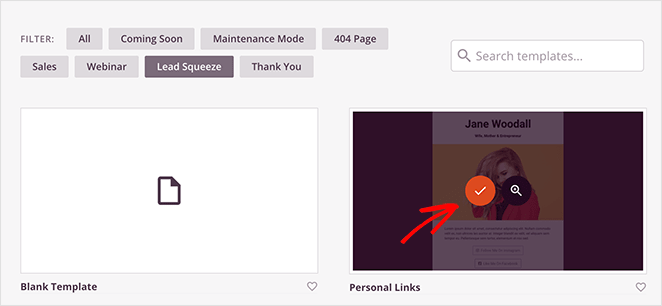
Para nuestro ejemplo, elegimos la plantilla de exprimir clientes potenciales Enlaces Personales, que personalizaremos para usarla como página de destino.
Después de elegir tu plantilla, verás una ventana emergente pidiéndote que introduzcas el nombre y la URL de tu página.
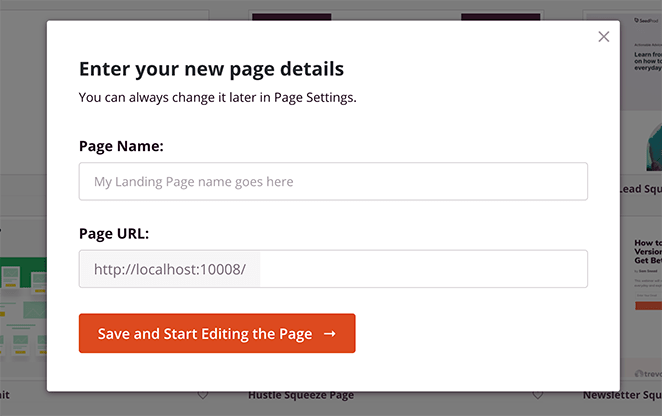
A continuación, puedes hacer clic en el botón Guardar y empezar a editar la página para lanzar tu plantilla en el editor visual.
Paso 4. Añadir contenido a tu página de inicio
El editor visual de SeedProd tiene 2 secciones distintas: a la izquierda hay un panel que muestra todos los bloques y secciones de página que puedes usar, y a la derecha hay una vista previa en vivo de cómo se ve tu página.
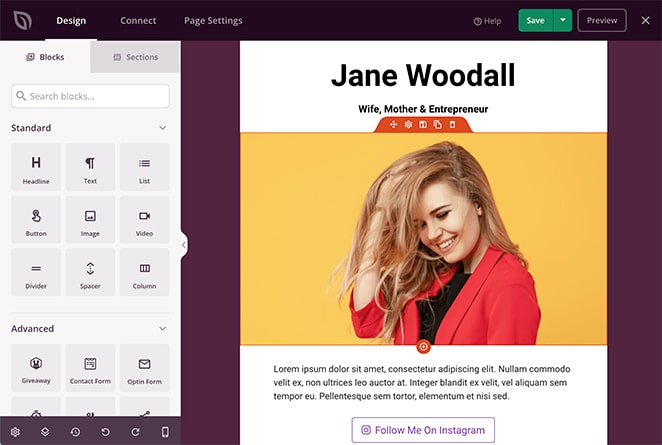
Añadir contenido a tu página es tan simple como arrastrar un bloque desde el panel izquierdo y soltarlo en tu vista previa de la derecha.
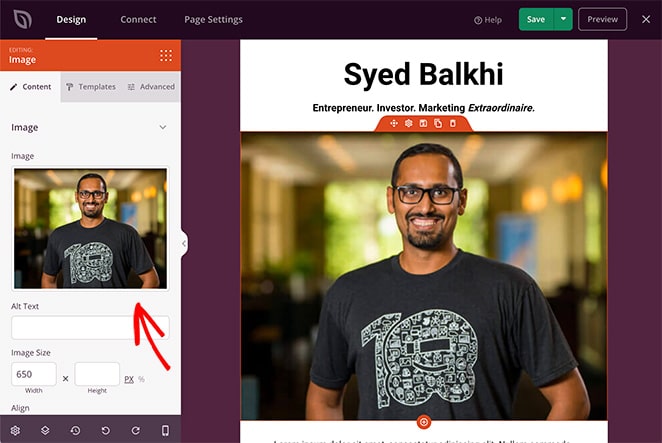
Hacer clic en cualquier elemento de tu página muestra la configuración de ese bloque en el panel izquierdo.
Por ejemplo, puedes hacer clic en el bloque de imagen para eliminar la foto original y reemplazarla por la tuya.
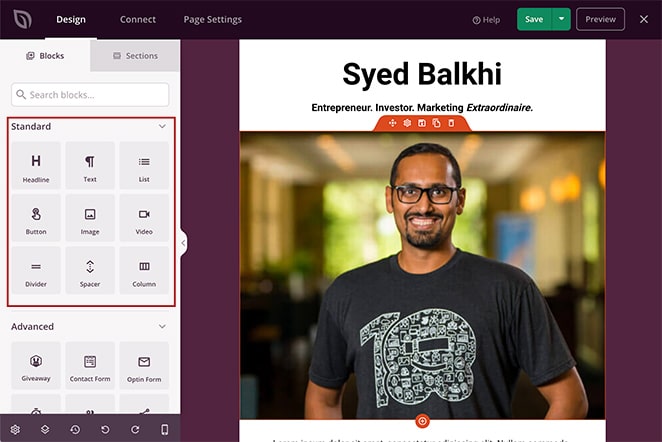
Los bloques de página de destino de SeedProd vienen en 2 secciones: Bloques Estándar y Avanzados.
Los bloques Estándar son los elementos esenciales que necesitas para cualquier página, incluyendo imágenes, botones, espaciadores, divisores, listas y más.
Los bloques Avanzados son un poco diferentes en el sentido de que se centran principalmente en la generación de clientes potenciales.
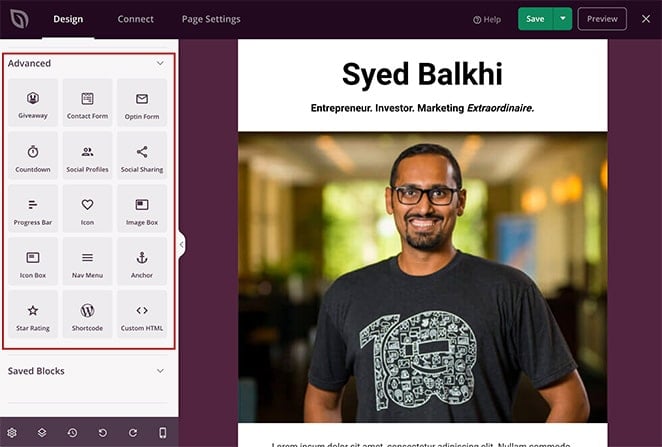
Esto significa que con solo unos pocos clics, puedes insertar formularios de contacto, sorteos, formularios de registro, valoraciones de estrellas, enlaces de ancla y más en tu página.
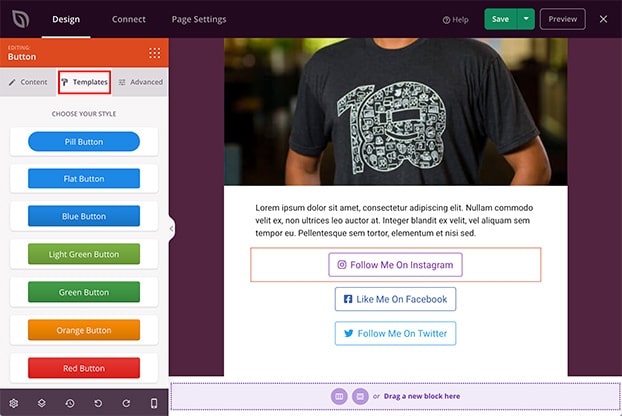
La mayoría de los bloques de SeedProd también incluyen plantillas predefinidas. Puedes implementar estos diferentes estilos con un solo clic, lo que significa que no necesitarás personalizar cada bloque manualmente.
Por ejemplo, al hacer clic en el bloque Botón y seleccionar la pestaña Plantillas, se muestran varios estilos de botón diferentes para elegir.
Además de los bloques individuales, SeedProd tiene Secciones de página de destino. No necesitas construir secciones de página completas manualmente, bloque por bloque. Puedes ver las diferentes áreas haciendo clic en la pestaña Secciones.
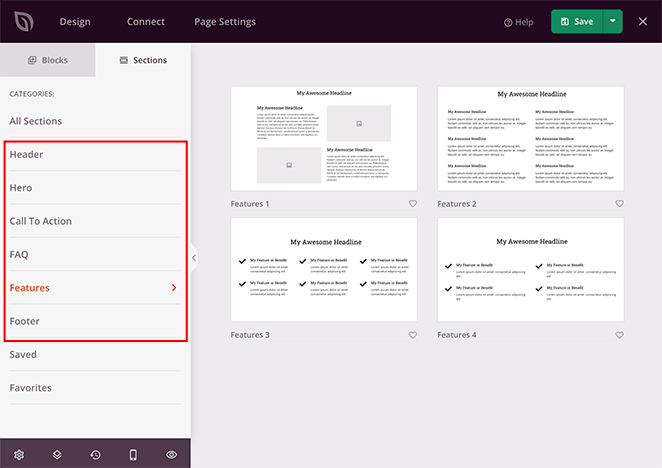
Desde all uevo00ed, puedes elegir una nueva:
- Encabezado
- uevo00c1rea de presentaci uevo00f3n
- Llamada a la acción
- Secci uevo00f3n de preguntas frecuentes
- uevo00c1rea de caracter uevo00edsticas
- Pie de página
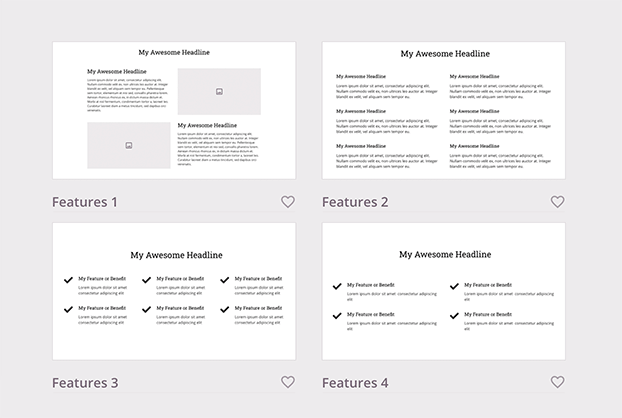
Continúa añadiendo contenido a tu página de destino hasta que incluya toda la información que quieres que vean los visitantes.
Puedes guardar tu progreso haciendo clic en el botón verde Guardar en la esquina superior derecha.
Paso 5. Personalizar el diseño de tu página de inicio
Con tu contenido en su lugar, es probable que algunas partes del diseño de tu página de destino de WordPress todavía no se vean bien. Quizás el color de fondo sea incorrecto o tus fuentes parezcan fuera de lugar.
La buena noticia es que puedes cambiar todas estas cosas usando la configuración de personalización fácil de SeedProd.
Simplemente haz clic en el icono del engranaje en la esquina inferior izquierda de tu pantalla para ver tu Configuración Global.
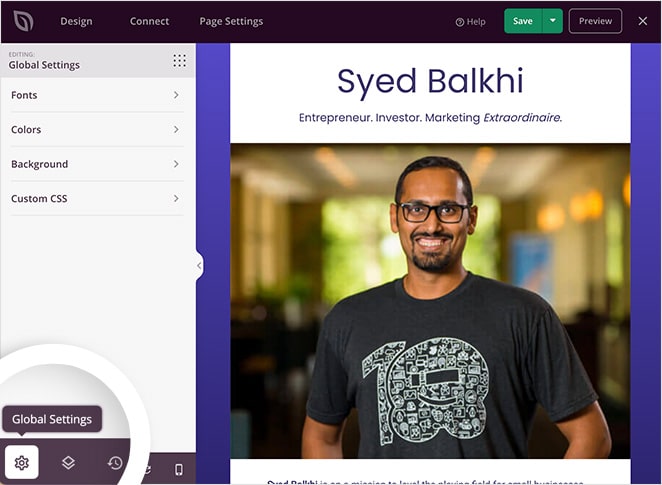
En esta área, puedes personalizar tu global:
- Fondo
- Colores
- Fuentes
- CSS personalizado
En la sección Fuentes, puedes cambiar las fuentes y grosores de tus encabezados y cuerpo de texto globales. Simplemente elige una nueva fuente o grosor en los menús desplegables correspondientes.
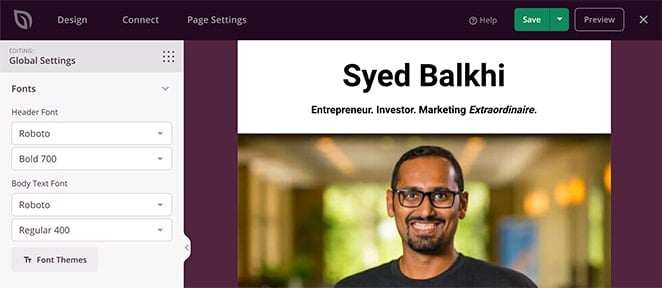
Alternativamente, puedes explorar la biblioteca curada de combinaciones de fuentes de SeedProd haciendo clic en el botón Temas de fuentes.
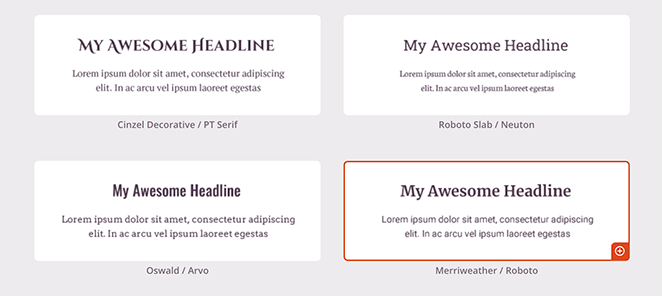
Esto te muestra qué fuentes combinan mejor. Simplemente haz clic en cualquier combinación de fuentes para añadir tu selección a tu página al instante.
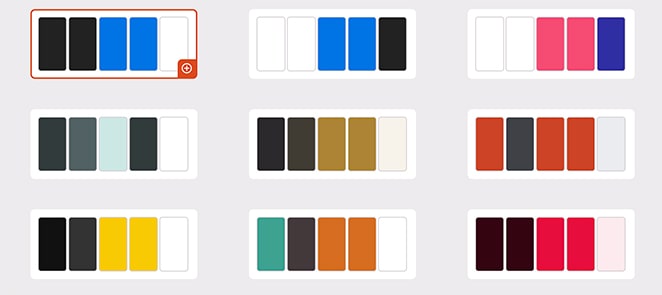
La sección Colores funciona de la misma manera. Puedes seleccionar individualmente diferentes colores para enlaces globales, encabezados, texto, botones y fondos con la práctica herramienta de selección de color.
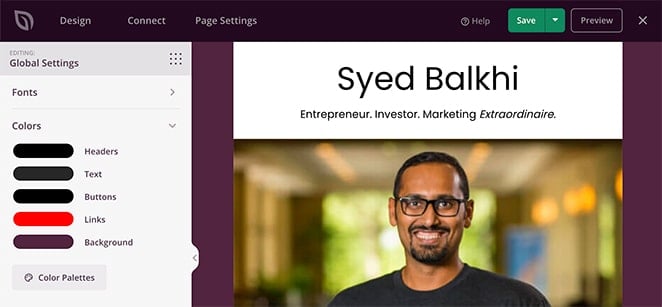
O, si lo prefieres, puedes hacer clic en el botón Paletas de colores para elegir entre más de 20 esquemas de colores predefinidos.
La sección Fondo proporciona una forma sencilla de personalizar el fondo de tu página de destino. Puedes configurarlo como un color sólido o un degradado, o subir una imagen de fondo de ancho completo desde tu biblioteca de medios de WordPress o tu ordenador.
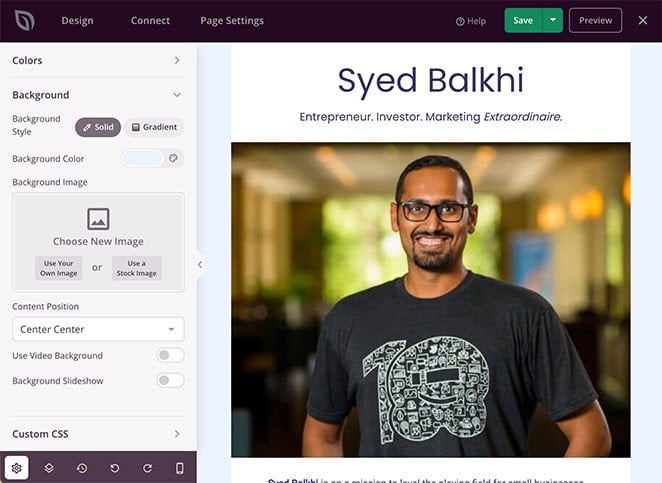
También es posible añadir un fondo de video o una presentación de diapositivas de fondo seleccionando el interruptor para cada configuración.
Recuerda hacer clic en Guardar para conservar tus ajustes de personalización.
Paso 6. Conectar tu proveedor de marketing por correo electrónico
Muchas páginas de destino ofrecen a los usuarios una descarga gratuita a cambio de sus datos de contacto. Para crear este tipo de página de destino, necesitarás la capacidad de conectar tu servicio de marketing por correo electrónico.
A diferencia de otros constructores de páginas que solo se conectan a unos pocos proveedores, SeedProd se integra con servicios populares de boletines de correo electrónico, incluyendo:
- ActiveCampaign
- AWeber
- Campaign Monitor
- Constant Contact
- ConvertKit
- Drip
- GetResponse
- iContact
- Mad Mimi
- Sendy
- Mailchimp
Simplemente haz clic en la pestaña Conectar en la parte superior del constructor de páginas para ver los proveedores disponibles. Luego selecciona tu servicio preferido y sigue las instrucciones para autorizar tu cuenta.
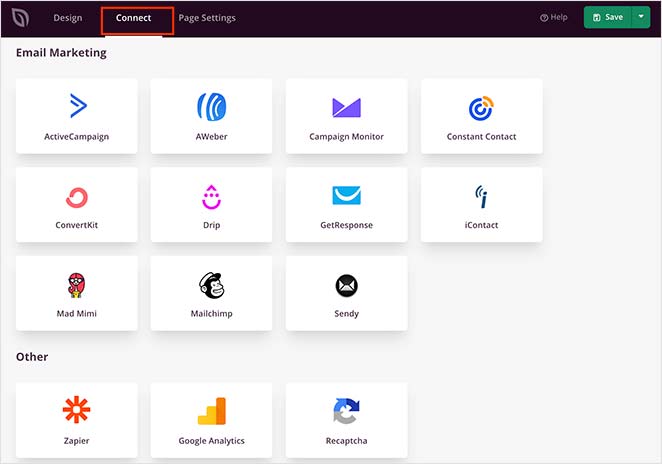
También puedes usar Zapier para vincular tu página con miles de otras aplicaciones populares para automatizar tus esfuerzos de marketing.
No te preocupes si aún no tienes un proveedor de marketing por correo electrónico.
En su lugar, puedes usar el panel de gestión de suscriptores integrado de SeedProd. Cada vez que alguien se suscribe a través de tu página de destino, sus datos se almacenan automáticamente en tu sitio web de WordPress.
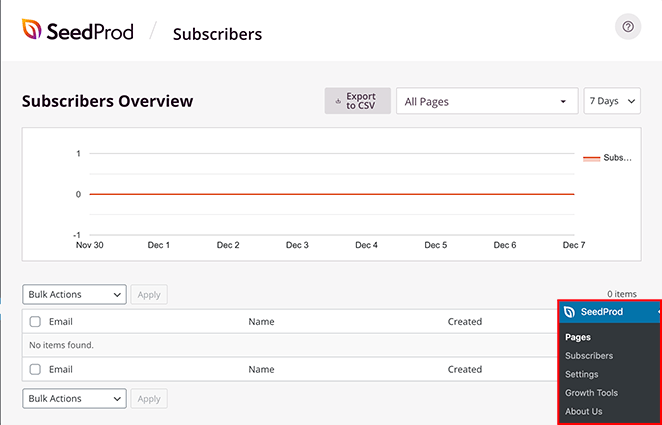
Puedes verlos visitando SeedProd » Suscriptores desde tu panel de WordPress.
Paso 7. Configurar los ajustes de tu página
Ahora que has terminado de diseñar tu página de destino, querrás configurar algunos ajustes necesarios. Para ello, haz clic en la pestaña Configuración de la página en la parte superior del constructor de páginas.
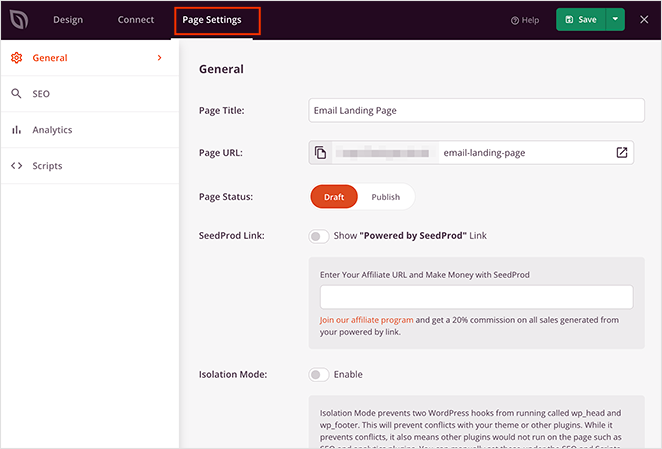
En esta página, puedes cambiar la configuración de tus páginas:
- Detalles generales – Cambia el nombre y la URL de tu página, y configúrala como borrador o publicada.
- SEO – Rellena la información de SEO en la página utilizando palabras clave relevantes en el título de la página y la meta descripción a través de un plugin de SEO como All in One SEO.
- Analíticas – Consulta el rendimiento de tu página de destino con un plugin de analíticas como MonsterInsights.
- Scripts – Introduce scripts de seguimiento y retargeting como cookies o píxeles de seguimiento de Facebook.
Recuerda hacer clic en el botón Guardar antes de pasar al siguiente paso.
Consejo: ¿Quién debería ver tu pantalla de presentación?
Para la mayoría de los casos de uso, querrás mostrar la pantalla de presentación solo a los visitantes primerizos, no a los visitantes recurrentes que ya conocen tu sitio. También puedes configurarla para que aparezca solo en tu página de inicio, no en todas las páginas, y que se muestre solo a los usuarios no registrados si estás publicando un anuncio exclusivo para miembros.
La configuración de página de SeedProd te permite controlar la URL y el estado de la página directamente, así que planifica tu estrategia de segmentación antes de publicar.
Paso 8. Comprobar que tu página sea compatible con dispositivos móviles
Casi todo el mundo navega por internet desde dispositivos móviles hoy en día. Para ofrecer una experiencia más optimizada a esos visitantes específicos del sitio web, necesitarás una página de destino amigable para móviles.
Por eso SeedProd tiene una opción de vista previa móvil integrada. Simplemente haz clic en el icono de vista previa móvil para ver cómo se ve tu página de destino en dispositivos móviles.
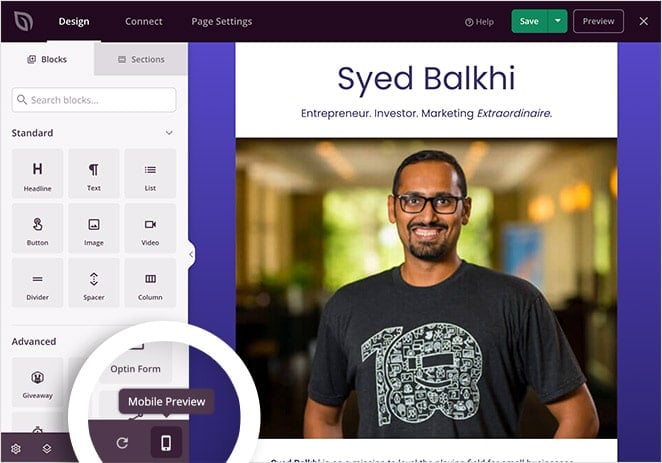
Si algo no se ve bien, puedes ajustar rápidamente las cosas hasta que tengas una página que los visitantes puedan navegar fácilmente desde sus teléfonos, tabletas, portátiles o ordenadores.
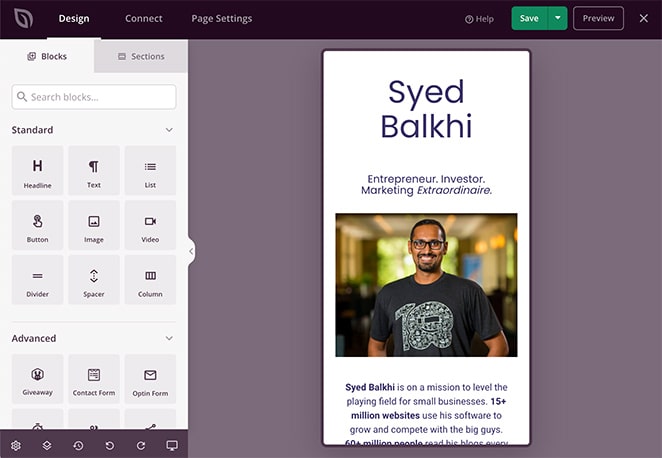
Haz clic en el mismo icono para volver a la vista de escritorio original.
No te preocupes; no perderás tus cambios. Cualquier cambio que hagas en la vista móvil se aplica a la vista de escritorio.
Solo recuerda hacer clic en el botón Guardar.
Paso 9. Publica tu página de destino de WordPress
Ahora que tu diseño se ve exactamente como quieres, es hora de publicar tu página de destino en tu sitio de WordPress.
Para ello, haz clic en la flecha hacia abajo junto al botón Guardar y selecciona Publicar.
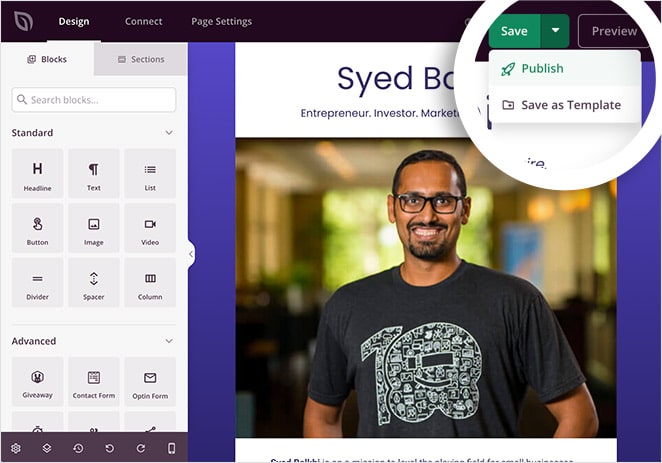
A continuación, verás una ventana emergente que te indica que tu página ya está activa.
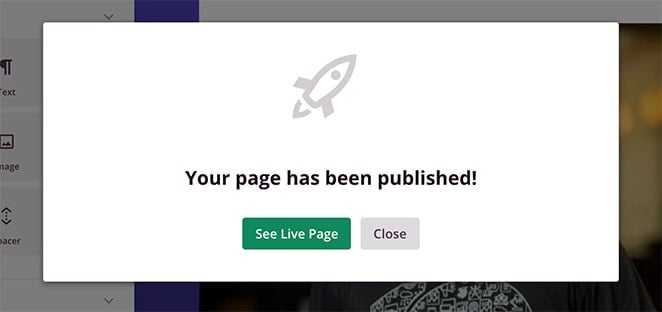
Haz clic en el botón Ver página en vivo para ver cómo se ve.

Consejo: Diseño del botón "Entrar al sitio web".
Uno de los patrones de pantalla de presentación más populares es una pantalla de introducción mínima con un solo botón "Entrar al sitio web" o "Haz clic para entrar". Para crear esto en SeedProd, limita tu contenido a tu logotipo y un titular, luego inserta un bloque de Botón con el texto de tu CTA apuntando a la URL de tu página de inicio.
Haz que el botón sea lo suficientemente grande como para tocarlo en el móvil. Este diseño funciona bien para pantallas de presentación de declaración de marca y sitios con contenido restringido.
Extra: Uso de SeedProd para un flujo de trabajo de lanzamiento completo.
Si estás creando un sitio nuevo, puedes usar el modo "Próximamente" de SeedProd como pantalla de presentación previa al lanzamiento mientras se construye el sitio, y luego cambiar a una página de presentación permanente en el momento en que te lances. Esto mantiene a tus visitantes informados en cada etapa, y es un flujo de trabajo que ningún constructor de terceros puede replicar, porque depende del modo "Próximamente" integrado de SeedProd.
¿Cómo mejoro mi página de presentación de WordPress con el tiempo?
La mejor manera de mejorar tu página de destino es realizar pruebas A/B y ver qué versión genera más resultados.
Las pruebas A/B (o pruebas divididas) comparan dos versiones de una página: la versión A (el control) y la versión B (con un cambio). Ese cambio puede ser una llamada a la acción diferente, un nuevo esquema de colores, un ajuste en el diseño o incluso un rediseño completo.
Al enviar tráfico a ambas versiones y rastrear las conversiones, sabrás qué diseño funciona mejor. Yo uso un enfoque de duplicar y probar con SeedProd: duplica tu página publicada, haz un cambio en el texto y alterna entre las dos para ver cuál obtiene más clics durante el mismo período de tráfico.
Si quieres una herramienta dedicada para pruebas divididas, VWO funciona con las páginas de SeedProd y te proporciona puntuaciones de confianza estadística para que no solo estés adivinando.
¿Cómo optimizo mi página de presentación de WordPress para SEO y velocidad?
Una página de presentación que carga lentamente o impide que Google acceda a tu contenido principal puede perjudicar tu SEO general. Aquí te explicamos qué hacer bien.
Mantenla ligera. Sin vídeo de reproducción automática, sin imágenes grandes sin comprimir, sin scripts que bloqueen la representación. Una pantalla de presentación más lenta es una peor primera impresión y los motores de búsqueda notan las páginas que retrasan el acceso a tu contenido.
Incluye un enlace visible de omitir o entrar. El rastreador de Google necesita una forma de pasar tu página de presentación para acceder a tu contenido principal. Si no hay un enlace de omisión, es posible que tu página de inicio no se indexe correctamente. Cada página de presentación que he creado con SeedProd incluye un botón o un enlace de texto que lleva a los visitantes (y a Google) directamente al sitio principal.
Prueba el rendimiento móvil antes de publicar. Tu pantalla de introducción es lo primero que ven los visitantes móviles. Si tarda más de 2 segundos en cargarse en un teléfono, una parte importante de tus visitantes se irá antes de haber visto nada más.
Usa un constructor que no añada sobrecarga. En mis pruebas de GTmetrix, SeedProd cargó en 556 ms, en comparación con los 1.882 ms de Elementor. Esa diferencia de 3,4 veces se refleja en tus Core Web Vitals y afecta la rapidez con la que Google puede acceder a tu contenido principal a través de la pantalla de presentación.
Ejemplos de páginas de presentación de WordPress
Ver páginas de presentación del mundo real es la forma más rápida de entender qué funciona. Estos cuatro ejemplos sirven para un propósito diferente, por lo que puedes modelar el que mejor se adapte a tu caso de uso.
Zara: Selector de país e idioma
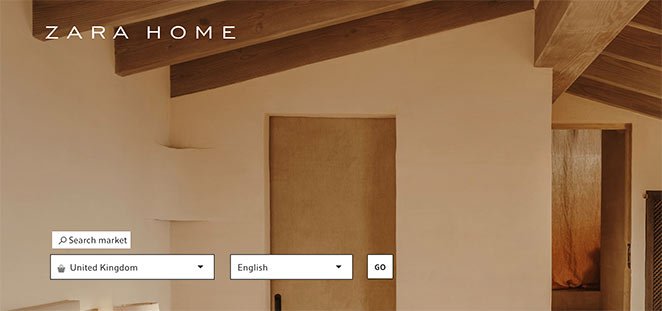
Los visitantes eligen su región antes de entrar en el sitio principal. Este es el caso de uso clásico de las marcas globales: la pantalla de presentación dirige a los compradores a la tienda localizada correcta, reduciendo el contenido irrelevante y la confusión de divisas.
Spritz Society: Puerta de verificación de edad
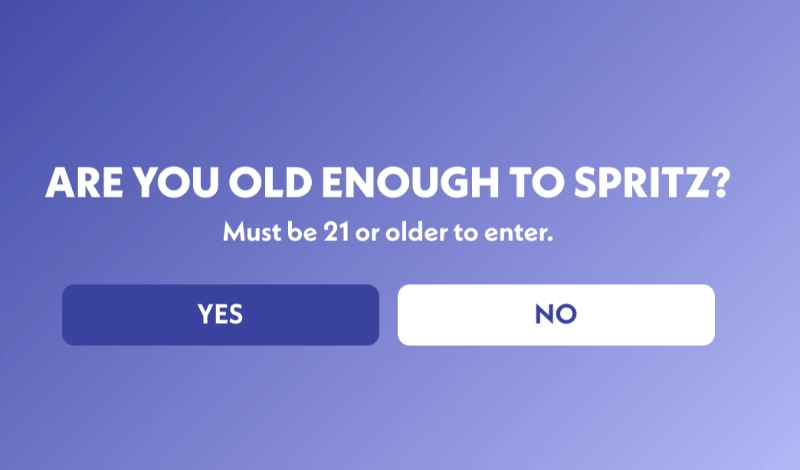
Texto mínimo, fondo degradado, un solo botón de sí/no. Un ejemplo limpio de cómo las marcas de alcohol y contenido restringido utilizan una pantalla de presentación para cumplir con los requisitos legales sin una gran carga de diseño.
Jack Daniel’s: Verificación de edad con entrada de fecha de nacimiento
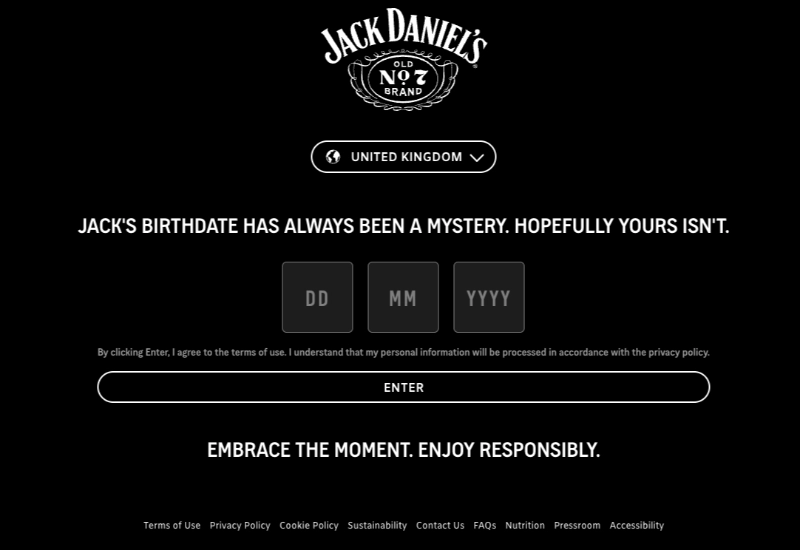
En lugar de un simple botón de sí/no, los visitantes introducen su fecha de nacimiento completa antes de que cargue el sitio. Este enfoque basado en formularios es el estándar para las principales marcas de licores y muestra cómo una puerta de edad puede ser fluida y, al mismo tiempo, cumplir con los requisitos de cumplimiento.
Shiseido: Selector de región e idioma
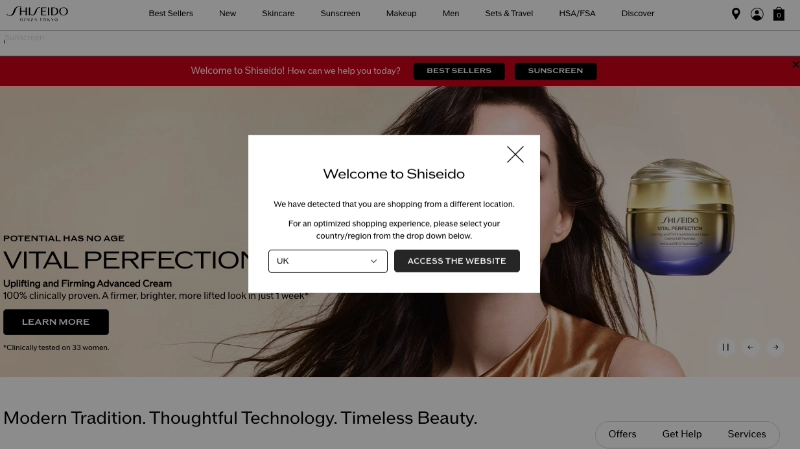
Los visitantes eligen su país antes de entrar, y la pantalla de presentación utiliza imágenes a pantalla completa y una indicación limpia de “Entrar” para establecer el tono antes de que cargue una sola página de producto. Muestra cómo un selector geográfico puede hacer más que dirigir el tráfico; puede comunicar quién eres.
Si deseas crear alguno de estos patrones con SeedProd, consulta la biblioteca de plantillas para encontrar un diseño que se parezca mucho a lo que buscas. También puedes empezar por las mejores prácticas para páginas de destino para obtener la estructura correcta antes de personalizar.
Preguntas frecuentes sobre páginas de destino de WordPress
¿Cuál es la diferencia entre una página de presentación y una página de "próximamente"?
Una página de presentación es una característica permanente de un sitio web activo. Aparece antes de tu página de inicio para cumplir un propósito específico (verificación de edad, recopilación de correos electrónicos o presentación de marca), mientras que tu sitio principal es completamente accesible detrás de ella.
Una página de "próximamente" es temporal. Reemplaza tu sitio principal mientras aún se está construyendo y se elimina una vez que lo lanzas. Las dos páginas se ven similares pero sirven para etapas completamente diferentes de la vida de un sitio.
¿Cómo muestro mi página de presentación de WordPress solo a los visitantes que la ven por primera vez?
SeedProd no tiene un filtro nativo de cookies para la primera visita, pero puedes lograrlo con algunos enfoques. Una opción es usar un plugin como Redirect Engine o un script de cookies ligero que establezca una marca después de la primera visita para que los visitantes recurrentes omitan la página de presentación automáticamente.
Otro enfoque es usar tu página de presentación como una página de "Próximamente" de SeedProd temporalmente, que se muestra solo a los visitantes que no han iniciado sesión; una buena opción si tu audiencia es principalmente tráfico nuevo.
¿Cómo elimino una página de presentación de WordPress?
En SeedProd, ve a SeedProd » Landing Pages desde tu panel de WordPress. Encuentra tu página de presentación en la lista y establece su estado en Borrador o haz clic en Eliminar.
Si utilizaste una redirección para dirigir a los visitantes a la página de presentación, asegúrate de eliminar también esa redirección para que los visitantes vayan directamente a tu página de inicio.
¿Cuál es la diferencia entre una página de presentación y una página de destino?
Una página de presentación es una breve pantalla de introducción que aparece antes de tu página de inicio. Tiene un enlace de omisión visible y no está diseñada para la conversión; está diseñada para un momento específico (anuncio, verificación, presentación de marca).
Una página de destino es una página independiente creada en torno a un objetivo de conversión, sin navegación ni enlaces de salida. Las páginas de destino se utilizan para campañas: captura de leads, ventas de productos, registros de seminarios web. Las dos cumplen funciones diferentes y no deben usarse indistintamente.
¿Las páginas de presentación de WordPress son malas para el SEO?
No si se construyen correctamente. Una página de presentación que carga rápido, incluye un enlace de omisión visible y no impide que el rastreador de Google acceda a tu contenido principal no perjudicará tus rankings.
Dónde las páginas de bienvenida causan problemas de SEO: tiempos de carga lentos que afectan a las Core Web Vitals, falta de enlaces de omisión que impiden a los rastreadores indexar tu página de inicio y ventanas emergentes intrusivas en dispositivos móviles (que Google penaliza). Mantén tu pantalla de bienvenida ligera y omisible y no será un problema.
¿Listo para crear la tuya? Con SeedProd, puedes crear y publicar una página de bienvenida profesional en una sola tarde.
También puedes encontrar útiles estas guías mientras configuras tu página de destino:
- Ejemplos de páginas de destino de eventos
- Mejores prácticas para páginas de destino
- Ejemplos de páginas de captura
- Ejemplos de páginas de "próximamente"
¡Gracias por leer! Nos encantaría conocer tu opinión, así que no dudes en unirte a la conversación en YouTube, X y Facebook para obtener más consejos y contenido útil para hacer crecer tu negocio.



