
TL;DR: How to Create a FAQ Page in WordPress (With Schema in 5 Steps)
You can create a WordPress FAQ page in about 20 minutes using SeedProd and All in One SEO—no coding needed.
- Install SeedProd: Download and activate SeedProd Pro, then head to SeedProd » Landing Pages.
- Choose a template: Pick any landing page template from the library and name your page.
- Add your FAQ section: Use a pre-made FAQ section or build one with SeedProd’s Accordion block.
- Add FAQ schema: Install All in One SEO, open Page Settings, and enter your questions in the FAQ schema template.
- Publish: Click the Publish button and your FAQ page goes live with schema markup in place.
When I built my first FAQ page in WordPress, I wasn’t thinking about SEO. I just wanted to stop answering the same support emails over and over.
But once it started pulling in search traffic I hadn’t planned for, I realized a FAQ page does more than clear your inbox. Done right, it can pull in search traffic you weren’t expecting.
In this guide, I’ll walk you through how to create a FAQ page in WordPress step by step, without writing a single line of code, and how to add FAQ schema markup to improve your search visibility.
Why Add a FAQ Page to Your WordPress Site?
A WordPress FAQ page improves SEO by targeting long-tail questions visitors are already searching, showing up in People Also Ask results, and reducing bounce rate by answering follow-up questions before readers leave.
A good FAQ page also builds trust, removes purchase hesitation, and keeps your inbox quieter.
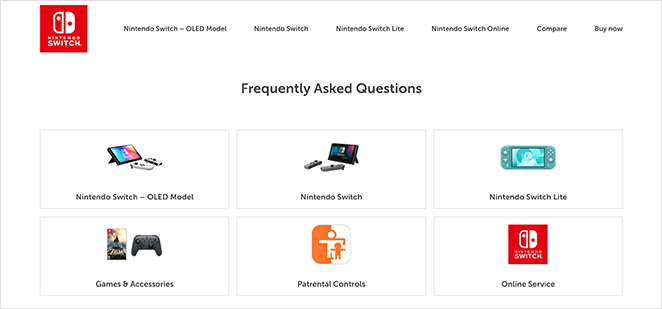
On the SEO side, FAQ schema markup helps AI search tools like Perplexity and ChatGPT cite your content, and can still appear as rich results on mobile. The standard Google FAQ accordion in desktop results was pulled for most sites in August 2023, but the structured data still carries real value for AI-driven search and voice queries.
It’s also worth knowing the difference between a FAQ page and a FAQ section.
A FAQ page is a standalone page (at example.com/faq) that covers all your questions in one place. A FAQ section is a block embedded on another page, like your homepage or a product page, covering questions relevant to that specific page. Both use the same schema markup.
What Makes a Great FAQ Page?
- Clear structure with categories or accordions
- Concise, helpful answers
- Schema markup to show up in search
- Links to more info (like your knowledge base)
- A search bar so visitors can find answers fast
- Calls-to-action to turn answers into leads
If you need ideas or inspiration, here’s a roundup of some of the best FAQ page examples I’ve seen.
How to Create a Custom FAQ Page in WordPress
Here’s how to create a custom FAQ page in WordPress with the schema markup that gives your content the best chance of appearing in AI-driven search results and mobile rich results.

To do that, I’ll use 2 powerful WordPress plugins. Neither requires complex coding or additional WordPress FAQ plugins.
SeedProd is a drag-and-drop visual website builder for WordPress that lets you design any page visually without touching code. It uses a block-based approach, so you can build and preview your entire FAQ page in real time. It even has pre-made FAQ sections that take seconds to drop in.

All in One SEO (AIOSEO) is the best WordPress SEO plugin for handling schema markup. AIOSEO handles the schema for you. You enter your questions and answers in its settings panel and it generates the JSON-LD automatically.
Ready to build your FAQ page? Follow the steps below.
Step 1. Install the SeedProd Plugin
To get started, head to the SeedProd website and download the SeedProd Pro plugin. Then upload the plugin to your WordPress website and activate it.
For help with this step, you can see this helpful guide on installing and activating a WordPress plugin.
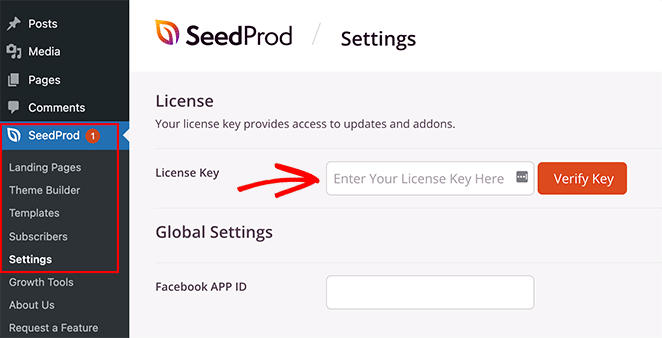
Now navigate to the SeedProd » Settings page, enter your plugin license key, and click the Verify Key button.
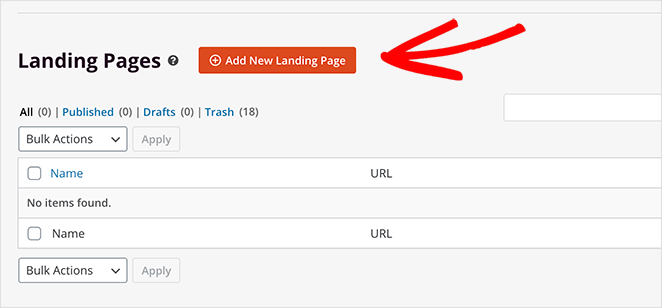
After activating your key, head to SeedProd » Landing Pages. You won’t need the special pages at the top (Coming Soon, Maintenance, 404, Login), so scroll down to the Add New Landing Page button and click it.
Step 2. Choose a Landing Page Template
After clicking the button to add a new landing page, you’ll see a library of pre-made templates. Every landing page template is 100% mobile responsive and customizable with SeedProd’s visual page builder.
The templates are a starting point for your FAQ page. In the next step, you can customize every part of your template to suit your business needs.
For now, click through the library until you find a design you like, then hover over it and click the checkmark icon.
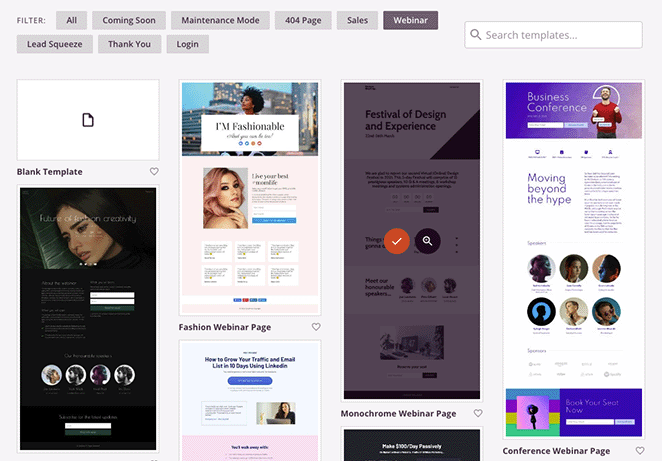
I’m using the Monochrome Webinar page because it doesn’t have a FAQ section. I’ll show you how to add one next.
After choosing your template, you’ll see a small popup window where you can enter a name for your page, such as “Frequently Asked Questions.”
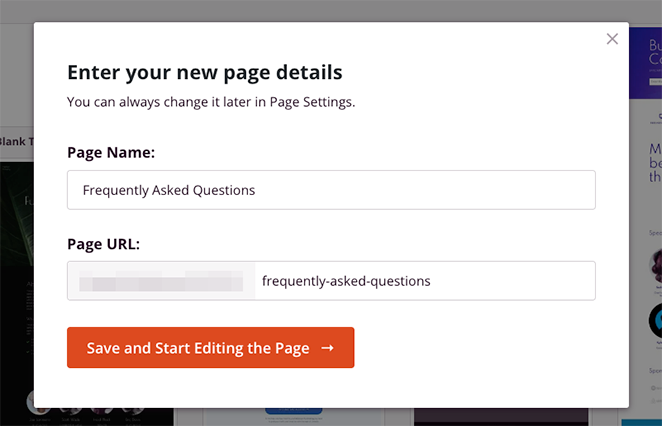
Once you’ve entered your page name, click the Save and Start Editing the Page button.
Step 3. Customize Your FAQ Page Design
On the next screen, your template will open in SeedProd’s drag-and-drop builder. This is where you customize your page using WordPress blocks and sections.

One of the first things you’ll need to do is change the page headline to something more relevant. To do that, click the headline until it has an orange border, then enter your custom headline text.
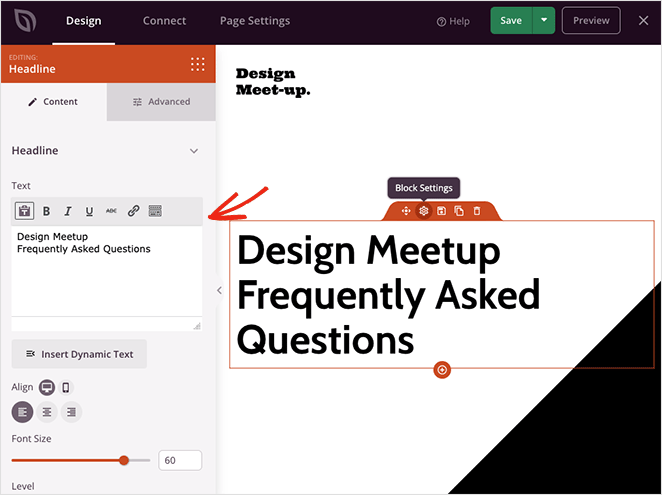
On the left side of the page are the headline block settings. You can also type your new headline in this area and change the headline size, heading level, and alignment.
Now do the same to the next headline on the page.
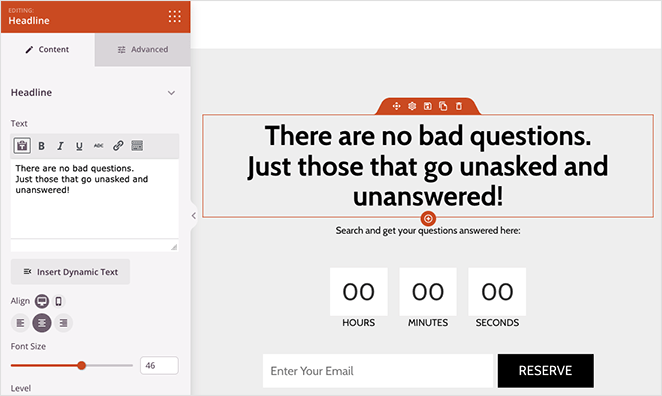
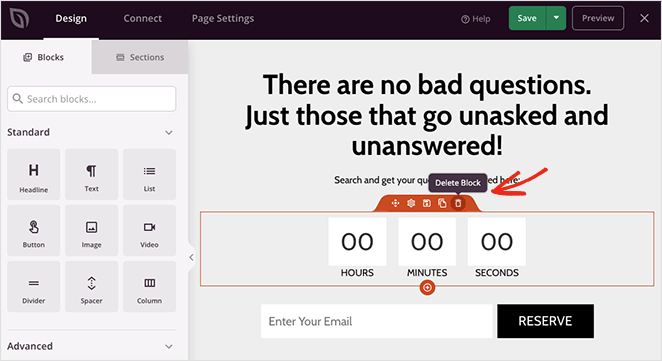
As you can see, this template has a countdown timer and opt-in form below the second headline. I don’t need those for a FAQ page, so delete them by hovering over each block and clicking the trashcan icon.
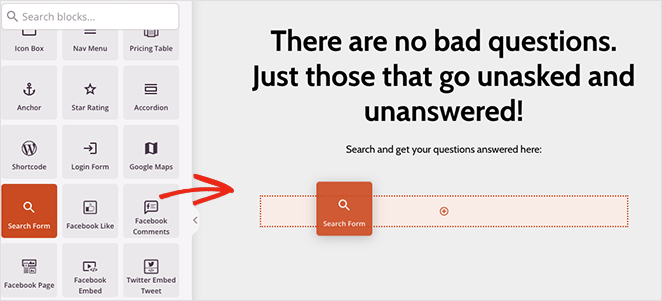
Instead of those blocks, add a search box so visitors can search for specific questions and answers. Find the Search Form block and drag it onto your page.
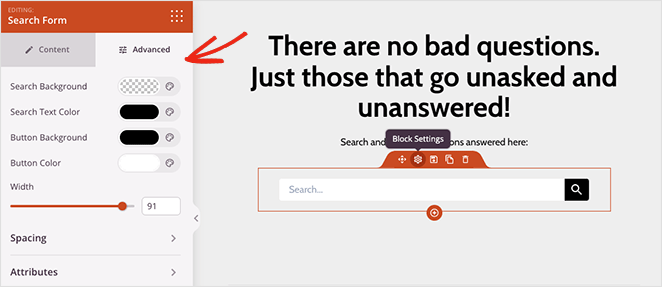
If you open the Advanced settings tab for this block, you can customize the button and icon colors, spacing, and more. This turns your page into a searchable FAQ that visitors can actually navigate quickly.
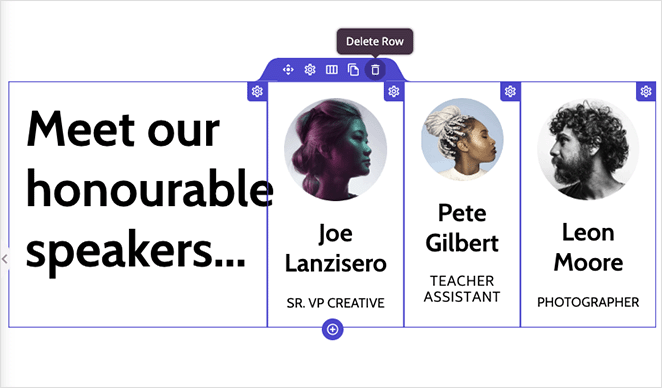
Now scroll through the rest of the template and remove any blocks and sections you don’t need.
Now it’s time to add your collapsible FAQ section. You can either build one with the SeedProd Accordion block or drop in one of the pre-made FAQ sections.
To find the FAQ sections, click the Sections tab, select the FAQ heading and choose an accordion FAQ design you like.
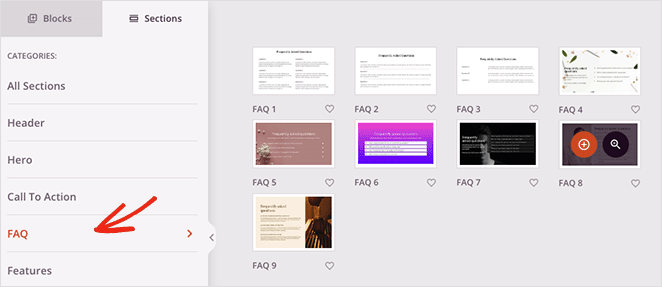
SeedProd’s pre-made FAQ sections are the fastest part of this setup. I had mine in place and customized in under 5 minutes.
SeedProd will add the section at the bottom of your landing page. You can quickly move it to the right place by opening the layout navigation panel and dragging the section upwards.
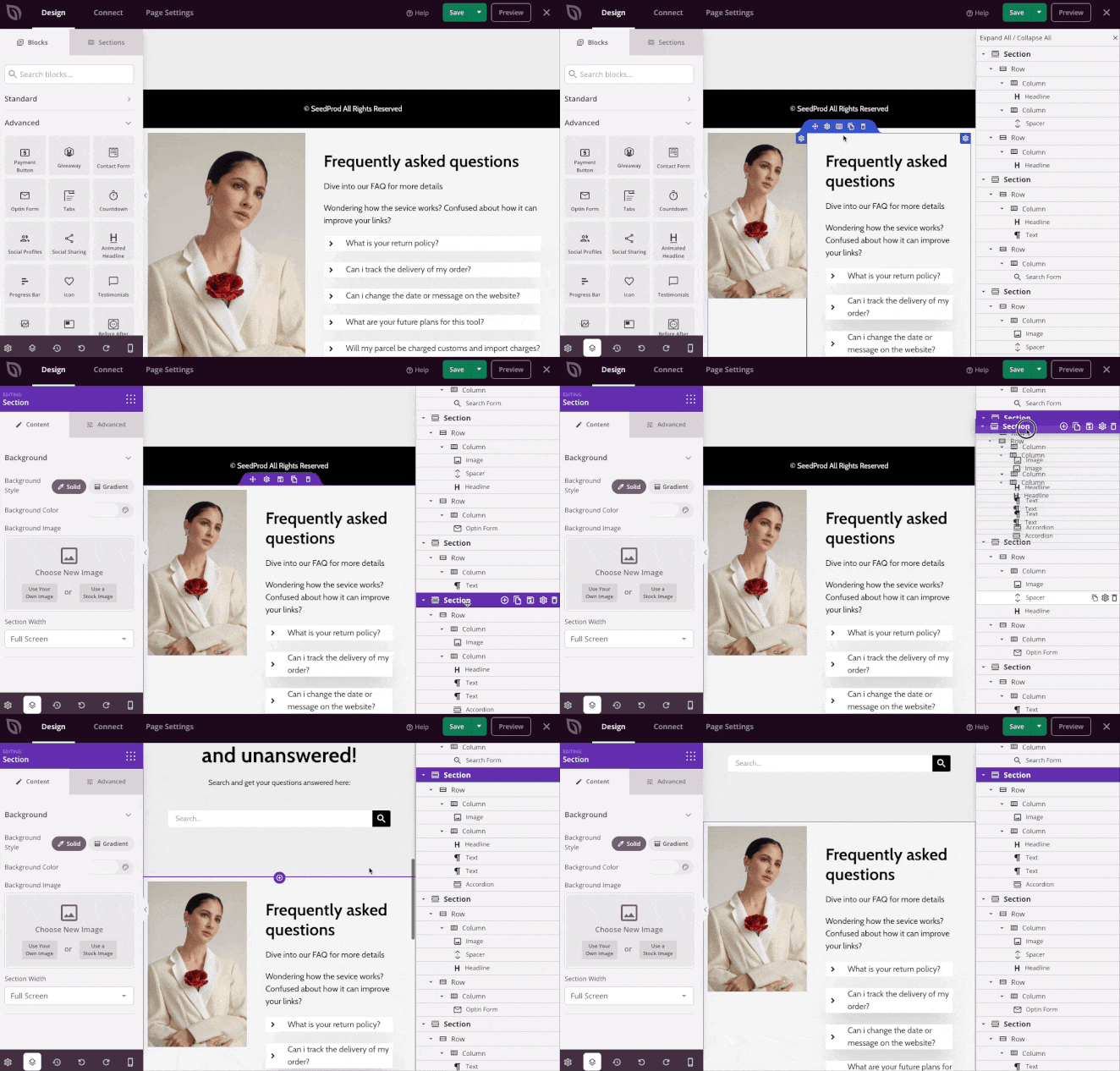
From there, customize the section by replacing the image, changing the heading text, and adding your own FAQs.
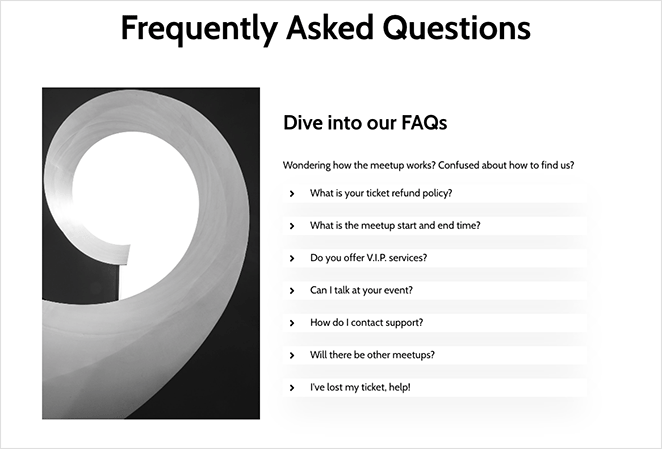
The FAQ section uses SeedProd’s Accordion block to create collapsible FAQ sections for each question and keep the page clean.
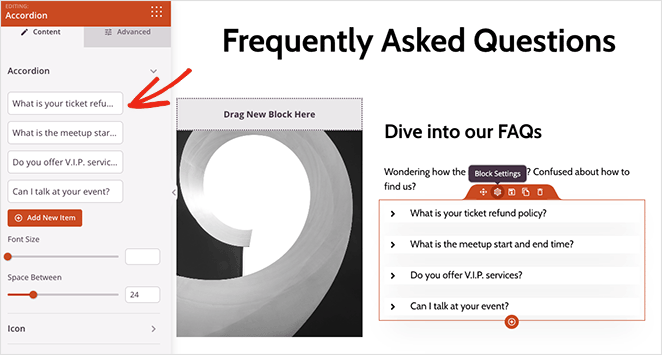
You can add as many FAQ answers as necessary. And remember, you can add internal links to separate pages that may have more detailed information, such as your contact page or support ticketing system.
When you’re happy with your FAQ landing page, click the Save button, then exit by clicking the X icon.
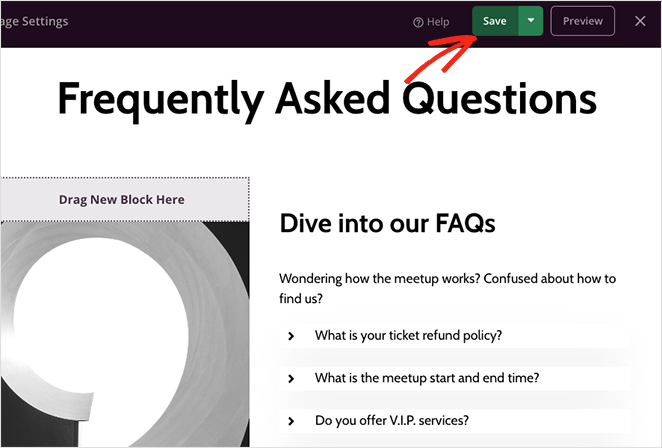
This will save your page as a draft. Next, you’ll set up the SEO plugin to add FAQ structured data to your landing page.
Step 4. Add FAQ Schema with All in One SEO
For the next step, you’ll need to install and activate the All in One SEO plugin. This lets you optimize your landing page for search engines and add the correct schema markup.
Here’s a helpful step-by-step guide on how to install All in One SEO Pro. From there, you can follow the quick setup wizard, which helps you configure the plugin for your website.
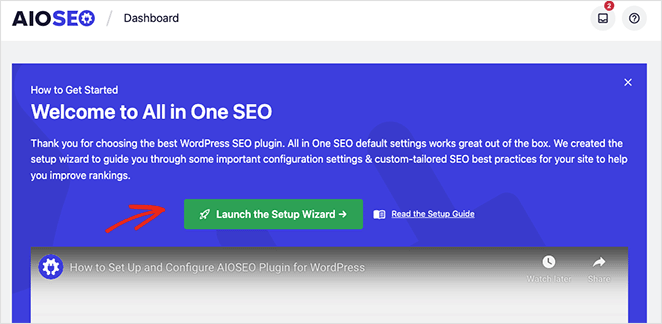
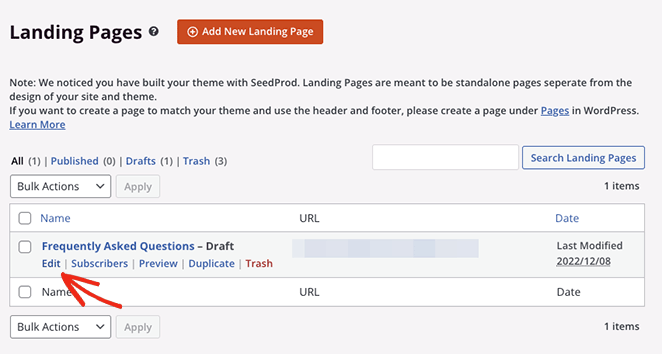
After configuring All in One SEO, go back to SeedProd » Landing Pages and click the Edit link below the page you made earlier.
Once you’ve done that, click the Page Settings tab at the top of the screen, then expand the SEO heading.
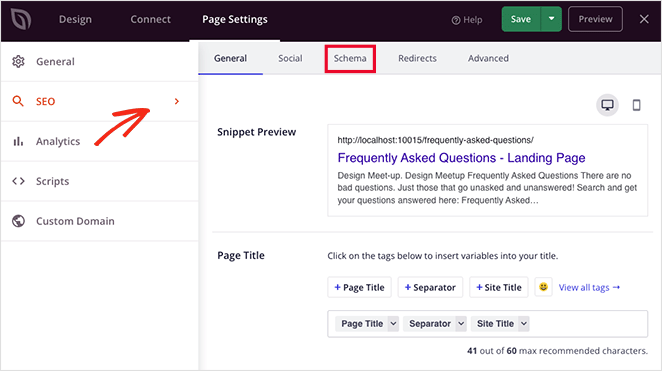
On this screen, you can enter custom meta information for your FAQ page with AIOSEO, including:
- Page Title
- Meta Description
- Focus Keyphrase
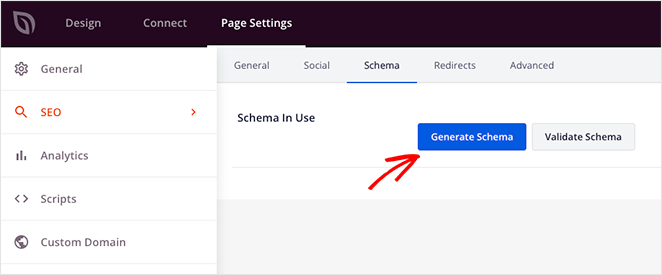
You can also click the Schema tab to see the current schema markup for your page. I’ll set this up now, so click the Generate Schema button.
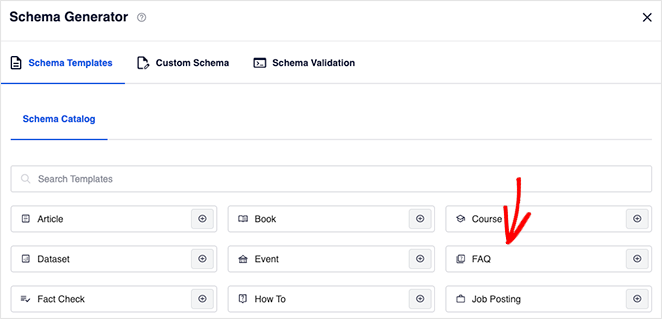
On the next screen, you can choose from several pre-made schema templates. For this type of page, select the FAQ option.
Now enter a page title and description.
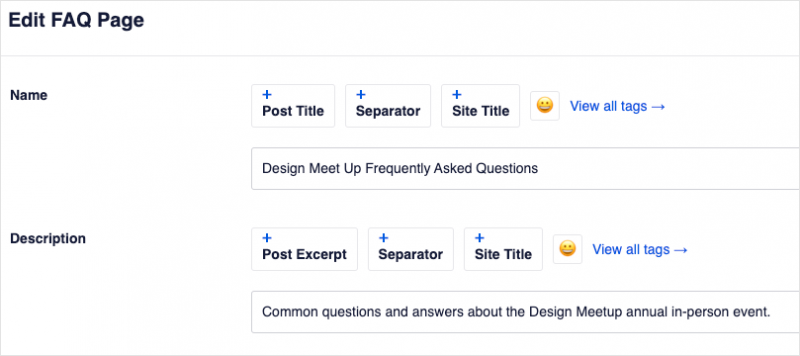
You can then scroll down and enter your page’s frequently asked questions and answers. Your website visitors won’t see this as duplicate content; it helps AI search tools like Perplexity and ChatGPT understand and cite your content, and can also improve visibility in mobile rich results.
After adding your first question, click the Add Another Question link to add more, then click the Update Schema button when you’re finished.
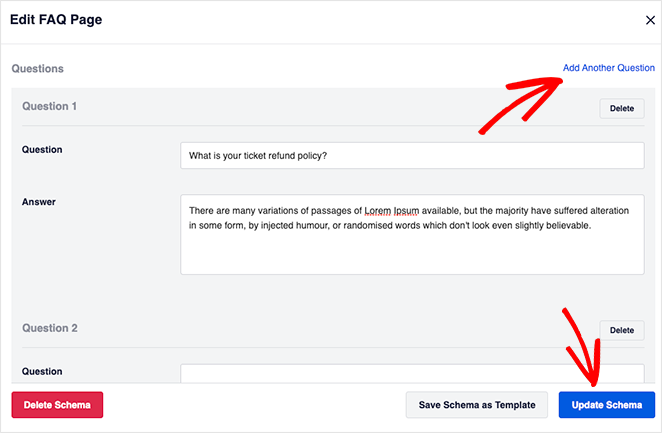
Ensure each question includes relevant keywords that users are likely to search for. For example, instead of ‘Do you offer free shipping?’ you might use ‘Does [Your Brand] offer free shipping?’
That’s all there is to it. With your FAQ structured data in place, your page is ready to be cited by AI search tools and appear in mobile rich results.
There are several other ways to optimize your landing page with SeedProd’s settings:
- Install MonsterInsights, the best Google Analytics plugin for WordPress, to monitor your landing page’s performance
- Enter custom header, body, and footer scripts
- Choose a custom domain name for your FAQ page
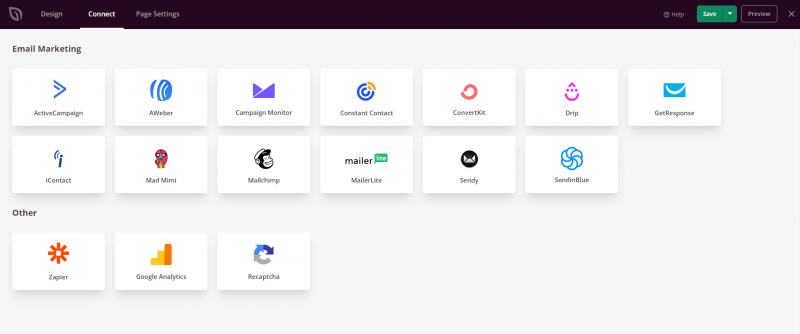
You can also click the Connect tab to integrate an email marketing service with SeedProd’s opt-in form block.
Step 5. Publish Your FAQ Landing Page
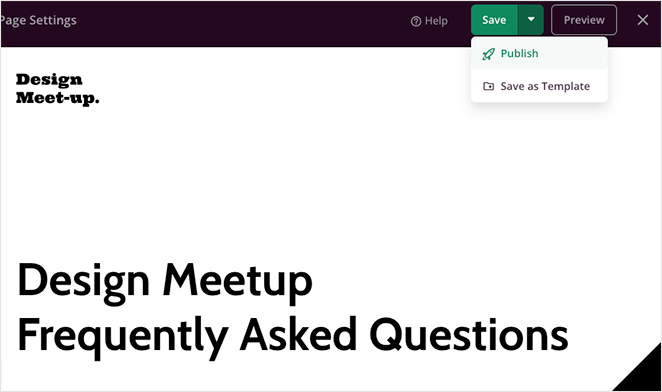
With your FAQ page settings in place, you’re ready to publish and make it live for your audience. Navigate to the Save button, click the dropdown arrow and click Publish.
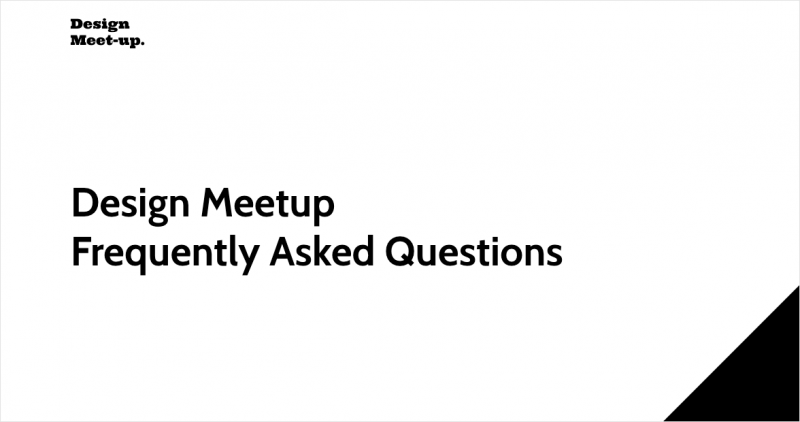
Now you can visit the page and see it in action. Below are some screenshots of the FAQ page I’ve made with SeedProd.
Hero area example:
FAQ page search example:

Questions and answers accordion example:
Opt-in form example:

Remember to update your FAQ page regularly with new questions and remove outdated information. Use analytics tools like Google Analytics to track the performance of your FAQ page and identify areas for improvement.
With your FAQ page live, you can now take it further by building a custom WordPress theme with SeedProd to give your whole site a consistent look.
Tips for Writing Better FAQ Answers
The FAQ page structure gets you found. How you write the answers determines whether visitors actually trust you.
- Keep answers under 60 words. Concise answers are easier to scan and more likely to surface as featured snippets.
- Lead with the direct answer first. State the answer in the first sentence, then add context. Don’t make visitors read to the end to find out.
- Include a keyword from the question naturally. If someone asks “Does X offer free shipping?”, your answer should include “free shipping” in the first sentence.
- Link to a full explanation when the question needs more depth. A FAQ answer shouldn’t try to cover everything. Link to a dedicated page or guide when you need to.
More Questions About FAQ Pages
Do I need a plugin to create a FAQ page in WordPress?
No. WordPress has a built-in Details block (available since WordPress 6.1) that creates a basic collapsible FAQ section without any plugin. If you only need a simple accordion on an existing page, you can use that.
If you want a fully designed standalone FAQ page with a search bar, custom branding, and schema markup built in, a plugin like SeedProd gives you far more control without requiring any coding.
How do I make my WordPress FAQ page show up in Google search results?
Add FAQ schema markup (also called FAQPage structured data) to your page using a plugin like All in One SEO. AIOSEO lets you enter your questions and answers in its Schema settings panel, and it generates the JSON-LD markup automatically.
Google pulled FAQ rich results for most websites in August 2023, so you won’t see expandable accordions in desktop search results. However, FAQ schema still helps AI tools like Perplexity and ChatGPT cite your content, and can still appear in mobile rich results and voice search.
What’s the best format for a WordPress FAQ page (accordion or list)?
Accordion format is almost always better for FAQ pages with more than five or six questions. It lets visitors scan question headings quickly without scrolling through walls of text.
A flat list works fine for very short FAQ sections (three to four questions) on a product or landing page. For a dedicated FAQ page, stick with accordion. SeedProd’s pre-built FAQ sections use accordion format by default.
How many questions should a FAQ page have?
There’s no fixed number, but most effective FAQ pages have between 10 and 30 questions. Fewer than 10 and you’re probably missing real questions people have. More than 30 and the page becomes hard to navigate without a search bar.
If you have a large number of questions, organize them into categories so visitors can find what they need without reading everything. For examples of how real businesses structure their FAQ pages, see the best FAQ page examples I’ve pulled together.
Can I add a FAQ section to an existing WordPress page?
Yes. If your page is built with SeedProd, go to SeedProd » Landing Pages, open the page, click the Sections tab, and drop in a pre-made FAQ section wherever you need it.
If you’re working with the WordPress block editor, add a Details block for each question or install an accordion plugin. You can use AIOSEO’s FAQ schema settings to add structured data to any page, not just standalone FAQ pages.
Your FAQ Page Is Live. Now What?
Your support inbox just got a lot quieter.
There’s a lot more you can do with SeedProd, including creating a custom WordPress theme, building an online store, and editing your homepage.
You can optimize them all for search engines with All in One SEO.
Thanks for reading! We’d love to hear your thoughts, so please feel free to join the conversation on YouTube, X and Facebook for more helpful advice and content to grow your business.