


Una actualización de plugin corrompe tu base de datos. Una mala instalación de tema deja tu sitio en blanco. Pulsas restaurar y te das cuenta de que no hay nada a lo que restaurar.
He visto que esto sucede más veces de las que me gustaría. Es un mal día para cualquiera, pero es un día mucho peor si tu sitio genera ingresos o lo has estado construyendo durante años.
He hecho copias de seguridad de docenas de sitios de WordPress y WooCommerce, y el proceso es más sencillo de lo que la mayoría de la gente espera. En esta guía, te mostraré cómo hacer una copia de seguridad de un sitio de WordPress paso a paso, desde el método de plugin más fácil hasta opciones manuales usando cPanel y phpMyAdmin.
- Métodos de copia de seguridad de WordPress comparados
- ¿Tu proveedor de hosting hace copias de seguridad de tu sitio?
- Cómo hacer una copia de seguridad de un sitio de WordPress con un plugin
- Cómo hacer una copia de seguridad de un sitio de WordPress manualmente
- Cómo hacer una copia de seguridad manual de la base de datos de WordPress
- Cómo restaurar un sitio de WordPress a partir de una copia de seguridad
- Cómo probar tu copia de seguridad de WordPress
- Solución de problemas de copias de seguridad de WordPress
Resumen rápido: Cómo hacer una copia de seguridad de un sitio de WordPress
Para hacer una copia de seguridad de un sitio de WordPress, necesitas guardar dos cosas: tu base de datos y los archivos de tu sitio. La forma más fácil es usar un plugin de copias de seguridad como Duplicator Pro. Te permite programar copias de seguridad automáticas y restaurar tu sitio con un solo clic. También puedes crear copias de seguridad manuales usando cPanel o phpMyAdmin si prefieres más control.
Métodos de copia de seguridad de WordPress comparados
Hay tres formas principales de hacer una copia de seguridad de un sitio de WordPress. La correcta depende de tu comodidad con las herramientas técnicas y de cuánto control quieras sobre la programación y el almacenamiento.
| M extasciitildeetodo | Herramientas necesarias | Nivel de habilidad | ¿Se puede programar? | Mejor para |
|---|---|---|---|---|
| Plugin (Duplicator Pro) | Plugin Duplicator Pro | Principiante | ✅ S extasciitildei | La mayoría de los usuarios de WordPress |
| Manual vía cPanel | Panel de hosting | Intermedio | ❌ No | Copias de seguridad básicas a nivel de archivo |
| Manual vía phpMyAdmin | Acceso a la base de datos | Avanzado | ❌ No | Copia de seguridad solo de la base de datos |
Esta tabla muestra tus opciones principales. Si no estás seguro de por dónde empezar, te recomiendo usar un plugin como Duplicator Pro. Es lo que uso en la mayoría de los sitios que gestiono.
¿Qué es una copia de seguridad de WordPress?
Una copia de seguridad de WordPress es una copia duplicada de los datos de tu sitio web que guardas en una ubicación segura. Con una copia de seguridad, creas un punto de restauración bajo demanda al que puedes revertir si algo sale mal.
Una copia de seguridad de WordPress incluye dos componentes clave:
- La base de datos, que contiene tus publicaciones, comentarios e información de usuario
- Los archivos del sitio, como tus temas, plugins y medios
Juntos, son el plano de tu sitio, por lo que necesitas mantener ambos protegidos.
¿Por qué hacer una copia de seguridad de WordPress?
Hacer una copia de seguridad de tu sitio de WordPress puede salvarte de la pérdida de datos. Si accidentalmente eliminas algo por error humano, tu sitio falla o una actualización no sale como se esperaba, una copia de seguridad puede restaurar tu sitio a como estaba.
Si tu sitio alguna vez es hackeado o sufre malware, una copia de seguridad reciente significa que puedes recuperarte rápidamente.
Según Astra Security, 30.000 sitios web son hackeados cada día. Esto enfatiza la necesidad de copias de seguridad para recuperarse de posibles brechas de seguridad.
Las copias de seguridad regulares ayudan a mantener tu sitio funcionando sin problemas y de forma segura. Para más información sobre cómo reducir tu superficie de ataque, consulta cómo proteger tu sitio de WordPress de los hackers.
¿Tu proveedor de hosting hace copias de seguridad de tu sitio?
La mayoría de los proveedores de hosting crean copias de seguridad automáticas del servidor, y es tentador depender de ellas como tu única solución de copia de seguridad. Para la mayoría de los sitios, eso no es suficiente.
Las copias de seguridad del hosting tienen limitaciones reales que debes conocer:
- La retención es corta. La mayoría de los hostings conservan entre 7 y 30 días de copias de seguridad. Si te pierdes esa ventana, esas instantáneas desaparecen.
- La restauración es lenta. Restaurar una copia de seguridad del hosting generalmente significa abrir un ticket de soporte y esperar horas o más. No es un proceso de un solo clic.
- La cobertura varía. Algunos planes solo hacen copias de seguridad a nivel de servidor, no de tus tablas de base de datos individuales o estructura de archivos. Lo que realmente se incluye depende de tu nivel de hosting.
- No están fuera del sitio. Las copias de seguridad del hosting residen en la misma infraestructura de servidor que tu sitio. Un fallo grave del servidor puede dejar tu sitio y sus copias de seguridad fuera de línea al mismo tiempo.
Trato las copias de seguridad del hosting como un último recurso, no como una estrategia principal. Un plugin dedicado te da control sobre lo que se respalda, cuándo se ejecuta y exactamente a dónde van esos archivos. Si todavía estás eligiendo un hosting, consulta nuestra guía de hosting de WordPress para opciones que facilitan las copias de seguridad.
Cómo hacer una copia de seguridad de un sitio de WordPress con un plugin
Usar un plugin de copias de seguridad es la forma más fácil de proteger tu sitio de WordPress. Una vez que lo configuras, el plugin se encarga de todo según un horario, para que no tengas que recordar ejecutar las copias de seguridad manualmente.
Si ya estás usando UpdraftPlus, vas por buen camino. Es una opción gratuita sólida que cubre lo básico. Para esta guía, estoy usando Duplicator Pro, uno de los mejores plugins de copia de seguridad de WordPress.
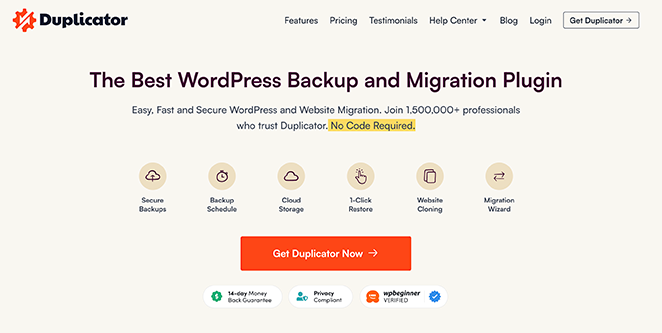
Con más de 1.500.000 usuarios, facilita la copia de seguridad y la migración de todo tu sitio.
Además, la versión Pro que estamos usando incluye estas características avanzadas:
- Copias de seguridad programadas y diarias
- Puntos de recuperación de un solo clic
- Herramienta de migración
- Integración de almacenamiento en la nube fuera del sitio
- Y m ilde;s.
Configurar Duplicator Pro
Lo primero que necesitas hacer es instalar y activar Duplicator Pro. Si necesitas ayuda con esto, por favor consulta este tutorial sobre cómo instalar un plugin de WordPress.
Después de activar el plugin, navega a Duplicator Pro » Ajustes desde tu panel de WordPress y selecciona la pestaña ‘Licencias’.
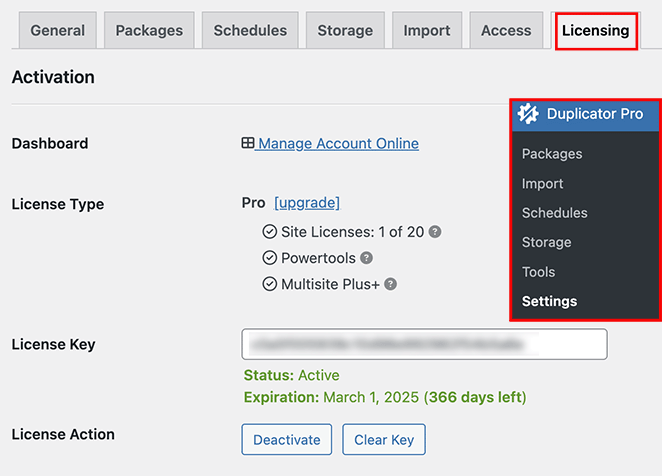
Aquí, introduce tu clave de licencia de Duplicator Pro y haz clic en ‘Activar’.
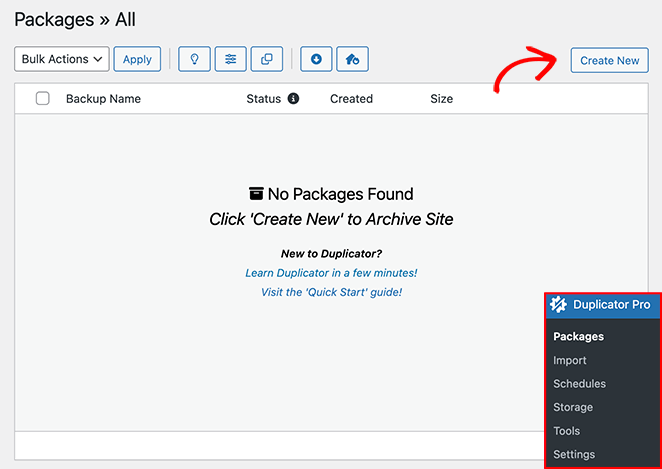
Ahora, ve a Duplicator Pro » Paquetes. Dentro de esta sección, puedes hacer una copia de seguridad de tu sitio web de WordPress.
Haz una copia de seguridad de tu sitio web de WordPress
Obtener tu primera copia de seguridad es tan fácil como hacer clic en ‘Crear Nuevo’ y seguir las instrucciones.
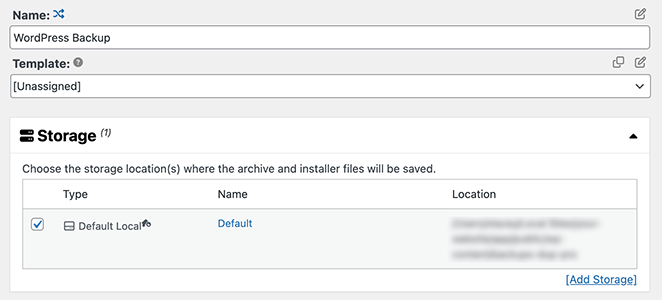
Puedes nombrar tu copia de seguridad y decidir dónde guardarla.
Duplicator selecciona inicialmente la ubicación de almacenamiento predeterminada, que es el almacenamiento local en nuestro ejemplo. Sin embargo, también puedes hacer clic en ‘Añadir almacenamiento’ para agregar más ubicaciones, como Google Drive o Dropbox.
Ahora, desplacémonos hacia abajo hasta la sección de archivo. Aquí es donde defines qué partes de tu sitio de WordPress quieres respaldar.
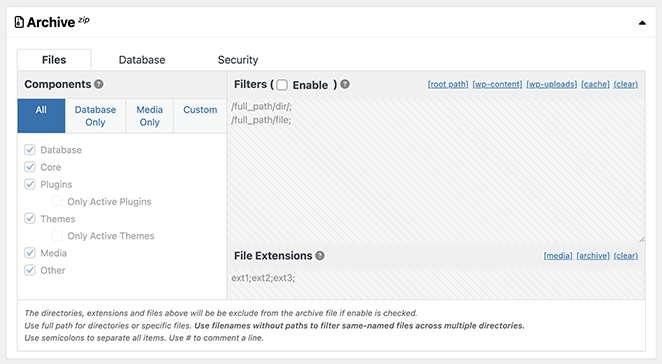
Los filtros de archivos te permiten excluir directorios específicos de tu copia de seguridad si es necesario. La sección de copia de seguridad de la base de datos te permite excluir selectivamente tablas específicas. Esto es útil si deseas optimizar tus copias de seguridad o excluir segmentos irrelevantes y voluminosos.
Recomiendo mantener la configuración predeterminada si deseas hacer una copia de seguridad de todo tu sitio de WordPress.
Ahora, hablemos de la sección del instalador.
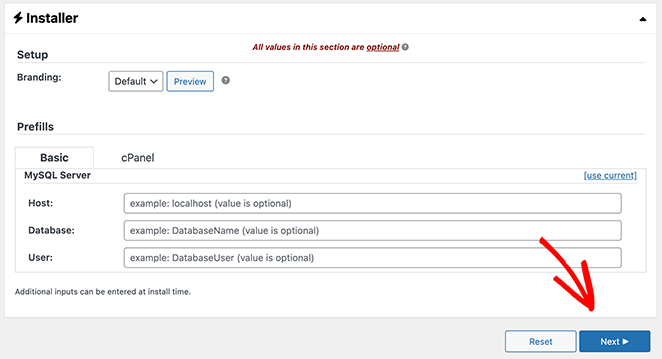
El instalador es un script que Duplicator crea junto con la copia de seguridad de tu sitio. Cuando sea el momento de restaurar o migrar tu sitio, ejecutarás este script instalador, y este desempaquetará la copia de seguridad y configurará todo por ti.
No necesitas hacer nada en esta sección durante el proceso de configuración. Simplemente haz clic en el botón ‘Siguiente’ y déjalo como está.
Duplicator escanea tu sitio y marca cualquier cosa que pueda ralentizar o bloquear la copia de seguridad.
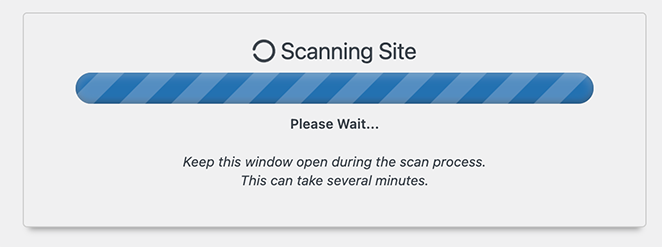
Una vez completada esta verificación, verás un informe de estado.
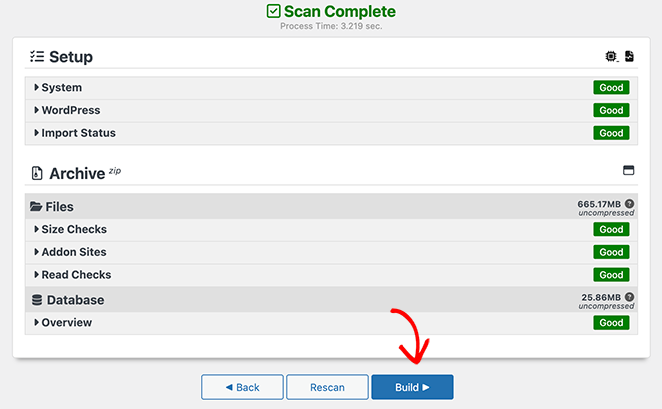
Este informe tiene detalles como el tamaño de tu base de datos y archivos. También marca posibles problemas para que puedas solucionarlos antes de continuar.
Para continuar, haz clic en el botón ‘Construir’.
Cuando haces clic en ‘Construir’, Duplicator se pone a trabajar haciendo una copia de seguridad de tu sitio de WordPress. Verás una barra de progreso que te muestra cómo va. Los sitios más grandes tardan más en respaldarse, así que no te preocupes si no es instantáneo.
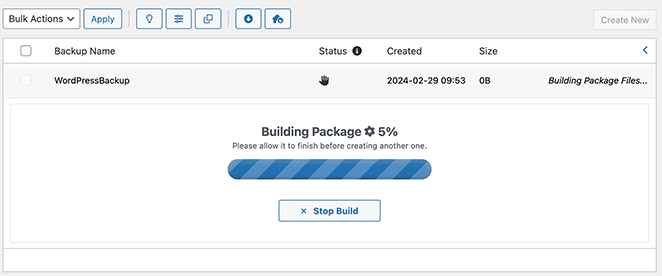
Cuando termine, ve a Duplicator Pro » Paquetes para encontrar tu paquete de copia de seguridad.
Selecciona la opción Descargar, y verás dos archivos.
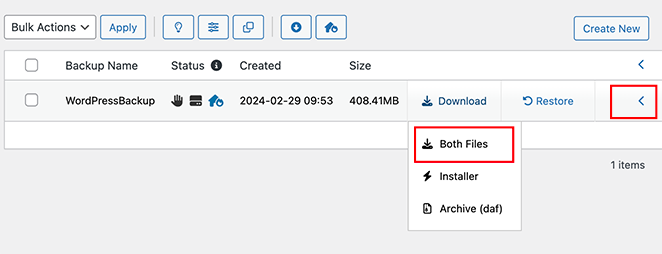
El primero es tu archivo de archivo, que es básicamente una copia comprimida de tu sitio. El segundo es un script instalador para ayudarte a reinstalar tu sitio si es necesario.
Selecciona la opción ‘Ambos archivos’ para guardarlos en tu ordenador. Guarda ambos archivos en un lugar seguro. Los necesitarás si alguna vez tienes que restaurar tu sitio.
Crea un Punto de Recuperación para Restaurar tu Sitio
Utilizo los puntos de recuperación como una red de seguridad. Si algo falla, puedo revertir el sitio a su última versión funcional en segundos. Es útil si te enfrentas a un error crítico porque puedes restaurar tu copia de seguridad. De esta manera, puedes revertir tu sitio a la última versión estable.
Para crear uno, navega a Duplicator Pro » Paquetes y haz clic en el icono de flecha en el lado derecho para ver los detalles del paquete.
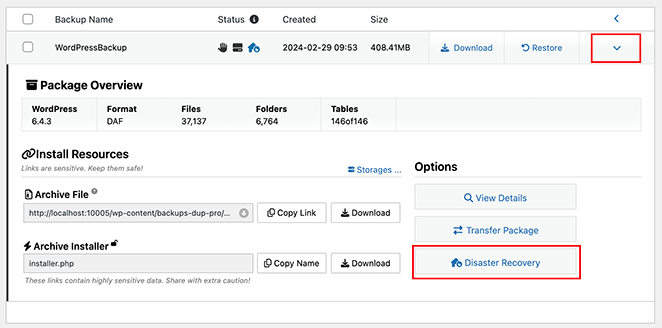
En este panel, haz clic en el botón ‘Recuperación ante desastres’.
Esto abre una nueva ventana que muestra que la Recuperación ante desastres está disponible para la copia de seguridad. Continúa y haz clic en el botón ‘Establecer Recuperación ante desastres’.
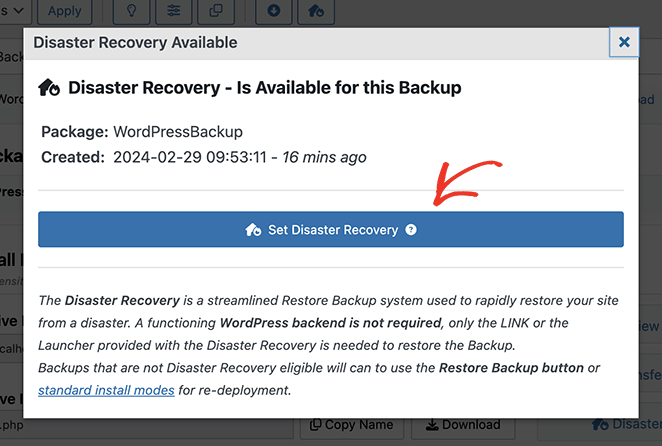
Una vez que el punto de recuperación esté establecido, verás dos opciones.
La primera es descargar el Lanzador de Recuperación. Con esto, puedes recuperar tu sitio con un solo clic del archivo descargado.
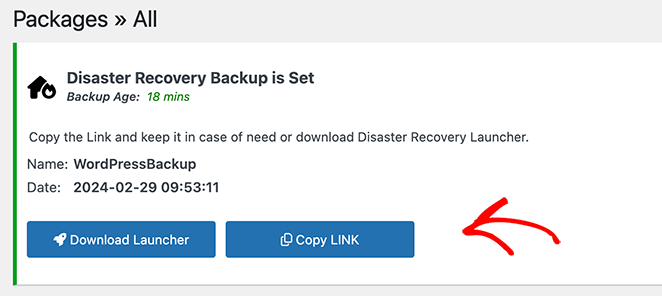
Alternativamente, puedes copiar la URL de recuperación a tu portapapeles y guardarla en un lugar seguro. Luego, si necesitas recuperar tu sitio, solo tienes que hacer clic en ese enlace.
Programar copias de seguridad automáticas de WordPress
Programar copias de seguridad automáticas con Duplicator Pro es una forma fácil e inteligente de mantener tu sitio seguro sin mucho trabajo. También significa que siempre tendrás una copia de seguridad reciente para usar, lo que ahorra tiempo.
Para configurar esto, haz clic en el menú Duplicator Pro y selecciona ‘Programaciones’. Desde aquí, haz clic en ‘Añadir nueva’ para crear una nueva programación.
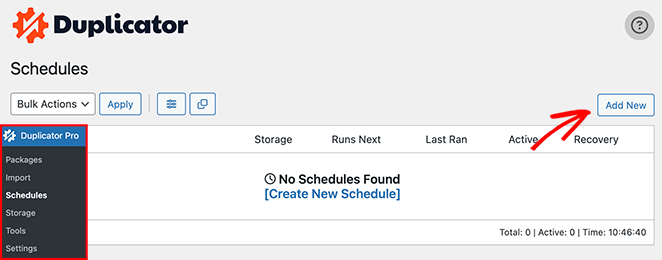
Esto te llevará a una página donde puedes organizar tu programación de copias de seguridad automáticas.
En esta página, puedes nombrar tu programación, decidir si quieres una copia de seguridad completa o solo la base de datos, y elegir la frecuencia con la que quieres que ocurran las copias de seguridad. Puedes elegir copias de seguridad diarias, semanales o mensuales y seleccionar la hora del día.
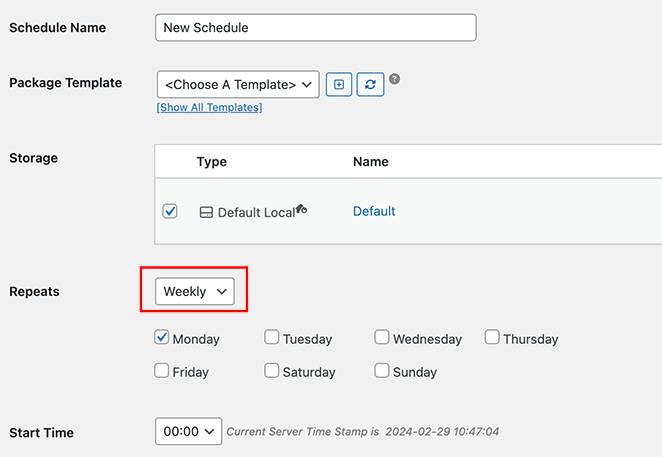
Además, recuerda establecer tus preferencias de almacenamiento. Esto te permite decidir dónde guardar tus copias de seguridad.
Después de haber elegido tu configuración, asegúrate de que la opción ‘Habilitar esta programación’ esté marcada y haz clic en ‘Guardar programación’.
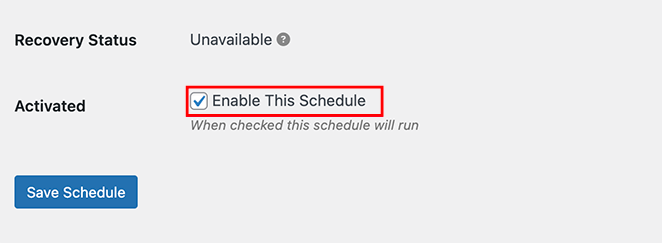
Duplicator Pro ahora está configurado para gestionar tu programación de copias de seguridad automáticas.
Cómo hacer una copia de seguridad de un sitio de WordPress manualmente
Hacer una copia de seguridad manual de tu sitio de WordPress usando cPanel te da acceso directo a tus archivos sin instalar ningún plugin, pero no admite copias de seguridad programadas.
Este método requiere un poco más de comodidad técnica que usar un plugin, pero funciona bien para una copia de seguridad única antes de un cambio importante.
Para este ejemplo, estoy usando Bluehost. Los pasos son similares en la mayoría de los hosts, pero la interfaz puede verse diferente. La mayoría de los hosts web ofrecen esta opción.
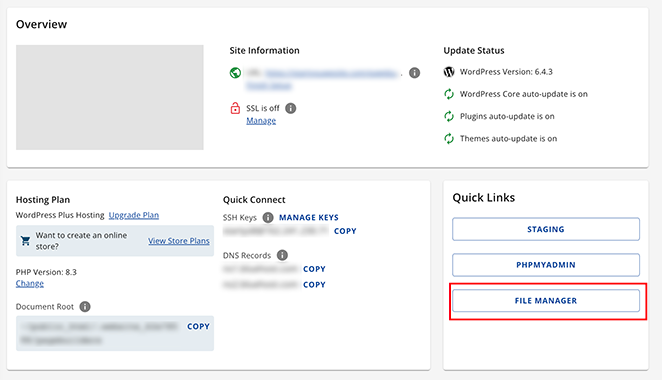
Primero, inicia sesión en la cuenta de hosting de tu cPanel. Si estás usando Bluehost, como yo, puedes encontrarlo abriendo la configuración de tu sitio y haciendo clic en la opción ‘Administrador de archivos’.
Dentro del Administrador de archivos, haz clic en la carpeta public_html en el menú de la izquierda para abrir el directorio. Luego, haz clic en la casilla de verificación ‘Seleccionar todo’ en el panel derecho.
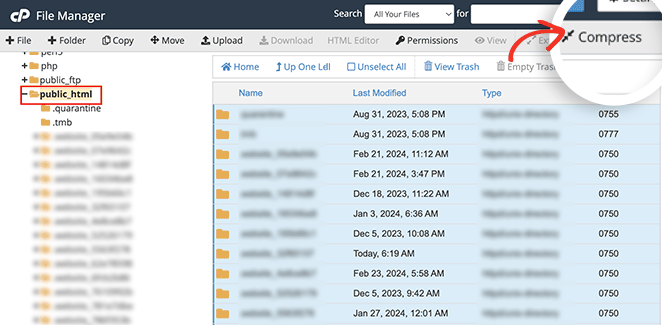
Cuando estén seleccionados, haz clic en la opción ‘Comprimir’ en la barra superior.
Haz clic en la opción ‘Archivo Zip’ en la nueva ventana emergente, luego selecciona ‘Comprimir archivos’.
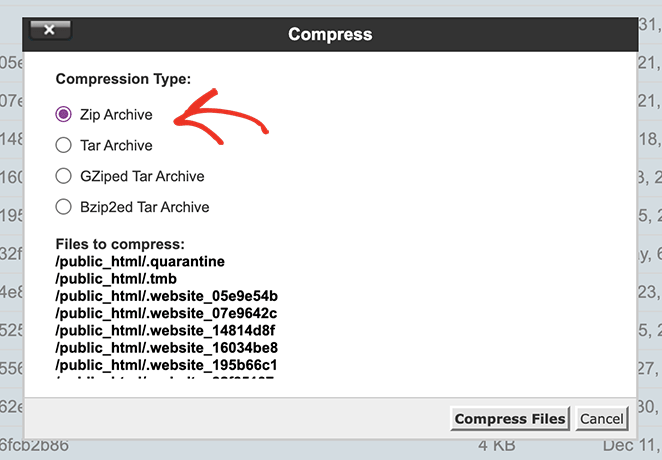
Su anfitrión comprimirá ahora los archivos de su sitio web en un archivo .zip. Incluso puede mostrar los resultados cuando haya terminado. Puede cerrar esta ventana de forma segura.
El siguiente paso es seleccionar el archivo que acaba de crear, que encontrará en la carpeta public_html.
Después de seleccionar el archivo, haga clic en la opción ‘Descargar’ en la parte superior.
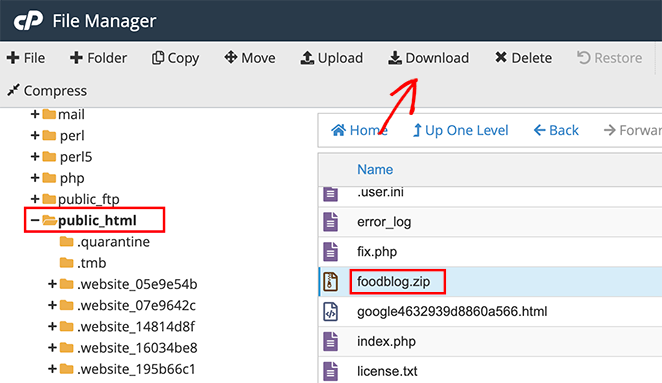
Esto descargará el archivo .zip a su ordenador, que podrá guardar en un lugar seguro. Siempre que su sitio falle, podrá usarlo para restaurar su sitio.
Cómo hacer una copia de seguridad manual de la base de datos de WordPress
Hacer una copia de seguridad de su base de datos de WordPress manualmente usando phpMyAdmin exporta sus publicaciones, comentarios, usuarios y configuraciones como un archivo SQL que puede importar para restaurar los datos de su sitio.
Para hacer esto en Bluehost, abra la configuración de su sitio web y haga clic en el botón ‘phpMyAdmin’.
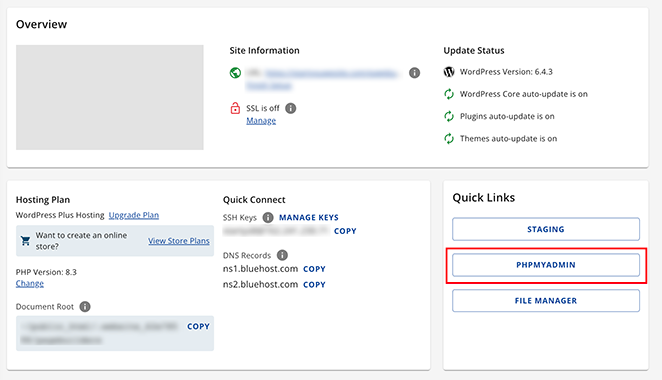
Cuando se abra, elija una base de datos del menú de la izquierda y luego seleccione todas las tablas en el panel de la derecha.
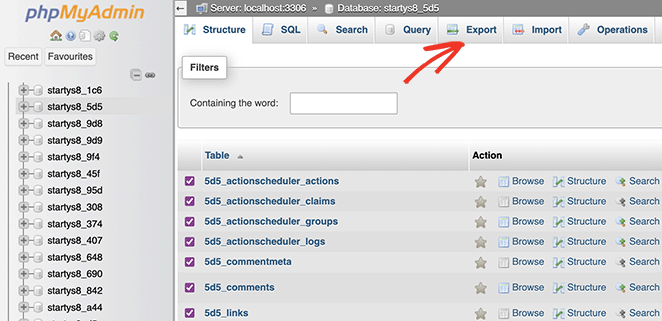
Después, haga clic en la pestaña ‘Exportar’ en la parte superior de la pantalla.
En la siguiente pantalla, verá el método y el formato de exportación. Mantenga el método de exportación como ‘Rápido’ y elija ‘SQL’ como formato.
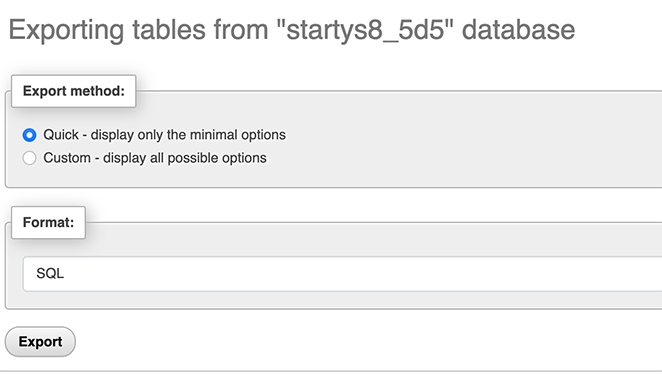
Ahora, proceda a hacer clic en ‘Exportar’.
El archivo SQL se descargará ahora en su ordenador como una copia de seguridad. Simplemente importe el archivo SQL en el área de phpMyAdmin para restaurar la base de datos.
Cómo restaurar un sitio de WordPress a partir de una copia de seguridad
Restaurar desde una copia de seguridad de Duplicator Pro solo lleva unos minutos y no requiere conocimientos técnicos. Ya sea que esté arreglando un sitio roto o moviéndose a un nuevo servidor, el proceso es el mismo.
Para empezar, vaya a su panel de WordPress y seleccione Duplicator Pro » Importar. Aquí, cargue su archivo de copia de seguridad para importarlo.
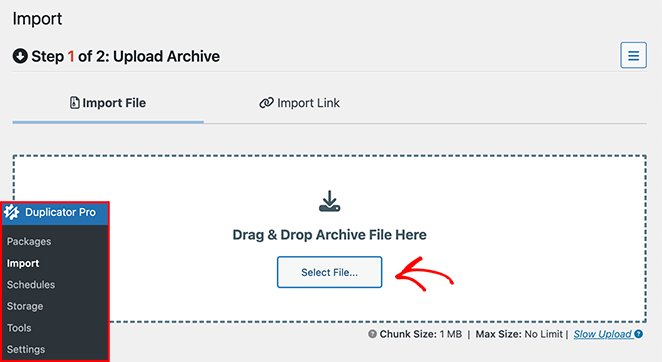
Una vez completada la importación, verá un mensaje de éxito. Luego podrá seguir las instrucciones del asistente de importación para restaurar su sitio web.
¡Eso es todo!
Cómo probar tu copia de seguridad de WordPress
Hacer copias de seguridad de su sitio regularmente es solo la mitad del trabajo. También necesita saber que su copia de seguridad realmente funciona antes de que la necesite.
La forma más segura de probar es restaurarla en un lugar que no sea su sitio en producción. Si tiene un entorno de staging, vaya a Duplicator Pro » Importar, cargue su copia de seguridad allí y siga el asistente. Compruebe que sus páginas cargan, su base de datos tiene contenido actual y sus imágenes se muestran correctamente.
Si no tiene staging, WordPress Studio le permite ejecutar una instalación local de WordPress en su ordenador de forma gratuita. Restaure su copia de seguridad allí para verificarla antes de que necesite usarla de verdad.
Probaría una copia de seguridad al menos una vez cuando configure las cosas por primera vez, y luego de nuevo cada vez que cambie su método de copia de seguridad o ubicación de almacenamiento. Lleva unos 10 minutos y ahorra mucho estrés después.
Solución de problemas de copias de seguridad de WordPress
Los plugins de copia de seguridad suelen ser fiables, pero surgen algunos problemas comunes. Aquí le explicamos cómo solucionarlos.
La copia de seguridad se queda sin espacio en disco
Esto suele ocurrir cuando las copias de seguridad se almacenan localmente y ha acumulado varios paquetes grandes. Vaya a Duplicator Pro » Paquetes y elimine los paquetes antiguos que ya no necesite. También puede usar filtros de archivos en la sección de archivo para excluir su carpeta de caché y los archivos de registro, que son grandes y no necesitan ser respaldados.
La copia de seguridad falla a mitad de camino
Una copia de seguridad que se detiene a mitad de camino suele ser un problema de tiempo de espera de PHP. Tu servidor alcanzó su límite de tiempo de ejecución antes de que la copia de seguridad pudiera completarse. Ponte en contacto con tu proveedor de alojamiento y pídele que aumente el tiempo máximo de ejecución de PHP. Para sitios muy grandes, utiliza la opción de copia de seguridad incremental de Duplicator Pro, que divide el trabajo en fragmentos más pequeños que no agotarán el tiempo de espera.
Las copias de seguridad de sitios grandes tardan demasiado
Si tu sitio tiene más de 1 GB, las copias de seguridad completas pueden tardar varios minutos. Prográmalas durante las horas de menor actividad para que no afecten a los visitantes. El modo de 'bajos recursos' de Duplicator Pro también reduce el impacto en el rendimiento mientras se ejecuta la copia de seguridad.
No encuentro dónde se guardan los archivos de copia de seguridad
Ve a Duplicator Pro » Paquetes. Cada paquete muestra su ubicación de almacenamiento. Si configuraste almacenamiento en la nube, revisa también tu carpeta de Google Drive o Dropbox.
Preguntas frecuentes sobre copias de seguridad de WordPress
Mantén tu sitio de WordPress seguro con copias de seguridad periódicas
He visto a demasiados propietarios de sitios perderlo todo porque no tenían una copia de seguridad. Es una de esas cosas que parecen opcionales. Hasta que algo se rompe, es posible que no lo pienses dos veces.
Ya sea que uses un plugin como Duplicator Pro o sigas la ruta manual, la parte más importante es hacerlo regularmente y guardar tus copias de seguridad en un lugar seguro.
Siempre guardo dos copias: una en la nube y otra en un disco duro. Solo lleva unos minutos y me ha salvado más de una vez.
Si estás listo para dar el siguiente paso para mantener tu sitio seguro y funcionando sin problemas, consulta estas otras guías a continuación.
- Cómo proteger un sitio de WordPress contra hackers
- Cómo proteger con contraseña una página de WordPress (paso a paso)
- Los mejores plugins de bloqueo de contenido para WordPress
¡Gracias por leer! Nos encantaría conocer tu opinión, así que únete a la conversación en YouTube, X y Facebook para obtener más consejos y contenido útil para hacer crecer tu negocio.



