
To create an About page in WordPress, go to Pages » Add New, name it “About,” and add blocks for your story, mission, and team. Use a website builder like SeedProd to design it visually, then publish and add it to your site menu.
Your About page is where visitors learn who you are and why your work matters. When it feels authentic and well-designed, it builds trust and turns casual visitors into loyal followers.
The best part is you don’t need a designer or special skills. In this guide, I’ll show you how I build a professional About page in WordPress using SeedProd, right down to the mobile check I run on a real phone before publishing.
You’ll learn what to include, how to design it quickly, and how to make it stand out on any device.
- Why Your Website Needs an About Page
- How to Create an About Page in WordPress (Step-by-Step)
- Step 1. Download and Install SeedProd
- Step 2. Create a New Page in WordPress
- Step 3. Choose a Premade Template
- Step 4. Design a Hero Section That Grabs Attention
- Step 5. Write Your Story, Mission, and Values
- Step 6. Add Team Member Profiles
- Step 7. Use Testimonials and Reviews to Build Trust
- Step 8. Link to Popular Content or Best Products
- Step 9. Add an Opt-in Form to Collect Leads
- Step 10. Launch Your About Page
- Step 11. Add Your About Page to the Navigation Menu
- FAQs on Creating an About Page
Why Your Website Needs an About Page
Research from Nielsen Norman Group shows the About page is one of the most-visited areas on business websites. Visitors go there to judge whether you’re legitimate before they buy, subscribe, or get in touch.
Industry research also suggests that visitors who read a company’s story spend longer on-site. That extra time signals higher engagement and more trust.
| With an Optimized About Page | Without an Optimized About Page |
|---|---|
| Visitors understand who you are and why they should trust you | Uncertainty about your legitimacy or expertise |
| Higher engagement time and click-throughs to key content | Visitors bounce quickly without exploring further |
| Clear next step drives leads, signups, or sales | No clear path forward, missed conversion opportunities |
A strong About page is a trust-building asset that directly affects how people perceive your brand. It also shapes whether they decide to connect with you further.
What Should You Include in a WordPress About Page?
An About page is a dedicated page that explains your brand’s story, mission, and the people behind it. Its main job is to build trust by showing who you are, what you stand for, and why your business exists.
A high-performing About page is a collection of trust-building elements. Here’s a table showing what to include and why it matters.
| Element | Purpose & Credibility Cue |
|---|---|
| Company Overview | Sets the context: who you are and who you serve |
| Mission & Values | Shows what drives you and builds emotional trust |
| Team Profiles | Humanizes your brand with faces + roles |
| Milestones / Timeline | Demonstrates credibility and growth over time |
| Testimonials | Provides social proof with real voices |
| Call to Action (CTA) | Guides visitors to the next step (signup, contact, product) |
| Visuals (images/videos) | Breaks up text and creates connection |
| Contact Info | Makes it easy to reach you, boosting trust |
What If You’re Creating an “About Me” Page?
If you’re a freelancer, coach, or solo creator, your About page should focus less on a company story and more on you. That means your personality, your proof, and how people can work with you.
Here’s a simple blueprint I use for my own personal pages:
- Hero: A friendly headshot and one-sentence intro (who you are + what you do)
- Proof: Add a short client testimonial, result, or portfolio snapshot
- Offer: Explain what you provide (services, expertise, or product)
- CTA: A clear button (“Book a Call” / “View My Portfolio”)
How to Create an About Page in WordPress (Step-by-Step)
You could code an About page from scratch, but there’s a much faster way to design, build, and launch one.
My approach uses SeedProd, a drag-and-drop WordPress page builder and theme builder that lets you create pages without any coding skills.
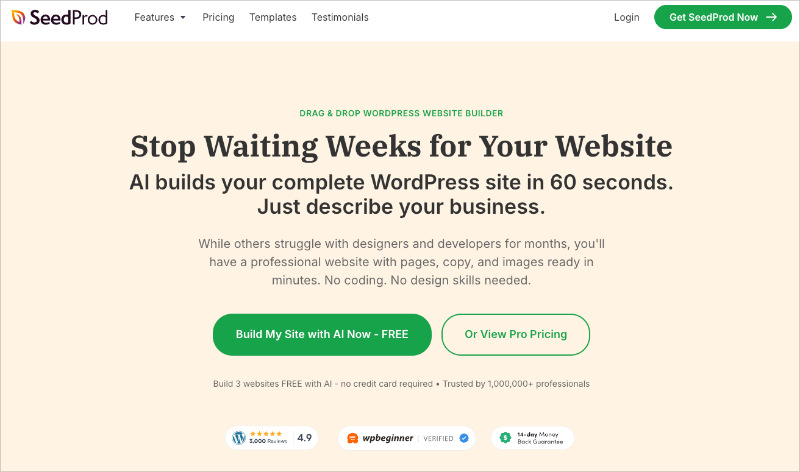
It includes hundreds of premade templates and easy building blocks designed to help you create high-converting pages. You can use it to build everything from homepages and about pages to headers, footers, and product sections.
Let me show you exactly how I build About pages for myself and my clients using this tool.
Step 1. Download and Install SeedProd
For this tutorial, I’ll be using SeedProd Pro, since its advanced blocks and templates make it easy to design a professional-looking About page that matches any brand style.
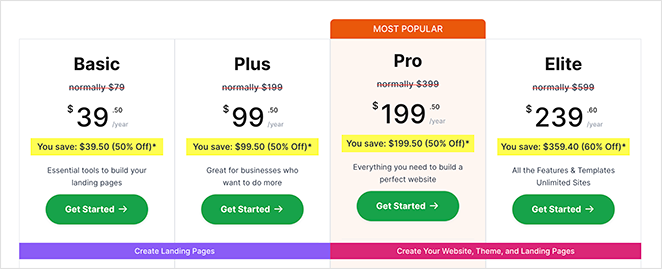
You can still create a simple version using the free version of SeedProd.
If you need help with this step, see our documentation on how to install SeedProd Pro.
Once you’ve downloaded the plugin, log in to your WordPress dashboard, go to Plugins » Add New » Upload Plugin, and upload the downloaded .zip file.
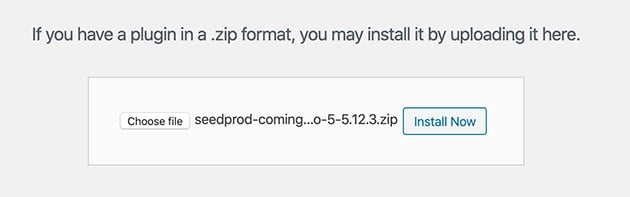
When the file is uploaded, click Activate to enable the plugin on your WordPress site.
Next, head to SeedProd » Settings, enter your license key, and click Verify Key. This unlocks the premium features in your plan.
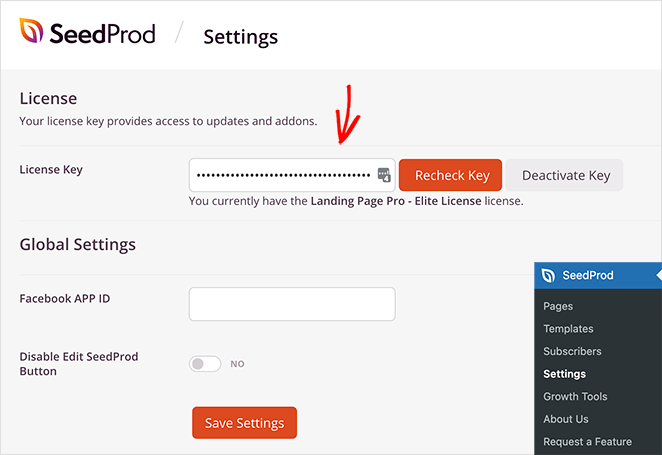
You’ve now installed SeedProd, so you’re ready to start building your About page.
Step 2. Create a New Page in WordPress
After installing SeedProd, the next step is to create the new page where you’ll write your About content.
From your WordPress dashboard, go to Pages » Add New to create a blank page.
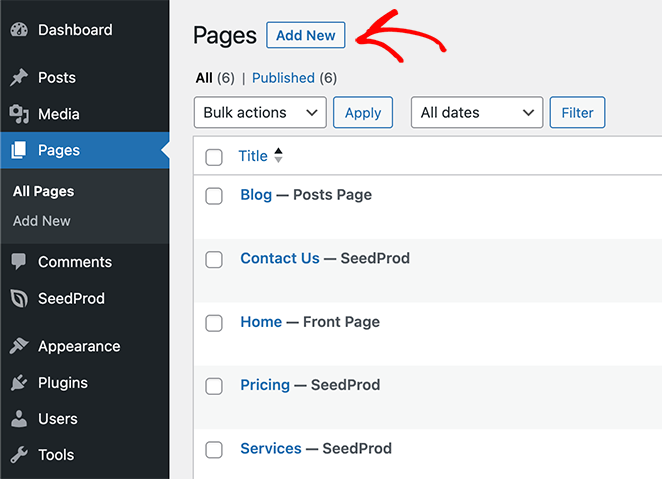
Here, you can enter a title for your new page, such as “About” or “About Us.”
You’ll also see an Edit with SeedProd button at the top of the page editor. Clicking it lets you edit the page using the SeedProd builder.
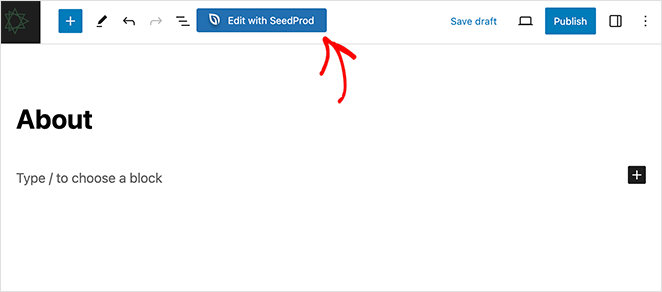
The plugin will first ask you to choose a template to make the design process easier.
Step 3. Choose a Premade Template
One advantage of SeedProd is its library of professionally designed templates. These give you a starting point that saves time and effort.
After clicking “Edit with SeedProd,” you’ll see the template library. Scroll through the templates or use the filters along the top to find one that fits your brand.
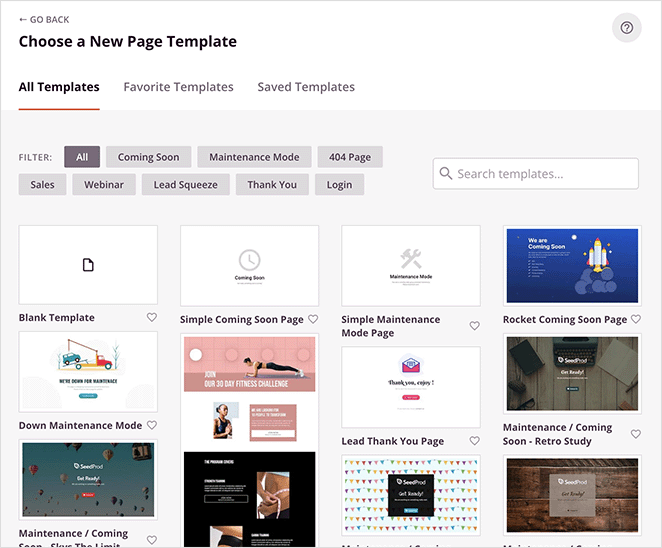
There aren’t dedicated About Us templates, but you can customize any template to fit your needs.
Once you’ve found a template you like, hover over it and click the checkmark icon. This loads the template into the drag-and-drop builder, where you can start customizing.
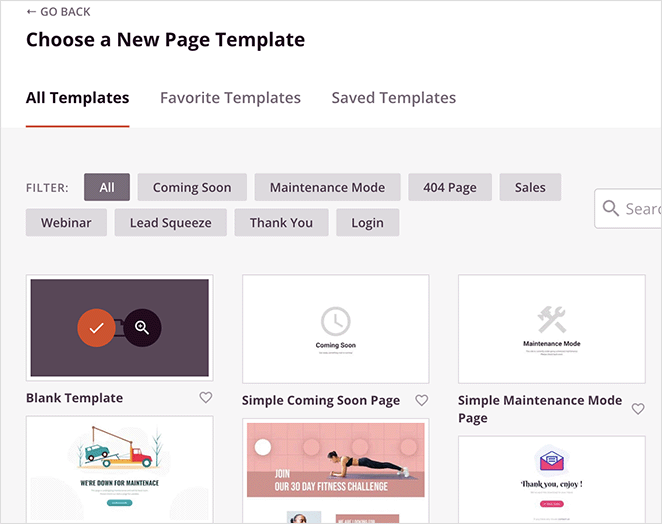
To show you how the builder works, I’ll choose the blank template.
Step 4. Design a Hero Section That Grabs Attention
The hero section is the first thing visitors see on your About page, so making an impact matters. SeedProd handles this with premade sections built to capture attention.
Look for the Sections tab on the left-hand menu of the builder and click it.
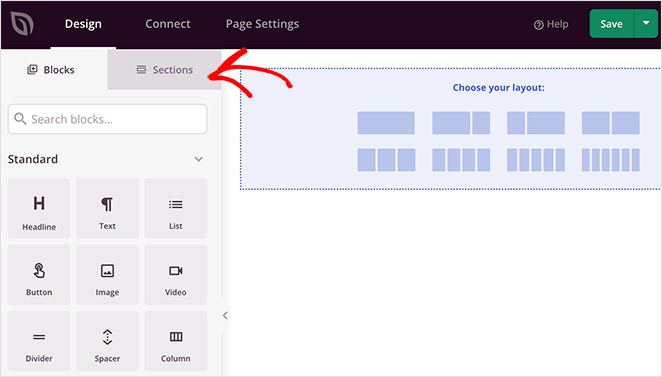
Here, you’ll see several premade, fully customizable sections, including:
- Header
- Hero
- FAQ
- Features
- Testimonials, and more
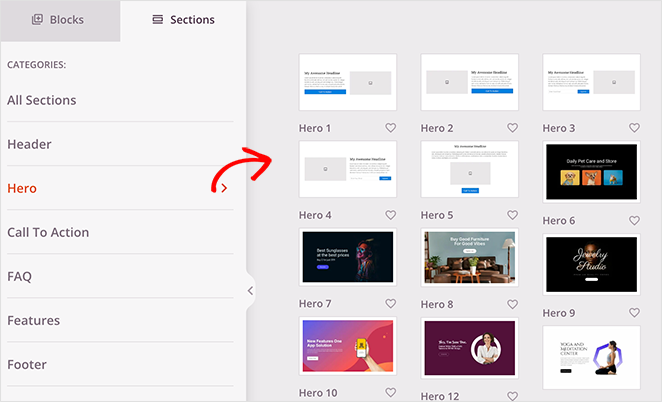
Browse the options and find one that fits how you’d like your hero section to look. Click the plus icon on your chosen section to import it into your page.
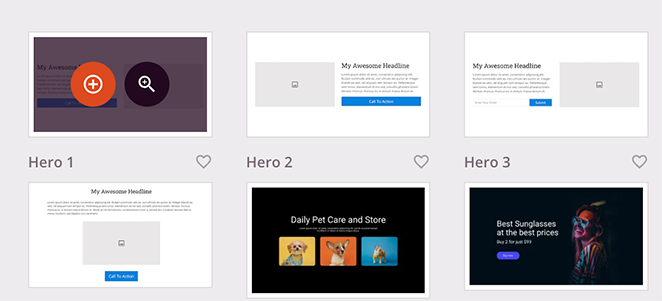
From there, you can customize it with your own value proposition, subheadline, images, and any other elements you want to include.
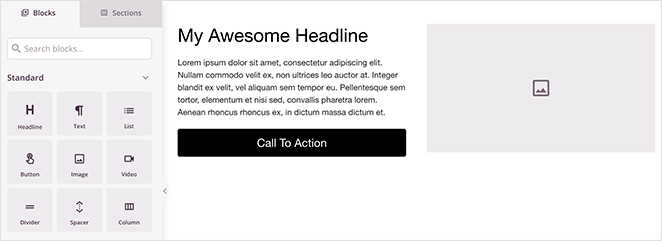
To do this, click any section element and replace the demo content with your own.

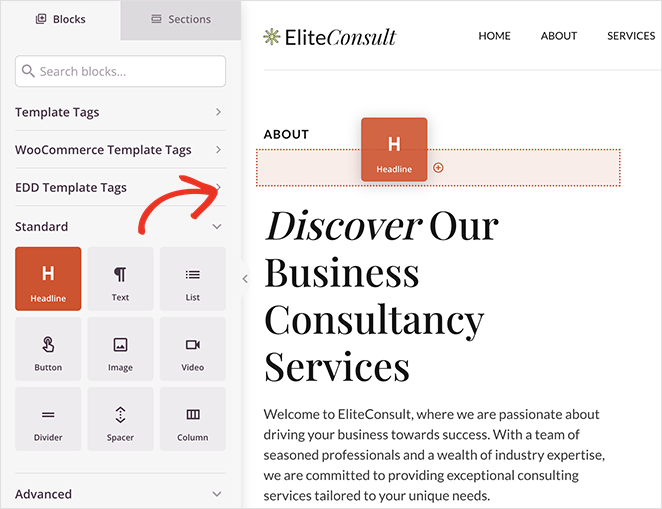
You can also drag and drop blocks, such as the Headline block, to add more design elements to the section.
Step 5. Write Your Story, Mission, and Values
After setting up your hero section, the next area to focus on is your company’s story, mission, and core values. This is where you connect with your audience on a deeper level using your brand voice.
In SeedProd, you can add new sections and elements to explain these parts of your business.
Start by creating a new section and adding a Headline or Text block where you can write a narrative about how your company came to be. This is your chance to share the journey that led you to today.
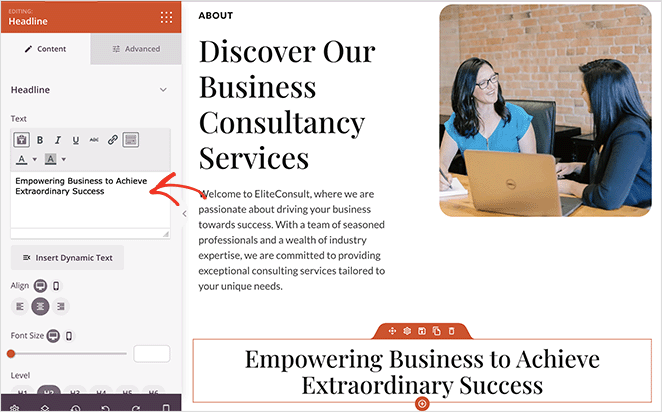
A “who we are” video is a great way to make this section more engaging. Drag over the video block and paste a link to display it center stage on your page.

Following your story, transition into your mission statement. Your headline could be “Our Mission,” then describe your goals and how you plan to make a difference.
If you need inspiration, A.I. tools can get the basis of your copy in place. Here’s a guide on how to write content using an A.I. generator.
Remember to highlight your core values. I like to use icons or badges to show what my brand stands for, because it keeps things easy to scan.
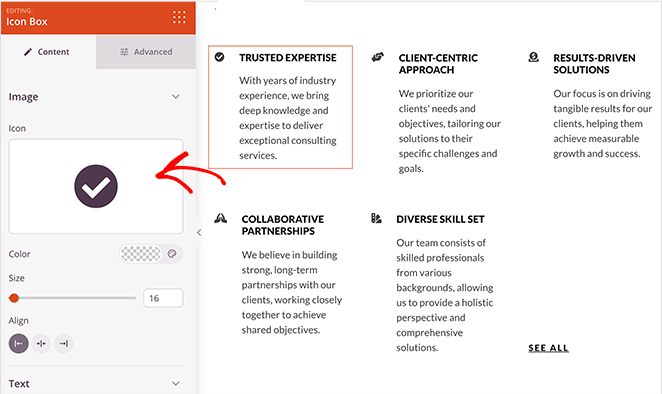
I find icon blocks for core values work well because visitors can instantly grasp what your brand stands for. That helps them connect your values to their own and builds trust faster.
For added interest, you can use GIFs to draw the eye.
Step 6. Add Team Member Profiles
One of the best ways to humanize your brand is by introducing the people behind it. SeedProd makes this easy with its Team Members block, built to showcase your team professionally.
To add a Team Members block, find it in the left-hand blocks menu and drag it into your page layout.

Once the block is in place, add a profile for each team member. Upload a photo, write a short bio, and include links to social profiles like LinkedIn or personal websites.
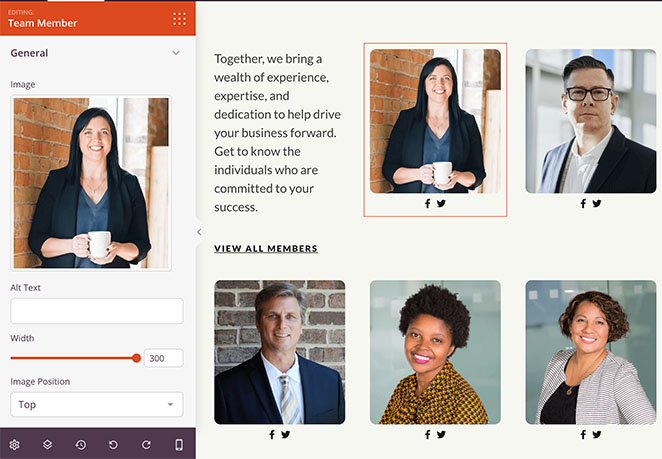
You can also customize the layout, colors, and typography so the block matches your brand styling.
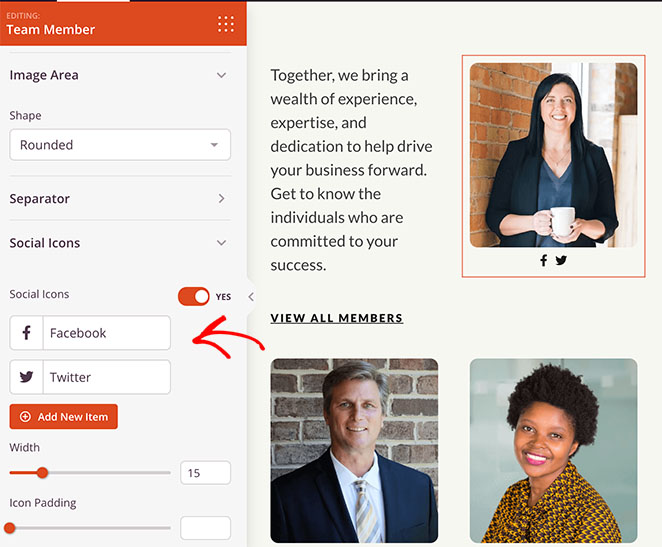
Even a few friendly faces go a long way toward making your brand feel approachable and real.
Step 7. Use Testimonials and Reviews to Build Trust
Social proof does a lot of the trust-building work for you. SeedProd gives you several ways to add it through its Testimonials, Business Reviews, and Star Rating blocks.
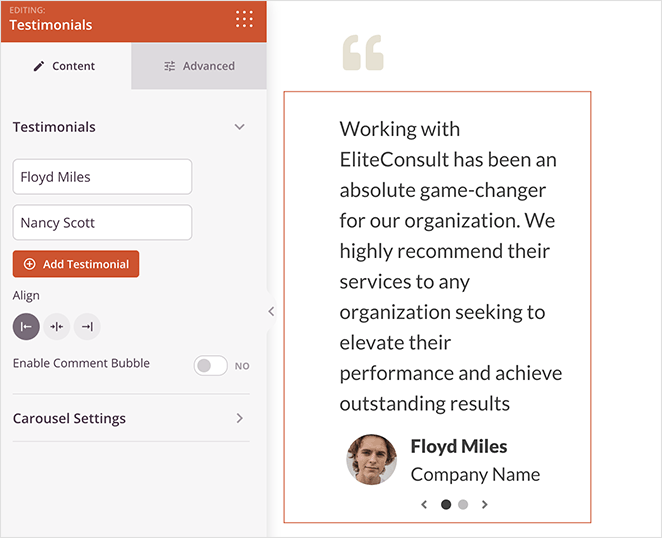
To add testimonials, drag the Testimonials block into your desired location. You can then add quotes from satisfied customers with their names and photos.
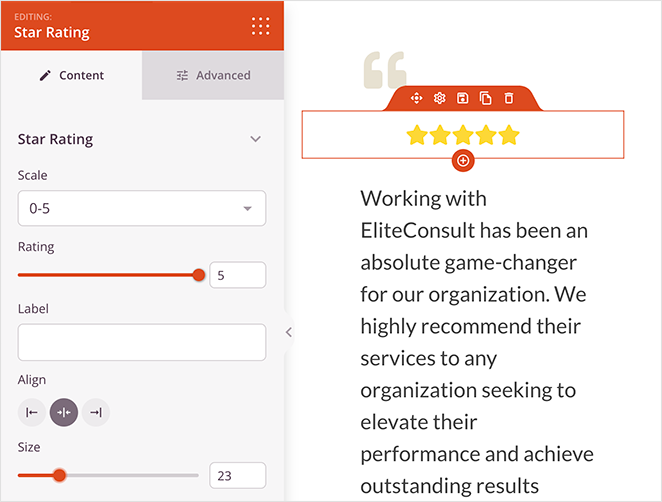
You can also represent customer satisfaction with the Star Rating block. This displays a star rating, giving visitors a quick snapshot of what others think.
If you have reviews on platforms like Google My Business or Yelp, you can highlight them with the Business Reviews block. Drag the block into your layout and connect it to the review platform.
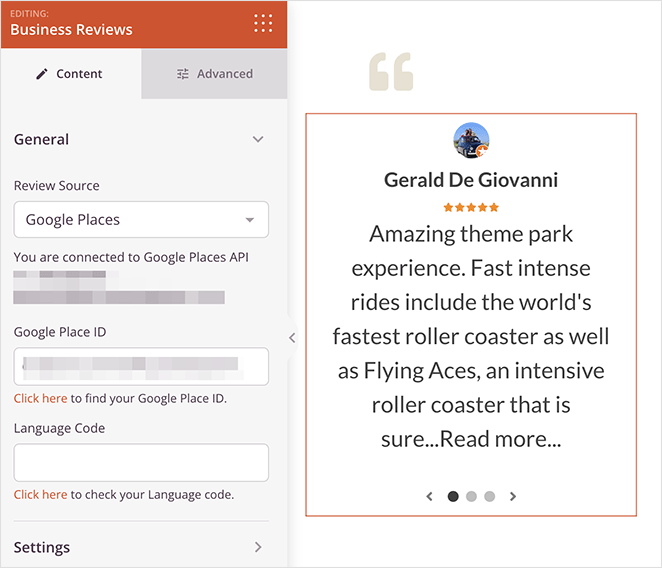
This automatically pulls in your latest reviews, adding an extra layer of credibility.
Adding even one or two honest customer quotes can build trust faster than paragraphs of copy.
Step 8. Link to Popular Content or Best Products
Your About page is the ideal place to guide visitors toward other important areas of your website.
For a simple approach, use the Image, Text, and Button blocks to create clickable sections that link to your top articles, services, or products. Customize these blocks to match your brand’s look.

If you’re running an online store, SeedProd connects to WooCommerce and Easy Digital Downloads, so you can drop product blocks straight onto the page. Use them to showcase your best-selling or recently added products right on your About page.
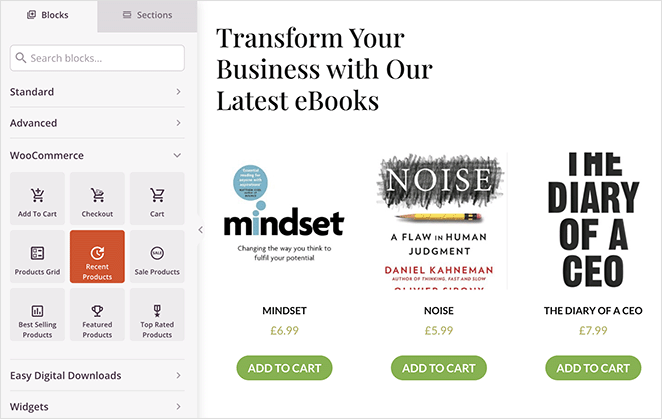
Your About page shouldn’t be a dead end. Use it to guide visitors toward your best stuff.
Step 9. Add an Opt-in Form to Collect Leads
One of the most effective ways to get more from your About page is to include an opt-in form to collect leads. SeedProd’s Opt-in Form block lets you capture email addresses and grow your subscriber list from one page.
To add one, drag the Opt-in Form block from the left-hand menu into your page. From there, you can customize it to match your brand.
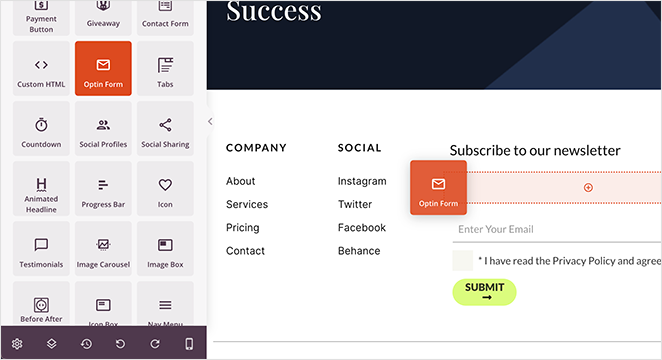
Add a compelling headline and subheadline to encourage sign-ups, and consider offering a lead magnet like a free eBook or discount code as an incentive.
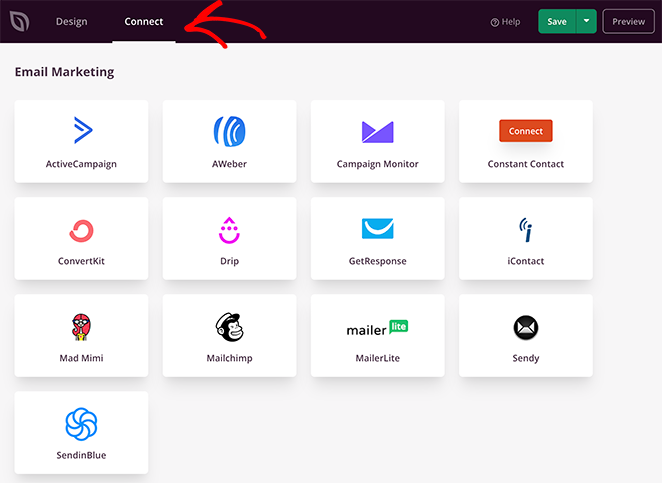
SeedProd also offers easy integration with popular email marketing services, so you can funnel new leads into your existing campaigns. Find these by clicking Connect at the top of the page and following the instructions for your provider.
If someone’s taken the time to read your About page, there’s a good chance they’ll want to stay in touch.
Step 10. Launch Your About Page
After you’ve added the essential elements and you’re happy with how your About page looks, it’s time to make it live.
Before launching, take a moment to review all the sections and make sure everything looks good and works as it should.
A lot of visitors will check your About page on their phones, so it’s worth previewing it on mobile. Here’s what to look for:
- Is the text easy to read without zooming in?
- Do images and buttons scale nicely?
- Can people scroll through the content comfortably?
To check, open your page in SeedProd and click Preview » Mobile, or view the published page on your own phone.
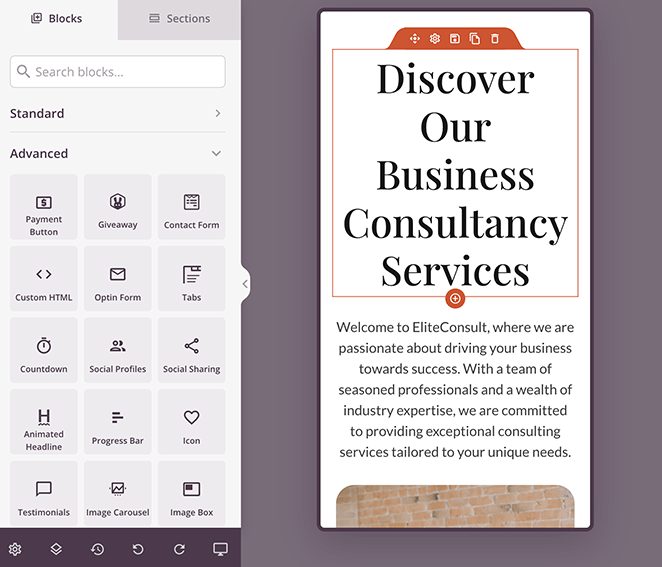
My personal workflow involves checking the page on both an iPhone and a common Android device. This confirms images scale correctly, text stays legible, and buttons are easy to tap on any screen.
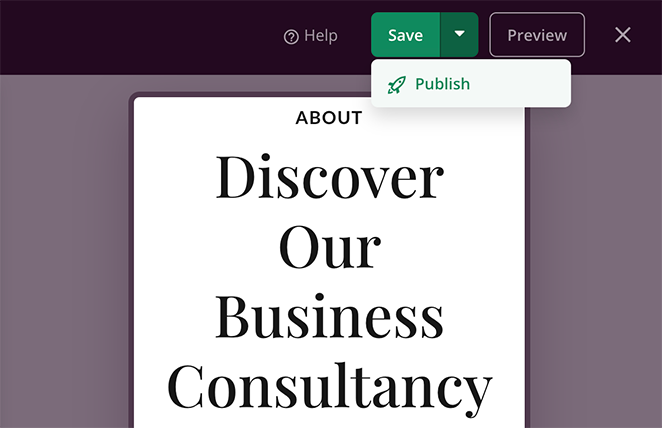
When you’re happy with the page, click the Save and Publish button in the top-right corner to make it live.
Now you can visit your page to check out the final result. Here’s the About Us page example from this tutorial:

Step 11. Add Your About Page to the Navigation Menu
There’s one more thing before anyone can find it. A published page won’t appear in your menu automatically, and a page no visitor can reach is the most common beginner mistake I see.
If you’re using a standard theme, go to Appearance » Menus, tick your new About page in the list on the left, and click Add to Menu. If you built your site with SeedProd’s theme builder, edit your header template and add the page to the Nav Menu block instead.
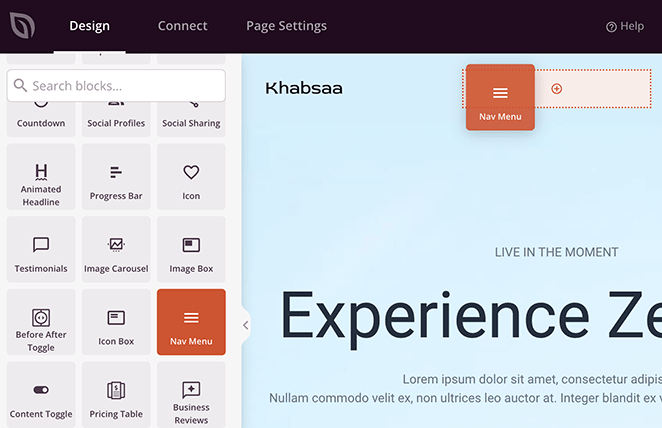
Publishing and linking are two separate choices. You can publish a page and leave it out of the menu when you want it reachable by direct link only, which is handy for a thank-you or internal page you don’t want everyone browsing to.
FAQs on Creating an About Page
How do I add an About page in WordPress?
Go to Pages » Add New, name it “About,” and add your content using the block editor. You can also click “Edit with SeedProd” to use a drag-and-drop builder instead.
How long should an About page be?
There’s no fixed word count. It should be long enough to cover your story, show some proof, and point readers to a next step.
Most About pages land between 300 and 600 words. Solo creators can go shorter; established businesses with a longer history often run a little longer.
Where should the About page link from on my site?
Link to it from your main navigation menu so it’s easy to find, and add it to your footer as a backup. Many sites also link to it from the homepage and the author or company bio.
The goal is that a visitor never has to hunt for it when they want to know who you are.
How do I help my About page show up in search?
Give the page a descriptive title tag and target its own keyword, usually your name or brand plus “about.” Then add internal links to it from your homepage and related posts.
That combination tells search engines what the page is and signals that it matters on your site.
How do I write a killer About Me page?
Start with a catchy introduction that shows who you are and what you do. Share your story, skills, and what makes you unique.
Use a friendly tone, add personal touches like hobbies, and include a call-to-action that guides readers on what to do next.
What should I put on my WordPress About page?
Include your story, what you do, who you help, and why it matters. You can also add testimonials, team bios, and a CTA that guides visitors to the next step.
What’s the difference between an About page and an About Me page?
An About page focuses on a business or team, while an About Me page is more personal. The personal version suits freelancers, solo creators, or bloggers building one-to-one trust.
Does WordPress include an About page template?
Most themes don’t include a built-in About layout. Page builders like SeedProd offer templates you can customize, or you can build one from scratch.
Do I need a plugin to create an About page?
Not necessarily. You can use the default block editor, but a plugin like SeedProd makes it easier to design a great-looking page with no code.
Start Building Your About Page
Using a website builder like SeedProd makes it easy to create a professional About page that builds trust, shares your story, and guides visitors toward taking action. With the right layout, clear messaging, and authentic details, your About page can become one of the strongest trust signals on your site.
You have the knowledge and the tools, so there’s no better time to start. Log into your WordPress dashboard, fire up SeedProd, and let your brand’s story shine.
For more insights and guides on getting more from your WordPress site, check out these related articles from our blog:
- Expert Landing Page Optimization Tips
- Landing Page Best Practices for Incredible Conversion Rates
- Best WordPress Plugins to Revamp Your Site
- How to Create a Coming Soon Page in WordPress
Thanks for reading! We’d love to hear your thoughts, so please feel free to join the conversation on YouTube, X and Facebook for more helpful advice and content to grow your business.