
TL;DR: Creating a WooCommerce Coming Soon Page
WooCommerce can close your store on its own, but it gives you a plain holding page. Use it to hide the shop, and use a builder if you want the page to earn something.
- Use the built-in setting – Go to WooCommerce, then Settings, then Site visibility, and switch from Live to Coming soon.
- Hide the shop only – A second option covers just your shop, cart, checkout and account pages, so your blog stays public.
- Build a real launch page – SeedProd adds a countdown timer, an email signup form and a design you control.
- Turn it on – Under SeedProd, then Pages, switch Coming Soon Mode to Active.
- Check it signed out – Neither system shows the coming soon page to store admins, so you will keep seeing your normal shop.
- Single products – WooCommerce has no per-product coming soon setting, so schedule the product or hide it from your catalog instead.
Your store isn’t ready for customers yet, but the URL works and anyone who finds it sees a half-built shop.
A WooCommerce coming soon page fixes that, and you have two ways to put one up: the setting WooCommerce already ships with, or a page you design yourself. I’ll walk you through both, starting with the one you already have.
In this guide:
- Why create a WooCommerce coming soon page?
- Method 1: WooCommerce’s built-in coming soon mode
- Method 2: Build your own with SeedProd
- What happens if you turn on both?
- How to show a single product as coming soon
- Why does my site say coming soon?
- Frequently asked questions
Why Create a WooCommerce Coming Soon Page?
A coming soon page keeps your unfinished online store out of sight. You control what people see, instead of leaving them to find an error page or a half-built storefront.
Done properly, though, a coming soon page earns you something while the store is closed:
- Give visitors details about when your store will launch
- Build excitement for launch day with countdown timers
- Collect email addresses and grow your list with signup forms
- Offer discounts and offers to attract customers before your launch
- Get a head start in search engine rankings with a crawlable web page
You have two ways to put one up, and the first one is already sitting in your WooCommerce settings.
Method 1: WooCommerce’s Built-In Coming Soon Mode
Since WooCommerce 9.1, hiding your store is a setting rather than a plugin. Go to WooCommerce » Settings » Site visibility and switch from Live to Coming soon.
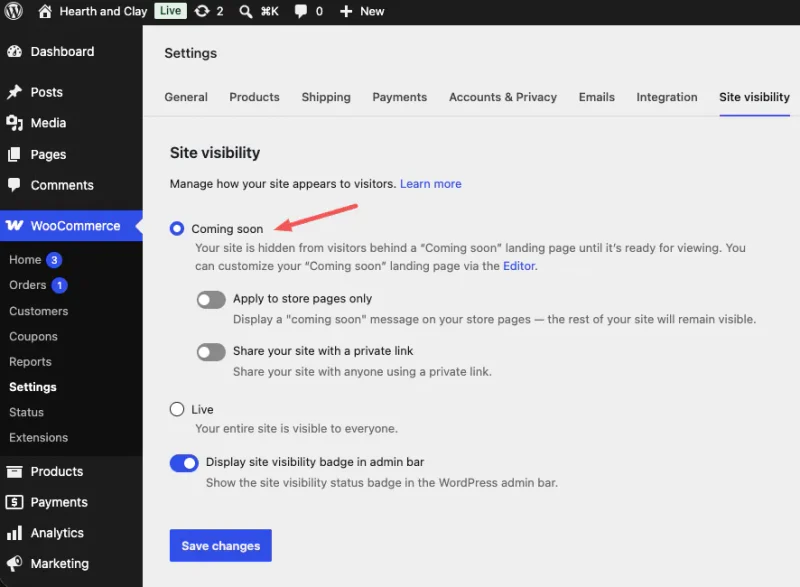
That’s the whole job. WooCommerce swaps your store pages for its own holding template and stops guests reaching them. This is the default
You also get a say in how much it hides. Left as it is, your entire site goes off the map, but turn on Apply to store pages only and it hides just your shop, cart, checkout and account pages, leaving your blog and about page readable.
On a store that already gets traffic, I’d turn that on every time, because the pages Google has already indexed keep working while the shop is being built.
Check it in a private window: WooCommerce skips the holding page for anyone who can manage the store, so you’ll keep seeing your normal shop while your customers see the coming soon screen.
If you need to show the real store to a client or a developer, turn on Share your site with a private link. Anyone who opens that link browses the live store, and WooCommerce remembers them for 90 days.
The built-in setting has one real limit, though: it gives you a holding page like the one below, not a launch page.
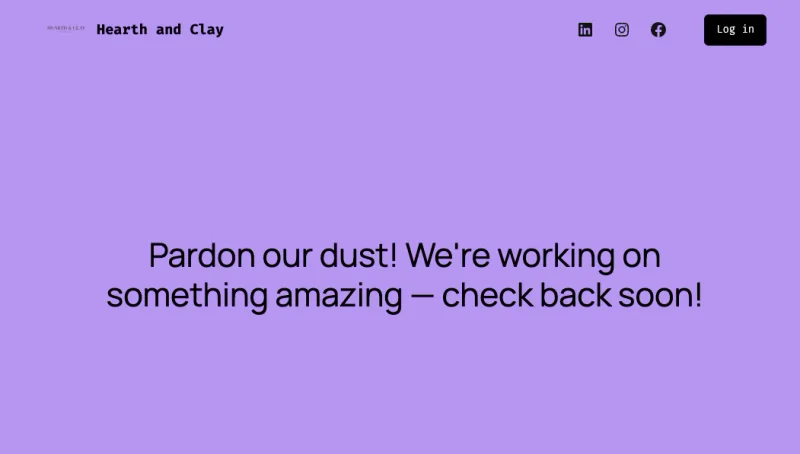
You get a heading and a line of text. There’s no countdown timer, no email signup form, and no meaningful control over the design.
That’s fine if all you want is the shop closed. It’s a problem if you want to collect email addresses before you open, which is the point of a pre-launch page for most of the stores I’ve managed.
Method 2: How to Create a WooCommerce Coming Soon Page With SeedProd
If you want a page that actually sells the launch, you need to build it yourself. This is the route I take on the stores I’ve managed, using SeedProd.
SeedProd is a drag-and-drop WordPress website builder. Its live visual editor lets you build a coming soon page for your store and see every change as you make it, so you never have to touch code.
You can also use SeedProd to create a custom WooCommerce theme with drag-and-drop.
Here’s what you get that the built-in setting doesn’t:
- A separate maintenance mode as well as coming soon, for when you’re changing a store that’s already open
- A library of ready-made coming soon templates to start from, so you’re not designing from a blank screen
- Blocks for headers, calls to action, testimonials and countdown timers, so you’re building a page rather than a notice
- WooCommerce blocks for add to cart, cart and checkout, so you can take pre-orders from the page itself. Worth knowing that a working checkout means your store isn’t really hidden, so only use these if selling before launch is the plan
- Track and manage signups with the subscriber dashboard
- Integrate with popular marketing platforms like Constant Contact and ActiveCampaign
- Spam protection against bots and fraudulent form submissions
You won’t need a developer or a single line of code for any of this.
Video Tutorial
Step 1: Install and Activate SeedProd
Click the button below to get your copy of SeedProd and create your account.
Free version limit: there’s a free version of SeedProd that handles coming soon mode. I’m using Pro here because the countdown timer and the email integrations are what make a launch page worth building.
Next, install and activate the plugin on your WordPress website. If you need help with this step, follow this easy guide on installing a WordPress plugin.
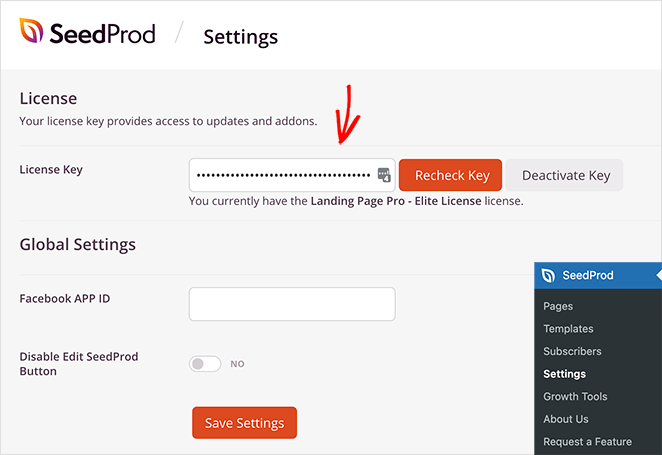
After installing and activating SeedProd, navigate to SeedProd » Settings from your WordPress dashboard. This allows you to enter your license key so you can access plugin updates and advanced features.
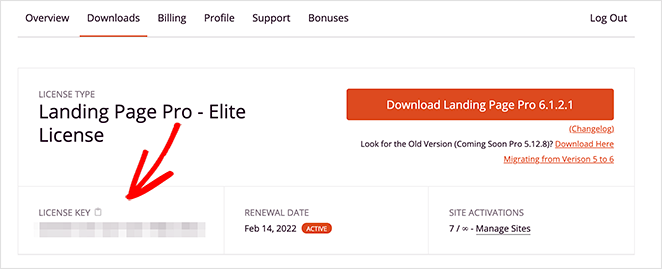
You can find your SeedProd license key in your account on the SeedProd website under the Downloads tab.
After entering your license key, click the Verify Key button, and you’re all set to start making your WooCommerce coming soon page.
Step 2: Set Up a Coming Soon Page
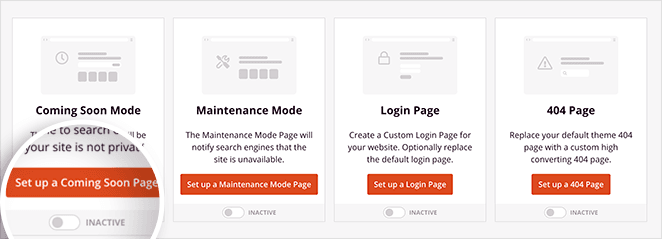
To begin creating your WooCommerce coming soon page, head to SeedProd » Pages from your WordPress admin panel.
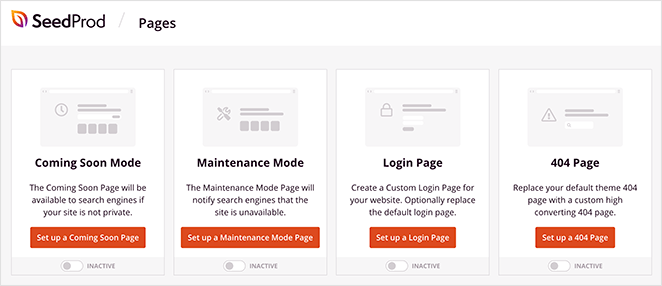
This screen shows several options for creating different types of pages on your WordPress site, including:
- Coming Soon Mode – Create a coming soon page for any type of website under construction.
- Maintenance Mode – Show a maintenance message when you’re making minor changes or performing updates.
- Login Page – Replace the default login screen with a custom WordPress login page.
- 404 Page – Set up a custom 404 error page to keep users on your site longer.
Below that section, you can also build any standalone landing page you like.
But for this tutorial, you’ll want to select the ‘Set up a Coming Soon Page’ button.
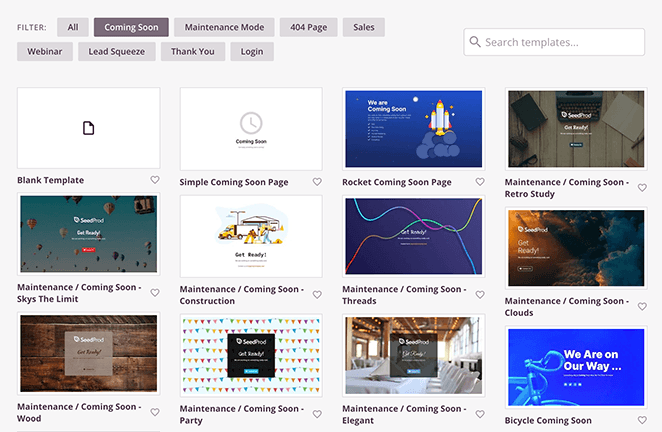
Next, you’ll see SeedProd’s responsive templates library. Under the Coming Soon filter, you can see various coming soon page templates that are ready to use right away.
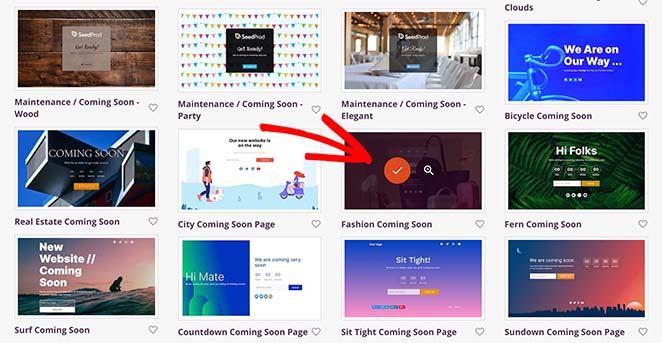
Hover over any template to see options to preview it, and click on the checkmark icon to choose that design.
After choosing your coming soon page template, SeedProd opens and displays it in the drag-and-drop page builder. It’s on this page that you can customize your WooCommerce coming soon page.
Step 3: Customize Your WooCommerce Coming Soon Page
Every element on the page is editable in SeedProd’s visual editor. Click any part of the design to change text, images or buttons, and you’ll see it update live.
This is the point to add the sections that do the work: an email signup form, a product grid, your social links.
On the right side of the screen, you’ll see a live preview of your design where you can make edits and see the changes in real time.
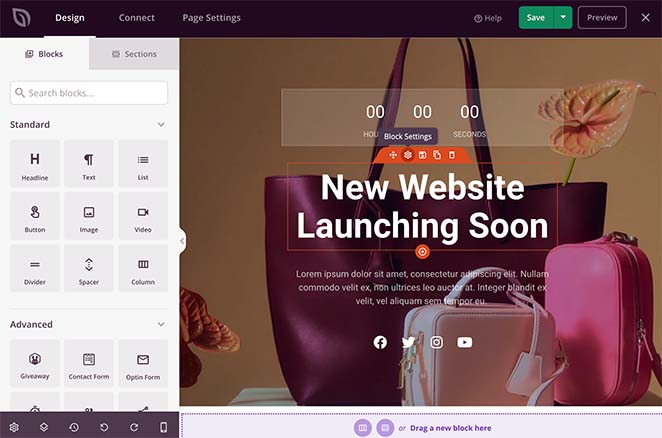
And on the left-hand side are various sections and blocks for building and customizing your design.
To edit an element, click it, and that block’s settings open on the left. Clicking the heading, for example, opens its content settings panel.
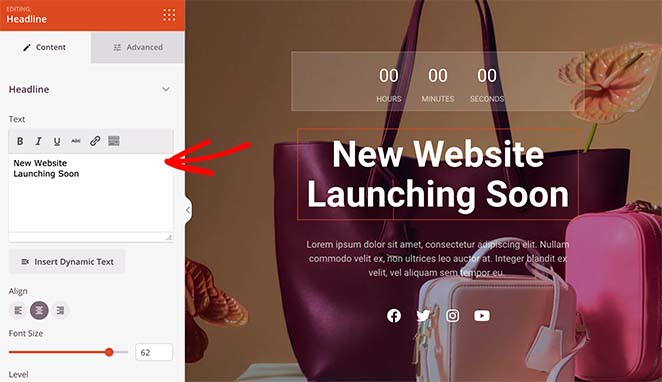
From there you can edit the content, change the font colors and size, and change the heading tags so search engines read the page structure properly.
You can do the same for any other elements on your page, such as the countdown timer, paragraph text, and social media icons.
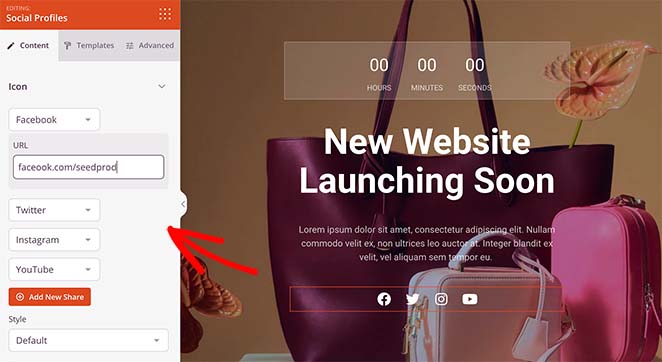
For instance, clicking the social media icons block allows you to add your social media profile links. You can also click the Templates tab to change the icon colors and style quickly.
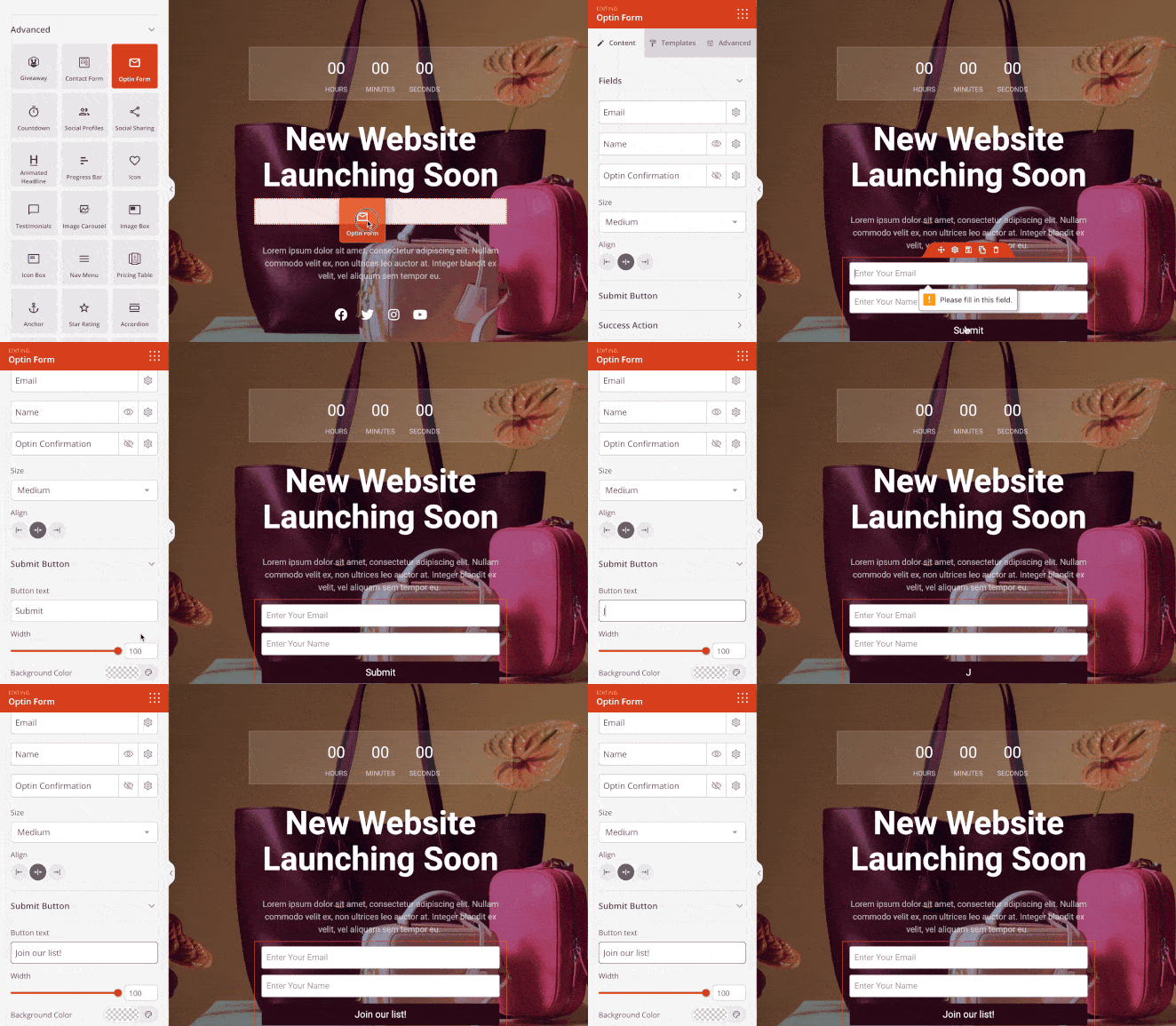
You can add more content to your page by choosing a block from the Standard, Advanced, or WooCommerce block sections.
- The Standard blocks include bullet lists, images, buttons, videos, etc.
- Advanced blocks include optin forms, giveaways, countdown timers, and many more lead generation tools.
- The WooCommerce blocks allow you to add shopping carts, checkouts, product grids, and add-to-cart buttons to your coming soon page.
We recommend adding an optin form to grow your list and a coming soon countdown timer to create a sense of urgency.
You can also set colors, fonts and styles for the whole page at once, which saves you styling every block by hand.
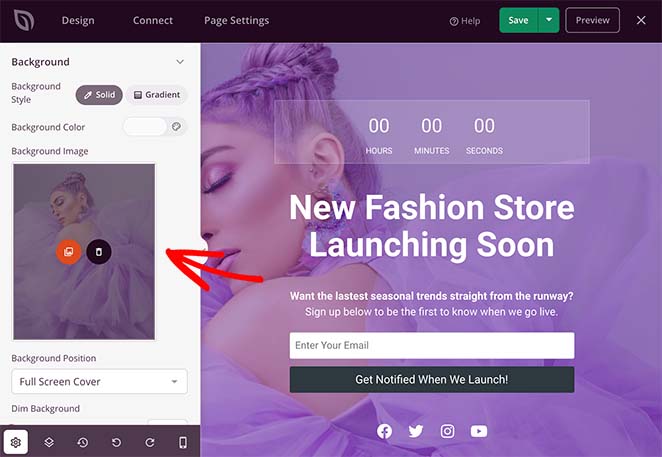
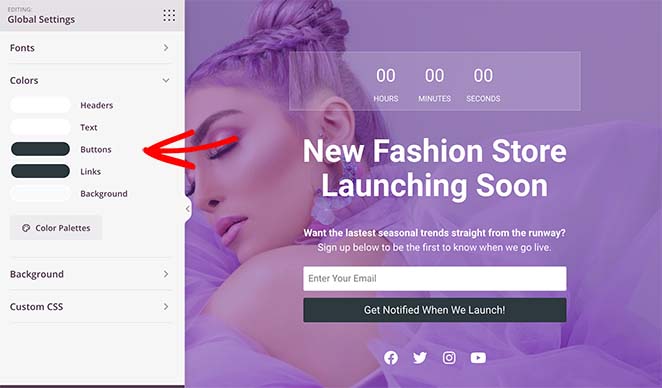
You can find the Global Settings panel by clicking the gear icon in the bottom left corner of your screen. From there, click any heading to add a global color scheme, fonts, background image, and more.
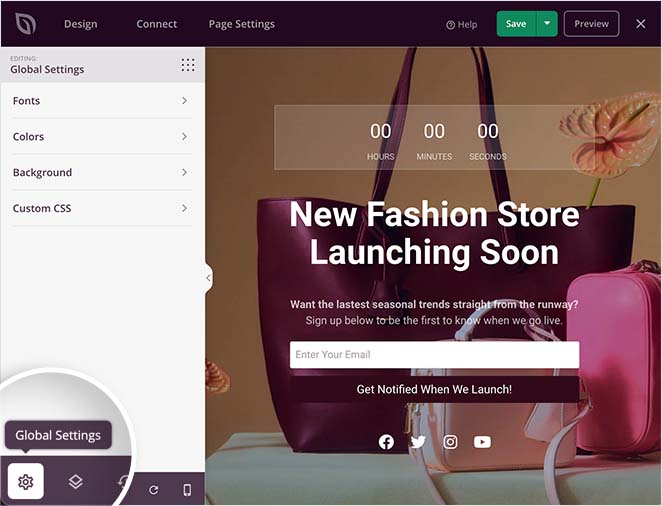
For example, we removed the default background image, replacing it with something more eye-catching.
We also clicked the Colours heading to alter the heading, text, button, and link colors.
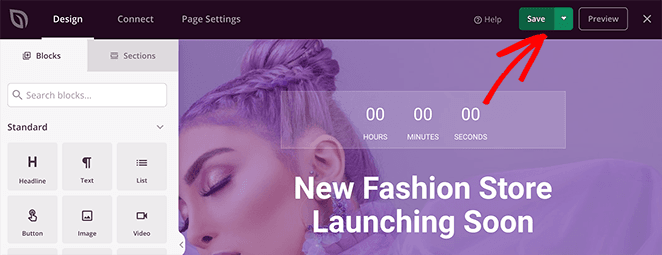
Once you’re happy with your online store’s coming soon page, hit the Save button at the top to save your progress.
Step 4: Connect Your Email Marketing Service
If you’ve added an email signup form to your WooCommerce coming soon page, it’s a good idea to connect it to an email marketing service. That way, you can collect leads, manage your subscribers, and send emails to potential customers.
You can find SeedProd’s email integrations under the Connect tab at the top of your screen.
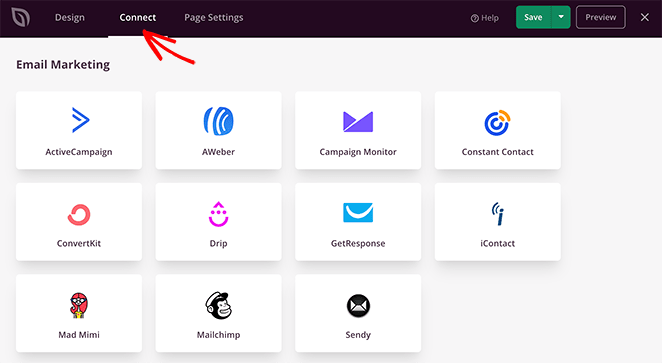
From there, click on your desired email service provider and follow the instructions to authorize and connect your account.
Step 5: Configure Your Page Settings
Before you publish, there are a few settings worth configuring. Switch to the Page Settings tab and look at the navigation panel on the left.
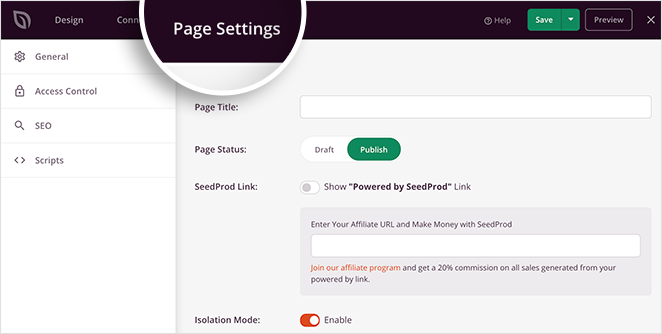
First, you can change your page title, URL, and status under the General tab.
Then, if you’re a SeedProd Pro user, you’ll see the Access Control tab. On this screen, you can choose who can see your WooCommerce coming soon page and who can access your website while it’s under construction.
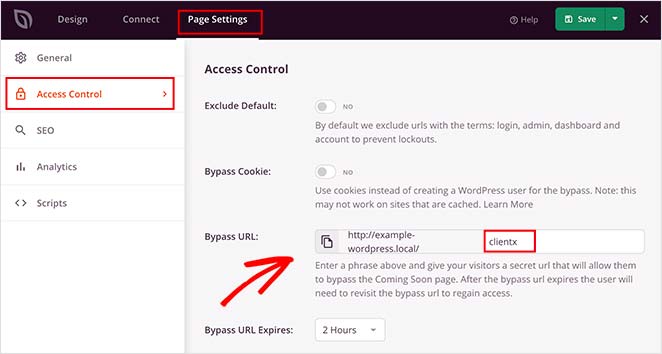
As a result, you can grant access to any developers and freelancers working on your site. And if you’re a developer yourself, you can provide temporary access to clients to show them your progress.
The next panel is the SEO settings, where you can add an SEO title and description. This information is visible to search engines and will show up in search results.
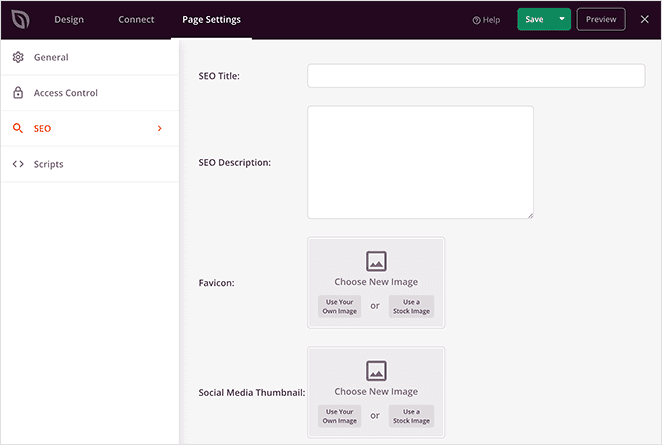
Plus, you can also add a favicon and your social media thumbnails. And if you want to block search engines from indexing your page, you can turn on the ‘Enable No Index’ option.
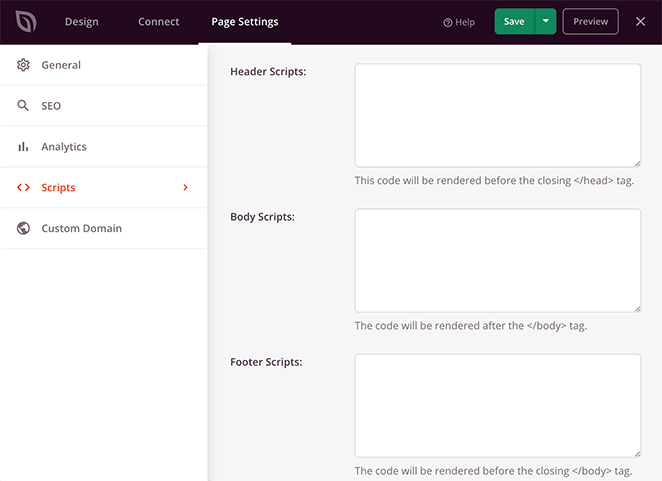
Finally, you can add any third-party scripts like your Google Analytics tracking code and Facebook pixels under the Scripts tab.
Step 6: Publish Your WooCommerce Coming Soon Page
Before making your coming soon page live on your online store, it’s a smart idea to preview it on SeedProd’s mobile preview screen. That way, you can ensure everything looks good on mobile devices.
To do that, click the mobile preview icon in the bottom toolbar, and you’ll see a live mobile preview of your page.
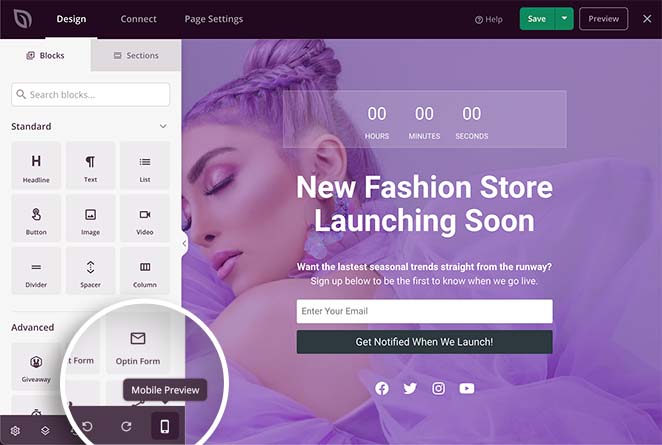
From there, you can edit your design and even hide certain elements from showing on desktop or mobile.
For example, to hide the social icons on mobile, all you need to do is click the element, select the Advanced tab, and turn on the Hide on Mobile option under the Device Visibility heading.
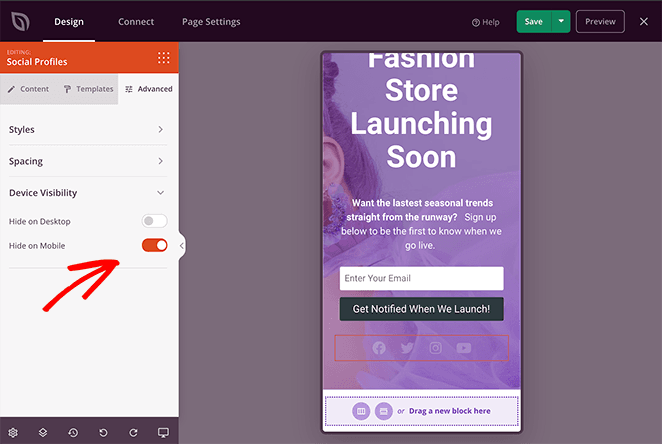
Your social icons are greyed out on your live preview, but on your live page, they won’t show at all.
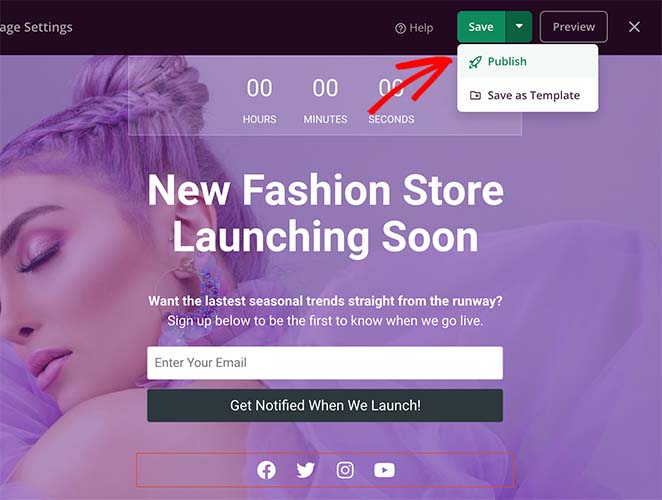
When you’re ready to publish your WooCommerce coming soon page, click the drop-down arrow beside the Save button and click Publish.
Step 7: Turn On Coming Soon Mode
Now all that’s left is to turn on your coming soon page for WooCommerce. To do that, go back to the SeedProd dashboard by clicking SeedProd » Pages from the WordPress dashboard panel on the left.
Then under the Coming Soon Mode heading, switch the toggle button to ‘Active.’
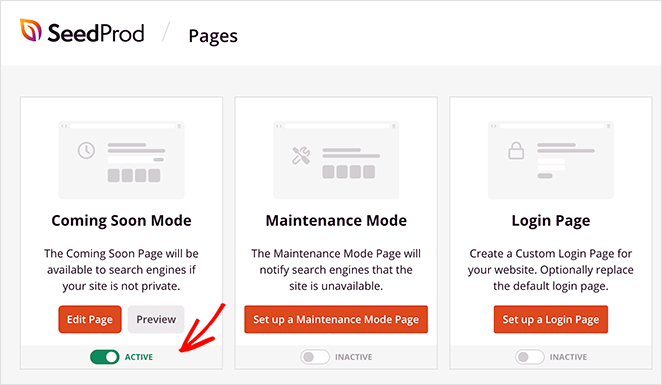
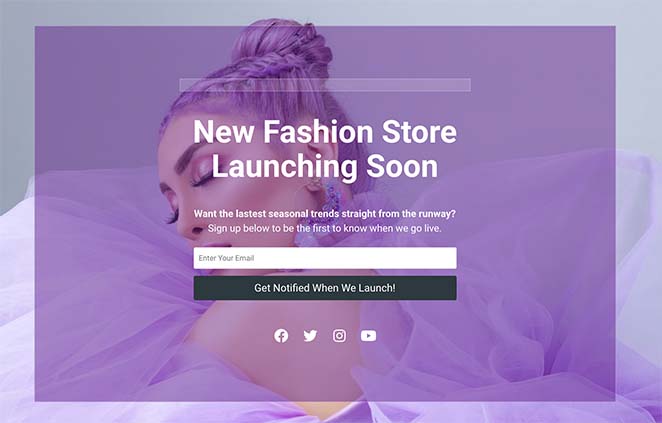
Your visitors now land on your coming soon page instead of the store, where they can see when you’re opening and sign up for your emails.
How to Edit Your WooCommerce Coming Soon Page Later
Launch dates move. To change yours, go to SeedProd » Pages in your dashboard, where the button now says Edit Page instead of Set up.
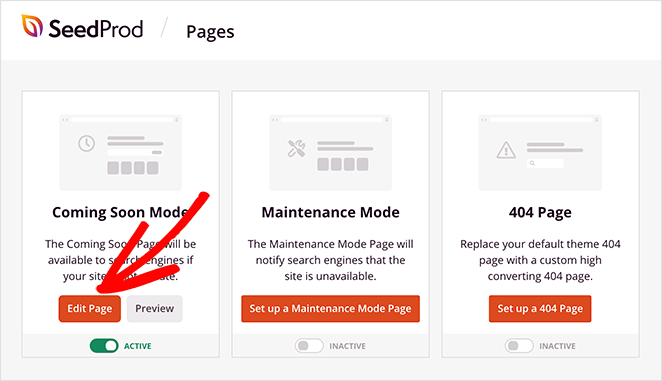
It opens the same builder you started in, so you can change the text, swap images, adjust colors or drop in new sections exactly as you did the first time.
When you’re finished, click the Save button, and your changes will show up on the live page immediately.
What Happens If You Turn On Both?
Nothing breaks, but nothing stacks either. SeedProd and WooCommerce run separate coming soon systems that don’t know the other exists, which I confirmed by reading both plugins’ code rather than assuming it.
SeedProd wins. It builds its page earlier in the page load than WooCommerce does, so visitors get your SeedProd design and WooCommerce’s plain template never appears.
Both can keep chosen pages public while the rest stays hidden. WooCommerce does it with one restriction covering your shop pages, and SeedProd does it with a list of URLs you type in yourself, which is more work but lets you pick exactly what stays live.
So run one, not both. Two switches doing the same job is how you end up unable to work out which one is hiding your store, so if you’re using SeedProd, leave the WooCommerce setting on Live and manage everything from SeedProd » Pages.
How to Show a Single WooCommerce Product as Coming Soon
WooCommerce has no coming soon setting for individual products. The feature is store-wide only, so there’s no per-product toggle and no coming soon badge waiting in the product screen.
Plenty of advice online implies otherwise, so I went looking in the plugin’s code to be sure. Everything WooCommerce ships for coming soon mode works at the site or store level, and nothing touches a single product.
What you do instead depends on whether you want the product visible.
Schedule It for Launch Day
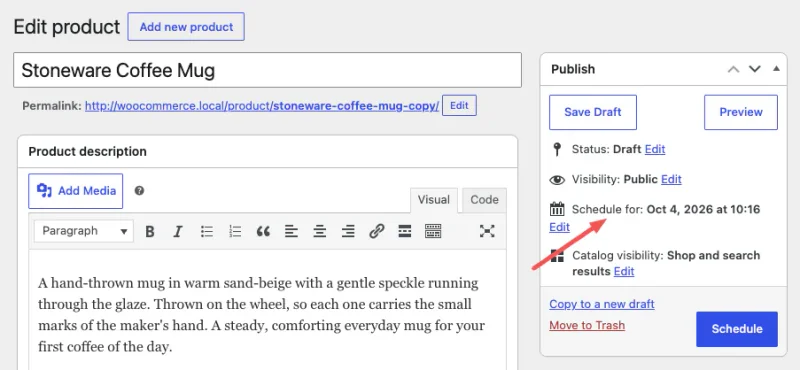
Set the product’s publish date in the future and WordPress keeps it hidden until then, publishing it for you on the day. This is the cleanest option when you already know your launch date.
Hide It From Your Catalog
In the Publish box, Catalog visibility gives you four choices: Shop and search results, Shop only, Search results only, and Hidden.
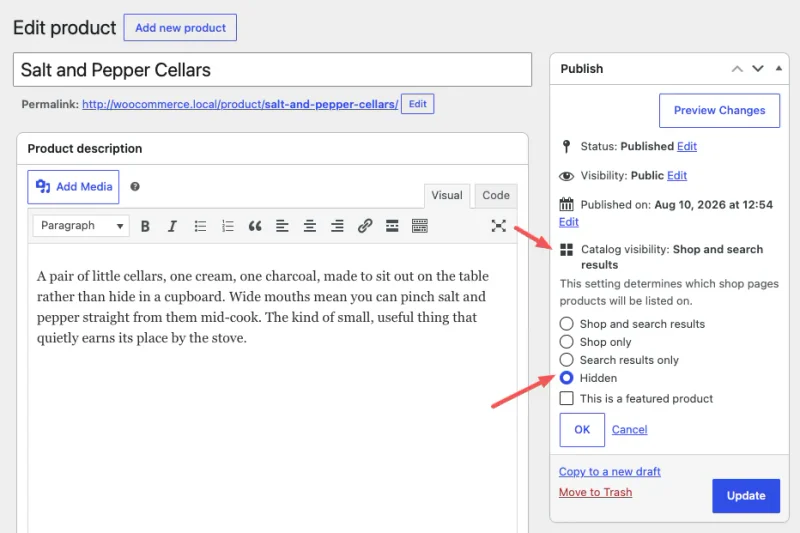
Hidden keeps the product out of both your shop and your site search, but the direct link still works. That makes it a useful way to send a preview to a handful of people without opening it up to everyone.
Show It, But Block the Sale
Stock status has three settings: In stock, Out of stock, and On backorder.
Out of stock leaves the product page up with no buy button, so people can see what’s coming and read the description. On backorder leaves the page up and still accepts orders, which is closer to a real pre-order.
For an actual coming soon badge with a launch date attached, you’ll need a pre-order or waitlist plugin. WooCommerce doesn’t draw one for you.
Or Give the Product Its Own Landing Page
If what you really want is a page for one unreleased product, that’s a landing page job rather than a product setting, and it’s the approach I’d take.
Keep the product itself hidden, then build a page in SeedProd with the product photos, a countdown to launch day and an email form. Point your teaser traffic at that page, and you have a waiting list ready to email the moment the product goes live.
Why Does My WooCommerce Site Say Coming Soon?
Because one of the two coming soon settings is switched on, and it may not have been you who switched it.
The confusing part is that you can’t see it while you’re signed in. Both systems wave store admins straight through, so your shop looks perfectly normal to you and closed to everyone else.
Open your site in a private window first. That tells you whether there’s actually a problem or whether you’re looking at your own admin view.
Then turn off whichever one is on:
- WooCommerce: go to WooCommerce, then Settings, then Site visibility, and switch back to Live.
- SeedProd: go to SeedProd, then Pages, and switch Coming Soon Mode to Inactive.
Check both if it’s still showing. They’re independent, so turning one off doesn’t touch the other.
WooCommerce can flag it for you, as long as the badge is switched on. The Display site visibility badge in admin bar setting shows your site’s visibility status next to the site name in your admin toolbar, so you can see it at a glance.
Frequently Asked Questions
Can customers still buy while my store is in coming soon mode?
Not through your normal store pages, because those are the ones being hidden. You can still take money deliberately by adding SeedProd’s add to cart or checkout blocks to your coming soon page, which is how pre-orders work. Just remember that a live checkout means your store isn’t really closed.
What is the woocommerce_coming_soon option?
It’s the database setting behind the Site visibility screen, and a second setting decides whether it covers your whole site or only your store pages. You don’t need to touch either one directly. Changing Site visibility in your WooCommerce settings writes them for you.
Can I keep some pages public while the rest of my site is hidden?
Yes, with either method. WooCommerce has a single option that hides only your shop, cart, checkout and account pages. SeedProd instead lets you list the URLs you want to stay reachable, which takes longer to set up but gives you exact control over what visitors can still read.
How long should I leave a WooCommerce coming soon page up?
Only as long as you’re genuinely about to launch. A coming soon page can help you build a list for a few weeks, but leaving it up for months means the only page Google has to work with is a holding page. If the build is going to run long, hide just the shop and keep publishing content.
WooCommerce will close your store for you in two clicks. What it won’t do is build you a page that collects email addresses and counts down to opening day.
You don’t have to design that from scratch either, because the templates and the countdown block are already there. Get started with SeedProd today and have your launch page live this afternoon.
You may also find the following WooCommerce guides helpful:
- How to Secure Your WooCommerce Site
- How to Easily Hide Out of Stock Products in WooCommerce
- How to Customize the WooCommerce Additional Information Tab
- How to Customize Your WooCommerce Cart Page
- How to Easily Customize Your WooCommerce Shop Page
- How to Display WooCommerce Featured Products (+ Related Products)
Thanks for reading. Please follow us on YouTube, Twitter, and Facebook for more helpful content to grow your business if you liked this article.