
TL;DR: WooCommerce Security in 13 Steps
Most stores get broken into through a hole somebody already knew about. These steps close the common ones, roughly in the order I would do them.
- Update everything – Out-of-date plugins and themes are the most common way in.
- Lock the login – Strong passwords, two-factor authentication and a login limiter stop password guessing.
- Keep SSL on – Encrypts what customers send you, including contact and payment details.
- Let Stripe or PayPal hold the card data – Keeps you out of scope for most PCI rules.
- Back up offsite – Backups prevent nothing, but they are how you recover.
- Know what each step does not do – Moving your login page cuts bot noise. It will not stop a password guess.
WooCommerce is secure by default, but that doesn’t mean your store is. Without a few extra steps you can still end up with fake registrations, bots hammering your login page, or yourself locked out of your own dashboard.
When that started happening on a store I managed, I couldn’t work out what I’d missed, because everything looked set up correctly. That’s the awkward part: a store can look completely fine on the surface while its back end sits wide open.
WooCommerce security isn’t one setting you switch on. It’s a handful of small jobs, most of them about five minutes each.
The harder question is which ones actually matter, because a couple of the most-repeated tips protect you from far less than they look like they do. I’ve been straight about that for every step below, and there’s a summary table further down if you want the short version.
Table of Contents
- 1. Use a Strong Hosting Provider
- 2. Always Use SSL (HTTPS)
- 3. Keep WordPress, Plugins & Themes Updated
- 4. Use Strong Passwords + Two-Factor Authentication
- 5. Limit Login Attempts + Add CAPTCHA
- 6. Install a Security Plugin
- 7. Use a Custom WooCommerce Login URL
- 8. Secure Your WooCommerce Checkout
- 9. Back Up Your Site Regularly
- 10. Set the Right User Roles
- 11. Hide wp-admin + Disable XML-RPC
- 12. Monitor Your Site for Suspicious Activity
- 13. Understand PCI Compliance
- What Each Step Actually Protects You From
- FAQs About WooCommerce Security
Why Secure Your WooCommerce Site?
WooCommerce powers more than 4 million live stores. That kind of popularity makes it a common target for hackers and bots looking for weak spots.
If your store isn’t properly secured, you risk more than just technical headaches. You could lose customer trust, miss out on sales, or even have your site flagged as unsafe by search engines and browsers.
Security issues can lead to fake orders, locked accounts, and downtime, all of which hurt your reputation and your bottom line.
You don’t have to be a security expert to protect your store. A few straightforward steps close the most common holes, and none of them need code.
Steps to Secure Your WooCommerce Site
There’s no one-click fix, but there is an order that makes sense. Work down the list, and if you stop halfway you’ll still have closed the holes that actually get used.
1. Use a Strong Hosting Provider
Good hosting isn’t just about speed or storage. It’s your first layer of security.
If your host doesn’t offer basic protections, everything else you set up is at risk. I’ve seen sites go down because of malware that should have been blocked at the server level, or backups that weren’t there when they were needed most.
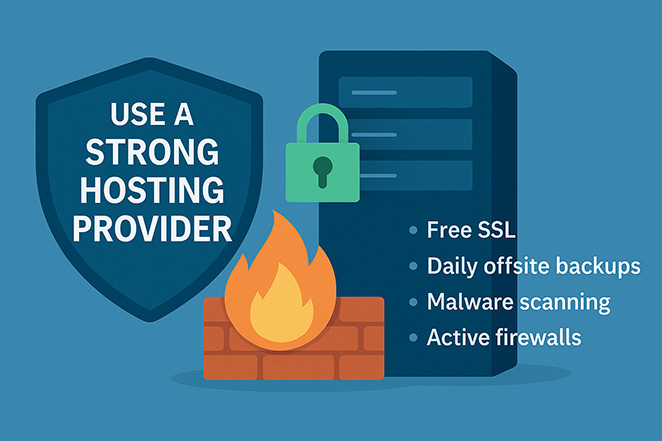
Here’s what I always look for now:
- Free SSL
- Daily offsite backups
- Malware scanning
- Active firewalls
I’ve had reliable results with SiteGround and Bluehost. They handle the essentials behind the scenes so you can focus on your store.
I go over the pros and cons here: how to choose WordPress hosting
2. Always Use SSL (HTTPS)
SSL protects the data your customers share with your site, like passwords, payment info, and contact details. It keeps everything encrypted so no one can intercept it.
Most good hosts include free SSL through Let’s Encrypt, but sometimes you need to turn it on manually in your hosting dashboard. If that doesn’t work, the free plugin Really Simple SSL can handle it for you.
If you don’t see a padlock icon in your browser’s address bar, something’s not set up right, and your visitors will notice.
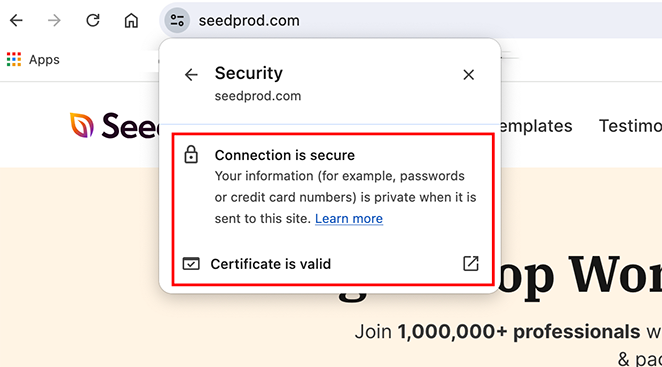
One thing worth knowing: SSL protects data in transit, so it does nothing about anything already sitting on your server. It’s necessary, not sufficient.
3. Keep WordPress, Plugins & Themes Updated
Most hacks happen because something’s out of date. It could be a plugin, your theme, or even WordPress itself.
Updates often include security fixes, so skipping them means leaving known issues open for attackers.
On the stores I’ve managed I keep auto-updates on for WooCommerce, the theme, and the WordPress plugins the site actually depends on. Once a week I check nothing was missed.
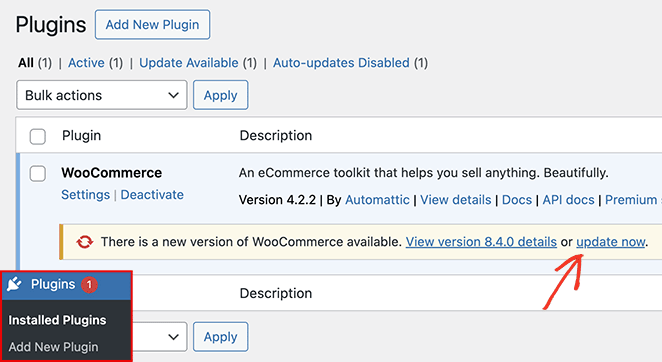
If I’m not using a plugin or theme anymore, I remove it completely. Even deactivated ones can be a risk.
It only takes a few minutes, but it makes a big difference in keeping your site safe.
4. Use Strong Passwords + Two-Factor Authentication
Weak passwords are one of the easiest ways for bots to break into your site. If you’re using something simple or still logging in as “admin,” it’s time to make a change.
Two-factor authentication, or 2FA, adds an extra layer of security to your login. After entering your password, you’ll need to provide a second code, usually sent to your phone or email.
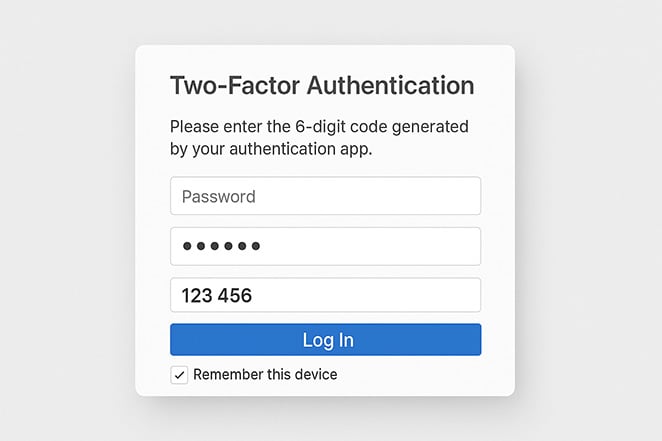
This way, even if a hacker steals your password, they can’t access your site without that second verification step. It’s one of the best ways to stop unauthorized access and brute force attacks.
Plugins like WP 2FA, Duo and Wordfence Login Security all set this up in a few minutes.
If you only do one thing from this whole list, I’d make it this one. Two-factor authentication is the only step here that still protects you after your password has already leaked, and passwords leak through other people’s breaches, not yours.
5. Limit Login Attempts + Add CAPTCHA
Brute force attacks happen when bots try to break into your site by guessing your username and password thousands of times. These automated attempts can overwhelm your login page and succeed if your passwords are weak.
A login limiter is the fix, and it is the single most effective thing on this list against password guessing, because it takes away the attacker’s only real advantage: being able to try again. Limit Login Attempts Reloaded is the one I see recommended most often, and it locks an address out after a handful of failures.
I also add CAPTCHA to login pages, checkout forms, and contact forms to stop bots from creating fake accounts or submitting spam.
Cloudflare Turnstile works well because it runs in the background and doesn’t slow down real users. WPForms also offers built-in CAPTCHA if you’re using it for your forms.
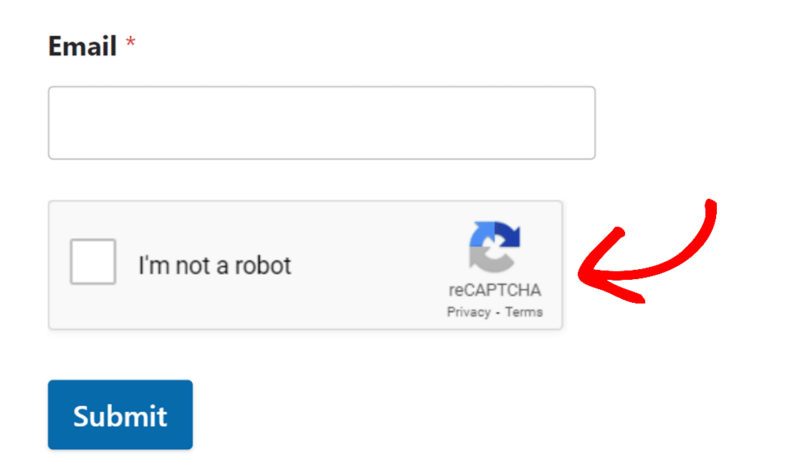
You won’t notice it much, but it quietly filters out junk before it reaches you.
6. Install a Security Plugin
A good security plugin works in the background to keep threats out, even when you’re not logged in. It can block suspicious traffic, scan for malware, and alert you if something looks off.
Wordfence, Sucuri and Kadence Security are the three I’ve spent the most time in. All have free tiers that cover scanning and a firewall, and you can upgrade later if you need more.
Kadence Security is worth a note if you have read older guides, because you may know it as iThemes Security. It was renamed Solid Security, then moved again, so the name in a 2023 tutorial is not the name in the plugin directory today.
You don’t need all of them, just pick one and get it running. Most plugins walk you through the setup with a simple wizard, and once it’s active, you’ll start seeing login reports, scan results, and other helpful updates.
For the full checklist, see how I secure a WordPress site from hackers.
7. Use a Custom WooCommerce Login URL
Most WordPress sites keep their login at /wp-login.php or /wp-admin, and every bot on the internet knows both addresses. Moving yours somewhere less obvious cuts a lot of the junk traffic hitting it.
SeedProd is a drag-and-drop website builder for WordPress, and its Login Page mode lets you design a login screen at an address you pick without touching code. On the stores I’ve managed, the real value was how it looked: clients got a page matching their brand instead of the grey WordPress default.
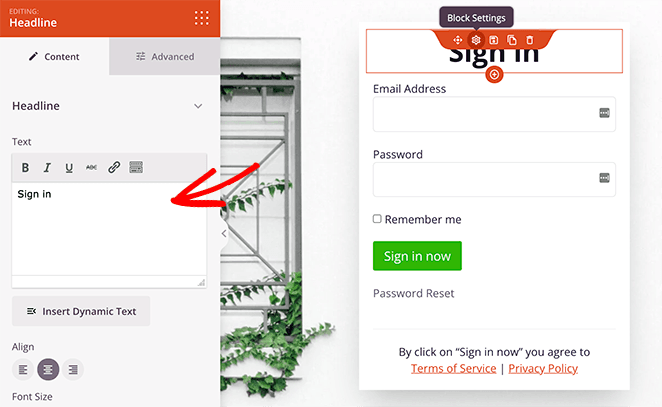
Moving your login page doesn’t switch the old one off, though, and that turns out to matter.
What a branded login page won’t do: Visitors to your old login address get forwarded to the new page, but that old address still accepts login attempts, so a bot can keep guessing passwords there without ever finding your new page. I checked this in SeedProd Pro 6.20.9, and it’s deliberate, because the login form submits to that same address and blocking it would lock you out too.
So a custom login page is worth having. It just isn’t the thing keeping anyone out, and the two steps that do that job are the login limiter in step 5 and two-factor authentication in step 4.
If you want the login form genuinely gone from the old address, my guide on how to change your WordPress admin login URL covers a manual method that does that, alongside the SeedProd route.
Bookmark your new login link so you don’t lose access.
8. Secure Your WooCommerce Checkout
The checkout page is where customers share their most sensitive information. If it looks off or doesn’t feel secure, people will leave before completing their purchase.
Stick with an established payment provider like Stripe or PayPal. They handle encryption and fraud checks on their own systems, which means card numbers never touch your server and you never have to secure them.
You can even create a custom checkout page with extra functionality.
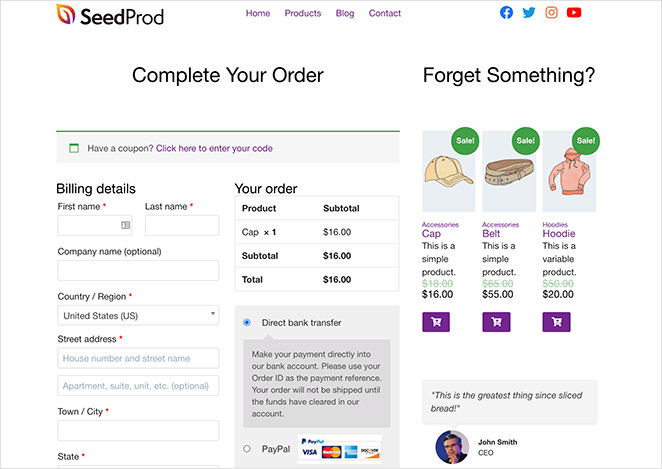
But, make sure your checkout page:
- Uses HTTPS
- Includes trust badges from your payment provider
- Matches the rest of your site’s design
Avoid any redirects or layout changes that might make visitors second-guess the page.
If you are wiring up payments from scratch, this walks through connecting a payment gateway to a WordPress page.
9. Back Up Your Site Regularly
Even with strong security, things can still go wrong. A bad plugin update, a simple mistake, or a malware attack can take your store offline without warning.
That’s why backups are part of my core security setup. I don’t wait until something breaks to start backing up.
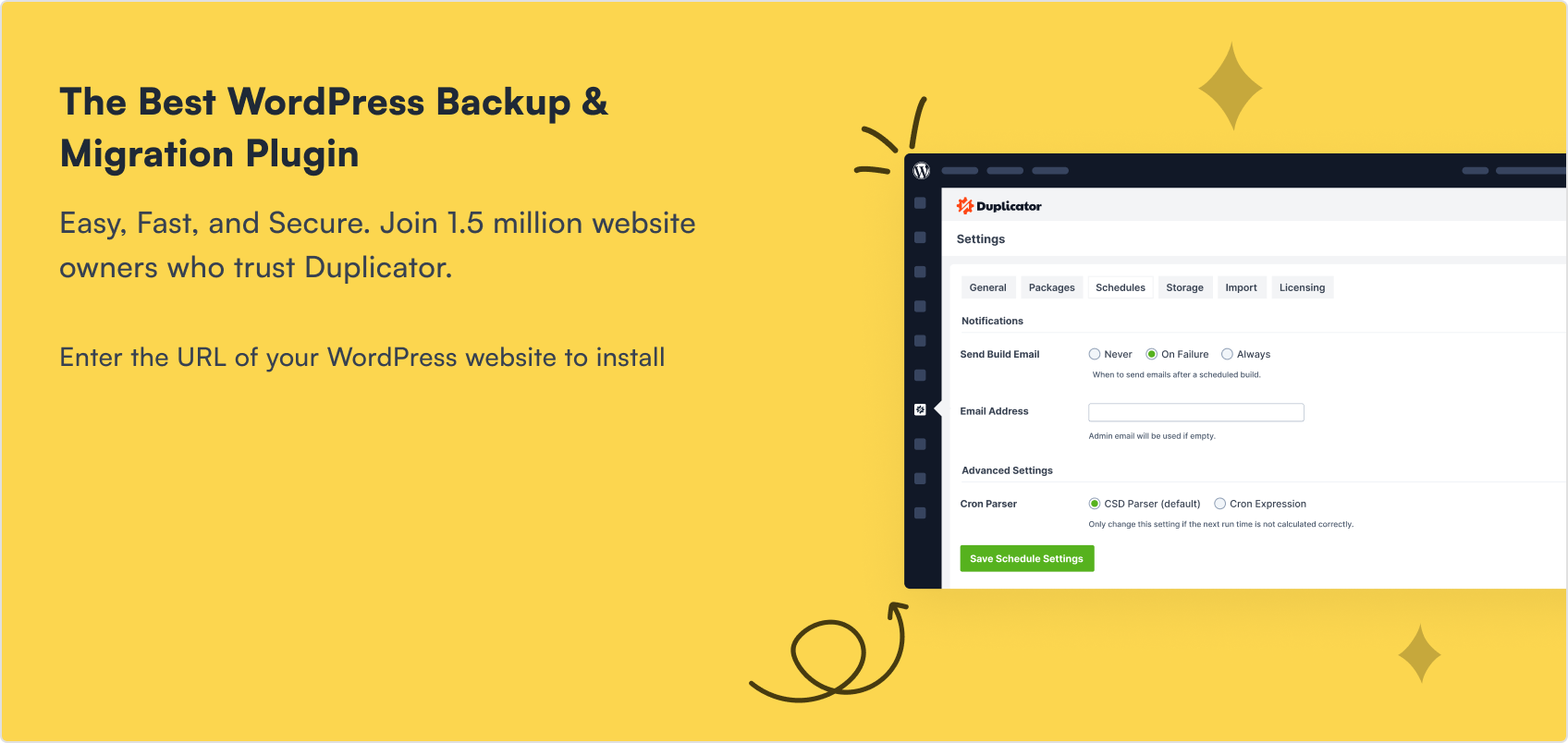
I use Duplicator for this, on a schedule so I never have to remember. It packages the files, the database and the settings into one downloadable file.
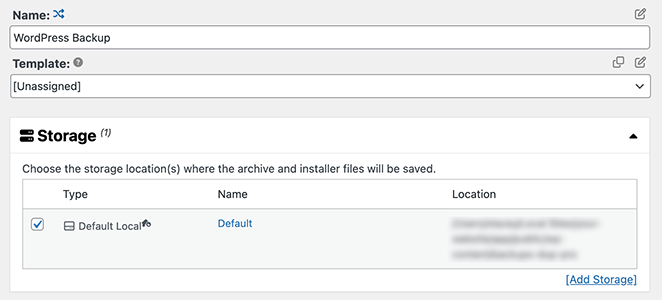
I always store backups offsite, like in Google Drive or Dropbox, so they’re safe even if my hosting server has issues.
For busy stores, daily backups are best. Smaller or newer sites can usually get by with weekly backups, as long as they happen regularly.
Having a good backup means you can recover quickly without starting over.
For the full steps, see my guide on how to back up your WordPress site.
10. Set the Right User Roles
Not everyone needs full access to your WordPress dashboard. Giving admin rights to the wrong person, even by accident, can lead to serious problems like deleted content or security issues.
On the stores I’ve managed, Administrator went only to people trusted with the whole site, and everyone handling orders got Shop Manager instead.
It gives them control over orders and products without letting them change plugins or site settings. If someone is only helping with content, the Editor role is a better fit.
WordPress includes several user roles by default, each with its own set of permissions. Choosing the right one from the start helps keep your site safer and easier to manage.
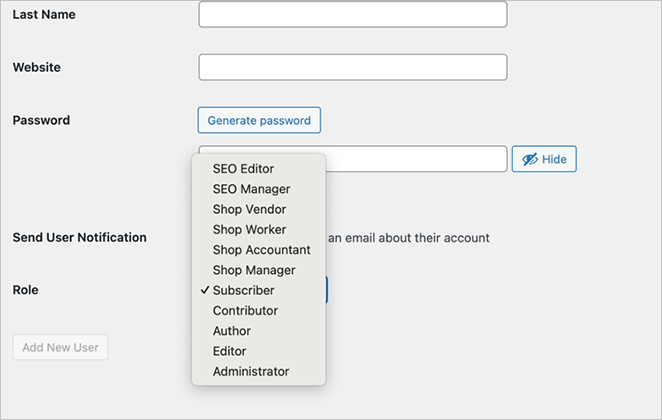
Review the user list every few months and delete the accounts nobody has signed into. A dormant admin account belonging to a developer who finished the job two years ago is one of the easiest ways into a store, and nobody notices it because nothing is broken.
If you want to go a step further, you can password protect parts of your WordPress site to limit access even more.
11. Hide wp-admin + Disable XML-RPC
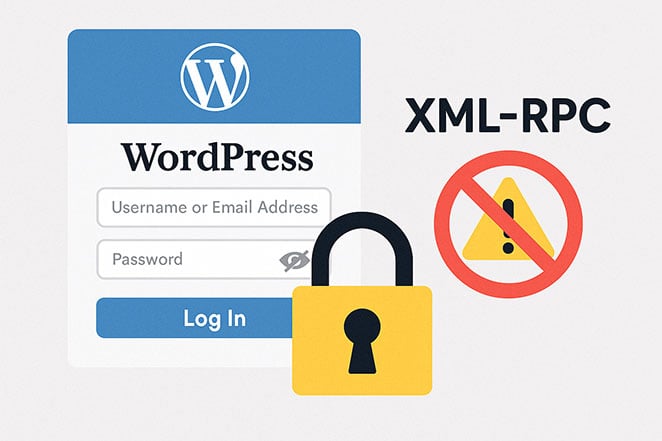
Two of the most common targets for automated attacks are the login page and a WordPress feature called XML-RPC.
XML-RPC is a system WordPress uses to let apps and services communicate with your site remotely, like the WordPress mobile app or Jetpack plugin. Unfortunately, hackers often exploit it to overload your site with malicious requests or try to break in.
These two are worth separating, because they are not the same size of win. Turning XML-RPC off closes a real attack route, since it lets an attacker try many passwords in a single request and it can be used to flood your site.
Hiding the login area is the smaller of the two. It quietens the automated traffic, but as in step 7, a bot still trying passwords at your old login address carries on unaffected.
If you use the WordPress mobile app or Jetpack, check before you disable XML-RPC, because both rely on it. Any of the security plugins in step 6 will handle both settings with a toggle, so you don’t need to edit files.
12. Monitor Your Site for Suspicious Activity
Security isn’t just about setting things up once. You need to keep an eye on what’s happening behind the scenes.
I get email alerts for important events like failed login attempts or file changes. Wordfence and Sucuri both offer this and notify you right away if something unusual occurs.
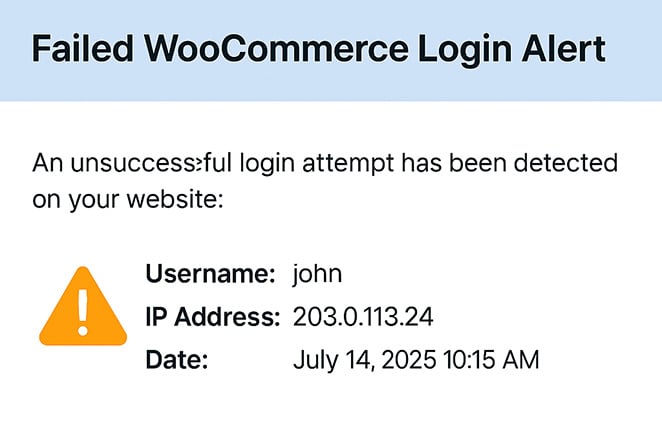
It also helps to watch your traffic. MonsterInsights is a popular Google Analytics plugin for WordPress that makes it easy to track visitors. It helps spot sudden spikes or strange referral sources that could signal bot attacks or spam.
As a backup, I run my site through Google Safe Browsing and VirusTotal about once a month. These tools scan for malware or blacklisting so you can act fast if needed.
13. Understand PCI Compliance
If you accept credit card payments, your store must follow PCI compliance rules. These standards protect payment data and keep customers safe.
Payment providers like Stripe and PayPal are PCI Level 1 compliant, which means they carry most of the requirements on your behalf.
That means you don’t have to store sensitive payment info on your site, which lowers your risk.
I wouldn’t lose much sleep over PCI as a small store, as long as you never handle card numbers yourself. It’s the moment you install something that captures card details on your own site that this turns into a real piece of work, and that’s the line I’d avoid crossing.
Bonus: Add a Privacy Policy + Terms Page
Having a privacy policy and terms page on your store builds trust with your customers. It shows you take their data seriously and follow the rules.
Most countries require these pages by law if you collect personal info or process payments. Even if you’re just starting out, adding them protects you and your business.
You can create these pages easily using WordPress templates or plugins, or generate them with online tools.
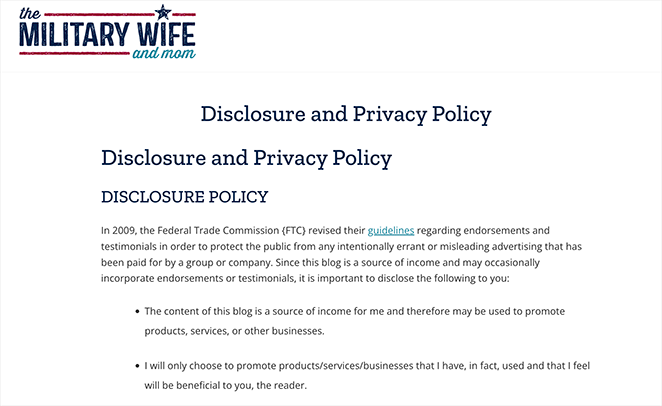
For a beginner-friendly guide, check out my post on how to create a WordPress privacy policy.
What Each Step Actually Protects You From
Security lists tend to present every item as equally urgent, which is how people end up doing the easy cosmetic ones and skipping the two that matter. Here is the honest version, including the steps that protect you from nothing at all.
| Step | What it stops | What it doesn’t |
|---|---|---|
| 1. Strong hosting | Server-level malware, and a lot of bad traffic before it reaches WordPress | Anything arriving through a valid login |
| 2. SSL (HTTPS) | Anyone reading customer data while it travels | Anything already sitting on your server |
| 3. Updates | Attacks on holes that are public knowledge and already patched | Weak passwords, and anything not yet patched |
| 4. Passwords + 2FA | Logins using a guessed or stolen password | Vulnerable plugin code |
| 5. Login limiter + CAPTCHA | Password guessing at volume, fake registrations, form spam | Someone who already has the right password |
| 6. Security plugin | Known-bad traffic, and it tells you when files change | It isn’t a backup |
| 7. Custom login page | A lot of bot traffic, and it looks like your brand | Password guessing at your old login address |
| 8. Stripe or PayPal at checkout | You ever holding card numbers at all | Someone taking over a customer’s account |
| 9. Backups | Nothing. This is how you recover afterwards | Any attack, ever |
| 10. User roles | Accidental damage, and access that is broader than the job needs | Attacks from outside |
| 11. Disable XML-RPC | Many-passwords-per-request attempts, and one flooding route | Ordinary password guessing at the login form |
| 12. Monitoring | Nothing. It shortens how long a problem goes unnoticed | Any attack |
| 13. PCI compliance | Liability for holding card data yourself | It’s a rule set, not a technical control |
Read down the third column and the priority order sorts itself out. Steps 3, 4 and 5 are the ones doing the heavy lifting, and if you only have twenty minutes this week, spend it there.
FAQs About WooCommerce Security
Is WooCommerce Safe to Use?
Yes. WooCommerce is maintained by Automattic, security patches ship quickly, and the core plugin is rarely how a store gets compromised. The weak points are almost always around it: an out-of-date extension, a reused admin password, or a host with no firewall.
What Is the Best Security Plugin for WooCommerce?
There isn’t one answer, and Wordfence, Sucuri or Kadence Security will each cover the basics on a small store. Choose on how much you want to think about it, because Wordfence gives you the most detail to read while Sucuri filters traffic on its own network first. Running two at once causes more problems than it solves.
Does WooCommerce Encrypt Customer Data?
Not by itself. WooCommerce stores names, addresses and order history in your database as ordinary text, so SSL protects that data while it travels and your hosting and logins protect it at rest. Card numbers are the exception, because Stripe and PayPal hold those and your store never receives them.
How Do I Know if My WooCommerce Site Has Been Hacked?
Watch for content changing on its own, a sudden drop in search traffic, user accounts you didn’t create, or customers reporting browser warnings. Your security plugin’s file-change alerts usually notice before you do, which is the main reason to turn them on.
Can I Secure My WooCommerce Store Without Plugins?
Partly. Strong passwords, correct user roles, decent hosting and an SSL certificate need no plugins and close most of the common holes. Malware scanning, firewall rules and login limiting are the parts that are genuinely hard to do by hand, so most stores end up with one plugin covering those three jobs.
Final Tips for Keeping Your Store Safe
None of this needs a specialist, and you don’t have to do all thirteen this afternoon. If I had to pick three it would be updates, a login limiter and two-factor authentication, because between them they cover most of the risk that actually materialises.
If you want the login and checkout pages to match the rest of your store, you can build both in SeedProd today without editing a single file.
While you’re here, you may also find the following WooCommerce guides helpful:
- Top Mistakes Beginners Make Building WordPress Sites
- 10 Best On-Page SEO Tools for WordPress
- How to Customize Your WooCommerce Shop Page (Without Code)
Thanks for reading! We’d love to hear your thoughts, so please feel free to join the conversation on YouTube, X and Facebook for more helpful advice and content to grow your business.