


TL;DR: How to Create an Instagram Landing Page in WordPress (Without Linktree)
Instagram only gives you one link in your bio. This guide shows you how to build a custom Instagram landing page on your own WordPress site with SeedProd, so you own the traffic and track every click.
- Install SeedProd – Activate the plugin and verify your license key in WordPress settings.
- Create a landing page – Go to SeedProd » Pages and click Add New Landing Page.
- Choose a template – Pick a mobile-ready template from 200+ options and import it.
- Customize your design – Add your images, links, and opt-in form using the drag-and-drop editor.
- Check mobile view – Preview on mobile before publishing since most Instagram visitors arrive on phones.
- Add URL to Instagram – Copy your page URL and paste it into your Instagram bio, then tag links with UTM parameters to track traffic in Google Analytics.
You get one link in your Instagram bio. One. If you have a blog post, a product launch, a freebie, and a newsletter signup all competing for that spot, something always gets left out.
Most people solve this with Linktree. It works, but your traffic lands on someone else’s platform, with someone else’s branding, and analytics you don’t fully own. If you already have a WordPress site, you can build your own Instagram landing page in about 15 minutes and keep every visitor on your domain.
In this guide, I’ll show you how to create an Instagram landing page in WordPress using SeedProd, so it loads fast, looks great on mobile, and gives your followers a clear next step.
What Is an Instagram Landing Page?
An Instagram landing page is a simple web page you link from your Instagram bio link, story, or ad. It gives your followers one place to click so they can read, shop, or sign up without hunting through your site.
Unlike a Linktree or third-party link in bio page, a WordPress-hosted landing page lives on your domain. You control the design, collect first-party analytics, and keep visitors inside your brand experience from the first click.
No, Instagram does not have a built-in landing page. You create one on your website and link to it from your bio.
| Use Case | Suggested Modules |
|---|---|
| Share blog posts | Image grid + text links |
| Promote products | Product gallery + buy buttons |
| Grow email list | Opt-in form + CTA button |
| Highlight videos | Video block + headline |
| Run promotions | Countdown timer + coupon link |
Why You Need a Landing Page for Instagram
A dedicated Instagram landing page helps you turn more profile visits into clicks, signups, and sales.
Sending followers to a generic homepage often leads to lost traffic. Focused landing pages convert better, with a median rate of about 6.6% across 41,000+ pages, and top pages hitting 10% or more.
This also applies to paid traffic. If you’re running Instagram ads, sending clicks to a dedicated landing page instead of your homepage gives you cleaner conversion data. A page built around one offer converts more efficiently than a generic homepage, which means your ad budget goes further.
| Goal | Block to Add | Metric to Track |
|---|---|---|
| Drive faster actions | CTA button / link list | Click-through rate (CTR) |
| Promote multiple offers | Image grid / product gallery | Link clicks by category |
| Keep branding consistent | Global colors & fonts | Bounce rate |
| Collect leads | Email opt-in form | Signup conversions |
| Measure impact | Analytics or UTM links | Traffic source performance |
Pick your main goal, match it with the right SeedProd block, and you’ll guide visitors more smoothly while tracking the results that matter.
Why Build Your Own Page Instead of Using Linktree?
Linktree is popular because it’s fast to set up. But it comes with real costs most people don’t notice until later.
When someone clicks your Linktree link, they land on Linktree’s domain, not yours. That means your Google Analytics won’t see that traffic the same way, and every visitor who bounces is gone from your site entirely. You’re also paying a monthly fee for a page you don’t own and can’t fully brand.
Building your own Instagram bio link page with WordPress costs nothing extra if you already have hosting. You get full branding control, first-party analytics, and a page that actually belongs to your site. Now that you know why owning your page matters, here’s what to put on it.
Best Instagram Landing Page Ideas
Start by picking one primary goal for your page. Trying to do everything at once usually means visitors do nothing.
1. Link to multiple blog posts
- Header
- Image + Title
- Image + Title
- Image + Title
CTA: Add an Image block linked to posts. Tag links with ?utm_source=instagram for tracking.
2. Highlight your top products
- Product Image
- Product Image
- Buy Button
- Buy Button
CTA: Use a Product Gallery block with buy buttons. Track clicks in Google Analytics.
3. Promote your latest freebie
- Headline: Free Guide
- Short Description
- Opt-in Form + CTA Button
CTA: Add an Opt-in Form block. Connect your email tool, and tag Instagram traffic with a dedicated list segment.
You can also experiment with short videos or shoppable grids. Just pick the one pattern that best matches your main Instagram goal.
How to Create a Landing Page on Instagram with WordPress
This section shows you the exact steps to build a custom Instagram landing page in WordPress using SeedProd.
Before you start, make sure you have the basics in place:
- Domain name
- Website hosting
- Business website
If you already have an established website, you don’t need to worry about this. For help getting set up, follow this step-by-step guide on how to create a WordPress website.
Ready? Let’s dive in.
Step 1: Install and Activate SeedProd
For this tutorial, I’m using SeedProd to make an Instagram landing page. SeedProd is one of the best drag-and-drop website builders for WordPress, with over 200 mobile-ready templates and 90+ blocks.

It includes a drag-and-drop visual editor so you can design your page in real-time without touching code. You can also integrate your page with popular email marketing services to grow your list from day one.
Click here to get started with SeedProd, then install and activate the plugin on your WordPress website.
Note: there is a free version of SeedProd available, but we’ll use the Pro version for the advanced features we need.
If you need help with this step, you can follow this guide on installing a WordPress plugin.
After installing SeedProd, go to SeedProd » Settings and enter your license key.
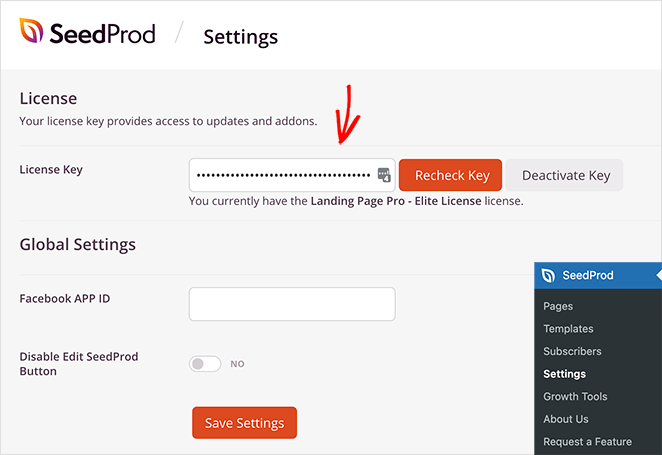
If you don’t have your license key ready, you can find it in the account section of the SeedProd website.
Step 2: Create a New Landing Page
After activating your license key, go to SeedProd » Pages.
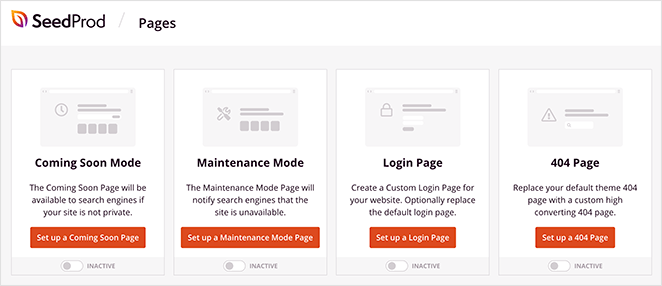
On this page, you can:
- Create and activate a coming soon page
- Activate maintenance mode
- Make a custom 404 page
- Set up a custom WordPress login page
- Create a standalone WordPress landing page
The advantage of SeedProd’s page modes is that it adds extra functionality to your site without installing multiple WordPress plugins.
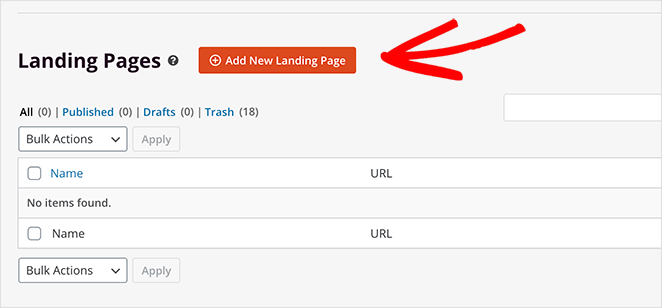
For this guide, we want to create a standalone landing page. To do that, click the Add New Landing Page button.
Step 3: Choose a Landing Page Template
On the following screen, you can choose from hundreds of responsive landing page templates.
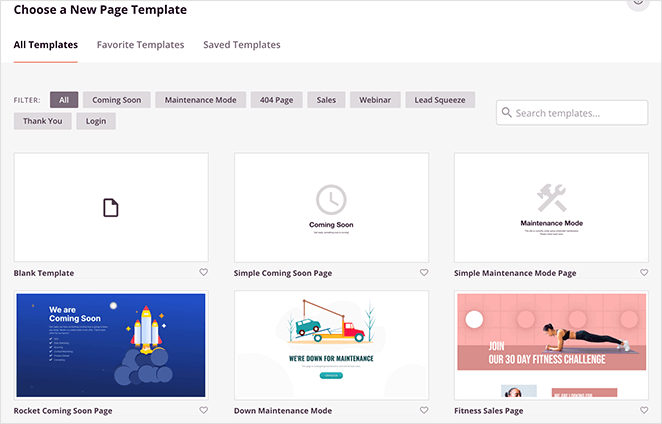
You can filter designs by clicking the tabs along the top, such as:
- All
- Coming Soon
- Maintenance Mode
- 404 Page
- Sales
- Webinar
- Lead Squeeze
- Login
The best approach is to look for a template that closely matches the design you want to achieve. If it’s not a perfect fit, don’t worry; you can easily customize it in the next step.
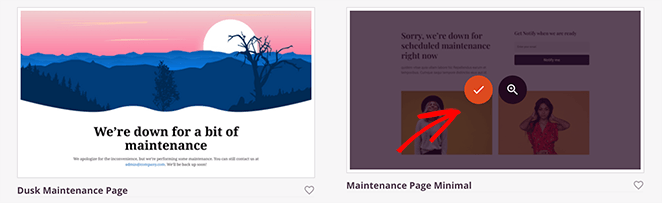
For this tutorial, we’ll start with a minimal maintenance-style template. Look for a clean, single-column layout in the Maintenance Mode or All tab. If the exact template name has changed since this article was written, any simple layout works fine as a starting point.
Go ahead and hover your mouse over the template thumbnail and click the check icon to import it.
Next, you’ll see a visual cue to enter your page name and URL. It’s a good idea to make this something your Instagram fans will recognize easily.
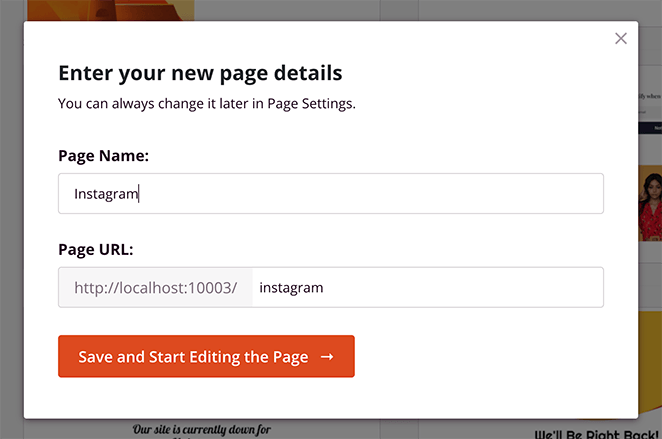
You can then click the Save and Start Editing the Page button to launch your template in the visual editor.
Step 4: Customize Your Landing Page Design
Now, it’s time to start customizing your Instagram page with the drag-and-drop builder.
Design mobile-first from the start. Most Instagram visitors arrive on a phone, so design your page for mobile before worrying about desktop. You can switch to the mobile preview at any time using the icon in the bottom navigation bar.
You’ll see a live preview of your page on the right. To edit any element, click on it and an editing menu will appear on the left.
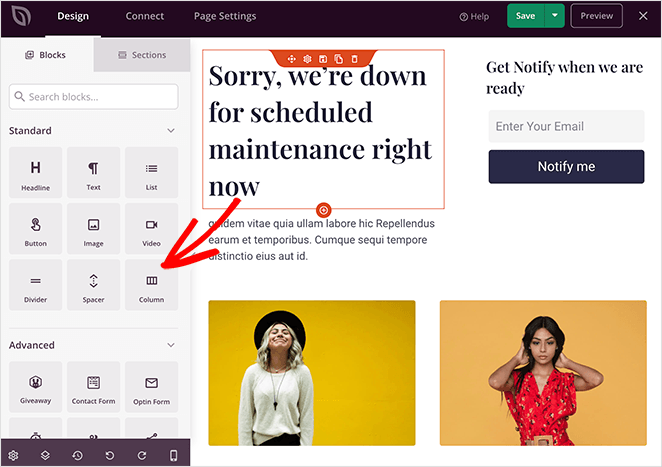
The left-hand options panel has elements you can drag and drop right onto your landing page design.
Now, let’s add some blocks and customizations to make the template more like an Instagram link page.
Editing & Deleting Blocks
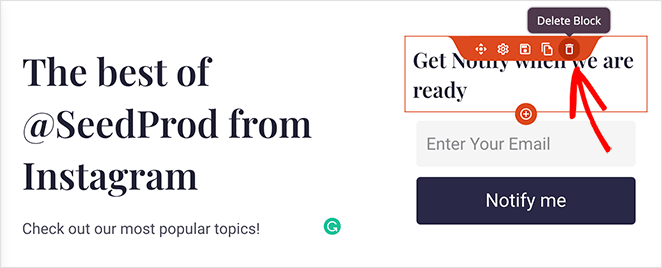
First, let’s change the landing page heading, so users know why they’re there and what the page is about.
To do this, click anywhere on the heading text and replace it with your custom message.
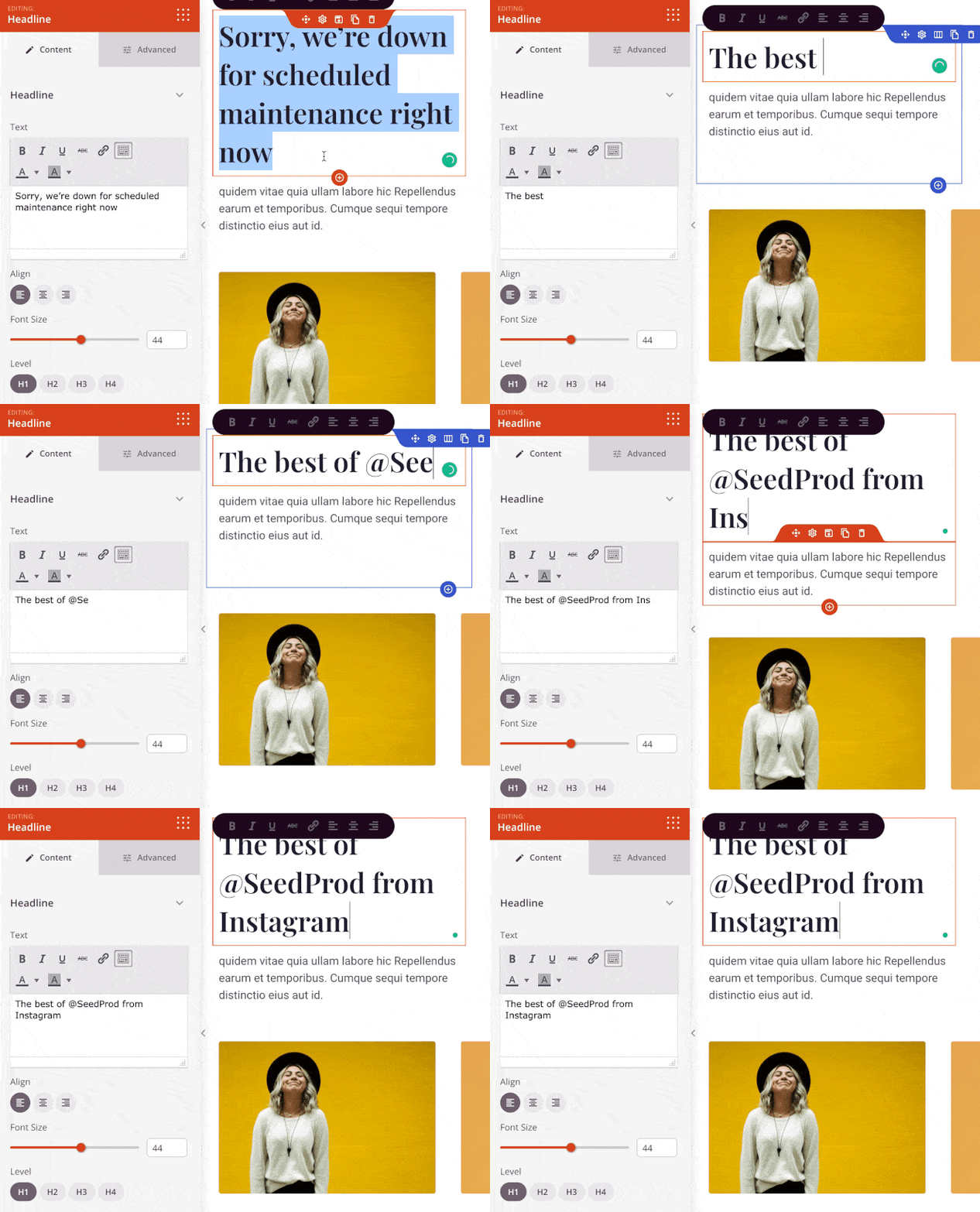
If there are any elements you want to remove, hover your mouse over the block and click the trashcan icon.
Uploading Custom Images
Now, let’s replace the default images with some popular posts from your website. All you need to do is click the existing image and delete it using the trashcan icon in the left-hand panel.
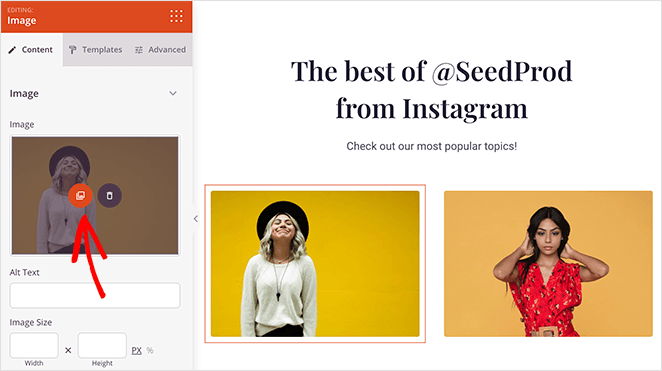
From there, you can click the Use Your Own button to upload an image from your computer or WordPress media library.
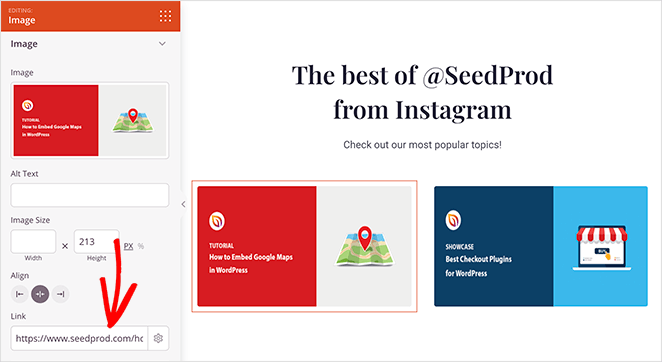
You can add a link in the same image settings panel, so anyone who clicks your image goes directly to the relevant blog post.
Duplicating Page Blocks & Rows
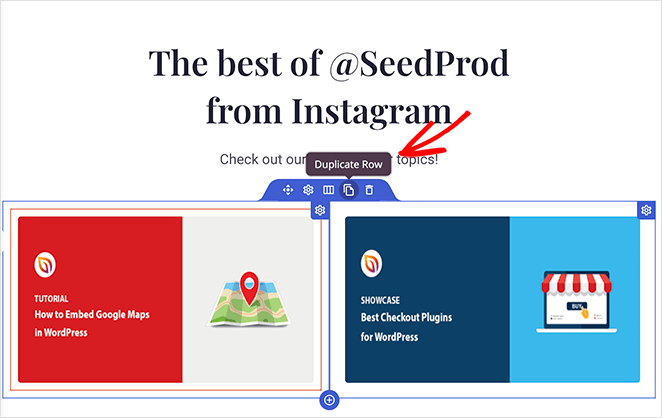
Now, let’s say you want to add another row of images. To do this quickly, you can duplicate the existing row.
Just hover your mouse over the row and click the Duplicate Row icon. Then, repeat the process above to add your images and post links.
Adding a Landing Page Opt-in Form
If one of your goals is to collect email addresses from your Instagram fans, you can do this easily with SeedProd’s opt-in form block.
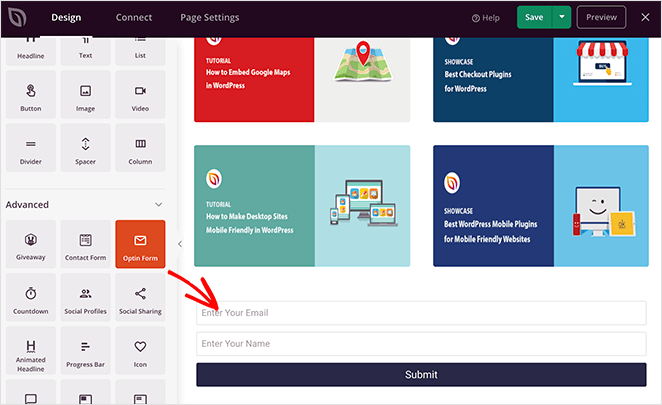
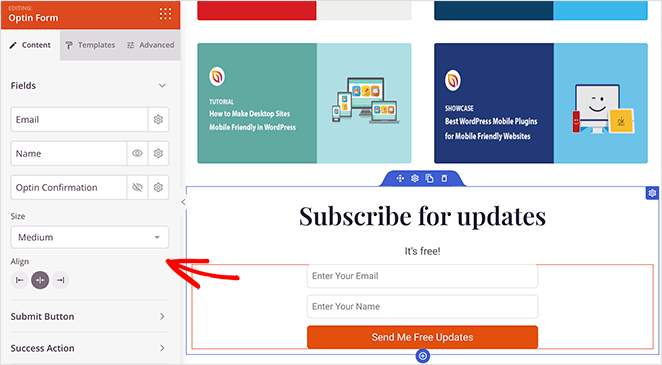
Just drag the block onto your page, and click it to configure your form settings. For instance, you can change your call-to-action button text, colors, form input labels, and more.
From there, click the Connect tab at the top of the screen to connect to your email marketing service.
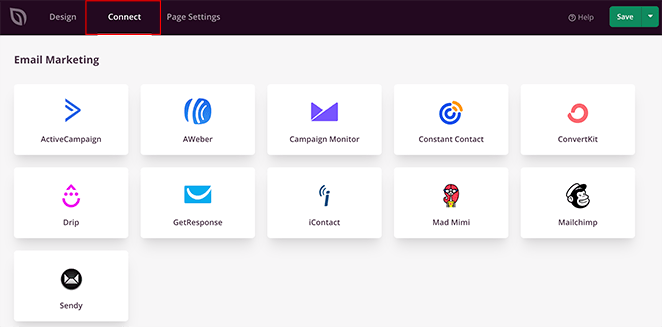
For full instructions on connecting to individual email marketing providers, see our email integration documentation.
Customizing Global Colors, Fonts & Backgrounds
To ensure your page has a consistent look and feel, you can use the Global Settings panel.
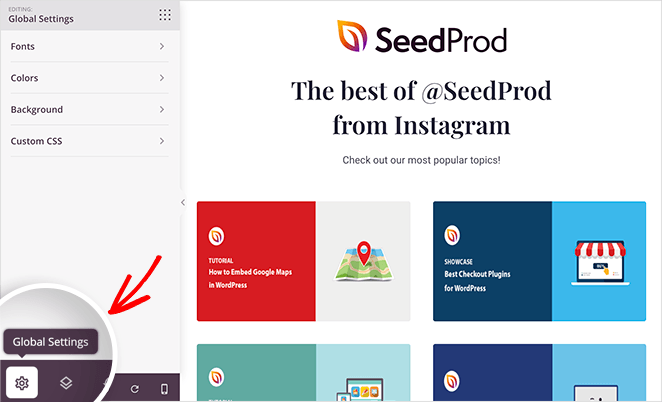
Just click the cog icon in the bottom-left corner to see global settings for:
- Fonts
- Colors
- Background
- Custom CSS
For example, in the Fonts section, we changed the default font color to white to stand out against the column background images.
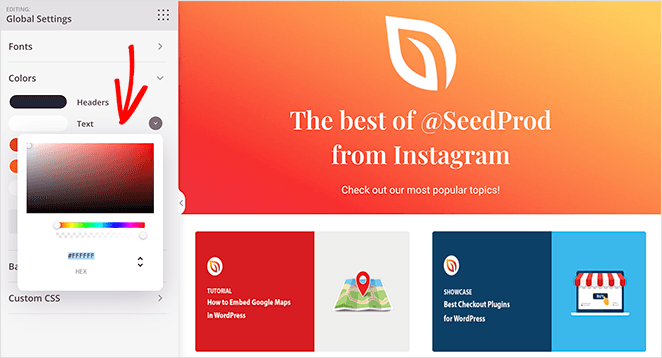
When you’re happy with how your landing page looks, click the green Save button in the top-right corner.

Step 5: Publish Your Instagram Landing Page
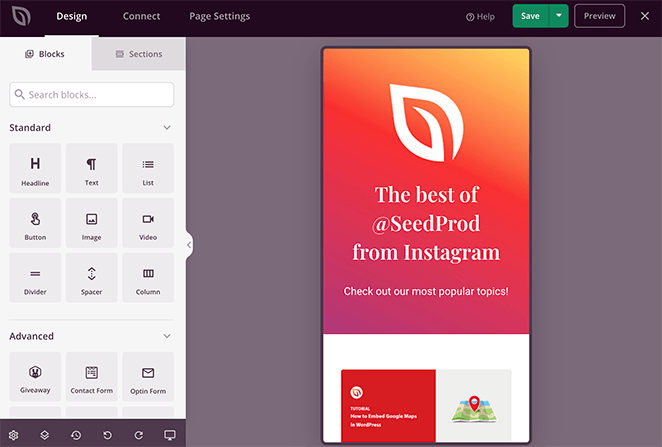
Given that most Instagram users browse the platform from a smartphone or tablet, it’s an excellent idea to ensure your page looks good on mobile devices before publishing.
You can do this easily with SeedProd’s live mobile preview feature. Click the Mobile Preview icon in the bottom navigation bar.
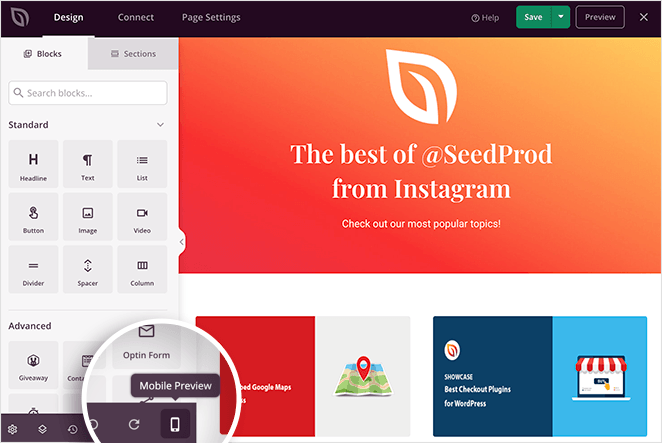
Then you can preview your page on mobile and make any necessary edits.
Finally, save your changes and click the dropdown arrow next to the Save button and click Publish.
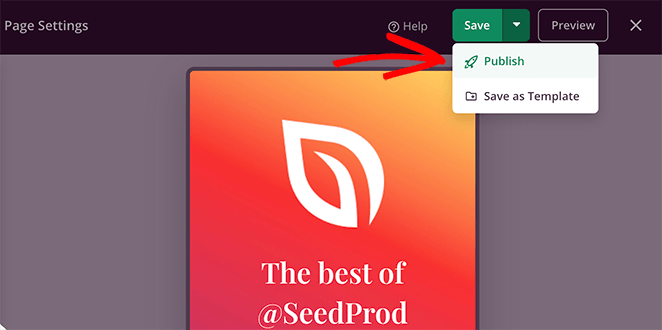
Your Instagram landing page is now live. Click the See Live Page button to preview how it looks.
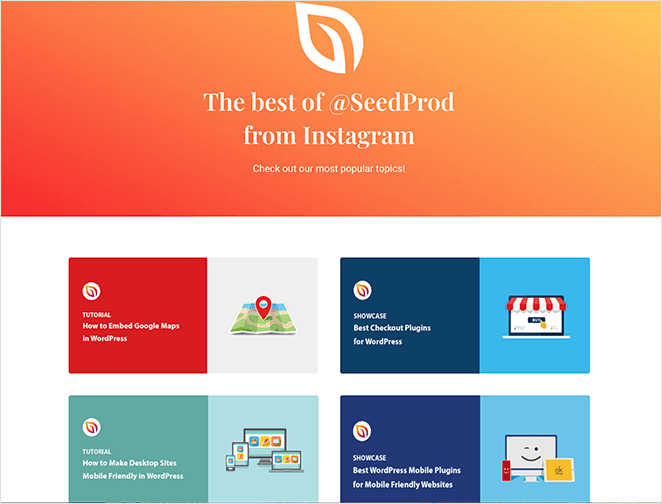
Step 6: Add Your Landing Page URL to Instagram
Now that your page is live, copy the URL and add it to your Instagram bio so followers can find it.
To update your Instagram bio link, open your Instagram profile, tap Edit Profile, and paste your page URL into the Website or Links field. Save your changes and your instagram bio link is live.
You can also share your page directly in Instagram Stories using the Link sticker. Tap the sticker icon in Stories, choose ‘Link’, and paste your URL. This is a great way to drive traffic when you publish new content.
Step 7: Track Instagram Traffic with UTM Parameters
Knowing that traffic came from Instagram is only useful if you can see what those visitors do on your site. UTM parameters make that possible.
Add ?utm_source=instagram&utm_medium=bio to the end of your landing page URL before pasting it into your Instagram bio. For Stories links, use ?utm_source=instagram&utm_medium=stories instead.
From what I’ve seen, most people skip this step and then wonder why their Instagram analytics don’t match what they see in Google Analytics. The UTM parameters are what connect the two. You can view the data in Google Analytics under Acquisition » Traffic Acquisition, filtered by campaign source.
4 Best Instagram Landing Page Examples (Real Brands)
If you’re not sure which type of landing page you should use for Instagram, here are some great examples.
1. Scribd – Promotional Offer Page
| Type: Promotional offer landing page |
| Best For: Subscription-based services |
| Key Elements: Eye-catching hero section Multiple free trial CTAs Price comparison table Testimonials and client logos |
First is a sponsored Instagram post from Scribd. It features a visually appealing image with a clear call to action to subscribe for a 30-day free trial.

When you click the ad image, you land on a promotional page built to convert Instagram users into paying customers.
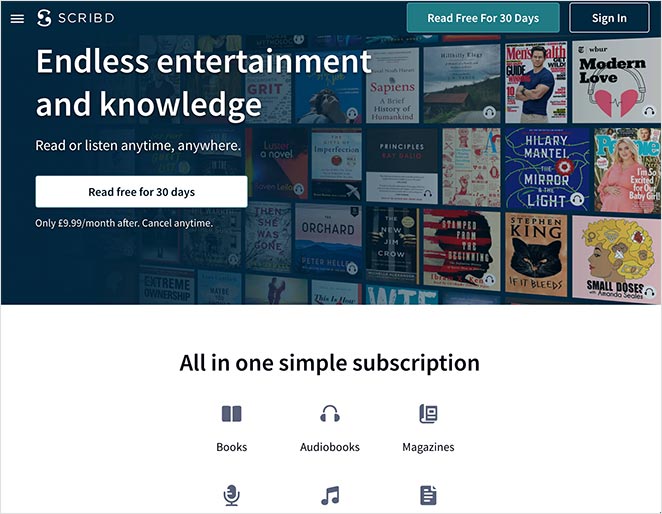
The page repeats the free trial offer several times, mixes in trust signals, and uses comparison charts to show value. This is a great model for service-based businesses promoting limited-time offers from Instagram.
2. Wall Street Journal – Curated Link Feed
| Type: Link in bio feed |
| Best For: Publishers and media outlets |
| Key Elements: Instagram-style post layout Direct article links Simple headline-based CTA |
The Wall Street Journal uses a third-party link in bio tool to showcase selected news articles in an Instagram-style grid.
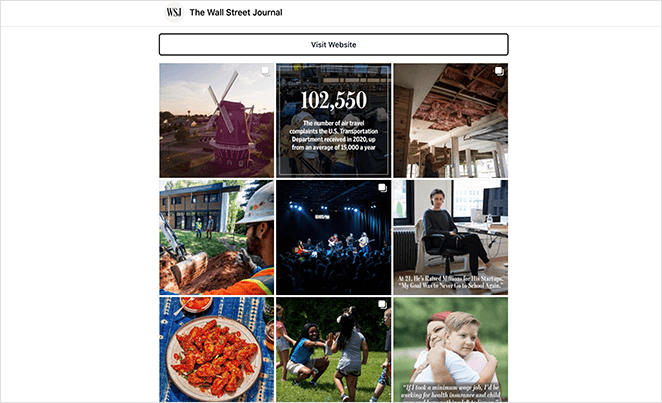
Each post thumbnail links directly to the full article, making it easy for readers to jump from Instagram to the WSJ site. A single CTA button offers a quick route to their homepage.
This approach works well for content-heavy brands that post frequently and want to drive followers to fresh articles, videos, or podcast episodes.
3. HKT Products – Simple Link Hub
| Type: Minimalist link hub |
| Best For: Small businesses and creators |
| Key Elements: Simple link list No distractions Direct traffic to multiple offers |
HKT Products built a minimalist link hub using a third-party tool to send Instagram visitors directly to specific pages on their site.
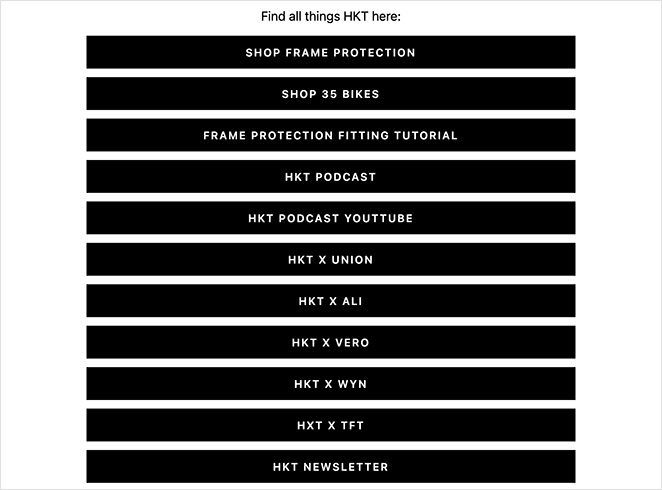
The page includes links to:
- Individual product pages
- Product tutorials
- Company podcast
- YouTube channel
- Newsletter subscription
This setup is fast to create and effective for brands that want to keep the focus on just a few key actions without overwhelming the visitor.
4. Etsy – Shoppable Instagram Page
| Type: Shoppable product gallery |
| Best For: Online stores and marketplaces |
| Key Elements: Product images in grid format Direct purchase links Branded layout matching Instagram |
Etsy created a dedicated Instagram landing page on their own website to promote curated products that match their Instagram feed.
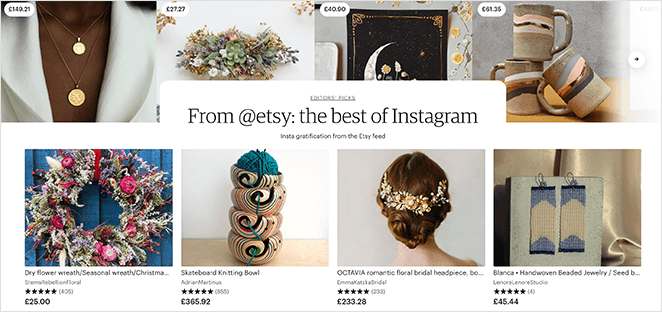
Shoppers can browse and purchase products directly without leaving Etsy’s site.
This format shortens the buying journey from Instagram to checkout, which is ideal for eCommerce brands with visually appealing products.
Frequently Asked Questions
Does Instagram have a built-in landing page?
No, Instagram does not have a built-in landing page feature. You create a page on your own website and link to it from your Instagram bio. Tools like Linktree offer a basic hosted option, but building your own page in WordPress gives you full control over design, branding, and analytics.
What should I put on my Instagram landing page?
Start by picking one primary goal: driving blog traffic, promoting products, collecting email signups, or directing followers to your latest content. Then build around that goal with a clear headline, 3 to 5 linked images or buttons, and a single CTA.
Avoid adding everything at once. A focused page with one clear action converts far better than a page that tries to do everything.
How do I add my landing page URL to my Instagram bio?
Open your Instagram profile, tap Edit Profile, and paste your landing page URL into the Website or Links field. Save your changes. You can also share the link in Stories using the Link sticker by tapping the sticker icon and choosing ‘Link’.
For best tracking, add ?utm_source=instagram&utm_medium=bio to your URL before pasting it so you can see Instagram traffic in Google Analytics.
Do I need Linktree for Instagram, or can I use my own page?
You don’t need Linktree. If you have a WordPress site, you can build your own Instagram instagram link page with SeedProd in about 15 minutes. Your page lives on your domain, so visitors stay in your brand environment and your analytics capture the full picture.
Linktree is fine for getting started quickly, but owning your page is the better long-term choice if you want full control over traffic and conversions.
How do I track traffic from Instagram to my landing page?
Add UTM parameters to your landing page URL: ?utm_source=instagram&utm_medium=bio for your bio link and ?utm_source=instagram&utm_medium=stories for Stories links. Then view the data in Google Analytics under Acquisition » Traffic Acquisition, filtered by source.
This shows you exactly how many people clicked from Instagram, what they did on your page, and whether your bio link is actually converting.
Bonus Social Media Marketing Guides
I hope this guide helped you learn how to create an Instagram landing page in WordPress.
If you need more help growing your business, you’ll find the following social media guides helpful:
- Best Link In Bio Instagram Tools
- Social Media Landing Page Examples to Grow Your Company
- Smash Balloon Review
- How to Add Custom WordPress Social Media Icons to Your Website
- Best Instagram WordPress Plugins to Boost Social Reach
- How to Make Giveaways on Instagram (the Smart Way)
- Social Media Lead Generation Strategies You Need to Try
But if you’re ready to get started with your own Instagram landing page, just click the button below.
Thanks for reading! We’d love to hear your thoughts, so please feel free to join the conversation on YouTube, X and Facebook for more helpful advice and content to grow your business.



