

The simplest way to password protect a WordPress site during development is to activate a coming soon page. It keeps your unfinished site hidden from visitors, lets you share private access with clients or teammates, and lets Google crawl your pages so you build SEO authority before launch.
I always protect my sites during development. Letting people see half-done pages or test content doesn’t leave a good impression. Keeping your site hidden helps your work look polished and professional from the start.
In this guide, I’ll show you the simplest way to secure your WordPress site while you build, using SeedProd to add a coming soon page with password protection, no coding needed.
Why Should You Password Protect a Site Under Development?
You should password protect a WordPress site under development to prevent visitors from seeing unfinished content, test data, or placeholder text.
It takes about 50 milliseconds for visitors to form a first impression of a website. An unfinished site with broken layouts or placeholder text can damage trust before you’ve had a chance to launch.
Password protection also stops search engines from indexing incomplete pages. Google can index new pages within hours of discovering them. If your site is publicly accessible, test content can appear in search results before you’re ready.
How to Password Protect WordPress Site While Under Development
WordPress does not include a built-in option to password protect an entire site at once. You can password protect individual pages, but there’s no native way to lock everything behind a single password.
To protect your full site during development, you need a plugin. SeedProd is a WordPress website builder and coming soon page plugin that adds full-site password protection along with a drag-and-drop page builder.

I use SeedProd because it does two things at once. It locks my site from visitors while giving me a visual builder to create a professional coming soon page. Clients see a polished holding page instead of a broken site or a generic “coming soon” message.
SeedProd also lets search engines crawl your site even while it’s protected. This means you can start building SEO authority before launch instead of waiting until the site goes live.
Before you start: This takes about 5 minutes. You need either the free version of SeedProd or SeedProd Pro. It works with WordPress 5.0 and later.
Step 1. Install and Activate SeedProd
The first step is to download the SeedProd plugin.
After downloading it, follow these instructions to install a WordPress plugin.
Once you install and activate the plugin, you’ll head to the license key page to verify your key. You can find your license key in the downloads section of your SeedProd account page.
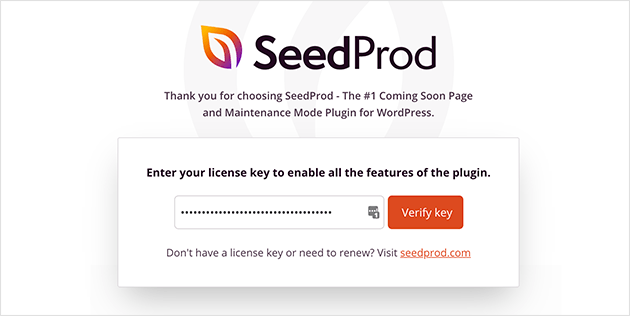
After verifying your key, you can use the plugin to password protect your website while it’s still under development.
Step 2. Create a Coming Soon or Maintenance Page
SeedProd includes powerful access controls in the plugin settings that let you hide either your entire WordPress website or specific website pages.
To take advantage of these tools, you’ll need to create either a coming soon page or a maintenance mode page, the only types of landing pages with these specific controls.
First, to create your coming soon page, navigate to SeedProd » Pages from your WordPress dashboard and click the Set up a Coming Soon Page button under the Coming Soon Mode section.
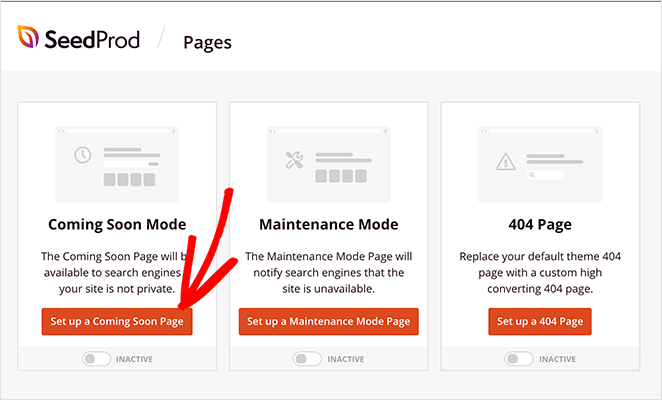
You’ll see the coming soon page templates library to choose a new page template and customize your design. See this step-by-step guide to creating a coming soon page in WordPress for complete instructions on setting up your page.
Step 3: Activate Full-Site Protection
Protecting your entire WordPress site during development is simple with SeedProd. Once your coming soon or maintenance mode page is ready, you can turn on full-site protection in just one click.
Go to SeedProd » Pages from your WordPress dashboard, then switch the toggle under Coming Soon Mode from Inactive to Active.
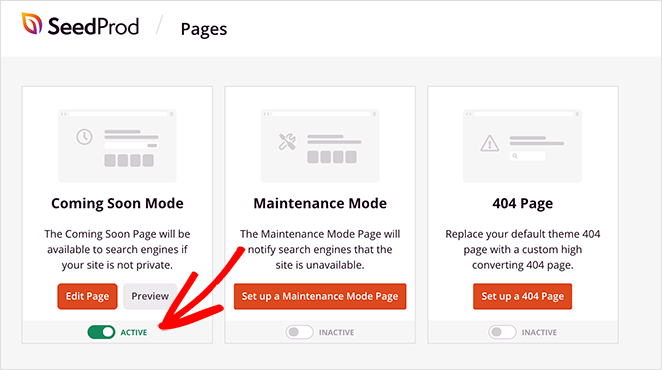
That’s it! Your WordPress site is now password protected, and only authorized users can view it while you work behind the scenes.
Optional: Add a Password Field
If you want visitors to log in using a password, edit your coming soon page in SeedProd’s drag-and-drop builder. Scroll to the Advanced blocks, drag in the Custom HTML block, and enter the shortcode seed_bypass_form surrounded by square brackets.
Save your changes, then preview your page to see the password input box.
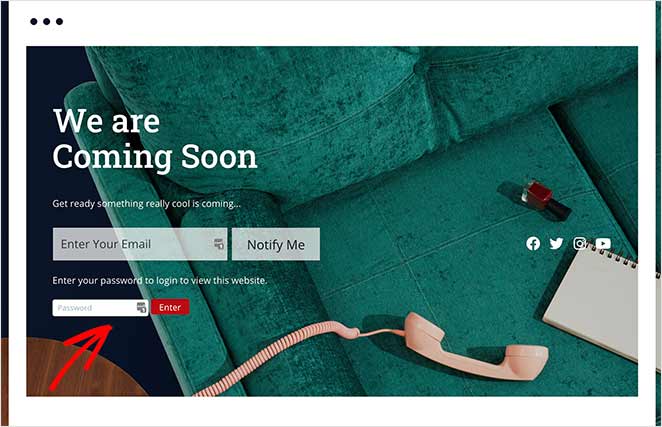
This feature makes it easy to give clients, teammates, or testers private access without taking your entire site public.
Step 4: Protect Specific Pages
Sometimes you only need to hide a few pages or products instead of your entire site. SeedProd makes that easy too.
To password protect individual pages, open the page or post you want to hide, then click Edit. In the editor sidebar, find the Visibility option and choose Password Protected. Add your password and publish the page.
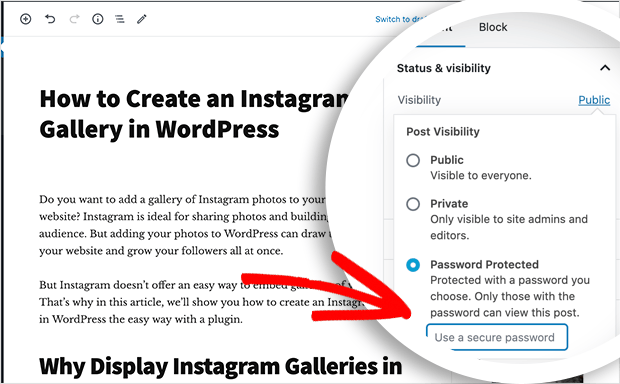
Each page you protect will display “Password protected” in your dashboard. Only people with the password can open it through your WordPress login page.
To combine this with your coming soon or maintenance page, go to SeedProd » Pages » Access Control. Scroll to the Include URLs section and list each page URL you want to restrict, one per line. Click Save Changes to apply protection.
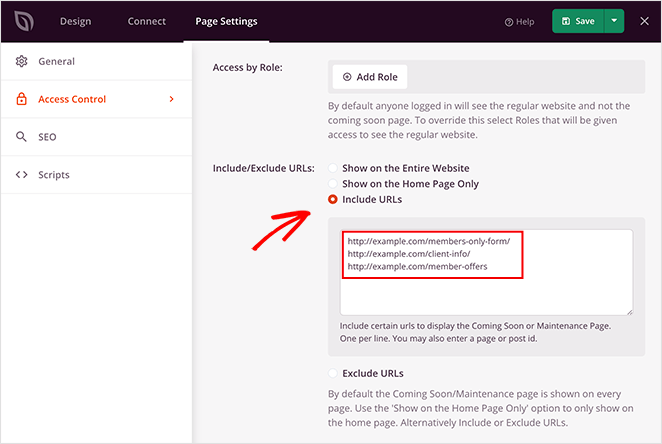
Now, anyone who tries to view those URLs will see your coming soon page instead of the content. You can even limit access by IP address for extra control.
To see this in action, check out how Mustard Seed used SeedProd to launch client websites with private access for review.
Free Option: The Password Protected Plugin
If you don’t need a branded holding page and just want to lock your site quickly, the Password Protected plugin is a good free option with over 1 million active installs. Install it from the WordPress plugin directory, activate it, then go to Settings » Password Protected and check the Active box. Set your password and save.
The downside is that it shows a plain login form with no design control. Visitors see a basic password prompt instead of a branded page. It also blocks search engines completely, so it’s better for temporary use on sites that aren’t building SEO before launch.
Troubleshooting Password Protection
If password protection isn’t working as expected, these are the three most common issues.
Search engines are still indexing your pages. Check that Coming Soon Mode is set to Active in SeedProd » Pages. Also make sure your robots.txt isn’t blocking crawlers, which would stop Google from seeing your pages even after launch.
Logged-in WordPress users can still see the site. By default, SeedProd lets logged-in admins bypass the coming soon page. Go to SeedProd » Pages » Access Control and review the user role bypass settings if you want to restrict admin access too.
The site is redirecting in a loop. This usually points to a caching plugin or theme conflict. Clear your site cache, then temporarily deactivate other plugins one by one to find the cause.
What’s the Difference Between Full-Site and Single-Page Protection?
When protecting your WordPress site, you can choose between locking the entire site or securing only certain pages. The right choice depends on how you work and what you want to show or hide.
| Method | Best For | Limitations |
|---|---|---|
| Full-Site Lock | Keeping everything private while you build | Requires a password to view any part of the site |
| Single-Page Protection | Hiding drafts, products, or sensitive pages | Other areas stay visible to visitors |
If you’re building a brand-new website, full-site protection is usually best. For sites already live, single-page protection gives you more flexibility to work on updates without hiding the rest of your content.
Are There Other Ways to Keep a WordPress Site Private?
Yes. Four alternative methods exist for keeping a WordPress site private, each with different tradeoffs.
| Method | What It Does | Limitations | Best For |
|---|---|---|---|
| Search engine discouragement (Settings > Reading) | Tells search engines not to index your site | Does not block visitors. Anyone with your URL can still see everything. | Live sites you want to update quietly, not new builds |
| Built-in page password protection | Adds a password to individual pages | Cannot protect multiple pages with one password. Each page needs its own. | Hiding one or two pages on a live site |
| Private visibility | Restricts pages to logged-in WordPress users | Requires everyone to have a WordPress account on your site. | Internal team sites or member-only content |
| Hosting-level protection (.htaccess) | Blocks the entire site at the server level | Requires technical knowledge. Blocks search engines completely. | Staging environments where SEO doesn’t matter |
I’ve tried all of these. The main problem is that none of them combine full-site protection with a professional holding page. You either get security without design control, or design control without real security.
SeedProd handles all three: it locks the entire site, lets you customize what visitors see, and still allows search engines to crawl.
If you’re working on a staging environment, most managed WordPress hosts (WP Engine, Kinsta, SiteGround) include built-in staging password protection at the server level. This blocks all visitors automatically, but you get no control over what they see and search engines are blocked too. I still use SeedProd on staging when I’m doing client work, because it lets me create a holding page the client can preview with a password instead of hitting a blank browser warning.
FAQs About Password Protecting WordPress
That’s it.
Protect Your Website Under Development Today
I hope this guide has helped you learn how to password protect WordPress while under development.
With SeedProd’s powerful access controls and easy drag-and-drop page builder, you can create and protect WordPress landing pages without needing a developer.
If you’re searching for more help protecting your WordPress site, check out our top tutorials and guides:
- How to Customize a Password Protected Page in WordPress
- How to Password Protect a WordPress Page (Step by Step)
- How to Create a WordPress Privacy Policy
- How to Secure a WordPress Site from Hackers
Thanks for reading! We’d love to hear your thoughts, so please feel free to join the conversation on YouTube, X and Facebook for more helpful advice and content to grow your business.



