

TL;DR: How to Create a Link in Bio Landing Page in WordPress
Skip the third-party tools and build a branded bio link page you actually own. Here’s how to do it with SeedProd in five steps.
- Install SeedProd – Download, install, and activate the plugin; enter your license key in Settings.
- Create a new landing page – Go to SeedProd » Pages and click Add New Landing Page.
- Choose a template – Select the Personal Links template from the Lead Squeeze filter.
- Customize the template – Add your logo, update button links with your URLs, and set your brand colors.
- Publish and share – Preview on mobile, publish, and paste the URL into your Instagram or TikTok bio.
I remember the first time I tried adding more than one link to my Instagram bio. I ended up using LinkTree, but it didn’t quite match my brand, and I didn’t love sending traffic to a third-party site I couldn’t fully control.
That’s when I started building my own link in bio landing page using WordPress. It looked exactly how I wanted, matched my website, and gave me full control over the links I shared. Best of all, I could track the clicks and update it any time, no extra fees. And my link pointed to my own domain, not linktr.ee/myname.
If you’re looking for a better way to guide your followers to your content, products, or offers, I’ll show you how to create a link in bio landing page using SeedProd. It’s beginner-friendly, no code needed, and works perfectly for Instagram, TikTok, and more.
What Is a Link in Bio Landing Page?
A link in bio landing page is a webpage that lets you add a single URL to your Instagram or social media bio and send followers to multiple links at once, like your website, products, or special offers. This is really helpful because platforms like Instagram only allow one clickable link in your profile.
Adding a link in bio page can bring more visitors from social media to your content. These pages are commonly used to promote what you do and connect with your followers more effectively.
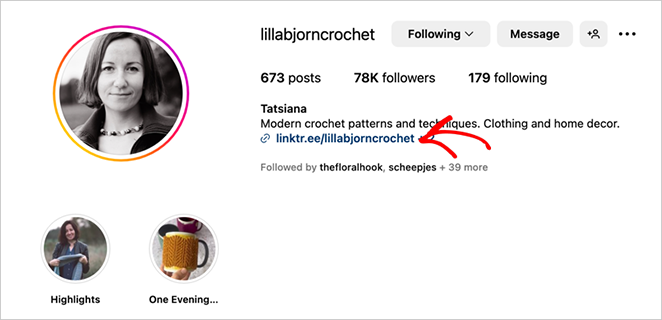
For example, craft influencer Lillabjorn Crochet’s Instagram link in bio page uses clear, easy-to-see buttons for each of her crochet patterns, so her fans can quickly find what they’re looking for. The simple design and consistent branding make it easy to use.
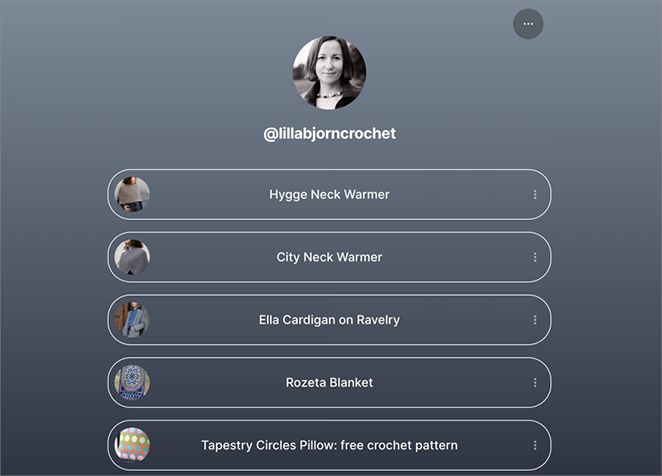
She could even use this page to link to her Instagram Stories, blog posts, and other posts with a clear call to action. Without this type of page, she would only be able to show a single link to fans.
The tool I’ll show you how to use in this guide includes templates and a drag-and-drop builder, so you can build a similar page with the same clean look and easy customization.
Why Use WordPress for Your Bio Link Page?
Before we dive into the how-to, here’s why creating your link in bio page in WordPress is a smart move:
- Complete Customization Control: A purpose-built link in bio tool can make it hard to match your brand’s look and feel. WordPress lets you design your page exactly how you want.
- Own Your Data: When you use a separate bio link service, they keep your data. With a self-hosted option like WordPress, you control your own data and your audience.
- Cost-Effective: Linktree has a free plan, but it’s limited in what you can do. If you already have a WordPress website, you can create a similar page without paying extra each month.
- Analytics Integration: Connect your page to Google Analytics to track clicks, engagement, and conversions from your social profiles.
LinkTree vs. WordPress: Which One Should You Use?
If you’re deciding between using a tool like LinkTree or building your own link in bio landing page with WordPress, here’s a quick side-by-side look at the differences.
| Feature | WordPress + SeedProd | LinkTree (Free Plan) |
|---|---|---|
| Design Flexibility | Full control over layout, colors, fonts, and branding | Limited templates and customization options |
| Link Limits | Unlimited links | Limited to basic link types unless you upgrade |
| Brand Visibility | Uses your domain (example.com/links) | LinkTree branding stays unless you pay |
| Data Ownership | You keep full control of your traffic and analytics | Data is hosted and stored on LinkTree’s platform |
| Cost | Free if you already use WordPress + SeedProd Free | Free plan available, but features are limited |
| Built-in Analytics | Connects to Google Analytics or MonsterInsights | Basic click tracking only |
If you already have a WordPress website, using SeedProd to build your link page gives you way more control, and you only have to set it up once.
How to Create a Link in Bio Landing Page
For this tutorial, we’ll use SeedProd to create a WordPress bio link page.

SeedProd is a popular drag-and-drop website builder for WordPress. It lets you customize any WordPress page easily without writing any code.
With SeedProd, you can create any type of landing page, and with its visual editor, you can easily create, edit, and customize your page and see the changes in real-time.
You can also use SeedProd for creating a link in bio page for your social profiles.
For this guide, we’ll focus on making an Instagram bio link landing page so you can show multiple links to fans on your Instagram account. That said, you can easily use this tutorial to create a similar multi-link page for other social media networks.
With that in mind, let’s jump into the tutorial!
Video Tutorial
If you would prefer to read the written instructions, follow the steps below.
1. Install and Activate the SeedProd Plugin
The first step is to download, install, and activate the SeedProd plugin by clicking the link below.
For help with adding it to your WordPress site, see this tutorial on how to install a WordPress plugin.
Note: SeedProd offers a free version you can use to create a free WordPress landing page. But today, we’ll use the paid plan for the advanced features and templates.
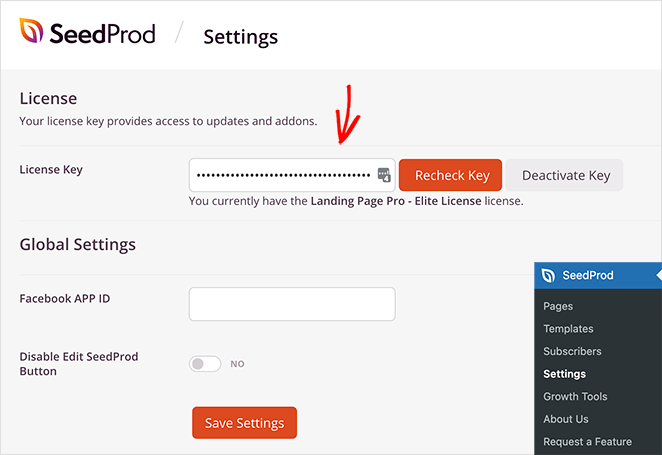
After activating the plugin, head to SeedProd » Settings, where you can enter your SeedProd license key. You can find this information in your SeedProd account area in the Downloads section.
2. Create a New Landing Page
The next step is to visit SeedProd » Pages, where you can create a new landing page.
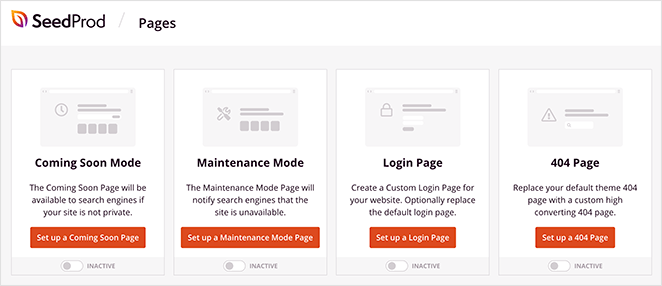
At the top of this page are several page modes you can activate with a single click, including:
- Coming soon
- Maintenance mode
- Login
- 404
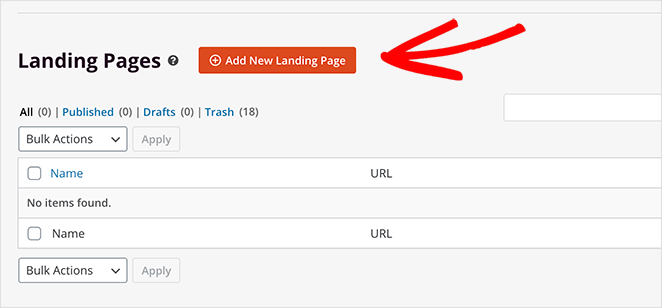
Under that section is where you can see any landing page you create with the SeedProd plugin. You can make as many custom WordPress pages as you like.
Click the Add New Landing Page button to make a new page.
3. Choose a Landing Page Template
You can choose a landing page template to use as a starting point for your bio link page on the following screen.
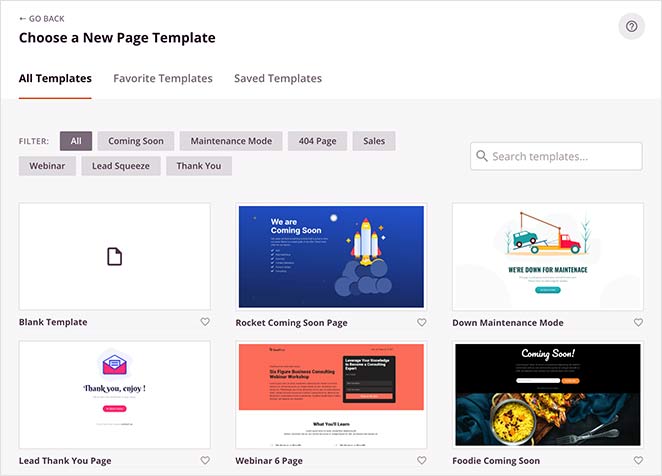
For this guide, we’ll use the Personal Links template, which you can find by clicking the Lead Squeeze filter.
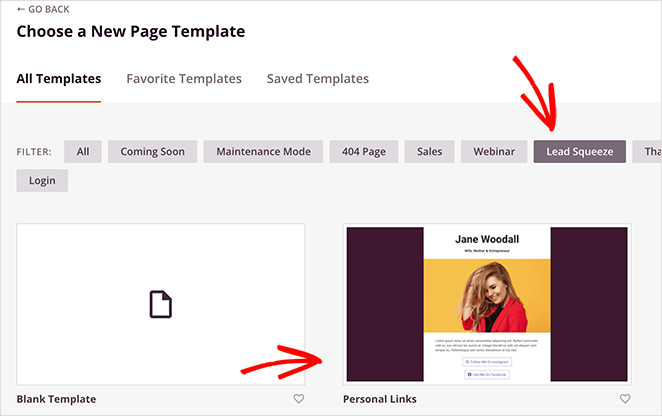
To choose this template, hover your mouse over the thumbnail and click the orange tick icon.
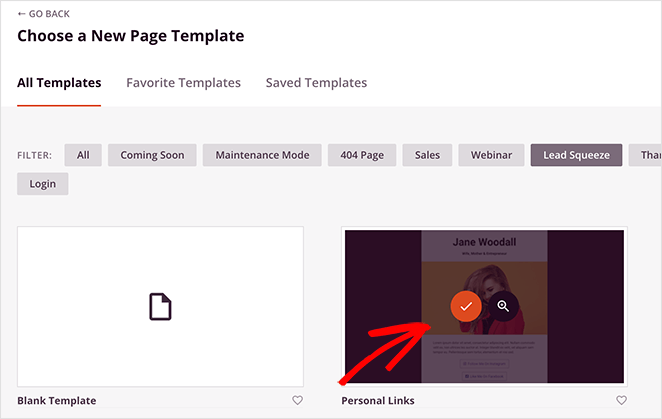
Next, you’ll see a popup where you can add a page name. The page name won’t appear on your landing page design, but it does set your page’s URL. So, choose a name that will make sense to your fans when you add the link to your Instagram bio.
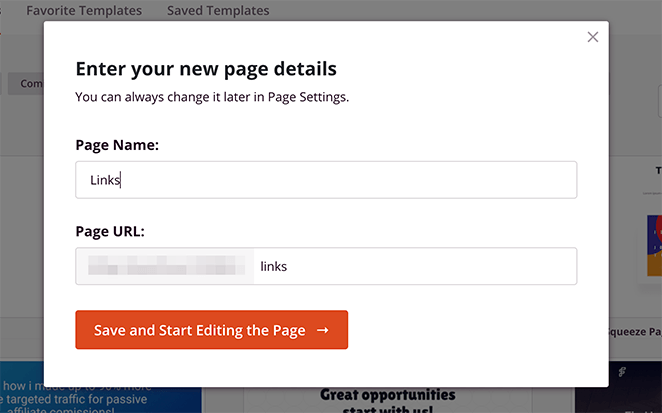
Now you can go ahead and click the Save and Start Editing the Page button.
4. Customize Your Landing Page Template
After launching your template, you’ll see SeedProd’s page builder screen. With the drag-and-drop interface, you can edit every part of your template.
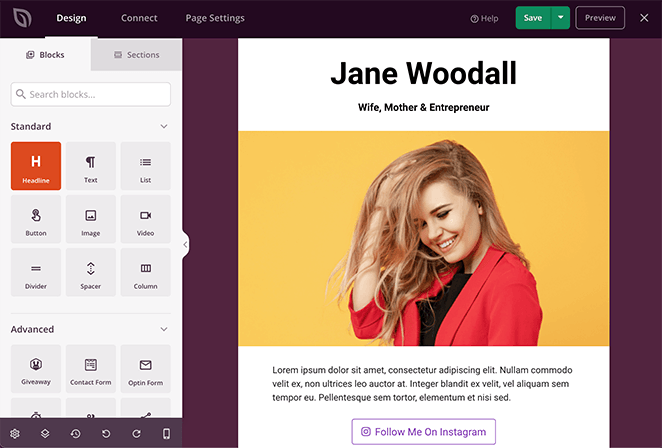
The left-hand sidebar offers a wide selection of blocks that you can drag and drop onto your page. Once a block is on your page, click it to show the content, templates, and advanced customization settings on the left.
Adding Your Logo
Since we’re making an Instagram bio link page, we’ll remove the main image and placeholder text.
To do that, hover over the image and click the trash can icon.
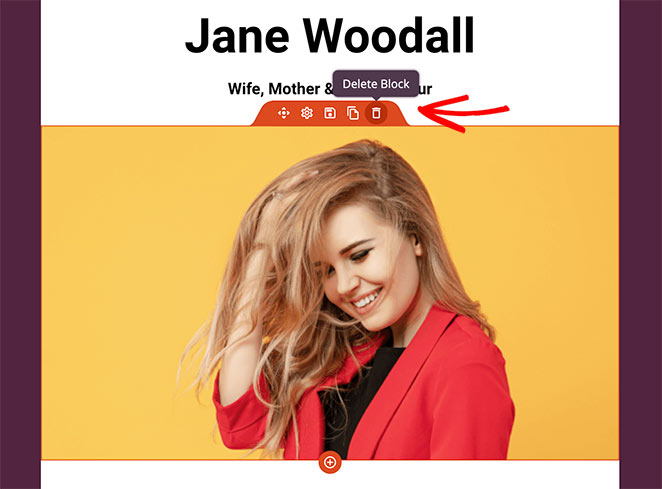
Then click Yes Delete It on the following popup. You can then follow the same steps to delete the placeholder text.
Now you can replace the default page header with your business name, tagline, and logo. To add your logo, click the Image block in the left-hand panel and drag it to the top of your page.
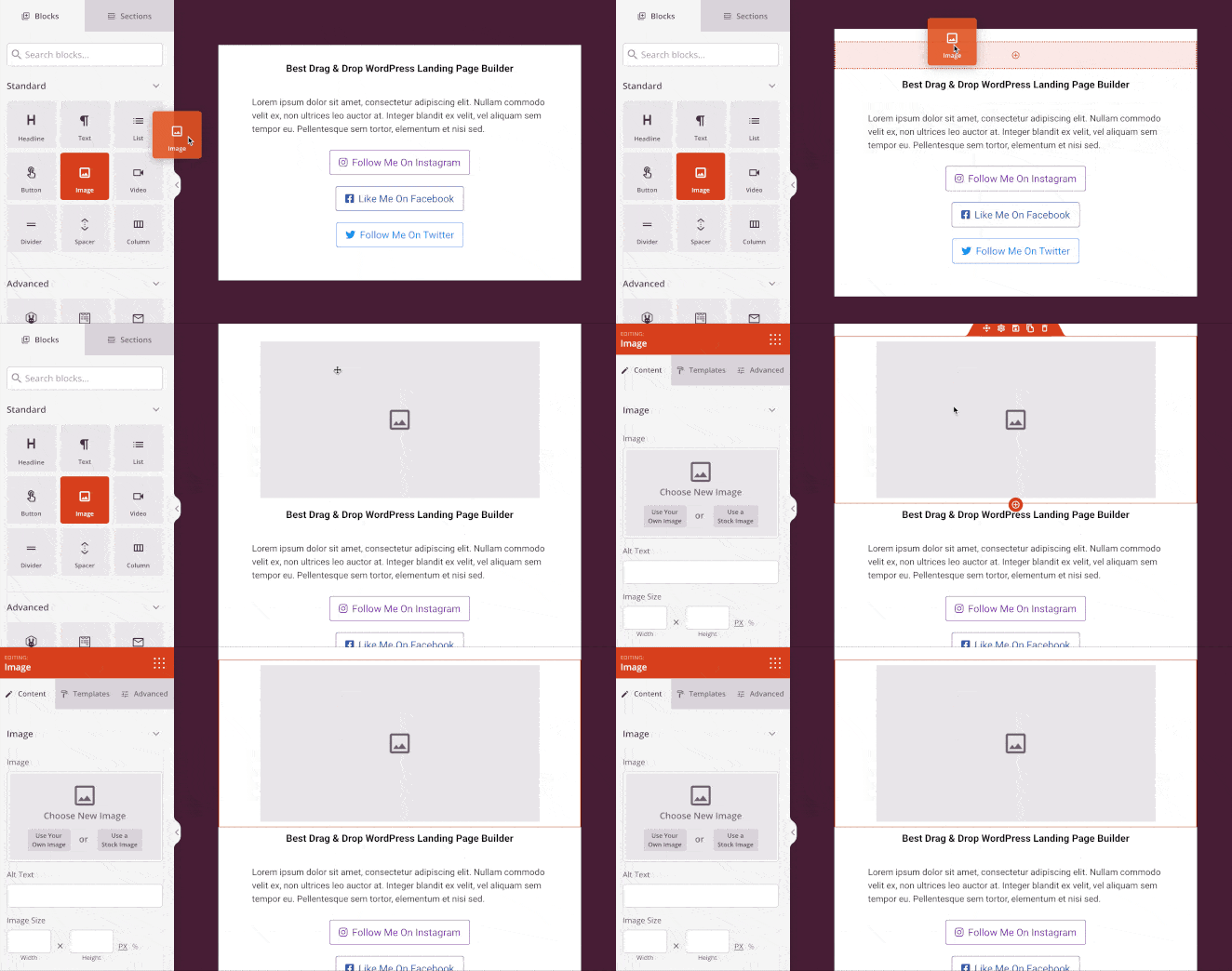
You can then click the block to see its settings on the left. Click the Use Your Own Image button to add your logo from your media library or upload it from your computer.
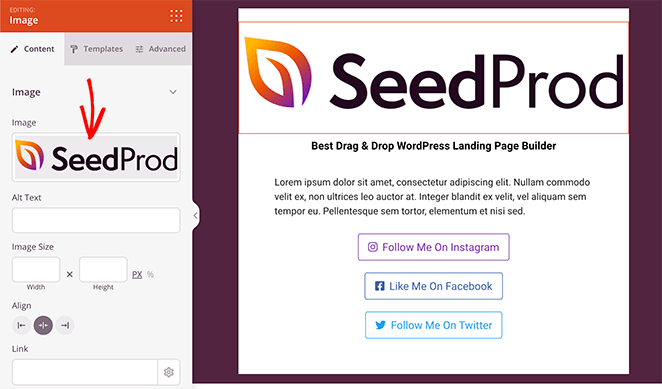
In the same panel, you can change the image size, alignment, and link.
Adding Your Links
Now let’s look at how to add custom links to your page. To start, you can customize the existing links with your own content.
To do this, click any of the link buttons and edit the content on the left.
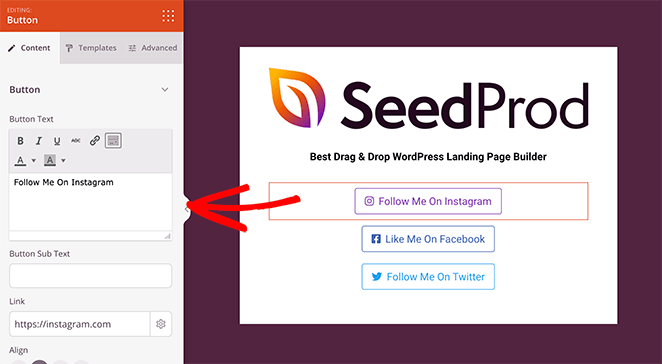
In the content panel, you can change the button text, subtext, link URL, alignment, and size.
If you’d like to change the look of your button completely, click the Templates tab. In this area, there are several preset button styles you can choose from.
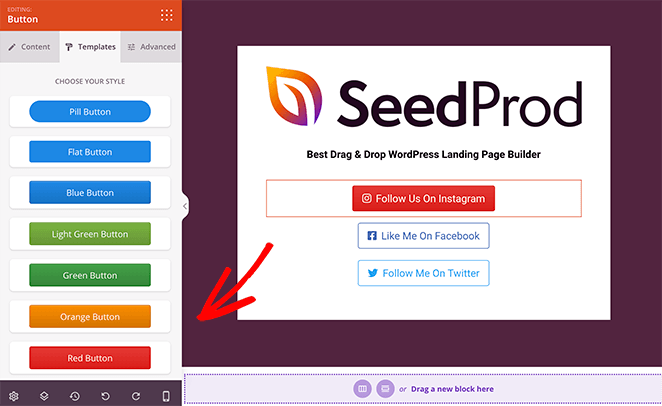
Click any style to add it instantly to your button link.
To add more links to your page, you can duplicate your customized link button. Just hover over a link and click the Duplicate Block icon.
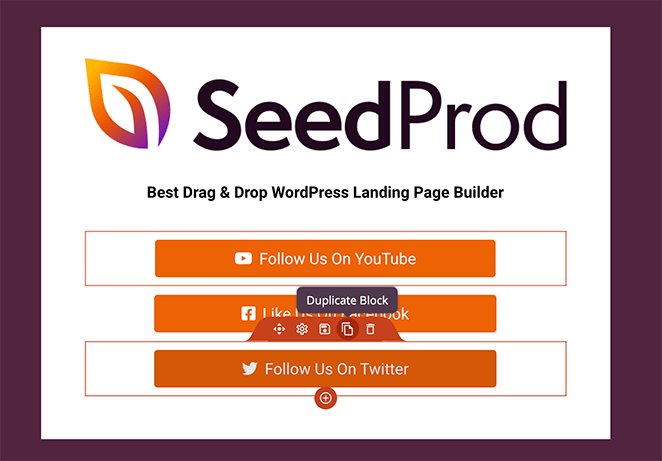
A copy of that block will then appear beneath the original. Then it’s just a case of customizing the content as you did before.
Changing your Background
The default background color of your link in bio template may not match your website or branding. The good news is you can change it easily in the global settings panel.
To find it, click the Gear icon in the bottom-left corner of your screen. This shows different options to customize your background, fonts, colors, and CSS and apply the changes to your page globally.
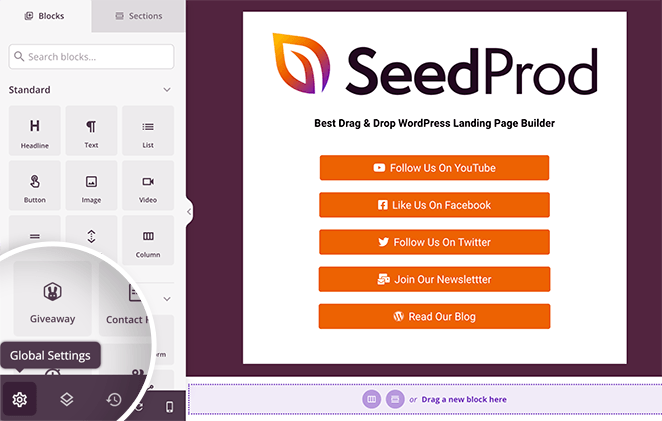
Note: Using this option won’t override any styles you’ve set in your Advanced block settings.
If you’d like to change your background color, click the Background heading. In this area, you can change the default background color or add a gradient background effect.
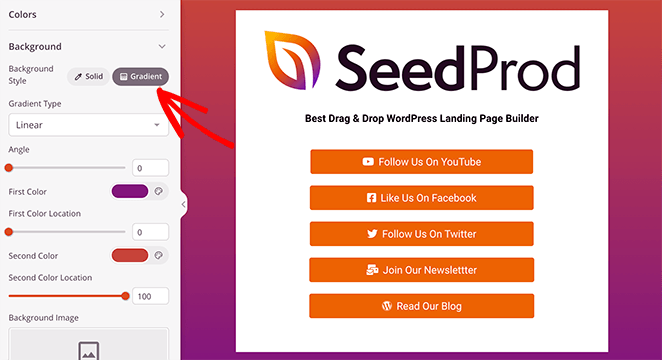
You can also use the same panel to add a custom background image, video, or slideshow.
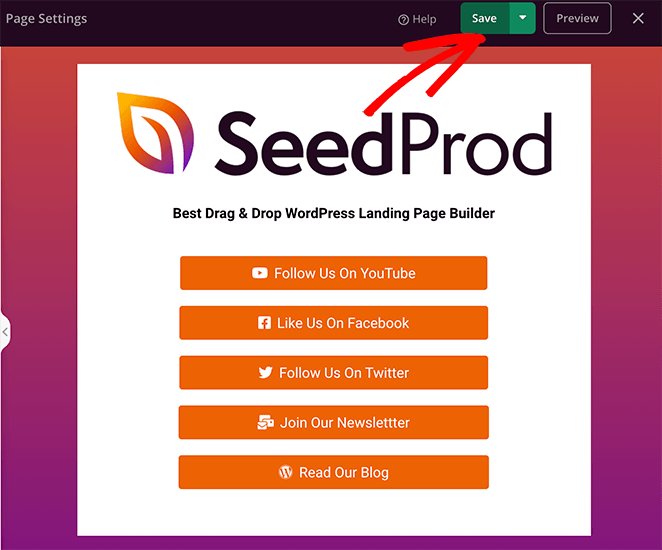
When you’re happy with how your link in bio landing page looks, click the Save button in the top-right corner.
5. Publish Your Link in Bio Landing Page
Now that your page is ready, there’s one more thing to do before publishing. Preview it on mobile to ensure your design looks good for mobile users.
To do this, click the Mobile Preview icon at the bottom of your screen.
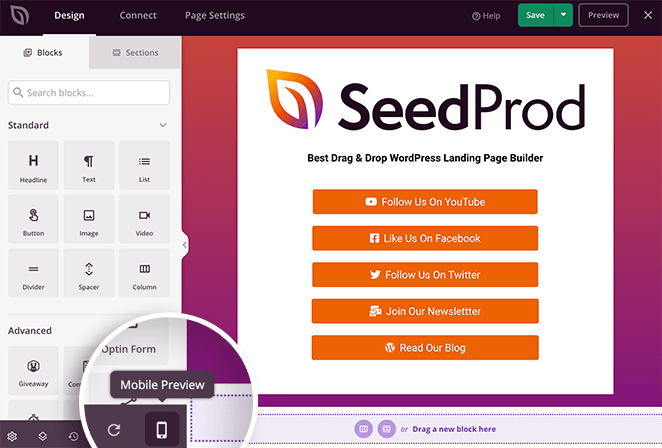
This shows a preview of how your page looks on mobile devices.
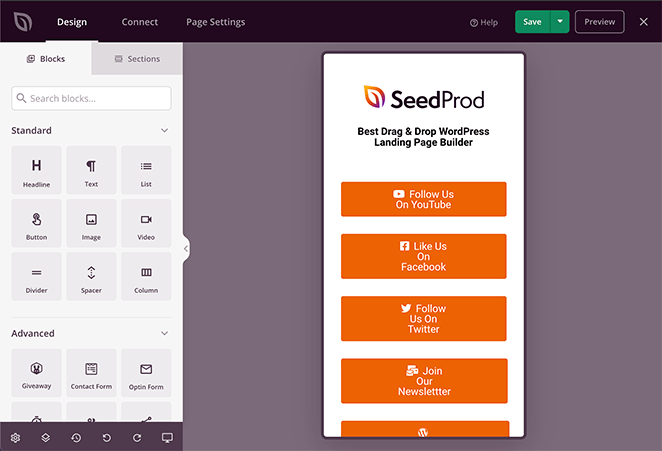
As you can see from the image above, our button links are too big on mobile, making them look out of place. To change that, click any block, as you would on the desktop view, and edit it until it looks how you want.
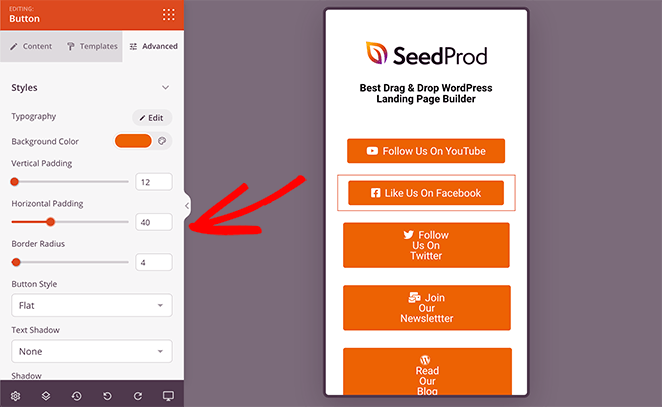
In our case, we wanted the button text all on a single line. So we changed the horizontal padding slider until it looked right.
Now, you’re ready to publish your Instagram bio link page in WordPress. To do that, click the down arrow next to the Save button and click Publish.
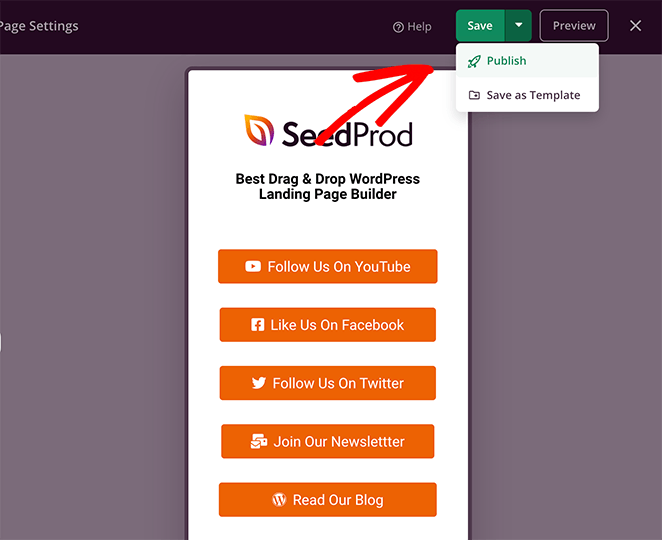
You can then click the popup button to see your live page.
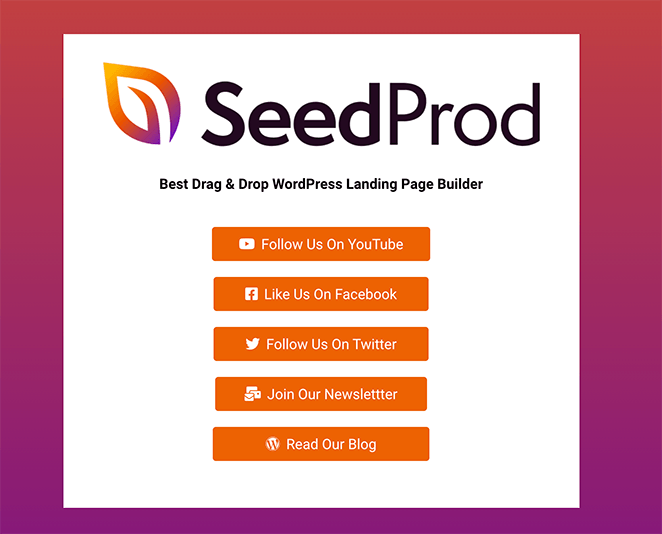
Your page is now live, and you can add the link to your Instagram bio and other social media profiles. Your custom page is fully responsive, so it’ll look good no matter what screen size your fans view it on.
Adding Your Link to TikTok: To add your bio link page to TikTok, go to your profile, tap Edit Profile, and paste your page URL in the Website field.
Note that TikTok requires 1,000 followers or a Registered Business Account to add a website link. If you haven’t hit that threshold yet, it’s worth the wait.
Related: How to Add a Link to Your TikTok Bio
What to Include on Your Link in Bio Page
Getting the page built is the easy part. The question I see people wrestle with is what to actually put on it. From what I’ve seen, the most effective bio link pages keep it focused and give each link a clear reason to exist.
Here’s what to consider including:
- Lead magnet or freebie: A free download, guide, or resource is one of the highest-converting links you can feature. People click free offers.
- Latest blog post or video: Keep one slot for your most recent content so returning visitors always see something new.
- Product or shop link: If you sell something, it deserves a spot. Use specific button text (“Shop Crochet Patterns”) rather than just “Website.”
- Email signup: Link to a dedicated landing page with your opt-in form. Your social following is rented. Your email list is yours.
- Contact or booking link: Great for service providers. Let potential clients reach you in one tap.
- Social profiles: Add links to your other platforms if you want to grow them. Keep these lower on the page so your primary CTAs stay front and center.
Aim for 5-8 links total. More than that and visitors scan past everything without clicking anything.
Quick tips for a better-performing page: Put your most important link first. Use specific CTA text instead of generic labels. Match your button colors to your brand so the page looks intentional, not assembled in five minutes.
Bonus: How to Add Analytics to Your Link in Bio Page
Many link in bio tools, like LinkTree, offer basic page analytics. The best way to track your website analytics is with Google Analytics, and the most straightforward way to add it to your WordPress website is with MonsterInsights.
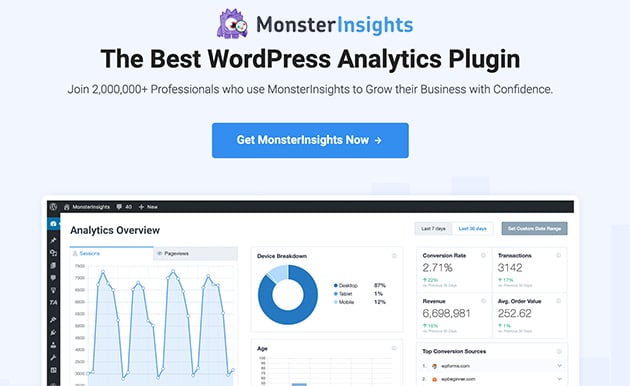
MonsterInsights is a powerful Google Analytics plugin for WordPress. It’s easy to use and allows you to track your site’s performance right inside your WordPress dashboard.
As a result, you can see how your bio link page is performing with just a glance. Check out this step-by-step guide on how to add Google Analytics to WordPress.
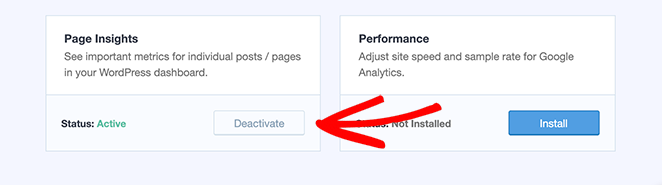
After setting up MonsterInsights with your Google Analytics account, navigate to Insights » Addons. From there, find the Page Insights addon, then install and activate it.
Now, go to Pages » All Pages and find the link in bio page you made earlier.

Then, click the Insights icon that looks like a traffic graph.
This shows your page statistics, bounce rate, number of entrances, time on page, and more.
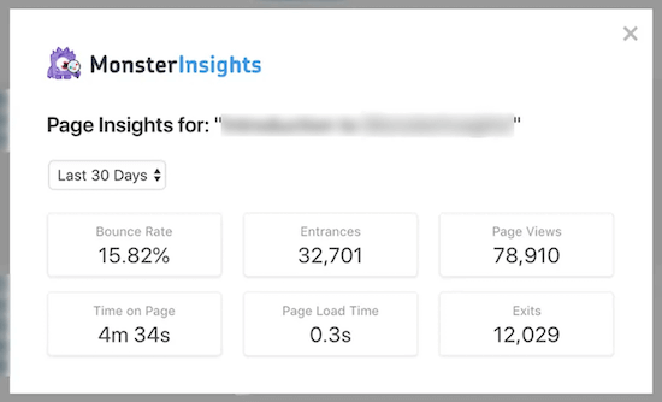
If you’ve only recently added the link to your social media profiles, it will take some time for this data to show up.
Frequently Asked Questions About Link in Bio Pages
What should I include on my link in bio page?
The most effective link in bio pages feature 5-8 links with a clear purpose for each. Include a lead magnet or freebie, your latest content, a product or shop link, and an email signup page. If you offer services, add a booking or contact link. Keep button text specific (“Download Free Guide”) rather than generic (“Click Here”) so visitors know exactly what they’re getting.
How do I add a link in bio page to TikTok vs. Instagram?
For Instagram, go to your profile, tap Edit Profile, and paste your page URL in the Website field. For TikTok, the process is the same, but you’ll need at least 1,000 followers or a Registered Business Account to add a website link.
On both platforms, use a URL from your own domain (like yourdomain.com/links) so followers trust where they’re going. A third-party link like linktr.ee/yourname works but puts someone else’s brand in your bio.
Can I create a link in bio page for free with WordPress?
Yes. SeedProd has a free version you can use to build a basic link in bio landing page. You’ll need a self-hosted WordPress site, which requires a hosting plan, but there are no extra monthly fees for the page itself.
The paid plan unlocks the Personal Links template and advanced customization options. If you’re already paying for WordPress hosting, building your own page costs less over time than a paid Linktree subscription.
And there you have it!
We hope this article helped you learn how to create a link in bio landing page in WordPress. With SeedProd, the whole setup takes under an hour, no code needed, and you end up with a page that’s entirely yours.
For more ways to get the most from your bio link page, check out the anatomy of a landing page and our guide to A/B testing your landing pages.
You can also follow this step-by-step guide to create an Instagram landing page specifically designed for your Instagram advertisements.
Thanks for reading! We’d love to hear your thoughts, so please feel free to join the conversation on YouTube, X and Facebook for more helpful advice and content to grow your business.



