

A sales page is a standalone web page designed to convert visitors into customers for a specific product or service. It’s different from a landing page, which can serve any goal like collecting emails or promoting a webinar.
I use SeedProd to build landing pages on my own site, and a sales page like this one takes about 30 minutes from template to publish.
In this guide, I’ll walk you through how to make a sales page in WordPress without writing any code.
- How to Make a Sales Page with WordPress
- Step 1. Install and Activate SeedProd
- Step 2. Choose a Sales Page Template
- Step 3. Add Your Headline & Value Proposition
- Step 4. Build Trust with Social Proof
- Step 5. Address Common Objections
- Step 6. Connect Your Email Marketing Service to WordPress
- Step 7. Configure Your Sales Page Settings
- Step 8. Preview and Publish Your Sales Page in WordPress
- How to Create a Free Sales Page with the WordPress Block Editor
- Sales Page Promotion Strategies
How to Make a Sales Page with WordPress
SeedProd is a drag-and-drop WordPress website builder with 350+ templates, including dedicated sales page designs. I recommend it because you can create a standalone sales page without changing your WordPress theme.
One alternative is to use a sales page theme. That’s a WordPress theme designed to function as a sales page.
The problem with that approach is it changes the design of all your pages. Most businesses only need a single WordPress sales page, so a page builder makes more sense.

SeedProd makes it easy to create any type of landing page, from sales and squeeze pages to thank you and webinar landing pages.
It’s also a powerful WordPress theme builder, allowing you to create custom WordPress themes without writing code or touching your theme files.
The visual drag-and-drop landing page builder lets you customize any element of your page with a few clicks. Plus, you won’t need help from a developer to get things looking how you want.
Step 1. Install and Activate SeedProd
First, click here to get started with SeedProd and download the plugin. Then, you can follow this step-by-step guide to install a WordPress plugin.
After installing and activating the plugin, click the SeedProd icon in your WordPress dashboard to view the SeedProd landing page area.
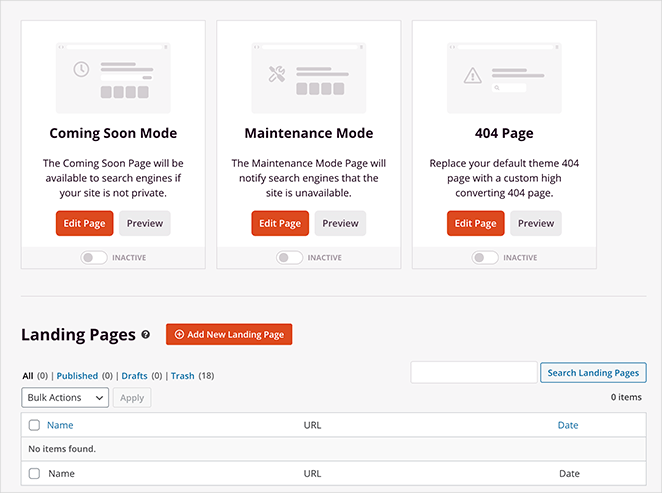
On this page, you can activate a coming soon page, 404 pages, a WordPress login page, and put WordPress in maintenance mode.
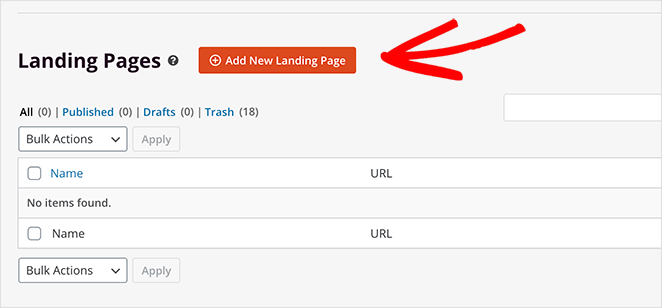
However, for this tutorial, we want to create a sales page. So go ahead and click the + Add New Landing Page Button to get started.
Step 2. Choose a Sales Page Template
SeedProd shows you a library of 350+ landing page templates. You can filter them by clicking any option along the top or typing in the search box.
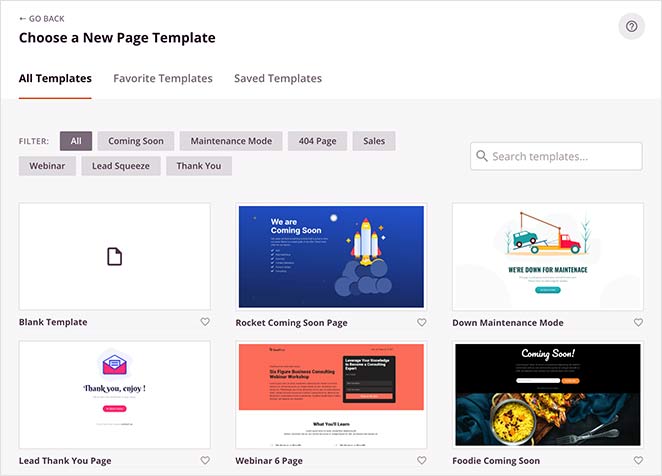
The available templates include:
- Coming Soon
- Maintenance Mode
- 404 Page
- Sales
- Webinar
- Lead Squeeze
- Thank You
- Login
There’s also the option to choose a blank template to start from scratch.
Since you want a WordPress sales page template, click the Sales option to view them.
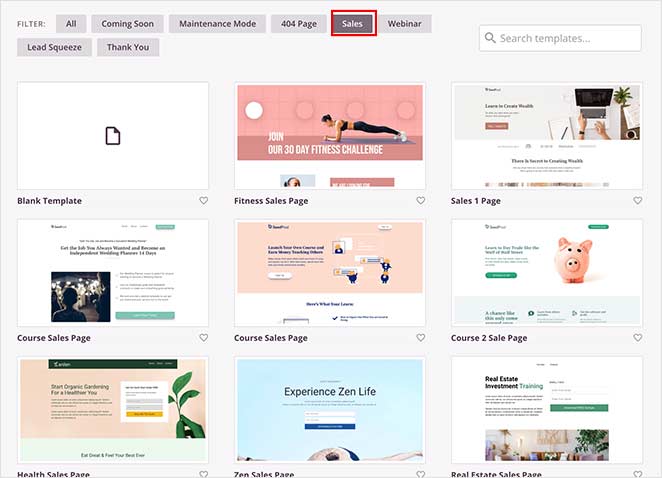
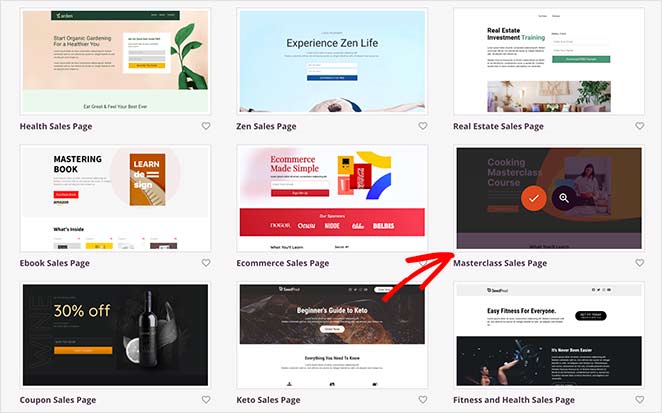
Choose a template that is closest to the design you want. Then, to launch it, hover your mouse over the thumbnail image and click the tick icon. For this guide, we’ll select the Masterclass Sales Page.
Once you select your sales page template, a lightbox popup appears asking you to enter your page details, including your Page Name and Page URL. You can change these details later if you like.
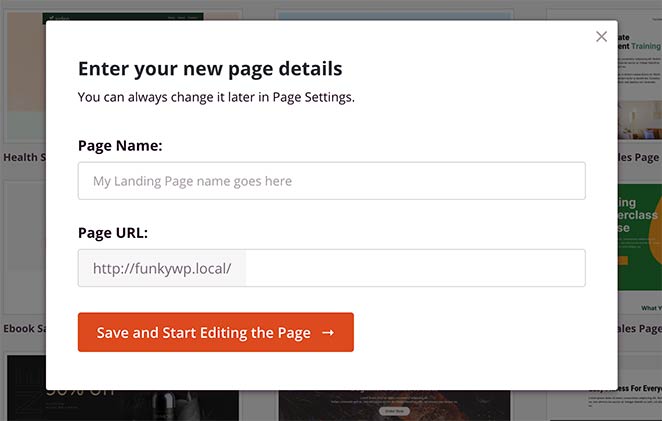
Click the Save and Start Editing button to launch your template in SeedProds’ visual page builder.

Step 3. Add Your Headline & Value Proposition
The SeedProd drag-and-drop page builder provides various easy ways to customize a sales page for your WordPress site.
You can click any element on your page preview and edit the contents in real time. First, let’s add your headline and value proposition.
Your headline is the first thing visitors see and determines whether they keep reading. The value proposition explains why your product or service is worth their time.
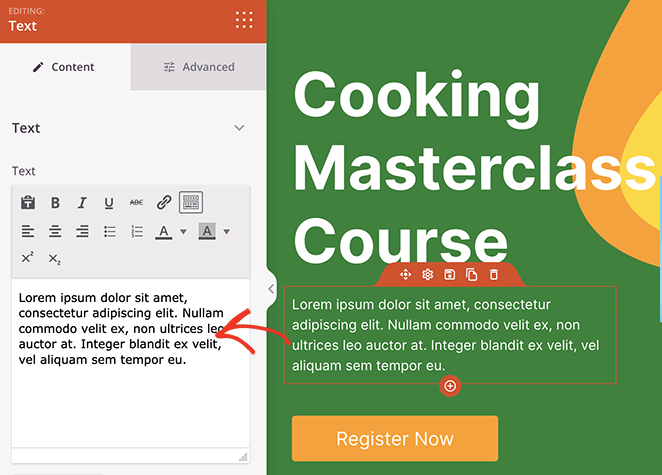
To add your headline, click the demo headline to open the settings on the left. Then, enter your own text.
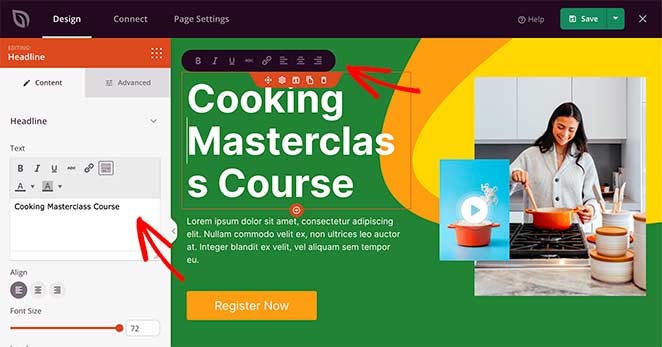
Here are some tips to make your headline stand out:
- Keep it short and sweet: Aim for 5-8 words that are clear, concise, and impactful.
- Focus on benefits, not features: Highlight the transformation your product/service offers, not just its technical aspects.
- Spark curiosity and intrigue: Use questions, power words, or unexpected statements to pique interest.
- Optimize for search engines: Include relevant keywords naturally within the headline.
Repeat this step with the text block beneath and add your value proposition. Explain the problem your product or service solves and highlight what makes it different.
Step 4. Build Trust with Social Proof
Social proof builds trust fast, especially for first-time visitors. When potential customers see genuine praise and success stories, they’re more likely to buy.
I always add testimonials to my sales pages. In my experience, pages with real customer quotes convert noticeably better. If you need inspiration, here’s how to create a testimonial page that builds trust.
SeedProd’s Testimonial block makes adding testimonials to your sales page easy. Simply drag the block from the left-hand panel and drop it onto your live page preview on the right.
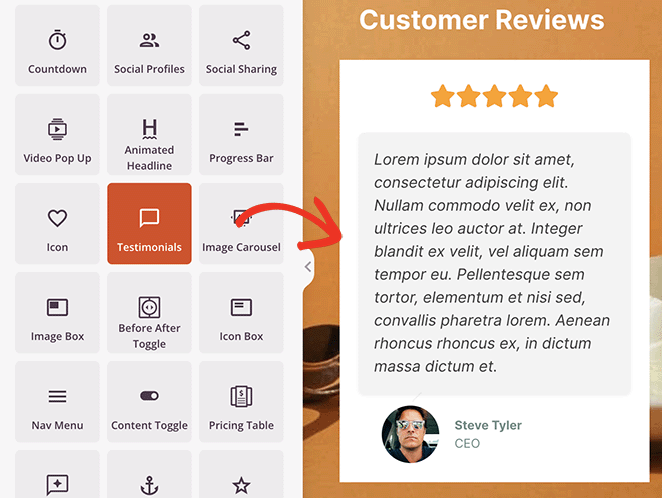
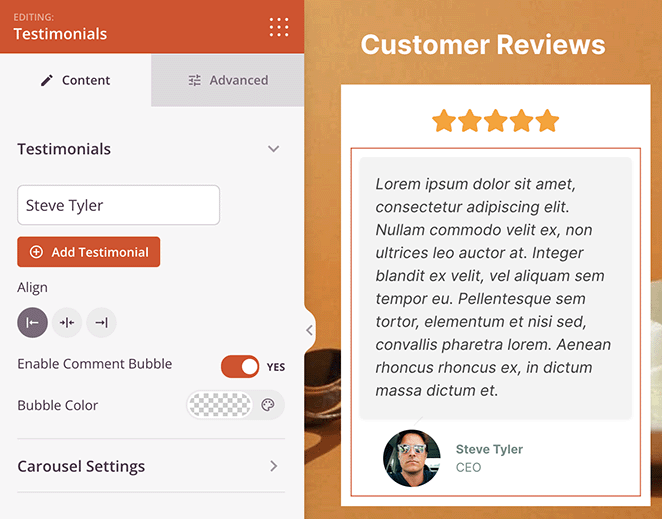
After adding the block, you customize the testimonials with reviewer photos, custom text bubbles, carousels and more.
Step 5. Address Common Objections
Even the most enticing sales page can face roadblocks in the form of common objections. Anticipating and addressing these can be the difference between a frustrated visitor and a happy customer.
Here are some of the most frequent objections you might face, with tips to address them:
1. “It’s too expensive.”
Focus on value, not just price. Highlight the long-term benefits and cost savings your product/service offers compared to alternatives. Consider offering flexible payment options or limited-time discounts to sweeten the deal.
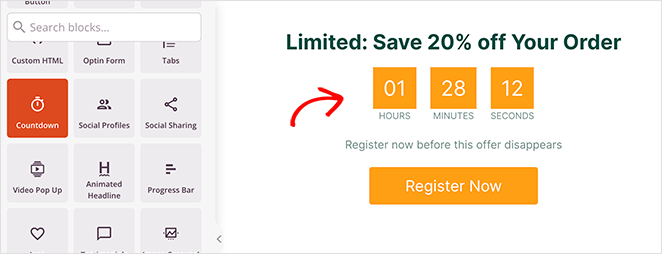
The countdown timer block is a great way to do this. It visually shows how long it takes users to get a deal, encouraging them to act now.
2. “I’m not sure if it’s right for me.”
Offer clear use cases and testimonials from customers with similar challenges. Provide a free trial or demo to let them experience the product firsthand.
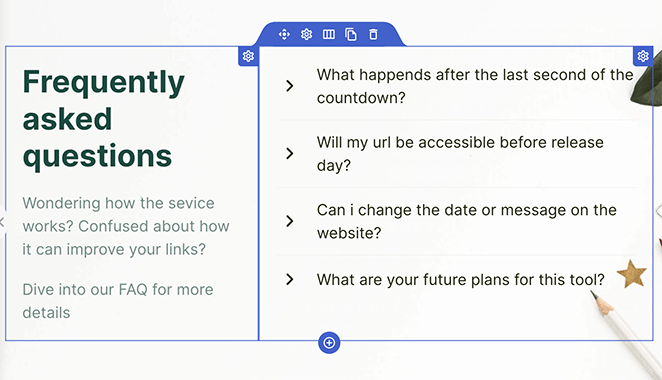
You can also address specific concerns with FAQs or detailed product information. SeedProd’s sections are ideal for this. You can find them by clicking the Sections tab in the blocks sidebar.
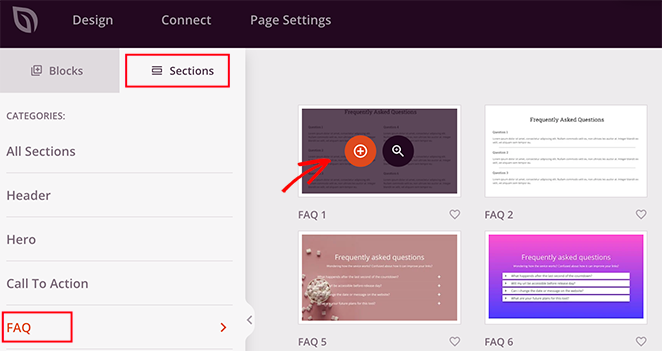
Each section has all the elements you need for a professional-looking header, call-to-action, service area, and even a FAQ section.
3. “I’m already happy with my current solution.”
Highlight your unique selling proposition. Show how you can solve specific problems their current solution doesn’t address. Offer incentives to switch, like exclusive features or better value.
4. “Can I trust you?”
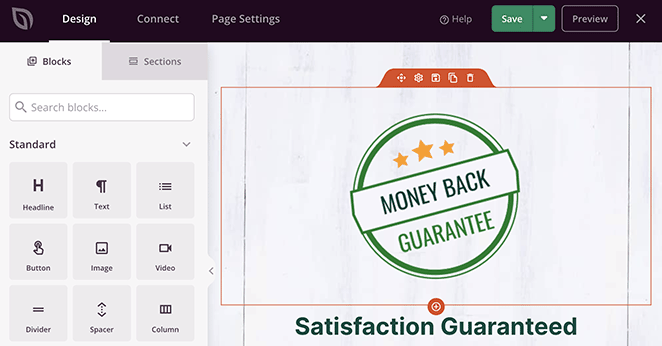
Show social proof through testimonials, case studies, and positive reviews. Display trust signals like security badges and guarantees. Be transparent about your company and its background.
5. “I’m not ready to buy now.”
Offer valuable free resources like ebooks, webinars, or consultations to nurture leads and stay top-of-mind. Create a sense of urgency with limited-time offers or scarcity.
Make it easy for them to subscribe to your newsletter or follow you on social media for future updates.

After addressing any objections, continue customizing your sales page until you’re happy with how it looks.
We completely changed the color scheme and background images for our example sales page, and it only took a few minutes.
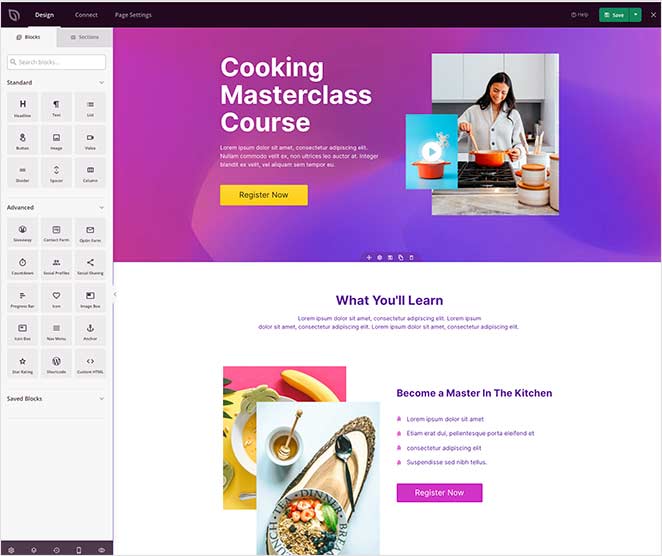
When you’re happy with your changes, click the Save button in the top-right corner of your screen.
Step 6. Connect Your Email Marketing Service to WordPress
To keep track of your leads and sales and make it easier to grow your email list, you’ll need to connect your preferred email marketing service.
SeedProd integrates with a variety of email services, including:
- ActiveCampaign
- AWeber
- Campaign Monitor
- Constant Contact
- ConvertKit
- Drip
- GetResponse
- iContact
- Mad Mimi
- Mailchimp
- Sendy
You can also set up Google Analytics tracking and Recaptcha spam protection and connect with thousands of other apps via Zapier.
First, click the Connect tab at the top of your screen. Then, choose your preferred integration and follow the instructions to connect your account.
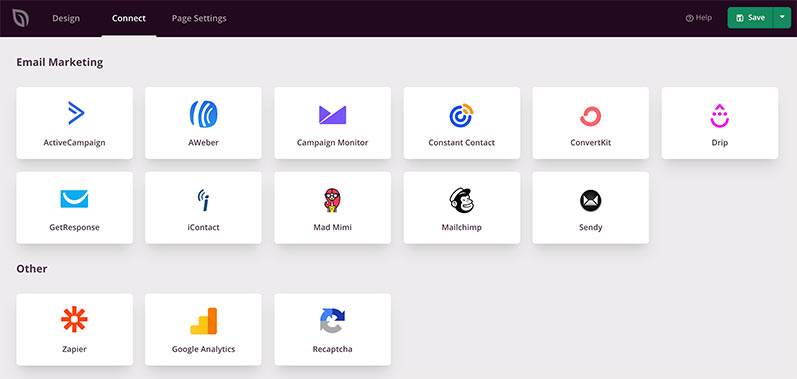
After that, you can link your email list with any signup form you use on your page.
Check out the SeedProd integration documentation to learn how to connect with specific email providers.
Step 7. Configure Your Sales Page Settings
You’ll need to configure your page settings for the next step, so click the Page Settings tab at the top of your screen.
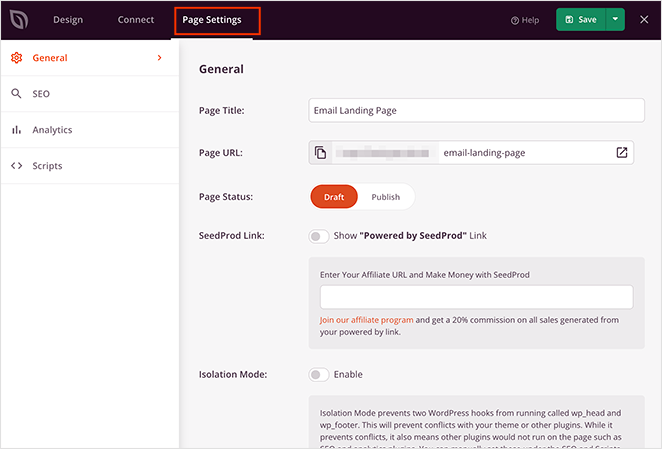
You can configure your General, SEO, and Analytics settings on this page. You can also add custom scripts in your header, body, and footer areas, including your Facebook tracking pixel.
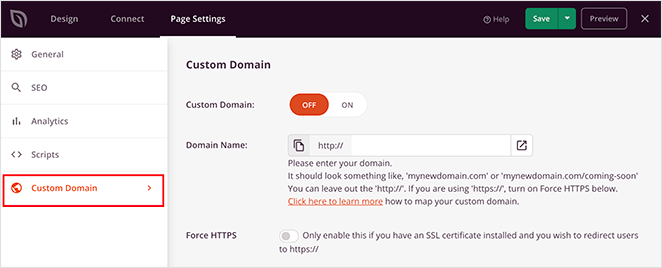
If you’d like to give your page a custom domain name, you can do that in the Custom Domain section (paid plans only). With this feature, you can make your landing page look like a completely separate micro-site from your existing website.
When you’re happy with your settings, click Save.
Step 8. Preview and Publish Your Sales Page in WordPress
SeedProd makes it super-easy to publish your sales page with WordPress. Just click the downwards arrow next to the Save button and click Publish.
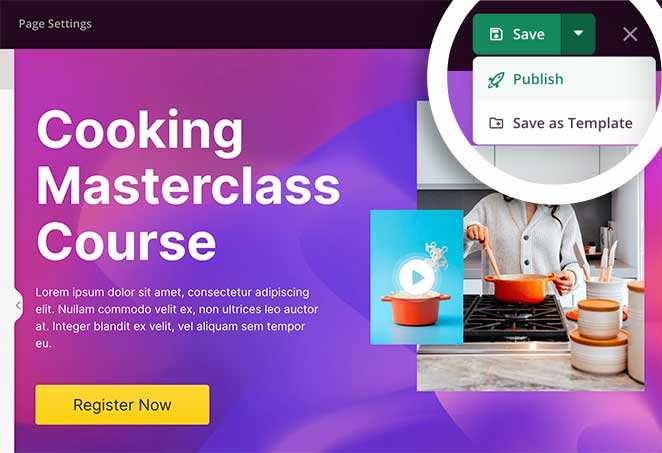
You’ll then see a message notifying you that your page has been published. You can then click the See Live Page button to see how everything looks.
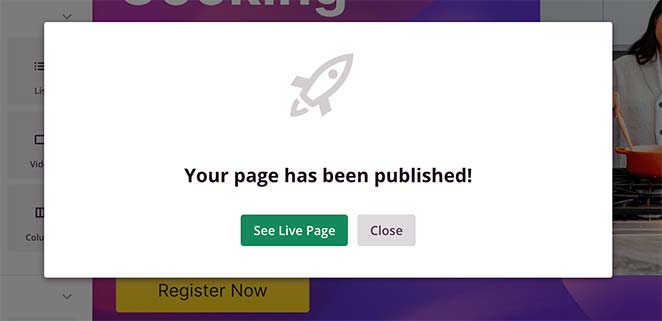
Congratulations! You’ve just created a new sales landing page for your WordPress website. And that’s all it takes , your sales page is live and ready.

Best Practices for WordPress Sales Pages
- Start with a clear headline
- Use high-quality visuals
- Write simple, benefit-focused copy
- Include testimonials and trust signals
- Make your CTA easy to spot
How to Create a Free Sales Page with the WordPress Block Editor
If you’re not ready to invest in a page builder, you can create a basic sales page using the free WordPress block editor. I’ve used this method for quick projects where a full builder wasn’t necessary.
Here’s how to do it in 4 steps:
- Create a new page. Go to Pages > Add New in your WordPress dashboard. Give your page a name like “Special Offer” or your product name.
- Set a full-width template. In the page settings sidebar, look for a “Full Width” or “No Sidebar” template. This gives your sales page more room to breathe.
- Add your content with blocks. Use the Heading block for your headline, Paragraph blocks for your copy, Image blocks for product photos, and the Buttons block for your CTA. The Columns block can help you create side-by-side layouts.
- Publish and review. Click Publish, then view your page on desktop and mobile. Adjust spacing and layout until the page looks balanced.
The block editor works for simple sales pages, but it has limits. You won’t get sales-specific templates, countdown timers, or testimonial carousels. For those features, a page builder like SeedProd gives you much more flexibility.
Sales Page Promotion Strategies
Building the page is only half the work. You also need to convert visitors into customers. Here are four strategies I’ve seen work well.
Social Media Use
Social media can drive targeted traffic to your sales page. Share your page link with engaging captions, run paid ads to reach potential buyers, and respond to your followers to build trust.
SEO for Sales Page
Optimizing your sales page for SEO can attract organic traffic. Use relevant keywords, optimize images, and write meta descriptions. Our WordPress SEO guide walks through the full process.

I use AIOSEO on all my WordPress sites. It makes on-page SEO straightforward, even for beginners.
Email Marketing
Email marketing can drive a lot of traffic to your sales page. Send newsletters with a clear call-to-action, offer exclusive deals to subscribers, and segment your list based on customer behavior.
Influencer Collaboration
Work with influencers in your industry. Choosing those whose followers align with your target demographic will help you reach an audience of relevant potential customers who are already interested in your product niche.

FAQs on How to Create a Sales Page
What Is a Sales Page?
A sales page is a standalone web page built to get visitors to take one action, like buying a product or signing up for a service. Unlike a homepage that shows your whole business, a sales page focuses on a single offer with targeted copy, social proof, and a clear call-to-action.
What is the difference between a homepage and a sales page?
Your homepage greets visitors and shows them your whole shop, while your sales page spotlights a single item and convinces them to take it home. Both are important but focus on different parts of the buying journey.
What is the difference between a sales page and a landing page?
A sales page is a type of landing page, but not all landing pages are sales pages. Landing pages can serve any goal, like collecting email addresses or promoting a webinar. A sales page has one specific purpose: getting visitors to make a purchase.
How long should a sales page be?
It depends on your product price and audience awareness. A short sales page (under 1,000 words) works well for low-cost items under $50 where the buyer already knows what they want. A long sales page (2,000+ words) works better for higher-priced products where you need to build trust first.
How do I write a sales page?
Start with a headline that calls out your reader’s problem. Then present your product as the solution. Show benefits with real stories and proof, add urgency with limited offers, and make your “Buy Now” button impossible to miss. Keep the page focused and scannable.
How to create a sales page without a website?
You can build a standalone sales page with hosted platforms or social media like Facebook. However, I’d recommend creating a website first. A WordPress site gives you full control over your page design, SEO, and email integrations.
Final Thoughts
Creating a sales page in WordPress doesn’t need to be complicated. With SeedProd, the whole process takes about 30 minutes, and you won’t touch a single line of code.
You might also find the following guides helpful:
- Best Sales Page Examples to Boost Conversions
- Landing Page vs Sales Page: Which One Is Right for You?
- Best Sales Funnel Builders and Plugins for WooCommerce
- Landing Page Best Practices for Incredible Conversion Rates
Thanks for reading! We’d love to hear your thoughts, so please feel free to join the conversation on YouTube, X and Facebook for more helpful advice and content to grow your business.




