

If you’ve ever lost a potential client because booking required a phone call they didn’t make, or an email you didn’t see until the next day, you already know the problem. Appointment businesses run on timing, and every extra step between “I’m interested” and “I’m booked” is an opportunity for someone to change their mind.
A WordPress booking system fixes that. Customers schedule directly on your site, pick their date and time, and submit without any back-and-forth. You get a notification, they get a confirmation, and nobody had to pick up the phone.
In this guide, I’ll walk you through setting up a booking form, accepting payments, and building a booking page that gives customers the confidence to actually follow through.
What You Need for a WordPress Booking System
WordPress doesn’t come with a built-in booking system. That’s not a problem, because a booking plugin adds everything you need: a customizable form, date and time selection, email confirmations, and optional payment collection.
Before you start, here’s what a typical WordPress booking system includes:
- A booking form with fields for name, email, service type, and preferred date and time
- A date and time picker the customer can interact with
- Automated email confirmations sent to you and the customer
- Optional payment collection at the time of booking
This guide focuses on appointment-style bookings: a customer picks a service, picks a time, and submits. If you’re managing event registrations or rental inventory, some of the same tools apply, but a dedicated scheduling plugin might be a better fit. We’ll cover a few options in the alternatives section below.
How to Create a Booking System in WordPress
There are dedicated booking plugins that do a lot, but most of them are more system than a small service business needs. You end up configuring staff schedules, service categories, and availability rules just to get a basic appointment form in front of a customer.
I always use WPForms because it takes a different approach. It’s a form builder plugin first, which means the setup is simpler and the learning curve is much shorter. The Pro version includes an Appointment Booking Form template with day and time selection, payment collection, and email notifications built in.
I use it on my own sites, and right here on SeedProd because it’s the fastest way to get a working booking form live without learning a whole new platform. To learn more, you can see my WPForms review.
Here are the steps to get your booking form live.
Step 1. Install and Activate WPForms
First, you’ll need to get WPForms Pro. After getting your copy, log into WPForms.com, go to My Account → Downloads, and download the plugin zip file.
In your WordPress dashboard, go to Plugins → Add New → Upload Plugin. Click Choose File, select the zip you just downloaded, and click Install Now.
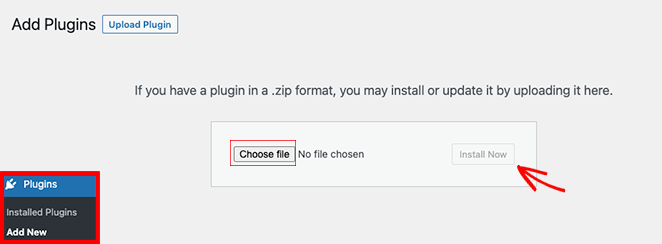
Once it’s installed, click Activate Plugin. Then go to WPForms → Settings and enter your license key to unlock all Pro features.
Step 2. Create a New Booking Form
Go to WPForms → Add New and give your form a name. In the template library, search for “appointment” to filter the results, then select the Appointment Booking Form template.
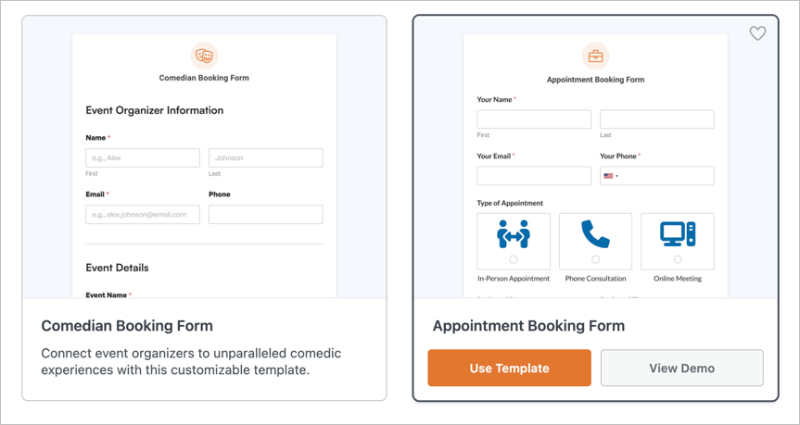
WPForms loads a pre-built form with all the core booking fields already in place. You’ll see a preview before you start editing, which gives you a clear picture of what your customers will see.
Step 3. Customize Your Booking Fields
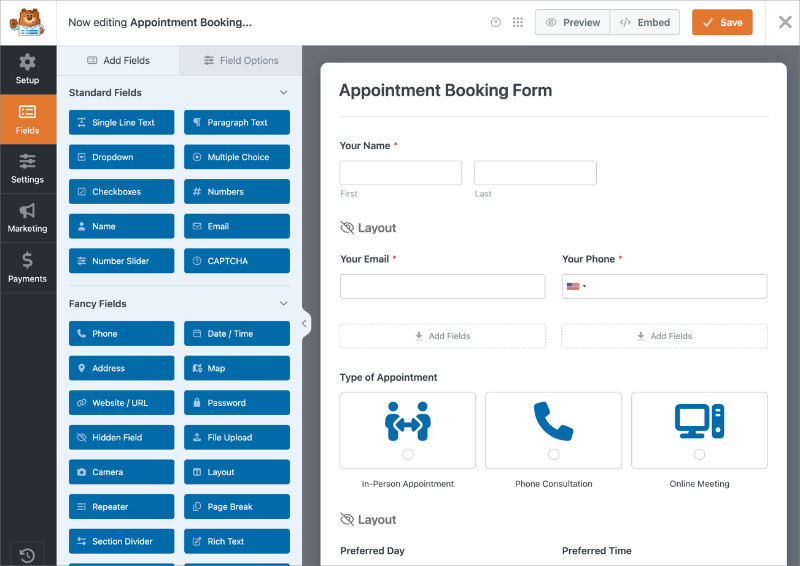
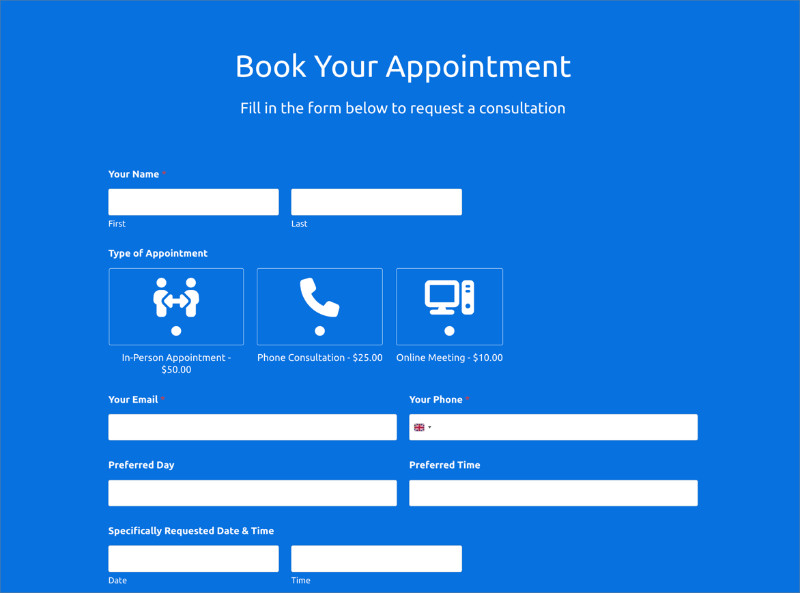
The form builder opens with a field panel on the left and a live preview on the right. The template comes pre-built with everything you need:
- Type of Appointment field displayed as icon cards
- Preferred Day and Preferred Time dropdowns
- Specifically Requested Date & Time section for customers who want a particular slot
- Additional Comments box.
Start with the Type of Appointment field. Click on it to open the field settings.
Under Items, you’ll see the default options: In-Person Appointment, Phone Consultation, and Online Meeting. Replace these with your actual services.
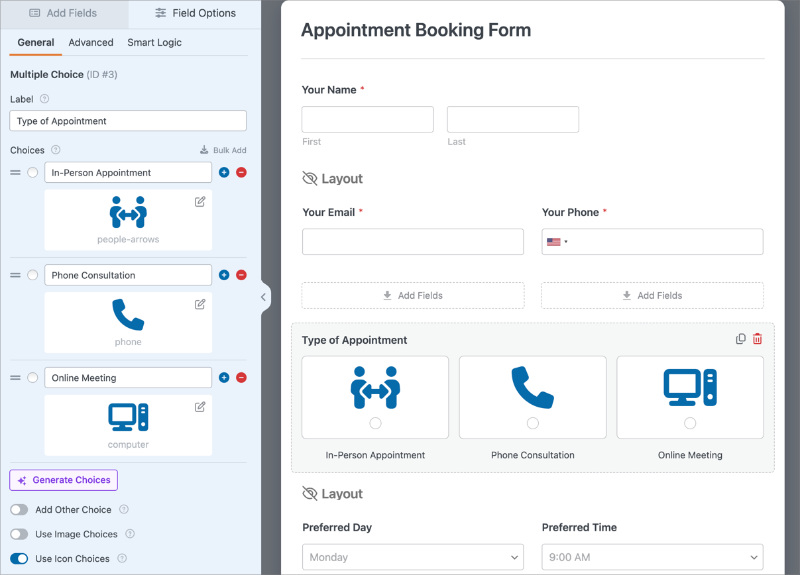
To add more, click the plus icon to add a new row. To remove one, click the minus icon.
You can also swap out the icons. Click the edit icon on any item and choose from the built-in library. This is optional, but worth a few minutes if the default icons don’t match your services.
For the day and time fields, edit the dropdown options to match your actual availability. If you only take appointments Monday through Thursday, remove Friday from the Preferred Day list.
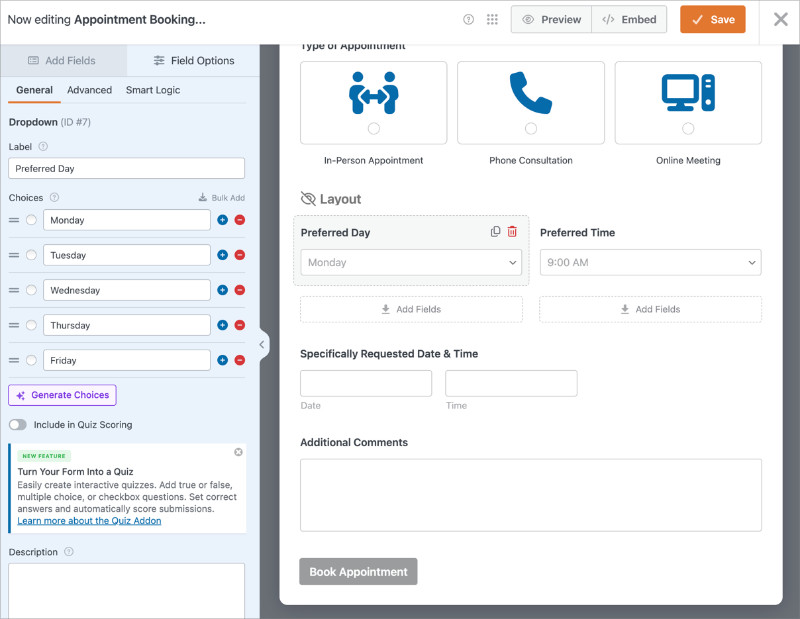
The Preferred Time dropdown works the same way — trim it down to the time slots you actually offer.
Step 4. Set Up Email Notifications
Go to Settings → Notifications in the form builder. WPForms sets up one default notification: an email to your site admin address whenever someone submits the form. That one’s already handled.
What you need to add is a confirmation email for the customer.
Click Add New Notification and give it a name like “Customer Confirmation.” In the Send To Email Address field, click the Smart Tags icon and select your email field from the list. This pulls in the address the customer typed, so the confirmation goes to the right person automatically.
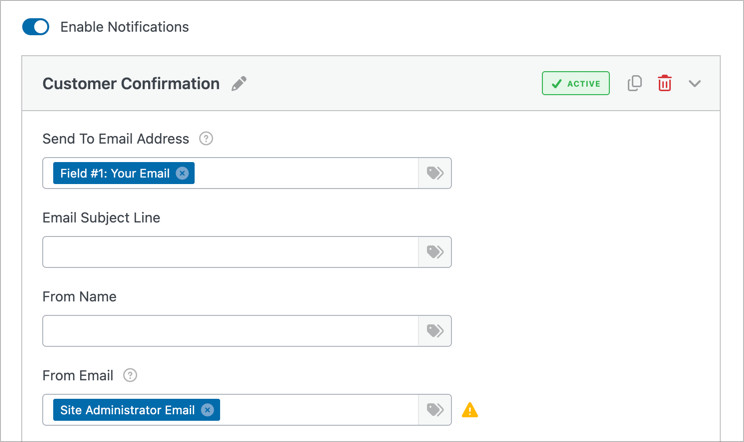
Fill in an Email Subject Line (something like “Your appointment is confirmed”) and a From Name so the email looks like it came from your business, not a generic WordPress address.
For the email body, the {all_fields} smart tag pulls in everything the customer submitted, including their service selection, preferred day and time, and any notes.
Add your own text below or above it with anything the customer needs to know before the appointment: your address, cancellation policy, or a note about what to expect.
Step 5. Configure Your Confirmation Message
After someone submits the booking form, they see a confirmation. Go to Settings → Confirmations to choose what that looks like.
The three options are:
- Message (a note displayed on the same page)
- Show Page (redirects to an existing WordPress page)
- Go to URL (Redirect) (sends them to any URL you specify).
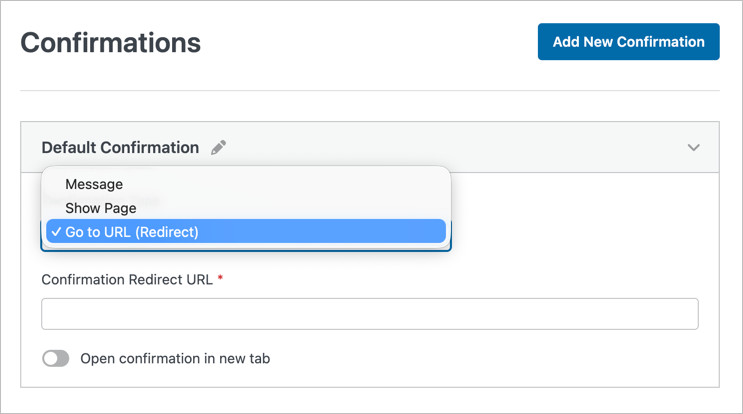
I recommend redirecting customers to a dedicated thank-you page rather than showing a message on the same page. It gives you space to set expectations, such as “Check your email for a confirmation” or “We’ll be in touch within 24 hours to confirm your appointment.”
You can build that page with SeedProd or any WordPress page builder and paste the URL into the Confirmation Redirect URL field.
Step 6. Embed the Booking Form on Your Site
Go to the page where you want the booking form to appear. In the WordPress block editor, click the plus icon to add a block and search for WPForms. Select the WPForms block and choose your booking form from the dropdown.
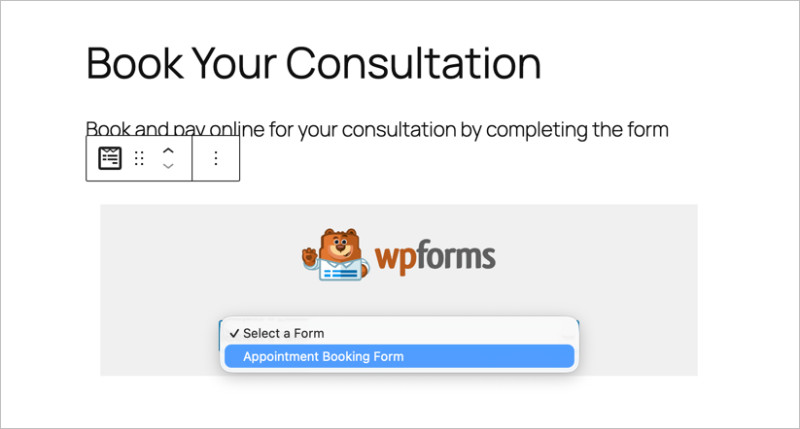
You can preview the form from inside the editor, but the best check is a live preview on the front end.
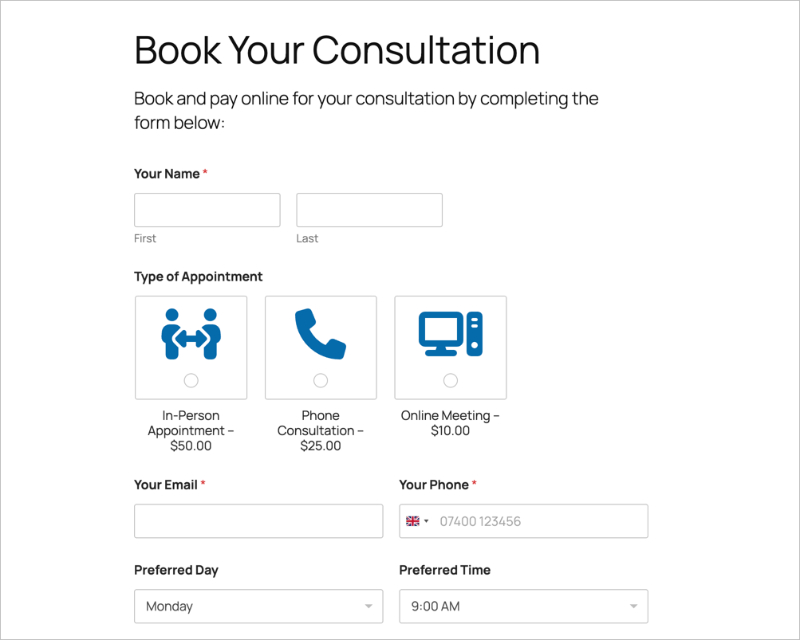
Submit a test booking so you can verify both notification emails arrive correctly, the confirmation redirect sends you to the right page, and the form looks right on your phone. It takes five minutes and saves you from discovering a problem after you’ve shared the link with customers.
If you’re on a classic editor or using a different page builder, WPForms also gives you a shortcode under WPForms → All Forms. Copy the shortcode and paste it into any text or HTML block.
How to Accept Payments with Your Booking Form
Collecting payment when someone books has a practical benefit: it reduces no-shows. When a customer pays a deposit or the full amount upfront, they’re much more likely to follow through.
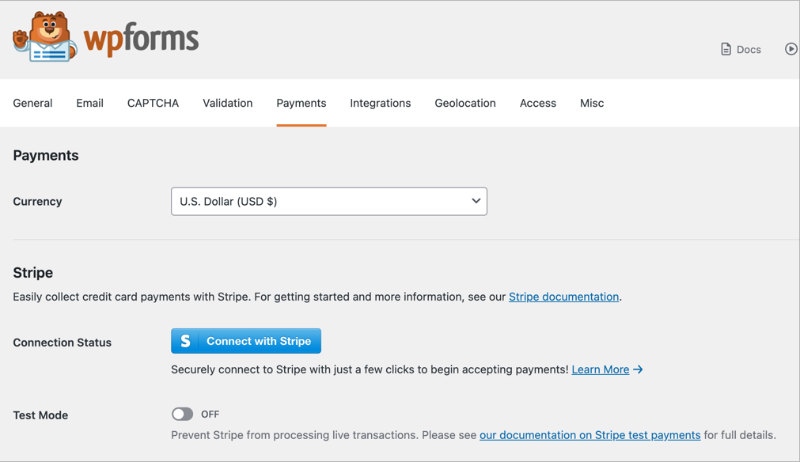
WPForms Pro includes Stripe built in. Here’s how to set it up.
1. Connect Stripe. Go to WPForms → Settings → Payments → Stripe and click Connect with Stripe. You’ll be walked through authorizing your Stripe account. For PayPal, the process is similar under the PayPal tab.
2. Add a payment field to your form. Open your booking form in the builder. In the field panel on the left, scroll to the Payments section and drag a Multiple Items field into the form.
Click the field to open its settings. Under Items, add a row for each service you offer, give it a name, and enter the price. When a customer picks a service, the price is applied automatically at submission.
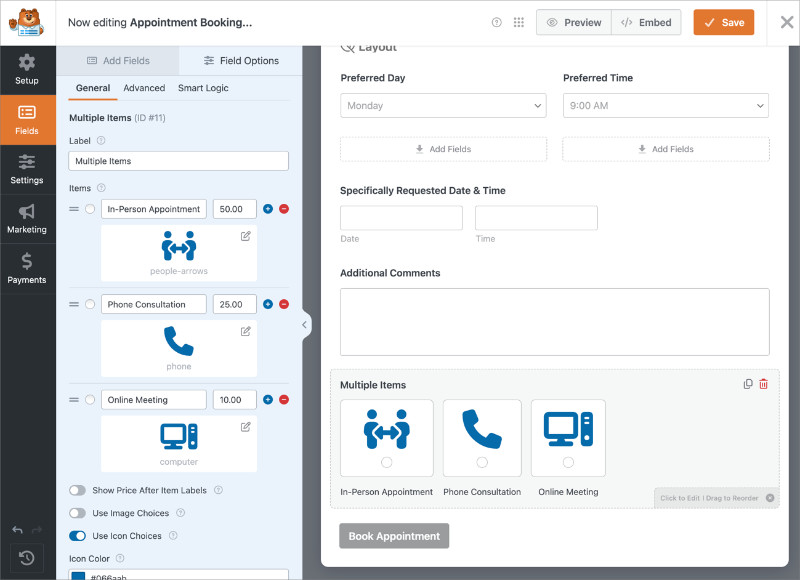
If you already have the Type of Appointment field from Step 3, you can delete it and use this Multiple Items field instead — it handles service selection and pricing in one step.
3. Test before going live. Stripe has a test mode you can activate under WPForms → Settings → Payments → Stripe. Run a test booking with Stripe’s test card numbers to confirm the payment goes through and both notification emails fire correctly. Much easier to catch problems here than after a real customer hits an error.
How to Build a Booking Page That Gets More Appointments
Every competitor guide I’ve read does the same thing at this point: embed the form, call it done. That works, but a form dropped onto a default WordPress page doesn’t build much confidence. If someone’s deciding whether to trust you with their time, a blank page with a shortcode pasted in isn’t the best first impression.
That’s why I reccommend building a custom booking page.
A booking page that actually converts has a few specific elements working together:
- A clear headline that states the service and who it’s for
- A short paragraph describing what the customer gets or what to expect
- Trust elements: a testimonial, a star rating, or a note about how many clients you’ve worked with
- The booking form, positioned where the eye lands naturally
- Your business hours and contact info nearby
- A layout that works on mobile
SeedProd is a WordPress page builder that makes it easy to put all of this together without touching code. You pick a template from the library, drag in the elements you need, and see every change live in the editor. It has a WPForms block built in, so embedding your booking form into the layout is one drag-and-drop action.
Here’s how to build the booking page:
1. Install SeedProd. First, install and activate SeedProd Pro on your WordPress website.
2. Create a new landing page. Go to SeedProd → Landing Pages and click Add New Page.
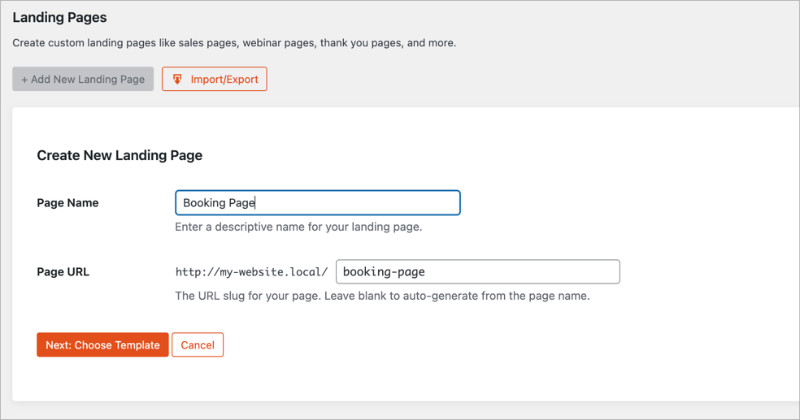
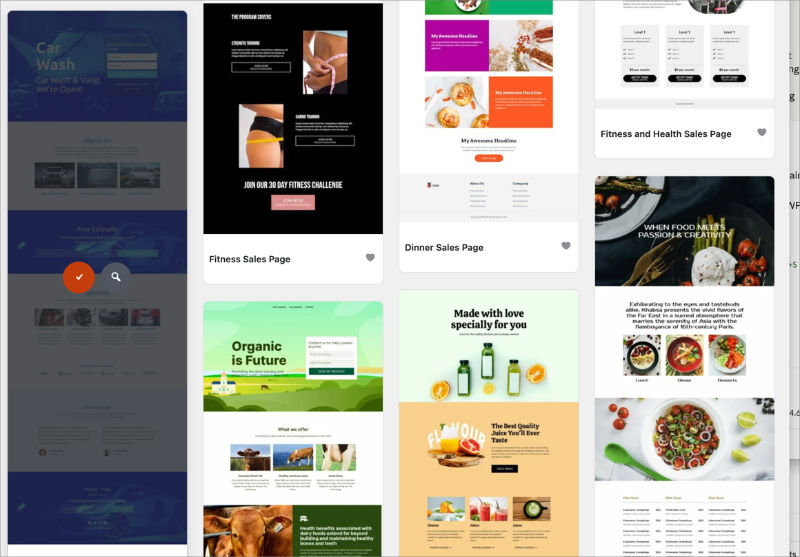
Browse the template library and look for a Service or Lead Squeeze template, both of which have the structure you need. Or start blank if you want full control from the beginning.
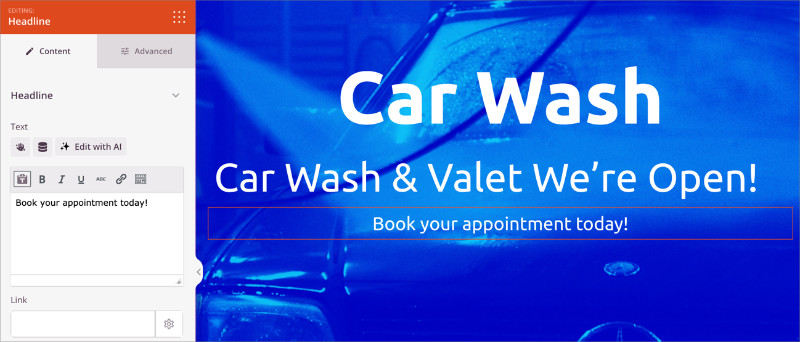
3. Build your layout. Drag a Headline block to the top and write a clear headline, something like “Book a [Service Name] Appointment.” Add a Text block below it with one or two sentences about what the customer can expect.
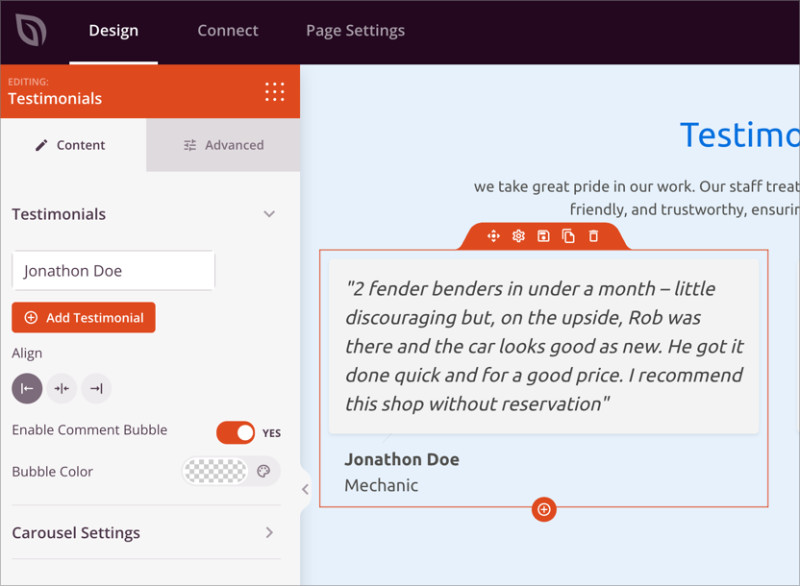
Lower on the page, add a Testimonials block or a simple text line mentioning how many clients you’ve worked with. Social proof doesn’t need to be elaborate to work.
4. Embed your booking form. Drag the Contact Form block into your layout and select your booking form from the dropdown.
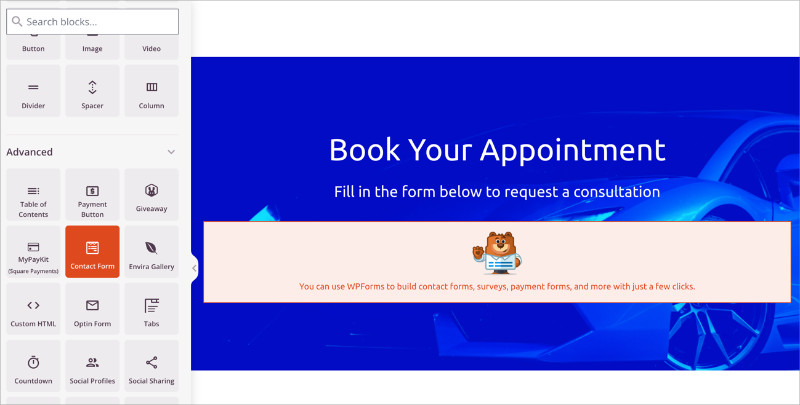
The form renders in the editor so you can see how the full page fits together before you publish.
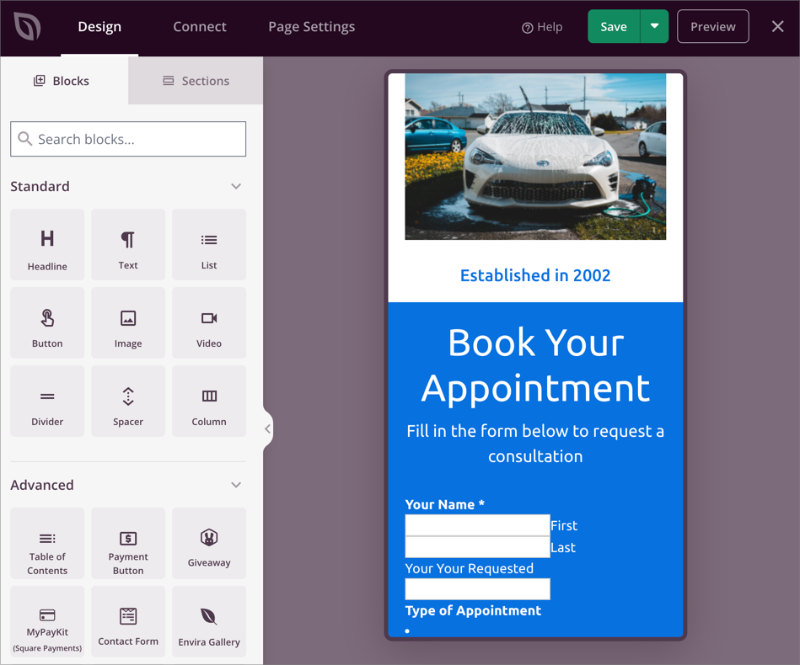
5. Check mobile. Click the mobile preview icon at the bottom of the SeedProd editor. Most appointment bookings happen on phones, so it’s worth confirming the form and layout look clean on a small screen before you share the link anywhere.
Once you publish the page, that’s your booking page URL. Share it in your email signature, social media bio, and anywhere on your site that mentions your services.
If you also want a dedicated thank-you page for after submission, you can build a second page in SeedProd and paste that URL into the WPForms Confirmation Redirect URL field from Step 5.
Other WordPress Booking Plugins Worth Considering
WPForms is a strong starting point for most small businesses because it’s simple and handles far more than just booking. But if you need staff management, calendar availability blocking, or a more complex scheduling setup, a dedicated booking plugin is a better fit.
| Plugin | Best For | Free Version | Starting Price |
|---|---|---|---|
| Sugar Calendar | Service businesses needing full scheduling with staff, availability rules, and payments | No | $49/year |
| Bookly | Freelancers and small studios testing online booking before committing to a paid plan | Yes (limited) | $89 one-time |
| BookingPress | Businesses needing multiple services, staff management, and broad payment gateway support | Yes | $79/year |
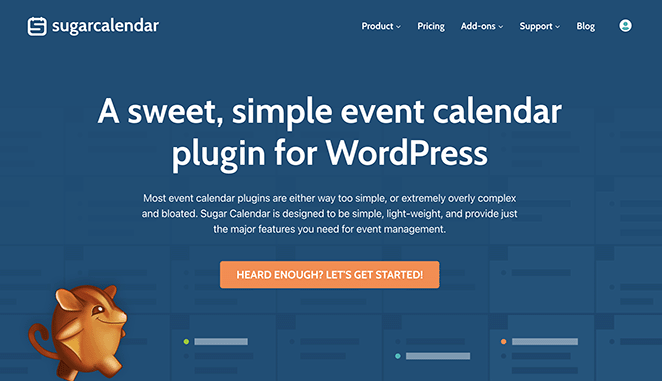
Sugar Calendar is my top choice from this list because it’s a full appointment scheduling system with service management, staff assignment, availability rules, and payment collection built in. It’s WPBeginner’s top booking plugin pick for 2026, and I’m familiar with it from having worked with it regularly on my own websites.
If you expect to grow your service capacity or add staff members over time, it’s worth looking at from the start rather than migrating later.
FAQs On Creating a WordPress Booking System
Does WordPress have a built-in booking system?
No, WordPress doesn’t include booking functionality by default. You need a plugin to add it. The good news is that setup doesn’t require coding and takes about 30 minutes with a plugin like WPForms.
If you need staff scheduling and calendar management, a dedicated booking plugin like Sugar Calendar or BookingPress gives you more control over availability and service management.
How much does a WordPress booking plugin cost?
Free options exist, but they come with limitations. Bookly and BookingPress both have free tiers that cover basic appointment scheduling without payments or calendar sync.
Premium booking plugins typically run $49 to $199 per year depending on features. WPForms Pro, which includes booking form templates alongside dozens of other form types, starts at $199 per year.
Can a WordPress booking system send automated reminders to customers?
Yes, but it depends on the plugin. Most dedicated booking plugins include automated reminders as part of their premium plans. WPForms sends a confirmation email at booking time but doesn’t include a built-in reminder feature, so you’d need an email automation tool for 24-hour follow-ups.
Either way, install WP Mail SMTP to make sure your booking notification emails actually reach inboxes instead of landing in spam.
Can I accept payments through a WordPress booking form?
Yes. WPForms Pro includes Stripe built in, and you can connect PayPal from the same settings panel. Customers pay when they submit the booking form. You can collect the full amount or a deposit.
Collecting payment at booking time is one of the most effective ways to reduce no-shows, since customers who’ve paid are much more likely to show up.
Get More Appointments Starting Today
Your booking form is live, payments are connected, and your booking page is ready for visitors. Share the page link in your email signature, social bio, and anywhere you’re currently asking people to call or email to book. That friction is gone now.
If you haven’t built your booking page yet, SeedProd makes it fast. You can have a professional booking page live in under an hour, no design skills needed.
You may also find the following guides helpful:
- How to Create a Landing Page in WordPress
- How to Create a Service Page Design in WordPress
- How to Build a Personal Trainer Website in WordPress
- How to Create a Multi-Step Form in WordPress
Thanks for reading! We’d love to hear your thoughts, so please feel free to join the conversation on YouTube, X and Facebook for more helpful advice and content to grow your business.




