

Building a startup website means launching fast enough to test your idea before you waste weeks building something nobody wants. Most founders get this backwards: they perfect the design, then discover there’s no demand.
Your startup site has one job before anything else: get a stranger to sign up or hand over their email. Design comes second.
In this guide, I’ll walk you through choosing the right platform, the five pages you actually need, how to launch before you feel ready, and the SEO and analytics basics that move the needle. No coding required.
- What Your Startup Site Needs to Do
- How to Choose a Platform for Your Startup Website
- How to Install WordPress and SeedProd
- What Your Startup Homepage Needs
- The Five Pages Every Startup Site Needs
- How to Capture Emails Before You Launch
- What to Set Up Before You Go Live
- What to Do After Launching your Startup Website
- FAQs About Building a Startup Website
What Your Startup Site Needs to Do
A startup website has three jobs a regular business site doesn’t.
- Capture emails before you’re ready to launch. A warm list of interested people on day one is worth more than a polished site with no audience.
- Signal enough credibility to earn a first meeting. That means a clear value proposition, some form of social proof, and a way to contact you. One testimonial or a single press mention is enough to start.
- Stay easy to update as your messaging changes. You will rewrite your copy. You will rethink your positioning. Build on a platform you can update without hiring a developer.
Something live beats something perfect. A pre-launch page capturing emails today is more valuable than a complete site launching in six weeks.
How to Choose a Platform for Your Startup Website
Platform choice matters more for startups than for established businesses because startups change fast. The platform you pick on day one affects whether you own your content, how much you pay as you grow, and whether you control your SEO.
Before choosing, ask three questions:
- Can you export your content if you leave? Squarespace only exports basic blog posts. Pages, store content, and design settings don’t transfer. Framer is the same: your work stays in Framer.
- Does pricing scale without surprise fees? Many platforms start cheap, then charge extra for email capture, custom domains, or integrations the moment you actually need them.
- Do you get real SEO control? That means custom meta titles and descriptions, clean URLs, automatic sitemap generation, and schema support.
Wix and Squarespace fail the first question. Founders who built on them early and migrated later describe it as one of their worst technical decisions. You were building an asset on a platform you don’t own.
WordPress with SeedProd answers all three. You own your content. You control the code. WordPress powers 42.5% of all websites, and its SEO defaults are hard to match, especially paired with a plugin like AIOSEO.

SeedProd is the page builder I’d recommend to any founder. It’s a drag-and-drop WordPress website builder that requires no code to design or update.
SeedProd is also the fastest WordPress builder I’ve tested (556ms vs Elementor’s 1,882ms in my GTmetrix testing). It uses less server memory than Divi and loads faster without any extra optimization.
The one real limitation: WordPress requires separate hosting. You’ll need to set up hosting and a domain before you start. The next section covers how and it only takes about 20 minutes.
How to Install WordPress and SeedProd
I use SeedProd to build my own website. Here’s exactly how I’d set it up for a startup.
The WordPress install takes about 20 minutes. SeedProd takes another 5.
Step 1: Choose Hosting
I recommend Bluehost for most founders starting out. It includes one-click WordPress installation, a free domain for the first year, and plans that start at a few dollars a month.
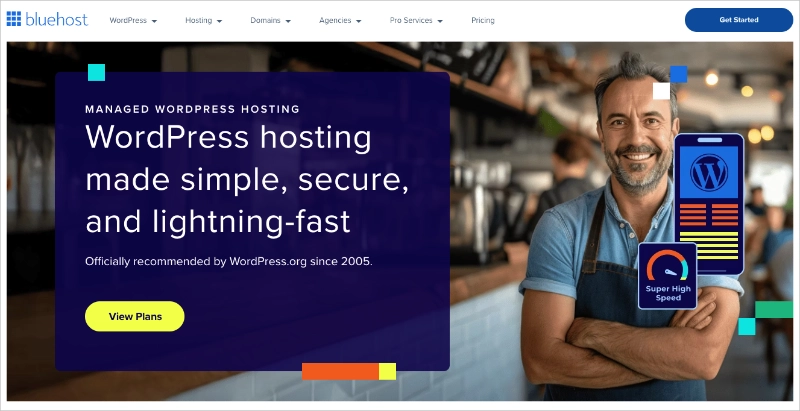
If you want to compare options, see how to choose the best WordPress hosting. Choose a hosting plan on signup and register your domain during checkout.
Step 2: Register a Domain Name
Use your startup’s name as the domain where possible. Stick to .com if it’s available. Keep it short and easy to spell.
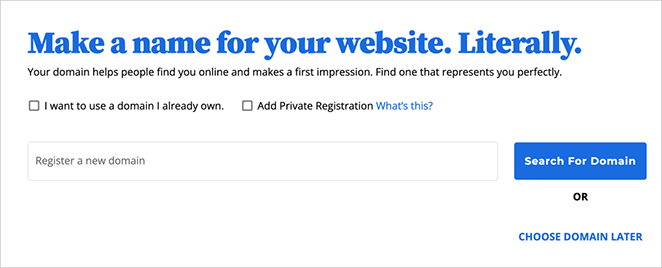
You can register through Bluehost, or the hosting provider you chose during signup or separately through a domain registrar.
Step 3: Install WordPress
In your hosting control panel, find the one-click WordPress installer and run it. Here is an example of how this looks in Bluehost:
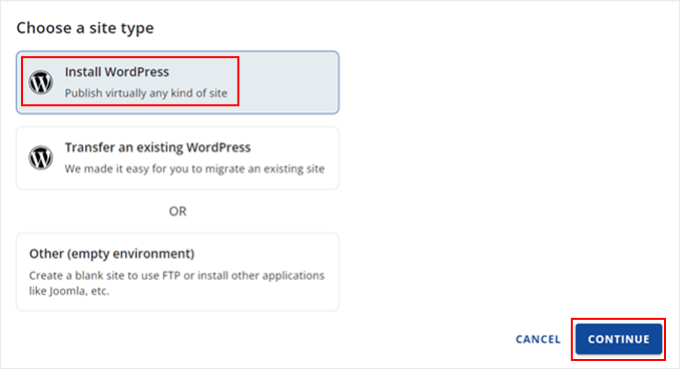
You’ll set a site name, admin email, and password. After a couple of minutes, you’ll have a working WordPress install and a login link to your dashboard.
Step 4: Install and Activate SeedProd
The next step is adding SeedProd to build your website design without code.
Go to SeedProd and choose a plan. The Plus plan or higher is the right choice if you want to use the Theme Builder to design your full site. After purchasing, download the plugin .zip file from your SeedProd account.
In your WordPress dashboard, go to Plugins » Add New » Upload Plugin. Click Choose File, select the SeedProd .zip you downloaded, then click Install Now.
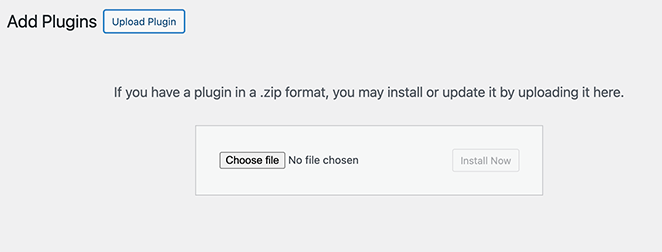
After installation, click Activate Plugin. You’ll see SeedProd appear in your left sidebar.
Step 5: Choose a Starting Point
Go to SeedProd » Theme Builder to build your full site, or SeedProd » Landing Pages to start with individual pages.
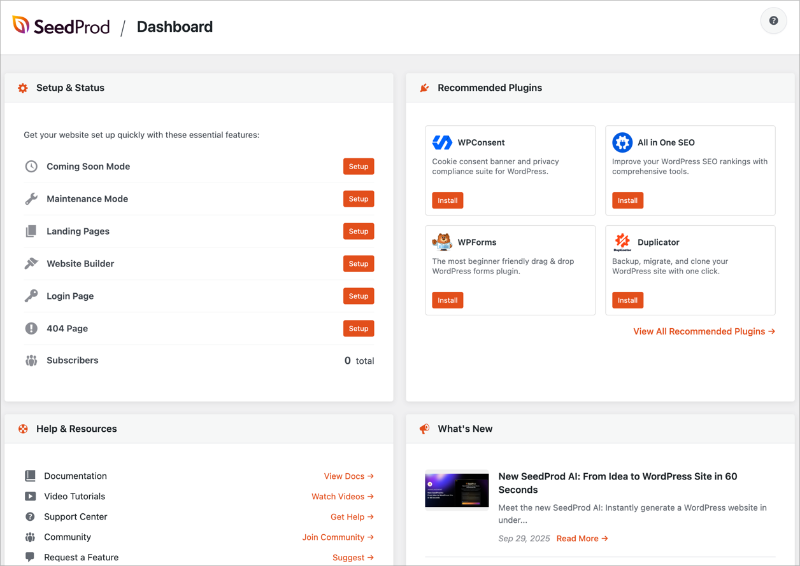
SeedProd includes startup and business templates you can customize by clicking on any element and typing directly.
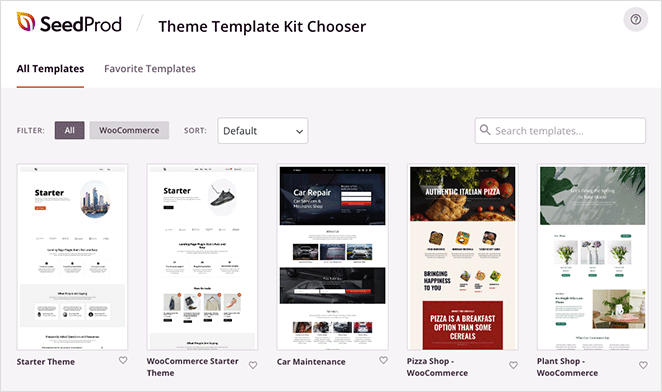
For a full walkthrough, see how to create a custom WordPress theme without code.
What Your Startup Homepage Needs
Your startup homepage has one job: turn a stranger into a subscriber or user before they scroll. Everything else is secondary.
Above the fold, you need three things: an H1 that names what you do, who it’s for, and the outcome; one CTA like an email capture form or “Get started” button; and an image that shows the product or its result.

The homepages that convert fastest almost always do less above the fold, not more. Too many options and no clear value proposition is the pattern on the ones that don’t.
Below the fold, include:
- Social proof. Logos, a testimonial, or a press mention. One is enough to start.
- Features or how it works. Three to four items, benefit-led. Write what each feature does for the user, not what it is.
- A secondary CTA before the footer, so visitors who scroll to the bottom don’t have to scroll back up to sign up.
Keep navigation to four items at launch: Home, Features, Pricing, and Contact.
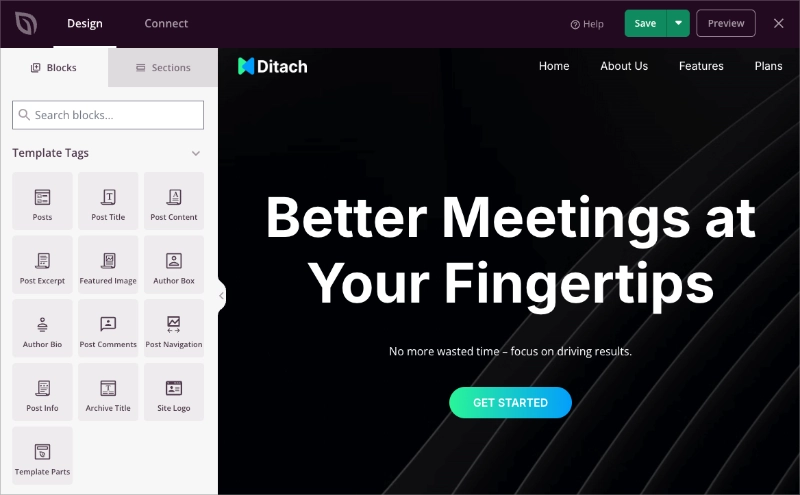
SeedProd’s drag-and-drop editor makes it easy to build this layout without touching code. See how to edit your WordPress homepage with SeedProd for a step-by-step walkthrough.
The Five Pages Every Startup Site Needs
Most startup sites launch with too many pages half-finished or too few to be taken seriously. These five give you everything a visitor, prospect, or early investor needs to understand what you do and decide whether to take action.
Everything else can wait until you’re live.
- Homepage. One clear CTA, value proposition above the fold, social proof below it.
- Product or Features page. What your product does, in plain language, for a specific person. Write benefits, not feature names. “Cut reporting time in half” lands better than “Advanced analytics dashboard.”
- Pricing page. Even rough tiers help conversion. If you’re not ready to publish numbers, use “Contact us for pricing.” A missing pricing page signals immaturity to early prospects and investors.
- About or Team page. For startups, this page doubles as an investor credibility page. Include headshots, short bios, and any notable background. Here are some guides for creating an About Us page and a Meet the Team page.
- Contact page. An email address and a contact form. See how to create a landing page with a form for a simple setup.
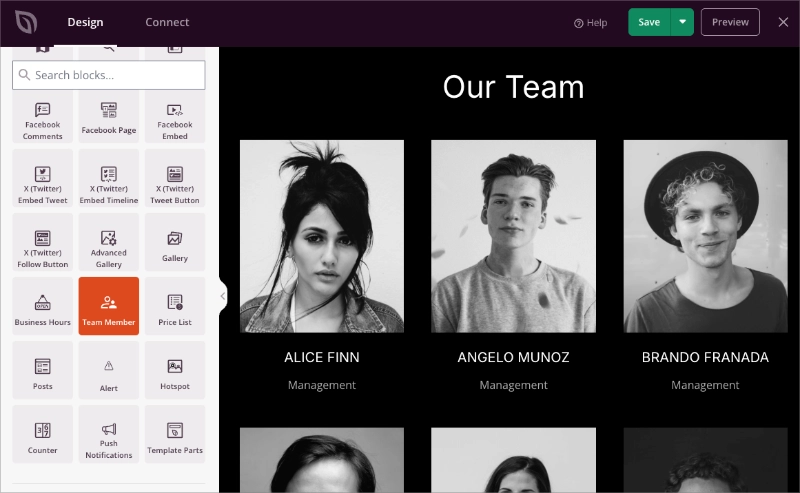
Once you’re live and your messaging is stable, add a blog or a case studies page. Don’t let “I need more pages” delay your launch.
How to Capture Emails Before You Launch
If your full site isn’t ready, publish a pre-launch landing page instead. A single page that captures email addresses gives you a warm list on day one and tells you whether real demand exists before you spend months building.
Email is worth building early. Litmus research puts the average return at $36 for every $1 spent.
SeedProd’s Coming Soon mode is built for this. You can publish a pre-launch page in about 10 minutes while you build the rest of your site behind the scenes.
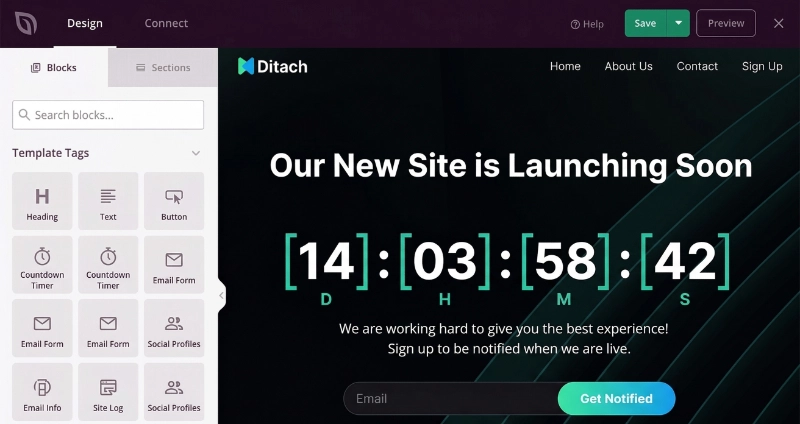
Visitors see the pre-launch page. You work on everything else in WordPress without it going public.
Your pre-launch page needs four things:
- A value prop that names what you’re building and who it’s for
- An email opt-in form
- A countdown timer if you have a launch date to create urgency
- Social links so early visitors can follow along
When you’re ready to go live, switch off Coming Soon mode and your full site appears. The email list stays with you.
For a full walkthough, see our guide on creating a coming soon page in WordPress.
What to Set Up Before You Go Live
Before you publish anything, set up analytics and SEO. Both take about 20 minutes combined and both are harder to do correctly after the fact.
Set Up Analytics on Your Startup Website
Miss the launch window and you lose the early baseline data that tells you whether your site is working from day one.
You need to know three things early: who’s visiting, where they’re coming from, and whether they’re completing your key action, whether that’s an email signup, demo request, or account creation.
Start with these three tools:
- Google Analytics 4. Free, and it starts capturing data the moment you install it.
- MonsterInsights. Connects GA4 to WordPress without code and shows your key metrics inside the WordPress dashboard. No separate login required.
- Google Search Console. Tracks search impressions from day one. It takes a couple of days to start populating data, so connect it before you go live.
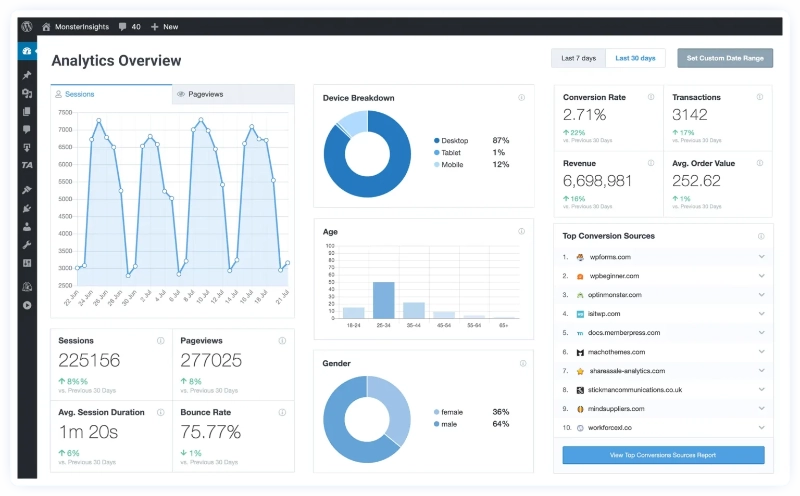
Once traffic grows and GA4 starts feeling overwhelming, OnePageGA is worth adding. It pulls your most important metrics into a single view so you can see what needs attention without digging through dashboards.
For setup help, see this guide to Google Analytics for WordPress.
Optimize Your Startup Site for Search Engines
You won’t rank on day one, but the SEO decisions you make at launch affect everything that comes after. These six steps take about 10 minutes and apply from the moment your site goes live.
- Install AIOSEO. It handles sitemaps, meta titles and descriptions, schema markup, and indexing controls. That covers everything a startup needs at launch without extra configuration.
- Set your site title and tagline. Go to Settings » General in WordPress. This is separate from what your page builder shows and affects how your site appears in browser tabs and search results.
- Write a meta title and description for every key page. AIOSEO adds an SEO box below each page editor where you set these directly. Keep titles under 60 characters and descriptions under 160.
- Submit your sitemap to Google Search Console. AIOSEO generates your sitemap automatically. Copy the URL from AIOSEO and submit it in Search Console under Sitemaps.
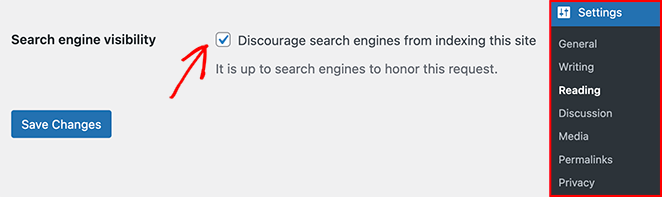
- Turn on search engine indexing. Go to Settings » Reading and confirm “Discourage search engines from indexing this site” is unchecked before you publish. Some hosting setups check this box by default. Leaving it on can cost you months of organic visibility.
- Match your homepage H1 to your keyword target. Your value proposition is your keyword on the homepage. If you’re building project management software for remote teams, say that plainly in your H1. Get the basics right before you go deeper on keyword strategy.
For a complete walkthrough, see WordPress search engine optimization for beginners.
What to Do After Launching your Startup Website
Run through this WordPress website launch checklist first to confirm nothing was missed.
Then share your site: ProductHunt, LinkedIn, and your personal network. SEO takes time to build. Early traffic comes from people, not search engines.
Check your analytics within the first week. Where are people landing? Where are they leaving? Your homepage bounce rate and form completion rate will tell you more about your messaging than any design feedback.
Update your homepage copy based on what you see. WordPress and SeedProd let you change any page yourself, without a developer or a deploy.
When you’re ready to build long-term traffic, publish one piece of content targeting a relevant keyword. A single well-written article does more lasting work than most paid campaigns at this stage.
FAQs About Building a Startup Website
Should I build my startup website before or after I validate my idea?
Start with a pre-launch page, not a full site. A coming soon page with an email opt-in lets you capture interest and test demand before you’ve built anything. Once you have real signal (people signing up, asking questions, sharing your page), build the full site. SeedProd’s Coming Soon mode makes the pre-launch page easy to set up in about 10 minutes.
Do I need coding skills to build a startup website?
No. WordPress with SeedProd uses a visual drag-and-drop editor that requires no code for setup, design, or content updates. You’d only need a developer if you wanted custom functionality outside what plugins and page builders can handle. For most early-stage startups, that need doesn’t come until much later.
What pages does a startup website need?
Five pages cover most early-stage startups: Homepage, Product or Features, Pricing, About or Team, and Contact. That’s enough to launch. Add a blog and a case studies page once your core messaging is stable and you’re ready to build organic traffic.
How long does it take to build a startup website?
With WordPress and SeedProd, a five-page site takes about a weekend. A pre-launch page takes about an hour. Most of the time goes into writing your copy, not the technical setup. Budget more time for getting your value proposition clear than for picking colors or fonts.
A startup site doesn’t need to be perfect. It needs to be live, capture emails, and give visitors enough to take the next step.
Start with the five pages, get your analytics in place, and publish before you feel fully ready. Everything else you can update as you learn.
Over 1,000,000 WordPress sites run on SeedProd. Get yours live without hiring a developer or waiting weeks for a launch.
To keep building, these guides cover what comes next:
- How to Create a WordPress Website for Beginners
- Startup Landing Page Examples
- How to Create a New Website Launch Marketing Plan
- How to Build a WordPress Website with AI.
Thanks for reading! We’d love to hear your thoughts, so please feel free to join the conversation on YouTube, X and Facebook for more helpful advice and content to grow your business.



