


TL;DR: How to Create a Services Page in WordPress
A professional services page tells visitors what you offer and moves them toward contacting you.
Here is how to build one with SeedProd:
- Install SeedProd – Activate the plugin and enter your license key.
- Choose a template – Pick a service page layout from SeedProd template library.
- Customize the layout – Edit headlines, colors, and sections in the drag-and-drop editor.
- Add your services – Use a Feature section with service name, outcome statement, and CTA.
- Publish – Click Publish to make the page live on your site.
Pro Tip: Use a 3-column layout with icons for your services. It scans fast on mobile and keeps each offering visually distinct.
You’ve written out what you offer, but visitors still aren’t calling. According to Stanford web credibility research, 75% of people judge a company’s credibility based on their website design. A weak services page layout costs you trust before you even say hello.
When I built my first service page, I knew exactly what I offered but the page looked like a wall of text. Nothing was scannable and the contact button was buried at the bottom. Once I switched to a drag-and-drop builder I could actually see what visitors saw, and the difference was immediate.
This guide walks you through how to design a services page in WordPress that is clear, professional, and built to convert, no coding needed.
Here is what I will cover:
- Which Method Should You Use?
- Services Page Design Examples Worth Copying
- Step 1: Install SeedProd for WordPress
- Step 2: Choose a Service Page Template
- Step 3: Customize Your Service Page Layout
- Step 4: Add a Services Section
- Step 5: Publish Your WordPress Service Page
- The Free Plugin Alternative
- How to Optimize Your Service Page for SEO
- Service Page Design FAQs
Which Method Should You Use?
Use SeedProd if you are building a standalone service page from scratch. The design control is worth it, and the performance difference is real: in my GTmetrix testing, a SeedProd page loaded in 556ms with 16 requests, compared to 1,882ms and 32 requests for the same page built in Elementor. A faster page keeps visitors from bouncing before they read your services.
Use the WordPress block editor if you just need to add a services section to an existing page and do not want to install another plugin. It is less flexible, but works for simple layouts where you control the theme.
You will also see the free Service Box Showcase plugin recommended for this, including in older versions of this guide. I’ve kept a section on it below, because the reason I no longer reach for it is worth knowing before you install anything.
Services Page Design Examples Worth Copying
Here are six real service pages worth studying. Each one does something specific that makes it work, and you can copy the same approach in SeedProd.
Web Design Agency: Orbit Media Studios

Orbit Media Studios opens their service page with the client’s frustration, not the agency’s credentials. The hero reads: “When your website is outdated or off-brand, every campaign has to work twice as hard.”
Every portfolio item also includes a hard number (139% increase in events, 26% increase in qualified leads) rather than a generic testimonial. Specific results land harder than vague praise.
Digital Marketing Agency: Online Optimism
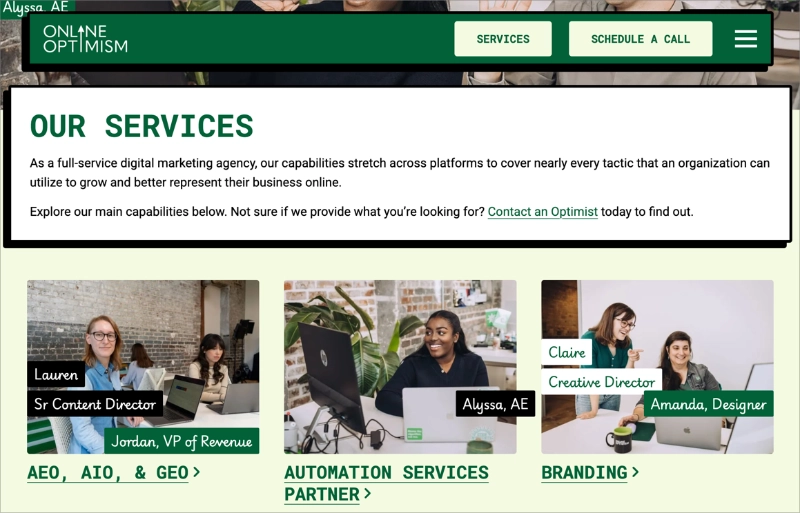
Online Optimism puts a real named team member alongside every service. Instead of stock photos, each service tile shows the actual person responsible for that work.
It removes the “who am I actually working with?” friction that agency service pages usually ignore. The layout is intentionally sparse, service name and photo only, with the detail on a dedicated subpage.
Fewer decisions on the overview page means more clicks through.
Local Service Business: Van Matre Construction
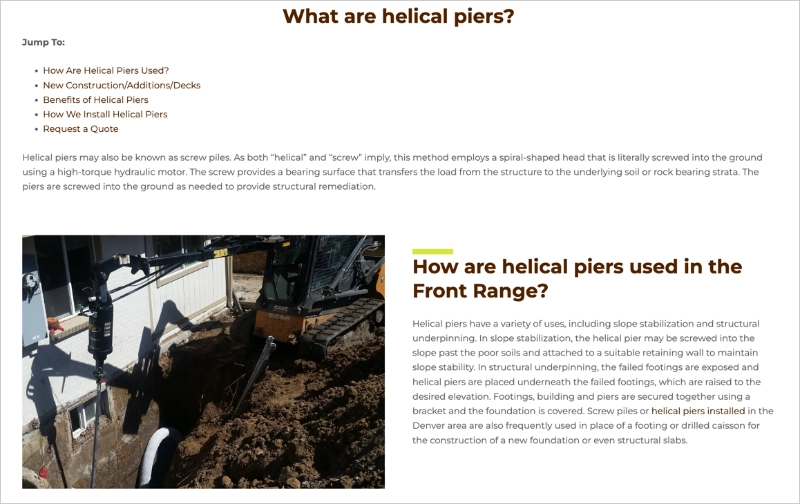
Van Matre Construction leads with jump links, a short table of contents at the top of the page that lets visitors skip to the section they need. For a technical service like foundation repair, visitors arrive with specific questions, not a desire to read everything.
The page also puts a contact form inline at the bottom rather than linking to a separate contact page. Fewer clicks to conversion means more conversions.
One-Person Productized Service: Designjoy
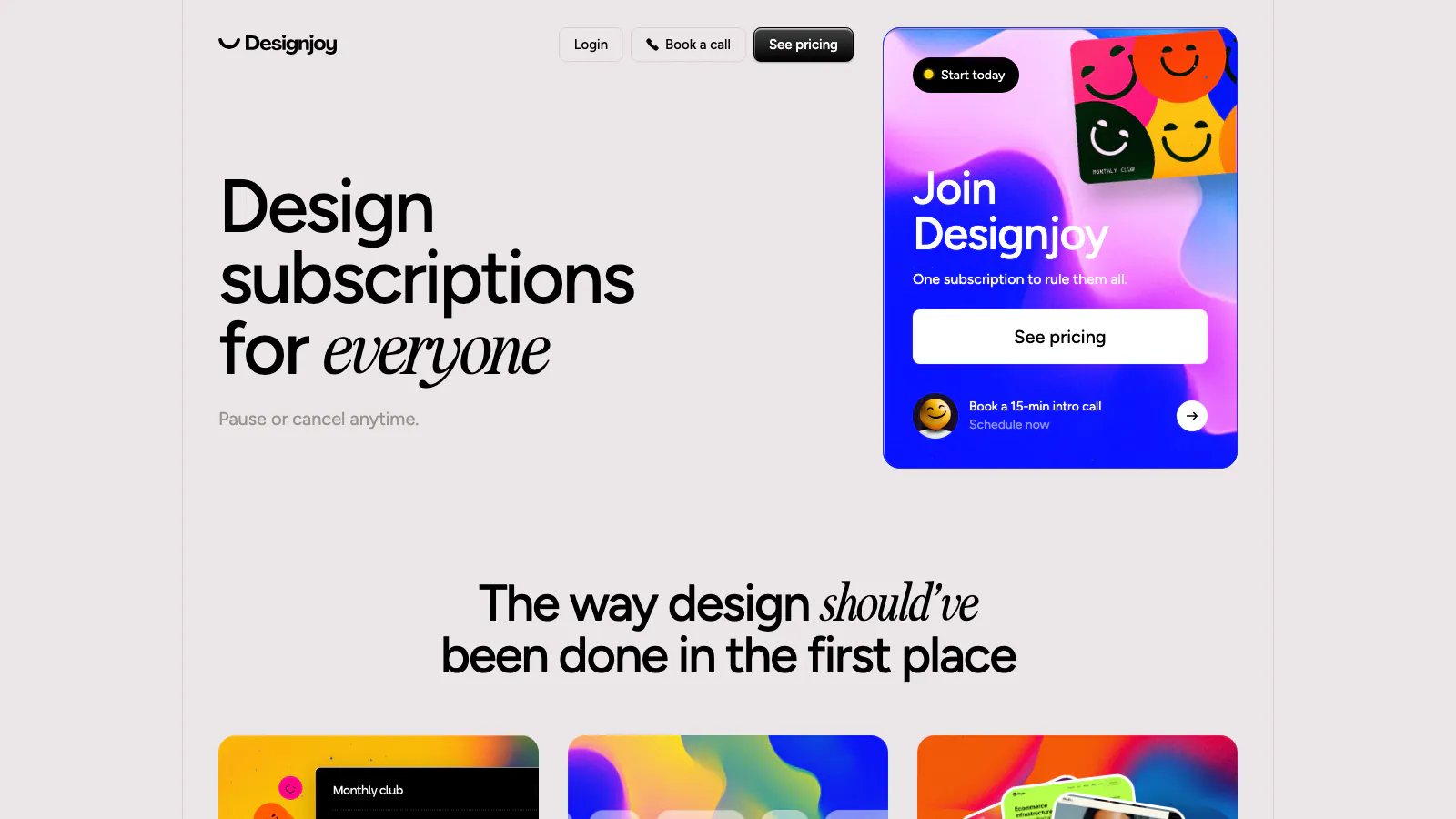
Designjoy sells one thing at one published price. The page says $4,995 a month, with the old $5,995 struck through. No quote form or tiers to compare.
Publishing the number does the qualifying for you. Anyone who can’t afford it leaves without taking up your time, and everyone who stays already knows what it costs.
If your pricing varies by project, a “starting from” figure does most of the same work.
Agency With a Long Service List: Huemor

Huemor offers a long list of services and refuses to present it as a long list. Everything sits in three groups named after what the client wants, Build, Support, and Grow.
Each group carries its own starting price on a badge. A redesign starts at $25,000, support at $2,500 a month, SEO at $2,000 a month.
This is the fix for the “I offer twelve different things” problem. Group by the outcome the client is buying, not by the work you do, then let them drill into the detail.
The starting prices stop the page reading like a brochure.
Solo Consultant: Jonathan Stark
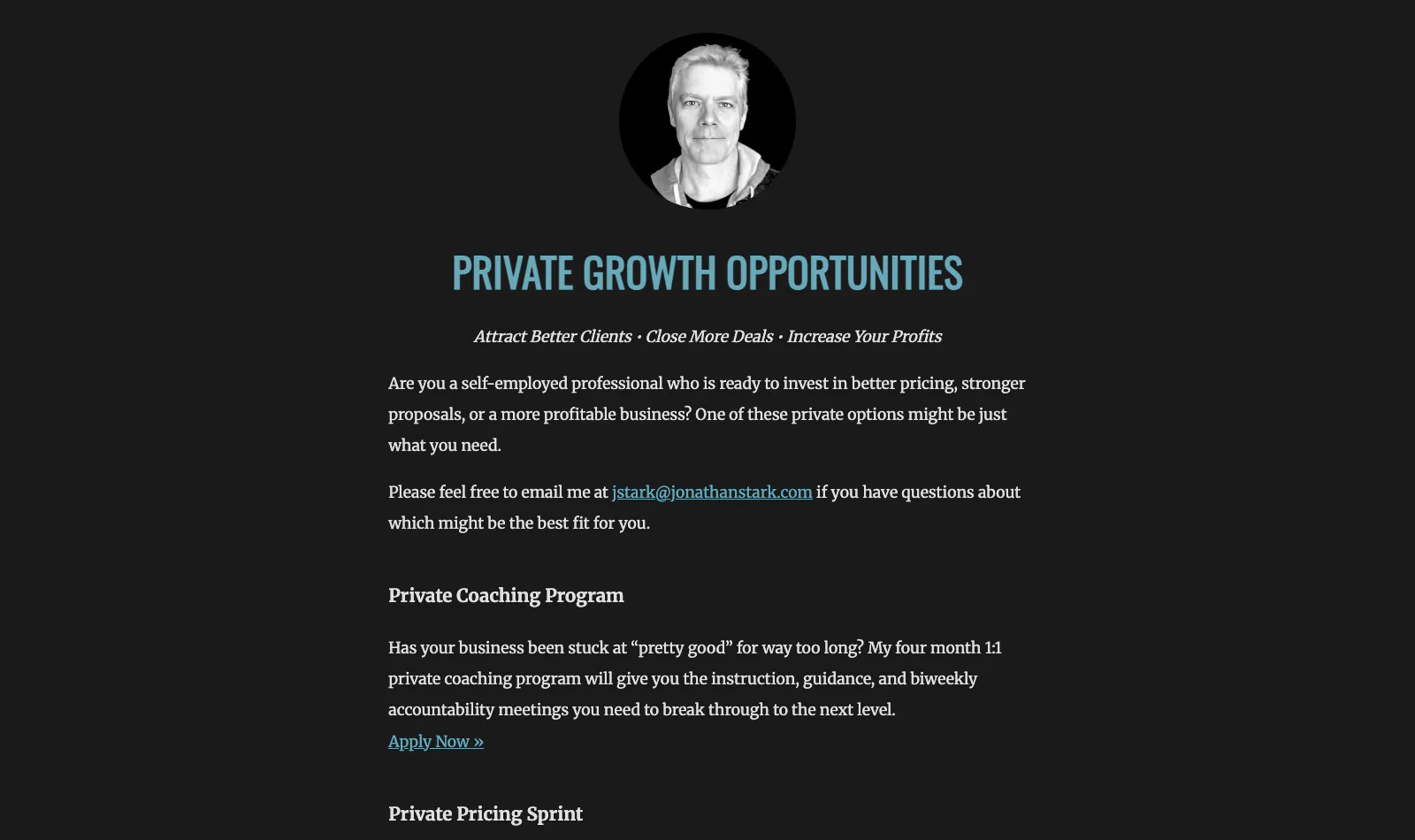
Jonathan Stark’s private services page runs to roughly 600 words, with no pictures of the work at all. It opens by naming who it is for, a self-employed professional ready to invest in better pricing, stronger proposals, or a more profitable business.
Then it lists three offers, and each one carries its shape in the name. A four-month coaching program with meetings every fortnight, a two-week pricing sprint, and four months of Slack access instead of calls.
The Slack offer even spells out what it leaves out: “No kickoff call. No scheduled calls. No auto-renewal.” Telling people what they aren’t getting reads as confidence, and it heads off the questions that would otherwise turn up in your inbox.
How to Create a WordPress Service Page Template with SeedProd
SeedProd is a drag-and-drop WordPress website builder (a tool that lets you create custom layouts visually without writing any code). It’s perfect for building a professional service page because you can easily control every part of the design, from headlines and images to call-to-action buttons, all inside a visual editor.
Unlike the default WordPress block editor, SeedProd gives you total freedom to move, resize, and customize every element in real time. You’ll find pre-built templates, ready-made service sections, and built-in features like mobile previews and form integrations that make the entire process quick and code-free.

I recommend SeedProd because it’s beginner-friendly, powerful, and built specifically for WordPress. You can also create full WordPress themes with it, which makes it ideal for freelancers, agencies, or business owners who offer design or development services.
On top of that, SeedProd integrates with top tools like email marketing platforms and allows you to preview your designs on any device. It all works together, so you don’t need to install extra plugins or touch code.
Now let’s walk through the steps to build your own WordPress service page using SeedProd.
Step 1. Install and Activate SeedProd
First, you’ll need to install and activate the SeedProd plugin on your WordPress website. If you need help with this, you can see our documentation on how to install SeedProd.
The documentation will guide you through the installation process and show you how to activate your SeedProd license key.
Step 2. Choose a Landing Page Template
Once the plugin is activated, navigate to SeedProd » Landing Pages from your WordPress admin panel and click the Add New Landing Page button.
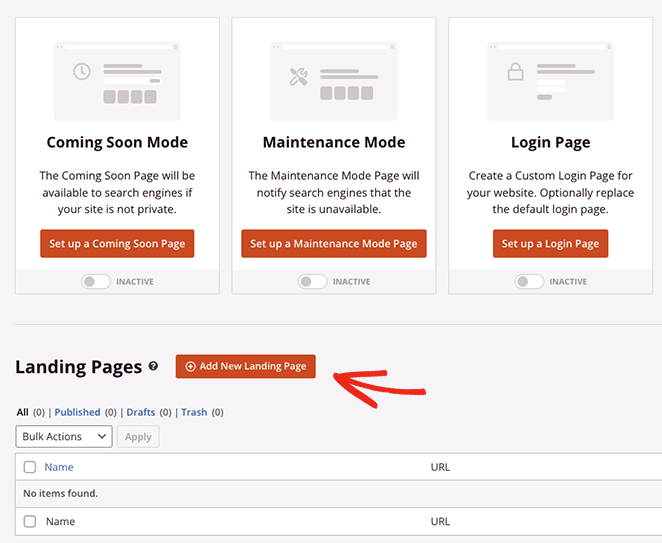
Now choose a layout that fits your services page design ideas.
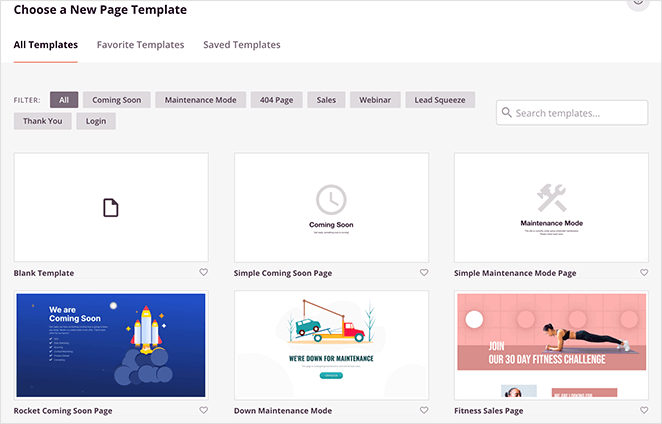
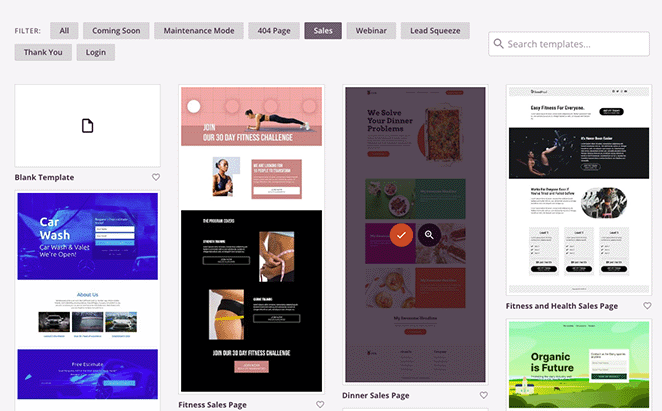
You can use the filters at the top to see templates for various campaign types, like coming soon, lead squeeze, sales page, webinar, and more.
Once you find a template you like, click the orange checkmark icon.
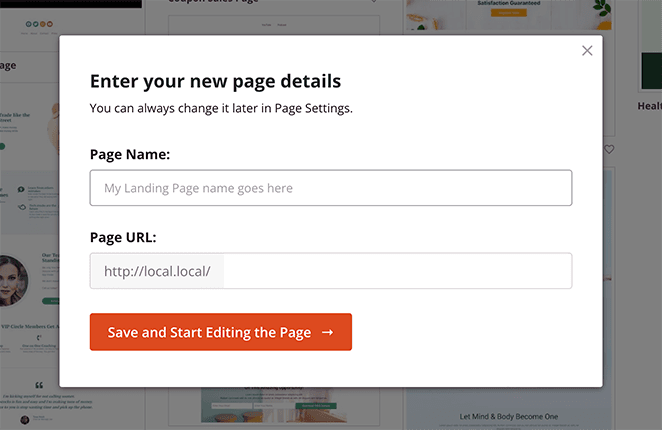
Now you can give your page a name and URL before clicking the Save and Start Editing the Page button.
Step 3. Customize Your WordPress Service Page Layout
On the next screen, your template will load in SeedProd’s visual drag-and-drop page builder. It has a live preview on the right and several SeedProd blocks and settings on the left.
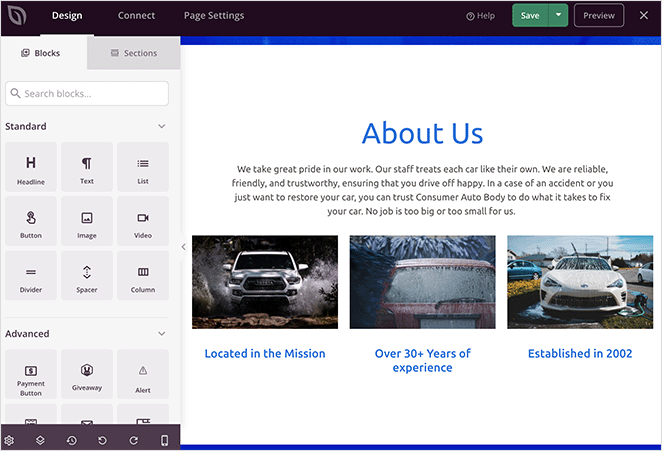
Many of SeedProd’s templates use blocks to make up the overall layout. To customize them, you only need to click one, which will open its settings in the left-hand menu.
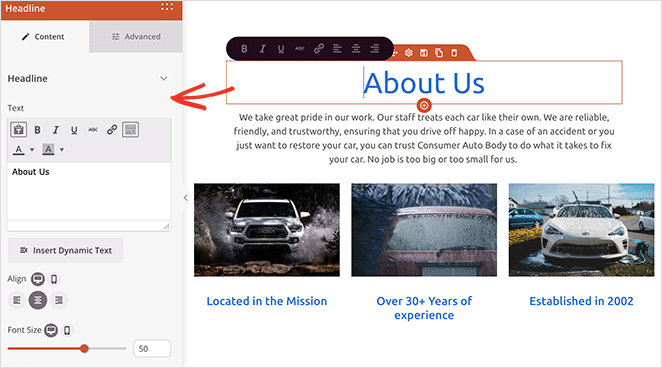
For example, clicking a heading or text block will open settings to change the content, font size, style, and more.
Or, if your our services page template includes a pricing table, you can click to edit each item, change the fonts, or even rearrange columns.
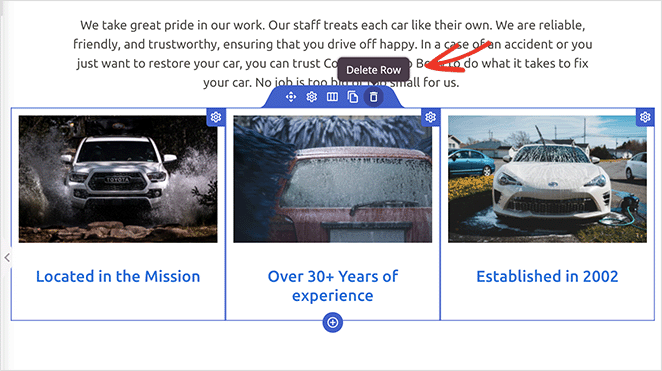
Removing an element you don’t need is as simple as hovering over it and clicking the trashcan icon.
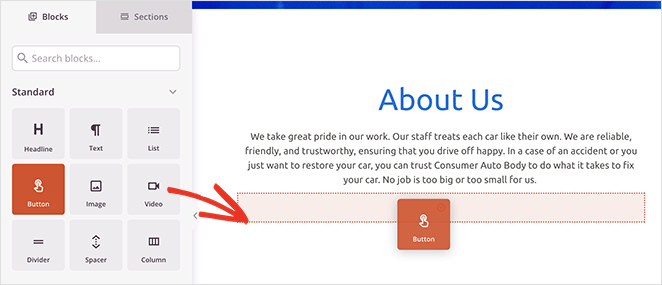
If you want to add new elements to your design, such as a call-to-action button, drag the block from the left-hand panel and drag it into place on your preview.
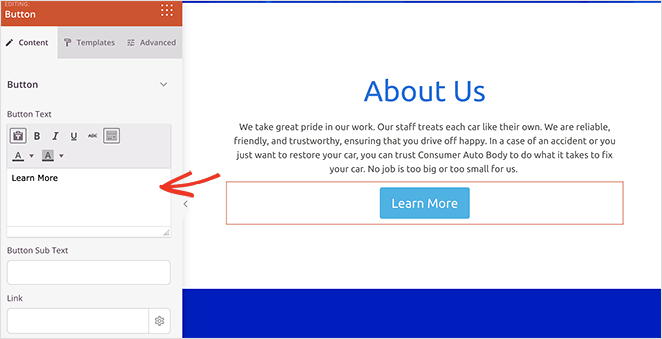
You can then select it to customize its appearance, content, and other settings.
When choosing a services page layout, a 3-column design works well for most businesses with 3 to 6 services. It lets visitors compare offerings at a glance without scrolling. If you offer more than 6 services, group them by category instead of listing each one individually.
Pay attention to row spacing too. SeedProd lets you adjust padding directly in the row settings. I usually set top and bottom padding to at least 60px for service sections so nothing feels cramped on mobile.
Before you settle on a layout, be sure you’re not falling into WordPress layout mistakes that hurt conversions. Small things like cluttered menus or weak CTAs can make a big difference.
Step 4. Add a Services Section to Your WordPress Page
Another helpful SeedProd feature is its premade Sections. The Feature sections are perfect for building a visual services section. You can find them by clicking the Sections tab in the left-hand panel.
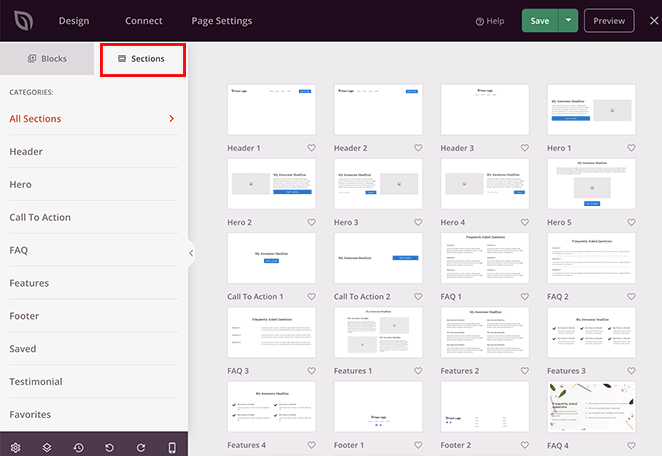
Sections are like mini templates that combine rows, columns, and blocks to make premade designs like FAQs, Hero areas, Headers, and more.
For example, the Feature sections are ideal for adding a services section to your WordPress page. They use a combination of headings, images, paragraphs, and columns to create an attractive layout for your service information.
Look for layouts with a mix of images, text, and buttons. These are ideal for a clean, professional service section design.
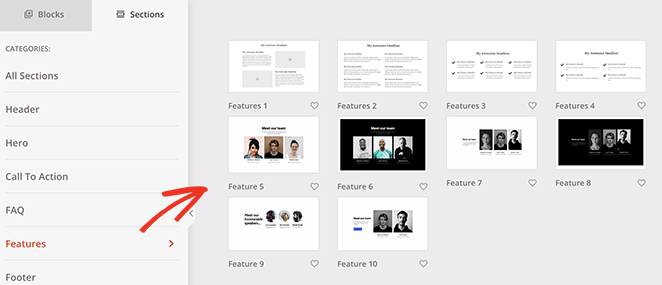
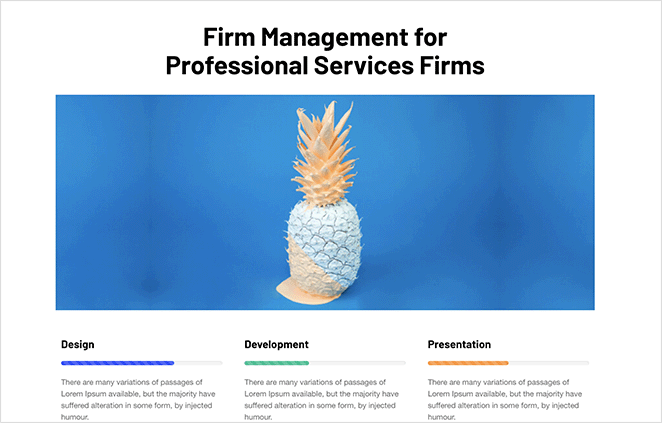
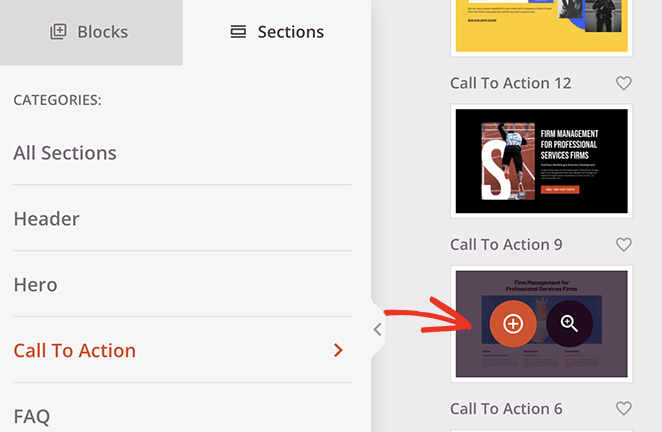
Below you’ll see the Call to Action 6 section, which comes with space for 3 services and a custom hero image.
To add the section to your page, just hover over it and click the orange plus icon.
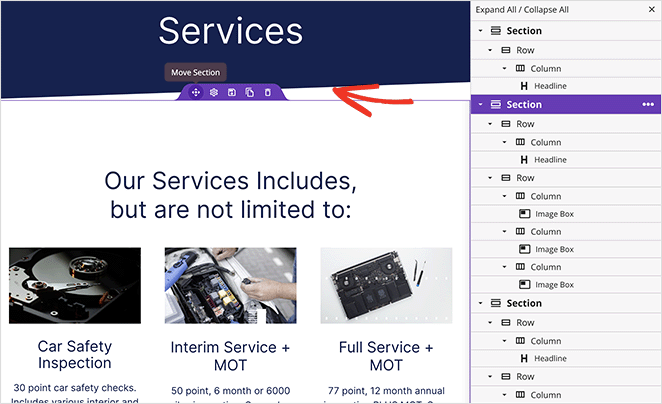
By default, new sections will appear at the bottom of your page. However, you can click, drag, and drop the entire section to move it to the right place.
After repositioning your section, you can click any of the elements to customize the content. For instance, to swap out an image, click it and choose the trashcan icon in the left panel to remove it.
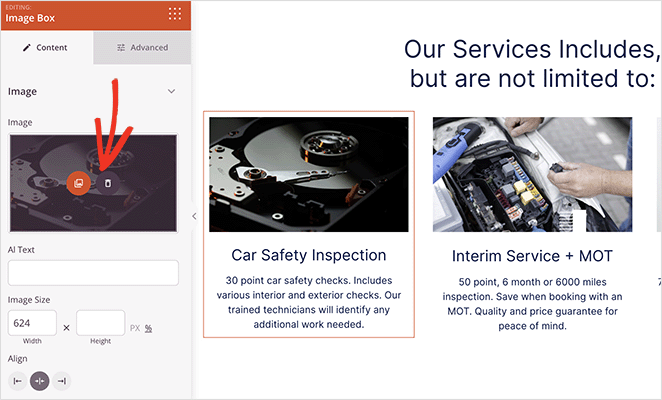
From there, you can upload a new image from your computer or WordPress media library.
Continue customizing your services page until you’re happy with how it looks. You may want to include your phone number to help users get in touch, or even an events calendar for upcoming webinars and conferences.
When filling in your service page content, use this format for each entry: an outcome-focused name (“Website Design That Brings In Leads”), one sentence on the result (“I build clean, fast sites that turn visitors into leads”), and a short CTA button label (“Get a Quote”).
Keep each description under 30 words. Visitors scan service pages, they do not read them. The more specific you are about outcomes, the easier it is for the right client to recognize you.
Step 5. Publish Your Service Page Design in WordPress
When you’re happy with your service section design, click the dropdown arrow on the Save button and choose Publish.
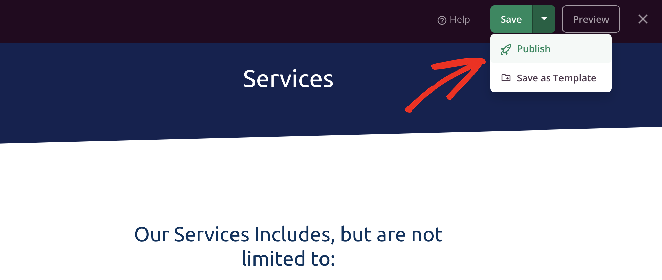
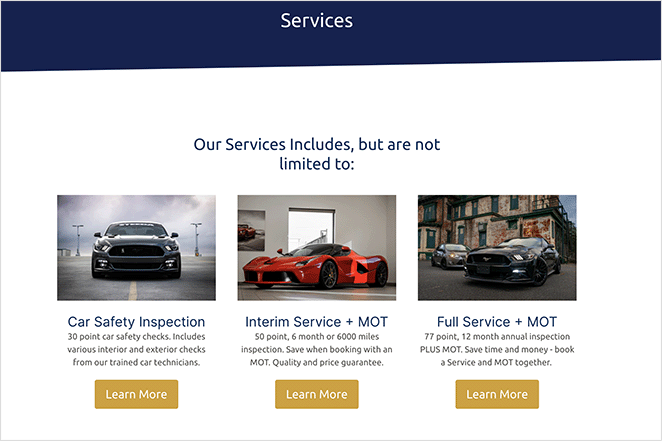
The page will go live on your WordPress site automatically, where any potential customers can see your services at once.
If you’re deciding between the default WordPress block editor and using SeedProd to design your service page, here’s a quick side-by-side comparison to help.
| Feature | Block Editor | SeedProd |
|---|---|---|
| Ease of Use | Basic blocks, not very visual | Drag-and-drop with live preview |
| Templates | Theme-dependent | Dozens of pre-built service page templates |
| Mobile Preview | Requires switching views | Built-in preview for phone, tablet, desktop |
| Design Control | Manual tweaks or custom CSS | Visual controls with no code needed |
| Custom Sections | Manual block setup | Pre-built sections like FAQs, services, CTAs |
The Free Plugin Alternative (Check the Date Before You Install It)
For years the standard free answer here was Service Box Showcase, a plugin that builds a services section from a shortcode. It still works, around 3,000 sites still run it, and it holds a 96% rating from 93 reviews.
I don’t reach for it any more, and the reason is printed on its own plugin page. The last release was December 2024, and it is only tested up to WordPress 6.7.7.
WordPress is on 7.1. That is more than 20 months without an update, across several major versions.
None of that means it will break tomorrow. It means nobody is watching it on your behalf.
On a page whose job is to make someone trust you enough to get in touch, that is a bad trade. You would be saving one afternoon and risking the thing the page exists to do.
If you want to stay free, build the services section with the block editor’s own Columns and Image blocks. It takes more fiddling and looks plainer, but it is maintained by the same people who maintain WordPress.
If you would rather not fiddle, SeedProd’s Feature sections do it in a couple of clicks, which is the walkthrough above.
How to Optimize Your WordPress Service Page for SEO
Based on optimizing dozens of WordPress sites, these three SEO steps move the needle for service pages.
- Target your keyword in the URL, page title, and first H2. For a services page design, a URL like
yoursite.com/services/web-designand an H2 like “Web Design Services for Small Businesses” tells Google exactly what the page covers. - Add internal links to related pages. Connect your service page to your portfolio, case studies, or blog posts that answer common client questions. SeedProd’s button and text blocks make these links straightforward to add.
- Mention your location if you serve local clients. Adding your city or region in the headline or first paragraph is the single highest-impact local SEO change you can make to a service page.
Service Page Design FAQs
What should I include on a services page?
A services page should include a clear headline, a short description of each service, the outcome the client can expect, social proof such as testimonials or client logos, and a visible call-to-action in every section. Keep descriptions under 30 words per service and lead with the result, not the process.
What is the best layout for a WordPress services page?
A 3-column layout with icons works best for most businesses with 3 to 6 services. Each column should have a service name, one sentence on the outcome, and a CTA button. For more than 6 services, group them by category and use an accordion layout to keep the page scannable.
Should I include pricing on my services page?
It depends on your business model. If you offer fixed-price packages, showing pricing filters out poor-fit leads and saves time. If pricing varies by project scope, use a range or a “starting from” figure. Hiding pricing entirely often hurts conversions because visitors assume you are too expensive.
How do I add a contact form to a WordPress service page?
Use a plugin like WPForms to create your form, then add it to your page. In SeedProd, drag the Contact Form block onto your service page and pick your form from the Select a Form dropdown, and the block prompts you to install WPForms if it isn’t there yet. Place a contact form at the bottom of each service section so visitors never have to hunt for a way to reach you.
How can I make sure my services page looks good on mobile?
SeedProd’s built-in mobile preview lets you check your layout before publishing. Switch to phone view in the editor and verify that your service columns stack cleanly, CTA buttons are easy to tap, and text is readable. Most visitors will view your service page on a phone, so test this before hitting Publish.
Bonus Guides for Creating WordPress Pages
I hope this guide made it easier to build a professional service page in WordPress.
If you’re ready to take the next step, try SeedProd to start designing your own custom services section today, with no code needed.
You might also like these tutorials:
- How to Write a Welcome Page for Your Website
- How to Create an About Us Page in WordPress
- How to Create a Custom WordPress Author Page
- How to Make a 404 Page in WordPress
- How to Add a Meet The Team Page to WordPress
- How to Make a FAQ Page in WordPress
- How to Create a Blog Page on WordPress
- How to Create a Client Login Page in WordPress
Thanks for reading! We’d love to hear your thoughts, so please feel free to join the conversation on YouTube, X and Facebook for more helpful advice and content to grow your business.



