

TL;DR: 支払いゲートウェイ付きランディングページの作成方法
支払いゲートウェイ付きランディングページがあれば、訪問者は完全なストアがなくてもページ上で直接購入できます。プロセスは次のとおりです。
- SeedProdのインストール – ProまたはEliteプランをダウンロードし、WordPressにアップロードして、ライセンスキーを入力します。
- テンプレートの選択 – SeedProdのライブラリからセールスページテンプレートを選択し、ページに名前とURLを付けます。
- 支払いボタンブロックの追加 – ブロックをページにドラッグし、「Stripeに接続」をクリックしてアカウントをリンクします。
- 設定の構成 – 価格、通貨、成功時のリダイレクトURLを設定します。ページ名とSEO設定を確認します。
- 公開とテスト – 公開し、Stripeのテストモードを使用して、プロモーションする前にチェックアウトが機能することを確認します。
以前は、オンラインで商品を販売するには大規模なeコマース設定が必要だと思っていました。簡単な電子書籍を1冊販売するためだけに、複雑なショッピングカートの設定に何日も費やしたことを覚えています。それはやりすぎでした。
支払いゲートウェイ付きランディングページとは、完全なeコマースストアなしで訪問者が直接購入できる、集中的なセールスページのことです。このガイドでは、支払いゲートウェイ付きランディングページを構築する方法を正確に説明します。
SeedProdを使用します。デザインとStripe接続を1か所で行えるからです。既存の投稿にボタンが必要なだけの場合は、簡単な代替手段としてWP Simple Payも紹介します。
なぜランディングページに支払いゲートウェイが必要なのですか?
顧客がランディングページで直接支払えるようになると、チェックアウトが迅速になり、購入せずに離脱する人が減り、売上が増加します。
別のチェックアウトページに人を送ると、ためらう時間が与えられます。支払いオプションをランディングページに直接配置することで、これらの障害を取り除き、その場で簡単に購入できるようにします。
クレジットカード、PayPal、またはデジタルウォレットなど、複数の支払い方法を提供することでコンバージョンを向上させることもできます。業界調査によると、より多くの選択肢を提供する企業は売上が最大30%増加しています。
このアプローチは費用対効果が高いです。販売を開始するために完全なオンラインストアを構築する必要はありません。有料ゲートウェイ設定にアップグレードする前に、シンプルなランディングページで新しい製品アイデアを検証できます。
ランディングページで支払いを受け付けるには何が必要ですか?
WordPressランディングページで直接支払いを受け付けるには、プロセスを安全かつ確実に実行するためのいくつかの主要なコンポーネントが必要です。
- 支払いプロセッサ: Stripe、PayPal、またはSquareのような支払いプロセッサは、ウェブサイトと顧客の銀行の間で金融取引を処理するサービスです。クレジットカード、デビットカード、デジタルウォレットの支払いを安全に処理します。
- SSL証明書: SSL(Secure Sockets Layer)証明書は、デジタルロックと考えてください。訪問者のブラウザとサーバー間の接続を保護するため、クレジットカード番号などの機密情報が安全に保たれます。
- PCIコンプライアンス:これは、クレジットカード情報を処理するためのセキュリティルールのセットです。良いニュースは、Stripeのような最新の支払い処理業者が複雑な部分を処理してくれることです。支払い処理は安全なサーバーで行われるため、コンプライアンスのニーズが簡素化され、顧客データが安全に保たれます。
- 安全なホスティングプロバイダー:組み込みのセキュリティ機能とSSLサポートを備えた、信頼できるWordPressホスティング会社を選択してください。例としてBluehostやSiteGroundがあります。信頼性の高いホスティングは、支払いシステムを高速かつ安全に保ちます。
3つの主要な支払い処理業者の比較を以下に示します。状況に合ったものを選択できます。
| 支払い処理業者 | 取引手数料(米国) | 最適 |
|---|---|---|
| Stripe | 2.9% + 30セント | 開発者およびWordPressユーザー。深いプラグイン統合、簡単なセットアップ、サブスクリプションをサポート。 |
| PayPal | 3.49% + 49セント(標準) | 購入者がすでにPayPalアカウントを持っている販売者。消費者からの強力なブランド信頼。 |
| Square | 2.9% + 30セント(オンライン) | オンラインと対面の両方の販売を行うビジネス。両方のチャネル向けの統合ダッシュボード。 |
私の知る限り、StripeはWordPressランディングページにとって最も簡単な選択肢です。SeedProdとの直接統合により、カスタムコードは不要で、セットアップは5分で完了します。
支払い統合を備えたほとんどのドラッグアンドドロップWebサイトビルダー(SeedProdなど)は、技術的な詳細を処理します。これにより、セットアップはわずか数分で完了します。
SeedProdの無料プランではページのデザインが可能ですが、支払いボタンブロックにアクセスするにはProまたはEliteプランが必要です。無料オプションが必須の場合は、以下のFAQを参照してください。
支払いゲートウェイを備えたランディングページを作成する手順
このチュートリアルではSeedProdを使用します。なぜなら、私が自分のサイトで使用しているドラッグ&ドロップのウェブサイトビルダーであり、Stripe接続をビルダー内で直接処理してくれるからです。

SeedProdを使えば、数分でページデザインの構築、支払いボタンの追加、ランディングページの公開が簡単に行えます。SeedProdをインストールし、テンプレートを選択し、支払いボタンブロックをドラッグし、Stripeアカウントに接続して公開します。
ステップバイステップで設定方法を見ていきましょう。
ステップ1:SeedProdランディングページビルダーのインストールと有効化
まず、SeedProdの価格ページにアクセスして、プラグインを入手してください。注意:このチュートリアルで使用する支払いボタンブロックにアクセスするには、SeedProd ProまたはEliteプランが必要です。
プラグインファイルをダウンロードしたら、WordPressダッシュボードにアップロードします。この部分でヘルプが必要な場合は、WordPressプラグインのインストール方法に関するこのガイドに従ってください。
プラグインがアクティブになったら、SeedProd » Settingsページに移動し、ライセンスキーを貼り付けてセットアップを完了します。
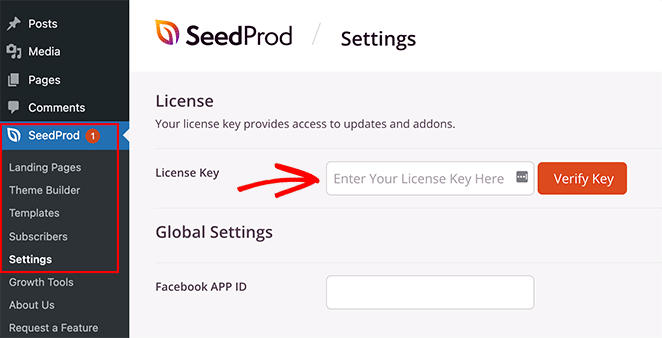
次に、Verify Keyボタンをクリックして完了します。
ステップ2.ランディングページテンプレートの選択
プラグインを有効にしたら、次にテンプレートを選択します。これを行うには、SeedProd » ランディングページに移動し、新しいランディングページを追加ボタンをクリックします。
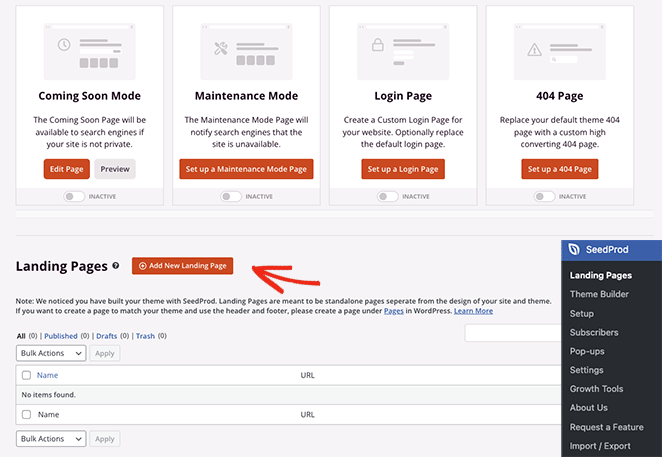
これにより、プロフェッショナルにデザインされたランディングページテンプレートのライブラリが開きます。
適切なデザインを見つけるために、「Sales」フィルターをクリックし、「eBook Sales Page」テンプレートを選択しました。
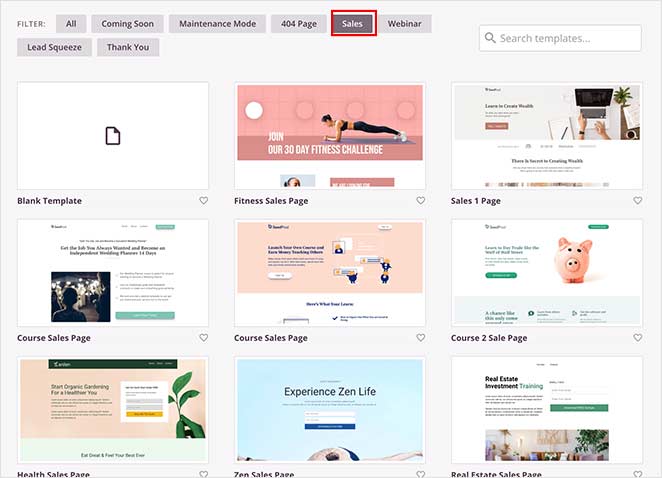
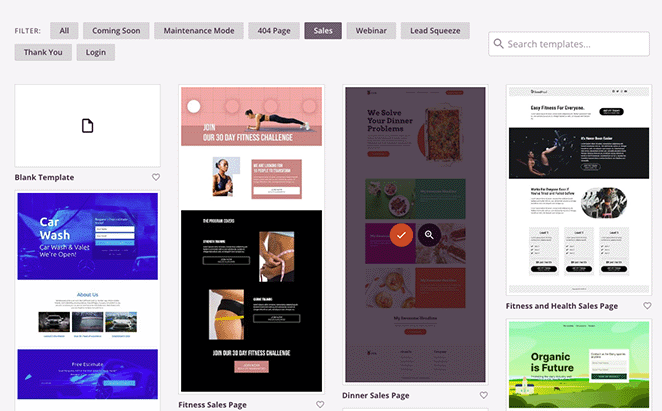
お好みのデザインを見つけたら、その上にカーソルを合わせてチェックマークアイコンをクリックします。
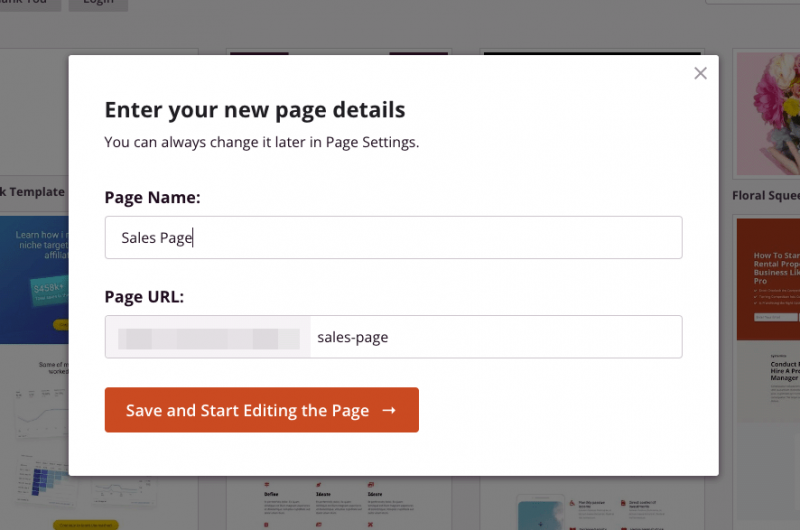
ページ名とURLを入力するポップアップが表示されます。入力後、保存してページ編集を開始ボタンをクリックしてビルダーを起動します。
ステップ3:Stripe支払いゲートウェイボタンの追加
テンプレートがロードされると、SeedProdのビジュアルページビルダーが表示されます。
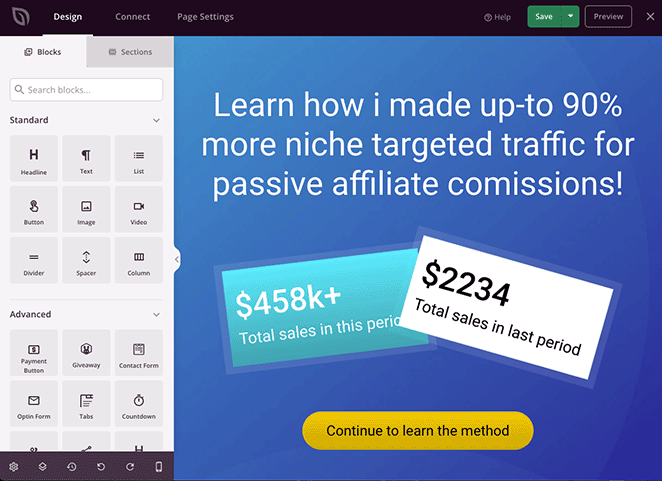
レイアウトは直感的で、左側にコンテンツブロック、右側にページのライブプレビューが表示されます。何かをカスタマイズするのは、クリックするだけで簡単でした。たとえば、メインの見出しをクリックして、プレビューに直接新しいテキストを入力しました。
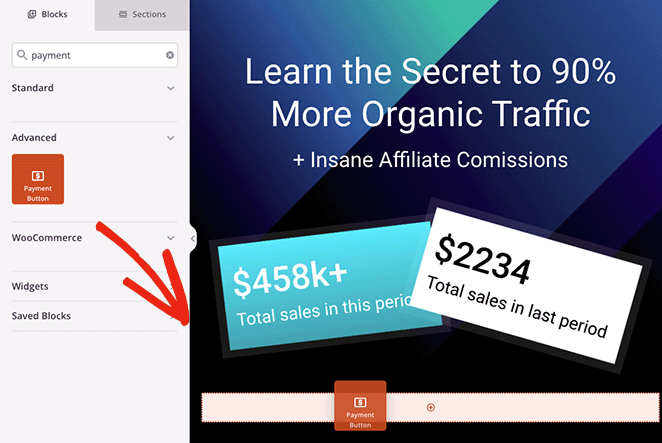
テンプレートを読み込んだら、左側のパネルで支払いボタンブロックを検索し、ページにドラッグします。このブロックは、製品のフルカートではなく、電子書籍やウェビナーチケットなどの単一アイテムの販売に最適です。
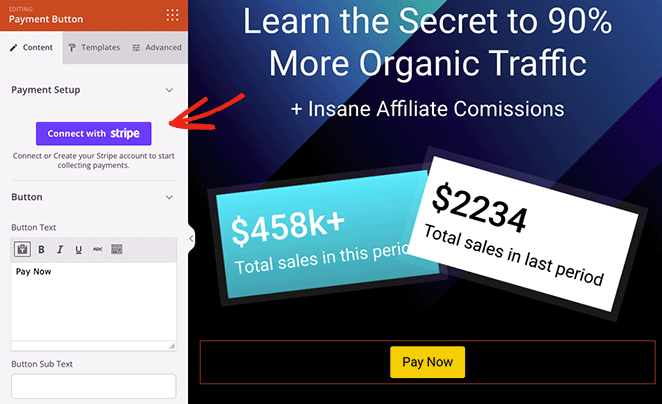
ブロックを配置した後、左側に設定が開きます。Stripeに接続ボタンをクリックします。これによりStripeのウェブサイトに移動し、既存のアカウントをリンクするか新しいアカウントを作成できます。完了するとすぐにエディタに戻ります。
Stripeを接続したら、支払い詳細を設定できます。支払い金額、通貨、簡単な説明を設定します。
定期支払いに関する注意:SeedProd支払いボタンは、1回限りの購入向けに設計されています。サブスクリプションまたは定期請求が必要な場合は、WP Simple PayがStripeサブスクリプションプランを代替オプションとして提供しています。
リダイレクトといえば、購入後に人々をどこに送るかをボタンに伝える必要があります。成功URLフィールドに、サンキューページへのリンクを貼り付けます。
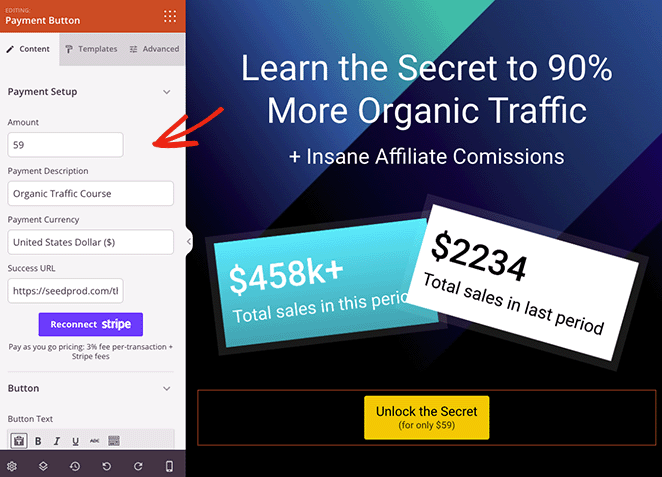
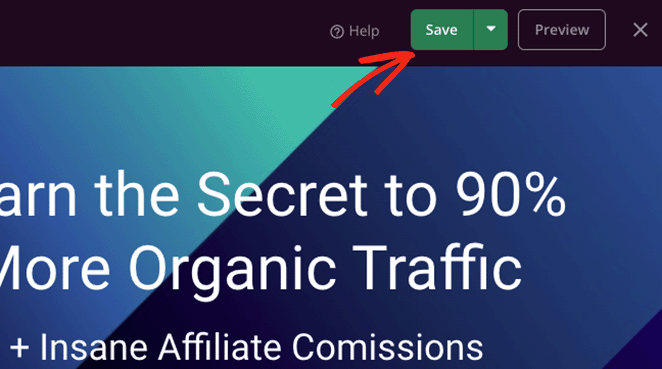
支払い設定が完了したら、満足のいくまでページデザインのカスタマイズを続けます。変更を保存するには、右上隅にある保存ボタンを押すことを忘れないでください。
ステップ4. 設定を構成する
公開する前に、画面上部にあるページ設定タブをクリックして、いくつかの詳細を最終決定します。一般設定で、ページ名とURLが正しいことを確認します。
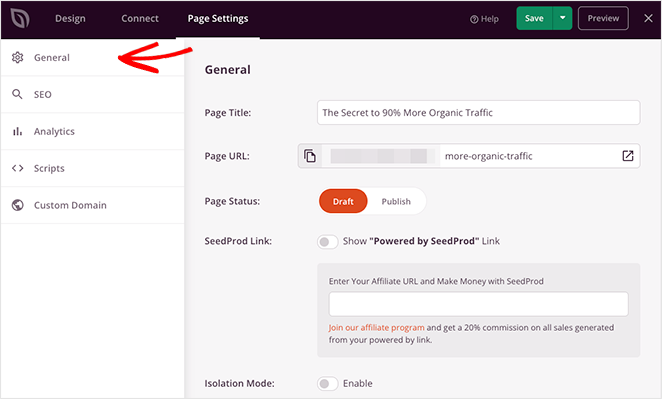
次に、SEOタブに移動します。All in One SEOがインストールされているため、ビルダー内でSEOタイトルとメタディスクリプションを設定できました。
接続タブをチェックして、メールマーケティングサービスをリンクするオプションを確認することもできます。これは、フォローアップキャンペーンに最適な機能です。
ステップ5:支払いゲートウェイランディングページの公開
ページを公開する準備ができたら、保存ボタンをクリックして、公開オプションを選択します。
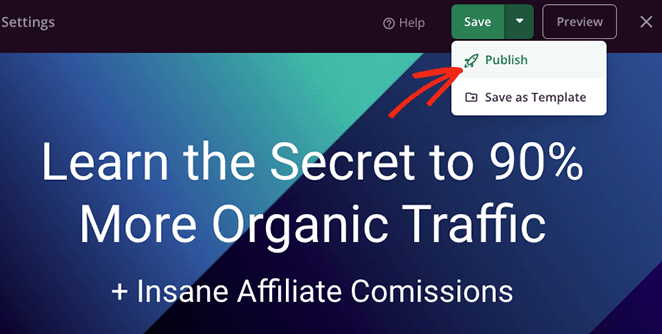
次に、公開されたページにアクセスしてテストします。これで、訪問者が支払いボタンをクリックすると、Stripeを使用してチェックアウトできるようになります。

支払いランディングページからの売上を増やす方法
公開は始まりにすぎません。私がこれまでに見てきた中で、最も高いランディングページコンバージョン率を持つページは、見過ごされがちないくつかの共通のデザイン上の決定を共有しています。
- ボタンの近くに信頼性のシグナルを追加:セキュリティバッジ(SSL、Stripe認証済み)または返金保証を支払いボタンのすぐ上または下に配置すると、最も重要な瞬間のためらいを減らすことができます。
- 具体的なCTAコピーを使用:「今すぐ購入 $27」は、「送信」よりもコンバージョン率が高くなります。ボタンコピーに価格を含めることで、チェックアウト画面で金額を見て最後の瞬間に驚くことをなくします。
- すべてのナビゲーションリンクを削除:ランディングページには出口がないはずです。ページに残されたメニューリンクやフッターリンクはすべて、販売前の離脱経路となります。
- ボタンコピーをA/Bテストでテスト:ボタンのテキストと配置の小さな変更がコンバージョンに大きな影響を与える可能性があります。ランディングページのA/Bテストは、オーディエンスにとって何が機能するかを見つける最も信頼性の高い方法です。
公開後にやること
ページにトラフィックを誘導する前に、必ずStripeのテストモードを使用して完全なテストを実行してください。Stripeダッシュボードに移動し、テストモードを有効にしてから、4242 4242 4242 4242のようなテストカード番号を使用して実際の購入をシミュレートします。支払いが正常に処理され、成功URLが正しくリダイレクトされ、金額がダッシュボードに表示されることを確認してください。
ライブになったら、MonsterInsights経由でGoogle Analyticsを接続して、ページに到達した訪問者数と購入を完了した訪問者数を追跡します。そのコンバージョン率の数値は、ページが機能しているか、調整が必要かを示します。
SeedProdの代わりにWP Simple Payを使用できますか?
すでにランディングページの設計を持っていて、支払い機能を追加する必要がある場合は、WP Simple Payが優れた軽量ソリューションです。これは、複雑なセットアップなしで、任意の投稿またはページに「今すぐ購入」ボタンを追加できる専用のStripe支払いプラグインです。
既存のページにすばやく支払いを追加する必要がある場合や、SeedProdの単発支払いボタンではカバーできないサブスクリプション請求が必要な場合は、WP Simple Payを選択してください。
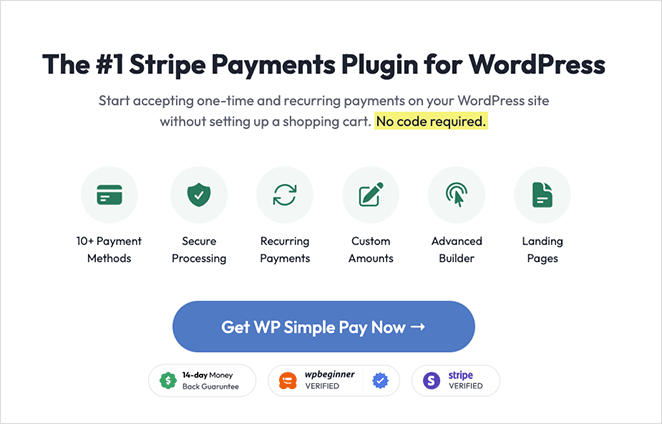
プロセスは迅速です。プラグインをインストールした後、セットアップウィザードがStripeアカウントの接続をガイドします。
そこから、新しい支払いフォームを作成し、「支払いボタン」を選択して、価格と通貨を設定します。
保存したら、提供されたWP Simple Payブロックまたはショートコードを使用して、ランディングページにボタンを追加できます。このガイドで、WordPressでStripe支払いを受け付ける方法の詳細を確認できます。

支払いゲートウェイ付きランディングページに関するFAQ
ランディングページはWooCommerceなしで支払いを受け付けられますか?
はい。ランディングページで支払いを受け付けるのにWooCommerceは必要ありません。SeedProdやWP Simple PayのようなプラグインはStripeに直接接続し、WordPressの任意のページに支払いボタンを追加できます。
WooCommerceは、カートと在庫を備えた複数商品ストア向けに構築されています。単一の商品やサービスの場合、必要以上の複雑さが加わります。
WordPressのランディングページに最適な支払いゲートウェイは何ですか?
Stripeは、ほとんどのWordPressランディングページにとって最高の支払いゲートウェイです。SeedProdと直接統合され、単発および定期的な支払いをサポートし、優れた不正防止機能が組み込まれています。
オーディエンスがすでにPayPalアカウントを使用している場合は、PayPalが確実な代替手段です。Squareは、対面販売も行っており、両方のダッシュボードを1つにまとめたい場合に適しています。
ランディングページに支払いゲートウェイを追加するにはいくら費用がかかりますか?
Stripeは、米国内ではトランザクションごとに2.9% + 30セントを請求します。標準プランには月額料金はありません。PayPalの標準レートは、トランザクションごとに3.49% + 49セントです。
ページビルダーの場合、SeedProdのProプランは年間79.50ドルからで、支払いボタンブロックが含まれています。WP Simple Payには、基本的なStripe機能を持つ無料バージョンもあります。
WordPressのランディングページでPayPal支払いを受け付けられますか?
はい。このガイドではStripeを示していますが、SeedProdは支払い設定を通じてPayPalもサポートしています。多くのWordPress支払いプラグインは、StripeとPayPalの両方をオプションとして提供しています。
PayPalのみが必要な場合は、WP Simple Payは同じフォームでStripeと並行してPayPalチェックアウトもサポートしています。
ライブにする前に支払いゲートウェイをテストするにはどうすればよいですか?
Stripeには組み込みのテストモードがあり、誰も請求することなく完全な支払いシミュレーションを実行できます。Stripeダッシュボードでテストモードを有効にしてから、任意の将来の有効期限と任意の3桁のCVCを使用して、テストカード番号4242 4242 4242 4242を使用します。
Stripeダッシュボードで支払い登録がされているか、また、Success URLのリダイレクトが購入者を正しいページに誘導しているか確認してください。本番稼働前にテストモードを無効にしてください。
販売を開始する準備はできましたか? SeedProdを入手して、今すぐ支払いランディングページを公開しましょう。
結果の最適化についてさらに詳しく知りたい場合は、WordPressでセールスファネルを作成する方法に関するこのガイドで次のステップを確認してください。
お読みいただきありがとうございます!皆様のご意見をお聞かせいただければ幸いです。お気軽に会話にご参加ください YouTube, X および Facebook で、ビジネスを成長させるための役立つアドバイスやコンテンツをさらにご覧ください。



