

A full-width page in WordPress stretches your content across the entire browser window, with no sidebar or boxed container limiting the layout. It’s one of the most common design changes people want to make, and it’s usually faster to set up than you’d expect.
I’ve seen many beginners struggle with this because most WordPress themes add a sidebar and restrict content width by default. You end up with a page that feels boxed in, even when you don’t want a sidebar at all.
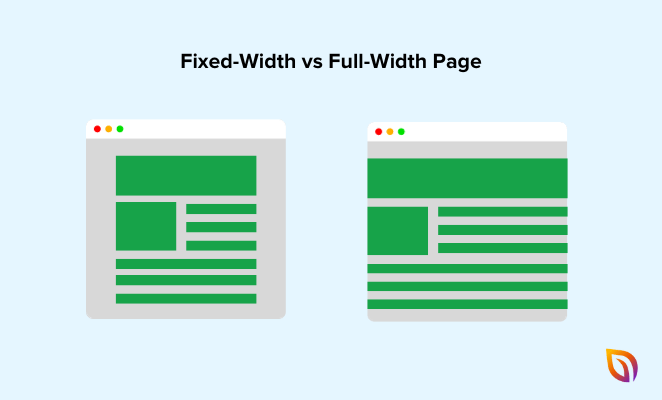
The good news is you have several ways to fix it. In this guide, I’ll walk you through five methods for making a page full width in WordPress, from the easiest (no plugins, no code) to the most advanced. I’ll also cover what to do when your full-width layout isn’t working the way it should.
- Use Your Theme's Built-In Full-Width Template
- Make Individual Blocks Full Width in the Block Editor
- Add a Full-Width Template with a Free Plugin
- Build a Custom Full-Width Page with SeedProd
- Create a Full-Width Page Template Manually
- When to Use a Full-Width Layout (and When Not To)
- Full-Width Page Not Working? Here's How to Fix It
- FAQs on Making a Page Fullwidth in WordPress
Use Your Theme’s Built-In Full-Width Template
Most WordPress themes already include a full-width page template. You can switch to it in the page editor without installing a plugin or writing any code.
Here’s how to check.
Step 1: Open the page you want to make full width in the WordPress editor.
Step 2: In the right sidebar, look for the Template section. Depending on your theme, this may appear under Page Attributes or as a standalone Template dropdown.
Step 3: Click the dropdown and look for a full-width option. The name varies by theme. You might see “Full Width,” “No Sidebar,” “Blank,” or something similar.
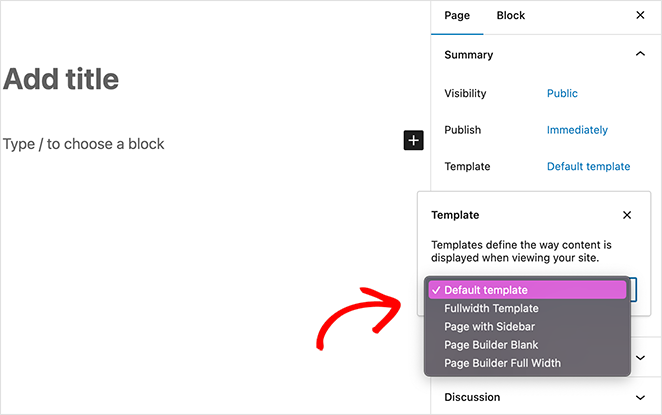
Step 4: Select the full-width template, then click Update or Publish.
Step 5: Preview the page to confirm the sidebar is gone and content stretches across the page.
That’s it. If your theme has a full-width template, this is the fastest way to use it.
If you don’t see a full-width option in the dropdown, your theme may not include one. Move to the next method.
Make Individual Blocks Full Width in the Block Editor
The WordPress block editor lets you set individual blocks to full-width alignment, stretching them across the entire screen without changing your page template. This is built into WordPress, so you don’t need a plugin.
This works with Group blocks, Cover blocks, Image blocks, and most layout blocks.
Step 1: Open your page in the WordPress editor and select the block you want to make full width.
Step 2: In the block toolbar at the top of the block, click the Change alignment button (it looks like a set of horizontal lines).
Step 3: Select Full Width from the dropdown.
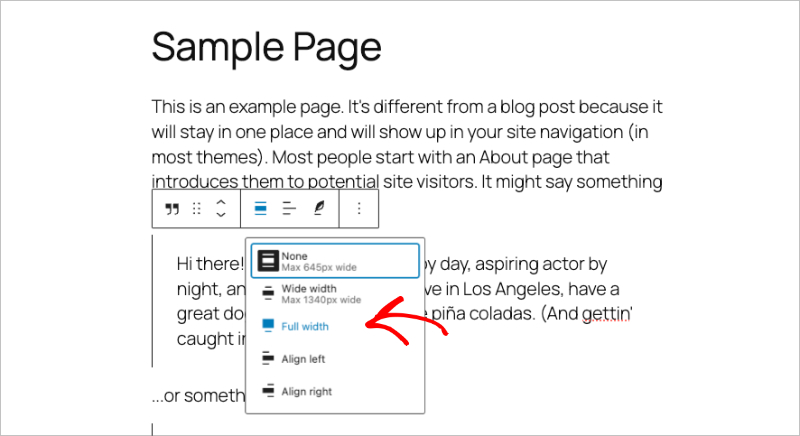
The block will stretch to the edges of the browser window. WordPress adds a CSS class called .alignfull behind the scenes to make this happen.
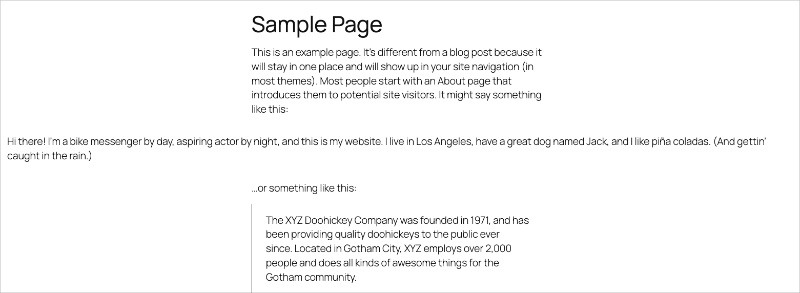
Tip: If you want an entire section of your page to be full width, add a Group block first. Set the Group block to Full Width alignment, then add your content blocks inside it. The Group block acts as a full-width container for everything nested inside.
If the Full Width alignment option doesn’t appear in the toolbar, your theme may not support it. I’ll cover how to fix that in the troubleshooting section below.
Full-Width Layouts in Block Themes (Full Site Editing)
If you’re using a newer block theme like Twenty Twenty-Five, full-width layouts work differently. Block themes use the Site Editor and a configuration file called theme.json to control layout widths.
To adjust page width in a block theme, go to Appearance → Editor in your WordPress dashboard. From there, you can edit your page templates directly and set the content area to full width at the template level.
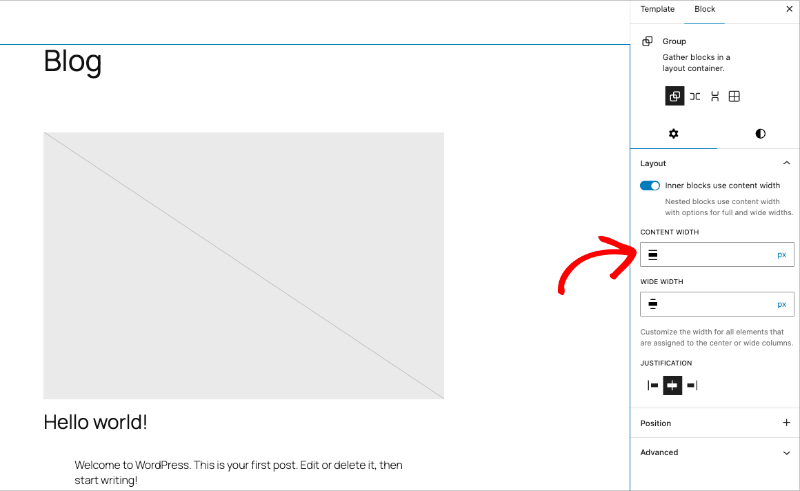
The theme.json file controls two key values: contentSize (the default width for your content) and wideSize (the width for wide-aligned blocks). Adjusting these values changes how wide your content stretches across the entire site.
This is the most flexible approach if you’re on a modern block theme, because you can control layout widths globally instead of page by page.
Add a Full-Width Template with a Free Plugin
If your theme doesn’t include a full-width template, the free Fullwidth Templates plugin adds one to any WordPress theme. No code required.
Step 1: In your WordPress dashboard, go to Plugins → Add New and search for “Fullwidth Templates.” If you need help with this step, here’s a guide on how to install a WordPress plugin.
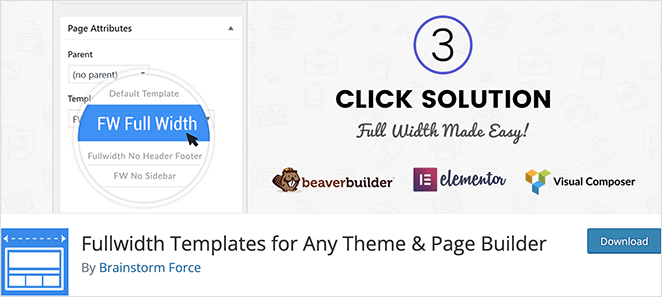
Step 2: Install and activate the plugin.
Step 3: Edit any page and open the Template dropdown in the right sidebar.
You’ll see three new template options:
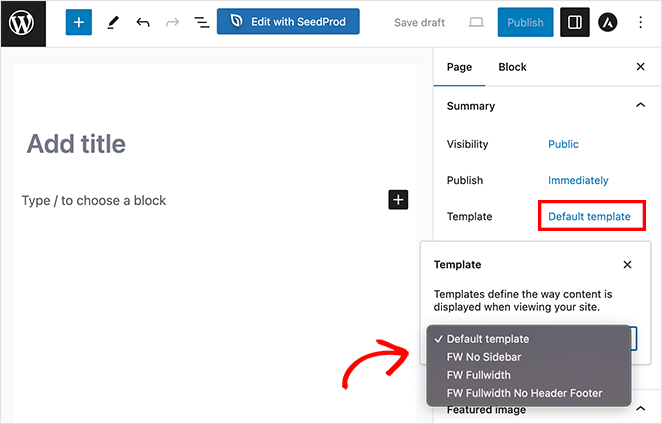
| Template | What It Removes |
|---|---|
| FW No Sidebar | Sidebar only |
| FW Fullwidth | Sidebar, page title, and comments |
| FW Fullwidth No Header Footer | Sidebar, title, comments, header, and footer |
Step 4: Choose the template that matches what you need. For most landing pages, “FW Fullwidth” is the right pick. For a completely blank canvas, use “FW Fullwidth No Header Footer.”
Step 5: Click Update or Publish and preview your page.
The plugin works with any theme, so it’s a reliable option when your theme doesn’t give you a full-width template on its own.
Build a Custom Full-Width Page with SeedProd
When you need full design control over a landing page, coming soon page, sales page, or any custom layout, a page builder gives you more flexibility than template switching alone.
I use SeedProd regularly for this. It works alongside your existing theme, so you don’t need to change anything about your current setup. Every page you build in SeedProd is full width by default.
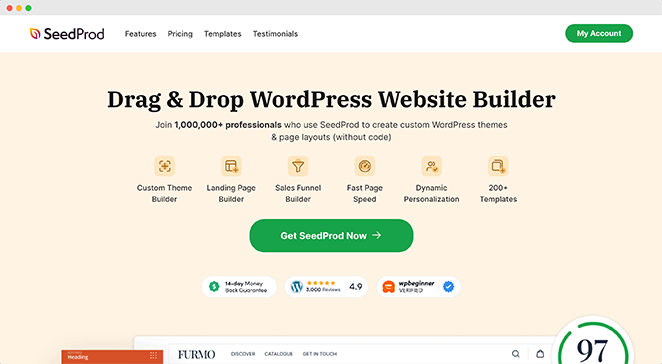
Here’s how to create a full-width page with it.
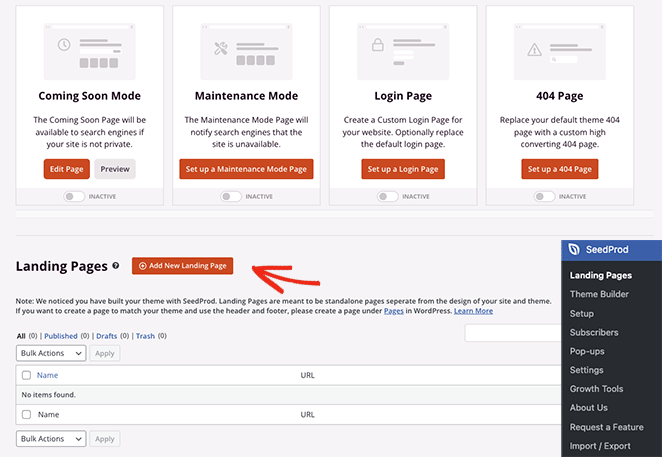
Step 1: Install and activate SeedProd, then go to SeedProd → Landing Pages in your dashboard. If you need help, here’s a guide on installing SeedProd.
Step 2: Click Add New Landing Page.
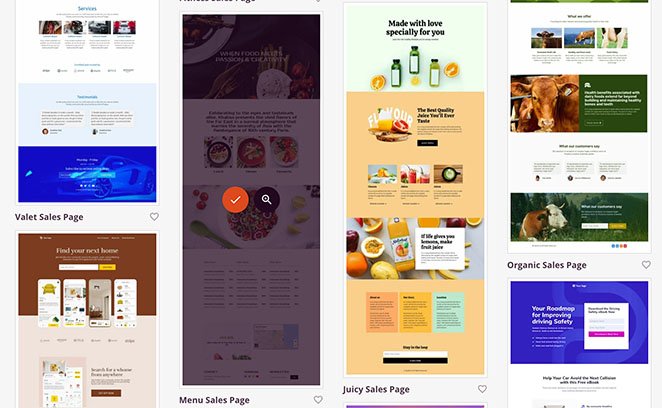
Choose a template. SeedProd includes templates for landing pages, webinar registration pages, sales pages, and more. You can also start with a blank page.
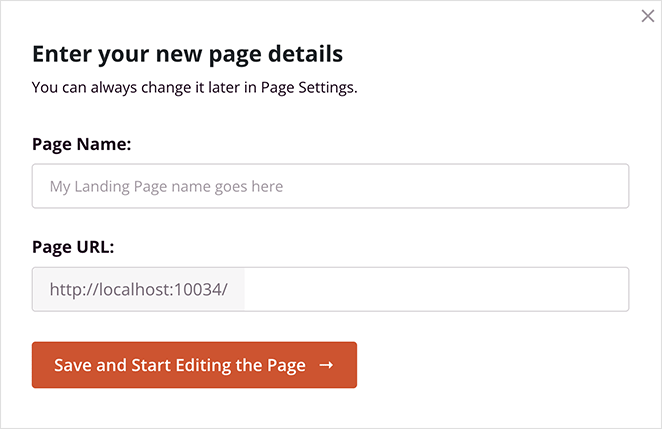
Step 3: Enter your page name and URL, then click Save and Start Editing the Page.
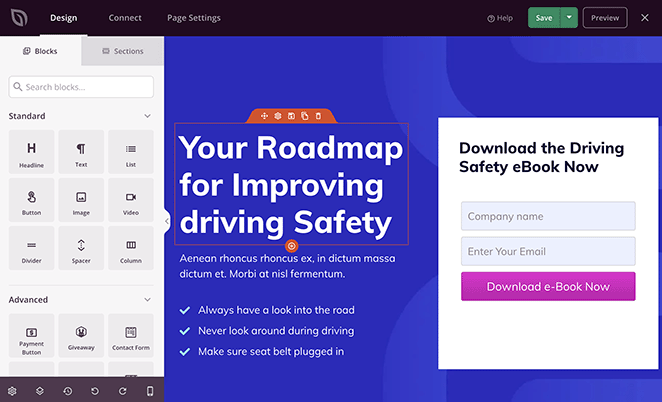
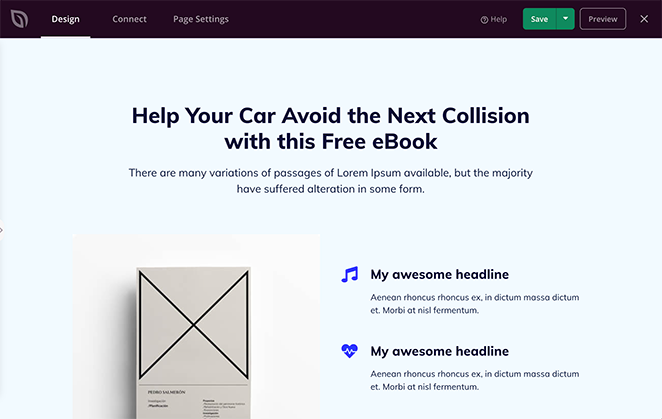
Step 4: The drag-and-drop editor opens with your page layout. Every section spans the full width by default.
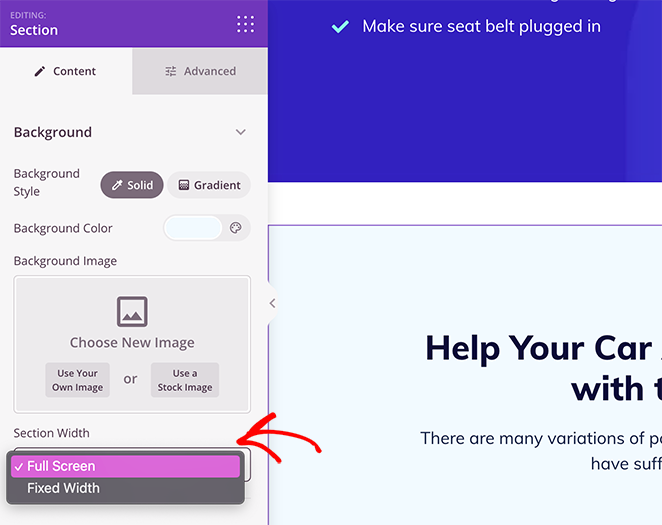
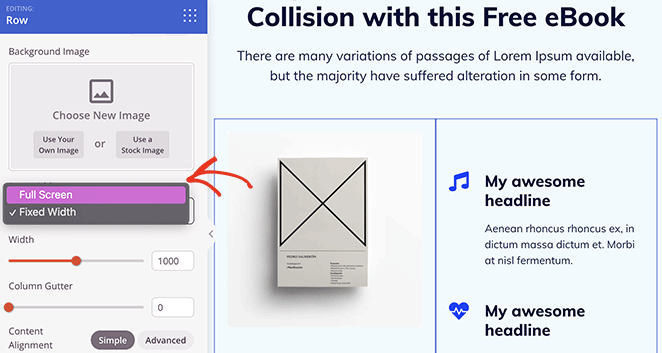
If you need to adjust a section’s width, click the section and change Section Width to “Full Screen” in the settings panel.
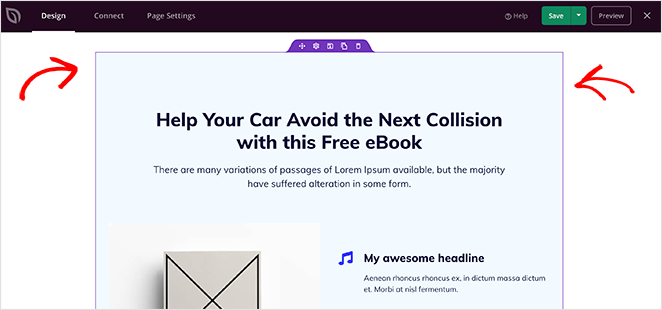
Here’s how a full-width page looks after making that change:
You can also make individual rows full width by clicking on a row and adjusting its width setting the same way.
Step 5: Add your content by dragging in blocks: headlines, images, forms, buttons, pricing tables, or any other element you need.
Step 6: When you’re happy with the layout, click Save and then Publish.
SeedProd is a good fit when you need a page that looks different from the rest of your site, like a focused landing page or a coming soon page. You can also use it to create a full custom WordPress theme with full-width layouts built in. For pages where your regular theme template works fine, the earlier methods in this guide are faster.
If you want to build full-width pages without writing code, get started with SeedProd today.
Create a Full-Width Page Template Manually
If you’re comfortable with PHP and CSS, you can create a custom full-width page template by editing your theme files directly. This method doesn’t require any plugins.
Important: Back up your site before editing theme files. Also, make these changes in a child theme so a theme update doesn’t overwrite your work.
Step 1: Connect to your site using an FTP client or your web host’s file manager. Navigate to /wp-content/themes/your-theme-folder/.
Step 2: Create a new file called full-width.php. At the top of the file, add this template header so WordPress recognizes it:
<?php
/*
 * Template Name: Full Width
 */

get_header();
?>
Step 3: Open your theme’s page.php file and copy its content into your new full-width.php file, below the header code. Then find and remove the line that calls the sidebar:
<?php get_sidebar(); ?>
Delete that line. This removes the sidebar from your template.
Step 4: Save the file and upload it to your theme folder.
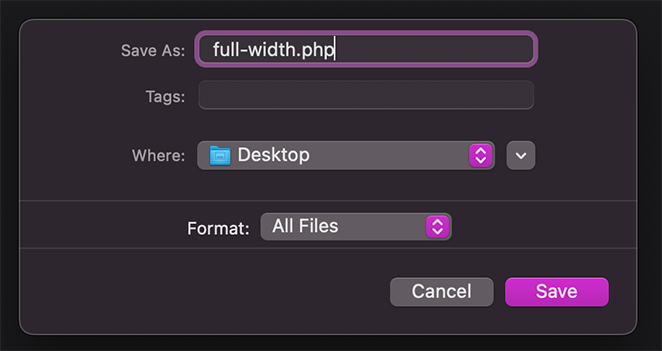
Step 5: Go back to your WordPress dashboard. Edit any page, open the Template dropdown, and you’ll see your new “Full Width” option.
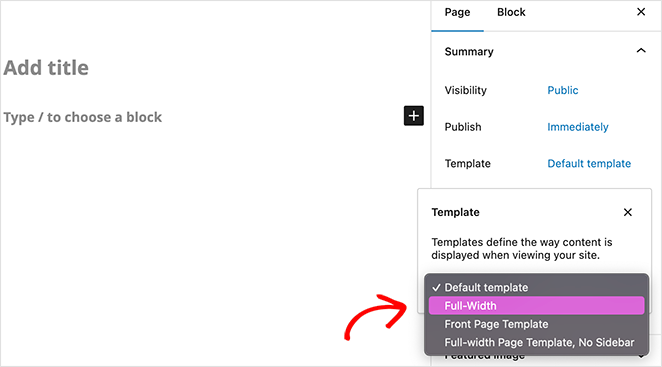
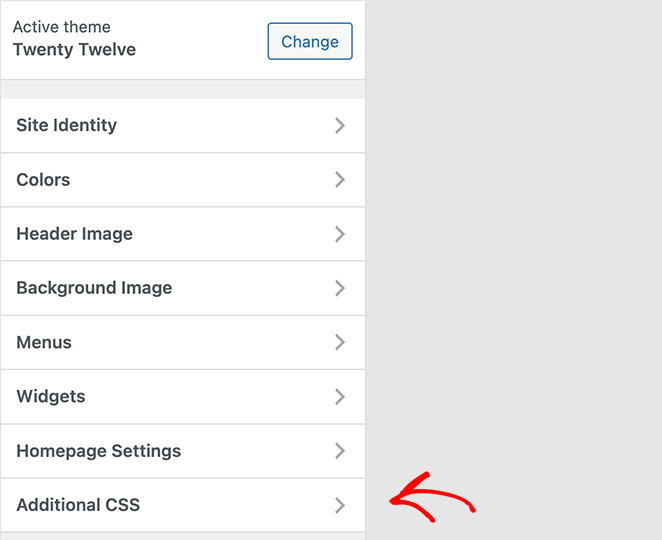
Step 6: Select the template, then add custom CSS to stretch the content area to full width. Go to Appearance → Customize → Additional CSS and add:
.page-template-full-width .site-content {
    width: 100%;
    max-width: none;
}
The exact CSS class names depend on your theme. Use your browser’s Inspect tool to find the correct container class if .site-content doesn’t work.
Step 7: Update the page and preview it.
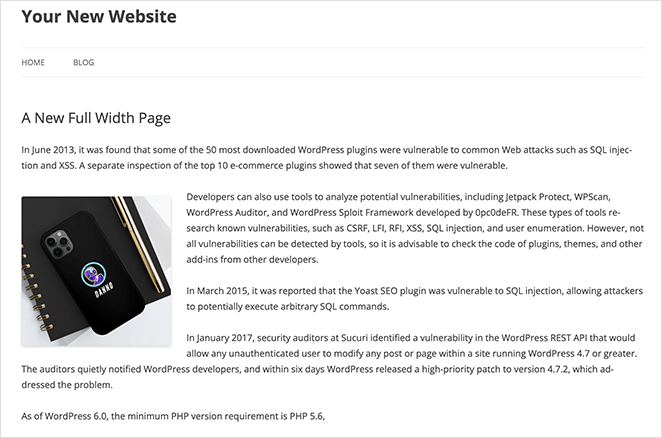
This approach gives you full control, but it requires maintaining the template file in a child theme. If you’re not comfortable editing code, one of the earlier methods is a safer choice.
When to Use a Full-Width Layout (and When Not To)
Full-width layouts aren’t the right choice for every page. Here’s when they work well and when you’re better off with a contained layout.
| Full-Width Works Best For | Contained Layout Works Best For |
|---|---|
| Landing pages | Blog posts |
| Homepages | Documentation |
| Portfolio pages | Long-form articles |
| Product showcases | Text-heavy pages |
| Coming soon pages | Knowledge bases |
The reason is readability. Long lines of text that stretch across a wide screen are harder to read than lines constrained by narrower margins. For content that’s mostly text, a boxed layout keeps line lengths comfortable.
You can mix both on the same site. I use full-width layouts for key pages like the homepage and landing pages, and a standard template with a sidebar for blog posts.
Full-Width Page Not Working? Here’s How to Fix It
If you set a page to full width but it still looks boxed or shows a sidebar, here are the most common causes and how to fix each one.
Your Theme Doesn’t Support Full-Width Alignment
If the “Full Width” alignment option doesn’t appear in the block editor toolbar, your theme hasn’t declared support for it.
The theme needs a single line of code in its functions.php file:
add_theme_support( 'align-wide' );
Check your theme’s documentation first to see if there’s a setting for this. If not, and you’re comfortable editing code, add that line to your child theme’s functions.php file. This enables both the Wide and Full Width alignment options in the block editor.
A Plugin Is Overriding Your Layout
Some plugins inject sidebars, widgets, or layout restrictions that override your full-width template. I’ve seen this happen on many sites, and it’s not always obvious which plugin is the cause.
To find the conflict, deactivate your plugins one at a time and check your page after each one. When the full-width layout reappears, you’ve found the culprit.
If you don’t want to affect live visitors while testing, install the Health Check & Troubleshooting plugin. Its Troubleshooting Mode lets you deactivate plugins for yourself while keeping the site normal for everyone else.
Sidebar plugins and widget plugins are the most common culprits.
Content Width Settings Are Restricting Your Layout
WordPress and some themes set a maximum content width that prevents blocks from stretching to full width, even when you select Full Width alignment.
In the block editor, click the Settings icon (gear icon) in the top right, then look for a Layout section. If there’s a content width value set, it may be restricting your blocks.
In block themes, this is controlled by the contentSize and wideSize values in the theme.json file. Increasing these values, or removing them, lets full-width blocks stretch to the browser edge.
CSS Is Constraining Your Content Area
Your theme’s stylesheet may set a max-width on the content container that prevents it from stretching, even with a full-width template applied.
To check, right-click on your page content and select Inspect (or press F12). Look at the content wrapper element, which is often a div with a class like .site-content, .entry-content, or .content-area.
If you see a max-width or width property limiting the container, you can override it with custom CSS in Appearance → Customize → Additional CSS:
.your-content-class {
    width: 100%;
    max-width: none;
}
Replace .your-content-class with the actual class name from your theme.
FAQs on Making a Page Fullwidth in WordPress
Why can’t I find a full-width template in my WordPress theme?
Not all themes include a full-width template. If yours doesn’t, you have two options. Install the free Fullwidth Templates plugin to add full-width template options to any theme. Or use a page builder like SeedProd to create custom full-width pages with complete layout control.
What is the difference between “wide width” and “full width” in the block editor?
Wide width stretches a block past the normal content area but stays within the page margins. Full width stretches the block to the edges of the browser window, ignoring margins entirely. Both options require your theme to support wide alignment. Most modern themes do.
Does making a page full width affect page speed?
The layout itself doesn’t slow down your page. However, large images stretched to full width can increase load times if they’re not optimized. Compress and resize images before using them in full-width sections to keep your page fast.
Can I make one section of a page full width without changing the whole page?
Yes. In the block editor, add a Group block or Cover block and set it to Full Width alignment. The blocks inside it will stretch to the browser edge, while the rest of your page stays at normal width. SeedProd also lets you control width on a per-section basis.
Will my full-width page look good on mobile?
Yes, as long as your theme is responsive. Full-width layouts adapt to smaller screens automatically. Preview your page on mobile before publishing to make sure everything looks right. Both the WordPress block editor and SeedProd include mobile preview options. Here’s more on how to make a desktop only website mobile-friendly.
Start Building Full-Width Pages
Making a page full width in WordPress takes less than a minute once you know where to look. Start with your theme’s built-in template. If you need more control over individual sections, the block editor’s Full Width alignment handles that without any plugins.
If you need full design control over a landing page or custom layout, SeedProd makes it easy to build full-width pages without code.
You might also want to check out these related guides:
- How to Change Fonts in WordPress Themes (5 Solutions)
- How to Easily Add Font Awesome to Your WordPress Theme
- How to Change WordPress Theme Without Losing Content
- How to Customize Headers in WordPress (4 Simple Ways)
- How to Edit Your WordPress Home Page (Easy Way)
Thanks for reading! We’d love to hear your thoughts, so please feel free to join the conversation on YouTube, X and Facebook for more helpful advice and content to grow your business.



