

TL;DR: How to Design a Sign Up Page in WordPress
You can design a high-converting sign up page in WordPress without a developer. Here are the key steps:
- Install SeedProd – Download, install, and activate the plugin on your WordPress site.
- Create a landing page – Click ‘Create New Landing Page’ from the SeedProd dashboard.
- Choose a template – Pick a squeeze page or lead capture template that fits your offer.
- Customize the design – Use the drag-and-drop editor to edit copy, colors, and form fields.
- Connect your email service – Link SeedProd to Mailchimp, Kit, AWeber, or another provider.
- Configure settings and publish – Preview on mobile, then publish your page live.
If your sidebar form isn’t growing your list the way you expected, the page is probably working against you. Visitors land, see other content, and leave without ever filling it out. A dedicated sign up page removes those distractions and gives people one clear action to take.
I use sign up pages on my own sites because they’re simple to create and consistently outperform sidebar forms or popups. In this tutorial, I’ll show you exactly how to design one in WordPress step by step.
Quick steps to create a sign up page:
- What Is a Sign Up Page?
- What Should Be on a Sign Up Page?
- Sign Up Page Design Best Practices
- How to Design a Sign Up Page in WordPress
- FAQs
What Is a Sign Up Page?
A sign up page is a dedicated web page where visitors enter their details to join your email list, register for an event, or access an offer. It’s sometimes called a “registration page,” but the goal is always the same: capture new leads for your business.
Unlike forms placed in sidebars or footers, a sign up page removes distractions and gives people a single action to take. That’s why dedicated sign up pages tend to convert better than other methods.
Most sign up pages appear after an ad click, social post, or a link in your site’s menu. Visitors already know what they want at that point, so your design should make the process fast and easy.
For inspiration before you build yours, check out these high-converting sign up page examples I’ve collected, including coupon sign ups, webinar registrations, and more.
What Should Be on a Sign Up Page?
The best sign up pages share a few core elements. Getting these right matters more than making your page look impressive.
- Benefit-oriented headline – Your headline should tell visitors what they get, not what they’re signing up for. “Get weekly tips to double your open rates” beats “Subscribe to our newsletter” every time.
- Minimal form fields – Ask for only what you need. A name and email address is almost always enough. Every extra field you add reduces the number of people who complete it.
- Clear call to action – Use one CTA button with specific copy. “Send me the free guide” converts better than a generic “Submit” button because it confirms exactly what happens next.
- Trust signals – A short testimonial, subscriber count, or privacy note reduces hesitation. Something as simple as “Join 5,000 readers. Unsubscribe anytime.” can make a real difference.
- Mobile-friendly layout – More than half of web traffic comes from mobile devices. If your sign up page breaks on a phone, you’re losing leads before they even see your form.
From what I’ve seen reviewing hundreds of landing pages, pages that nail the headline and keep the form to two fields consistently outperform more elaborate designs. Simple wins.
Sign Up Page Design Best Practices
Having the right elements on your page is just the starting point. These five decisions determine whether those elements actually convert visitors into subscribers.
- Keep your form above the fold. Visitors shouldn’t have to scroll to find your form. If they miss it, they leave.
- Use a benefit-oriented headline, not a generic one. “Get 10 free email templates” outperforms “Sign Up for Our Newsletter” because it tells visitors what they’re getting, not what you want from them.
- Match your CTA button copy to the benefit. “Send Me the Templates” converts better than “Submit” because it reinforces the value at the moment of action.
- Remove navigation and exit points. A sign-up page should have one job. Header menus, footer links, and sidebar widgets pull attention away and drop conversion rates.
- Test one element at a time. If you change the headline and the CTA button color at the same time, you won’t know which change moved the needle. Use SeedProd’s analytics integrations with MonsterInsights to track performance, then isolate variables.
How to Design a Sign Up Page in WordPress
Using the default WordPress editor to create your signup page isn’t always the best choice. Even with the block editor, getting your page looking the way you want can be hard without professional help.
That’s why I suggest using a drag-and-drop website builder like SeedProd to design your sign up page.

SeedProd is the best WordPress landing page builder. It comes with a library of multipurpose landing page templates and a drag-and-drop builder, letting you create a landing page without hiring a developer.
With tons of customization options, you can design your page without writing a single line of code. SeedProd is also lightweight and bloat-free, so it won’t slow down your website or hurt your SEO.
Let’s look at how to design a sign up page in WordPress with SeedProd.
1. Install and Activate SeedProd
First, click here to get started with SeedProd and download the plugin to your computer. You then need to install and activate the plugin on your WordPress website.
If you need help with this, follow these step-by-step instructions for installing SeedProd.
Once you’ve installed the plugin and entered your SeedProd license key, click the Create Your First Page button.
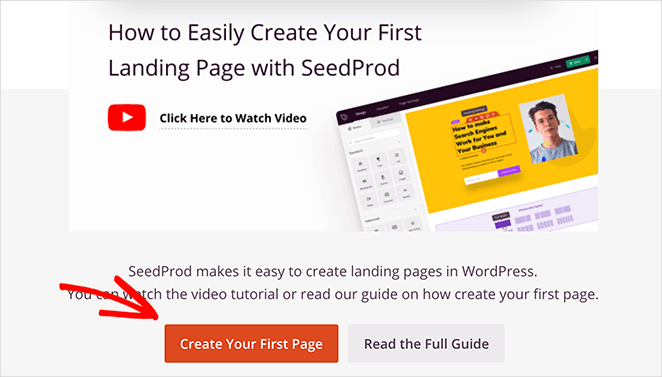
This takes you to SeedProd’s landing page overview, where you can manage all your pages. You’ll also find one-click modes for coming soon, maintenance, and other page types at the top of the screen.
2. Create a New Landing Page
Under the landing page modes section is where you’ll see all the pages you create with SeedProd.
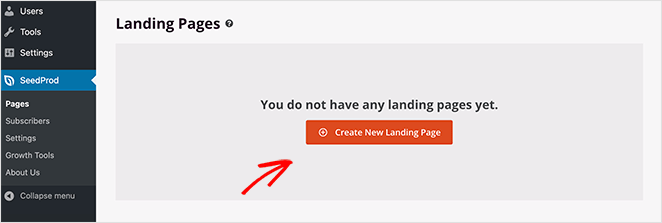
To create your first page, click the Create New Landing Page button.
3. Choose a Sign Up Page Template
On the next screen, you can choose a template for your sign up page.
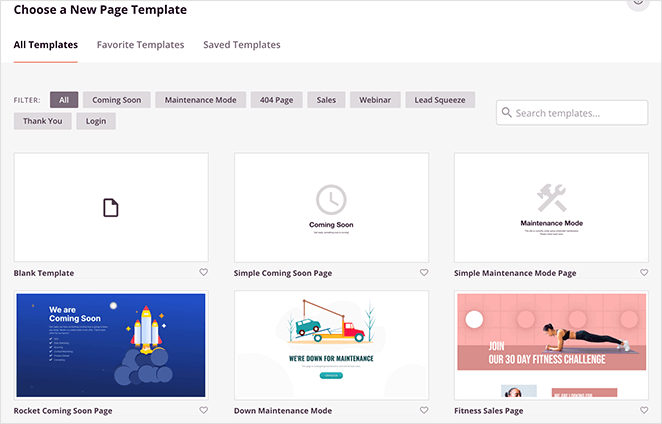
SeedProd comes with a variety of customizable landing page templates, including:
And because you can customize them in the visual editor, each template is multipurpose. You can adapt any template to suit your specific landing page needs.
So go ahead and pick a template that resembles how you want your sign up page to look. For this guide, we’ll use the Hustle Squeeze Page template.
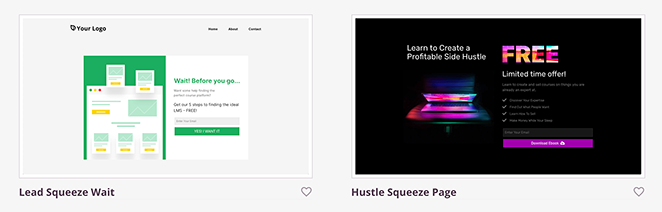
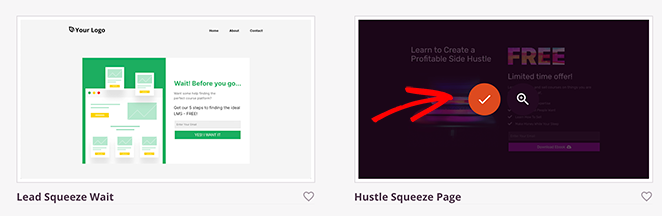
Just hover your mouse over the template thumbnail and click the tick icon to select your design.
A popup then appears, asking you to enter your page name and URL. You can change these settings later if needed.
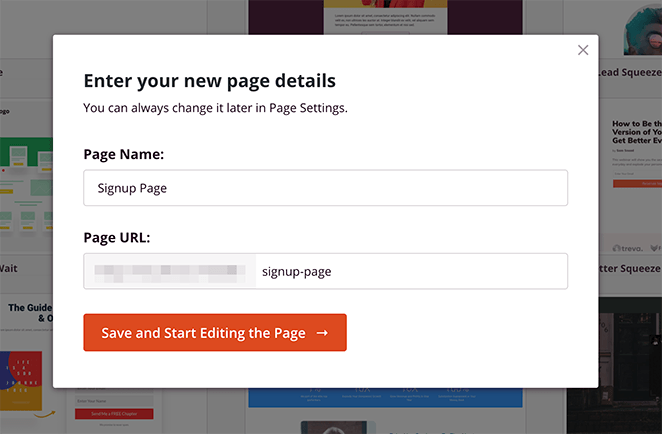
Now click the Save and Start Editing the Page button to launch your template in the drag-and-drop page builder.
4. Customize Your Sign Up Landing Page
The SeedProd editor makes customizing your page simple. On the left, you’ll find blocks and sections you can drag into place. On the right, you’ll see a live preview of your design.
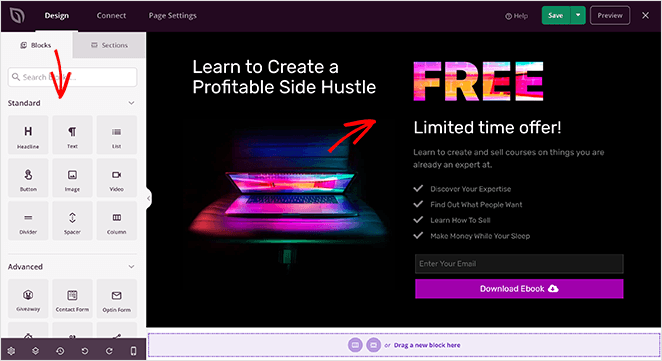
Blocks and Sections
To add content, just drag a block, like a form, countdown timer, or social buttons, into your layout. You can also drop in ready-made sections (hero, call-to-action, features, etc.) to speed things up.
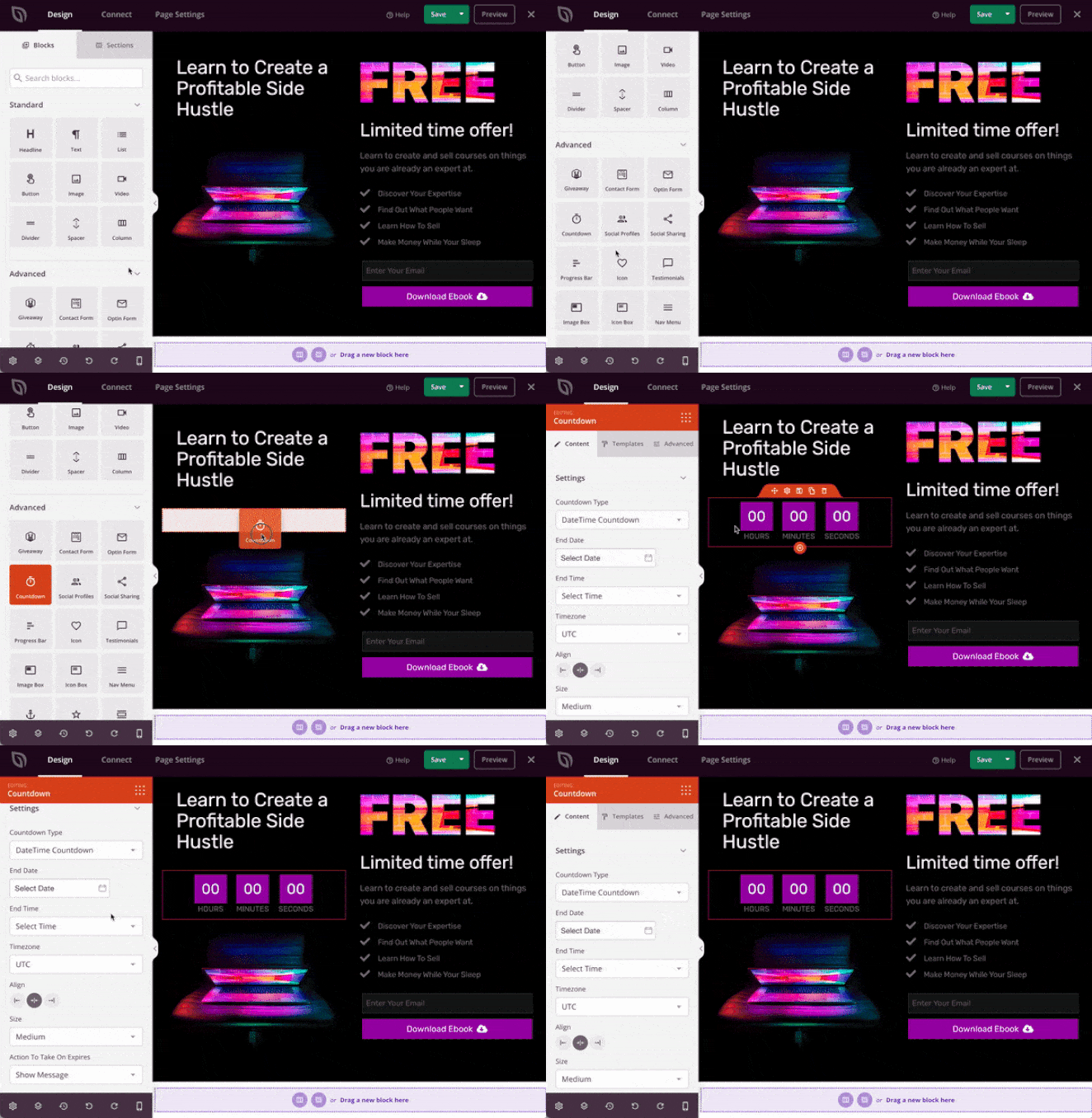
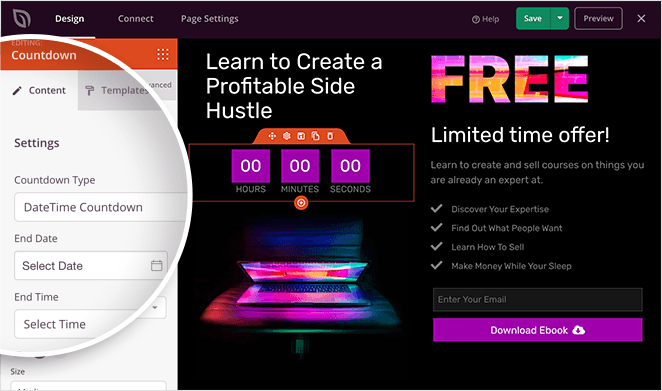
Clicking any block opens its settings, where you can edit text, colors, spacing, or choose from built-in style templates.
Popular blocks include opt-in forms, giveaways, testimonials, progress bars, and more, all designed for lead generation.
Global Settings
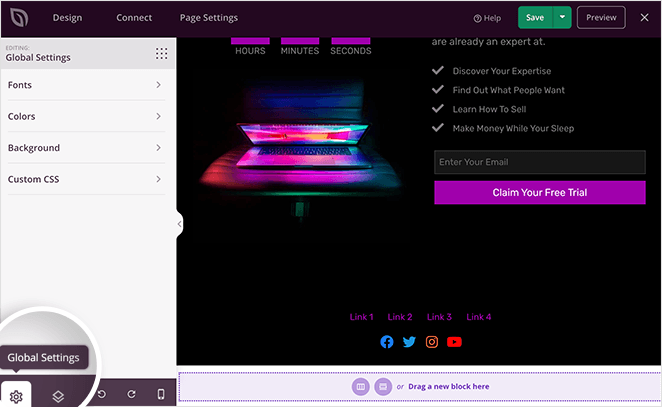
Use the Global Settings panel (gear icon) to change fonts, colors, or backgrounds across your entire page at once. You can pick from curated font themes and color palettes or upload your own branding.
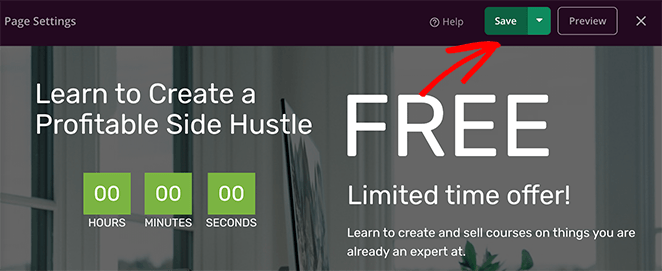
When you’re happy with the design, click the green Save button to keep your changes.
5. Connect Your Email Marketing Service
The next step in learning how to design a sign up page is to configure your email collection settings. This means connecting SeedProd to your email marketing provider.
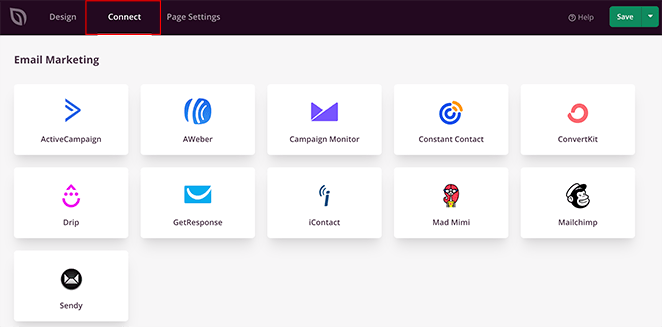
Click the Connect tab at the top of the screen to see the popular email marketing services that integrate with SeedProd, including:
- Drip
- Constant Contact
- AWeber
- GetResponse
- Kit (formerly ConvertKit)
- Campaign Monitor
- Mailchimp
- And more
You can even connect to hundreds of other services using the Zapier integration.
To connect your email list, choose your preferred email service, click Connect, and follow the instructions.
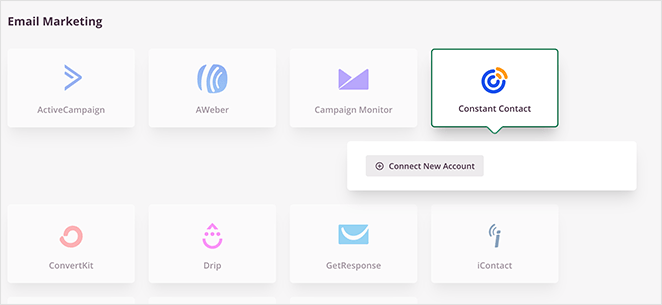
For specific instructions on integrating each email marketing service, see our email integration documentation.
If you want to give visitors a faster way to sign up, WPForms supports Google and social login options for more advanced registration flows. It’s worth considering if your audience expects a one-click sign-up experience.
It’s also possible to see who subscribes to your email list by navigating to SeedProd » Subscribers from your WordPress admin area.
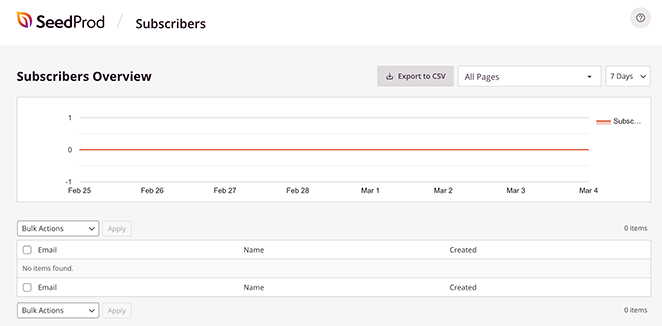
This takes you to SeedProd’s subscriber overview, where you’ll see the details of your new subscribers.
6. Configure Your Sign Up Page Settings
After connecting your email list to your registration page, you can configure a few more settings. To see them, click the Page Settings tab at the top of your screen.
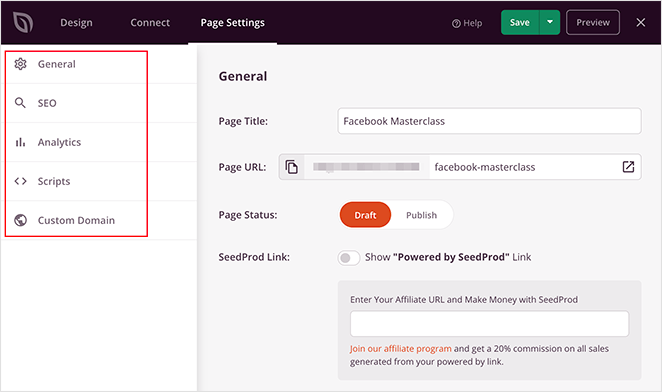
On this page, you can edit your General settings by giving your page a new name, URL, or setting it to draft or publish.
In the Analytics section, you can view your signup page performance in Google Analytics plugins like MonsterInsights. You can do the same in the SEO section and set your page’s SEO metadata using plugins like All in One SEO.
The Scripts area lets you add custom scripts and code snippets, such as cookies and tracking pixels.
The Custom Domain section lets you connect your landing page to any domain name without installing WordPress on it. You can learn all about this in our guide: How to Point a WordPress Landing Page to a Different Domain.
Before you finalize the page, it’s worth testing your CTA button copy. I’ve seen pages where changing “Subscribe” to “Send me the guide” increased sign-ups noticeably. SeedProd’s analytics integration makes it easy to track performance through MonsterInsights, so you can compare versions and use the data to decide.
When you’ve customized your sign up page settings, remember to click the Save button.
7. Publish Your Sign Up Page in WordPress
Before publishing your registration page, it’s good practice to check how it looks on mobile devices. If it doesn’t display correctly, you could lose leads from visitors on phones and tablets.
Luckily, you can preview your page on mobile with SeedProd. Just click the Design tab and select the mobile icon at the bottom of your screen.
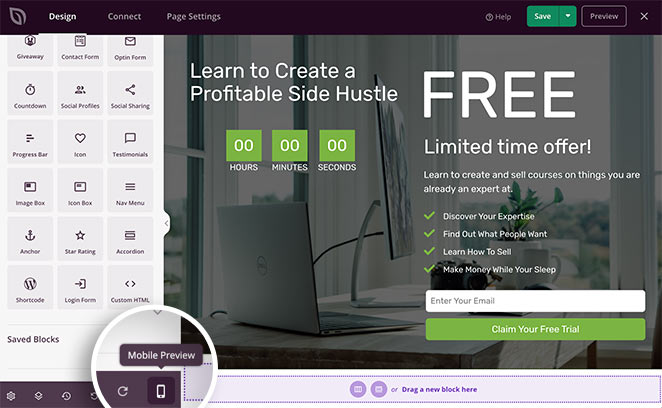
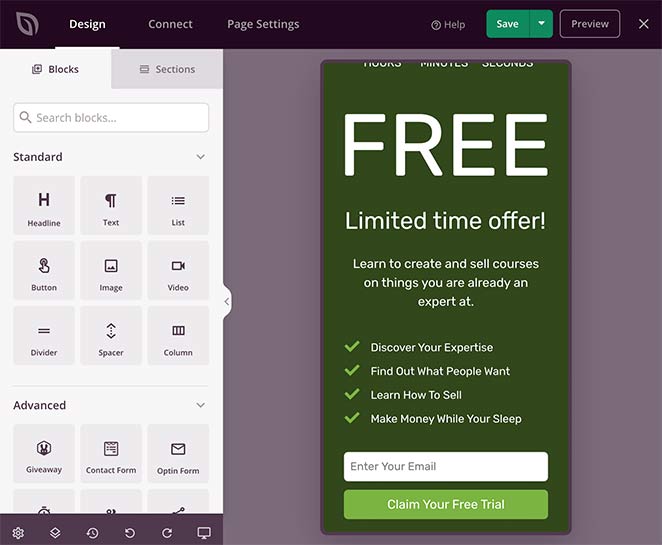
This shows a mobile preview of your landing page. If anything doesn’t look right, click anywhere on the page to adjust your design.
Any changes you make are automatically applied to BOTH the desktop and mobile layout of your page.
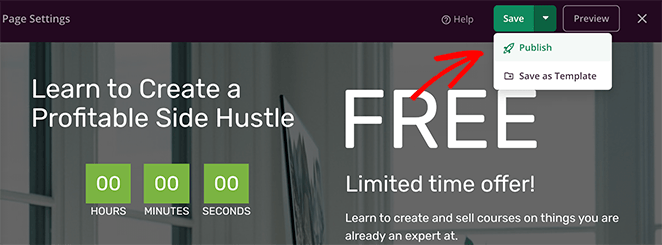
With all your customizations in place, it’s time to publish your sign up page. To do that, click the down arrow next to the Save button and select Publish.
A window appears saying that your page is now live.
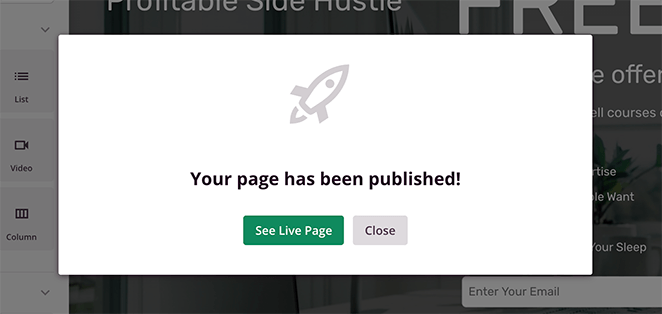
Go ahead and click the See Live Page button to see how it looks.

FAQs on Designing a Sign Up Page in WordPress
What should a sign up page include?
A good sign up page has a benefit-focused headline, an opt-in form with minimal fields, and a clear CTA button. Trust signals like a subscriber count, brief testimonial, or privacy note reduce hesitation and improve conversions.
What are the 3 P’s of email signup forms?
The 3 P’s are Promise, Proof, and Privacy. Promise tells visitors what they’ll get. Proof shows that others have found value in signing up, such as a subscriber count or testimonial. Privacy reassures them that their email address is safe and won’t be shared.
How many fields should my sign up form have?
Keep it as short as possible. Asking for just a name and email address often works best. The fewer fields required, the more likely people are to complete the form. You can always ask for more details later once they’re on your list.
Do sign up pages convert better than sidebar forms?
Yes. A dedicated sign up page removes distractions and focuses on a single action, so it typically converts better than forms placed in sidebars or footers. Dedicated landing pages give visitors one clear path forward with no competing calls to action.
I hope this guide has helped you learn how to design a sign up page in WordPress and build it without a developer’s help.
Now all that’s left is for you to create one and start generating leads and conversions for your business.
You may also find the following guides helpful:
- Best WordPress Email Subscription Popup Plugins
- Best SMTP Plugins For Successful Email Delivery
- How to Build an Email List From Scratch
- How to Set Up a Free Business Email Address
If you liked this article, then please follow us on YouTube, Twitter, and Facebook for more useful content to help grow your business.




