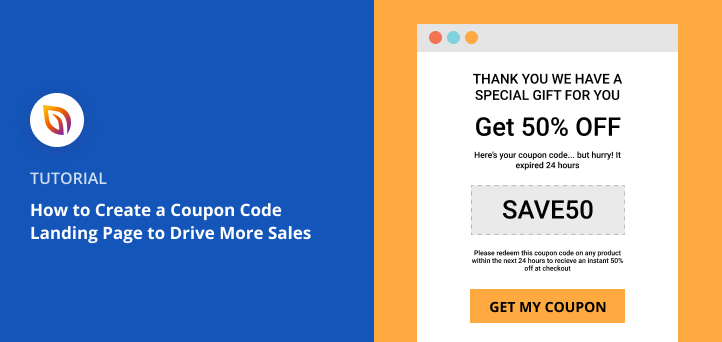

TL;DR: How to Create a Coupon Code Landing Page
A coupon code landing page is a focused page that puts one discount offer front and center, giving visitors one clear action to take. Here’s how to set one up in WordPress in about 15 minutes:
- Install SeedProd – Add the plugin from your WordPress dashboard and activate your license.
- Create a landing page – Go to SeedProd > Pages and click Add New Landing Page.
- Pick a template – Choose a coupon or sales page template from the library and enter your page name.
- Customize your page – Add your coupon code, CTA button, countdown timer, and optional email signup form.
- Publish – Preview on mobile, then publish directly from the SeedProd builder.
You’ve got a discount code ready to share, but no focused place to send people. It ends up buried in a menu link or dropped in a social caption, and most visitors scroll past it without acting.
In this guide, I’ll show you how to create a coupon code landing page in WordPress in about 15 minutes. I’ve been working with WordPress for over 15 years and use SeedProd on my own site to build pages like this. No code needed.
In This Guide
- What Is a Coupon Code Landing Page?
- How to Create a Coupon Code Landing Page in WordPress
- What to Include on Your Coupon Landing Page
- Step 1. Install and Activate SeedProd
- Step 2. Create a Coupon Code Landing Page
- Step 3. Customize Your Promo Code Page
- Step 4. Configure Your Page Settings
- Step 5. Publish Your Discount Code Landing Page
- Frequently Asked Questions
What Is a Coupon Code Landing Page?
A coupon code landing page is a focused page that promotes a single discount and drives visitors to take action, like making a purchase or joining your email list.
Unlike regular website pages that can distract with menus and sidebars, landing pages keep attention on one clear goal. For example, you might offer a discount on a new product, reward contest entries, or run a flash sale.
This setup not only highlights your offer but also increases conversions because shoppers see exactly what to do next.
How to Create a Coupon Code Landing Page in WordPress
In this tutorial, I’ll use SeedProd to show you how to create a discount code landing page.

SeedProd is the best WordPress page builder with coming soon and maintenance mode functionality. You can use this plugin to create any landing page in WordPress without writing code.
It offers 300+ responsive landing page templates to get started quickly. And with tons of blocks and sections, you can customize your page without hiring a developer.
The beginner-friendly visual editor is super easy to use, allowing you to preview your changes in real-time. Plus, with device visibility and mobile preview options, your design always looks impressive on any screen size.
So, follow the steps below to start creating a coupon code landing page with SeedProd.
What to Include on Your Coupon Landing Page
Before you start building, it helps to know what a coupon page needs to actually convert. Here are the essential elements:
- Coupon code with a copy button – Display the code prominently and make it one click to copy. Visitors who have to hunt for the code abandon the page.
- Expiry date – Show the end date clearly. Hidden or missing deadlines reduce trust and conversions.
- Countdown timer – A live countdown reinforces urgency without extra copy. SeedProd includes a countdown block you can drop onto any page.
- Single CTA button – Link directly to checkout or the product page. One clear action, no competing links.
- Email capture (optional) – Gate the code behind a signup form to grow your list. Every redemption becomes a subscriber.
- Trust badge (optional) – A money-back guarantee or security badge reduces friction at the decision point.
Page speed matters here too. SeedProd pages load in around 556ms compared to 1,882ms for Elementor in my own GTmetrix tests. A faster page means more visitors see the code before they bounce.
Step 1. Install and Activate SeedProd
The first step is to install and activate SeedProd on your WordPress website.
And if you need help adding SeedProd to your site, you can check out this guide on installing a WordPress plugin.
Note: SeedProd also has a free version you can install. But we’ll use the Pro version today because it has some really cool features we want to take advantage of.
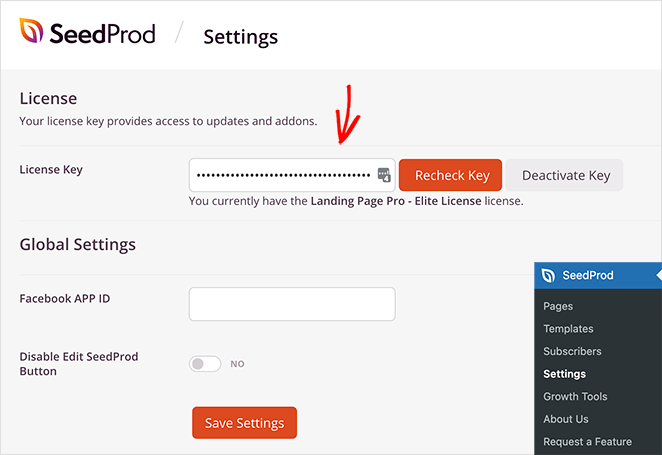
After installing and activating SeedProd, head to SeedProd » Settings from your WordPress dashboard. On this page, you can enter your license key to access plugin updates and advanced features.
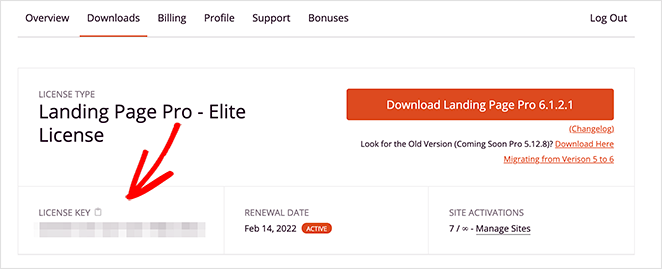
You can find your SeedProd license key on the SeedProd website in your account area, under the Downloads tab.
After verifying your license key, you’re ready to start creating your coupon page.
Step 2. Create a Coupon Code Landing Page
To create your coupon code landing page, go to SeedProd » Pages from your WordPress admin panel.
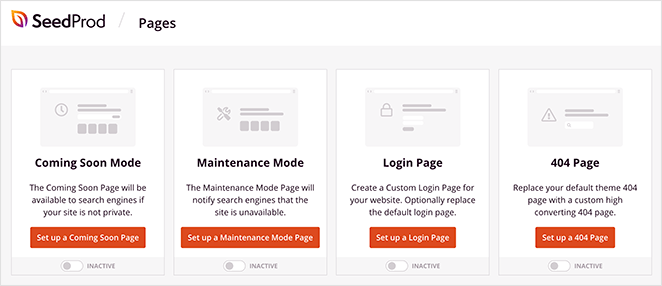
On the following screen, you’ll see several different page modes, including:
- Coming Soon
- Maintenance Mode
- Login Page
- 404 Page
Each mode lets you create that specific page type with just a few clicks. For example, you can create a coming soon page to hide your WordPress site while it’s under development.
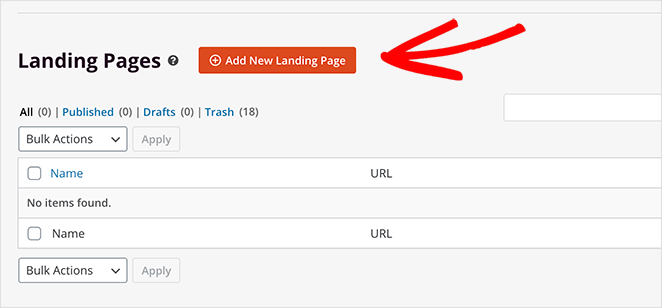
Under the page mode section is an area to create any type of page. So click the Add New Landing Page button to create a brand new page with SeedProd.
Choose Your Coupon Landing Page Template
On the next screen, you’ll see SeedProd’s library of responsive landing page templates.
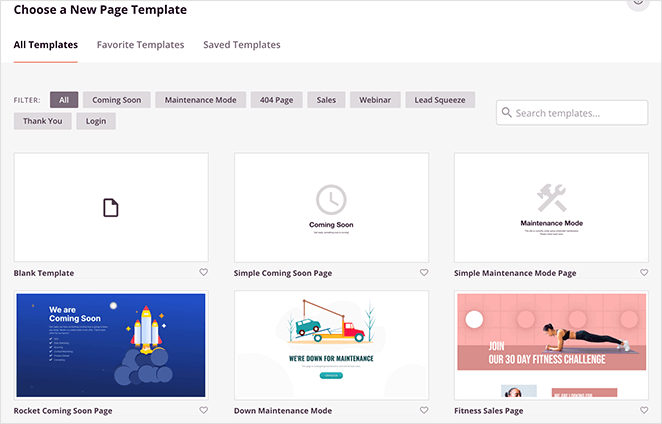
You can filter the designs by clicking any of the tabs along the top:
- All
- Coming Soon
- Maintenance Mode
- 404 Page
- Sales
- Webinar
- Lead Squeeze
- Thank You
- Login
Hover over any template to see options to preview it and click on the checkmark icon to choose that design.
For this tutorial, we chose the “Ecommerce Thank You Page” template under the Thank You tab.
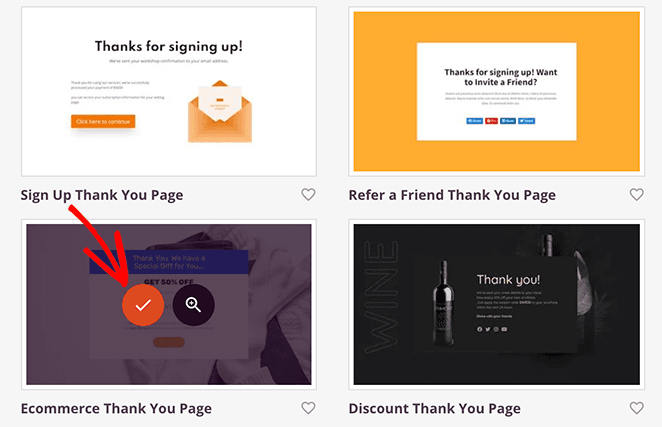
As soon as you choose the template, you’ll see a window where you can add your page name and URL.
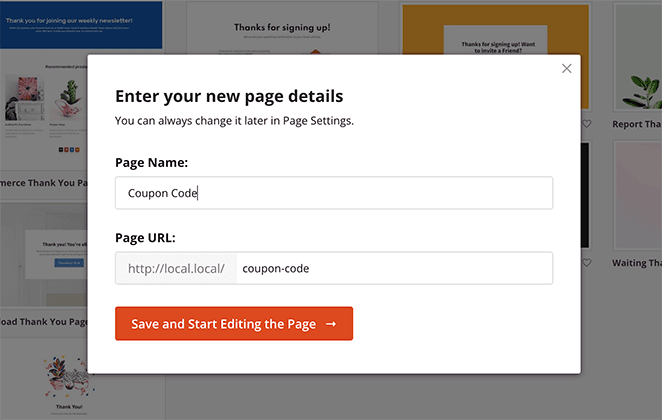
And after launching the template, SeedProd opens it in the drag-and-drop builder. From there, you can customize your coupon code page easily.
Step 3. Customize Your Promo Code Page
SeedProd’s visual editor makes it easy to customize your coupon code screen. On the right side is a live preview of your design to make edits and see the changes in real-time.
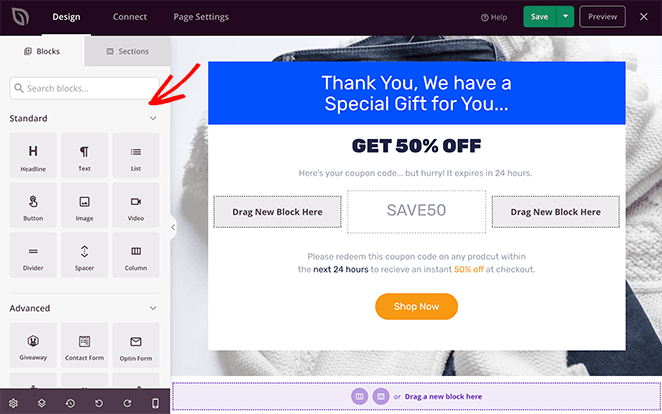
And on the left are various sections and blocks for building and customizing your design.
To edit an element, simply click it, and the settings for that block will open on the left. For example, clicking the heading element opens its content settings panel.
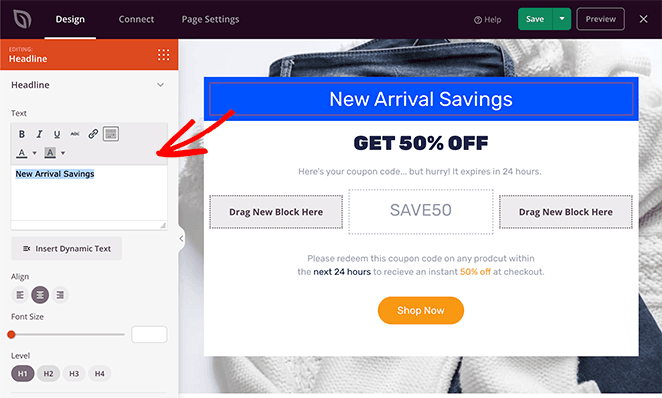
From there, you can edit the content, change the font colors and size, and even change the heading tags to optimize your page for search engines.
You can do the same for any other elements on your page, such as your subheadings, unique code, and call-to-action buttons.
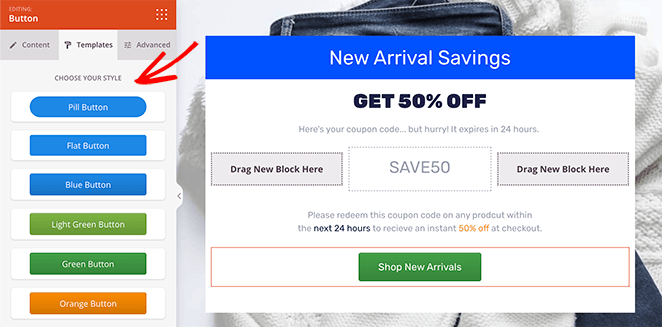
For instance, clicking the call to action button lets you change the button link, colors, and more.
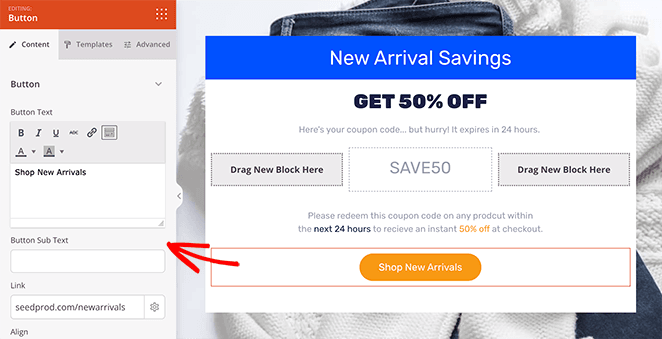
You can also click the Templates tab to change your button style quickly.
You can add more content to your page by choosing a block from the Standard, Advanced, or WooCommerce block sections.
- The Standard blocks include bullet lists, images, buttons, and videos, etc.
- Advanced blocks include optin forms, giveaways, countdown timers, and many more lead generation tools.
- The WooCommerce blocks allow you to add shopping carts, checkouts, product grids, and add-to-cart buttons to your coupon page.
We recommend adding a countdown timer to create a sense of urgency and an image gallery to highlight new products.
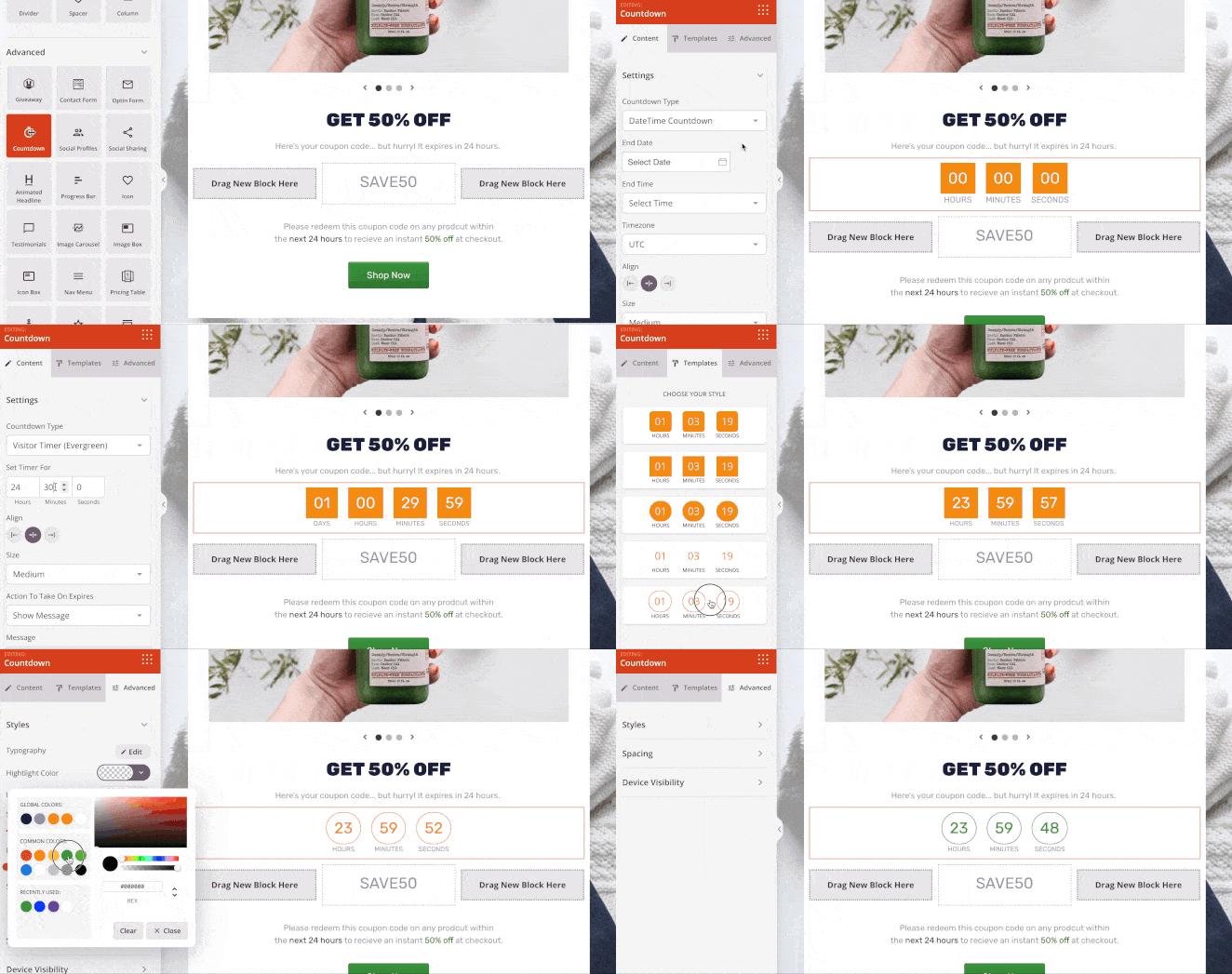
I add a countdown block to every time-sensitive promo page I build. It’s one of the fastest changes you can make to lift clicks on your CTA without redesigning the page.
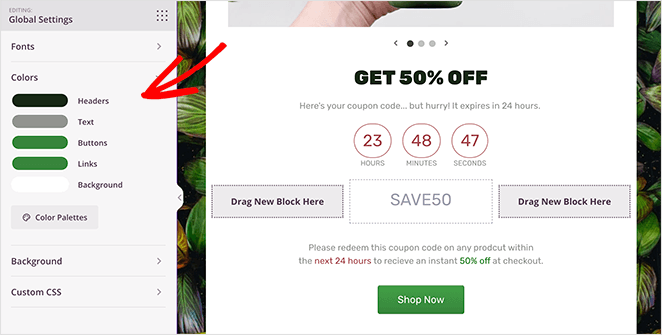
In addition to customizing and adding fresh content to your coupon code landing page, you can also control the colors, fonts, and styles globally in the Global Settings panel. This saves you from customizing every block manually.
You can find the Global Settings panel by clicking the gear icon in the bottom corner of your screen.
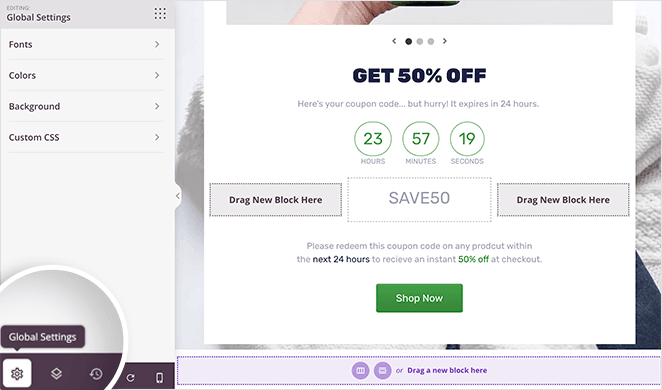
From there, click any heading to add a global color scheme, fonts, background image, or custom CSS.
For example, you can remove the default background image and replace it with something relevant to your offer.
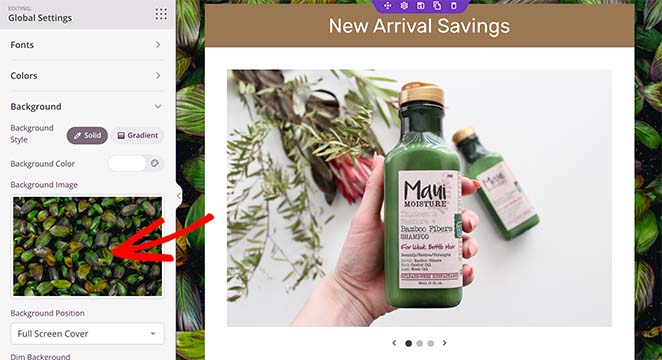
You can also change the global font, link, and button colors to match your website’s branding.
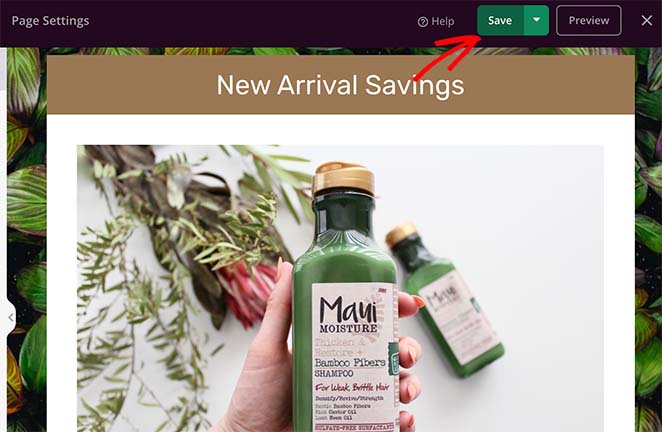
When you’re happy with how things look, click the Save button at the top of your screen.
Step 4. Configure Your Page Settings
Before publishing your discount landing page, there are several settings you can configure. For example, if your page’s goal is to collect email addresses, you can connect to an email marketing service.
To do that, click the Connect tab at the top of your screen.
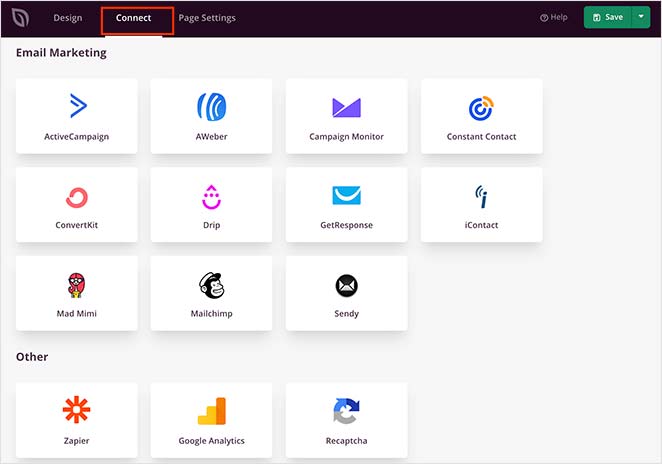
From there, you can choose from popular email marketing services, including Constant Contact, Mailchimp, MailerLite, and more.
Then, follow the instructions to link and authorize your service. For instructions on connecting to each email marketing service, check out our email integration documentation.
Now, click the Page Settings tab to look at the different landing page options there.
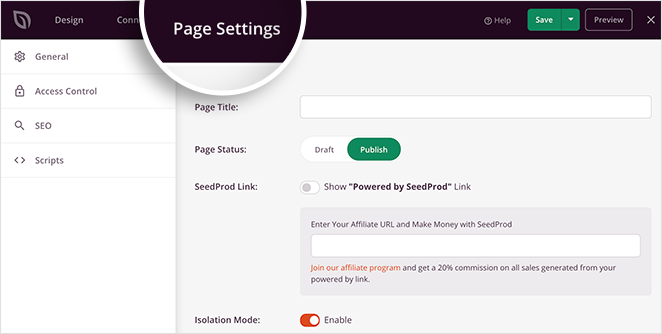
Depending on your SeedProd plan, this page has several sections, including:
- General – Change your page title, URL, and publish status
- SEO – Add an SEO title, meta description, and more to your landing page
- Analytics – Connect a WordPress Google Analytics plugin to track your performance
- Scripts – Add 3rd-party scripts like your Facebook pixel
- Custom Domain – Point your landing page to a custom domain name (Elite plans only)
Remember to click Save to store your settings before moving on to the last step.
Step 5. Publish Your Discount Code Landing Page
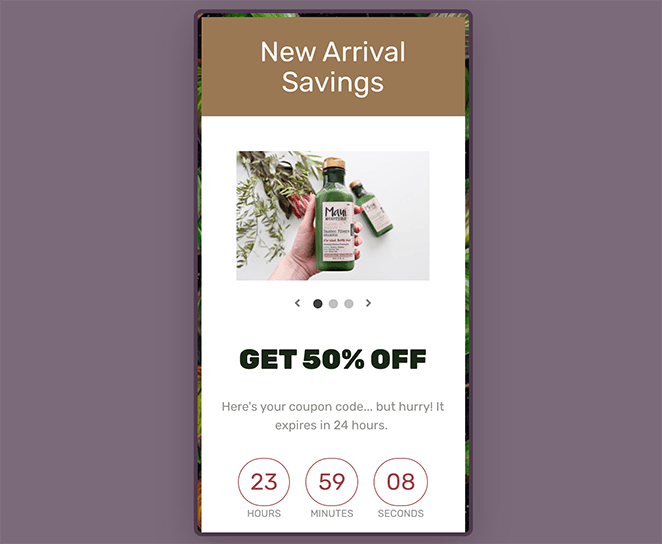
Before publishing your page, let’s see how it looks on mobile screens. To do that, click the mobile preview icon in the bottom toolbar, and you’ll see your page as it looks on mobile devices like smartphones.
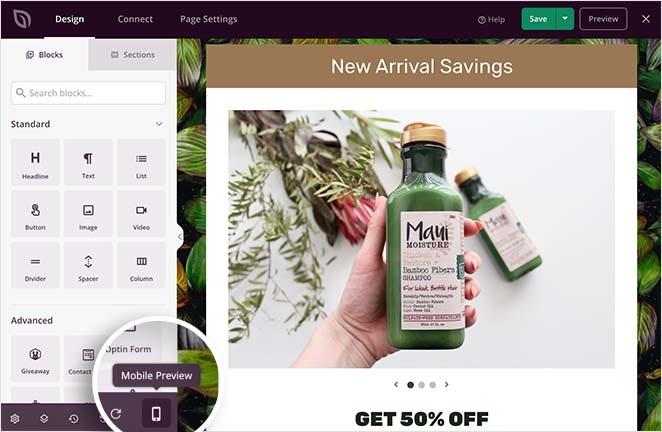
From there, you can edit your design and even hide some elements from showing on desktop or mobile.
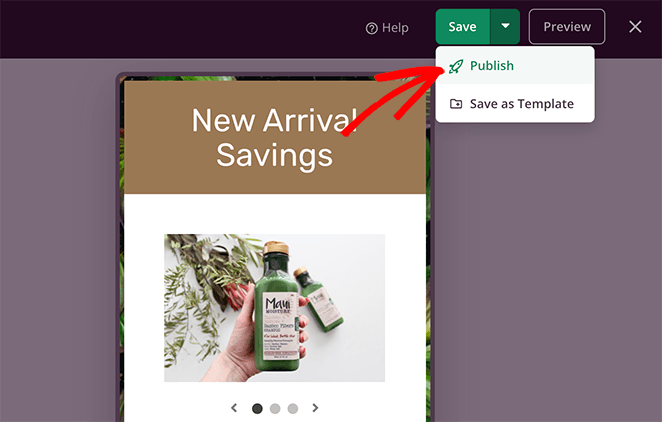
When you’re ready to publish your promo code page, click the drop-down arrow beside the Save button and click Publish.
And that’s it!
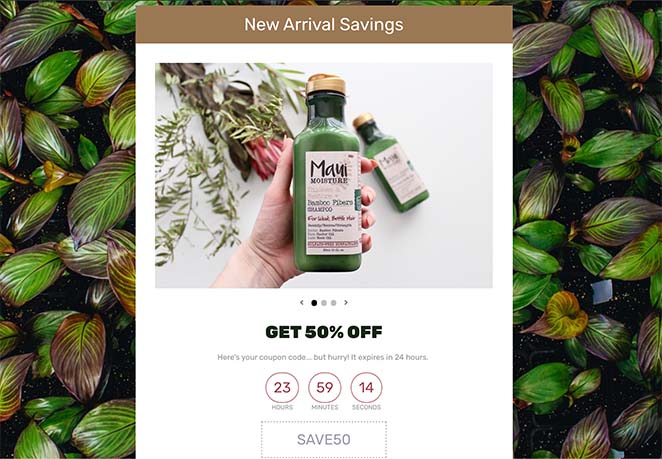
You’ve successfully added a coupon code landing page to your WordPress site.
Look at what’s working in that example. The coupon code is front and center and the CTA button sits above the fold. The countdown timer adds urgency before visitors have scrolled.
Everything a shopper needs to act is visible at first glance. That’s the goal for any coupon page you build.
Frequently Asked Questions
What should I put on a coupon code landing page?
The essentials are a clearly displayed coupon code with a copy button, the discount amount, and the expiry date. You also need one CTA button linking to checkout. Adding a countdown timer and an optional email signup form can lift conversions. Keep distractions off the page, no sidebars or extra navigation links.
How do I make a coupon landing page that actually converts?
Show the code prominently at the top of the page and make the expiry date visible. A countdown timer creates urgency and a single CTA button removes decision fatigue. I use SeedProd’s countdown and button blocks for this on my own promo pages, and it takes minutes to set up.
Can I use a coupon landing page to grow my email list?
Yes. Instead of displaying the code immediately, you can gate it behind an email signup form. The visitor enters their email, then sees the code. SeedProd’s optin form blocks connect directly to Mailchimp, Constant Contact, ConvertKit, and other email services. Every coupon redemption becomes a new subscriber.
With your new coupon code landing page, you can spotlight discounts, grow your email list, and turn more visitors into paying customers. The best part is you didn’t need any code. Just a few clicks in SeedProd’s drag-and-drop builder.
If you found this guide helpful, here are a few more tutorials you might like:
- How to Create Dynamic Landing Pages
- How to Create a Lead Capture Page in WordPress
- How to Increase Landing Page Conversions
- How to Display New Products in WooCommerce
Thanks for reading. Please follow us on YouTube, Twitter, and Facebook for more helpful content to grow your business if you liked this article.