

TL;DR: How to Change Your WordPress Blog Layout
No code required. Here are the fastest ways to update your WordPress blog layout.
- Back up first – Use a backup plugin before making any layout changes.
- Use SeedProd’s Theme Builder – Customize your blog layout with drag-and-drop controls, including grid columns and post card styles.
- Switch your WordPress theme – Change layout site-wide without a plugin by choosing a theme with built-in layout options like Astra.
- Use the Full Site Editor – If you’re on a block theme, FSE lets you adjust your blog page directly in the WordPress editor.
- Apply design principles – Prioritize visual hierarchy, readability, and mobile-first layout for the best results.
Your blog archive is a plain single-column list, and no matter how many theme settings you’ve clicked through, you can’t find where to actually change it. Whether you run a plumbing business, a food blog, or a photography portfolio, that friction is fixable.
In this guide, I’ll show you three code-free methods to change your WordPress blog layout: SeedProd’s Theme Builder, switching to a different theme, and the Full Site Editor. I’ll also share my own tips for getting the design right.
Find the method that fits your setup and get started.
- What’s the Easiest Way to Change Blog Layout in WordPress?
- What Is a Blog Layout and Why Is It Important?
- What to Do Before Changing Your WordPress Blog Layout
- How to Change Blog Layout Using SeedProd
- Alternative Methods to Change Blog Layout
- Which Blog Layout Method Should You Use?
- Design Tips for an Effective Blog Layout
- Frequently Asked Questions
What’s the Easiest Way to Change Blog Layout in WordPress?
SeedProd is the fastest method and takes about 10 minutes. No coding required, and you get full control over your layout.
If you’d rather skip a plugin, a theme like Astra lets you switch your blog layout in the WordPress Customizer. If you’re on a block theme, the Full Site Editor handles it without any extra tools.
What Is a Blog Layout and Why Is It Important?
A blog layout is the structure that arranges your posts, images, and widgets across the page to guide readers and improve usability. This is important because a well-planned site helps users find what they need. It also looks good, which makes people want to stay on your site for longer.
You can choose from several blog layout types. Here are the most common ones:
- Grid layout: This layout displays your posts in a grid format.
- List layout: With this layout, your blog posts are displayed one after the other in a single line.
- Single-column layout: This page layout showcases your blog posts in a single, wide column.
Choosing the right layout depends on the feel you want your blog to have. For example, news blogs covering several topics may find the grid layout best for maximizing space.

Alternatively, traditional bloggers may prefer the list layout, which leaves room for a sidebar to display widgets.
Which layout you choose depends on your goals, and sometimes changing it entirely is the fastest way to improve performance. A new layout can reduce your bounce rate and improve page speed, both of which affect your search rankings.
What to Do Before Changing Your WordPress Blog Layout
Before changing your blog layout, you should back up your site and evaluate your current theme’s limitations.
My favorite way to do this is with a WordPress backup plugin. Some of the most popular options include features to schedule backups regularly and even store that data in the cloud as an extra precaution.
If you need help, you can see this guide on how to backup your WordPress site.
Something else that’s worth doing is looking at your current WordPress blog theme. A WordPress theme controls the design, layout, and overall appearance of your blog.
So, what limitations does it have that prevent you from getting the blog layout you want? Can you customize it, or will you need a different theme entirely?
Know what you want, and what your theme can’t do, before starting.
How to Change Blog Layout Using SeedProd
The easiest way to change your blog layout is by using SeedProd’s drag-and-drop WordPress page builder. It makes creating themes for WordPress and landing pages easy without a developer.

SeedProd has blog layout options you can edit in just a few clicks.Every design you make is fast, bloat-free, and integrates with popular WordPress plugins and email marketing services.
Why I Recommend SeedProd:
I’ve personally used SeedProd to build and revamp dozens of WordPress blogs. It’s hands-down the fastest way to create a custom layout without touching code. Compared to other builders, I’ve found it has the best balance of ease-of-use, performance, and flexibility, especially for beginners.
In my own GTmetrix testing, SeedProd-built pages loaded in 556ms compared to 1,882ms for Elementor, nearly 3x faster. That difference directly affects both user experience and search rankings.
To get started, you’ll need to download the SeedProd plugin and install it on your WordPress site.
If you need help, please see our documentation on installing the SeedPod Pro plugin.
How Do I Set Up SeedProd’s Theme Builder?
After activating SeedProd and verifying your license key, you’re ready to build a custom WordPress theme. This will replace your existing theme with one you can customize easily with drag-and-drop.
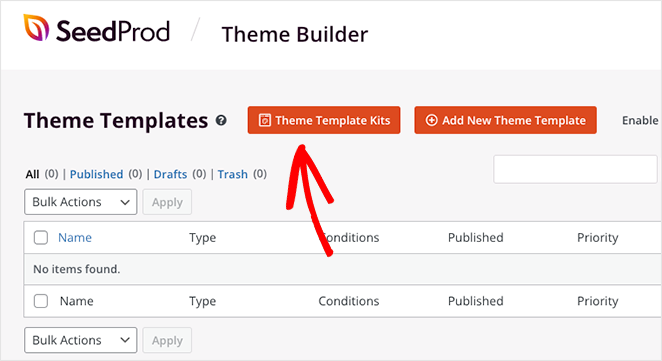
To do this, navigate to SeedProd » Theme Builder from your WordPress dashboard and click the Theme Template Kits button.
On the next screen, you’ll see a library of 1-click website templates for different niches. Each template is 100% mobile responsive and fully customizable, so you can choose any design and tailor it to your needs.
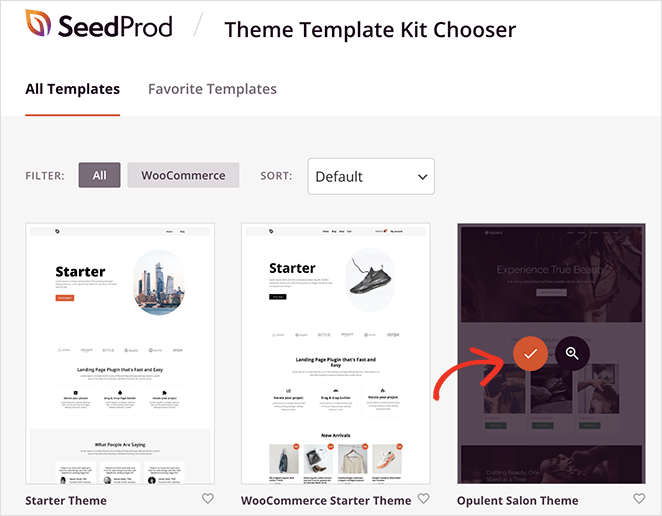
To choose a theme, hover over one and click the checkmark icon. In a few seconds, SeedProd will import the site kit and show its individual templates in a list.
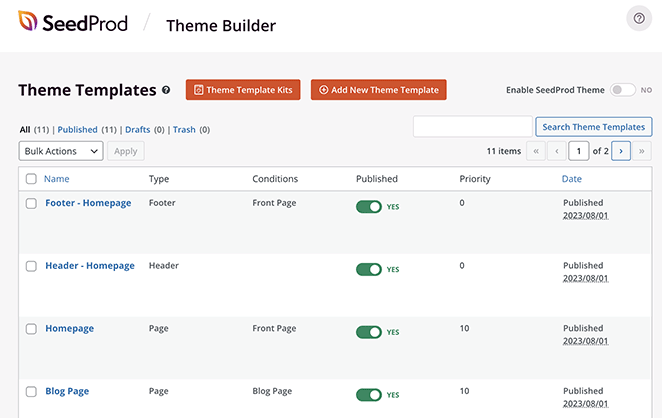
You can customize your theme by editing these templates, including the homepage, header, footer, and archive pages.
For more detailed steps, see our guide on how to create a custom WordPress theme.
How Do I Change My Blog Layout in SeedProd?
Many of SeedProd’s site kits have a blog page by default, which displays a list of your latest blog posts. This is also sometimes known as an archive page in other site kits.
You can customize the blog page by hovering over it in the templates list and clicking the ‘Edit Design’ link.
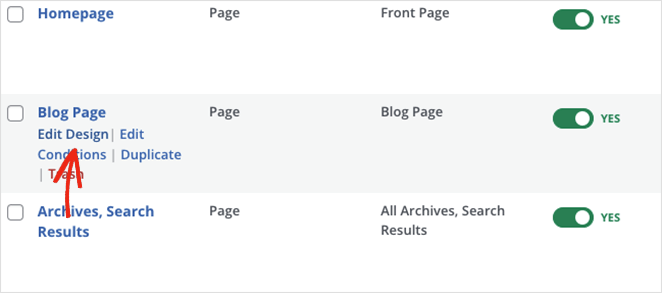
Upon opening the blog template, you’ll see the design from the site kit demo. Alongside that will be a live preview of the post layout on the left and blocks and settings on the right.
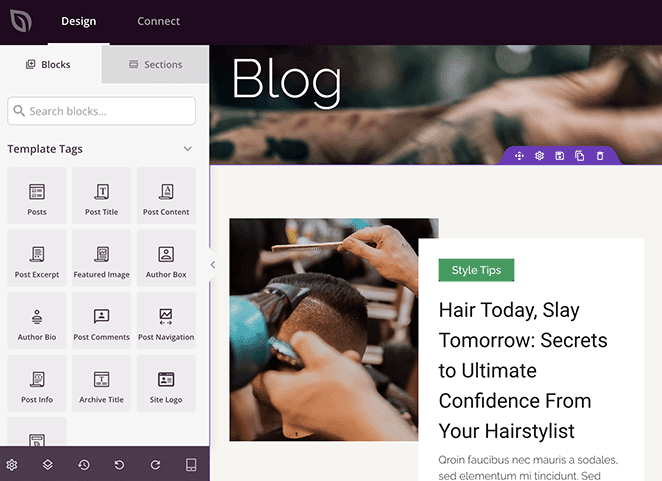
The posts on this page are displayed using the Posts block. When you select it in the page builder, it opens a settings panel on the left-hand sidebar.
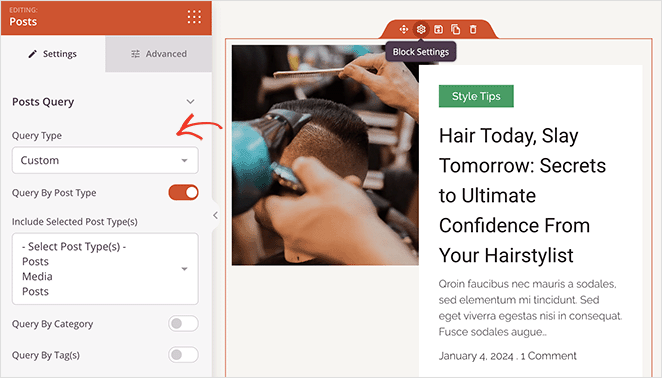
This is where you can customize how your posts appear. For example, you can display content by post type, category, tag, or author and order posts by date, title, and more. You can even show or hide the featured image and change its height.
Further down the settings panel, you’ll see a ‘Layout’ section. Here, you can switch between 4 blog skins: Classic, Card, Creative, and Minimal.
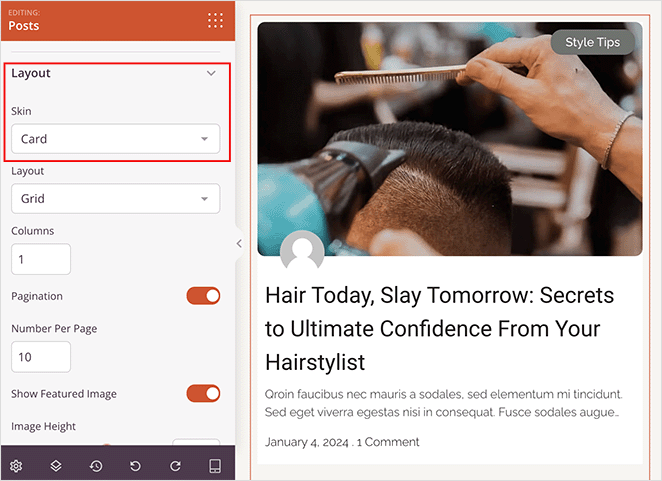
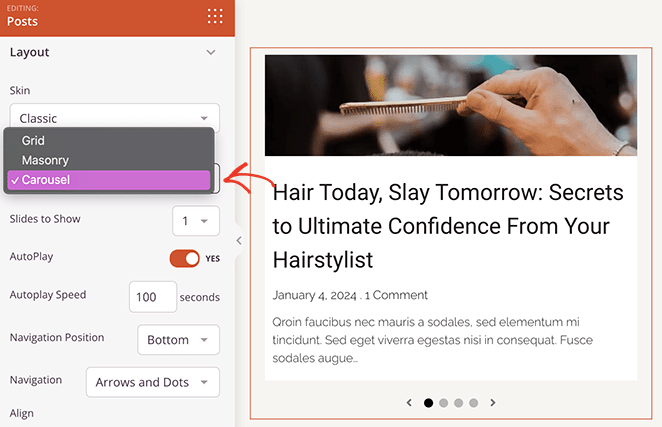
Beneath that is a dropdown that lets you change the post layout. The options you can choose from include Grid, Masonry, and Carousel.
To show more posts per row with smaller featured images, switch the Layout dropdown to Grid and increase the column count. You can also adjust the featured image height from the settings panel directly above.
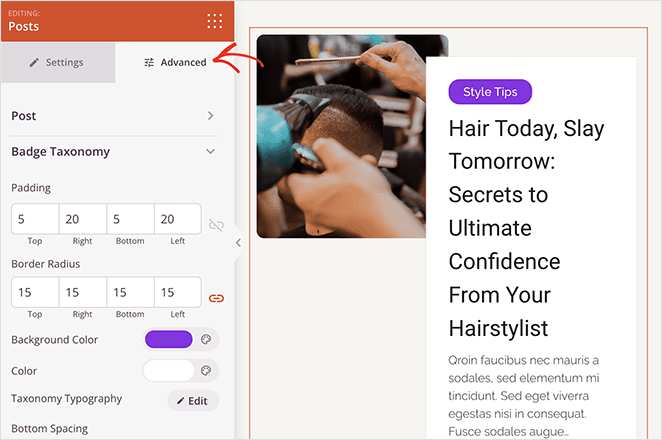
Next, click the ‘Advanced’ tab for the posts block. In this panel, you’ll see further customization options for fonts, spacing, background colors, borders, and badge taxonomy styling.
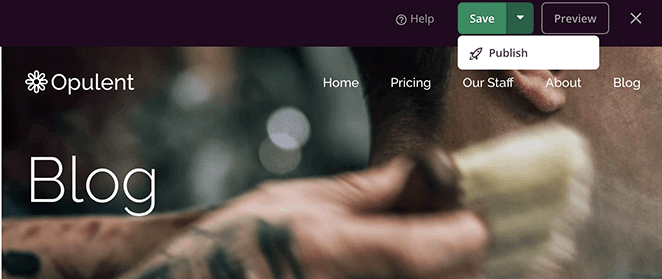
When you’re happy with your new blog layout, click ‘Save’ and ‘Publish.’
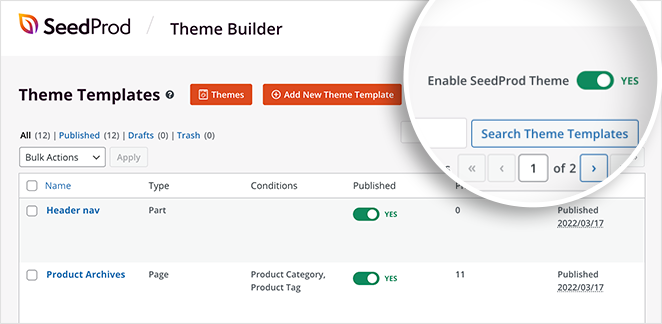
You’ll also need to return to SeedProd » Theme Builder and activate your WordPress theme by clicking the ‘Enable SeedProd Theme’ toggle.
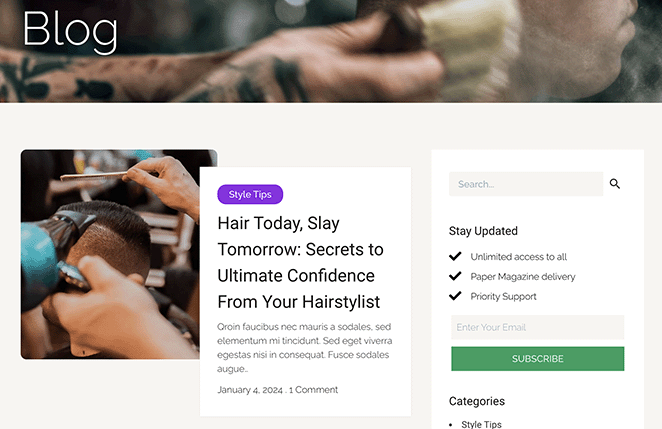
Now, you can visit your blog page and see the new layout in action.
SeedProd also lets you style your category archive pages to match your blog layout. Open the archive template in Theme Builder and customize it the same way.
Alternative Methods to Change Blog Layout
I completely understand that using a page builder isn’t the best fit for everyone. That’s why we’ll cover a few more ways to change your blog layout in WordPress below.
Change Your WordPress Theme
Another way to change your blog layout is to switch your WordPress theme completely. Since themes dictate your site’s color scheme, typography, and overall structure, changing to a new one can alter your blog’s layout and styling.
You can find a new theme by browsing the WordPress theme directory or by choosing one from a reputable theme developer. You can discover some of our top theme choices by checking out our roundup of the best WordPress themes.
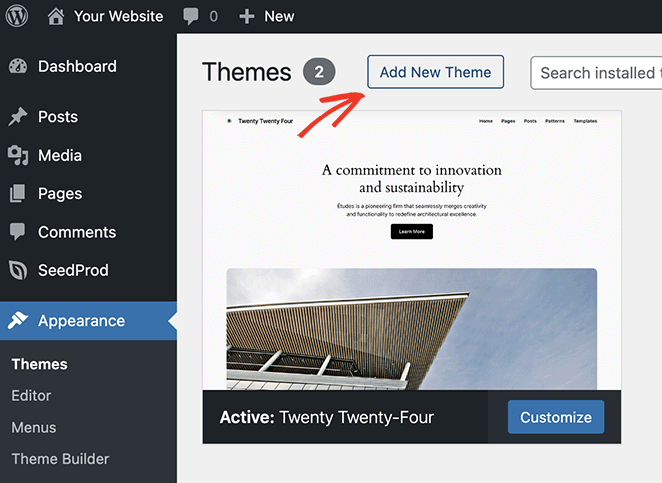
Once you’ve found a theme with a blog layout you like, installing it is easy. Simply navigate to Appearance » Themes from your WordPress dashboard and click the Add New Theme button.
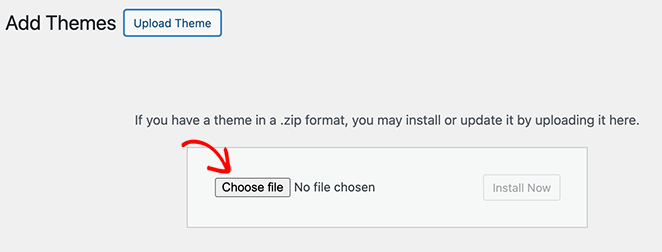
From there, click the Upload Theme button and choose your theme zip file from your computer. Then, click the ‘Install Now’ button, then ‘Activate’.
In this example, we’re using the Astra WordPress theme because it has several easy settings for changing the blog layout.
To find them, go to Appearance » Settings from your dashboard, which opens the WordPress theme customizer.
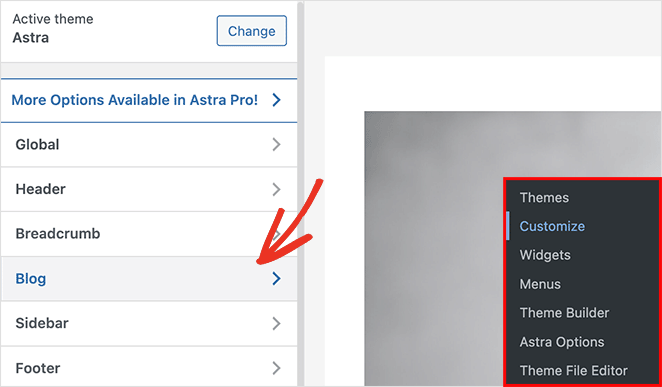
Next, click the ‘Blog’ heading, then select the ‘Blog/Archive’ tab. You’ll see several options here, including customizations for the blog container and sidebar layout.
Scroll down further, and you can choose from 4 different blog layout settings, including Classic, Grid, List, and Cover.
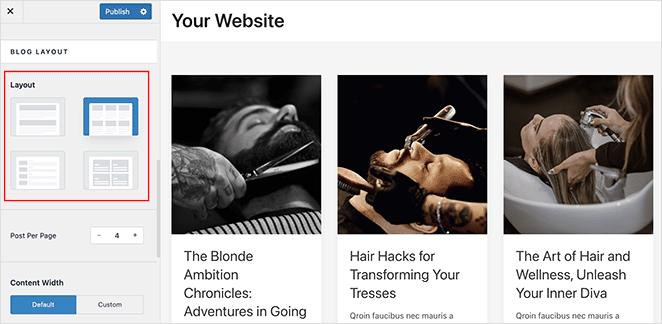
Choose an option that fits your layout needs, then click the Publish button to save your changes.
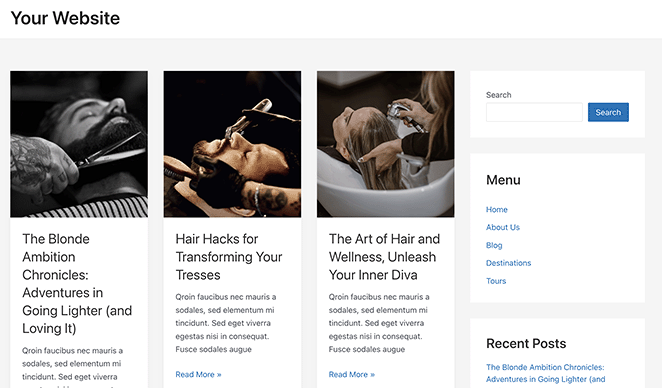
Then, you can visit your site to see your new blog layout.
Use the WordPress Full Site Editor
If you’re using a block-based WordPress theme, you may find it easier to use the WordPress Full Site Editor (FSE) to adjust your blog layout. The Full Site Editor (FSE) is a built-in WordPress tool that lets you visually customize your entire site using blocks.
You can edit virtually any page, including your front page, headers, footers, and, of course, your blog page.
To do this, head to the Appearance » Editor screen from your WordPress dashboard and click ‘Pages’ in the left-hand sidebar.
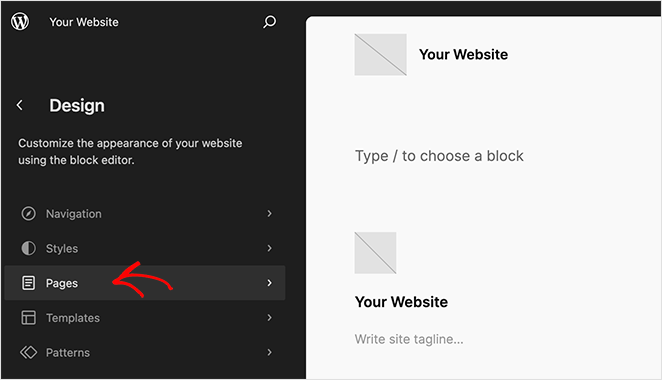
Next, click the ‘Blog’ page option and click preview on the right to customize your page and change its layout.
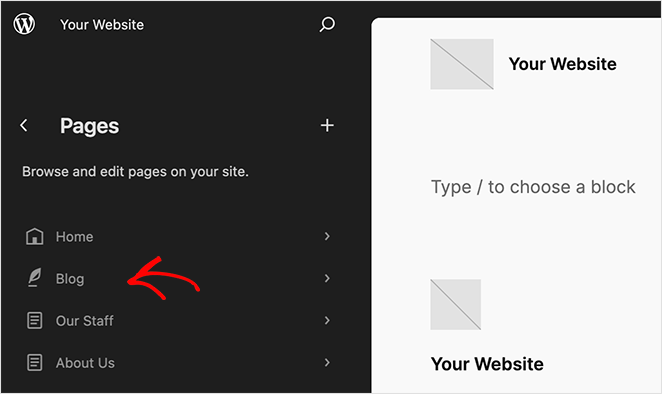
Now, you can click the plus (+) icon to add blocks to the page, such as the Posts List block. You can also change colors and fonts on the page by clicking the ‘Styles’ icon in the left sidebar.
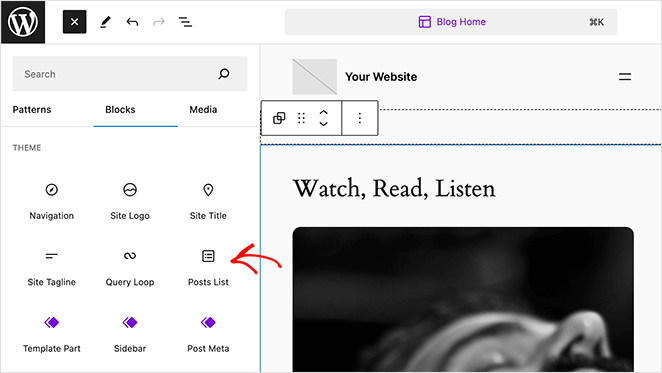
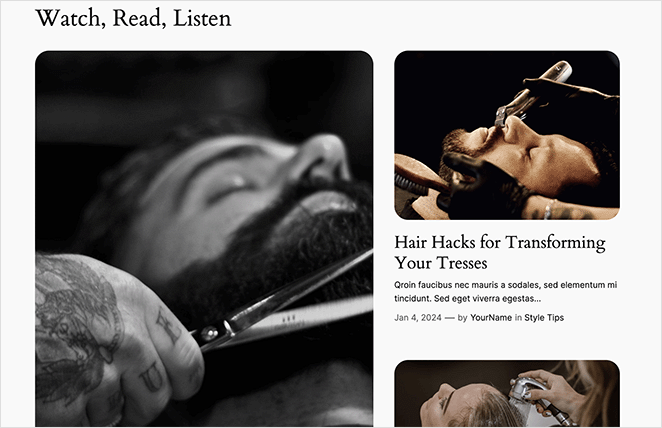
When your layout is complete, click the Save button to save changes instantly. Then, go ahead and visit your blog layout to see how it looks.
Which Blog Layout Method Should You Use?
Not sure whether to use SeedProd, change your theme, or try the Full Site Editor? Here’s a quick comparison of each method to help you choose the best option for your needs and skill level.
| Method | Best For | Skill Level | Requires Plugin? |
|---|---|---|---|
| SeedProd | Full control, drag-and-drop design, landing pages | Beginner | ✅ Yes |
| Change WordPress Theme | Full site redesign and new layout style | Beginner | ❌ No |
| Full Site Editor (FSE) | Tweaking layout in block-based themes | Intermediate | ❌ No |
Design Tips for an Effective Blog Layout
Now that you know how to change blog layout in WordPress, let’s move on to some key tips for its design.
Visual Hierarchy is Key
Visual hierarchy means designing your page so visitors notice the most important parts first. There are many ways to achieve this. For instance, you can play around with the size, color, and position of different elements.
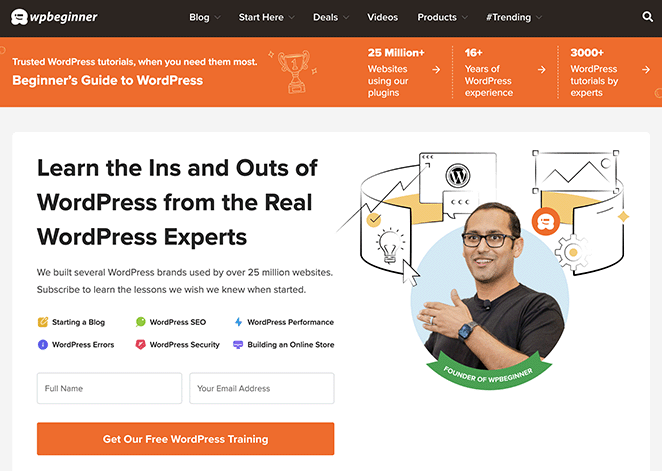
This blog layout example from WPBeginner does a great job of drawing the eye to one of its most important elements: the opt-in form. By placing it at the top in bold, engaging colors, users are drawn to it first before anything else.
Invest in Readability
Your blog content matters most, so it must be easy to read. Choose fonts that are easy on the eyes and ensure they contrast with your background color. If the text is hard to read, it can turn people away.

I love the font choices used on AIOSEO’s blog page. The font size and spacing are easy to read without having to squint.
Prioritize Navigation
Simple and clear navigation makes your blog user-friendly. Help your readers easily find what they need without overthinking. Get rid of any unnecessary clutter and give main features prominent placement.
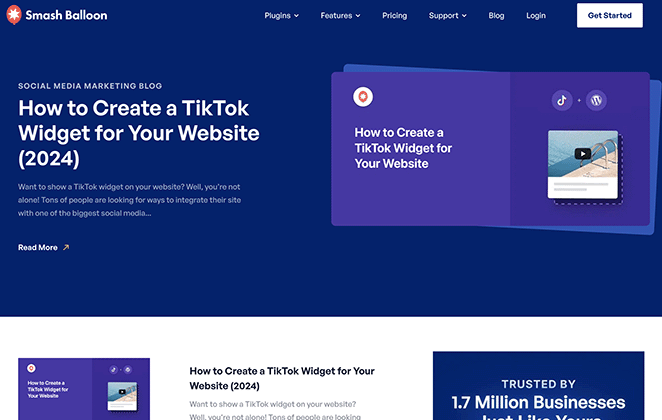
Smash Balloon’s blog layout is a great example of clear navigation. Besides a full-width section for its latest blog post, it features a clean navigation bar for users to explore its products, features, pricing, and support.
Don’t Forget Mobile Users
Mobile browsing has surpassed desktop usage, so a mobile responsive design is a must. When designing your blog layout, think about how it will translate on smaller screens. Keep track of your mobile visitors’ experience to make sure it’s smooth and enjoyable.
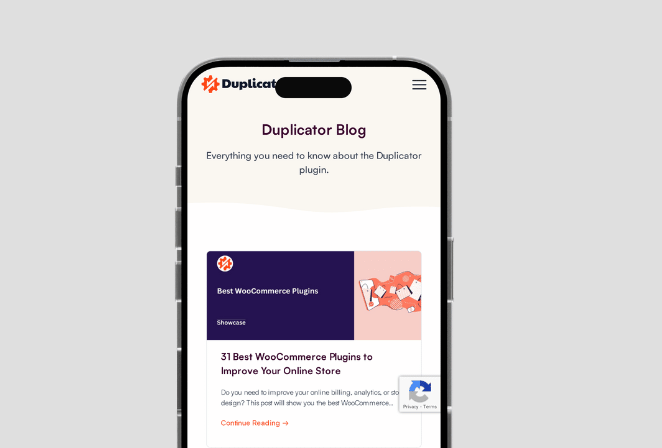
Duplicator has done an excellent job of making its blog mobile-friendly. Whether you’re using a smartphone, tablet, laptop, or desktop, you can browse all areas without facing any issues.
Frequently Asked Questions
How do I show more blog posts per row in WordPress?
In SeedProd’s Theme Builder, open the blog template and select the Posts block. Switch the Layout dropdown to Grid and increase the column count to display more posts per row with smaller featured images.
Can I change my blog layout without installing a plugin?
Yes. If you’re using a theme with built-in layout options like Astra, you can switch your blog layout from Appearance > Settings in the WordPress Customizer. If you’re on a block-based theme, the Full Site Editor lets you adjust your layout without any extra plugins.
Will changing my blog layout affect my SEO?
A layout change itself won’t hurt your rankings. Switching to a faster layout can actually improve your SEO by reducing page load time. Just make sure your key content, headings, and internal links are preserved after the change.
What is the easiest way to change blog layout in WordPress?
SeedProd’s Theme Builder is the easiest option. You can switch between Grid, Masonry, and Carousel layouts in a few clicks, adjust column counts and image sizes, and see every change live before publishing.
Can I use the Full Site Editor to change my blog layout?
Yes, if you’re running a block-based theme. Head to Appearance > Editor > Pages, open your Blog page, and use the block editor to adjust the layout. It works without any extra plugins, though the customization options are more limited than SeedProd.
Get Started With a New Blog Layout
You might also be interested in reading the following tips and tutorials for more blog tips:
- Stunning Blog Layout Examples to Revamp Your Site
- The 11 WordPress Plugins I Install on Every Site I Build
- 8 Blog Landing Page Examples + How to Make One
- How to Make Your Blog Look Like a Website (11 Expert Tips)
- How to Promote Your Blog (Beginner’s Guide)
- 9 Best Blogging Platforms (Pros and Cons)
If you’re ready to change your blog layout without touching code, SeedProd lets you do it in minutes.
Thanks for reading! We’d love to hear your thoughts, so please feel free to join the conversation on YouTube, X and Facebook for more helpful advice and content to grow your business.



