

TL;DR: How to Customize Your WooCommerce Shop Page
Your WooCommerce shop page is a product archive built from a template file, so you can’t edit it like a normal page. These methods work instead.
- What it is – Your store’s main product listing, generated from WooCommerce’s archive-product.php template
- Method 1: SeedProd – Drag-and-drop builder with WooCommerce blocks and full design control, no code
- Method 2: WordPress Editor – The Site Editor on block themes, WooCommerce Customizer on classic ones
- Shop page title – Rename it, change its SEO title with AIOSEO, restyle it, or hide it
- Category pages – All of them come from one Product Archives template you customize once
- Product gallery – Add gallery images in the product editor, then show them with SeedProd’s Product Gallery Images block
The first WooCommerce store I set up for a client had a shop page that felt plain and didn’t match their brand at all.
If you’re in the same boat, don’t worry. WooCommerce is the most popular way to add eCommerce to WordPress, and you can customize your WooCommerce shop page without writing a single line of code.
I’ll show you how to redesign the whole page with a drag-and-drop builder or the built-in WordPress editor. After that, we’ll get to the shop page title, your product category pages, and product galleries.
What Is the WooCommerce Shop Page?
The WooCommerce shop page is the default product archive page that displays all of your store’s products. When you install WooCommerce, it automatically creates this page using your theme’s layout settings.
Think of it as your store’s main catalog or storefront. It’s where customers typically browse before clicking through to specific product pages.
By default, the shop page pulls content from your product listings and displays:
- Product images
- Titles and short descriptions
- Prices
- Product categories and tags
- Star ratings and reviews (if enabled)
WordPress generates it dynamically from your theme and WooCommerce’s template files.
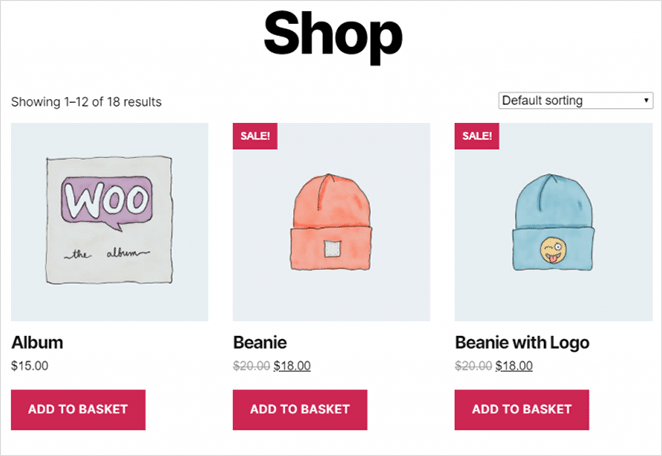
A well-designed shop page helps visitors quickly find what they’re looking for, reduces friction in the buying process, and increases sales.
Editing the WooCommerce shop page directly in the WordPress editor won’t work the way you might expect. The shop page is generated from a template file called archive-product.php, which WooCommerce uses to display your product archive dynamically using PHP hooks and shortcodes.
That’s why clicking “Edit Page” on the shop page doesn’t give you control over the WooCommerce shop page template or product grid. To customize it, you need a plugin like SeedProd, which replaces the template with your own design, or the built-in WooCommerce Customizer or Site Editor options.
Why Should You Customize the WooCommerce Shop Page?
Imagine walking into a physical store where all the products are randomly scattered on shelves, with no signs, categories, or featured items. You’d probably walk out fast.
That’s exactly what many shoppers experience when they land on a default WooCommerce shop page. A plain product grid with no context or direction leads to high bounce rates and missed sales opportunities.
Customizing your shop page helps you:
- Improve user experience (UX) by making it easier for customers to find what they want
- Increase conversions by highlighting bestsellers, sales, or high-margin products
- Improve SEO by adding keyword-rich content and schema markup
- Lower bounce rates by offering better navigation and visual hierarchy
- Build brand trust with testimonials, reviews, or user-generated content
A well-optimized WooCommerce store design is a critical part of turning visitors into buyers. If you’re still building your store from scratch, this guide on how to set up an online store in WordPress is a good starting point.
How to Customize WooCommerce Shop Page in WordPress
There are several ways to customize your WooCommerce shop page in WordPress. Here’s a quick look at your options before we dive in.
| Method | Best For | Code Required? |
|---|---|---|
| SeedProd | Full design control, custom layouts, banners, featured sections, brand-matching WooCommerce shop | No |
| WordPress Editor (Site Editor / Customizer) | Quick layout changes, product sort order, columns, no extra plugin needed | No |
| AIOSEO | Changing the shop page SEO title that shows in search results | No |
| Custom code | Advanced modifications beyond what tools offer | Yes (developer recommended) |
- Method 1: Use SeedProd to Customize WooCommerce Shop Page
- Method 2: Customize WooCommerce Shop Page Using the WordPress Editor
- How to Change the Shop Page Title in WooCommerce
- How to Change the Default Shop Page in WooCommerce
- How to Customize Product Category Pages in WooCommerce
- How to Add a Product Image Gallery in WooCommerce
- FAQ: Customizing the WooCommerce Shop Page
Method 1: Use SeedProd to Customize WooCommerce Shop Page
For the first method, I’ll use SeedProd to build a completely custom WooCommerce shop.

SeedProd is the best drag-and-drop website builder for WordPress, with over 1 million users. It lets you create custom WordPress themes, high-converting landing pages, and responsive website layouts without code.
When I measured page speed with GTmetrix, SeedProd loaded in 556ms compared to Elementor’s 1,882ms, with half the HTTP requests. That makes it a strong choice for any custom WooCommerce shop where page speed matters.
This plugin also lets you create entire online stores with its WooCommerce integration. You can customize your shop page, product pages, shopping cart, checkout, and more in a few clicks.
SeedProd comes with 300+ professional themes and templates. From there, you can customize your WooCommerce store design with easy-to-use content blocks and sections.
Follow these steps to customize your WooCommerce shop page with SeedProd.
Step 1. Install SeedProd Website Builder
The first step is downloading a copy of the SeedProd website builder plugin.
Free version limit: SeedProd’s free version builds simple landing pages. The WooCommerce blocks in this tutorial come with the SeedProd Elite plan.
You’ll need to install SeedProd on your WordPress website next. You can follow these instructions for installing a WordPress plugin if you need help.
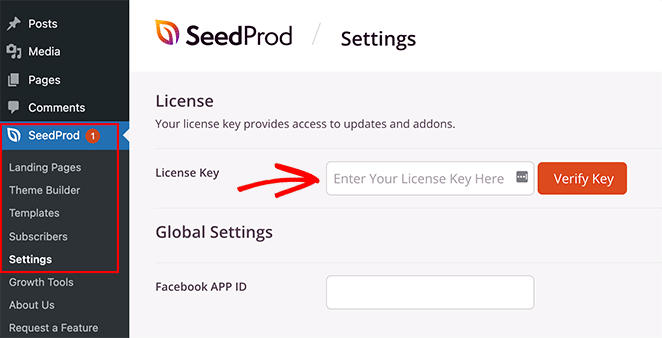
After installing and activating SeedProd, go to SeedProd » Settings and enter your plugin license key.
You can find your license key by logging into the SeedProd website and copying it from the ‘Downloads’ section.
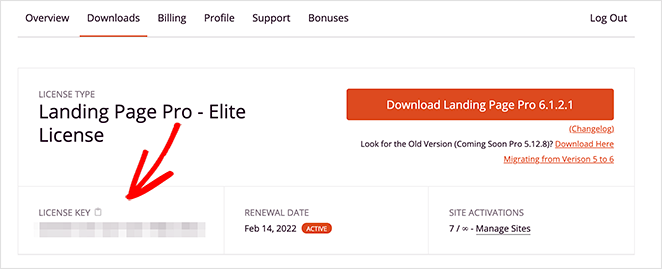
Enter your license key and click the Verify Key button before moving on to the next step.
Step 2. Create a Custom WooCommerce Theme
SeedProd’s Theme Builder is what customizes your WooCommerce shop page. It overrides your existing WordPress theme, replacing it with your own design.
You can find it by going to SeedProd » Theme Builder from your WordPress dashboard.
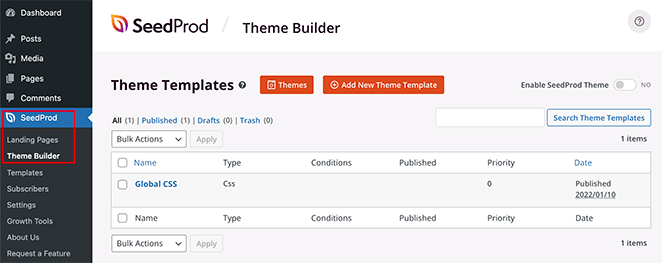
There are 2 ways to create your eCommerce theme with SeedProd:
- Create each part (template) of your theme individually
- Create all of your theme templates with a pre-made WordPress theme template
We’ll use the 2nd option for this tutorial because it automatically makes every part of your WooCommerce website.
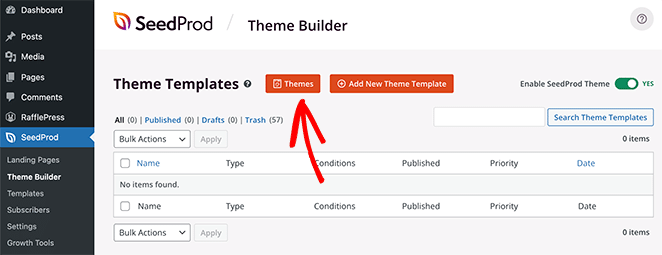
Click the Themes button at the top of your screen to launch SeedProd’s theme templates gallery. You can choose from many themes, including designs for online stores.
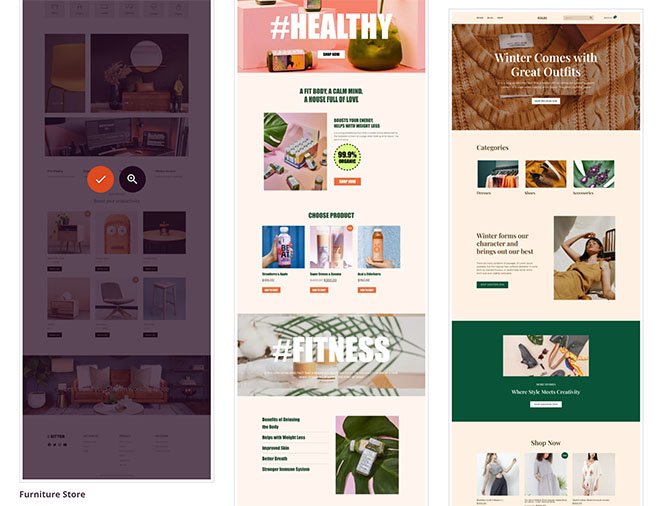
We’ll go with the ‘Furniture Store’ theme for this tutorial.
To import the theme, hover over the thumbnail and click the checkmark icon.
As you can see in the screenshot below, SeedProd will create all of the templates for your theme automatically, including:
- Header Navigation
- Product Archives
- Product Page
- Shop Page
- Single Page
- Single Post
- Blog Index, Archives, Search
- Homepage
- Sidebar
- Footer
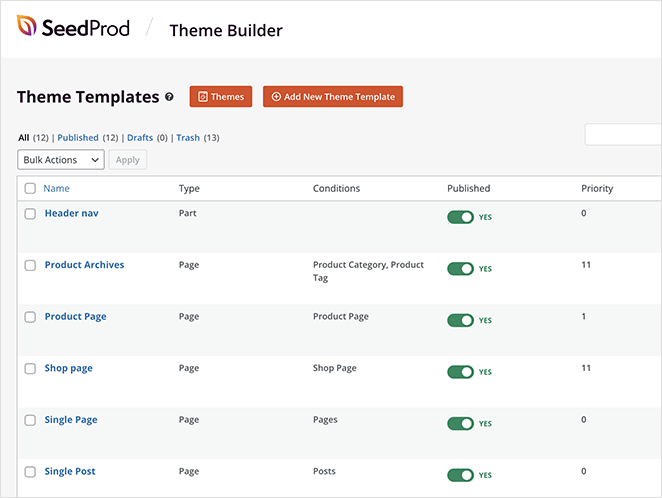
You can customize each template with SeedProd’s drag-and-drop builder. We’ll show you how to customize the shop page template in step 3.
Step 3. Customize WooCommerce Shop Page
To customize your WooCommerce shop page with SeedProd, hover over the ‘Shop Page’ template and click the Edit Design link.
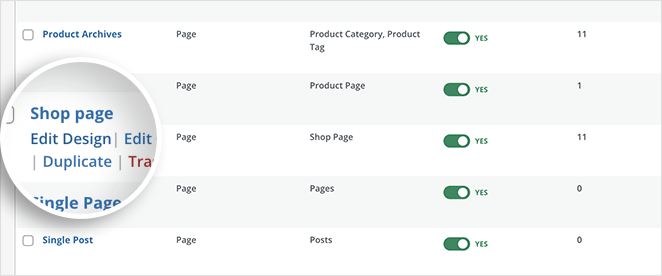
After clicking the link, your shop page template will open in SeedProd’s visual drag-and-drop page builder.
On the left are blocks and sections you can add to your page. You can see a preview of how your page looks in real-time on the right.
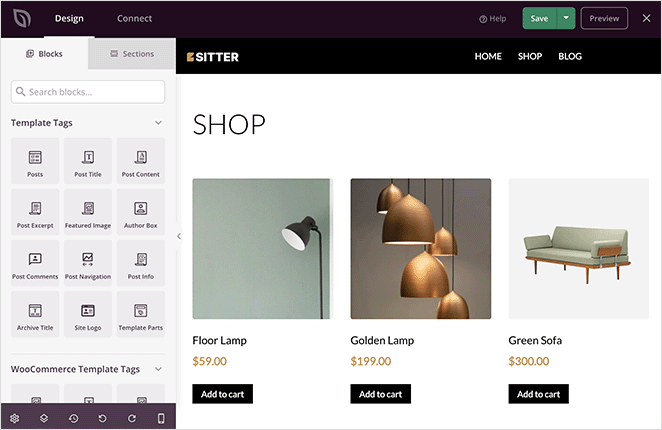
Your shop page will show a list of all your products by default. You can change that by adding new layouts, content blocks, and sections.
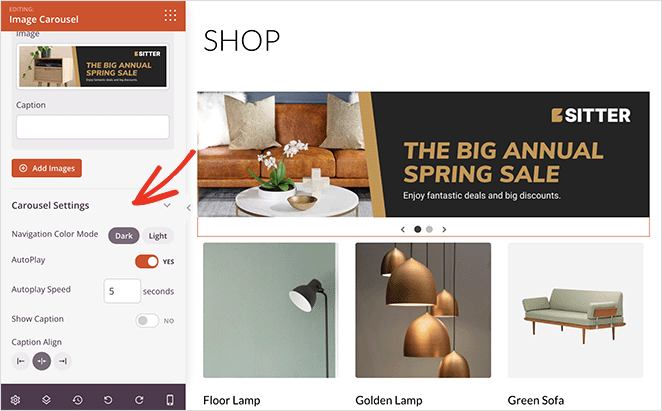
Let’s say you want to add a scrolling banner showcasing a sale or promotion. In that case, you can drag over the Image Carousel block and upload custom banner images.
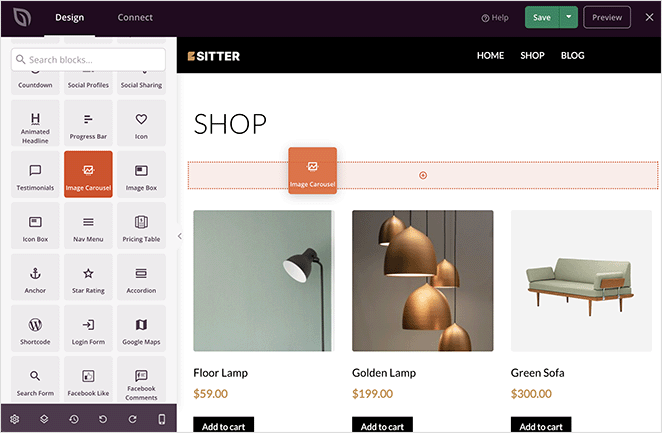
You can then customize your carousel in the block settings by changing it to a dark or light theme, auto-playing the slider, and showing the image captions.
What if you want to highlight your featured products or best-selling products? To do that, add a new section to your page, then scroll down to the WooCommerce blocks panel and drag the Best Selling Products block onto your page.
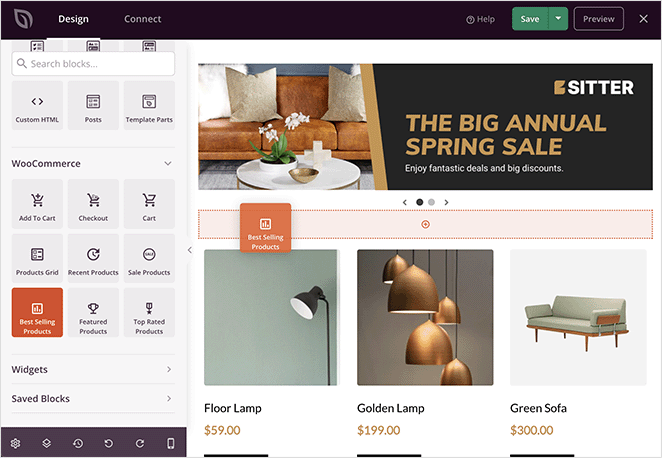
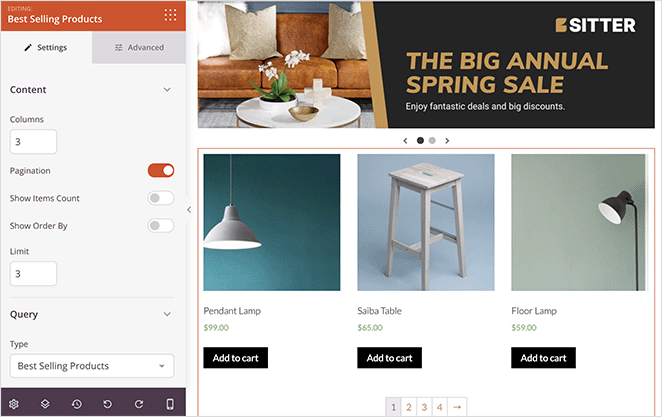
This block will display your top-selling products in a uniform grid.
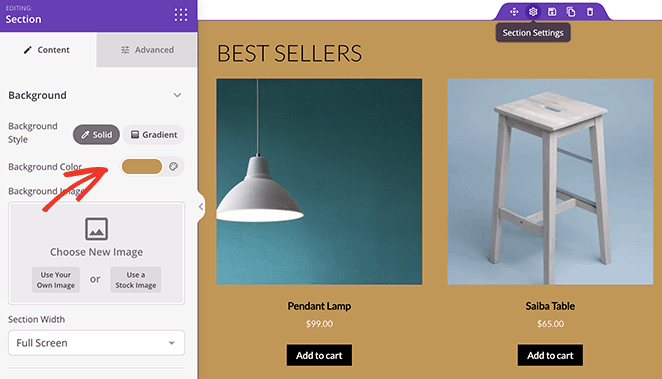
You can make this new page section stand out more by giving it a custom background color.
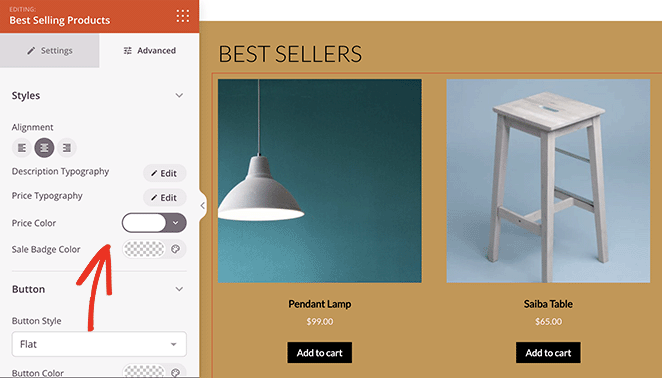
Then in the Best Selling Products block Advanced Settings, you can change the color, typography, and add to cart buttons.
You can also display products by category with SeedProd’s WooCommerce block. To do that, drag over the Product Grids block, change the ‘Query Type’ to Custom Query and click the Select by Category option.
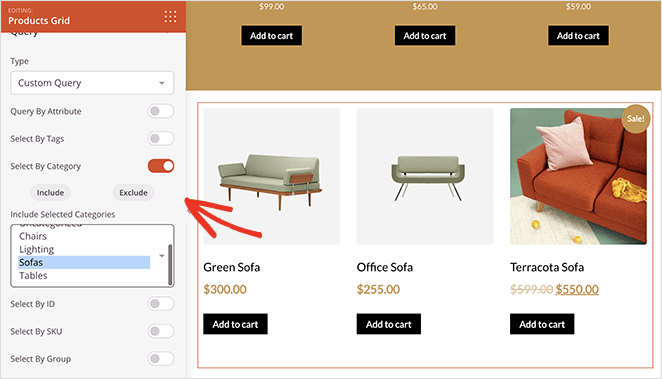
From there, you can choose which categories to include in the product grid.
Some other blocks you can add to your shop page include:
- Testimonials to boost trust and credibility
- Countdown timers to create urgency for your sale
- Accordion to display frequently asked questions
- Facebook or Twitter embeds to display user-generated content
You can even change your WooCommerce shop page title, which I’ll cover later in this guide.
When you’re happy with your shop page, click the green Save button in the top right corner of your screen.
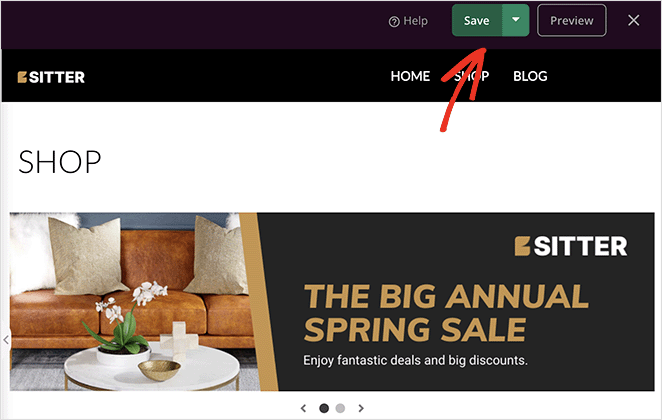
You can now follow the same process to customize the other parts of your WooCommerce store. Click ‘Edit Design’ on any of your theme templates and customize the layout and styling to suit your brand.
Step 4. Publish Your Custom Shop Page
When your WooCommerce site looks how you want, it’s time to make it live. To do that, go to SeedProd » Theme Builder and in the top-right corner, turn the ‘Enable SeedProd Theme’ toggle to the ‘Yes’ position.
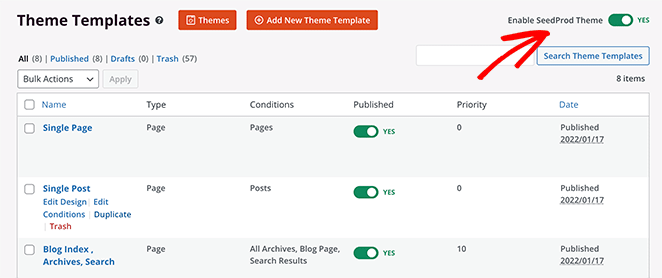
Now you can preview your WooCommerce shop page live on your website.

Method 2: Customize WooCommerce Shop Page Using the WordPress Editor
If you prefer not to use a third-party builder, WordPress and WooCommerce include built-in tools to adjust your shop layout. Which option you use depends on your active eCommerce theme.
Using the Site Editor (Block Themes)
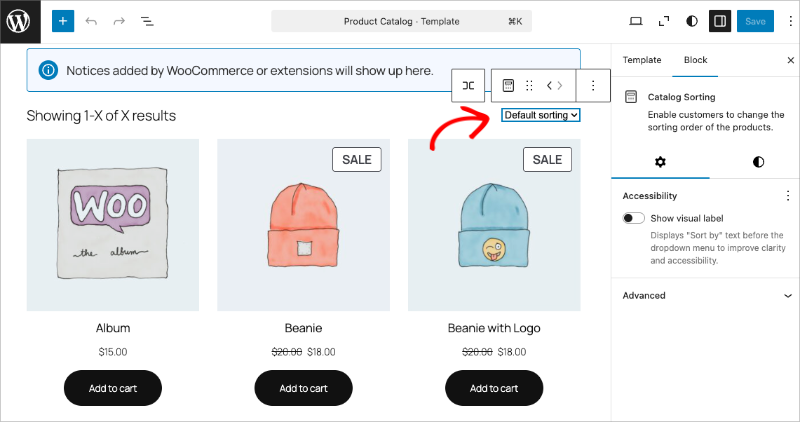
If your site uses a block theme (like Twenty Twenty-Four or Twenty Twenty-Five), you can edit the WooCommerce shop page template directly in the Site Editor.
Go to Appearance » Editor from your WordPress dashboard. Open the Templates list and look for the Product Catalog template (some themes label it Shop). Click it to open the template editor.
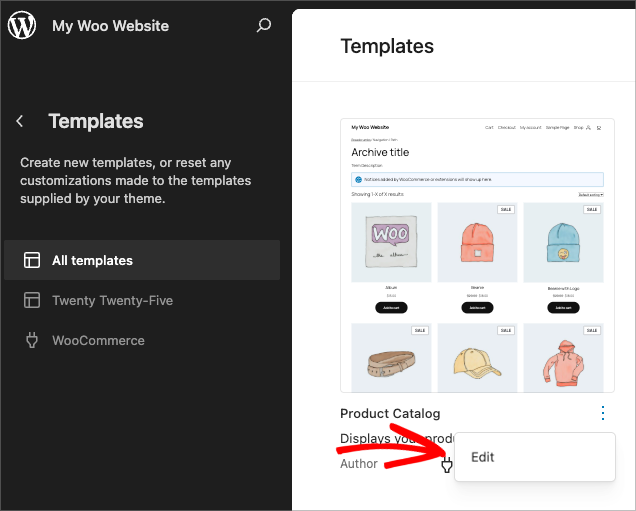
From there, you can add, remove, or rearrange blocks to change your WooCommerce shop layout. When you’re done, click Save.
Using the Classic Customizer (Classic Themes)
If your site uses a classic theme, WooCommerce adds display settings directly to the WordPress Customizer.
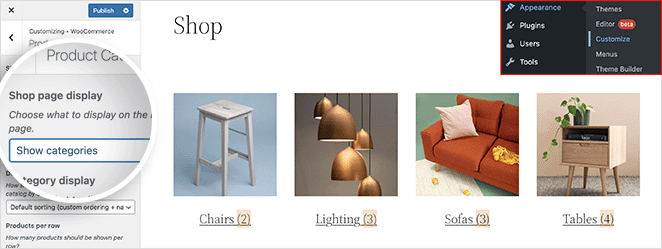
Go to Appearance » Customize from your WordPress dashboard. Then click WooCommerce » Product Catalog to see the customization options.
Click the ‘Shop page display’ dropdown menu and choose a layout.
For example, choose ‘Show categories’ to show only your product categories on the shop page.
Or choose ‘Show products’ to show only products.
You can also display your product categories first, then a grid of products with the ‘Show categories and products’ option.
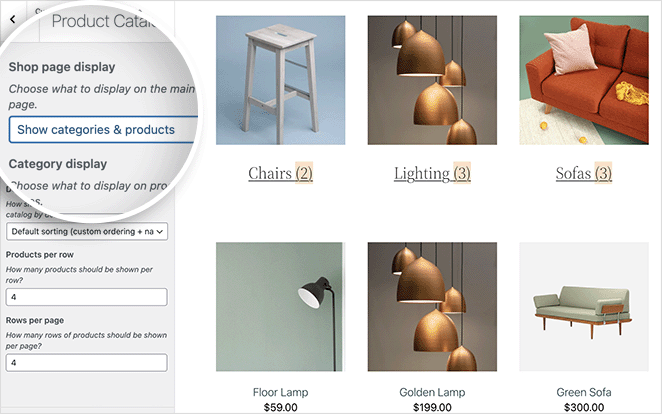
You can also sort products by:
- Popularity
- Average rating
- Most recent
- Price
You can also choose how many products per row and rows to display on each page.
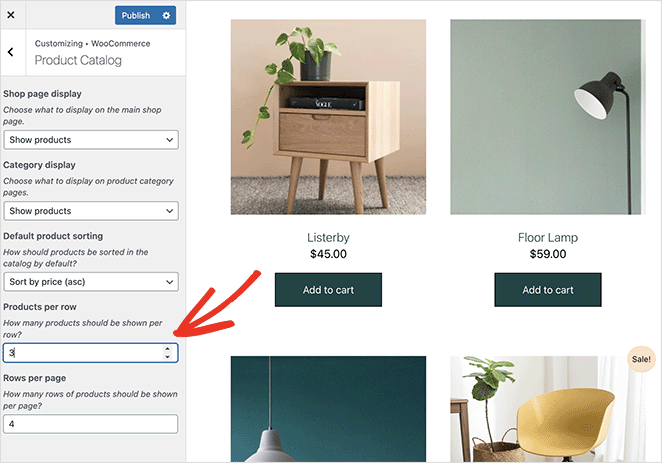
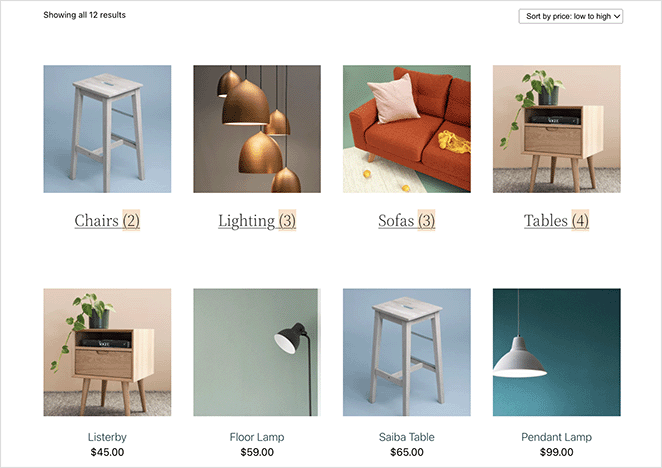
Here’s a preview of a shop page styled using the WooCommerce Customizer.
How to Change the Shop Page Title in WooCommerce
WooCommerce names your shop page ‘Shop’ when you install it, and plenty of store owners never touch it. A more descriptive title, like ‘Handcrafted Creations’ for a craft store, tells visitors what you sell before they start browsing.
It can help your SEO too. Search engines use titles to understand what a page is about, so a title with a relevant keyword gives your store a better shot at ranking.
The right method depends on which title you want to change: the one on the page itself, or the one in search results. Here are all four.
Rename the Shop Page in WordPress
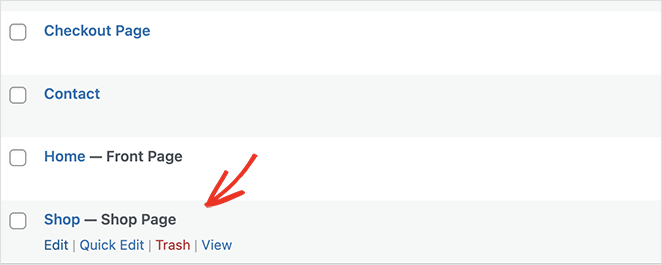
The fastest fix is renaming the Shop page like any other WordPress page. Go to Pages in your WordPress dashboard, find your shop page (usually listed as ‘Shop – Shop Page’), and click Edit.
Delete the old title at the top of the editor, type your new one, and click Update.
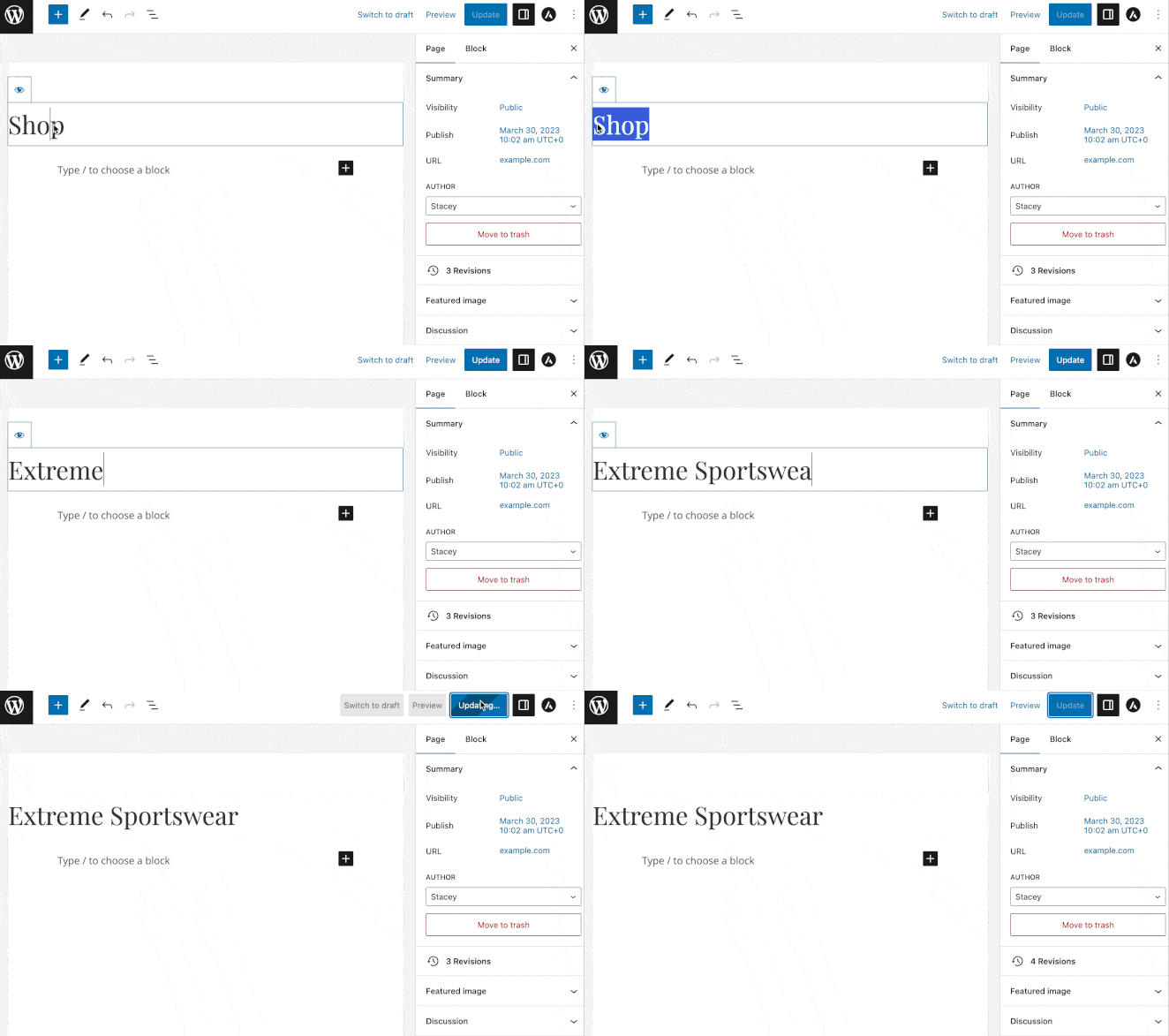
This changes the title everywhere: on the page, in the browser tab, in search results, and in any breadcrumbs or navigation menus that list the page.
Change the Shop Page SEO Title with AIOSEO
Sometimes you want the title on the page to stay put while the one in search results does the selling. That search listing title is the SEO title, and it’s what people see in Google before they ever visit your store.

To change it, I use All in One SEO (AIOSEO), the best WordPress SEO plugin with over 3 million users. The free version handles custom page titles, and the Pro version adds full WooCommerce SEO support.
Once the plugin is set up, open your shop page in the WordPress editor and scroll down to the AIOSEO Settings box.
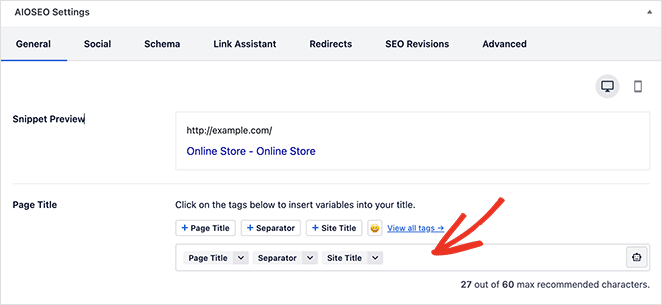
Enter your custom title in the Page Title field, or use Smart Tags to build one automatically. Then click Update, and search engines will show the new title the next time they crawl your page.
Change the Shop Page Title in SeedProd
If you built your shop page with SeedProd in Method 1, the title is a block like everything else. Go to SeedProd » Theme Builder and click ‘Edit Design’ on your shop page template.
Click the title in the visual editor and type your new one. From the same panel, you can adjust its size, heading level, alignment, and mobile visibility.
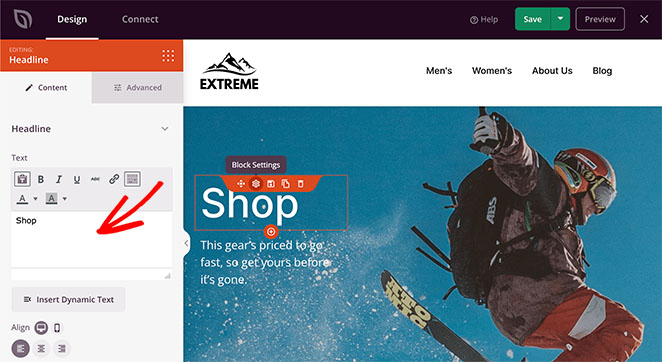
To change the title’s color and fonts, click the Advanced tab and use the point-and-click styling options.

When you’re happy with how it looks, click Save.
How to Hide the Shop Page Title
Sometimes the best title is no title, like when a custom banner or hero image does the talking instead. You can hide the shop page title with a small piece of CSS.
Go to Appearance » Customize from your WordPress dashboard and click Additional CSS.
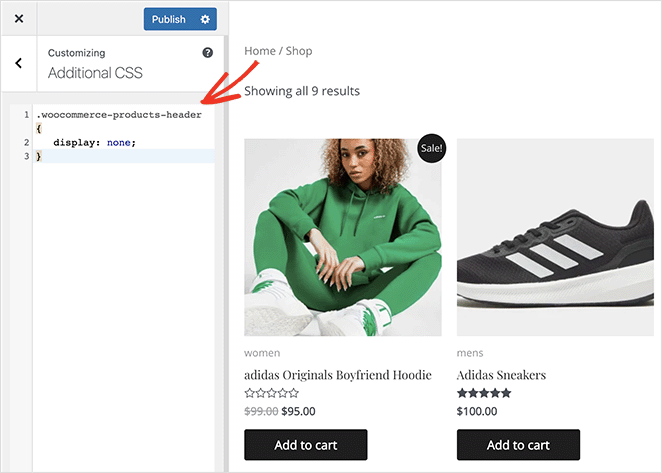
In the text box, enter the following code and click Publish:
.woocommerce-products-header {
   display: none;
}
To bring the title back later, delete the code and publish again. You can also add the snippet with WPCode, the best WordPress code snippets plugin, so you can switch it on and off with one click.
Hiding isn’t deleting: this CSS only hides the title on the front end. The heading stays in your page’s HTML, so search engines can still read it.
How to Change the Default Shop Page in WooCommerce
WooCommerce also lets you change which page acts as your shop page entirely. This is handy if you’ve built a custom page you’d rather use as your store’s front door.
Go to WooCommerce » Settings and open the Products tab. Under the ‘Shop pages’ heading, pick any page from the ‘Shop page’ dropdown and click Save changes.
WooCommerce now uses that page as your product archive. The shop page can also act as the base for your product permalinks, so double-check your product URLs after switching.
How to Customize Product Category Pages in WooCommerce
Your shop page isn’t the only page shoppers land on. Search engines often send people straight to a product category page instead, because it matches a specific search like ‘road bikes’ better than a general storefront.
Most stores leave those pages as bare product grids. Customizing your category pages with a proper heading, banner, and layout helps them rank for the keywords your shoppers search for, and gives people a reason to stay once they arrive.
Add Product Categories First
If your products aren’t organized into categories yet, start there. Go to Products » Categories from your WordPress dashboard.
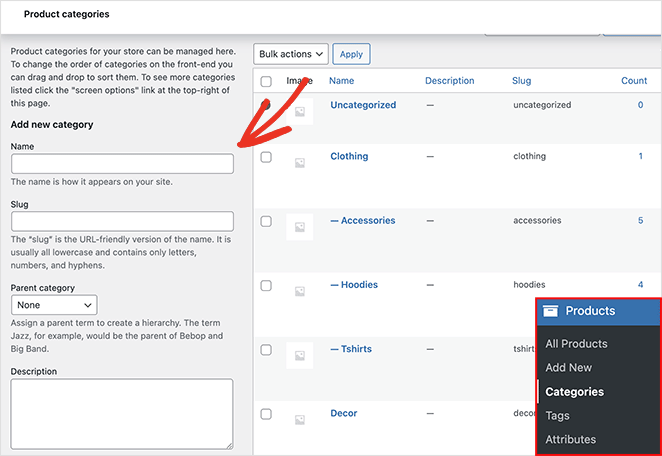
Give each category a name, slug, description, and thumbnail. WooCommerce then creates a page for every category automatically, and those are the pages you’ll customize next.
Customize Your Category Page Template in SeedProd
Every category page in your store comes from a single theme template called Product Archives. Customize it once, and all of your category pages update to match.
If you built your shop with SeedProd in Method 1, this template is already part of your WooCommerce theme. Go to SeedProd » Theme Builder, hover over the ‘Product Archives’ template, and click Edit Design.
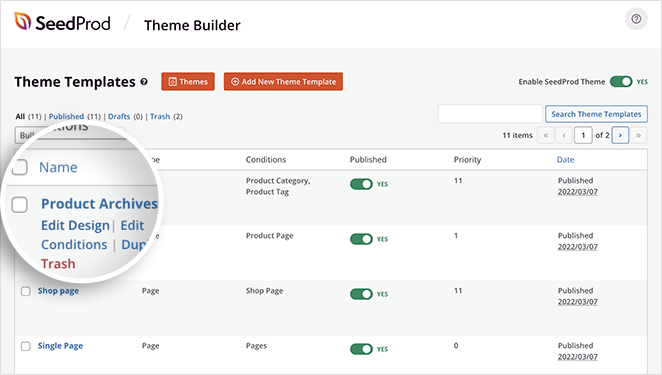
The template opens in the same drag-and-drop editor you used for your shop page. You’ll find two blocks already in place: Archive Title and Archive Products.
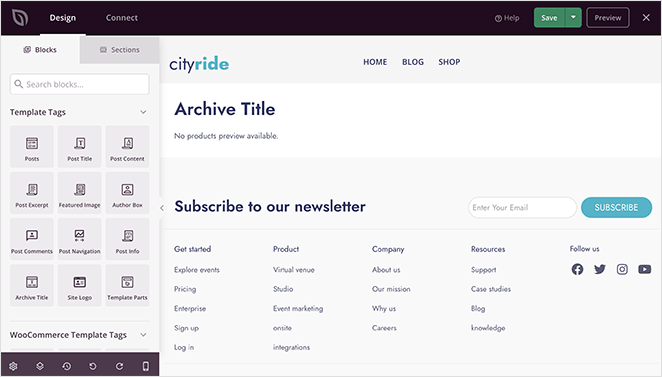
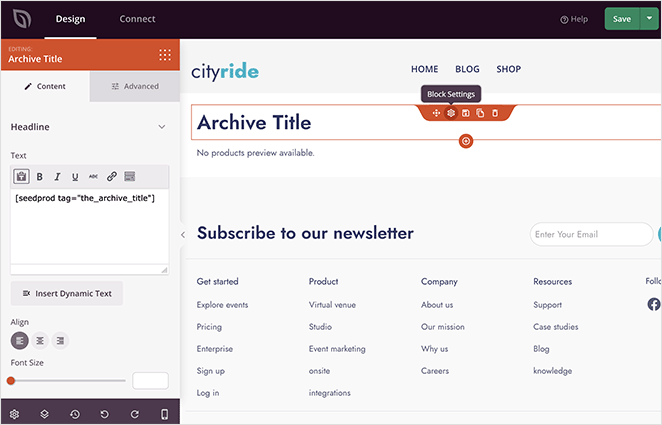
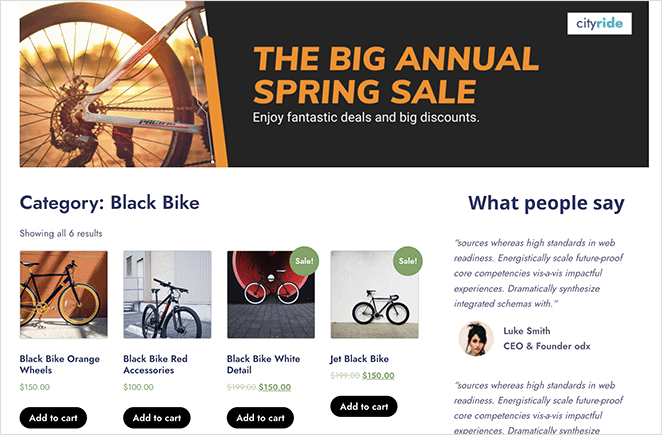
The Archive Title block shows the right heading for each category automatically. If a shopper opens your ‘Black Bikes’ category, the heading reads ‘Category: Black Bikes’ without you lifting a finger.
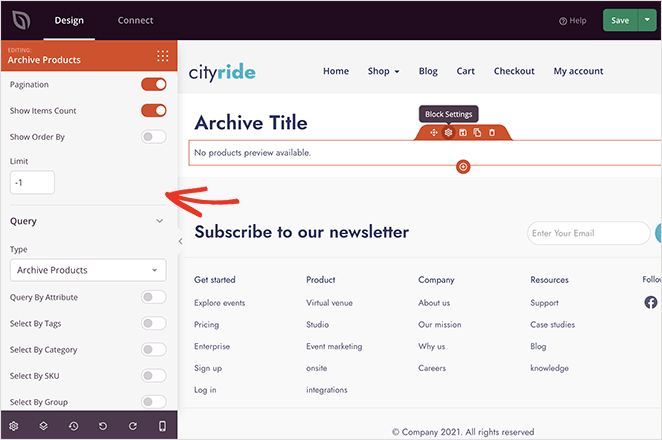
The Archive Products block does the same for your products, displaying a grid filtered to whichever category the shopper is viewing.
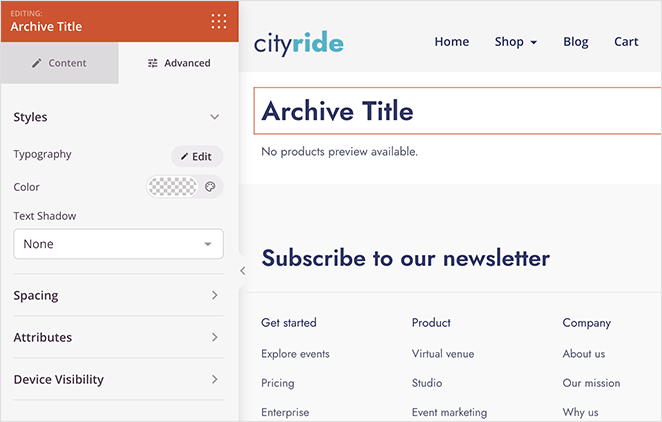
Click either block to style it in the left settings panel. You can change the title’s size, alignment, and heading level, then fine-tune the fonts, colors, and spacing in the Advanced tab.
From there, you can redesign the whole layout with any of SeedProd’s blocks and sections. Drag in an Image block to add a category banner promoting your latest sale, or drop the Testimonials block beside your products so shoppers see real customer reviews while they browse.
Here, I moved the archive blocks into a wide column and added testimonials in the narrow one beside them.
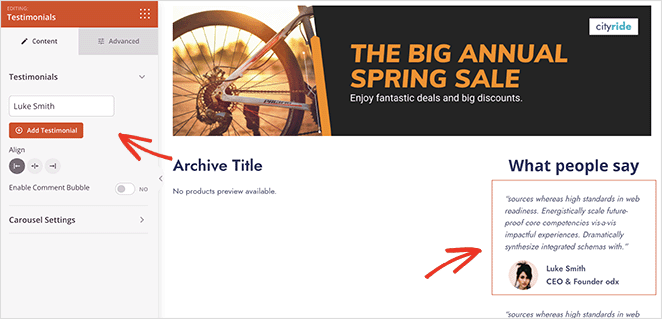
When you’re happy with your category page design, click Save. If your SeedProd theme is already enabled from Method 1, the changes go live on every category page straight away.
Want to show category links on the shop page itself as well? Set the Product Grids block to a custom query like in Method 1, Step 3, or turn on ‘Show categories’ in the Product Catalog settings.
How to Add a Product Image Gallery in WooCommerce
Your shop page has one job: getting shoppers to click a product. The product page then has to close the sale, and a single photo rarely does it.
I’ve worked on WooCommerce stores where everything looked polished except the product pages. They had one image, maybe two, with nothing to show different angles, colors, or details.
Adding a product image gallery changed that fast. Customers stayed on the page longer, asked fewer questions, and could inspect products the way they would in a real shop.
WooCommerce includes a basic product gallery out of the box. Here’s how to set it up, then customize how it looks with the same SeedProd theme you built in Method 1.
Add Gallery Images to Your WooCommerce Products
First, give your products some extra photos to display. Go to Products » All Products in your WordPress dashboard, find the product you want to update, and click Edit.
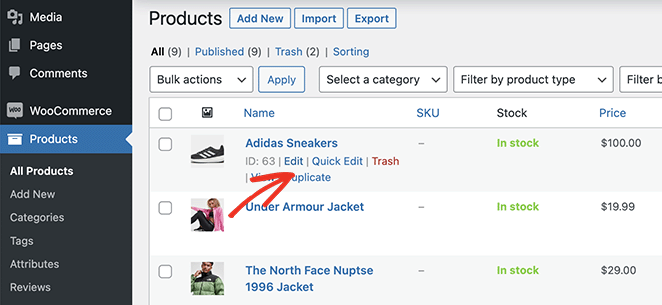
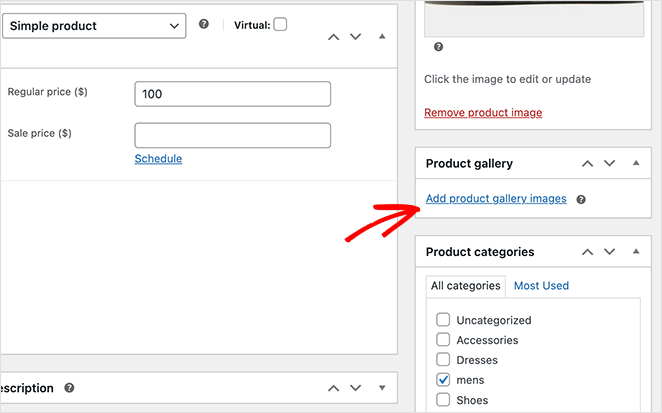
In the product editor, look for the ‘Product Gallery’ panel on the right-hand side. Click the Add product gallery images link.
This opens the WordPress Media Library, where you can upload new photos or pick existing ones. Hold Shift to select several images at once, then click Add to Gallery.
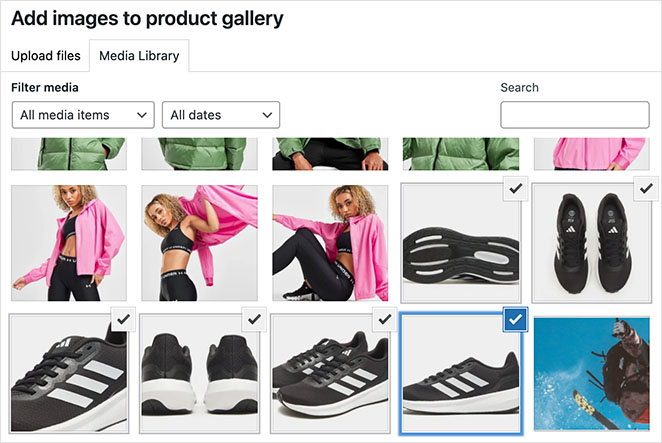
You’ll now see your main product image with the gallery thumbnails beneath it. Click Update to save the product.
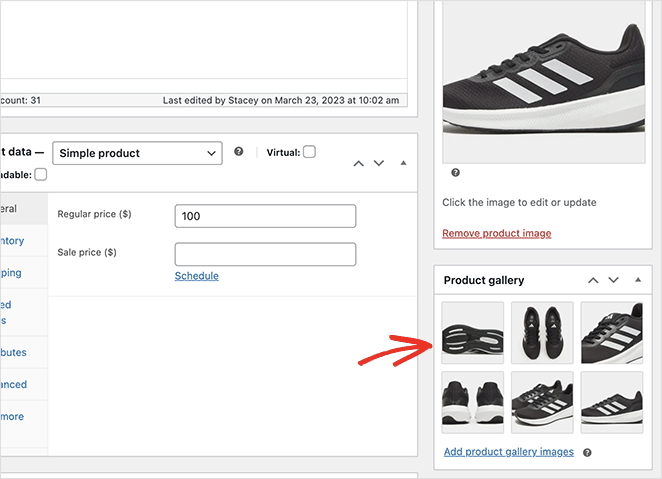
That’s the gallery content sorted. How it displays (the layout, zoom, and lightbox) depends on your product page template, which is where SeedProd comes in.
Display the Gallery with SeedProd’s Product Gallery Images Block
If you built your shop with SeedProd in Method 1, you already have a Product Page template. It controls how every individual product page looks.
Go to SeedProd » Theme Builder, hover over the ‘Product Page’ template, and click Edit Design.
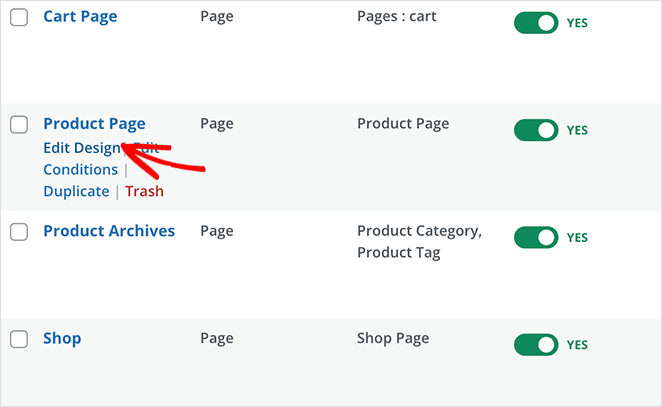
The template opens in the same drag-and-drop builder you used for your shop page.
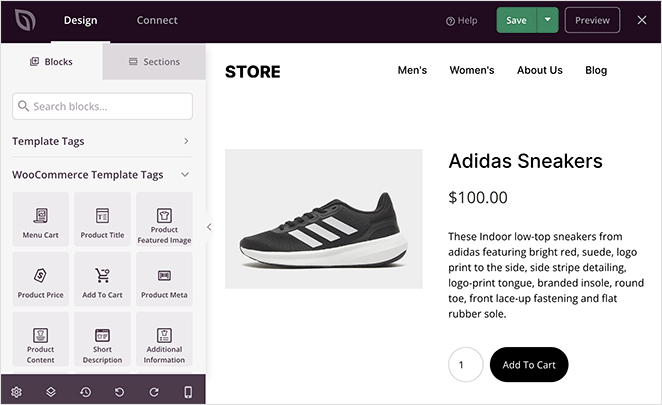
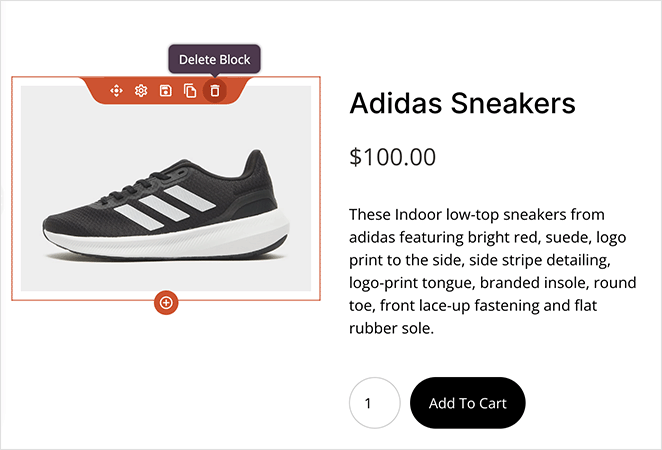
Most templates use the Product Featured Image block by default, which shows one photo per product. To display your full gallery instead, hover over that block until you see an orange border, then click the trashcan icon to remove it.
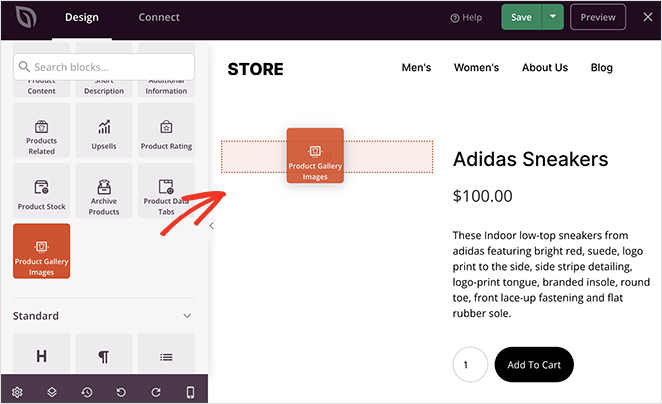
Now find the Product Gallery Images block in the left-hand panel and drag it into the space you cleared. It pulls every gallery image straight from WooCommerce, so the block stays up to date when you change a product’s photos.
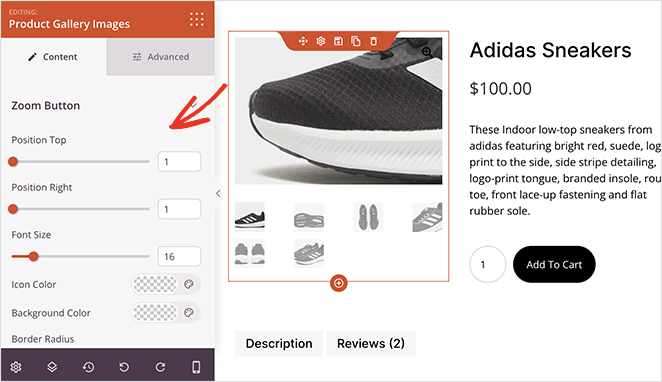
Click the gallery block to open its settings. The image zoom option lets shoppers magnify a photo by hovering over it, and you can adjust the zoom button position, size, and colors.
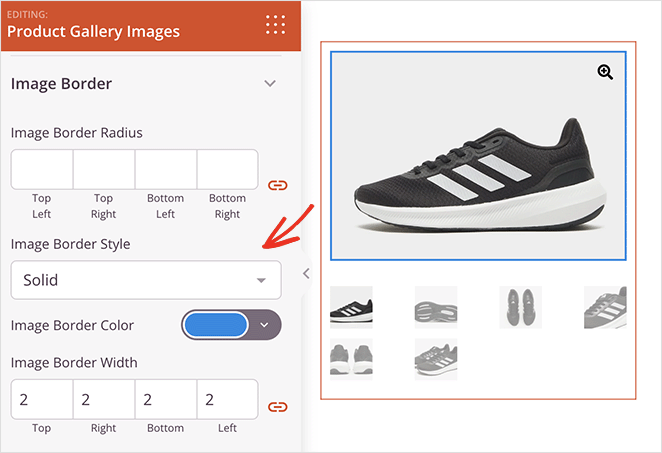
You can also style the main image and thumbnail borders, and the Advanced tab adds spacing, device visibility, and animation controls.
When you’re happy with the design, click Save. If your SeedProd theme is already enabled from Method 1, the change is live right away.
Here’s the finished product gallery in action, with a clickable slider and a full-screen lightbox view:
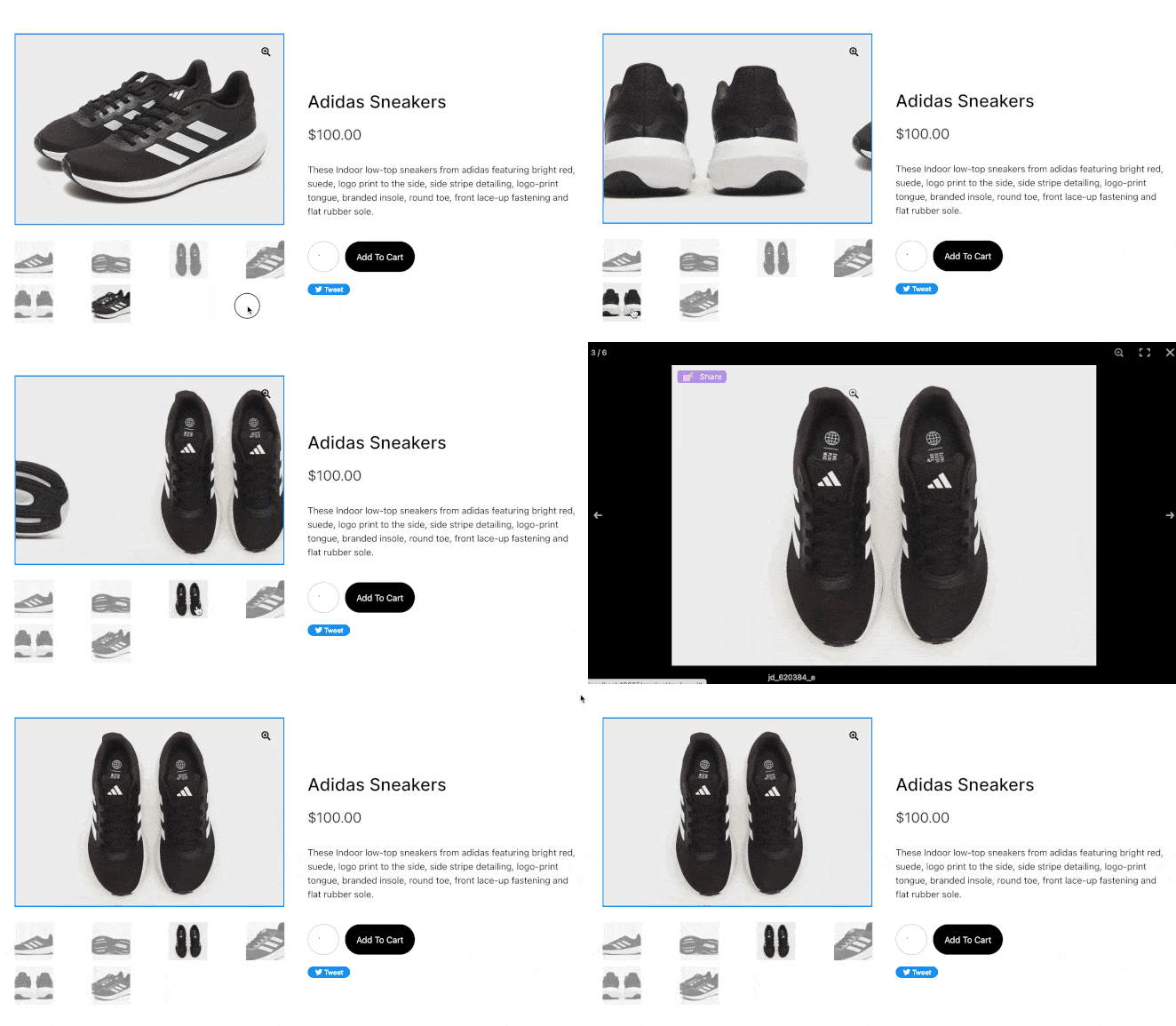
Product videos work too: you can drag SeedProd’s Video block onto the same template to embed a YouTube or Vimeo clip below your gallery. For a whole gallery of product videos, Smash Balloon’s YouTube Feed plugin can display demos and customer reviews in one place.
FAQ: Customizing the WooCommerce Shop Page
Why can’t I edit my WooCommerce shop page directly in WordPress?
The WooCommerce shop page is generated from a template file called archive-product.php, not stored as regular page content. Clicking “Edit Page” gives you access to the page object, but the product grid and layout come from WooCommerce’s PHP template system, not the block editor. To change the design, you need a tool that overrides the template, like SeedProd, or the built-in Customizer and Site Editor options.
How do I change what products show on the WooCommerce shop page?
You can control product visibility from the individual product settings in WordPress. Set a product to “Featured” to highlight it, adjust its publish status to show or hide it, or use product categories and tags to organize what appears. The WooCommerce Customizer also lets you change the default sort order (popularity, average rating, newest, price) under Appearance » Customize » WooCommerce » Product Catalog.
What is the WooCommerce shop page template file called?
The WooCommerce shop page uses the archive-product.php template file. You can find it in the WooCommerce plugin folder under woocommerce/templates/. To customize it with code, copy it to your theme’s woocommerce/ folder and modify it there. This prevents your changes from being overwritten on plugin updates.
How do I add a banner or featured section to my WooCommerce shop page?
The easiest way is to use SeedProd’s drag-and-drop builder. Open your shop page template in SeedProd, then drag an Image Carousel block above the product grid to create a scrolling banner. For a featured products section, add a new section and drop in the Best Selling Products or Featured Products block. You can style each section independently with custom backgrounds, colors, and typography.
What’s the difference between the WooCommerce shop page and product pages?
The shop page (also called the product archive) is a listing page that shows all of your products in a grid. Product pages are individual pages for each item, showing detailed descriptions, images, price, and the Add to Cart button. Customers typically land on the shop page first, browse, then click through to individual product pages. Both can be customized with SeedProd.
Can I customize each WooCommerce product category page differently?
Yes. Dynamic blocks like Archive Title and Archive Products adapt to each category automatically, so every page shows its own heading and products. For bigger differences, such as a unique banner for one category, you can use SeedProd’s display conditions to control which templates apply where.
Do custom WooCommerce category pages help SEO?
They can. Category pages target broader shopping keywords than single products, and most stores leave them nearly empty, so a little effort goes a long way. Add a short keyword-rich category description, a clear heading, and quality images. An SEO plugin like AIOSEO can also set a custom SEO title and meta description for each category page.
Can I include keywords in my WooCommerce shop page title?
Yes, and it can help your SEO. Search engines use the title to understand what your store sells, so a title like “Handmade Jewelry” works harder than a plain “Shop.” Keep it natural, though. Write the title for your customers first, and make sure it clearly represents what you’re selling.
Why is my old shop page title still showing in search results?
Search engines don’t update their index the moment you change a title. It can take days or even weeks for the new shop page title to appear in results. To speed things up, request a re-crawl of the page in Google Search Console, then give Google time to catch up.
How do I change the default product image in WooCommerce?
The default product image is the product’s featured image. To change it, edit the product, click the current photo in the ‘Product image’ panel, and pick a new one from the Media Library. This image appears on your shop page grid and as the first image in your product gallery.
Can I add a product image gallery in WooCommerce without a plugin?
Yes. The ‘Product Gallery’ panel in the product editor is built into WooCommerce, and most themes display the extra images with thumbnails. Zoom, lightbox, and slider behavior depend on your theme, though. A tool like SeedProd gives you control over those without code.
You don’t need a developer or a single line of code to make your WooCommerce shop page your own.
SeedProd handles the full redesign of your shop and category pages, the WordPress editor covers quick display tweaks, and renaming or hiding the shop title takes a few clicks.
You can start customizing your shop page right now.
You might also like this guide on how to set up WooCommerce conversion tracking while you’re here. Or this one on how to create a custom WooCommerce cart page.
Thanks for reading! We’d love to hear your thoughts, so please feel free to join the conversation on YouTube, X and Facebook for more helpful advice and content to grow your business.



