
TL;DR: How to Create a Google Ads Landing Page in WordPress
Sending traffic to your homepage wastes ad spend and tanks your Quality Score. A dedicated landing page fixes both. Here’s the fast version:
- Install SeedProd: Download and activate the plugin, then go to SeedProd » Landing Pages.
- Choose a template: Pick from 300+ mobile-friendly templates and click the checkmark to select.
- Customize your page: Edit headlines, CTAs, images, and colors in the drag-and-drop visual editor.
- Configure settings: Connect your email service, set up SEO fields, and add analytics tracking.
- Publish: Click Publish in the top right corner and verify the live page looks right.
- Link to Google Ads: Paste your landing page URL into the Final URL field of your ad campaign.
You’re running Google Ads and sending clicks straight to your homepage. The campaign is live, the budget is running, and the conversions aren’t coming.
The problem usually isn’t the ad. It’s what happens after the click.
In this guide, I’ll walk you through exactly how to create a Google Ads landing page in WordPress, with real examples and every step to optimize your page for conversions.
- What Is a Google Ads Landing Page?
- Why Do You Need a Google Ads Landing Page?
- How to Create a Google Ads Landing Page in WordPress (Step-by-Step)
- How to Optimize Your Google Ads Landing Page for Maximum Conversions
- How to Track and Improve Your Google Ads Landing Page Performance
- FAQs About Google Ads Landing Pages
What Is a Google Ads Landing Page?
A Google Ads landing page is a dedicated page visitors land on after clicking your ad, built specifically to match the ad’s message and convert that traffic into leads or sales.
That word “dedicated” matters. It means one goal, one CTA, and no navigation to anywhere else on your site. A homepage tries to serve every visitor. A Google Ads landing page serves one type of visitor at one specific moment in their search.
Google also evaluates your landing page as part of Quality Score, which affects where your ad ranks and what you pay per click. A page built around your ad’s keyword and message gets a higher score. A page that doesn’t match drops it.
Why Do You Need a Google Ads Landing Page?
Most advertisers default to sending ad clicks to their homepage. That decision hands Google a weaker Quality Score to work with, and a homepage was never designed to convert ad traffic.
- Quality Score: The experience of your paid search landing page is one of several factors that determine a keyword’s Quality Score. Relevance, usefulness of information, ease of navigation, and number of links on the page all contribute.
- Post-conversion experience: Your ad campaign landing page’s post-conversion experience helps build trust and keep the conversation going with your customers.
How Quality Score Affects What You Pay
Quality Score is Google’s 1-10 rating of how relevant your keyword, ad, and landing page are to a searcher. It feeds directly into Ad Rank, which determines your ad position. And Ad Rank determines your cost-per-click.
A 10/10 Quality Score can reduce your CPC by up to 50% compared to a 1/10 score, according to Google’s own documentation. Your landing page is one of three factors Google uses to calculate that score. Building a dedicated page around your ad’s keyword is the fastest way to move it.
Should I Use a Landing Page or My Homepage for Google Ads?
Use a dedicated landing page. Homepages are built for general audiences, not ad traffic.
When your ad says “Get a free quote for commercial cleaning,” but your homepage leads with navigation, a slider, and a blog feed, the message match is broken before visitors even read a word.
Competing CTAs are the other problem. A homepage typically has 5-10 different places a visitor can click. A landing page has one. That focus is why dedicated landing pages outperform general website pages in conversion research across the industry.
How to Create a Google Ads Landing Page in WordPress (Step-by-Step)
Now that you’ve seen why a dedicated landing page is essential, let’s walk through exactly how to create one in WordPress.
We’ll use SeedProd for this tutorial. It’s a drag-and-drop website builder that lets you build high-converting landing pages in WordPress without any coding required.
In my testing with GTmetrix, SeedProd pages loaded in 556ms compared to 1,882ms for Elementor. Since page speed is one of Google’s three landing page experience factors, that performance gap affects Quality Score directly.
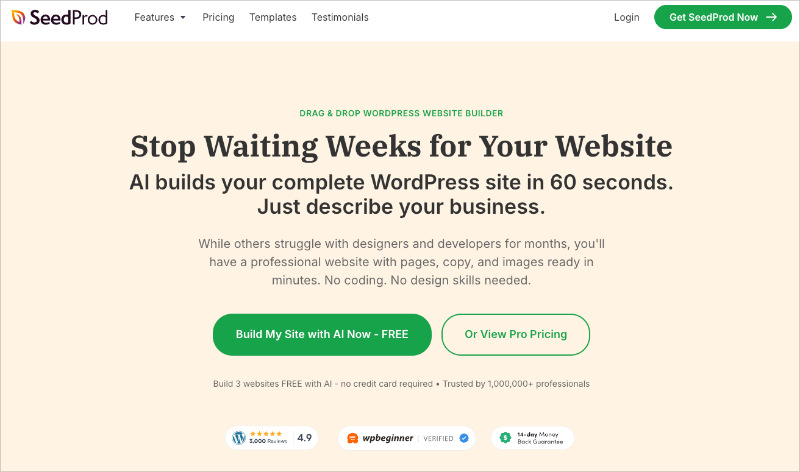
Follow the steps below to build your Google Ads landing page with SeedProd.
Step 1: Install and Activate SeedProd
The first step is downloading SeedProd and uploading the plugin to your WordPress website.
Then, install and activate the plugin. If you’re unsure how to do that, follow this guide on installing SeedProd.
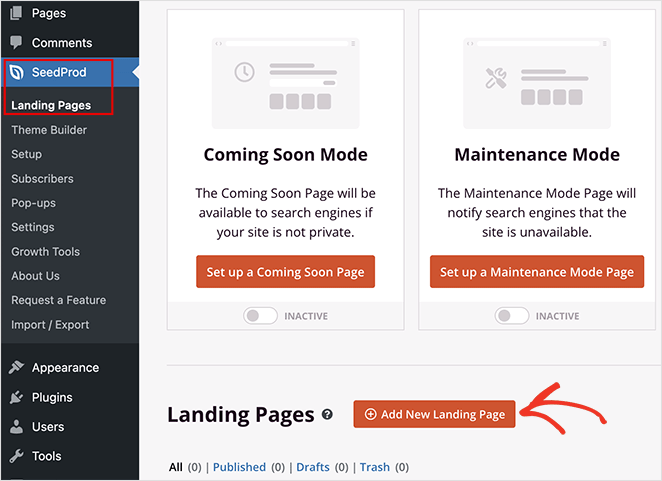
After activating the plugin, go to SeedProd » Landing Pages from your WordPress dashboard and click the Add New Landing Page button.
Step 2: Choose a High-Converting Google Ads Landing Page Template
On the next screen, you’ll see a library of mobile-friendly templates.
Don’t worry if you can’t see any specific Google Ads landing page templates. SeedProd’s designs are multipurpose, so you can customize any template to fit your campaign.
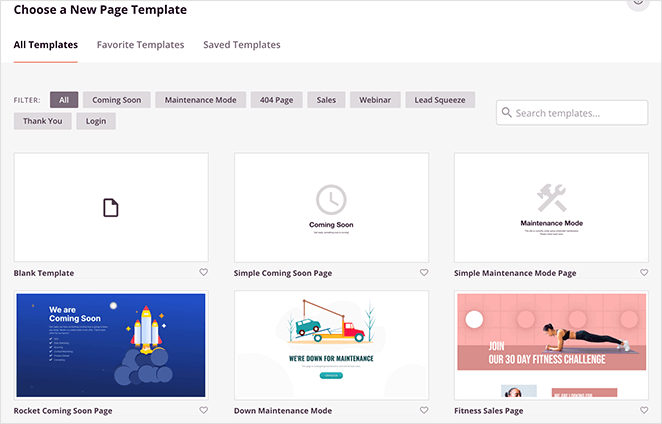
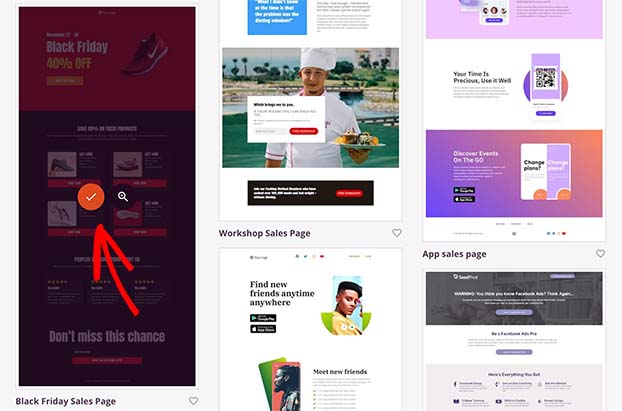
Click any tabs along the top to filter the templates by page type. When you find a design you like, hover over the thumbnail and click the checkmark icon.
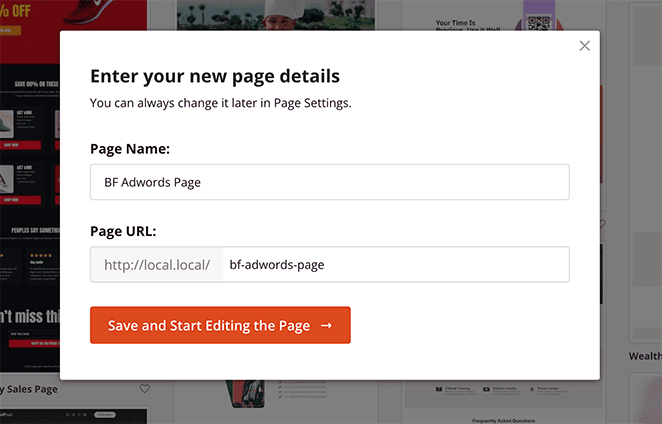
Next, you’ll see a popup where you can add your landing page name and URL. Click the Save and Start Editing the Page button to open your design in the visual editor.
Step 3: Customize Your Google Ads Landing Page
SeedProd’s visual editor uses a 2-column layout: blocks and sections on the left, live preview on the right.
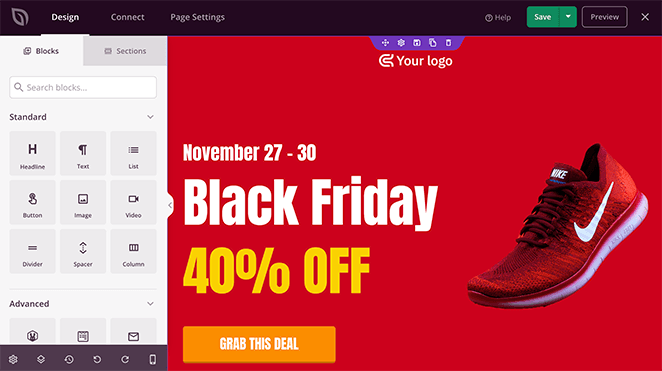
Click anywhere on your preview to edit the existing content. Adding new content blocks is as simple as dragging one from the left panel and dropping it into place.
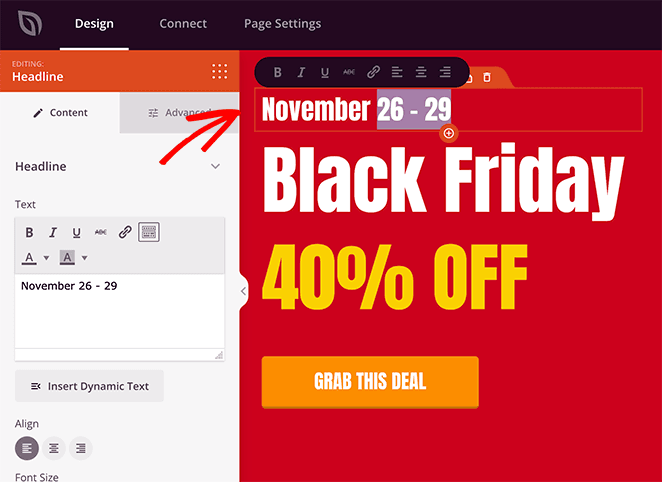
For example, you can click a heading to change the text, alignment, heading level, and more.
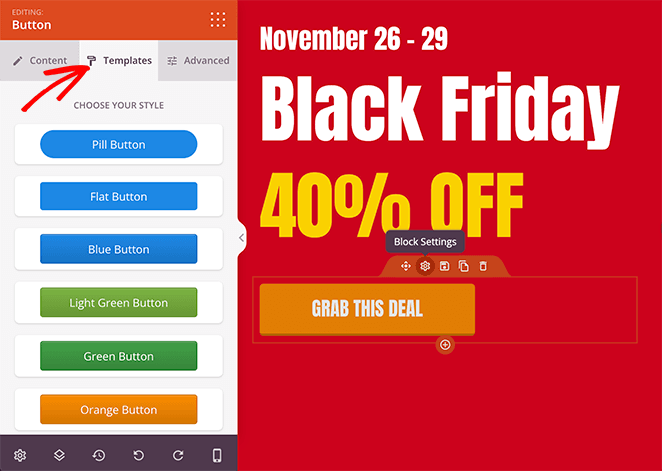
Click the call-to-action button to edit the button label, or click the Templates tab to choose a different button design.
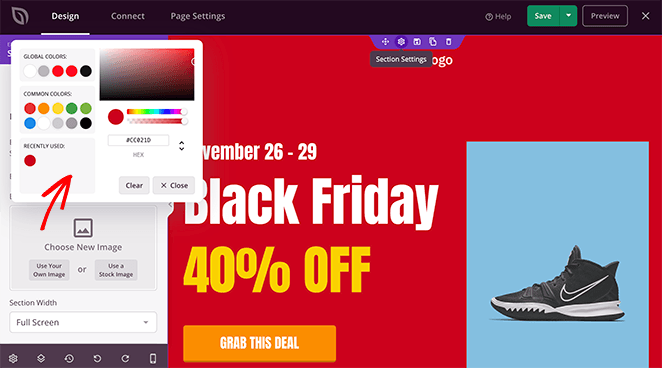
Want to change the template’s default image? Click the picture and choose the trashcan icon to remove it.

From there, upload a new image from your WordPress media library or computer.
You can also change the background color of any section by clicking the cog icon. Select a color to match your branding or hero image with the color picker.
SeedProd’s Dynamic Text feature lets you personalize any heading or line of text on your page based on the search query that triggered the ad. If you’re targeting both “Cyber Monday” and “Black Friday” in your campaign, each set of visitors sees the relevant term in your headline automatically.
To set it up, click the heading, select the Dynamic Text button, and add the keywords from your ad campaign.
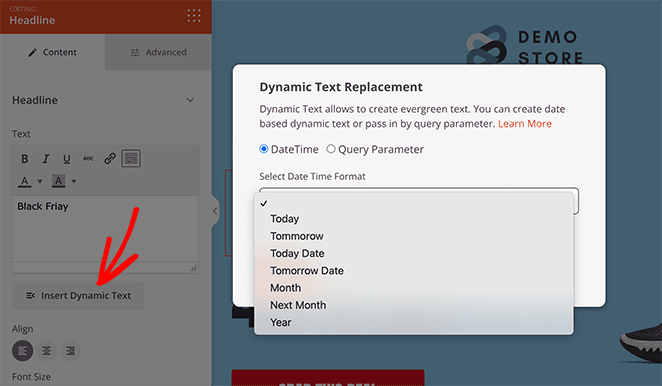
You can learn more about this in our dynamic text documentation.
If you want all your landing page buttons to be the same color, use SeedProd’s global settings to change them all at once. Click the cog icon in the bottom right corner to access global settings for fonts, colors, backgrounds, and custom CSS.
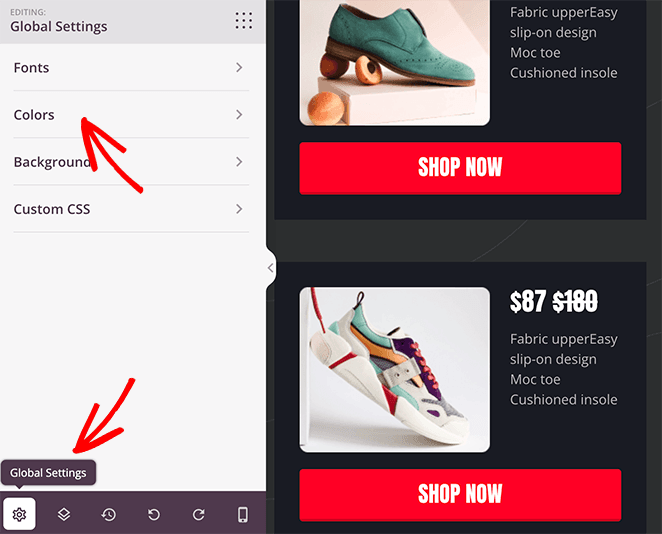
Click the Colors tab and add a custom color for all buttons on your page.
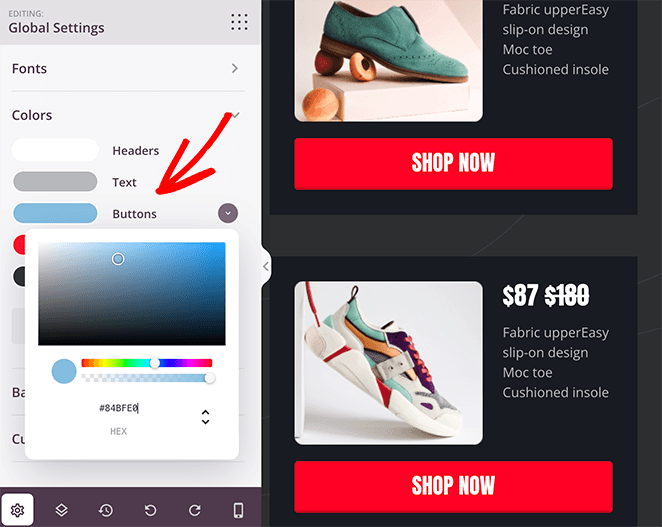
Continue customizing your landing page until you’re happy with how it looks.
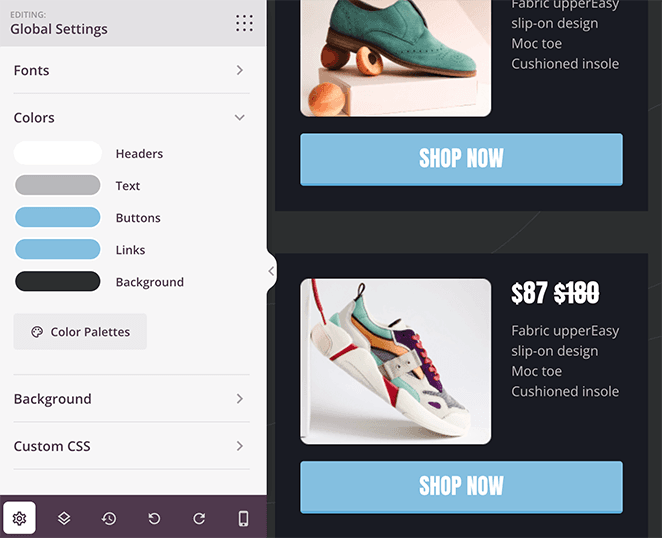
Step 4: Configure Your Landing Page Settings
After designing your Google Ads page, let’s look at a few settings to boost lead generation and conversions.
If your page has an optin form to collect email addresses, link it to your email marketing service. Click the Connect tab at the top of your screen to see all the email providers you can integrate directly in SeedProd.
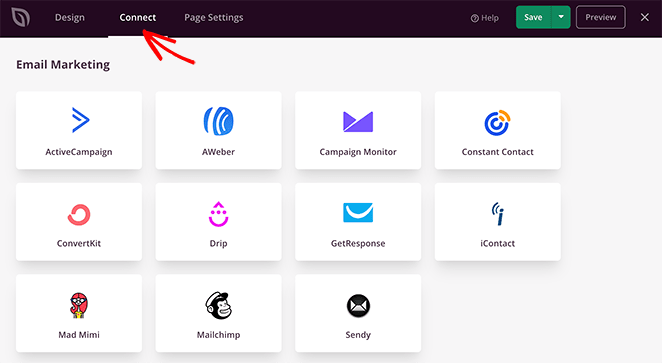
Find your email service, click it, and follow the instructions to connect your account.
You can learn how to connect to individual providers in our email integration documentation.
Now, click the Page Settings tab to access more options.
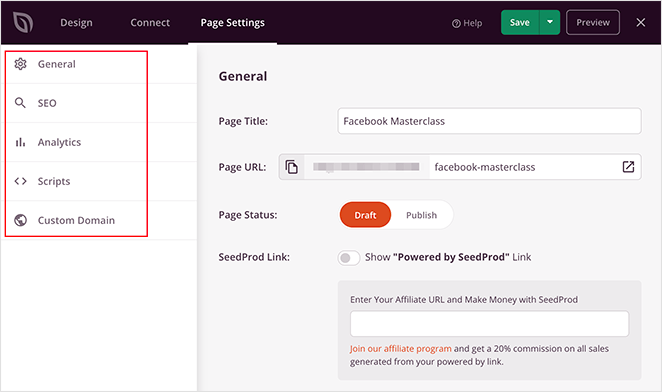
You can edit your page’s name and URL, enter your on-page SEO information, monitor your landing page analytics, and enter custom scripts on this screen.
If you have SeedProd Elite, you can use the Custom Domain feature to give your landing page a unique URL separate from your website. This makes it easy to set up multiple microsites without installing WordPress on each domain.
Don’t forget to click the Save button in the top right corner to store your changes.
Step 5: Publish Your Google Ads Landing Page
When your landing page is complete, publish it on your WordPress site. In the top right corner, click the dropdown menu next to the Save button and select Publish.
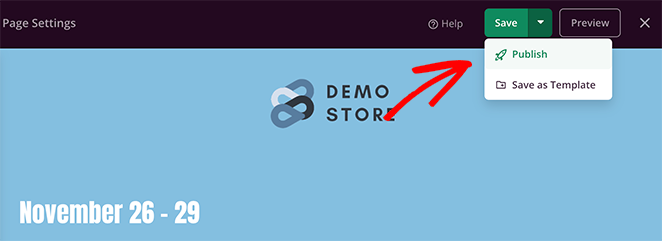
Click See Live Page to preview your new Google Ads landing page.
Here is the final version of the ads landing page we built on our test website:

Step 6: Link Your Landing Page to Google Ads
Add your final landing page to your ad campaign during the creation process. When you’re setting up a Google Ads campaign, find the ‘Final URL’ text field at the top of the page and paste your landing page URL.
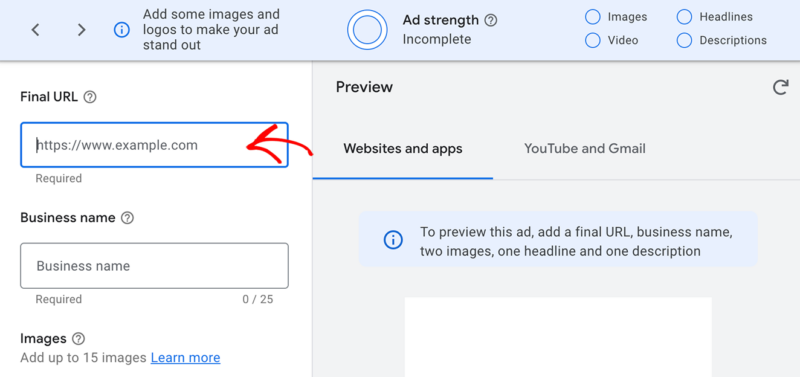
Once your ad campaign is live, visitors will go to your landing page after clicking the ad.
Google Ads Landing Page Examples
The best Google Ads landing pages do a few things well: they strip out distractions, put trust signals above the fold, and echo the exact search phrase that brought the visitor there. Here are three real dedicated campaign landing pages, each assigned to the principle it demonstrates best.
Zendesk: Stripped Navigation
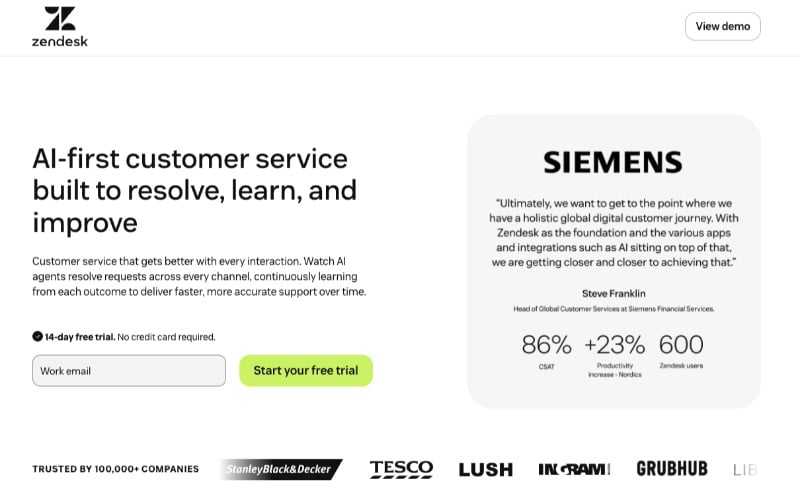
Zendesk strips the header down to a logo and a single “Start your free trial” CTA. That’s it. Every link that could pull a visitor away from the form has been removed, which means the only logical next action is to convert.
Below the headline, a row of company logos labeled “Trusted by 100,000+ companies” provides social proof before visitors scroll. This is the template: remove everything that doesn’t lead to the conversion, then show proof it’s worth converting to.
Intercom: Social Proof Above the Fold
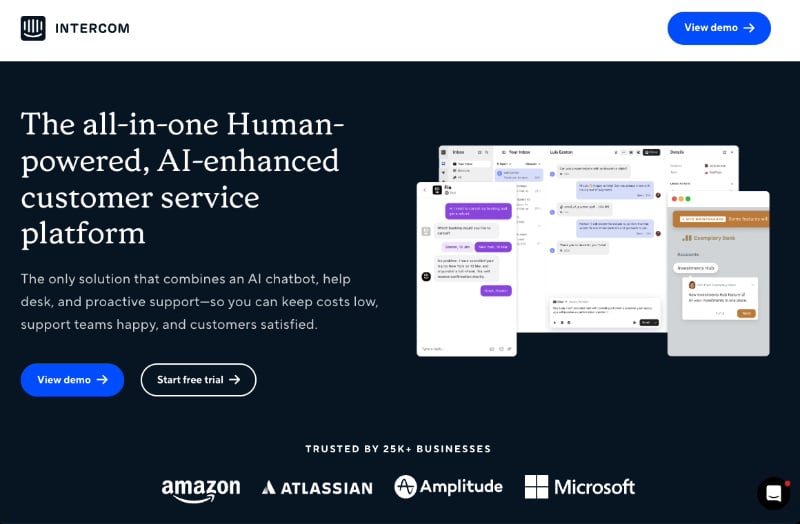
Intercom leads with trust before copy. Company logos (Amazon, Atlassian, Microsoft), G2 award badges, and a “Trusted by 25k+ businesses” line all appear above the fold, before visitors have read a word of copy.
The CTA has two options: “View demo” for visitors still researching and “Start free trial” for visitors ready to act. That split matches two different buyer stages without adding friction to either.
Wistia: Message Match
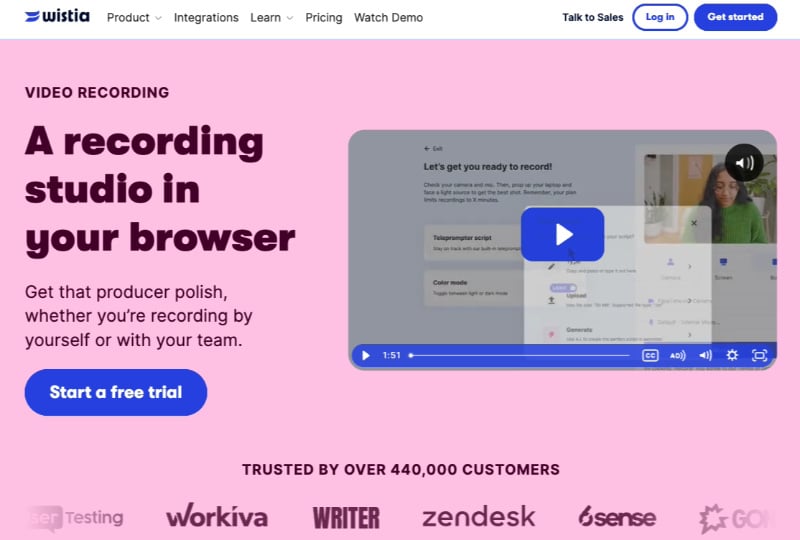
Wistia’s page for video recording opens with “Video Recording: A recording studio in your browser.” The headline mirrors the search phrase, so visitors immediately confirm they landed in the right place. That’s message match in practice.
A logo carousel labeled “Trusted by over 440,000 customers” appears directly below the headline and CTA. The visitor gets confirmation (right page), social proof (trusted at scale), and a clear action (Start a free trial) before scrolling an inch.
How to Optimize Your Google Ads Landing Page for Maximum Conversions
Publishing your landing page is the start, not the end. The advertisers who get the most from Google Ads are constantly testing and refining. Here are the highest-impact areas to focus on.
Write Landing Page Copy That Sells
Your headline should grab attention immediately and explain the main benefit of what you’re offering. Use active verbs and focus on what makes your product or service distinct.
In your page copy, explain how you solve the visitor’s problem. Focus on benefits over features, and address the hesitation that stops people from converting.
Testimonials, reviews, and case studies build the trust that turns interest into action. Place them near your CTA so the decision to convert and the evidence supporting it appear in the same viewport.
Design Your PPC Landing Page for Conversions
A well-designed landing page uses contrast, font size, and whitespace to guide visitors toward the conversion action. Your headline, benefits, and CTA should be visually distinct from the rest of the page.
High-quality images and video that resonate with your audience reduce bounce. Most of your visitors will be on mobile, so test your page on a phone before you link it to your campaign.
Optimize Your Calls to Action
Your CTAs drive the action you’re paying for. Use strong action words: “Get Started,” “Claim Your Offer,” “Sign Up Now.”
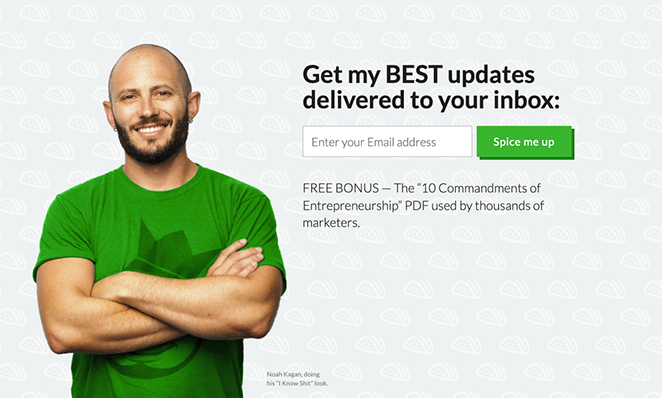
Place CTA buttons strategically throughout the page, especially after key information or benefits. Test different CTA styles, colors, and placements to find what converts best for your audience.
If you’re using a lead capture form, keep it short. Every additional field reduces completions.
Make Your Landing Page Match Every Keyword Automatically
Every Ad Group targets different keywords. Manually creating a separate landing page for each one isn’t realistic at scale. SeedProd’s Dynamic Text feature handles this automatically.
A visitor who searched “Google Ads landing page builder” sees “landing page builder” in your headline. One who searched “PPC landing page WordPress” sees “PPC landing page.”
That keyword match is exactly what Google checks when it evaluates landing page relevance for Quality Score, so a single well-configured page can serve multiple Ad Groups without the relevance penalty you’d get from a generic headline.
A/B Test to Find What Actually Converts
A/B testing is how you replace guessing with data. Test these elements in priority order:
- Headline copy: The biggest lever. Small wording changes can produce large conversion swings.
- CTA button text: “Get My Free Quote” often converts better than “Submit.”
- Hero image: Test product photography against lifestyle imagery.
- Form field count: Fewer fields almost always means more completions.
The metric to track is conversion rate, not traffic. SeedProd lets you set up multiple page versions for different Ad Groups so each group gets the version built for its specific keyword intent.
Why Is My Google Ads Landing Page Experience Below Average?
Google rates your landing page experience as Above average, Average, or Below average. A Below average rating raises your cost-per-click and drops your ad position.
Google uses three factors to assign the rating: relevance to the ad, transparency about your offerings, and ease of navigation (including mobile). To check your current score, go to Columns → Quality Score → Landing Page Exp. in your Google Ads dashboard.
Three fixes that move the needle most:
- Add relevant keywords to your page copy: If your ad targets “commercial cleaning London,” those words should appear in your headline and body text.
- Make the CTA match the ad: If the ad promises a free quote, the page should deliver a free quote form, not a generic “Contact Us.”
- Improve mobile page speed: Google cares about load time on mobile. SeedProd’s bloat-free code keeps load times fast, which protects your landing page Quality Score.
Extra Conversion-Boosting Tips
Create urgency with limited-time offers, countdown timers, or low-stock notifications to encourage visitors to act now.
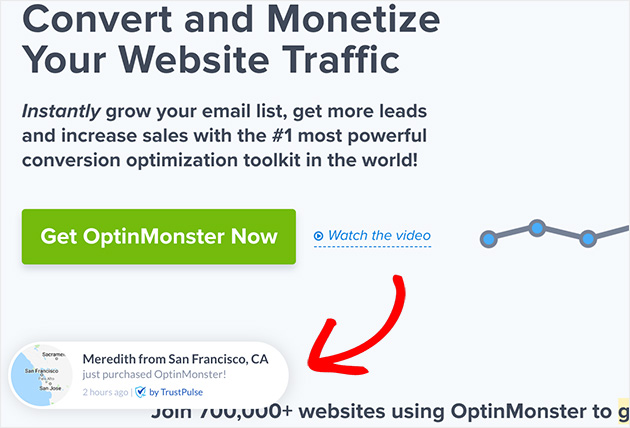
Display security badges or guarantees to put visitor minds at ease. And don’t forget to create a thank-you page to confirm the action and offer further instructions or relevant deals.
How to Track and Improve Your Google Ads Landing Page Performance
Publishing an optimized landing page is only half the work. You need to monitor performance to confirm it’s converting visitors into customers.
MonsterInsights is a Google Analytics plugin for WordPress that gives you in-depth insights into your landing page’s performance, right inside your WordPress dashboard.
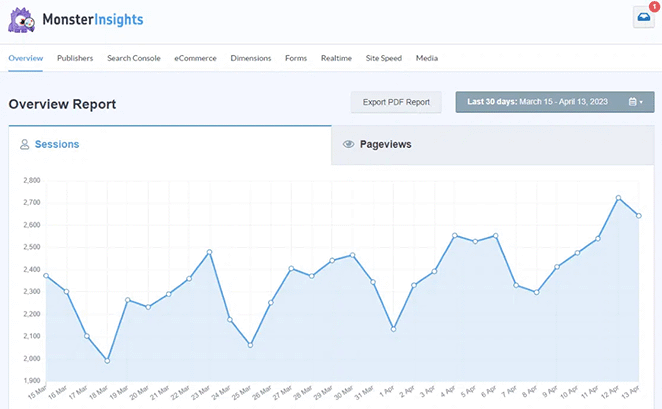
Here’s how MonsterInsights helps you improve your Google Ads conversions:
- Track Your Key Metrics: Monitor bounce rate, time on page, conversion rate, and more to identify where your landing page is losing visitors.
- A/B Test Headlines and CTAs: Use MonsterInsights data to measure which page variants produce more conversions.
- Analyze Traffic Sources: Understand which channels drive the most conversions and allocate budget accordingly.
- Form Conversion Tracking: Track form submissions to see exactly how many visitors are becoming leads.
Don’t have Google Analytics installed yet? Check out our guide on how to add Google Analytics to WordPress.
For a deeper dive, see our step-by-step guide on how to install Google Analytics.
FAQs About Google Ads Landing Pages
Do you need a landing page for Google Ads?
Yes. Sending Google Ads traffic to your homepage wastes budget and lowers your Quality Score. A dedicated landing page matches the ad’s message, removes competing CTAs, and focuses the visitor on a single conversion action. Pages built around your ad’s keyword and offer convert significantly better than general website pages.
How does a landing page affect your Google Ads Quality Score?
Google rates your landing page as part of Quality Score, which is calculated on a 1-10 scale. Quality Score feeds into Ad Rank, which determines both your ad position and your cost-per-click. A landing page that matches the ad’s keyword and delivers on its promise gets a higher score. According to Google’s documentation, a 10/10 Quality Score can reduce CPC by up to 50% compared to a 1/10 score.
What causes a below average landing page experience in Google Ads?
Google rates landing page experience using three factors: relevance to the ad, transparency about your offering, and ease of navigation on mobile. A below average rating usually means the page copy doesn’t match the ad keyword, the CTA doesn’t deliver what the ad promised, or the page loads slowly on mobile.
To check your score, go to Columns → Quality Score → Landing Page Exp. in Google Ads. The fastest fixes are adding the target keyword to your headline, aligning your CTA with the ad’s offer, and improving mobile page speed.
Should I use my homepage or a dedicated landing page for Google Ads?
Always use a dedicated landing page. Homepages serve every visitor, not ad traffic. They typically have multiple navigation links, competing CTAs, and content built for browsers rather than buyers. When someone clicks an ad expecting to land on exactly what they searched for, a homepage breaks that expectation and the conversion usually doesn’t happen.
A dedicated landing page has one goal, one CTA, and no navigation to distract the visitor. That focused structure is what makes it more effective for converting paid search traffic.
Create Your First High-Converting Google Ads Landing Page Today
Sending ad traffic to your homepage is one of the most common reasons Google Ads campaigns underperform. Now you have a dedicated page that matches your ad, removes distractions, and gives visitors one clear path to conversion.
SeedProd makes it straightforward to build, optimize, and publish that page in WordPress without writing code. Get Started with SeedProd Today and put your ad budget to better use.
You might also find the following tips and tutorials helpful:
- Best WordPress Banner Plugins to Boost Leads and Sales
- How To Add Google Analytics To WordPress
- How to Embed Google Reviews in WordPress
Thanks for reading! We’d love to hear your thoughts, so please feel free to join the conversation on YouTube, X and Facebook for more helpful advice and content to grow your business.