

TL;DR: How to Put WordPress in Maintenance Mode (Step by Step)
The fastest way to put WordPress in maintenance mode is with SeedProd, in about five minutes and no code. It won’t hurt your rankings either, because SeedProd sends a 503 status code that tells search engines the downtime is temporary. Here’s how it works in five steps.
- Install SeedProd – Download and activate the SeedProd plugin from WordPress.org or your account.
- Create a maintenance page – Go to SeedProd » Pages and click “Set Up a Maintenance Mode Page.”
- Customize your design – Pick a template and use the drag-and-drop editor to add your logo, message, and countdown timer.
- Configure access controls – Set which user roles or IP addresses can bypass the maintenance page.
- Activate maintenance mode – Toggle the switch to Active. SeedProd automatically sends a 503 status code to protect your SEO.
You’re in the middle of a theme overhaul or a major plugin update, and the last thing you want is visitors landing on a half-finished page. That’s exactly what WordPress maintenance mode is for. It swaps your live site for a clean placeholder page while you work, so visitors see a professional message instead of a broken layout.
Here’s where most people get into trouble. They reach straight for the .htaccess file or drop a half-finished site live, and one wrong character hands them the White Screen of Death. The no-code route below skips that risk entirely.
In this guide, I’ll show you how to put WordPress in maintenance mode step by step. You’ll see all the available methods, when to use each one, and how SeedProd makes it easy to create a branded scheduled maintenance page without touching code.
- What Is WordPress Maintenance Mode?
- When Should You Put WordPress in Maintenance Mode?
- What Are the Different Ways to Enable WordPress Maintenance Mode?
- Why Choose SeedProd for Maintenance Mode?
- How to Put WordPress in Maintenance Mode with SeedProd
- How to Confirm and Turn Off WordPress Maintenance Mode
- How to Toggle Maintenance Mode With an AI Assistant
- What Should You Include on a WordPress Maintenance Page?
- How Do You Fix Common WordPress Maintenance Mode Problems?
- FAQs About WordPress Maintenance Mode
What Is WordPress Maintenance Mode?
WordPress maintenance mode is a status that shows visitors a temporary placeholder page while an administrator works on the site, preventing them from seeing a broken or incomplete version.
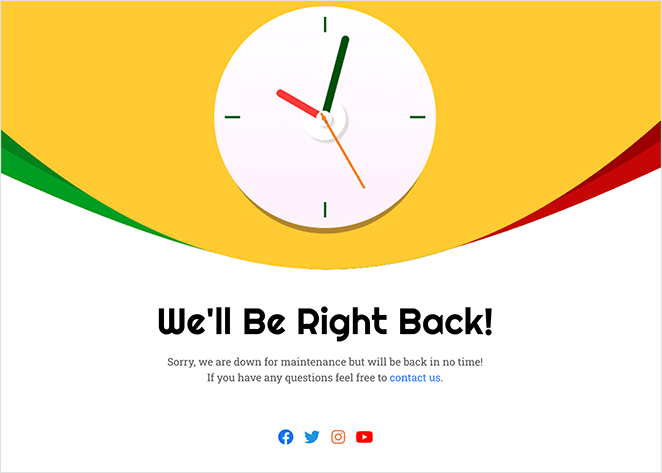
Technically, WordPress creates a temporary .maintenance file and sends a 503 “service unavailable” status code to search engines. That tells them the downtime is planned and temporary, which protects your SEO rankings.
Google’s own guidance confirms a 503 is the right signal for short, planned pauses, so crawlers know to come back later instead of dropping your pages. This is different from a coming soon page, which is used for brand new websites that haven’t launched yet.
When Should You Put WordPress in Maintenance Mode?
WordPress maintenance mode should be used during significant site updates that could otherwise appear broken or unpredictable to visitors.
Common situations include:
- Testing new features on a live site
- Redesigning or changing your WordPress theme
- Fixing bugs or updating plugins
- Running security patches or performance upgrades
- Migrating your site to a new host
In all of these cases, showing a WordPress downtime page keeps visitors informed and reassured, instead of leaving them confused by errors.
There’s a flip side worth naming. Maintenance mode is meant for short, planned work, not for changes that drag on for days. A site that sits behind a maintenance page for a week frustrates visitors and gives crawlers a 503 for far longer than they expect.
If the work is going to take that long, build it on a staging site instead, then push the finished version live in one move. That way your live site stays up the whole time.
What Are the Different Ways to Enable WordPress Maintenance Mode?
| Method | Best For | Technical Difficulty |
|---|---|---|
| Use a Plugin (Recommended) | Beginners | Low |
| WP-CLI Command | Developers | Medium |
| Add a Code Snippet (WPCode) | Developers | Medium |
| Edit the .htaccess File | Advanced Users | High |
| Upload a .maintenance File | Advanced Users | High |
| Use Your Hosting Panel | All Users | Low |
| Elementor Built-In Mode | Elementor Users | Low |
While manual methods exist, I do not recommend them for beginners. Editing the .htaccess file or manually uploading a .maintenance file involves modifying server code. A single syntax error here can cause the ‘White Screen of Death,’ locking you out of your own site.
If you run a WooCommerce store, maintenance mode needs a bit more care, since you’ll want to keep checkout and account pages reachable or block them deliberately. I cover the store-specific steps in my guide to WooCommerce maintenance mode.
Turn On Maintenance Mode With WP-CLI
If you’re comfortable on the command line, WP-CLI is the quickest route. Run wp maintenance-mode activate to switch it on, and wp maintenance-mode deactivate to switch it back off.
This is handy for scripted deployments or for clearing a stuck maintenance state during an SSH session. One caveat is that WP-CLI’s built-in screen shows the plain default message, not a branded page, so it’s best for quick technical work rather than visitor-facing downtime.
Other Methods: .maintenance File and functions.php
If you need to trigger maintenance mode without a plugin, you can do it through your site’s files. The trade-off is that you get the default WordPress message, not a branded page, and both routes need direct server access.
- The .maintenance file: Connect via FTP, open your site’s root directory (the folder that holds wp-config.php), and create a file named
.maintenance. Inside it, add<?php $upgrading = time(); ?>and save. WordPress detects the file and shows the default “briefly unavailable for scheduled maintenance” message. Delete the file to turn it off. - The functions.php snippet: Add a small hook to your theme’s functions.php that redirects logged-out visitors to a placeholder. This route is fiddlier and easy to get wrong, so back up the file first and let your host or Really Simple SSL handle anything redirect-related rather than chaining redirects yourself.
Both approaches need a comfort level with file editing. They’re not recommended for beginners, because one misplaced character can break your entire site.
For Elementor users: Elementor Pro includes a built-in maintenance mode option under Elementor » Tools » Maintenance Mode. It’s a straightforward option if Elementor is already your page builder, though it offers fewer design options than a dedicated plugin.
Why Choose SeedProd for Maintenance Mode?
SeedProd lets you publish a branded maintenance page in minutes, without code and without taking your whole workflow apart. After testing more than a dozen maintenance mode tools, it’s the one I keep coming back to, because the page goes live faster than the manual routes and it handles the 503 for you.

SeedProd is a full drag-and-drop visual website builder with professional templates, so the maintenance page matches the rest of your brand. Here’s a quick look at what it does for you.
| Feature | Benefit for Users |
|---|---|
| Custom Templates | Pick from 40+ maintenance mode templates designed for mobile devices. |
| Lead Capture Tools | Add email opt-ins, countdowns, and social links to stay connected while your site is offline. |
| Access Controls | Let admins or approved users bypass maintenance mode using a link, role, or IP address. |
| SEO-Friendly Setup | Automatically sends a 503 status code so Google knows your downtime is temporary. |
| Theme Compatibility | Compatible with any WordPress theme, including block themes and classic themes, with no extra configuration. |
How to Put WordPress in Maintenance Mode with SeedProd
Here’s how to do it from start to finish. You can watch the video tutorial below to see how to put WordPress in maintenance mode, or continue reading for the text instructions.
Step 1: Install and Activate SeedProd
First, you’ll need to install and activate SeedProd.
After you buy the plugin and download it, go to your WordPress dashboard, click Plugins » Add New » Upload Plugin and upload the SeedProd Pro zip file.
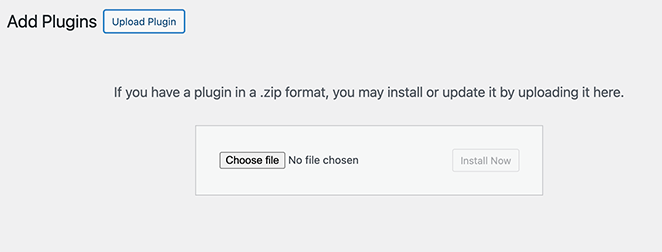
If you’re using the free version, head to Plugins » Add New and search for SeedProd.
Click “Install Now” and then “Activate.”
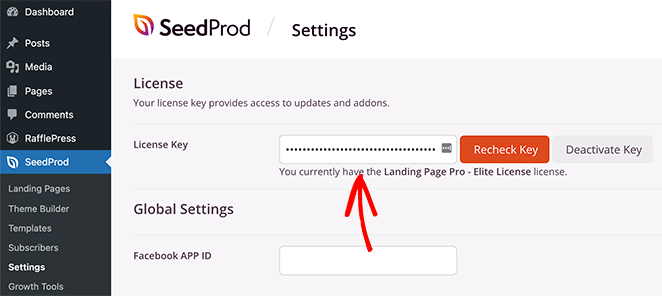
Don’t forget to enter your license key under SeedProd » Settings to get all the pro features and updates.
Step 2: Create Maintenance Mode Page
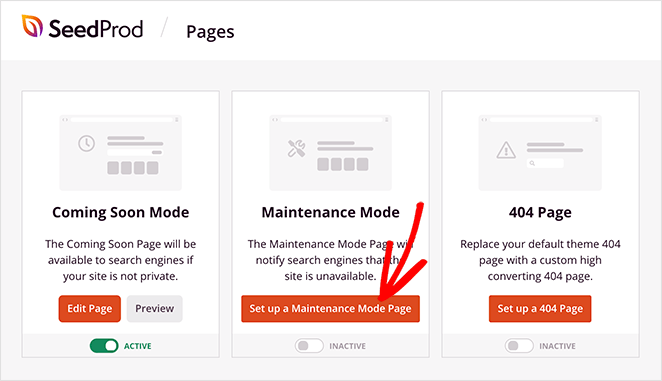
Next, go to SeedProd » Pages in your WordPress menu and find the Maintenance Mode section. Here, click “Set Up a Maintenance Mode Page.”
You’ll see dozens of professional templates designed specifically for maintenance pages.
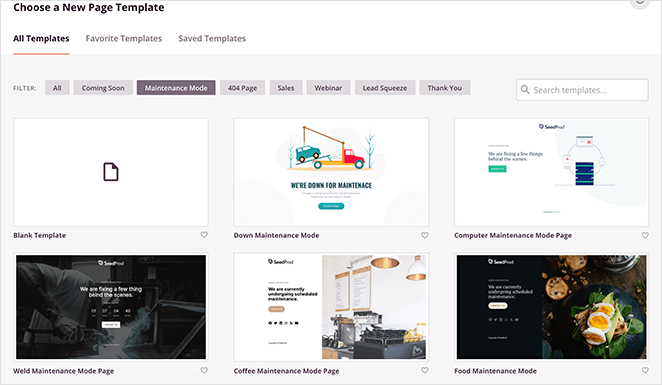
I usually pick one that matches my site’s style, but you can also start with a blank template if you prefer.
Hover your mouse over any maintenance mode page template you prefer and click the checkmark icon to launch it in the drag-and-drop page builder.
Step 3: Customize Your Page Design
This is where I take full advantage of SeedProd Pro’s features to create a WordPress maintenance mode page that actually works for my business. You can customize everything using the drag-and-drop editor.
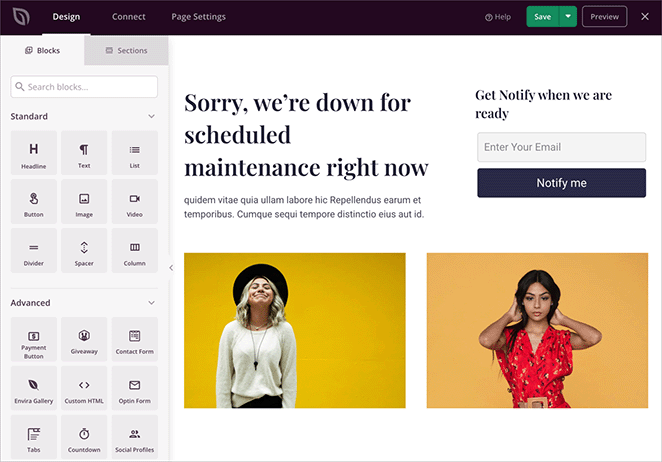
Here’s what I usually include when customizing my WordPress maintenance mode page:
- A countdown timer showing when the site will be back
- An email signup form to capture leads while the site is down
- Social profile buttons to keep visitors connected
- My logo and brand colors using the style settings
- A contact form, so people can still reach me
- Custom images and videos to make the page more engaging
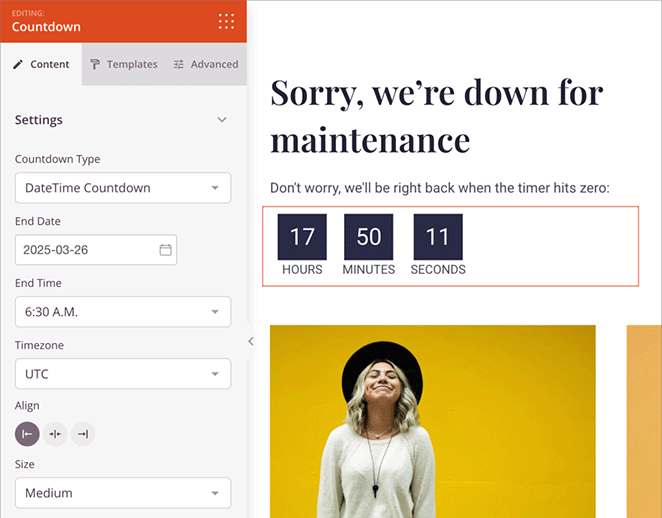
The best part is, you can see how your changes look in real-time. Just click any element to edit it, or drag in new blocks from the left sidebar.
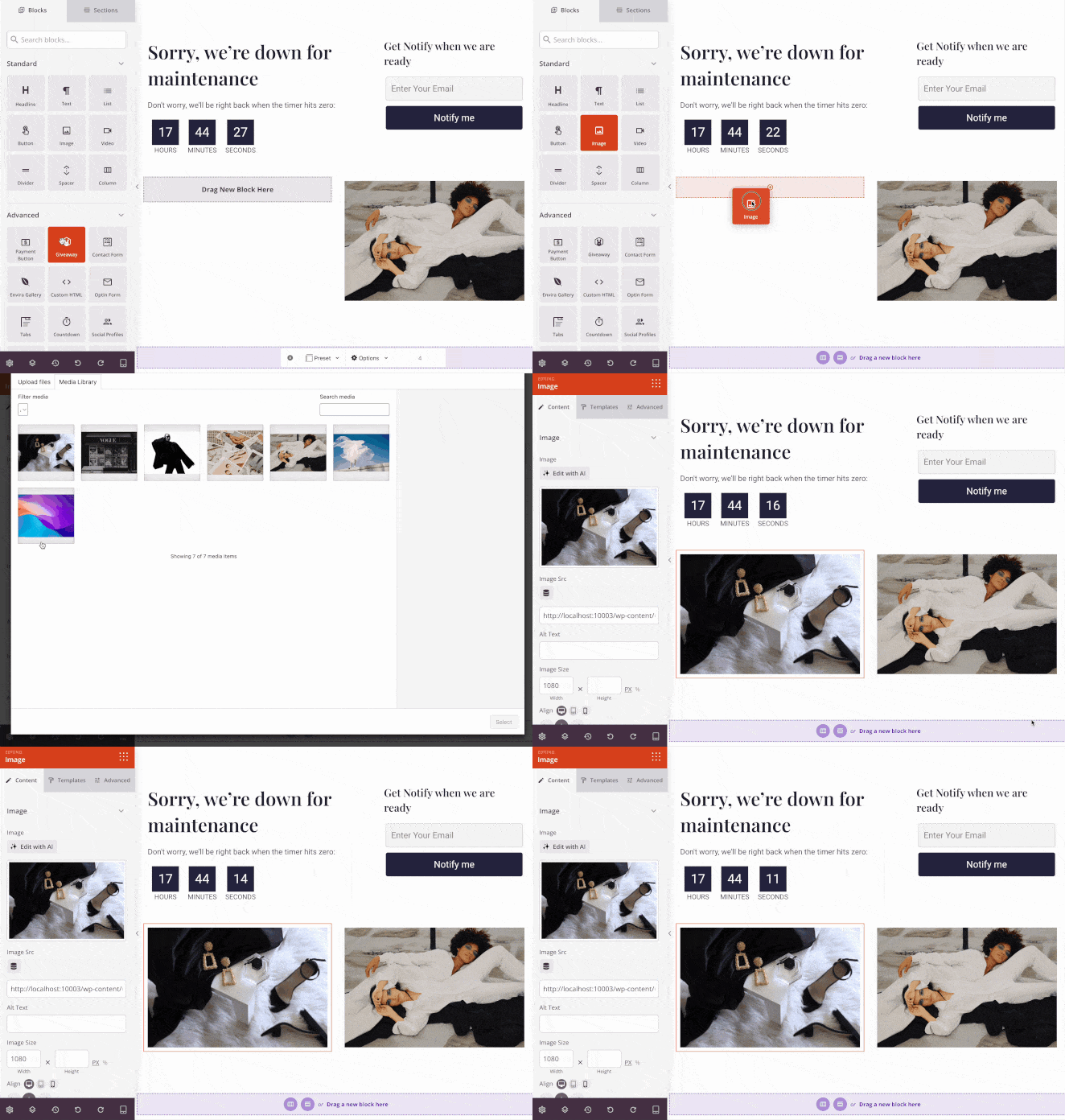
I often use the Advanced blocks like the email opt-in forms, which connect directly to my email marketing service.
Step 4: Configure Page Settings
Before activating maintenance mode, I always check the access settings. Click Page Settings at the top of the editor, then Access Controls.
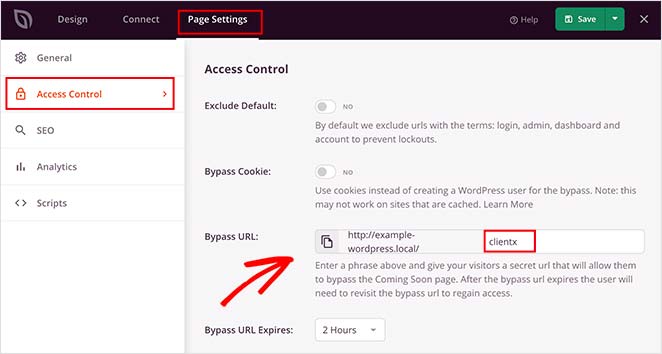
This lets you choose who can still see your regular site while maintenance mode is on. I usually:
- Keep access open for administrators and editors
- Allow specific user roles to bypass maintenance mode
- Exclude important pages like login or contact forms
- Create a special bypass link for team members who need access without logging in
Step 5: Publish and Activate Maintenance Mode
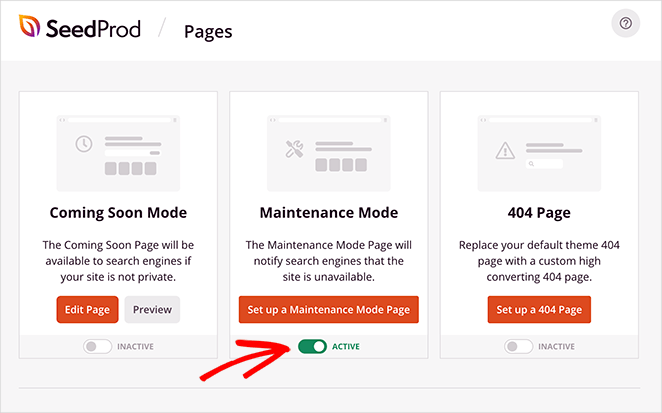
Once everything is set up, click “Save” to store your changes. Then go back to SeedProd » Pages and find the Maintenance Mode section. Toggle the switch to enable maintenance mode. You can always come back and disable it later with one click.
Visitors who are not logged in to your website will see your maintenance page. For example, this is what my website visitors see when maintenance mode is active.
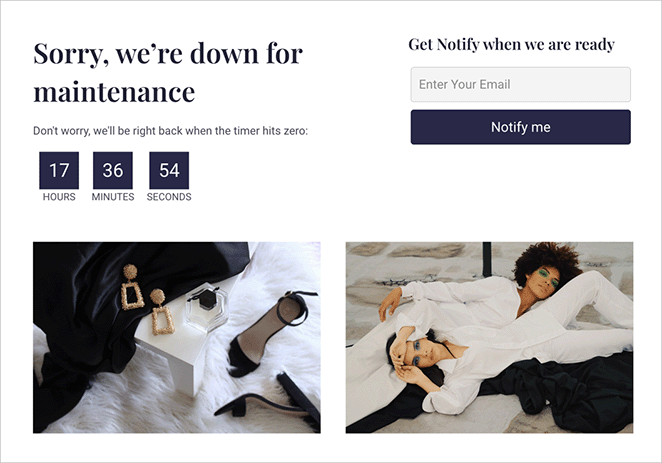
This is how to show a maintenance page in WordPress without touching code. Just drag, drop, and turn it on.
How to Confirm and Turn Off WordPress Maintenance Mode
Once your page is live, here’s how to confirm it’s working and switch it back off when you’re done.
To check it, open your site in an incognito browser window. You’re logged in as an admin, so your normal browser still shows the live site, while incognito shows exactly what a visitor sees. If the maintenance page appears, you’re set.
Still seeing your live site in incognito? Confirm the toggle in SeedProd » Pages is set to Active, then clear any caching plugin or CDN cache and try again.
When your updates are finished, switching the site back on takes one toggle:
- Go to SeedProd » Pages and find the Maintenance Mode section.
- Toggle the switch to Inactive to disable maintenance mode.
- Open your site in a private or incognito browser to confirm it’s live again.
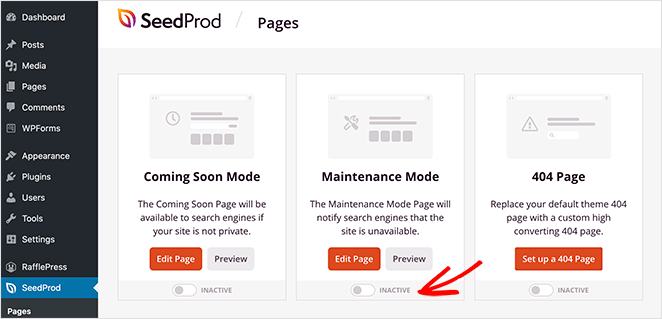
If your site still shows the maintenance page, clear your browser cache, plugin cache, or any CDN cache you’re using. That usually sorts it right away.
How to Toggle Maintenance Mode With an AI Assistant
Prefer not to click through the dashboard at all? Here’s how to flip maintenance mode on or off by just asking.
SeedProd ships a REST ability called seedprod/toggle-maintenance that enables or disables your maintenance page. Because it’s an ability, an AI tool that connects to your site can call it for you from a plain-language request, with no trip to SeedProd » Pages.
An AI assistant like WPVibe connects to your WordPress site and can run that ability when you ask it to. You type something like “put my site in maintenance mode,” and it makes the call. A companion seedprod/get-status ability lets it report back which mode you’re currently in.
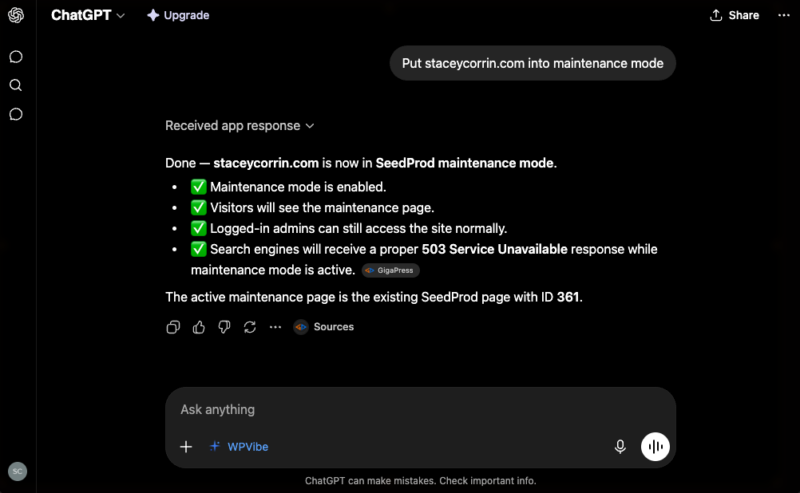
The behavior is the same as the dashboard toggle. Logged-out visitors see your maintenance page, search engines get the 503, and because maintenance and coming soon modes can’t both be on, turning maintenance on automatically switches coming soon off.
It’s a small thing, but useful when you want to take a site offline or bring it back without opening WordPress at all.
Ready to build yours?
Get a branded maintenance page live in under 5 minutes
SeedProd handles the design, the 503 code, and the access controls for you. Pick a template, add your logo, and flip the switch.
Build My Maintenance PageWhat Should You Include on a WordPress Maintenance Page?
A professional maintenance page does more than just say “we’ll be back soon.” Based on my experience, it should actively keep visitors informed and protect your brand. Here are the tips I follow for an effective page.
- Provide a Clear ETA: Inform visitors when your site will be back to manage expectations. A specific timeframe or a countdown timer builds the most trust. In my experience, pages with a clear ETA see more return visitors than generic “be back soon” messages.
- Maintain Your Branding: Use your logo, brand colors, and fonts. This reassures visitors they are in the right place and that the downtime is a professional, planned event. Without branding, visitors often assume the site is abandoned or unsafe.
- Capture Leads: Add an email signup form to your page. Downtime is a real opportunity to grow your newsletter. Visitors who subscribe during maintenance are already warm leads when your site comes back online.
- Link to Active Channels: Direct visitors to your social media profiles. This gives them a way to get real-time updates and stay connected with your brand while the site is down.
- Ensure SEO Safety: Confirm your page sends a 503 “service unavailable” status code. This tells search engines the downtime is temporary and protects your rankings. Skipping this turns a short update into a potential ranking drop.
How Do You Fix Common WordPress Maintenance Mode Problems?
Over the years, I’ve run into a few common issues with WordPress maintenance mode. Here’s how I usually troubleshoot them quickly and safely:
- If your site is stuck in maintenance mode: This usually happens when an update is interrupted. To fix it, you need to delete the
.maintenancefile from your site’s root directory. You can do this using an FTP client or the File Manager in your hosting control panel. Once the file is gone, clear your browser and plugin caches. - To avoid failed updates: Never refresh or close your browser while WordPress is updating plugins, themes, or core files.
- When updating multiple plugins: Run them one at a time to prevent version conflicts or timeouts.
- Before making edits: Always back up your site before touching functions.php or .htaccess files.
- To minimize downtime: Schedule maintenance during low-traffic hours and check your analytics afterward to ensure everything runs smoothly.
These quick fixes have saved me countless hours of troubleshooting. If you’re still stuck, check out my detailed guide on how to fix WordPress stuck in maintenance mode.
FAQs About WordPress Maintenance Mode
How do I turn on WordPress maintenance mode?
The easiest way to turn on WordPress maintenance mode is with a plugin like SeedProd. Go to SeedProd » Pages, click “Set Up a Maintenance Mode Page,” choose a template, customize your design, and toggle the switch to Active.
SeedProd automatically sends a 503 status code to search engines so your SEO is protected while your site is offline.
What is the difference between maintenance mode and coming soon mode in WordPress?
Maintenance mode is for live sites that are temporarily offline for updates or repairs. Coming soon mode is for brand new sites that haven’t launched yet.
Both show a placeholder page to visitors, but the intent is different. Maintenance mode sends a 503 status code (temporary downtime) while a coming soon page is typically indexed as a normal page. SeedProd handles both modes from the same dashboard.
How do I fix WordPress stuck in maintenance mode?
WordPress gets stuck in maintenance mode when an update is interrupted mid-process. WordPress creates a .maintenance file during updates, and if the update fails, that file stays behind.
To fix it, connect to your site via FTP or your hosting file manager, navigate to the root directory, and delete the .maintenance file. Then clear your browser cache and reload your site.
Will putting my site in maintenance mode hurt my SEO?
No, as long as your maintenance page sends a 503 “service unavailable” status code. The 503 code signals to search engines that the downtime is temporary, so they don’t drop your rankings.
SeedProd handles this automatically. The risk comes from leaving maintenance mode on for an extended period. A few hours is fine. Days or weeks of downtime can frustrate search engine crawlers. If you need longer, consider using a staging site instead.
Can I let certain users bypass WordPress maintenance mode?
Yes. SeedProd’s access controls let you whitelist specific user roles (like administrators or editors), individual IP addresses, or generate a secret bypass link.
The bypass link is especially useful for sharing access with clients or team members who aren’t logged in to WordPress. Anyone with the link can view the live site while everyone else sees the maintenance page.
How do I put WordPress in maintenance mode without a plugin?
You can do it through your site’s files. Connect via FTP, open the root directory that holds wp-config.php, and create a file named .maintenance containing <?php $upgrading = time(); ?>. WordPress shows its default maintenance message until you delete that file. This route gives you the plain default screen rather than a branded page, and a single typo can break your site, so back up first.
Can I turn on maintenance mode with WP-CLI?
Yes. If you have command-line access, run wp maintenance-mode activate to switch it on and wp maintenance-mode deactivate to switch it off. This is quick for scripted deployments or for clearing a stuck maintenance state over SSH. It shows the default WordPress message, not a branded page, so it’s best for technical work rather than visitor-facing downtime.
How long can I leave my WordPress site in maintenance mode?
A few hours is fine, and even a full day rarely causes problems. The trouble starts when maintenance mode runs for days or weeks, because crawlers keep seeing a 503 and visitors lose patience. If the work will take that long, build it on a staging site and push the finished version live in one move instead.
Putting WordPress in maintenance mode is the best way to protect your visitors and your SEO while you update your site. You can do it with code or files, but the no-code route gets you a branded page and a clean 503 in a few minutes.
Once your page is built, taking the site offline and bringing it back becomes a one-click habit, whether you do it from the dashboard or by asking an AI assistant. Now you know exactly how to put WordPress in maintenance mode quickly and safely.
Related Articles:
- Coming Soon vs Maintenance Mode: Learn The Difference
- How to Create a Modern WordPress Under Construction Page
- How to Create a Coming Soon Page in WordPress
- Best Coming Soon Page Examples
Thanks for reading! We’d love to hear your thoughts, so please feel free to join the conversation on YouTube, X and Facebook for more helpful advice and content to grow your business.




the most importen thing is: it must simply work! and dont waste time of users which such a simply thing like a maintenance site. Its not possible to change the big background picture. the preview links doesn`t work. very very sad. bon voyage :)
Hi Marcel, we’re sorry to hear that you’re having trouble with your maintenance page. We can assure you that changing your background image and previewing your design is possible with SeedProd. However, with the manual code method, that won’t be possible. Please check out our maintenance mode documentation, or if you need more help, do feel free to submit a support ticket.
Hello! I have followed the instructions (I think! LOL) and my wordpress dashboard has the orange “maintenance mode active” info at the top, BUT anyone who checks my website, says they don’t see the nice Maint Mode page…. they only see the construction debris on my website ;) Not sure what to check next? Thank you!
Hi Debbie, when I clicked on the link you shared, I could see your coming soon page, which indicates that it’s working. If you need any more help, please contact our support team here https://www.seedprod.com/contact/
Hi there, Loving your product, however I’m on the free version, and can only see the maintenance page on mobile view… I do not wish for others to view the website in desktop as I haven’t even launched it yet! Anyway this can be taken down and/or also replaced with a maintenance page? Thanks!
Hi Truly Camies, thank you for your question. If you reach out to our support team here we can answer this for you in more detail.