

A minimalist website keeps things clean so your visitors focus on your message. When you remove distractions, your pages load faster and feel smoother to use.
Minimalist design also helps you shape a clear brand identity and makes your site easier to look after long-term. You get a stronger impact with fewer moving parts.
In this guide, I’ll show you how to build a simple, modern WordPress site with a minimalist approach. I’ll walk you through each step so you end up with a site that looks good and performs well.
The 5 Essential Elements of a Minimalist WordPress Website
Minimalist websites work because they follow a few core principles. When your pages stay clean and easy to move around, people can focus on what you want them to see.
Let’s walk through those key elements and see how each one makes your site more effective.
| Element | Description |
|---|---|
| Clear Structure | Organization and navigation must be obvious and user-friendly. |
| Effective Use of White Space | Strategic spacing improves content readability and creates a calm user experience. |
| Consistent Color Palette | Stick to two or three complementary colors to maintain consistency. |
| Readable Fonts | Choose simple fonts that offer readability across all devices. |
| Strategic Imagery | Use images that support your message rather than distract from it. |
Most visitors respond well to clean layouts. One study found that 84.6% of users prefer minimalist web design, which makes sense when you consider how quickly people scan a page. A calm layout helps people find what they need without friction.
How to Build a Minimalist Website in WordPress
The easiest way to build a minimalist website in WordPress is to start with a clean template and a builder that keeps your design simple. Modern WordPress themes using Full Site Editing, are flexible, but many older themes still limit your layout, which makes it hard to remove elements you don’t need.
I use SeedProd instead because it gives you full control over every part of your design. You get ready-made minimalist templates and a drag-and-drop editor that helps you keep your pages clean without touching code.

With SeedProd, you can design your whole website, from your homepage to your blog layout, and only publish when you’re ready. This works well for minimalist design because you can build in a calm space without changing your live site.
Next, I’ll show you the exact steps to create a clean, modern WordPress site using key minimalist principles.
Step 1: Install SeedProd
To use SeedProd for a minimalist website, you’ll need the Pro version. This lets you use its Website Builder to control your layout fully, without writing any code.
Here’s how to install SeedProd Pro on your WordPress site:
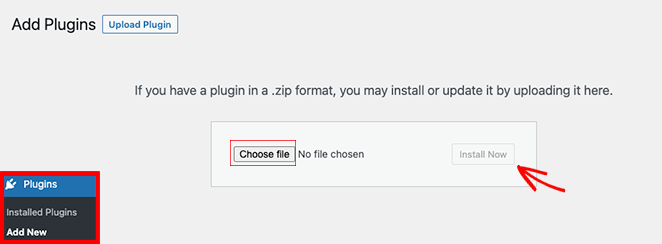
Go to Plugins » Add New, click Upload Plugin, choose the ZIP file, and click Install Now. When the installation finishes, click Activate.
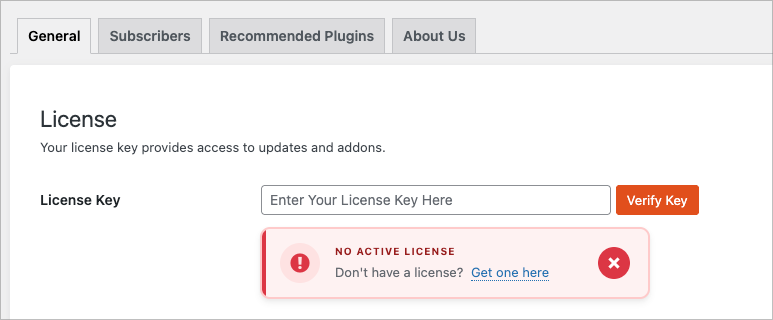
Next, go to SeedProd » Settings. Paste your license key into the field provided and click Verify to unlock the Website Builder and templates you’ll use in the next steps.
SeedProd keeps your design separate from your active theme, so you can build your entire minimalist site privately and publish it only when you’re ready.
Step 2: Choose a Minimalist Template
With SeedProd installed, the next step is to choose a minimalist template. Finding the right template helps ensure your design stays clean and simple.
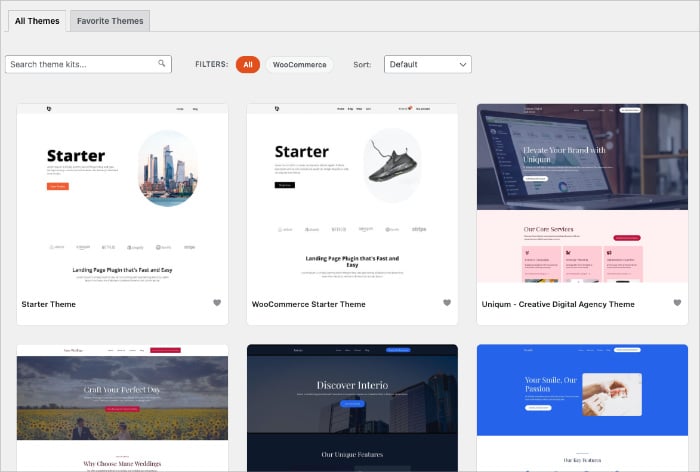
To browse them, go to SeedProd » Website Builder and click Browse Template Kits.
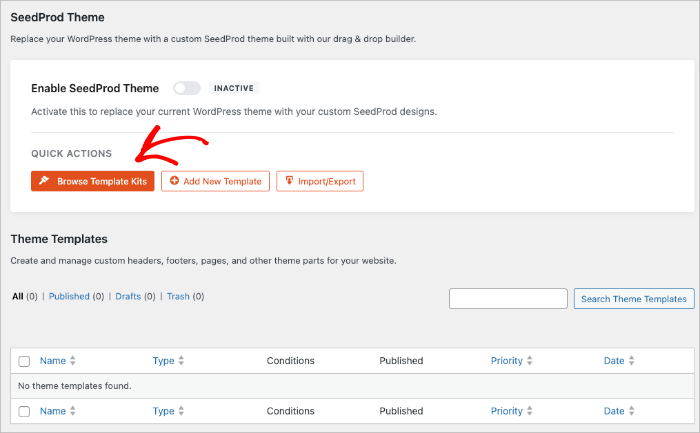
This opens the template library where you can filter by style or choose one of the minimalist designs that already follow the principles we covered earlier.
You can also use SeedProd’s AI website generator if you want a complete starting point. Enter a short prompt about your website, and the AI will create a full site in under 60 seconds.

This gives you a simple structure you can refine in the builder while keeping the layout clean and intentional.
You might also find my guide on how to create a WordPress website with AI helpful for other projects.
Whichever option you choose, the goal is to begin with a calm, uncluttered layout. It’s easier to maintain a minimalist style when your starting point already supports it.
Step 3: Apply Your Template Kit
After choosing your desired template kit, you’ll apply it to your website by clicking the checkmark icon.
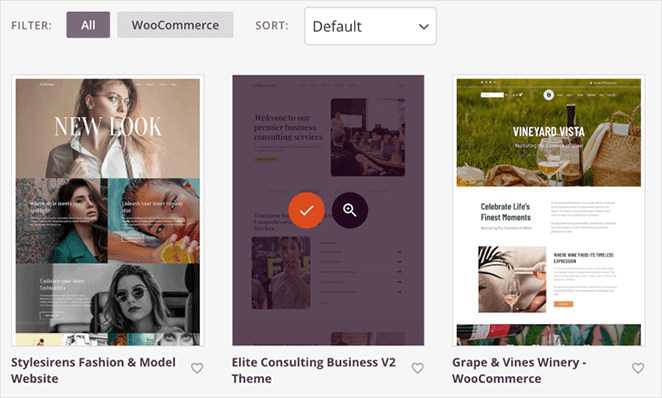
This action automatically generates all the essential page templates, such as your homepage, blog page, and other core layouts, and lists them within the Website Builder.
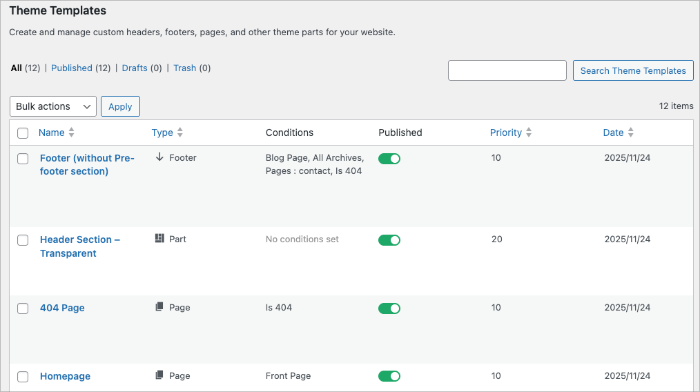
These pages are now ready for you to customize.
Step 4: Customize Your Layout
Once your kit is active, you can open any template in SeedProd’s drag-and-drop builder to shape your pages. Minimalist design works best when each section has a clear purpose, so keep your layout simple as you edit.
Click any section to adjust spacing, colors, and typography. All your style options sit in a clean sidebar, so you don’t have to dig through menus.
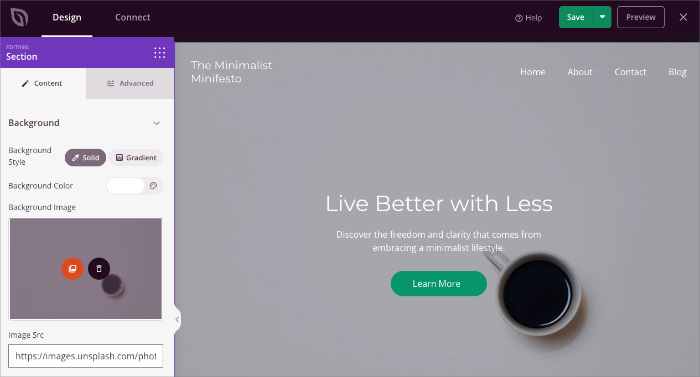
Remove anything that doesn’t help visitors understand your message. This might mean deleting extra columns, shortening hero sections, or swapping busy backgrounds for neutral colors.
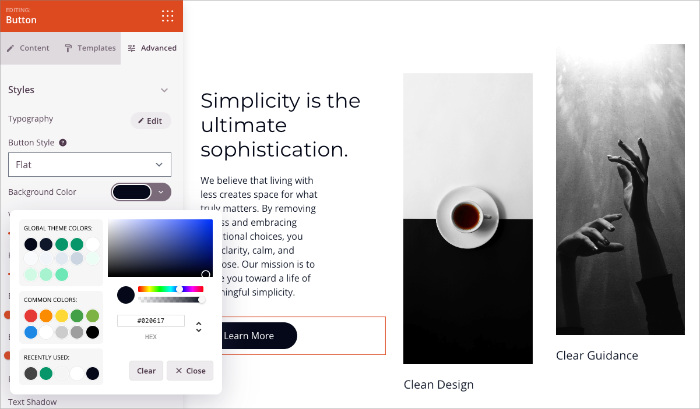
You can also add new sections using SeedProd’s premade blocks. Stick to simple blocks like headings, text, images, and buttons to keep your design focused and uncluttered.
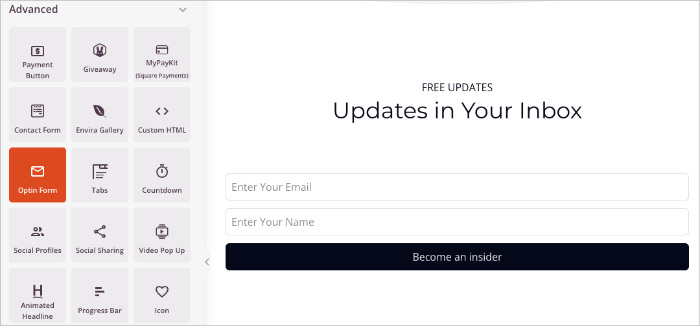
As you work, preview your page on mobile so you can check spacing and readability.
For full walkthroughs on building your website sections, refer to these helpful guides:
- How to Customize Your WordPress Homepage
- How to Create an About Page in WordPress
- How to Create a Service Page Design
- How to Create a Meet The Team Page
Step 5: Set Your Colors and Typography
The fastest way to give your site a minimalist look is to simplify your colors and fonts. SeedProd lets you do this globally, so your entire theme stays consistent without extra editing.
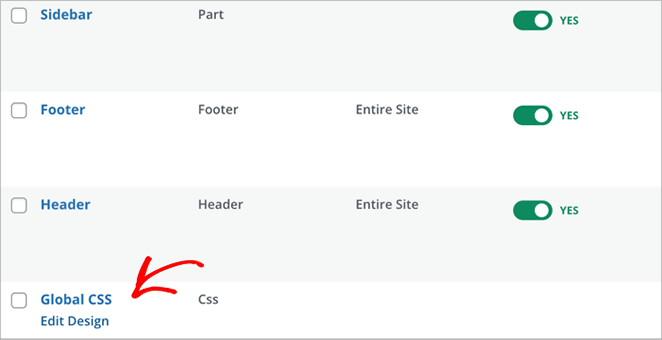
From your WordPress dashboard, go to SeedProd » Website Builder. Here you’ll see a list of all the templates in your kit. Look for the Global CSS template and click Edit Design to open it.
This panel controls your site-wide styles. You can set your heading font, body font, color palette, buttons, and spacing from one place, and SeedProd will apply these settings across your entire website.
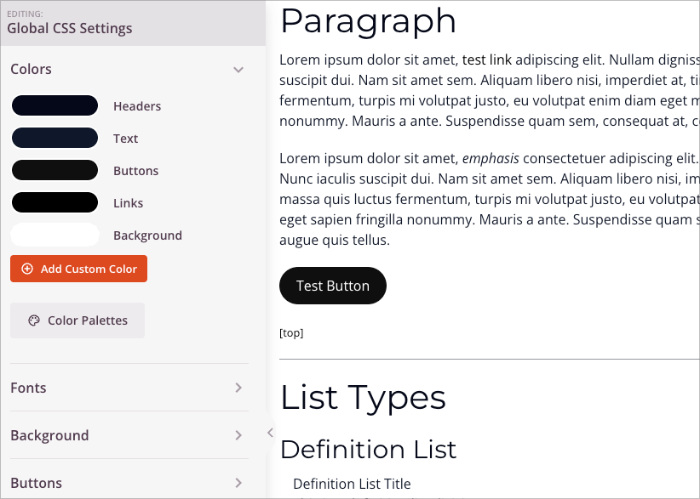
For colors, choose two neutrals and one accent. This keeps your layout calm and helps important elements stand out without adding visual noise.
For typography, choose one clear heading font and one readable body font. Simple, clean font choices make your content easier to scan and support the minimalist style. If you need help choosing the right fonts, see this guide on typography in website design.
Once you save your changes, every page in your theme will use the same consistent styling.
Step 6: Optimize Your Website for Speed
A minimalist website should load quickly. Clean layouts already help, but a few simple optimizations keep your pages feeling smooth and responsive.
| What to Optimize | How to Improve Speed |
|---|---|
| Images | Resize before uploading, keep hero images under 200KB, use JPG for photos and WebP/PNG for graphics. |
| Compression | Run images through TinyPNG or a similar tool to reduce file size without losing quality. |
| Plugins | Remove plugins you don’t use and avoid tools that add heavy scripts or extra widgets. |
| Theme Code | Use builders like SeedProd that are designed to generate clean, optimized code, helping to reduce unnecessary file size and improve loading times. |
| Speed Testing | Check your site with PageSpeed Insights or GTmetrix to spot anything slowing pages down. |
These changes take only a few minutes but can noticeably improve how fast your pages load. Even small adjustments, especially with image size and plugins, make a big difference.
Step 7: Publish Your Minimalist Website
Once you’re happy with your layout, colors, and content, you can publish your new theme. SeedProd makes this easy because everything stays in draft until you turn it on.
Go to SeedProd » Website Builder and review your templates one more time. When everything looks right, switch the Enable SeedProd Theme toggle to activate your design. This replaces your old theme and puts your minimalist site live.
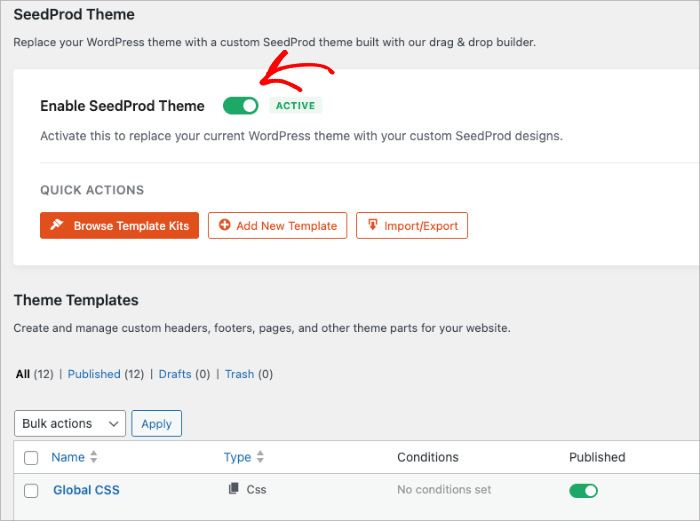
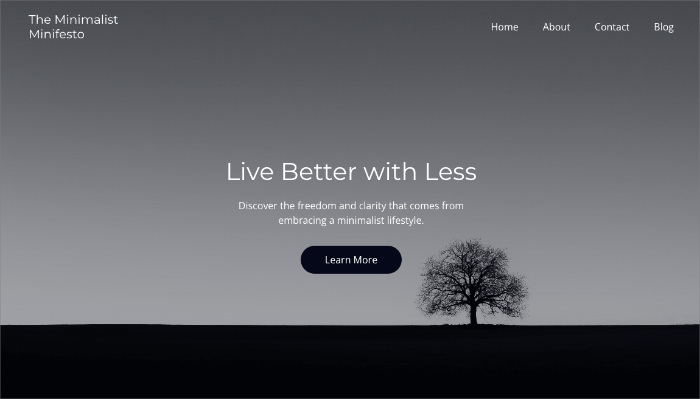
Visit your homepage in a new tab to make sure everything loads correctly. Check your header, footer, and blog layout on both desktop and mobile. If you spot anything that needs adjusting, you can reopen the template, edit it, and save your changes instantly.
Frequently Asked Questions
A minimalist website gives you a clean, modern space to share your message without distractions. With SeedProd, it’s easy to build a simple, consistent design that loads fast and feels good to use. Take your time with the layout, keep your visuals calm, and update only what adds value.
You may also find the following guides helpful when creating your minimalist website:
- How to Add a Coming Soon Page to WordPress
- WordPress Search Engine Optimization: A Guide to Better Rankings
- How to Create a New Website Launch Marketing Plan
Thanks for reading! We’d love to hear your thoughts, so please feel free to join the conversation on YouTube, X and Facebook for more helpful advice and content to grow your business.




