

TL;DR: How to Change WordPress Admin Login URL Without a Plugin
You can change your WordPress login URL with a plugin (easiest) or by editing core files manually (advanced only). Here’s what each method involves.
- Why it matters: Default wp-admin and wp-login.php URLs are publicly known, making your site a target for brute-force attacks.
- Plugin method (recommended): Install SeedProd, set up a Login Page mode, name your custom URL, and activate it. No code needed.
- Manual method (advanced): Download wp-login.php, find-and-replace all instances of “wp-login,” rename the file, add login_url, logout_url, and lostpassword_url hooks to a site-specific plugin file, test, then delete the original file.
- Use a site-specific plugin: Add the filter hooks to a site-specific plugin file, not your parent theme. Theme files are wiped on every WordPress update.
- If something breaks: Flush permalinks, check your plugin file name matches, or rename your plugins folder via FTP to regain access.
- Go further: A custom URL is one layer. Combine it with 2FA, login attempt limits, and strong passwords for real security.
Your WordPress login page sits at a URL every bot on the internet already knows.
Whether you run a business site, a membership portal, or a blog, anyone can find your login form by adding “wp-admin” or “wp-login.php” to your URL. That makes it the first target for brute-force attacks.
Changing your WordPress admin login URL removes that easy entry point. With the right method, it takes less than 10 minutes.
In this article, I’ll walk you through 2 ways to change your WordPress login URL step by step.
Why Change Your WordPress Login URL?
WordPress is one of the most popular content management systems, and that popularity makes it a target.
Anyone can find your default login page by adding “wp-admin” or “wp-login.php” to your site’s URL. That makes your login page the first place bots look to carry out attacks.
One of the simplest ways to secure your WordPress site from hackers is to create a custom login URL. You hide your login page from automated scanning tools and only grant access to people who know the address.
I’ve been managing WordPress sites for over 13 years, and changing the login URL is one of the first things I recommend to anyone setting up a site with multiple users or sensitive data.
Today I’ll share 2 ways to change your WordPress admin login URL.
The first method uses SeedProd and is what I’d recommend to most site owners. The second method involves editing your core WordPress files and should only be used if you’re comfortable with PHP code and file managers.
How Do I Change the WordPress Admin Login URL With a Plugin?
We’ll use a WordPress plugin to change the WordPress admin login URL in this method.
SeedProd is a drag-and-drop website builder for WordPress, used by over 1 million site owners. It includes a built-in login page mode that lets you replace the default wp-login.php page with a fully custom-designed login page at a URL of your choosing, with no code required.

Because it has a built-in login page mode, you can create a custom WordPress login page without editing a single file. Follow the steps below to change your WordPress admin login URL with SeedProd.
Step 1. Install and Activate SeedProd
The first step is to download a copy of the SeedProd plugin.
You’ll then need to install and activate the plugin on your WordPress website. For help with this step, see this guide on how to install a WordPress plugin.
Once SeedProd is live on your website, you’ll see a welcome screen that asks for your license key. You can find your SeedProd license key in the downloads section of your SeedProd account area.
Copy your key, paste it into the license field, and click the Activate Key button.
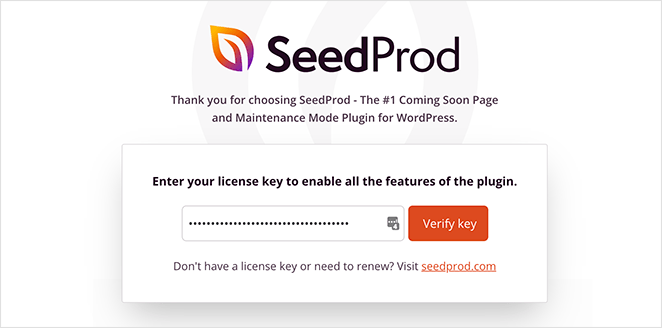
Next, scroll down and click the Create Your First Page button.

That will take you to SeedProd’s landing page dashboard, where you can create new pages and set up different page modes.
Step 2. Set Up a Login Page
At the top of the next page are 4 different page modes you can set up in WordPress:
- Coming Soon Mode
- Maintenance Mode
- Login Page
- 404 Page
You can turn those pages on and off with a single click without creating a new page each time.
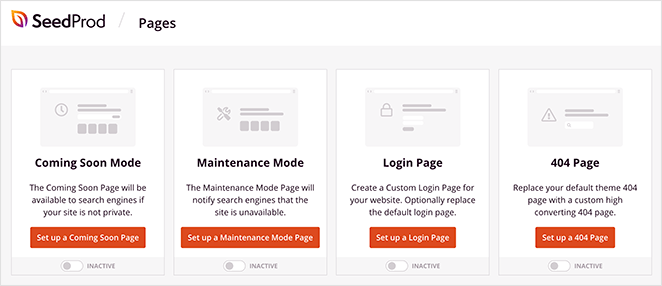
We’ll use the Login Page mode for this guide, so click on the Set up a Login Page button to get started.
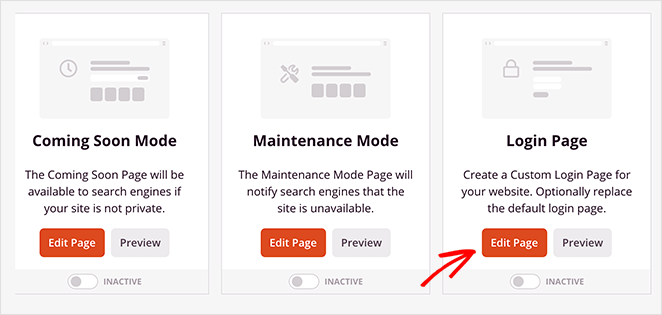
After clicking that button, you’ll go to SeedProd’s template library, where you can choose a responsive design to start with.
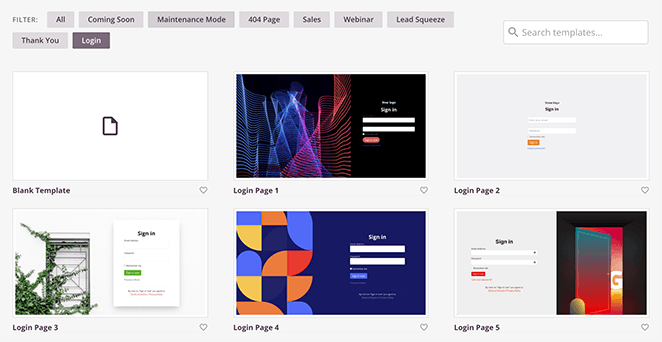
Since the plugin filters to the login page templates by default, you won’t need to hunt for a design that fits your needs.
To choose a template, hover your mouse over a design and click the checkmark icon.
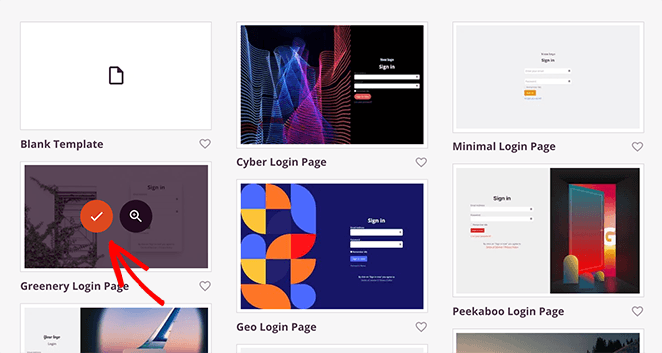
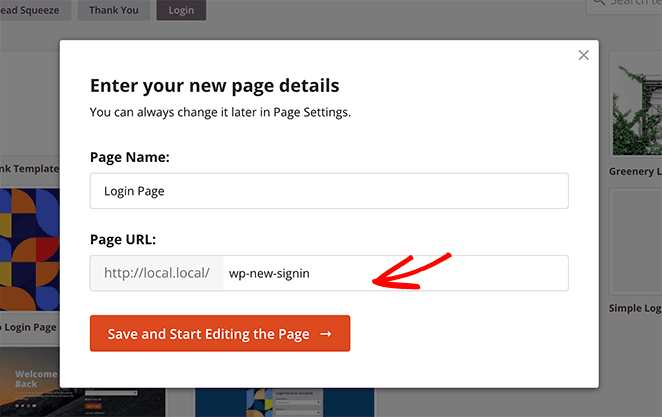
You’ll now see a popup asking for your login page name and URL. You can name your page anything you like and enter a completely different URL, something hackers won’t search for.
From there, click the Save and Start Editing the Page button to open your template in SeedProd’s visual editor.
Step 3. Customize Your Login Page
SeedProd’s drag-and-drop editor has content blocks on the left and a live preview on the right. You can drag new blocks onto your page and see changes in real time.
You can also click any element to view its settings in the left panel. For example, clicking the headline block opens content settings where you can change your headline, font, text size, and more.
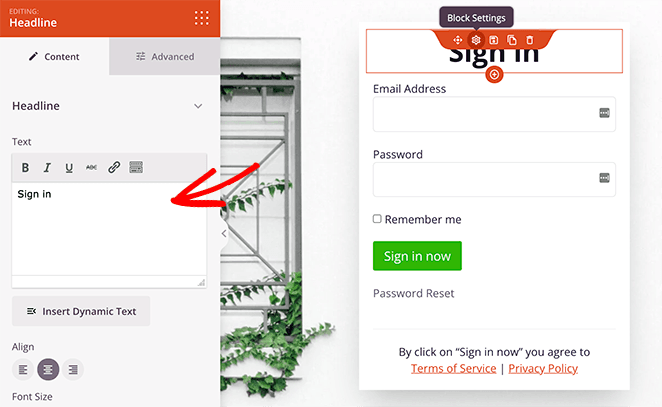
Adding content is just as straightforward. To add text below the headline, drag the Text block from the left panel and drop it onto your preview. Then you can enter instructions for logging in to your site.
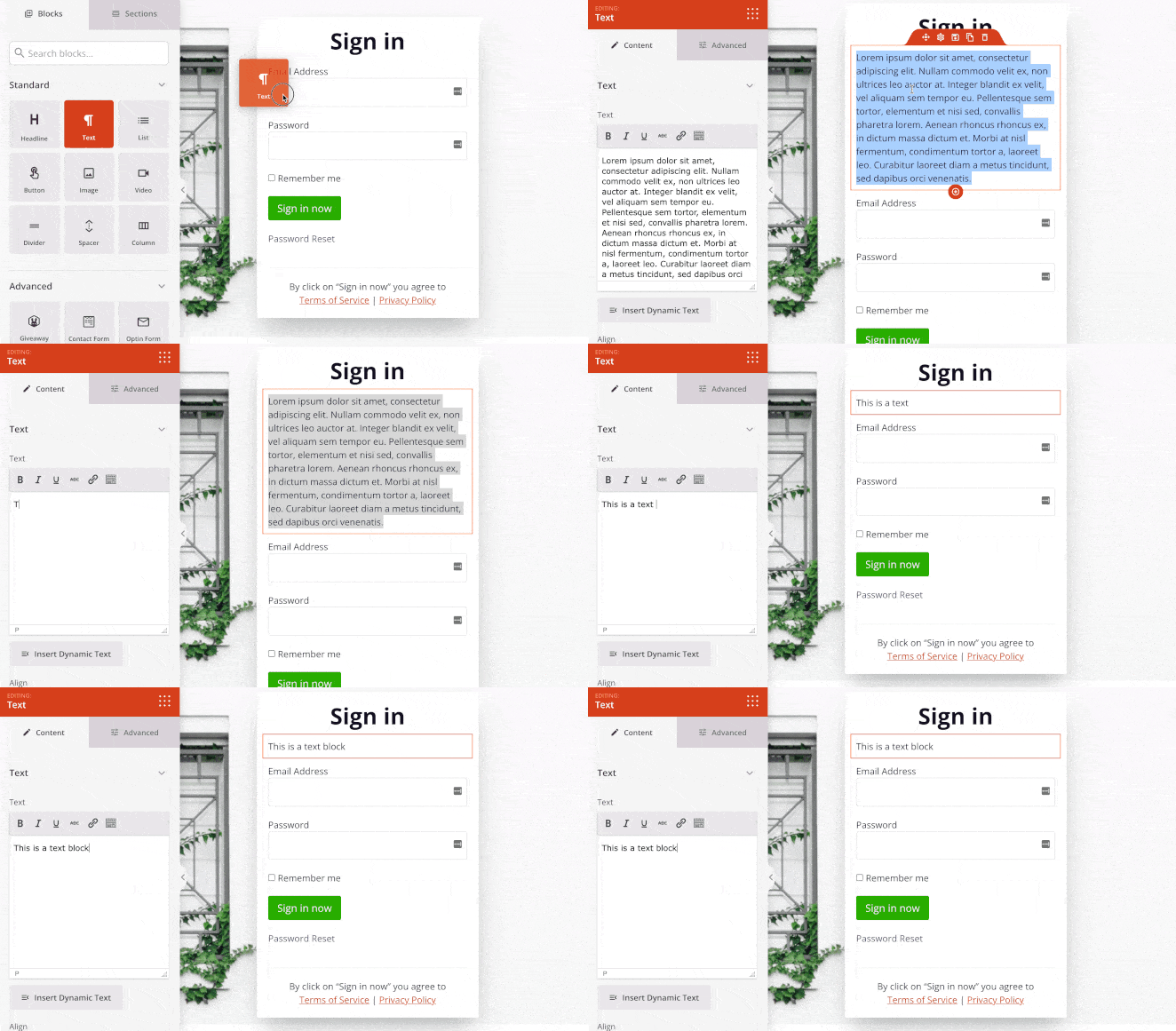
In SeedProd’s Global Settings panel, you can customize many design elements at once. To find it, click the cog icon in the bottom-left navigation bar.
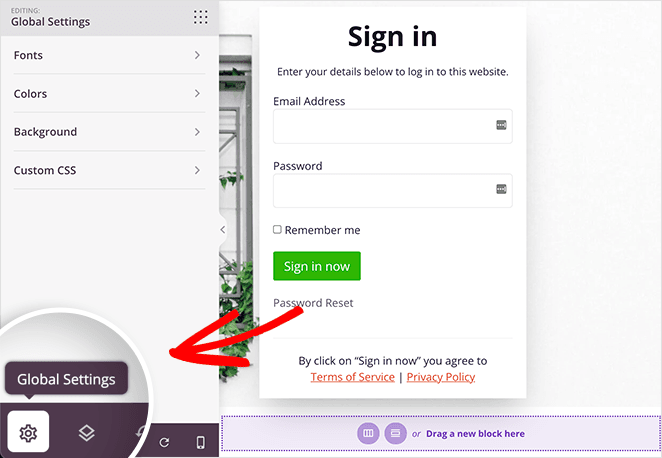
From there, you can change fonts, colors, your background, and even add custom CSS, all at once instead of editing each block manually.
For example, you can replace the default background image with a design from your computer or media library in the Background tab.
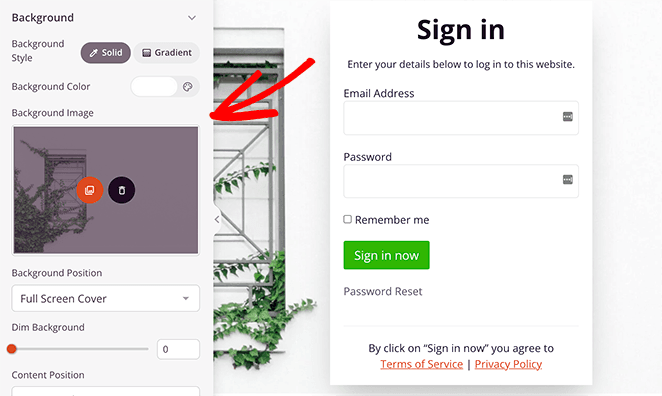
In the Colors tab, you can select a new color palette for links, text, buttons, and headlines.
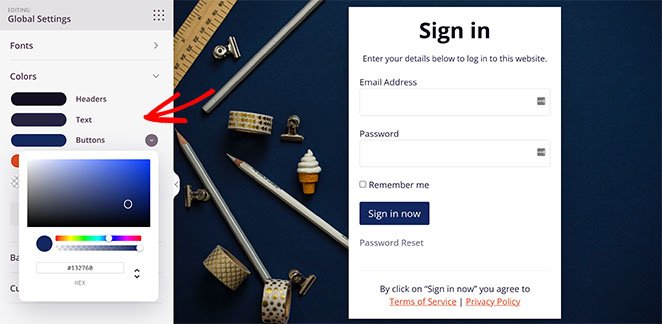
When you’re happy with how your new WordPress login page looks, click Save in the top right corner.
Step 4. Publish Your Login Page
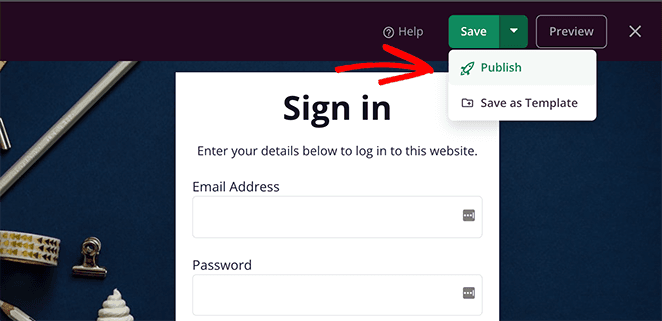
With all your changes saved, you’re ready to publish your new login page. Click the dropdown menu on the Save button and click Publish.
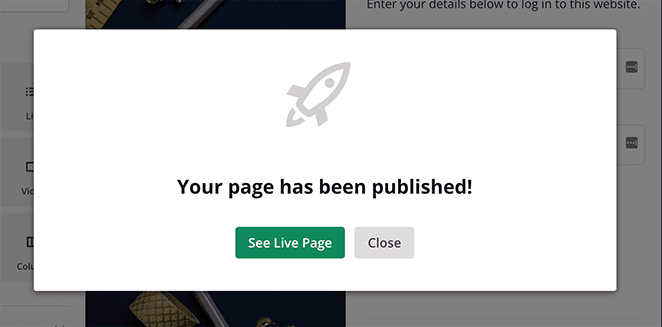
Next, you’ll see a confirmation box allowing you to preview your design.
Step 5. Enable Your New WordPress Login Page URL
The last step is to turn on your new login page, replacing the default WordPress admin login screen with your custom one. Head to the SeedProd dashboard, find the Login Page mode, and turn the toggle from Inactive to Active.
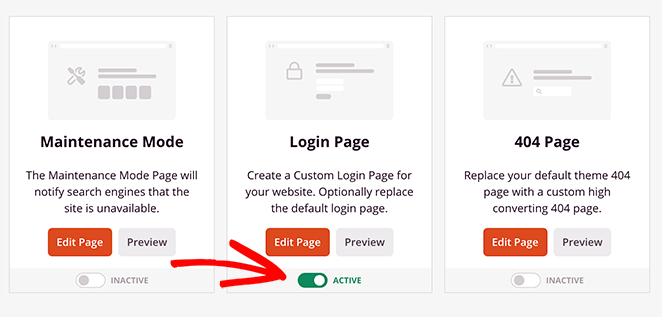
You’ve now hidden the default WordPress login page and put your new page in its place. Here’s how it looks:
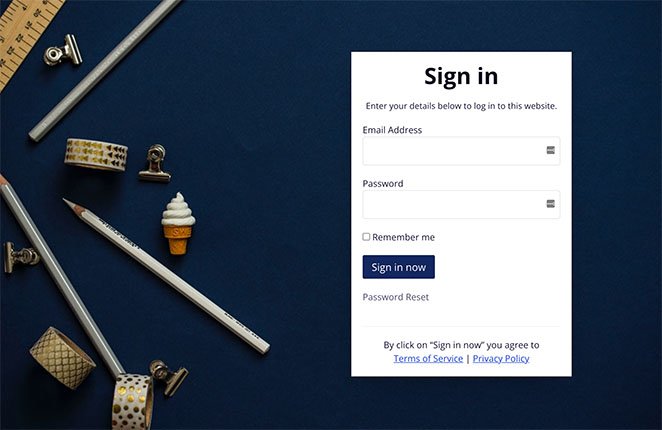
As you can see in the address bar, your WordPress admin login URL has changed to your custom URL.
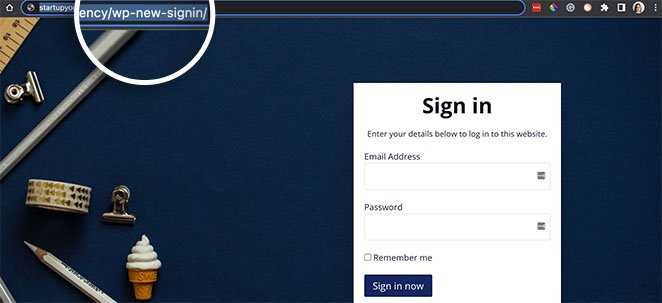
And it didn’t involve writing any code at all!
How Do I Change the WordPress Login URL Without a Plugin?
You can change your login URL without a plugin by editing your WordPress core files. This method is more advanced and should only be used if you’re comfortable with file managers and PHP code.
Before you do anything else, back up your site. See this guide for a list of top WordPress backup plugins. Alternatively, you can back up your site with your website hosting provider. We’ll be using Bluehost in this tutorial.

Bluehost is a trusted WordPress hosting provider that includes a file manager for downloading, editing, and uploading core WordPress files.
You’ll also need a text editor to follow this guide. We’re using Sublime Text, but Notepad++ and Atom work just as well.
Step 1. Download Your wp-login.php File
Your wp-login.php file contains the code that generates your website’s login page, so you’ll need to edit it to change the login URL.
Open your website’s file manager and find the folder called “public_html.” In Bluehost, open your site, click the Settings tab, and select the File Manager button.
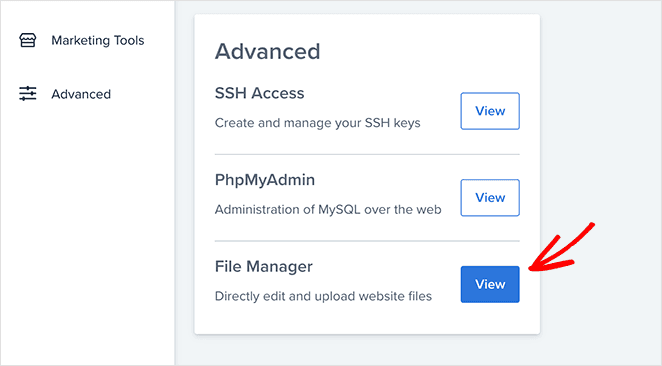
In the file manager’s left sidebar, click the public_html folder.
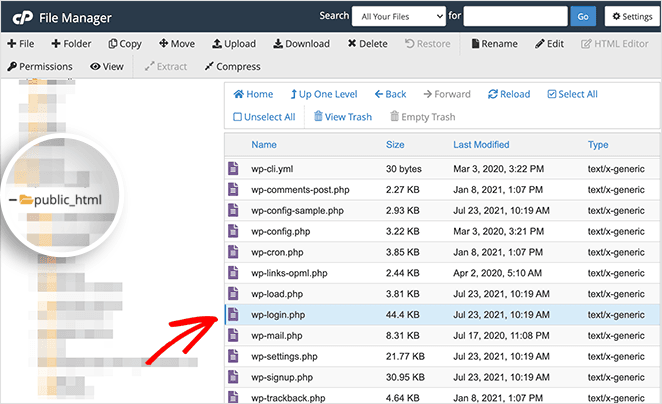
Find the wp-login.php file and download it to your computer.
Step 2. Find and Replace the Old Login URL
Open the wp-login.php file in your text editor. Then search for every instance of “wp-login” and replace it with your new login URL.
Our new URL is “wp-new-signin,” but use something unique to your site that you can remember easily. Avoid obvious terms like “login” or “admin.”
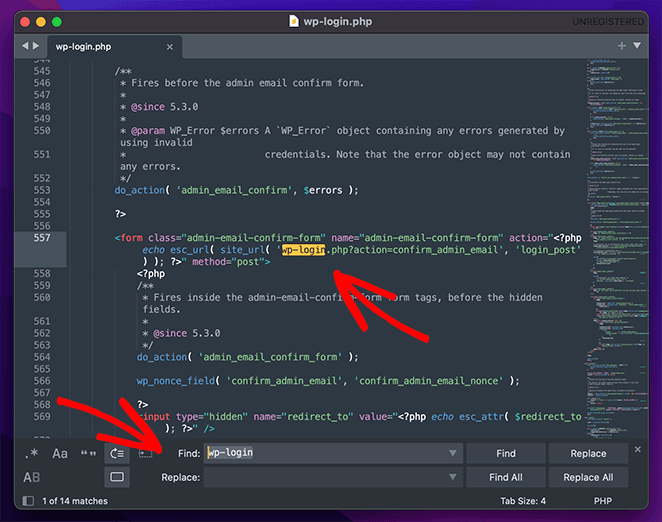
Save the file. Then rename it to match the new URL you used (in our case, wp-new-signin.php).
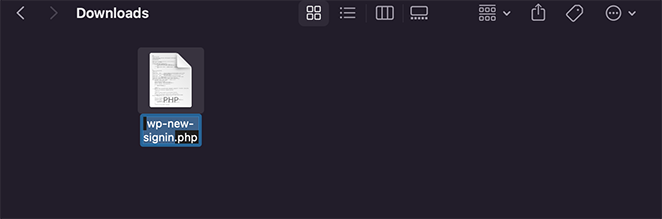
Step 3. Upload Your New Login File
Head back to your file manager, upload a new file, and choose the renamed login file from the previous step.
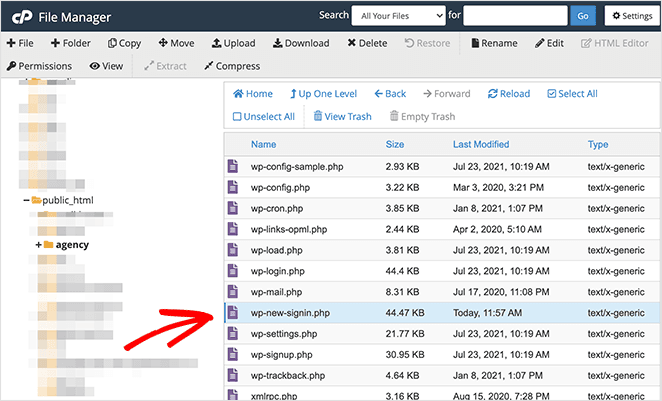
Step 4. Register Your New Login URL Using Filter Hooks
After uploading your new login file, you need to register your new URL using the “login_url” filter hook.
You also need to add the logout_url and lostpassword_url hooks. Without them, WordPress will still redirect users to the old wp-login.php address when they log out or try to reset their password, locking them out of your custom login page.
Important: The safest place for this code is a site-specific plugin. Create a file in /wp-content/plugins/ with a plugin header comment (for example, my-login-config.php), add the code below, and activate it in your plugins list. Plugin files are never overwritten by WordPress or theme updates.
If you already have a child theme, you can add the code to your child theme’s functions.php instead. Just avoid adding it to a parent theme’s functions.php, since parent theme files are overwritten on every theme update.
Open your site-specific plugin file (or child theme’s functions.php) and paste the following code:
/*
 * Change WP Login file URL using "login_url" filter hook
 * https://developer.wordpress.org/reference/hooks/login_url/
 */
add_filter( 'login_url', 'custom_login_url', PHP_INT_MAX );
function custom_login_url( $login_url ) {
    $login_url = site_url( 'wp-new-signin.php', 'login' );
    return $login_url;
}

/*
 * Also redirect logout and lost password back to new login URL
 */
add_filter( 'logout_url', 'custom_logout_url', PHP_INT_MAX );
function custom_logout_url( $logout_url ) {
    return site_url( 'wp-new-signin.php', 'login' ) . '?action=logout&_wpnonce=' . wp_create_nonce( 'log-out' );
}

add_filter( 'lostpassword_url', 'custom_lostpassword_url', PHP_INT_MAX );
function custom_lostpassword_url( $lostpassword_url ) {
    return site_url( 'wp-new-signin.php', 'login' ) . '?action=lostpassword';
}
Save the file and move on to the next step.
Step 5. Test Your New Login URL
Before removing the default login file, test your new one. Type your website URL in the browser’s address bar and add your new login URL to the end.
For example, your full login URL would look like this:
startupyourwpsite.com/agency/wp-new-signin.php
Navigating to that page should show your WordPress login form.
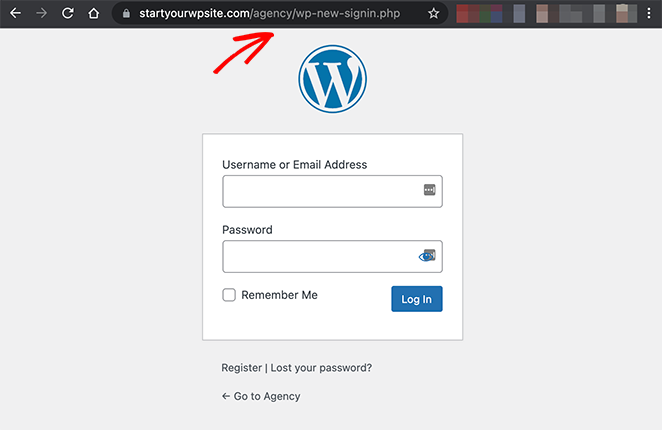
If you see the login form, your new WordPress admin login URL works. Move on to the next step.
Step 6. Delete the Original Login File
The final step is to delete the existing wp-login.php file from your website files. Anyone trying to log in using the old URL will see a 404 not found page.
Download the original file as a backup before deleting it. Then remove it in your file manager.
Note: The filter hooks only work reliably if they live in a site-specific plugin or a child theme. If you added the code to a parent theme and update WordPress or your theme, your login URL changes will be overwritten and you may lose access to your own login page.
What Should I Do If My Custom Login URL Stops Working?
A few things can break your custom login URL after you set it up. Here are the three most common problems and how to fix them.
I Forgot My Custom Login URL
If you can’t remember your custom URL, open your site-specific plugin file (or child theme’s functions.php) and look for the custom_login_url function. The URL you set is in the site_url() call.
If you can’t access the dashboard at all, connect via FTP, navigate to your plugin or theme folder, and open the file in a text editor to find the URL. As a last resort, you can temporarily rename your plugins folder to /plugins-disabled via FTP. That deactivates all plugins and restores the default wp-login.php URL.
Getting a 404 Error After Changing the URL
A 404 error usually means one of two things: the file name in functions.php doesn’t match the renamed file you uploaded, or your permalink structure needs refreshing.
To fix the permalink issue, go to Settings » Permalinks in your WordPress dashboard and click Save Changes. No other changes needed. Then double-check that the filename in your plugin file matches the file you uploaded exactly.
Stuck in a Redirect Loop
A redirect loop after changing your login URL almost always points to a plugin conflict. Connect to your site via FTP, navigate to wp-content/, and rename the plugins folder to something like plugins-disabled. This deactivates all plugins at once.
You can then log in via the default wp-admin URL, rename the folder back to plugins, and reactivate your plugins one at a time to find the one causing the conflict.
How Do I Secure My WordPress Login Page Further?
Changing your login URL is a good first step, but it’s one layer of security, not a complete solution. I always combine it with a few other measures on any site I manage.
Here are four more steps worth taking:
- Use strong, unique passwords. A custom URL is easy to circumvent if your password is weak. Use a password manager and generate something you’d never guess yourself.
- Enable two-factor authentication (2FA). Even if someone has your password, 2FA blocks them from getting in. Several WordPress security plugins include 2FA in their free tiers.
- Limit login attempts. By default, WordPress allows unlimited login tries. A login attempt limiter stops brute-force attacks before they get through, even if an attacker finds your custom URL.
- Keep WordPress and plugins updated. Most WordPress security vulnerabilities are fixed in updates. Running outdated software negates most other security measures you put in place.
For a more complete overview, see our guide to 11 ways to secure your WordPress website against hackers.
WordPress Admin Login URL FAQs
What happens if I forget my custom WordPress login URL?
If you forget your custom URL, open your site-specific plugin file (or child theme’s functions.php) and look for the custom_login_url function. The URL is in the site_url() call.
If you’re locked out entirely, connect via FTP, navigate to your plugin or theme folder, and open the file in a text editor. You can also rename the plugins folder via FTP to restore the default wp-login.php URL temporarily.
Will my custom login URL break after a WordPress update?
If you added the code to your parent theme’s functions.php, yes. WordPress updates overwrite parent theme files, which removes your custom login URL hooks.
Always add the login_url, logout_url, and lostpassword_url filter hooks to a site-specific plugin or child theme’s functions.php. Those files are not touched during updates. If you used SeedProd’s login page mode, it handles updates automatically with no manual fix needed.
How do I fix a redirect loop after changing my WordPress login URL?
A redirect loop usually means a plugin conflict. Connect to your site via FTP, go to wp-content/, and rename the plugins folder to plugins-disabled. That deactivates all plugins at once.
Log in via wp-admin, rename the folder back to plugins, then reactivate plugins one at a time until the conflict appears. Flush your permalinks (Settings > Permalinks > Save Changes) after any changes.
Is changing the login URL enough to secure WordPress?
No. It removes one easy entry point, but it’s not a complete security solution.
A custom login URL works best as part of a layered approach: strong passwords, two-factor authentication, login attempt limits, and keeping WordPress and plugins updated. Use all of them, not just the URL change.
What is the safest way to change the WordPress admin login URL?
Using a plugin like SeedProd is the safest option. It replaces wp-login.php with a fully designed custom login page, handles all URL routing automatically, and doesn’t require you to edit core WordPress files.
The manual method works, but it requires file manager access, PHP editing, a site-specific plugin (or child theme), and three separate filter hooks. One missed step and you’re locked out of your own site. SeedProd does all of that in a few clicks.
There you have it!
I hope this article helped you learn how to change WordPress admin login URL without plugins (and with one).
Please see the following guides for more login and registration page advice:
- 14 Stunning Login Page Examples to Inspire Your Next Design
- How to Create a Client Login Page in WordPress (2 Methods)
- 11 Best Content Locker WordPress Plugins
- How to Password Protect a WordPress Page (Step by Step)
- How to Create a WordPress User Registration Form With Custom Fields
Thanks for reading! We’d love to hear your thoughts, so please feel free to join the conversation on YouTube, X and Facebook for more helpful advice and content to grow your business.



