

TL;DR: How to Create a Landing Page With AI in WordPress
Yes, you can build a WordPress landing page with AI in about 30 to 45 minutes, copy, images, and layout. The same page took me around 3 hours by hand, so AI cut my build time by roughly 75%.
- Plan with ChatGPT: ask it to outline your page sections, headlines, and CTAs.
- Pick a template: start from a SeedProd template instead of a blank page.
- Write copy with AI: generate headlines and body text in the SeedProd editor, then edit them.
- Add AI images: create custom visuals inside the same builder, no stock photos.
- Optimize and publish: let AIOSEO write your title and meta, then hit publish.
You have a launch in a few days and a blank template staring back at you. There is no designer on call, no copywriter, and you are the one who has to fill the page.
That is exactly when I reach for AI. This guide shows you how to create a landing page with AI in WordPress using tools that run inside your own site, so the page is yours to keep and control.
Still deciding which tool to trust? I compared the options in my guide to the best AI landing page builders, including where each one lets your finished page live.
One thing to clear up first. Most “AI landing page” advice implies AI builds and publishes the whole page on its own, and that is not how it works yet. The method below combines a few AI tools with a builder, which is the part that actually gets a page live.
What Is an AI Landing Page (and Can AI Build the Whole Page)?
A WordPress AI landing page is a standalone page where AI handles the copy, images, and layout while you assemble and publish it in a builder. The AI does the heavy lifting on content; you stay in control of the final result.
So can AI build and publish a landing page on its own? Not by itself in a standard WordPress setup. It can write copy, suggest layouts, and generate images, but you still need a WordPress builder to assemble and publish the final result.
That line is shifting, though. AI agents can now drive a builder conversationally, and I cover that route in the WPVibe section near the end. For the main workflow, the most practical approach is combining tools.
In my tests, I use ChatGPT to outline page content, DALL-E to create custom images, and AIOSEO to write SEO titles and meta descriptions with OpenAI. Each tool handles one piece of the job.
The missing link is a builder that connects everything inside WordPress. SeedProd solves this by putting AI writing and image generation right in the page editor, so you are not jumping between apps to build a single page.
How AI Cut My Build Time From 3 Hours to 45 Minutes
Building a landing page by hand in WordPress took me around 3 hours, from wireframe to publish. With SeedProd’s AI writing and image tools, the same page took under 45 minutes, roughly a 75% cut in build time.
Most of that time saving comes from never starting cold. An AI website generator can handle the slow parts and help you:
- Draft headlines, CTAs, and content sections in seconds
- Generate images and illustrations for your brand
- Suggest a section layout you can adjust
- Tighten copy for SEO and readability
- Draft alternate copy you can run as A/B test variations
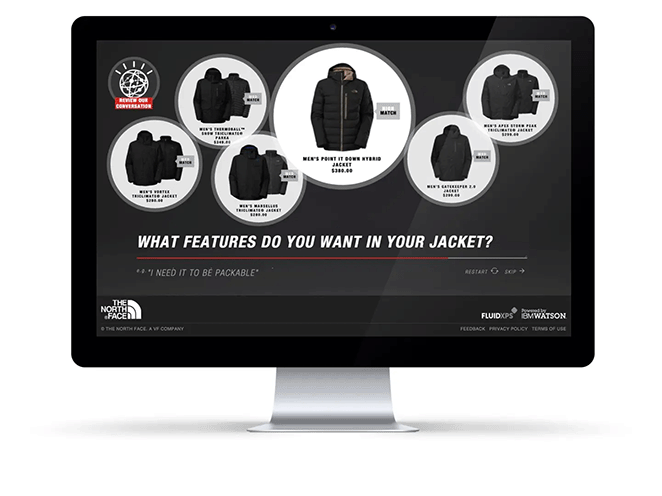
Even major brands use AI to improve the customer experience. The North Face used AI to personalize product recommendations and saw a notable increase in sales.
I have noticed the same advantage in my own workflow. Before AI, I built landing pages by hand. Now I design, write, and publish a complete page in less than half the time.
| Feature | Manual Builder | AI Generator |
|---|---|---|
| Page Structure | Created from scratch | Outlined by AI in seconds |
| Content Writing | Write all text yourself | Generate copy with prompts |
| Image Design | Upload or use stock photos | Create visuals inside the builder |
| Speed | Hours to complete | Done in minutes |
How to Create a Landing Page with AI in WordPress
Here is how I use SeedProd to build an entire page with help from AI.

SeedProd is a drag-and-drop WordPress website builder that lets you assemble and publish a landing page without touching code. Its AI writing and image assistant generates headlines, copy, and custom images in a few clicks.
In my experience, the whole process takes about 30 to 45 minutes from planning to publishing.
What You’ll Need
Before you start, make sure you have:
- A self-hosted WordPress site
- SeedProd plugin (Basic plan or higher)
- SeedProd AI Addon (available at checkout)
- A clear page goal: who it’s for and the one action you want visitors to take
Can You Build an AI Landing Page for Free?
You can get most of the way there for free. Start with a free SeedProd template, then write your copy in free ChatGPT and paste it into the page by hand.
That still saves you the slowest part, which is writing from a blank page. The paid SeedProd AI addon is the faster route, since it generates copy and images right in the editor without copy-pasting between tabs.
1. Plan Your Landing Page with AI
The first step is to use an AI chatbot like ChatGPT to create a detailed structural outline for your landing page.
To get started, go to ChatGPT and enter your prompt.
In this example, I asked AI to outline a landing page promoting a webinar: “Outline a straightforward four-section landing page for a webinar.”
Here is the response with the outline for my page:
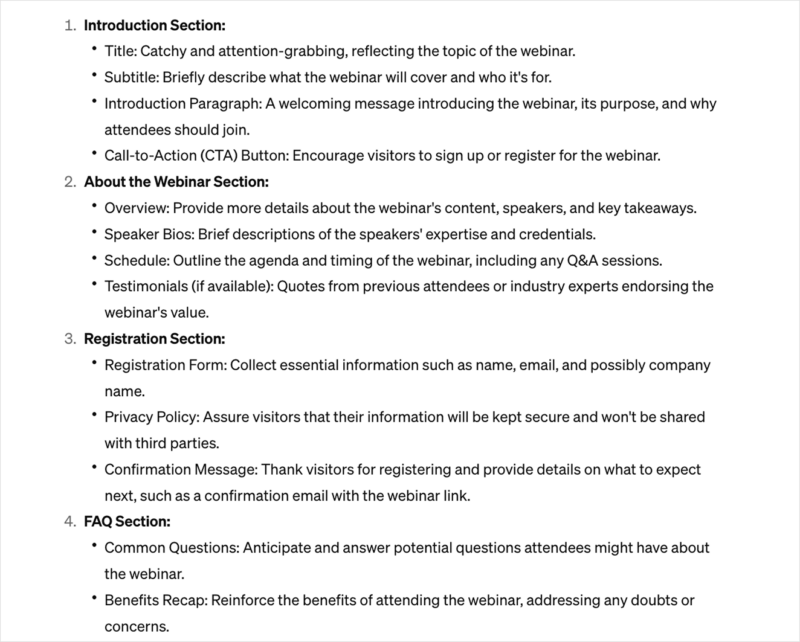
ChatGPT gave me a simple guide for my headlines, calls to action (CTA), landing page copy, forms, and FAQs. This gives me a solid framework to work from during the design process.
2. Install SeedProd
Next, install and activate SeedProd on your website. To use the AI features, you need a premium SeedProd plan, and you can add the AI addon during checkout.
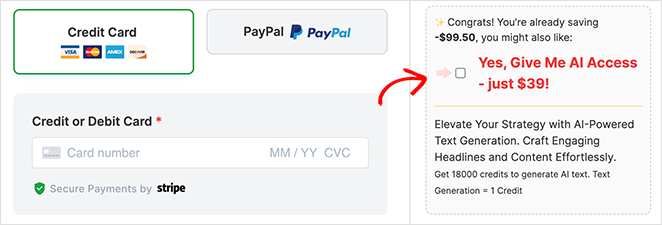
If you need help, follow these steps showing you how to install SeedProd.
3. Create Your Landing Page
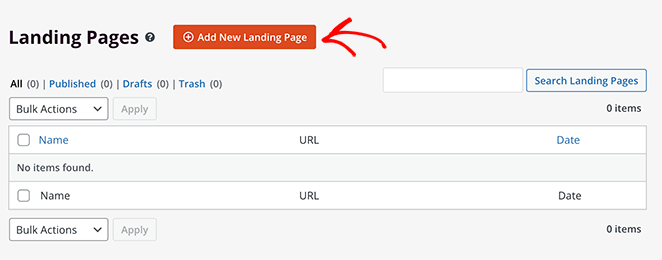
After installing SeedProd, go to SeedProd » Landing Pages in your WordPress admin and click the Add New Landing Page button.
Now you will see SeedProd’s library of responsive landing page templates. Click the tabs at the top to filter the designs by purpose.
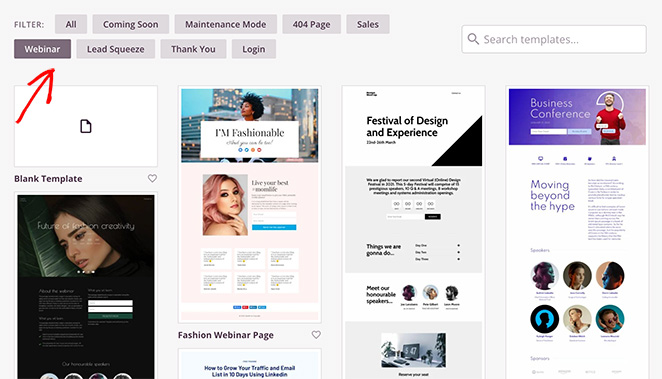
Since I am creating a webinar landing page, I will click the Webinar tab. Starting from a template means the essential sections are already in place, so I only customize the content and branding.
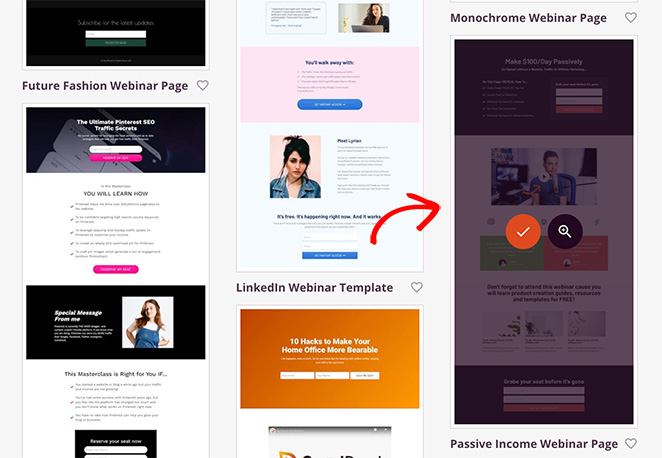
To choose a template, hover over a design you like and click the checkmark icon.
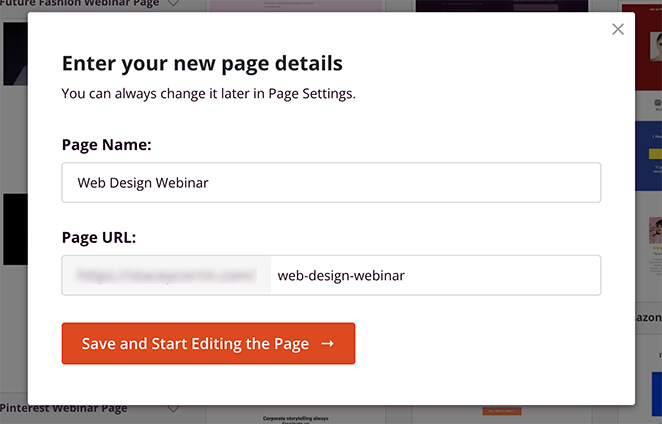
Next, name your page and click the Save and Start Editing the Page button.
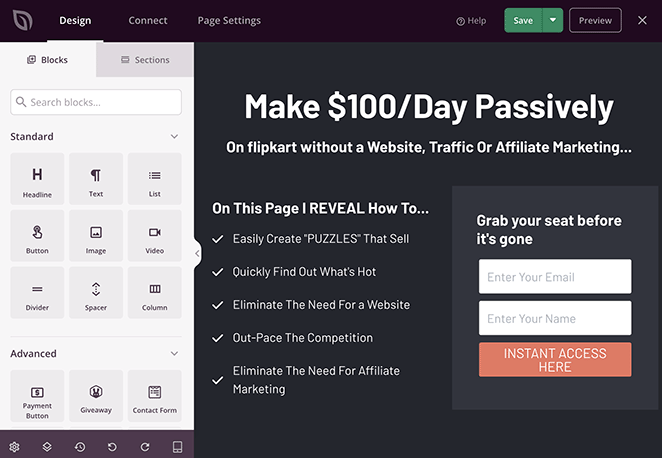
Your template opens in SeedProd’s visual editor. On the left you will see blocks you can add to your page, and on the right is a live preview that updates as you work.
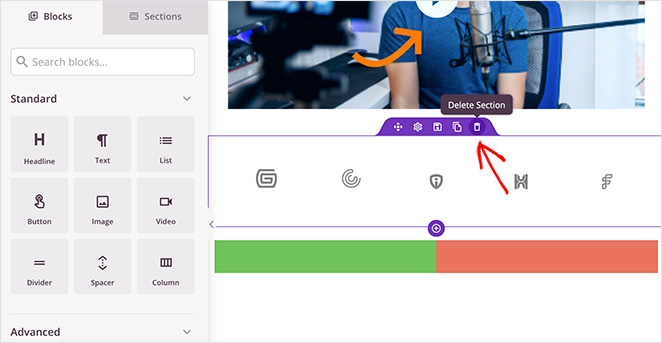
Start by removing elements you don’t need. Hover over them and click the trashcan icon.
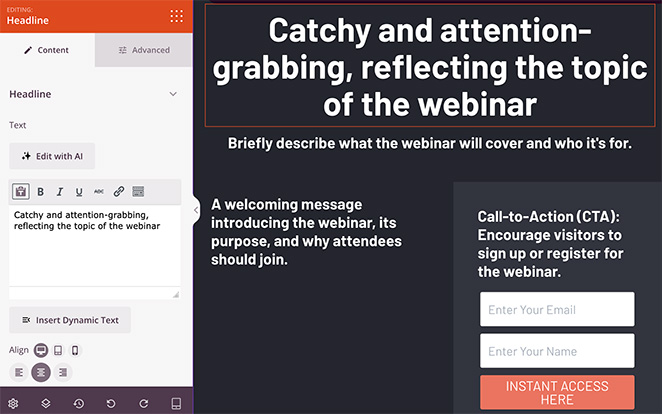
Next, shape the page around your ChatGPT outline. For now, you can copy and paste the suggestions like this:
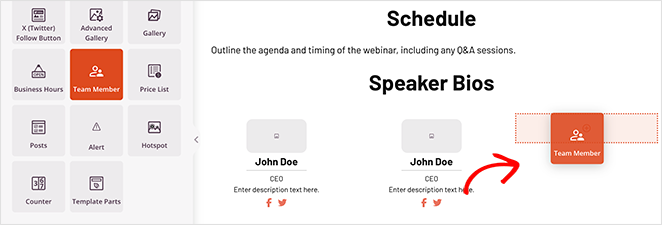
Since my outline calls for speakers, I will add placeholders using the Team Members block. Find it in the left-hand sidebar and drag it onto your page.
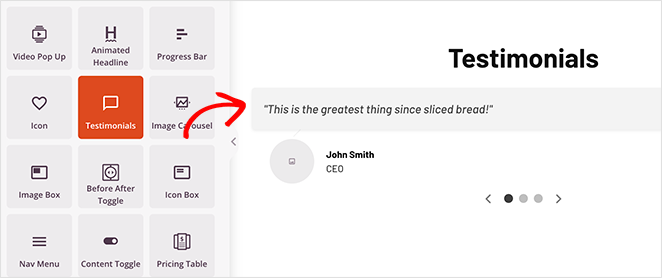
I will do the same for the social proof section using the Testimonials block.
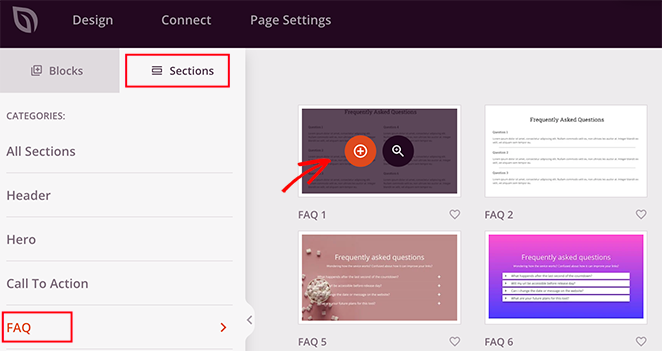
One final section I need is the FAQs. SeedProd has ready-made FAQ sections you can add with a single click.
To find them, click the Sections tab in the left sidebar and click the ‘FAQ’ heading.
Now choose a pre-made FAQ section you like and click the plus icon to add it to the bottom of your landing page.
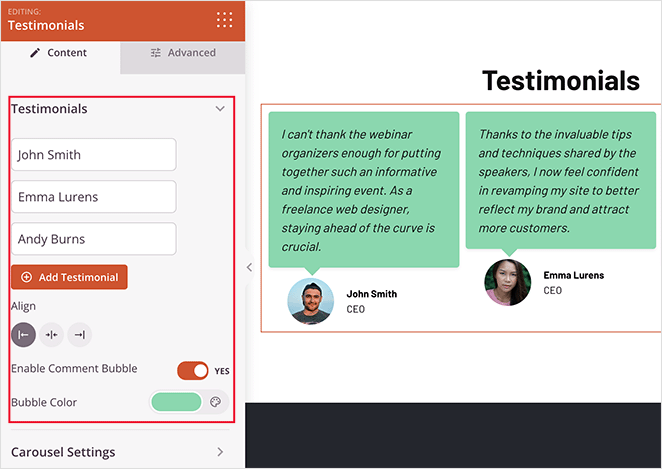
Customizing any of these new elements is easy. Click them and you will see their settings in the sidebar.
For example, in the Testimonials block, you can enable a sliding carousel, add photos, and adjust the fonts and colors without CSS or HTML.
4. Write Content with SeedProd AI
Once the page structure is in place, use SeedProd’s built-in AI writing assistant to draft your headlines and body copy.
SeedProd AI and its copywriting assistant handle this step. Select any headline block and click Edit with AI, and the assistant drafts a headline in a few seconds.
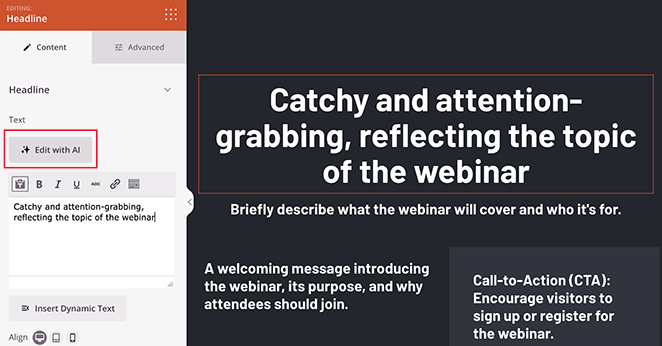
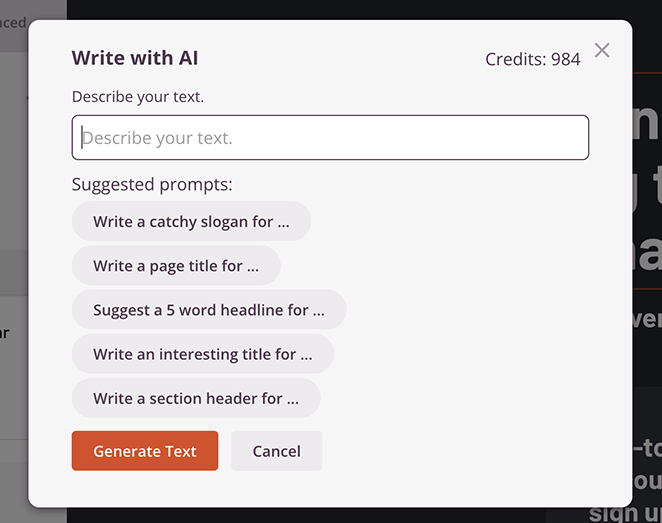
In the ‘Write with AI’ popup, type your prompt and click Generate Text. I used this prompt: “Create an exciting page title, encouraging people to join our web design webinar.”
After a few seconds you will see your AI-generated headline. You can use it as is, or click the buttons to shorten, lengthen, or simplify the language.
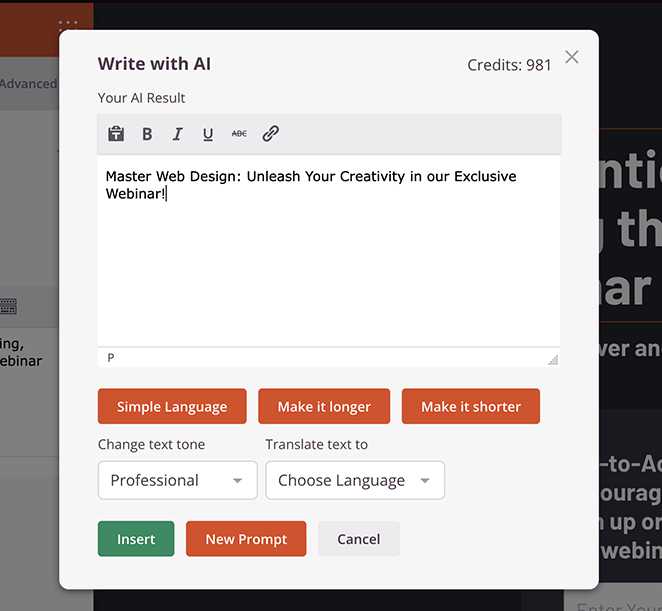
When you are happy with the headline, click Insert to add it to your page. AI-generated text is a strong starting point, but always review and personalize it to match your brand’s voice.
Repeat this step to generate landing page content for any part of your design. Click the ‘Write’ or ‘Edit with AI’ button in any text block and enter a relevant prompt.
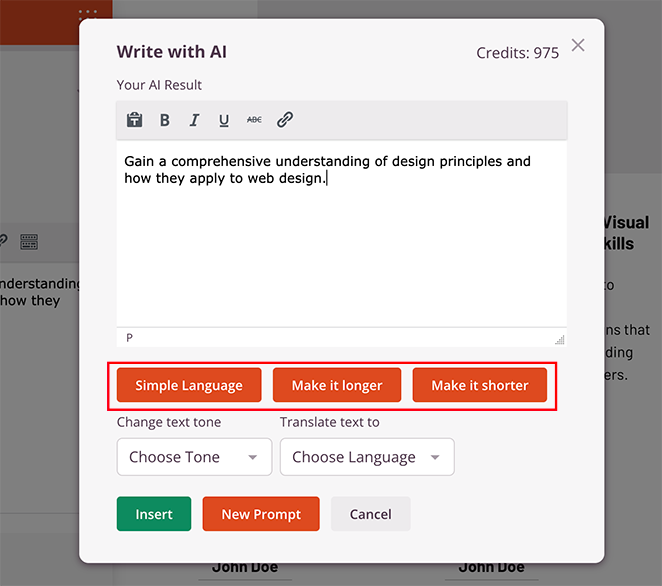
I used this approach to draft my FAQ answers:
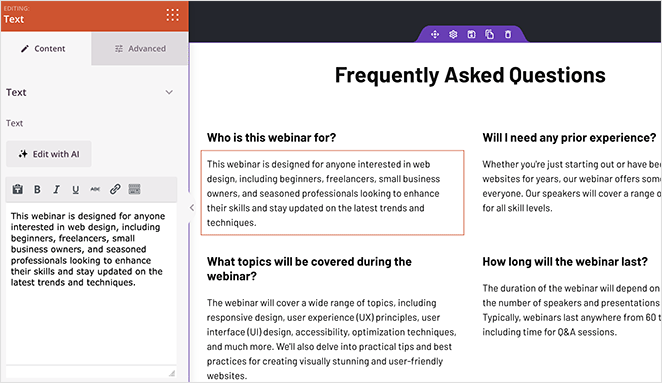
For more detail, see my guide on how to use AI to write content.
5. Create Landing Page Images with AI
Now let’s add an image to help visitors picture what they will get. For this I will use SeedProd’s Image block, which has AI image creation built in.
To use AI to generate images, drag the Image block onto your page, then click the “Add with AI” button in the block settings.
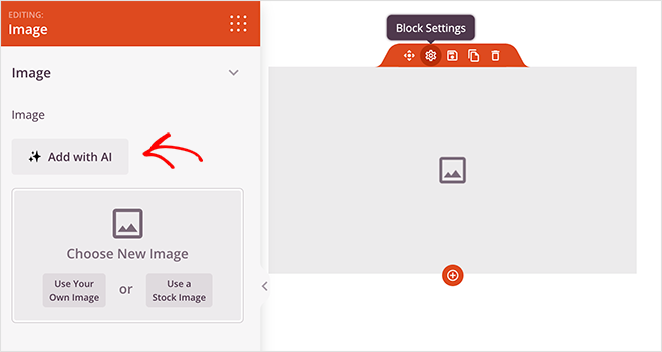
In the chat interface, enter your prompt and click “Generate Image.”
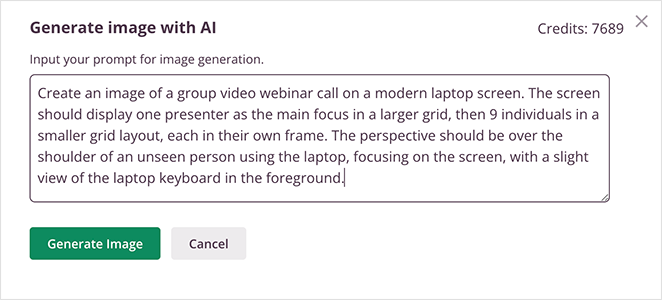
I used the prompt:
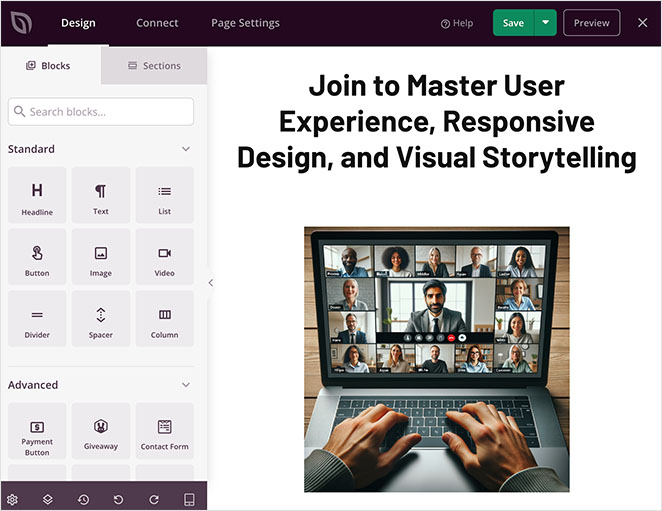
“Create an image of a group video webinar call on a modern laptop screen. The screen should display one presenter as the main focus in a larger grid, then 9 individuals in a smaller grid layout, each in their own frame. The perspective should be over the shoulder of an unseen person using the laptop, focusing on the screen, with a slight view of the laptop keyboard in the foreground.”
Once the image is generated, you can refine it by clicking the “Edit with AI” option.

Here you can generate more variations, edit parts of the image with a brush tool, or re-generate it with a new prompt.
Once you are happy with the final version, click Insert to add it to your page.
6. Optimize Your Landing Page with AI
Once your page is built, it’s time to optimize it for SEO and conversions. With All in One SEO, you can use AI to write SEO titles and meta descriptions for your new page.
Here is how to do it:
- Click the AIOSEO button at the top right of the screen to open the SEO settings.
- Enter your main keyword in the ‘Focus Keyphrase’ field.
- Click the ‘Generate New Title’ button to get AI suggestions for your SEO title.
- Do the same for your meta description to create an engaging search summary.
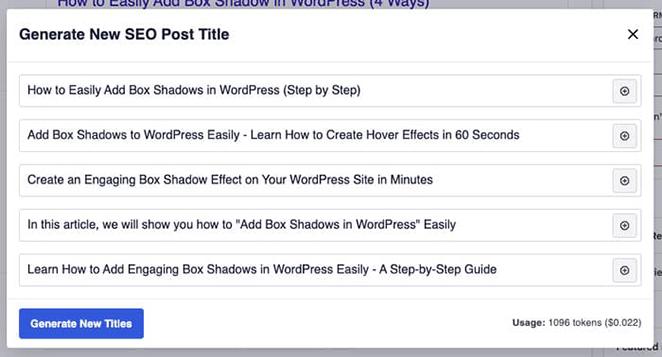
This writes your page for both readers and search engines, which can improve visibility and click-through rates.
It’s also worth writing the page so AI search and AI-driven social can surface it. Use clear answer-style copy and structured headings, so tools like ChatGPT and Perplexity can pull your page as a source when people ask about your topic.
Speed matters too. The 2026 bar is an LCP under 2.5 seconds and an INP under 200 milliseconds, and a fast builder makes that easier to hit. In my GTmetrix testing, a SeedProd page loaded in 556ms, which leaves you plenty of headroom against those targets.
Other AI tools that can help fine-tune your page include:
- WPForms: sends AI-personalized form confirmations or follow-ups.
- Uncanny Automator: automates social posts by connecting ChatGPT with WordPress.
Test Your AI Landing Page With A/B Testing
An AI-built page is a strong first draft, not the final word on what converts. The fastest way to improve it is to test one element at a time and keep the winner.
Start with the three elements that move conversions most:
- Headline: the first thing visitors read, and the biggest lever on whether they stay.
- CTA: the button copy and color that ask for the action.
- Hero image: the visual that sets the tone above the fold.
Change one element at a time so you know what actually moved the result. AI helps here too: ask SeedProd AI to draft a few alternate headlines or CTAs, then test them against your original.
For the actual test setup, follow our guide on A/B testing for landing pages in WordPress.
7. Publish Your AI Landing Page in WordPress
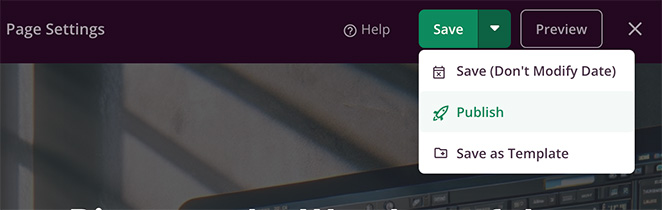
When you have finished optimizing your landing page, you are ready to publish. Click the Save button at the top of your page and select Publish.
You can now visit your page to see it live. Here is a final look at the AI landing page I made on my test website.

Ready to build yours?
Build your AI landing page in under 45 minutes
SeedProd puts AI copy, AI images, and 300+ templates in one drag-and-drop editor, so you can follow these exact steps on your own site today.
Start Building NowBuild a Landing Page by Prompt With WPVibe
The workflow above keeps you in the SeedProd editor. If you would rather build by typing instructions in plain English, there is now a faster AI route worth knowing about.
WPVibe is an AI plugin that connects your WordPress site to ChatGPT, Claude, or Cursor. You describe the page you want in a chat, and the AI agent edits your site directly through that connection.
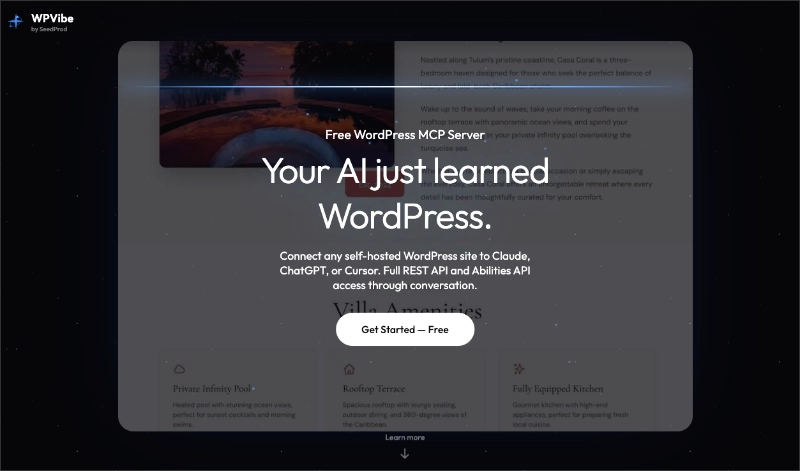
This is the closest thing yet to “AI builds the page for you,” but it is still a build-and-review flow, not a magic button. The agent assembles and edits the page; you check the result and publish it.
The flow is short:
- Connect your site: link WordPress to your AI tool through WPVibe.
- Prompt the page: describe the landing page you want, including sections and goal.
- Review the result: check the copy, layout, and links the agent produced.
- Publish: when it looks right, push the page live.
I would still treat this as a bonus route rather than the main one. The SeedProd workflow gives you more direct control over each section, and you can always hand the finished page to A/B testing afterward.
Editing works the same way afterwards. Here’s how to change copy, headlines, and buttons by chat on a page that’s already live.
Best WordPress AI Landing Page Generators Compared
If you are weighing up which WordPress AI landing page generator fits your site, here is a side-by-side look at the top options I have tested.
| Tool | Starting Price | AI Features | Best For |
|---|---|---|---|
| SeedProd | $39/year | AI writing + AI image generation | Beginners who want a fast, no-code setup |
| Elementor AI | From $168/year via Elementor One | AI text generation inside the page builder | Designers who want deeper customization |
| Divi AI | $277/year (Divi Pro) | AI copywriting + image generation | Agencies managing multiple client sites |
I use SeedProd on my own sites because it is the most beginner-friendly and works entirely inside WordPress. Elementor AI and Divi AI can be good fits if you are already using those builders and want extra design flexibility.
FAQs on Creating a Landing Page with AI
Do I need design or coding skills to build an AI landing page?
No. You start from a SeedProd template and customize it with drag-and-drop, so there is no CSS or HTML to write. The AI writing assistant drafts your copy, and the AI image tool creates visuals, so you are editing rather than building from scratch.
How does an AI landing page generator actually work?
You give it a prompt describing your page, and the AI drafts copy, suggests a layout, or generates images based on that prompt. In SeedProd, this happens right in the page editor, so the AI output drops straight onto the page. You then edit and publish it, since the AI produces a starting point rather than a finished page.
How long does it take to create a landing page with AI?
With SeedProd, the full process of planning with ChatGPT, building the page, and writing copy with SeedProd AI takes about 30 to 45 minutes. Without AI, the same page typically takes 2 to 3 hours. That is the roughly 75% time saving I see in my own builds.
Do AI landing pages convert well?
Yes, when the page is focused on a single goal. AI speeds up creation, but conversion still depends on a clear CTA, messaging that matches the traffic source, and a fast-loading page. SeedProd pages are lightweight by design, which helps on speed.
What’s the difference between SeedProd AI and Elementor AI for landing pages?
SeedProd is beginner-focused, with AI writing and image generation built in from $39/year and no extra plugins needed. Elementor AI is now part of Elementor One, from $168/year, and gives designers more customization depth. If you are new to WordPress, SeedProd is the faster path.
Can I create a free AI landing page in WordPress?
Not fully. SeedProd’s AI features are in the paid plan, but you can use a free SeedProd template and add AI-generated content by hand with a free tool like ChatGPT, then paste it in. You save time on copy even without the paid AI addon.
Bonus Landing Page Guides
If you’d like to learn more about creating landing pages, these guides are packed with useful tips:
- How to Use AI for SEO to Improve Rankings
- Landing Page Headline Formulas to Boost Conversion Rates
- Best Automation Marketing Tools for Small Business
- How to Build a WordPress Website with AI
- Top eCommerce Landing Page Examples to Drive Sales
- Landing Page URL Examples and Best Practices for Beginners
Create a Landing Page with AI Today
Your next landing page can be live this afternoon, copy, images, and layout handled with AI inside your own WordPress site. Open SeedProd, start from a template, and let the AI assistant draft your first headline.
Get Started with SeedProd Today
Thanks for reading! We’d love to hear your thoughts, so please feel free to join the conversation on YouTube, X and Facebook for more helpful advice and content to grow your business.



