

TL;DR: How to Point a WordPress Landing Page to a Different Domain
SeedProd’s built-in domain mapping lets you assign a custom domain to any landing page. No DNS configuration or extra plugins needed.
- Register a domain – Get a domain from your registrar before you start.
- Get SeedProd Elite – Domain mapping requires the SeedProd Elite plan.
- Create your landing page – Build and design your page in SeedProd’s visual editor.
- Enter the domain in Page Settings – Go to Custom Domain and paste in your domain.
- Publish – Your landing page goes live at the custom domain URL.
Do you want to create landing pages for any domain on a single WordPress website?
With the average landing page conversion rate around 5.89% across all industries, having effective landing pages is crucial. There are many ways to map a domain to WordPress, but most methods require extra plugins or DNS changes.
With single-site WordPress domain alias mapping, you can point multiple landing pages on one domain to different custom domains from a single WordPress install.
This article will first explain the different versions of WordPress domain mapping. Then, I’ll show you how to point a single WordPress landing page to a different domain.
What Is WordPress Domain Mapping?
“Domain mapping lets you manage several domains in one WordPress installation. This makes your site more efficient and easier to handle” – 10Web
You might need to do this if:
- You have several domains that all need to point to a single server.
- Your domain registrar is different from your hosting provider or hosting account.
- You’re switching to a new Content Management System (CMS) like WordPress and want to preserve the links on your website.
Simply put, WordPress domain mapping is a way to redirect users to the correct web host through your site’s address.
Now that you know what domain mapping is, how does this apply to WordPress multi-sites?
What Is a WordPress Multisite Network
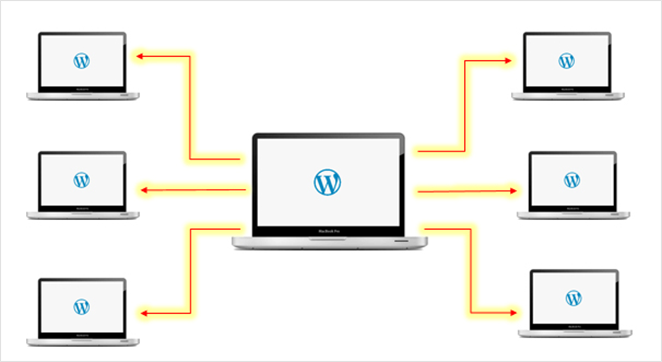
A WordPress Multisite network is an efficient and scalable way to run and manage more than one WordPress site or blog from a single WordPress installation. Major brands like Best Buy, WordPress.com, and The New York Times rely on WordPress Multisite to streamline the management of their extensive online presence.
This centralized approach allows you to create new sites instantly and manage them with the same username and password.
So how does this relate to domain mapping? Let’s find out.
What Is WordPress Multisite Domain Mapping?
By default, extra sites on your WordPress multisite network are created as:
- Subdomains like subsite.network.com
- Or subfolders such as network.com/subsite
As you can see, this doesn’t look very professional. Fortunately, there’s a way to make your multisite setup look more professional and user-friendly.
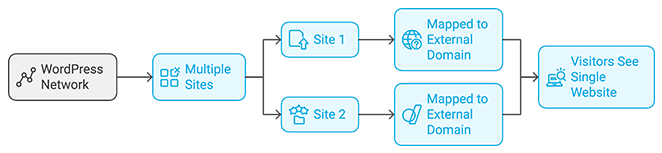
With WordPress multiple domain mapping, you can point a site on your network to a specific external domain, like yoursite.com. That way, visitors will see it as a regular, single website.
But what if you want to connect specific domains to different pages on one WordPress website? That’s where WordPress single site domain mapping comes in.
What Is WordPress Single Site Domain Mapping?
WordPress single site domain mapping involves pointing domain names to single pages on your WordPress site. This allows you to give specific landing pages on your site their own custom domain names as if they were standalone sites.
Here’s how a standard website structure looks:
- yoursite.com
- yoursite.com/ProductA
- yoursite.com/ProductB
With single-site domain mapping, you can take a custom domain like productA.com and point it to an individual landing page, yoursite.com/productA.
This means when visitors type productA.com into their address bar, the page will look like a standalone website instead of a subpage on a larger website, i.e.:
productA.com instead of yoursite.com/poductA.

What I like about this setup is you don’t need separate WordPress installs for each domain. Instead, you can manage them all from your existing website and still achieve the same effect.
If any of this sounds confusing, here’s a brief comparison:
| Feature | WordPress Multisite Domain Mapping | WordPress Single Site Domain Mapping |
|---|---|---|
| Purpose | Connect a unique domain to each site within a multisite network. | Connect a unique domain to a specific page within a single WordPress site. |
| Structure | Each site appears as a standalone website with its own domain: – subsite1.com – subsite2.org | Main website with different domains pointing to specific pages: – mainsite.com (Homepage) – productA.com (mainsite.com/productA) – productB.net (mainsite.com/productB) |
| Management | Manage all sites from a single WordPress dashboard. | Manage all domains and their corresponding pages from a single WordPress dashboard. |
| Example | A network of online stores for different brands under one company. | A business website with separate domains for individual products or services. |
Why Use a Different Domain Name for Landing Pages?
There are many reasons why creating different domains for landing pages is a good idea for your business.
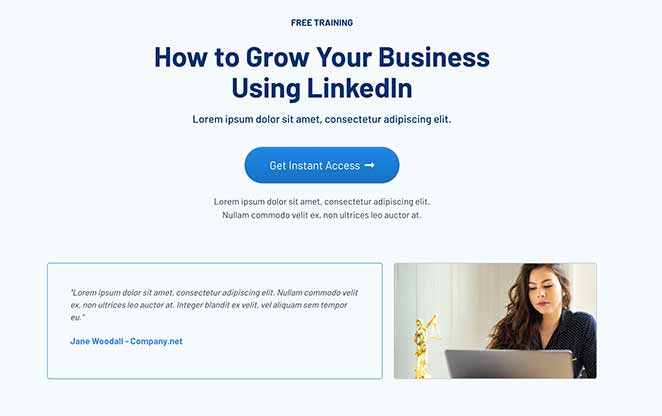
Here are just a few examples:
- Website Launch: You could launch a coming soon page from your existing site and use single site domain mapping to set it up on a new domain.
- Real Estate Business: Instead of listing properties on myrealestate.com/1mainstreet and myrealestate.com/2mainstreet, you can create individual page sites like 1mainstreet.com and 2mainstreet.com.
- Webinar Marketing: You could launch a webinar for your business at howtosetupwordpress.com and have the webinar page at howtosetupwordpresswebinar.com.
With your landing pages mapped to different domain names, it’s easier to market them to the right audience and give each page a distinct look, feel, and branding.
It’s also much easier to track each page’s performance individually in Google Analytics to see if your marketing efforts are paying off.
Now that you know the benefits of mapping single landing pages to custom domains in WordPress, let’s see how to do it!
How to Point Single WordPress Landing Pages to Custom Domain Names
In WordPress, different domain landing pages typically involve using multiple WordPress plugins. For instance, you’d need:
- A WordPress landing page plugin to create a high-converting landing page
- The WordPress multiple domain mapping on single site plugin to point your landing page to a custom domain
This can be confusing if you’re unsure what the best WordPress plugins are for your needs. It can also add unnecessary bloat to WordPress, slowing down your site.
Luckily, there’s an easy solution that requires only a single plugin: SeedProd.

SeedProd is the best WordPress website builder and drag-and-drop landing page builder on the market. It allows you to create stunning landing pages quickly and easily without writing a single line of code.
Using the easy drag-and-drop visual editor, you can create custom WordPress themes and any type of landing page and customize them. Just point and click to get everything looking exactly the way you want.
You can then use the Domain Mapping feature to point a custom domain to your landing page without installing an extra plugin.
SeedProd also comes with powerful coming soon, maintenance, 404, and login page modes. This means you can:
- Create a coming soon page to promote your site while it’s under construction
- Show visitors a user-friendly maintenance page while you’re updating your site
- Build a custom 404 page to redirect visitors from broken site pages
- Create a custom WordPress login page to welcome users to your website.
All of this and more is available in 1 lightweight and bloat-free WordPress plugin to drive more leads and sales for your business.
With that in mind, here’s how to use SeedProd to create landing pages for any domain on a single WordPress site.
Before you start: You’ll need a registered domain name and a SeedProd Elite plan. Domain mapping is only available on the Elite plan.
Step 1: Install and Activate SeedProd Landing Page Builder
SeedProd’s Domain Mapping feature is only available on the Elite plan. Click here to get started with SeedProd and download the plugin.
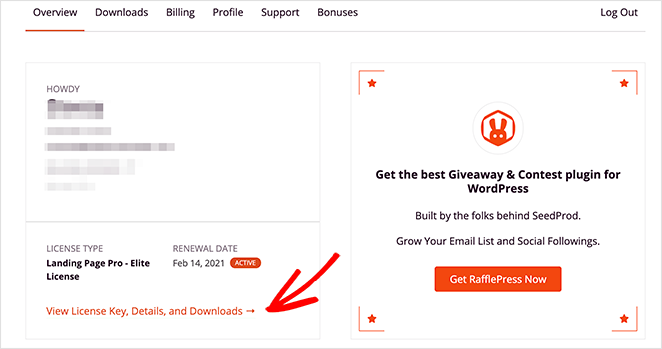
Then log in to SeedProd and click the View License Key, Details, and Downloads link.
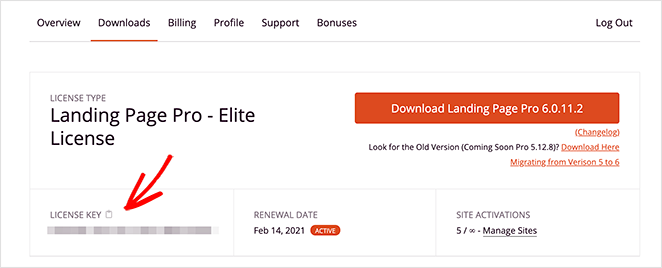
On the Downloads page, copy your license key and paste it into a blank document or notepad to use later.
From there, you need to install and activate SeedProd on your WordPress website. If you need help with this step, follow these step-by-step instructions for installing a WordPress plugin.
After installing and activating SeedProd, you’ll see a welcome screen like the one below.
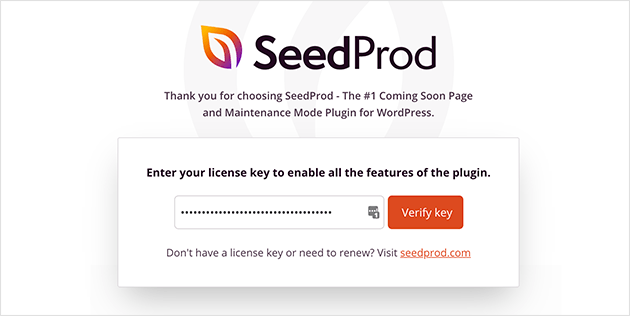
Now paste the license key you copied earlier into the field and click the Verify Key Button.
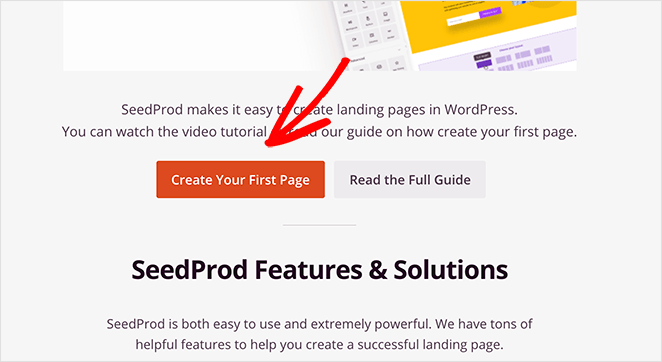
Next, scroll down the page and click the Create Your First Page button. This will take you to SeedProd’s landing page dashboard.
Step 2: Create a New Landing Page
On the next screen, you’ll see 4 different page modes you can activate in SeedProd, including:
- Coming Soon Mode
- Maintenance Mode
- Login Page
- 404 Page
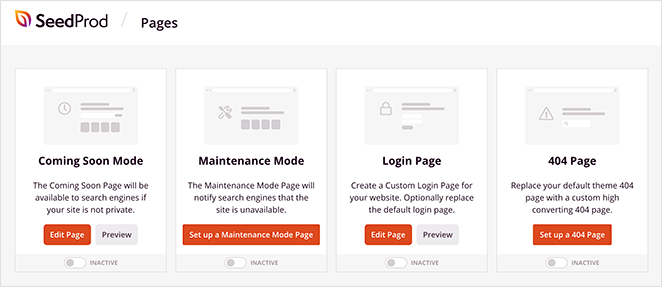
You can activate each mode with a single click to show customized landing pages to your website visitors.
Note: Domain Mapping is only available for individual landing pages, NOT for pages created with various page modes.
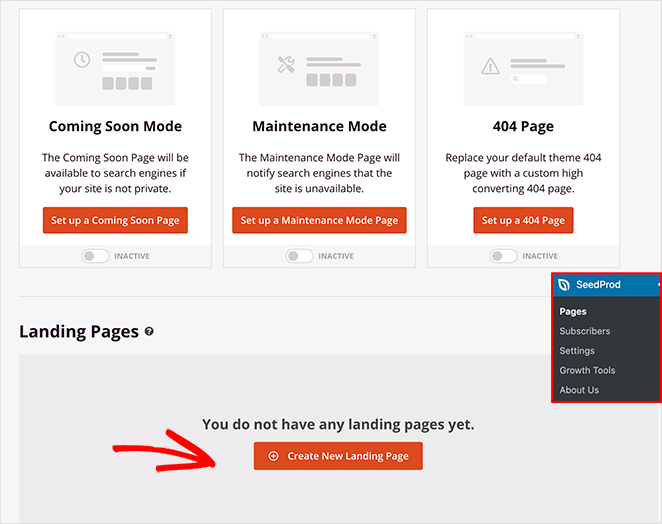
This area is where your landing pages are displayed after you create them with SeedProd. You won’t see anything in this section yet, but they’ll show up in a list once you’ve made them.
To make your first page, click the Create New Landing Page button.
After clicking the button to make a new landing page, you’ll see SeedProd’s library of customizable landing page templates. You can edit and customize these designs in the drag-and-drop page builder.
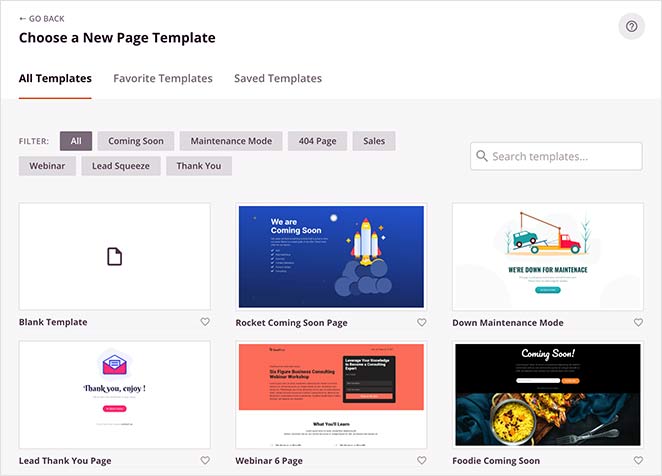
You can filter the templates by clicking any label along the top of the screen, such as:
- All
- Coming Soon
- Maintenance Mode
- 404 Page
- Sales
- Webinar
- Lead Squeeze
- Thank You
- Login
Pick any template close to the type of page you want to create. Then, hover your mouse over the template thumbnail and click the tick icon.

For this tutorial, we’ll use the “Sales” template.
After clicking the template, a popup appears asking you to enter your landing page name and URL. You can change this later if needed.
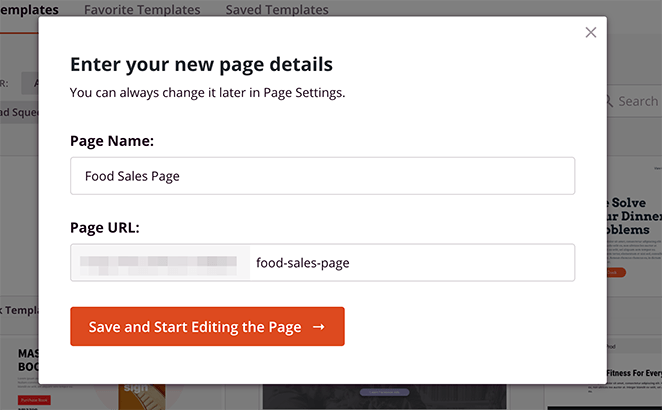
After entering the page name, click the Save and Start Editing the Page button to launch the template in the visual editor.
Step 3: Customize Your Landing Page
SeedProd’s visual editor lets you drag any block onto the page and customize it with a click. For a full walkthrough of all the design options, see our guide on how to create a landing page in WordPress.
Step 4: Integrate Your Email Marketing Service
SeedProd connects to popular email services including Mailchimp, Drip, ConvertKit, and AWeber. Click the Connect tab in the builder to link your account.
For a full list of supported providers, see the SeedProd email integration documentation.
Step 5: Connect Your Landing Page to a Different Domain with Domain Mapping
The next step is to connect your landing page to a custom domain name. Unlike other domain mapping methods, SeedProd doesn’t require any DNS configuration.
Click the Page Settings tab at the top of your screen.
Here, you can configure your General, SEO, Analytics, and Scripts settings by clicking each option.
The most important setting for this tutorial is the Custom Domain option. This allows you to point your WordPress landing page to a different domain name.
So, go ahead and click the Custom Domain tab to see the WordPress domain mapping settings.
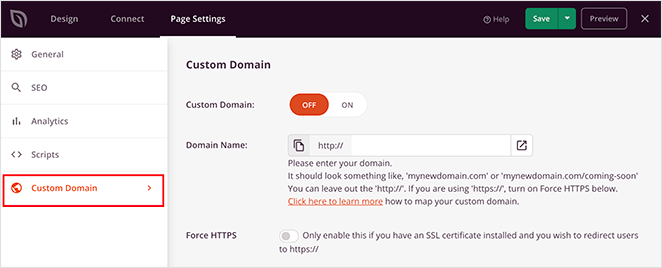
First, turn the Custom Domain toggle from “Off” to “On.” Then, in the Domain Name field, enter the domain you’d like to point your landing page to.
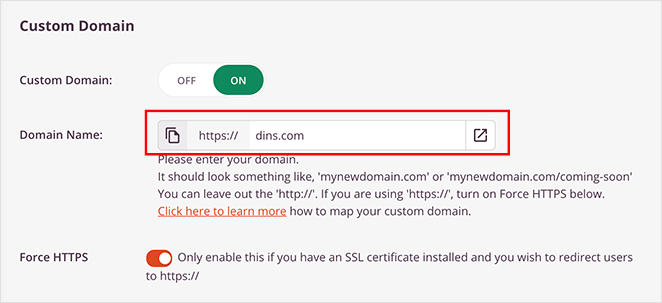
If you have an SSL certificate installed on the domain you wish to point your page to, you can use the Force HTTPS option. This redirects visitors to the secure HTTPS version of your domain instead of HTTP.
Now click Save to preserve your changes.
Step 6: Preview Your Page on Mobile
Now that you’ve created your landing page and mapped it to a custom domain name, it’s time to make sure everything looks correct on mobile devices.
So go back to the Design tab, then click the mobile icon at the bottom of the screen.
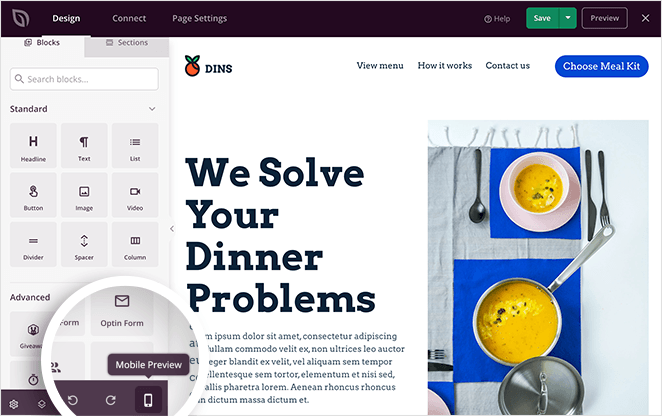
This loads your page in a mobile preview.
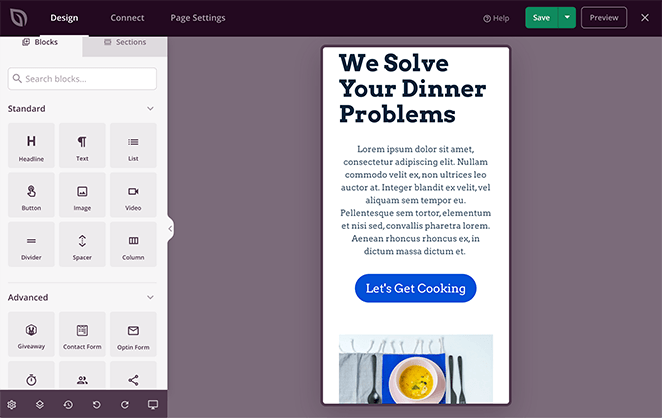
From there, you can optimize your landing page design for mobile devices. Just edit and reorganize your page as you would in the desktop preview. The changes are applied automatically to all versions of your page.
Step 7: Publish Your WordPress Landing Page
Now that you’ve learned how to point a WordPress landing page to a different domain, it’s time to make it live.
So, click the down arrow next to Save and click Publish from the top-right corner of your screen.
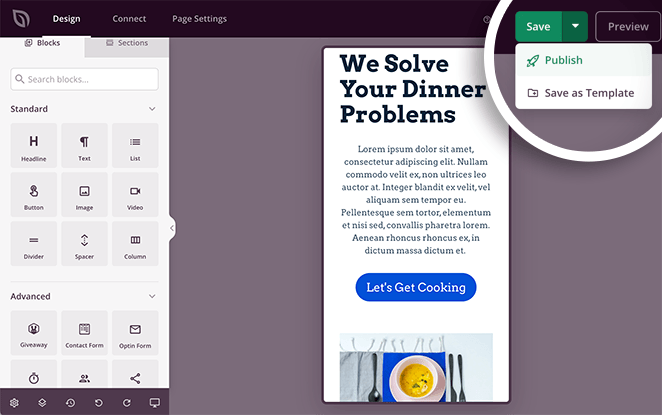
You’ll then see a popup telling you that your page has been published.
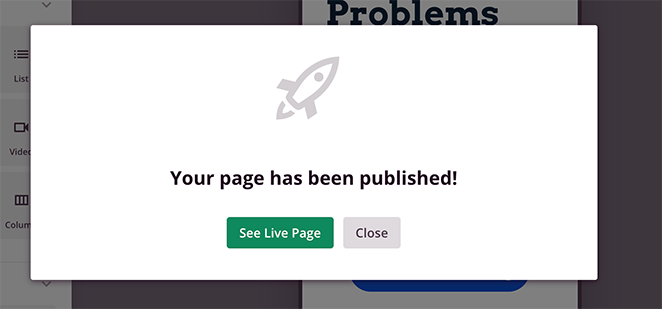
Go ahead and click the See Live Page button to see how your landing page looks.

Frequently Asked Questions
Will pointing my landing page to a custom domain affect my SEO?
The custom domain won’t inherit your main site’s authority. SeedProd automatically adds a canonical URL tag to the page, which tells Google the setup is intentional and prevents duplicate content penalties. You’ll want to build that domain’s authority separately through backlinks and content.
Can I map multiple landing pages to different custom domains?
Yes. SeedProd Elite supports multiple domain mappings. Each landing page has its own Custom Domain setting in Page Settings, so you can run multiple landing pages on different domains from one WordPress site.
What’s the difference between a domain alias and a redirect?
A redirect sends visitors to your main domain URL, which changes in the browser address bar. A domain alias keeps the custom URL visible while showing the landing page content. That’s what SeedProd’s domain mapping does, and it’s better for branded campaigns where you want the custom URL to stay visible.
Do I need a premium SeedProd plan to use domain mapping?
Yes. Domain mapping is available on the SeedProd Elite plan only. You can compare plans on the SeedProd pricing page.
And that’s it!
You’ve now learned how to point a WordPress landing page to a different domain. The best part is that it only required a single lightweight WordPress plugin to make it happen!
With SeedProd, connecting any WordPress landing page to a single domain is easy; even beginners can do it. As a result, you can create multiple microsites without installing WordPress on every domain.
If you’re already using SeedProd, give this a try with one of your existing pages to see how simple it is.
You might also find the following WordPress guides helpful:
- How to Hide Page Titles in WordPress
- How to Change Margins in WordPress
- How to Make a Page Full Width in WordPress
Thanks for reading! We’d love to hear your thoughts, so please feel free to join the conversation on YouTube, X and Facebook for more helpful advice and content to grow your business.



