



A tweet button in WordPress lets visitors share your content on X with one click. You can add one using a free plugin like Better Click to Tweet, SeedProd’s drag-and-drop builder, or embed code from X’s Publish tool. The easiest method for most bloggers is the free plugin, and it takes under 5 minutes with no code.
I’ve used tweet buttons on every blog I’ve built, from my parenting blog to client sites, and the difference in share rates is noticeable when they’re positioned right.
In this guide I’ll show you three ways to add a tweet button in WordPress, starting with the quickest free option.
Why Add a Tweet Button to WordPress?
X (formerly Twitter) sees around 200 million daily active users worldwide. That’s a huge ready-made audience you can tap with one click from your site.
A tweet button makes it fast and obvious for readers to share your posts, helping you reach new visitors, grow followers, and boost brand visibility.
How to Add a Tweet Button in WordPress
Three methods work for most WordPress sites. A free dedicated plugin is the quickest. SeedProd’s drag-and-drop builder gives you the most design control. And X’s Publish tool works if you’d rather not install any plugin at all.
Here’s a quick comparison so you can pick the right approach before reading the full steps.
| Method | Cost | Setup Time | Best For | Customization | Works Without Page Builder |
|---|---|---|---|---|---|
| Better Click to Tweet | Free | Under 5 minutes | Bloggers who want clickable quote boxes | Basic | Yes |
| SeedProd | Paid | 15-30 minutes | Full design control, custom page layouts | High | No (requires SeedProd) |
| X Publish Tool | Free | Under 5 minutes | Sidebar widget, no plugin needed | Low | Yes |
Method 1: Better Click to Tweet (Free Plugin)
Better Click to Tweet is a free WordPress plugin that adds a clickable pull-quote box to your posts. Readers see a highlighted quote with a “Click to Tweet” prompt and one click shares it to X. It’s the most widely recommended free option for bloggers, and setup takes under 5 minutes.
I’ve reviewed dozens of social sharing plugins over the years, and Better Click to Tweet consistently stands out because it does one thing well.
Here’s how to get started:
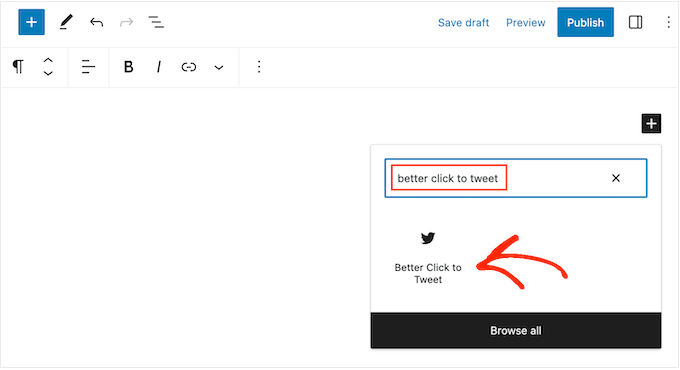
- Go to Plugins » Add New in your WordPress dashboard and search for “Better Click to Tweet.”
- Install and activate the plugin.
- Open any post or page in the WordPress editor.
- Add a Better Click to Tweet block and type the quote you want visitors to share.
- Publish or update your post. The quote box appears with a “Click to Tweet” button below it.
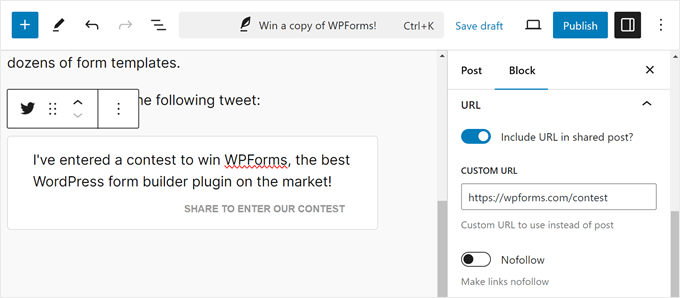
You can add your X handle, a URL, and hashtags inside the block settings so every tweet includes them automatically.
Method 2: Add a Tweet Button with SeedProd

If you want a tweet button built into a custom page design, SeedProd is the right tool. It’s a full WordPress website builder with a drag-and-drop editor, which means you can place a tweet button anywhere on any template without touching code.
It also includes blocks for lead generation and social sharing, including a dedicated Twitter Tweet button block. I use SeedProd to build and manage this site, so I know these blocks well.
Follow the steps below to add a tweet button with SeedProd.
Step 1. Install the SeedProd Plugin
First, click here to get started with SeedProd and download the plugin to your computer. You can then upload the plugin .zip file to your WordPress website.
If you’ve never installed a plugin before, you can follow this guide on installing and activating a WordPress plugin.
Once SeedProd is active on your website, go to the SeedProd » Settings page from your WordPress dashboard and enter your license key.
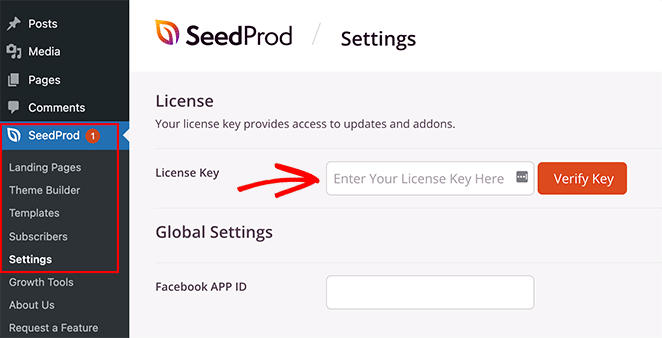
After pasting your license key, click the Verify Key button.
Step 2. Create a Landing Page or WordPress Theme
There are 2 ways to add a Tweet button to your website with SeedProd.
You can replace your current WordPress theme with a custom theme designed with SeedProd’s website kits. Or you can create a landing page with your existing WordPress theme.
For this tutorial, I’ll add a tweet button to blog posts by customizing the single post template with SeedProd’s theme builder. Check out this guide for all the steps on creating a custom WordPress theme with SeedProd.
If you’d prefer to add a tweet button to your landing page instead, you can follow this guide on creating a landing page in WordPress.
Both tutorials will show you how to choose a template and get your theme or landing page ready to customize. When you’re ready to add your tweet button, jump to step 3 of this guide.
Step 3. Add a Tweet Button to WordPress
After creating a theme or landing page with SeedProd, you can customize it easily with the drag-and-drop builder. As mentioned above, we’re going to add a tweet button to our WordPress post page. That way, users can tweet about your blog post after reading it and share it with their audience on social media.
To do this, go to the SeedProd » Theme Builder page from your WordPress admin. This will show the individual parts of your theme, such as your:
- Header
- Footer
- Sidebar
- Homepage
- Blog page
- Single post
- Single page
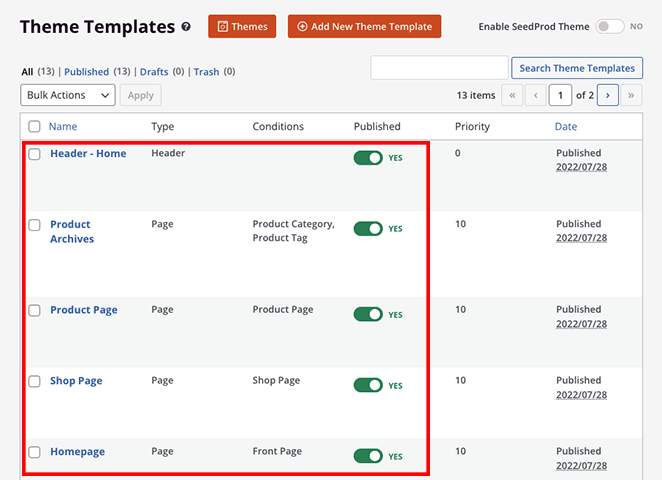
Each theme part is super easy to edit and customize in SeedProd’s visual editor. Simply hover over one and click the Edit Design link.
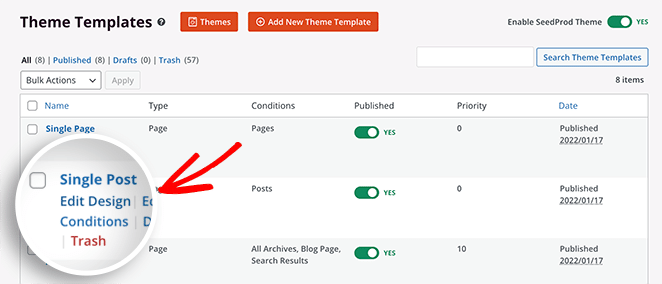
Since we’re adding a tweet button to blog posts, we’ll edit the Single Post template. After clicking the Edit Design link, your template will open in SeedProd’s visual drag-and-drop editor.
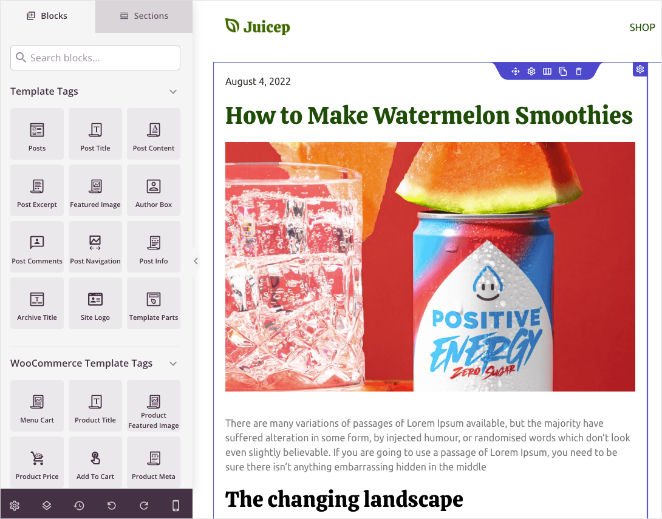
You’ll see the different content blocks and sections on the left and a live preview of your page on the right-hand side.
Clicking any element on your live preview opens its settings in the left-hand panel. This allows you to change the content and customize that element’s styling and appearance.
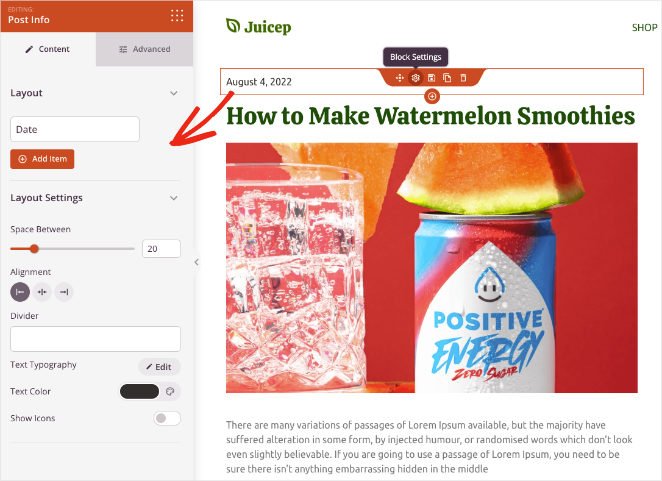
There are 2 ways to add a Tweet button using SeedProd:
- Social Sharing block
- Twitter Tweet button block
We’ll demonstrate both options so you can decide which is best for your website, but first, let’s add a new column to house our Twitter button.
To do that, drag the column block from the left-hand panel and drop it onto your preview. You can then choose a column layout for your content.
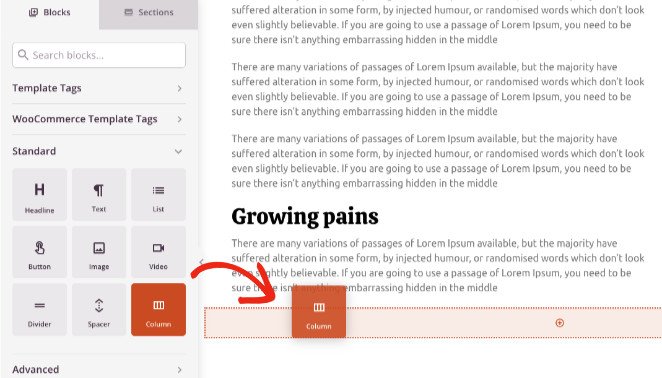
In this example, we have a 2-column layout with one side wider than the other.
Next, drag over the headline block and add it to the first column. In the settings panel, you can change the heading to say something like “Share this.”
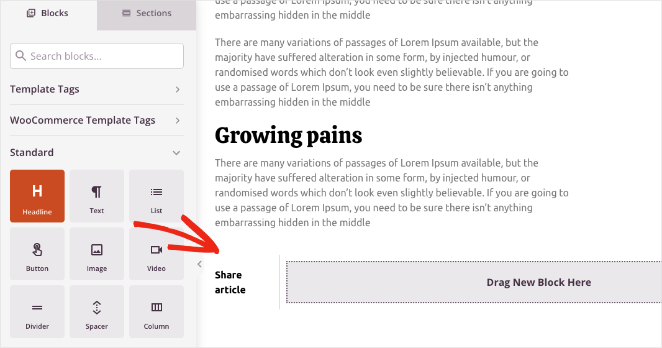
Now you’re ready to add your tweet buttons.
SeedProd Social Sharing Block
First, we’ll use SeedProd’s Social Sharing block to add share buttons for multiple social media networks, including Twitter. Find the block under the Advanced blocks panel, and drop it into the second column on your design.
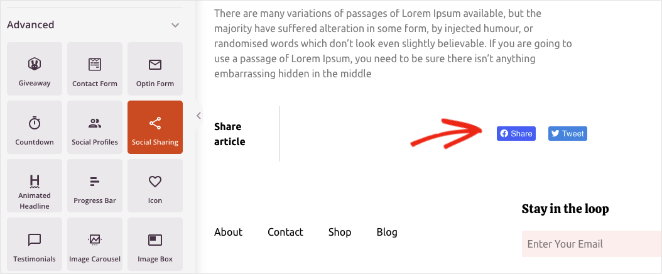
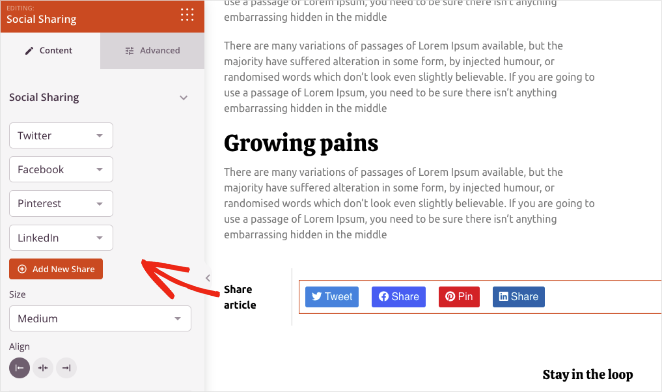
SeedProd will pre-populate it with a tweet button and Facebook share button. Clicking the block allows you to add more social sharing options for Pinterest and LinkedIn and settings to change the button size and alignment.
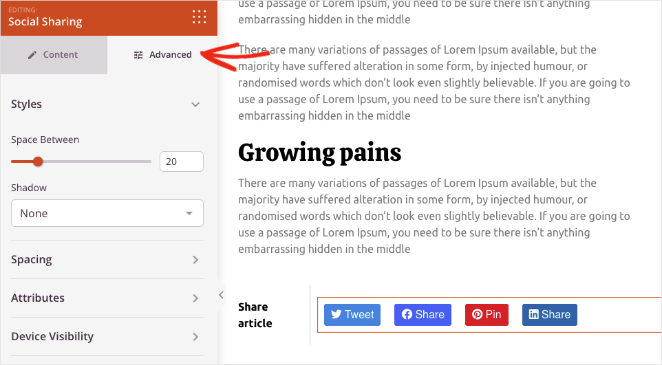
In the Advanced settings tab, you can customize the button styles and spacing and show or hide it on mobile and desktop devices.
Twitter Tweet Button Block
To add a single Tweet button, simply find the Twitter Tweet Button block in the Advanced blocks panel, then drag and drop it onto your page.
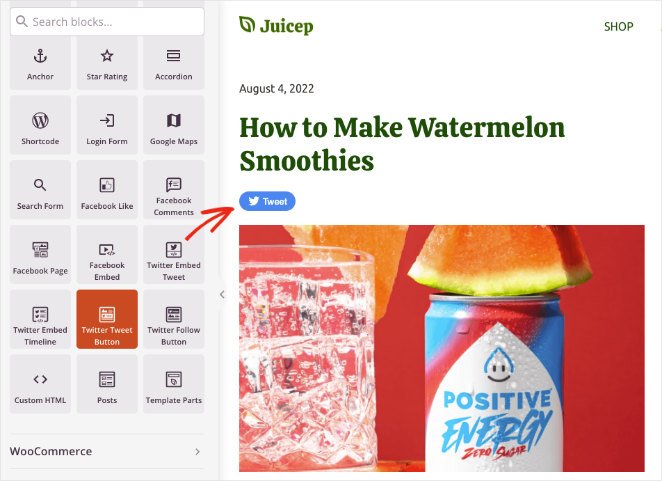
In the tweet button settings panel, you can customize several settings. For instance, you can add the URL you want visitors to share, the tweet content, and hashtags.
You can add @ via mentions and related Twitter accounts and change the button size, alignment, and language.
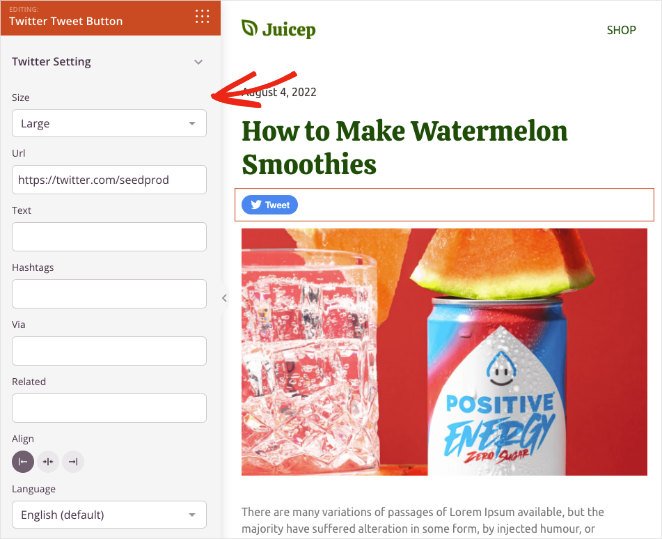
Experiment with SeedProd’s social sharing and tweet button blocks until you find a combination that suits your website. When you’re happy with how everything looks, click the Save button in the top-right corner.

Step 4. Publish Your Tweet Button in WordPress
The next step is to make your tweet button live on your WordPress site. To do that, go to the SeedProd » Theme Builder page and turn the Enable SeedProd Theme toggle to the “On” position.
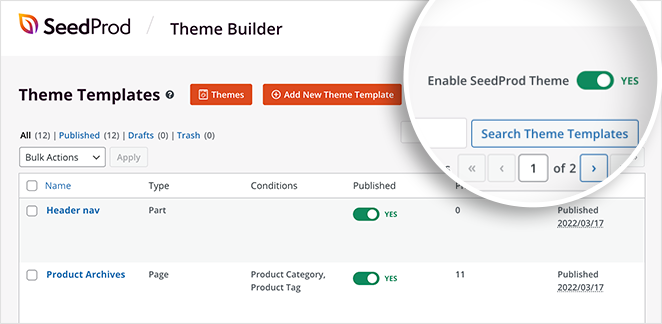
Great work! Now you can preview your website to see how your Tweet button looks.
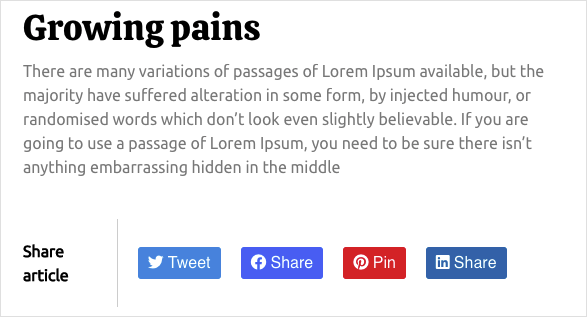
Here is an example of the tweet button:

And here is an example of the share buttons:
Method 3: Add a Tweet Button to WordPress Manually
If you’d rather not install any plugin, X’s Publish tool lets you generate a button embed code in seconds. The trade-off is limited customization and no click tracking through WordPress.
To get started, go to publish.twitter.com and choose the Twitter Buttons embed type.

Next, a window will pop up asking you to choose a button type:
- Share button: share a link on Twitter.
- Follow button: allow users to follow your Twitter profile.
- Mention button: start a conversation right from your website.
- Hashtag button: tweet about a topic using hashtags.
- Message button: let visitors message you privately on Twitter.
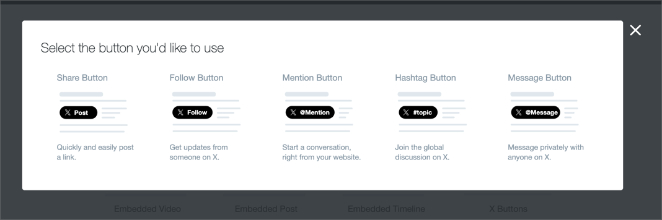
Let’s choose the Share button for this guide. After clicking your button type, you’ll see a page similar to the one below:
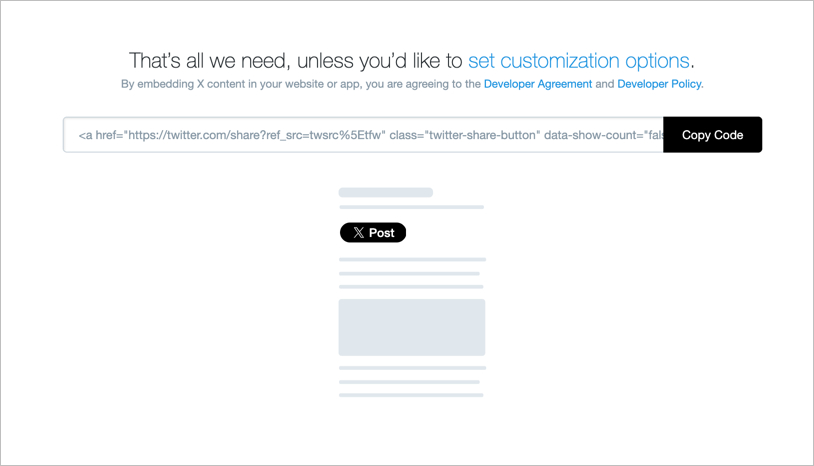
Click the button to copy the embed code, then head back to your WordPress site.
We’ll add this tweet button to our WordPress sidebar, so navigate to Appearance » Widgets from your WordPress dashboard. Then find the Custom HTML block and add it to your primary sidebar area.
Inside the block, paste the tweet button embed code you copied earlier, and click the Update button.
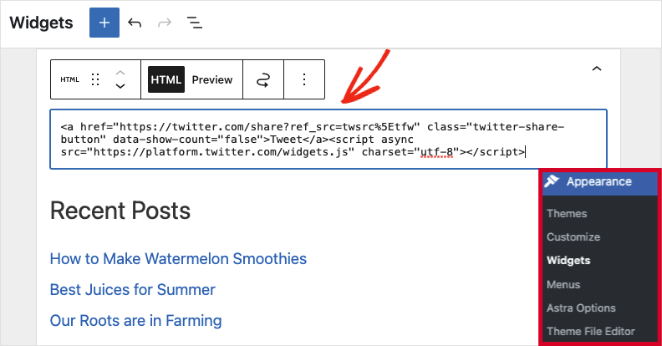
Now when you visit your WordPress site, you’ll see your tweet button in your blog sidebar.

If you want to display a live X feed and give visitors a way to share your content, Smash Balloon’s Custom Twitter Feeds plugin handles both. Each feed includes built-in tweet buttons, so it’s worth considering if you need a feed and share buttons in one place.
FAQs About Adding a Tweet Button in WordPress
How do I add a Twitter icon to WordPress?
The easiest way is to use a social sharing plugin. Better Click to Tweet adds a share button automatically. SeedProd’s Social Sharing block lets you add X alongside other networks with a drag-and-drop editor. You can also use X’s Publish tool at publish.twitter.com to generate an icon embed code and paste it into a Custom HTML block.
How do I insert a tweet into WordPress?
To embed an existing tweet, paste the tweet URL into any WordPress paragraph block and press Enter. WordPress will render it automatically. To create a clickable “Click to Tweet” quote box, use the Better Click to Tweet plugin and add your own quote text.
What happened to the Click to Tweet plugin?
The original CoSchedule Click to Tweet plugin was discontinued. Better Click to Tweet is the most widely recommended free replacement. It works the same way: you add a pull-quote block in your post, and readers see a “Click to Tweet” prompt that pre-fills the tweet with your text and URL.
Where should I place a tweet button for best results?
End of post works well for share buttons since readers who finish your content are most likely to share it. For click-to-tweet quote boxes, place them mid-article right after a stat or insight worth sharing. Sidebar placements work for follow buttons but tend to get lower engagement for share buttons.
Can I prefill hashtags or @mentions in the tweet button?
Yes. Both SeedProd and X’s Publish tool let you set custom text, hashtags, and @mentions inside the button settings. With Better Click to Tweet, you can add a via handle in the plugin settings so every shared tweet includes your X username automatically.
That’s it. You now have three ways to add a tweet button to WordPress: a free plugin for quick click-to-tweet boxes, SeedProd for full design control, and X’s embed code if you want to skip plugins entirely.
You might also like this guide on making your blog look like a website.
Ready to add tweet buttons to your website?
Thanks for reading! We’d love to hear your thoughts, so please feel free to join the conversation on YouTube, X and Facebook for more helpful advice and content to grow your business.




