
TL;DR: How to Build a Medical Website in WordPress
Most of an agency quote for a practice site buys a brochure you could build yourself. The parts needing a specialist are the ones touching patient data.
- What it costs: agencies publish $5,000 to $15,000. Building it yourself runs about $450 to $850 a year.
- The five pages: home, one per treatment, the team, new patient info, and contact.
- How to build it: seven steps, with AI writing the first version in under a minute.
- Check every detail: AI gets the layout right and invents your opening hours.
- Where the risk is: booking, intake and portals need a vendor who’ll sign a business associate agreement.
- What wins locally: one page per treatment, the thing an agency charges you again for.
Has someone just sent you a proposal for your practice website? Five figures, six weeks, and a line item for content you’ll end up writing yourself.
I built websites for small businesses and solo practitioners for years, and people arrived with a quote they’d already decided was too much, asking if it was normal.
My answer was usually yes, that’s normal, and no, you probably shouldn’t pay it.
That’s because a practice website is really two different projects, and only one of them is hard.
So, I’ll show you what each costs and how to build the easy one yourself this week. You don’t need to write code for any of it.
What Does a Medical Website Cost?
A small practice website costs $5,000 to $15,000 if an agency builds it, and roughly $450 to $850 a year if you build it yourself. You’re paying for someone’s time, since the tools cost the same either way.
| Route | Roughly what it costs | What you get | Who it suits |
|---|---|---|---|
| Agency build | $5,000 to $15,000, plus a retainer | Design, copy, project management, someone to call when it breaks | Multi-location groups, or a practice integrating with an existing patient portal |
| Do it yourself in WordPress | About $450 to $850 a year | Hosting, a domain, and three plugins that handle the building, the search setup and the forms | A single-location practice with one person willing to log in |
| Hosted builder | $200 to $400 a year | A fast launch, tied to that company’s platform | Anyone who wants zero maintenance and doesn’t mind renting |
Most agencies quote on a call, so I went looking for ones that publish their numbers. Magier puts a smaller clinic or dental practice site at $5,000 to $15,000, and saves the $25,000-plus tier for health-tech and pharmaceutical work.
That money buys real things. You get a designer making the decisions, a writer drafting the copy, someone project-managing it, and a number to ring when the contact form breaks. It’s the same shape as what a custom WordPress theme costs, for the same reasons.
Count what’s actually in a single-location practice site, though:
- A homepage
- A page for each treatment you offer
- A team page
- A contact page
None of those are technically hard any more, and none of them are the part of a medical website that has to be compliant. That part is booking, intake and patient records, which an agency buys in rather than builds, the same way you would.
So a five-figure quote is mostly buying you a brochure, plus the reassurance that somebody else made the decisions. Which is a real thing to buy, if you’ve got it spare.
Building a medical website yourself means paying for 5 smaller things instead of one invoice:
- A domain, your web address, about $15 a year
- Hosting, the computer your site lives on, about $100 to $200 a year
- A website builder to lay out pages without code. SeedProd is $199 a year on Plus, $399 on Pro
- An SEO plugin so your practice shows up in Google. All in One SEO is free for the basics, $199 on Plus for its local search tools
- A form plugin that keeps a copy of every inquiry. WPForms starts at $99 a year
A lean build lands around $450 a year, and adding local SEO plus the higher builder plan takes you closer to $850. All of them run introductory pricing, so budget for the renewal rather than the sticker.
There are three situations where hiring someone is genuinely the right call, and none of them are about the build being hard:
- You’re running multiple locations with different hours and staff
- The site has to talk to an existing patient portal or practice management system
- Nobody on your staff will ever log in
Outside those three, split the work instead. Build the marketing site, buy the pieces that touch patient data.
Then ask who changes things afterwards. Ask any agency what it costs to change your opening hours, and what a new practitioner’s bio costs.
Those two answers tell you more about the next five years than the build quote does.
If they put you off, there’s a middle option. Using a tool like WPVibe, you can ask an AI assistant like Claude or ChatGPT to make those quick changes for you, without you having to touch a thing.
What Every Medical Practice Website Needs
A practice website needs five page types and has to do three jobs for a patient.
Start with the three jobs, because almost every visit is one of them:
- Finding your phone number
- Checking whether you’re accepting patients and take their insurance
- Booking
Notice what isn’t on that list. Nobody arrives wanting to read about your practice philosophy. Every client site I built had the same tension: the owner wanted the About page perfect, and visitors wanted the contact details.
So design for the visitor. Put the phone number where nobody has to scroll for it, and “accepting new patients” where they’ll see it in the first few seconds.
Five page types then cover almost every single-location practice:
- Home: who you are, what you treat, where you are, how to reach you
- One page per service line: a separate page for each treatment you want to be found for
- The team: names, photos, qualifications, and who does what
- New patient information: whether you’re accepting patients, which insurance you take, what the first visit looks like
- Contact and directions: phone, address, a map, parking, opening hours
That’s it. A blog can wait until those five are done properly.
Those three jobs are also what make the usual design advice worth following:
- Trust has to be visible immediately. A patient is deciding whether to hand you their health, so use real photos and real qualifications, not a stock hero image
- Navigation should need no thinking, so name your menu items after treatments instead of departments
- One obvious next step per page, which for a practice is almost always “call us” or “book”
- Fast on a phone, because that’s where most of your visitors are
I see two mistakes constantly on small business sites. The first is building the site around your org chart, when nobody outside the building cares how you’re structured.
The second is stock photography of models in scrubs. Patients can tell, and a slightly imperfect photo of your real waiting room does more for trust.
How to Build a Medical Website in WordPress
You can build a practice website in WordPress in seven steps, and you’ll have a real draft site after step three.
- Step 1: Set Up Hosting, a Domain, and WordPress
- Step 2: Add a Coming Soon Page First
- Step 3: Generate the First Version With AI
- Step 4: Build the Pages the AI Didn't Create
- Step 5: Replace and Customize the Content
- Step 6: Add a Contact Form That Keeps Every Inquiry
- Step 7: Check It on a Phone, Then Publish
But first, why use WordPress and not a hosted builder like Wix or Squarespace? Because you own the site, and that decides what you’re allowed to do with it later.
On a hosted builder you’re renting. The site lives on their platform, you can only do what they currently allow, and moving it somewhere else means rebuilding it from scratch.
With WordPress the site is genuinely yours: your domain, your files, your database, and any host you like. Practices get sold, merge and add practitioners, and each time you want to be the one holding the keys to those changes.
The tool I use on top of WordPress is SeedProd, a drag-and-drop WordPress website builder. It’s how you build a WordPress theme without code, and I’ll be showing you how to build your site with it later in this guide.

You lay pages out by dragging blocks around a canvas instead of writing code, and it replaces your WordPress theme, so your header, footer and every page share one design.
The part that saves the most time here is its AI builder. You describe your practice in plain English and it writes a first draft of the whole site, including your homepage, inner pages, navigation, colors, and a matching header and footer.
Note: Throughout this guide, I’ll be using the Pro version of SeedProd, which unlocks all of the site building features you’ll need to follow these steps.
Step 1: Set Up Hosting, a Domain, and WordPress
First, you’ll need to buy hosting and a domain. Most hosts sell them together and install WordPress for you during signup, so this is one form rather than three jobs.
Here’s what each of those three things actually is:
| What | What it is | What to pick |
|---|---|---|
| Domain | Your web address | The practice name rather than a description, because riversidedental.com ages better than bestdentistinriverside.com |
| Hosting | The computer your site lives on | A managed WordPress host, so they handle updates, backups and security patching instead of you |
| WordPress | The free software that runs the site | Nothing to choose, your host installs it |
People agonize over the domain for weeks. It deserves about five minutes.
If you want to compare hosts first, WPBeginner keeps an up-to-date list of the ones worth using. For a single-location practice the cheapest managed plan is plenty.
You’ll end up with a working but completely empty WordPress site. If you’d like the full steps, see our guide on setting up a WordPress website.
Step 2: Add a Coming Soon Page First
Before you design anything, put up a coming soon page. That’s a single placeholder page visitors see instead of your half-built site, so you can keep working behind it.
The moment your domain goes live, people can find it. If you’re new or relocating, some of those people are patients trying to work out whether you’re open yet.
A coming soon page with your phone number, address and opening date answers them. An unfinished homepage with placeholder text makes you look closed.
You can set up a coming soon page with SeedProd. It has both coming soon and maintenance modes built in, so you can hide the website you’re building, and create the final design all in one.
So, install SeedProd, then go to SeedProd » Landing Pages and set up the coming soon page.
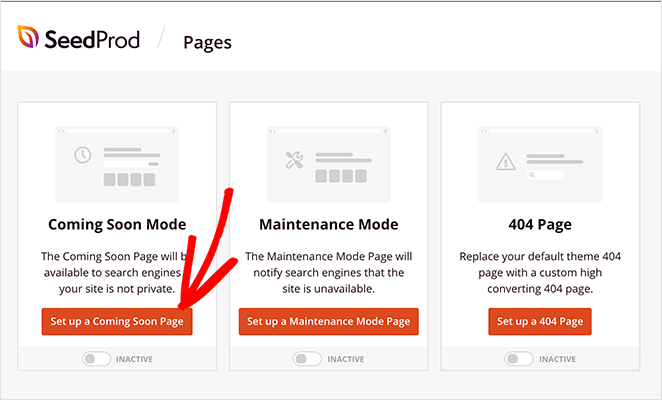
You can see our guide on creating a coming soon page for all of the steps in detail.
Step 3: Generate the First Version With AI
Next, build the design of your medical website using SeedProd AI.
The AI builder runs at ai.seedprod.com, separately from your WordPress dashboard. So your site gets built there first, then you move it across.
Enter your email and click the login link it sends you. Then it asks for two things: your practice name, and a description of what you do.

There’s no industry dropdown to pick ‘dental’ or ‘clinic’ from, which surprised me the first time. Your description is doing all the work, so give it more than a line.
Tell it the treatments you offer, the town you’re in, who your patients tend to be, and whether you’re taking new ones.
Then let it run. It takes under a minute.
You get three sites per email address, free and with no card, so it’s worth running it twice with different descriptions and keeping whichever you prefer.
Your sites then appear in a list. Click ‘View’ to walk around one in WordPress Playground. Here is the design it generated for my test site:

Once you’re happy with your generated design, click the Download button next to your website on the ai builder dashboard. This will download your design as theme .zip file.
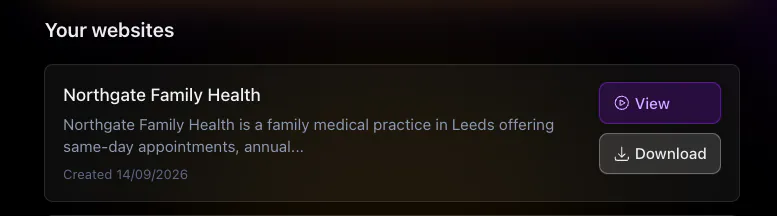
Then in your WordPress dashboard, go to SeedProd » Import/Export, upload the file, and click ‘Import’.
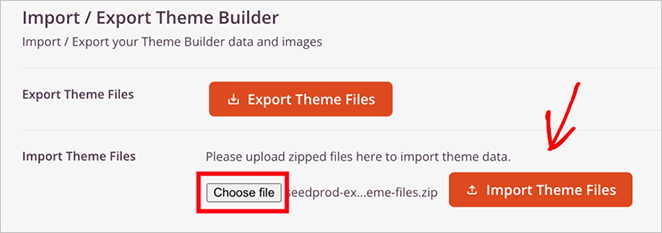
Your templates now live under SeedProd » Website Builder, where you can edit them individually.
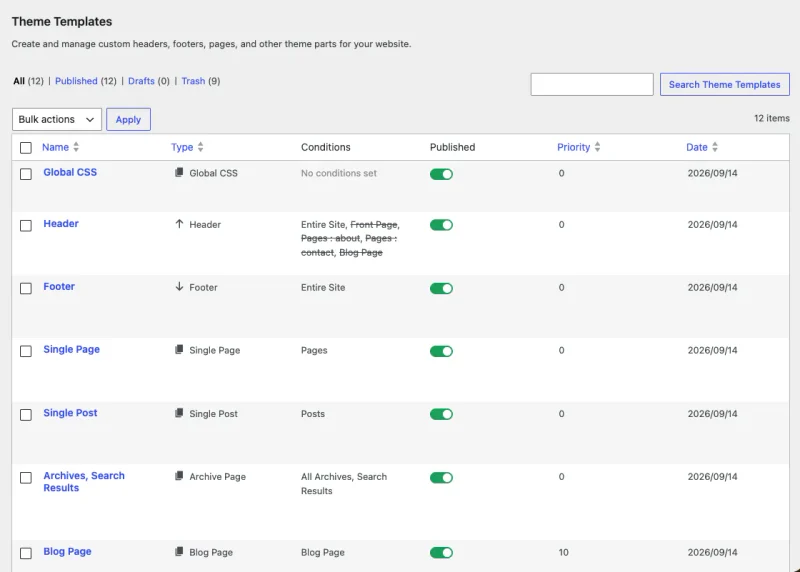
For the export and import screen by screen, we’ve got a full tutorial on building a WordPress site with AI.
Step 4: Build the Pages the AI Didn’t Create
Once your templates are in place, check what the AI actually built against the five pages every practice needs. It works from your description, so it builds what you mentioned and skips what you didn’t.
It’ll usually give you a homepage, a services page and a contact page. What tends to be missing is a separate page per treatment and a new patient information page.
The treatment pages matter most. A patient searching for one specific treatment should land on a page about it, not a list of everything you do, so if you treat three conditions build three pages. There’s more on what belongs on a service page if you want the detail.
To add a new page, go to Pages » Add New Page, give it a title, and click ‘Save Draft’.
Then click the blue ‘Edit with SeedProd’ button in the editor.
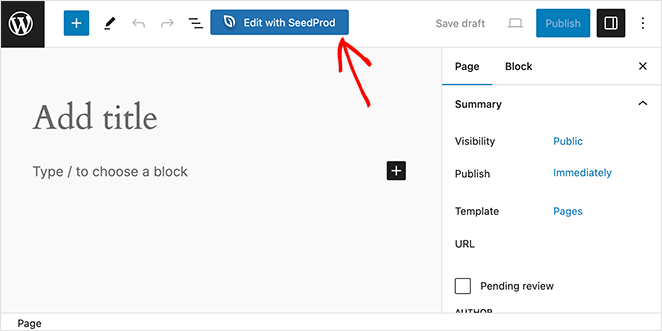
That opens the page in the drag-and-drop builder, where you build the layout using the ready made blocks.
Make sure you hit ‘Save’ when you’re done.
Then repeat for your new patient information page: whether you’re accepting patients, which insurance you take, and what happens at a first visit.
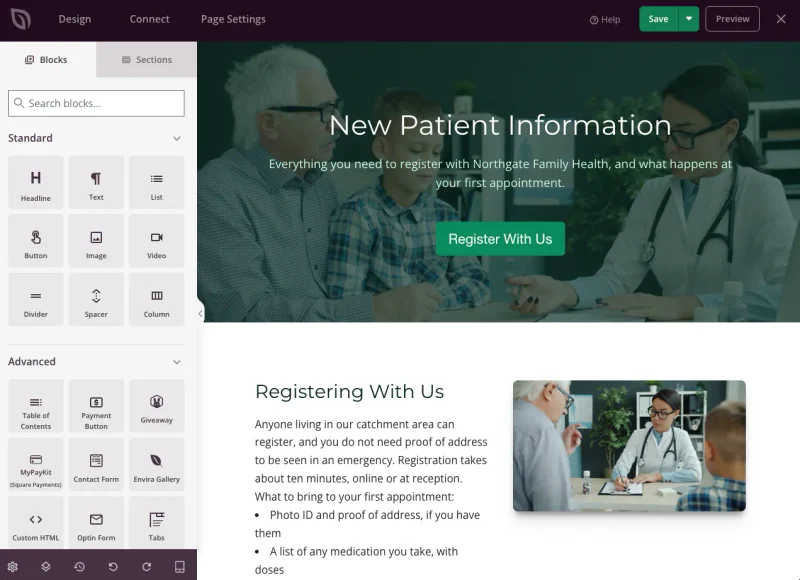
Your header and footer are already done, by the way, since the AI generated those with the theme. Just check your phone number is in the header and your address and hours are in the footer.
Step 5: Replace and Customize the Content
Now go through every page and swap the AI’s placeholder text and stock images for your real details and your own photos. This is the step people skip, and it’s the one that matters most.
The AI gets the structure right and the specifics wrong, because it had to put something in the gaps.
So check the details first: opening hours, address, phone number, practitioner names, and which treatments you actually offer.
Invented opening hours read perfectly well, which is the problem. Nothing looks wrong, and a patient turns up to a locked door.
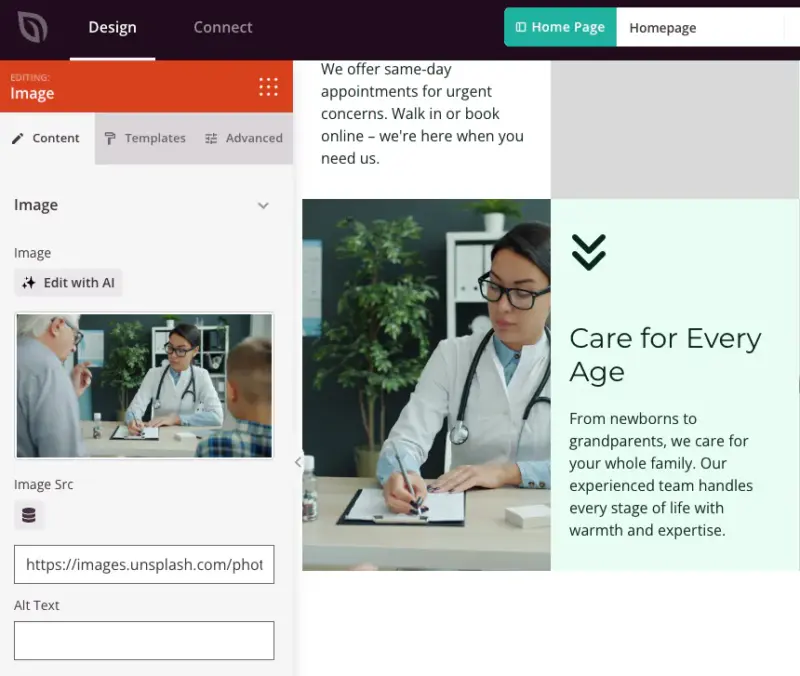
To edit a page, open it from Pages and click ‘Edit with SeedProd’.
For anything site-wide, open the template from SeedProd » Website Builder.
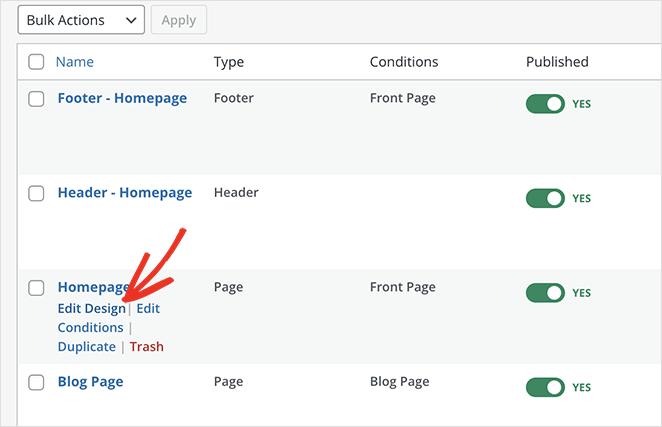
Either way you click a block of text and type over it.
Then replace the photography, and take this more seriously than the copy.
A real photo of your front door, your waiting room and your team beats anything generated or bought. A patient who recognizes the building walks in with less hesitation, and on an anxious first visit that beats a polished layout.
Step 6: Add a Contact Form That Keeps Every Inquiry
You can build a form for your medical website using WPForms, an easy to use WordPress form builder plugin.
To build it, install WPForms, then click WPForms in your WordPress sidebar and hit ‘Add New’. That opens the form builder.
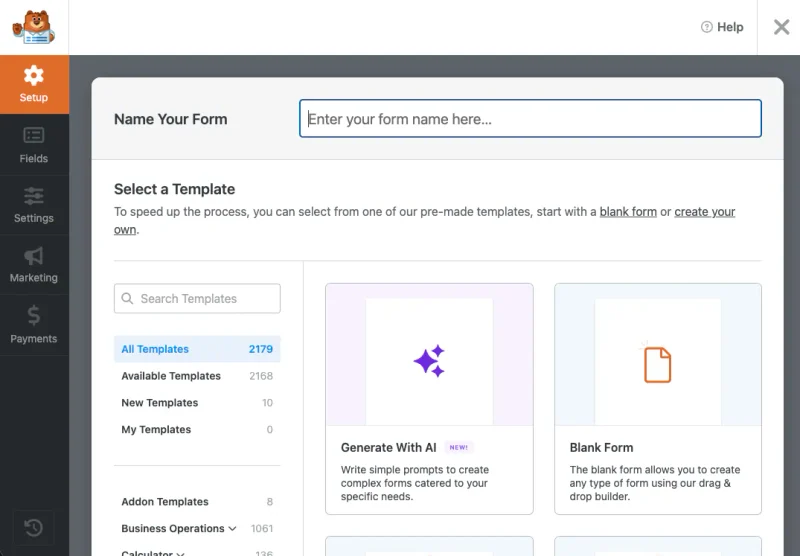
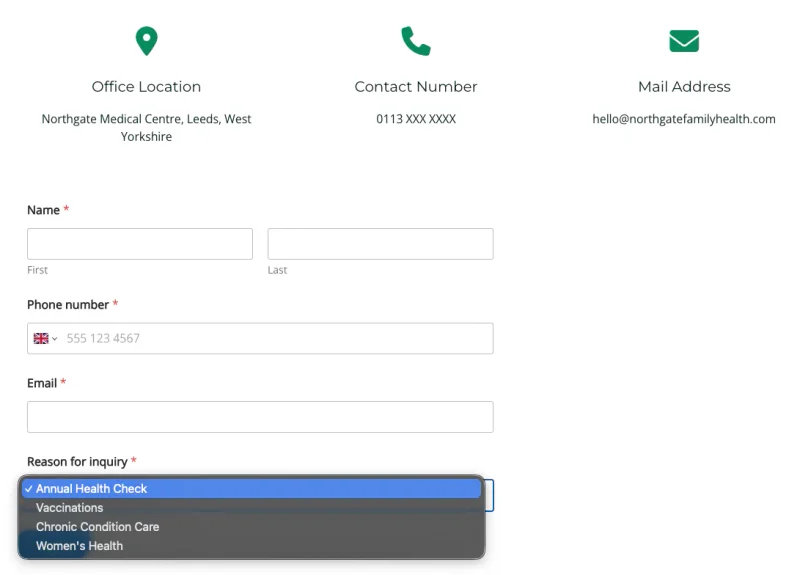
Name it something like “Contact Us”, then start building your form. You can either start with a premade template, or use its AI builder to generate a form with a simple prompt, which is what I did in this example. Here’s what I asked:
“Generate an inquiry form for my medical practice with the following form fields:
- Name
- Phone number
- Reason for inquiry: Dropdown with the options – Annual Health Check, Vaccinations, Chronic Condition Care, Women’s Health.
Make all forms required.”
Deliberately leave out symptoms, medical history, and any open text box that invites either. The moment your form collects health details it stops being a marketing form, which is a section of its own further down.
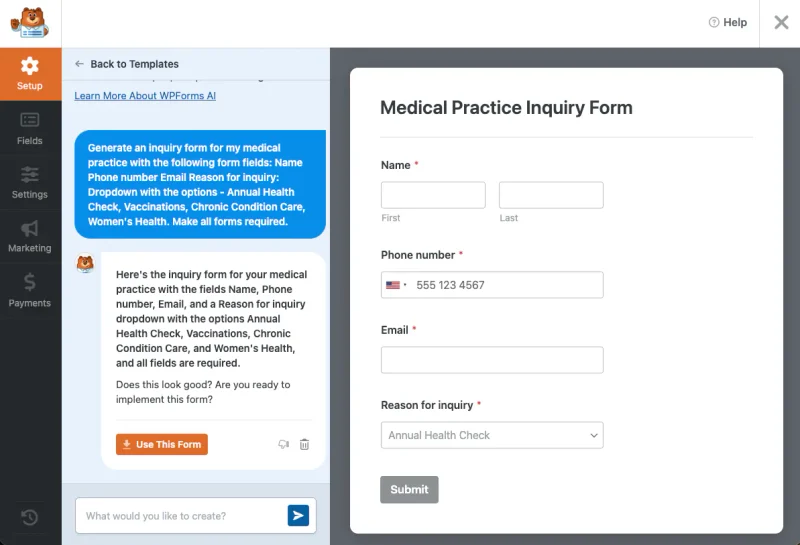
If you’re happy with the form, click Use This Form.
Then open the ‘Settings’ tab on the left of the builder. Two of them matter here.
Under ‘Notifications’, change the send-to address to one more than a single person checks, never a practitioner’s personal email. Under ‘Spam Protection and Security’, turn the protection on, or the form is unusable within a week.
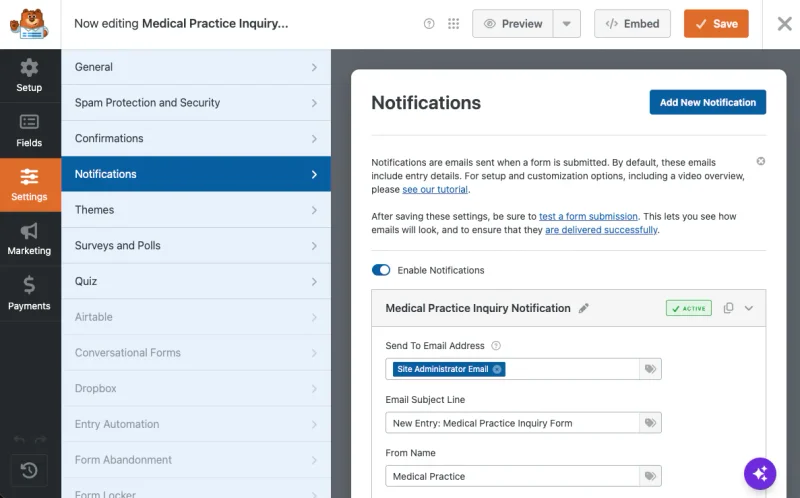
Save the form. Your entries will now collect under WPForms » Entries, where you can read, search and export them.
Last part: open your contact page from Pages, click ‘Edit with SeedProd’, then find the Contact Form block in the sidebar, drag it onto the page, and pick your form from the dropdown.
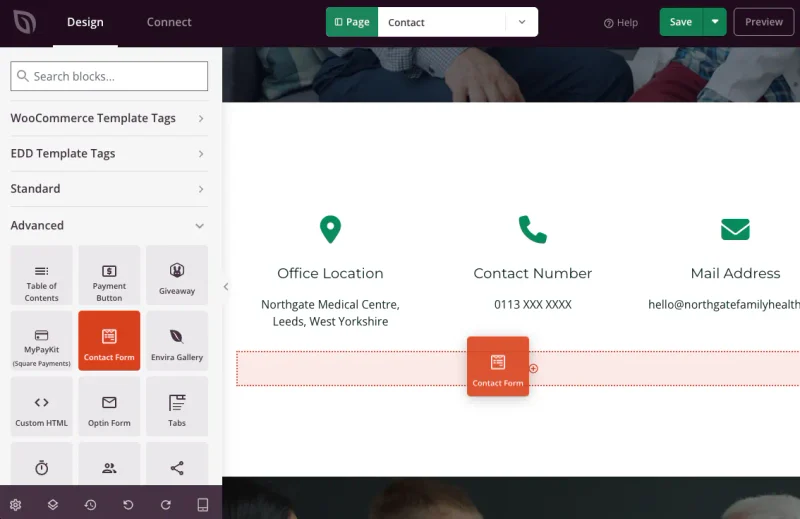
SeedProd’s Contact Form block renders a WPForms form rather than running its own, so storage is WPForms’ job either way. The block itself is on every SeedProd license.
One last habit: export your entries to a spreadsheet every month or so, because a plugin is not a backup.
Step 7: Check It on a Phone, Then Publish
Check the mobile layout inside the builder first. Open any page in SeedProd and click the mobile icon in the toolbar, and it redraws at phone width so you can fix anything that’s broken without leaving the design.
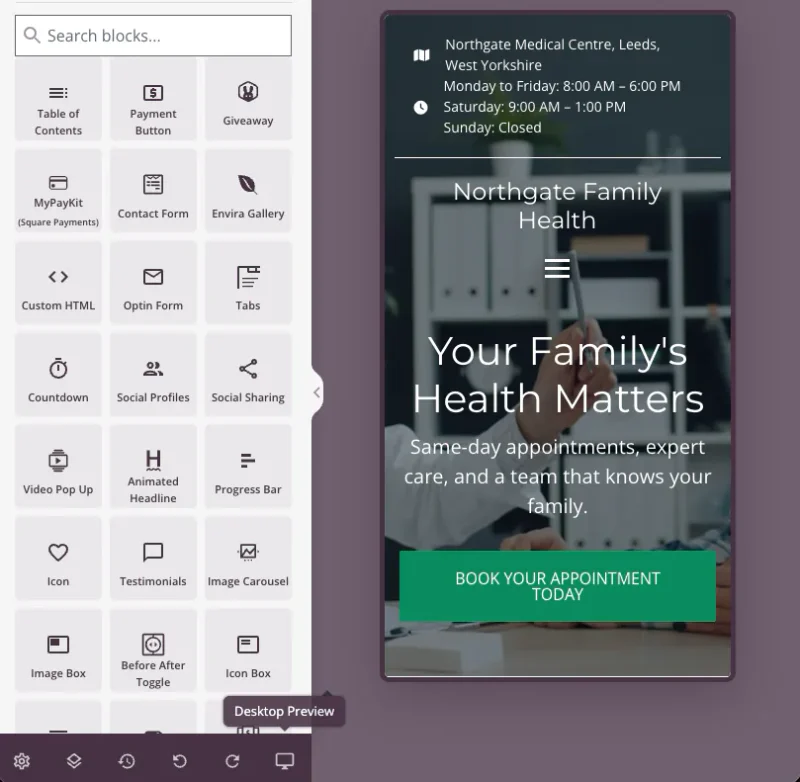
Then check it on a real phone, because the preview shows you the layout and a phone shows you the experience.
Three things to try: the number is tappable, the address opens a map, and the page loads before you’d give up.
Picture a patient standing outside your door hunting for your number. That’s the test, not a score in a speed tool.
Your visitors are often on mobile data in a car park, where a heavy page is the difference between a call and a back button. If yours feels slow, there’s more you can do about it.
Happy with it? Two switches, in this order.
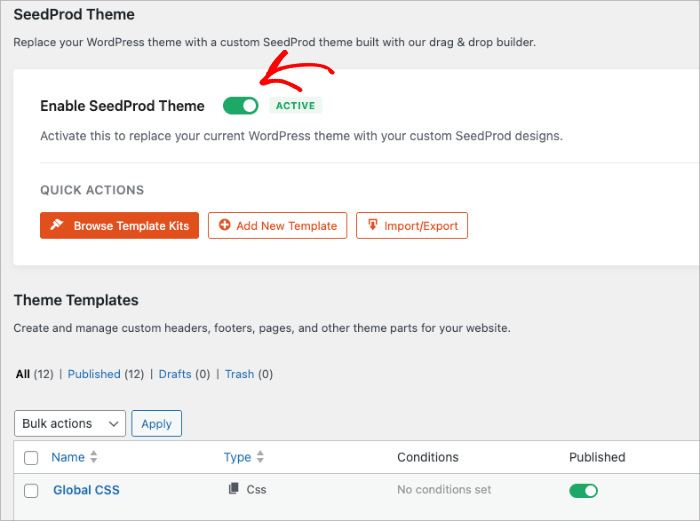
Go to SeedProd » Website Builder and turn the ‘SeedProd Theme’ toggle on. That applies your templates site-wide, and it’s the step people miss when they wonder why nothing changed.
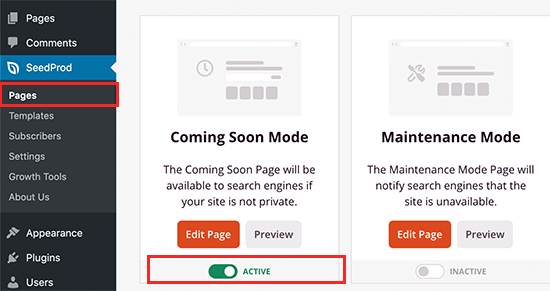
Then go to SeedProd » Landing Pages and switch your coming soon page off.
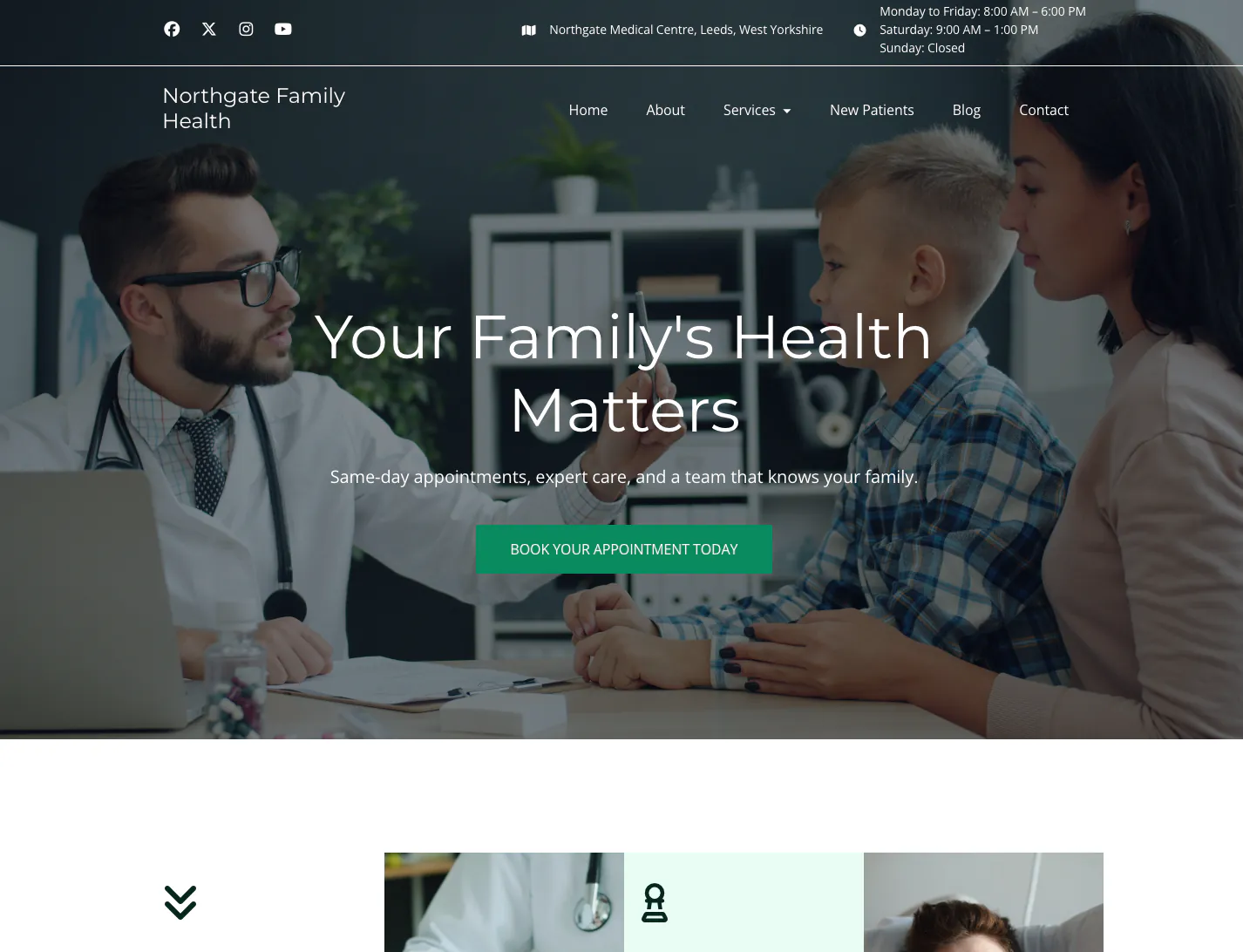
Your practice website is live. Here’s a quick look at the website we built in this tutorial:
What HIPAA Means for a Practice Website
For a marketing website, HIPAA means almost nothing. Its rules attach to the things that collect, store or transmit patient health information, not to your site as a whole.
You’ve just built a form that takes a patient’s name and phone number, which is the point where most practice owners start to worry about it.
HIPAA is the US law that sets the rules for protecting patient health information, and anyone handling that information for you has to meet them too.
I have no healthcare compliance credentials, so I won’t tell you where the line sits on your setup. What I can do is explain the distinction that runs through the official material, because it’s clearer than the sales pages make it look.
“HIPAA-compliant website” is mostly a phrase used to sell you something. The question that actually decides anything is whether anything on your site collects information about a patient’s health.
A site that publishes your services, your team, your hours and your phone number is a brochure. It collects nothing about a patient, so there’s nothing there to protect.
Obligations start where your site collects, stores or transmits health information. The US Department of Health and Human Services publishes the source material on what counts.
For the five page types above, and a contact form asking for a name and a number, the answer is no.
Four things should never live on your marketing site.
Buy them in instead of building them:
- Patient portals, of any kind
- Intake and medical history forms
- Appointment scheduling that captures a reason for visit, since the reason is the sensitive part
- Anything resembling messaging with a patient, a chat widget included, since a patient may treat it as private
All of these need a vendor who will sign a business associate agreement, which is a contract making them responsible for protecting the data they handle for you. SeedProd is a website builder and isn’t that vendor, and neither is standard WordPress hosting.
So build the marketing site yourself, then link out to a compliant booking or portal vendor for the parts that handle patient data.
Not legal advice: This is how the distinction is generally drawn, not a ruling on your setup. Check your own site and vendors with your compliance advisor.
Accessibility Requirements for Medical Websites
For US practices that receive federal financial assistance from HHS, the standard is WCAG 2.1 Level AA, under Section 504 of the Rehabilitation Act.
The better reason to care is that patients who can’t use your site go somewhere else, and older and disabled patients are a large share of most practices. A low-contrast phone number is exactly what defeats them.
On the rule, HHS extended the deadlines in May 2026. Recipients with 15 or more employees have until 11 May 2027, and those with fewer than 15 until 10 May 2028.
I went to the HHS announcement rather than a vendor’s summary, because several vendor pages still quoted the original dates. Check whether your practice is a recipient, since that decides whether any of it applies.
At the level a five-page practice site needs it, this is six habits rather than a project:
- Use real text, not text baked into an image. A number inside a graphic can’t be tapped, read aloud, or made bigger.
- Check your color contrast. Pale gray on white is the most common failure on a site that otherwise looks fine.
- Write alt text on every image. That’s the description a blind visitor’s screen reader reads out. One sentence saying what’s in the picture.
- Label your form fields. A placeholder that vanishes when you start typing is not a label.
- Keep headings in order. One H1, then H2s, then H3s, without skipping a level to get a smaller font.
- Navigate the site with the keyboard only. Tab through it. If you can’t reach the number or the booking button, neither can a lot of your patients.
You can check most of this free with WAVE, which flags contrast failures, missing alt text and heading problems on any public page.
Do the alt text and heading order as you build, though. Retrofitting them across forty pages is a miserable afternoon, and I’ve had that afternoon.
How to Get Your Practice Found in Local Search
Local search comes down to telling Google three things in a form it can actually read: who you are, where you are, and what you treat. A plugin handles the first two, and I’d use All in One SEO for it.
Here’s the problem it solves. Google won’t reliably pull your address out of a paragraph of prose or an embedded map.
It wants structured data, which is a standard format stating your name, address, phone number and hours in a way software can parse without guessing.
That’s what produces the panel of practice details you sometimes see beside a search result.
All in One SEO’s Local SEO feature writes that markup for you. Setting it up takes about ten minutes:
- Install All in One SEO, then go to All in One SEO » Local SEO. If you see an ‘Activate Local SEO’ button, click it. The feature starts on the Plus plan.
- Leave ‘Multiple Locations’ set to No, unless you genuinely run more than one premises.
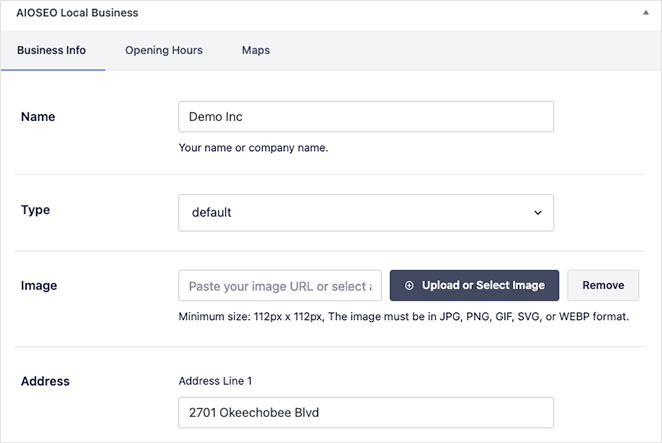
- In ‘Business Info’, enter your practice name, upload a photo of the building, and pick the closest match in the ‘Type’ dropdown. Choose the specific medical type rather than a generic business one.
- Fill in your address, then add your phone number and email under ‘Contact Info’. Type the phone number plainly, with no brackets or hyphens.
- Open the ‘Opening Hours’ tab, switch ‘Show Opening Hours’ to Yes, and enter your hours.
That’s the machine-readable half done. Now show the same details to human visitors.
Drop AIOSEO’s Business Info and Opening Hours blocks onto your contact page, and they pull from the settings you just filled in. So the hours a patient reads and the hours Google reads can’t drift apart when you change them.
Skip the map for now: pinning your location inside Local SEO needs a Google Maps API key, which you generate yourself for free. Your address and schema work fine without it, so leave it until last.
The other half of local search happens outside WordPress, and for a practice it often matters more than the website does.
Claim your Google Business Profile, then fill in your real opening hours and add real photos. That’s the panel patients see on Maps and beside your search result, and plenty of people never click through to the site at all.
Then keep your name, address and phone number identical everywhere they appear: your footer, your Google Business Profile, and any directory listing you’re in.
Google is working out whether three listings are one practice or three. Inconsistent details make that harder, and a practice that moved premises two years ago is usually still wrong somewhere.
Finally, there’s the part no plugin can do for you.
Build one landing page per service line, each written the way patients search for that treatment. A practice treating three conditions should have three pages, because “root canal” and “teeth whitening” are different searches by different people.
That’s the work a one-off agency build won’t include and will quote you again for, and it’s the real argument for owning the builder yourself.
FAQs About Medical Website Design
What is the best website design for a medical clinic?
The one that gets a patient to your phone number or booking button fastest. That means a clear list of services, visible contact details, real photos, and fast loading on a phone. No template wins on its own. The design is judged on whether a patient finishes the job they came to do.
Is WordPress a good choice for a medical website?
Yes for the marketing site, because you own it and can change it yourself. It isn’t a solution for anything that collects patient information. Booking with a reason for visit, intake forms and patient portals are a different matter. Each needs a vendor who signs a business associate agreement.
Can I use a free medical website template?
Yes, and it’s worth knowing where free stops. SeedProd’s AI builder generates and downloads three complete sites free, and coming soon pages are in the free plugin. Editing what it built needs SeedProd Pro, and storing inquiries needs a paid WPForms plan.
What are the 7 C’s of a website?
It’s a general design mnemonic: content, clarity, credibility, consistency, context, connection and conversion. Three carry the weight on a practice site. Credibility, because patients are trusting you with their health. Then clarity and conversion, because they’re scanning for one number and only a call counts.
How often should a practice website be redesigned?
Every three to four years is the usual answer, and it’s mostly a symptom of not being able to change your own site. If you can edit it yourself, you rarely need a redesign, just updates. Redesigns happen when maintenance doesn’t.
Build Your Practice Website Today
You don’t need a proposal, a six-week timeline, or a developer on call. A real practice website can be live this week, and the compliant pieces can be bought separately once it is.
Generate the first version with SeedProd‘s AI builder right now, free for up to three sites. Upgrade to Pro when you want to edit it.
Here are some other guides you may find useful:
- Coming Soon vs Maintenance Mode: Which One Do You Need?
- How to Edit the Footer in WordPress
- The Best WordPress SEO Plugins Compared
Thanks for reading! We’d love to hear your thoughts, so please feel free to join the conversation on YouTube, X and Facebook for more helpful advice and content to grow your business.