

TL;DR: How to Create Tabs in WordPress
There are 3 ways to add tabbed content to any WordPress page, no coding required.
- Install SeedProd – Download and activate SeedProd (paid plan required for the Tabs block), then enter your license key
- Add tabs with SeedProd – Open any page with “Edit with SeedProd,” drag in the Tabs block, configure your content, and save
- Use the Block Editor – Install Ultimate Blocks (free), open any post or page, and add the Tabs block from the block inserter
- Use a free plugin – Install Tabs Responsive, create a tab set, copy the shortcode, and paste it into any post or page
- Choose your method – SeedProd gives you full visual control; Block Editor and Tabs Responsive work with any existing theme
Adding tabs to a WordPress page sounds simple, but most tutorials assume you’re a developer or want to install three plugins just to get started.
Most guides walk you through building a whole custom theme from scratch. They skip the Block Editor option entirely, or they cover only one plugin.
SeedProd is my go-to method for tabbed content, but in this guide I’ll also show you the Block Editor approach and a free plugin option. No coding required.
What Are WordPress Tabs and Why Do They Help?
WordPress tabs are clickable content panels that organize page content into sections visitors can switch between without scrolling.
Tabs are a type of navigation system that organizes content, making it easier for visitors to browse your website. You can add tabs to posts and pages or use a tabs widget for displaying tabbed content in your WordPress sidebar and widget areas.
Why Do You Need Tabbed WordPress Content?
Besides sorting content, tabs make it much easier to keep your website visitors active and engaged. Because tabs group content topics together on one page, users won’t need to click away to other pages, which is ideal for shorter attention spans.
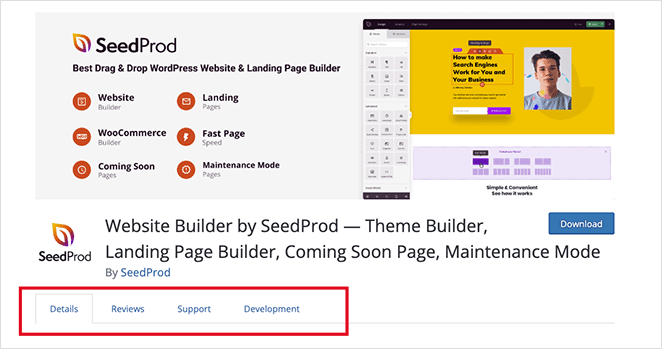
For example, WordPress.org uses tabs on its plugins page to display information like details, reviews, support, and development.
Popular Ways to Use Tabs in WordPress:
- Product specs and reviews on WooCommerce pages
- Contact details split by department or location
- Blog filters (popular, recent, categories)
- FAQ sections with separate tabbed categories
- Pricing tiers or service packages
WooCommerce product pages are one of the most common places to use tabs. A dedicated tab for specs, one for reviews, and one for shipping keeps product pages clean without hiding the details buyers need. Dedicated WooCommerce tab plugins can give you even more control over how product page tabs look and behave.
Pro Tip: Tabs shouldn’t be confused with accordions. Users click tabs to switch information, whereas accordions expand to reveal information.
How Do I Create Tabs with SeedProd?
For this method, we’ll use SeedProd, the best WordPress website builder, to add tabbed content to your website.

SeedProd is a drag-and-drop website builder that lets you create flexible WordPress layouts without writing code. With its professional website kits, landing page templates, and live visual editor, you can customize every part of your site and see the changes in real-time.
SeedProd also includes highly customizable blocks, including the Tabs block we’ll use in this guide.
Follow the steps below to create tabs in WordPress with SeedProd.
Step 1. Install SeedProd Website Builder
First, head to the SeedProd pricing page and choose a plan that includes the Tabs block. The Tabs block is available on paid plans; visit the pricing page to compare options and find the right fit for your budget.
Once you’ve downloaded the plugin, you’ll need to install and activate it on your WordPress site. You can follow these instructions on installing a WordPress plugin if you’ve never done it before.
After activating the plugin, navigate to SeedProd » Settings and enter your plugin license key.
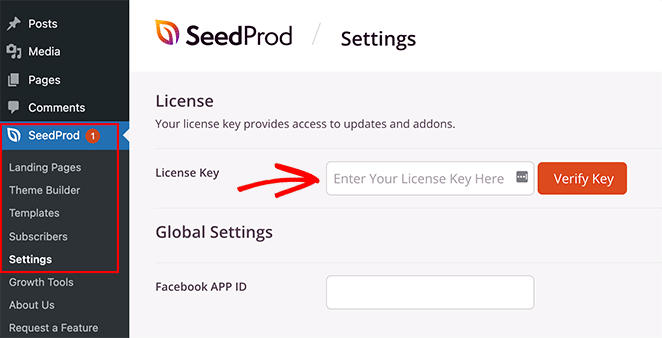
You can find your SeedProd license key in your account dashboard under the Downloads section.
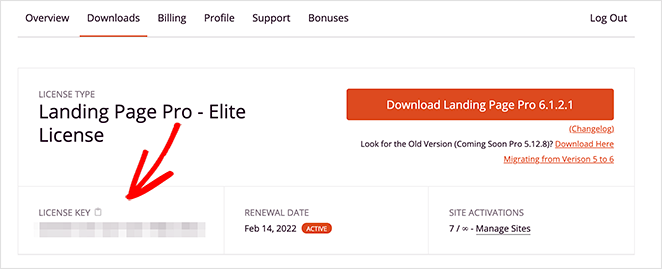
Remember to click the Verify Key button before heading to the next step.
Step 2. Open Your Page with SeedProd
After installing SeedProd, you can open any existing WordPress page in the visual editor. Go to Pages » All Pages from your WordPress admin and find the page you’d like to add tabs to.
Click the Edit with SeedProd link to open the page in the visual editor.
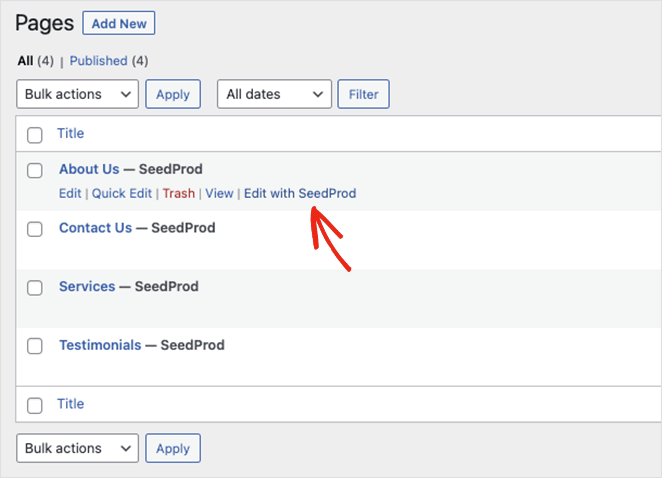
In this example, we’ll add tabs to the about page to show more details like job vacancies and editorial guidelines. You can choose any page that makes sense for your site.
Step 3. Add Tabs to Your WordPress Pages
Once your page is open in the visual editor, you can click any element to change its contents, colors, styling, and visibility.
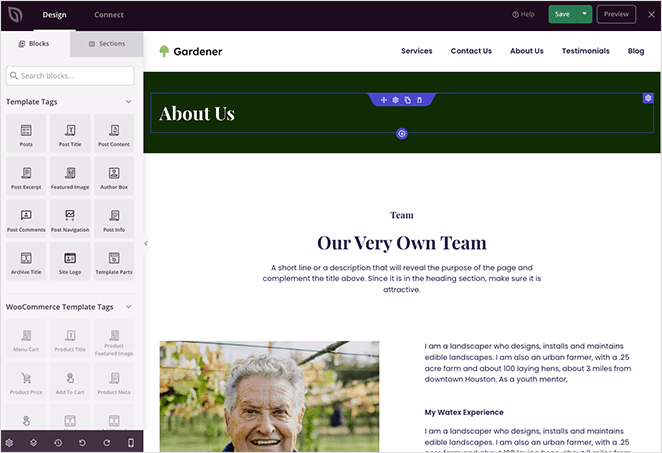
It’s also easy to add more elements to your page by dragging them from the blocks panel and dropping them in place.
First, add a new section to the page to house your tabbed content. In our case, we’ll duplicate one of the existing sections and drag it to the bottom of the page.
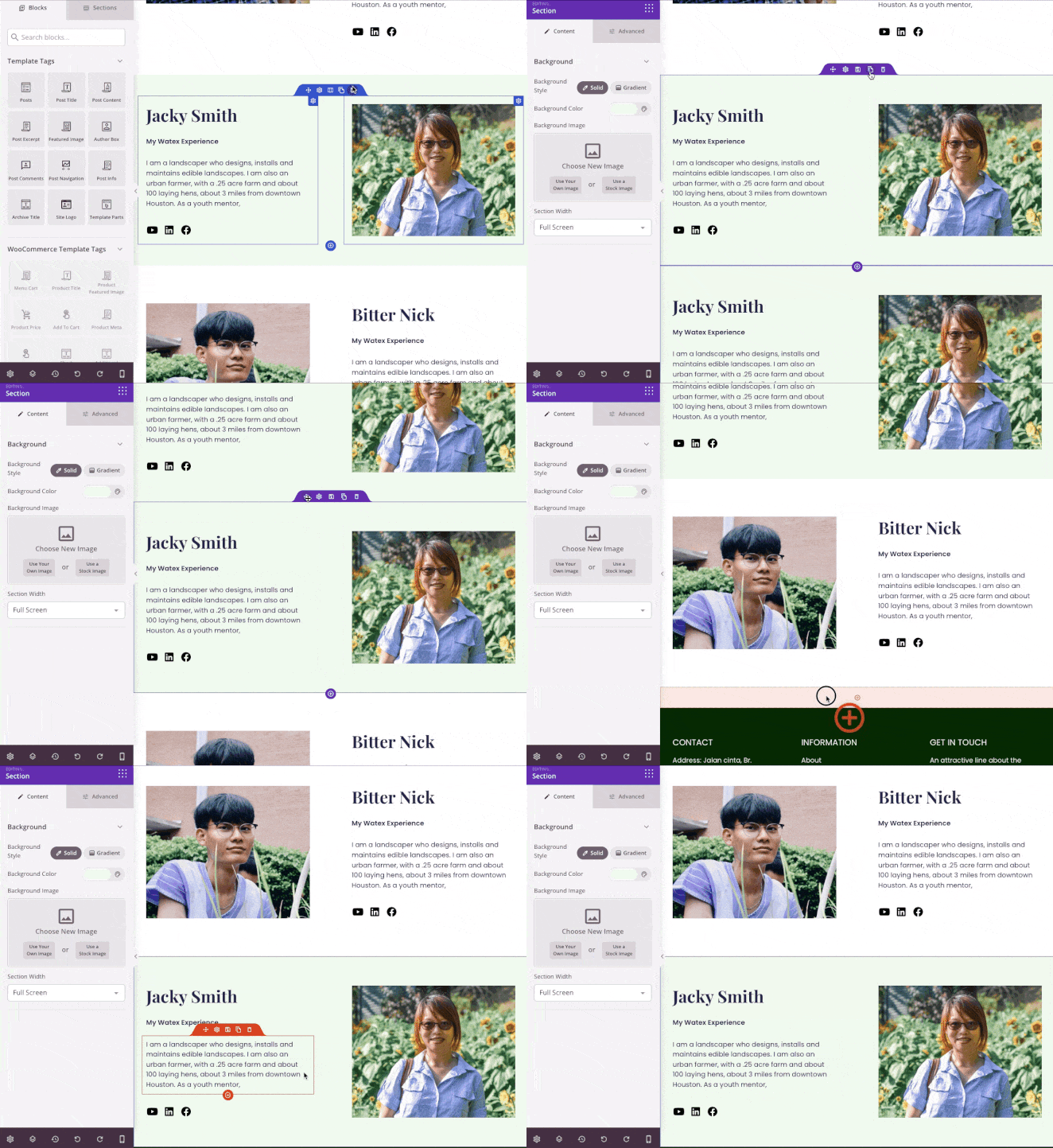
After that, swap out the image with something more relevant and delete any content you no longer need by clicking the trashcan icon.

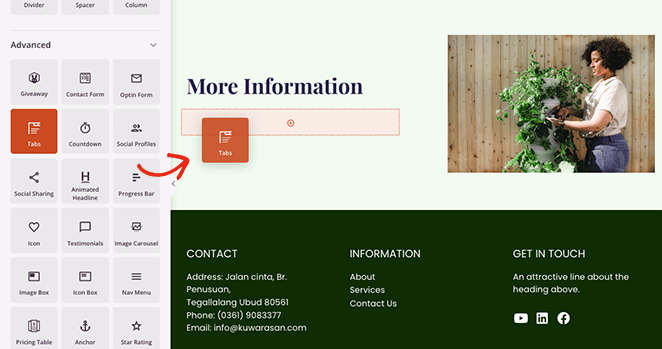
Now you can look for the Tabs block in the left-hand panel and drag it into the new section on your page.
Clicking the block shows its content settings where you can:
- Add multiple tabs
- Show or hide the tab icon
- Change the font size
- Increase or decrease the space between tabs
- Adjust the tab alignment
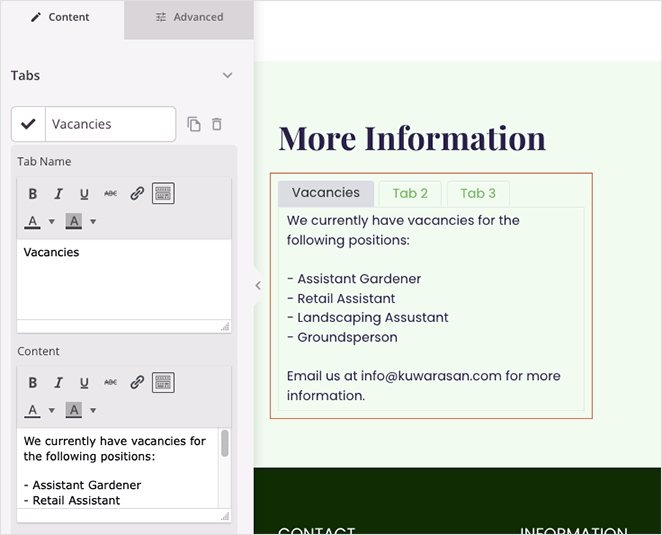
Expanding each tab lets you add a tab title and write your content using a classic editor with ‘what you see is what you get’ (WYSIWYG) settings.
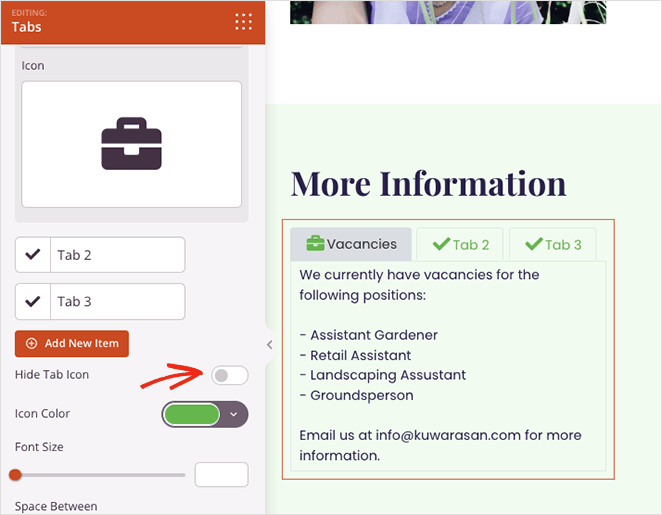
You can also enable a custom icon to add more interest to your tabs and make them stand out. Turn the ‘Hide tab icon’ toggle to the ‘Off’ position and choose a custom icon from the Font Awesome library.
Clicking the Advanced tab lets you choose more customization options, including custom background colors, fonts, borders, spacing, and more.
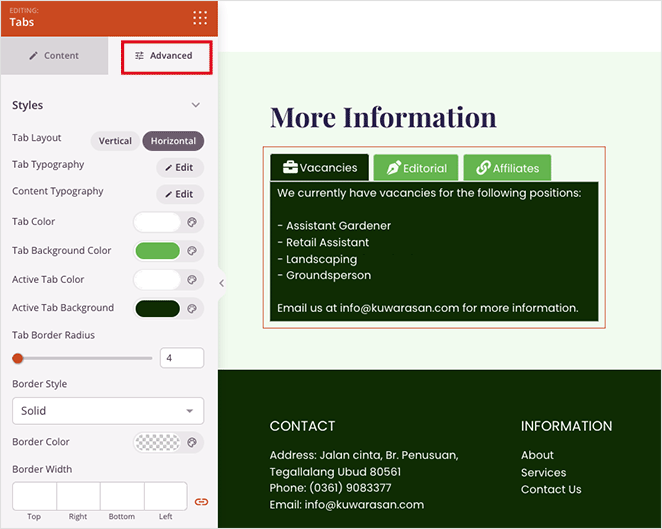
You can also display vertical tabs or a horizontal tab set by clicking either layout option.
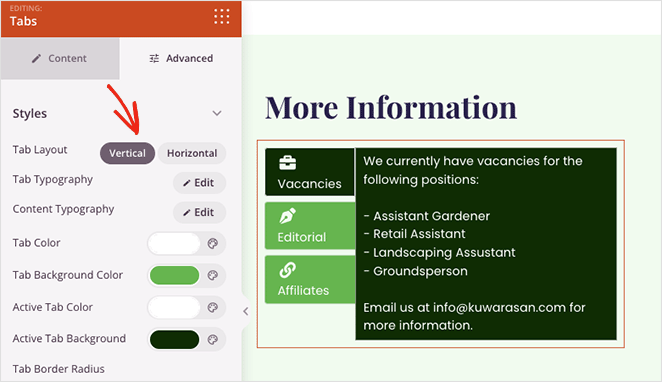
Remember to click the Save button in the top-right corner of the screen to save your changes.
Follow the same steps to add tabs to any other page on your WordPress website, then move on to the next step to make your changes live.
Step 4. Publish Your Tabbed Content
After adding tabs to your various WordPress pages, you’re ready to publish them for your website visitors to see.
To do this, go to the SeedProd » Theme Builder page and switch the ‘Enable SeedProd theme’ toggle to the ‘On’ position.
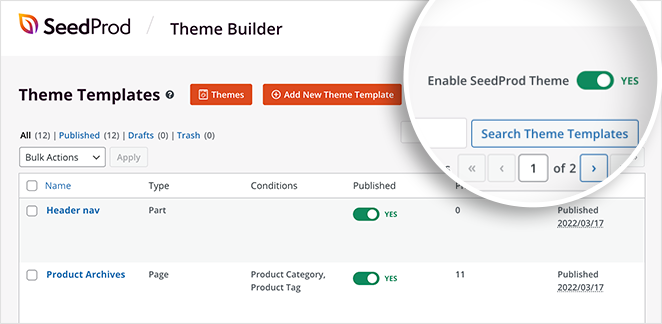
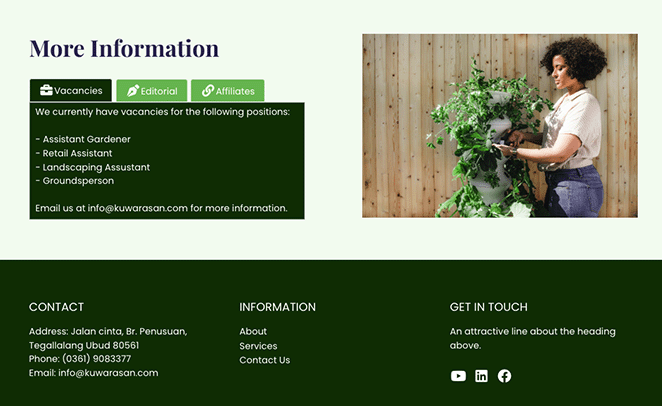
Now you can preview your pages and see your tabbed content in action.
How Do I Add Tabs in the WordPress Block Editor?
If you’re using a standard WordPress theme and don’t need a full visual editor, you can add a WordPress tabs block directly in the Block Editor using a free plugin.
I’ve tested several Block Editor tab plugins, and Ultimate Blocks is a reliable free option with a dedicated Tabs block that works with any theme.
Here’s how to add tabs to a WordPress page using the Block Editor:
- Go to Plugins » Add New, search for “Ultimate Blocks,” and click Install Now, then Activate.
- Open any post or page in the WordPress Block Editor.
- Click the + icon to open the block inserter and search for “Tabs.”
- Select the Tabs block from the Ultimate Blocks section and add it to your content.
- Click each tab label to rename it, then add your content in the tab panel below.
- Use the block settings sidebar on the right to adjust colors, tab style, and alignment.
- Click Update or Publish when you’re satisfied with your tabs.
This method works without changing your existing WordPress theme or installing a separate page builder.
Can I Add Tabs in WordPress for Free?
Yes, several free WordPress tab plugins can add tabbed content without a page builder.
Tabs Responsive works with any theme via shortcode and is what we’ll walk through below. Ultimate Blocks (covered in the Block Editor method above) is the better fit if you’re already using Gutenberg. WP Tabs is another solid option with a block-based interface and several layout styles.
The following method is a good alternative if you don’t want to change your WordPress theme or create a landing page. We’ll use the free Tabs Responsive WordPress plugin to add responsive tabs to your WordPress site.
First, you’ll need to install the Tabs Responsive plugin and activate it from your WordPress admin.
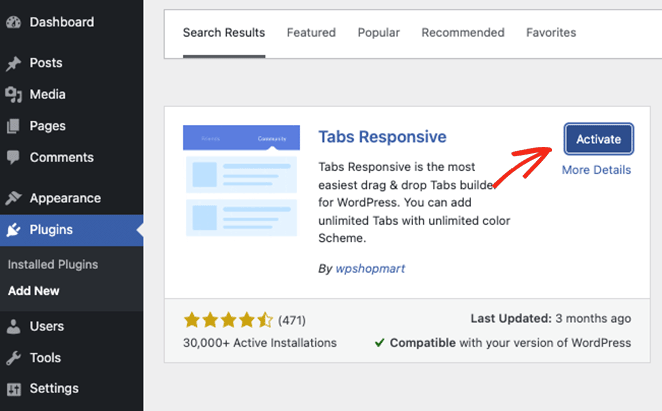
Then, navigate to Tabs Responsive » Add New Tabs and give your tab set a title.
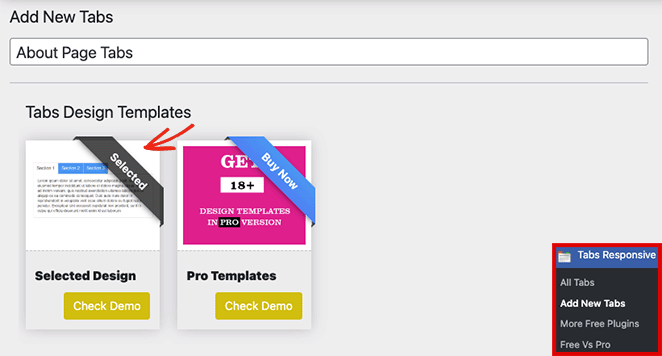
From there, you can select the default template, or if you’re using the Pro version, you can choose from 18+ template styles.
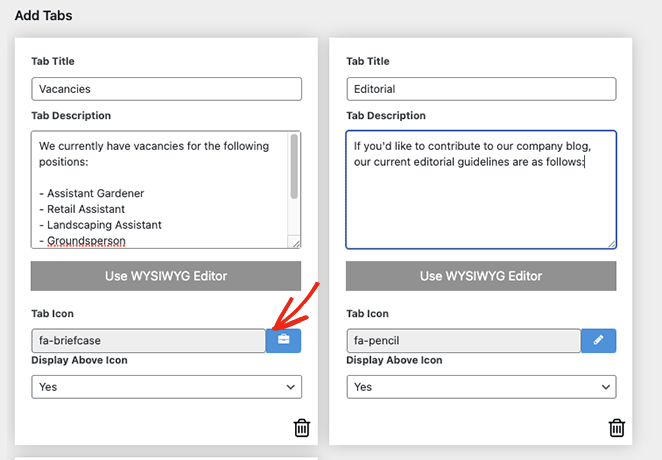
The next step is to add your tabs. You can create as many tabs as you like and include:
- Tab titles
- Tab descriptions
- Tab icons
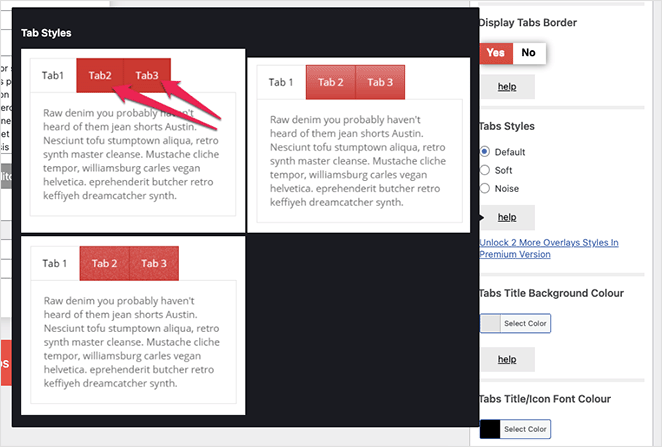
You can also edit the styling of each tab in the right-hand sidebar by choosing custom tab styles, background colors, font colors, and more.
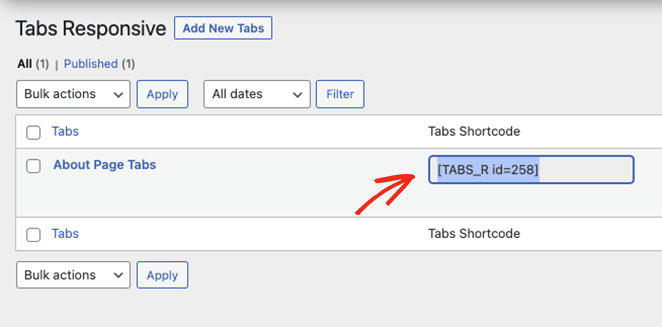
When you’re satisfied with your tabs, copy the tabs shortcode and paste it anywhere in your WordPress theme.
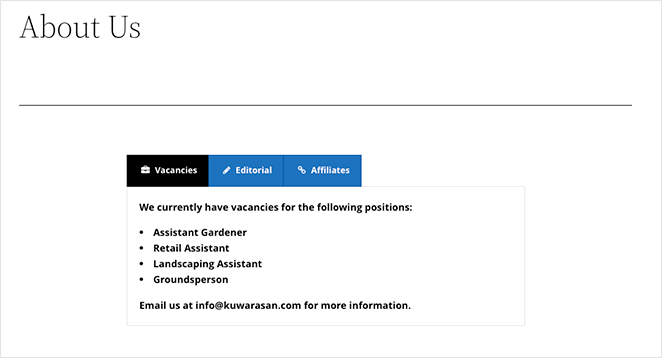
For example, you can paste the shortcode into a WordPress post or page like this:

This is how it will look on the front end of your site:
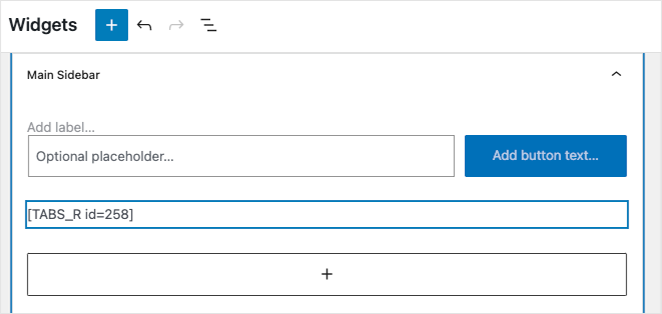
You can also add the tabs shortcode to a widget-ready area, such as your WordPress sidebar or footer widgets, by pasting the shortcode into a paragraph block.
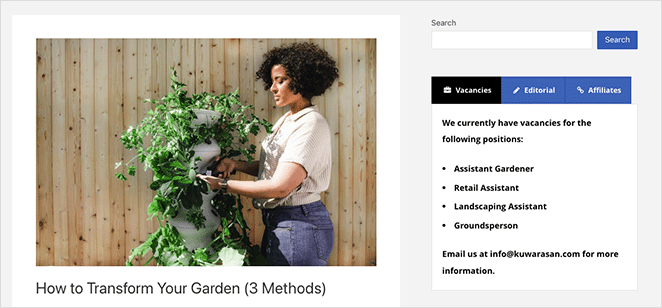
After, you’ll see your tabbed content live in your sidebar areas:
How to Create Tabs in WordPress FAQs
How do I create tabs in WordPress without a plugin?
You can create tabs without a plugin using custom HTML, CSS, and JavaScript code, but this approach requires developer knowledge. Most beginners are better off using a free WordPress tab plugin like Ultimate Blocks or Tabs Responsive, which handle all the code for you. If you’re using SeedProd’s visual editor, the drag-and-drop Tabs block is the easiest no-code option for adding tabbed content to a WordPress page.
How do I add tabs in the WordPress Block Editor?
To add tabs in the Block Editor, install a plugin that adds a Tabs block to Gutenberg, such as Ultimate Blocks (free). Once activated, open any post or page, click the + block inserter, search for “Tabs,” and add the WordPress tabs block to your content. You can then rename each tab, add content to the tab panels, and customize colors and alignment in the block settings sidebar.
What is the difference between tabs and accordions in WordPress?
WordPress tabs display multiple content panels side by side, and clicking a tab switches the visible panel. Accordions stack vertically and expand to reveal content when clicked. Tabs work best when you want all options visible at once and the content is similar in length; accordions are better for longer content like FAQs where most visitors only read one section.
If you want full design control over your tabbed content, SeedProd is the fastest option with a live visual preview. The Block Editor method is a good fit if you want to keep your current theme and prefer a native Gutenberg approach. The Tabs Responsive plugin works with any WordPress setup and requires nothing beyond a free shortcode plugin.
You can add tabbed content to your WordPress site in just a few clicks, no code needed. SeedProd makes the process fast and beginner-friendly if you’re already using SeedProd to build your site.
Ready to add tabs to your WordPress site?
You might also like these other helpful WordPress guides while you’re here:
- How to Create Text Animations in WordPress (Easy Steps)
- How to Create Fancy Section Dividers for WordPress Websites
- How to Add an Author Box in WordPress (Without a Plugin)
- How to Add a Custom Sidebar in WordPress
Thanks for reading! We’d love to hear your thoughts, so please feel free to join the conversation on YouTube, X and Facebook for more helpful advice and content to grow your business.



