
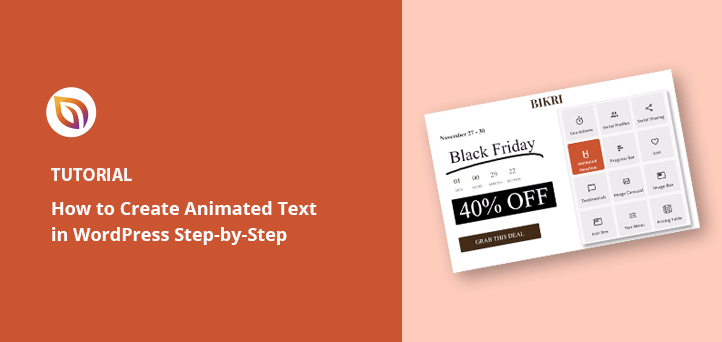

TL;DR: How to Create Text Animations in WordPress
Three methods let you add text animations without coding. Pick one based on how you build your pages.
- SeedProd – Use the Animated Headline block in SeedProd’s visual editor for typing, rotating, or highlighted effects on landing pages and themes.
- Animated Text Block plugin – Drop a native block into the Gutenberg block editor for animated headlines on posts and pages.
- Animate It! plugin – Wrap a shortcode around your text in the classic WordPress editor for CSS effects.
- Choose by use case – SeedProd for landing pages; Animated Text Block for the block editor; Animate It! for classic editor sites.
- No coding required – All three methods work without touching CSS or PHP.
If you’re trying to make your hero headline stand out without touching CSS, you’ve probably hit a wall. Most tutorials assume you’re using Elementor or that you’re comfortable editing code.
In this guide, I’ll show you how to add text animation in WordPress using three methods: SeedProd’s Animated Headline block, a free Gutenberg plugin, and the Animate It! CSS plugin. Pick the one that fits your setup and follow the steps.
What Are Animated Text Effects and Why Use Them?
Animated text effects in WordPress are small motion designs you can apply to headlines, buttons, or other text elements. Instead of static text, you can add styles like typing, sliding, bouncing, or highlighting to instantly draw the eye.
These effects are powered by modern CSS, which is fast, lightweight, and supported by all major browsers.
There are two types of text animation worth distinguishing: entrance effects that run on page load, and scroll-triggered animations that fire as visitors scroll down. This guide covers entrance effects, including rotating and highlighted headlines.
SeedProd’s scroll reveal feature handles scroll-triggered animations if that’s what you’re after. The steps below focus on effects that run automatically when the page loads.
Here are a few practical ways to use text animation on your WordPress site:
- Make special offers stand out on your pricing table
- Showcase product features with animated highlights
- Create rotating or typing headlines that keep visitors engaged
- Direct attention to important call-to-action (CTA) buttons
- Add subtle motion as users scroll through your content
Because CSS animations are lightweight compared to video or Flash, they won’t slow down your site when used correctly. With a WordPress animation plugin or a drag-and-drop builder like SeedProd, you can add these effects in just a few clicks, no coding required.
How to Add Animated Text Effects in WordPress: 3 Ways
There are several ways to add animations to WordPress. You can use a WordPress plugin or manually add CSS effects.
Because manually creating text effects is challenging for beginners, we’ll show you how to create text animations with SeedProd’s drag-and-drop website builder, a free animation plugin, and the Gutenberg block editor.
| Method | Best For | Cost |
|---|---|---|
| SeedProd | Landing pages, custom themes, sales pages | Paid (Pro) |
| Animated Text Block | Gutenberg posts and pages | Free |
| Animate It! | Classic editor sites | Free |
Method 1. Create Animated Headlines with SeedProd

For the first method, we’ll use SeedProd, the best website builder for WordPress. With its drag-and-drop website builder and Animated Headline block, you can add exciting transition effects with a few clicks.
SeedProd lets you create custom WordPress themes and responsive layouts without writing code or hiring a developer. It includes powerful content blocks for customizing pages, WooCommerce support for eCommerce stores, and integrates seamlessly with popular WordPress plugins.
Moreover, this plugin is lightweight and bloat-free, ensuring your page load times are fast and user-friendly.
Follow the steps below to create text animations in WordPress with SeedProd.
Step 1. Install and Activate SeedProd Plugin
First, head to the SeedProd pricing page and choose a license. We recommend SeedProd Pro for its advanced features.
After that, log into your SeedProd account area and download the plugin. You can copy your license key under the “Downloads” tab at the same time.
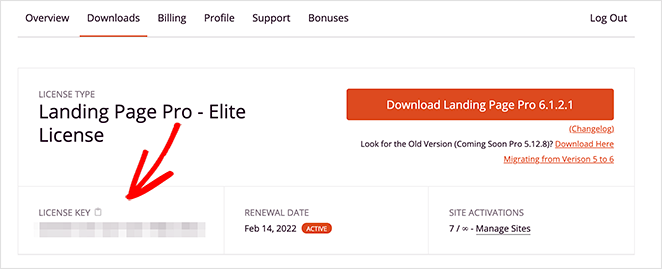
Next, install the plugin and activate it on your WordPress site. If you need help, you can follow these steps to install a WordPress plugin.
After activating SeedProd, navigate to SeedProd » Settings, enter your license key, and click the Verify Key button.
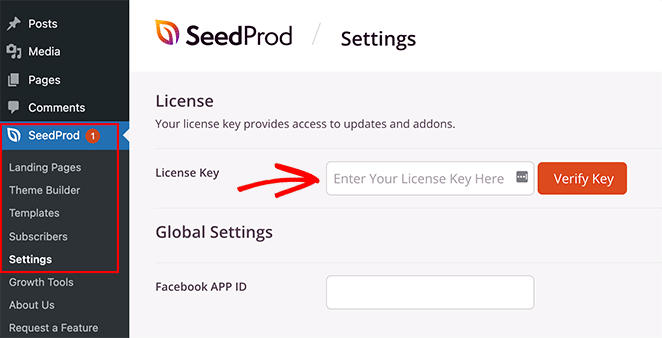
You’re now ready to start building a page with animation effects.
Step 2. Choose a Landing Page Template
You can use SeedProd to create a single WordPress page, a WordPress theme, or a landing page with its visual editor. For this guide, we’ll add text animations to a sales landing page.
First, you’ll need to go to SeedProd » Landing Pages and click the Add New Landing Page button.
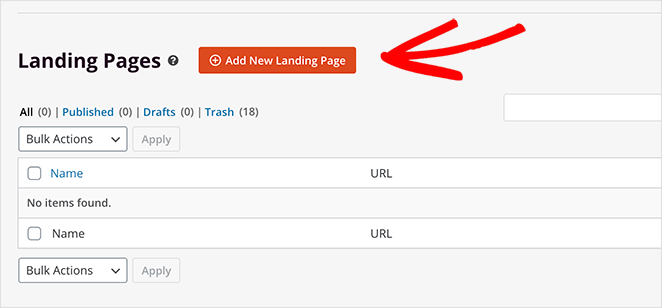
Here you can choose from over 180+ mobile-responsive landing page templates.
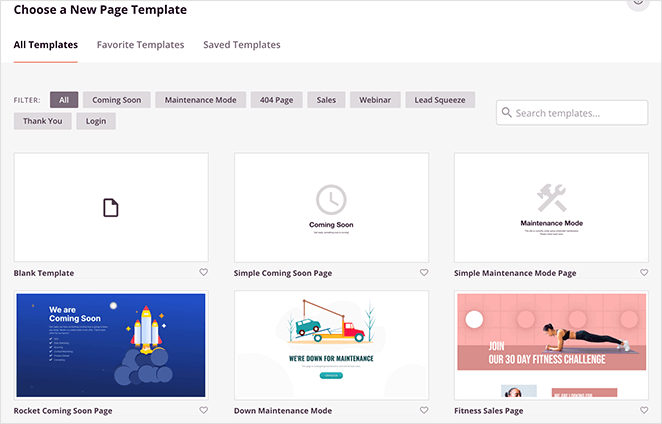
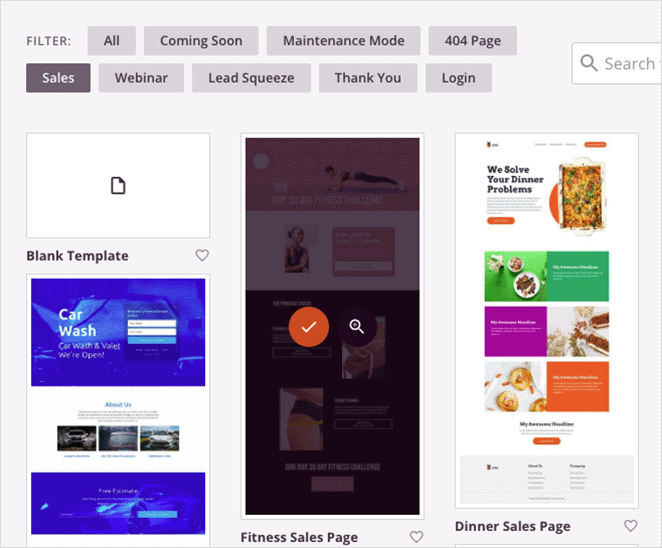
Since we’re making a sales page, click the Sales tab to view the different sales page templates. When you find a template you like, move your cursor until you see the image hover effect and click the orange checkmark icon.
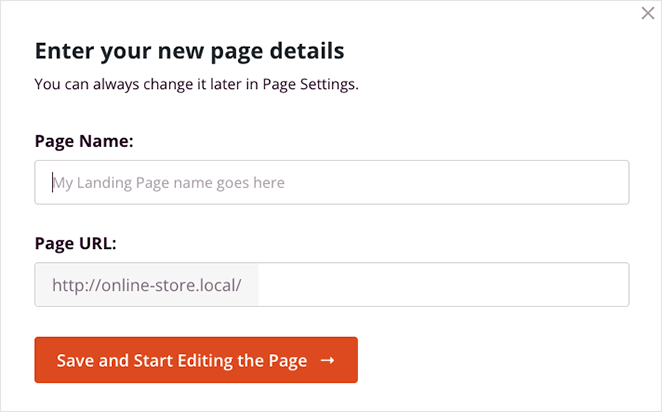
Next, you will see a popup window where you can add your landing page name and URL information. After that, click the Save and Start Editing the Page button.
Step 3. Customize Your Landing Page Content
Your landing page template will now open in SeedProd’s drag-and-drop visual editor. This is where you can customize its content and styling and add more page elements.

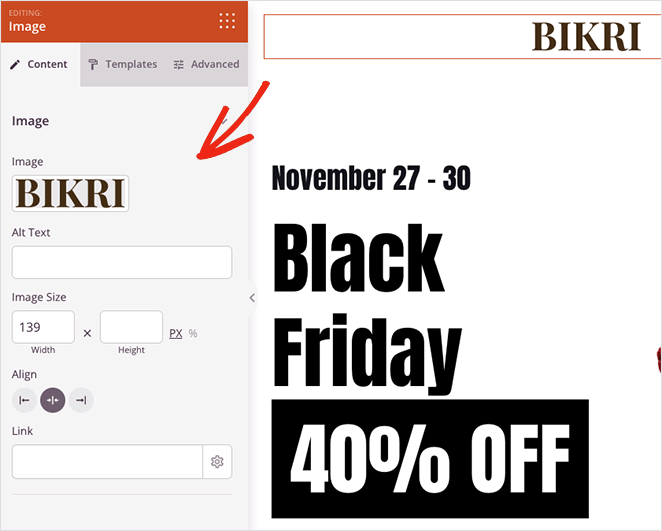
For instance, you can add your custom logo by clicking the current image block and uploading a file from your WordPress media library or computer.
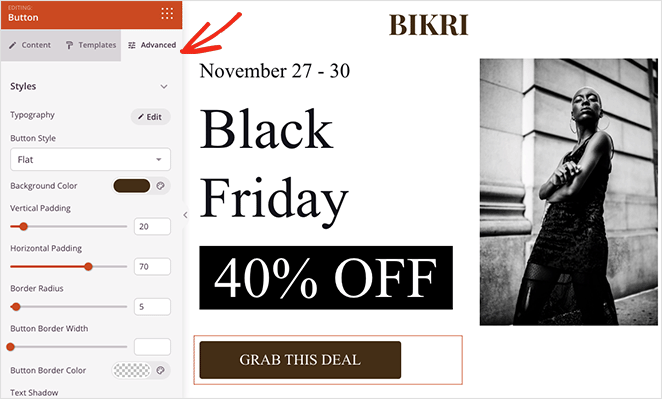
You can also edit your CTA buttons with different colors, text, and styling by clicking it and visiting the Advanced settings panel on the left.
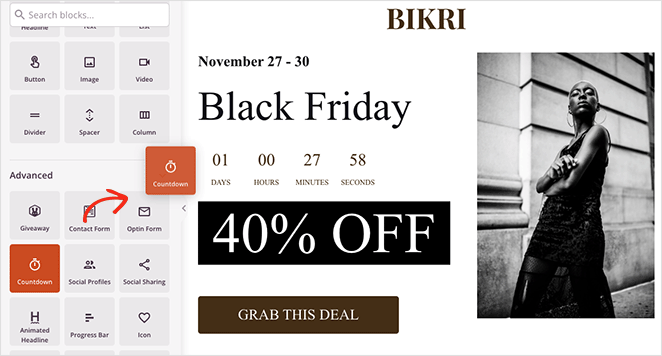
Adding new elements is just as easy. You can drag a block from the blocks panel on the left and drop it onto your design. A countdown timer, for example, can add urgency to your page, encouraging users to act for fear of missing out.
With your customizations in place, let’s look at how to animate your headline text next.
Step 4. Add the Animated Headlines Block
Let’s say you want to animate the main headline on your landing page. To do that, you’ll need to find the Animated Headline block and drag it onto your page design.
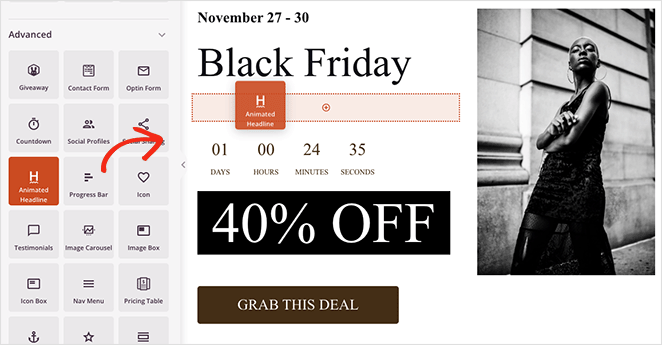
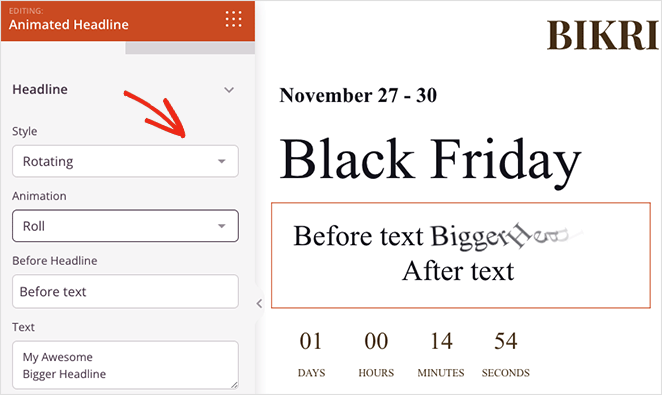
When you click the block to view its settings, you’ll see 2 ways to animate your headline:
- Highlighted
- Rotating
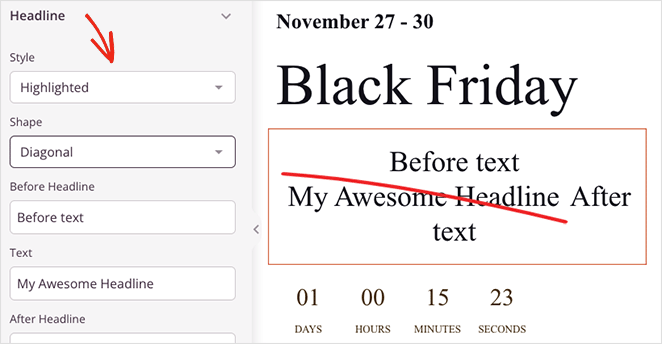
The Highlighted style adds a shape animation to your text, with shapes including:
- Circle
- Curly
- Underline
- Double
- Double Underline
- Underline ZipZag
- Diagonal
- Strikethrough
- X
In contrast, the Rotating style adds transition effects to your headline, which include:
- Typing
- Clip
- Flip
- Bounce
- Roll
- Zoom
- Fade
- Light Speed
- Slide Down
Additionally, you can add text before and after your animated text, enable infinite looping, change the animation duration, and adjust the alignment, fonts, and heading level.
In our example, we use the “Underline” shape from the highlighted drop-down menu.
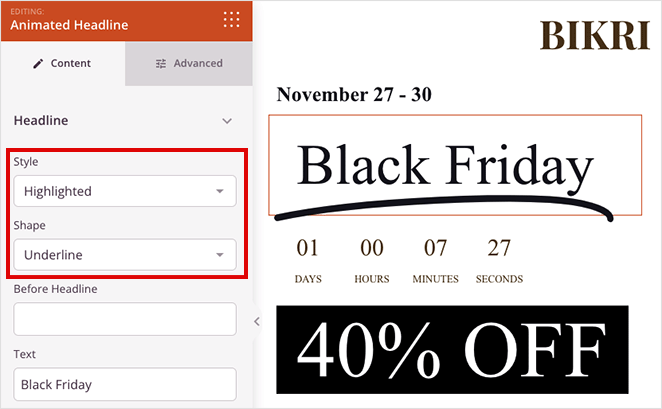
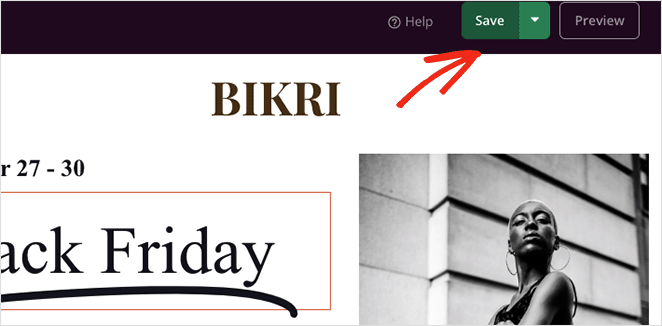
When you’re happy with your animated text effects, click the Save button in the top-right corner.
Step 5. Configure Your Settings
The next step is to configure your landing page settings before publishing.
Click the Page Settings tab to edit your page name, URL, and on-page SEO settings, and connect to a Google Analytics plugin.
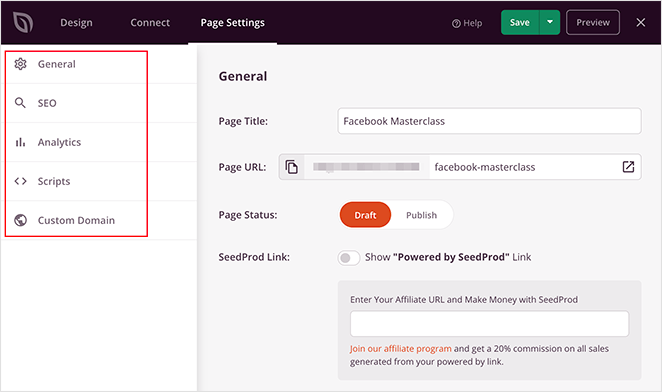
SeedProd also lets you connect email marketing services and configure domain mapping for your pages. See the SeedProd integration documentation for details.
Don’t forget to click Save before moving to the next step.
Step 6. Publish Your Landing Page
When you’re satisfied with your design, click the drop-down menu on the Save button and select Publish.
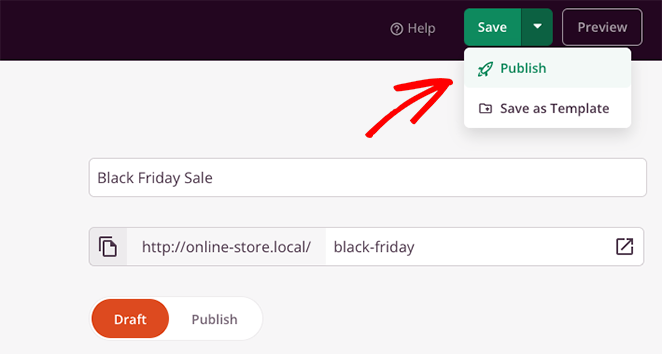
You can now view your page and see your text animations in action.

Method 2. Add Text Animations with Animate It! CSS Plugin
For the following method, we’ll use a free WordPress animation plugin to add animated text effects to your website. This is a good solution if you use the classic WordPress WYSIWYG editor instead of a page builder or the WordPress block editor.
(Note: the Animate It! plugin was last updated in 2021. It remains functional for classic editor users. See the WordPress.org plugin page for current support status.)
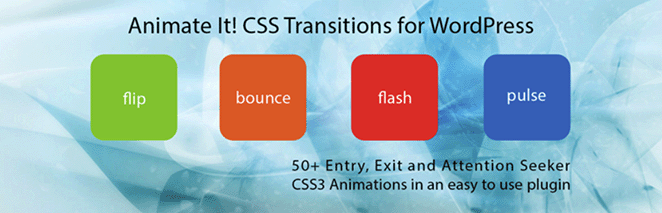
First, install and activate the Animate It! plugin on your WordPress website. It should work out of the box with no settings for you to configure.
Next, create a new page, and you’ll see a new button inside the WordPress editor: Animate It!
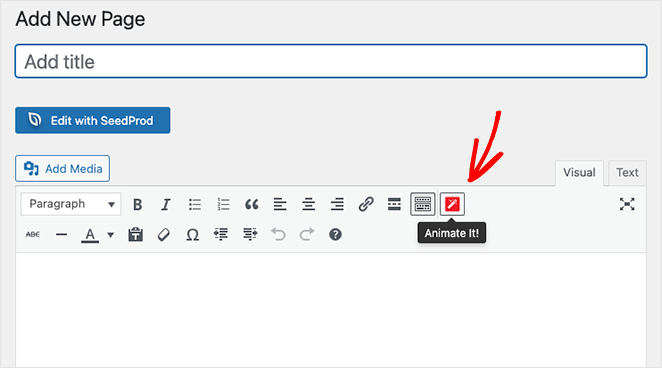
Clicking the button opens a popup window where you can choose an animation style. There are many animation styles to choose, so find one you like in the drop-down menu.
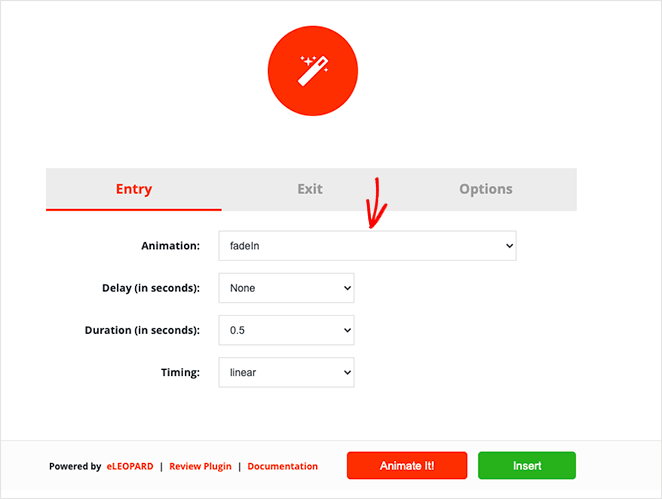
After that, you can choose the delay and duration time and when you want the animation to appear. You can also run the animation on load, click, hover, or scroll offset.
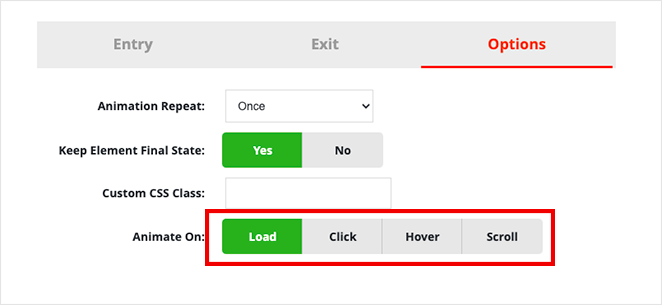
When you’re happy with the settings, click the Animate It button to see a preview of the animation.
Next, click the Insert button to add the animation to your post or page. The plugin will add a shortcode with some dummy content into the post editor.
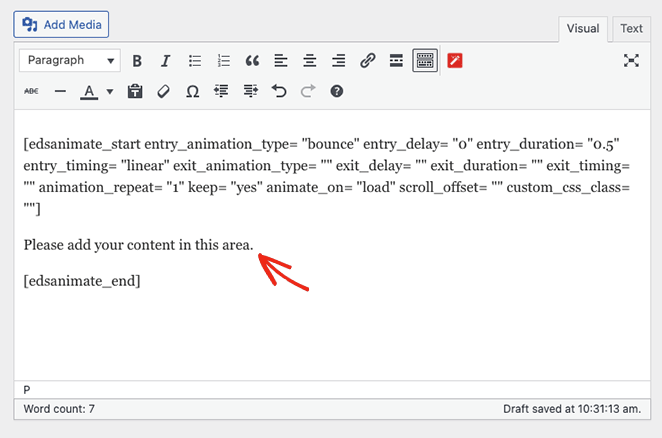
You can customize and replace that content with your headlines, images, and custom text.
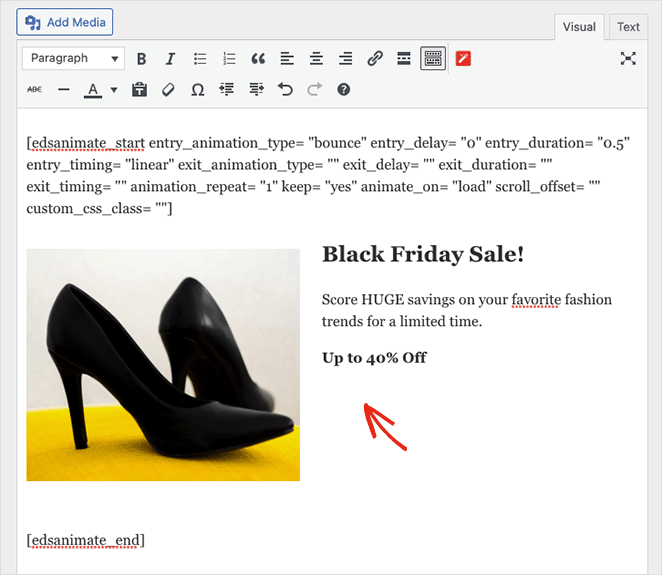
Now you can publish your changes and preview your animated text live on your WordPress site.
Method 3. Add Animated Text in the Gutenberg Block Editor
The Animated Text Block plugin adds a native Gutenberg block for text animation effects. If you build pages and posts in the WordPress block editor, this is the most direct option, because it works like any other block without shortcodes or a separate builder.
I’ve tested many animation plugins over the years, and most of them require either the classic editor or a dedicated page builder to function properly. This one integrates directly with Gutenberg as a native block, which makes it simpler to manage alongside your other content.
Step 1. Install the Animated Text Block Plugin
Go to Plugins » Add New in your WordPress dashboard and search for “Animated Text Block.” Click Install Now, then Activate.
The plugin works out of the box with no configuration required after activation.
Step 2. Add the Block to Your Page
Open any post or page in the Gutenberg block editor. Click the + block inserter button, search for “Animated Text,” and add the block to your content area.
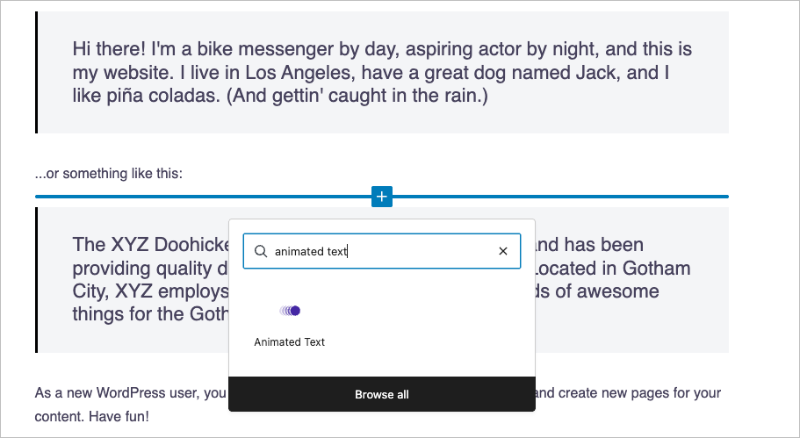
Place it where you want your animated headline to appear, such as at the top of a page section or inside a cover block.
Step 3. Configure Your Animation
With the block selected, type your animated text directly in the block. Use the settings panel on the right to choose an animation style, set the speed, and control whether the animation loops.
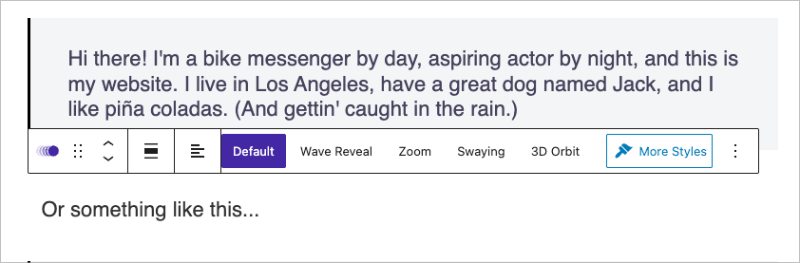
The plugin supports multiple styles including typing, fade, bounce, and slide effects. Start with “typing” or “fade” for a subtle, professional look on most sites.
Step 4. Preview and Publish
Click Preview to see your animation before it goes live. When you’re satisfied with the effect, click Publish or Update to save your changes.
FAQs About Text Animations in WordPress
Does text animation work with the Gutenberg block editor?
Yes. The Animated Text Block plugin adds a native Gutenberg block for animated text effects. Once you install and activate it, find the block in the inserter and drop it into any post or page. It supports multiple animation styles and works without shortcodes or a separate page builder.
Will text animations hurt my Core Web Vitals or page speed?
CSS-based animations are lightweight and generally don’t affect Core Web Vitals when used sparingly. The risk comes from animating too many elements on a single page, which can trigger layout shifts or delay rendering. Most modern browsers support the prefers-reduced-motion media query, which reduces or disables animations for users who prefer it.
What is the difference between a rotating headline and a scroll animation in WordPress?
A rotating headline cycles through words or phrases on page load, usually in a hero section. A scroll animation triggers when a specific element enters the viewport as a user scrolls down the page. This guide covers rotating and highlighted headline effects that run on load. SeedProd’s scroll reveal feature handles scroll-triggered animations separately.
Do I need SeedProd Pro to use the Animated Headline block?
Yes. The Animated Headline block is a Pro feature and isn’t available in the free version of SeedProd. If you need text animation without a paid plugin, use the Animated Text Block plugin for the Gutenberg block editor or the Animate It! plugin for the classic editor. Both are free.
How do I add text animation in WordPress without a plugin?
You can use CSS keyframe animations applied through your theme’s Additional CSS panel (Appearance » Customize » Additional CSS). Write an @keyframes rule, assign it to your text element using the animation property, and add the class in a Custom HTML block or your theme’s markup. This approach requires basic CSS knowledge and is better suited for developers than beginners.
Ready to start adding text animations to your WordPress pages? Try SeedProd and use the Animated Headline block to make your hero headlines stand out in minutes.
You might also like this guide on creating a dynamic landing page in WordPress.
Thanks for reading! We’d love to hear your thoughts, so please feel free to join the conversation on YouTube, X and Facebook for more helpful advice and content to grow your business.




