

TL;DR: How I Set Up My Digital Downloads Store on WordPress (What Actually Works)
Yes, you can sell digital downloads on WordPress without code using Easy Digital Downloads and SeedProd Elite. Here is how the setup works:
- WordPress hosting: Get a domain, hosting (Bluehost), and install WordPress.
- Install EDD: Add the Easy Digital Downloads plugin and enter your license key.
- Set up payments: Connect Stripe or PayPal so buyers can check out securely.
- Add your products: Upload your digital files and set prices inside EDD.
- Install SeedProd Elite: Use the theme builder and EDD blocks to design your store pages.
- Publish: Assign your checkout page in EDD settings and enable the SeedProd theme.
If you are selling digital products through Etsy or Gumroad, you are giving up a percentage of every sale, forever. Etsy takes 6.5% per transaction plus listing fees. Gumroad takes 10% on the free plan. Your own WordPress store costs only payment processor fees, around 2.9% plus $0.30 per transaction.
I set up my own digital downloads store on WordPress using Easy Digital Downloads and SeedProd, and it is the setup I would build again from scratch.
Digital downloads have excellent margins. You create once and sell unlimited times. Even if you are starting with just one product, an ebook or a template pack, this setup scales with you.
In this guide, I will walk you through the exact steps to sell digital downloads on WordPress, from installing the right plugins to designing a store that looks professional and converts visitors into customers.
- What Can You Sell as Digital Downloads?
- Why Sell Digital Downloads on WordPress?
- Best Tools for Selling Digital Downloads
- How to Sell Digital Downloads in WordPress Step-by-Step
- Step 1. Set Up Your WordPress Website
- Step 2. Install Easy Digital Downloads
- Step 3. Set Up Your Payment Methods
- Step 4. Add Your Digital Downloads to WordPress
- How to Protect Your Digital Downloads
- Step 5. Install and Activate SeedProd
- Step 6. Choose a WordPress Theme Kit
- Step 7. Customize Your Theme Pages
- Step 8. Publish Your Digital Download Website
- How to Promote Your Digital Downloads Store
- FAQs About Selling Digital Downloads on WordPress
What Can You Sell as Digital Downloads?
Before picking your tools, it helps to know what kinds of products work well as digital downloads. The range is wider than most people expect.
- Ebooks and PDFs: Guides, how-to books, workbooks, or reference documents
- Templates: Canva designs, Notion dashboards, spreadsheet templates, presentation decks
- Online courses: Video lessons, slide decks, course materials delivered as downloadable files
- Stock photos and audio: Photography bundles, music tracks, sound effects, video clips
- Software and plugins: WordPress plugins, desktop apps, scripts, or code libraries
- Printables: Planners, calendars, worksheets, coloring pages, art prints
- Membership content: Gated resources, toolkits, or content libraries for subscribers
Once you know what you are selling, you can pick the right plugin.
Why Sell Digital Downloads on WordPress?
Running your own store gives you more control and more revenue than any marketplace.
- Own your platform: You are not dependent on another company’s rules or algorithms to reach your customers.
- Keep more of your revenue: Etsy charges 6.5% per transaction plus listing fees. Gumroad takes 10% on the free plan. Your own WordPress store keeps that money, with only standard payment processing costs (~2.9% + $0.30 per transaction).
- Full design control: Customize every part of your store so it matches your brand and builds trust with buyers.
- Unlimited product types: Sell anything from ebooks and templates to music, videos, or software.
- Easy to grow: Add marketing tools, memberships, or new product lines at any time with plugins.
Best Tools for Selling Digital Downloads
I have used this EDD and SeedProd combination on my own digital downloads store, and it is what I would set up again from scratch. These tools cover everything from secure file delivery to building a store that looks professional and drives sales.
| Plugin | Best For |
|---|---|
| Easy Digital Downloads | Best for selling only digital products with secure delivery |
| WooCommerce | Best for stores selling both digital and physical products |
| SeedProd | Best for designing custom store and product pages without code |
The decision comes down to what you are selling.
- Use Easy Digital Downloads if your store is digital products only. It handles secure file delivery, expiring download links, and customer management out of the box.
- Use WooCommerce if you sell both digital and physical products and need shipping, inventory, and physical order management.
For most digital-only sellers, EDD is the simpler and faster setup.
How to Sell Digital Downloads in WordPress Step-by-Step
For this guide, I will show you how I use Easy Digital Downloads and SeedProd to set up an online store and sell digital downloads on WordPress.
By following the steps below, you can create, customize, and launch your digital downloads store quickly and easily without hiring a developer.
Step 1. Set Up Your WordPress Website
Before you can sell online, you first need to set up your WordPress website. This involves choosing a domain name and a hosting provider.
A domain name is your website’s address on the internet, like ‘yourwebsite.com.’ It is how your customers find you, so choose a name representing your brand.
One popular hosting provider that we recommend is Bluehost.
Bluehost is officially recommended by WordPress and known for its reliability and excellent customer service. It comes with a free domain name for the first year and a free SSL certificate, which is a great way to save money when starting out.

To set up your WordPress website with Bluehost, follow these steps:
- Go to the Bluehost website and click ‘Get Started.’
- Choose a hosting plan that suits your needs.
- Register your free domain name.
- Fill in your account details and complete the payment.
Once your account is set up, Bluehost will automatically install WordPress for you. Then you can log into your WordPress site using the handy button.
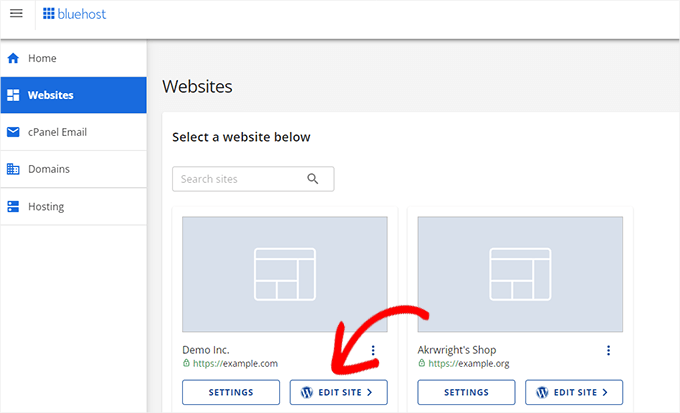
Bluehost will install a default WordPress theme for the design of your site. Do not worry about this for now, we will show you how to customize it later.
With your WordPress website set up, you can start selling digital downloads. The next step is to install the Easy Digital Downloads plugin, which we will cover in the next section.
Step 2. Install Easy Digital Downloads
Easy Digital Downloads is one of the best plugins for creating a digital downloads store in WordPress. It includes everything you need to list your digital products and deliver them to your customers.
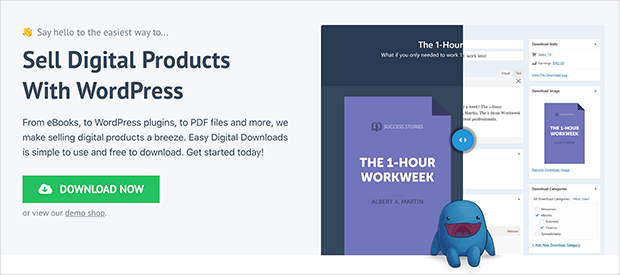
Click here to get the Easy Digital Downloads plugin and download it to your computer. From there, you will need to install it on your WordPress website.
If you need help, you can follow how to install a WordPress plugin.
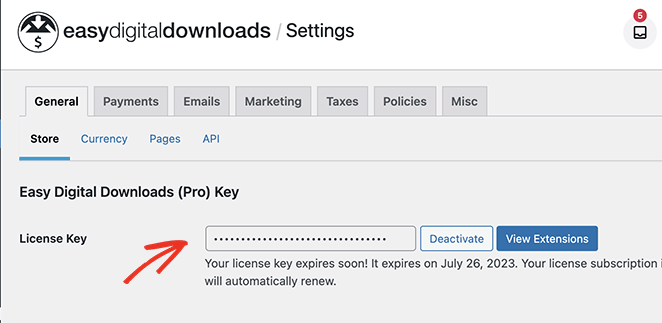
Once the plugin is active on your WordPress site, navigate to Downloads » Settings from your WordPress admin, enter your license key, and click Activate.
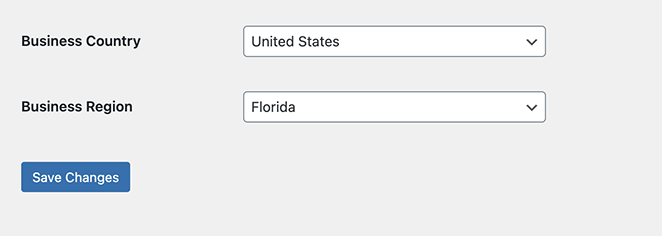
Next, scroll down the page and enter your business location in the relevant fields. By adding your location, you allow Easy Digital Downloads to calculate taxes for you automatically.
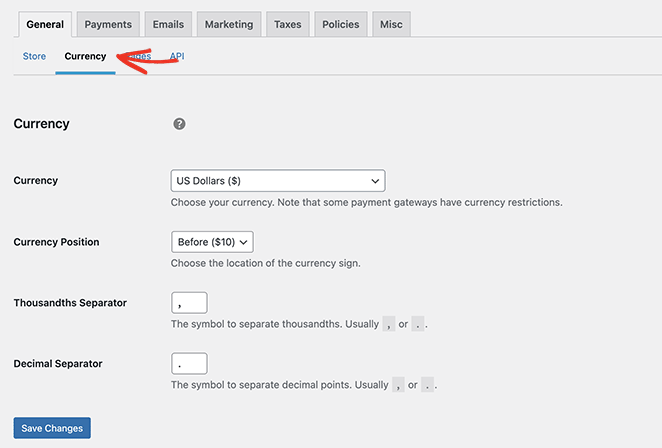
Now click the Currency link where, depending on your location, you can change the currency of your online store. Click the Save Changes button to store your settings and move on to the next step.
Step 3. Set Up Your Payment Methods
To take payments from your customers, Easy Digital Downloads supports various payment gateways, including Amazon Payments, Stripe, and PayPal.
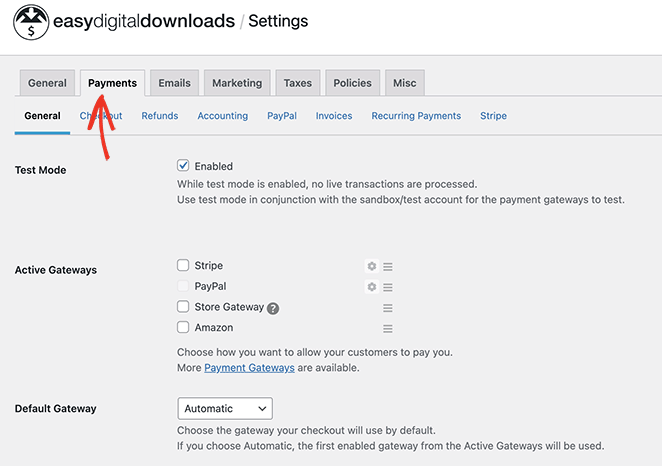
For even more payment providers, you can install the Easy Digital Downloads extensions, which include Authorize.net, Braintree, and other solutions.
For now, let us work with the default payment providers. To do this, click the Payments tab and select the checkbox next to your preferred payment methods. If you are using multiple payment methods, choose a default gateway that will load automatically on the checkout page.
Next, scroll down and click the Save Changes button. When the page reloads, you will see tabs along the top for your chosen payment methods.
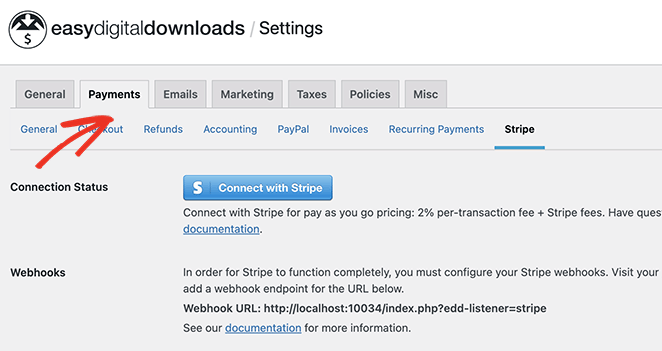
For example, by clicking the Stripe tab, you can work through the easy setup wizard to connect your Stripe account to WordPress. Remember to click the Save Changes button before moving on.
Once a buyer completes checkout, EDD automatically sends them an email with a secure, expiring download link. Customers do not need an account to receive their file, which keeps the buying experience frictionless.
Step 4. Add Your Digital Downloads to WordPress
Now that Easy Digital Downloads is configured, you can start adding new products. To add your first product, go to Downloads » Add New from your WordPress dashboard.
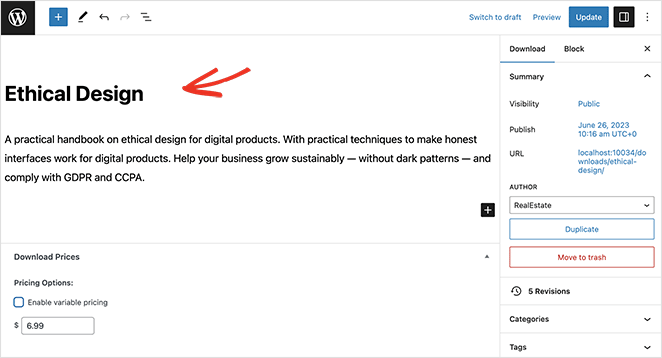
Here, you can add the product name, description, price, and other important details. For the price field, research comparable downloadable files in your niche before you commit to a number.
Price based on the value your product delivers, not the time you spent creating it. A good approach is to offer a lower-priced entry product alongside a premium option to capture buyers at different levels.
You can use the headings in the right-hand sidebar to add a product category and tags to organize your goods. This makes it easier for shoppers to find them when browsing your website.
Further down the page, you can upload a product image to make the listing stand out.
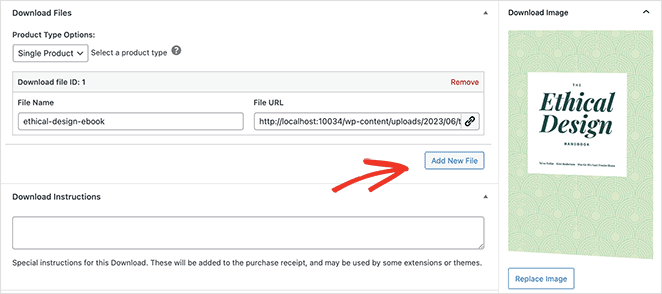
Next to that is a section to add the digital file shoppers will receive after purchasing.
Click the Add New File button and upload your product to the WordPress Media Library. You can even add instructions on where users can find their download link to get their files.

When you are happy with the product details, click the Publish button to make it live on your WordPress website. From there, follow the same steps to add more digital products to your new online store.
As you can see from the screenshot above, your product detail page will adapt to the design of your current WordPress Theme. This is ideal if you only want a simple website to sell a small selection of products.
However, if you want more control over the look and feel of your store, you can use a drag-and-drop website builder to customize it easily.
SeedProd, a drag-and-drop website builder for WordPress, has built-in design options for Easy Digital Downloads. Not only can you customize your product pages, but you can also design every inch of your website. Follow the steps below to learn how.
How to Protect Your Digital Downloads
Before you start customizing your store design, it is worth understanding how EDD keeps your downloadable files secure.
By default, files you upload to the WordPress Media Library are publicly accessible to anyone who knows the URL. Easy Digital Downloads solves this by generating secure, expiring download links after each purchase, so your files are never directly exposed.
Here are three things EDD does to protect your digital products:
- Secure download links: Each buyer receives a unique, time-limited URL. The link expires after a set number of downloads or days, so sharing it does not give unlimited access.
- Download attempt limits: You can set a maximum number of times a link can be used before it deactivates, which limits the impact of link sharing.
- Protected file storage: For maximum protection, store your files in a protected directory outside the public web root, not in the standard WordPress Media Library. EDD’s documentation covers how to set this up.
Step 5. Install and Activate SeedProd
First, install and activate the SeedProd plugin. You will need SeedProd Elite for this, as the EDD integration blocks and theme builder combination requires the Elite plan ($599/year).
SeedProd is a drag-and-drop website builder for WordPress that lets you design every part of your site, including EDD product pages, checkout pages, and your entire store theme, without code.

For help with this, you can see our detailed documentation on installing SeedProd Pro.
Step 6. Choose a WordPress Theme Kit
Next, navigate to SeedProd » Theme Builder and click the Theme Template Kits button.
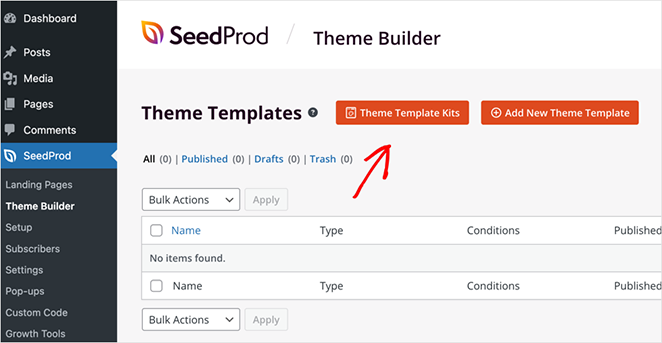
On the next screen, you can choose a pre-made WordPress theme template. These templates will replace your current theme with a completely customizable design.
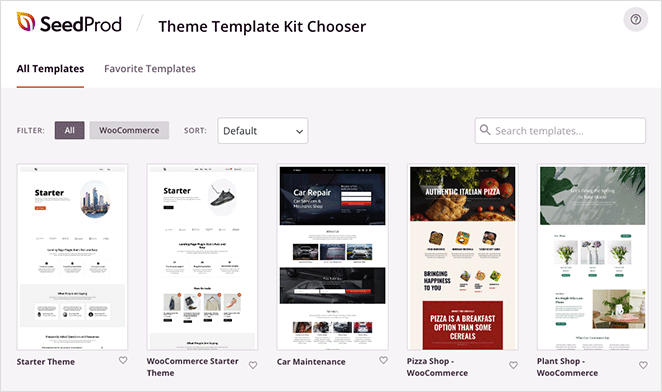
You can either scroll through for a theme you like or use the search box to filter them by keyword.
Once you find a theme you like, hover over it and click the checkmark icon. SeedProd will now import the theme in a few seconds.
Step 7. Customize Your Theme Pages
After importing your theme, the plugin will display the theme templates in a list like this:
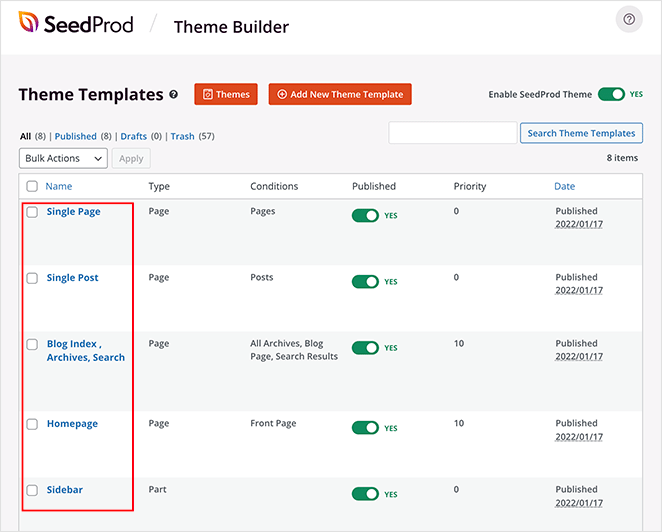
From there, it is straightforward to customize each template with the visual drag-and-drop builder. Each page type serves a different purpose in your store, so let us walk through the three most important ones.
Creating a Product Details Page
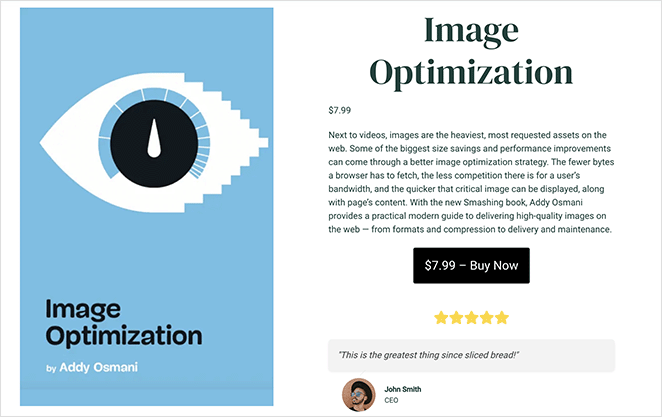
Your product detail page is one of the first pages you will want to customize. Users will see this after clicking a product listing to get more information.
SeedProd lets you make a custom template for this, so every product page will have the same design options.
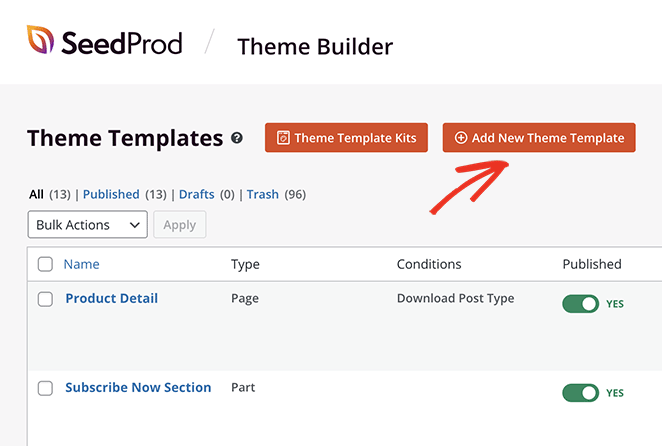
To create this template, click the Add New Theme Template button. From there, name the template something you will easily recognize. Then, select Single Page, choose the Download Post Type option from the dropdown menu, and click Save.
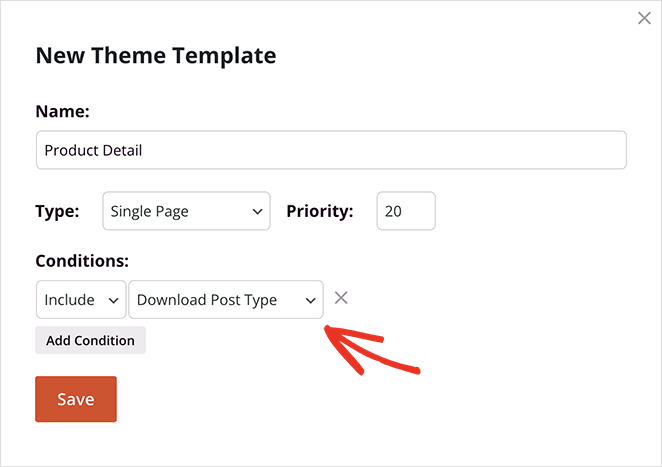
Now you will see a new template in your list. Hover over it and click the Edit Design link to customize it.
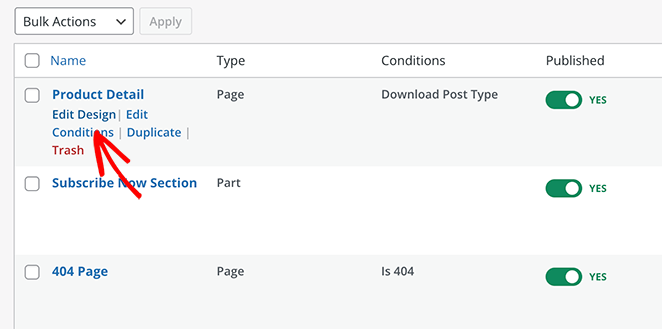
On the next screen, you will see the visual drag-and-drop editor. This is where you can tailor your product detail page design with easy building blocks.
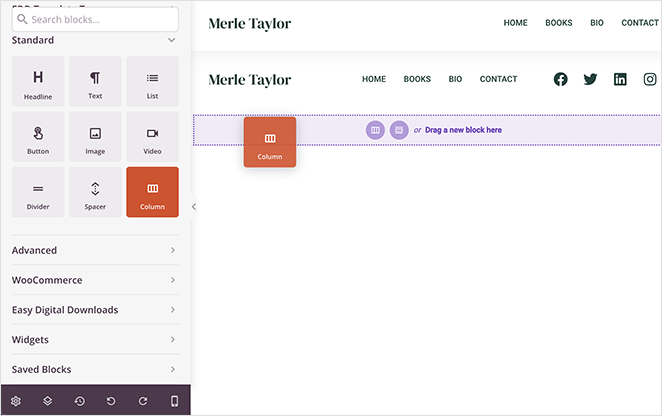
Start by adding a section to house your page content. Drag over the “Columns” block from the left-hand sidebar and drop it onto your page.
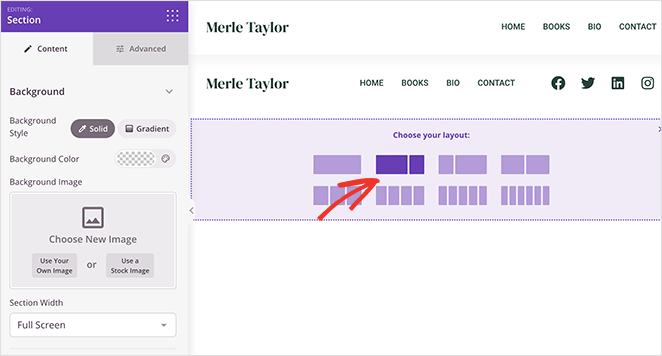
Next, choose a column layout from the list. We are going with a 2-column layout.
Now it is time to add your product information. Find the EDD Template Tags heading in the left-hand panel and drag the different blocks onto your page preview.
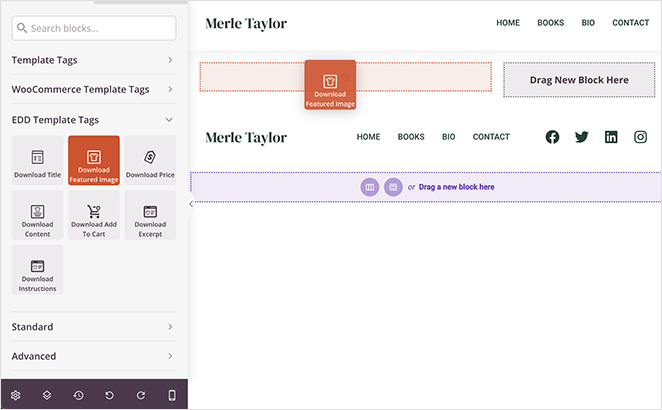
For example, drag over the Download Featured Image block to show a high-quality product image. Other blocks to include on your page are: Title, Excerpt, Price, and Add to Cart.
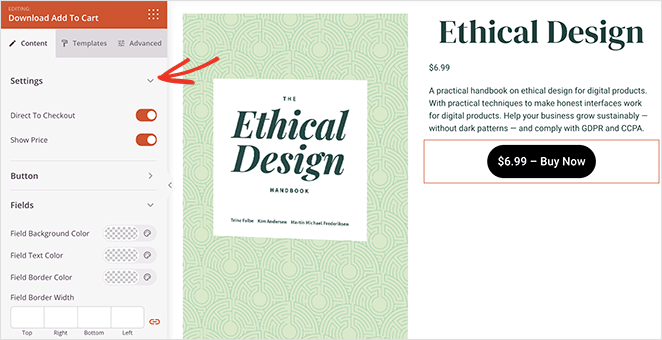
Each EDD block has several customization options. For example, the Download Add to Cart block has the option to send shoppers direct to checkout, as well as styling options for the button color, content, and more.
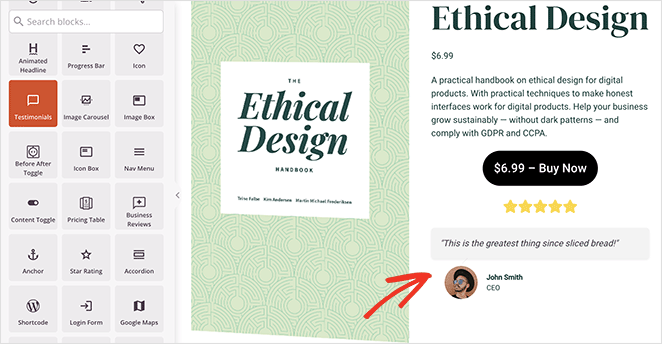
This is a great place to add some of SeedProd’s other blocks. With the Star Rating and Testimonial blocks, you can show valuable social proof to encourage shoppers to buy.
Click the Save button when you are happy with this page and return to the Theme Builder dashboard.
Creating a Download Listings Page
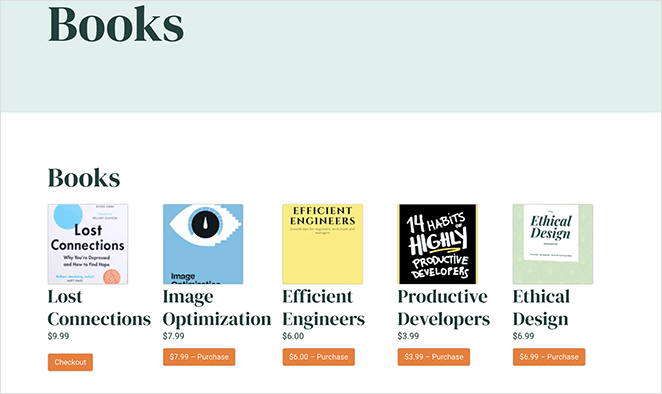
Another page you can add to your online store is a showcase page where you list all your products in one place for users to browse.
For example, if you are selling ebooks, you can make a “Books” page highlighting all the available ebooks.
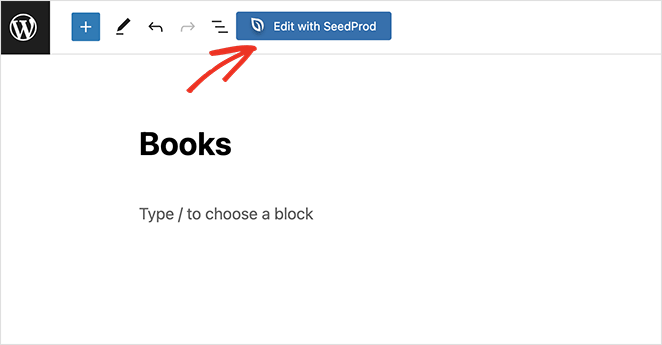
In SeedProd, you can do this by going to Pages » Add New and creating a new WordPress page. From there, click the Edit with SeedProd button to customize the page with the drag-and-drop builder.
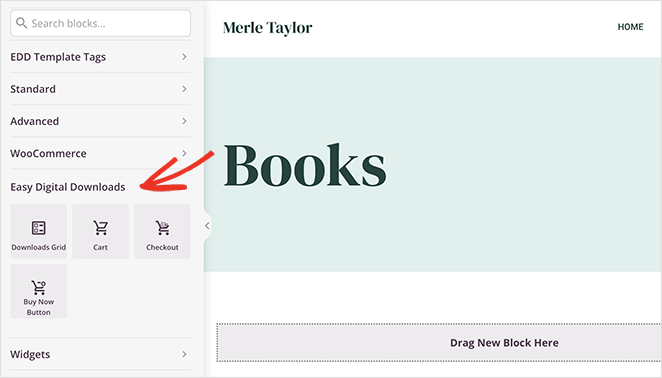
Editing this page’s design is the same as before. Instead of using the EDD Template Tags to pull dynamic product information, use the core EDD blocks under the Easy Digital Downloads heading.
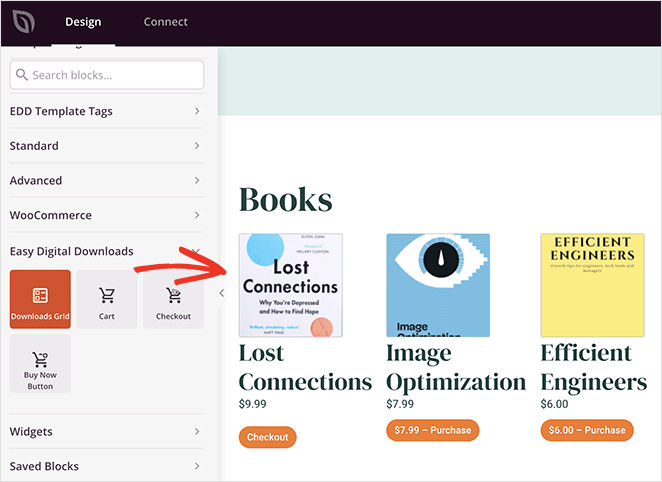
Start by adding the Downloads Grid block. With this block, you can display a grid of downloadable files without adding each product individually.
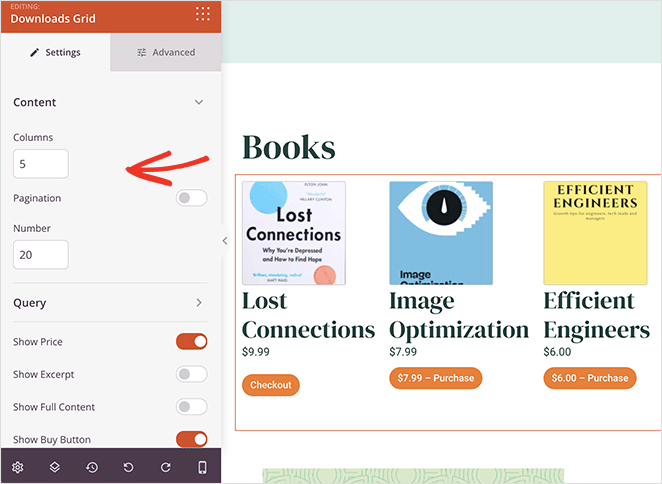
In the block settings, you can set the number of columns and products and even add pagination if you have a lot of digital products to showcase. You can display products by queries such as ID, tag, or category, and show or hide details including Price, Excerpt, Full Content, Buy Button, and Thumbnails.
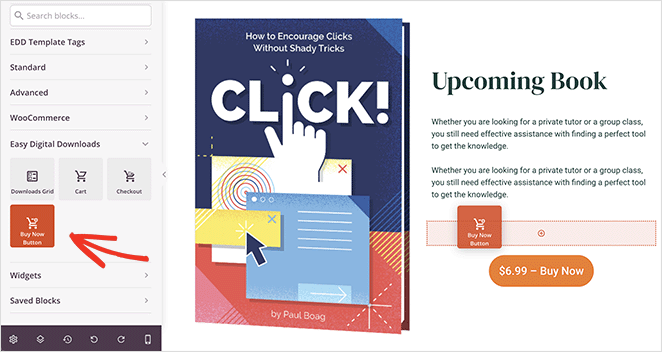
To highlight a specific product, like an upcoming release, you can add the information using SeedProd’s text and image blocks to generate buzz. Then drag over the Buy Now Button to encourage users to pre-order it.
Once you are happy with the page, click Save and Publish.
Creating a Custom EDD Checkout Page
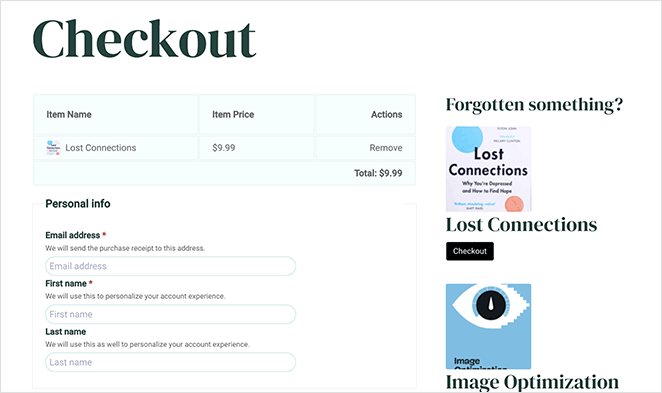
The next page we will create is a checkout page, where users can enter their payment details. Easy Digital Downloads does a great job with its default checkout page, but you may want to customize it further.
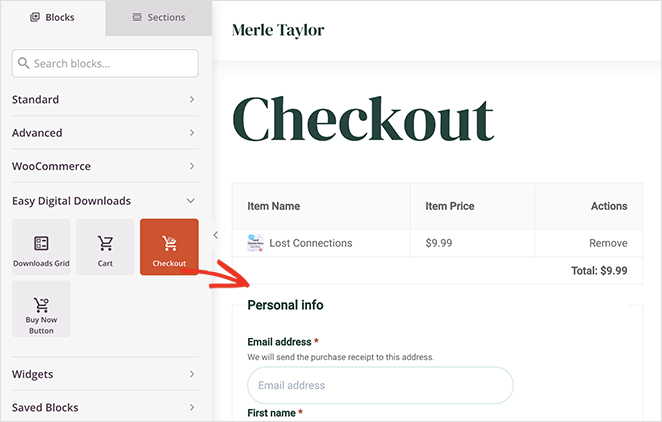
To do this, create a new WordPress page and click the Edit with SeedProd button. Now drag over the Checkout block to your page preview.
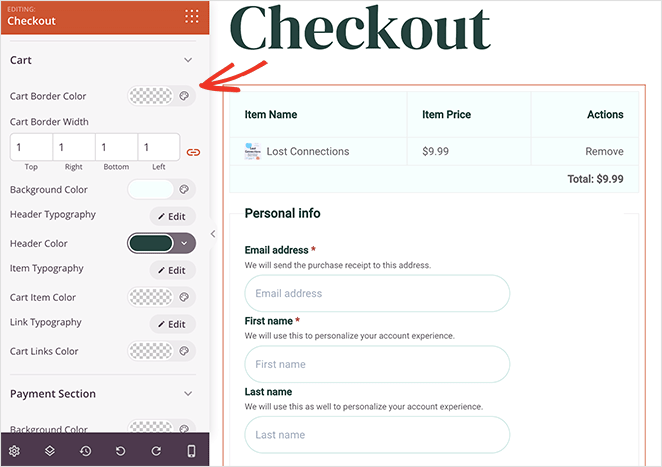
You will now see a full EDD checkout that you can customize in the block settings. For example, you can change the form field colors and fonts, adjust borders, and customize the look of the payment section.
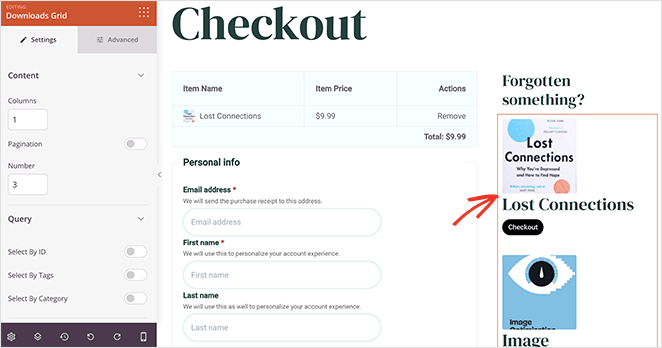
Want to increase the average order value for each purchase? Consider adding relevant products to your checkout page. Shoppers are more likely to add more items to their cart if you make it easy and relevant.
Drag the Downloads Grid block, configure your settings, and it is done. You can now Save your changes and exit back to your WordPress admin.
Step 8. Publish Your Digital Download Website
After customizing your digital downloads store, you are ready to publish it. Before you do that, you will need to assign your checkout page in the EDD settings.
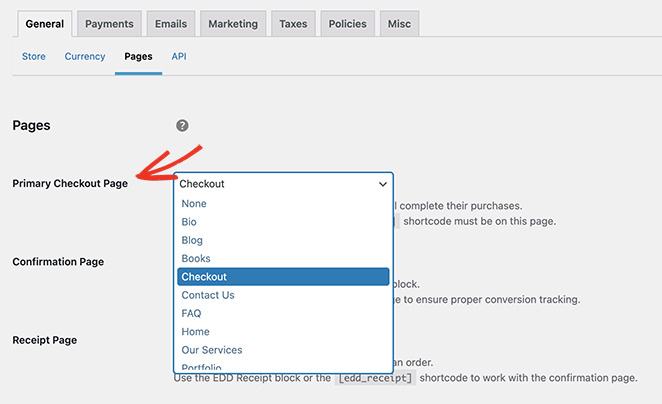
From your WordPress dashboard, go to Downloads » Settings » General and click the Pages tab. Next to the Primary Checkout Page heading, choose the checkout page you just made with SeedProd from the dropdown menu, and click Save Changes.
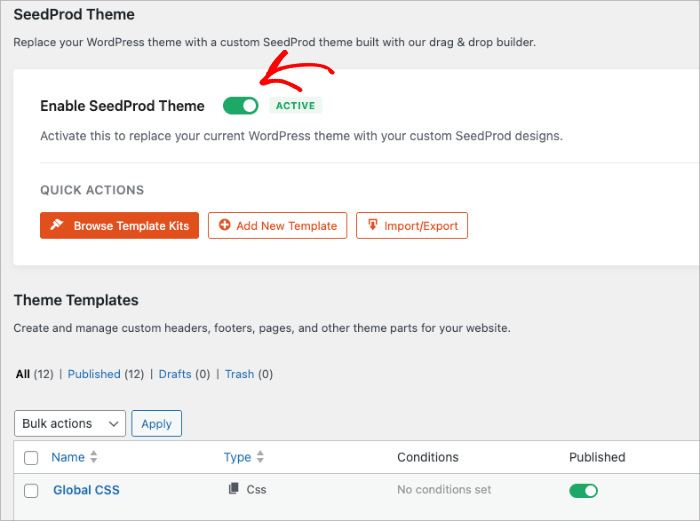
Now let us activate your website design. Navigate to SeedProd » Theme Builder and click the Enable SeedProd Theme toggle until it is in the Yes position.
Your online store for digital goods is now ready to go. Here is a preview of the different pages we have made in this guide:
How to Promote Your Digital Downloads Store
Your store is live. Now you need buyers to find it. These are the channels that actually move the needle for online stores selling digital products:
- Build your email list from day one: Email converts better than social media for digital product sales. Use a lead magnet or a free sample product to start collecting subscribers before your first paid product launches. Learn how to market to an email list before your site launches for a head start.
- SEO content: Write blog posts that target searches your buyers are already making. A tutorial that solves a problem your product addresses is the most sustainable traffic source you can build.
- Social media and Pinterest: Pinterest is particularly effective for visual digital products like printables, templates, and planners. Pin product images with clear descriptions linking back to your store.
- Affiliate program: EDD supports affiliate programs via extensions. Letting others earn a commission for referring sales can expand your reach without upfront ad spend.
- Discount codes for launches: EDD has built-in discount code support. A launch discount drives urgency and can generate your first wave of reviews and social proof.
- Build a sales funnel: Guide buyers from a free resource to a paid product. SeedProd makes it straightforward to create a sales funnel in WordPress for each stage of the buyer journey.
FAQs About Selling Digital Downloads on WordPress
Do I need the SeedProd Elite plan to use EDD blocks and theme builder together?
Yes. The EDD integration blocks and the full theme builder combination require the SeedProd Elite plan at $599/year. The theme builder alone is available on Plus ($199) and Pro ($399), but the specific EDD blocks that pull product data are Elite-only. If you only need to customize your homepage or landing pages without EDD-specific blocks, Pro works fine.
What’s the difference between Easy Digital Downloads and WooCommerce for selling digital products?
Easy Digital Downloads is purpose-built for digital-only stores. It keeps the setup lean, handles secure file delivery and download limits out of the box, and does not include the physical product management features that WooCommerce adds. WooCommerce is the better fit if you sell both digital and physical products and need shipping, inventory tracking, and physical order management.
For most digital-only sellers, EDD is simpler and faster to set up. See our full WooCommerce vs Easy Digital Downloads comparison for a more detailed breakdown.
How do I protect my digital downloads from being shared or pirated?
Easy Digital Downloads protects your files in three ways. It generates secure, expiring download links after each purchase, so buyers cannot share a direct file URL. You can also set a maximum number of download attempts per link, which limits the damage if a link is shared. For stronger protection, you can store your files outside the public WordPress Media Library in a protected server directory.
You can also require customers to log in before downloading, which creates a record of every download tied to a customer account. No system is completely piracy-proof, but EDD’s built-in tools cover the most common sharing scenarios.
Can I sell digital downloads on WordPress for free?
Yes, with some limitations. Easy Digital Downloads has a free version that handles basic product listings and PayPal payments. For Stripe, download limits, and advanced reporting, you need a paid plan. SeedProd’s free version does not include the EDD integration blocks or the full theme builder, so if you want a fully custom store design, the Elite plan is required. For a very simple store with one or two products, the free EDD version with a standard WordPress theme is a workable starting point.
How long does it take to set up a digital downloads store on WordPress?
Most people can get a basic store live in an afternoon. Buying hosting, installing WordPress, and configuring Easy Digital Downloads takes 30 to 60 minutes. Adding your first few products takes another 30 minutes depending on how much description and image work is involved. Customizing your store design with SeedProd can take anywhere from an hour to a day depending on how polished you want the result to look. If you start with a pre-built theme kit, the design work is significantly faster.
Start Selling Digital Downloads Today
Your store is live, your files are protected, and every dollar that comes in is yours. No platform taking a cut.
By using Easy Digital Downloads for product management and SeedProd for design, you have built a store that is fast, secure, and completely your own. Get started with SeedProd today and your digital products can be live and ready for purchase in an afternoon.
Here are some other tutorials for pages you can create using this WordPress website builder:
- How to Create a Service Page Design in WordPress
- How to Make a 404 Page in WordPress That Generates Leads
- How to Customize Your WordPress Login Page (Easy Steps)
Thanks for reading! We’d love to hear your thoughts, so please feel free to join the conversation on YouTube, X and Facebook for more helpful advice and content to grow your business.



