


Are you relying on word-of-mouth for fitness clients? If you don’t have a strong online presence, you’re likely missing out on potential business.
Consider this: around 81% of shoppers research online before making a purchase. Without a website, you’re making it difficult for new clients to find you, and you’re likely losing business to your competitors who do have a website.
The good news is, you can easily fix this. In this guide, I’ll show you how to build a personal trainer website that attracts new clients and helps grow your business online.
Should a Personal Trainer Have a Website?
A personal trainer should have a website to share their services, attract clients, and build trust, especially for an online personal training business. A website makes it easy to show reviews, let clients book sessions, and provide helpful tips. It also helps more people find your services online.
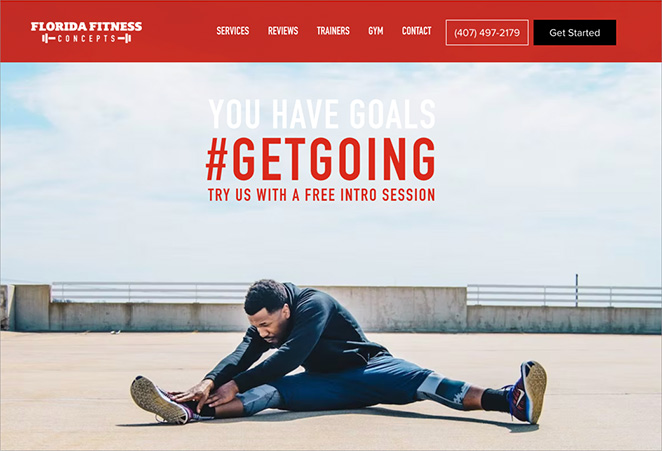
Here are a few more reasons why building a website is essential:
- Build Authority: Showcase your certifications, client transformations, and expertise in one professional place.
- Automate Leads: Your website works 24/7, capturing new client leads while you are training others.
What’s the Best Platform for a Personal Training Website?
When you start researching how to build a personal trainer website, you will likely run into names like Wix, Squarespace, and WordPress. It can be confusing to know which one is right for a fitness business.
Generally, there are two types of platforms you can choose from:
| Feature | Hosted (Wix, Squarespace) | WordPress (Self-Hosted) |
|---|---|---|
| Cost | Monthly subscription (increases with features) | Free software (pay for hosting only) |
| Ownership | You rent the platform | You own the website & data |
| Flexibility | Limited to their app store | Unlimited plugins & customization |
| Best For | Hobbyists or simple portfolios | Growing fitness businesses |
For personal trainers who want to grow a brand, I always recommend WordPress.
Why? Because a fitness business evolves. You might start by just showing your bio, but next year you might want to sell downloadable workout guides, protein supplements, or video courses. Moving a site from Wix to WordPress later is difficult and can hurt your SEO.
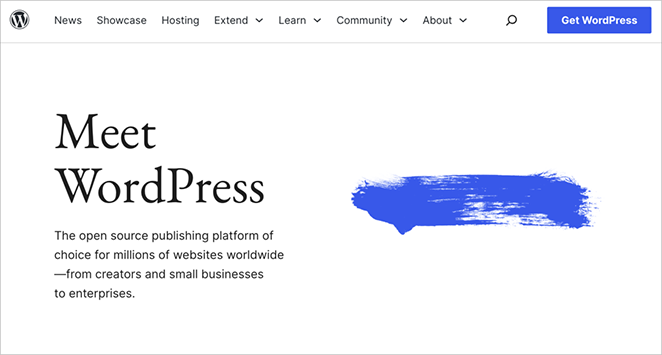
Here is why WordPress is the industry standard for fitness professionals:
- Total Ownership: You are not renting your business space; you own it. No one can shut down your account or hike up your transaction fees unexpectedly.
- Scalability: It grows with you. Whether you have 5 clients or 5,000, WordPress can handle it.
- Lower Cost: Since the software is free, your running costs are usually lower than the premium tiers of hosted builders.
- Design Freedom: In the past, WordPress required coding. That is no longer true. With tools like SeedProd, you get the same drag-and-drop simplicity of Wix, but with the power of WordPress.
Premade WordPress Themes vs. Page Builders
Once you choose WordPress, you have two ways to design your site: use a standard “Theme” or a “Page Builder.” For a fitness brand, the difference is critical:
| Feature | Standard WordPress Theme | Page Builder (SeedProd) |
|---|---|---|
| Design Control | Limited (Stuck with the theme’s layout) | Total Control (Drag & drop anything) |
| Uniqueness | Generic (Looks like other sites) | Custom (Matches your personal brand) |
| Coding Required? | Often yes (for custom tweaks) | No (Visual editing only) |
To build a site that stands out, I recommend using SeedProd. It gives you the power of a professional web designer without writing a single line of code.
It is trusted by over 1 million users, including major brands like Duplicator and WPCode. Just look at the professional quality achieved by Visser Labs using SeedProd:
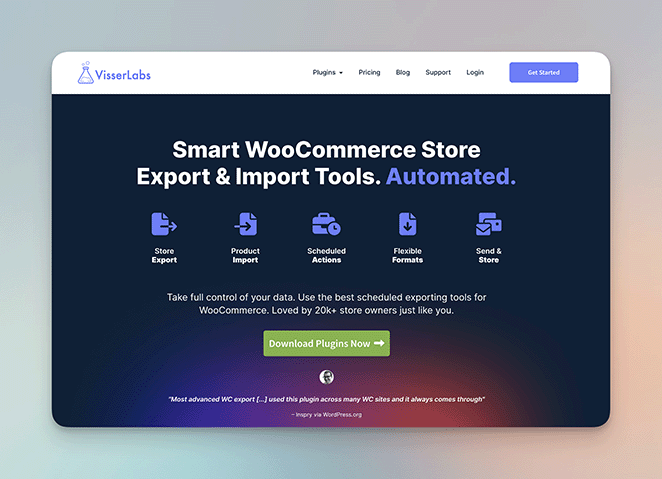
Now, let’s dive into the tutorial and start building your site.
What Content Do You Need for a Fitness Website?
One of the biggest mistakes personal trainers make is installing a website theme before they know what they want to say. To make the building process faster and your conversion rate higher, gather these four assets before you start:
| Essential Asset | Best Practice / Action Item |
|---|---|
| Professional Photography | Avoid stock photos. In this industry, you are the product. Invest in a photoshoot or use a high-quality phone to take bright shots of you training clients to build trust. |
| Value Proposition | Be specific. “I help you get fit” is too broad. Try a specific hook like: “I help busy professionals lose 10lbs in 30 days without giving up carbs.” |
| Social Proof | Gather evidence. Collect screenshots of texts from happy clients, Google reviews, or before-and-after photos (with permission). Place these near your pricing. |
| A Lead Magnet | Capture emails. Most visitors won’t buy immediately. Offer a free PDF (e.g., “5-Day Meal Plan”) in exchange for their email address so you can follow up later. |
Once you have these materials ready, you are ready to start building.
How to Build a Personal Trainer Website with SeedProd
Before we jump in, you’ll need to choose a domain name and web hosting.
If you haven’t already got these, I recommend checking out my tutorial on how to create a WordPress website for beginners. It’ll walk you through those first steps.
Step 1. Install and Activate the SeedProd Plugin
Now that you’ve got the basics of your website set up, it’s time to install and activate the SeedProd plugin. This allows you to create a successful online personal training website design visually.
If you need a hand with this, refer to our guide on installing SeedProd Pro.
Step 2. Choose a Premade Template
Ready to start designing your website? In your WordPress dashboard, navigate to SeedProd » Theme Builder and click the “Theme Template Kits” button.
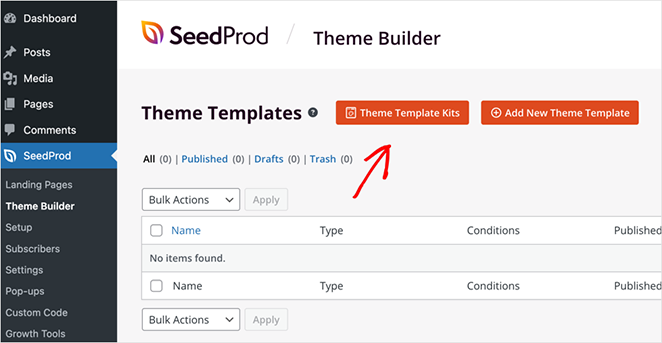
This will open a library of full website themes. You can import any of these themes with a single click. These kits include all the pages you’ll need for a complete website.
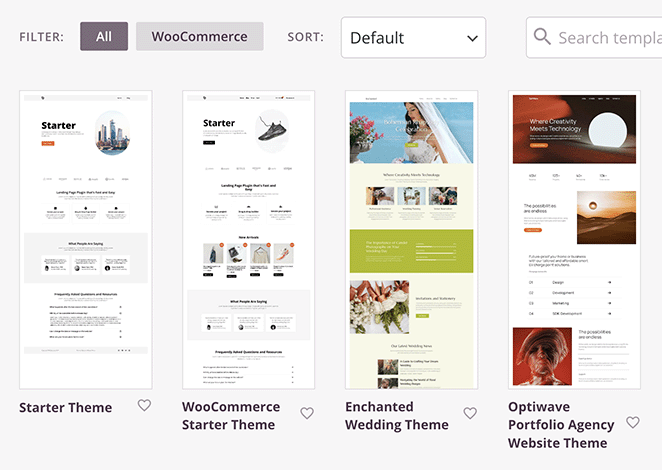
Even better, there are theme kits designed specifically for fitness and personal trainers, making it easy to start with a professional design.
To choose a theme, simply hover your mouse over the one you like and click the checkmark icon.
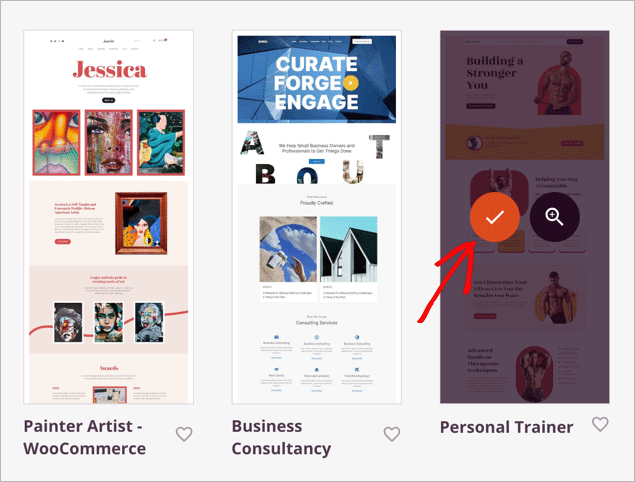
In just a few seconds, SeedProd will import all the elements of your chosen theme. You can then customize each template using the drag-and-drop builder.
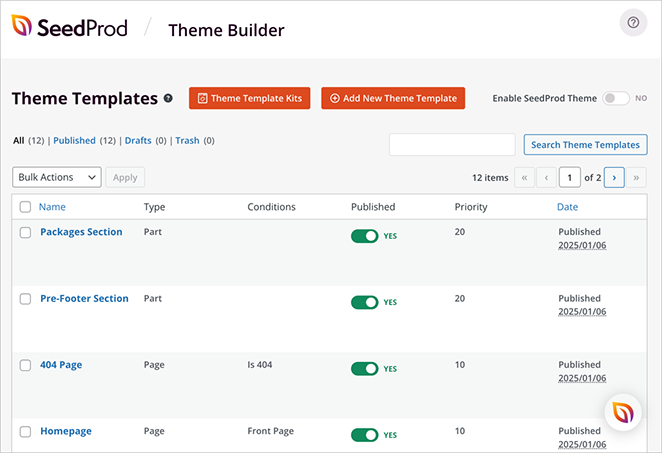
Let’s start with editing the WordPress homepage.
Step 3. Customize using the Drag-and-Drop Builder
Hover over the homepage template and click the “Edit Design” link.
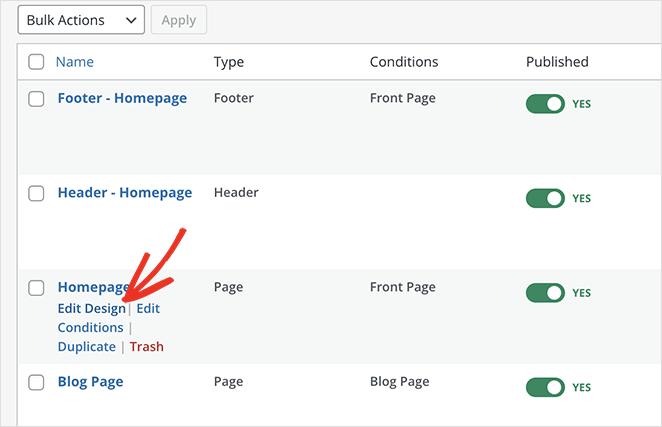
This opens the template in SeedProd’s drag-and-drop page builder.
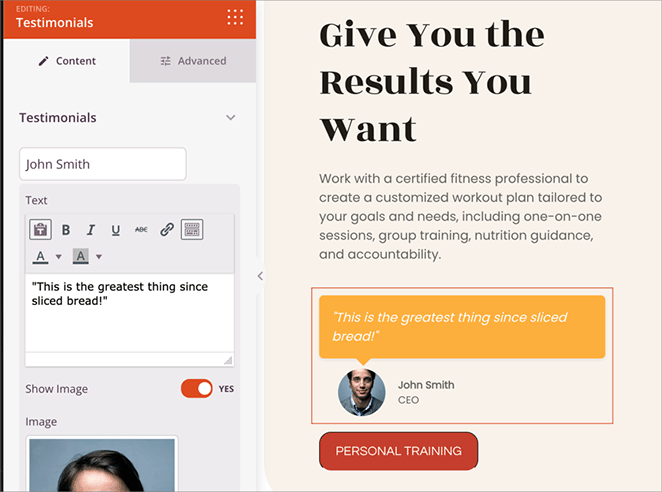
You’ll find the builder super easy to use, even if you’re just starting out. On the left, you’ll see blocks and sections, and on the right, a live preview of your page.
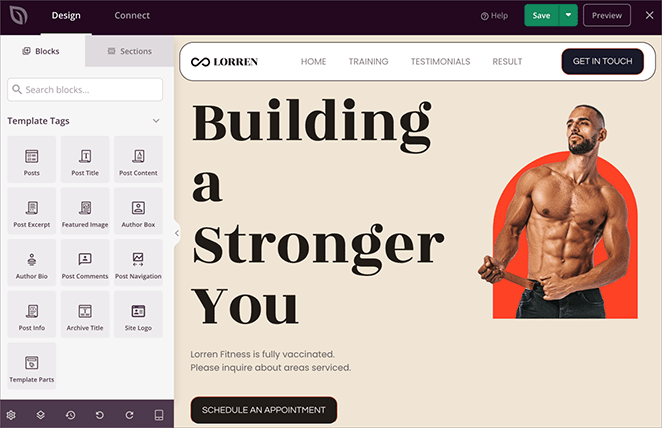
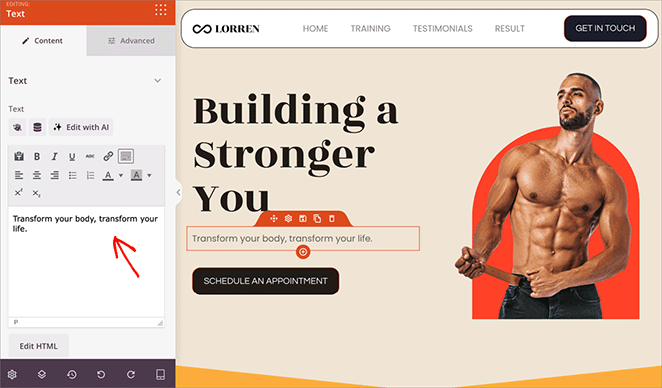
To customize anything on the page, simply click it. The left sidebar will then show you options to change its content.
For instance, you can change the website copy with just a few simple clicks:
Adding new elements is just as easy. Simply drag blocks from the left sidebar onto your page. For instance, you could add a testimonials block to showcase client testimonials and success stories.
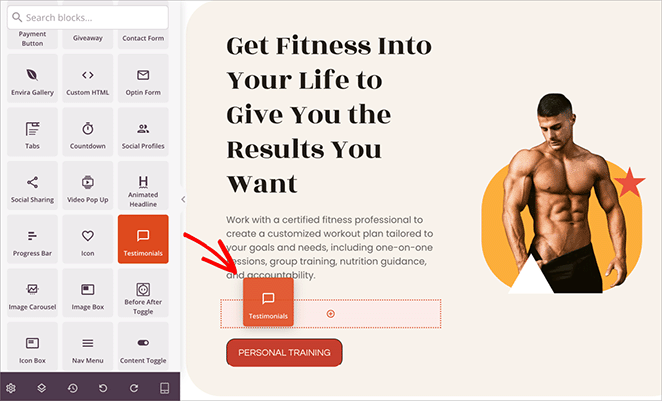
You can also customize the block to match your brand’s colors, fonts, and more.
If you’d like a complete tour of all the features, check out our guide on how to create a custom WordPress theme.
Step 4. Create Essential Pages
The template you chose for your website might have already created all the pages you need as a personal trainer. For example, the template I picked, has a homepage, testimonials, training packages and results pages.
If anything is missing, you’ll need to build those pages yourself. For instance, you may need “About,” “Services,” “Testimonials,” “Contact,” and “Blog” pages.
Don’t worry, this step is quite simple. Just go to Pages » Add New Page in your WordPress dashboard to create a new page.
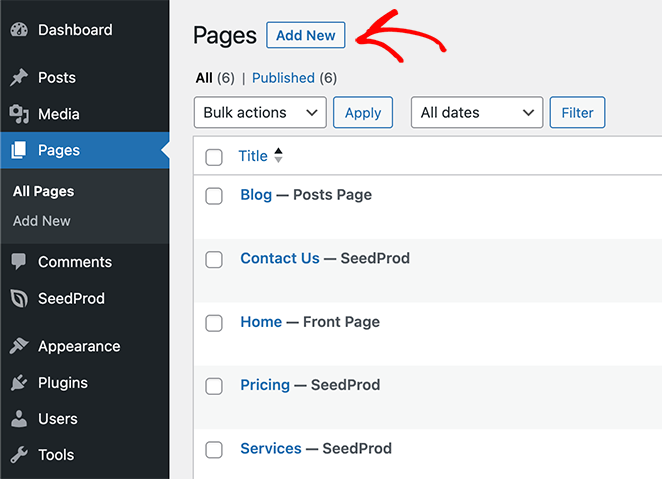
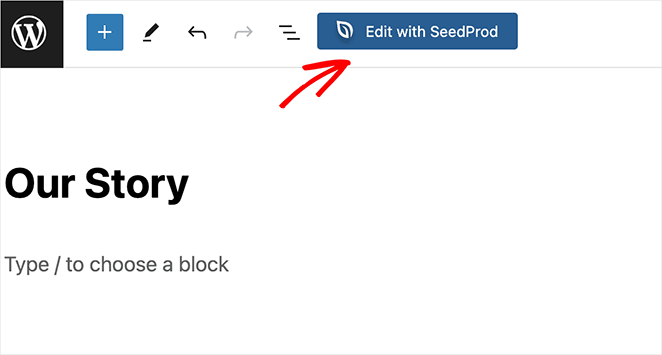
Then, click the “Edit with SeedProd” button. This will open the drag-and-drop builder, allowing you to design your page.
For help with building each page, check out these step-by-step tutorials:
- How to Create an About Page in WordPress
- How to Create a Service Page Design in WordPress
- How to Add Testimonials to WordPress Pages
- How to Create a Blog Page on WordPress
- How to Create a Simple Contact Form in WordPress
Step 5. Add Booking & Payment Features
To accept payments and bookings, you need the right tools. Since WordPress is open-source, you have two great options depending on your business model:
| If you need to… | Use this Plugin |
|---|---|
| Accept Bookings & Class Signups | WPForms (Best for service-based trainers) |
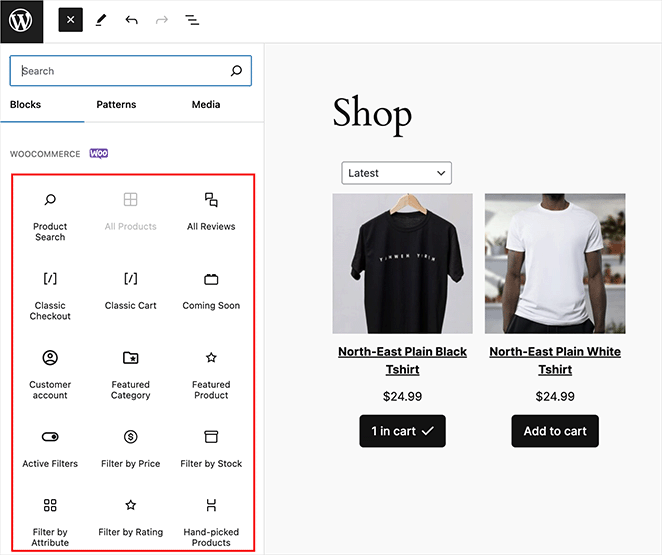
| Sell Merch, Vitamins, or Equipment | WooCommerce (Best for e-commerce) |
Both plugins integrate seamlessly with SeedProd, allowing you to drag and drop booking forms or product grids directly onto your pages.
Step 6. Basic SEO Optimization Tips
To help people find your website online, you’ll want to use some basic SEO (search engine optimization) practices. For the best results, I recommend using a WordPress SEO plugin like All in One SEO (AIOSEO).
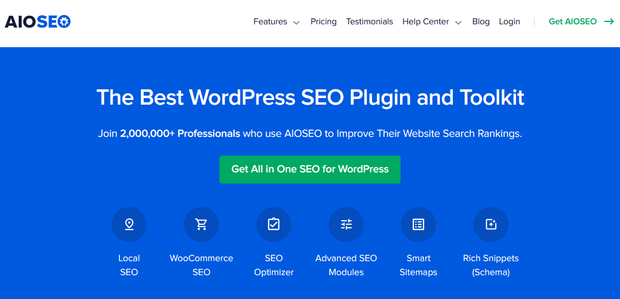
AIOSEO helps you optimize your website for search engines. It integrates seamlessly with SeedProd, making it easy to manage your SEO.
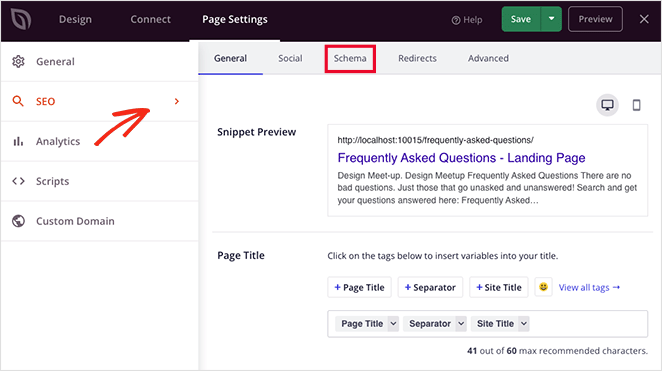
Here are a few simple steps to get started on SEO for your website:
- Keyword Research: Find out what terms people use when searching for a personal trainer like you.
- Meta Descriptions: Write detailed descriptions for each page of your website.
- Image Alt Text: Add descriptive text to your images to help search engines understand them.
For more detailed information, take a look at my guide on WordPress search engine optimization.
Step 7. Preview and Publish
Before making your website live, it’s important to check how it looks on different devices. In the bottom of the page builder, click the mobile icon to preview the mobile, tablet, and desktop views.
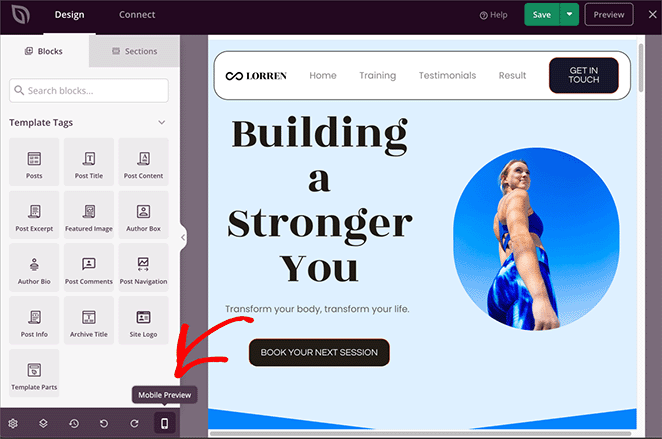
You can then edit each view to make sure you have a perfect responsive design that looks great on any device.
When you’re happy with how each part of your website looks, remember to save your changes. You can do this easily by clicking the Save button in the top right corner.
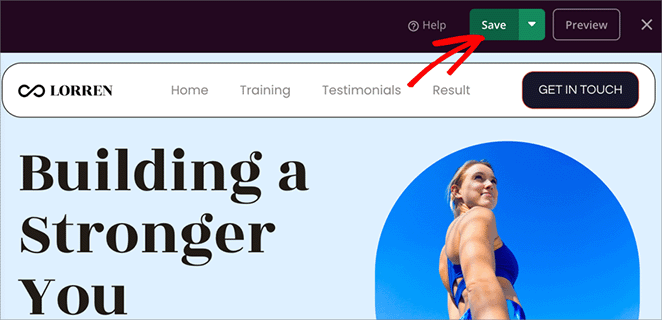
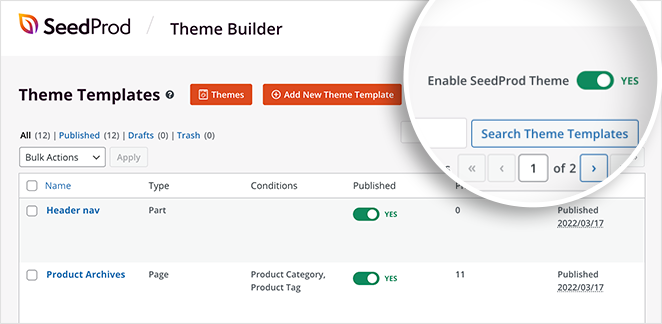
Finally, to publish your website, go to SeedProd » Theme Builder and turn the “Enable SeedProd Theme” toggle to the “on” position. This will make your new website live!
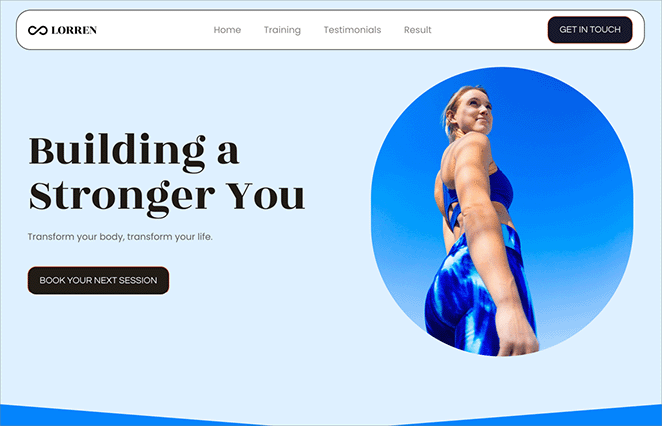
Here’s a quick look at the personal trainer website I created on my test website by following these steps:
Promoting Your Personal Trainer Website
Now that your website is live, it’s time to start promoting it. WordPress gives you access to great tools that can help you grow your business.
Here are a few to get you started:
- OptinMonster: Once visitors are on your site, you’ll want to convert them into clients. OptinMonster helps you turn website visitors into paying customers.
- PushEngage: This platform lets you send targeted push notifications to your users, even when they’re not on your website.
- Smash Balloon: Use Smash Balloon to grow a strong social media following using your WordPress website, connecting platforms like Instagram, YouTube, and Facebook.
- MonsterInsights: Track where your users are coming from and what’s working on your site with MonsterInsights, the best Google Analytics plugin for WordPress.
If you’re looking to work with brands or get featured in the press, you can build a media kit page that includes your bio, high-quality photos, and key stats.
FAQs About Building a Personal Trainer Website
How much does it cost to build a personal trainer website?
A professional personal trainer website typically costs between $100 and $250 to set up initially. This includes approximately $15/year for a domain name, $100/year for web hosting, and optional costs for premium plugins like SeedProd. This is significantly cheaper than hiring a web developer, which can cost upwards of $2,000.
Do I need a website if I have a strong Instagram following?
Yes, you need a website even if you are popular on social media. While Instagram is excellent for engagement, you do not own that audience, and the algorithm can change at any time. A website acts as a permanent digital home where you can collect email leads, process payments securely, and host your own content without distractions.
Can I build a personal trainer website for free?
You can build a website for free using WordPress.org software, but you will still need to pay for web hosting to make it live on the internet. We recommend avoiding 100% free website builders (like Wix’s free tier) because they often place advertisements on your site and do not allow you to use a custom domain name, which looks unprofessional.
How long does it take to build a fitness website?
If you use a template kit and a drag-and-drop builder like SeedProd, you can build a fully functional personal trainer website in less than 2 hours. This includes importing the design, customizing the text, and adding your contact forms.
What is the best domain name for a personal trainer?
The best domain name is usually YourName.com (e.g., JohnDoeFitness.com). If that is taken, try adding your location or your specific niche (e.g., JohnDoeLondon.com or JohnDoeYoga.com). Keep it short, avoid numbers or hyphens, and ensure it is easy to spell.
I hope this guide has helped you learn how to create a personal trainer website in WordPress. Now you can take steps to connect with new clients and grow your business.
With WordPress and SeedProd, building a professional website is easier than you might think. SeedProd makes it simple for anyone to create a website without coding.
Ready to dive in?
Next, you may also want to see our guides on:
- How to Sell Workout Programs Online
- Business Website Examples (And What Makes Them Great)
- How to Sell Videos Online in WordPress
Thanks for reading! We’d love to hear your thoughts, so please feel free to join the conversation on YouTube, X and Facebook for more helpful advice and content to grow your business.



