

TL;DR: So erstellen Sie eine Immobilien-Website in WordPress
Eine Immobilien-Website benötigt zwei zusammenarbeitende Elemente: ein Plugin, das Immobilienangebote abruft, und ein Design, das die Leute, die sie durchsuchen, zu Anfragen macht.
- Hosting und Domain festlegen: Registrieren Sie eine Domain und richten Sie WordPress-Hosting ein, bevor Sie etwas anderes tun.
- Wählen Sie einen Builder statt eines Themes: Ein Theme legt Ihr Layout für Sie fest, während ein Builder es Ihnen ermöglicht, Immobilienseiten und Lead-Formulare selbst zu gestalten.
- Beginnen Sie mit einem Website-Kit: Ein Immobilien-Kit bietet Ihnen alle Vorlagen von Anfang an, sodass Sie bearbeiten, anstatt von einer leeren Seite zu beginnen.
- Für Anfragen gestalten: Platzieren Sie Suche, Fotogalerien und ein Kontaktformular auf jeder Immobilienseite.
- IDX-Feed hinzufügen: Ein IDX-Plugin ruft Live-Angebote von Ihrem MLS ab, was normalerweise zuerst die Genehmigung Ihres lokalen Verbands erfordert.
- Veröffentlichen und testen: Aktivieren Sie Ihr Theme und klicken Sie sich dann selbst durch die Angebote und Formulare.
Eine Immobilien-Website muss zwei Aufgaben erfüllen: Sie muss aktuelle Immobilienangebote anzeigen und die Leute, die sie durchsuchen, zu Anfragen machen.
In diesem Leitfaden zeige ich Ihnen Schritt für Schritt, wie Sie eine Immobilien-Website erstellen, einschließlich der IDX- und MLS-Komponente, wichtiger Seiten für Makler und wie Sie alles mit SeedProd gestalten.
- Was sollte eine Immobilien-Website beinhalten?
- Wie funktionieren IDX- und MLS-Immobilien-Feeds?
- Schritt-für-Schritt-Anleitung: So erstellen Sie eine Immobilien-Website
- Schritt 1. Wählen Sie einen Domainnamen und Hosting
- Schritt 2. Wählen Sie eine Methode zur Gestaltung Ihrer Immobilien-Website
- Schritt 3. Wählen Sie eine Immobilien-Website-Vorlagen-Kit
- Schritt 4. Passen Sie Ihre Immobilien-Website an
- Schritt 5. Verbinden Sie Ihren IDX-Immobilien-Feed
- Schritt 6. Veröffentlichen Sie Ihre Immobilien-Website
- Was tun nach der Erstellung einer Immobilien-Website
- FAQs zur Erstellung einer Immobilien-Website
Was sollte eine Immobilien-Website beinhalten?
Eine Immobilien-Website sollte Menschen helfen, Immobilien zu finden, dem Makler hinter den Angeboten zu vertrauen und Sie reibungslos zu kontaktieren.
| Seite oder Funktion | Was es tun sollte |
| Startseite | Erklären Sie, was Sie tun, wo Sie arbeiten, und leiten Sie Besucher zu Angeboten oder einer Besichtigungsanfrage |
| Immobilienangebote | Zeigen Sie alle verfügbaren Immobilien mit Such- und Filterfunktionen an, idealerweise unterstützt durch ein Angebots- oder IDX-Plugin |
| Einzelne Immobilienseiten | Fotos, wichtige Details, Standortinformationen und eine klare Handlungsaufforderung (CTA) für Anfragen oder Besichtigungen anzeigen |
| Makler- oder Maklerprofil | Bauen Sie Vertrauen auf mit Fotos, Qualifikationen, Servicebereichen und Informationen zu Mitgliedschaften oder Lizenzen |
| Kontakt und Lead-Erfassung | Machen Sie es einfach, Anfragen zu stellen, Besichtigungen zu vereinbaren und Sie mobil zu kontaktieren |
| Optionale Support-Seiten | Fügen Sie Blogs, Stadtteilführer, Testimonials, Hypothekenrechner und Landingpages für Verkäufer hinzu |
Wenn Sie diese Grundlagen bereits vorhanden haben, können Sie sich auf lokale SEO-Inhalte und gezielte Landing Pages konzentrieren, um mehr Käufer- und Verkäufer-Leads zu gewinnen.
Wie funktionieren IDX- und MLS-Immobilien-Feeds?
Ein Internet Data Exchange (IDX)-Feed ist eine Live-Verbindung zwischen Ihrer Website und Ihrem lokalen Multiple Listing Service (MLS), der Datenbank, die Ihr regionaler Immobilienverband verwendet, um Angebote zwischen Maklern auszutauschen. Anstatt Immobilien von Hand hinzuzufügen, ruft der Feed sie ab und hält sie auf dem neuesten Stand, wenn sie sich ändern.
Der Verband legt Regeln fest, wie seine Angebote angezeigt werden dürfen. Deshalb verwendet fast jede Immobilien-Website ein spezielles Plugin, anstatt Immobilien als normale Seiten zu behandeln.
Drei separate Elemente erledigen die Arbeit, und es ist hilfreich, diese zu verstehen, bevor Sie etwas kaufen:
- WordPress: verwaltet Ihre Website und Seiten
- IDX- oder Angebots-Plugin: ruft Immobiliendaten ab und aktualisiert sie
- SeedProd: steuert Layout, Design und Lead-Erfassung
Diese Aufteilung ist das gleiche Muster, das ich bei jeder Kunden-Website angetroffen habe, bei der ein Plugin die Daten verwaltet. Lassen Sie das Plugin die Daten verwalten, für die es entwickelt wurde, und verwenden Sie den Builder für alles, was der Besucher tatsächlich sieht.
Schritt-für-Schritt-Anleitung: So erstellen Sie eine Immobilien-Website
Schritt 1. Wählen Sie einen Domainnamen und Hosting
Um zu beginnen, müssen Sie zuerst die beste Plattform für Ihre Website auswählen. WordPress ist der beliebteste Website-Builder der Welt, und Zehntausende von Immobilien-Websites nutzen ihn für ihre Website-Entwicklung.
Wenn wir über WordPress sprechen, beziehen wir uns auf WordPress.org, die kostenlose Software, die Sie auf Ihrem eigenen Hosting installieren, nicht auf WordPress.com, den gehosteten Dienst.
Die 2 verschiedenen Versionen verwirren Anfänger oft, da sie denselben Namen tragen. Wenn Sie etwas Hilfe benötigen, können Sie sich diesen Vergleich von WordPress.org vs. WordPress.com Seite an Seite ansehen.
Im Allgemeinen empfehlen wir das selbst gehostete WordPress.org, da Sie sofort auf alle seine Funktionen zugreifen können. Um jedoch mit einer selbst gehosteten Website zu beginnen, müssen Sie einen Domainnamen registrieren und Webhosting kaufen.
Ein Domainname kostet ab 14,99 $ pro Jahr, während Website-Hosting 7,99 $ pro Monat kostet.

Um Ihre Kosten niedrig zu halten, haben wir mit Bluehost zusammengearbeitet, um Ihnen einen Rabatt auf das Hosting, einen kostenlosen Domainnamen und ein SSL-Zertifikat anzubieten. Im Wesentlichen reduziert dies Ihre Kosten für die Erstellung einer Immobilien-Website auf bis zu 2,75 $ pro Monat.
Außerdem ist Bluehost ein offiziell empfohlener Hosting-Anbieter von WordPress.
Klicken Sie hier, um mit Bluehost zu beginnen.
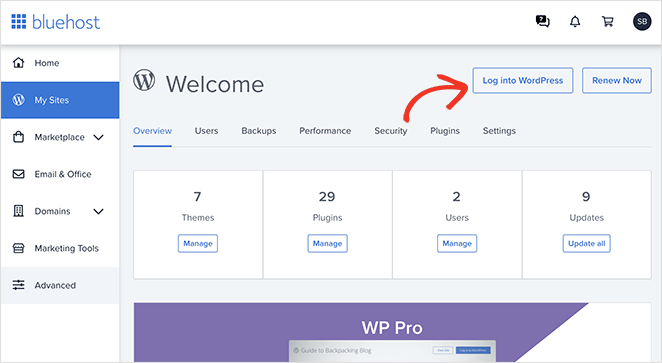
Nachdem Sie sich für Ihr Hosting-Konto angemeldet haben, erhalten Sie eine E-Mail mit einem Link zu Ihrem Webhosting-Dashboard. Da Bluehost WordPress automatisch für Sie installiert, können Sie sich direkt von Ihrem Hosting-Dashboard aus bei Ihrer WordPress-Site anmelden.
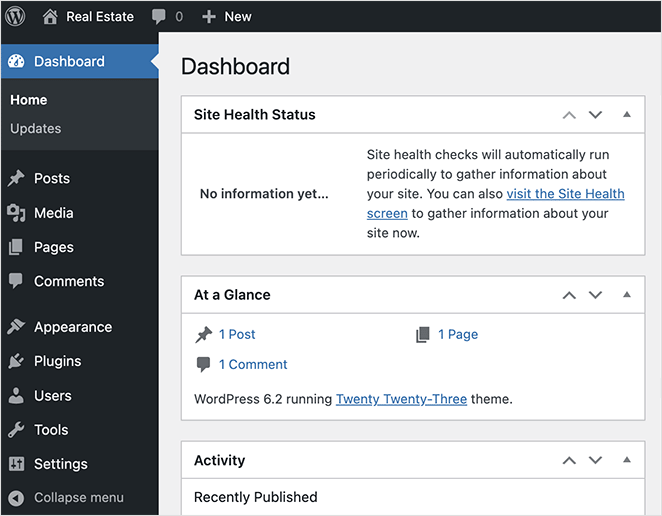
Nach der Anmeldung sehen Sie den WordPress-Adminbereich. Hier können Sie Ihre Website verwalten, Einstellungen ändern und neue Inhalte hinzufügen.
Schritt 2. Wählen Sie eine Methode zur Gestaltung Ihrer Immobilien-Website
Es gibt zwei gängige Möglichkeiten, eine Immobilien-Website in WordPress zu gestalten: die Verwendung eines speziellen Immobilien-Themes oder die Verwendung eines visuellen Website-Builders.
Beide Ansätze funktionieren, bieten aber unterschiedliche Flexibilitätsgrade, je nachdem, wie viel Kontrolle Sie über Ihr Design und Ihre Lead-Generierung wünschen.
| Option | Am besten für | Kompromiss |
| Immobilien-Theme | Schnelle Einrichtung mit Standardlayout | Weniger Flexibilität für benutzerdefinierte Seiten und Lead-Funnels |
| SeedProd Builder | Benutzerdefiniertes Branding, Landing Pages und Lead-Erfassung | Erfordert den Aufbau Ihres Layouts, auch mit einem Kit |
WordPress bietet Ihnen Zugriff auf Tausende von Website-Vorlagen, bekannt als WordPress-Themes. Viele Immobilienmakler beginnen mit einem vorgefertigten Theme, da es schnell einzurichten ist.
Wenn Sie kein benutzerdefiniertes Layout benötigen, ist diese Zusammenfassung der besten Immobilien-WordPress-Themes ein guter Ausgangspunkt.
Ein Theme legt jedoch Ihr Layout für Sie fest, und das ist der Kompromiss, den Sie eingehen. Wenn Sie kontrollieren möchten, wie Immobilienseiten und Lead-Formulare zusammengestellt werden, benötigen Sie einen Builder anstelle eines Themes.

SeedProd ist ein visueller Website-Builder für WordPress. Er ermöglicht es Ihnen, Ihre gesamte Website zu gestalten, indem Sie Blöcke verschieben, ohne Code schreiben zu müssen.
Sie können mit einem vorgefertigten Website-Kit beginnen und dann jede Seite mit Drag-and-Drop-Blöcken anpassen. Dies erleichtert die Gestaltung von benutzerdefinierten Immobilienseiten, Lead-Capture-Formularen und Landingpages für Käufer und Verkäufer.
SeedProd funktioniert neben Ihrem Immobilien- oder IDX-Plugin. Das Plugin verwaltet Ihre Angebote, und SeedProd steuert, wie diese Angebote den Besuchern präsentiert werden.
Wir werden SeedProd verwenden, um in dieser Anleitung eine benutzerdefinierte Immobilien-Website zu erstellen.
Hinweis: SeedProd hat eine kostenlose Version seines Landingpage-Builders. Der Theme Builder und die vollständigen Website-Kits, die in dieser Anleitung verwendet werden, beginnen mit dem Plus-Tarif. Sie benötigen also keine der höheren Tarife für irgendetwas hier.
Installieren und aktivieren Sie SeedProd auf Ihrer WordPress-Website. Weitere Details finden Sie in unserer Dokumentation zur Installation von SeedProd Pro, die Sie durch die Aktivierung Ihres Plugin-Lizenzschlüssels führt.
Wenn Sie überhaupt nicht mit einem Kit beginnen möchten, ist SeedProds KI-Website-Builder kostenlos. Sie beschreiben die gewünschte Website und er generiert ein vollständiges Theme, obwohl er unter ai.seedprod.com läuft und Sie auffordert, zuerst ein SeedProd.com-Konto zu verbinden.
Schritt 3. Wählen Sie eine Immobilien-Website-Vorlagen-Kit
Ein Website-Template-Kit bietet Ihnen einen vollständigen Ausgangspunkt, sodass Sie schneller starten können, ohne jede Seite von Grund auf neu gestalten zu müssen.
Der Start mit einem Kit umgeht auch die Sache, die meiner Erfahrung nach die Leute öfter aufhält als jedes fehlende Feature: das Öffnen einer leeren Seite und das Nichtwissen, was wohin gehört.
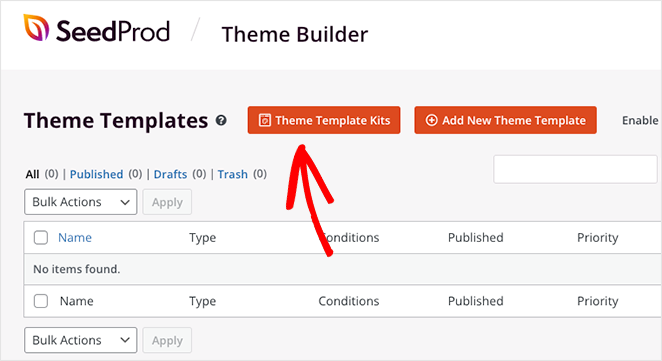
Um zu beginnen, gehen Sie in Ihrem WordPress-Dashboard zu SeedProd » Theme Builder und klicken Sie auf die Schaltfläche Theme Template Kits.
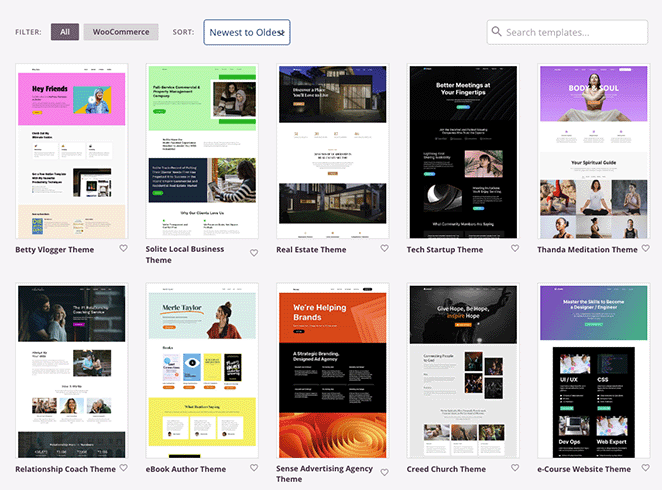
Auf dem nächsten Bildschirm sehen Sie eine Bibliothek mit vorgefertigten Website-Kits. Jedes Kit enthält alle Vorlagen, die Sie für den Aufbau einer vollständigen WordPress-Website benötigen.
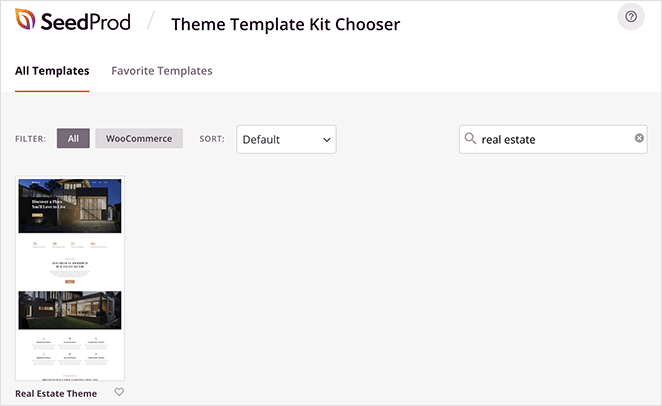
Sie können das Suchfeld verwenden, um Vorlagen für bestimmte Branchen zu finden. Wenn Sie beispielsweise nach „Immobilien“ suchen, werden Kits angezeigt, die für Immobilien-Websites erstellt wurden.
Um ein Kit zu importieren, klicken Sie auf das Häkchen-Symbol. SeedProd fügt automatisch alle Vorlagen zu Ihrer Website hinzu.
Nach dem Import sehen Sie eine Liste von Vorlagenteilen, aus denen Ihr neues benutzerdefiniertes WordPress-Theme besteht.
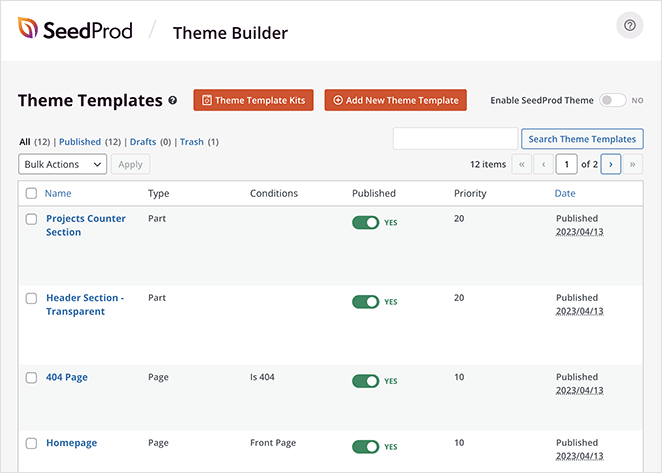
Als Nächstes passen Sie jeden Teil an Ihre Marke und Ihre Immobilienangebote an.
Schritt 4. Passen Sie Ihre Immobilien-Website an
Durch die Anpassung Ihrer Immobilien-Website passen Sie das Design an Ihre Marke an und erleichtern es den Besuchern, Maßnahmen zu ergreifen.
Um mit der Bearbeitung einer Vorlage zu beginnen, fahren Sie mit dem Mauszeiger über einen beliebigen Teil im Theme Builder-Dashboard und klicken Sie auf Design bearbeiten.
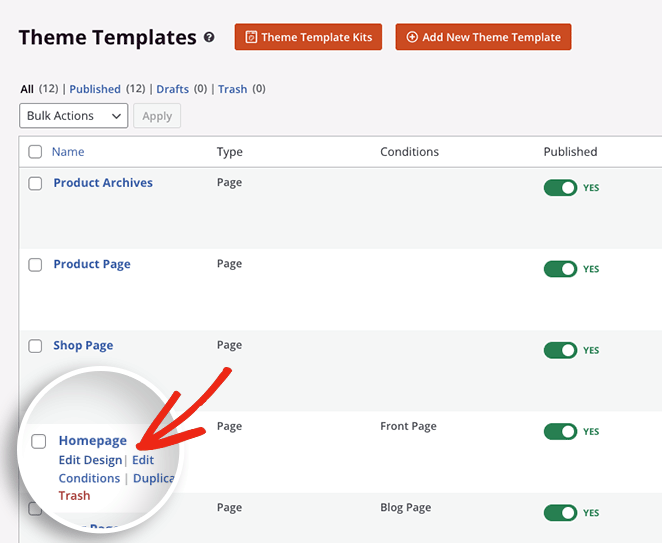
Wir beginnen mit der Homepage, da sie oft die erste Seite ist, die potenzielle Käufer und Verkäufer sehen.
Anpassen Ihrer Homepage
Ihre Homepage sollte klar kommunizieren, was Sie anbieten, und Besucher zum Anzeigen von Immobilien oder zur Kontaktaufnahme leiten.
Wenn Sie eine Seite in SeedProd öffnen, sehen Sie den Seiten-Builder mit Blöcken und Einstellungen auf der linken Seite und eine Live-Vorschau auf der rechten Seite.
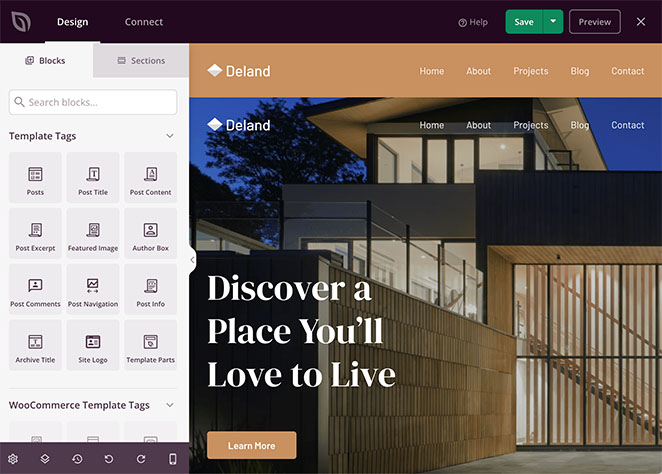
Konzentrieren Sie sich auf einer Immobilien-Homepage auf:
- Vorgestellte Immobilien und Social Proof
- Klare Überschrift und Servicebereich
- Handlungsaufforderungen, die Anfragen generieren
Sie können auch Social Proof wie Testimonials hinzufügen, um Vertrauen bei neuen Besuchern aufzubauen.
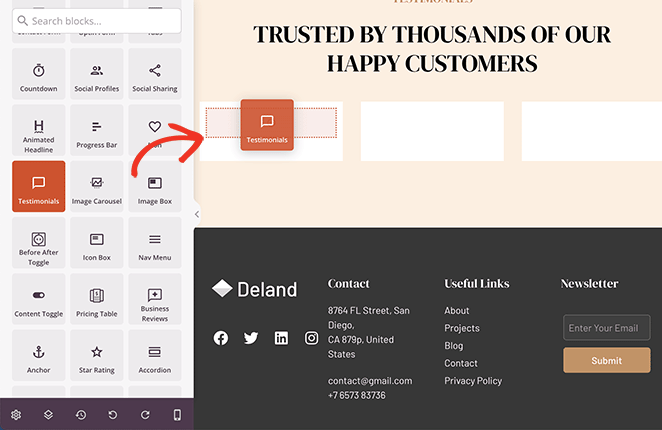
In diesem Beispiel zeigt der Testimonials-Block Kundenbewertungen direkt auf der Homepage an.
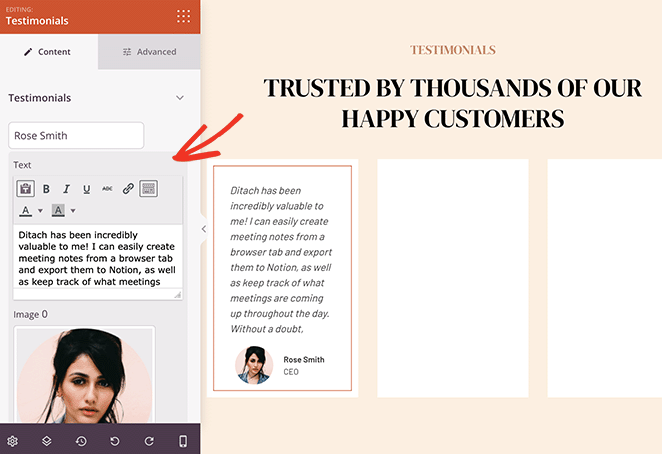
Sie können auch den Business Reviews-Block verwenden, um Bewertungen von Google und Yelp abzurufen.
Wenn Sie mit Ihrer Homepage zufrieden sind, klicken Sie auf Speichern und kehren Sie zum Theme Builder-Dashboard zurück.
Anpassen Ihrer Immobilienangebote-Seite
Ihre Immobilienangebotsseite ist, wo Besucher alle verfügbaren Immobilien durchsuchen. Klarheit und Benutzerfreundlichkeit sind daher wichtig.
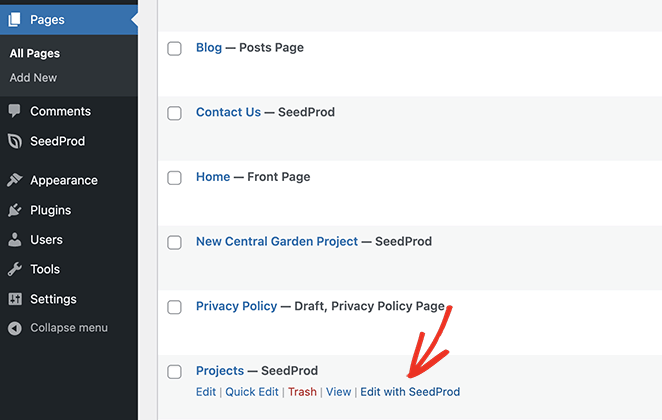
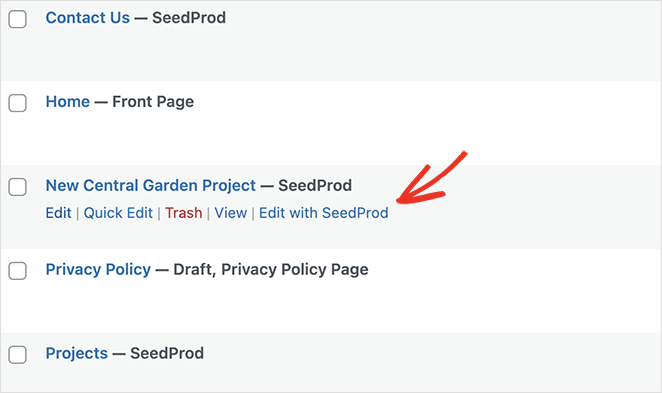
Im Vorlagenkit kann diese Seite anders bezeichnet sein, z. B. „Projekte“. Sie finden sie, indem Sie in Ihrem WordPress-Dashboard zu Seiten » Alle Seiten gehen.
Fahren Sie mit der Maus über die Seite und klicken Sie auf Mit SeedProd bearbeiten, um sie im visuellen Editor zu öffnen.
Die Seite wird im Drag-and-Drop-Builder von SeedProd geöffnet, wo Sie das Layout genau wie Ihre Homepage anpassen können.
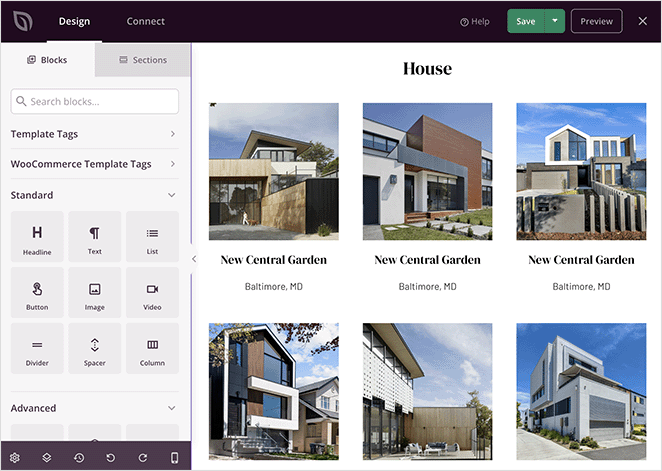
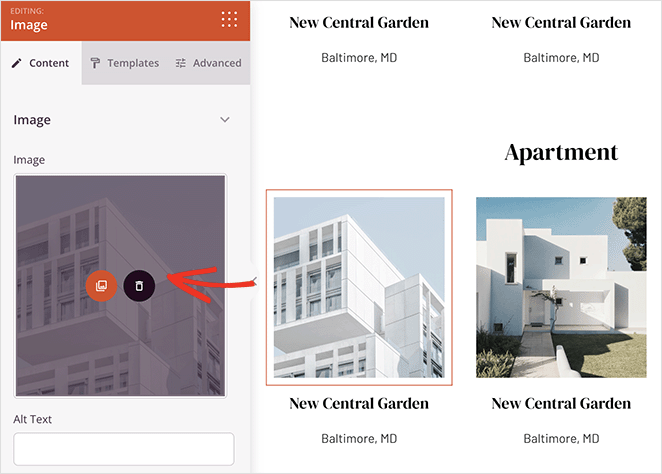
Sie können Demo-Inhalte durch Ihre eigenen Immobilien ersetzen oder diese Seite mit einem Immobilien- oder IDX-Plugin verbinden, das Angebote automatisch verwaltet.
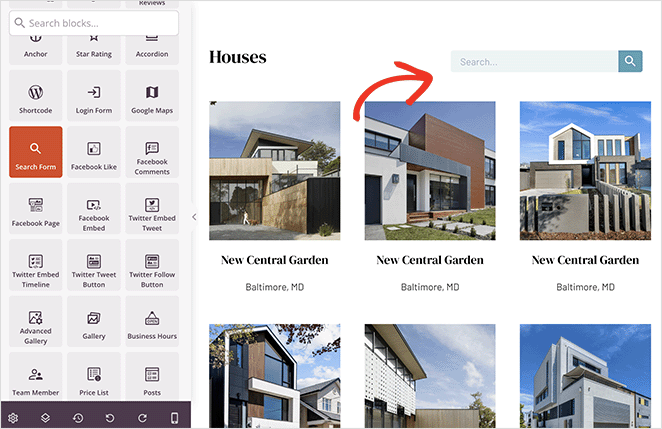
Sie können eine Suchleiste hinzufügen, damit Benutzer leichter das richtige Angebot finden.
Anpassung einzelner Immobilienangebote
Jede einzelne Eigenschaftsseite sollte Besuchern alle Informationen liefern, die sie benötigen, um zu entscheiden, ob sie eine Anfrage stellen oder eine Besichtigung buchen möchten.
Das Template-Kit enthält eine Beispiel-Immobilienseite, die Sie umbenennen und für Ihre eigenen Angebote wiederverwenden können. Sie finden sie unter Seiten » Alle Seiten.
Klicken Sie auf Mit SeedProd bearbeiten, um die Seite im visuellen Builder zu öffnen.
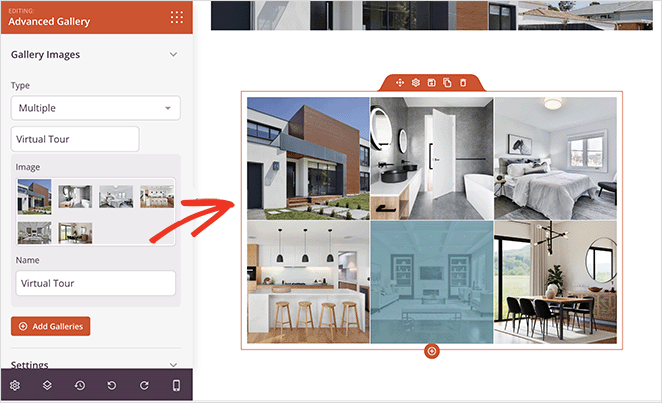
Diese Seite enthält bereits eine Galerie, die sich ideal zum Anzeigen mehrerer Fotos einer Immobilie eignet.
Sie können Ihre eigenen Bilder hinzufügen, indem Sie den Galerieblock öffnen und auf Zur Galerie hinzufügen klicken.
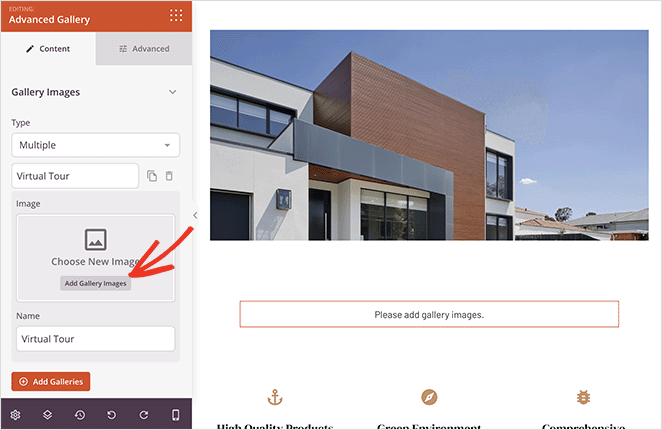
Laden Sie von dort Bilder von Ihrem Computer oder aus der WordPress-Mediathek hoch.
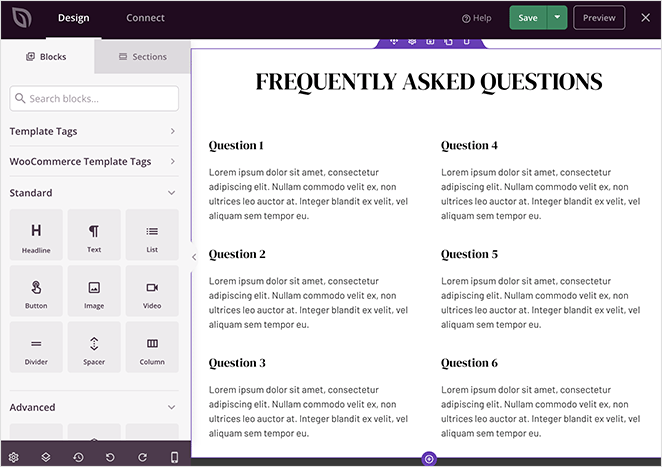
Sie können auch einen Abschnitt mit häufig gestellten Fragen hinzufügen, um gängige Fragen zur Immobilie zu beantworten.
SeedProd enthält fertige FAQ-Abschnitte, die Sie unter dem Tab Abschnitte finden.
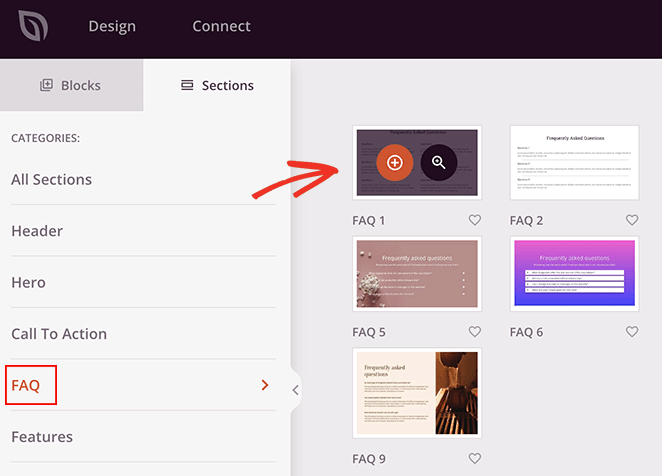
Klicken Sie auf das Plus-Symbol, um einen FAQ-Abschnitt zu Ihrer Seite hinzuzufügen.
Wenn Sie mit der Bearbeitung fertig sind, klicken Sie auf Speichern und wiederholen Sie diese Schritte für Ihre Über uns-, Kontakt- und Blog-Seiten.
SeedProd hilft Ihnen, Ihr Design seitenübergreifend konsistent zu halten und gleichzeitig Inhalte für Angebote, Blogbeiträge und Lead-Erfassung anzupassen.
Sie können auch eine benutzerdefinierte Seitenleiste für Suche, soziale Links und Formulare erstellen.
SeedProd ersetzt nicht Ihr IDX-Plugin. Es steuert, wie Angebotsseiten, Suchergebnisse und Immobilienlayouts für Besucher angezeigt werden.
Schritt 5. Verbinden Sie Ihren IDX-Immobilien-Feed
Die Einrichtung eines Immobilien-Feeds ist weniger eine Plugin-Aufgabe, als die Leute erwarten, da die meiste Arbeit erledigt ist, bevor Sie etwas installieren.
- Holen Sie sich IDX-Zugang von Ihrem MLS. Im Allgemeinen müssen Sie Mitglied des Vorstands sein, der Ihr MLS verwaltet, und dann separat die Erlaubnis beantragen, dessen Angebote auf Ihrer eigenen Website anzuzeigen.
- Fragen Sie, welche Anbieter bereits zugelassen sind. Die meisten Vorstände führen eine Liste von IDX-Anbietern, die sie genehmigt haben. Es lohnt sich also zu fragen, bevor Sie für ein Plugin bezahlen, das sich als nicht auf der Liste befindlich herausstellt.
- Verbinden Sie den Feed. Ihr Anbieter gibt Ihnen Anmeldedaten, und das Plugin verwendet diese, um Angebote nach einem Zeitplan mit Ihrer Website zu synchronisieren.
- Geben Sie dem Feed eine Seite, auf der er leben kann. Die meisten IDX-Plugins geben Ihnen einen Shortcode oder einen Block, der Suchergebnisse und Angebotsgitter ausgibt, wo immer Sie ihn platzieren.
- Gestalten Sie diese Seite richtig. Hier verdient ein Builder seinen Platz, denn die Standardausgabe eines IDX-Plugins ist funktional und selten überzeugend.
SeedProd führt Shortcodes innerhalb seiner eigenen Vorlagen aus. Wenn Ihr IDX-Plugin Ihnen also einen gibt, können Sie ihn in eine SeedProd-Seite oder -Vorlage einfügen, und die Angebote werden innerhalb Ihres Designs anstelle des Plugins gerendert.
Einige IDX-Plugins überspringen den Shortcode und erstellen ihre Eigenschaftsseiten stattdessen über ihre eigenen Vorlagendateien. Diese Seiten behalten das Layout des Plugins, es sei denn, Sie erstellen eine passende SeedProd-Vorlage, um sie zu übernehmen.
Prüfen Sie also, welches der beiden Ihr Plugin tut, bevor Sie Ihr Design darum herum planen, denn diese eine Frage kann Ihnen ersparen, eine Angebotsseite zweimal neu zu erstellen.
Schritt 6. Veröffentlichen Sie Ihre Immobilien-Website
Sobald Sie die Anpassung Ihrer Immobilien-Website abgeschlossen haben, veröffentlichen Sie sie, indem Sie Ihr SeedProd-Theme in WordPress aktivieren.
Kehren Sie dazu zum Theme Builder-Dashboard zurück und finden Sie den Schalter SeedProd-Theme aktivieren.
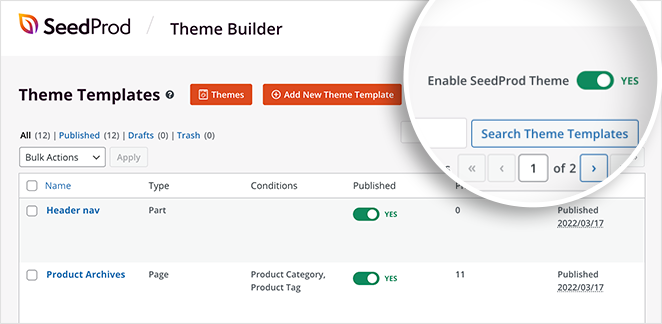
Schalten Sie den Schalter auf Ja, um Ihr Theme zu veröffentlichen.
Ihre Immobilien-Website ist jetzt live und Besucher sehen Ihr benutzerdefiniertes Design anstelle des Standard-WordPress-Themes.
Zu diesem Zeitpunkt ist es ratsam, Ihre Seiten durchzuklicken, Kontaktformulare zu testen und sicherzustellen, dass Immobilienangebote und Suchen wie erwartet funktionieren.
Das würde ich sowohl auf einem Telefon als auch auf einem Desktop tun, da ein Großteil der Immobiliensuche dort stattfindet und es dort am einfachsten ist, ein defektes Formular zu übersehen.
Was tun nach der Erstellung einer Immobilien-Website
Nachdem Sie eine Immobilien-Website erstellt haben, besteht der nächste Schritt darin, die richtigen Leute dazu zu bringen, sie zu finden und zu handeln.
- Bewerben Sie Besichtigungen und Tage der offenen Tür
- Fügen Sie einen Veranstaltungskalender für Buchungen hinzu
- Erstellen Sie Landing Pages für Käufer und Verkäufer
- Veröffentlichen Sie lokale Inhalte zur Unterstützung der SEO
Um dies einzurichten, lesen Sie unsere Anleitung zur Erstellung eines Veranstaltungskalenders in WordPress.
FAQs zur Erstellung einer Immobilien-Website
Benötige ich ein IDX-Plugin, um eine Immobilien-Website in WordPress zu erstellen?
Sie benötigen nicht immer ein IDX-Plugin, aber die meisten Immobilien-Websites verwenden eines, um Live-Immobilienangebote von einem MLS anzuzeigen. Wenn Sie automatische Updates und durchsuchbare Angebote wünschen, ist in der Regel ein IDX- oder Immobilienangebote-Plugin erforderlich.
Wie richte ich einen Immobilien-Feed auf meiner Immobilien-Website ein?
Beantragen Sie bei Ihrem MLS die Erlaubnis, dessen Angebote anzuzeigen. Installieren Sie dann ein von Ihrem Vorstand genehmigtes IDX-Plugin und verbinden Sie es mit den Anmeldeinformationen, die Ihnen Ihr Anbieter gibt. Das Plugin synchronisiert die Angebote nach einem Zeitplan und gibt sie über einen Shortcode oder Block aus, den Sie auf einer Seite platzieren.
Benötige ich MLS-Zugang, um ein IDX-Plugin zu verwenden?
Für Live-MLS-Angebote, ja. Der IDX-Zugang hängt normalerweise davon ab, Mitglied des Vorstands zu sein, der Ihre lokale MLS verwaltet, und die Anzeigeerlaubnis ist eine separate Bewerbung. Ohne diese können Sie immer noch Immobilienseiten erstellen und Angebote manuell hinzufügen, sie werden nur nicht von selbst aktualisiert.
Welche Seiten sind für eine Immobilien-Website unerlässlich?
Eine Immobilien-Website sollte eine Homepage, eine Seite mit Immobilienangeboten, einzelne Immobiliendetailseiten, ein Profil des Maklers oder der Maklerfirma und klare Kontakt- oder Anfrageformulare enthalten. Viele Websites fügen auch Blogs und Landingpages für Käufer und Verkäufer hinzu.
Wie viel kostet die Erstellung einer Immobilien-Website in WordPress?
Die Kosten hängen von Ihrem Hosting, Domainnamen und Plugins ab. Viele Immobilien-Websites beginnen mit niedrigen monatlichen Hosting-Kosten und fügen dann kostenpflichtige Tools wie IDX-Plugins oder Premium-Builder hinzu, wenn das Geschäft wächst.
Kann ich Lead-Capture-Formulare zu Immobilienangeboten hinzufügen?
Ja. Die meisten Immobilien-Websites enthalten Anfrageformulare auf den Objektseiten, damit Besucher weitere Informationen anfordern oder Besichtigungstermine buchen können. Diese Formulare helfen dabei, Traffic von Angeboten in qualifizierte Leads umzuwandeln.
Sie müssen nichts davon von Grund auf neu gestalten. Beginnen Sie mit einem Immobilien-Kit, lassen Sie Ihr IDX-Plugin die Angebote verwalten, und Sie können an einem Nachmittag eine funktionierende Website haben.
Danke fürs Lesen! Wir würden uns freuen, Ihre Gedanken zu hören. Treten Sie also gerne der Unterhaltung auf YouTube, X und Facebook bei, um weitere hilfreiche Ratschläge und Inhalte für das Wachstum Ihres Unternehmens zu erhalten.



