

TL;DR: How I Speed Up WordPress Sites
You can speed up your WordPress site significantly with a few targeted fixes. Start with hosting and caching, then work through images, PHP, and database cleanup.
- Upgrade your hosting: Shared hosting limits every fix you make downstream.
- Install a caching plugin: WP Rocket (paid) or LiteSpeed Cache (free) reduce server load immediately.
- Compress your images: Use WebP format and an optimization plugin before uploading.
- Upgrade to PHP 8.2+: PHP 8.2 is nearly 50% faster than PHP 7.4.
- Use a CDN: Cloudflare or Bunny.net serve static files from servers near your visitors.
- Clean your database: Remove post revisions, spam, and leftover plugin data regularly.
- Running a store? Don’t cache the cart or checkout, and tame WooCommerce’s cart fragments so “Add to Cart” stops dragging every page down.
A slow WordPress site doesn’t just annoy your visitors. It hurts your search rankings, lowers your sales, and sends people away before they see what you’re offering.
When I ran GTmetrix tests on sites I’d built with Elementor and Beaver Builder, the load times were 2-4x longer than the same pages rebuilt with a lighter setup, and the traffic drops were real. Most of the fixes are simple. In this guide, I’ll show you 18 ways to speed up your WordPress site using the same steps I use every week.
Everything here is beginner-friendly and doesn’t require any coding or advanced settings.
If you run a WooCommerce store, the same fixes apply, plus a few store-only ones I cover in their own section below, like the cart and checkout pages a blog never has to worry about.
Quick Answer: How to Speed Up a WordPress Site
| Step | What It Improves |
|---|---|
| Upgrade your hosting | Foundational server performance |
| Install a caching plugin | Speeds up page load time |
| Compress and resize images | Reduces large file sizes |
| Use a CDN | Delivers content faster globally |
| Clean your database | Removes junk and clutter |
| Update your PHP version | Improves server performance |
| Enable GZIP compression | Shrinks file size during load |
| Turn on lazy loading | Defers off-screen media |
| Use a lightweight theme | Loads fewer scripts and styles |
| Use performance-friendly plugins | Reduces background load |
If you’re in a hurry, start with hosting, caching, image optimization, and database cleanup. These four changes alone can make a big difference in load time.
Why Site Speed Matters
Most people won’t wait around for a slow website to load. A 1-second delay in page load time can reduce conversions by 7% (Aberdeen Group). If your site takes more than a couple seconds, you lose that visitor before the page even appears.
- Google uses page speed as a ranking factor
- Visitors are more likely to leave if the page doesn’t load fast
- Slow load times lower conversions and sales
- Faster sites get crawled more often and more deeply
- 53% of mobile users abandon sites that take longer than 3 seconds to load
Google measures speed through Core Web Vitals, three signals that measure how fast your page loads (LCP), how stable it is visually (CLS), and how quickly it responds to input (INP). You can check your Core Web Vitals scores in Google PageSpeed Insights.
How to Check Your Website Speed
Before you fix anything, it’s worth checking how fast your WordPress site is right now. That way, you can compare the results later and see what’s working.
There are a few free tools I use regularly to test site speed:
- Google PageSpeed Insights
- GTmetrix
- Pingdom Website Speed Test
- IsItWP Speed Test
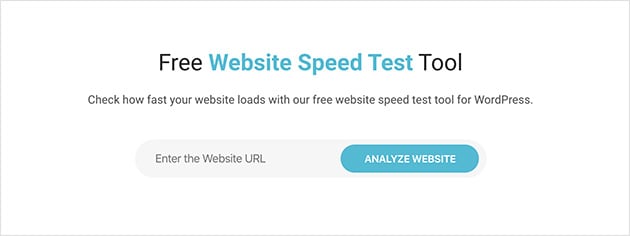
These tools show you your load time and give suggestions for improvements. You can test desktop and mobile speeds separately.
There’s also a newer way that skips the report altogether. If you connect your site to an AI assistant with the free WPVibe plugin, you can ask it “why is my homepage slow?” and it reads the same performance data these tools use.
Instead of a waterfall chart you have to decode, you get a plain-English answer like “your hero image is 4 MB and it’s the biggest thing slowing the page down,” and the same assistant can usually fix what it finds in the same chat.
I’ve used WPVibe to connect an AI to a live WordPress site and have it inspect and fix things directly. Having the diagnosis and the fix in one conversation saves the loop of testing, reading a report, then hunting for the right setting.
Once you have your results, take a screenshot or save the link so you can compare after making changes.
Why Is Your WordPress Site Slow?
Most slow-loading WordPress sites have a few things in common.
If your site is dragging, chances are it’s one of these:
- Large or uncompressed images that take too long to load
- No caching, so every page reloads from scratch
- Too many plugins running unnecessary scripts in the background
- Poor hosting with limited server resources
- Outdated themes or PHP versions slowing things down behind the scenes
How to Speed Up Your WordPress Site
1. Start With Better Hosting
Your hosting server is the foundation of everything. If you’re on shared hosting, the fastest caching plugin in the world can only do so much.
Shared hosting puts your site on a server with hundreds of other websites. When another site spikes in traffic, your site slows down too. Managed WordPress hosting gives your site dedicated resources, faster hardware, and server-level caching built in.
Here are three hosting options worth considering for WordPress performance optimization:
- WP Engine: Managed WordPress hosting with built-in caching and CDN
- Kinsta: Fast Google Cloud infrastructure with automatic daily backups
- SiteGround: Good mid-range option with LiteSpeed servers and SuperCacher
- Cloudflare: Pairs with any host to add CDN and performance features on top
You don’t need the most expensive plan. But if you’re on a basic shared plan and speed is a priority, upgrading your host gives you gains that no plugin can replicate.
2. Install a Caching Plugin
Every time someone visits your WordPress site, the server has to pull together the page from scratch. That takes time, especially if multiple people visit at once.
A caching plugin saves a copy of each page after it loads the first time. Then it shows that version to future visitors. This cuts server load and speeds up your site instantly.
Here are the caching plugins I recommend:
- WP Rocket (premium): the most widely-used all-in-one performance plugin that handles caching, minification, and more without complex setup
- LiteSpeed Cache (free): excellent free option if your host runs LiteSpeed servers (SiteGround does)
- WP Super Cache: lightweight and easy to set up for beginners
- W3 Total Cache: powerful but the settings can be overwhelming if you’re not technical
If you use managed WordPress hosting, your host likely has caching built in. Check your hosting dashboard before adding a plugin.
Caching and a CDN solve different problems. Caching stores copies of your pages on your own server so they load faster for repeat visitors. A CDN distributes your static files (images, CSS, JavaScript) across servers worldwide so visitors get them from a nearby location. You need both for best results.
3. Optimize Your Images
Big images are one of the fastest ways to slow down a website. They account for an average of 21% of a page’s total weight. If you upload photos straight from your phone or a stock site, they’re probably too large for the web.
Resize and compress your images before uploading them to WordPress. This reduces file size without making them look blurry.
You can do this with a free tool like TinyPNG or directly in WordPress using an optimization plugin.
- Smush: automatically compresses images as you upload them
- ShortPixel: great for bulk optimization and retina support
- EWWW Image Optimizer: useful if you want local control over image settings
If you want to go further, use the WebP format instead of JPEG or PNG. WebP images are smaller and still look great in modern browsers.
Want help with resizing images? Here’s how to resize images in WordPress the right way.
4. Keep WordPress Updated
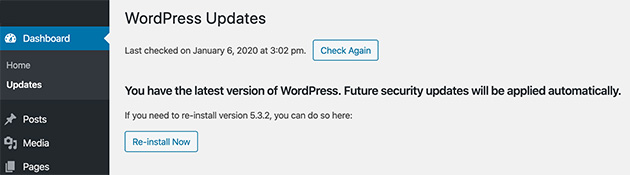
It’s easy to put off updates, but running an outdated version of WordPress slows down your site and opens you up to security issues.
Updates include performance improvements, bug fixes, and better compatibility with plugins and themes.
Keep all of these up to date:
- WordPress core
- Your theme
- All plugins
- PHP version (done through your hosting provider)
Before updating, back up your site. If something goes wrong, you can restore with one click.
Need help backing up first? Here’s our guide to backing up your WordPress site.
5. Optimize Background Processes
Your hosting server has limited resources. When too many background tasks run at once, especially during peak hours, your pages load slowly for real visitors.
Most background tasks are necessary, but you can control when they run.
Here’s how to stay in control:
- Schedule backups during low-traffic hours (like overnight)
- Use a lightweight backup plugin such as Duplicator
- Avoid running backups every day unless you publish content daily
- Check crawl activity in Google Search Console to make sure your site isn’t being hit too often
Small changes to these settings free up server space and improve how quickly your pages load for visitors.
Need help setting it up? Here’s how to schedule smarter backups in WordPress.
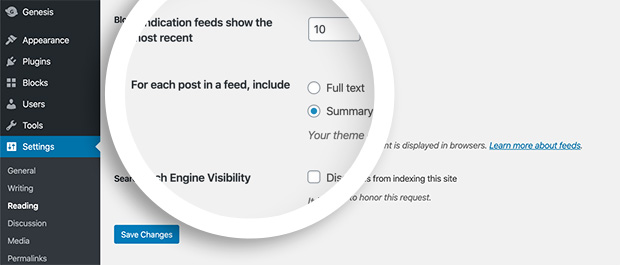
6. Use Post Excerpts on Your Homepage and Archives
By default, WordPress shows the full content of each blog post on your homepage and archive pages. Every image, video, and block of text loads all at once.
That makes your pages heavy and slow, especially if you publish often or use a lot of visuals.
A better option is to show short post excerpts. This loads just a few lines of text for each article and makes your homepage much faster.

To change this setting, go to Settings » Reading and under For each post in a feed, include, select Summary.
It’s also a good idea to remove pingbacks and trackbacks, which generate extra requests that slow things down.
Need help with this step? Here’s a simple guide on how to show post excerpts in WordPress.
7. Use a Content Delivery Network (CDN)
Every time someone visits your site, their browser downloads your images, CSS, JavaScript, and other files. The farther they are from your hosting server, the longer that takes.
A CDN can reduce load times by up to 50% for users far from your origin server. CDNs store copies of your static files on servers worldwide, so visitors get them from the nearest location.
Some great free or low-cost CDN options include:
- Cloudflare: free plan available and easy to set up
- Bunny.net: budget-friendly with strong performance
- Jetpack CDN: great for WordPress users already using Jetpack
If you’re using managed WordPress hosting, check your plan. Some include a built-in CDN you can enable with one click.
Want help picking the right option? Here’s a list of the best WordPress CDN services.
8. Host Audio and Video Somewhere Else
WordPress lets you upload audio and video files directly to your site, but that doesn’t mean you should. Large media files use up a lot of server bandwidth and seriously slow things down.
They also make your backups larger and harder to restore if anything goes wrong.
The better option is to upload your audio or video to a third-party platform and embed it into your site. That way, the file loads from their servers, not yours.
- YouTube for videos
- Vimeo for private or higher-quality video hosting
- SoundCloud or Spotify for audio content
Embedding is easy. Just paste the URL into a post or page, and WordPress handles the rest. Here’s how to embed videos in WordPress the right way.
9. Split Comments Into Pages
It’s great to have lots of comments on your blog posts. But when all those comments load at once, it slows your site down, especially on popular posts.
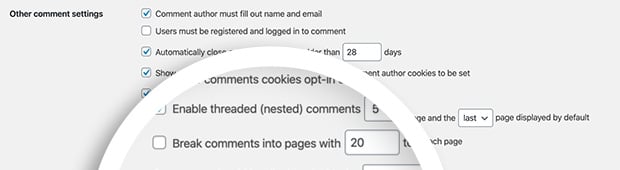
WordPress has a built-in setting to fix this. You can break long comment sections into multiple pages, which keeps the page size smaller and faster to load.
Here’s how to enable comment pagination:
- Go to Settings » Discussion in your WordPress dashboard
- Check the box next to Break comments into pages
- Set the number of comments per page (e.g. 20)
This small tweak can make a big difference on busy blog posts.
For more tips, check out this guide to paginating comments in WordPress.
10. Use a Speed-Optimized WordPress Theme
Your WordPress theme plays a huge role in how fast your site loads. Some themes look nice but are packed with scripts, layout builders, and animations that drag performance down.
If you’re using a traditional theme, go with one that’s built for speed: clean code, minimal design, and good reviews from real users.
- Astra: lightweight and easy to customize
- Sydney: free, lightweight, and loads with minimal scripts
- Neve: simple, mobile-friendly, and built for speed
Or you can skip the traditional theme altogether and create a custom WordPress theme with SeedProd. That’s what I use on a lot of my own sites.

SeedProd builds cleaner code than traditional theme and page builder combinations, which means less JavaScript, fewer CSS files, and faster load times, without you having to think about any of it.
In my GTmetrix testing, SeedProd-built pages loaded in 556ms vs. 1,882ms for Elementor, using 16 HTTP requests vs. 32.
If you’re switching designs, here’s how to redesign your WordPress site without hurting your traffic.
11. Use Faster WordPress Plugins
Not all WordPress plugins are created equal. Some are lean and efficient. Others load too many scripts, run unnecessary tasks in the background, or clash with your theme.
In 13+ years of building WordPress sites, I’ve seen slow plugins add 2-3 seconds to load time, not because of how many plugins you run, but what they’re doing behind the scenes.
Here’s how to keep things running fast:
- Stick to plugins with good reviews and regular updates
- Avoid all-in-one tools that try to do everything in one install
- Use performance-focused versions when available
- Delete plugins you’re not actively using
If you’re using SeedProd for landing pages or your full theme, that already replaces several other plugins, like page builders, maintenance mode, and coming soon tools, all in one fast-loading package.
Want plugin recommendations? Check out our roundup of the best WordPress plugins for speed and performance.
12. Turn Long Blog Posts Into Pages
Long-form blog content is great for SEO, but it hurts performance if everything loads on one page, especially with lots of images, embeds, or comment threads.
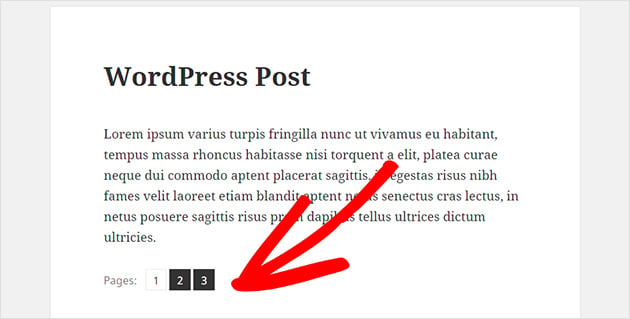
If your post starts getting too long, you can break it into smaller pages using a simple tag inside the WordPress editor.
To split a post into multiple pages, just add this where you want the break:
<!--nextpage-->
You can repeat that tag as many times as you want. WordPress automatically creates pagination links at the bottom of the post.
You could also turn a long post into a series. That gives each section its own focus and gets multiple pages indexed in search.
Want help splitting posts? Here’s a quick guide to breaking up long content in WordPress.
13. Optimize Your WordPress Database
Over time, your WordPress database fills up with stuff you probably don’t need, like post revisions, trashed comments, spam entries, and leftover plugin data.
Cleaning this up makes your site faster and lighter, especially if you’ve been running it for a while.
You don’t need to touch your database manually.
Just use a plugin:
- WP-Sweep: cleans up revisions, auto drafts, metadata, and more
- Advanced Database Cleaner: gives you more control over what stays and what goes
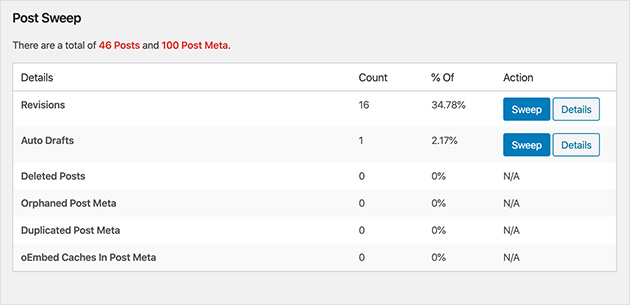
You can also schedule cleanups to run automatically once a week or month, depending on how often you publish.
Just be sure to back up your site before you start, especially if you’re using cleanup tools for the first time.
14. Limit Post Revisions
WordPress automatically saves a new revision every time you update a post or page. That’s helpful when you need to undo changes, but over time it fills your database with clutter.
These revisions slow down database queries, especially if you use plugins that pull content from the post table.
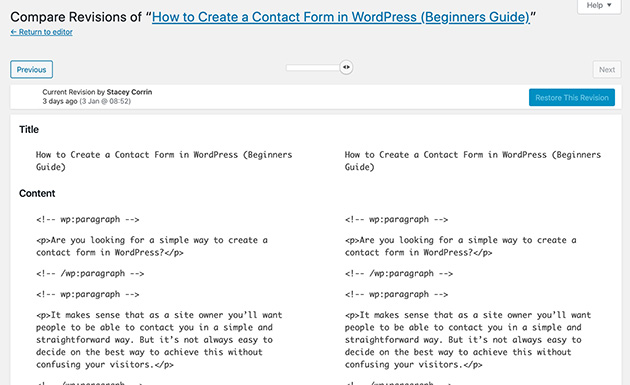
You can limit how many revisions WordPress keeps by adding this line to your wp-config.php file:
define( 'WP_POST_REVISIONS', 4 );
This keeps the last four revisions and automatically deletes the rest. Adjust the number to whatever works for your workflow.
If you’re not comfortable editing files yourself, use a plugin like WP Revisions Control to do it safely through your dashboard.
15. Prevent Hotlinking
Hotlinking happens when another site uses your image by linking directly to the file on your server. They display the image, but your site has to load it every time.
This steals your bandwidth and slows your site down, especially if a high-traffic site is doing it.
The easiest fix is to use the All in One WP Security plugin, which lets you toggle hotlink protection with a checkbox. No code needed.
If you prefer to do it manually, you can block hotlinking by adding a small snippet to your .htaccess file on Apache servers:
# Prevent image hotlinking
RewriteEngine on
RewriteCond %{HTTP_REFERER} !^$
RewriteCond %{HTTP_REFERER} !^https://(www\.)?yourdomain.com [NC]
RewriteRule \.(jpg|jpeg|png|gif)$ - [F]
Be sure to replace yourdomain.com with your actual domain name before saving the file.
16. Use Lazy Loading
If your pages include a lot of images, videos, or embedded content, they take a long time to load. Lazy loading fixes this.
Lazy loading delays images and other media until they’re actually visible on screen. Your page loads faster because off-screen content waits until the visitor scrolls to it.
Most modern WordPress versions include lazy loading for images by default.
But if you want more control, or want to lazy load videos and iframes too, try one of these plugins:
- Lazy Load by WP Rocket: lightweight and beginner-friendly
- a3 Lazy Load: good for media-heavy sites
You can also lazy load comments and Gravatars for even more gains. Here’s a guide on how to lazy load comments in WordPress.
17. Upgrade to the Latest PHP Version
PHP is the programming language WordPress runs on. If your site is using an old version, it’s slower and less secure than it should be.
Newer versions of PHP are faster and more efficient. PHP 8.2 is nearly 50% faster than PHP 7.4 based on benchmark tests, and upgrading makes a noticeable difference in page load time.
You can check your current PHP version with a plugin like Version Info, or by asking your hosting provider.
If you’re not on the latest version, reach out to your web host and ask them to update it. Most good hosts handle it with no downtime.
Back up your site before making server changes, just to be safe.
18. Enable GZIP Compression
GZIP compression makes your files smaller before they’re sent to a visitor’s browser. That means faster load times without changing anything on the front end of your site.
Most hosting providers already have GZIP enabled, but it’s worth double-checking. Test your site using this free GZIP test tool.
If GZIP isn’t turned on, you can enable it manually on an Apache server by adding this code to your .htaccess file:
<IfModule mod_deflate.c>
  AddOutputFilterByType DEFLATE text/html
  AddOutputFilterByType DEFLATE text/css
  AddOutputFilterByType DEFLATE text/javascript
  AddOutputFilterByType DEFLATE application/javascript
  AddOutputFilterByType DEFLATE application/x-javascript
  AddOutputFilterByType DEFLATE application/json
  AddOutputFilterByType DEFLATE application/xml
  AddOutputFilterByType DEFLATE image/svg+xml
</IfModule>
Not sure how to access your server files? A speed optimization plugin like WP-Optimize or WP Super Cache can enable compression for you.
19. Minify CSS and JavaScript Files
Every time someone visits your site, their browser downloads your CSS and JavaScript files. These control your layout, styling, and functionality, and they add up fast.
Minifying these files means stripping out unnecessary characters, like white space, line breaks, and comments, so the files are smaller and load faster.
You can do this with a free plugin like:
- Autoptimize: great for beginners and easy to set up
- WP Super Minify: simple tool that combines and compresses CSS and JS
Most caching plugins also have a minify option built in, so check your settings before installing something new.
20. Remove Render-Blocking Resources
Render-blocking resources are JavaScript and CSS files that stop the browser from showing your page until they finish loading. Even if your images are optimized, render-blocking files delay that first visible paint.
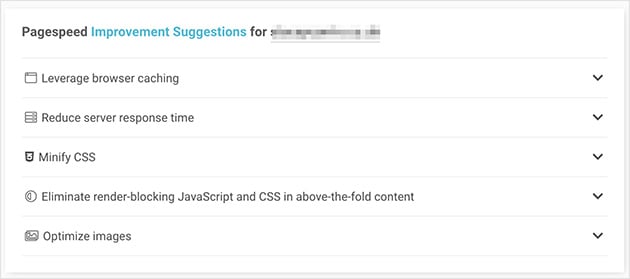
This is one of the most common warnings in PageSpeed Insights, and it’s fixable without writing code.
Here’s how to fix render-blocking resources:
- Use your caching plugin’s built-in option: WP Rocket and LiteSpeed Cache both have “defer JS” settings under their performance tabs
- Use Autoptimize: It combines and defers JS and CSS files with one setting
- Check what’s blocking first: Run your URL through PageSpeed Insights and look for “Eliminate render-blocking resources”: it lists the specific files to target
Want to dig deeper? Check out our guide to the best WordPress performance plugins that handle this automatically.
21. Reduce External Scripts and HTTP Requests
Every external script your site loads, whether it’s Google Fonts, a social share button, or a third-party chat widget, adds a separate HTTP request. More requests mean slower load times.
In my GTmetrix tests, the difference between a well-optimized page and an unoptimized one often came down to unnecessary external calls, not image sizes.
Here’s where to look first:
- Google Fonts: Self-host your fonts or limit to one font family with two weights
- Social share buttons: Replace JavaScript-heavy share plugins with a lightweight alternative or simple HTML links
- Analytics scripts: If you’re running both Google Analytics and a secondary analytics tool, pick one
- Unused plugin scripts: Some plugins load CSS and JS on every page even when they’re only needed on one: Asset CleanUp Pro lets you control this per page
To audit your requests, open Chrome DevTools (F12) and go to the Network tab. Reload your page and sort by file size. The biggest external calls show up immediately.
22. Measure Your Results
Once you’ve made these changes, test again. You should see a meaningful improvement in your PageSpeed score and load time.
Here’s how to measure what you’ve done:
- PageSpeed Insights: Run before and after each major change: compare LCP, CLS, and INP scores
- GTmetrix: Compare your Waterfall chart to see which requests disappeared
- Google Search Console: Check Core Web Vitals under the Experience tab: results update after 28 days of data collection
For a deeper look at how your content is performing in search, see our guide to WordPress SEO and Google Search Console.
How to Speed Up a WooCommerce Store
Everything above applies to a WooCommerce store too. Good hosting, caching, smaller images, a CDN, and a clean database do most of the heavy lifting.
But a store has speed traps a normal blog doesn’t. The cart, checkout, and account pages change for every shopper, and WooCommerce loads extra scripts and background jobs that build up over time.
On a WooCommerce store I managed for a client, the slow parts were never the homepage. It was the cart and the admin, and none of the standard blog fixes touched them.
Don’t Cache the Cart, Checkout, and Account Pages
Caching works by saving one finished copy of a page and serving it to everyone. That’s perfect for a blog post, but wrong for a cart, because every shopper’s cart is different.
Most good caching plugins, like WP Rocket and LiteSpeed Cache, already exclude the Cart, Checkout, and My Account pages automatically. It’s worth opening your caching settings to confirm those three pages are on the exclusion list, especially if a shopper ever reports seeing someone else’s cart.
Tame Cart Fragments to Fix a Slow “Add to Cart”
WooCommerce uses a feature called cart fragments to update the little cart count in your header without reloading the page. To do that, it fires an extra background request on every single page, whether or not that page has anything to buy.
On a busy store, that request is a common reason “Add to Cart” and general browsing feel sluggish. The fix is to load cart fragments only on the shop and product pages that need them, which most performance plugins such as Perfmatters and WP Rocket can do with a single toggle.
Clear Out WooCommerce Sessions and Expired Transients
A store writes far more to its database than a blog does. WooCommerce keeps shopper sessions and temporary “transient” data that pile up and are often left behind long after they expire.
Left alone, that clutter slows down queries and can make the WordPress admin itself feel heavy. Clearing expired transients and old sessions on a schedule keeps things lean, and tools like WP-Optimize or your caching plugin’s database cleanup can do it for you.
Only Load Store Scripts Where You Need Them
By default, WooCommerce loads its CSS and JavaScript on every page of your site, including blog posts and a contact page that have nothing to sell.
Turning those files off everywhere except your store pages trims real weight from the rest of the site. A performance plugin can handle this for you, so you don’t have to touch any code.
Build Your Store on a Lightweight Theme
A bloated theme undoes a lot of this work, because it loads heavy code on every product and category page before a shopper sees anything. This is where the foundation matters most.
I build store pages with SeedProd’s theme builder, which includes WooCommerce blocks for product grids, the cart, and checkout, so you can design your shop without a heavy all-in-one theme.
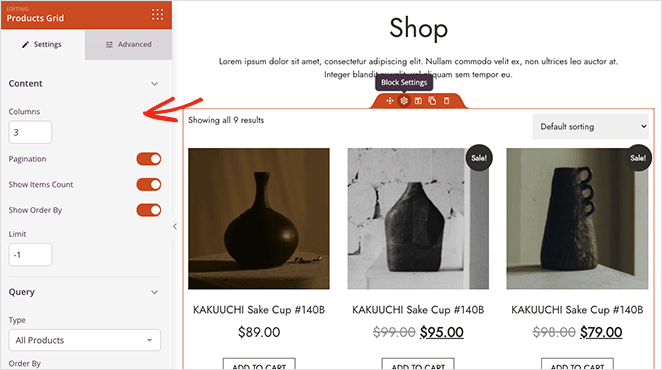
In my GTmetrix testing, SeedProd pages loaded in 556ms versus 1,882ms for the same page built with Elementor, and lighter pages matter even more when a shopper is mid-checkout.
Frequently Asked Questions About Speeding Up WordPress
How long does it take to speed up a WordPress site?
Most basic speed improvements, like installing a caching plugin, compressing images, and cleaning up the database, can be done in an afternoon. You’ll see results in PageSpeed Insights immediately after.
Bigger changes like switching hosts or migrating to a lighter theme take longer but deliver the most significant gains.
Can too many plugins slow down WordPress?
Yes, but it’s not about the number of plugins. It’s about what they’re doing. A site with 30 well-coded plugins can be faster than one with 10 bloated ones.
The real issue is plugins that load scripts and styles on every page, run background tasks constantly, or conflict with each other. Audit your plugins with Query Monitor to see which ones are heaviest.
Will switching hosting providers speed up my site?
It can make a bigger difference than any plugin. If you’re on basic shared hosting, you’re competing for server resources with hundreds of other sites.
Managed WordPress hosting (WP Engine, Kinsta, SiteGround) gives your site dedicated resources, faster hardware, and often server-level caching that no plugin can replicate.
Does site speed affect Google rankings?
Yes. Google uses Core Web Vitals (LCP, CLS, INP) as ranking signals. A site that fails Core Web Vitals thresholds can be disadvantaged compared to a faster competitor with equivalent content.
Speed also reduces bounce rates, which gives Google behavioral signals that your pages are worth ranking.
What’s the fastest caching plugin for WordPress?
WP Rocket is consistently rated the best all-in-one performance plugin. It handles caching, minification, and lazy loading with minimal configuration.
If you’re on a budget, LiteSpeed Cache is a strong free alternative, but only if your host runs LiteSpeed servers. For hosts that don’t, WP Super Cache is a reliable free option.
Does WooCommerce slow down WordPress?
WooCommerce adds weight, because it loads extra scripts and runs background jobs a plain blog doesn’t. On its own that’s manageable, and a well-hosted store on a light theme stays fast.
The slowdown usually comes from uncached cart pages, cart fragments firing on every page, and a database full of old sessions, all of which are fixable with the steps above.
Why is my WooCommerce “Add to Cart” so slow?
The most common cause is WooCommerce’s cart fragments feature, which fires a background request on every page to keep the header cart count updated.
Limiting cart fragments to your shop and product pages, and making sure the cart page itself isn’t cached, usually clears it up. A performance plugin like Perfmatters or WP Rocket can do both.
Start Speeding Up Your WordPress Site Today
A slow WordPress site costs you traffic, sales, and trust. The fixes in this guide address every major source of load time, from hosting and caching down to render-blocking scripts and database clutter.
Start with the foundational steps: hosting, caching, image compression. Each one you complete makes the next one more effective. Your site can get faster, more stable, and easier for visitors to use.
If you’re ready to rebuild with a faster foundation, SeedProd builds cleaner code than traditional page builder combinations, which means measurably faster load times from day one. Get SeedProd
More Speed-Boosting Guides From SeedProd:
- Expert Landing Page Optimization Tips
- Top Mistakes Beginners Make Building WordPress Sites
- WordPress Search Engine Optimization: A Guide to Better Rankings
Thanks for reading! We’d love to hear your thoughts, so please feel free to join the conversation on YouTube, X and Facebook for more helpful advice and content to grow your business.




I am searching on google how to speed up a WordPress website and I find your post. Hopefully, now we can speed up our WordPress website easily. Thank you!
That’s great to hear Devid, thank you for letting us know!