
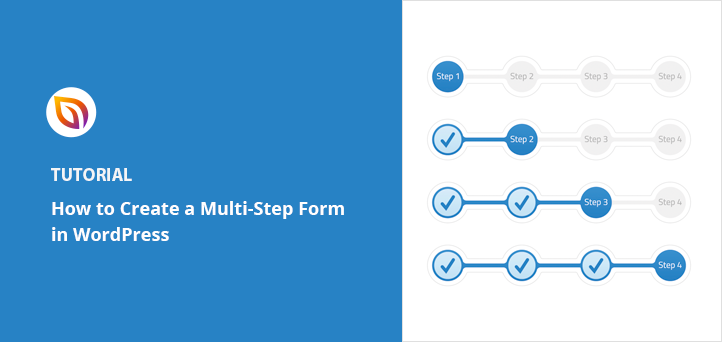

Want to create a multi-step form in WordPress that feels easy to complete and converts better?
I’ve found that splitting long forms into smaller steps can really improve the user experience. Instead of showing everything all at once, you guide people through bite-sized fields that feel less overwhelming.
In this guide, I’ll show you exactly how to create a multi-step form using WPForms, one of the best drag-and-drop form builders around.
Why Add a Multi-Step Form in WordPress?
Multi-step forms reduce form abandonment because users focus on one small section at a time instead of facing a long scroll of fields. Research from Formstack shows multi-step forms can generate up to 300% more completions than equivalent single-page forms.
Progress bars add another layer of motivation, showing users exactly how much is left to complete. And with conditional logic, you can serve different pages based on a user’s answers, so you only collect the information you actually need.
When to Use Multi-Step Forms
Not every form needs to be split into multiple steps, but some form types see a clear lift in completions when you add page breaks. Here are the scenarios where it makes the biggest difference:
- Registration forms with many fields – Event sign-ups or membership forms that ask for name, address, preferences, and payment details all at once benefit from being broken into logical groups.
- Quiz-style lead generation forms – Forms that qualify leads based on answers (budget, timeline, project type) feel like a conversation when you show one question at a time.
- Multi-page checkout flows – Order forms that collect contact info, shipping details, and payment in separate steps reduce cognitive load at each stage.
- Job application forms – Applications with personal info, work history, and availability questions are a natural fit for a three-step structure.
- Surveys – Longer surveys with multiple topic areas are easier to complete when grouped into themed sections rather than shown as a single long page.
Tips for Better Multi-Step Form Design
Before you start building, a few design decisions will make your form much easier to complete. I’ve seen these make a real difference on the forms I’ve set up with WPForms.
- Keep each step to 3-5 fields max. More than five fields per page starts to feel like one long form again.
- Label the progress bar with step names, not just numbers. “Step 2: Your Contact Details” is more reassuring than “Step 2 of 4.”
- Use clear button labels. “Next Step” or “Continue to Shipping” tells users exactly what will happen when they click.
- Enable the Previous button. Users need a way to go back and correct earlier answers without losing what they’ve already filled in.
- Save partial entries when possible. WPForms Pro supports partial entry saving, so you can follow up with users who started but did not finish.
Best Way to Build a Multi-Step Form in WordPress
In this tutorial, we’ll be using WPForms to create multi-part forms in WordPress. WPForms is the best drag-and-drop WordPress form builder plugin. And with over 3 million active installs, it’s the most beginner-friendly tool available.
Even better, it has both a free and paid version, but today we’ll be using the Pro version of WPForms to build a multi-page form in WordPress.
Why not check out this in-depth WPForms review for the full details?
So let’s get started with the first step, which is creating a new form.
Before you start: The Page Break field that powers multi-step forms is only available in WPForms Pro or higher. The free version of WPForms does not include this feature. If you have the free version installed, you’ll need to upgrade before following the steps below.
Step 1: Create a New Form in WordPress
The first thing to do is install and activate the WPForms plugin. If you’re not sure how you can follow this step-by-step guide to installing WordPress plugins for beginners.
With WPForms, you can split any type of form into multiple parts, so let’s go ahead and build a simple contact form.
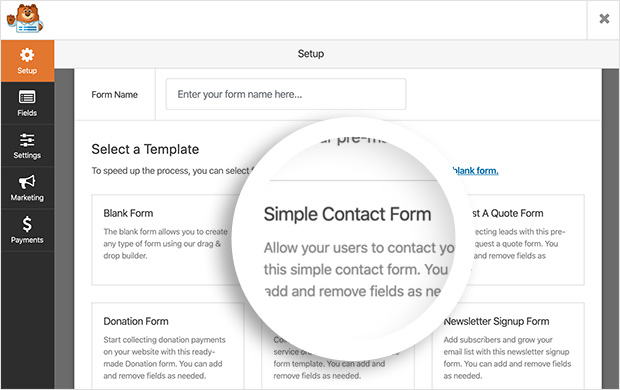
Head to WPForms » Add New to create a new form and view the available templates.
Then on that screen, give your form a name and choose the Simple Contact Form template.
WPForms will now open the template in the drag and drop form builder for you to edit.
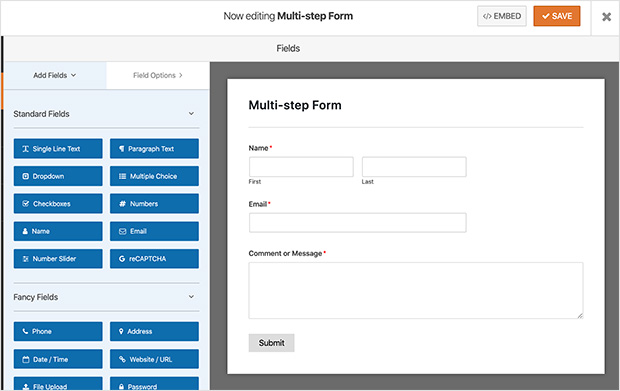
The simple contact form comes with the following fields already added to your form:
- Name
- Comment or Message
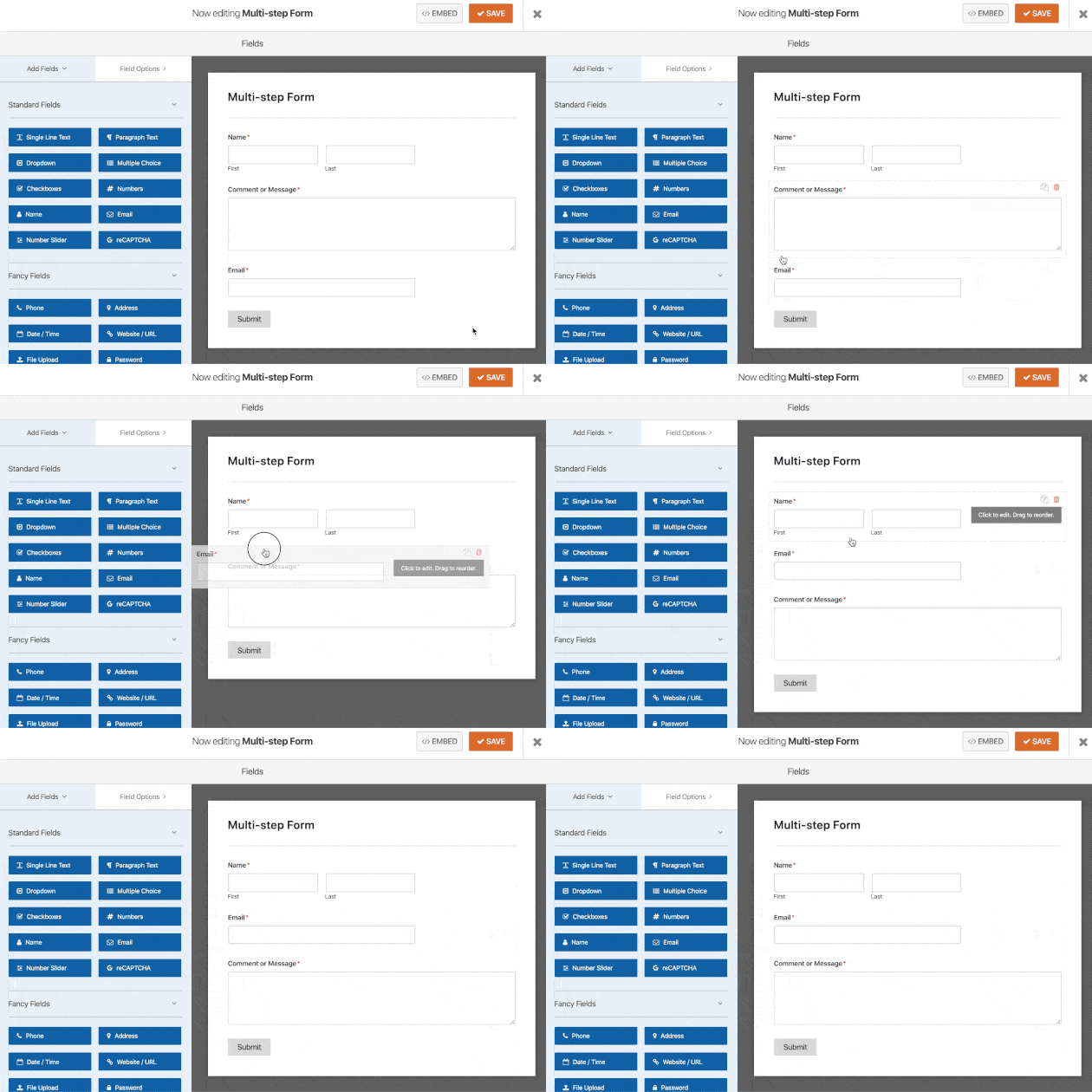
You can also move form fields around and add extra fields by dragging them from the left-hand column to the right-hand column. Simply click any form field to edit the contents and drag it to rearrange its position.
If you’d like to add more than a contact form to your WordPress site, you can also create the following form types with WPForms:
Most of these form types are longer than standard contact forms, so splitting them into multiple steps can improve conversions.
Step 2: Split Your Form into Multiple Parts
Once you’ve customized your form and added the fields you need, add the Page Break field to split your form into different pages.
You can do this by looking under the Fancy Fields heading and dragging the Page Break form field to the right-hand panel.
Then drop the field on your form where you want it to split.
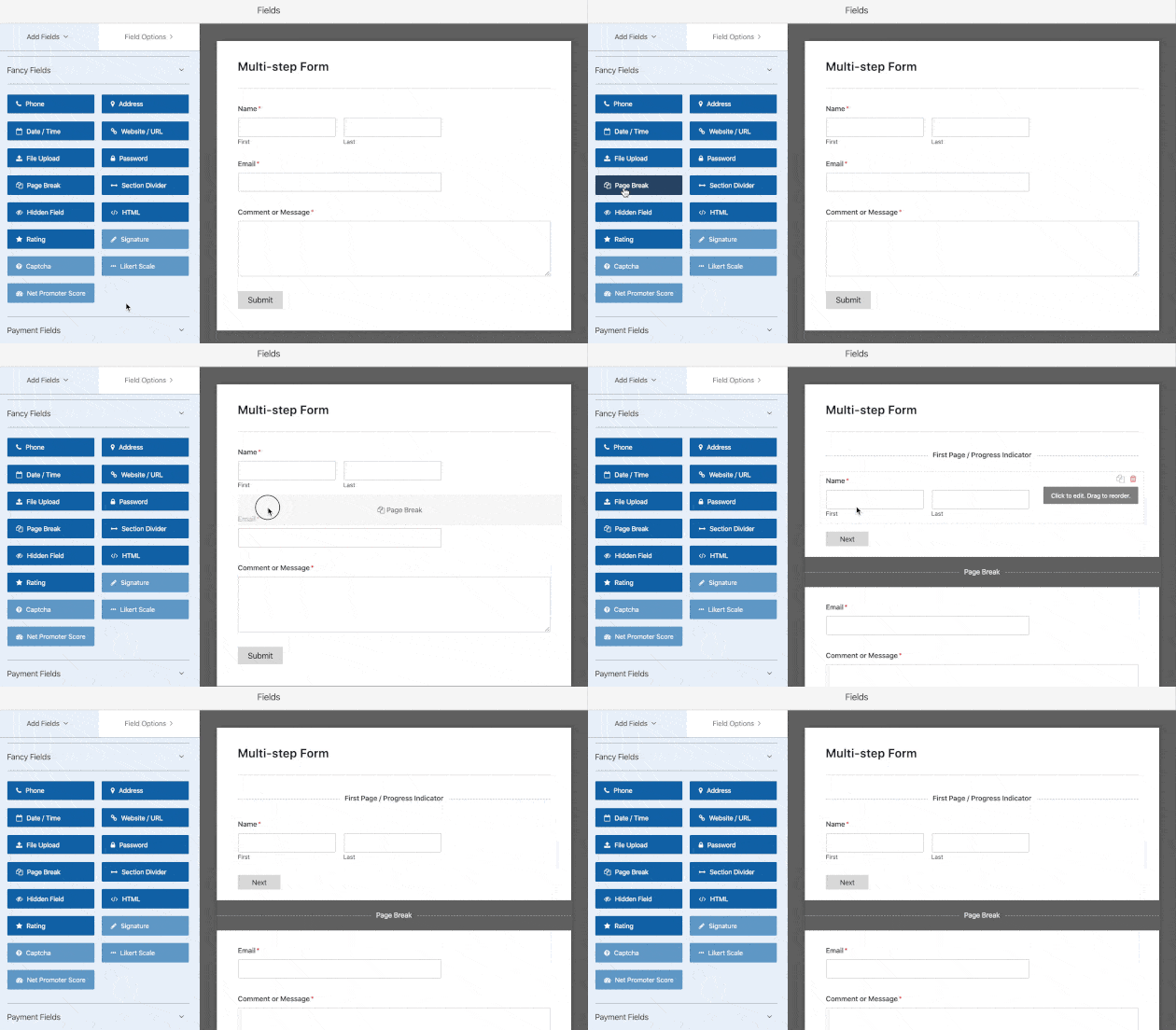
Repeat this for every section where you’d like to split your form into another page. From there, continue to customize your form by adding the fields you need to complete it.
While WPForms lets you add as many forms as you like, it’s crucial to prevent overwhelming users with too much information. Doing so can cause them to abandon your form, which is the opposite of what you want to achieve.
Step 3: Customize Your Form Progress Bar
To increase the flow of your form, you can include a progress bar. A progress bar tells people about the different sections of your form and is a great visual indicator for how much is left to complete.
WPForms comes with 3 different progress indicator bars for multi-step forms which are as follows:
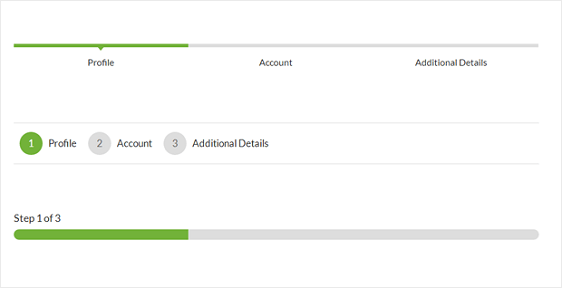
- Connectors – Connecting bars and page titles for each step of your form.
- Circles – Numbered circles and page titles for every form step.
- Progress Bar – Indicator of the user’s progress as they complete form steps.
Each option gives users a different visual experience. The Progress Bar shows a percentage-based fill that advances as users complete each step. The Circles and Connectors options show step counts (“Step 2 of 4”) with named labels, which work well when each step has a clear theme like “Your Details” or “Payment.”
Step names are worth the extra minute to configure. A label like “Step 2: Shipping Address” tells users exactly where they are in the process, which reduces drop-off more than an unlabeled bar. From the user’s perspective, labeled steps look professional and feel less intimidating than a generic progress indicator.
To change the progress bar and page title for the first page of your multi-page form, click the First Page break field.
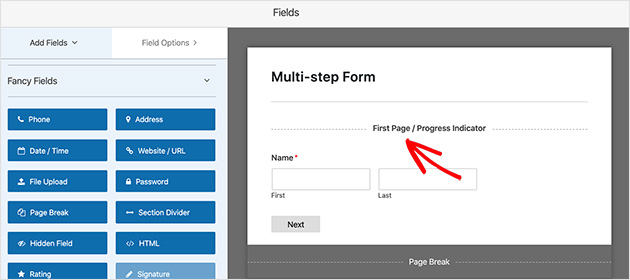
You’ll then see a new panel where you can choose the progress type for your form. In that area, you can also change the color used to highlight the progress indicator if you wish.
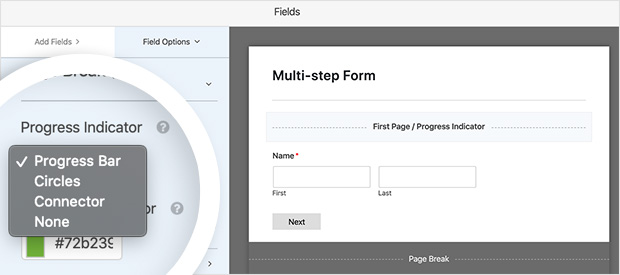
If you select the circles or connectors options, you’re able to change the page title too. Doing so helps users know which part of the form they’re on, so they don’t get lost. But if you’d prefer not to, a standard progress bar will be shown to users to guide them through filling out your form.
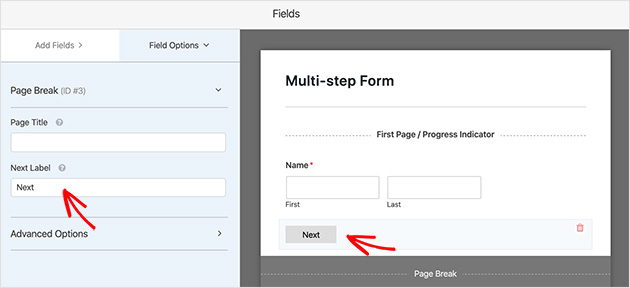
Moving on, you can change the Next Page button and text, which takes users to the next page of your form.
To do this, click the Page Break section you added when building your form.
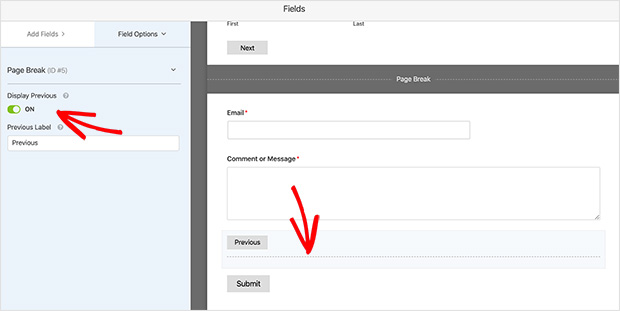
Furthermore, you can add a Previous Page button by clicking the toggle to the On position. That way, users can go back if they forgot to add some information.
Once you’ve finished customizing your progress bar, click Save and move on to the next step.
Step 4: Edit Your Form Settings
Now let’s move on to editing your form settings. To do this, go to Settings » General.
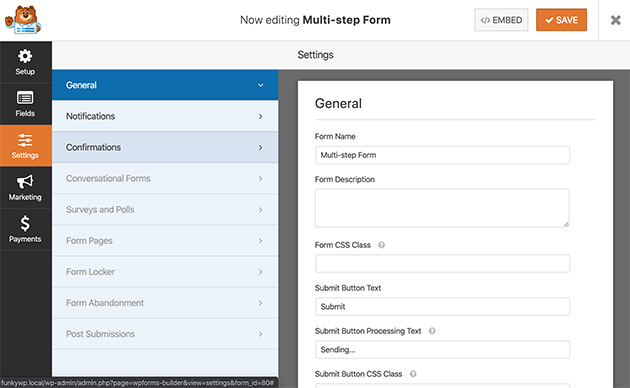
In this section, you can set the following options:
- Form Name – Give your form a new name if you like.
- Form Description – Add a description to your form for reference.
- Submit Button Text – Change the text of your submit button.
- Spam Settings – Enable the anti-spam honeypot option to prevent spammers from sending unwanted submissions.
- GDPR Features – Disable the storing of the information entered in your forms like IP addresses and other sensitive data to comply with GDPR.
When your settings are configured, click Save.
Step 5: Set Your Form Notifications
The notification settings in WPForms, send an email when a form is submitted on your WordPress site.
You can find the notification settings by clicking Settings » Notifications.
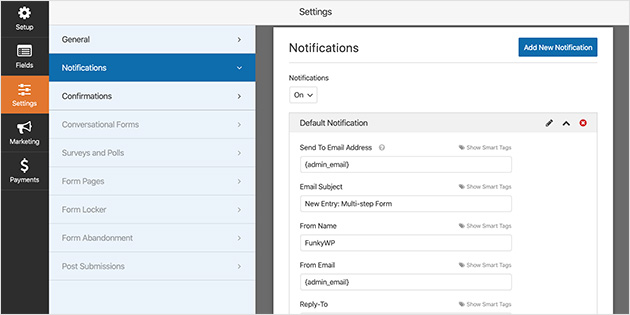
Yet if you don’t disable form notifications, you’ll receive an email for every form submitted on your site.
On the other hand, you can use smart tags to send an email to the people filling in your form. Smart tags are an excellent way to let them know their form has gone through correctly and that you’ve received it.
It’s even better to use that feature on long forms with multiple steps because they may take longer to fill. Plus, it saves users from wandering if everything went through okay. For more help, you can see the documentation on setting up form notifications here.
When you’ve finished setting up your notifications, move on to configuring your form confirmation message.
Step 6: Define Your Form Confirmation Message
Form confirmation messages are brief messages shown to users when they’ve submitted a form on your site. It’s an excellent way to tell people their form is being processed and what steps to take next.
There are 3 confirmation message types in WPForms which include:
- Message – A simple message letting users know their form was submitted.
- Show Page – Send users to a different page, such as a thank you page after submitting their form.
- Go to URL (Redirect) – Send site visitors to a different website after the form submission.
To set up your confirmation message, click Settings » Confirmation.
Then choose the type of message you’d like to show your visitors after completing your form. For this tutorial, we’ll select Message.
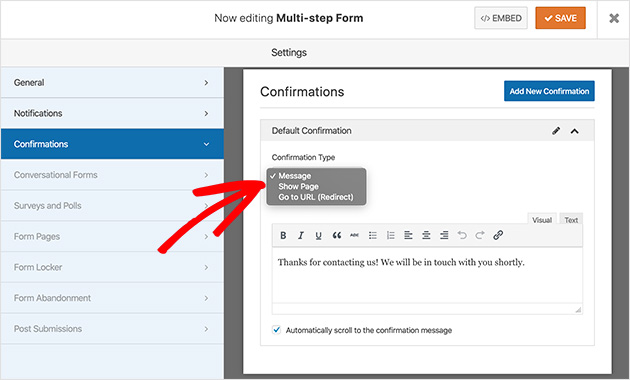
Now customize the message text to suit your needs and click Save when you’re happy.
You’re now ready to add your form to WordPress.
Step 7: Add Your Form to WordPress
Once you’ve created your multi-step form, it’s time to add it to your WordPress site. With WPForms, you can add your form to many areas of your website. This includes your site page or post, your sidebar, and any other widget-ready areas.
Let’s look at how to add your multi-step form to a WordPress page.
To start, go to your WordPress admin area and click Pages » Add New.
Then click the plus icon in the WordPress editor to add a new content block. In the search field, type WPForms to find it easily.
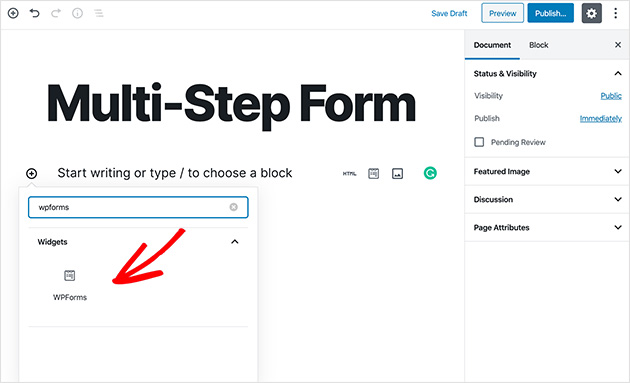
Now click the WPForms block to add it to your page.
When WPForms appears inside your block, click the dropdown arrow to select your multi-step form on the list and insert it into your page.
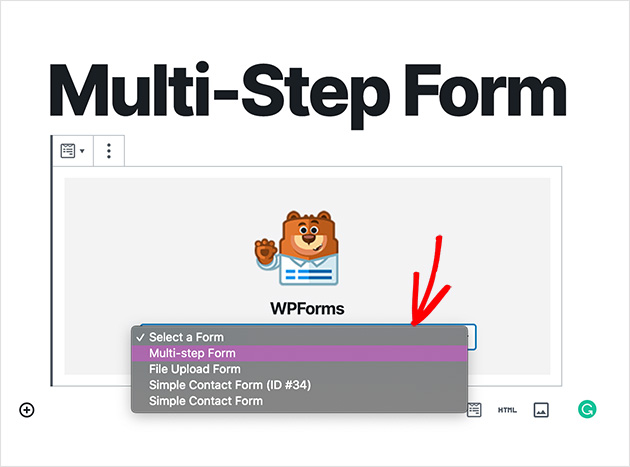
Then click Publish to publish the page in WordPress. Your multi-step form will now appear on your website.
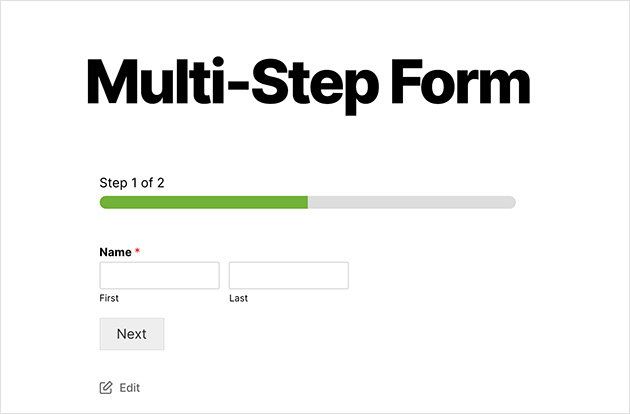
Add Your Multi-Step Form to a SeedProd Landing Page
You’ve built the form. Now the real question is where to put it. Adding your multi-step form to a standard WordPress page works, but embedding it on a dedicated landing page built with SeedProd gives you full control over the design around the form, which means fewer distractions and more conversions.
SeedProd has a built-in WPForms block that connects directly to any form you’ve created.
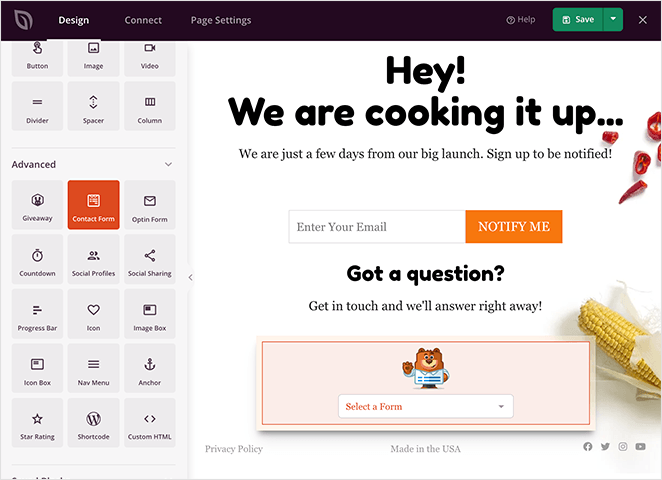
Here’s how to set it up:
- Open your landing page in the SeedProd page builder by going to SeedProd » Landing Pages and clicking Edit Page.
- In the left panel, search for WPForms and drag the WPForms block onto your page where you want the form to appear.
- Click the block to open its settings, then use the dropdown to select your multi-step form from the list of existing forms.
- Adjust the surrounding section layout, headline, and button styles to match your campaign, then click Save and Publish Page.
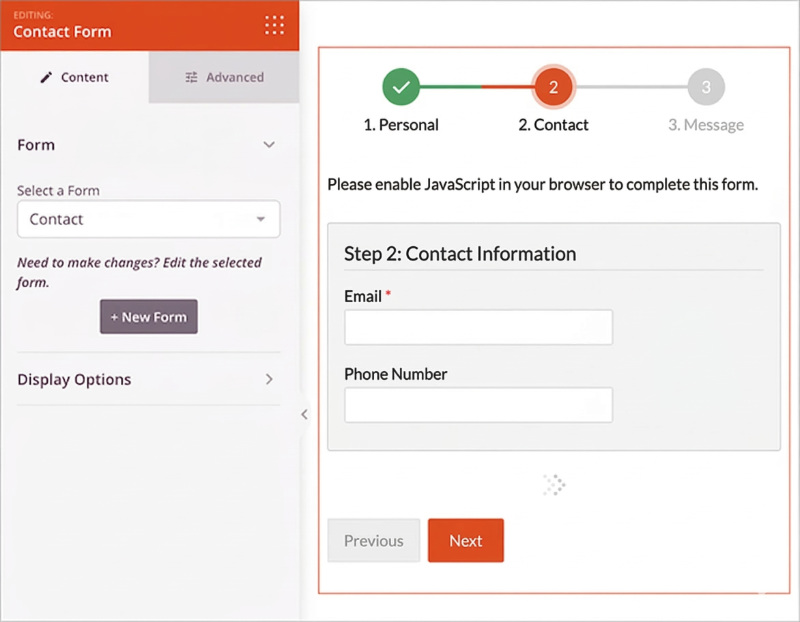
The form will render exactly as configured in WPForms, including the progress bar and multi-step layout. If you haven’t built a landing page yet, the SeedProd drag-and-drop editor makes it straightforward to create one from a template without touching any code.
FAQs About Multi-Step Forms in WordPress
And that’s it! You’ve learned how to create a multi-step form in WordPress so you can start improving user engagement and form conversion rates in no time at all.
If you liked this article, see our showcase of the best WordPress plugins to use your on your site too.
And for more form tutorials, see these articles:
- How to Create a WordPress Form With File Upload
- How to Create a Typeform-Style Form
- How to Create a Contact Form in WordPress
- How to Create an Online Order Form in WordPress
- How to Create a WordPress Event Registration Form
And if you’d like, do follow us on Facebook and Twitter for more helpful tips and tutorials.



