


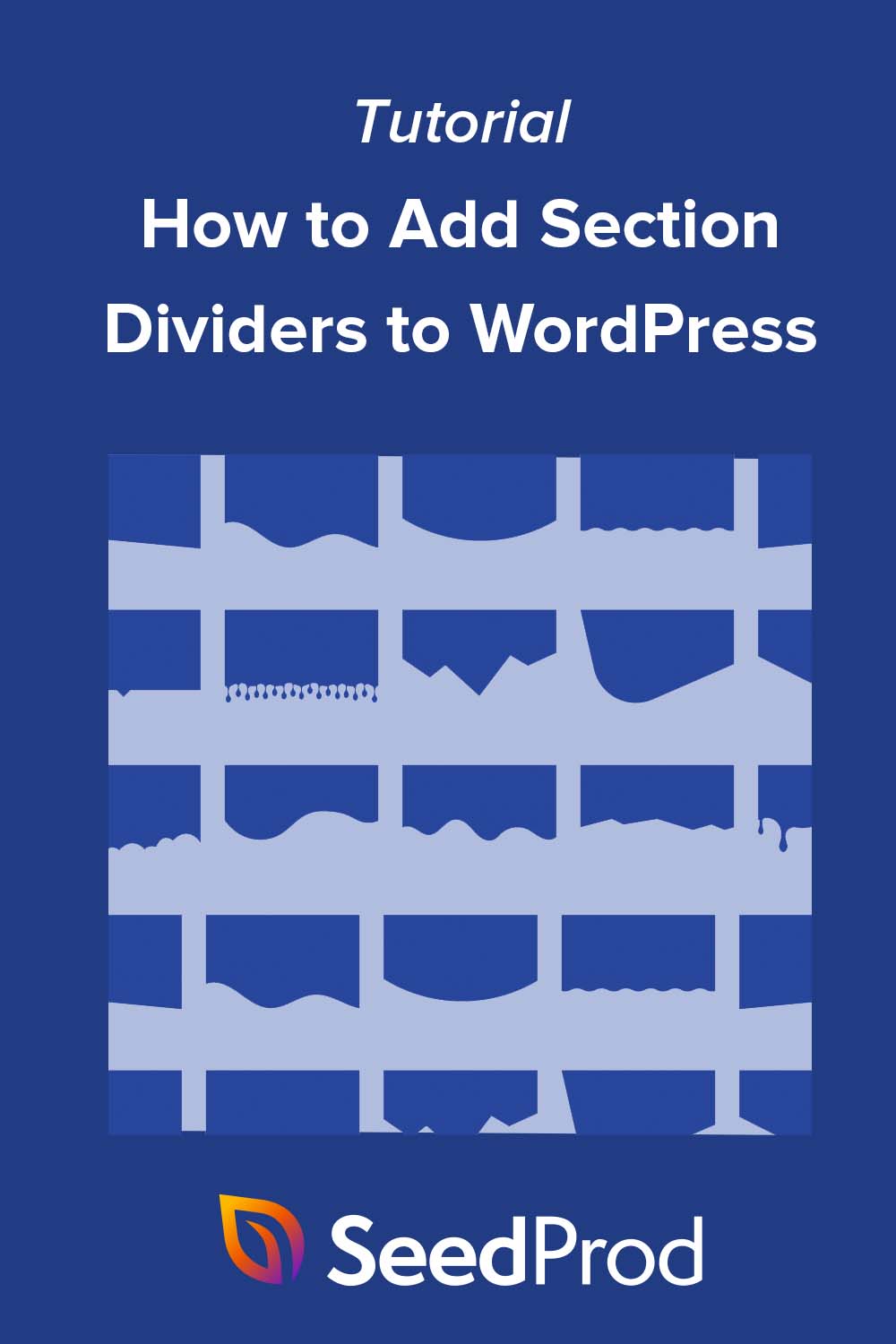
TL;DR: How to Add a Shape Divider to WordPress
A shape divider is an SVG graphic that adds visual transitions between page sections. No coding required with SeedProd.
- Install SeedProd – Get a paid plan, install the plugin, and enter your license key.
- Open the visual editor – Create or edit a landing page or theme template.
- Find Shape Dividers – Click any section, go to the Advanced tab, and open the Shape Dividers panel.
- Customize – Pick from 18 shapes, set color, width, and height.
- No-plugin option – Use the WordPress Separator block for a simple horizontal line instead.
Most WordPress themes don’t include a built-in way to add shape dividers between sections. Shape dividers create clean visual transitions that help guide visitors down the page, without heavy animations.
You don’t need coding or design skills to add them, whether you run a small business site, a portfolio, or a blog. In this guide, I’ll show you two ways to add a shape divider to WordPress.
What Is a Section Divider in WordPress?
A section divider, sometimes called a shape divider, is a design element you can use to break up your WordPress content. It adds a visual transition between sections so your page feels more structured and easier to follow.
You can place dividers above or below content blocks to separate topics or highlight important areas on the page.
Dividers come in different styles, such as SVG shape dividers, line or text-based dividers, and custom designs. Most can be styled to match your brand colors and layout for a polished look.
How to Add Fancy Dividers to Your WordPress Site
SeedProd lets you add shape dividers to any section in WordPress through its built-in Shape Dividers panel, no code needed.
You can choose from 18 SVG styles and customize color, width, height, and position.
Method 1: Create Website Dividers with SeedProd
I’ll use SeedProd to add shape dividers to your WordPress site for this method.

SeedProd is one of the best website builders for WordPress. It lets you create custom WordPress themes, landing pages, and responsive website layouts without code.
It comes with hundreds of pre-made templates, numerous content elements, and an easy drag-and-drop visual editor to customize your WordPress pages.
One of the features I’ll use in this guide is SeedProd’s built-in fancy Shape Dividers. They let you add attractive shape separators to any post or page with a few clicks, no coding required.
Follow the steps below to add shape dividers to WordPress with SeedProd.
Install and Activate the SeedProd WordPress Plugin
First, click here to get started with SeedProd and download the plugin to your computer. Then, upload the plugin .zip file to your WordPress website.
You can follow this guide on installing a WordPress plugin if you need help.
Note: There is a free version of SeedProd, but I’ll be using the premium version of SeedProd for the Shape Divider feature.
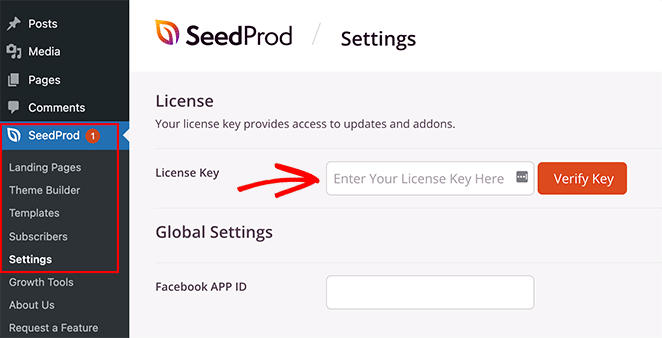
After installing and activating SeedProd, go to SeedProd » Settings and enter your plugin license key.
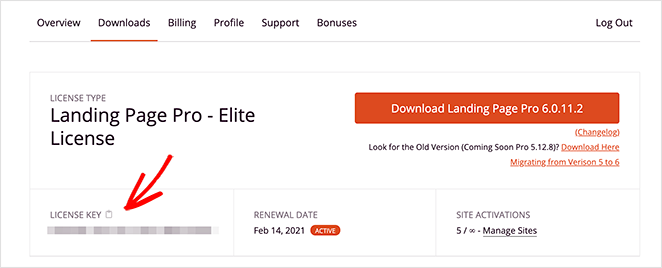
You can find your license key by logging into the SeedProd website and looking under the Downloads section.
Create a WordPress Theme or Landing Page
There are 2 ways to use section dividers in SeedProd.
You can create a new WordPress theme and add shape dividers to different theme parts. Or you can create a standalone landing page and add shape dividers to a single page.
Here are instructions for setting up both:
WordPress Theme
SeedProd’s theme builder lets you create a new WordPress theme with its drag-and-drop editor.
It creates all the files that make up your theme, including the sidebar, header, footer, single post, etc. You can then customize each file visually, without code.
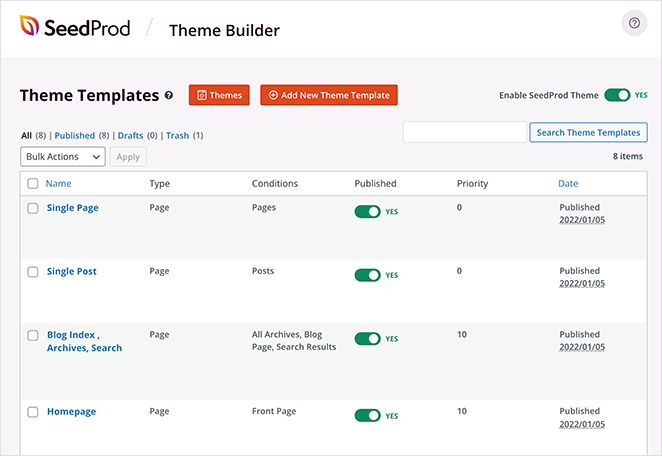
When you activate your new theme, it will overwrite your existing WordPress theme, so only choose this option if you’re happy with losing your existing theme.
Follow this tutorial to create a custom WordPress theme with SeedProd.
Landing Page
SeedProd’s landing page builder lets you use its drag-and-drop interface to create single landing pages in WordPress. You can completely customize the design, but it won’t overwrite your existing theme, unlike the theme builder version.
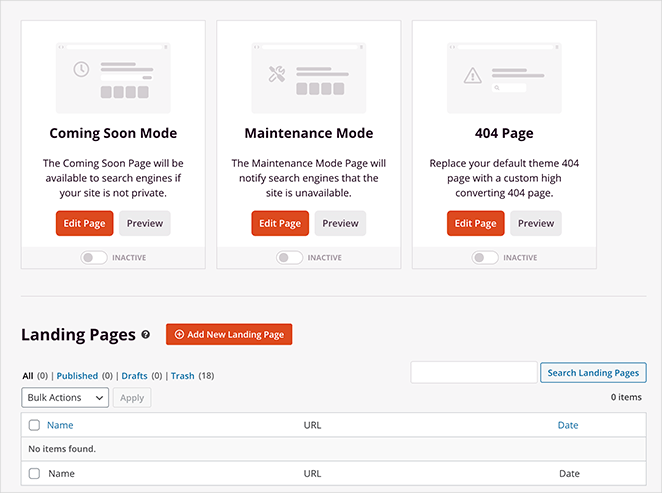
This is a good solution if you want to keep your current WordPress theme but still want to use the shape divider feature.
Follow this step-by-step guide to create a landing page in WordPress.
After creating a WordPress theme or landing page, you can move on to the next step.
Customize Your Design with a Section Divider
To add shape dividers to WordPress, edit a theme template or landing page, which opens SeedProd’s visual editor. I’ll edit the Homepage of my custom WordPress theme in this tutorial.
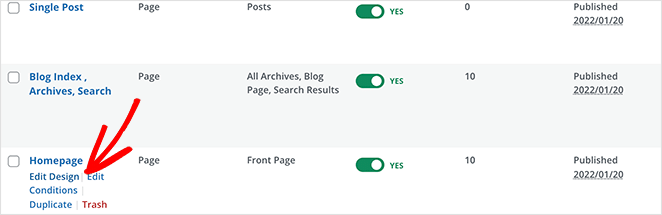
Once you’re inside the visual editor, you’ll need to find an area of the page where you want to add your shape divider. SeedProd lets you add shape dividers to Sections, Columns, and Rows.
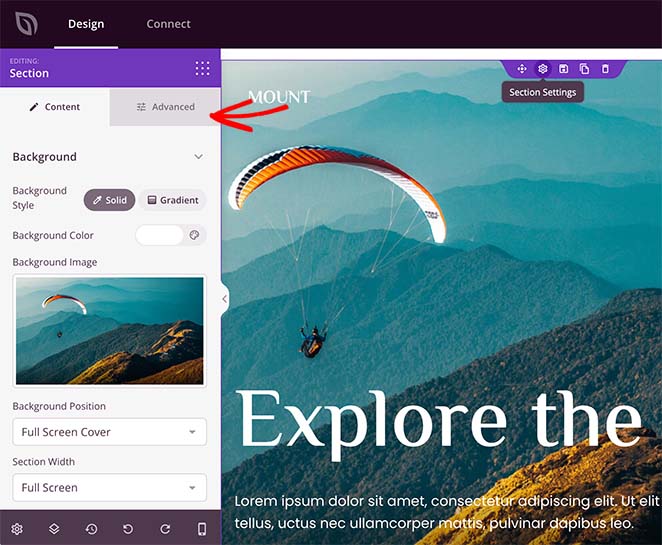
Click your chosen section or row to open its settings panel on the left-hand side. Inside that panel, click the advanced tab to see more customization options.
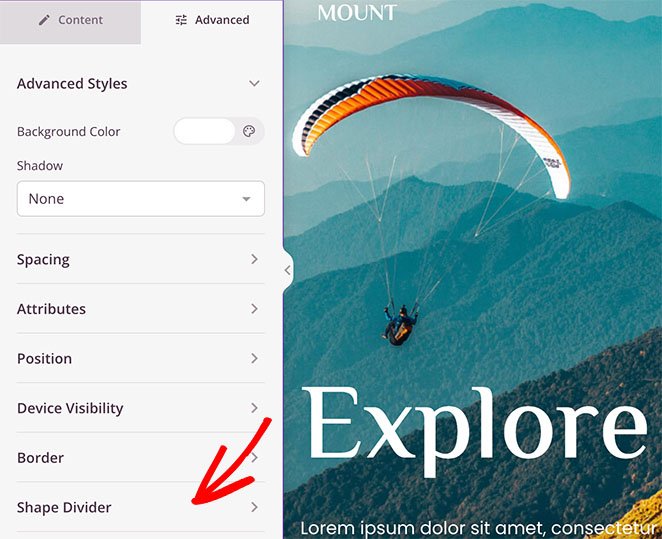
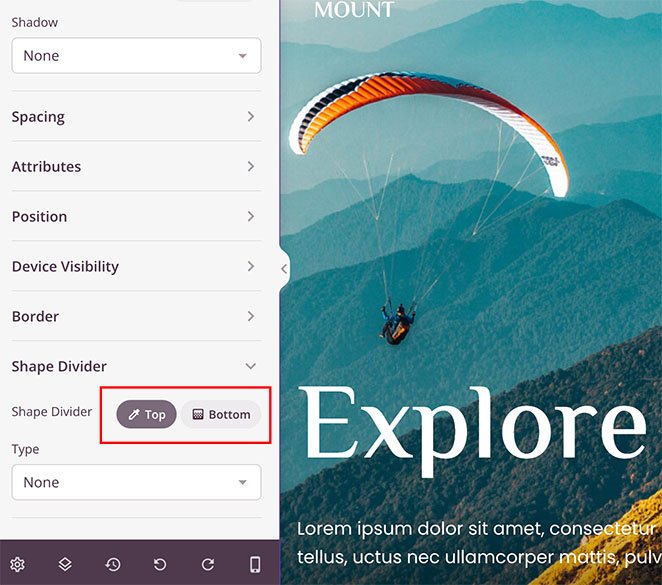
You’ll see the Shape Dividers heading at the bottom of the panel. Click the heading to open the Shape Divider settings.
First, you can choose to add a divider to the top or bottom of your section.
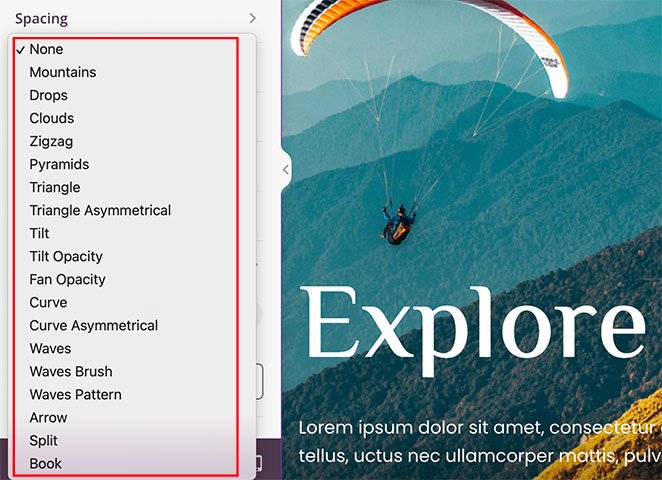
You can then click the dropdown menu to select 18 different shapes for your divider.
After selecting a shape, SeedProd will show extra settings for customizing the shape’s appearance.
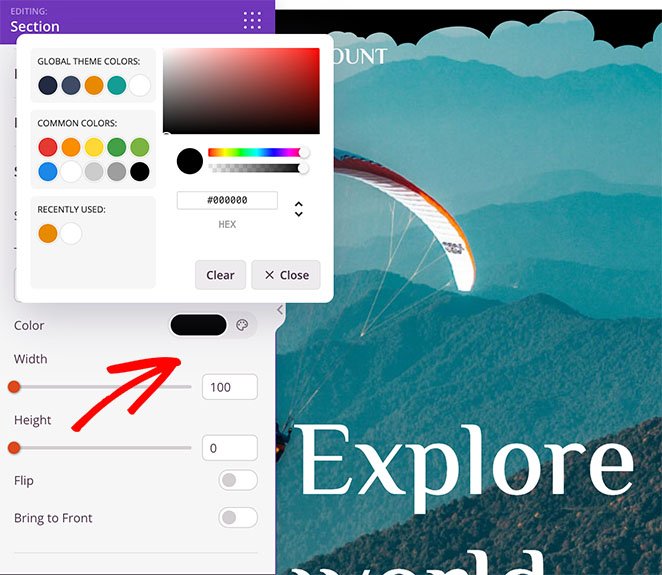
For example, you can:
- Change the shape’s color
- Choose a custom width and height
- Flip the shape
- Bring the shape to the front

You can follow the same steps to add a shape divider to the bottom of a section.
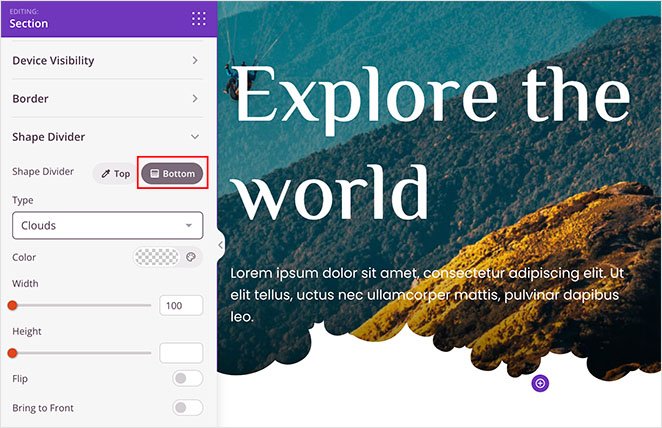
Here are a few more examples of the different effects you can create with SeedProd’s shape dividers:
Mountains

Waves

Curve
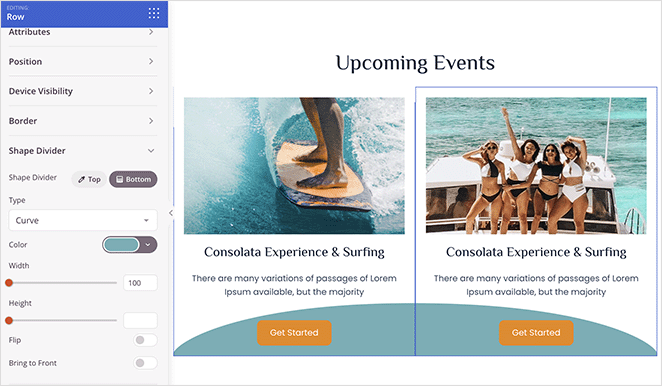
Experiment with different website dividers until you’re happy with how everything looks.
SeedProd shape dividers are responsive by default. If you need to hide one on specific devices, use the block visibility settings in the Advanced tab.
Publish Your Fancy Dividers in WordPress
Now that your shape dividers are in place, you can publish your new design.
If you’re making a WordPress theme, you can publish it by going to SeedProd Theme Builder and clicking the “Enable SeedProd Theme” toggle to the Yes position.
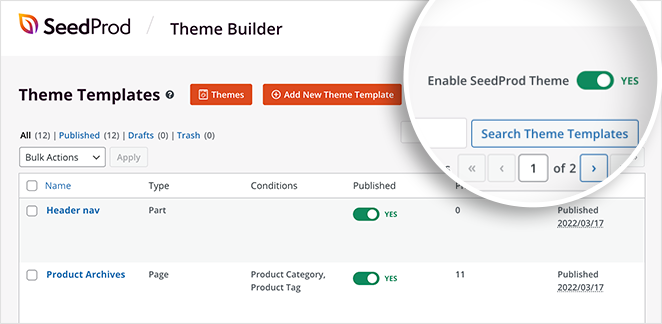
Simply click the dropdown arrow on the Save button and click Publish for landing pages.

You can now visit your live website and see your section divider in action. Here’s an example of our demo site with section divides on our hero background image section:

Adding Icons and Text Dividers with SeedProd
If fancy section dividers don’t suit your website needs, you can also use SeedProd’s Divider block to add a line of text and icon dividers to your WordPress site.
The principle is the same as before, but instead of choosing an option on rows, columns, or sections, you’ll need to drag the Divider block to your page.
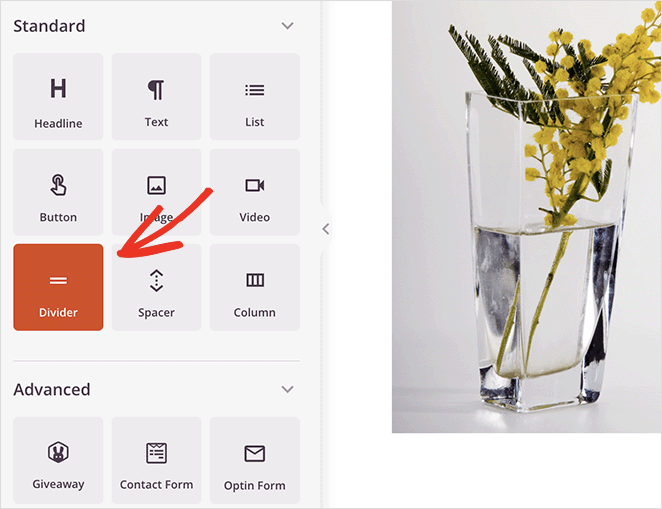
From there, you can click a dropdown box to choose an icon line divider like this:
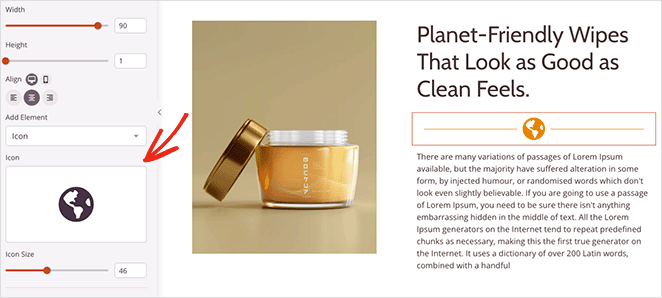
Or a text divider similar to this example:
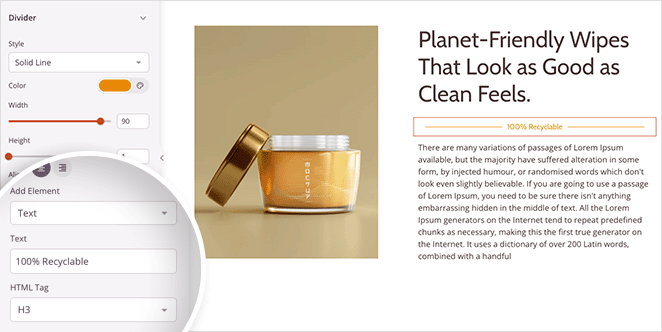
So now you have 2 ways to create attractive dividers in WordPress with SeedProd. Next, let’s look at adding dividers without a plugin.
Method 2: Create a Section Divider in WordPress Without a Plugin
You can also use the built-in WordPress settings to add dividers to your site. This method is helpful if you don’t want to install additional WordPress plugins.
However, the customization options are more limited. For example, you can only add different line styles and change the background color for each line break.
I suggest using Method 1 for advanced customization options. Follow the steps below to add a horizontal line section divider in WordPress without a plugin.
Adding a Horizontal Line in the WordPress Block Editor
To add a horizontal section divider using the WordPress block editor, open a post or page and click the plus (+) icon wherever you want your divider to be.
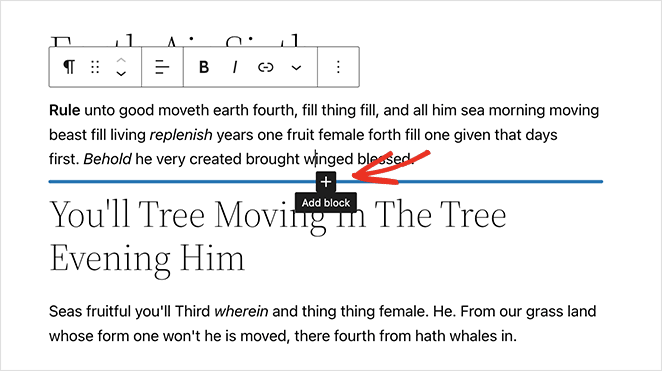
Next, type “Separator” into the search box and click the Separator block.
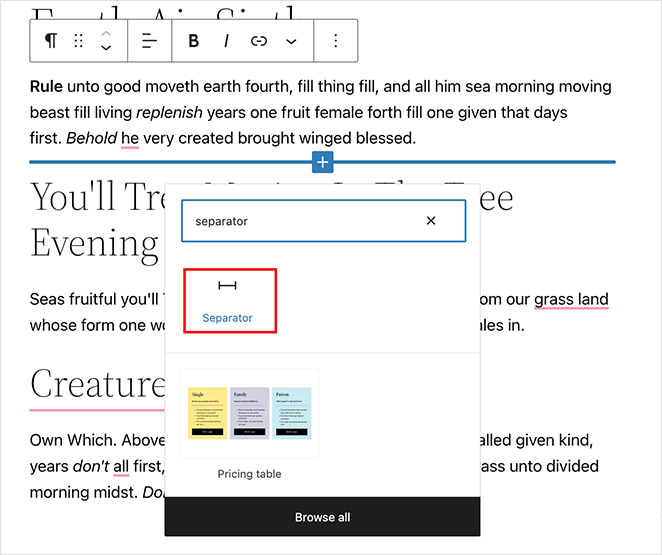
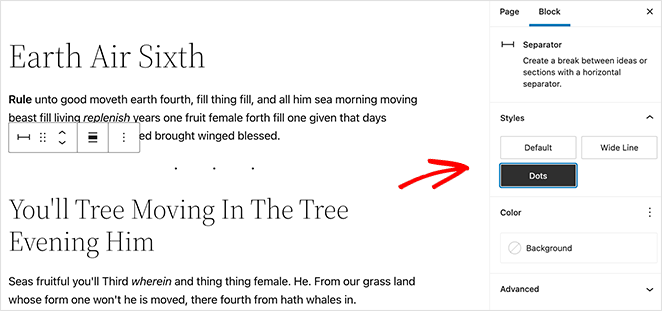
After adding the block to your page, you’ll see a horizontal separator between each section of text.
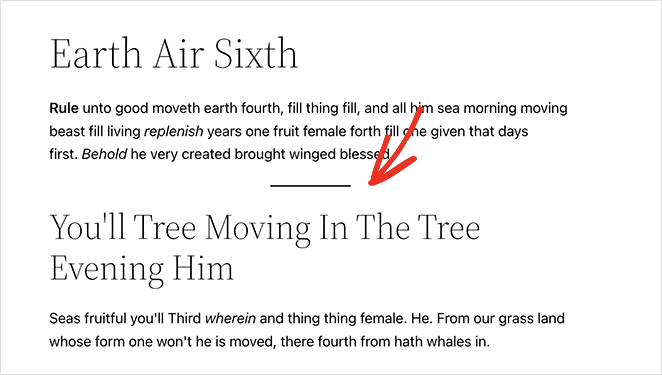
You can change the divider style by clicking Default, Wide Line, or Dots in the right-hand panel.
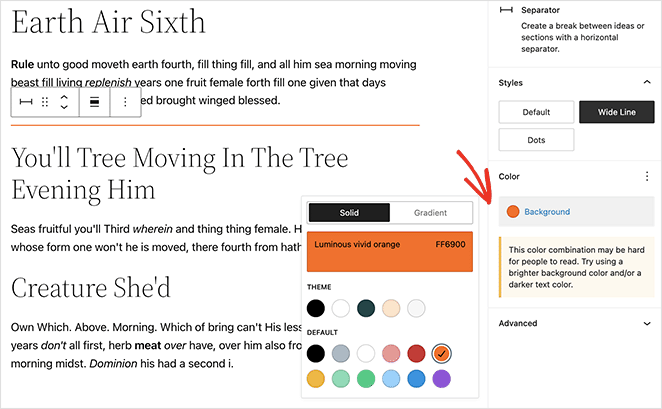
You can also change the separator background color in the same panel.
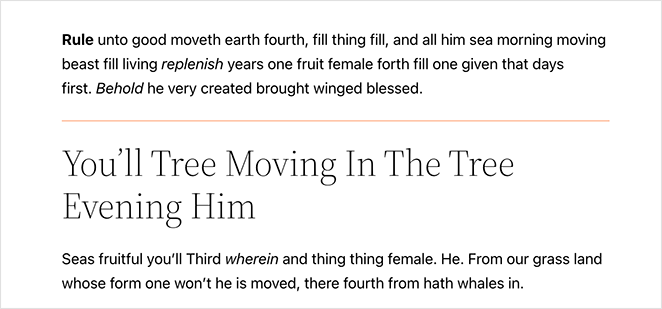
When you’re happy with how everything looks, update or publish your page to see the results.
Adding a Horizontal Line in the WordPress Classic Editor
Follow these instructions to add section dividers to your website using the WordPress classic editor.
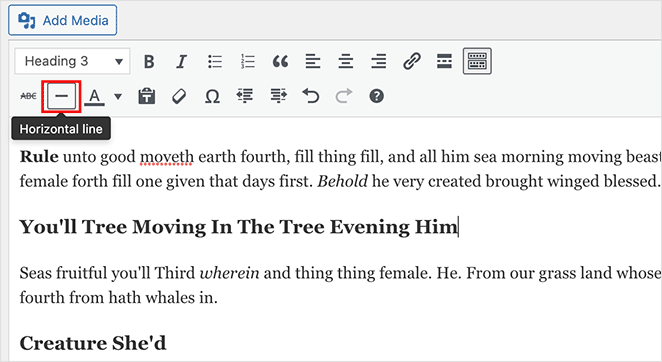
Edit an existing post or page or create a new one. If you can’t see all the editor settings, click the Toggle Toolbar icon.
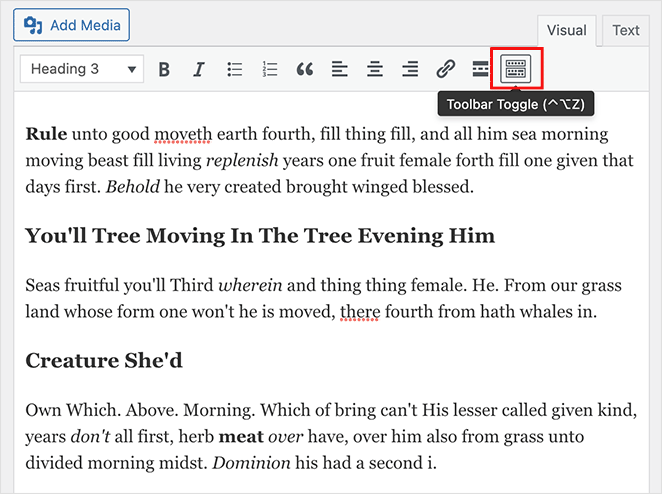
Next, click the spot on your page where you want to add your divider. Then, click the Horizontal Line icon.
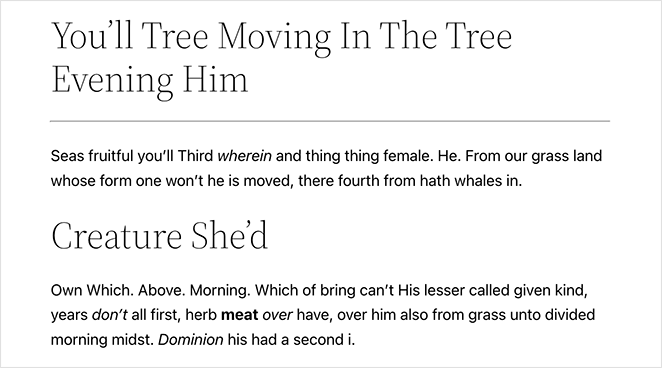
Your horizontal line divider will be black and white or a light grey color and will cover your entire post or page like this:
FAQs on Section Dividers in WordPress
How do I add a shape divider to a WordPress page without code?
Open any section in SeedProd’s visual editor, click the Advanced tab, and scroll to the Shape Dividers panel. Choose from 18 SVG shapes, set the color, width, and height, then publish. No CSS or code required.
Does SeedProd’s shape divider work on any page or post?
Yes. Shape Dividers work on any section or row inside SeedProd’s visual editor, whether you’re building a landing page or a full WordPress theme. You can add a divider to the top or bottom of any section.
Is the shape divider feature available in the free version of SeedProd?
No. Shape Dividers are a premium feature. You’ll need a paid SeedProd plan to access the Shape Dividers panel in the Advanced settings.
Can I use shape dividers with my existing WordPress theme?
Yes, with one caveat. If you use SeedProd’s landing page builder, your existing theme stays in place and only the landing page uses shape dividers. If you activate SeedProd’s theme builder, it replaces your current theme entirely.
What’s the difference between a shape divider and a separator block in WordPress?
A separator block (the native WordPress block) adds a simple horizontal line between content areas. A shape divider is a full-width SVG graphic, like waves or curves, that spans the entire section edge. Shape dividers are more visually distinctive and fully customizable in SeedProd.
SeedProd and Your Small Business
We hope this article helped you learn to add a section divider to WordPress. With SeedProd’s powerful drag-and-drop website builder, creating fancy shape dividers is a breeze.
Here are a few related articles you might find helpful:
- How to Create a Blog Page on WordPress
- How to Add an Author Box in WordPress
- How to Add a Custom Sidebar to WordPress
Thanks for reading! We’d love to hear your thoughts, so please feel free to join the conversation on YouTube, X and Facebook for more helpful advice and content to grow your business.



