



TL;DR: How to Create a Vertical Navigation Menu in WordPress
There are 5 ways to add a vertical navigation menu to your WordPress site, from beginner-friendly to fully custom.
- SeedProd – Drag the Nav Menu block into any theme template and switch the layout to Vertical.
- WordPress theme – Choose a theme with built-in vertical navigation support.
- Full Site Editor – Click the navigation block in Appearance » Editor and change the orientation to vertical.
- Sidebar widget – Add the Navigation Menu widget to your sidebar in Appearance » Widgets.
- Posts and pages – Insert a Navigation block inside any post or page and flip the orientation to vertical.
If your WordPress site is growing and your top navigation is getting crowded, a vertical navigation menu is one of the easiest fixes. I’ve seen it work well for eCommerce stores with many product categories, documentation sites, and membership sites that need a structured sidebar layout.
In this guide, I’ll show you 5 ways to add a vertical navigation menu to WordPress without writing a single line of code.
What Is a Vertical Navigation Bar in WordPress?
A vertical navigation bar in WordPress is a site menu that displays links in a stacked column instead of the standard horizontal row. It typically sits in a left sidebar, though you can place it anywhere your theme or page builder supports.
WordPress users add one to free up header space, improve scannability on content-heavy sites, and match designs that benefit from a more structured sidebar navigation layout.
When Should You Use a Vertical Navigation Bar in WordPress?
A vertical navigation menu makes the most sense when your site has a lot to navigate and the header is running out of room. It turns sidebar space into a clear, scannable side navigation menu instead of cramming everything into a top bar.
It’s especially useful for eCommerce sites with 10 or more product categories, where shoppers need to navigate many options without crowding the header. Documentation and knowledge base sites use it for the same reason, and so do membership sites that rely on a vertical sidebar menu to group dashboard links by section.
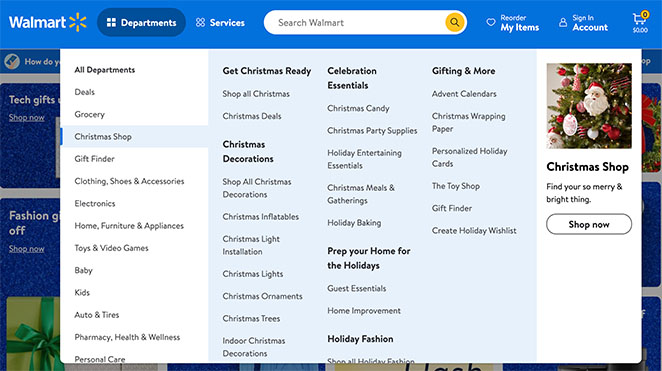
That said, a vertical side navigation menu isn’t always the right choice. Single-page sites, sites with fewer than 6 navigation items, and mobile-first designs are better served by a standard horizontal menu.
How to Create Vertical Navigation with SeedProd
Creating a vertical navigation menu in WordPress is a breeze with SeedProd, the drag-and-drop WordPress website builder.

With SeedProd’s drag-and-drop builder, you can create custom WordPress themes and flexible web pages without writing PHP, Jquery, Javascript, HTML & CSS code. Plus, its Nav Menu block includes vertical navigation built-in.
First, you’ll need to install and activate the SeedProd plugin. If you need help, you can see our documentation on installing SeedProd Pro.
Note: With the free version of SeedProd, you can add a vertical navigation bar to individual pages. However, we’ll use SeedProd Pro for this guide to add a menu bar to our WordPress theme templates.
After activating the plugin and entering your license key, you’re ready to create a custom WordPress theme.
Creating a Custom WordPress Theme
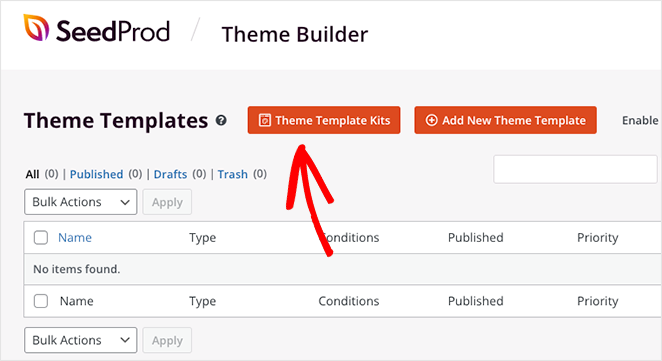
To create your theme, navigate to the SeedProd » Theme Builder page from your WordPress dashboard. On this page, you can choose a pre-made theme as a starting point.
It will replace your existing theme with a custom responsive website design of your choice. To do this, click the Theme Template Kits button.
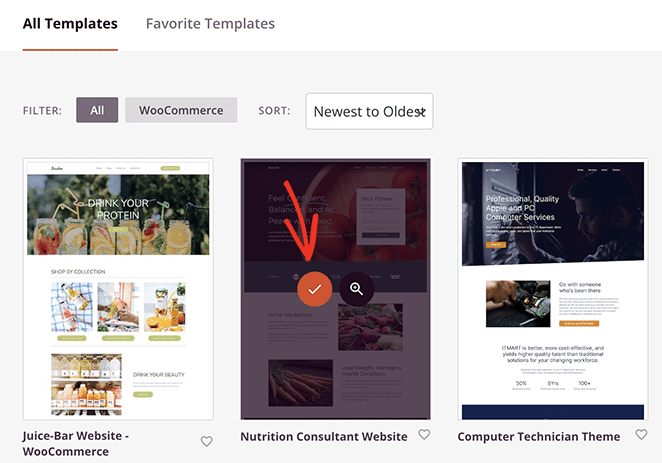
You’ll then see the themes library with designs for different website niches. Clicking the dropdown menu lets you filter them by popularity and type.
Browse through them, then click the checkmark icon on any design to import it.
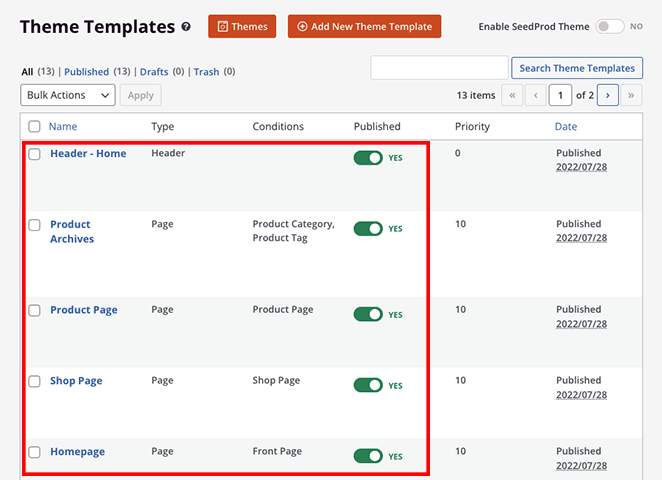
When you import a design, SeedProd will generate the templates that make up your theme. From there, you can edit each template and customize the design to suit your needs.
For all the steps, see our guide on how to create a custom WordPress theme.
Add a Vertical Navigation Bar to Your Templates
You can use SeedProd to add a vertical navigation bar to any of your theme templates. For this guide, we’ll add a menu to the ‘Blog Page’ template.
To do this, hover your mouse cursor over the template and click the ‘Edit Design’ link.
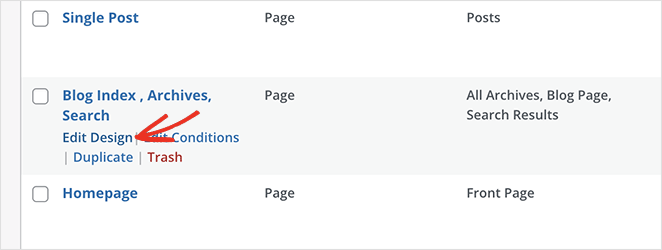
This opens the drag-and-drop page builder, with a live preview on the right and a block sidebar on the left.
Now, scroll down the blocks sidebar and look for the Nav Menu block. Once you find it, drag it to where you want to show your navigation menu, such as the sidebar.
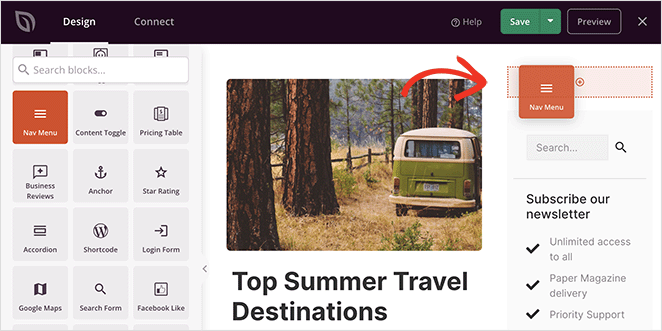
By default, the Nav Menu will only show an ‘About’ menu item. You can change this in the menu settings by clicking the block. It’ll then show the settings in the left-hand sidebar.
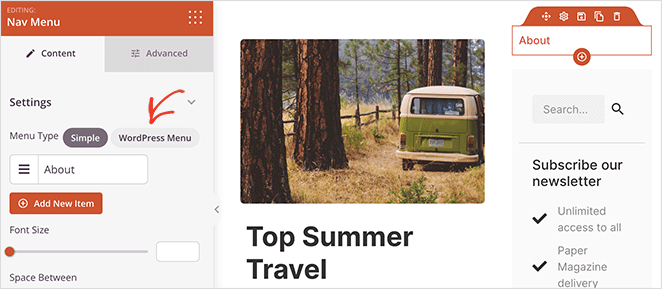
At first, the ‘Simple’ menu type is enabled, which lets you build your own navigation menu.
For this guide, we’ll select the ‘WordPress Menu’ type, which allows you to use your existing WordPress navigation menu.
The next step is to make the bar vertical instead of a horizontal navigation bar. You can do this by clicking the Advanced tab in the block settings and selecting the ‘Vertical’ list layout.
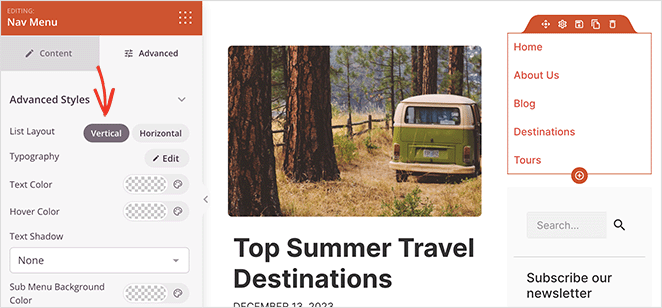
In the same panel, you can customize the menu colors, typography, background color, text-align setting, text decoration, and more.
When you’re happy with your menu, click the Save button to store your changes. You can repeat these steps for every template that requires vertical navigation.

4 More Ways to Create Vertical Navigation in WordPress
Creating a vertical navigation bar with SeedProd is a great choice if you’re using a theme builder plugin. But what if you want to use the tools already on your website?
Below, you’ll find four more methods for adding vertical navigation to WordPress.
Which WordPress Themes Include Vertical Navigation Support?
Another way to add vertical navigation to your website is to choose a WordPress theme that supports it. Many WordPress themes have built-in support for vertical navigation bars, saving you a lot of time.
The advantage here is simplicity. Choose a theme that suits your aesthetics and let it do the heavy lifting for you. This might be the perfect solution if you’re not tech-savvy or short on time.
However, be aware that not all themes will offer this feature. When choosing your theme, go to its settings or documentation to see if it includes a vertical navigation bar.
For example, the default Twenty-Twenty-One theme doesn’t include vertical navigation. Meanwhile, the Astra theme supports an off-canvas hamburger menu and a footer menu that you can display stacked or inline.
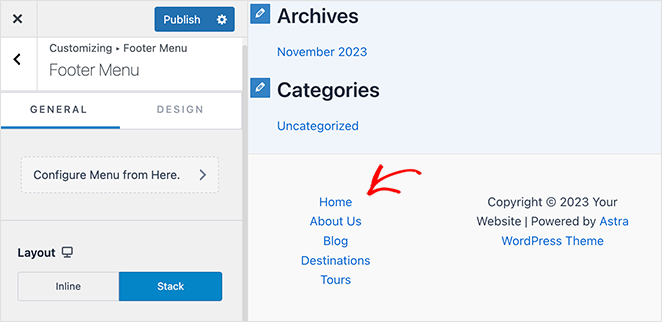
For help editing your menu, you can see our guide on how to edit the navigation bar in WordPress.
Add a Vertical Navigation Bar with Full Site Editor
Many WordPress themes are compatible with the WordPress Full Site Editor (FSE). They’re known as block-based themes and allow you to customize your theme visually.
To do this, navigate to Appearance » Editor from your WordPress admin. From there, click the navigation menu at the top of your website header.
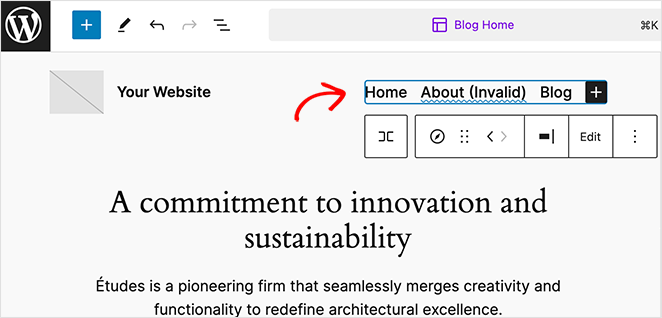
After clicking the menu, you’ll see several options in the side navigation panel. For example, if you click the Settings tab, there’s an option to change the orientation of the menu list items.
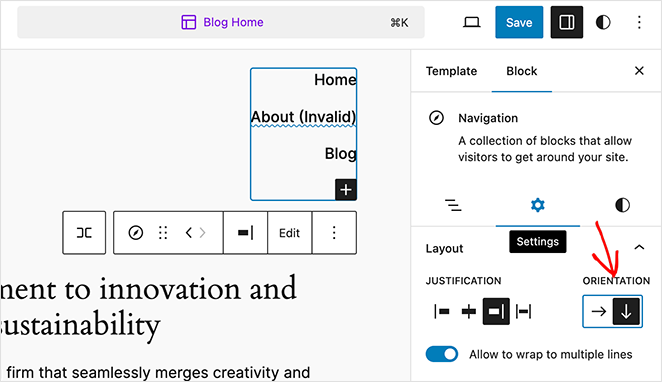
Click the downwards arrow to switch the menu to vertical navigation.
Now click the Save button to save your changes.
Add a Vertical Navigation Menu to WordPress Sidebar
You can easily add a sidebar navigation menu to your site using widgets if you don’t want to change your WordPress theme. This method is ideal if you don’t have a block-based theme installed.
First, make sure you’ve set up a navigation menu. Then head to Appearance » Widgets from your WordPress dashboard.
From there, click the (+) plus button and look for the Navigation Menu widget.
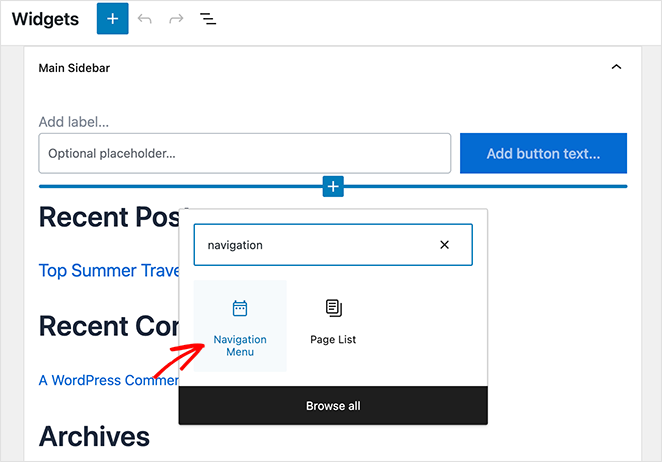
After clicking to add it to your sidebar, you can give the menu a title and choose which menu to show.
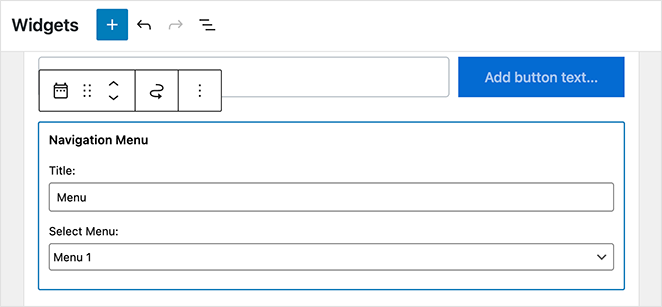
Now save your changes and preview your site to see the vertical side navigation menu in action.

Create a Vertical Navigation Bar for Posts and Pages
This approach works well for long tutorial posts or documentation pages where you want in-article section navigation alongside the main content. It uses the same Navigation block as the sidebar method, but placed directly inside post or page content instead.
First, edit or create a new post or page. Then, add the Navigation block.
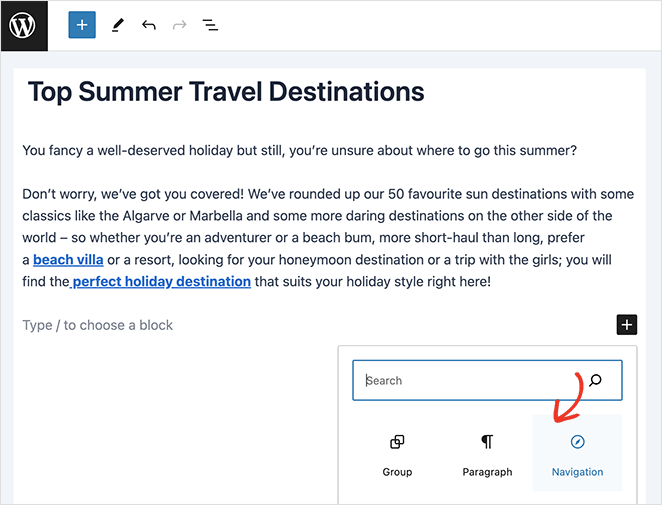
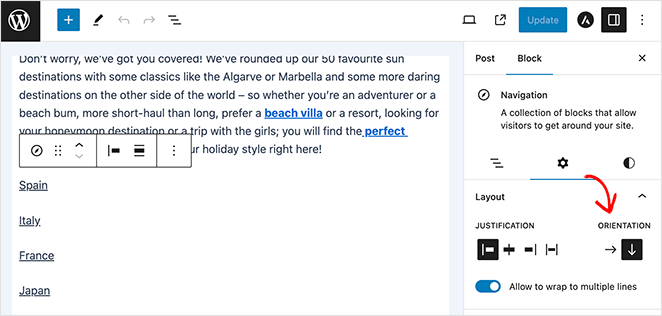
In the right-hand sidebar, click the down arrow to make the menu vertical, then save your changes.
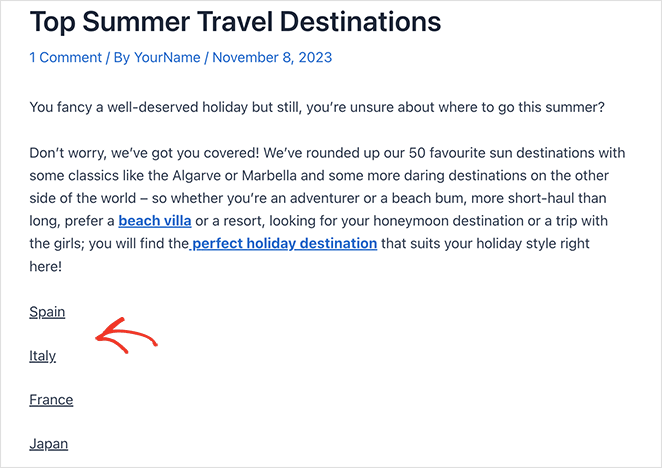
When you view the post or page, you’ll see a new vertical navigation bar.
FAQs About Vertical Navigation Bars
What is a vertical navigation bar?
A vertical navigation bar is a site menu that displays links in a stacked column instead of a horizontal row. It usually appears in a left sidebar and works well for sites with many pages or categories to navigate. Most WordPress sites that add one do it to free up header space and make the menu easier to scan.
When should you use a vertical navigation bar in WordPress?
Use a vertical navigation menu when your site has more than 6 or 7 top-level navigation items, or when your audience needs to browse many categories at once. It’s a good fit for eCommerce stores, knowledge bases, and membership sites. Avoid it on simple sites or mobile-first designs where sidebar space is limited.
What is the difference between vertical and horizontal navigation?
Horizontal navigation displays menu links in a single row across the top of the page. Vertical navigation stacks links in a column, usually in a sidebar. Horizontal menus work well for simple sites with few pages; vertical menus handle larger link lists without crowding the header.
How do you handle mobile responsiveness for a vertical navigation bar?
Most WordPress tools that add vertical navigation, including SeedProd, handle mobile responsiveness automatically. For custom setups, use a collapsible or hamburger-style menu on small screens so the vertical nav doesn’t take up the full viewport. Always test on a real mobile device before publishing.
What is the ideal width for a vertical navigation bar?
A width of around 200 to 300 pixels works well for most sites. It’s wide enough to show full menu labels without truncating and narrow enough to leave room for your main content. Always verify that the menu remains readable at a 768px tablet viewport, not just on desktop.
Build Your Next Vertical Nav Menu
That concludes our guide on how to create a vertical navigation menu in WordPress. Now it’s your turn to build a more user-friendly navigation system for your website.
Whether you go with SeedProd or one of the other methods, the goal is the same. A good navigation system makes your site easier to use, and that’s always worth the effort.
Happy designing!
Ready to build your site? Get SeedProd and add vertical navigation to any template in minutes.
For more navigation tips, see the following tutorial:
- How to Customize WordPress Menu Styles
- How to Edit Mobile Menus in WordPress
- Landing Page Navigation Is Dead: Here’s Why
- How to Make a Landing Page Without Navigation
- How to Add a Different Sidebar for Different Pages in WordPress
Thanks for reading! We’d love to hear your thoughts, so please feel free to join the conversation on YouTube, X and Facebook for more helpful advice and content to grow your business.



